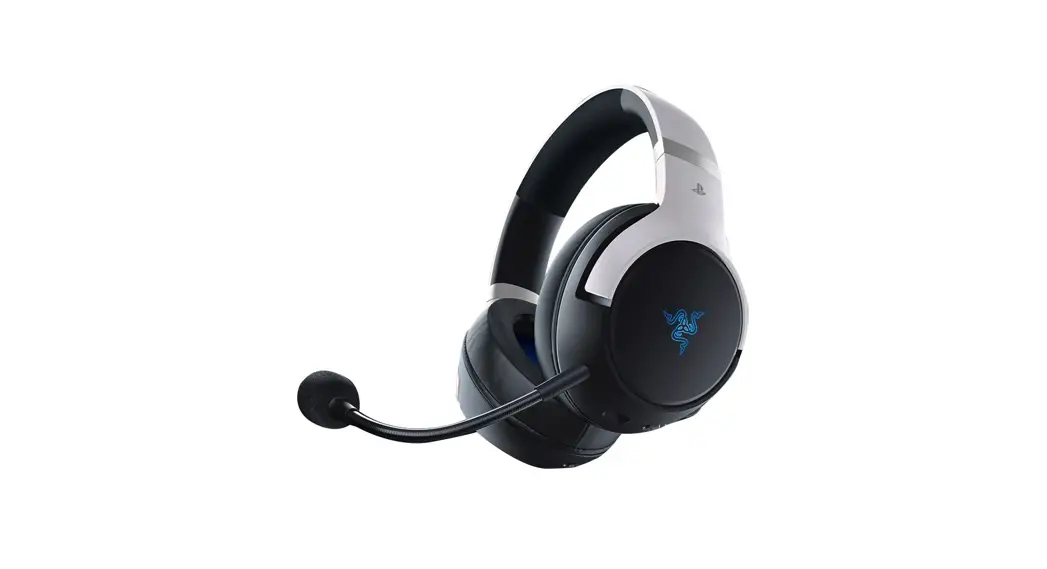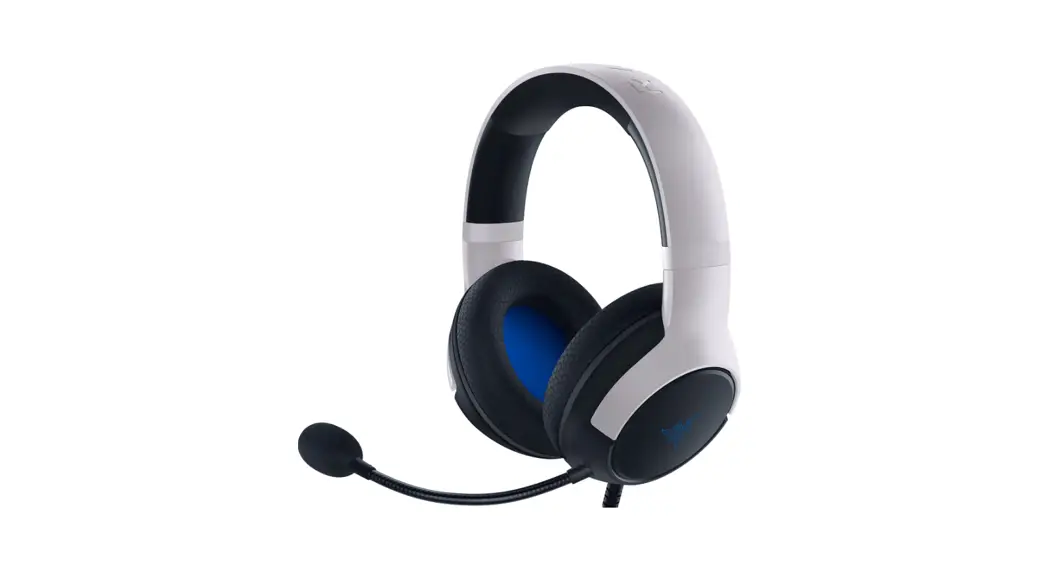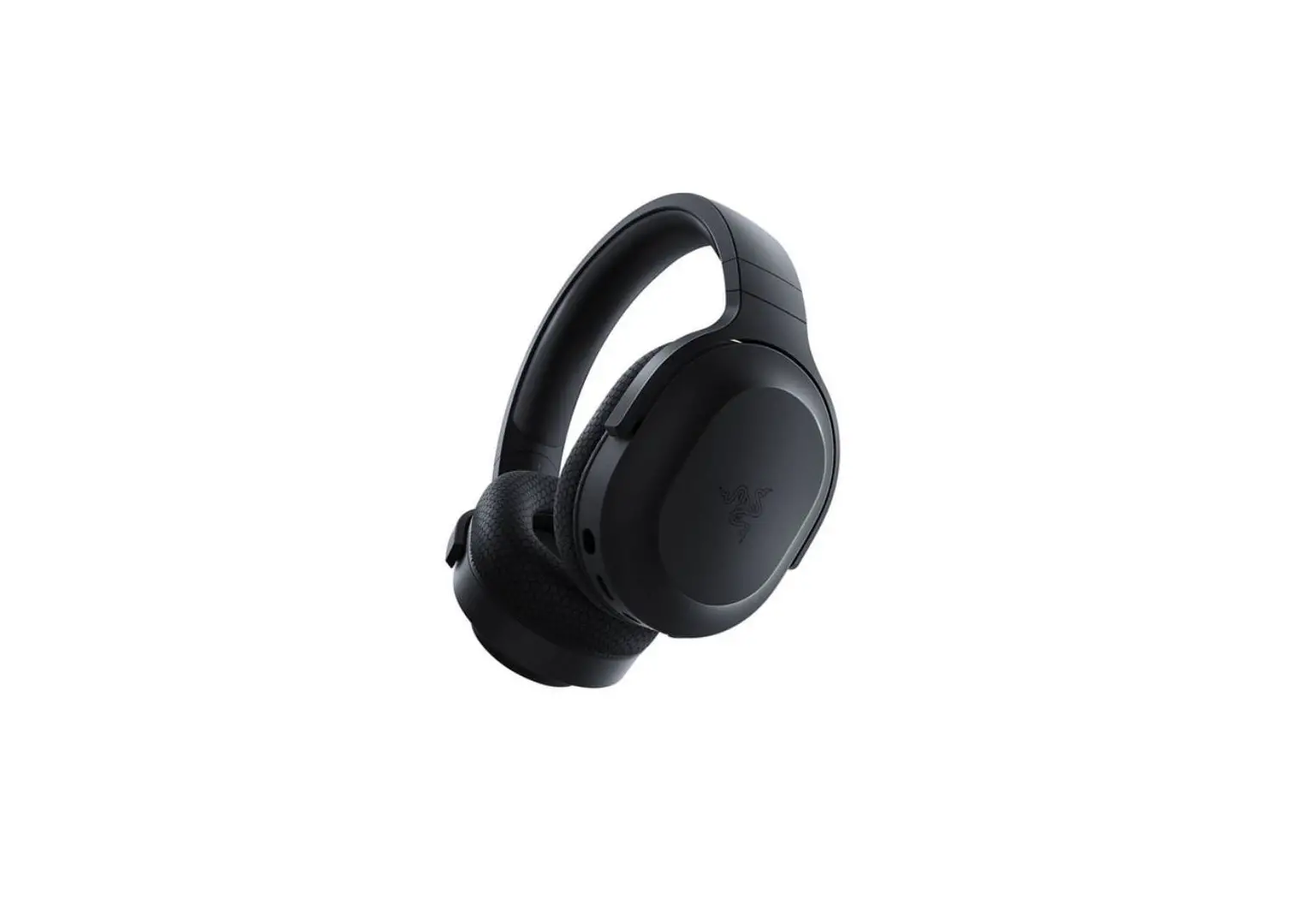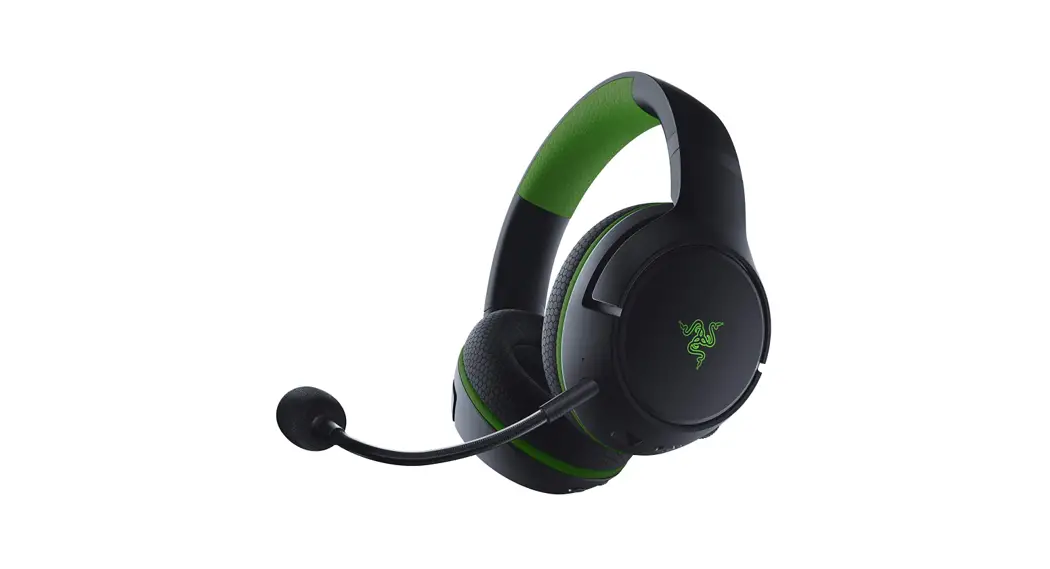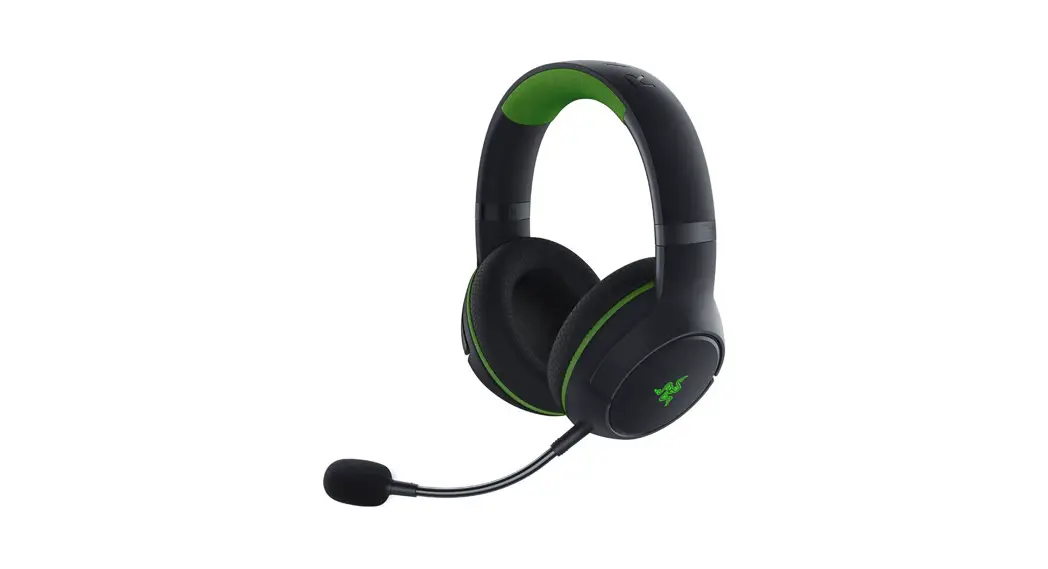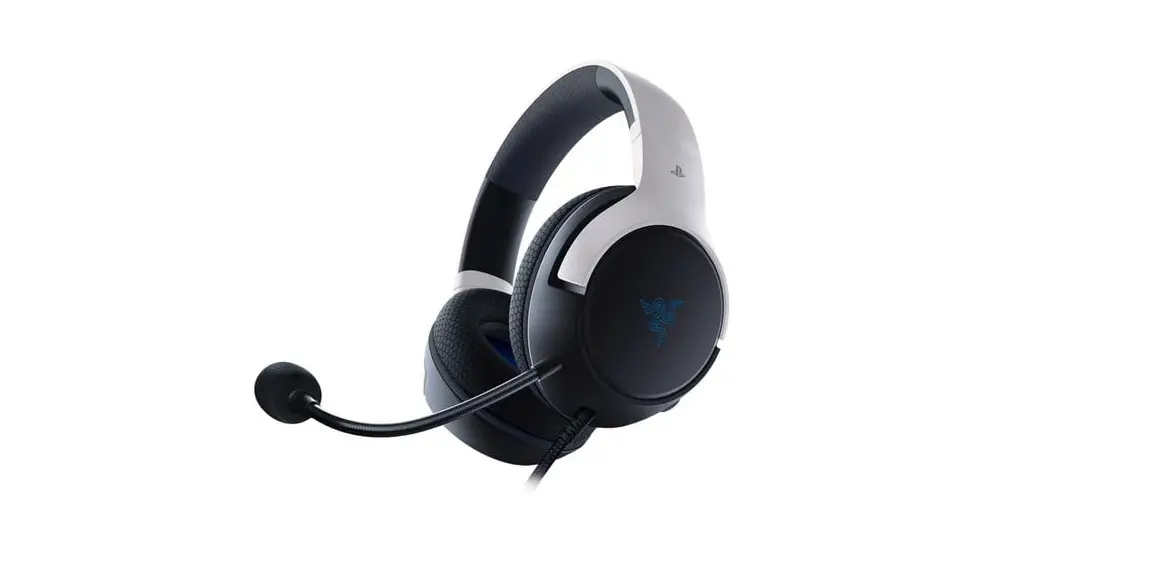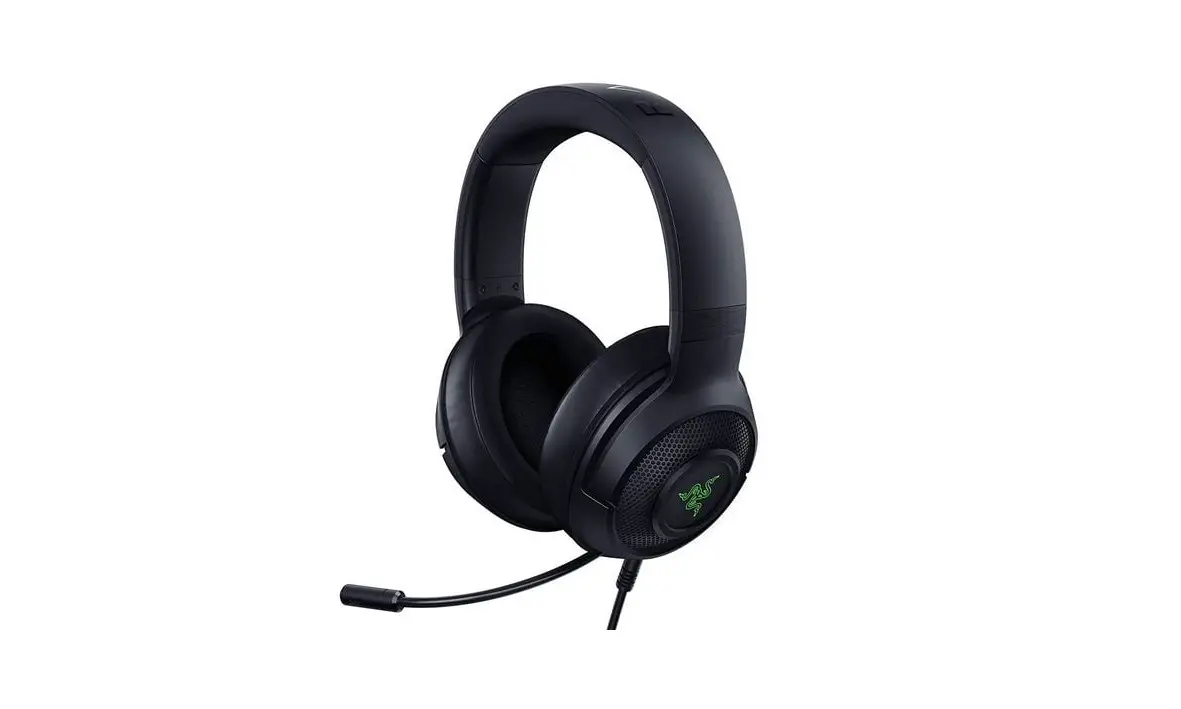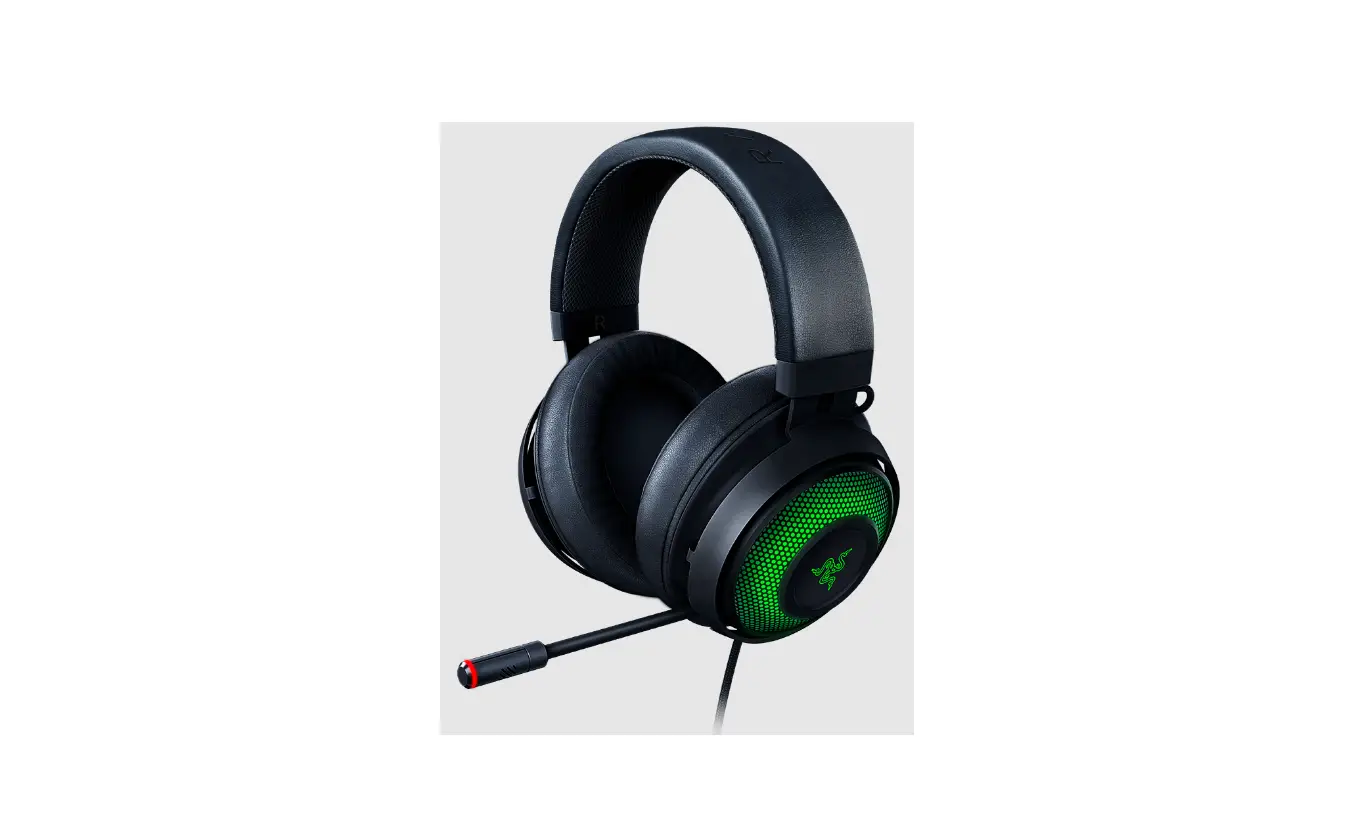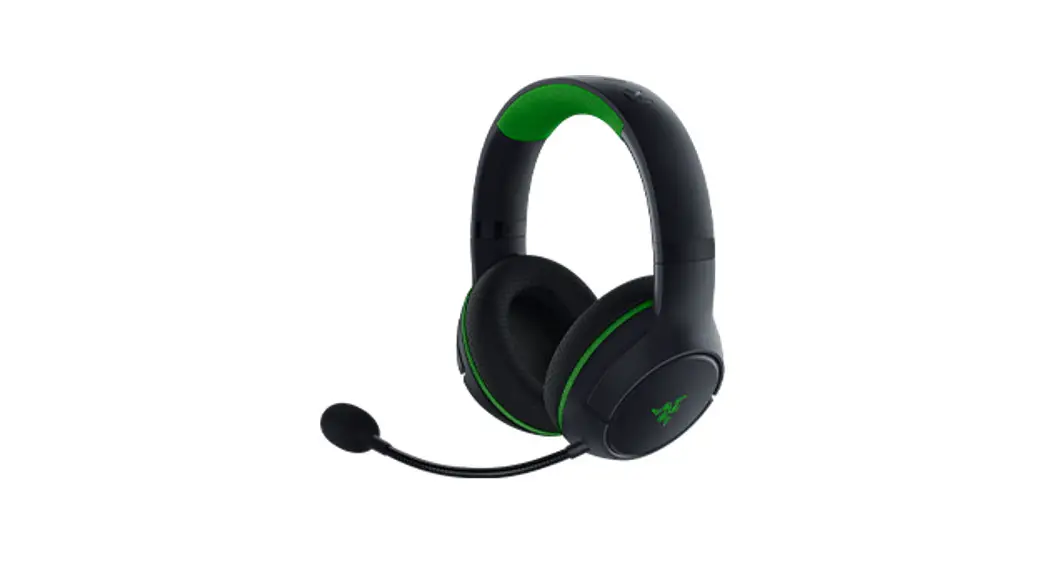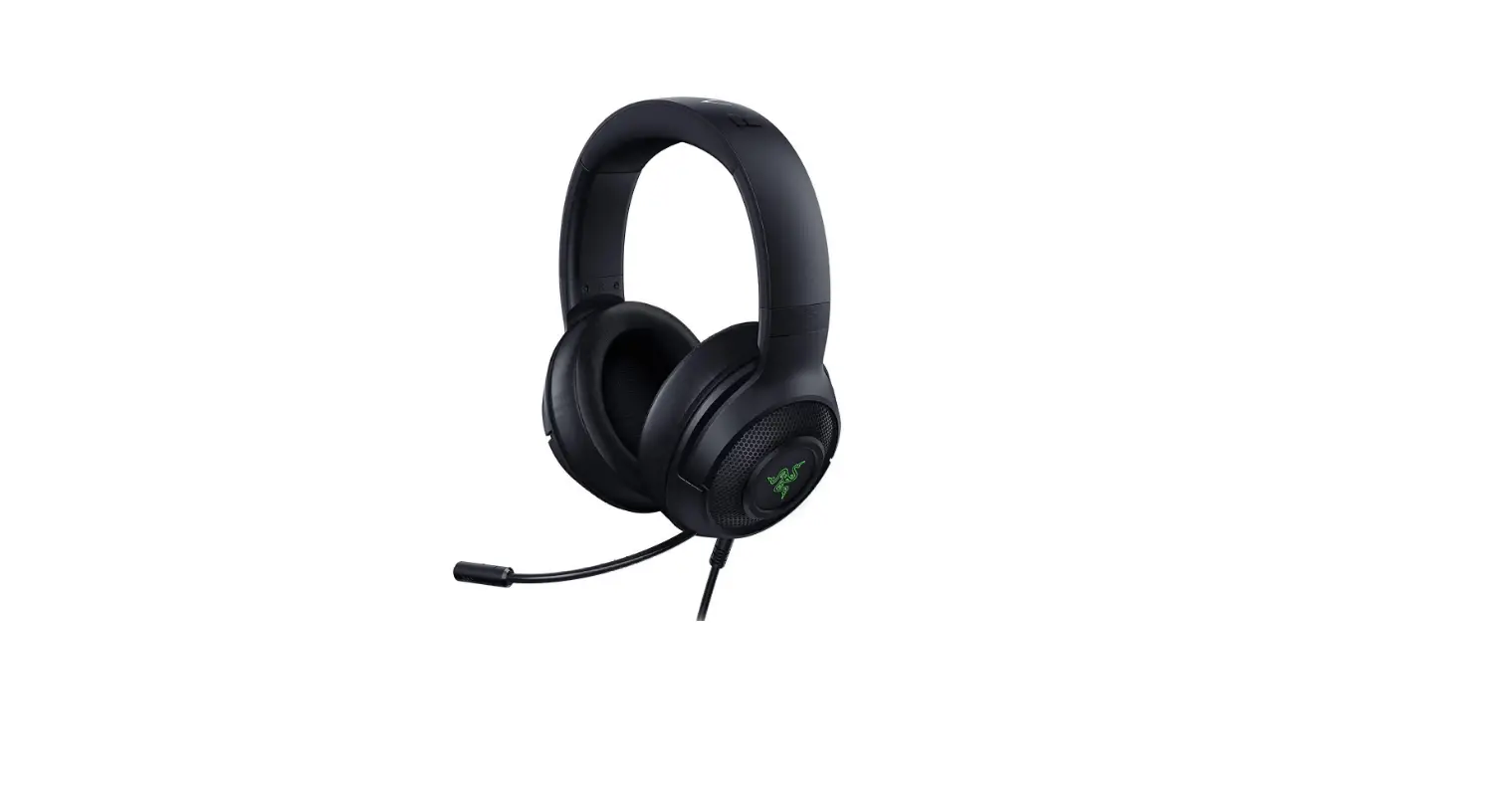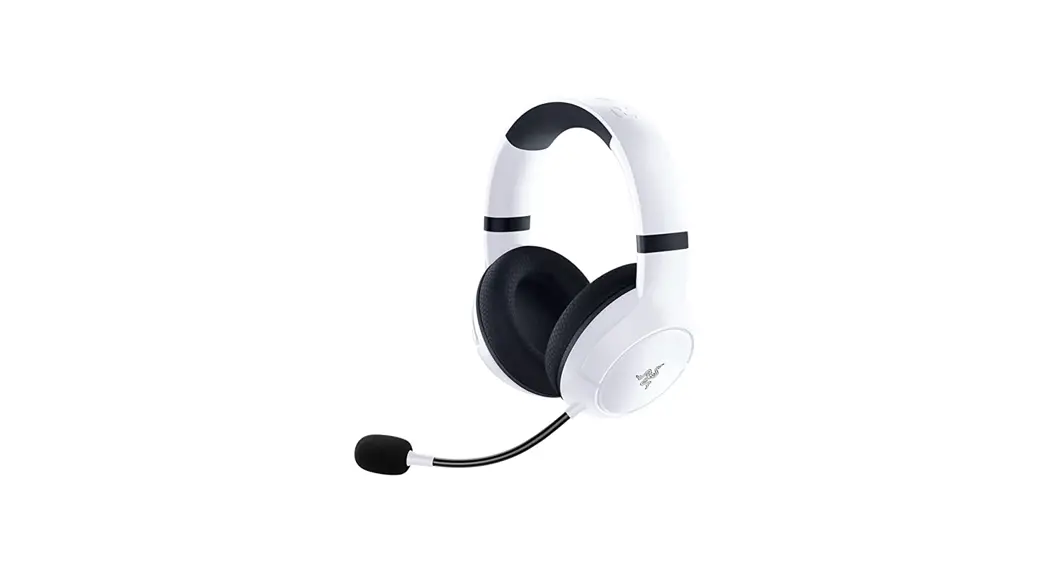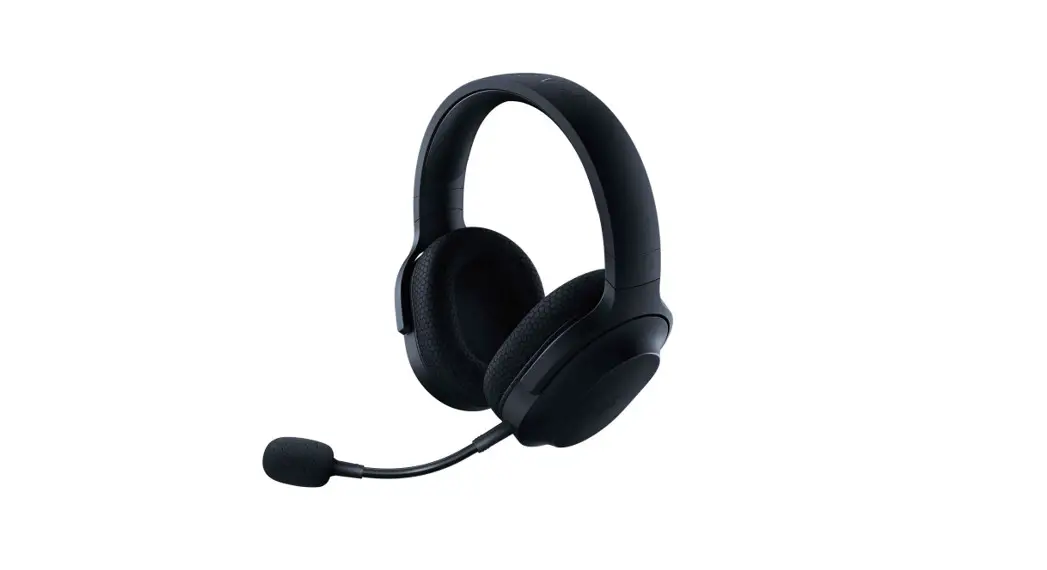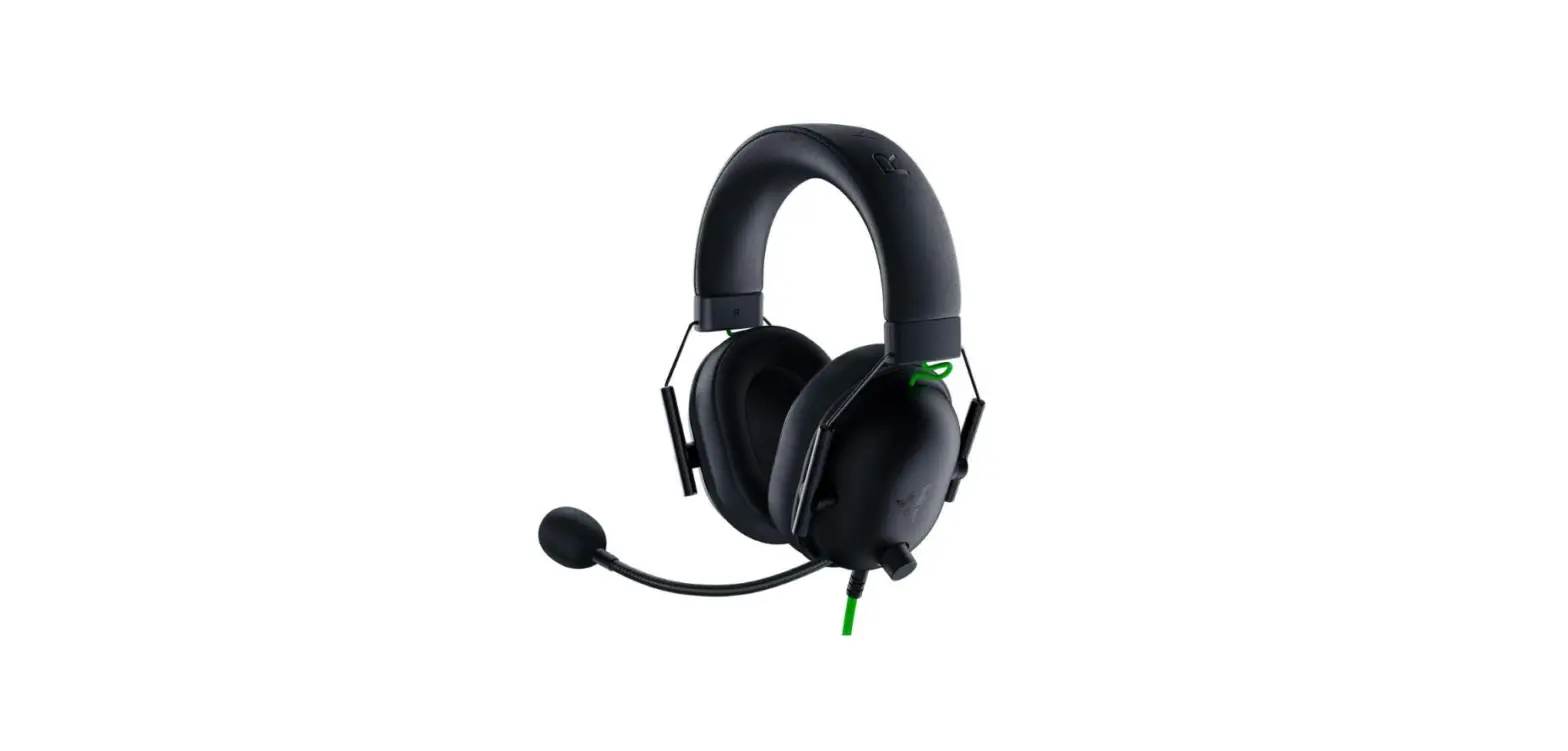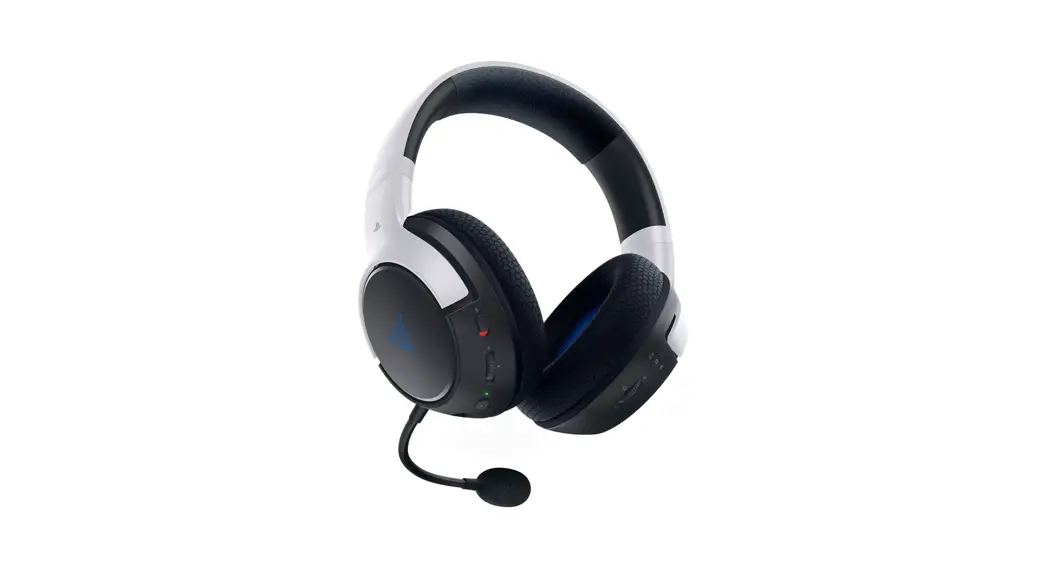
 Kaira Hyperspeed Wireless Gaming Headset
User Guide
Hear the unfair advantage, no matter where you play with the Razer Kaira HyperSpeed—a wireless gaming headset that unleashes cutting-edge immersion and untethered freedom. With 2.4 GHz gaming-grade wireless and unmatched audio technology, you’ll be able to play anywhere and conquer everywhere.
WHAT’S INSIDE
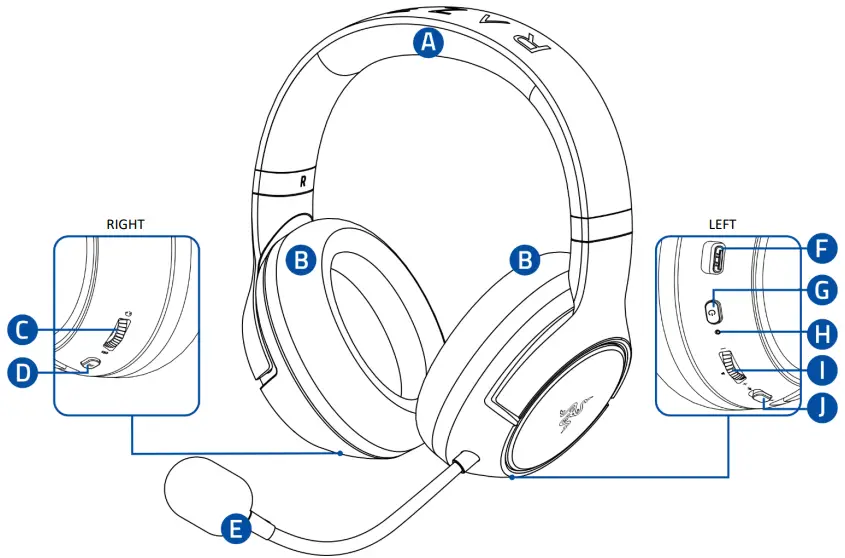
- Razer Kaira HyperSpeed

A. Auto-adjusting headband
B. Razer™ FlowKnit Memory Foam Cushions
C. Sidetone wheel
D. Razer™ SmartSwitch / EQ button
E. Bendable Razer™ HyperClear cardioid micF. Charging port
G. Power button
H. Status indicator
I. Volume wheel
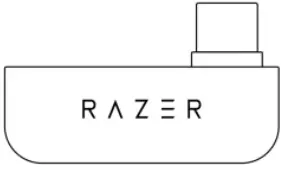
J. Mic mute switch - USB Type C wireless dongle

- USB Type A to USB Type C charging cable

- Important Product Information Guide

WHAT’S NEEDED
PRODUCT REQUIREMENTS
- PS5™ console or PC (Windows® 10 64-bit or higher)*
- USB Type C port
- Devices with Bluetooth audio capability
RAZER AUDIO APP REQUIREMENTS
- iOS 13 / Android 10 (or higher) device with Bluetooth connectivity
- Internet connection for app installation
*Only works with PlayStation®5 consoles. PC compatibility has not been tested nor endorsed by Sony Interactive Entertainment.
LET’S GET YOU COVERED
 Register your product and score exclusive benefits
razerid.razer.com/warranty
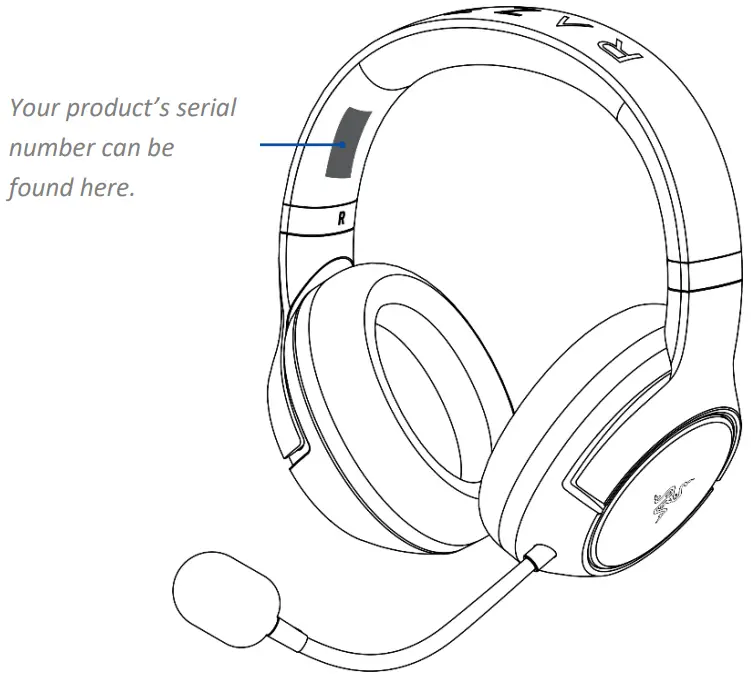
TECHNICAL SPECIFICATIONS
HEADPHONES
- Frequency response: 20 Hz – 20 kHz
- Impedance: 32Ω at 1 kHz
- Sensitivity (@1 kHz): 98 dB SPL / mW
- Drivers: 50 mm, with Neodymium magnets
- Inner ear cup diameter: Width 45 mm / Length 65 mm
- Oval ear cushions: Designed for full-ear coverage with heat-transfer fabric, perfect for long-wearing comfort
- Connection type: USB Type C wireless dongle / Bluetooth 5.3
- Wireless range: 10 m / 30 ft
- Wireless frequency: 2.4 GHz
- Battery life: Up to 30 hours
MICROPHONE
- Fixed mic boom
- Frequency response: 100 – 10,000 Hz
- Signal-to-noise ratio: > 60 dB
- Sensitivity (@1 kHz): -42 dBV / Pa,1 kHz
- Pick-up pattern: Unidirectional
RANGE
- Bluetooth wireless range: Up to 10 m / 30 ft
SYSTEM REQUIREMENTS
- PS5™ console or PC
- USB Type C port
- Devices with Bluetooth audio capability
SETTING UP YOUR RAZER KAIRA HYPERSPEED
CHARGING YOUR HEADSET
Connect your Razer Kaira HyperSpeed to a powered USB Type-A port using the charging cable. For best results, please fully charge your headset before using it for the first time. A depleted unit will fully charge in about 3 hours.
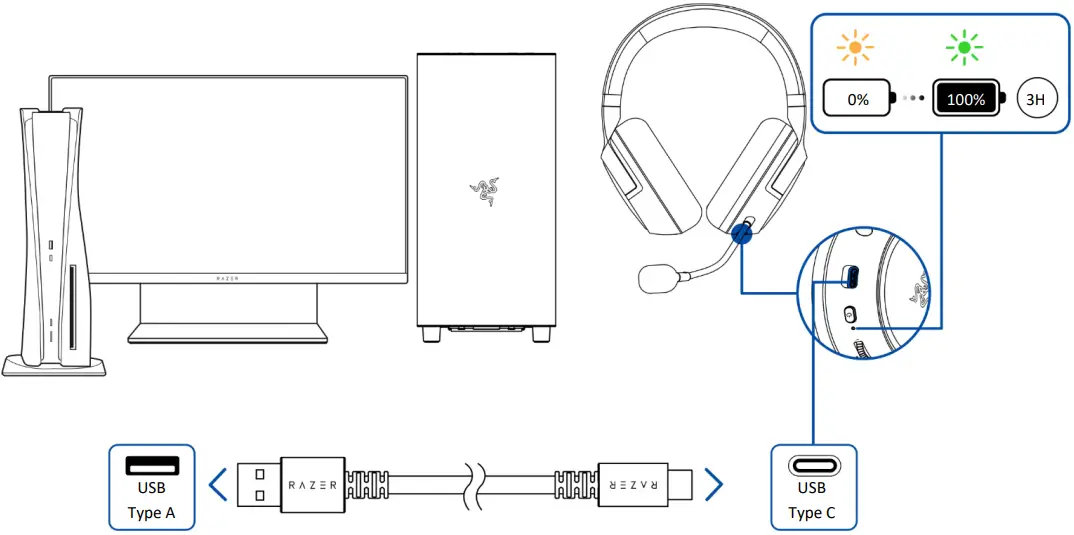
 Headset charging using any port on the PS5™ console only works when the console is not in Rest Mode.
CONNECTING TO YOUR HEADSET
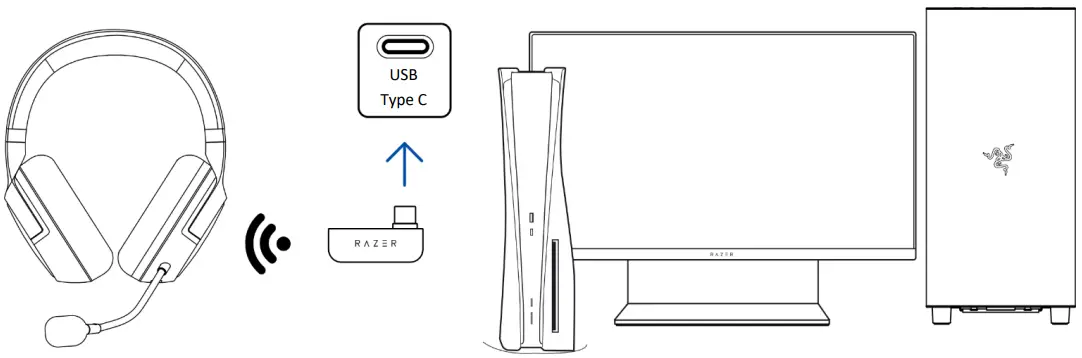
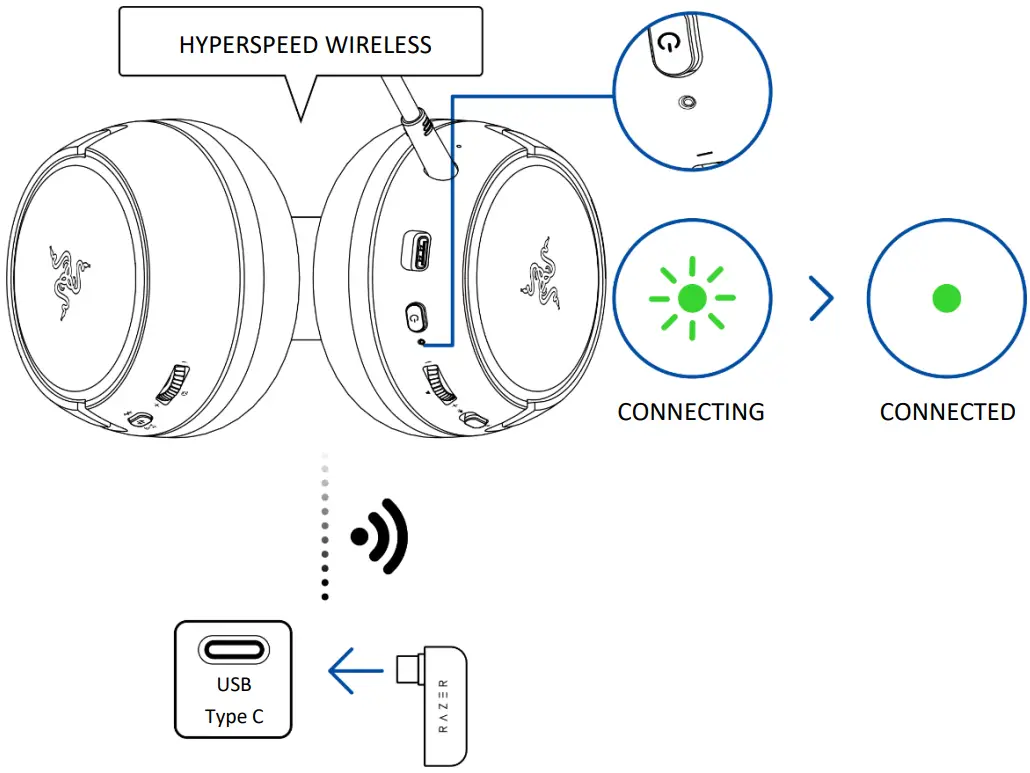
A. TO A PS5™ CONSOLE OR PC VIA 2.4 GHZ
- Plug the USB Type C wireless dongle into your device.

 When plugging the USB Type C wireless dongle into your PS5™ console, make sure it doesn’t obstruct the console’s USB Type-A port.
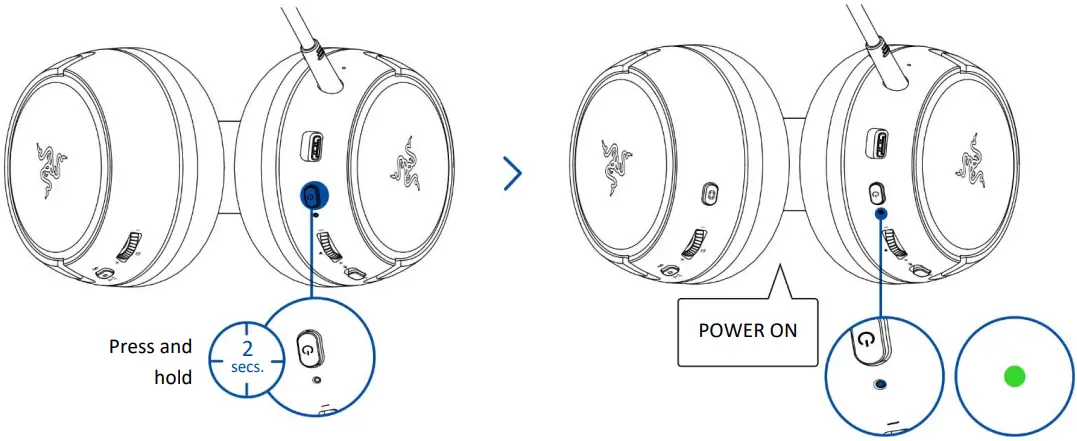
 - Press and hold the Power button until the status indicator briefly lights up in solid green to power on the headset.

- Wait until the status indicator briefly becomes static green, indicating that the headset is connected to the USB Type C wireless dongle.
 This headset uses 2.4 GHz wireless bandwidth. If the PlayStation®5 console and other devices use the same bandwidth, signal interference may occur.
 - On your device (if applicable), set the Razer Kaira HyperSpeed as the default Input and Output Device.
On PS5™ consolesSettings > Sound Audio Output > Output device > Razer Kaira HS 2.4 Microphone > Input device > Razer Kaira HS 2.4 Razer has validated the operation between this headset and the PlayStation®5 console.
On PCSound settings Output > Razer Kaira HS 2.4 Input > Razer Kaira HS 2.4 When using the headset with compatible devices, set the Razer Kaira HS 2.4 as the default input and output device (if applicable).
B. TO OTHER DEVICES VIA BLUETOOTH
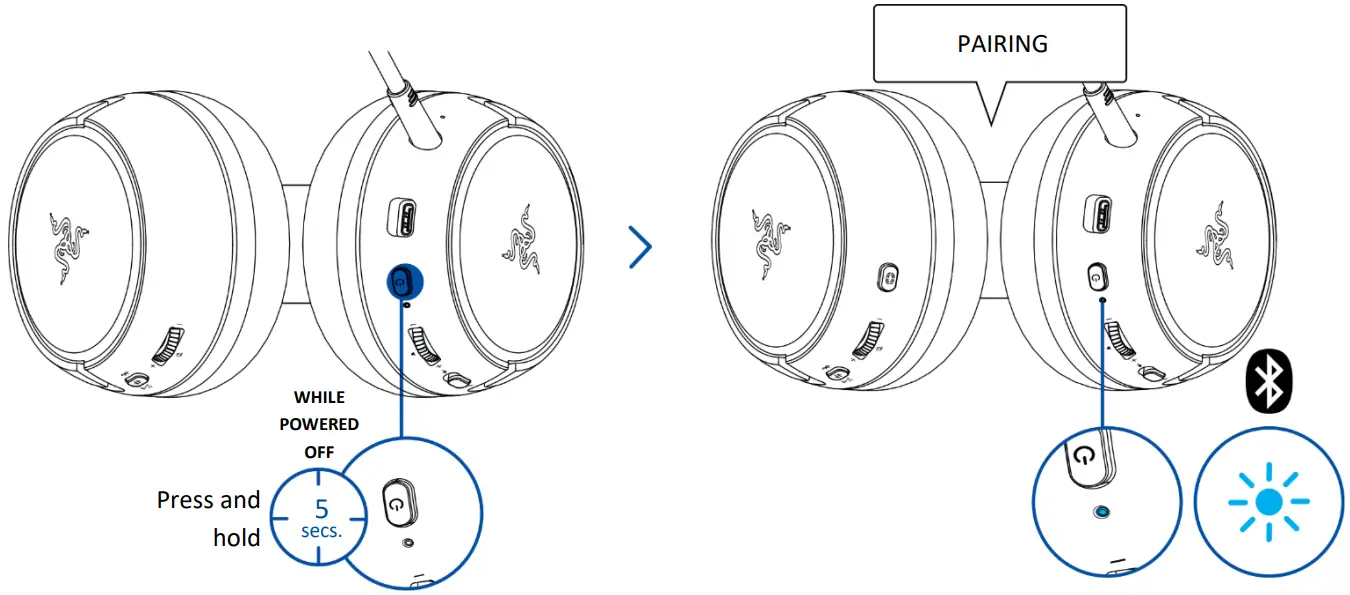
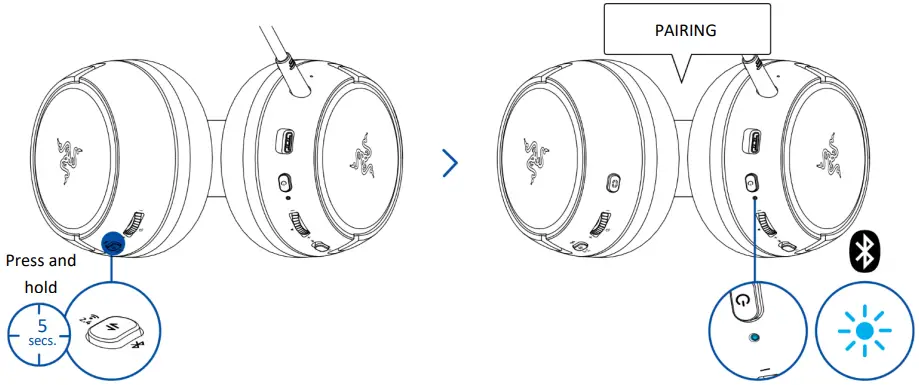
- While powered off, press and hold the Power button for 5 seconds or until the status indicator starts blinking in blue to enter pairing mode.

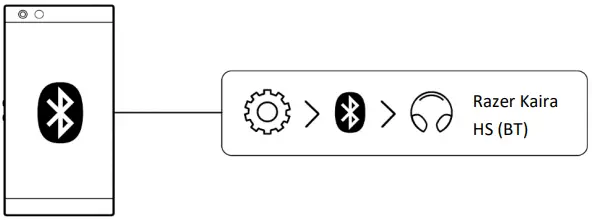
- Activate Bluetooth on your device and select “Razer Kaira HS (BT)” from the list of devices found.

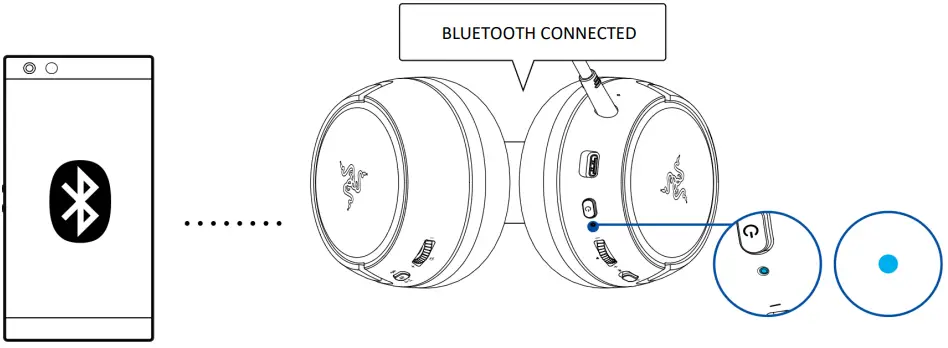
- Wait until both devices are connected. The status indicator will briefly show solid blue to indicate that the headset is now connected to your device.

RAZER AUDIO APP (MOBILE)
Toggle Do Not Disturb to block incoming calls while gaming, customize your headset’s EQ and auto-shutoff settings, and fine-tune other advanced features from your mobile device.

Only available on iOS 13 / Android 10 (or higher) devices with Bluetooth connectivity.
USING YOUR HEADSET
POWER BUTTON
Power ON / OFF
Power on the headset by holding the Power button until the status indicator is on and holding the Power button again to turn it off. An audio prompt will help notify you when the headset is powered on or off.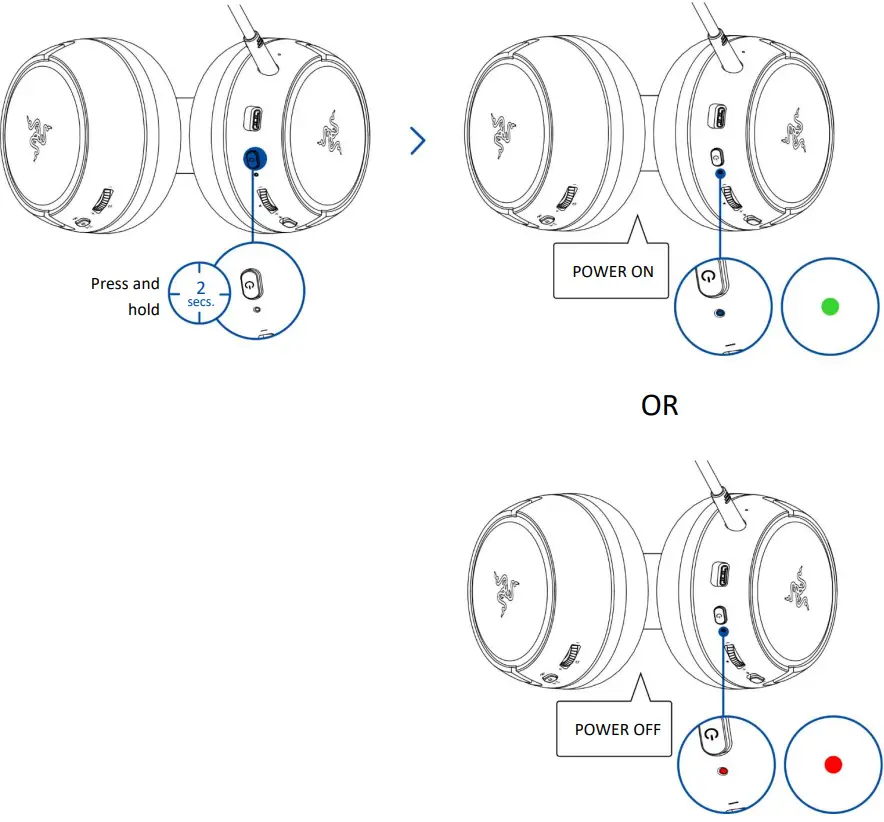
The headset will power on using the last active audio source before powering off.
Other functions
Other power button functions are available when the headset is powered on with Bluetooth as the audio source. These functions operate based on your device’s current activity and may not apply to certain devices.
| Single press | Play/pause |
| Accept incoming calls or end the current call | |
| Put a call on hold and accept an incoming call | |
| End call and swap to on-hold call | |
| Cancel outgoing call | |
| Double press | Reject incoming call |
| Swap calls | |
| Skip track | |
| Triple press | Previous track |
| While powered off, press and hold for 5 seconds | Activate Bluetooth pairing mode |
UNDERSTANDING THE STATUS INDICATOR
The status indicator will show the connection and battery status when the headset is unplugged and powered on. While in use, you’ll hear a voice prompt when the headset needs to be recharged; during such time, the indicator will continue showing the battery level until you charge the headset.
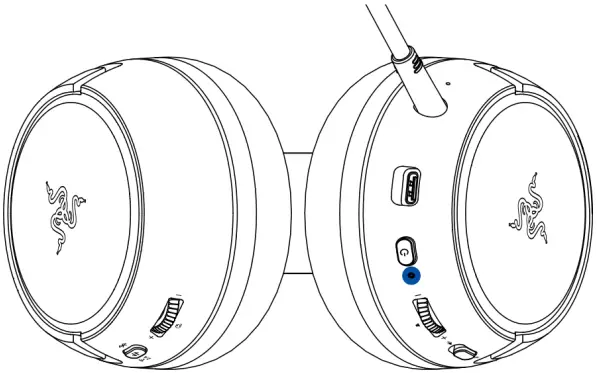
| Indicator | Prompt | Battery level |
 | Voice | Low |
RAZER SMARTSWITCH BUTTON
Switching between EQ Presets
Press the Razer SmartSwitch / EQ button to switch between Default, Amplified, Enhanced Bass, FPS, and Custom* EQ presets available on the headset.
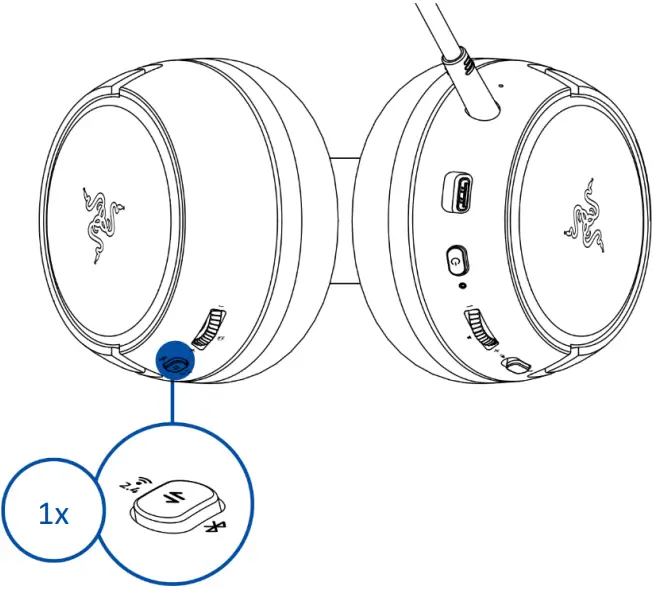 * This preset will only be available when you customize a preset on the Razer Audio app.
Switching between audio sources
When powered on and connected to any audio source, double-press the Razer SmartSwitch button to switch between the USB Type C wireless dongle and Bluetooth audio source or vice versa.
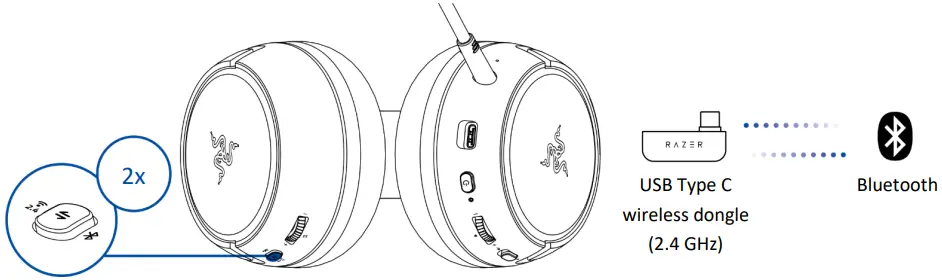
Enabling / Disabling Gaming Mode
While connected via Bluetooth, triple-press the Razer SmartSwitch button, then hold the last press for 2 seconds to activate Gaming Mode. Once enabled, the headset will function at a lower latency, giving you real-time audio feedback while gaming. Repeat to disable gaming mode
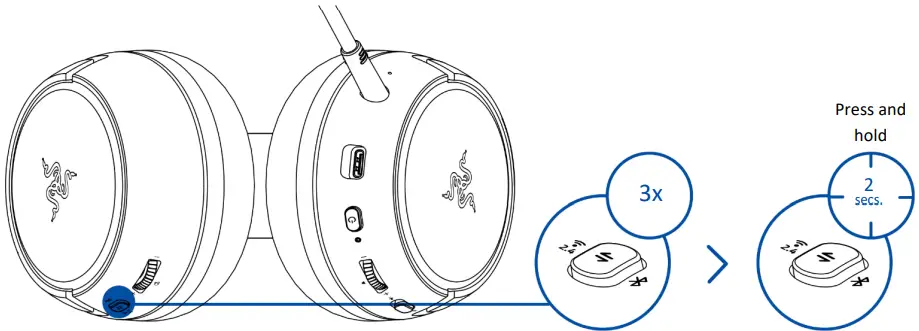 This feature is only available on Bluetooth connection. Keeping the headset within a very close distance of the audio source is recommended for the best performance.
Reactivating Bluetooth pairing mode
You can also use the Razer SmartSwitch to reactivate Bluetooth pairing mode. While connected via Bluetooth, press and hold the Razer SmartSwitch button for 5 seconds to reactivate Bluetooth pairing mode and connect your device as needed to Razer Kaira HS (BT).
UNDERSTANDING RAZER SMARTSWITCH
With the Razer Kaira HyperSpeed simultaneously connected to a PC or gaming console (via USB Type C wireless dongle) and a mobile device (via Bluetooth), you’ll be able to use the headset for incoming/outgoing/conference calls from a connected Bluetooth device and switch back to the game audio without removing the headset. The status indicator will briefly show static white to indicate that the headset is connected to both audio sources.
The following behaviors below will help you understand how your headset responds to the audio source switching and incoming/outgoing/conference calls when your headset is connected to a Bluetooth device and the USB Type C wireless dongle:
| Headset audio | Razer SmartSwitch behavior |
| Streaming via USBType C wireless dongle | ▪ The headset will automatically switch to Bluetooth audio source for incoming/outgoing/conference calls from your mobile device and resume using the USB Type C wireless dongle after each call. You can deactivate automatic source switching for incoming calls by enabling your headset’s Do Not Disturb feature on the Razer Audio app. |
| ▪ Audio from the connected mobile device will ONLY automatically stream on the headset if no audio is present or streaming on the USB Type C wireless dongle. | |
| ▪ Auto-pause on streamed audio when switching audio sources depending on the app you’re using (e.g., Spotify, Apple Music). | |
| Streaming via Bluetooth | ▪ When you switch to the USB Type C wireless dongle audio source, your headset will remain connected to your mobile device via Bluetooth. However, the Razer Audio app will disconnect from your mobile device. |
| ▪ Auto-pause on streamed audio when switching audio sources depending on the app you’re using (e.g., Spotify, Apple Music). | |
| Not streaming on any audio source | Audio will play on the first audio source that streams audio. |
VOLUME WHEEL
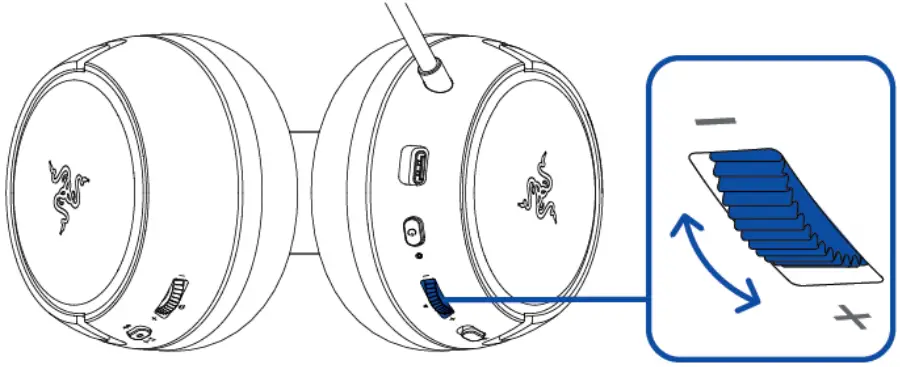
Rotate the Volume wheel to increase or decrease the volume.
SIDETONE WHEEL
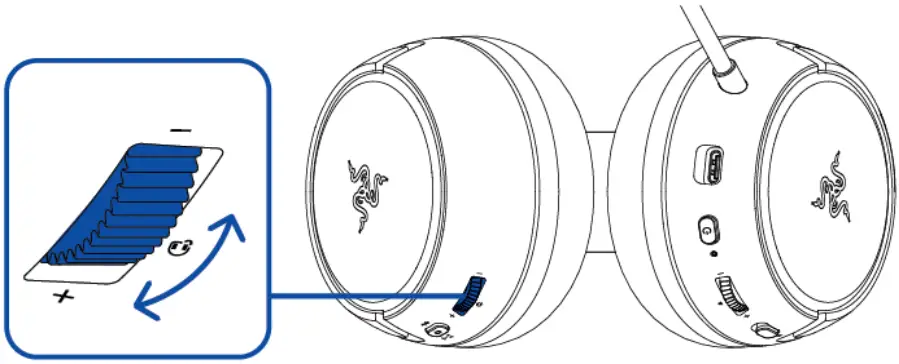
Rotate the Sidetone wheel to adjust the volume of your voice that you can hear through the headset.
RAZER™ HYPERCLEAR CARDIOID MIC
Bend the Razer™ HyperClear Cardioid mic until it is parallel to your mouth. Make sure the mic diaphragm is in front and the air vent is facing away from your mouth.
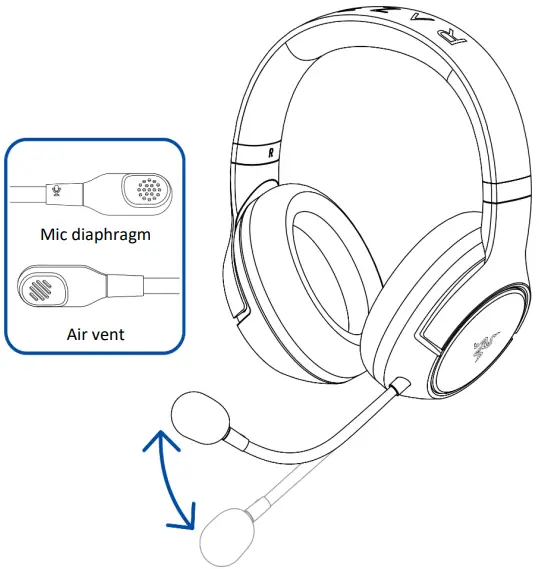 The recommended mic-to-mouth distance for optimal sound capture is 1.5 cm to 3 cm (0.59 into 1.18 in).
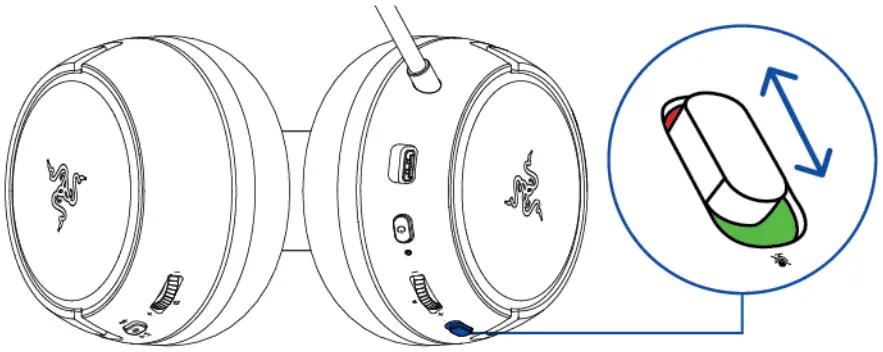
Slide the mic mute switch to mute or unmute the microphone.
COMFORT
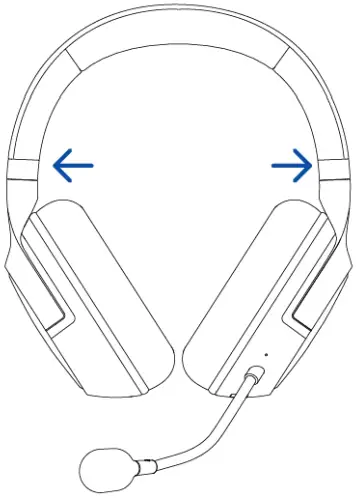
It’s recommended to gently stretch the headset before placing it over your head to minimize headband stress; however, don’t stretch the headset beyond its limits.
SAFETY AND MAINTENANCE
SAFETY GUIDELINES
To achieve maximum safety while using your Razer Kaira HyperSpeed, we suggest that you adopt the following guidelines:
Should you have trouble operating the device properly and troubleshooting does not work, unplug the device and contact the Razer hotline or go to support.razer.com for assistance.
Don’t take apart the device and do not attempt to operate it under abnormal current loads. Doing so will void your warranty.
Keep the device away from liquid, humidity, or moisture. Operate the device only within the specific temperature range of 0°C (32°F) to 40°C (104°F). Should the temperature exceed this range, unplug and/or switch off the device to let the temperature stabilize to an optimal level.
The device isolates external ambient sounds even at low volumes, resulting in lowered awareness of your external surroundings. Please remove the device when engaging in activities requiring active awareness of your surroundings.
Listening to excessively loud volumes over extended periods can damage your hearing. Furthermore, legislation of certain countries permits a maximum sound level of 86db to affect your hearing for 8 hours a day. We, therefore, recommend that you reduce the volume to a comfortable level when listening for prolonged periods. Please, take good care of your hearing.
MAINTENANCE AND USE
The Razer Kaira HyperSpeed requires minimum maintenance to keep it in optimum condition. Once a month, we recommend you clean it using a soft cloth or cotton swab to prevent dirt buildup. Do not use soap or harsh cleaning agents.
BATTERY WARNING
The Razer Kaira HyperSpeed contains a Li-ion rechargeable battery. In general, the life expectancy of such batteries is dependent upon usage. If you suspect that the Li-ion rechargeable battery inside the Razer Kaira HyperSpeed may be drained (has a low charge), try charging it.
Caution: Do not open, mutilate, or expose to conducting materials (metal), moisture, liquid, fire, or heat. Doing so may cause batteries to leak or explode, resulting in personal injury. Battery life varies with usage.
LEGAL
COPYRIGHT AND INTELLECTUAL PROPERTY INFORMATION
©2022 Razer Inc. All rights reserved. Razer, the triple-headed snake logo, Razer logo, “For Gamers. By Gamers.” and “Razer Chroma” are trademarks or registered trademarks of Razer Inc. and/or affiliated companies in the United States and other countries. Actual products may differ from pictures. All other trademarks are the property of their respective owners. Warranty not valid outside of product’s intended region.
Android, Google, Google Logo, Google Play, and the Google Play logo are registered trademarks of Google LLC.
Apple, the Apple logo, and iPhone are trademarks of Apple Inc., registered in the U.S. and other countries. App Store is a service mark of Apple Inc. iOS is a trademark or registered trademark of Cisco in the U.S. and other countries and is used under license.
The Bluetooth® word mark and logos are registered trademarks owned by Bluetooth SIG, Inc., and any use of such marks by Razer is under license.
”  “, “PlayStation”, and” PS5″ are registered trademarks of Sony Interactive Entertainment Inc. All other trademarks are the property of their respective owners. Manufactured and distributed under license from Sony Interactive Entertainment.
Windows and the Windows logo are trademarks of the Microsoft group of companies.
Razer Inc. (“Razer”) may have copyright, trademarks, trade secrets, patents, patent applications, or other intellectual property rights (whether registered or unregistered) concerning the product in this guide. Furnishing this guide does not give you a license to any such copyright, trademark, patent, or other intellectual property right. The Razer Kaira HyperSpeed (the “Product”) may differ from pictures whether on the packaging or otherwise. Razer assumes no responsibility for such differences or for any errors that may appear. Information contained herein is subject to change without notice.
LIMITED PRODUCT WARRANTY
For the latest and current terms of the Limited Product Warranty, please visit razer.com/warranty.
LIMITATION OF LIABILITY
Razer shall in no event be liable for any lost profits, loss of information or data, special, incidental, indirect, punitive, or consequential or incidental damages, arising in any way out of the distribution of, sale of, resale of, use of, or inability to use the Product. In no event shall Razer’s liability exceed the retail purchase price of the Product.
GENERAL
These terms shall be governed by and construed under the laws of the jurisdiction in which the Product was purchased. If any term herein is held to be invalid or unenforceable, then such term (in so far as it is invalid or unenforceable) shall be given no effect and deemed to be excluded without invalidating any of the remaining terms. Razer reserves the right to amend any term at any time without notice.
FOR GAMERS. BY GAMERS.™
 Razer Warranty Policy
 Razer ID