Wirelessly stream videos and photos to Apple TV or a smart TV from iPhone
You can wirelessly stream video or photos to Apple TV or an AirPlay 2-enabled smart TV.
Play video on Apple TV or an AirPlay 2-enabled smart TV
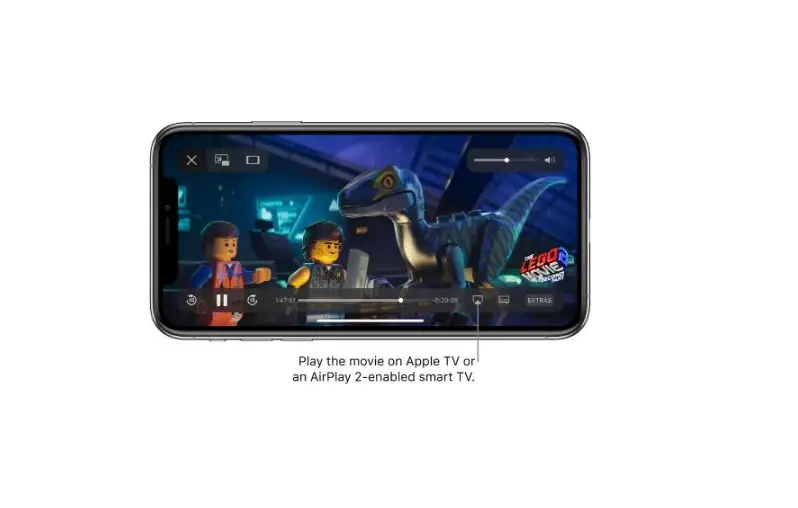
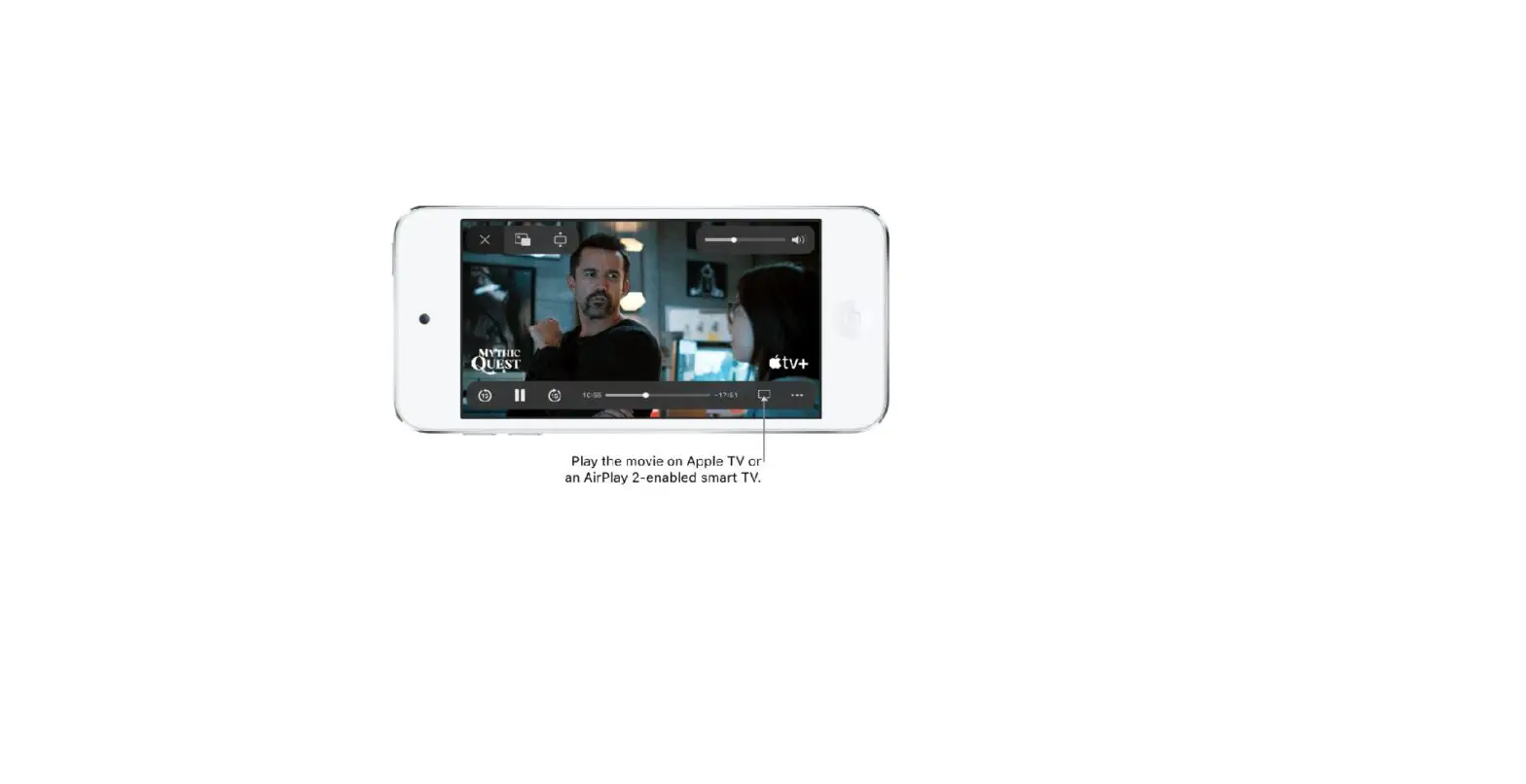
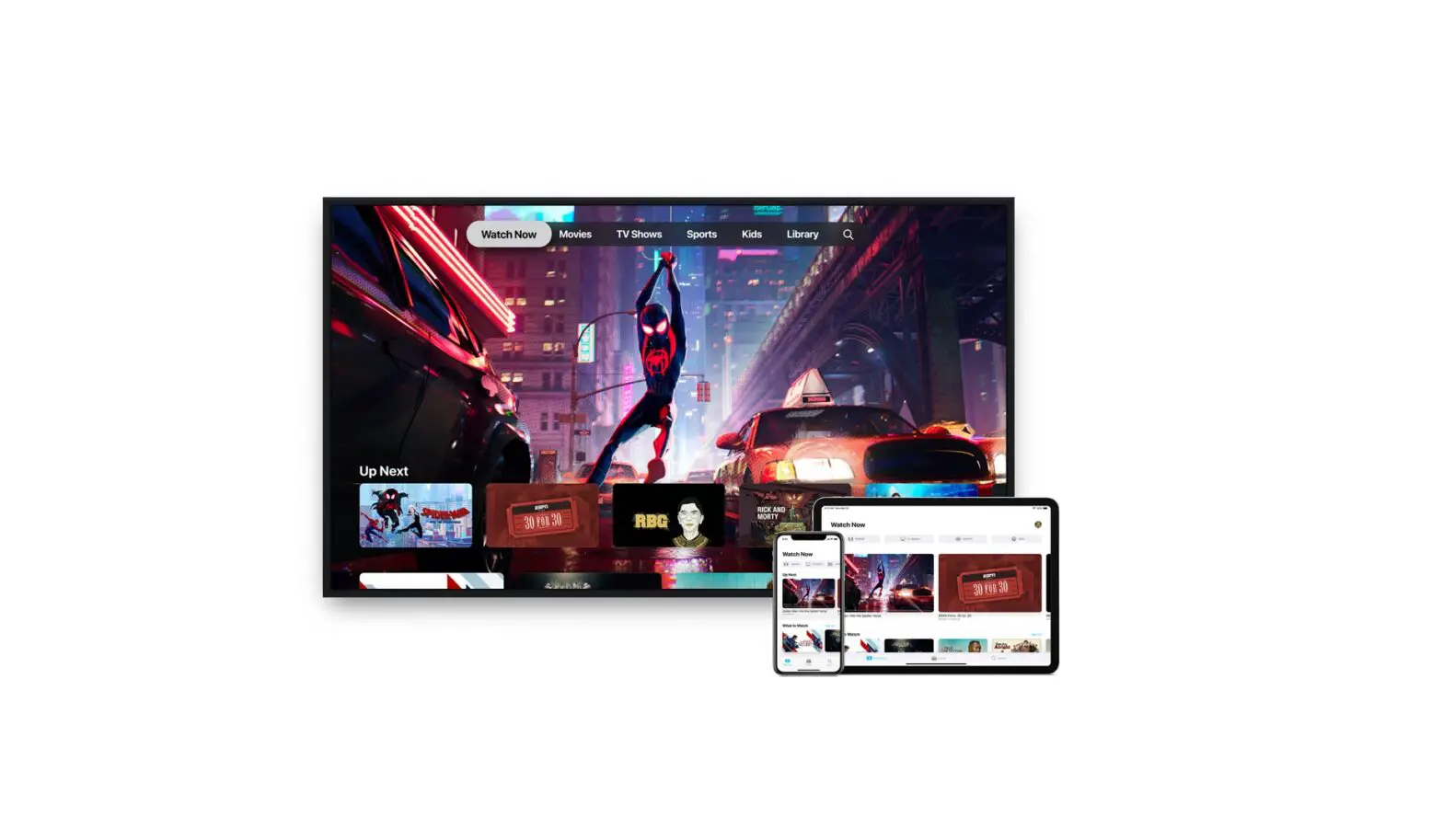
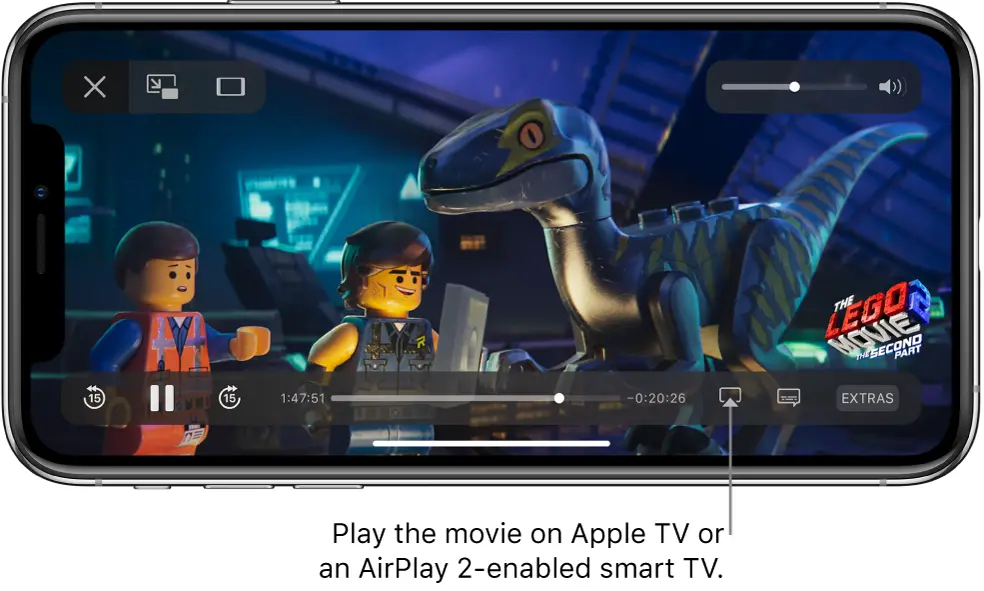
While playing video in the Apple TV app  or another supported video app, tap the screen to show the controls, tap
  , then choose your Apple TV or AirPlay 2-enabled smart TV as the playback destination.
If an AirPlay passcode appears on the TV screen, enter the passcode on your iPhone.
Show photos on Apple TV or an AirPlay 2-enabled smart TV
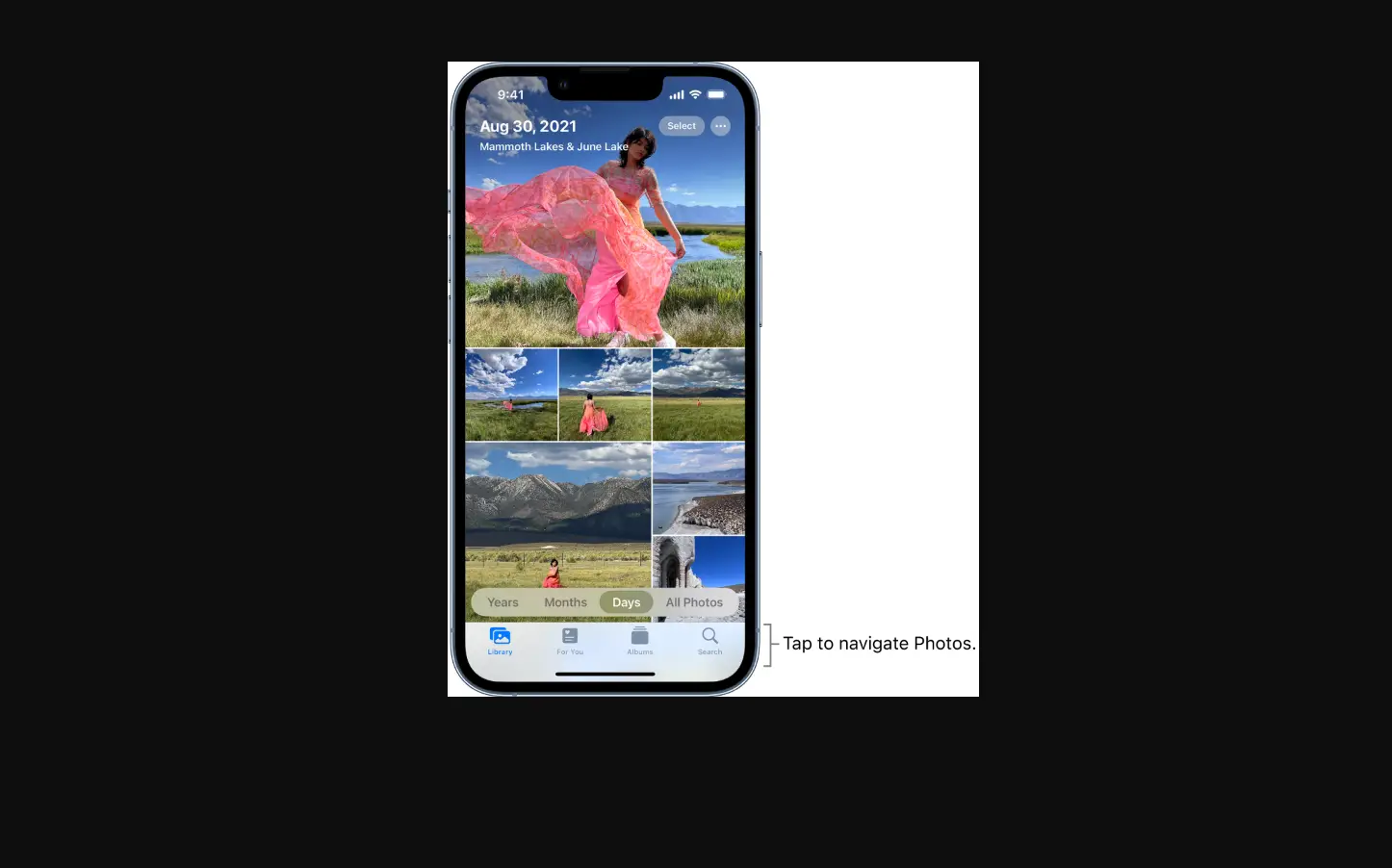
In Photos  , tap a photo, tap
  , swipe up, tap AirPlay, then choose your Apple TV or an AirPlay 2-enabled smart TV as the playback destination.
If an AirPlay passcode appears on the TV screen, enter the passcode on your iPhone.
Mirror your iPhone on Apple TV or a smart TV
On Apple TV or a smart TV, you can show whatever appears on your iPhone.
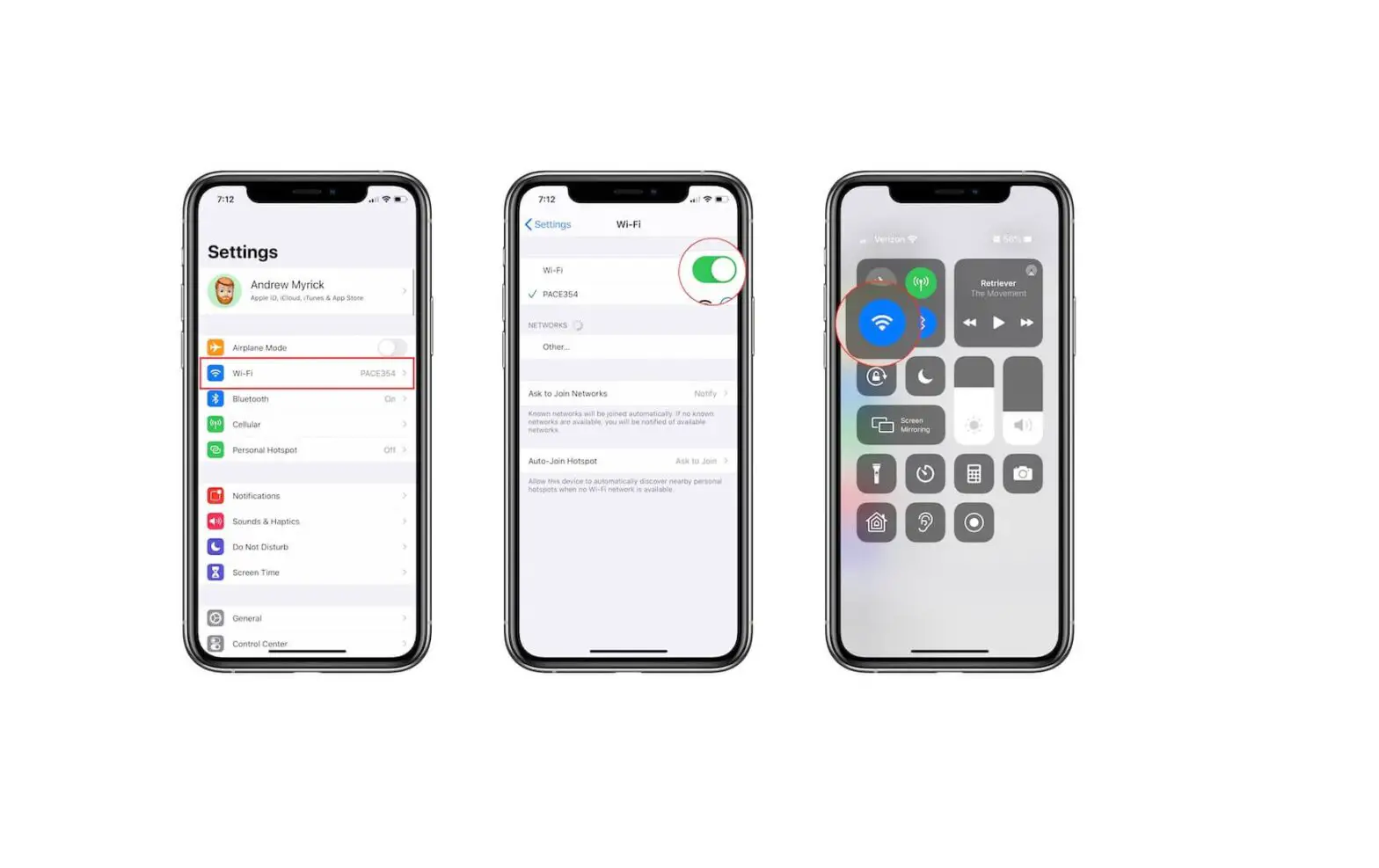
- Open Control Center.
- Tap Screen Mirroring, then choose your Apple TV or an AirPlay 2-enabled smart TV as the playback destination.If an AirPlay passcode appears on the TV screen, enter the passcode on your iPhone.
To switch back to iPhone, tap Stop Mirroring or , then choose your iPhone.
You can also stream audio, such as music or a podcast, from iPhone to your Apple TV or smart TV speakers. See Play audio from iPhone on HomePod and other wireless speakers.
Note: For a list of AirPlay 2-enabled smart TVs, see the Home accessories website.
To learn more about using Apple TV, see the Apple TV User Guide.