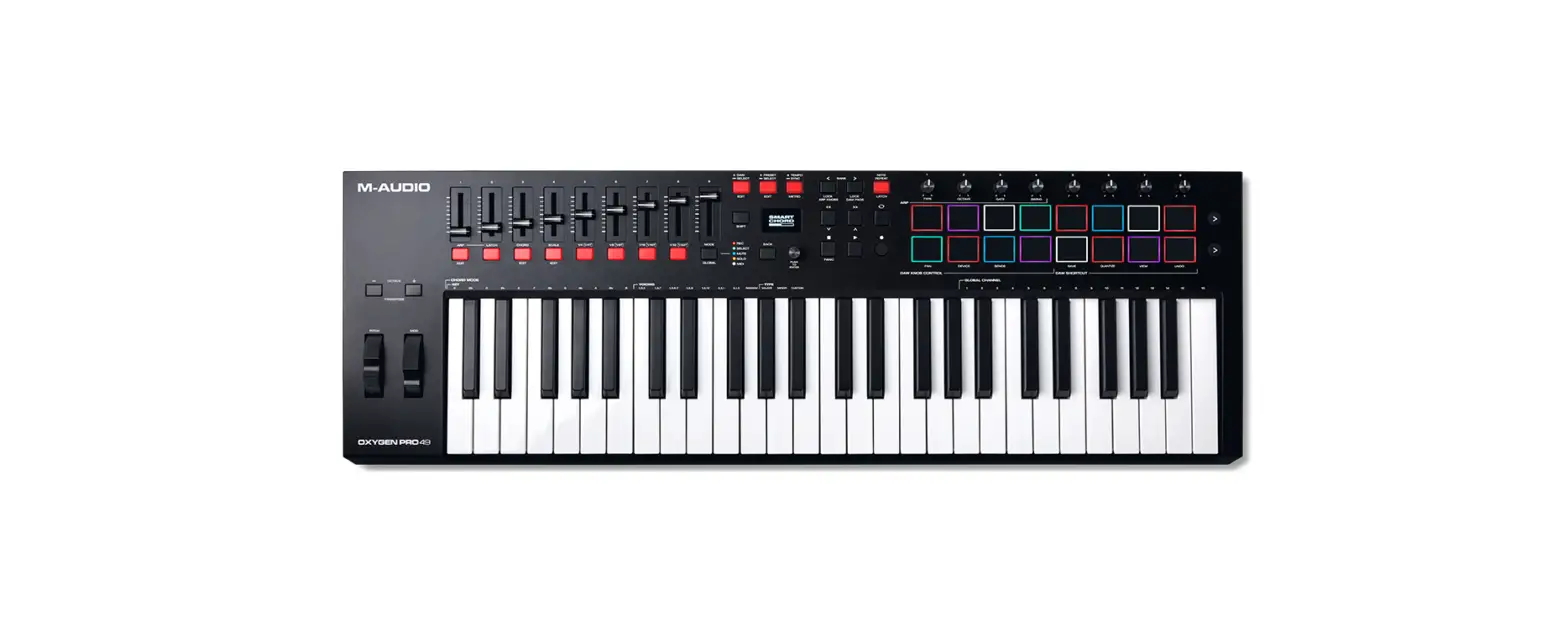
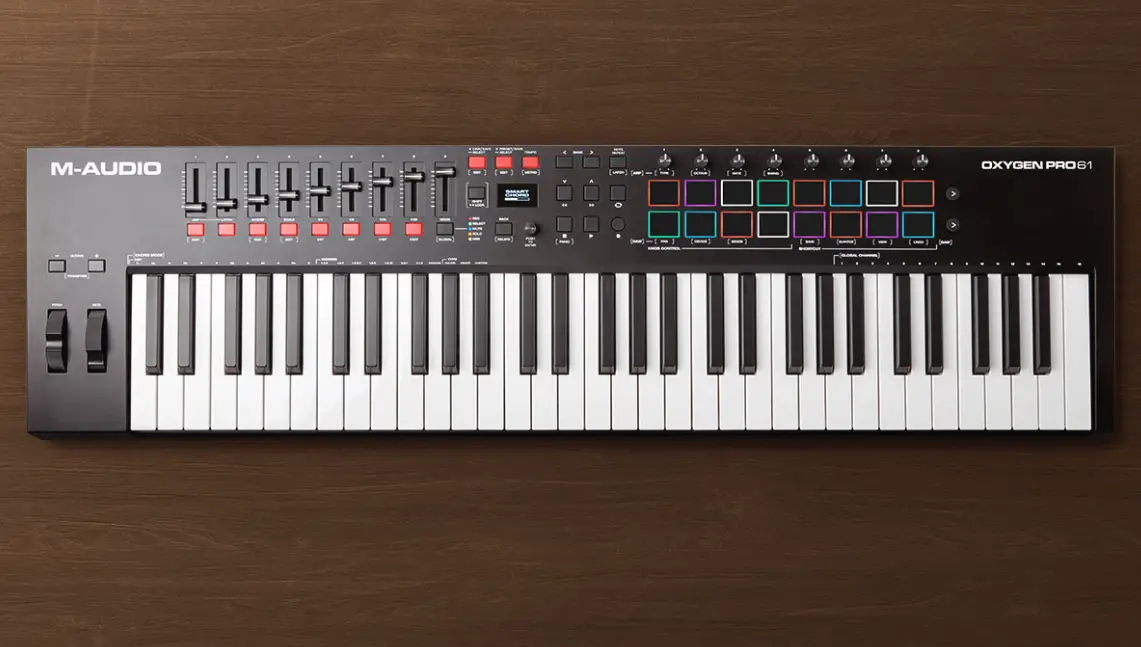
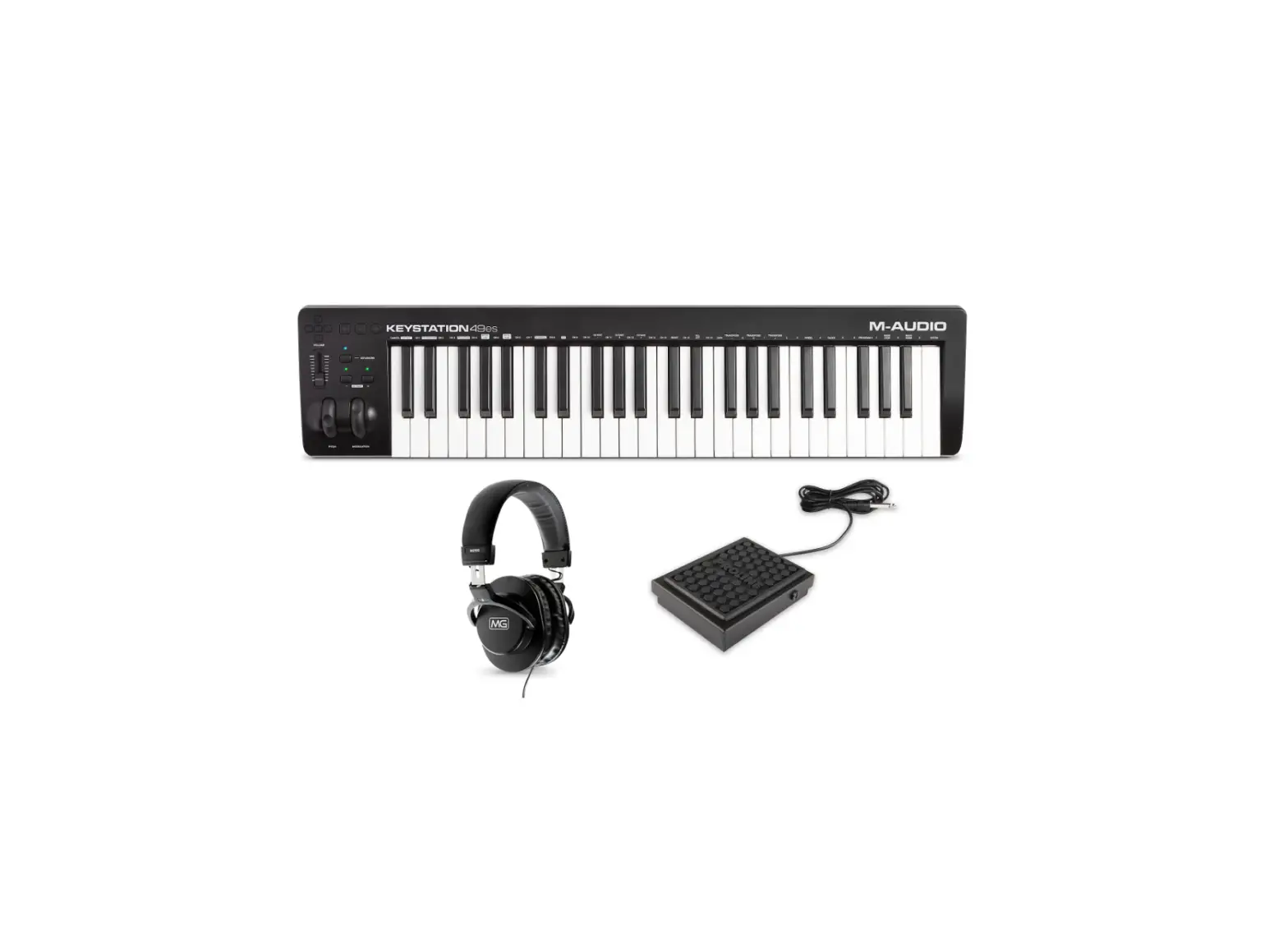
M-AUDIO Oxygen 49 MKV Keyboard Controller
Introduction
Box Contents
Oxygen Series MKV Keyboard
USB Cable
Software Download Card
Quickstart Guide
Safety & Warranty Manual
Support
For the latest information about this product (system requirements, compatibility information, etc.)
and product registration, visit m-audio.com.
For additional product support, visit m-audio.com/support.
Setup
Connecting Your Keyboard
You can power the keyboard via a powered USB port. The Oxygen keyboards are low-power devices. It is recommended that you connect the Oxygen keyboard to an onboard USB port or to a powered USB hub.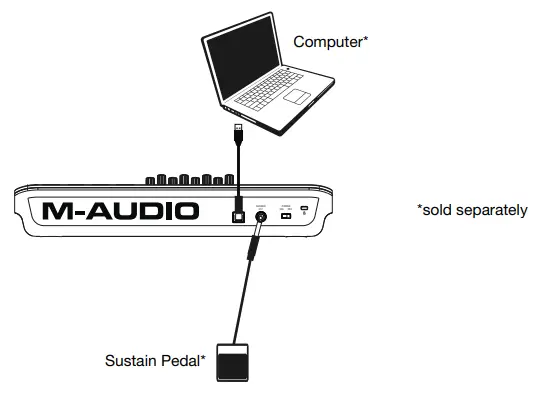
Initial Setup – DAW Setup
Your Oxygen has the ability to control all of your DAW’s faders, knobs, and in some cases pads for launching clips, as well as all of your virtual instrument controls. In order to have these controls set properly, we’ll first need to get your Oxygen to set to with your DAW.
- Press the PRESET/DAW Button so that the DAW button is lit, and the Oxygen keyboard is in DAW mode.
- Press and hold the PRESET/DAW Button to open the DAW Select menu on the Display.
- While continuing to press and hold the PRESET/DAW Button, press the < or > buttons to cycle through the available DAWs on the Display. As you press the < or > buttons, the currently selected DAW will update on the Display.
- When the DAW you want is shown on the Display, release the PRESET/DAW Button to confirm your selection.
Most DAWs will automatically recognize the Oxygen series keyboard, and automatically configure your Oxygen’s controls as a control surface in DAW mode, and virtual instrument controller in Preset mode.
If your DAW does not automatically configure your Oxygen series keyboard, please follow the setup steps listed in the Oxygen DAW Setup Guides.
- NC1: Mackie 1: Will send standard Mackie messages. Mackie control is typically used for DAWs like Cubase, Studio One, and Reaper.
- NC2: Mackie 2. Will send standard Mackie messages, but with higher resolution for the pan pots. If your DAW’s pan isn’t able to do a full sweep of the pan pot, use Mackie 2.
Mackie control is typically used for DAWs like Cubase, Studio One, and Reaper. - M|h: Mackie/HUI will send standard Mackie/HUI messages for DAWs like Pro Tools and Logic.
- N1: MIDI 1 will send 1 set of standard MIDI messages for use with Ableton.
- N2: MIDI 2 will send 1 set of standard MIDI messages for use with MPC Beats, and Reason.
- N3: MIDI 3 will send 1 set of standard MIDI messages for use with Ableton for controlling clip launching, and more advanced features.
Initial Setup – Virtual Instrument/Plugin Setup
Now that you’ve selected the correct DAW. we’ll set your Oxygen to work with all of the included Virtual Instrument plugins, and any other Virtual Instrument plugins you may have.
- Press the PRESET/DAW Button so that the DAW button is unlit, and the Oxygen is in Preset mode.
- Press the < or > buttons to cycle through the available Presets on the Display. As you press the buttons, the currently selected Preset will appear on the Display. You can create your own custom virtual instrument presets, using the Oxygen Preset Editor Software.
- The Preset you want is selected after you stop pressing < or > buttons.
There are Presets for all of the Virtual Instruments included with your Oxygen. For Virtual Instruments that aren’t included with your Oxygen, we suggest using MPC Beats as a plugin wrapper in your favorite DAW, and the Oxygen’s Preset 1 – MPC PI preset. MPC Beats opens as a plugin in all mainstream DAWs to merge the best of all DAW worlds. This gives you the freedom to use MPC Beats as a soft synth/Virtual Instrument plugin wrapper, enabling you to have all of your Oxygen controls auto-mapped to your favorite soft synth/Virtual Instrument plugin.
To download the included MPC Beats software, follow the instructions on the included software download card.
Presets
- MPC PI
- Hybrid 3
- Mini Grand
- Velvet
- Xpand!2
- Vacuum
- Boom
- DB33
- General MIDI
- General MIDI
Installing Your Included Software
We recommend registering your Oxygen keyboard on m-audio.com and downloading the Oxygen Series Software Manager. Follow the instructions on your included Software Download Card to access the Oxygen Series Software Manager.
DAWs and Virtual Instruments
In the Software Manager you’ll have access to all of your included software.
We’ve included 2 DAWs, MPC Beats, and Ableton Live Lite with your Oxygen series keyboard so you can get started making music with professional software right out of the box. Additionally, we’ve included a set of MPC Beats Expansion Packs and AIR virtual instrument plugins for you to use with your DAW.
To download the included MPC Beats, or Ableton Live Lite DAW software, AIR virtual instrument plugins, and MPC Beats Expansion Packs, register your Oxygen on m-audio.com and download the Oxygen Series Software Manager. The Oxygen Series Software Manager will guide you step- by-step on downloading and installing all of your included software.
Preset Editor
To download the included Preset Editor software, follow the instructions in the Oxygen Series Software Manager. This editor software is found when the “Show Advanced Software” box is checked in the Oxygen Series Software Manager. The Preset Editor software can be used to create custom Preset mappings for you to load onto your Oxygen series keyboard. The Preset Editor also comes with its own Editor User Guide.
MPC Beats
To download the included MPC Beats software, follow the instructions in the Oxygen Series Software Manager. MPC Beats is an intuitive to use DAW and soft synth/Virtual Instrument plugin wrapper built on the legacy of the legendary AKAI Pro MPC hardware and innovative MPC2 desktop software, MPC Beats empowers new beat makers with all the tools to create excellent sounding beats and more.
For complete integration with existing DAWs, MPC Beats opens as a plugin in all mainstream DAWs to merge the best of all DAW worlds. This gives you the freedom to use MPC Beats as a soft synth/Virtual Instrument plugin wrapper, enabling you to have all of your Oxygen controls auto- mapped to your favorite soft synth/Virtual Instrument plugin.
Features
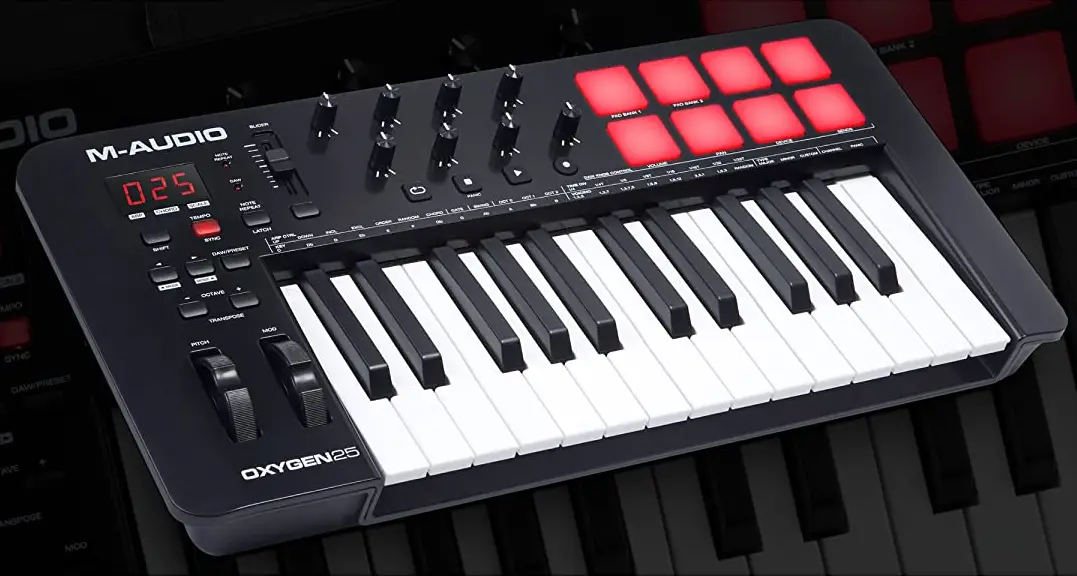
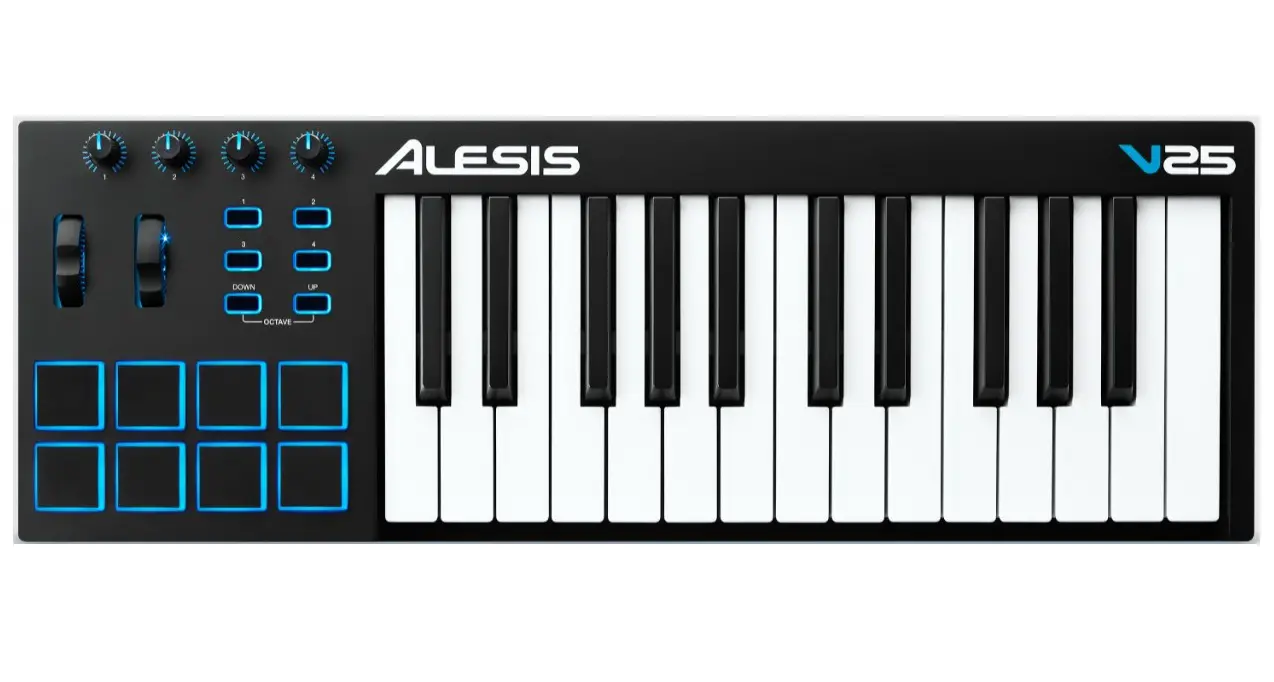
Oxygen 25
Top Panel
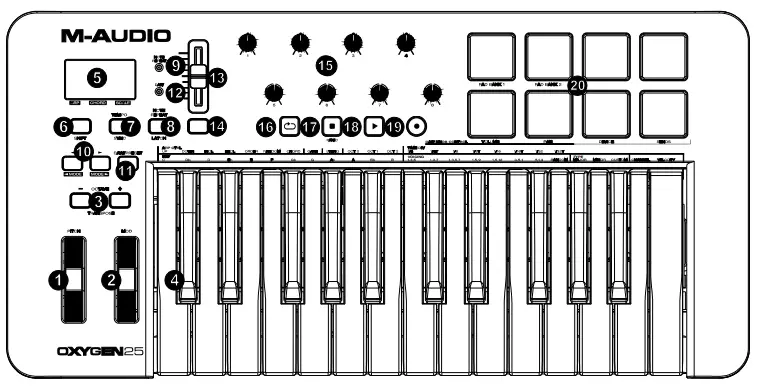
Octave/Wheels
- PITCH: This wheel creates expressive changes in performances by raising and lowering pitch.
Rolling the Pitch Bend wheel upward will raise an instrument’s pitch whereas rolling it downward will lower the pitch.
The upper and lower pitch bend limit is determined by settings on your hardware or software synthesizer, not by the Pitch Bend wheel on the Oxygen 25 keyboard itself. Typically, this can be either a half note or an octave up/down.
This wheel is spring mounted and will return to the center detent position when released. - MOD (Modulation): This wheel is used to add expression to performances by changing the intensity of certain effects.
By default, most synthesizers assign this wheel to control vibrato (change in intonation) or tremolo (change in volume) although it is usually possible to reassign the function of this wheel through the instrument’s control panel.
Rolling the Modulation Wheel upward will increase the modulation effect, while rolling downward will reduce the effect.
The Modulation Wheel is an assignable controller capable of sending a variety of MIDI messages other than Modulation data. - OCTAVE – / +: The Octave buttons are used to shift the keyboard’s octave range up or down in one octave increments, extending the octave range of the pads or keys.
TRANSPOSE: Hold SHIFT and press either of these buttons to transpose the keyboard up or down. - Keybed: The velocity-sensitive keyboard is not only the primary method of sending Note On/Off and velocity data when performing. It is also used to access extended programing functions listed along its upper edge.
Hold SHIFT and press a labeled key to access these additional programming functions:
Note: The Key modifiers are dependent on what mode is currently active. For example, if Smart Chord mode is active, the only Shift modifier functions will be available for the Smart Chord functionality.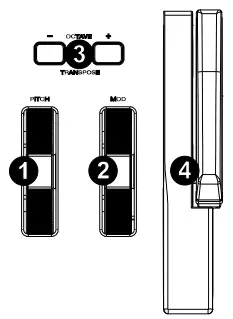
Arpeggiator Parameters:- ARP CTRL (Arpeggiator Control): Control Arpeggiator settings for the following parameters: UP, DOWN, INCL, EXCL, ORDER, RANDOM, and CHORD: Selects in which order notes will sound when the keys are pressed.
- GATE: Controls the length of the arpeggiated note.
- SWING: Controls the rhythm deviation of the arpeggiated notes.
- OCT 0, OCT 1, OCT 2: Controls how many octaves will be played in the arpeggiated pattern.
- TIME DIV (Time Division): Determines the timing and rhythm for the note repeat and arpeggiator features. Control Arp, and Note Repeat Time Division settings for the following parameters: 1/4, 1/4T, 1/8, 1/8T, 1/16, 1/16T, 1/32, 1/32T.
Smart Chord and Scale Parameters: - KEY: Selects which key the notes will use in the chosen Smart Chord or Smart Scale.
Control Key settings for the following parameters: C, Db, D, Eb, E, F, Gb, G, Ab, A, Bb, B. - VOICING (Smart Chord Mode only): Selects which type of full chord will be played when a single key is pressed.
Control SMART CHORD settings for the following parameters: 1,3,5; 1,3,7; 1,3,5,7; 1,5,9; 1,5,12; 3,5,1; 5,1,3; RANDOM. - TYPE: Selects which key and type of musical scale will be used when using the SMART CHORD or SMART SCALE feature.
Control Smart Chord MODE settings for the following parameters: MAJOR, MINOR, CUSTOM.
Control Smart Scale MODE settings for the following parameters: MAJOR, PENTATONIC MAJOR, MINOR, MELODIC MINOR, HARMONIC MINOR, PENTATONIC MINOR, CUSTOM DORIAN, CUSTOM BLUES.
MIDI Channel and Velocity Parameters: - CHANNEL DOWN, UP: Selects which MIDI channel will be used to transmit for the keys, pads, or controls.
- VELOCITY: Changes the Velocity Curve for the keys or pads depending on which controls were last pressed.
To access additional features, refer to the software Preset Editor at m-audio.com.
Central Functions
- Display: The Oxygen 25 features a 3-digit LED display providing visual information regarding current operation, programing, and controller status.
The 3 dot LEDs on the Display correspond to one of the 4 available modes that is active: ARP, ARP Latch, Smart Chord, and Smart Scale.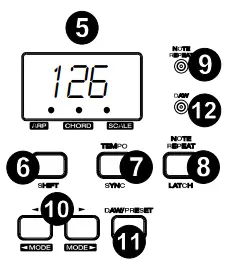
- ARP: LED is lit when ARP mode is active.
LED flashes when ARP Latch mode is active. - CHORD: LED is lit when Smart Chord mode is active.
- SCALE: LED is lit when Smart Scale mode is active
- ARP: LED is lit when ARP mode is active.
- SHIFT: Hold the SHIFT button while moving or pressing controls or buttons on the keyboard to access their secondary functions.
- TEMPO: Tap this button to set Oxygen 25’s tempo. Press and hold this button and use the < and > buttons to make incremental changes to the tempo.
SYNC: Press and hold SHIFT and the TEMPO button to access the SYNC feature, allowing the keyboard to be synced to your DAWs Time Clock messages (Tempo).
The tempo setting affects the keyboard’s arpeggiator and note repeat functions. - NOTE REPEAT: Press this button to activate the note repeat function for the Pads.
LATCH: To latch the note repeat function, hold SHIFT and then press this button.
While Note Repeat is active, hold SHIFT and press the Time Division keys to change the current Time Division setting of the Arpeggiator and pad Note Repeat. - NOTE REPEAT (LED): This LED will be lit solid when Note Repeat is active.
- <, >: The < and > buttons will select presets when in Preset mode.
< MODE SELECT >: When SHIFT is held and one of these buttons is pressed, the active mode will change (ARP, ARP Latch, Smart Chord, Smart Scale, or no mode active).
To turn on or off the currently active mode, press the < and > buttons simultaneously. For example, if Smart Scale is active, pressing the < and > buttons simultaneously will deactivate Smart Scale mode and return the keybed to its normal functionality.
You can also turn off all modes by pressing the < or > buttons until no Mode button is lit.
Note: Depending on what mode the keyboard is currently in the buttons’ functionality will change.
DAW Mode: In DAW mode, < and > will scroll through track banks. Preset Mode: In Preset Mode, the < and > buttons will scroll through presets. In Edit Mode, they will cycle through the currently selected editable control.
Note Repeat: When Note Repeat is active the < and > buttons will scroll up and down through time division settings. - DAW / PRESET: When this button is pressed, it will activate the keyboard’s Preset or DAW functionality on the fader, knobs, button, and pads.
When DAW mode is active, controls (Fader, Fader button, < and >, pads, and knobs) will send Mackie, Mackie/HUI, or MIDI CC messages, depending on which DAW is selected.
When Preset mode is active, Preset select will latch on for you to use the < and > buttons to select from a list of Virtual Instrument presets.
IMPORTANT: To change what DAW is currently selected, press and hold the SHIFT button and the DAW/PRESET button.- NC1: Mackie 1: Will send standard Mackie messages. Mackie control is typically used for DAWs like Cubase, Studio One, and Reaper.
- NC2: Mackie 2. Will send standard Mackie messages, but with higher resolution for the pan pots. If your DAW’s pan isn’t able to do a full sweep of the pan pot, use Mackie 2. Mackie control is typically used for DAWs like Cubase, Studio One, and Reaper.
- M|h: Mackie/HUI will send standard Mackie/HUI messages for DAWs like Pro Tools and Logic.
- N1: MIDI 1 will send 1 set of standard MIDI messages for use with Ableton.
- N2: MIDI 2 will send 1 set of standard MIDI messages for use with MPC Beats, and Reason.
- N3: MIDI 3 will send 1 set of standard MIDI messages for use with Ableton for controlling clip launching, and more advanced features.
- DAW (LED): This LED will be lit solid when DAW mode is active.
Fader/Fader Button - FADER: Sends different types of standard MIDI CC messages or advanced MIDI messages based on the assigned parameter or the active preset.
DAW Mode: Sends channel Fader messages for Track Faders or other DAW controls.
Preset Mode: Sends predefined messages or user editable MIDI CC messages. - FADER Button: This mappable button can be assigned to send Note, CC, and other MIDI messages.
DAW Mode: Sends Mackie/HUI messages or predefined CC messages.
Preset Mode: Sends predefined messages or user editable MIDI CC messages.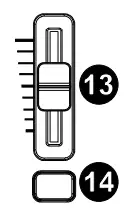
Knobs/Transport Controls - Knobs 1-8: Sends different types of standard MIDI CC messages or advanced MIDI messages based on the assigned parameter or the active preset. Each knob can be individually assigned to a different MIDI parameter.
DAW Mode: Sends predefined Mackie/HUI, Mackie messages or predefined CC messages for Track Volume, Panning, Device, or Sends.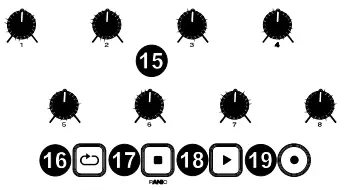
Preset Mode: Sends user editable MIDI Messages in preset 1-10.  (Loop): Press this button to activate/deactivate the loop function in your DAW.
- ◼ (Stop): Press this button to stop the open song in your DAW.
Double-press this button to stop the open song and return the playhead to the beginning of the song.
Shift and Press PANIC: Sends an “All Notes Off” message on all 16 MIDI channels. - ► (Play): Press this button to play the song in your DAW.
- ● (Record): Press this button to activate recording in your DAW.
Pads - Pads 1-8: Press these velocity-sensitive pads to send Note On/Off and velocity data when performing.
Hold SHIFT and press a pad to change to activate its secondary function:
PAD BANK 1 (Pad 1): Select pad bank for all Pads 1-8.
PAD BANK 2 (Pad 2): Select pad bank for all Pads 1-8.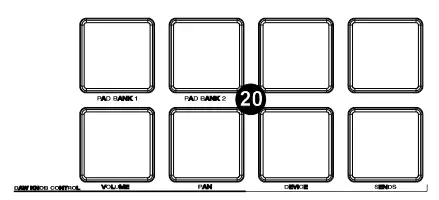
DAW KNOB CONTROL
Set all Knobs 1-8 to:
VOLUME (Pad 5): Each knob will adjust the volume of the corresponding software track.
PAN (Pad 6): Each knob will pan the corresponding software track.
DEVICE (Pad 7): Each knob will control device controls of the corresponding software track.
SENDS (Pad 8): Each knob will control the level of the aux sends for the corresponding software track.
Note: Not all knob functions will be available in every DAW.
Rear Panel
- USB: The USB 2.0 port delivers power to the keyboard and transmits MIDI data when connected to a computer.
- SUSTAIN: This input accepts a momentary-contact foot pedal (not included). When pressed, this pedal will sustain the sound you are playing without having to keep your fingers pressing down on the keys.
Note: The polarity of the sustain pedal is determined by the keyboard upon startup. When an Oxygen 25 keyboard is powering up, the sustain pedal is assumed to be in the “up” (Off) position. It is important that the sustain pedal is not pressed during startup, otherwise the pedal will reverse its operation, and notes will sustain when the pedal is not pressed. - POWER ON/OFF: Use this switch to power the device on or off. When this switch is set to the “on” position, Oxygen 25 is powered through the USB connection to your computer.
 Kensington Lock: This connector is compatible with standard laptop-style Kensington security cables for theft protection.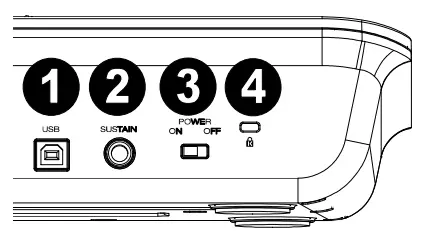
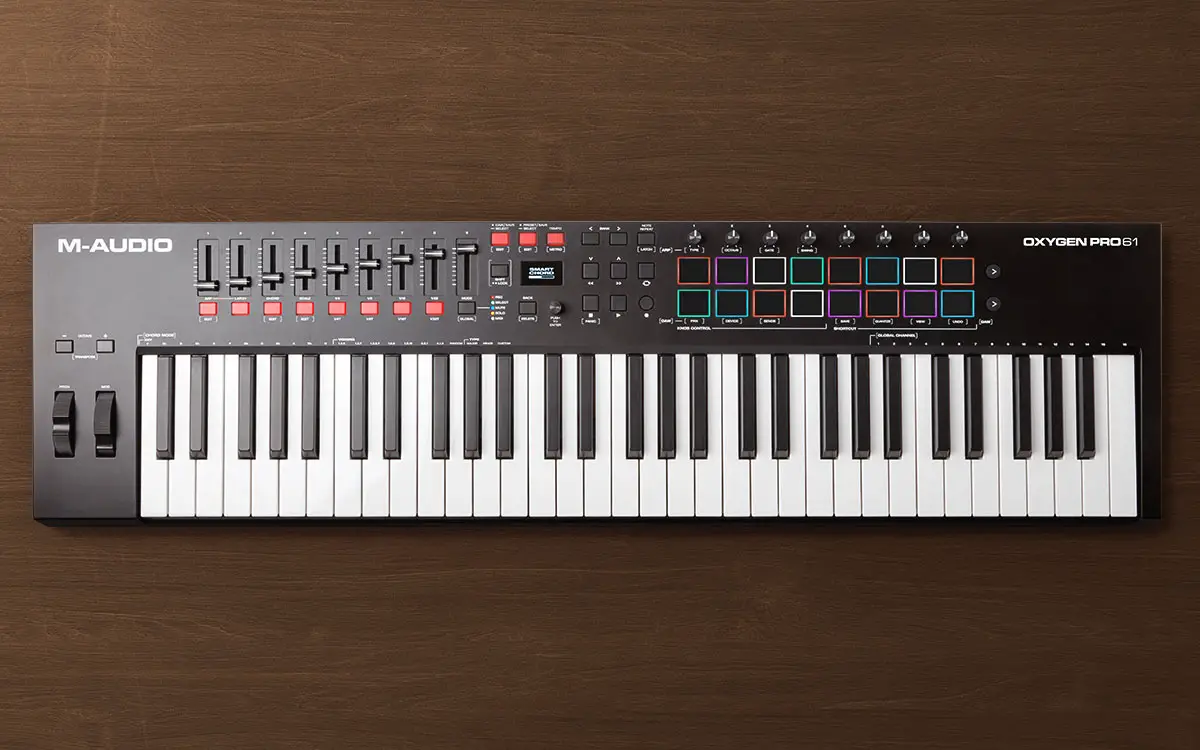
Oxygen 49
Top Panel
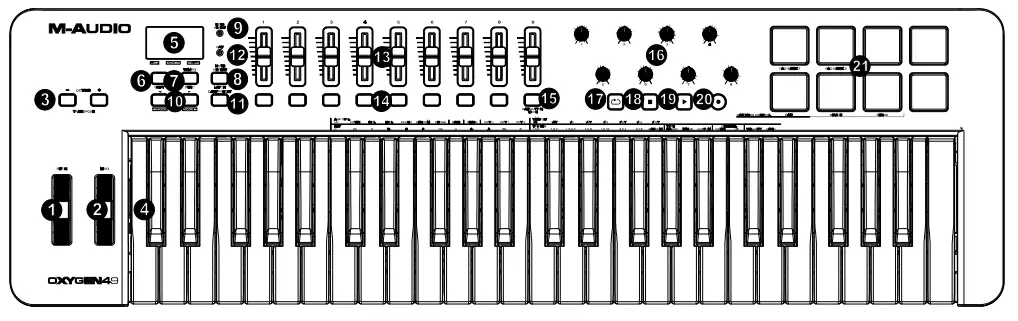
Octave/Wheels
- PITCH: This wheel creates expressive changes in performances by raising and lowering pitch.
Rolling the Pitch Bend wheel upward will raise an instrument’s pitch whereas rolling it downward will lower the pitch.
The upper and lower pitch bend limit is determined by settings on your hardware or software synthesizer, not by the Pitch Bend wheel on the Oxygen 49 keyboard itself. Typically, this can be either a half note or an octave up/down.
This wheel is spring mounted and will return to the center detent position when released. - MOD (Modulation): This wheel is used to add expression to performances by changing the intensity of certain effects.
By default, most synthesizers assign this wheel to control vibrato (change in intonation) or tremolo (change in volume) although it is usually possible to reassign the function of this wheel through the instrument’s control panel.
Rolling the Modulation Wheel upward will increase the modulation effect, while rolling downward will reduce the effect.
The Modulation Wheel is an assignable controller capable of sending a variety of MIDI messages other than Modulation data. - OCTAVE – / +: The Octave buttons are used to shift the keyboard’s octave range up or down in one octave increments, extending the octave range of the pads or keys.
TRANSPOSE: Hold SHIFT and press either of these buttons to transpose the keyboard up or down. - Keybed: The velocity-sensitive keyboard is not only the primary method of sending Note On/Off and velocity data when performing. It is also used to access extended programing functions listed along its upper edge.
Hold SHIFT and press a labeled key to access these additional programming functions:
Note: The Key modifiers are dependent on what mode is currently active. For example, if Smart Chord mode is active, the only Shift modifier functions will be available for the Smart Chord functionality.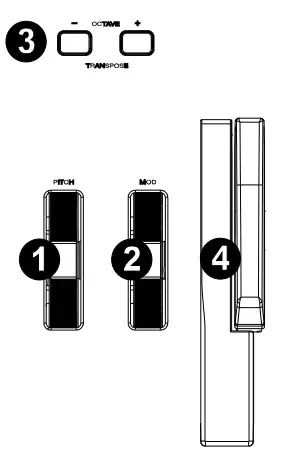
Arpeggiator Parameters:- ARP CTRL (Arpeggiator Control): Control Arpeggiator settings for the following parameters: UP, DOWN, INCL, EXCL, ORDER, RANDOM, and CHORD: Selects in which order notes will sound when the keys are pressed.
- GATE: Controls the length of the arpeggiated note.
- SWING: Controls the rhythm deviation of the arpeggiated notes.
- OCT 0, OCT 1, OCT 2: Controls how many octaves will be played in the arpeggiated pattern.
- TIME DIV (Time Division): Determines the timing and rhythm for the note repeat and arpeggiator features. Control Arp, and Note Repeat Time Division settings for the following parameters: 1/4, 1/4T, 1/8, 1/8T, 1/16, 1/16T, 1/32, 1/32T.
Smart Chord and Scale Parameters: - KEY: Selects which key the notes will use in the chosen Smart Chord or Smart Scale.
Control Key settings for the following parameters: C, Db, D, Eb, E, F, Gb, G, Ab, A, Bb, B. - VOICING (Smart Chord Mode only): Selects which type of full chord will be played when a single key is pressed.
Control SMART CHORD settings for the following parameters: 1,3,5; 1,3,7; 1,3,5,7; 1,5,9; 1,5,12; 3,5,1; 5,1,3; RANDOM. - TYPE: Selects which key and type of musical scale will be used when using the SMART CHORD or SMART SCALE feature.
Control Smart Chord MODE settings for the following parameters: MAJOR, MINOR, CUSTOM.
Control Smart Scale MODE settings for the following parameters: MAJOR, PENTATONIC MAJOR, MINOR, MELODIC MINOR, HARMONIC MINOR, PENTATONIC MINOR, CUSTOM DORIAN, CUSTOM BLUES.
MIDI Channel and Velocity Parameters: - CHANNEL DOWN, UP: Selects which MIDI channel will be used to transmit for the keys, pads, or controls.
- VELOCITY: Changes the Velocity Curve for the keys or pads depending on which controls were last pressed.
- To access additional features, refer to the software Preset Editor at m-audio.com.
Central Functions
- Display: The Oxygen 25 features a 3-digit LED display providing visual information regarding current operation, programing, and controller status.
The 3 dot LEDs on the Display correspond to one of the 4 available modes that is active: ARP, ARP Latch, Smart Chord, and Smart Scale. - ARP: LED is lit when ARP mode is active.
LED flashes when ARP Latch mode is active. - CHORD: LED is lit when Smart Chord mode is active.
- SCALE: LED is lit when Smart Scale mode is active.
- NOTE REPEAT (LED): This LED will be lit solid when Note Repeat is active.
- <, >: The < and > buttons will select presets when in Preset mode.
< MODE SELECT >: When SHIFT is held and one of these buttons is pressed, the active mode will change (ARP, ARP Latch, Smart Chord, Smart Scale, or no mode active).
To turn on or off the currently active mode, press the < and > buttons simultaneously. For example, if Smart Scale is active, pressing the < and > buttons simultaneously will deactivate Smart Scale mode and return the keybed to its normal functionality.
You can also turn off all modes by pressing the < or > buttons until no Mode button is lit.
Note: Depending on what mode the keyboard is currently in the buttons’ functionality will change.
DAW Mode: In DAW mode, < and > will scroll through track banks.
Preset Mode: In Preset Mode, the < and > buttons will scroll through presets. In Edit Mode, they will cycle through the currently selected editable control.
Note Repeat: When Note Repeat is active the < and > buttons will scroll up and down through time division settings. - DAW / PRESET: When this button is pressed, it will activate the keyboard’s Preset or DAW functionality on the fader, knobs, button, and pads.
When DAW mode is active, controls (Fader, Fader button, < and >, pads, and knobs) will send Mackie, Mackie/HUI, or MIDI CC messages, depending on which DAW is selected.
When Preset mode is active, Preset select will latch on for you to use the < and > buttons to select from a list of Virtual Instrument presets.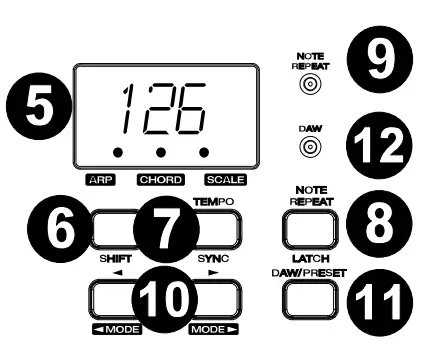
IMPORTANT: To change what DAW is currently selected, press and hold the SHIFT button and the DAW/PRESET button.- NC1: Mackie 1: Will send standard Mackie messages. Mackie control is typically used for DAWs like Cubase, Studio One, and Reaper.
- NC2: Mackie 2. Will send standard Mackie messages, but with higher resolution for the pan pots. If your DAW’s pan isn’t able to do a full sweep of the pan pot, use Mackie 2. Mackie control is typically used for DAWs like Cubase, Studio One, and Reaper.
- M|h: Mackie/HUI will send standard Mackie/HUI messages for DAWs like Pro Tools and Logic.
- N1: MIDI 1 will send 1 set of standard MIDI messages for use with Ableton.
- N2: MIDI 2 will send 1 set of standard MIDI messages for use with MPC Beats, and Reason.
- N3: MIDI 3 will send 1 set of standard MIDI messages for use with Ableton for controlling clip launching, and more advanced features.
- DAW (LED): This LED will be lit solid when DAW mode is active.
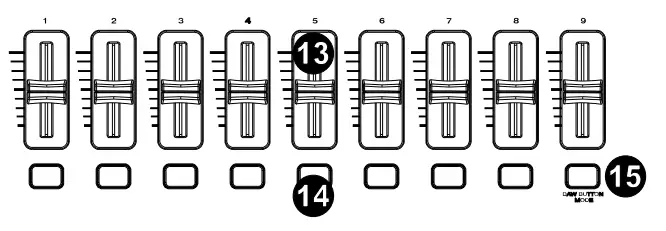
Faders/Buttons - Faders 1-9: Sends different types of standard MIDI CC messages or advanced MIDI messages based on the assigned parameter or the active preset.
DAW Mode: Sends channel Fader messages for Track Faders or other DAW controls.
Preset Mode: Sends predefined messages or user editable MIDI CC messages. - Fader Buttons: These mappable buttons can be assigned to send Note, CC, and other MIDI messages.
DAW Mode: Sends Mackie/HUI messages or predefined CC messages for Track Rec Arm, Track Select, Track Solo, and Track Mute.
Preset Mode: Sends predefined messages or user editable MIDI CC messages. - DAW BUTTON MODE: When in DAW mode and SHIFT and this button is pressed, it will change the Fader buttons’ modes between Track Rec Arm, Track Select, Track Mute, or Track Solo.
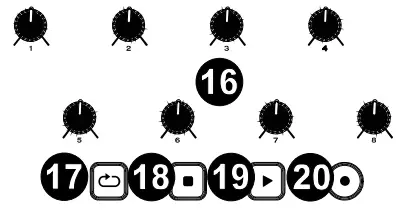
Knobs/Transport Controls - Knobs 1-8: Sends different types of standard MIDI CC messages or advanced MIDI messages based on the assigned parameter or the active preset.
Each knob can be individually assigned to a different MIDI parameter.
DAW Mode: Sends predefined Mackie/HUI, Mackie messages or predefined CC messages for Track Panning, Device, or Sends.
Preset Mode: Sends user editable MIDI Messages in preset 1-10. - (Loop): Press this button to activate/deactivate the loop function in your DAW.
- ◼ (Stop): Press this button to stop the open song in your DAW. Double-press this button to stop the open song and return the play head to the beginning of the song.
- ►(Play): Press this button to play the song in your DAW.
- ● (Record): Press this button to activate recording in your DAW.
Pads - Pads 1-8: Press these velocity-sensitive pads to send
Note On/Off and velocity data when performing.
Hold SHIFT and press a pad to change to activate its
secondary function:
PAD BANK 1 (Pad 1): Select pad bank for all Pads 1-
8.
PAD BANK 2 (Pad 2): Select pad bank for all Pads 1-
8.
DAW KNOB CONTROL
Set all Knobs 1-8 to:
PAN (Pad 6): Each knob will pan the corresponding software track.
DEVICE (Pad 7): Each knob will control device controls of the corresponding software track.
SENDS (Pad 8): Each knob will control the level of the aux sends for the corresponding software track.
Note: Not all knob functions will be available in every DAW.
◼►●
 M-Audio
 M-Audio
 M-Audio