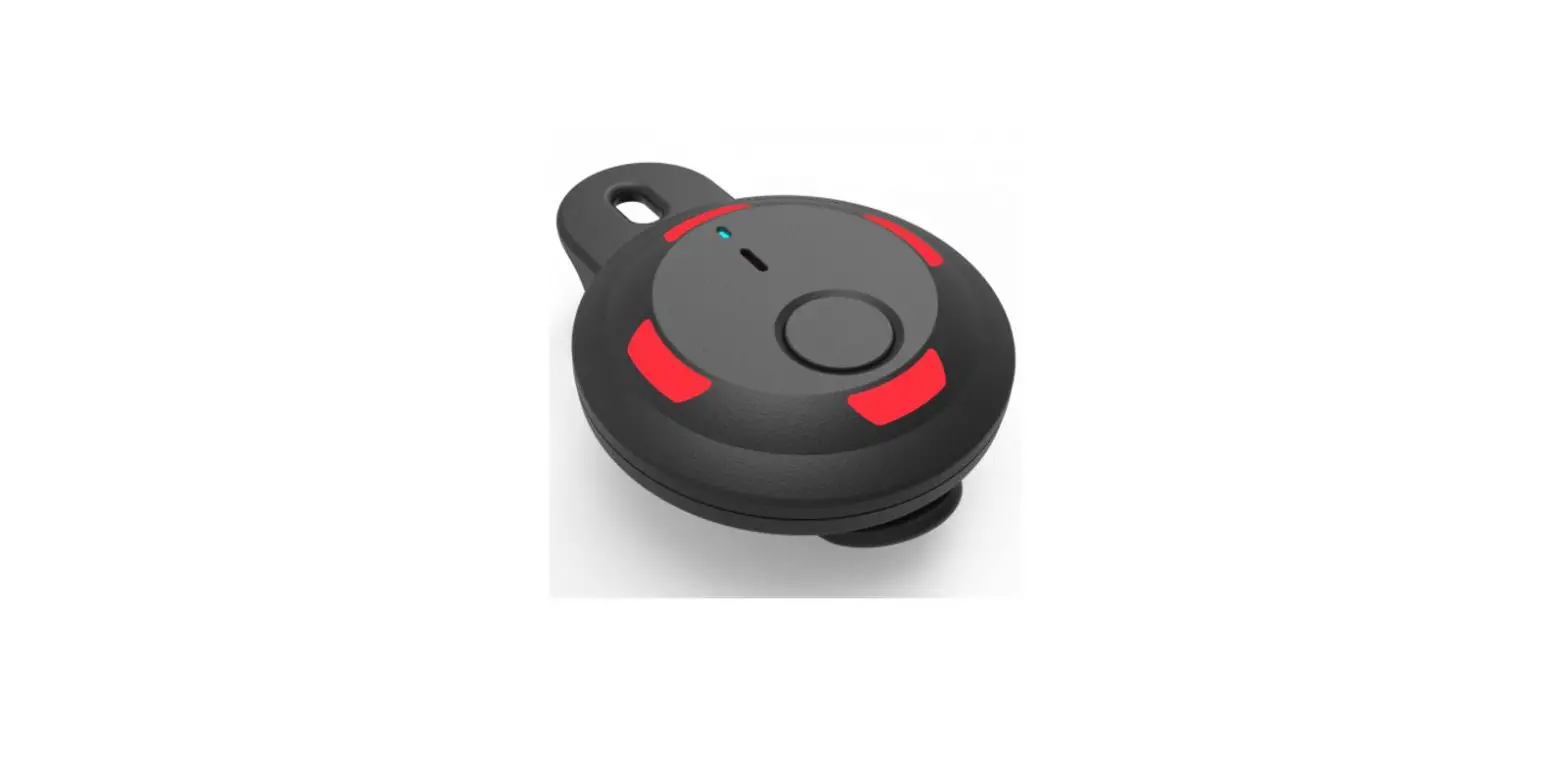
SID-FLEX Wireless Monitoring Device for SDI-12 Probes
Product Information
| Product Name | SID-FLEX |
|---|---|
| Product Type | Wireless Monitoring Device for SDI-12 Probes |
| Revision Sheet | Release No. Rev. A |
| Date | 10/26/2018 |
| Features | The SID-FLEX includes the following features: – Wireless monitoring device for SDI-12 probes – Power source from two AA batteries |
Product Usage Instructions
Installation
- Install Probe:
- Follow the provided instructions to install the SDI-12
probe.
- Follow the provided instructions to install the SDI-12
- Install Mount:
- Follow the provided instructions to install the mount for the
SID-FLEX device.
- Follow the provided instructions to install the mount for the
- Connect Wires:
- Connect the wires from the SDI-12 probe to the corresponding
wire connections on the SID-FLEX device.
- Connect the wires from the SDI-12 probe to the corresponding
- Install Batteries:
- Insert two AA batteries into the SID-FLEX device.
- Initial Connection Diagnostics:
- Perform the initial connection diagnostics as per the provided
instructions to ensure proper functionality.
- Perform the initial connection diagnostics as per the provided
- Connect Device to Your Account:
- Follow the provided instructions to connect the SID-FLEX device
to your account.
- Follow the provided instructions to connect the SID-FLEX device
Note: Please refer to the complete user manual for detailed
instructions on usage and troubleshooting of the SID-FLEX
device.
USING THE FLEX
Wireless Monitoring Device for SDI-12 Probes
Revision Sheet
Release No. Rev. A
Date 10/26/2018
Revision Description Release
2
Table of Contents
1
GENERAL
4
1.2
Features 4
1.3
Acronyms and Abbreviations
4
1.4
Important FCC and IC Compliance Information
4
1.5
User Information 5
1.6
Cloud Data Services
5
1.7
Points of Contact 5
2
INSTALLATION 7
2.1
Install Probe 7
2.2
Install Mount 7
2.3
Connect Wires 8
2.4
Install Batteries 9
2.5
Initial Connection Diagnostics
10
2.6
Connect Device to Your Account 10
3
1 GENERAL
1.1 System Overview
The Sensor Integration Device Flex (SID-FLEX) for SDI-12 is an end device in the Internet of Things (IoT) for agriculture. Its job is to periodically read an SDI-12 soil moisture probe (AquaCheck or Sentek) and report the readings to the cloud via a Data Gateway device. The Data Gateway listens for packets from end devices and periodically makes a cellular data connection to forward the accumulated end device packets to a server along with its own packets. The Data Gateway acknowledges packets from end devices. The Data Gateway also holds downlink packets from the server for end devices and sends them to the device after the next uplink packet from the device in lieu of an acknowledge.
1.2 Features
The SID-FLEX includes the following features:
· Low power microcontroller · SDI-12 interface circuit · Low power, long range radio for communication to
Gateway · GPS receiver for device location · Non-volatile memory for configurable read intervals · Non-volatile memory for data storage when a Data
Gateway is not available · Red-green-blue LED status indicator · Accelerometer for user input · Sonalert to aid locating the device in crop · Ultra-low power sleep enabling extended operating time
from two AA batteries
1.3 Acronyms and Abbreviations
Term API cm CPVC FCC GPS ID IoT LED QR RSS RSSI s URL UTC V ` ”
Description Application Interface Centimeters Chlorinated Polyvinyl Chloride Federal Communications Commission Global Positioning System Unique Identification Number Internet of Things Light Emitting Diode Quick Response Radio Standards Specification Received Signal Strength Indicator Seconds Universal Resource Locator Universal Time Coordinated Volts Feet Inches
1.4 Important FCC and IC Compliance Infor-
mation
Changes or modifications not expressly approved by the manufacturer could void the user’s authority to operate this equipment.
This product meets the applicable FCC Part 15 rules. Operation is subject to the following two conditions: (1) this device may not cause interference, and (2) this device must accept any interference, including interference that may cause undesired operation of the device.
Le présent materiel est conforme aux CNRexempts de licence d’Industrie Canada. Son fonctionnement est soumis aux deux conditions suivantes: (1) cet appareil ne peut pas provoquer d’interférences, et (2) cet appareil doit accepter toute interférence, y compris celles susceptibles de provoquer le fonctionnement du dispositive.
To limit RF exposure, please ensure 48inincchheess((1200cm) of separation from the transmitter antennas at all times.
4
1.5 User Information
1.5.1 Enclosure
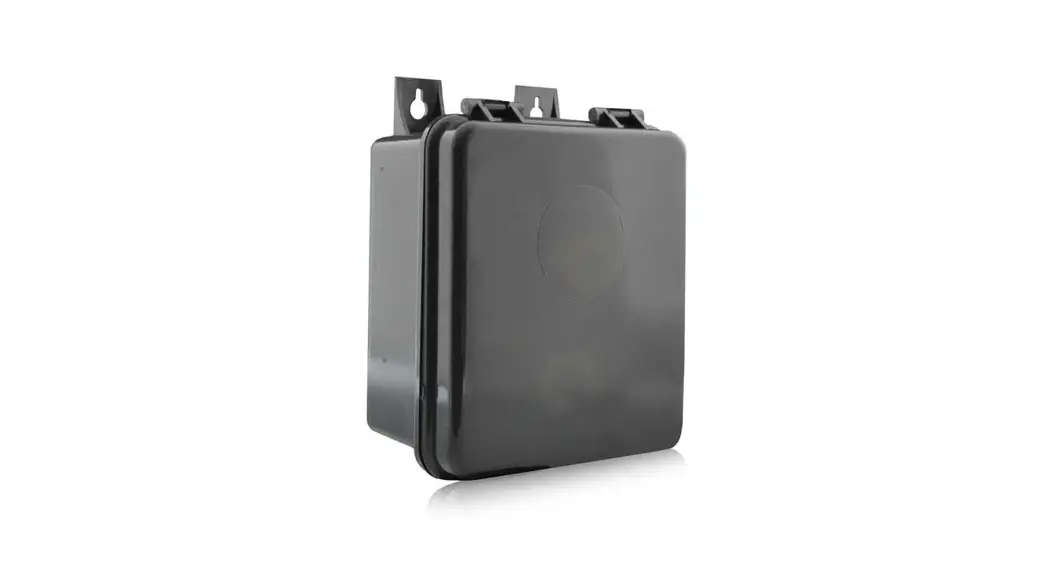
The SID-FLEX has a lid that may be opened for access to the probe wire connections, wire release buttons and the LED indicator. The lid should always be snapped closed tightly when installation is complete, taking care to route the probe wires through the slot provided between the lid and the base. Failure to do so will allow moisture to enter the enclosure which will likely cause failure.
1.5.2 Installation Packet Series
The SID-FLEX will automatically send a few data packets via radio to the Data Gateway after the batteries are installed. It sends a version packet, a status packet, a configuration packet, a probe information packet, two a soil moisture/temperature packets, and a location packet. These packets are sent with a special “send-it-now” flag to make the Data Gateway forward them immediately instead of holding them until the next normal cellular connection.
After booting, the SID-FLEX turns on its GPS receiver to acquire time and location. This is indicated with short cyan flashes every two seconds. It needs date and time to set its real time clock. It needs location to send the location packet. IT MUST BE ABLE TO RECEIVE FROM GPS SATELLITES TO FUNCTION CORRECTLY.
1.5.3 User Input
To achieve a long battery life, the SID-FLEX sleeps most of the time. It wakes up periodically to read the probes and to send radio packets. The default interval for reading soil moisture is every 60 minutes. The Data Gateway collects packets and forwards them to the server every 15 minutes.
The SID-FLEX also has an accelerometer sensor capable of detecting taps on the enclosure. It is set up to detect a double tap two taps, one immediately following the other. This will wake up the device if it is asleep. A white flash of the indicator signals a double tap detection. Four double taps in a row will cause it to turn on GPS and send the install sequence of packets again.
1.5.4 Indicator Description
The SID-FLEX has a red-green-blue LED indicator. The table below gives the meaning of colors and flashes.
Color
Flash Timing
Meaning
Green
Yellow (or Red)
Cyan White Magenta-Green
Magenta-Red
RYGY
0.1 s flash every 2 s Battery good and functioning
0.1 s flash every 2 s Battery low, replace battery immediately
0.1 s flash every 2 s GPS enabled
Once
Double tap detected
Once
Radio packet sent, acknowledge received
Once
Radio packet sent, no acknowledge received
Rapid and repeating Booting Firmware
1.5.5 Orientation
For maximum radio performance, the SID-FLEX should be oriented with the back or front edge of the enclosure pointed toward the Data Gateway.
1.6 Cloud Data Services
Data from RealmFive IoT devices is stored on data servers in the “cloud”. The data is accessible to customers through an API allowing customer integration into their own applications and websites. Device data is also accessible through app.realmfive.com which is intended to aid installers with configuration and verification of device operation. Both require credentials for access. See the following section for information on how to obtain credentials.
5
1.7 Points of Contact
1.7.1 Installation User Interface RealmFive’s installer interface is at app.realmfive.com. A login username and password are required to access this website. Access to this website is needed to verify device installation. Please contact your administrator at least 24 hours prior to installation time to get your login set up if you do not have one. 1.7.2 Obtaining a Login A login username and password may be obtained by emailing your administrator with the following information:
FIRST NAME LAST NAME PHONE NUMBER ORGANIZATION Your username will be your email address. You will be sent a temporary password which must be changed the first time you log in. To log in, go to app.realmfive.com, or simply scan the QR code on a device, and enter your username and password. 1.7.3 Obtaining Help Questions and problems can also be submitted via the help desk or chat link within the app. A guide to common user tasks and frequently asked questions can be found under “Support” at app.realmfive.com. More immediate help can be obtained through a live chat under “Support” at app.realmfive. com.
6
2 INSTALLATION
The SID-FLEX needs the Data Gateway to send in its data packets. Thus, the Data Gateway should be installed before the SID-FLEX. Pick Data Gateway and SID-FLEX installation sites that have line of site between the Data Gateway and SID-FLEX. The radio signal will be attenuated by the foliage of the crop as it grows up around the SID-FLEX during the season. So, avoid installation sites that yield poor RSSI to start with.
2.1 Install Probe
Install the SDI-12 soil moisture probe in the ground at the desired location per the manufacturer’s instructions.
2.2 Install Mount
Install SID-FLEX on a 5′ length of the same ¾” CPVC post as the probes by pushing and twisting.
7
2.2.1
Push post assembly into the ground near the soil moisture probe so there is enough length of wire to reach the SID-FLEX.
Install the SID-FLEX as high as possible. Device wireless range will typically improve with greater installation height. RealmFive recommends an installation height of approximately 4 feet off the ground. In corn, best results are achieved when the SID-FLEX is above the height of most ears.
1
2
3
4
T
2.3 Connect Wires
Open SID-FLEX lid. The side the device has holes that probe wires can be pushed into. Follow the wire color table on the label for the brand of probe being installed to determine which wire to install in which hole. IMPORTANT: The probe will not operate correctly and may be damaged by incorrect connection.
2.3.1
Trim any hooks, globs, or solder balls off the tinned wires with side cutters to ease removal at the end of the season.
8
1
2
3
Rain Data
Bucket
Power
optional
Common
2.3.2
Plug the the three probe wires into the SID-FLEX wire holes
4
T
per the SDI-12 wire color chart. Press the release button while
inserting if necessary. Give each wire a light tug to make sure
they are properly captured.
Battery Pack
optional
Device Aquacheck Sentek
Data BLU WHT
Power BRN RED
Common YEL/GRN GRN
2.3.3
Tie excess probe wire to CPVC post mount to prevent the wires from being accidentally pulled out of the SID-FLEX’s internal board clips. Keep wires off the ground to reduce likelihood of damage from rodents or other animals.
1
2
3
4
T
RealmFive, Inc. 0x03000001
Data Power Common
Battery Pack optional
Data Power Common
Aquacheck BLU BRN YEL/GRN
Sentek
WHT RED GRN
For others go to realmfive.com/support
2.4 Install Batteries
Install (2) AA batteries.
Realm recommends the use of Energizer Lithium Ultimate batteries for best performance. Energizer Lithium Ultimate batteries have a starting series voltage close to 3.6 V and a nominal voltage of 3.0 V.
New batteries should last through the growing season depending on the soil moisture read interval. The batteries should be replaced when their series voltage is below 2.7 V while the device is awake. Note that the battery voltage will read higher when the temperature is warmer. The batteries should be removed when the device is pulled from the field.
PN: 100 – 00580 Rev 1 FCC ID: 2AOWY – 0050
9
PN: 100 – 00580 Re FCC ID: 2AOWY – 0050
0x03000001
Aquacheck BLU BRN YEL/GRN
Sentek
WHT RED GRN
For others go to realmfive.com/support
2.5 Initial Connection Diagnostics
Once batteries are installed, device LED will repeatedly blink red-yellow-green-yellow as it boots. It will then blink cyan while it acquires time and location via GPS. While it is acquiring GPS it will also blink magenta-green or magenta-red indicating it is sending radio packets. Magenta-green means it received an acknowledge from the Data Gateway. Magenta-red means no acknowledge was received. If no acknowledge was received the device needs to be mounted higher or closer to the Data Gateway.
PN: 100 – 00580 Rev 1 FCC ID: 2AOWY – 0050
RealmFive, Inc. 0x03000001
2.6 Connect Device to Your Account
Open deviceDlaidtato expose the unique device QR code. AquaScchaencSkID-FLEX QR code via smart phone. The QR code conSentteakin the URL of the webpage for that specific device. ScanF ning with any generic QR code scanner should take you to
page for the device.
Or go to app.realmfive.com/devices/0x30XXXXX where XXXXX is the balance of the ID as it appears on the label.
2.6.1
If you have not logged in to the website before the login page will appear first. Log in to RealmFive’s browser-based installation app.
See section 1.7 for credentials.
10
2.6.2 Device app page for SID-FLEX should be displayed. The ID number in the upper right corner should correspond to the ID number on the SID-FLEX. Scroll down to the bottom of the page and check connectivity
to verify new packets have been received. The timestamp of the last packet received from the device is shown in UTC. Tapping on the time stamp will pop up the time since the packet was received. Check the RSSI. If the RSSI is lower than -115, consider mounting the SID-FLEX higher or relocating the device the device closer to the Data Gateway. This is true especially if crop is expected to grow above the height of the SID-FLEX. Check the battery voltage . Battery voltage should be above 3.0 V. Batteries need to be changed when the voltage gets below 2.7 V. Check location . Verify a new location has been received by tapping the timestamp. If desired, double tapping four times on the enclosure will cause the SID-FLEX to send the install series of packets again. Detection of the double tap is indicated by a white flash. It takes a few minutes for the packets to be sent and relayed by the Data Gateway.
2.6.3 Device installation page for SID-FLEX shows the raw probe soil moisture and temperature readings. The colors to the drop icon distinguish whether the setup is working. In this example, the depths are set but the soil moisture and temperature probes are not hooked up. But the device is confirmed to be working and sending data to the cloud. Note: Probe reading show ?????? when the probe wires are not connected. Check probe wires to make sure they are plugged in and are not damaged.
11
2.6.4
All received devices should already be provisioned to each customer. The installer will need to assign each device to the grower and field. This is done by tapping on the menu icon
in the upper right corner and selecting Organization. Then navigating to or adding the grower and field as necessary. And finally tapping Add New Device and scanning the QR code or typing the ID.
1
2
3
4
T
2.6.5
Close the lid on the SID-FLEX, taking care to route the wires out the slot provided between the base and the lid. Do not cut the insulation on the wires by pinching the wires between the lid and the base.
12
 RealmFive View