 User Manual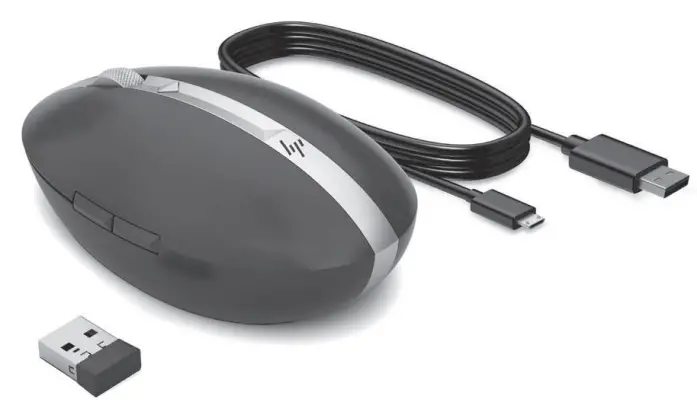
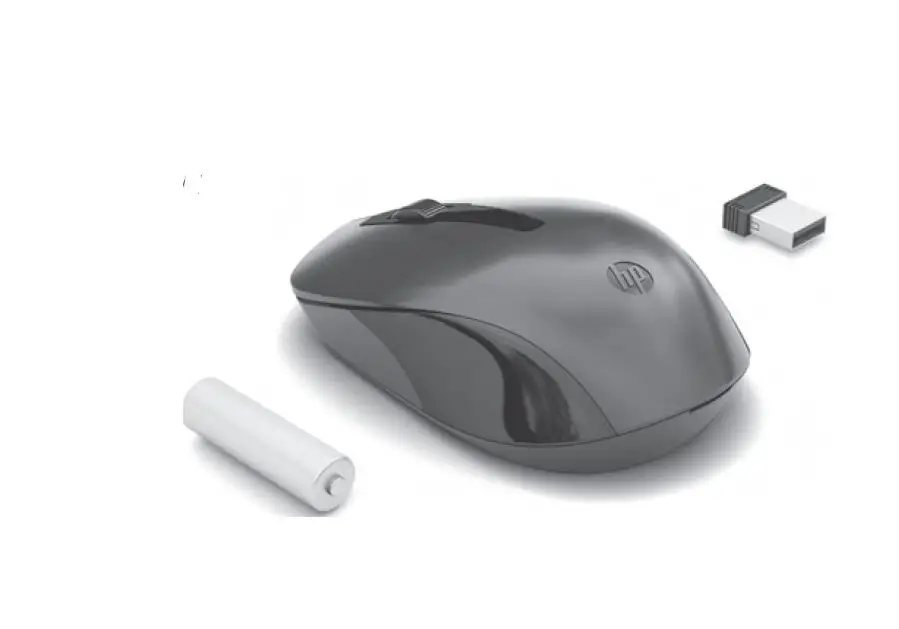
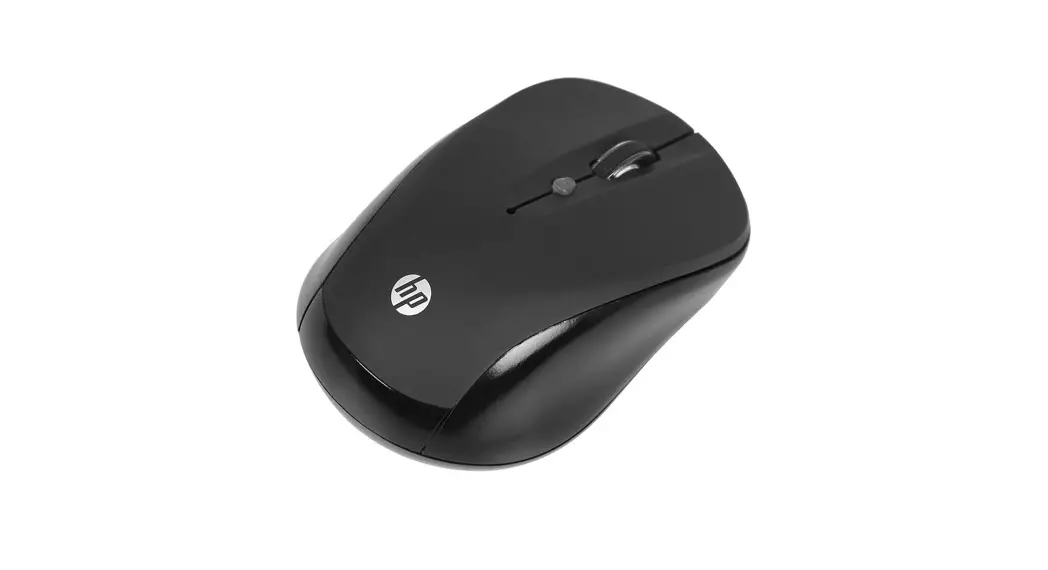
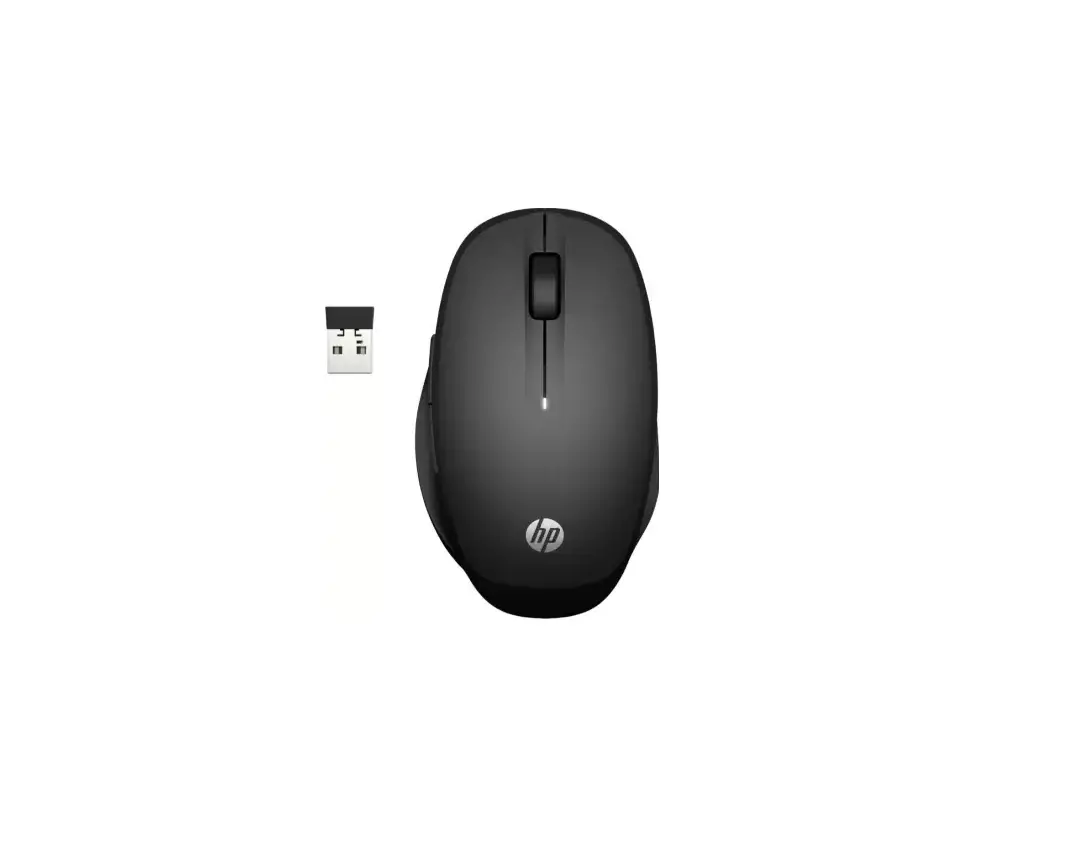
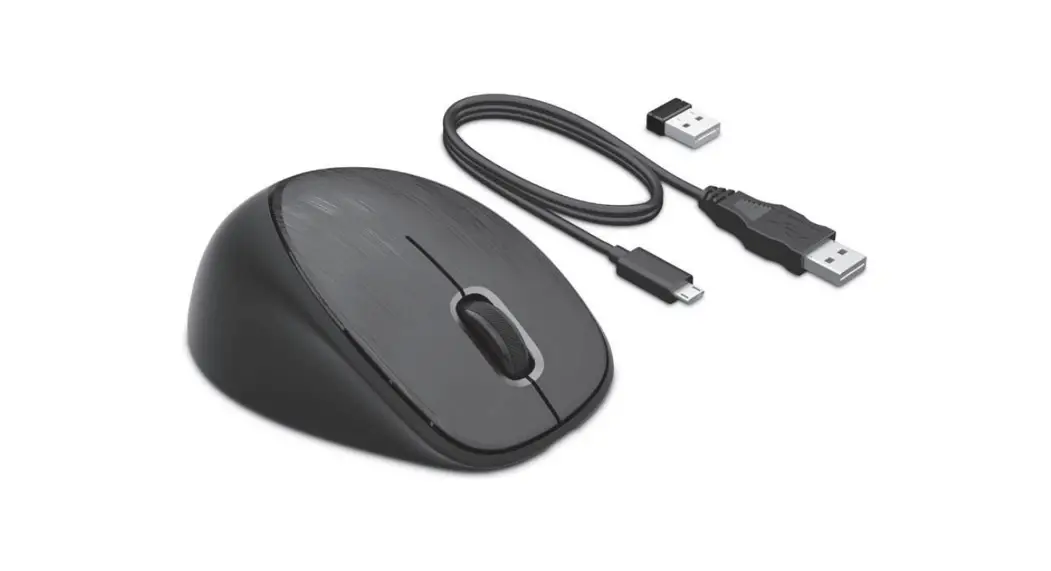
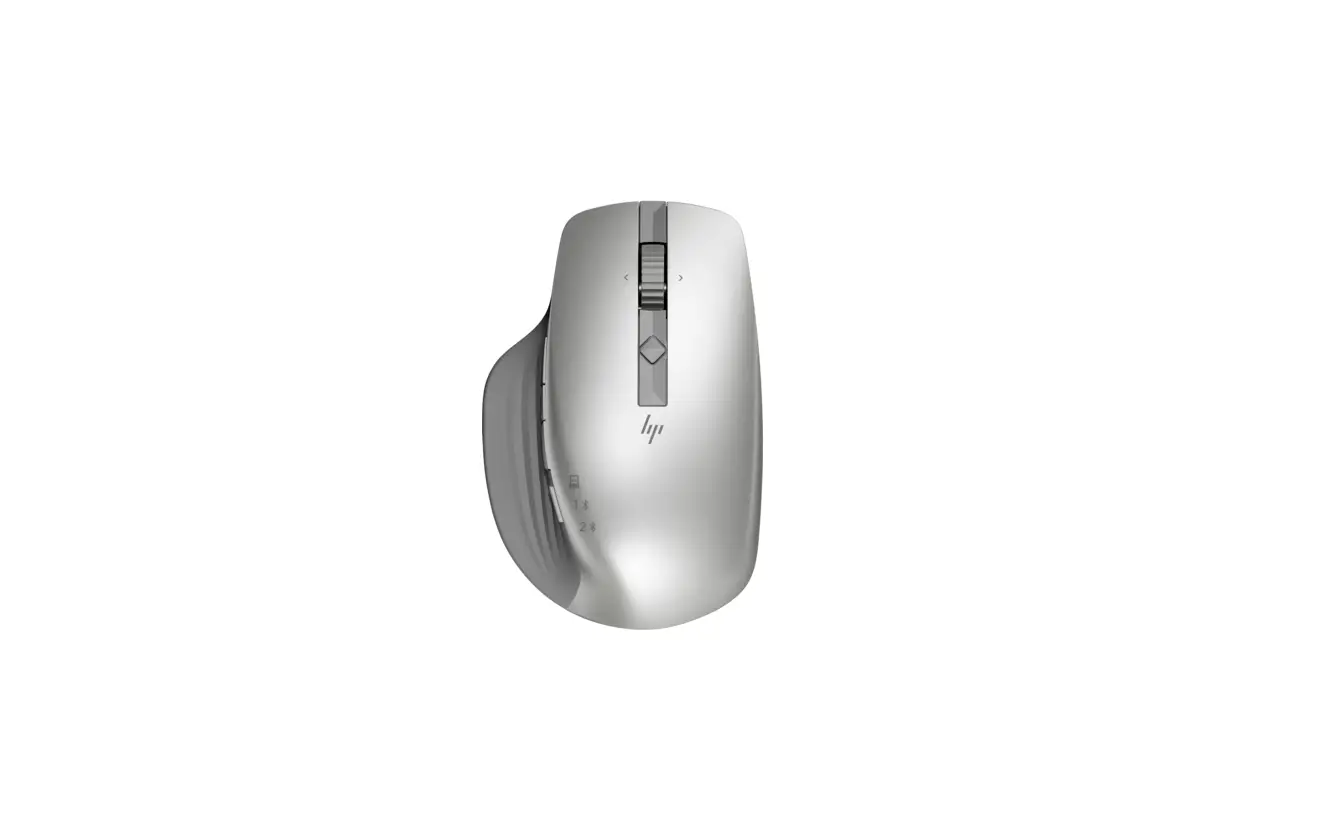
2HU84AA Wireless Mouse
PRINTER: Replace this box with Printed- In (PI) Statement(s) as per spec.
NOTE: This box is simply a placeholder. PI Statement(s) do not have to fit inside the box but should be placed in this area.
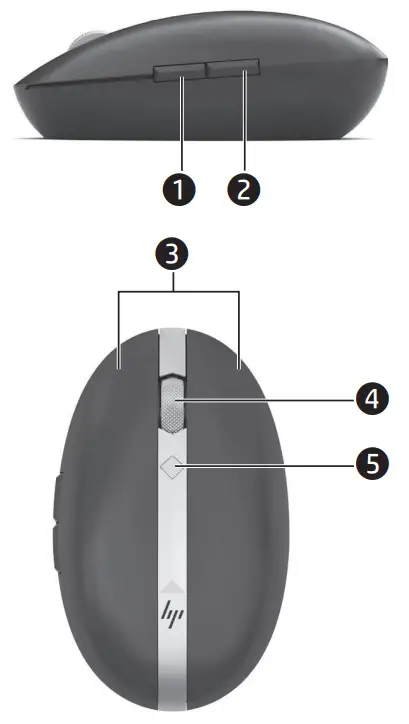 |  |
| Component | Description |
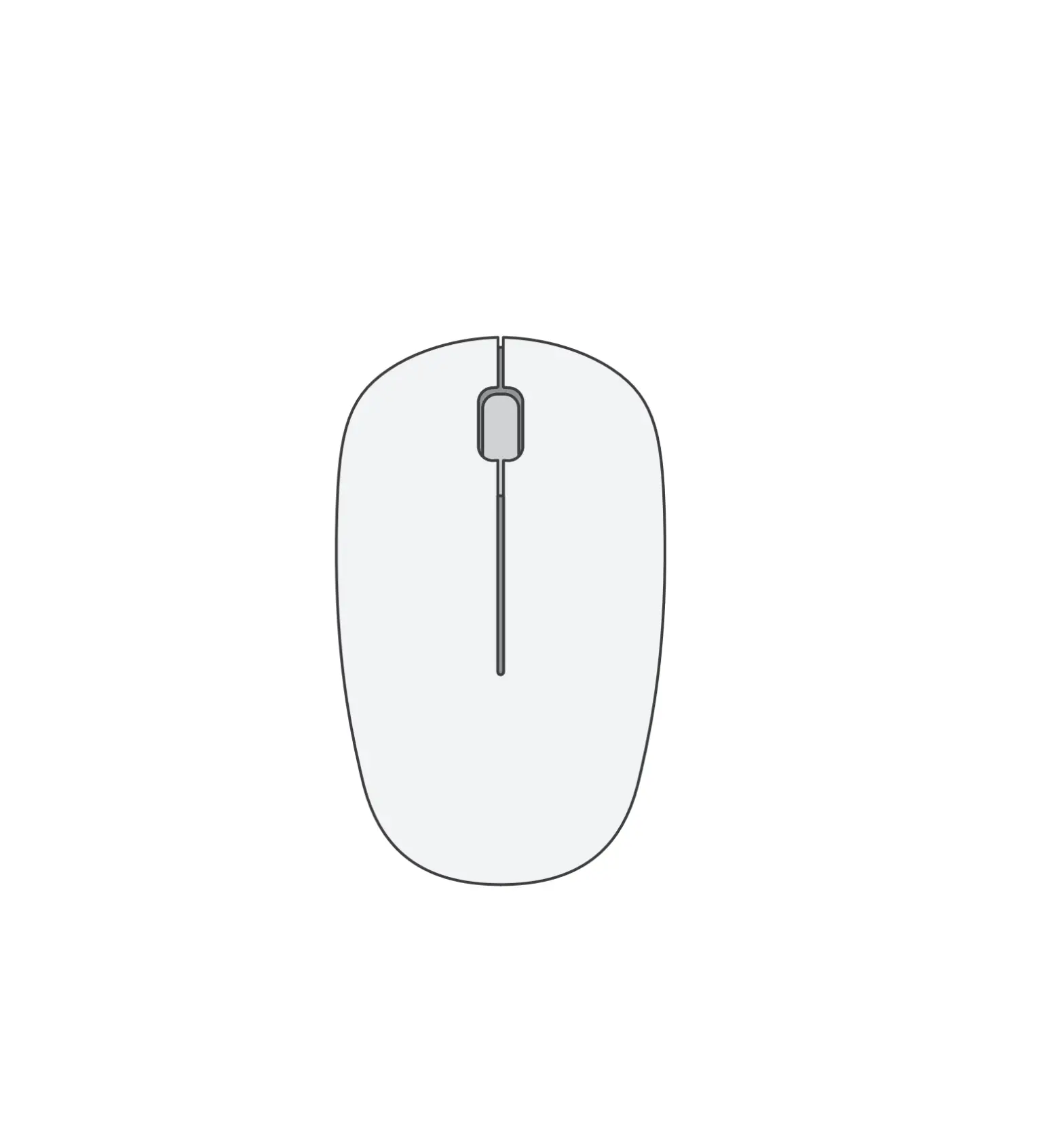
| 1. Forward button | Press to return to the previous page visited in a web browser. |
| 2. Back button | Press to go to the last page visited in a web browser. |
| 3. Right and left mouse buttons | Press and hold simultaneously for ≥ 3 s to change DPI setting. The setting cycles from 1200 (default) to 1600 to 800. |
| 4. Scroll wheel | Click to enable or disable hyperscroll. |
| 5. Autoscroll button | Press to enable autoscroll. Press a different button to disable autoscroll. NOTE: This function only works with Microsoft programs. |
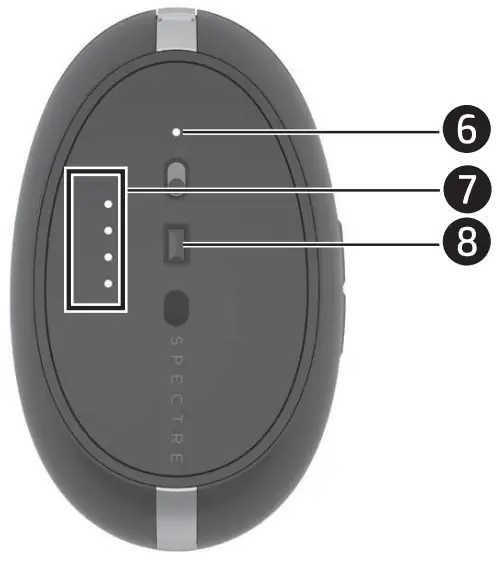
| 6. Power and pairing light | Alternating white and amber: The mouse is in pairing mode. Blinking amber: The battery charge level is low. Solid amber: The mouse is charging. Solid white: The mouse is fully charged. |
| 7. Connection lights | First light on: The mouse is connected to the transceiver. Second light on: The mouse is connected to the first saved Bluetooth device. Third light on: The mouse is connected to the second saved Bluetooth device. Fourth light on: The mouse is connected to the third saved Bluetooth device. |
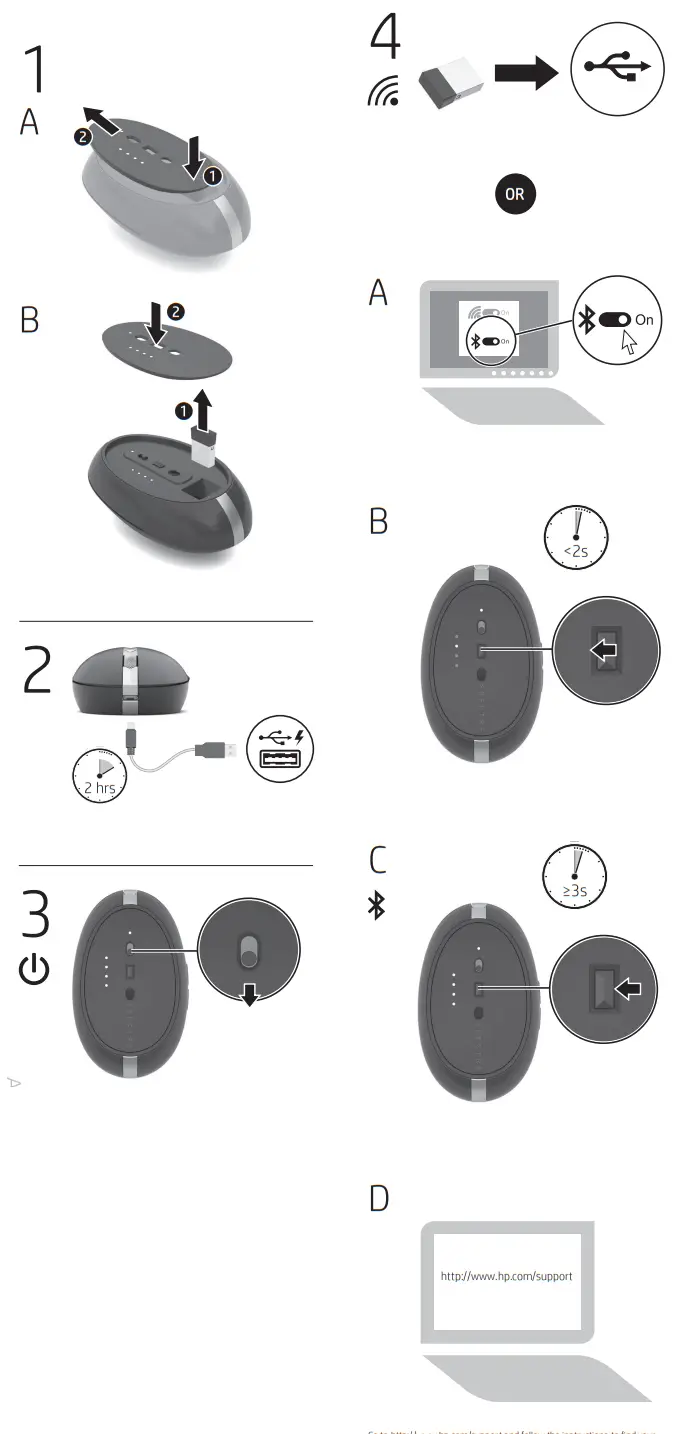
| 8. Pairing button | Short press (<2 s): Press to select which device to connect to. The connection lights display the current selection. The device is remembered after it is paired for the first time. Long press (≥3 s): Press and hold to start Bluetooth pairing. |
Go to http://www.hp.com/support and follow the instructions to find your product. Then select Software and Drivers. Download and install the latest software. Select Manuals to download the HP Bluetooth Pairing User Guide.
 hp.com/support