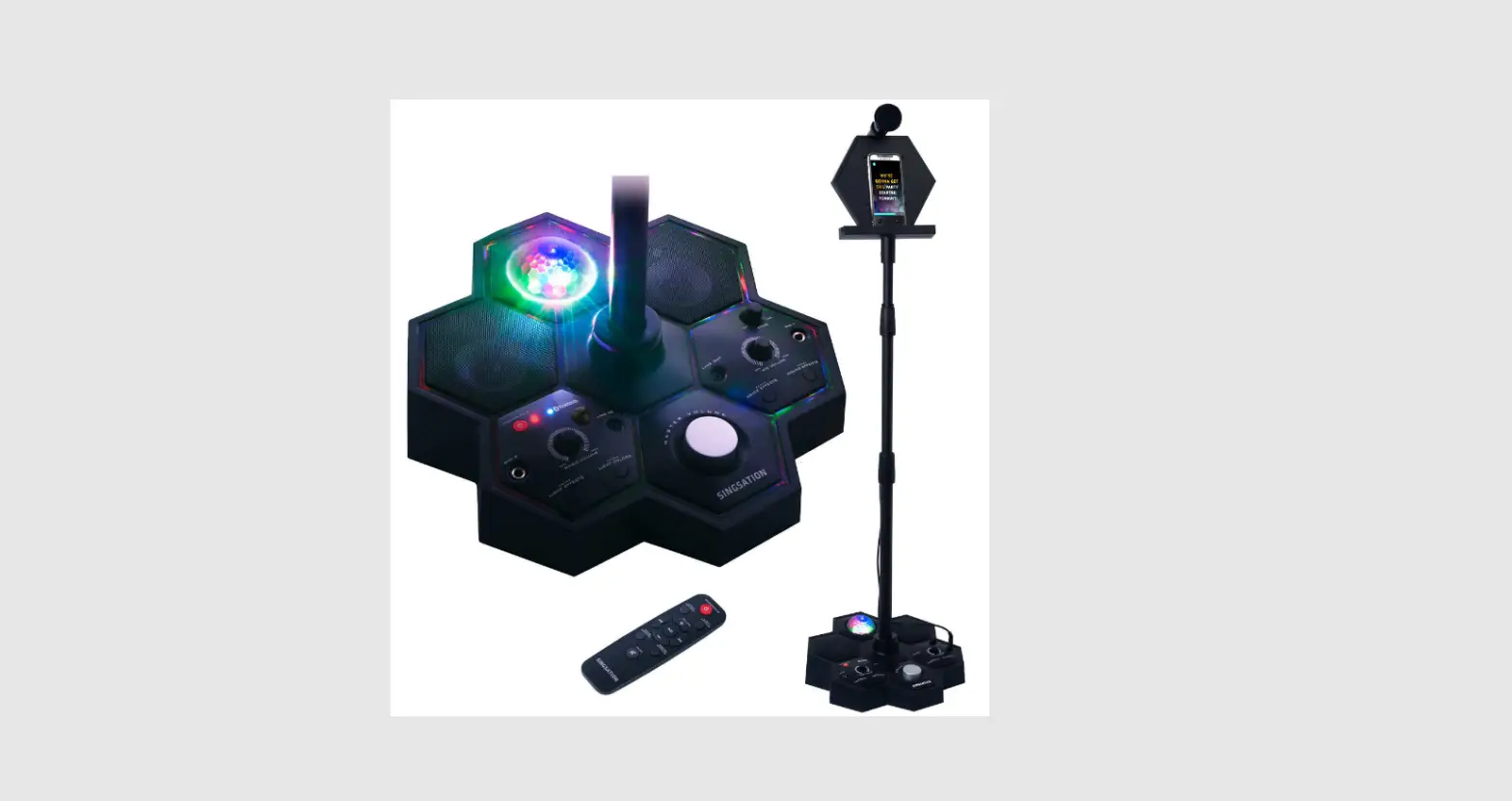
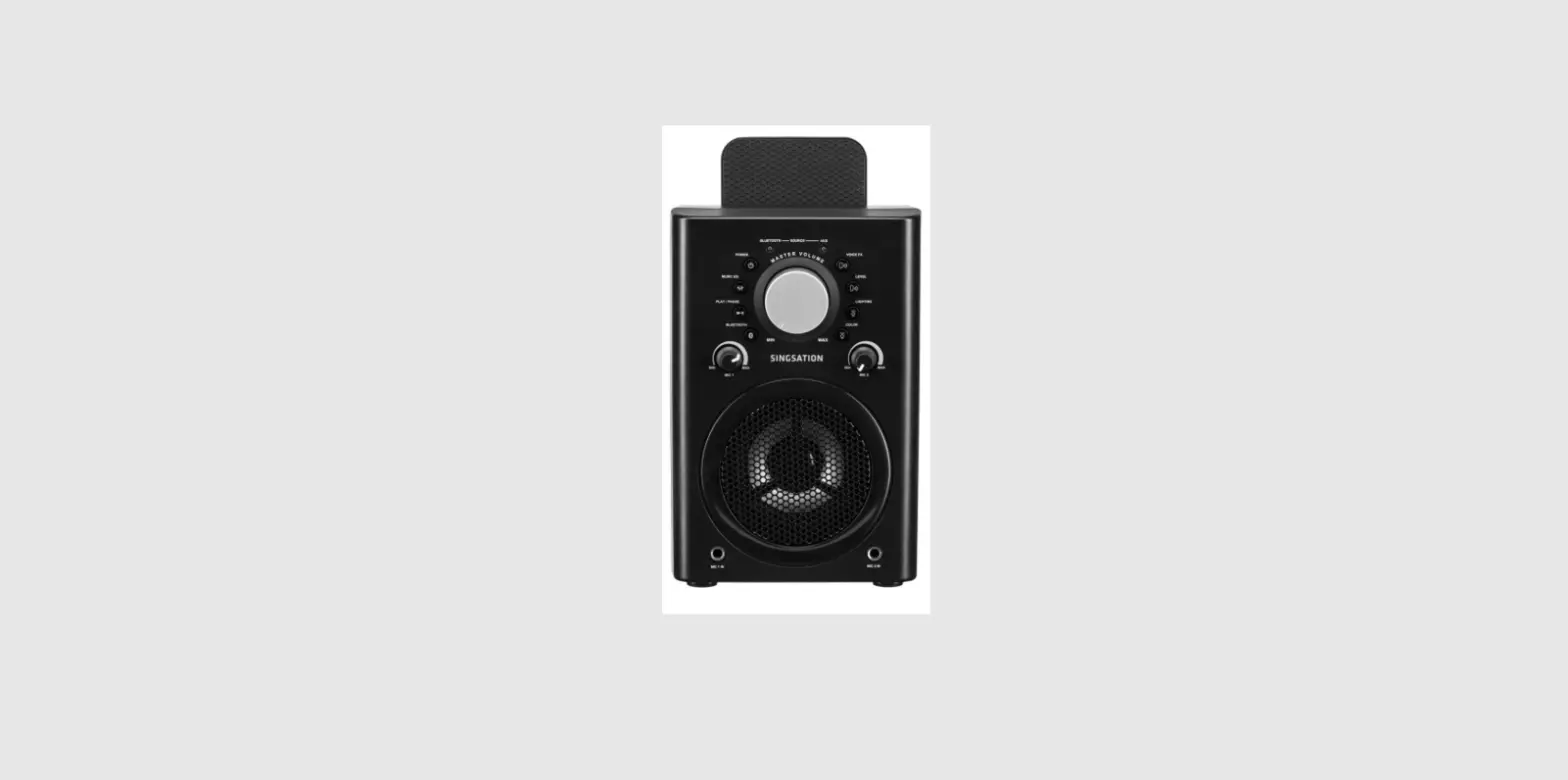
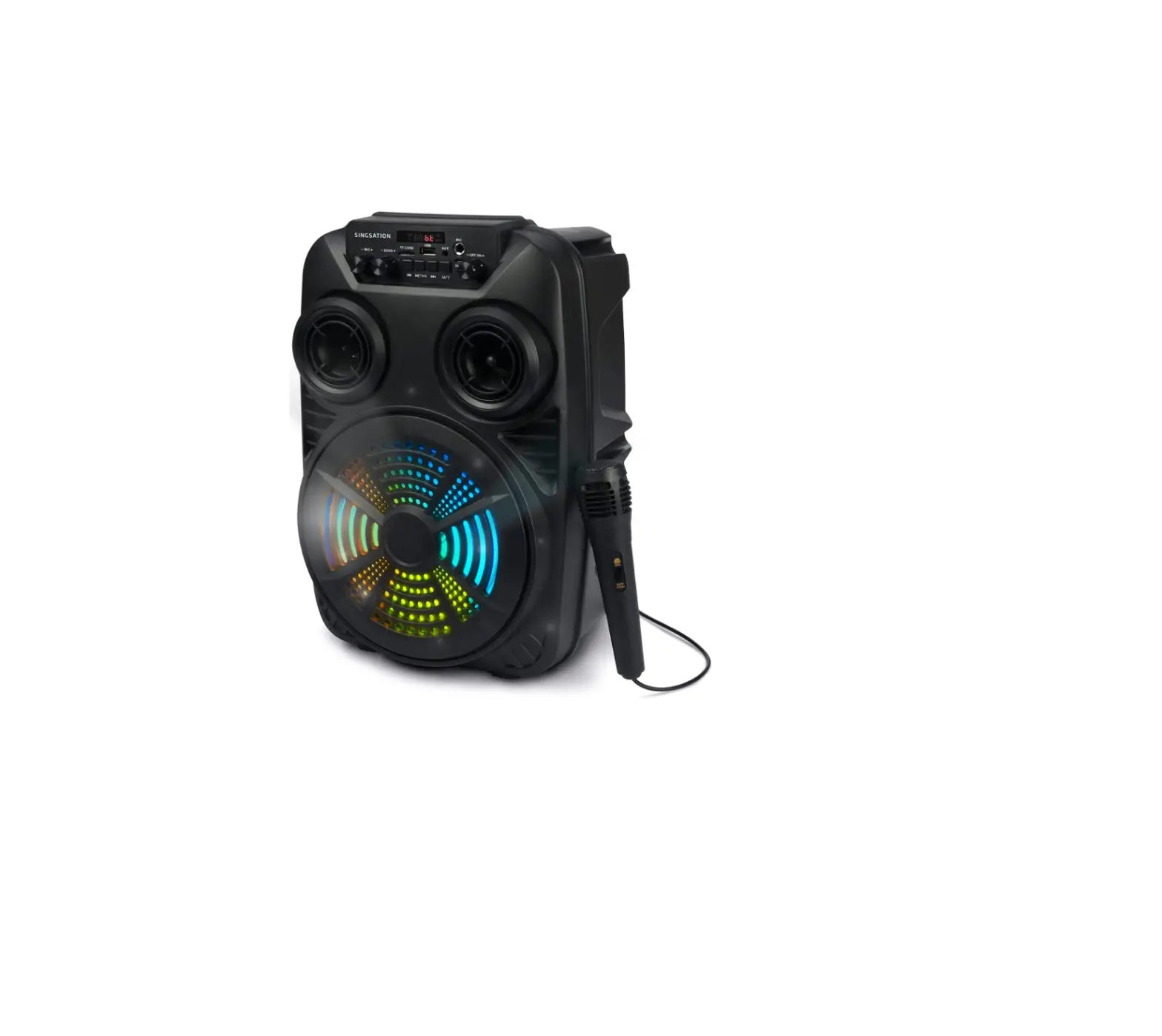
SPKAW740M Center Stage Freestyle All In One Karaoke System
Product Information
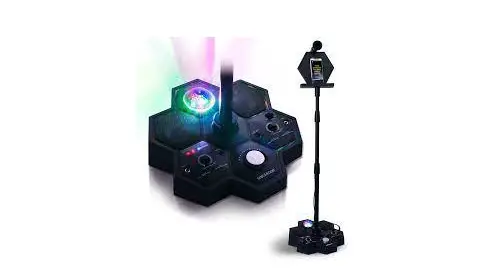
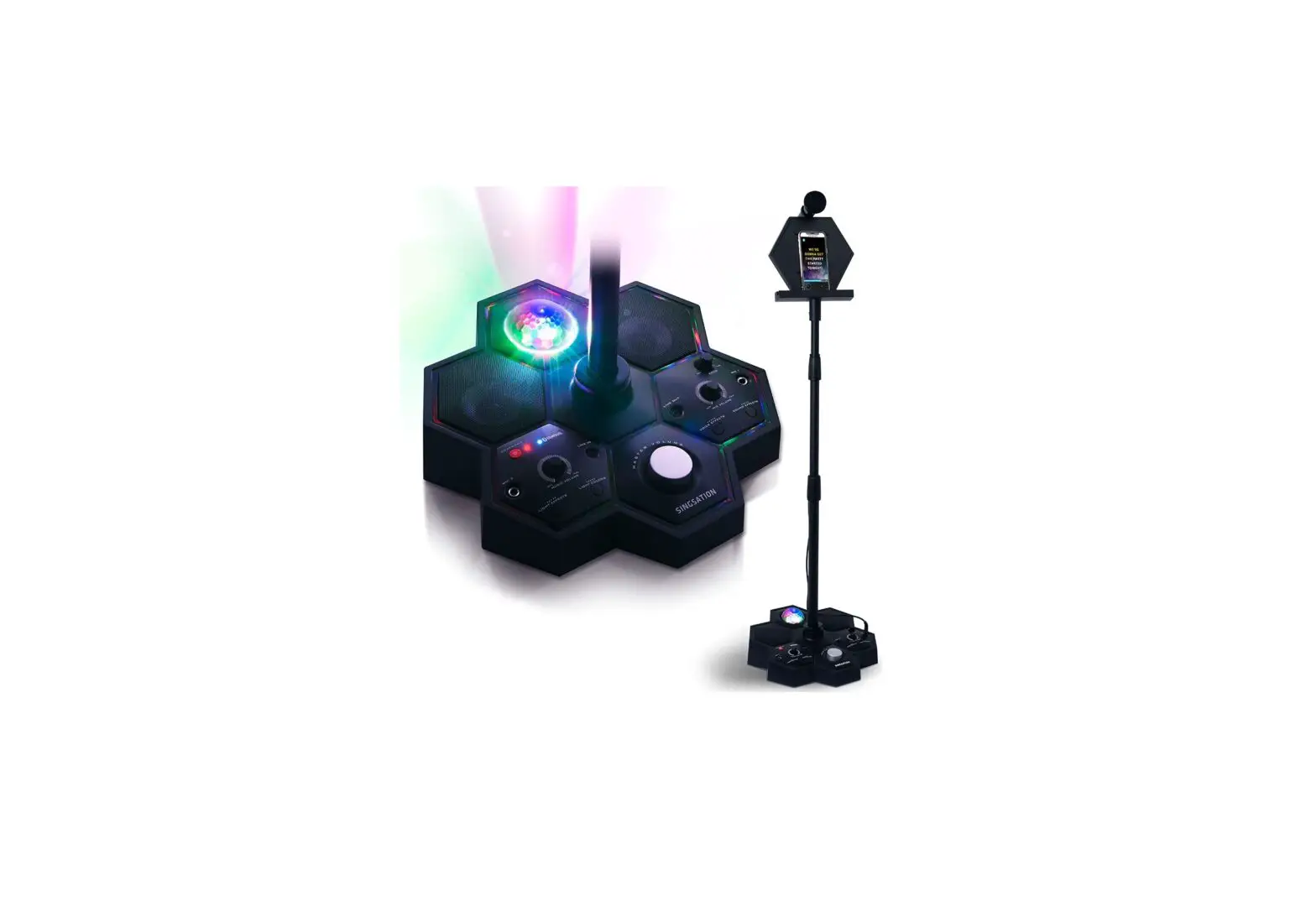
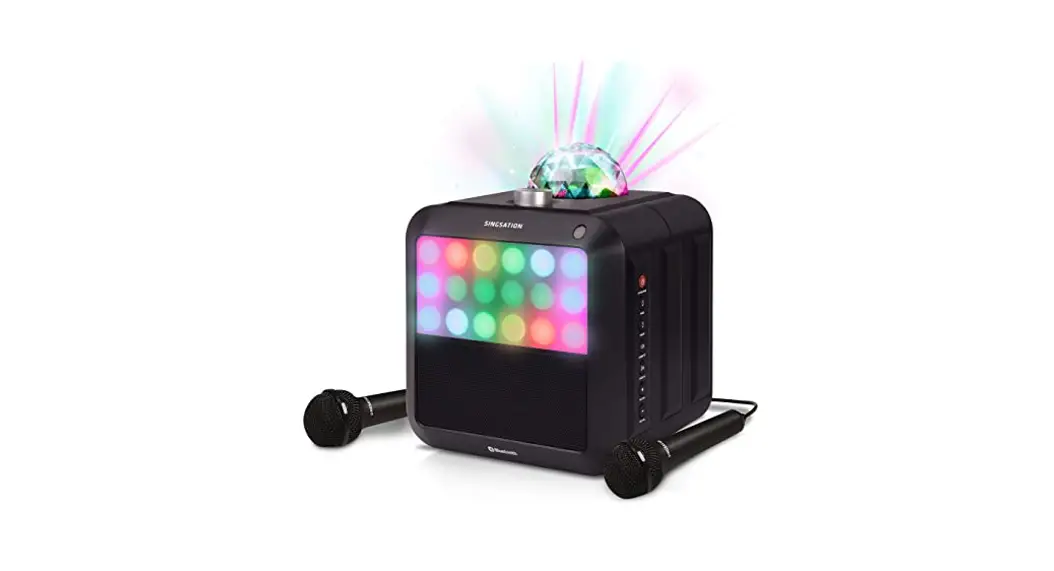
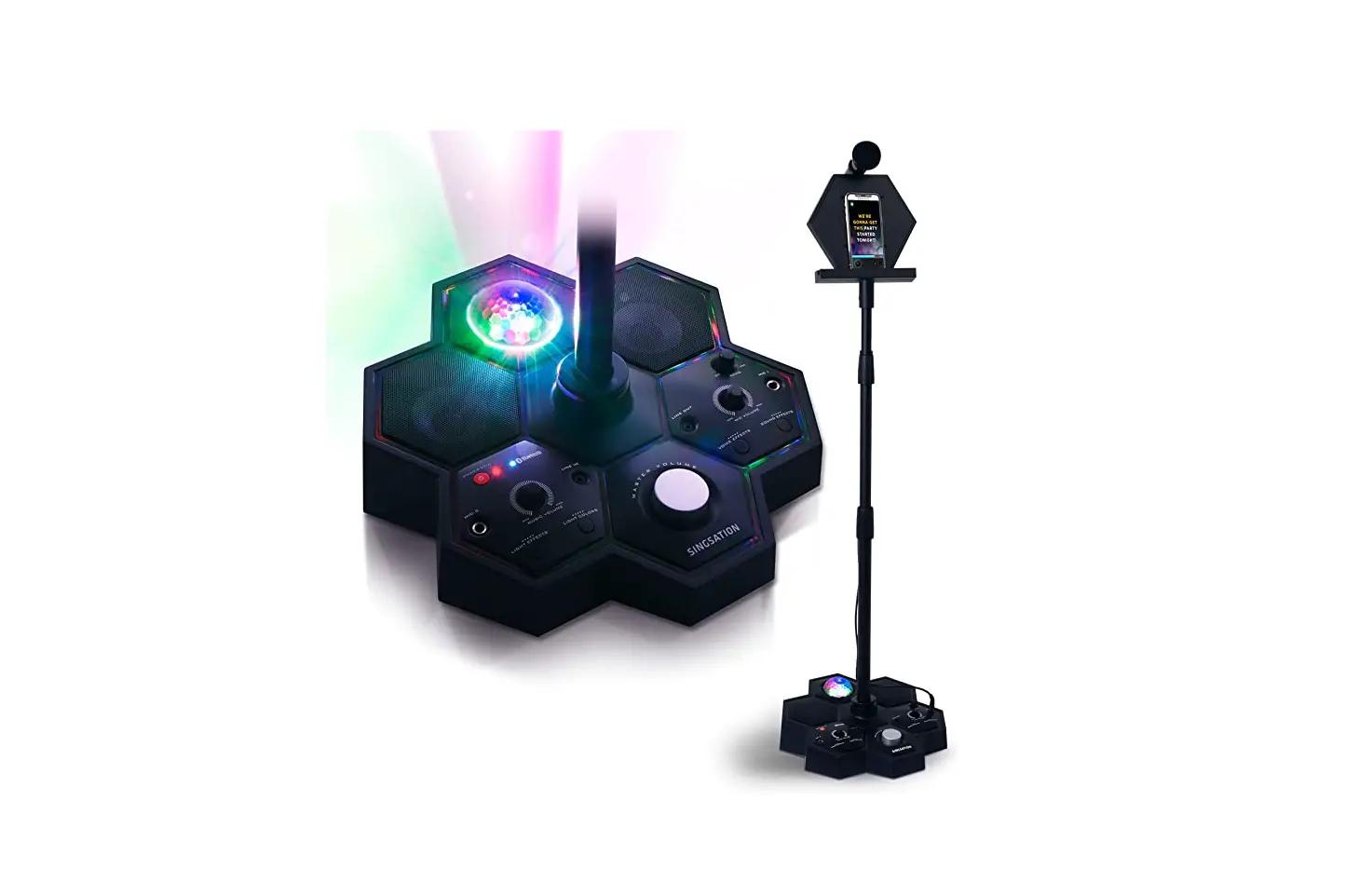
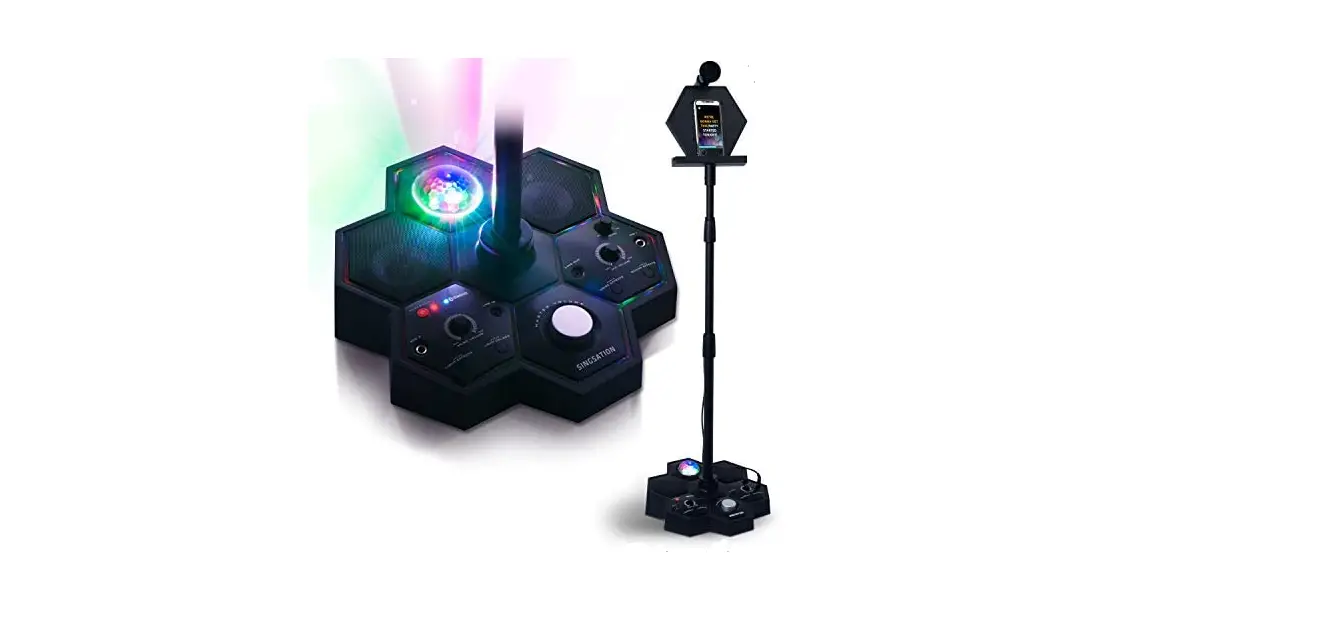
The Center Stage Freestyle is an all-in-one karaoke system
designed for easy setup and usage. It comes with a base unit,
microphone stand, device cradle, AC power adapter, remote control,
and two wireless microphones. The system features Bluetooth
connectivity, allowing you to pair and connect your smartphone or
other Bluetooth devices for streaming music or singing along. The
Center Stage Freestyle also includes volume control and power
buttons for easy operation.
Product Usage Instructions
- Step 1: Unpack
- Ensure that the following items are included in the package:
Center Stage base, microphone stand, device cradle and locking
knob, AC power adapter, remote control with pre-installed battery,
and two wireless microphones.
- Remove the battery tab from the bottom of the remote control to
activate it.
- Insert the microphone stand into the center of the Center Stage
base and screw it clockwise until securely fastened. - Adjust the height of the stand by turning each clutch
counterclockwise and lifting the pole to the desired length. Make
sure to tighten each clutch clockwise before proceeding. - Attach the device cradle to the stand using the locking knob.
Place the cradle on top of the stand and insert the locking knob
into the hole on the back of the cradle. Tighten it until secure,
without overtightening.
- Connect one end of the AC adapter to the DC jack on the left
side of the Center Stage base. - Plug the other end of the adapter into a working outlet or
surge protector.
- Press and hold the button on the top of the Center Stage base
(or on the remote) to turn it on. The system will play a startup
sound, and the indicator below the button will blink slowly.
- Enable Bluetooth on your smartphone or other Bluetooth
device. - Ensure that the indicator below the button on the top of the
Center Stage is blinking rapidly. If not, give a short double-press
on the button to enter pairing mode. - Select “SINGSATION CENTER STAGE” from the pairing options on
your Bluetooth device. If it’s not in the list, choose “Scan” from
your device’s Bluetooth menu. - The Center Stage will announce “Device Connected” when
successfully paired and connected. The indicator below the button
will turn solid blue. - Note: The process of enabling Bluetooth and connecting may vary
depending on your device. Refer to your device’s owner’s manual for
specific instructions.
- The Center Stage comes with two wireless microphones. Install
two AA batteries (not included) into each microphone.
- Adjust the volume using the volume slider.
- Press the power button to start using the Center Stage
Freestyle for karaoke or announcements.
CENTER STAGE FREESTYLE
A LL- I N -O NE K AR AOK E S YS TEM
QUICK START GUIDE
For Video Setup FPO Instructions, Scan Here!
Instructions en français………………………………. 10 Instrucciones en español ………………………………19
Step 1: Unpack
Make sure the following items came in this package:
Center Stage base
Microphone stand
Device cradle and locking knob
AC power adapter
Remote control with pre-installed
battery
2 Wireless Microphones
Step 2: Remove the remote battery tab
Pull the battery tab out of the bottom of the remote. The battery will start powering the remote so you can use it.
2
Step 3: Put it together
Microphone stand
Party system base
Insert the microphone stand into the center of the Center Stage base as shown here.
Screw the microphone stand clockwise into the base until it’s fastened tight.
IMPORTANT: Make sure the microphone stand is tightened as much as it can be before proceeding.
Clutches
Microphone stand
Adjust the height of the stand by turning each clutch counterclockwise and lifting the pole to the desired length.
Make sure to tighten each clutch (turn clockwise) before you proceed.
Locking knob
Device cradle, side
Microphone stand
Attach the device cradle to the stand using the locking knob. Place the cradle on the top of the stand. Then insert the locking knob in the hole on the back of the device cradle and tighten it until the cradle feels secure. Do not overtighten!
3
Step 4: Plug in
Attach one end of the AC adapter to the DC jack on the left side of the Center Stage base.
Plug the other end of the adapter into a working outlet or surge protector.
Step 5: Turn on
Press and hold the button on
the top of the Center Stage base
(or on the remote) to turn it on. The Center Stage plays its startup
Base
sound and the indicator below the
button starts blinking slowly.
After 1530 seconds, the Center Stage announces “Pairing” and goes to Bluetooth pairing mode to set up with your Bluetooth device. The indicator below the button starts blinking faster.
4
Step 6: Pair + Connect
Enable Bluetooth on your smartphone or other Bluetooth device.
Make sure the indicator below the button on the top of the Center Stage is blinking rapidly. (If it isn’t, give a short double-press on the button. The Center Stage announces “Pairing.”)
Wi-Fi Settings Bluetooth Bluetooth Settings
Base
If you’ve previously paired your phone or other Bluetooth device with the Center Stage, it will automatically attempt to reconnect to that device when you switch it on. If you want to pair to a new device, give a short double-press to the button. The Center Stage announces “Pairing” and the indicator below the button starts blinking.
Choose SINGSATION CENTER STAGE from the pairing options on your Bluetooth device. (If it’s not in the list, choose “Scan” from your device’s Bluetooth menu.)
The Center Stage announces “Device Connected” when it’s finished pairing and connecting to your Bluetooth device. The indicator below the button turns solid blue.
Note: The process of enabling Bluetooth and connecting varies from device to device. See your device’s owners manual for more information and specific instructions.
Bluetooth Wireless Connection Tips
· Make sure the Bluetooth capability of your device is turned on. · Make sure there’s nothing plugged into the Center Stage’s (line in) jack when you’re
trying to use Bluetooth. · The Bluetooth wireless connection works up to a range of roughly 33 feet (10 meters).
This range may vary, however, based on other factors, such as room layout, wall material, obstacles, your device’s Bluetooth performance, etc. If you’re having problems connecting to the speaker, move closer to it. · If your device asks you for a password to connect, use “0000”.
5
Step 7: Install wireless mic batteries
The Center Stage comes with 2 wireless microphones you can use to sing along or make announcements! Each microphone requires 2 AA batteries (not included).
To install batteries in each microphone: Open the battery door on the back of the microphone by sliding it down. Insert 2 AA batteries in the battery compartment (make sure you follow the + and diagrams in the compartment). Then slide the battery door back up until it clicks back into place.
Microphone, back
Battery door
Step 8: Sing along!
Volume slider Power button
Microphone, front
Center Stage, Front
To turn on a mic: Press the power button on its front. The mic automatically connects wirelessly to the Center Stage and its power button illuminates. (These buttons illuminate in different colors for each mic when you turn them on.) IMPORTANT: Make sure the mic’s volume slider is all the way up!
To adjust the volume of your mic: Slide your mic’s volume slider up or down.
To adjust the volume of both mics: Use the dial on the front of the Center Stage.
To adjust the volume of your music: Use the volume controls on your Bluetooth device.
To adjust the volume of everything: Use the knob on the front of the Center Stage, or
press + or on the remote.
6
Using Voice/Sound Effects and EQ
Top
To change voice effects: Press the button on
the Center Stage or remote. Keep pressing to try
all the effects!
To add/adjust voice echo: Use the
dial
on the front of the Center Stage
To use sound effects: Press the button on the Center Stage or remote. A single press plays the same effect again. Press and hold to change effects.
To adjust sound EQ: Press the button on the Center Stage or remote to cycle through the EQ settings (rock, vocals, and flat).
Using Dynamic Lighting
The (lighting) and (color) buttons on top of the Center Stage give you control over the built-in dynamic lighting, as do the same buttons on the remote. Press the button to cycle through the multiple lighting modes.
Top
continues on the next page… 7
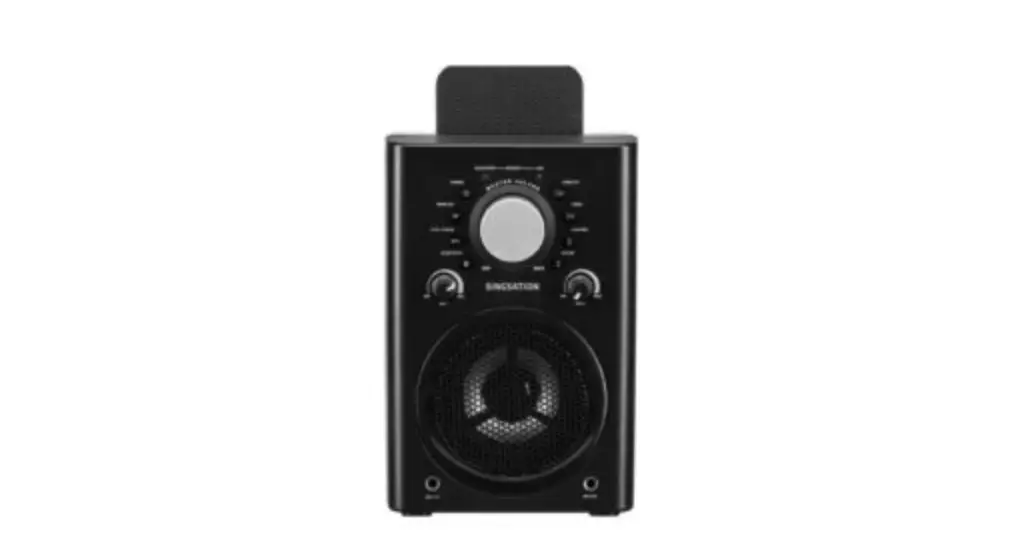
Tour of the Center Stage
Performer Center Stage Base
Top Front
button cycles through the different EQ settings for the Center Stage (rock, vocals, and flat).
button turns the Center Stage on/off (press and hold) and puts it into pairing mode (short doublepress when the Center Stage is on).
indicator illuminates when the Center Stage is on and shows the Bluetooth status of the Center Stage (solid is connected; fast flashing means pairing, and slow flashing means not connected). This indicator turns solid white when something is connected to the Center Stage’s jack (line in).
button controls the speaker’s multi-mode lighting. Press to cycle through the light modes. Press and hold to turn lighting off.
button cycles through the available voice effects.
button changes the color of the light in light modes where you can select color.
button plays one of the available sound effects. Press once to play the current effect. Press and hold to change effects.
dial adjusts the amount of voice echo effect.
Remote control sensor
dial adjusts the Center Stage’s volume.
Remote control sensor receives the commands from the remote control.
dial adjusts the volume of the microphone(s).
8
Left DC
DC jack connects to the included power adapter to power the Center Stage.
jack lets you connect to an external audio device with a 3.5mm audio cable. The speaker switches automatically to this input when you insert the cable.
jack lets you connect to an external amplified speaker.
Remote
button turns the Singsation Center Stage on/off (press and hold) and puts it into pairing mode (short double-press when the Singsation Center Stage is on).
+ and — buttons increase/decrease the master volume.
button cycles through the different EQ settings for the Center Stage (rock, vocals, and flat).
button changes light effects.
button changes voice effects.
button changes light colors.
button plays one of the available sound effects. Press once to play the current effect. Press and hold to change effects.
Wireless Microphone
Volume slider
Power button
Volume slider adjusts the volume of each microphone.
Power button turns the wireless microphone on and connects it wirelessly with the Center Stage. This button illuminates when the mic is on.
9
If you have any questions about this product, visit SingsationKaraoke.com
Pour toute question concernant ce produit, visiter le site SingsationKaraoke
Si tiene preguntas sobre este producto, visite SingsationKaraoke.com
© 2023 Voxx Accessories Corp. 3502 Woodview Trace, Suite 220 Indianapolis, IN 46268
www.SingsationKaraoke.com
SPKAW740M2 NA QSG 00
 SingsationKaraoke.com
 SingsationKaraoke.com