Automatic Firewood Processor for Skid Steer Loader
Automatic Firewood Processor For Skid steer loader
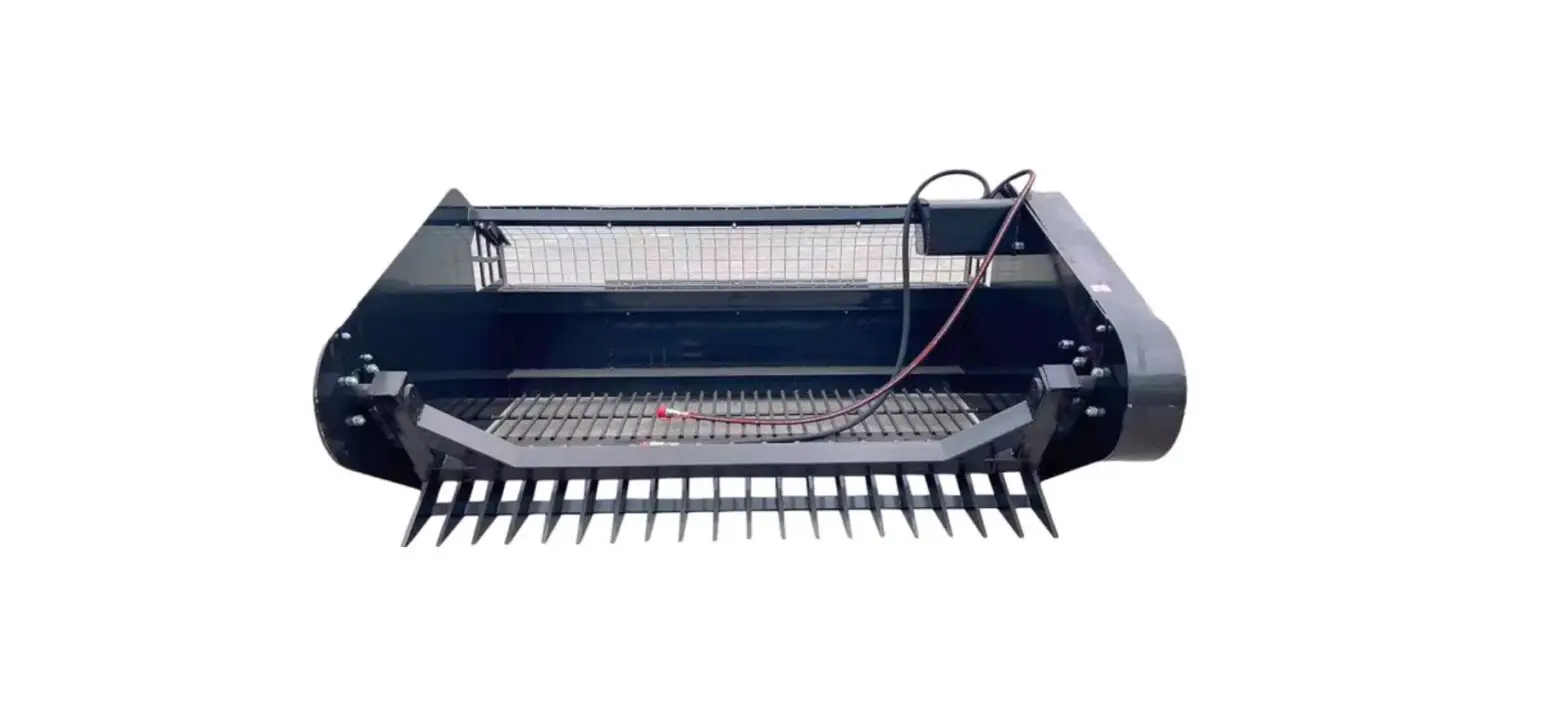
The automatic firewood processor is an attachment for skid steer
loaders that enables easy and efficient processing of firewood. The
machine is equipped with various buttons that perform specific
functions related to wood splitting, clamping, cutting, and more.
The machine can be operated in both manual and auto modes.
- ON/OFF: This button is used to turn the
machine on or off. - SPLIT: This button is used to split wood.
- RETRACT: This button is used to retract the
splitting cylinder. - CLAMP: This button is used to clamp wood.
- LOOSE: This button is used to release the
clamped wood. - BACK: This button is used to return the wood
cutting position and lift the chainsaw back. - CUT: This button is used to lower the chainsaw
to cut wood. - DOWN: This button is used to adjust the wedge
downward and navigate the setting mode. - UP: This button is used to adjust the wedge
upward and navigate the setting mode. - AUTO: This button is used to start or pause
auto mode and clear the CT number value in the interface queries
mode. - SET: This button is used to check interface
queries, access system settings, and stop auto mode.
ON/OFF Operation
- Press the switch to I to start the machine and O to turn it
off. - When turned on, the screen will display “WELCOME AUTO CUTTING
WOOD MACHINE”. - The screen will then show the quantity of wood that has been
finished splitting. - The machine can split wood in both manual and auto modes.
Machine Operating Instructions
- Manual operation mode: Press the button on the
panel to work directly. Manual operation needs to hold the button
all time, when released, the action will be stopped. During the
operation, the white words on the screen will be flashing; when the
action is arrived at position, it will display black words on a
white background. If the sensor is in place or does not meet the
safety operation process, the press will be invalid. All action
status displayed on the screen during manual operation show on the
main interface. - Force manual control (not in safety program):
Forced manual operation is only available in non-automatic
operation mode. Operation method: Press and hold the button and
then press and hold the SET button at the same time. Under forced
manual controlling, sensors limit and safety programs are invalid,
so require the user to be sure in safe operation. - Auto operation mode: Press the AUTO button
once to enter auto wood cutting mode. The AUTO white words will be
flashing, indicating that the system has entered auto mode. In the
process of auto operation, press the AUTO button again to pause all
actions. The screen will display black words “PAUSE” on a white
background. To resume auto mode, press the AUTO button again.
Following the instructions properly will ensure safe and
efficient usage of the automatic firewood processor. If you have
any questions or concerns about the product, please refer to the
user manual or contact the manufacturer for assistance.
Operator’s Manual
Automatic Firewood Processor For Skid steer loader
1 Button Description
1 ON/OFF
11 SET
2 SPLIT
10 AUTO
3 RETRACT 4 CLAMP
9 UP
5 LOOSE
8 DOWN
6 BACK
7 CUT
Pic 1
Pic 2
1) ON/OFF ON / OFF button (I is ON; O is OFF)
2) SPLIT
Split wood button
3) RETRACT Retract splitting cylinder
4) CLAMP Clamping wood
5) LOOSE
Loose wood
6) BACK
Wood cutting return, chainsaw lifts back and stops cutting wood
7) CUT
Chainsaw down to cut wood
8) DOWN
Adjust the wedge downward;
Setting mode-Down line, page turning
9) UP
Adjust the wedge upward;
Setting mode-Up line, page turning
10) AUTO
Auto working button;
Pause Auto working button;
Interface Queries mode-Clear Ct number value;
Setting mode-Return
11) SET
Check Interface Queries;
System setting button;
Stop Auto mode
2 ON/OFF Operation
2.1. Press the Switch to the I for start the machine, O for off. 2.2. ON Operation
2.2.1 The screen will show ” WELCOME AUTO CUTTING WOOD MACHINE “.
– 1 –
2.2.2 Then the screen will show you the quantity of you have finished splitting.
“Ct” means the quantity that wood splitting had been completed last time, which can be set to 0. TTL means the total number of wood splitting completed by this machine.
2.2.3 Finally, the screen enter Main Interface, working status display. Which action working, the white words will be flashing; and when this action arrived position, will change to black words on a white background.
This means there is a wood on the machine.
This means that the wood is clamped.
This means that the one cutting is finished. Main Interface: working status display screen
2.3. Switch the I/O to O, screen will be as follow, and the power will be turned off after 1 second.
3 Machine Operating Instructions
3.1. Manual operation mode
Manual operation: Pressing the button on the panel to work directly, but can’t at Auto mode. Manual operation needs to hold the button all time, when release the button, the action will be stopped. During the operation, the white words on the screen will be flashing; when the action is
– 2 –
arrived to position, will be display black words on a white background. If the sensor is in place (the action is completed) or does not meet the safety operation process, the press will be invalid. All action status displayed on the screen during manual operation, show on main interface.
3.2. Force manual control (not in safety program)
Forced manual operation is only available in non-automatic operation mode. Operation method: Press and hold the button, and then press and hold the “SET” button same time. Attention: Under forced manual controlling, sensors limit and safety program are invalid, so require the user to be sure in safe operation.
3.3. Auto operation mode
3.3.1 Auto operation: Press one time “AUTO” button, the system enters auto wood cutting mode. Then “AUTO” white words will be flashing, indicating the system has entered Auto mode.
3.3.2 PAUSE when at Auto mode: In the process of auto operation, press the AUTO button again,
all actions paused, at the same time the screen displays black words “PAUSE” on a white background as shown below. If you want to resume to auto operation process, Press the “AUTO” again, then status will be changed from PAUSE to AUTO.
– 3 –
3.3.3 During the Auto operation process, when the white words “RET.” Or “SPLIT” are flashing, The operator can press the RETRACT or SPLIT button at the same time to priority manually control the splitting cylinder extend or retract. When release the button, system will be resume to
the Auto operation process.
3.3.4 When a length of the wood has been cut finished, Ct and TTL number will be +1 same time.
3.3.5 After a wood is completed and auto-cut finished, the screen generally shown as below.
3.3.6 Cancel Auto Mode: During auto process or in the pause state, pressing the “SET” button one time, will finish the auto mode, and all actions will stop. 3.3.7 During the auto operation, each action has a set longest running time. and if timeout without completing the action process, there will be occur Error words and an noise alarm. For example, the Clamp timeout as below. Want finish the alarm, Press Set button, then back to normal screen.
4 User Interface Queries
When the system is not working, click the “SET” button to enter the user interface Queries. “UP” and “DOWN” button to change Page. If you do not press any button within 3 seconds, will back to Main Interface.
– 4 –
4.1 Page 1: Ct: quantity of splitted woods in a period of time ; TTL: total quantity of splitted woods.
If you want to record the quantity of splitted woods in a period of time, you can first clear “Ct” to zero, and then the value Number of “Ct” recorded is you want. How to clear “Ct” to 0click the “SET” button to enter the user interface Queries, then long press the “AUTO” button 3S. Then you will see “Ct: 0”, similar as below pic.
Ct value is cleared
4.2 Page 2Click “DOWN” to turn page
TTL can not be cleared
Working voltage display HMI Program version PLC Program version
4.3 Page 3: Click “DOWN” to turn page
Online time display
Working hours display
5 User Setting Interface
Long press the “SET” and “UP” buttons at the same time for 3 seconds, then release after hearing the beep, to enter the User settings interface. Use “UP” and “DOWN” to turn pages and select. Press “SET” again to enter one parameter setting, and adjust value by “UP” and “DOWN” button. When adjust number ok, Press “SET” again to confirm the parameter setting. Click the “AUTO”
– 5 –
button to finish the user setting interface and return to the main interface to.
5.1 Page 1
Error Delay20SSetting: Maximum working time 20seconds for each action at Auto mode Split Delay1.0SSetting: in Auto Mode, Split plate arrive to the SPLIT sensor position, and Clamp the wood againthen the Split plate will extend 1.0S, then retract itself
Split Delay setting value number should according to the length of wood block. The length of wood block is following the SPLIT sensor position, see as below picture. If he wood block is long, the Split Delay setting number could be small; and The wood block is short, the Split Delay setting number could be big; the setting value aim to automatically split the wood block completed.
5.2 Page 2: Click “DOWN” to turn page 2
Short Cycle03, Setting: the last wood block auto SPLIT and RET. 3 times in short time. Short Delay2.0S, Setting: the last wood block auto SPLIT short time 2seconds. Long Delay03SSetting: the last wood block auto SPLIT long time 3senconds at last.
5.3 Page 3: Click “DOWN” to turn page 3
– 6 –
IRT Delay0.2SSetting: IR sensor delay protection time, don’t adjust it.
6 Error Alarm introduce
6.1 Communication WrongError CAN BUS
Failure Reason: The black PLC controller ZMC-1D and the handle display ZHM-1D don’t
communication each other, please check the connection line between them.
6.2 Each action timeout alarm during auto operation process, as shown in the follows:
Timeout alarm reasons
1) The sensor lost, can’t detect the action has been completed; 2) Sensor failure or damage; 3) The action not arrive completed position, due to mechanical or hydraulic failure; 4) Error Cut: one reason is that the wood too hard, needs more time to cut; this reason could adjust “Error Delay” number value to a little large to solve.
Take a photo or video of display when occur Error alarm. If can’t find the Error alarm reason, please connect our technical engineers for support.
– 7 –
– 8 –
– 9 –