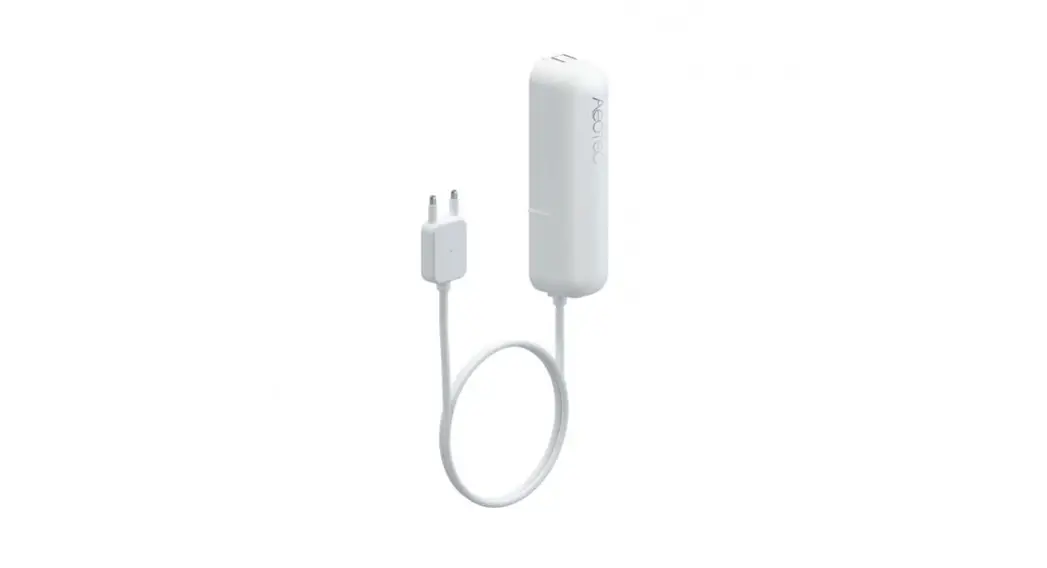

User Manual
Water Sensor 7 Pro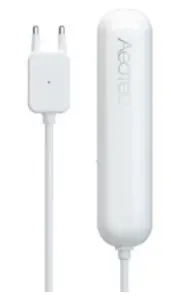
AEOTEC User Manual
| REVISION RECORD | ||
| Version | Date | Brief description of changes |
| 0.1 | 2021.10.08 | First revision. |
OVERVIEW
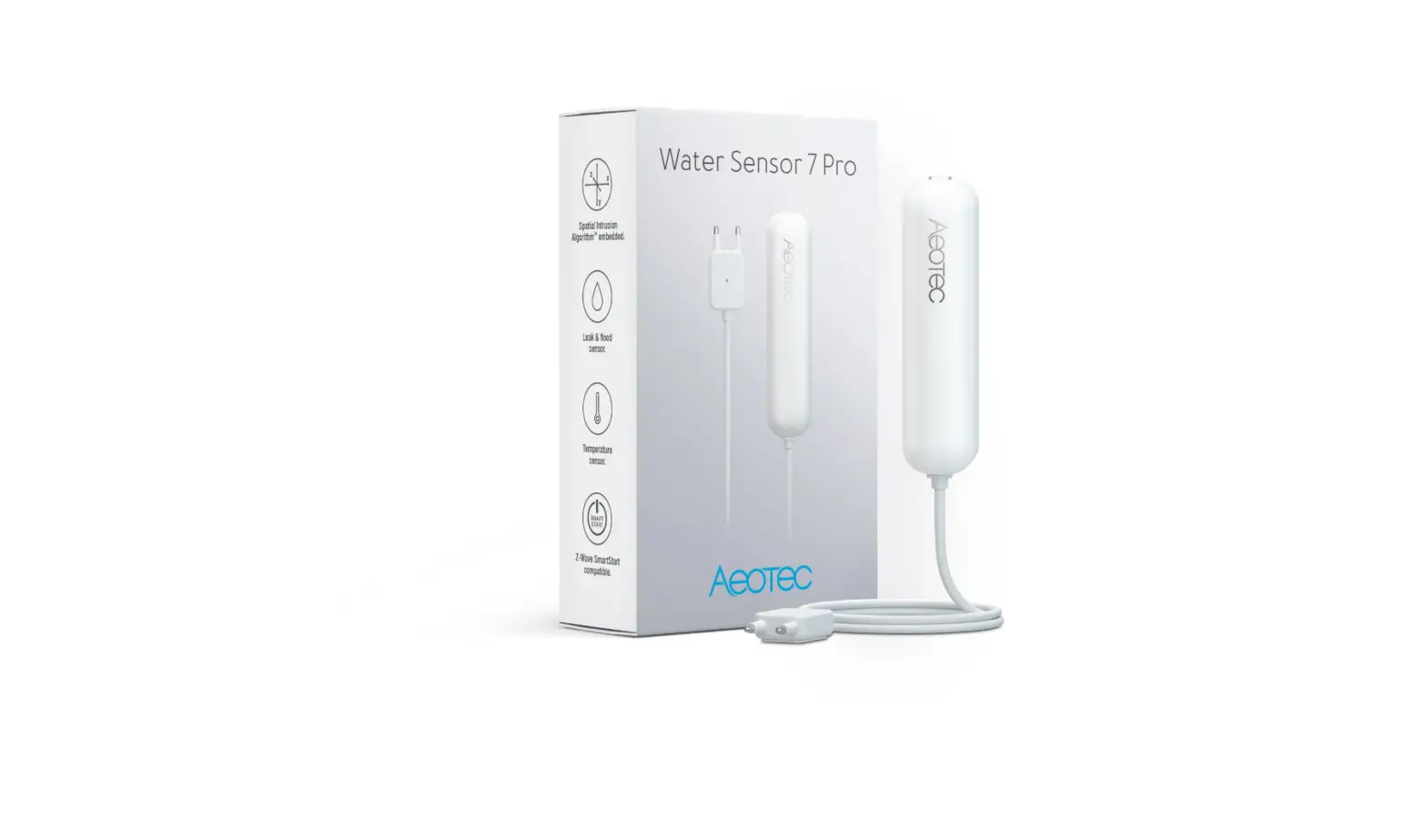
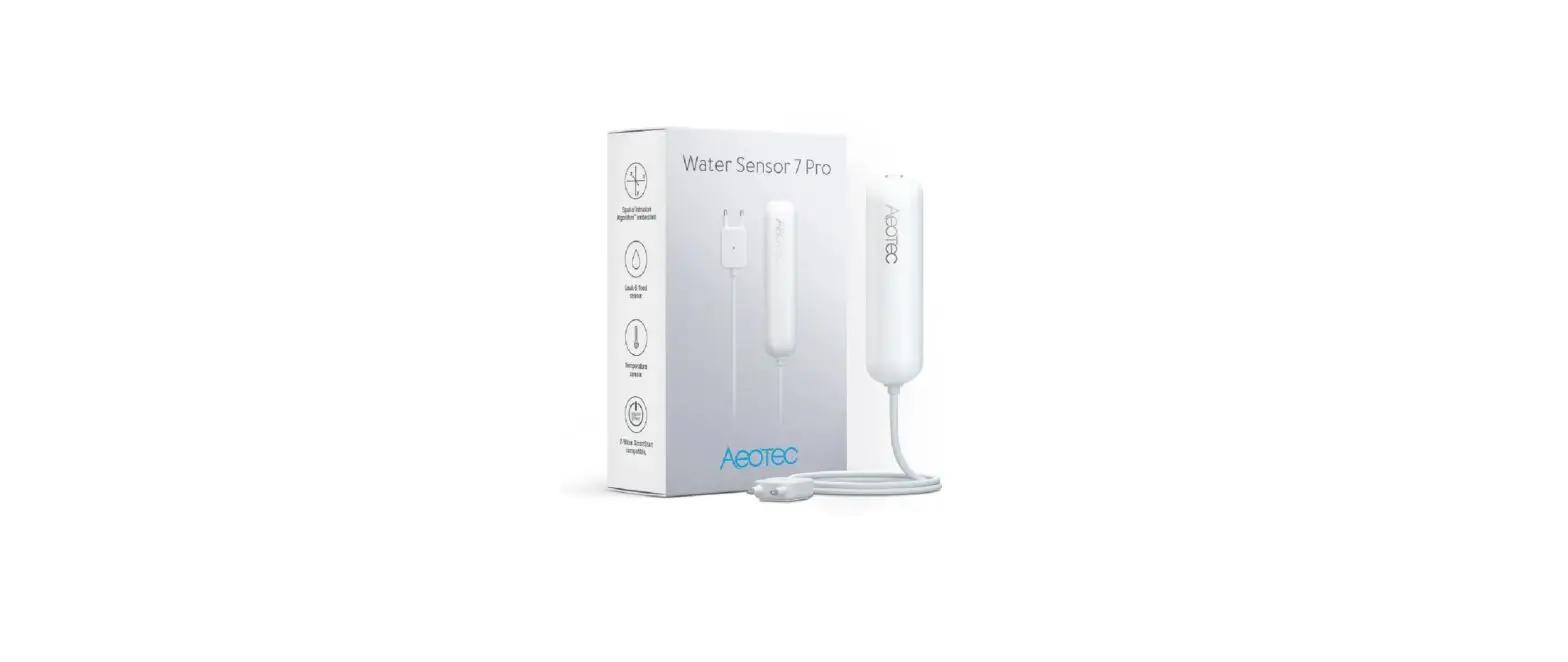
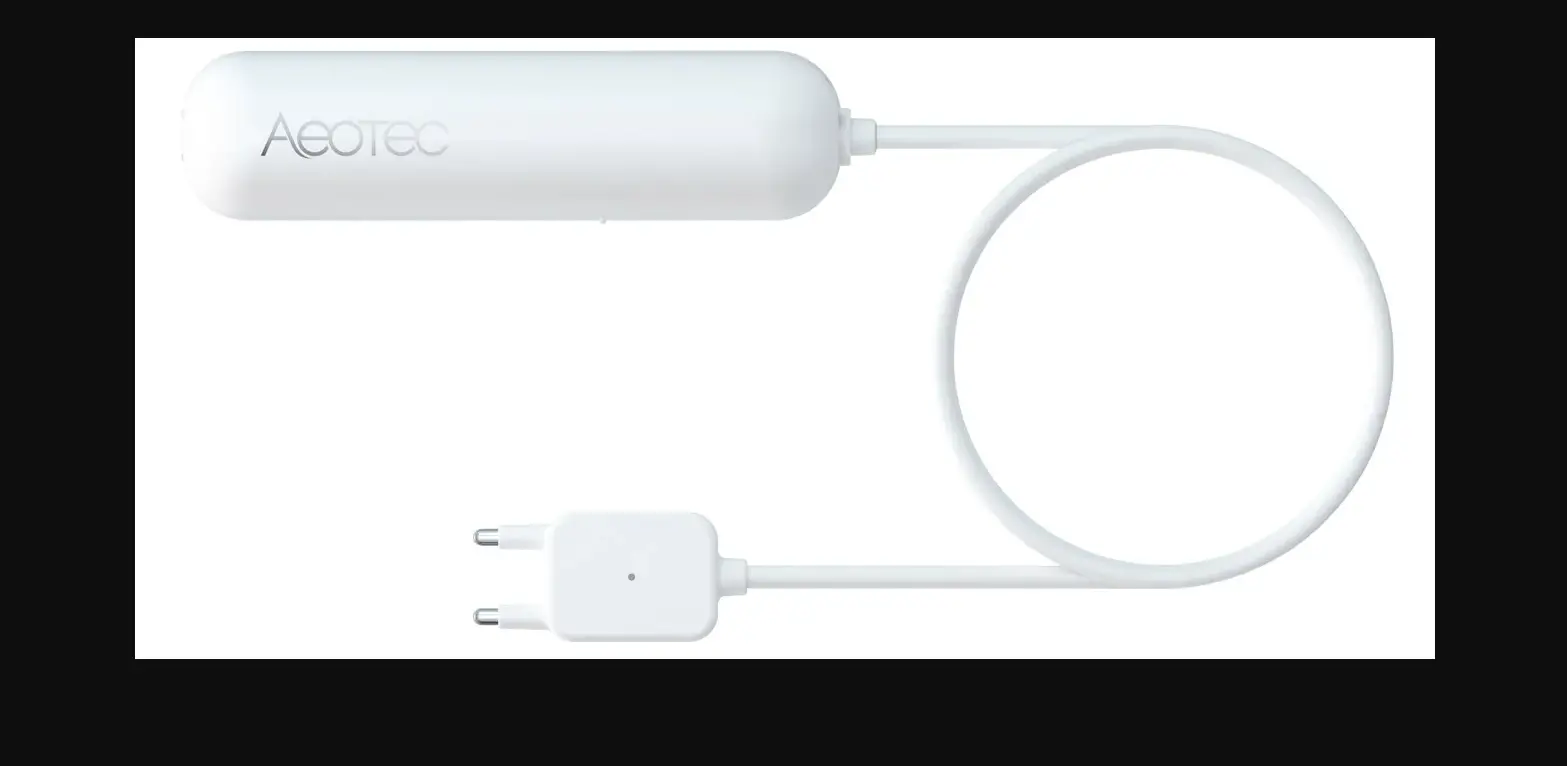
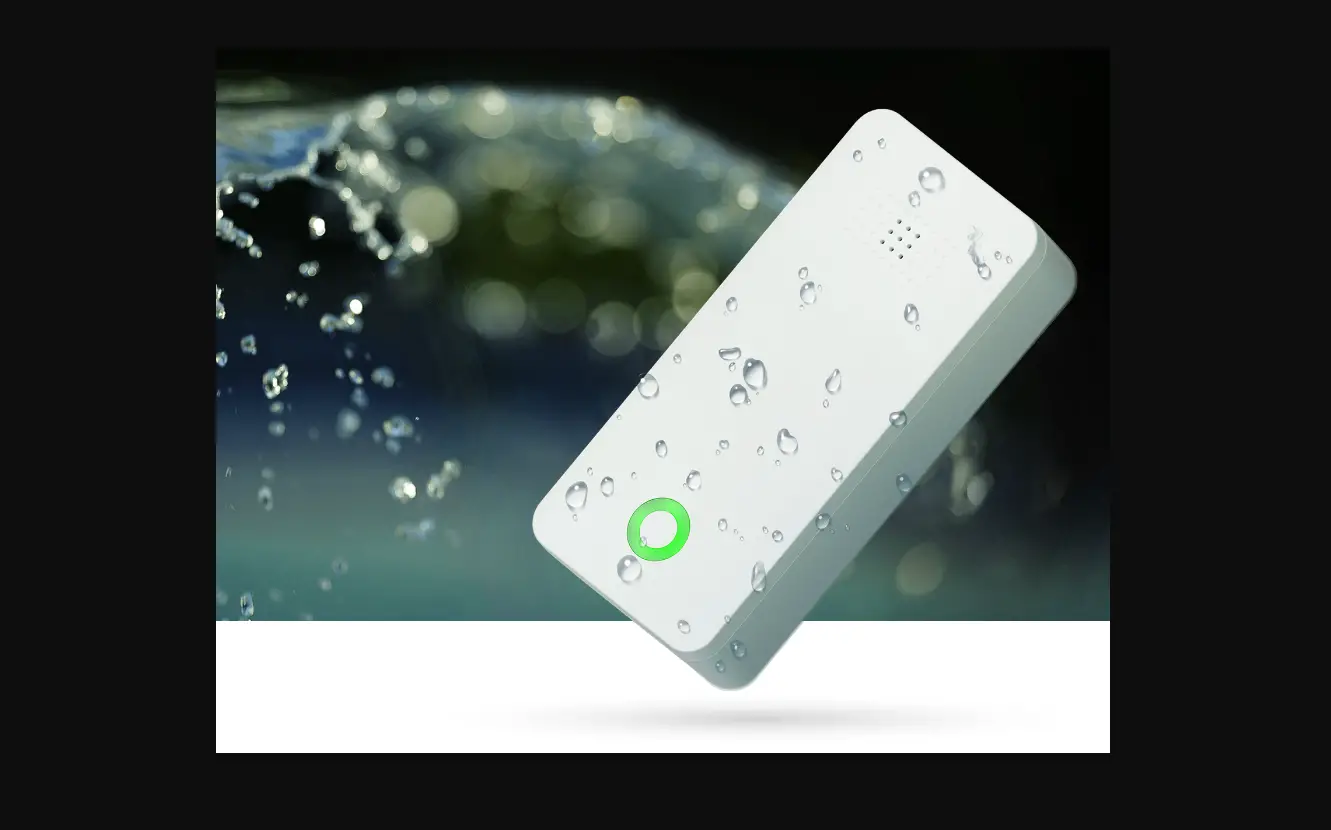
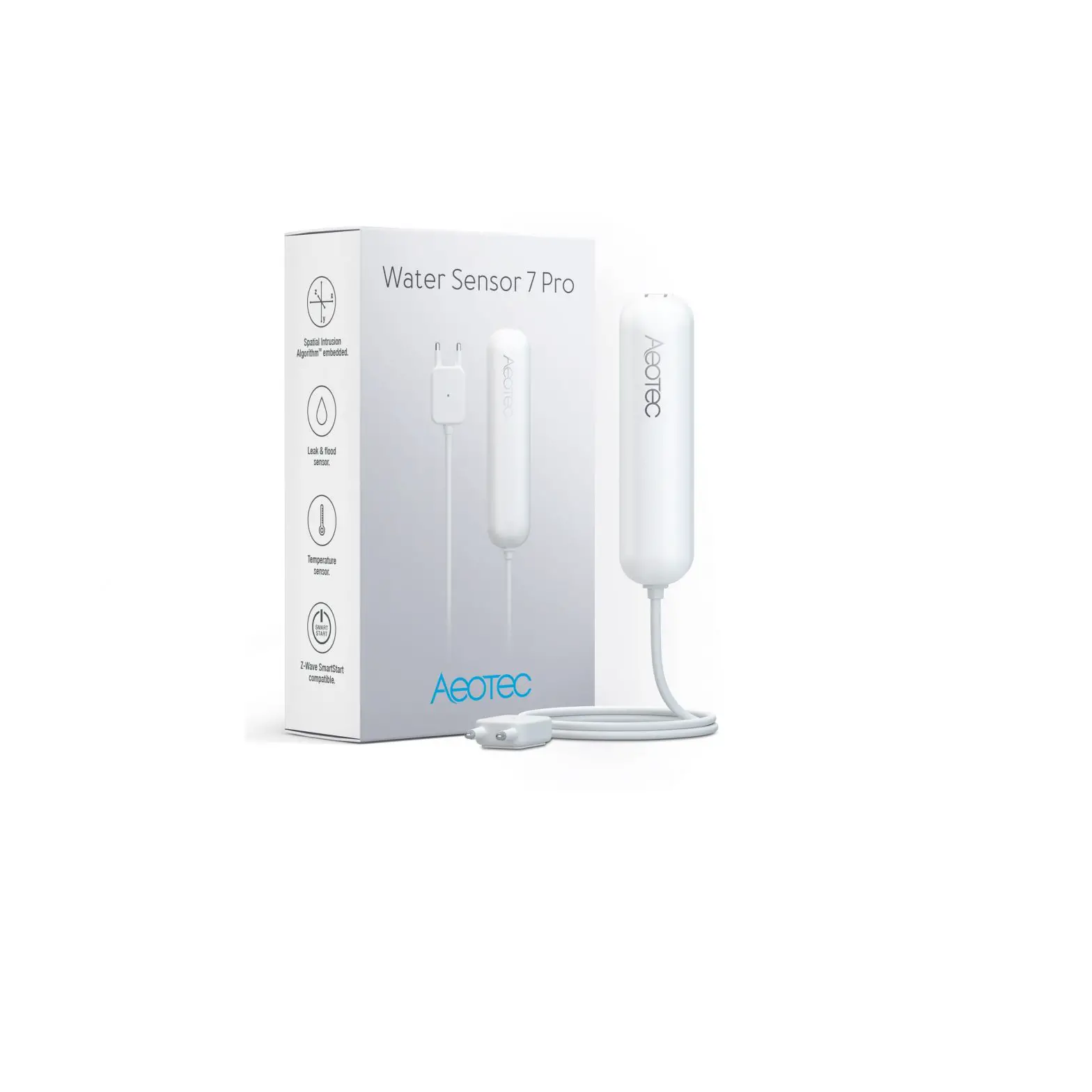
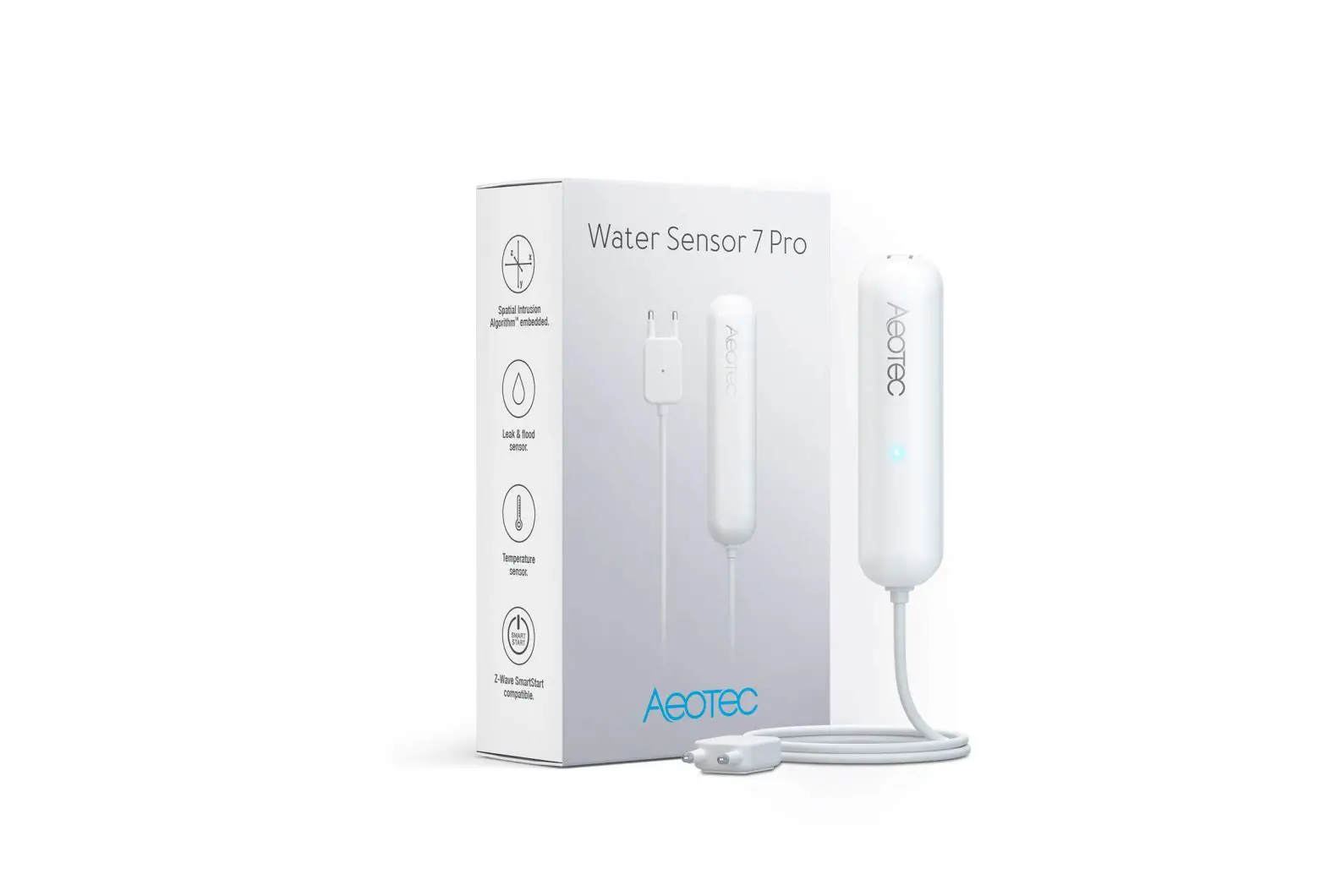
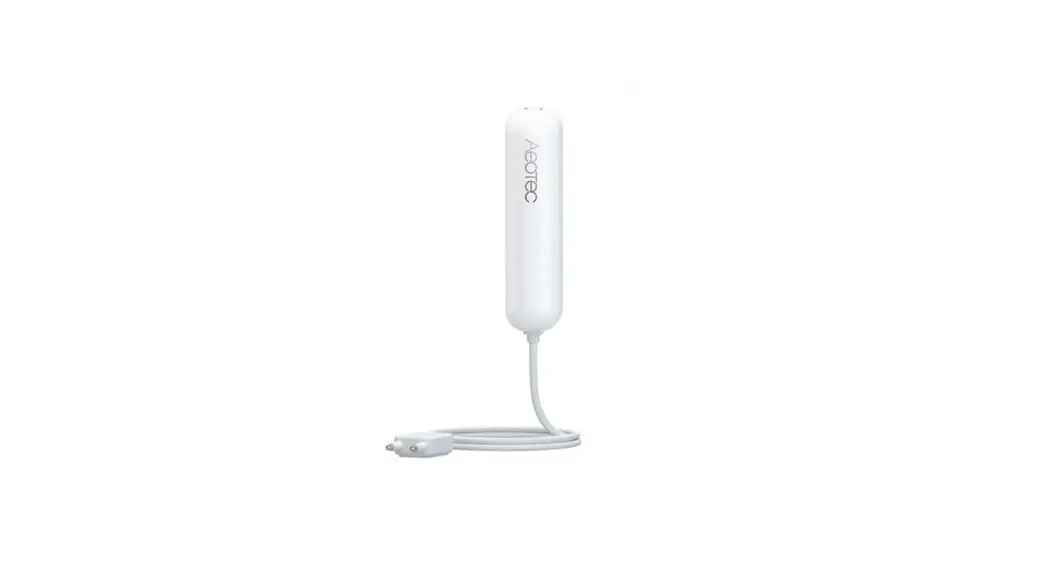
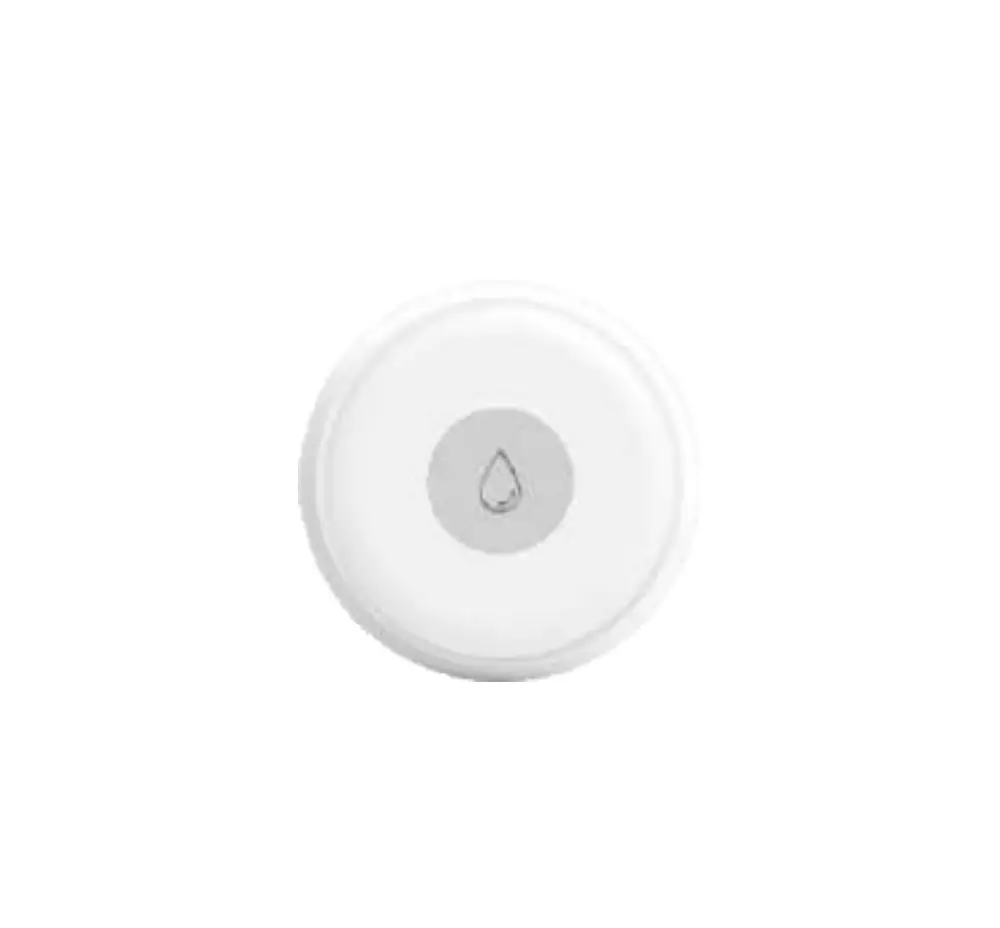
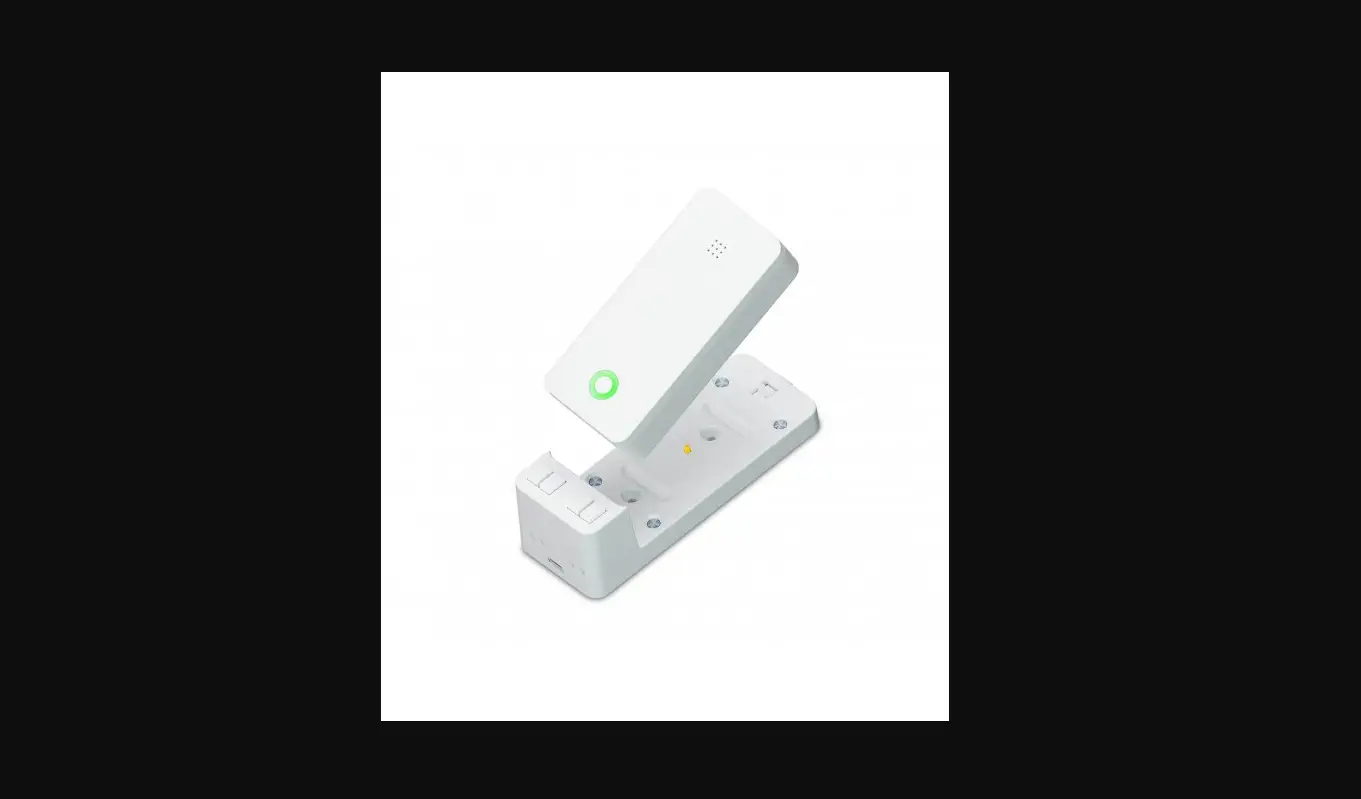
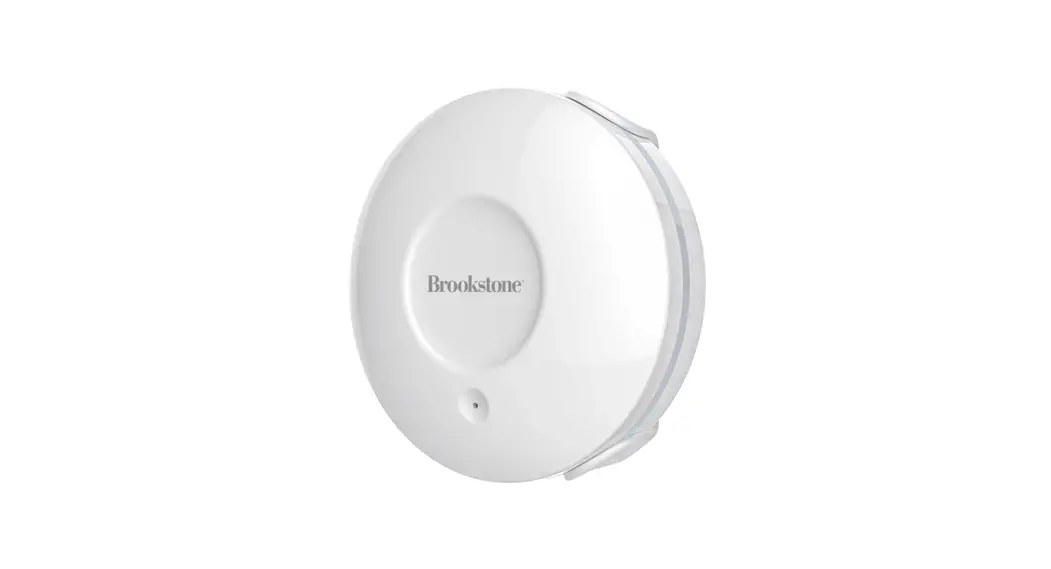
The AEOTEC Water Sensor 7 Pro is a sensor, which detects water leakage, measures temperature and humidity. The sensor is easily retrofittable. Thanks to its slim design the AEOTEC Water Sensor 7 Pro can be installed in any bathroom, behind a kitchen sink, or in any other tight space. The sensor just has to be installed on the wall and the sensor probe must be put on the floor. By using the internal temperature and humidity sensor, the device will report on any significant change. Tripple clicking the tamper button includes (adds) and excludes (removes) the device. A single click on the button will wake up the device. The device supports the Z-Wave Security S2 framework with authenticated and unauthenticated network keys. Please follow the instructions on the central controller when including. The device also supports SmartStart.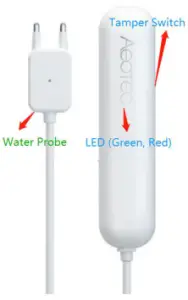
| Terminology | Description |
| tamper switch | Used for networking, resetting, and protecting the device. |
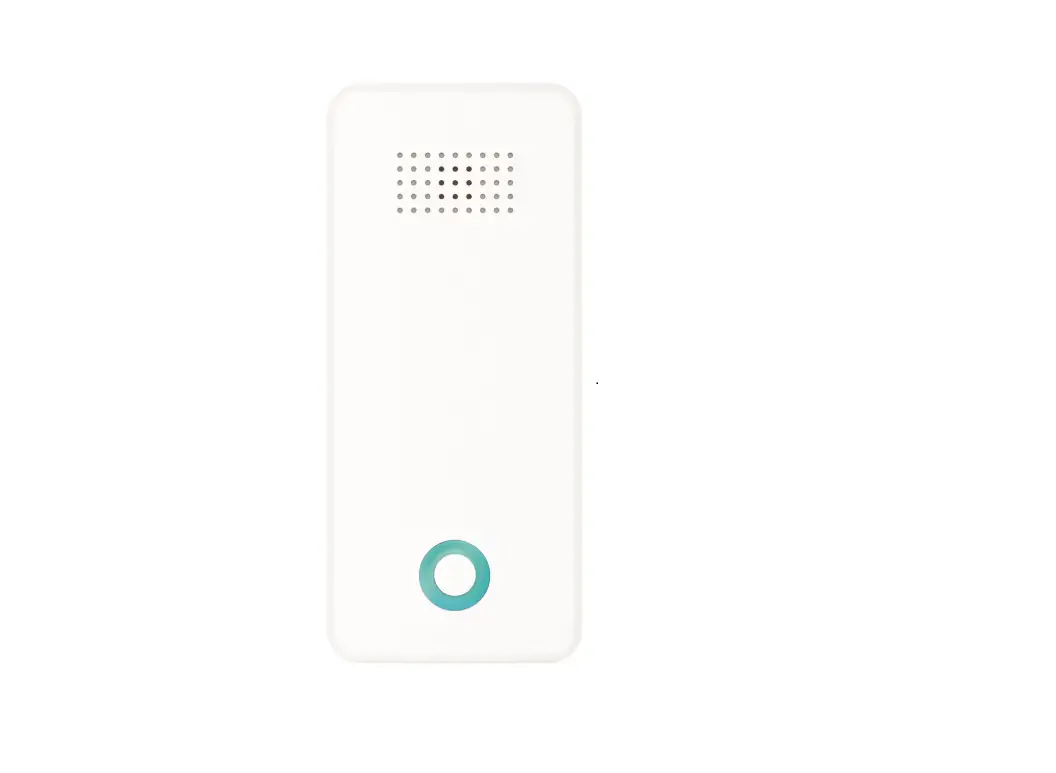
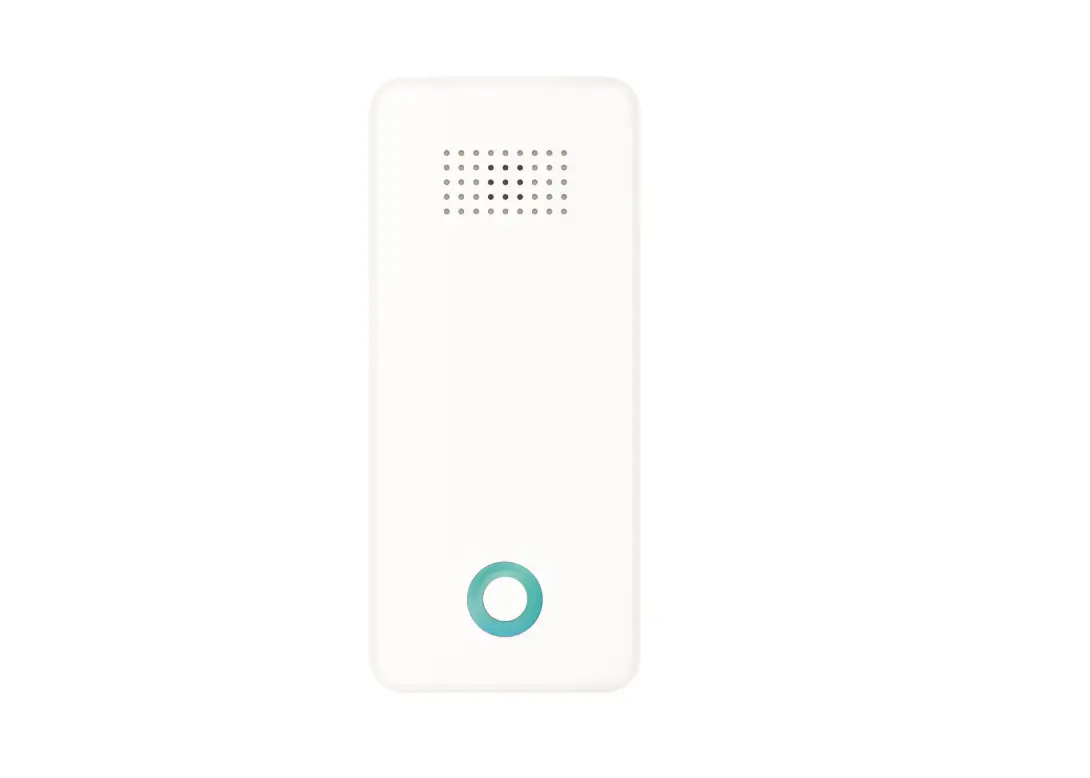
| Led (Green, Red) | Used for indicating the current state of the product. |
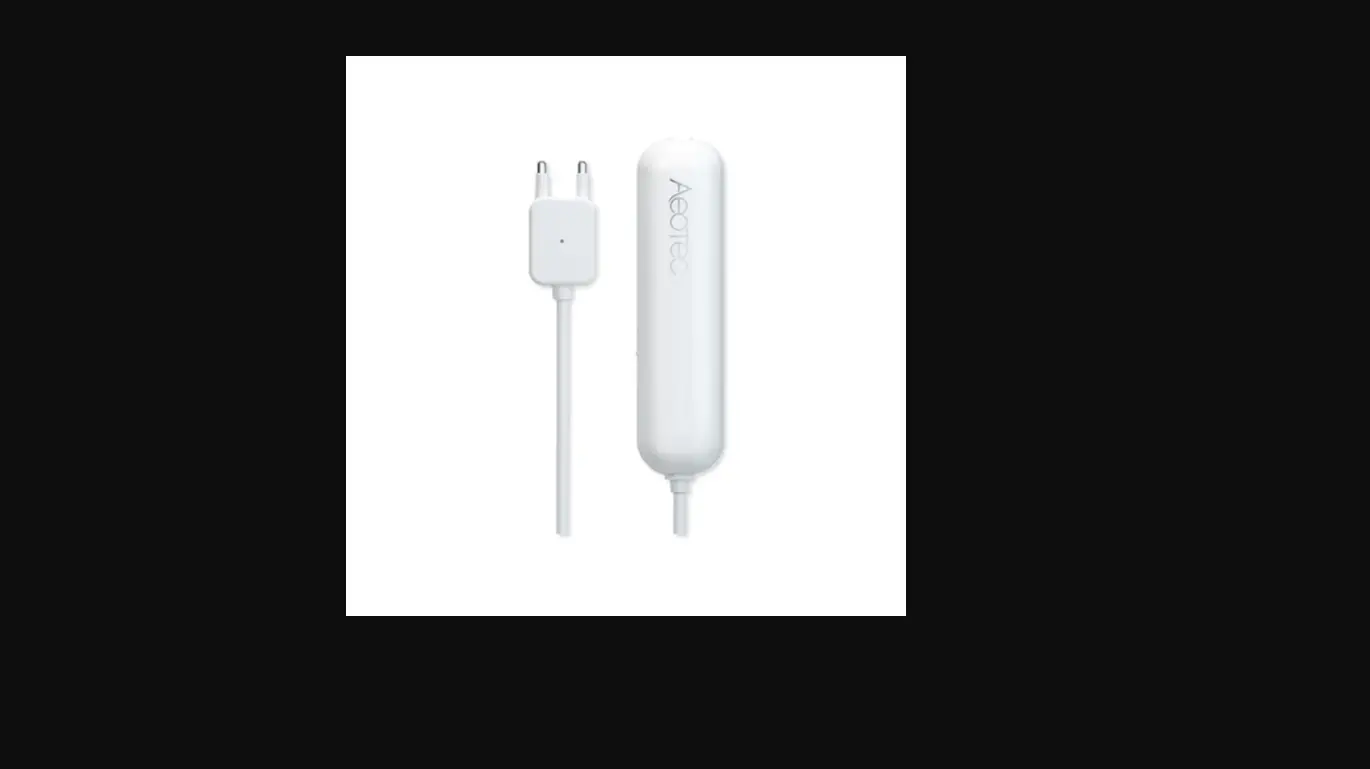
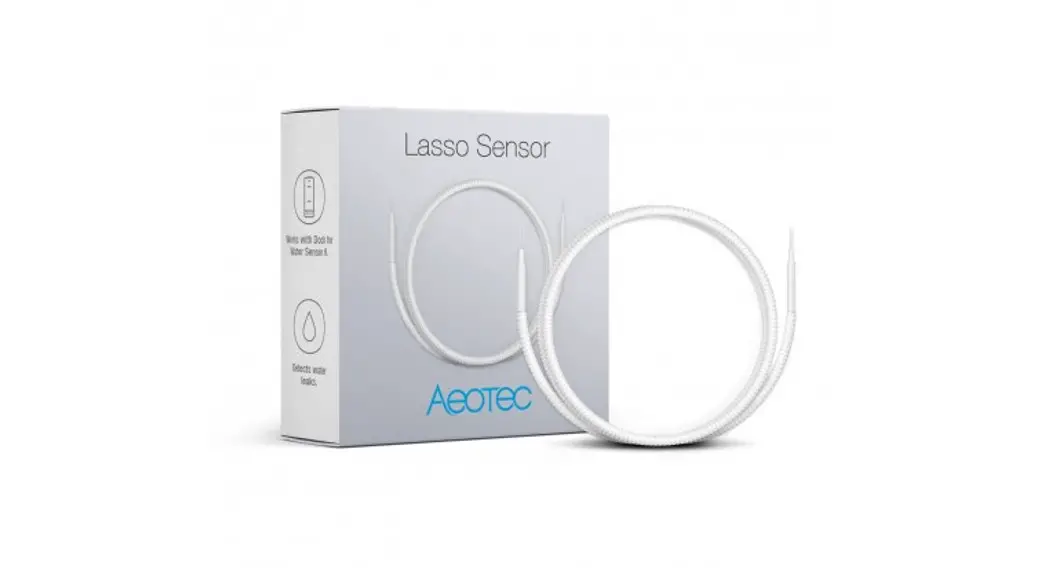
| water probe | A probe is connected to the product with wire and used to test the water leakage state. |
SPECIFICATIONS
Structural
| Parameter | Value |
| Product Identifier | ZWA019 |
| Dimensions | 28x95x35mm |
| Weight | Main Part: 20g Water Probe: 3g |
| Color | White |
| Usage | For indoor use. |
| Operating Temperature | 32~104°F (0~40°C) |
| Relative Humidity | 8%~80% |
Hardware
| Parameter | Value |
| Z-Wave Module | ZGM130S |
| Z-Wave TX Power | Max: 13dBm |
| Z-Wave Antenna Distance | 40m (Indoor) /150m (Outdoor) |
| Indicator Light Color | Green, Red |
| Buttons and Connectors | Tamper Button (x1), Water Detecting Head(x1) |
| Input Voltage | 3.0V Lithium battery |
| Battery Type | 1*1/2AA |
| Battery Included | Yes. 1pcs battery included. |
| Battery Required | Yes. 1pcs battery required. |
| Battery Info | Model: ER14250 1/2AA Capacity: 1200mAh Detachable: Yes Chargeable: No Endurance: 2 years |
| Working Current | 30mA |
| Standby Current | 5uA |
| Maximum Standby Power Consumption | 0.03mW |
| Maximum transmission | 5mW |
| Built-in Sensors | Humidity Temperature Sensor |
Software
| Parameter | Value |
| Wireless Technology | Z-Wave |
| Certification Type | Z-Wave Plus v2 Certification |
| Z-Wave SDK Version | 7.15.4 |
| Z-Wave Library Type | Enhanced 232 Slave |
| Z-Wave Role Type | Reporting Sleeping Slave[0x06] |
| Generic Product Type | GENERIC_TYPE_SENSOR_NOTIFICATION [0x07] |
| Specific Product Type | SPECIFIC_TYPE_NOTIFICATION_SENSOR [0x01] |
| Security Class | Non-Security, S2 Unauthenticated, and S2 Authenticated |
| SmartStart Compatible | Support. After powering on, SmartStart is auto-activated. |
| Over The Air (OTA) | Support. Firmware can be updated via RF. |
| Multi-Channel Product | Support. Refer to Section 4.7 Association Group Info. |
| Association | Support. Refer to Section 3.7 How to factory reset. |
| Factory Reset | Support. All command settings will stay unchanged even power is down. |
| Power-down Memory | Support. Send out a notification via Group 1 when Water Leakage Start or Stop. |
| Sensor State Report | Support. Control other Z-Wave products directly via Association Group 2 when water leakage |
| Control other product | state change Start or Stop. |
QUICKSTART
important safety information
Please read this manual carefully. Failure to follow the recommendations in this manual may be dangerous or may violate the law. The manufacturer, importer, distributor, and seller shall not be liable for any loss or damage resulting from failure to comply with the instructions in this manual or any other material. Use this equipment only for its intended purpose. Follow the disposal instructions. Do not dispose of electronic equipment or batteries in a fire or near open heat sources.
Optimally placing the product
This is a secure Alarm Sensor. To run this device please insert fresh 1 * 1/2 AA batteries. Please make sure the internal battery charge is full. The DSK for the S2 inclusion can be found inside the packaging of the sensor.
If your Z-Wave gateway supports SmartStart: scan the QR code on the product using the gateway’s app. Your sensor will join your Z-Wave network automatically.
How to install the product
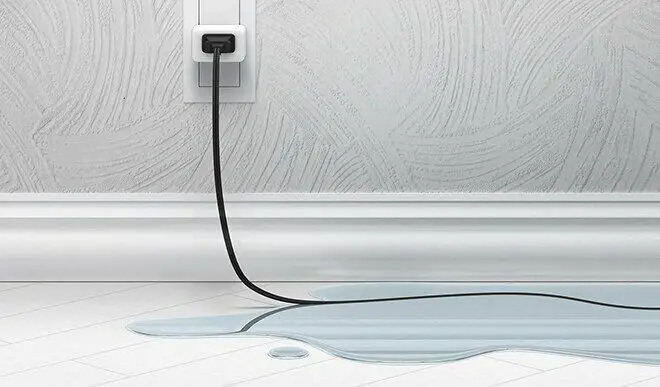
The sensor can be mounted on the wall. Mounting can be accomplished either using the tape by peeling off the protection foil or using two screws with holes inside the battery compartment. Water Sensor probe which is hardwired to the Main Unit must be put on the floor or onto any other surface, where water leakage must be detected.
How to add the product
The following will step you through by adding the product to your Z-Wave network. Open the housing.
Remove the battery protection.
- Press the tamper on the side of the appliance three times quickly.
How to remove the product
- Open the housing.
- Press the tamper on the side of the appliance three times quickly.
How to manually trigger Wake Up
- A single click on the button will wake up the device.
- Repower on will wake up the device.
Note:
The Wake-Up period starts when the node issues a Wake-Up Notification and it ends either 10 seconds after the last received/transmitted frame or at the reception of a Wake Up No More Information Command by the Wake-Predestination.
How to factory reset
This device also allows being reset without any involvement of a Z-Wave controller. This procedure should only be used when the primary controller is inoperable. Once the Cover is removed and the tamper switch is tripped, push the tamper for 5 seconds until the RED LED blinks once. Then release the tamper and push it again for 5 seconds while the RED LED is blinking until the GREEN LED blinks once.
Safety Warning for Batteries
The product contains batteries. Please remove the batteries when the device is not used. Do not mix batteries of different charging levels or different brands.
Product Usage
Once installed the sensor will report sensor status changes to a central Z-Wave controller using notification commands. Additionally, the sensor can directly control other devices using association group 2. The device is protected by a tamper switch.
Link testing
When activated by configuration parameter #5 the device can perform a link test with device No.1. Double-clicking the tamper will start the process. As a result, the GREEN LED will blink two times in case of success and the RED LED will blink two times in case of failure.
SOFTWARE FUNCTION DEFINITION
User Behavior Interaction
| User behavior | out of the z-wave network. | In the Z-Wave network |
| Power OFP | Cut the power. | Cut the power. |
| Power ON | Send inclusion Requests for SmartStart Mode. LED will flash red 5 times, which means It’s out of the Z-Wave network. If the gateway is adding the device succeeds through SmartStart, LED will light up green for 2 seconds If Adding falls, LED will off. The device will auto-reset and then activate SmartStart Learn Mode again. | Send Wake Up Notification. LED will become flash green once, and the device will wake up for 15 seconds. |
| Detected water leakage state change | LED will flash red once. | Trigger Association function. Refer to Section 4.7 and 4.14 for details about the Association function. LED will flash red once. |
| Click tamper switch once | 1. Reserved LED will flash green once. 2. Exit Classic Inclusion Learn Mode: If the tamper switch is clicked again during the Classic inclusion Learn Mode, the Classic Learn Mode will exit. LED will turn off. The device will auto-reset and then activate SmartStart Learn Mode again. | 1. issue Wake Up Notification and stay awake for 15 ds unless put to sleep by Wake Up No More Information frame. LED will flash green once. 2. Exit Classic exclusion Learn Mode: if the tamper switch is clicked again during the Classic exclusion Learn Mode, the Classic Mode will exit. LED will turn off. |
| Click tamper switch twice | Reserved | Start a link test with controller (When activated by configuration parameter la If success, LED will blink green two times if failure, LED will blink red two times |
| Click tamper switch three times quickly | 1. Send Node Info for Adding. LED will blink green and red for the 30s until it Is added Into the network. If Adding succeeds, LED will light up green for 2 seconds If Adding falls, LED will turn off. The device will auto- and then activate SmartStart Learn Mode again. 2. Exit Classic Inclusion Learn Mode: If the tamper switch is clicked again during the Classic Inclusion Learn Mode, the Classic Learn Mode will exit. LED will turn off. The device will auto-reset and then activate SmartStart Learn Mode again. | 1. Send Node Info for Removing. LED will blink green and red for 30 seconds until it is removed from the network. If Removing succeeds, LED will light up red 3 times. if Removing falls, LED will turn off. 2. Exit Classic exclusion Learn Mode: If the tamper switch is clicked again during the Classic exclusion Mode, the Classic Mode will exit. LED will turn off. |
| Press and hold tamper switch for 5 seconds | Factory push the tamper for 5 seconds until the RED LED blinks once. Then release the tamper and push It again for 5 seconds while the RED LED is blinking until the GREEN LED blinks once. Reset. | push the tamper for 5 seconds until the RED LED blinks once. Then release the tamper and push it again for S seconds while the RED LED is blinking until the GREEN LED blinks once. The device will Issue a Device Reset Locally Command via Its Lifeline to notify the Lifeline destination that the device has been |
| reset to its factory default state. And it will perform the reset operation regardless of whether or not the delivery of the Device Reset Locally Notification is successful. |
Supported Command Classes
| Command Class | Version 2 | Not added | Non-secure added | Securely 2 added Non-secure | Secure |
| ZWAVEPLUS_INFO | Support | Support | Support | ||
| ASSOCIATION | 2 | Support | Support | Support | |
| MULTI_CHANNEL_ASSOCIATION | 3 | Support | Support | Support | |
| ASSOCIATION_GRP_INFO | 3 | Support | Support | Support | |
| TRANSPORT_SERVICE | 2 | Support | Support | Support | |
| VERSION | 3 | Support | Support | Support | |
| MANUFACTURER_SPECIFIC | 2 | Support | Support | Support | |
| DEVICE_RESET_LOCALLY | 1 | Support | Support | Support | |
| INDICATOR | 3 | Support | Support | Support | |
| POWERLEVEL | 1 | Support | Support | Support | |
| BATTERY | 1 | Support | Support | Support | |
| SENSOR_BINARY | 2 | Support | Support | Support | |
| CONFIGURATION | 4 | Support | Support | Support | |
| SECURITY_2 | 1 | Support | Support | Support | |
| NOTIFICATION | 8 | Support | Support | Support | |
| WAKE_UP | 2 | Support | Support | Support | |
| SUPERVISION | 1 | Support | Support | Support | |
| FIRMWARE_UPDATE_MD | 5 | Support | Support | Support | |
| MULTILEVEL SENSOR | 11 | Support | Support | Support |
Basic Command Class mapping
Basic Command Class is not mapped to any of the supported command classes.
Z-Wave Plus Info
| Parameter | Value |
| Z-Wave Plus Version | 0x02 |
| Role Type | 0x06 [ZWAVEPLUS_INFO_REPORT_ROLE_TYPE_SLAVE_SLEEPING_REPORTING] |
| Node Type | Ox00 [ZWAVEPLUS_INFO_REPORT_NODETYPE_ZWAVEPLUS_NODE) |
| Installer Icon Type | Ox0CO5 [ICON TYPE SPECIFIC SENSOR NOTIFICATION WATER ALARM] |
| User Icon Type | Ox0CO5 [ICON TYPE SPECIFIC SENSOR NOTIFICATION WATER ALARM] |
Manufacturer Specific
| Parameter | Value |
| Manufacturer ID 1 | 0x03 |
| Manufacturer ID 2 | 0x71 |
| Product Type ID 1 | Ox00 [EU], Ox01 [US], 0x02 [AU] |
| Product Type ID 2 | 0x02 [PRODUCT_TYPE_ID_SENSOR] |
| Product ID 1 | Ox00 |
| Product ID 2 | 0x13 |
Version
| Parameter | Value |
| Z-Wave Protocol Library Type | 0x03 |
| Z-Wave Protocol Version | 0x07 |
| Z-Wave Protocol SubVersion | oxo |
| Firmware 0 Version | 0x02 [Z-Wave Chip Firmware Version] |
| Firmware 0 SubVersion | Ox00 [Z-Wave Chip Firmware Sub Version] |
| Hardware Version | Ox01 |
| Number of firmware targets | Ox00 |
Association Group Info
Root product
| ID | NAME | Node count | Profile | Function |
| 1 | Lifeline | 5 | General: Lifeline (0x0001) | Product Reset Locally Notification: Issued when Factory Reset is performed. Battery Report: Issued when the battery becomes low. Sensor Binary Report: Issued when water leakage state is changed. Multilevel Sensor Report Issued when button pressed to wake up or auto report enables or detect temperature/humidity change exceeds the set value.Notification Report [Type=0x06; Event=0x16]: Issued when sensor state is changed to be Open Status. Notification Report [Type=0x06; Event=0x17]: Issued when sensor state is changed to be Close Status. Notification Report [Type=0x07; Event=0x03]: Issued when tamper is tripped. |
| 2 | control | 5 | Notification: water alarm (0x2001) | Basic Set: Issued when water leak detected/or not. |
| 3 | Alarm | 5 | Notification: water alarm (0x7105) | Notification Report: Sends out alarm messages when water leakage is detected. |
| 4 | Tamper | 5 | Notification:home Security (0x7107) | notification Report: Sends alarm messages when tamper is tripped. |
Notification
| Notification Type | Notification Events/State | Description | ||
| Home Security | 0x07 | Tampering, product cover removed | 0x03 | Issued when product cover removed |
| Idle | 0x00 | Issued when the battery power lower than 20%. | ||
| Power Managemen | 0x08 | Replace battery now | 0x0B | Issued when replacing a new battery that battery power more than 90%. |
| Idle | 0x00 | Issued when replacing a new battery that battery power is more than 90%. | ||
| Water Alarm | 0x05 | Water leak detected | 0x02 | Issued when water probe detected water. |
| Idle | 0x00 | Issued when water probe does not detect water. |
Binary Sensor
| Sensor Type | Sensor Value | Description | |
| Water | 0x06 | 0xFF | Water leakage Detected |
| Water | 0x06 | 0x00 | Water leakage does not detect |
Multi-level Sensor
| Sensor Type | Support Scale | Measure Range | |
| 0x01 | Celcius (°C) | -10 to 65°C (+- 1°C) | |
| Temperature | Fahrenheit (°F | 14 to 146°F (+- 1.8°F) | |
| Relative Humidity | 0x05 | Percentage value (%) | 0 to 80% RH +- 3% |
Wake Up
| Parameter | Value | Time |
| Min Wake Up Interval Seconds | 0x000E10 | 3600s [1 hour] |
| Max Wake Up Interval Seconds | 0xEFF100 | 15724800s |
| Default Wake Up Interval Seconds | 0x093A80 | |
| Wake Up Interval Step Seconds | 0x0000F0 | 604800s [1 week] |
Battery
- The 2.90V or more battery voltage corresponds to 100% battery level, and 2.60V or less corresponds to 0%.
- If send Battery Get to the device, it will issue Battery Report with battery level to the requester when waked up.
- If wake up or power on, it will detect battery level, and issue Battery Report via Lifeline when battery level changes over 10%.
- if the battery level is less than the value of configuration parameter 23, send Battery Report 0xFF and Notification Report of replacing battery now via Lifeline.
- If the battery level is less than the value of configuration parameter 23, LED will flash red 3 times for each wake-up.
Indicator
| Indicator ID | Property ID | ||
| Node Identify Green Led) | 0x50 | On Off Period | 0x03 |
| On Off Cycles | 0x04 | ||
| On-time within an On/Off period | 0x05 | ||
FCC Caution.
This device complies with part 15 of the FCC Rules. Operation is subject to the following two conditions:
(1) This device may not cause harmful interference
(2) this device must accept any interference received, including interference that may cause undesired operation.
Any changes or modifications not expressly approved by the party responsible for compliance could void the user’s authority to operate the equipment.
Note: This equipment has been tested and found to comply with the limits for a Class B digital device, pursuant to part 15 of the FCC Rules. These limits are designed to provide reasonable protection against harmful interference in a residential installation. This equipment generates uses and can radiate radio frequency energy and, if not installed and used in accordance with the instructions, may cause harmful interference to radio communications. However, there is no guarantee that interference will not occur in a particular installation. If this equipment does cause harmful interference to radio or television reception, which can be determined by turning the equipment off and on, the user is encouraged to try to correct the interference by one or more of the following measures:
-Reorient or relocate the receiving antenna.
-Increase the separation between the equipment and receiver.
-Connect the equipment into an outlet on a circuit different from that to which the receiver is connected.
-Consult the dealer or an experienced radio/TV technician for help.