
NIGHTWATCH NW-1000 Mastering Design for Wearable Devices
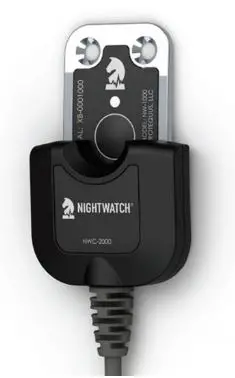
For detailed information on operation and use, please refer to the NIGHTWATCH® User Guide.
Available for download via the Resources tab within the App.
Powering Your Device
Fully charge your NIGHTWATCH® device prior to use.
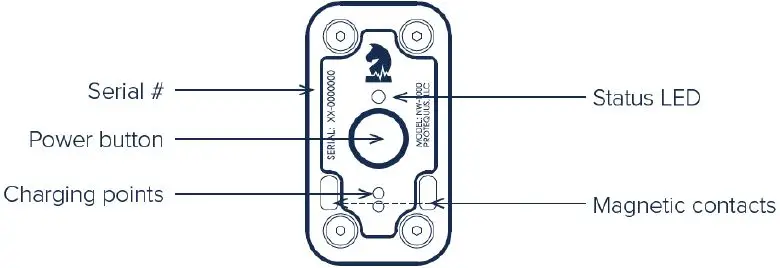
Power Your Device ON/OFF
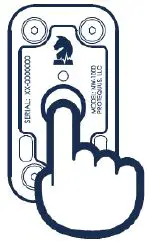
ON: PRESS and HOLD power button N2 secs (release when you see white LED)
OFF: PRESS and HOLD power button NS secs (release after white LED turns off)
CHARGE Your Device
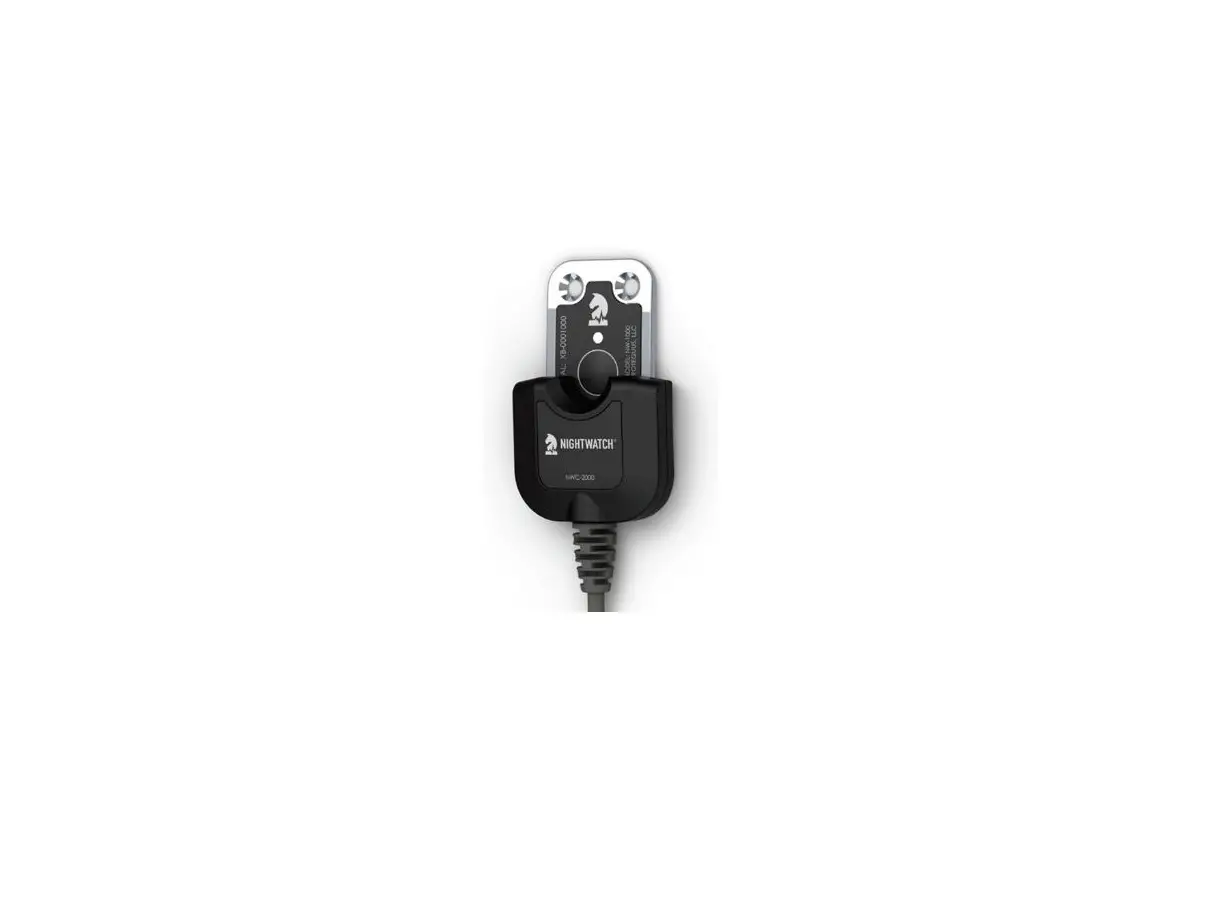
CHARGE: ATTACH magnetic charger to ID plate on halter (turn on device if you do not see green LED)
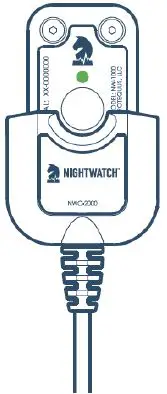
 CHARGING (blinking)
FULLY CHARGED (solid green)
Setting Up Your Device
Follow these steps to get your NIGHTWATCH® device ready for use.
Create ACCOUNT
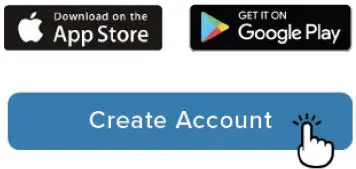
- DOWNLOAD the NIGHTWATCH® App on the App Store or Google Play to your mobile device.
- CREATE an account by launching the NIGHTWATCH® App and selecting “Create Account.”

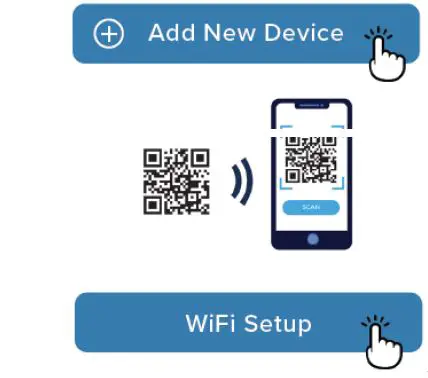
Add New Device - ADD a new device to your NIGHTWATCH account by tapping the (+) button and selecting “Add New Device.”
- ACTIVATE your device by scanning or manually entering the Activation Code and Serial # (within original packaging).
- CONNECT your activated device to a local WiFi network by following the User Guide Instructions (link available in App).

Assign Device to HORSE
- CONNECT your activated device to a local WiFi network by following the User Guide Instructions (link available in App).
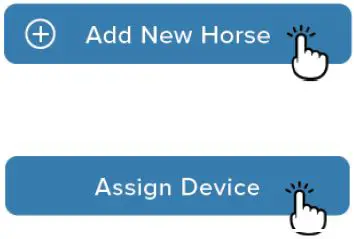
- ADD a new horse to your NIGHTWATCH° account by tapping the (+) button and selecting “Add New Horse” and follow on- screen wizard to complete horse profile.
- ASSIGN a device to a horse by selecting “Assign Device” and choose from drop-down menu of available devices by Serial #.
NOTE: If you do not see any devices, return to step 3 to add a new device.
Connecting Your Device
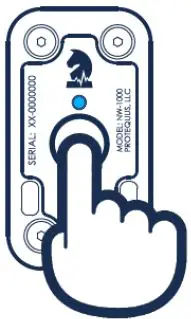
STEP 1: Temporarily place device in broadcast mode
- Confirm your device is OFF.
- Press and HOLD power button N10 secs (release when you see blue LED).
- Proceed to step 2 when you see blue LED flashing. This may take several mins.
STEP 2: Connect device to a nearby smartphone or computer
- Open WiFi settings on your smartphone or computer.
- Select your device by serial # among list of available WiFi networks.
- Enter “nightwatch” as password, when prompted.
- Confirm smartphone or computer is successfully connected to device.
NOTE: Ensure your device is within range of your desired WiFi network and you have that network’s password before proceeding.
STEP 3: Connect device to a WiFi network via your smartphone or computer
- Open a web browser and enter connect.smarthalter.com or 192.168.44.1 to launch WiFi menu of options.
- Select “Setup WiFi,” identify a WiFi network, and enter that network’s password, when prompted.
- Confirm device is successfully connected to a WiFi network.
STEP 4: Restart device
- Power device OFF then ON to exit broadcast mode.
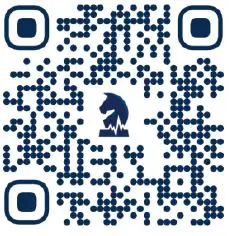
Scan QR Code to access step-by-step guide to connecting your device to WiFi.
Fitting Your Device
Your NIGHTWATCH® device requires a proper fit*.
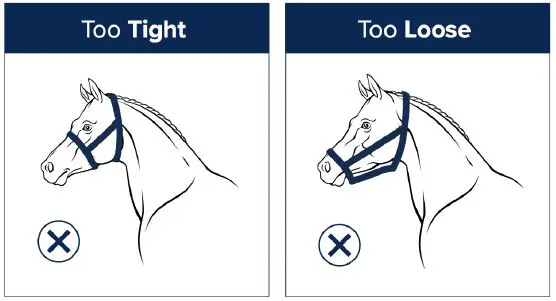
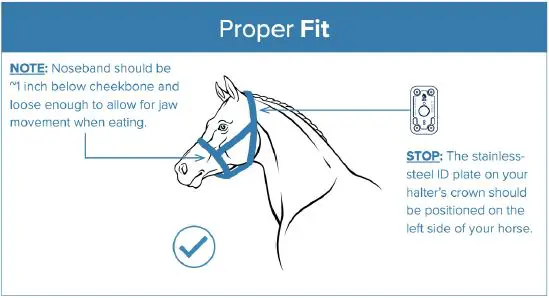
Status LED Definitions
Your NIGHTWATCH® device will communicate a wealth of information via the status LED.
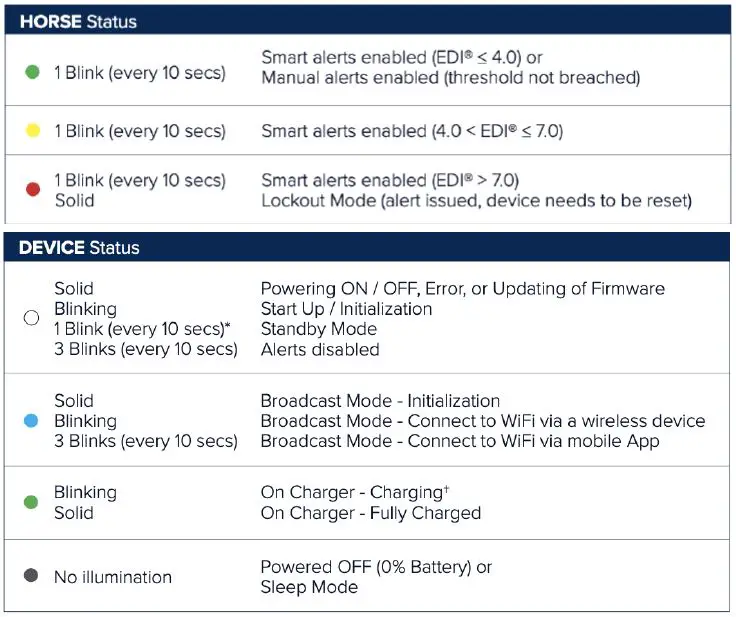
Device will remain in Standby Mode for 5 mins when first powered ON and/or removed from charger.
LED will blink rapidly if device battery is critically low.
Need support? We’re here to help.
Customer Care
800-757-3856 (+512-515-1095)
M-F 8:30 AM – 5:30 PM CST
[email protected]
2022 Protequus®. All Rights Reserved. Patent-Protected Technology.
All Trademarks and logos herein are owned by Protequus®.