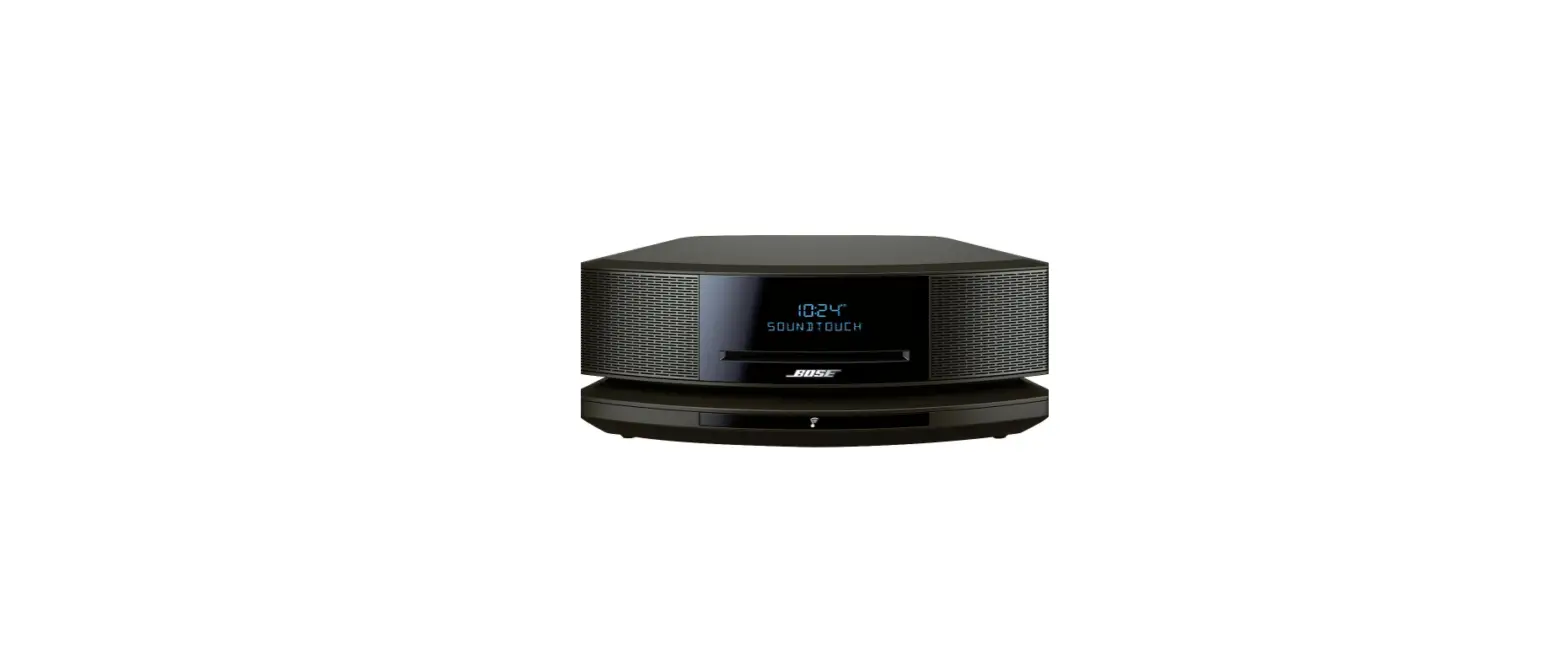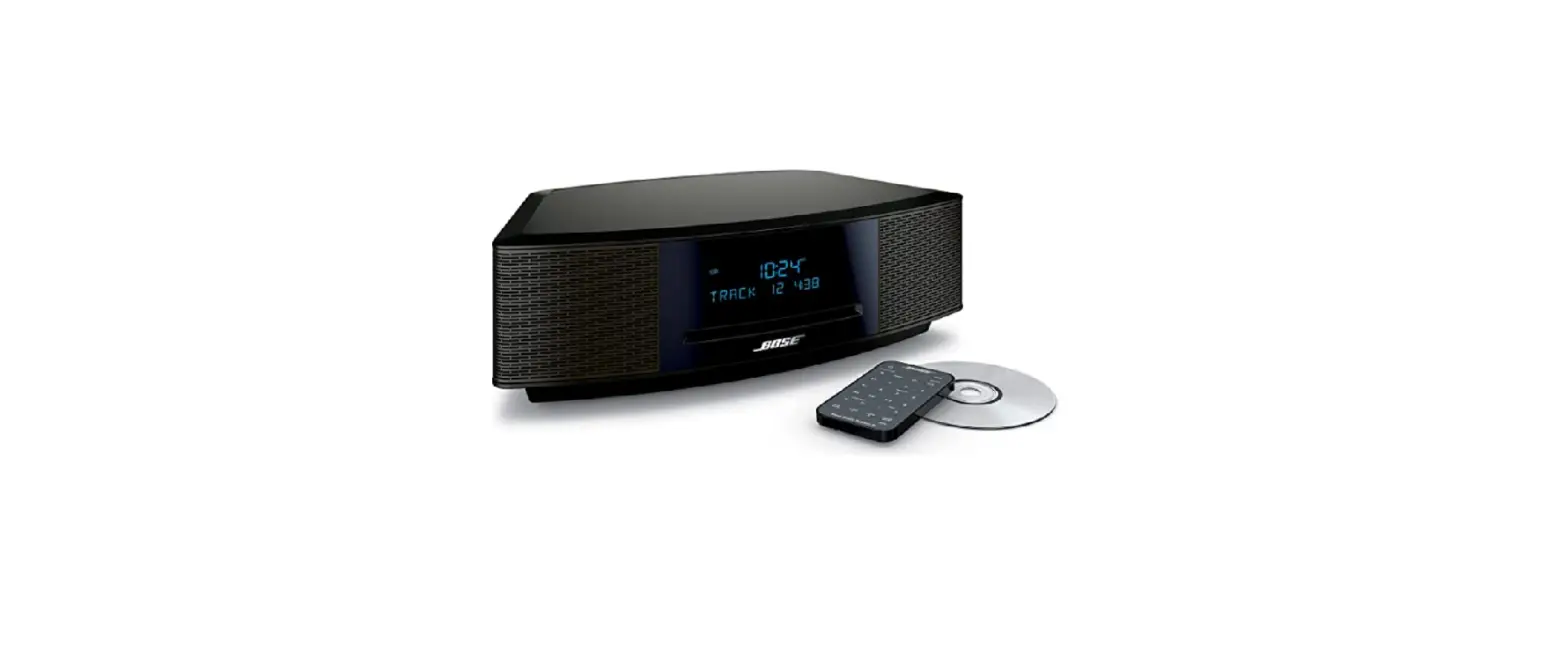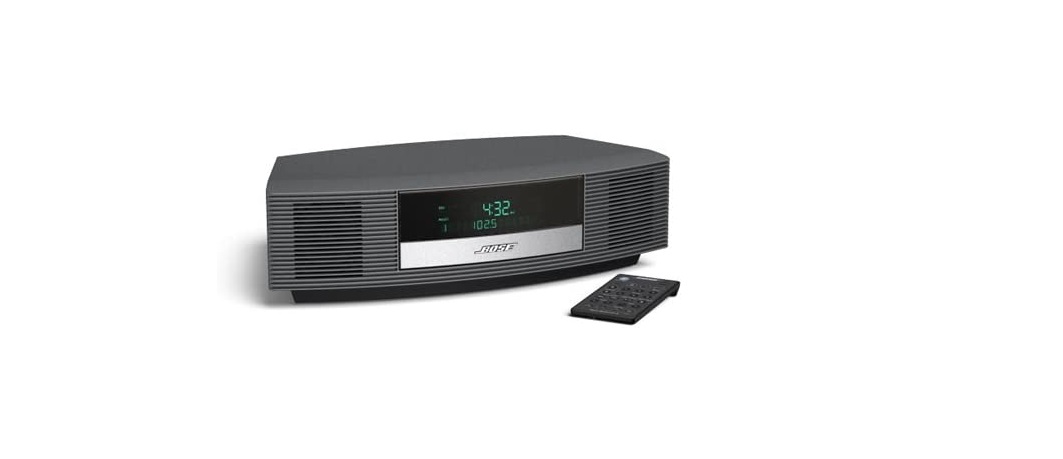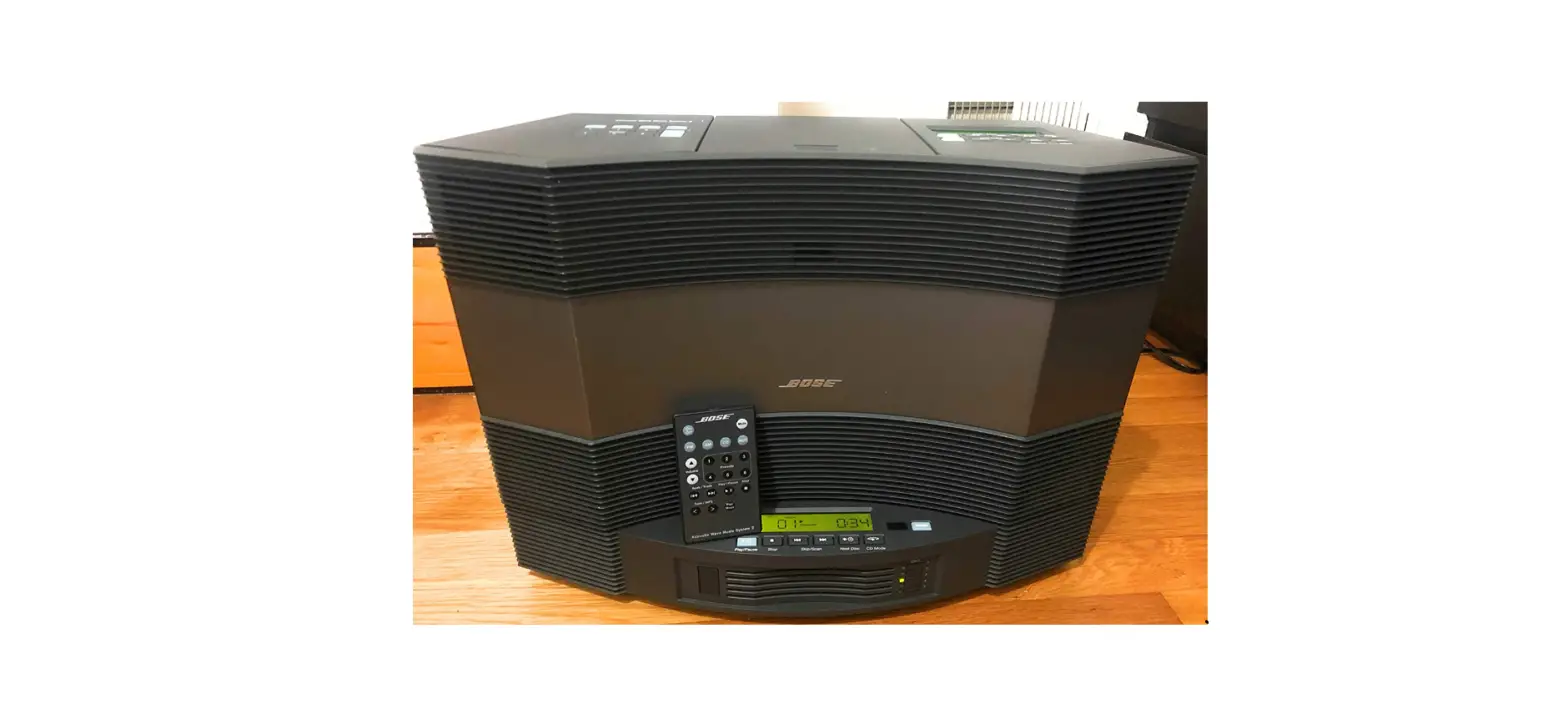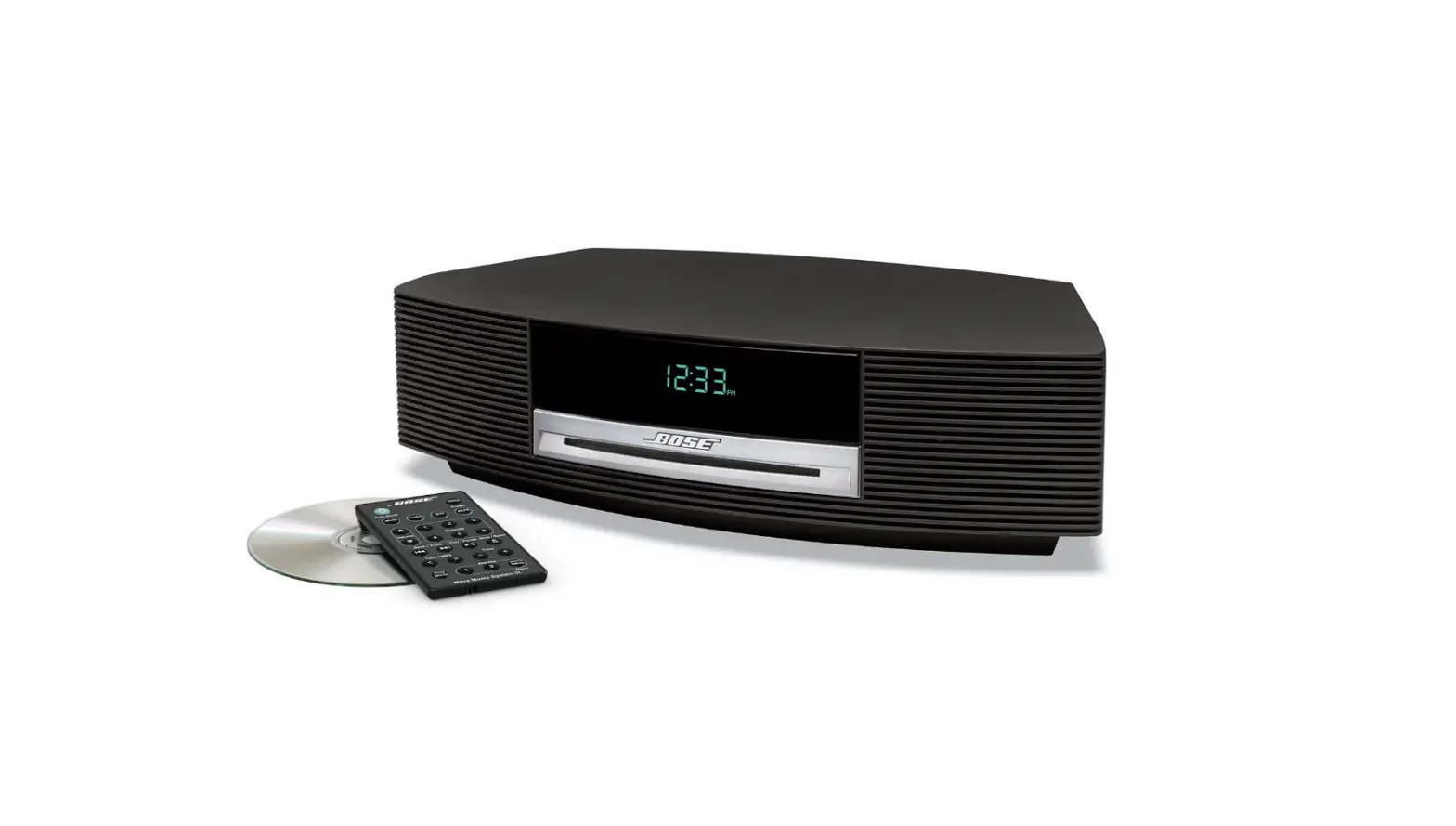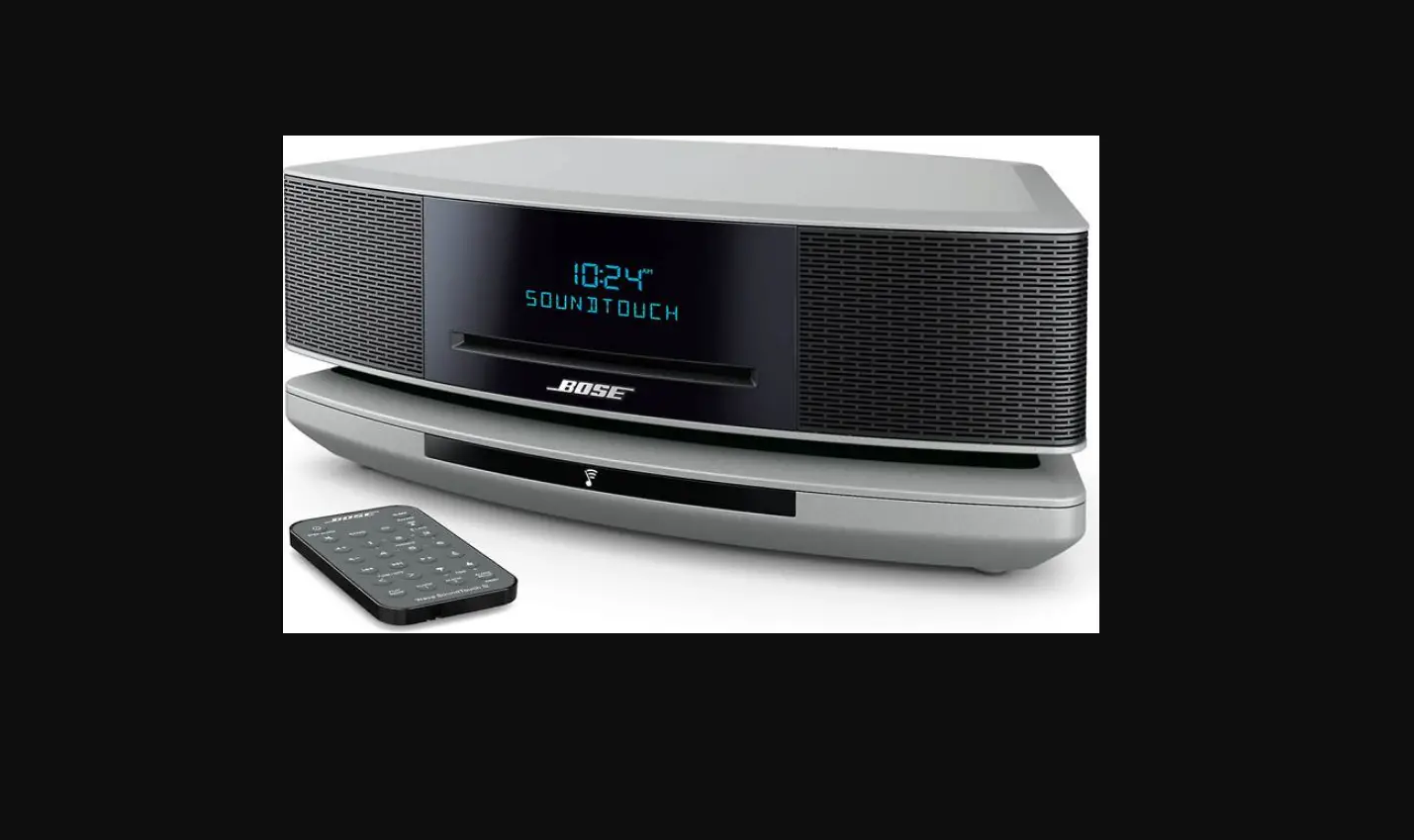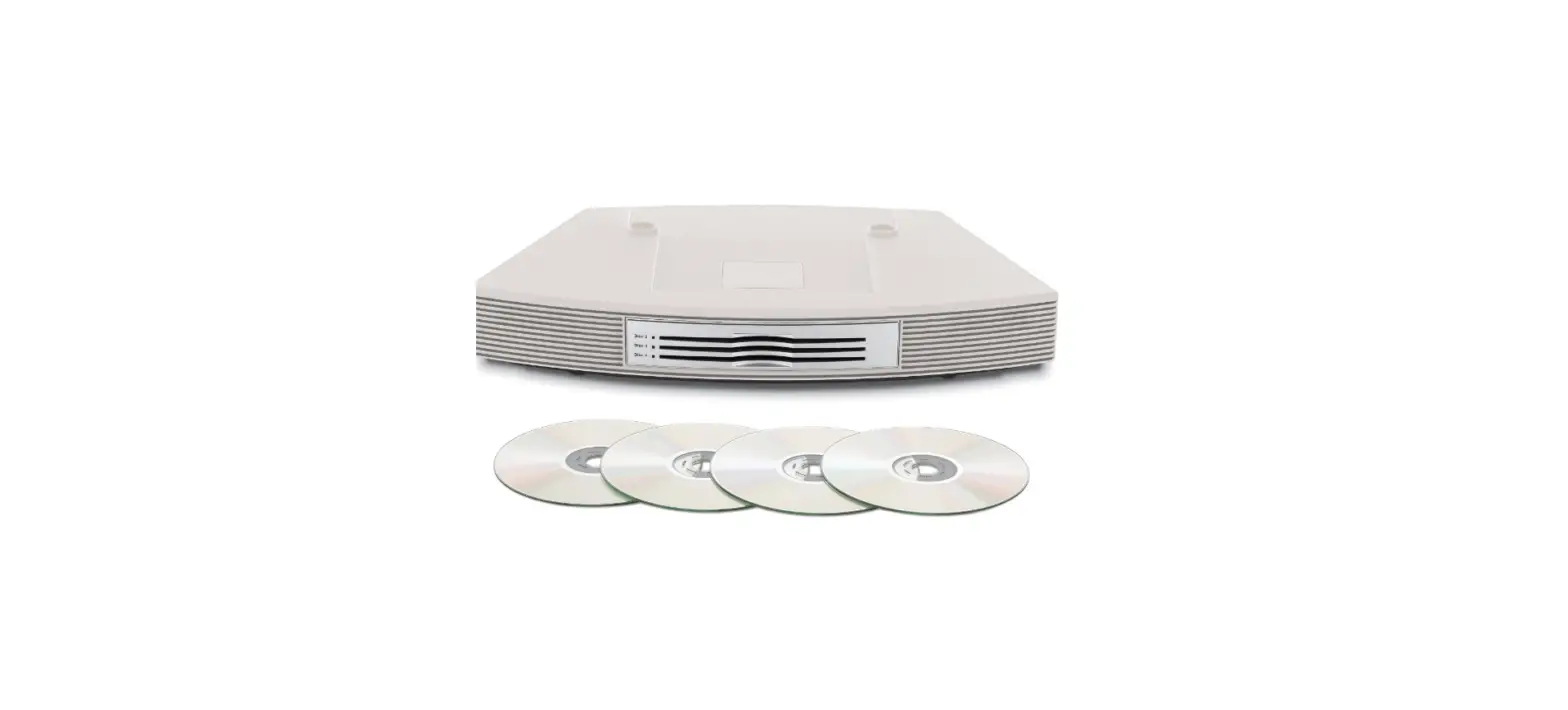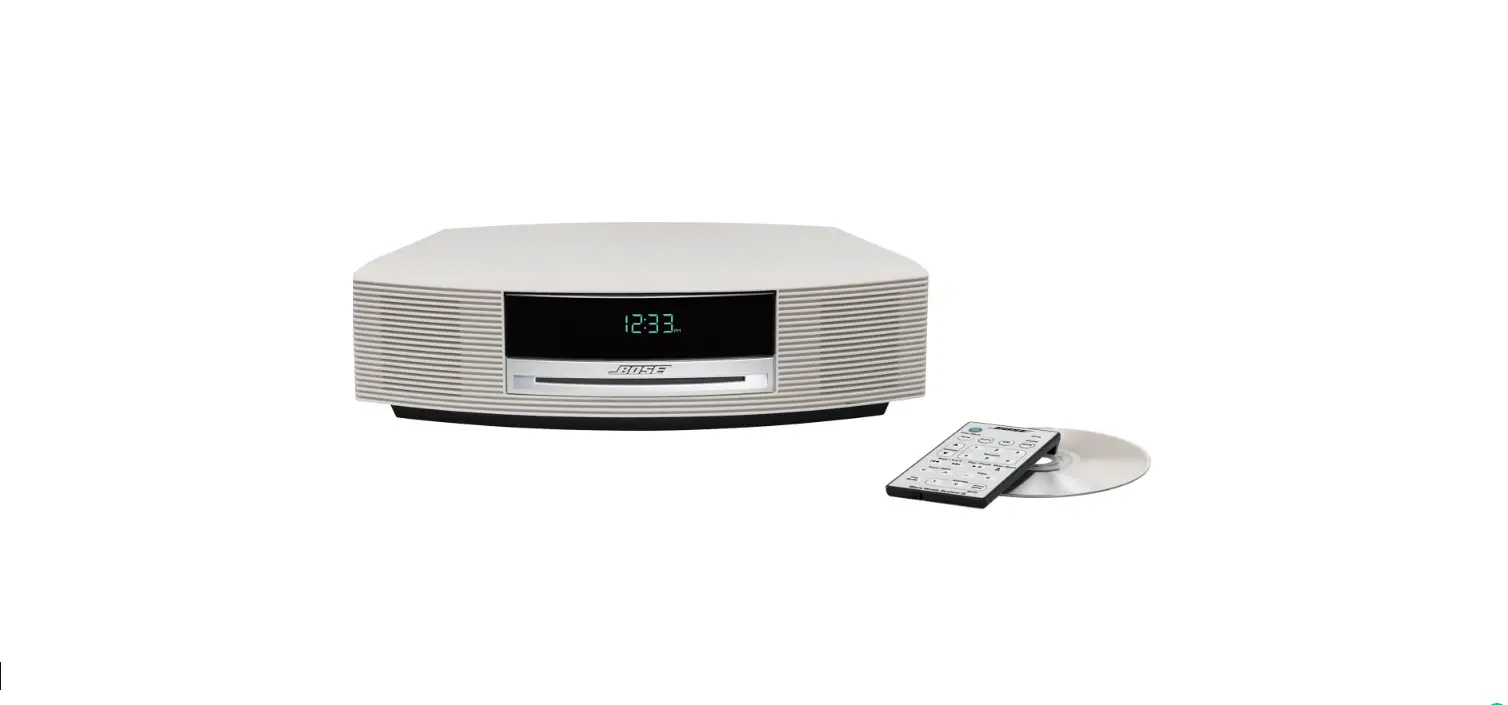

Bose AWRCC6 Wave Music System II Platinum White
Safety Information
WARNING To reduce the risk of fire or electrical shock, do not expose the product to rain or moisture.
WARNING The apparatus shall not be exposed to dripping or splashing, and objects filled with liquids, such as vases, shall not be placed on the apparatus. As with any electronic products, use care not to spill liquids into any part of the system. Liquids can cause a failure and/or a fire hazard.
CAUTION To reduce the risk of electric shock, do not disassemble this product unless you are qualified. Refer servicing to qualified service personnel
WARNING The lightning flash with an arrowhead symbol within an equilateral triangle alerts the user to the presence of uninsulated dangerous voltage within the system enclosure that may be of sufficient magnitude to constitute a risk of electrical shock.
CAUTION To prevent electric shock, match the wide blade of the line cord plug to the wide slot of the AC (mains) receptacle. Insert fully.
CAUTION Use of controls or adjustments or performance of procedures other than those specified herein may result in hazardous radiation exposure. The compact disc player should not be adjusted or repaired by anyone except properly qualified service personnel.
Class 1 laser product This CD player is classified as a CLASS 1 LASER PRODUCT according to EN 60825-1:1994+A1+A2, IEC 60825-1:1993+A1+A2. The CLASS 1 LASER PRODUCT label is located on the bottom of the unit.
WARNING Keep the remote control battery away from children. It may cause a fire or chemical burn if mishandled. Do not recharge, disassemble, heat above 100ºC (212ºF), or incinerate. Dispose of used batteries promptly. Replace only with a battery of the correct type and model number. Please dispose of used batteries properly, following any local regulations. Do not incinerate.
WARNING No naked flame sources, such as lighted candles, should be placed on the apparatus.
Note The product label is located on the bottom of the product. Please take the time to follow the instructions in this owner’s guide carefully. It will help you set up and operate your system properly and enjoy all of its advanced features.
Trademarks ©1994-2004 Bose Corporation. No part of this work may be reproduced, modified, distributed or otherwise used without prior written permission. All trademarks referenced herein are property of Bose Corporation. The Wave® music system design is a registered trademark of Bose Corporation.
Important Safety Instructions
- Read these instructions – for all components before using this product.
- Keep these instructions – for future reference.
- Heed all warnings – on the product and in the owner’s guide.
- Follow all instructions.
- Do not use this apparatus near water or moisture – Do not use this product near a bathtub, washbowl, kitchen sink, laundry tub, in a wet basement, near a swimming pool, or anywhere else that water or moisture are present.
- Clean only with a dry cloth – and as directed by Bose Corporation. Unplug this product from the wall outlet before cleaning.
- Do not block any ventilation openings. Install in accordance with the manufacturer’s instructions – To ensure the reliable operation of the product and to protect it from overheating, put the product in a position and location that will not interfere with its proper ventilation. For example, do not place the product on a bed, sofa, or similar surface that may block the ventilation openings. Do not put it in a built-in system, such as a bookcase or a cabinet that may keep air from flowing through its ventilation openings.
- Do not install near any heat sources, such as radiators, heat registers, stoves or other apparatus (including amplifiers) that produce heat.
- Do not defeat the safety purpose of the polarized or grounding-type plug. A polarized plug has two blades with one wider than the other. A grounding-type plug has two blades and a third grounding prong. The wider blade or third prong are provided for your safety. If the provided plug does not fit in your outlet, consult an electrician for the replacement of the obsolete outlet.
- Protect the power cord from being walked on or pinched, particularly at plugs, convenience receptacles, and the point where they exit from the apparatus.
- Only use attachments/accessories specified by the manufacturer.
- Use only with the cart, stand, tripod, bracket or table specified by the manufacturer or sold with the apparatus. When a cart is used, use caution when moving the cart/apparatus combination to avoid injury from tip-over.
- Unplug this apparatus during lightning storms or when unused for long periods of time – to prevent damage to this product.
- Refer all servicing to qualified service personnel. Servicing is required when the apparatus has been damaged in any way: such as power-supply cord or plug is damaged; liquid has been spilled or objects have fallen into the apparatus; the apparatus has been exposed to rain or moisture, does not operate normally, or has been dropped – Do not attempt to service this product yourself. Opening or removing covers may expose you to dangerous voltages or other hazards. Please call Bose to be referred to an authorized service center near you.
- To prevent risk of fire or electric shock, avoid overloading wall outlets, extension cords, or integral convenience receptacles.
- Do not let objects or liquids enter the product –as they may touch dangerous voltage points or short-out parts that could result in a fire or electric shock.
- See product enclosure bottom for safety-related markings.
- Use Proper Power Sources – Plug the product into a proper power source, as described in the operating instructions or as marked on the product.
- Avoid Power Lines – Use extreme care when installing an outside antenna system to keep from touching power lines or circuits, as contact with them may be fatal. Do not install external antennas near overhead power lines or other electric light or power circuits, nor where an antenna can fall into such circuits or power lines.
- Ground All Outdoor Antennas – If an external antenna or cable system is connected to this product, be sure the antenna or cable system is grounded. This will provide some protection against voltage surges and built-up static charges. Section 810 of the National Electrical Code ANSI/NFPA No. 70 provides information with respect to proper grounding of the mast and supporting structure, grounding of the lead-in wire to an antenna discharge unit, size of grounding conductors, location of the antenna-discharge unit, connection to grounding electrodes, and requirements for the ground electrode. Refer to the antenna grounding illustration on this page.
Antenna Grounding
Example of antenna grounding as per National Electrical Code, ANSI/NFPA 70. 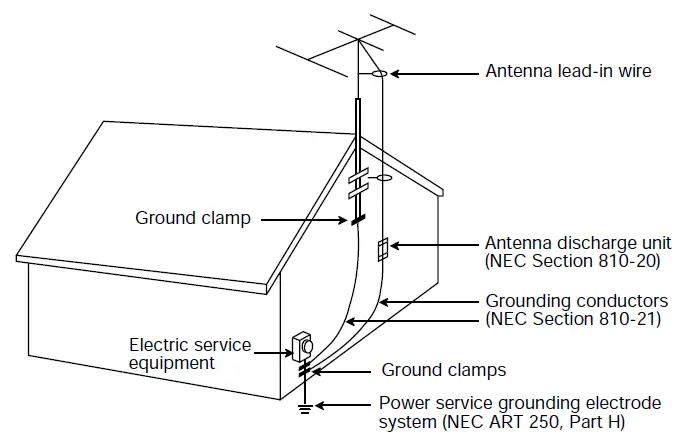
Note to CATV system installer
This reminder is provided to call the CATV system installer’s attention to Article 820-40 of the NEC (of USA) that provides guidelines for proper grounding. In particular, it specifies that the cable ground shall be connected to the grounding system of the building, as close to the point of cable entry as is practical.
Setting Up
Unpacking
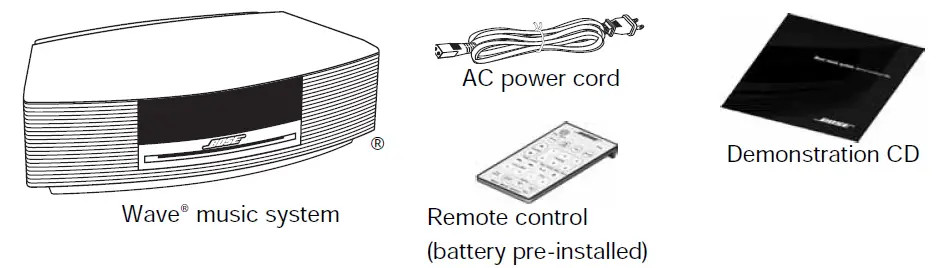
Selecting a location
- Place your Wave® music system on a table or other flat surface.
- To enjoy maximum performance, place your Wave® music system across the room from where you will be listening.
- For best performance, place your Wave® music system within two feet of a wall, and avoid placing directly in a corner.
Note Do not place your Wave® music system on a metal surface. It could interfere with AM reception.
Note Do not place your Wave® music system on a heat-sensitive surface. Like all electrical equipment, it generates some heat.
Note Do not use your Wave® music system in a damp location or any other place where moisture can get inside.
Connecting to Power
- Insert the small end of the power cord into the connector labeled AC POWER on the rear panel of your Wave® music system.
- Plug the power cord into an electrical outlet.

- Unwind and straighten the power cord to ensure the best FM reception. Your Wave® music system uses the power cord as an FM antenna.

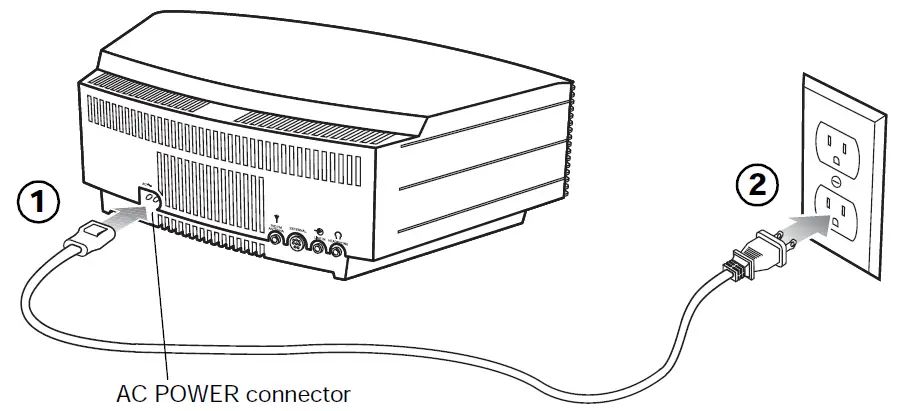
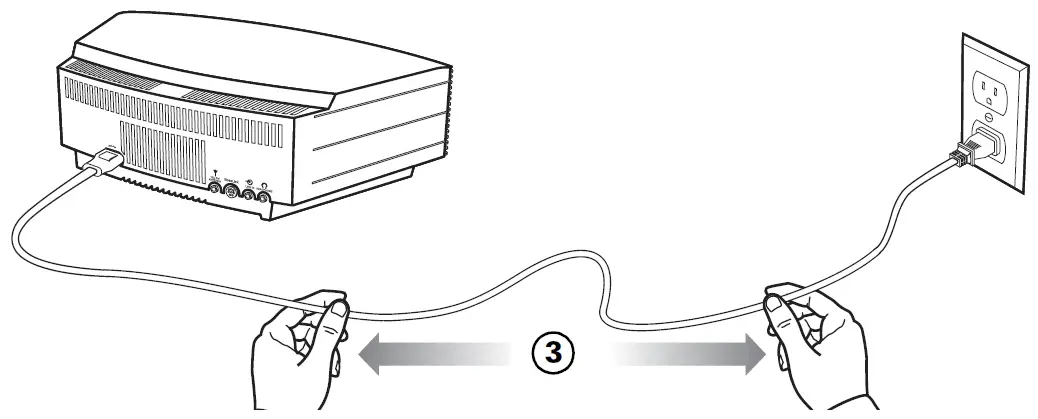
Setting the clock
After plugging in your Wave® music system, set the clock using the remote. Your Wave® music system is easily operated using the remote control. Just aim the remote at the front panel and press the buttons. 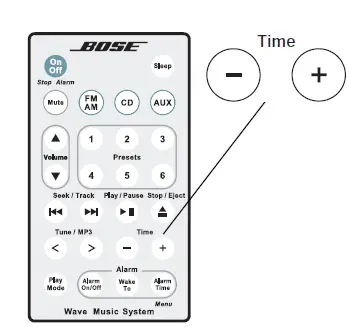
- Press and hold Time – or Time + for one second until CLOCK SET – appears on the display.

- Press Time – to adjust the displayed time backward or press Time + to adjust the displayed time forward until it matches the current time. You can also press and hold for rapid adjustment.
- Wait five seconds for the system to exit the clock setup mode automatically.
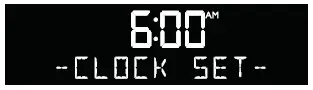
To change the clock display from 12-hour (AM/PM) time to 24-hour (Military) time, see “Changing the clock time format” on page 22.
Note In the event that the Wave® music system loses power, the clock time and other system settings are stored in backup memory for up to 48 hours. This feature retains the system’s settings when you unplug and move the unit or when a power outage occurs.
Note Press-and-hold operations require holding the button down for at least one second.
Introduction
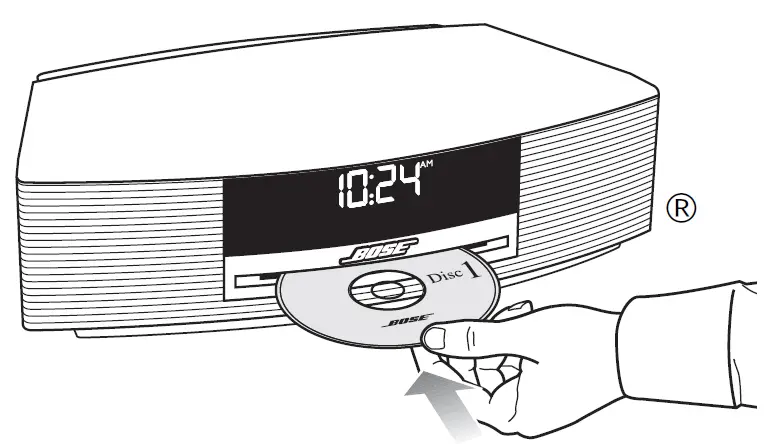
Thank you for purchasing the Bose® Wave® music system, an elegant way to bring high-quality sound into any room. We encourage you to begin by listening to the demonstration CD provided. Simply insert the demonstration disc and your Wave® music system will play the CD automatically. For more details on playing CDs see “Playing audio compact discs (CDs)” on page 11. Over fourteen years of research by Bose Corporation brings you the benefits of award-winning patented acoustic waveguide speaker technology. Using this technology, a tube efficiently transfers energy from a small speaker to the outside air over a wide range of low frequencies. And, long waveguides, folded into intricate patterns, fit into products small enough to be placed comfortably in your home. Your Wave® music system features new dual tapered waveguide speaker technology, connecting two speakers to two 26″ tapered waveguides which combine to produce unprecedented instrument timbre from a system this size. 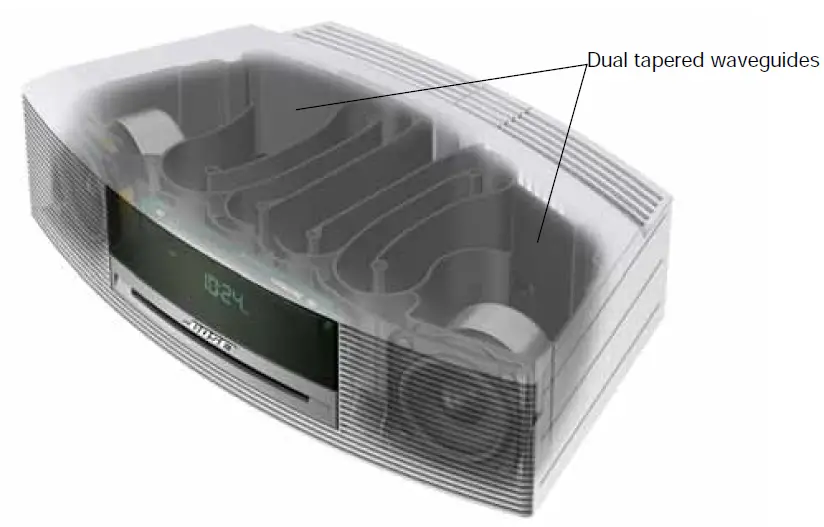
Special Features
Alarm settings let you wake to your favorite radio station or CD track
You can set your Wave® music system to wake to your favorite CD track. For more details, see “Waking to a radio station or CD” on page 14.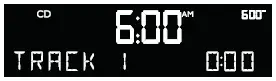
You can listen to your favorite music file (MP3) CDs
Your Wave® music system can play MP3 music files recorded on CD-R and CD-RW discs. You can use the remote control to easily navigate through your MP3 files and play your favorites. For details, see “Playing music file (MP3) CDs” on page 12.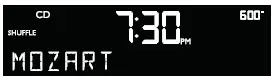
The setup menu allows you to personalize system operation
Factory system settings have been set to satisfy most owners. If you wish to change the settings, see “Personalizing Your Wave® Music System” on page 20.
The setup menu allows you to change the following system settings to your liking: 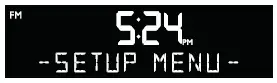
- Snooz time
- Play a radio station automatically after a CD ends
- Clock time format (12- or 24-hour)
- Display brightness level
- Bose® link room code
- Reset to factory settings
Remote Control Operating Guide
Your Wave® music system is easily operated using the remote control. Just aim the remote at the front panel and press the buttons. The remote normally works within 20 feet of the front panel. Throughout this owner’s guide you will see button icons to the left of the operating instructions. These icons refer to buttons located on the remote control.
Note Press-and-hold operations require holding the button down for at least one second.
Note Pressing FM/AM, CD, or AUX automatically turns on the Wave® music system to the source selected. 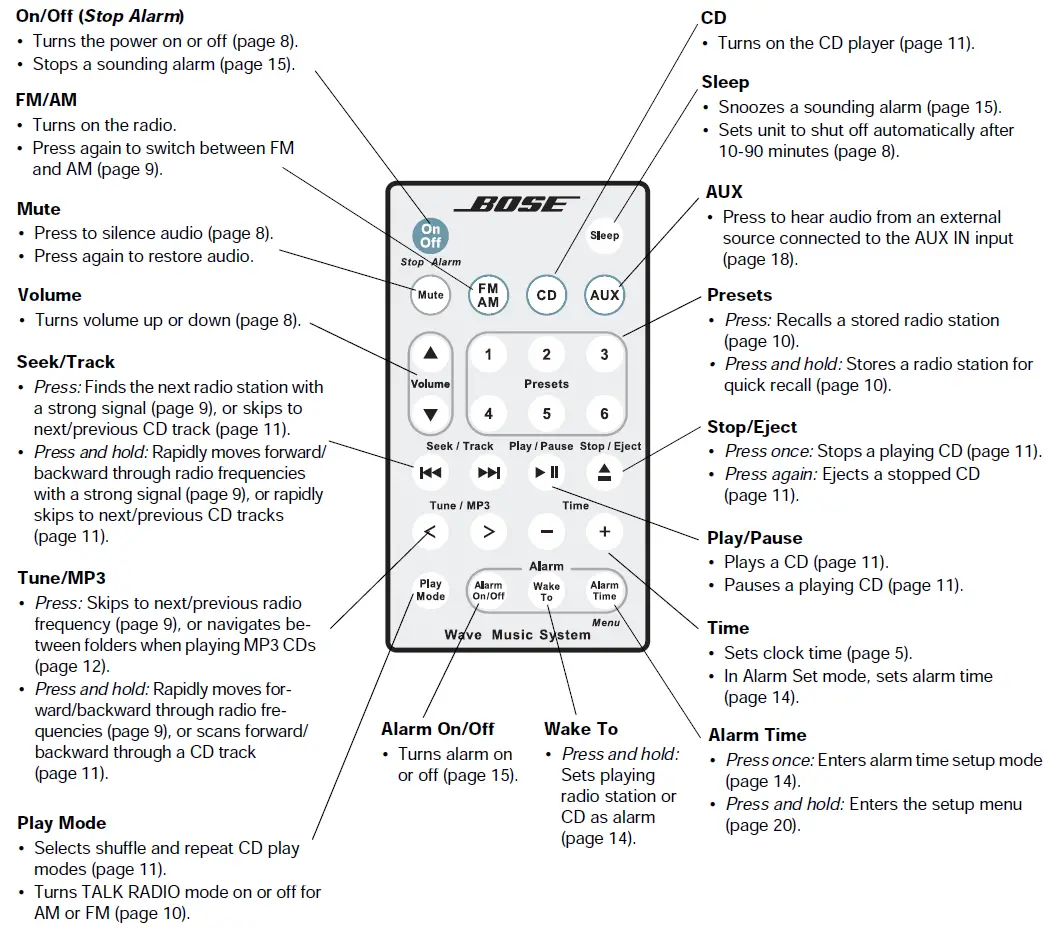
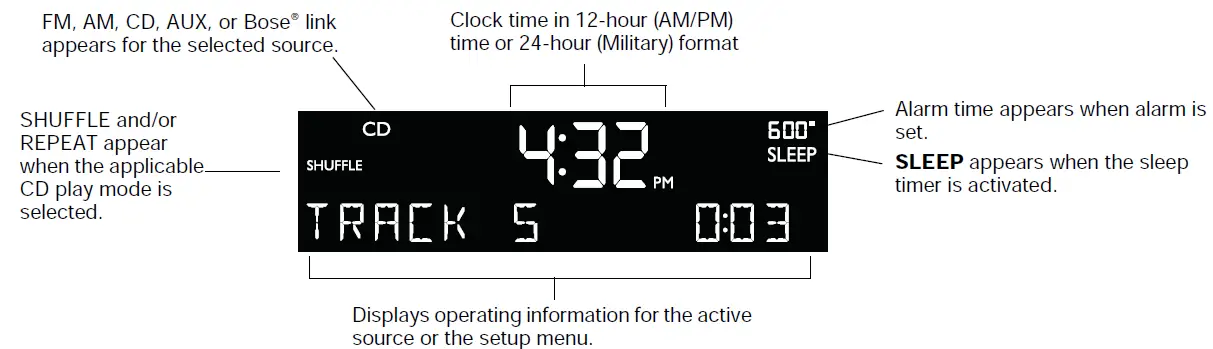
Reading the Display
Turning the Wave® music system on and off
Press On/Off once to turn the Wave® music system on or off. The Wave® music system turns on to the last source played. OR Press any source button to turn the Wave® music system on to that source. Pressing the AUX does not turn on an auxiliary source (such as your TV), so turn that on first.
Controlling the volume
Press and hold Volume or
or adjust the volume level. VOLUME – 0 (silent) to 99 (loud) appears on the display to indicate the level. Press Mute to silence the Wave® music system. Press Mute again, or press Volume to unmute. To lower the volume before unmuting, press Volume while muted.
Note When the Wave® music system is off, the volume can only be adjusted between 10 and 75.
Setting up automatic shutoff (Sleep)
Press Sleep to set the Wave® music system to shut off automatically after a selected period of time.
- After pressing Sleep, SLEEP – 30 MIN (or your last setting) appears on the display and the sleep timer begins counting down. If your Wave® music system is off, press Sleep to turn it on and immediately set the sleep time. The last source selected will start playing as the sleep timer counts down.
- While the SLEEP setting is displayed, press Sleep again to set the sleep timer to 10- 90 minutes (in 10-minute increments) or OFF.
Note While in sleep timer setup mode, if more than 10 seconds elapse between button presses, the Wave® music system will automatically exit the sleep timer setup mode.
- To review the remaining sleep time, press Sleep.
- To cancel the sleep timer, press On/Off.
Turning the radio on
Press FM/AM to turn on the radio to the FM or AM station last selected. Press FM/AM again to switch between FM and AM.
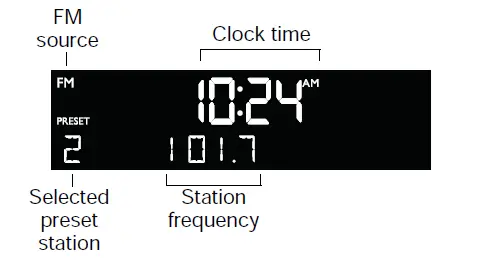
- When the radio is playing, radio station information is displayed:

Tuning the radio
Press FM/AM to switch between FM and AM.
Display while tuning
When you press FM/AM, Seek/Track, or Tune/MP3 to tune to a radio station, the frequency appears in the center of the display while you are tuning. 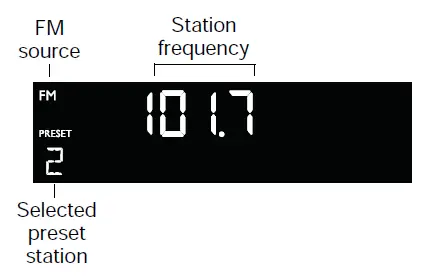
Press Seek/Track to find a lower frequency station with a strong signal; press Seek/ Track
 to find a higher frequency station with a strong signal.
Press Tune/MP3 < to manually tune to a lower frequency; press Tune/MP3 > to manually tune to a higher frequency.
Press and hold Tune/MP3 < to move rapidly down through the frequency band; press and hold Tune/MP3 > to move rapidly up through the frequency band.
Note Five seconds after releasing FM/AM, Tune/MP3, or Seek/Track, the clock time returns to the center of the display and the radio frequency appears below it.
Note If AM reception is weak, rotate your Wave® music system clockwise or counterclockwise to improve AM reception. If FM reception is weak, make sure the power cord is straightened as much as possible. To improve FM reception, you can install an external FM antenna. See “Connecting an external FM antenna” on page 16.
Listening to FM/AM Radio
Storing a radio station to memory (Presets)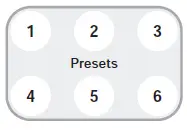
You can store up to six FM and six AM radio stations for quick recall using the Presets buttons.
- Tune to the station you want to save as a preset.
- Press and hold one of the six Presets buttons until you hear a double beep and the preset number and station frequency appear on the display.
- Press one of the Presets buttons to quickly tune to a previously stored FM or AM station.
Note Storing a preset will replace any station previously stored to that preset number.
Note During a power outage, stored presets are saved in a backup memory system for 48 hours.
TALK RADIO mode
Talk radio broadcasts can be greatly affected by either the microphone selection or the boosting of low frequencies by some radio stations. They do so in an attempt to improve speech when heard through conventional radios. In high-quality audio products, this results in a sound that is unnatural or bass-heavy. By selecting the TALK RADIO mode, your Wave® music system automatically adjusts to compensate for artificially boosted low frequencies. When the radio is playing, press Play Mode twice to turn the TALK RADIO mode on or off. When on, TALK RADIO– ON is displayed. When off, TALK RADIO– OFF is displayed.
Note The TALK RADIO setting is automatically canceled when you tune to another station, switch to another source, or turn your Wave® music system off.
Playing Compact Discs
Playing audio compact discs (CDs)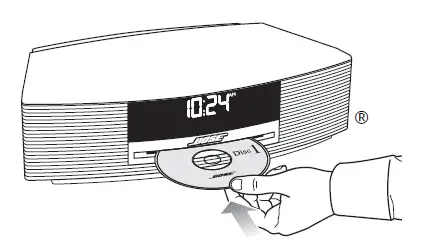
Insert the disc, label side up, into the CD slot below the display. The disc player will automatically pull the disc in and begin playing. Press CD if the CD source is not selected.
Note – NO DISC – will be displayed if you press CD when there is no disc in the disc player.
- When an audio CD is playing, CD source information is displayed:


Press Play/Pause to pause a playing CD. The elapsed time flashes while paused. Press Play/Pause again to resume play.
Press Seek/Track to skip to the beginning of the current track; press Seek/Track twice to skip to the beginning of the previous track; press Seek/Track to skip to the next track.
Press and hold Tune/MP3 < to scan backward quickly through a track; press Tune/MP3 > to scan forward quickly through a track.
Press Stop/Eject to stop a CD. Press Stop/Eject again to eject a CD. If a CD is playing, press and hold Stop/Eject to stop a CD and eject it.
Note When you play a stopped CD it will always resume from the place it was stopped.
Note If you eject a CD but do not remove it from the CD player slot within 10 seconds, the CD player will pull the CD back into the player, reload it, and not play it.
CAUTION DO NOT INSERT mini CDs or non-circular CDs into the disc player. These discs may not play properly and could interfere with the system’s ability to eject them.
CD Play Modes
While a CD is playing, you can change the way it is played. Press Play Mode repeatedly until the play mode you want is displayed:
- NORMAL PLAY – Plays tracks once in sequential order.
- SHUFFLE DISC – Plays all tracks once in random order.
- SHUFFLE RPT – Repeats all tracks in a random order that changes each time the disc is repeated.
- REPEAT DISC – Repeats the disc from the beginning after the last track is played.
- REPEAT TRACK – Repeats the selected track continuously.
Note The play mode will return to NORMAL PLAY whenever a CD is inserted.
Playing music file (MP3) CDs
Your Wave® music system can play MP3 music files recorded on CD-R and CD-RW discs. You can easily navigate through your music files using the Tune/MP3 and Seek/Track remote control buttons.
Note MP3 is a music compression technology that reduces a song’s file size without a noticeable effect in the quality of the sound. Through compression algorithms, the MP3 format makes it easy for you to store many times the number of songs you would find on a conventional audio CD. In fact, an MP3 CD can contain as much music as ten standard audio CDs on just one disc, which can then be organized into folders on a PC before being stored on the disc. Music files on an MP3 CD are played according to the folder structure on the disc. For example
Folders on CD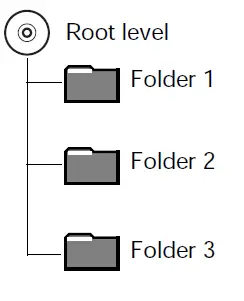
Play order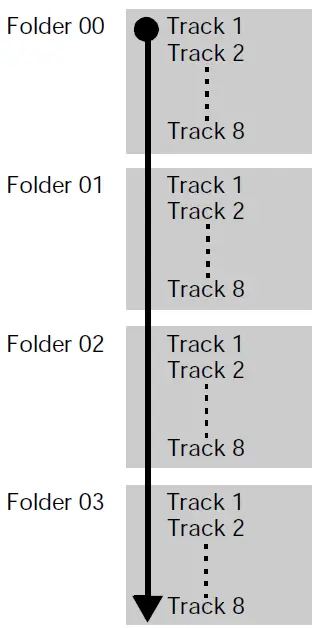
To play, pause, stop or eject an MP3 CD, use the same remote control buttons as for an audio CD. See “Playing audio compact discs (CDs)” on page 11.
The Wave® music system will display artist name and song title information when available on music file CDs.
Note: The audio quality of MP3 CDs is dependent on factors such as the encoded bit rate, the sampling rate, and the type of encoder used. The Wave® music system supports MP3 CDs encoded at bit rates of 64kbps or higher, and sampling rates of 32kHz or higher. It is recommended that a bit rate of at least 128kbps and a sampling rate of 44.1kHz or better be used.
Note Playback quality of recorded CD-R and CD-RW discs is dependent on the CD recording process and software used to record the disc. An improperly recorded audio CD may cause the system to exhibit unexpected behavior.
Navigating through music files
Press Tune/MP3 < to skip to the previous folder; press Tune/MP3 > to skip to the next folder.
Press Seek/Track to skip to the beginning of the current track; press Seek/Track twice to skip to the beginning of the previous track; press Seek/Track to skip to the next track.
- When navigating an MP3 CD, folder number and track number are displayed:

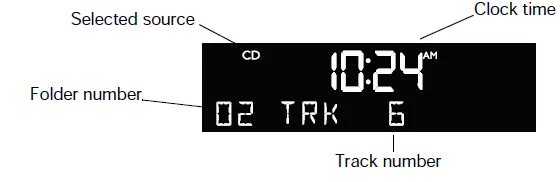
Play modes for music file CDs
While a music file CD is playing, you can change the way it is played. Press Play Mode repeatedly until the play mode you want is displayed:
- NORMAL PLAY – Plays tracks once in sequential order.
- SHUFFLE DISC – Plays all tracks once in random order.
- SHUFFLE FOLDR – Plays all tracks in the selected folder in random order.
- SHUF RPT FLDR – Repeats all tracks in a folder in a random order that changes each time the folder is repeated.
- SHUF RPT DISC – Repeats all tracks on a disc in a random order that changes each time the disc is repeated.
- REPEAT DISC – Repeats all tracks on a disc in order.
- REPEAT FOLDER – Repeats all tracks in a folder in order.
- REPEAT TRACK – Repeats the selected track continuously.
Note The play mode will return to NORMAL PLAY whenever a CD is inserted.
Setting and Using The Alarm
Setting the alarm
Waking to a radio station or CD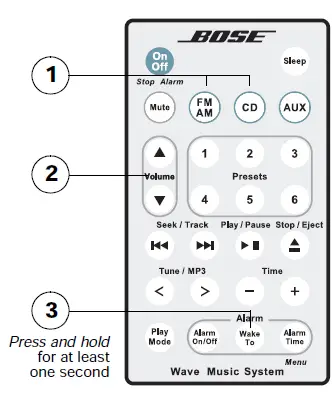
- Turn on your Wave® music system and select the radio station or CD track you would like to wake to.
- Adjust the volume to the level you would like to wake to.
- Press and hold Wake To until you hear a double beep. Your alarm is now set to wake you to your chosen radio station or CD track.
Setting the alarm time
- Press Alarm Time to enter the alarm time setup mode. The alarm time is displayed in the center of the display and flashes in the upper right corner.
- Press Time – or Time + to set your wake-up time.
- Press Alarm Time again. Your alarm time is now set.
Note While in alarm time setup mode, if more than 10 seconds elapses between button presses, the Wave® music system will automatically exit the alarm time setup mode.
Note To confirm the alarm time and Wake To settings, press Alarm Time. Alarm time and Wake To settings will be displayed for 10 seconds. 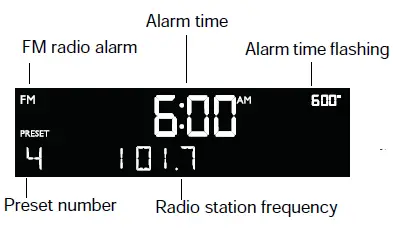
Example Alarm is set to play radio station Preset 4, 101.7 FM, at 6:00 A.M.
Using the alarm
Stopping a sounding alarm
Press On/Off (Stop Alarm) to stop a sounding alarm and reset it for the next day.
Turning alarm on and off
Press Alarm On/Off to turn alarm on or off. It’s on when the alarm time is displayed in the upper right-hand corner. It’s off when the alarm time is not visible in the upper right-hand corner of the display.
Snoozing an alarm
Press Sleep to snooze a sounding alarm. During the snooze time, SNOOZE is displayed. After the snooze time expires, the alarm sounds again. Pressing Sleep again will silence the alarm again for another 10 minutes. (Factory default is 10 minutes for the snooze time. See “Adjusting the snooze time” on page 21.
Connecting Other Equipment
Rear panel input/outputs
The rear panel of your Wave® music system provides connections for external equipment. 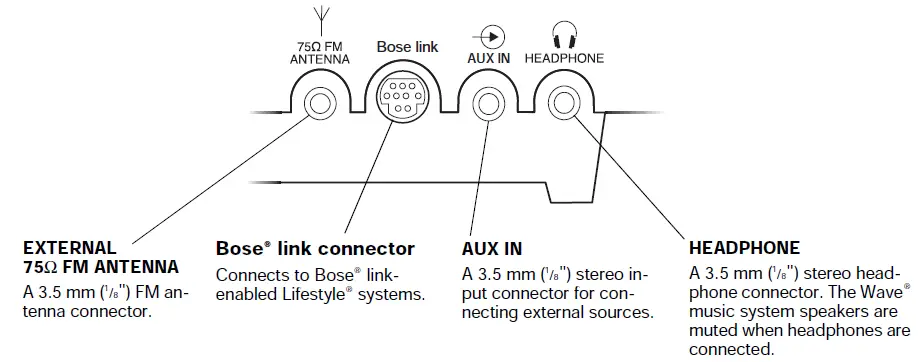
Connecting an external FM antenna
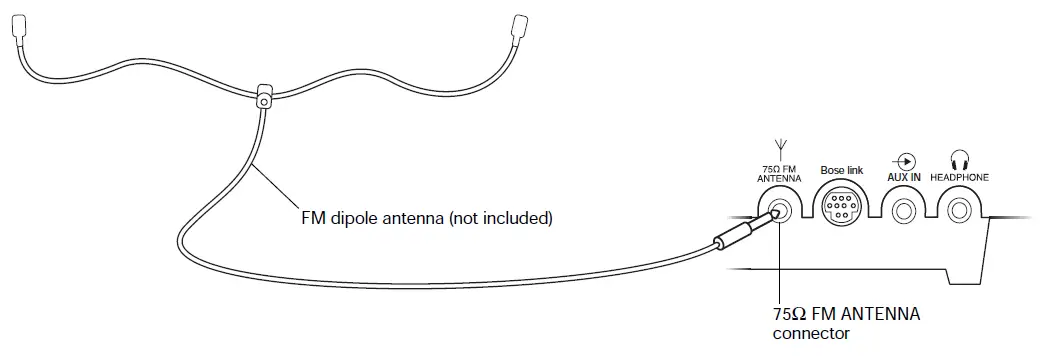
The Wave® music system power cord includes a built-in FM antenna. If, after adjusting the position of the power cord, you still experience poor reception, you may need to use an external FM antenna. An external FM dipole antenna can be ordered through Bose® Cus-tomer Service. See the phone numbers listed inside the back cover of this guide.
To connect an external FM antenna
- Plug the 3.5 mm (1/8″) plug of the FM antenna into the 75Ω FM ANTENNA connector on the rear panel of your Wave® music system.
- Extend the ends of the antenna to establish optimum FM reception.
- Extend the ends of the antenna as far from the unit and other external equipment as possible to establish optimum reception.

Connecting your Wave® music system to a Lifestyle® system
You can use your Wave® music system as a multi-room expansion speaker system for a Bose® link-enabled Lifestyle® home entertainment system. Contact Bose Customer Service to obtain the required cables and instructions. See the phone numbers listed inside the back cover of this guide.
Using headphones
For private listening, connect headphones to the headphone connector on the rear panel of the Wave® music system.
- The speakers are automatically muted when you plug in your headphones.
CAUTION Long-term exposure to loud music may cause hearing damage. It is best to avoid extreme volume when using headphones, especially for extended periods.
Note The speakers will automatically unmute when headphones are disconnected from the Wave® music system. Because, headphone volume levels may vary from speaker volume levels, be sure to lower the volume of the Wave® music system before connecting or disconnecting headphones.
Note If an alarm sounds while using headphones, it will sound through the Wave® music system speakers.
Changing the volume level of headphones
Press Volume or to adjust the listening level of your headphones. 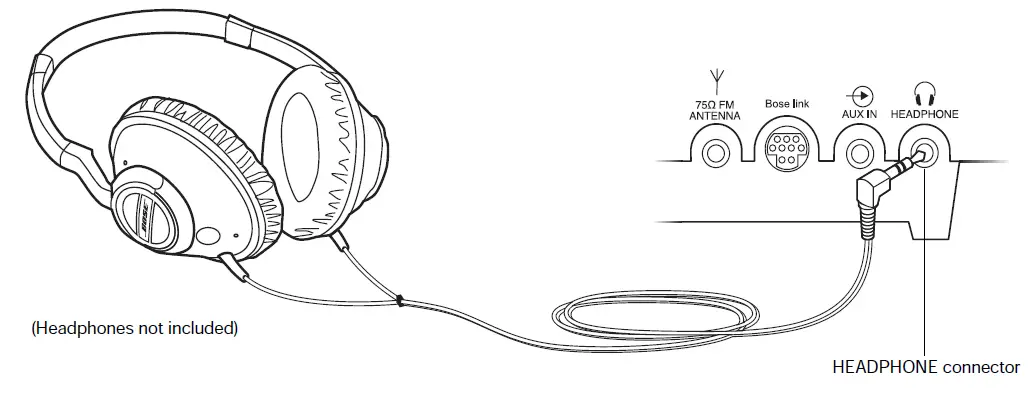
Using your Wave® music system with other audio equipment
When using a TV, VCR, computer, video game or cassette tape player, you can enhance your listening experience by playing the audio device through your Wave® music system.
Connecting an audio device to your Wave® music system, requires one of the following cables: 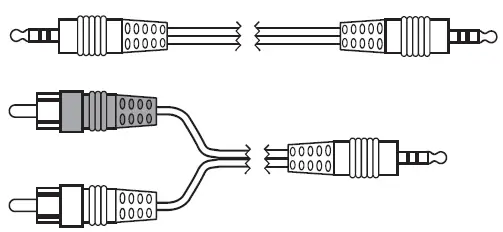
- Male-to-male 3.5 mm (1/8″) stereo cable
- Dual RCA male to 3.5 mm (1/8″) male stereo cable
To obtain the correct cable, contact Bose® Customer Service or visit a local electronics store. See the phone numbers listed inside the back cover of this guide.
To connect an audio device, such as your TV, to your Wave® music system
- Connect one end of the stereo cable to the output of the audio device.
- Connect the other end of the cable to the AUX IN connector on the rear panel of your Wave® music system.
- Turn on your Wave® music system and the audio device.
- Press AUX.
- Press and hold Volume
 or
or to adjust the listening level.
Note If the volume level of your Wave® music system cannot be adjusted high enough, try to increase the volume level of the connected audio device. 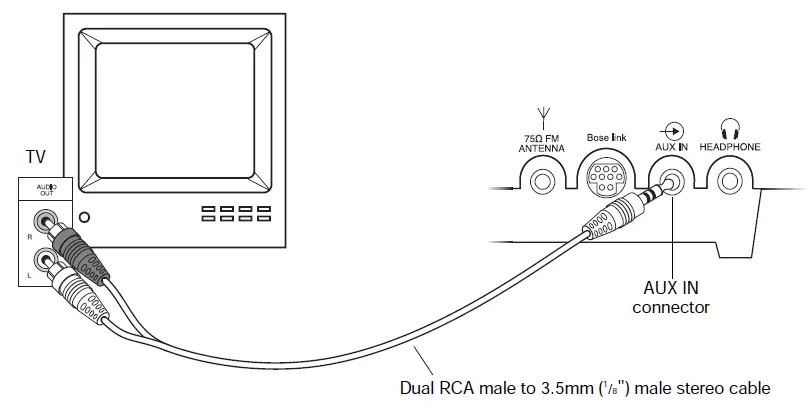
Personalizing Your Wave® Music System
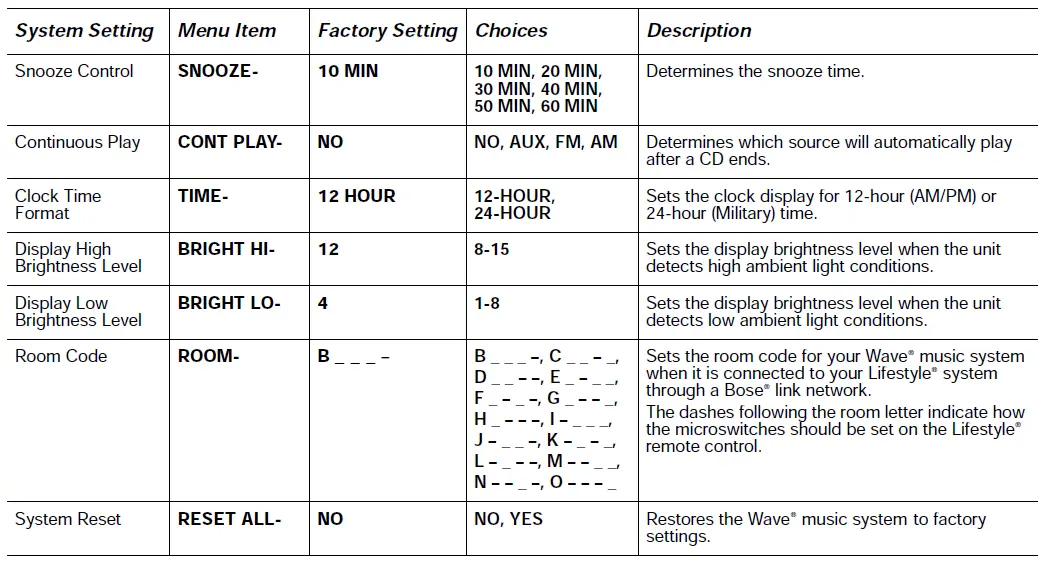
The setup menu
The setup menu allows you to customize the operation of the Wave® music system.
- Press and hold Alarm Time (Menu) until -SETUP MENU- is displayed.
- Press Tune/MP3 > until the menu item you want to change is displayed.
- Press Time – or Time + to change the value or selection.
- Press Alarm Time (Menu) to exit the setup menu or wait 10 seconds for the setup menu to end automatically.
Wave® music system Setup Menu
Adjusting the snooze time
This setting determines the duration of time the system remains silent when the snooze function is activated.
- Press and hold Alarm Time (Menu) until -SETUP MENU- is displayed.
- Press Tune/MP3 > once until SNOOZE- 10 MIN is displayed.
- Press Time – or Time + to change the snooze time to 10-60 minutes (in 10-minute increments).
- Press Alarm Time (Menu) to exit the setup menu or wait 10 seconds for the setup menu to end automatically.
Selecting a music source to automatically play after a CD ends
Your Wave® music system has a continuous play feature. When a CD stops playing, you can program another source to automatically start playing.
- Press and hold Alarm Time (Menu) until -SETUP MENU- is displayed.
- Press Tune/MP3 > two times until CONT PLAY- is displayed.
- Press Time – or Time + to select FM/AM radio or AUX.
- Press Alarm Time (Menu) to exit the setup menu or wait 10 seconds for the setup menu to end automatically.
Changing the clock time format
You can choose to have the display show the time in 12-hour (AM/PM) or 24-hour (Military) time.
- Press and hold Alarm Time (Menu) until -SETUP MENU- is displayed.
- Press Tune/MP3 > three times until TIME- is displayed.
- Press Time – or Time + to select 12 HOUR or 24 HOUR.
- Press Alarm Time (Menu) to exit the setup menu or wait 10 seconds for the setup menu to end automatically.
Adjusting the display brightness
The brightness level of the display automatically adjusts itself for low and high ambient light conditions. This feature brightens the display for better visibility in high ambient light conditions and dims the display making it less intrusive in low ambient light conditions. High and low brightness settings can be set independently.
- Press and hold Alarm Time (Menu) until -SETUP MENU- is displayed.
- Press Tune/MP3 > four times until BRIGHT HI- is displayed.
- Press Time – or Time + to set the high display brightness level to a value from 8-15.
- Press Tune/MP3 > once until BRIGHT LO- is displayed.
- Press Time – or Time + to set the low display brightness level from 1-8.
- Press Alarm Time (Menu) to exit the setup menu or wait 10 seconds for the setup menu to end automatically.
Setting the room code
Your Wave® music system comes from the factory ready to operate as a second room (room code B) when connected to a Bose® link enabled Lifestyle® system. If you want to use your Wave® music system with your Lifestyle® system beyond a second room you will need to change the room code to match that of the remote control you are using for that room. Refer to your Lifestyle® system owner’s guide for more information on room codes.
- Press and hold Alarm Time (Menu) until -SETUP MENU- is displayed.
- Press Tune/MP3 > six times until ROOM- B is displayed. The dashes following the room letter indicate how the microswitches should be set on the Lifestyle® remote control.
- Press Time – or Time + to select a room code other than room B.
- Press Alarm Time (Menu) to exit the setup menu or wait 10 seconds for the setup menu to end automatically.
Performing a system reset
If you wish, you can restore your Wave® music system to the original factory settings.
- Press and hold Alarm Time (Menu) until -SETUP MENU- is displayed.
- Press Tune/MP3 > seven times until RESET ALL- NO is displayed.
- Press Time – or Time + to change RESET ALL- NO to RESET ALL- YES.
- When PRESS 2 TO CONFIRM appears on the display, press Presets button 2. When the reset is complete, DEFAULTS RESET is displayed.
- Press Alarm Time (Menu) to exit the setup menu or wait 10 seconds for the setup menu to end automatically.
Cleaning
Use only a soft dry cloth to clean the enclosure of your Wave® music system. If necessary, you may use a soft-bristled attachment to gently vacuum the front of the enclosure. Do not use any liquid cleaning solutiuons, solvents, chemicals, alcohol, ammonia, or abrasives.
CAUTION Do not allow liquids to spill into any openings in the enclosure. If liquids get into the unit, turn it off immediately. Call Bose® Customer Support as soon as possible to arrange for ser-vice. See the list of phone numbers inside the back cover.
Replacing the remote control battery
WARNING Keep the remote control battery away from children. It may cause a fire or chemical burn if mishandled. Do not recharge, disassemble, heat above 212ºF (100ºC), or incinerate. Dispose of a used battery promptly. Replace only with a battery of the correct type and model number.
CAUTION Danger of explosion if battery is incorrectly replaced. Replace only with Duracell, Eveready, Energizer, Maxell, Toshiba, or Shun Wo CR2032 or DL2032, 3-volt Lithium battery. To replace the remote battery:
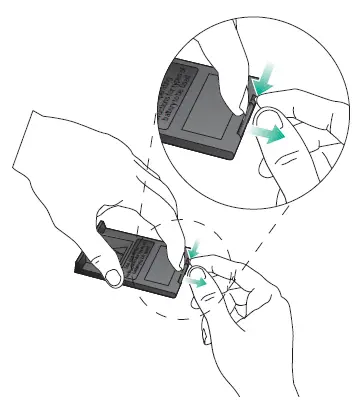
- Place the remote face down on a flat surface.
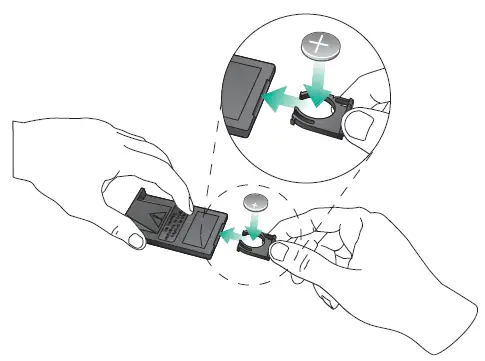
- Using your finger, push the tab lock to the side as shown and hold. Slide the battery compartment open.

- Remove the old battery and install the new one with the plus (+) symbol facing up.

Maintaining Your Wave® Music System
Troubleshooting
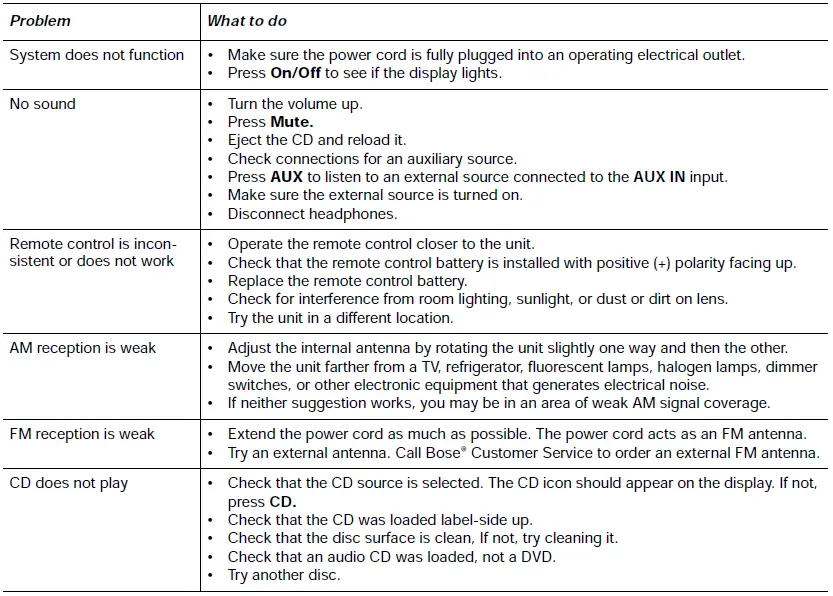
Limited warranty
Your Bose Wave® music system is covered by a limited transferable warranty. Details of the limited warranty are provided on the product registration card that is included in the carton. Please complete the information section on the card and mail it to Bose. Failure to do so will not affect your limited warranty rights.
Technical information
- AC power rating
120V~ 50/60Hz 60W - Dimensions
14.6″ W x 8.6″ D x 4.2″ H (36.8 cm x 21.9 cm x 10.6 cm) - Weight
8.7 lb (3.9 kg)
USA Customer Support
Bose Corporation, The Mountain Framingham, MA 01701-9168 1-800-367-4008
United Kingdom
Freepost EX 151 Exeter EX1 1ZY
TEL 0800 614 293
FAX 0870 240 2013
World Wide Web
www.bose.com
FCC Statement
Information about products that generate electrical noise
If applicable, this equipment has been tested and found to comply with the limits for a Class B digital device, pursuant to Part 15 of the FCC rules. These limits are designed to provide reasonable protection against harmful interference in a residential installation. This equipment generates, uses, and can radiate radio frequency energy and, if not installed and used in accordance with the instructions, may cause harmful interference to radio communications. However, this is no guarantee that interference will not occur in a particular installation. If this equipment does cause harmful interference to radio or television reception, which can be determined by turning the equipment off and on, you are encouraged to try to correct the interference by one or more of the following measures:
- Reorient or relocate the receiving antenna.
- Increase the separation between the equipment and receiver.
- Connect the equipment to an outlet on a different circuit than the one to which the receiver is connected.
- Consult the dealer or an experienced radio/TV technician for help.
Note Unauthorized modification of the receiver or radio remote control could void the user’s authority to operate this equipment. This product complies with the Canadian ICES-003 Class B specifications.
FAQs
You must first remove the DRM encryption from legally purchased Apple music before converting it to DRM-free music files if you wish to use Apple music on other devices, like Android smartphones like the Galaxy. The Bose SoundTouch series also experiences this.
The CoolStream Kit for Auxiliary Ports works with Bose Wave Music Systems and the Bose Wave Radios II, III, and IV. Verify that your stereo is compatible, then stream music to your Bose from any iPhone or Android device.
By flipping it over, you might be able to align the two parts and release the disc. The system needs to be serviced whether or not the disc ejects to stop this from happening again.
In order to provide wireless Bluetooth audio playback with your Wave system, the Wave Bluetooth music adapter attachment can be linked to compatible Wave systems.
We think the Sangean HDR-15 is the best choice if you’re looking for an affordable substitute for the costly Bose Wave SoundTouch Music System IV. It’s a wonderful bonus that it offers HD audio, and it’s possible that it’s the only HD clock radio now on the market.
The Wave Music System IV does not come with a CD changer attachment from Bose, but it does include an audio input on the back that allows you to connect virtually any device with an audio output, including a CD changer from a different manufacturer, and benefit from high-quality audio.
In the event of a power outage or while the radio is disconnected, the 9-volt battery in the Wave® radio keeps the memory and backup alarm system operational for up to three days. The memory is not protected when using the device without this battery, although the radio is unaffected.
By using the Bose SoundTech app, the Bose Wave radio may be operated without a remote control. The Bose SoundTech app is compatible with iOS and Android devices and may be used to operate additional Bose audio systems.
This Bose factory reconditioned AM/FM & Bluetooth radio Wave Radio II (it doesn’t have a CD player, of course) is done in pristine Platinum White (cream white), and both its functionality and appearance are in absolutely fantastic shape. It creates beautiful, luscious, and home-filling music.
You may use your computer or mobile device as a remote control for your SoundTouch systems by downloading the free SoundTouch app. Change presets, explore regional and international Internet radio stations, manage system settings, stream music, see what’s playing, and more.
To start a fresh search for nearby Bluetooth speakers and headphones, try turning Bluetooth off and then back on the Bluetooth device. In the event that your product is still not visible, check the device’s Bluetooth settings for a search or scan option. Select your product when it is located.
The following capabilities are accessible without the app: Three distinct noise canceling levels are selectable via the Noise Cancellation button (0, 5 and 10) To activate Conversation Mode, press and hold the Noise Cancellation button for one second.
If you still have your owner’s handbook, use it to locate the nearest authorized dealer. Some stores are still in business.
There isn’t a CD changer made by Bose, particularly for the Wave II. Wave II is not offered in white either. You can choose from the Wave System if you prefer a white model with a CD changer.
Height varies by model. Some can play multiple discs. The front and back dimensions are 11 and 14 inches, respectively. maximum 8-3/4″ from front to rear.