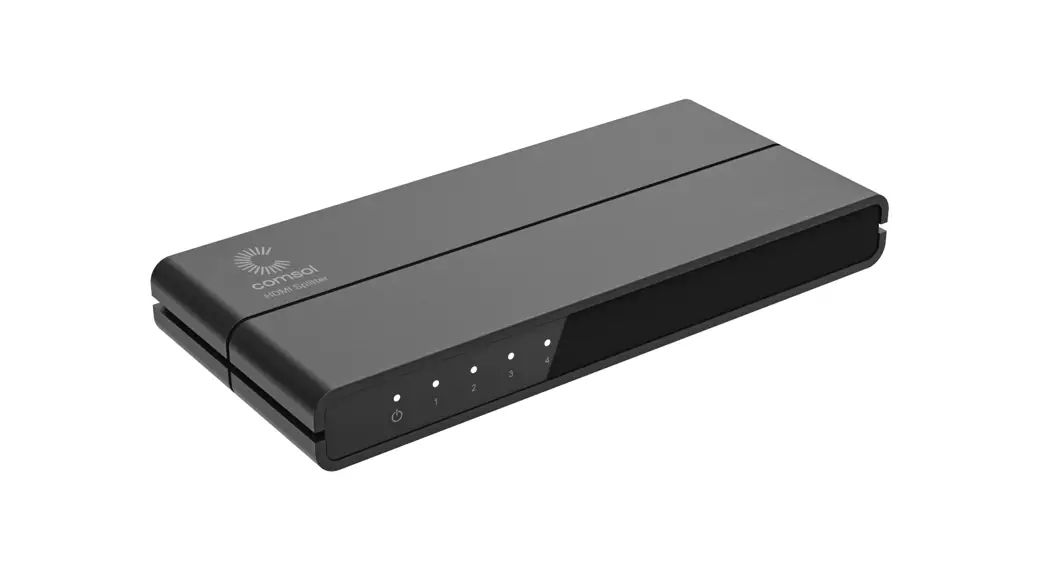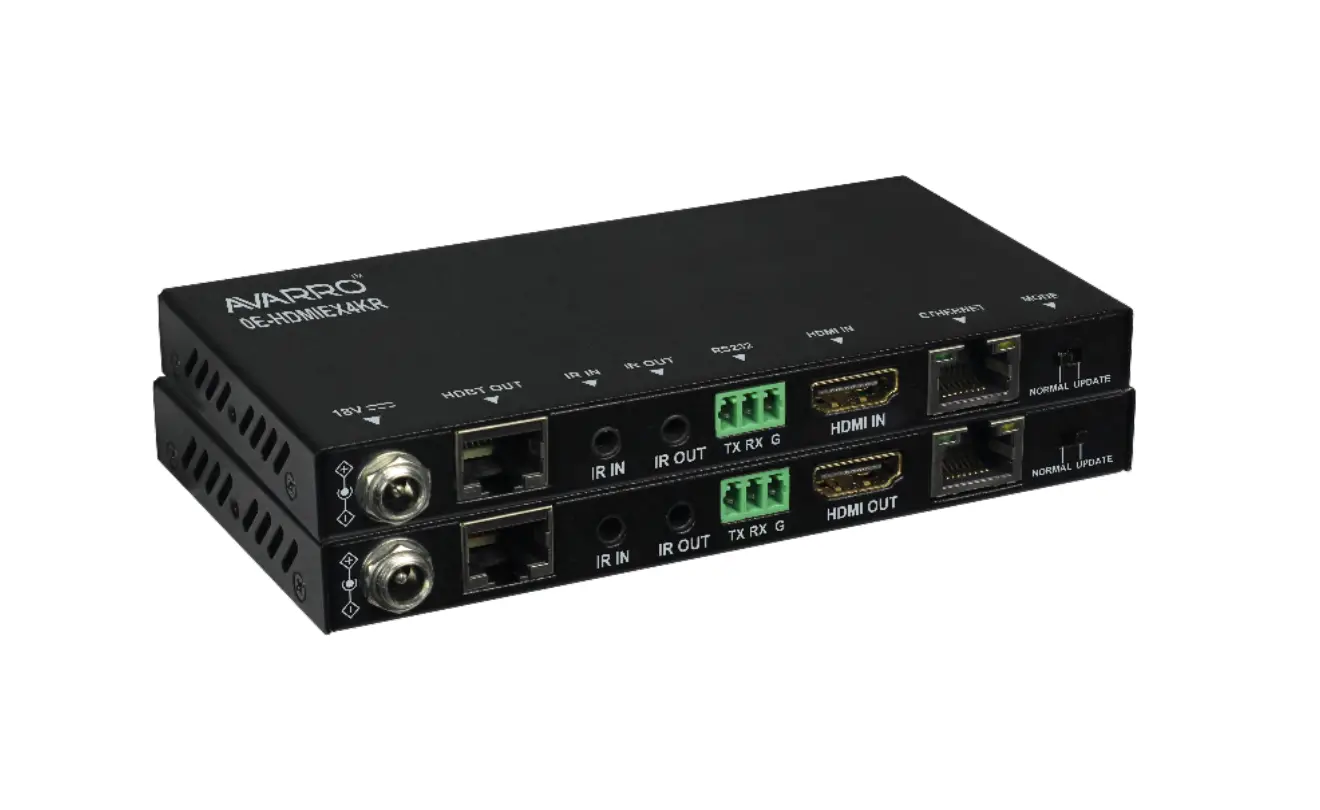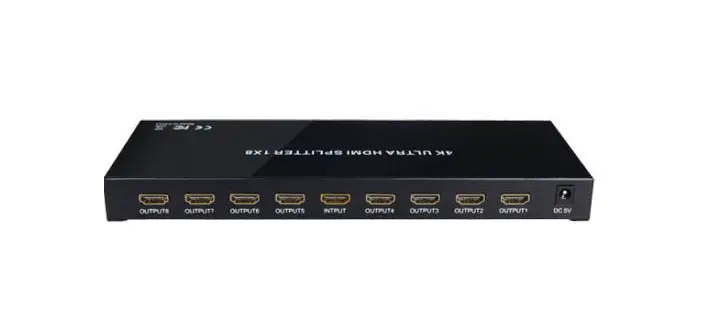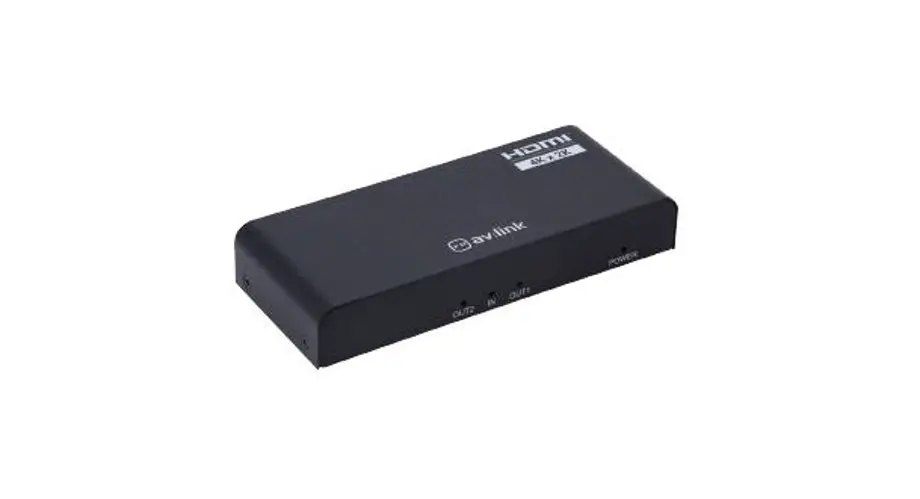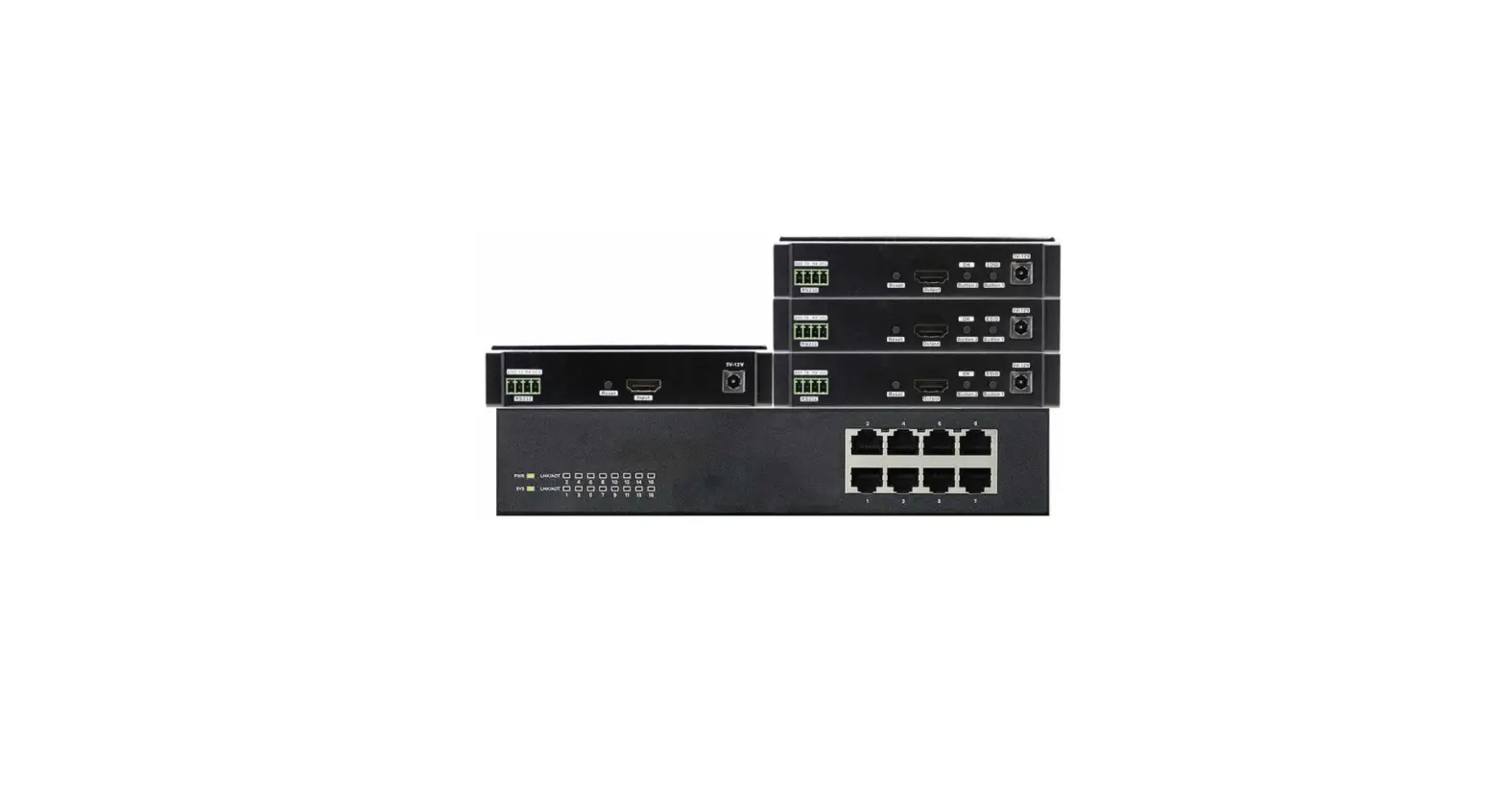

HDTV SUPPLY 4K PoE HDMI Over IP Splitter
Product Overview
Brief Introduction
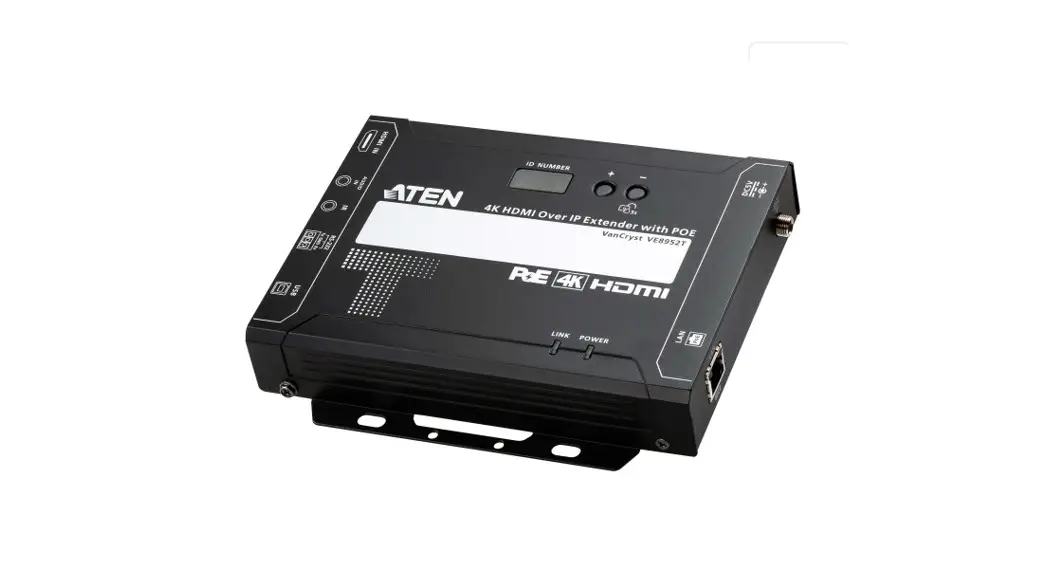
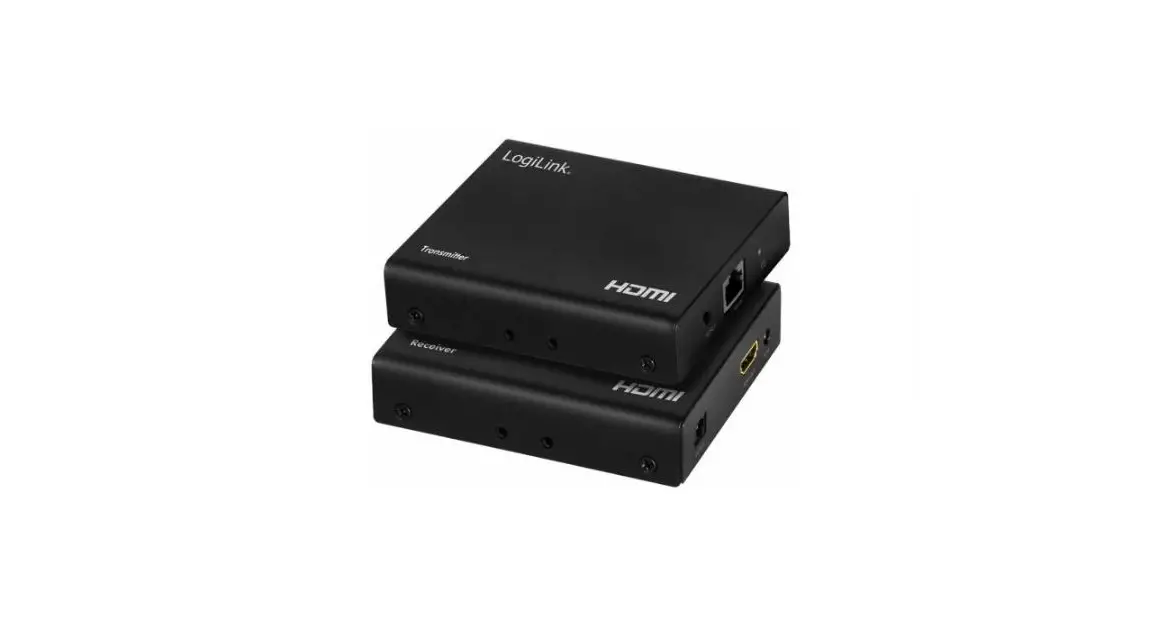
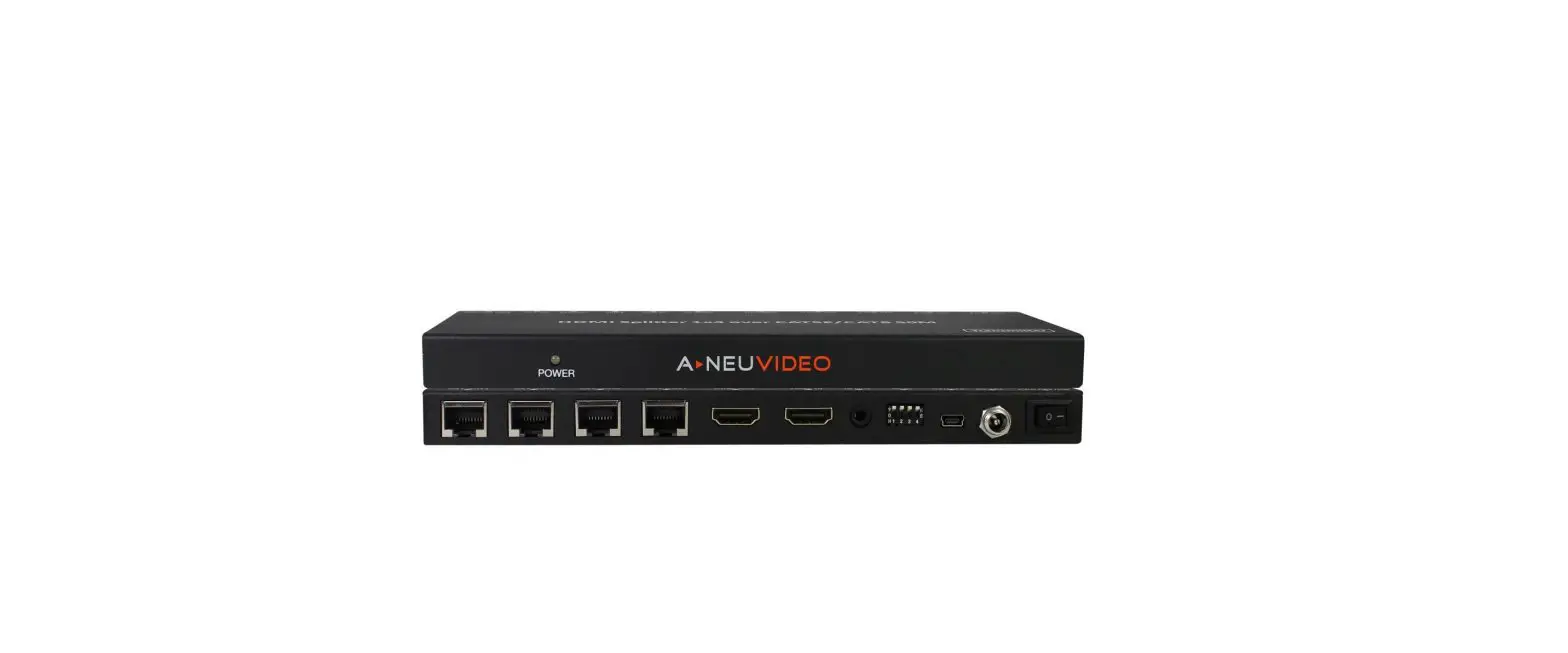
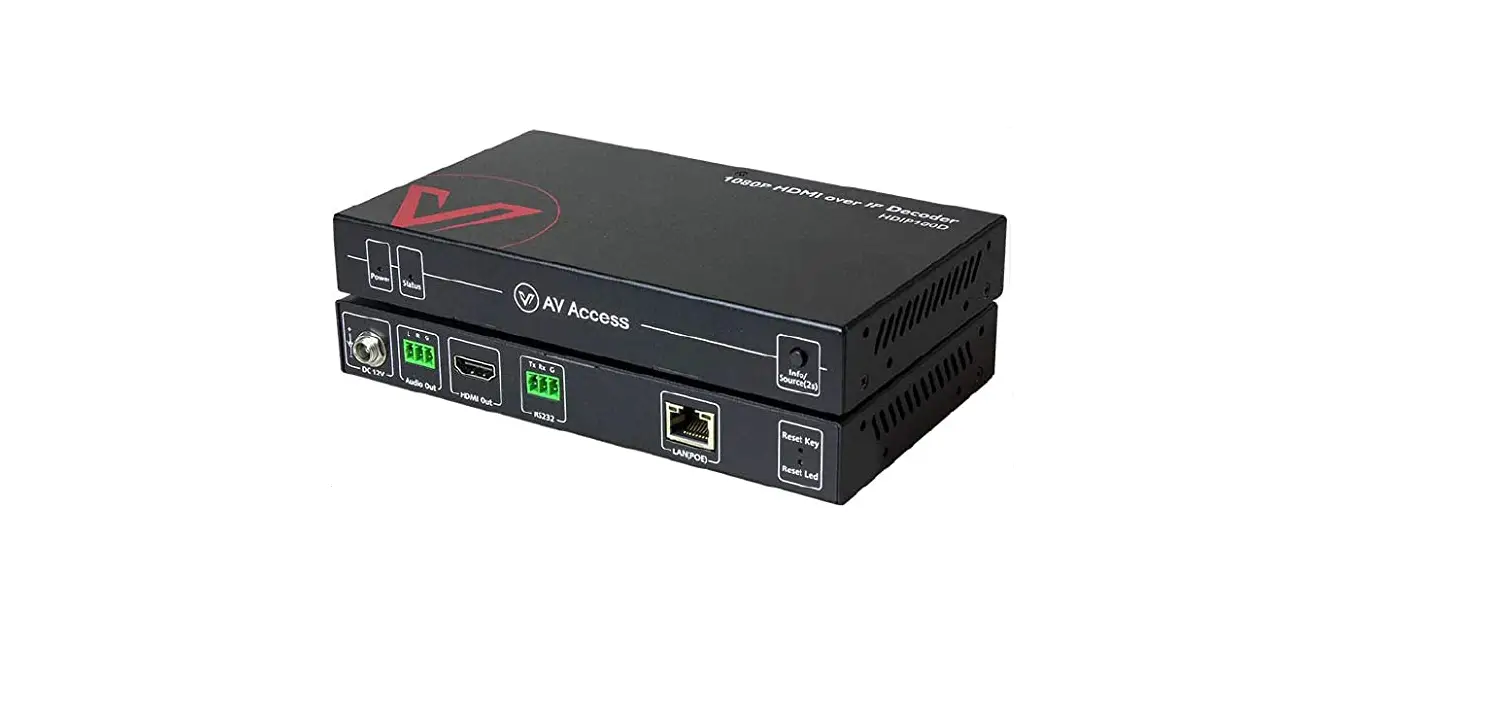
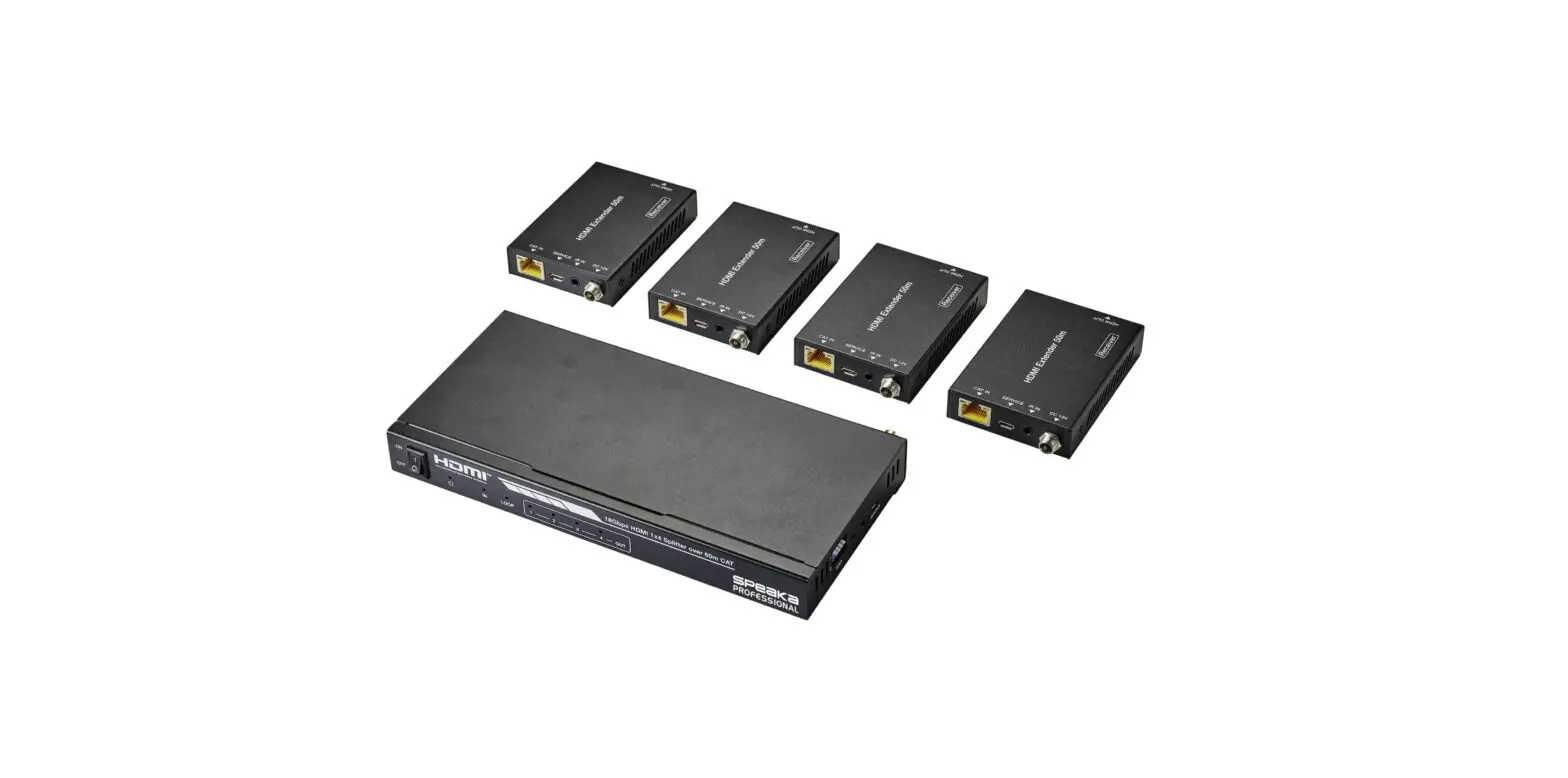
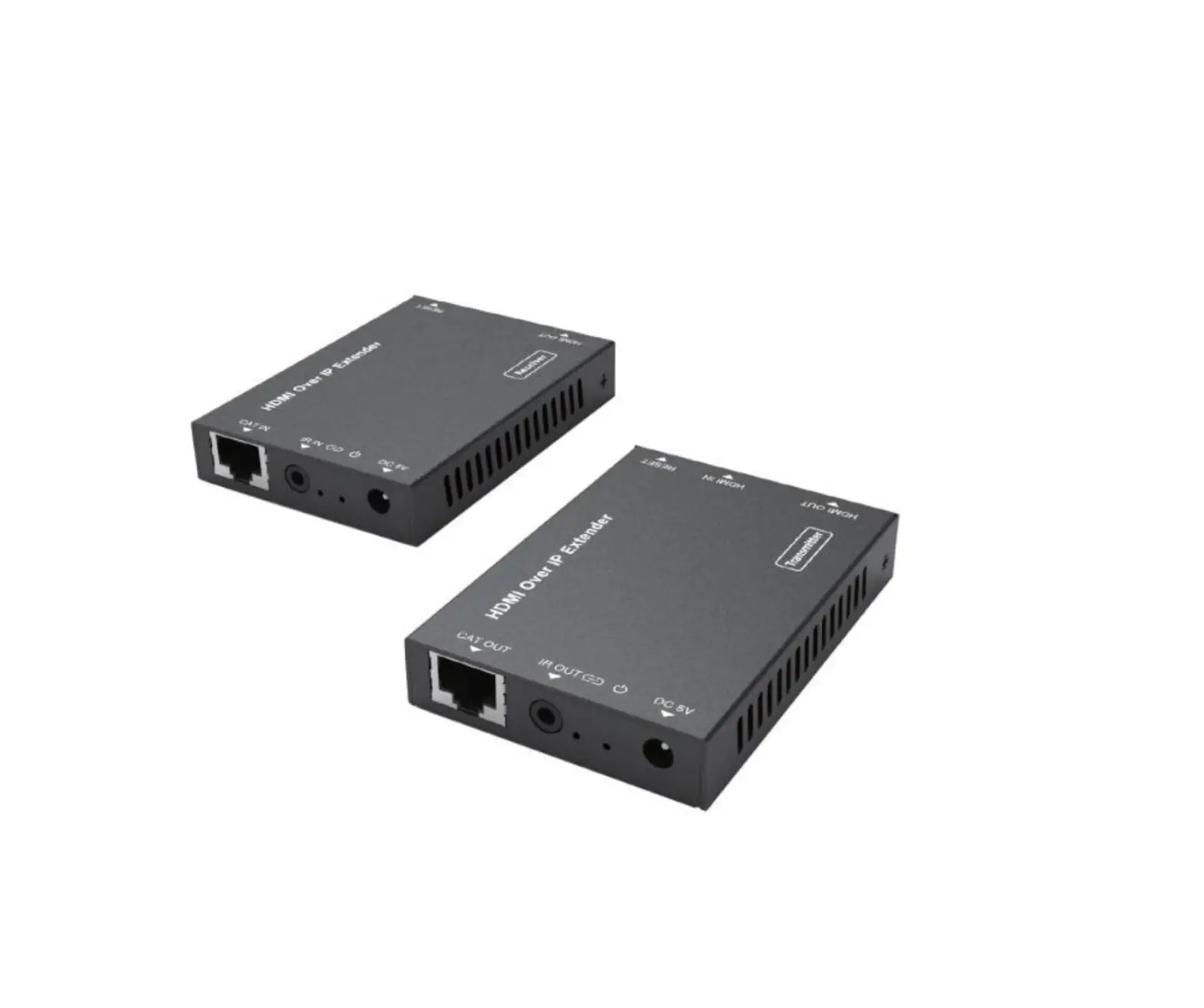
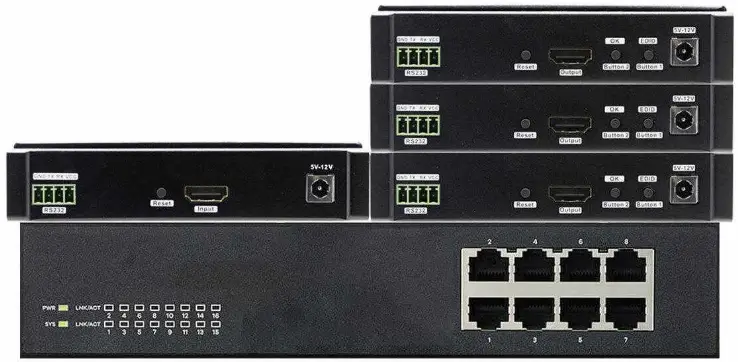
4kPOE HDMI over IP series product extends and distributes HDMI signal via Gigabit IP network. This product can work not only as a normal HDMI extender by CAT5/6 cable up to 120 meters but also could transmit video data over a switch, router, and other Ethernet devices. It can work in broadcast mode, and send video data from 1 sender to 253 receivers. Highlights of this series of products are the support of 4K@30Hz 4:4:4 video, 5.1ch/7.1ch/DTS/Dolby audio, and ultra-low latency <50ms, which meet high-end customer requirements. Furthermore, UART / IR / external Audio all could be transmitted to help customers build complex commercial systems.
Features
- Resolution up to 4K@30Hz 4:4:4, video no-loss
- Ultra-low latency <50ms
- Support HDMI audio 2CH/5.1CH/7.1CH/DTS/Dolby format
- Support PoE(802.3AF)power supply, improve system robustness
- Support maxim 1 sender to 253 receivers
- Bi-direction UART bypass
- Reverse IR bypass
- External stereo audio channel (supported by HSV622)
Specifications
| item | Description |
| Power | PoE(802.3AF)or 12V1A DC |
| HDMI format | HDMI1.4, HDCP |
| HDMI audio format | 2ch/5.1ch/7.1ch/DTS/Dolby |
| Ethernet Interface | RJ45 Gigabit Ethernet |
| Resolution supported | 4K@30Hz 1080p@60Hz/ 1080p@50Hz / 1080p@30Hz 720p@50Hz / 720p@60Hz / 480p@60Hz |
| External Audio Interface ( Optional) | 3.5mm L/R jacket |
| IR frequency | 38KHz – 56KHz |
| UART Baudrate | 115200bps/9600bps/4800bps |
| Working Mode | Point to Point/Point to Multi-Point/Cascade |
| Transmission distance | Point to Point: CAT5e 100m/CAT6 120m Cascade: maxim 20km |
| Working Temperature | 0°C – 40°C |
| Working Humidity | 20% ~ 90% RH(Non-condensing) |
Hardware Description
Sender Front Panel
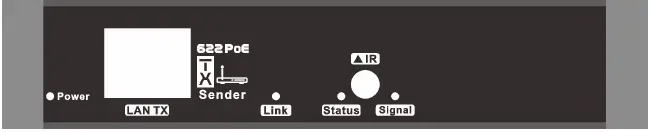
| ID | Type | Description |
| POWER | LED | Light on: Power on |
| LAN TX | Input / Output | GE LAN port, support PoE(802.3AF) |
| Link | LED | Light on: sender and receiver connected |
| Status | LED | Flash slow: system working correctly |
| Signal | LED | Flash fast: system working abnormally Light on: video transmission correct |
| ▲IR | Output | Connect to IR emitter |
Back Panel
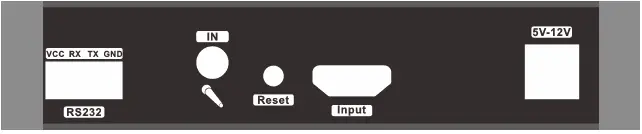
| ID | Type | Description |
| RS232 | Input / Output | Bypass bi-direction RS232 data to/from |
| IN | Input | receiver. Support baudrate 4800,9600,115200 Stereo audio input interface. When this port is connected, the receiver side HDMI audio and audio output will be the same as this input. * HSV622 support * HSV621 does NOT support |
| Reset | Button | Short press to restart the device |
| Input | Input | HDMI Input |
| 5V-12V | Input | 5V 2A or 12V 1A DC power input |
Receiver
Front Panel
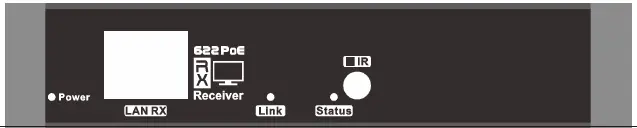
| ID | Type | Description |
| POWER | LED | Light on: Power on |
| LAN RX | Input / Output | GE LAN port, support PoE(802.3AF) |
| Link | LED | Light on: sender and receiver connected |
| Status | LED | Flash slow: system working correctly |
| ■ IR | Input | Flash fast: system working abnormally Connect to IR receiver |
Back Panel

| ID | Type | Description |
| Rs232 | Input/Output | Bypass bi-direction RS232 data to/from |
| OUT | Output | sender. Support baudrate 4800, 9600,115200 Stereo output, same as HDMI * HSV622 support |
| * HSV621 does NOT support | ||
| Reset | Button | Short press to restart the device |
| Output | Output | HDMI output |
| OK-Button2 | Button | Select/Confirm |
| EDID-Button1 | Button | Short press to select function update EDID |
| /change baud rate / show MAC Address / show IP address When ”update EDID” shows, press OK- Buttont2 to confirm, The system EDID will update to the receiver-connected display’s EDID. When “baud rate” shows, press OK- Button2 to select the baud rate, then press Button1 to change the system baud rate.( MAC address and IP address can not be changed) Long press 3 seconds, directly update system EDID to the receiver connected displays’ EDID. | ||
| 5V-12V | Input | 5V 2A or 12V 1A DC power input |
INSTALLATION INSTRUCTIONS
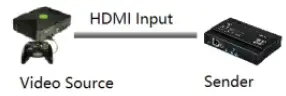
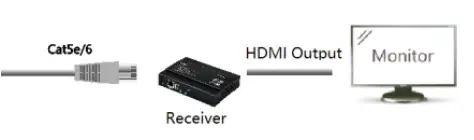
- Point to Point

- Connection Diagram

- Point to Multi-Point

- Cascade Mode

- Hybrid Mode

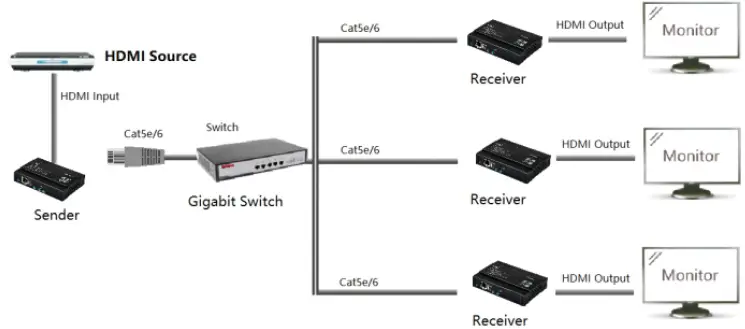
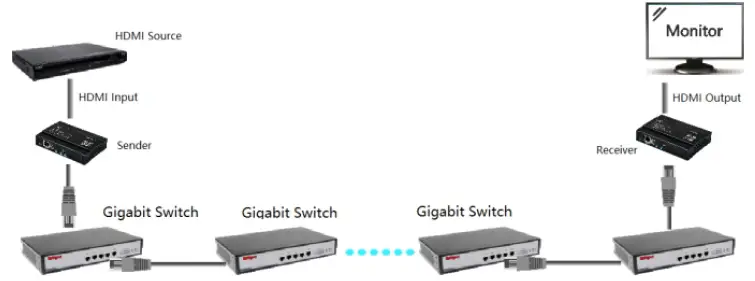
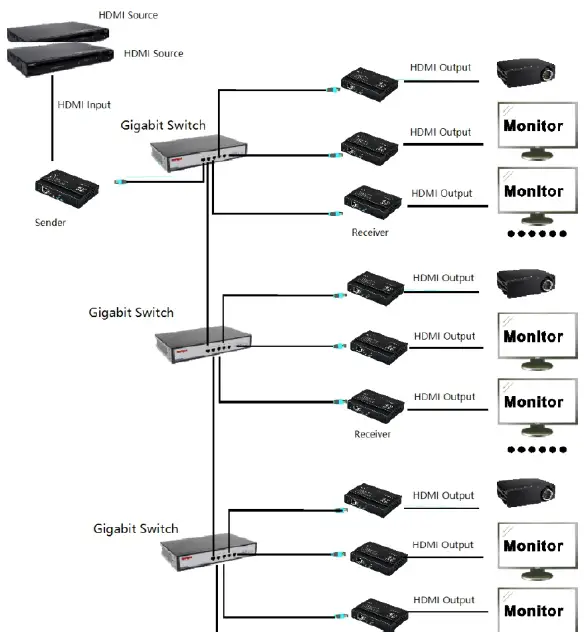
Attention
- Please use the Gigabit switch in this system. A Fast Ethernet switch could not be used.
- Please do not plug or unplug the HDMI cable when the device is powered on, to avoid HDMI port components damage.
- Please do not plug or unplug the Ethernet cable when the device is powered on, to avoid RJ-45 port components damage.
FAQ
- Q: Yellow light led off the LAN port is not lit?
- A: 1) Check the connection of the network cable
- 2)Change the short network cable to test
- 3)Check whether the sender and receiver working correctly(Status LED flash slow)
- Q: Green light led off the LAN port is not light
- A: 1)Check whether the HDMI source is working correctly.
- 2)Check whether the “signal” LED on the sender side is light on. If not, please check the HDMI
- 3)Connection, HDMI cable, HDMI resolution setting
- Q: No display on the screen connect to the receiver?
- A: 1)Check the HDMI connection and HDMI cable between the receiver and screen.
- 2)Check whether the sender and receiver working correctly(Status LED flash slow)
- 3)Check whether the screen support 4K, and whether the output resolution is supported by the screen.