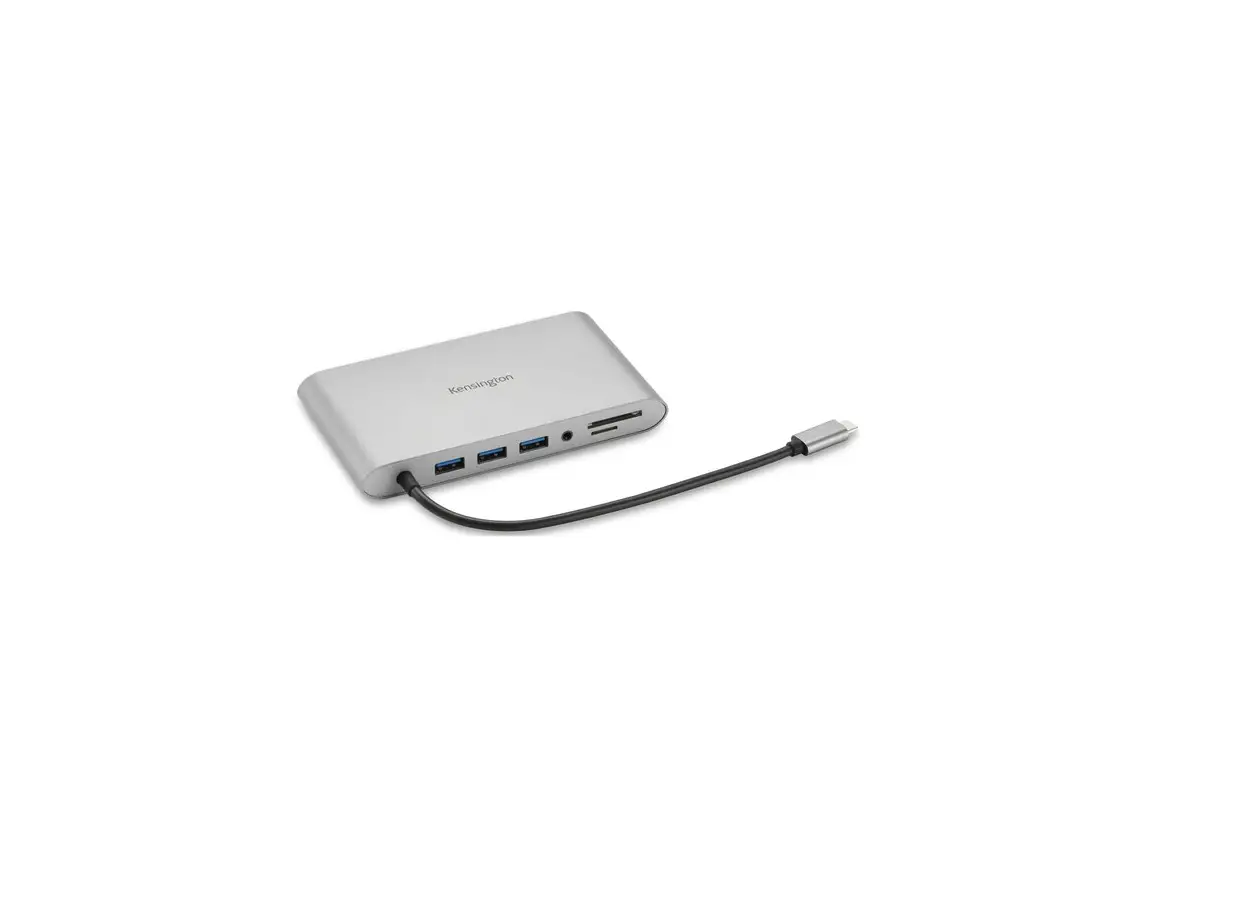
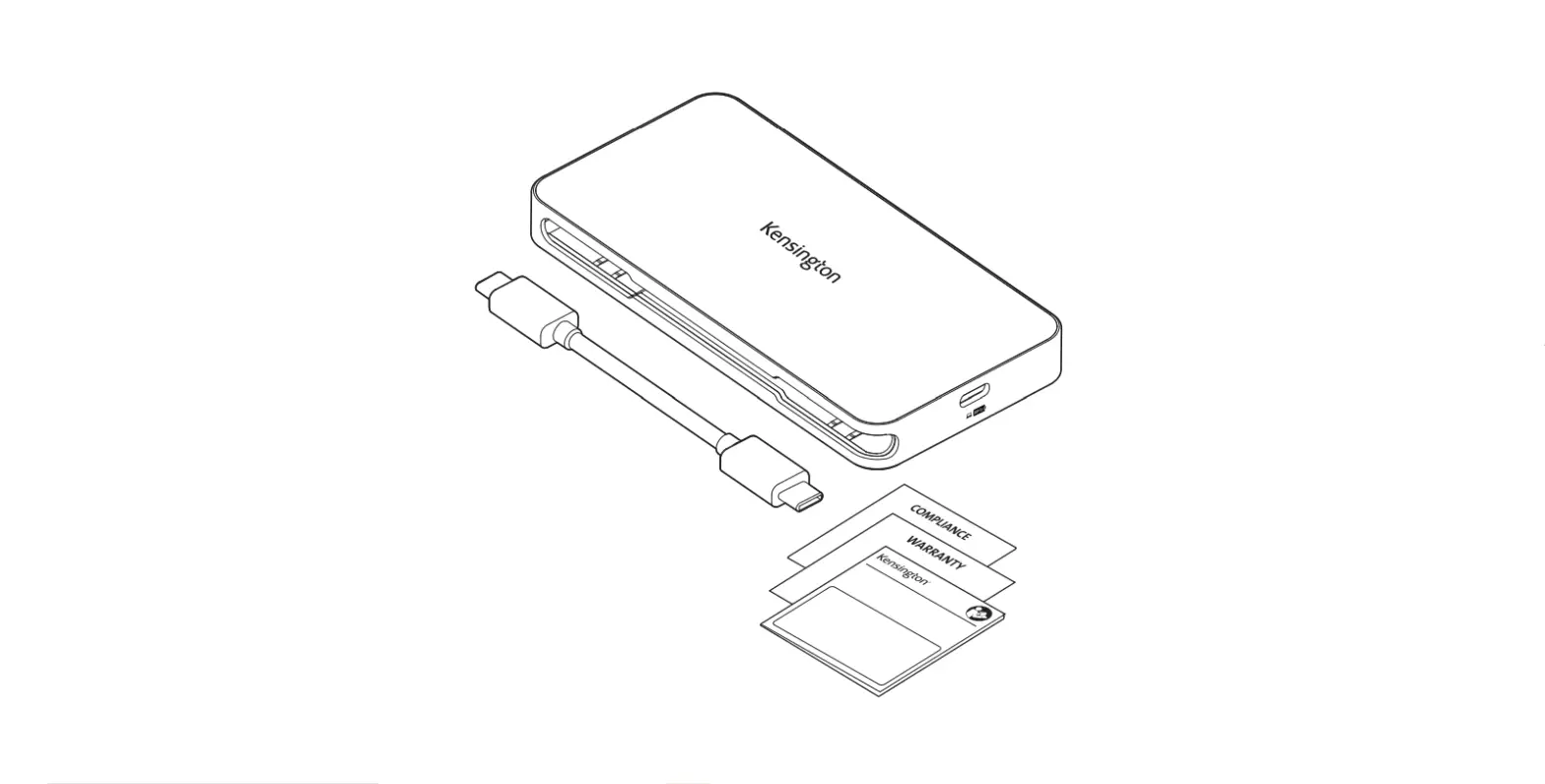
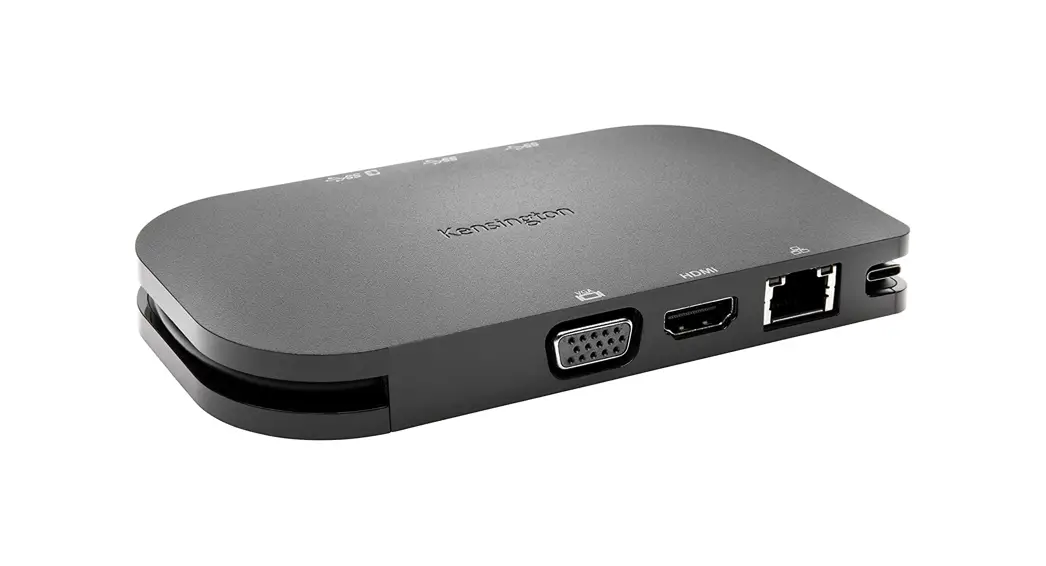
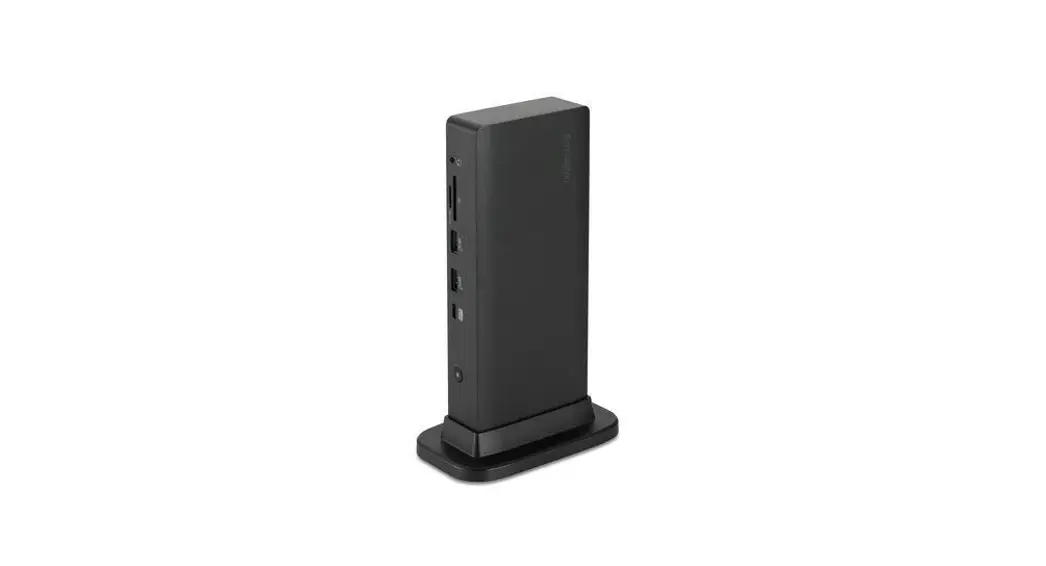
UH1450P USB-C Mobile Dock
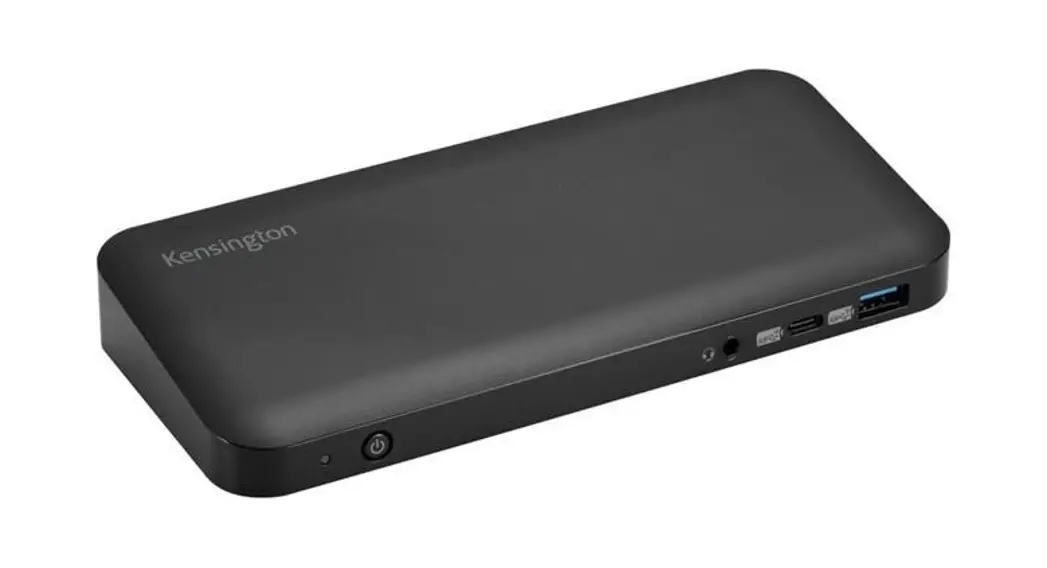
Kensington UH1450P USB-C Mobile Dock
Register your dock at kensington.com/register
Plug the USB-C cable into an available USB-C port on your host
device. The selected USB-C port should support both Alt Mode and
Power Delivery.Connect accessories and monitors:
- Connect phones, mice, keyboards, thumb drives, printers, and
hard drives using the two USB-A 3.2 Gen2 ports (10Gbps/5V/1.5A and
10Gbps/5V/0.9A) on the back of the dock. - Plug your ethernet cable into the 1Gbps Ethernet port for
stable high-speed internet/intranet connectivity. - Connect monitors using the two DisplayPort 1.4++ ports on the
front of the dock. - Connect an additional USB-C accessory using the USB-C 3.2 Gen2
port (10Gbps/5V/0.9A) located on the front of the dock.
- Connect phones, mice, keyboards, thumb drives, printers, and
To setup pass-through power:
- Plug your host device’s USB-C power adapter into the USB-C PD
port on the side of the dock. - The USB-C power adapter must supply at least 85W of Power
Delivery.
- Plug your host device’s USB-C power adapter into the USB-C PD
The dock will deliver:
- Up to Dual or Single 4K @ 60Hz on Windows devices
- Up to Dual 4K @ 60 Hz on macOS devices in mirror mode only
Note: Host must support DP 1.4 for maximum resolutions.
For support, visit kensington.com/support
Kensington UH1450P USB-C Mobile Dock. Register your dock at kensington.com/register
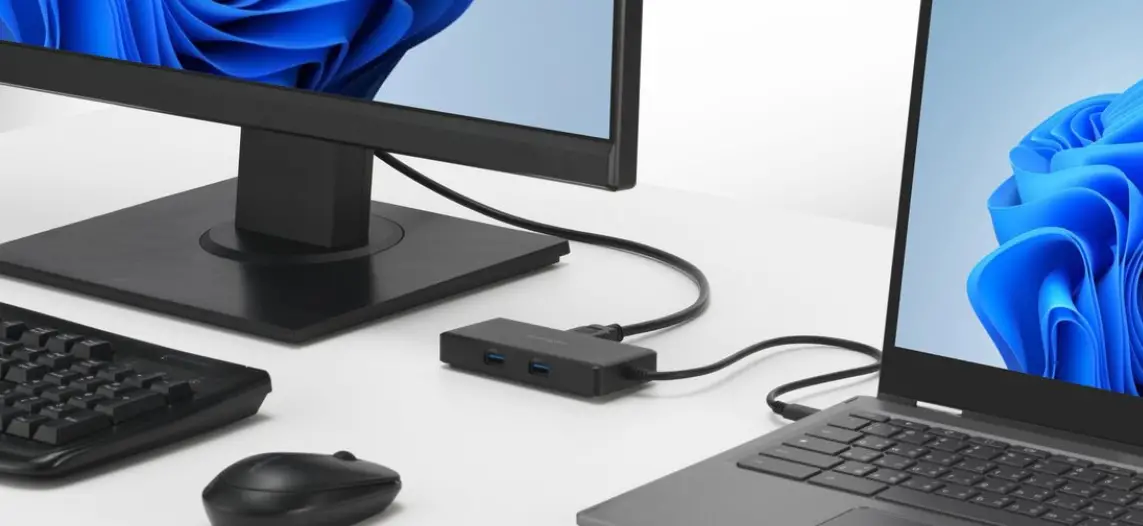
1. Plug the USB-C cable into an available USB-C port on your host device. The selected USB-C port should support both Alt Mode and Power Delivery.
2. Connect accessories and monitors. Connect phones, mice, keyboards, thumb drives, printers, and hard drives using the two USB-A 3.2 Gen2 ports (10Gbps/5V/1.5A and 10Gbps/5V/0.9A) on the back of the dock.
Plug your ethernet cable into the 1Gbps Ethernet port for stable high-speed internet/intranet connectivity.
Connect monitors using the two DisplayPort 1.4++ ports on the front of the dock. Connect an additional USB-C accessory using the USB-C 3.2 Gen2 port (10Gbps/5V/0.9A) located on the front of the dock. To setup pass-through power, plug your host device’s USB-C power adapter into the USB-C PD port on the side of the dock. The USB-C power adapter must supply at least 85W of Power Delivery.
The dock will deliver up to Dual or Single 4K @ 60Hz on Windows devices and up to Dual 4K @ 60 Hz on macOS devices in mirror mode only. Host must support DP 1.4 for maximum resolutions.
For support, visit kensington.com/support
 Product Registration - Kensington