Contents hide

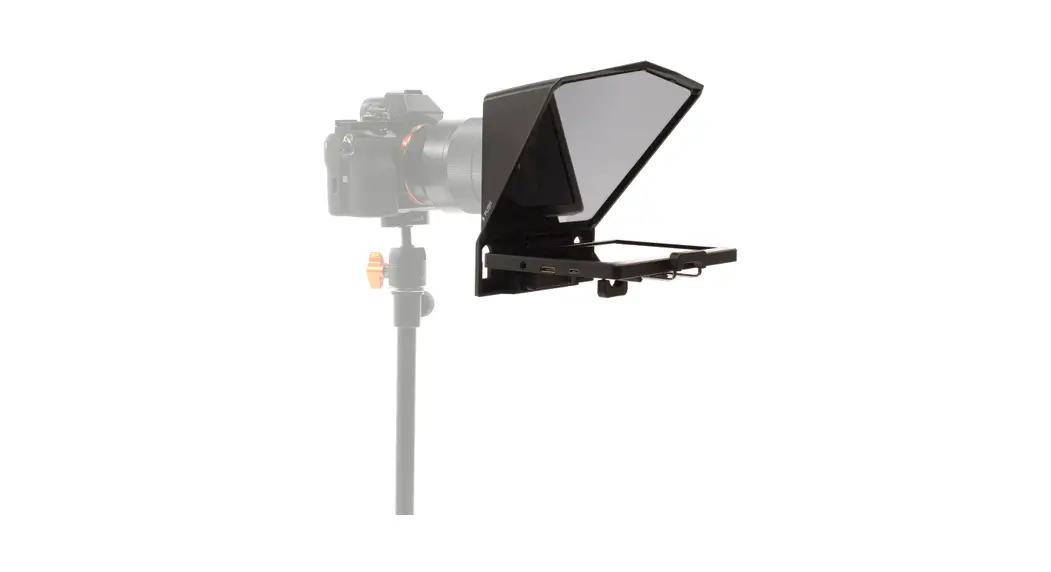
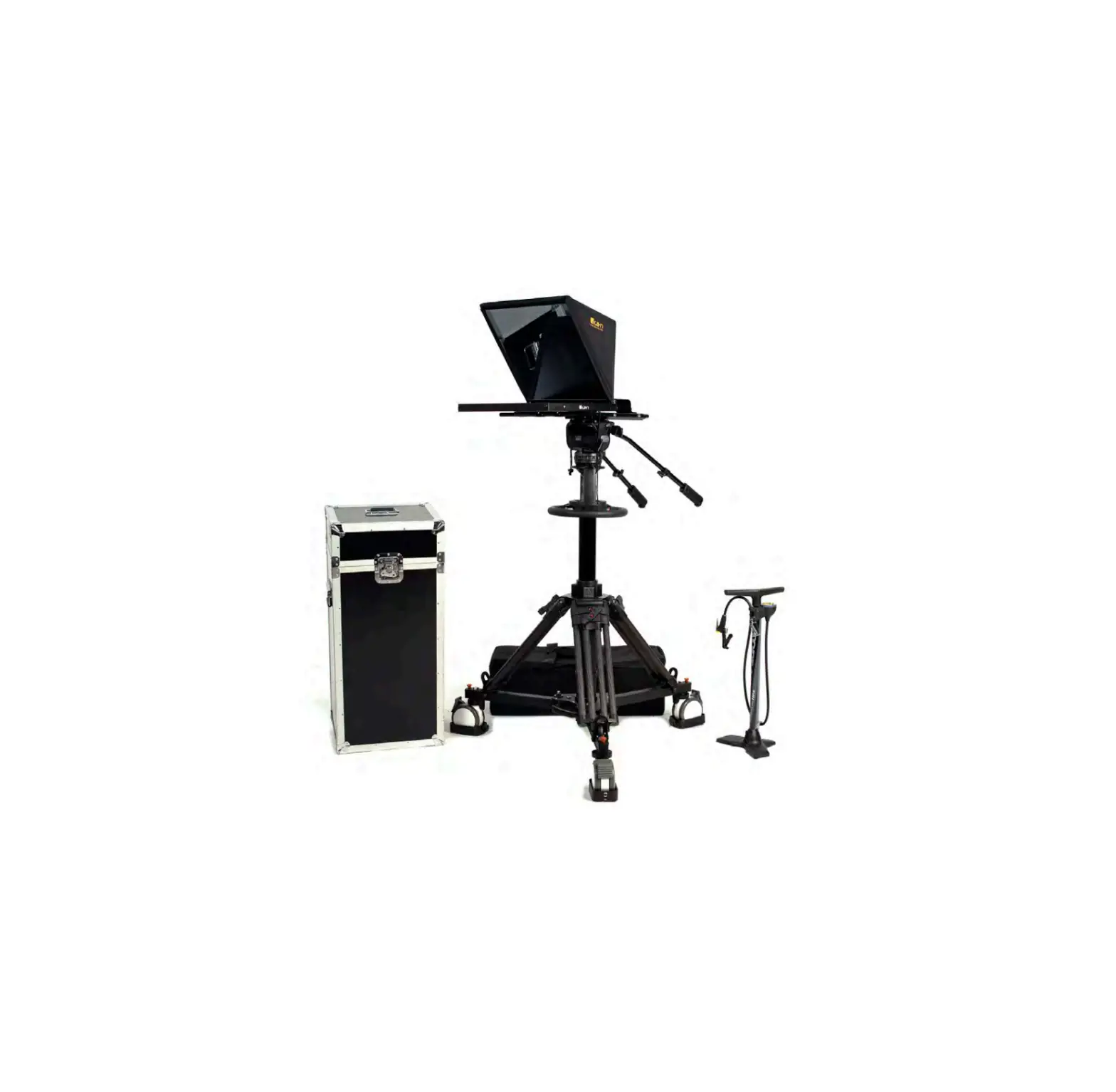
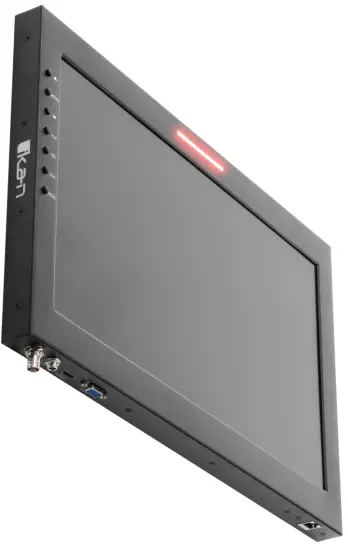
ikan M19W 19 Inch High Bright Teleprompter LED Widescreen Monitor with Tally
Quick Start Guide
19″ High-bright Teleprompter LED Widescreen Monitor w/ Tally
19” SDI Monitor Compatible with Ikan Teleprompters
What’s Included
- 1 x SDI Widescreen Teleprompter Monitor w/ Built-in Tally Light
- 1 x Power Adapter with Cable
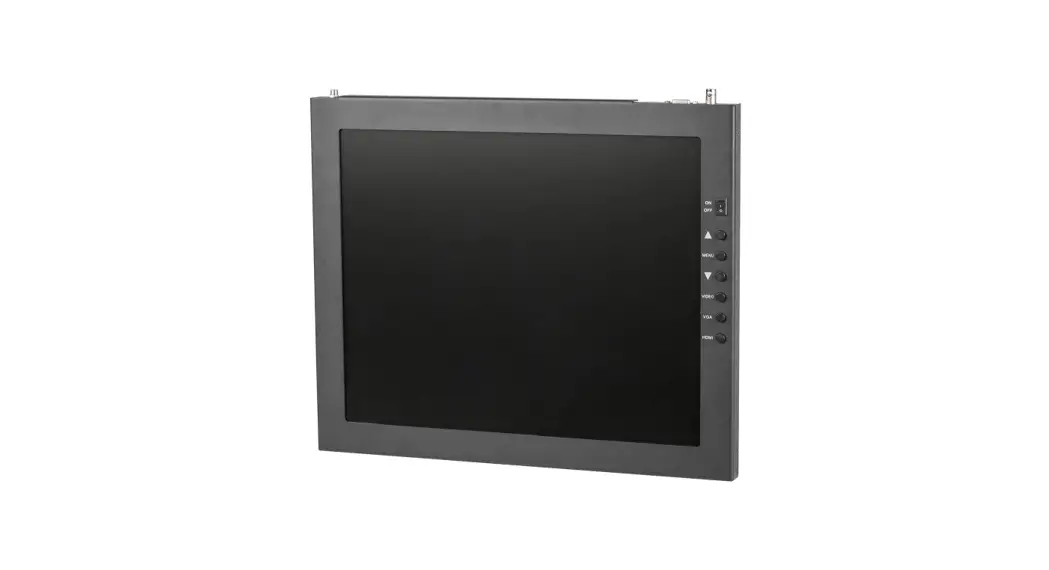
Monitor Ports
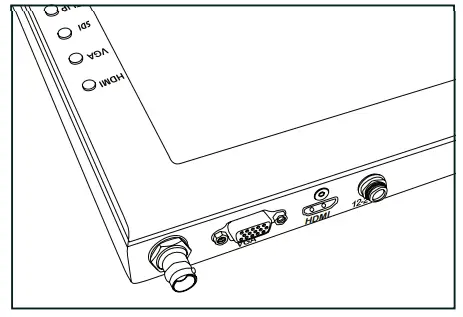
- 3G-SDI – Serial Digital Interface Connection
- VGA – Video Graphics Array DE15 Connection
- HDMI – High-Definition Multimedia Interface Input Connection
- Power Port – 12-24v Input
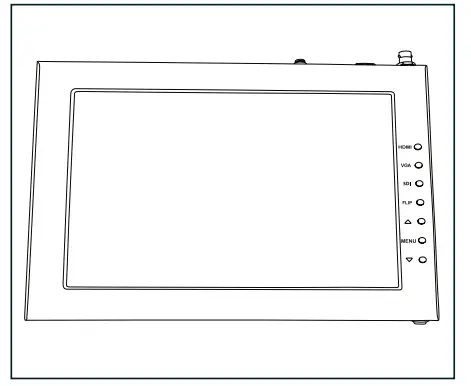
- HDMI – Switch HDMI input
- VGA – Switch to VGA input
- SDI – Switch to 3G-SDI input
- Flip – Toggle image flip (Can be set to horizontal, vertical, or both via menu) Up Arrow – Toggle up to adjust setting
- Menu – Access to monitor settings
- Down Arrow – Toggle down to adjust setting
Video Config
- Contrast (White Level)
- Brightness (Black Level)
- Tint (Chroma Hue)
- Chroma (Chroma Saturation) Sharpness (Detail)
- RGB Setup – Manually configure RGB Return
System Config
- Menu Duration – Set duration of how long menu stays on screen
- Video Ratio – Set screen aspect ratio 16:9 or 4:3 (4:3 is native resolution, 16:9 will create black bars)
- Flip-H – Assign toggle button to flip image horizontally
- Flip-V – Assign toggle button to flip image vertically
- Reset – Factory reset
- Return
PC Setup (Only available for VGA)
- H-Position – Adjust horizontal position
- V-Position – Adjust vertical position
- Auto – Monitor automatically adjust position Return
Exit
- Press MENU button
- Navigate to SYSTEM CONFIG.
- Navigate to FLIP-V or FLIP-H
- Change FLIP-V and/or FLIP-H to “ON”
- Exit MENU
- The FLIP button should now be activated and can be pressed to mirror the image Horizontally or Vertically
- When FLIP-H is ON, the image will flip Horizontally
- When FLIP-V is ON, the image will flip Vertically
- If both are ON, the FLIP button will toggle both Horizontal and Vertical flip
Specifications
M19W
19″ High-bright Teleprompter LED Widescreen Monitor w/ Tally
| Aspect Ratio | 16:9 |
| Brightness | 1000 cd/m2 |
| Diagonal | 18.5 in. |
| Input Signal | 3G-SDI, VGA, HDMI |
| Input Voltage | DC 12v / 5A |
| Power Consumption | 36W |
| Product Weight | 5.73 lbs. |
| Product Dimensions | 18.3″ x 12.3 x 1.2″” |
| Native Resolution | 1920 x 1080 |
| Shipping Weight | 8 lbs |
| Shipping Dimensions | 16.25” x 14.25” x 2” |
| Viewing Angle | 178° (H) / 178° (V) |
| Build Material | Aluminum Chassis |
| Tally Interface | RJ45 |
| UPC | 847983034499 |
Supported Video Signals
SDI
- 720x480i @ 59.94, 60 Hz
- 720x576i @ 50 Hz
- 1280x720p @ 50, 60 Hz
- 1920x1080i @ 50, 59.94, 60 Hz
- 1920x1080psf @ 24, 25, 29.97, 30 Hz
- 1920x1080p @ 23.98, 24, 25, 29.97, 30, 50, 59.94, 60 Hz
HDMI
- 720x480i & 720x480p @ 59.94, 60 Hz
- 720x576i & 720x576p @ 50 Hz
- 1280x720p @ 50, 59.94, 60 Hz
- 1920x1080i @ 50, 59.94, 60 Hz
- 1920x1080psf @ 24, 25, 29.97, 30 Hz
- 1920x1080p @ 23.98, 24, 25, 29.97, 30, 50, 59.94, 60 Hz
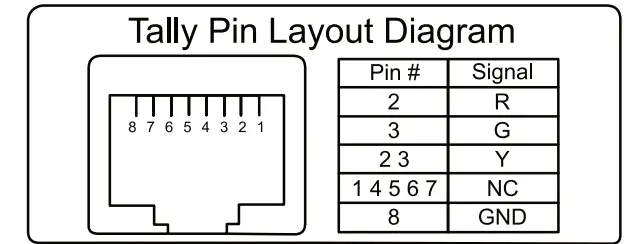
Pinout Diagram for Tally Light
Tally Light Pinout:
- GND: Connects to the ground of the device or system.
- R: Connects the red tally light
- G: Connects the green tally light
- Y: Connects the yellow tally light
- NC: Stands for “Not Connected” Disregard these pins.
Learn More
More dynamic information at official website: www.ikancorp.com
Support
Contact email: [email protected]
CONDITIONS OF WARRANTY SERVICE
- Free service for one year from the day of purchase if the problem is caused by manufacturing errors.
- The components and maintenance service fee will be charged if the warranty period is expired.
Free Service will not be Provided in the Following Situations:(*Even if the product is still within the warranty period.)
- Damage caused by abuse or misuse, dismantling, or changes to the product not made by the company.
- Damage caused by natural disaster, abnormal voltage, and environmental factors, etc.
©2021 Ikan International. All rights reserved.
www.ikancorp.com | 1.713.272.8822 | [email protected]
because we’re filmmakers too
 Professional Video Production Equipment for Sale | Ikan