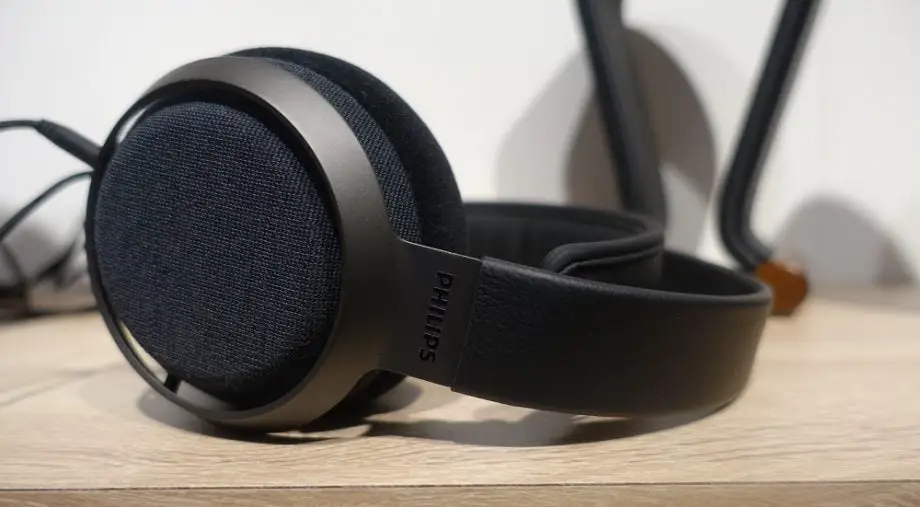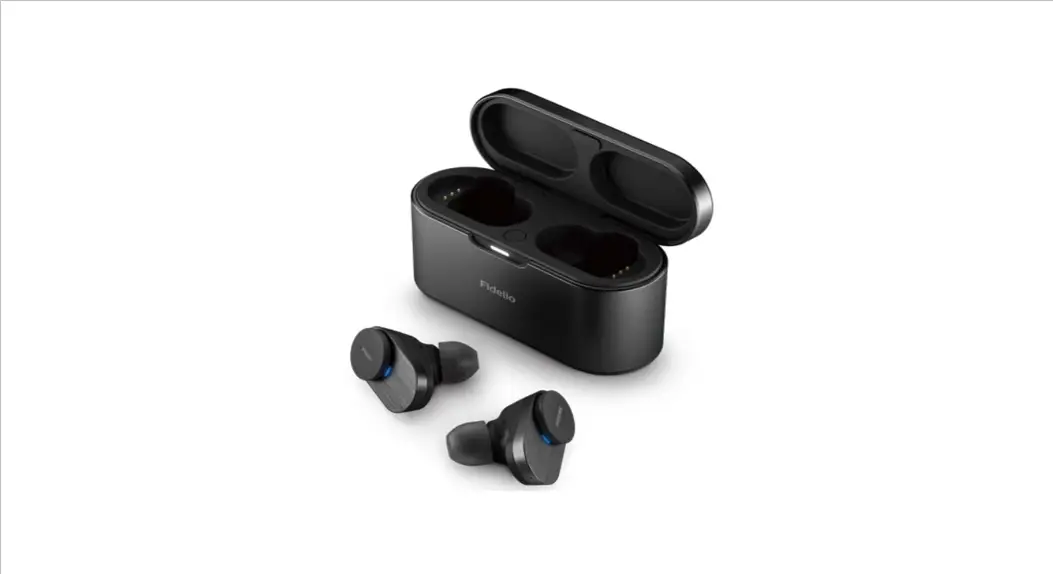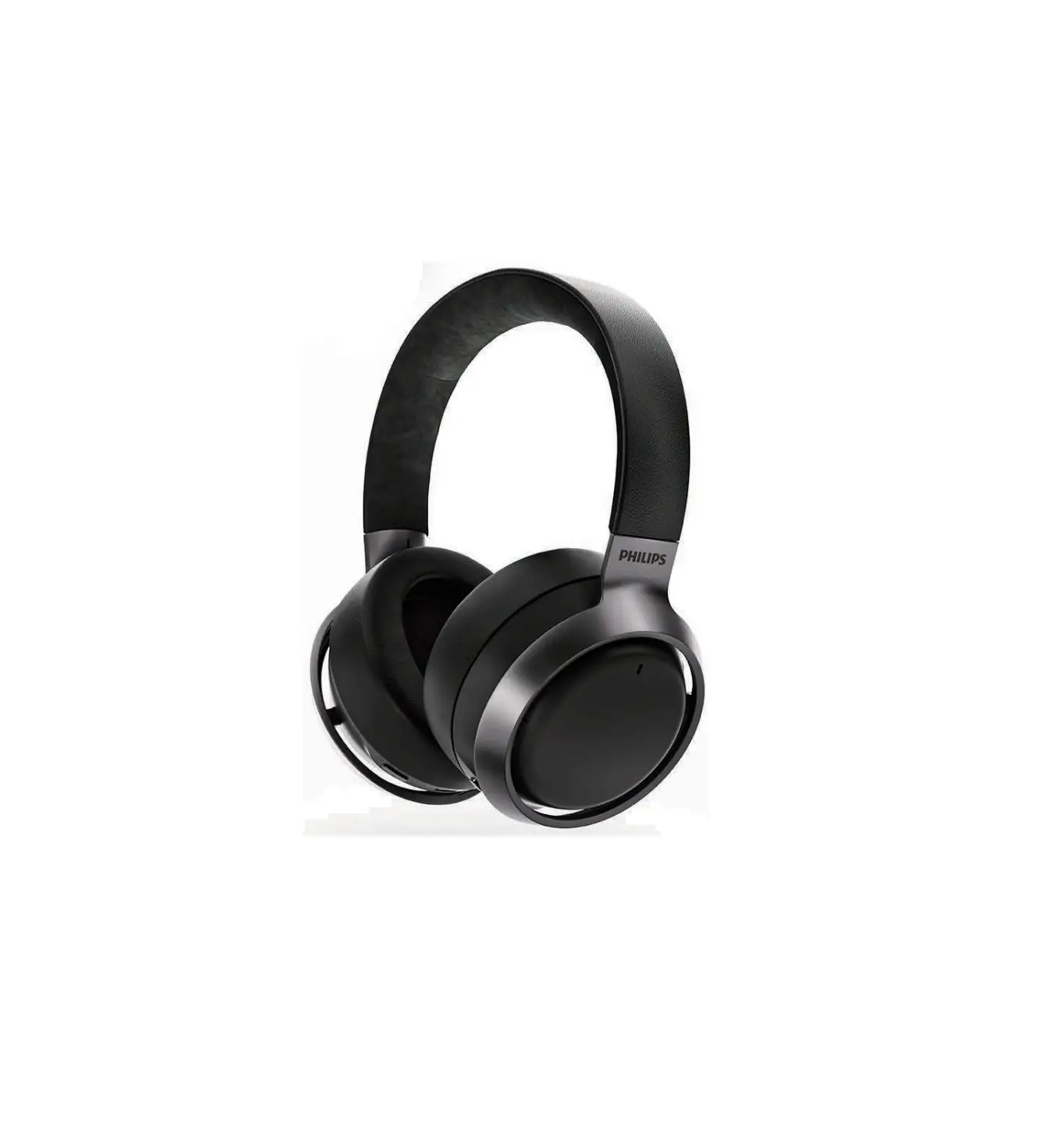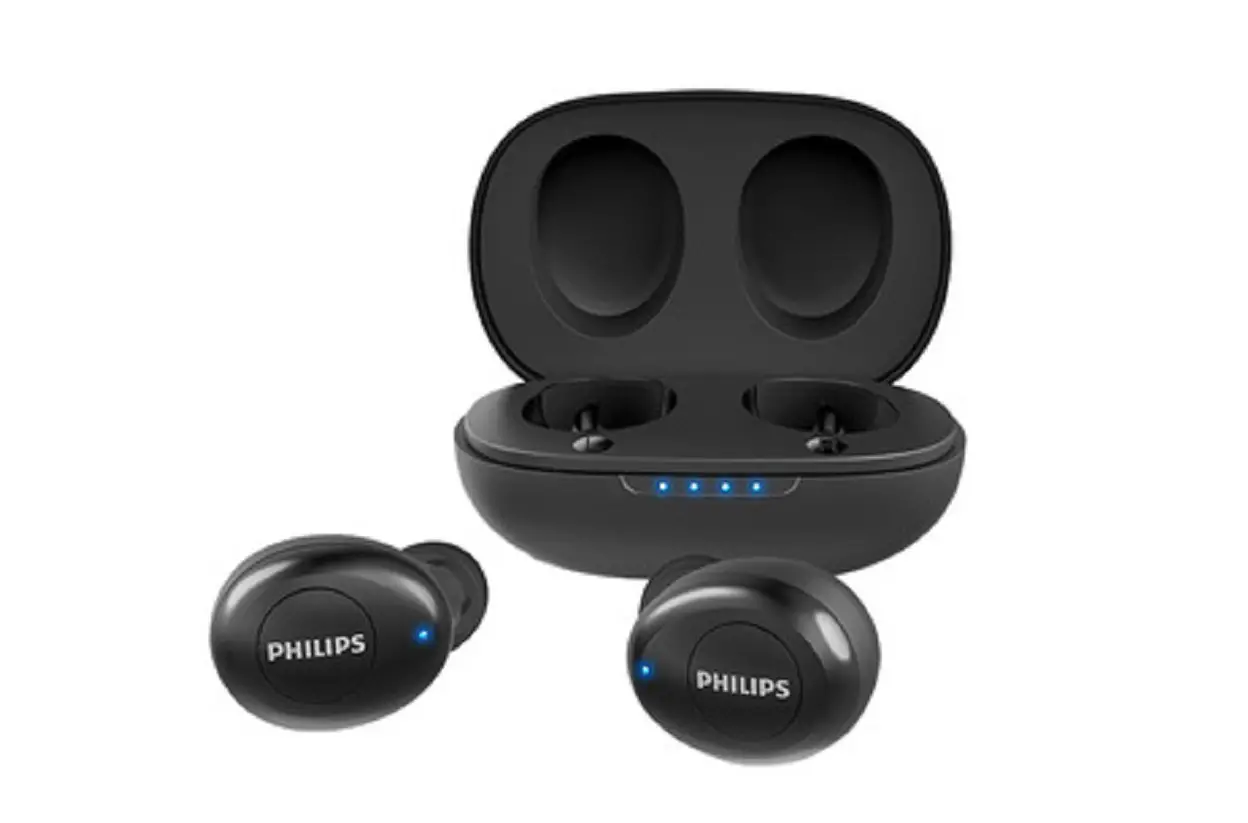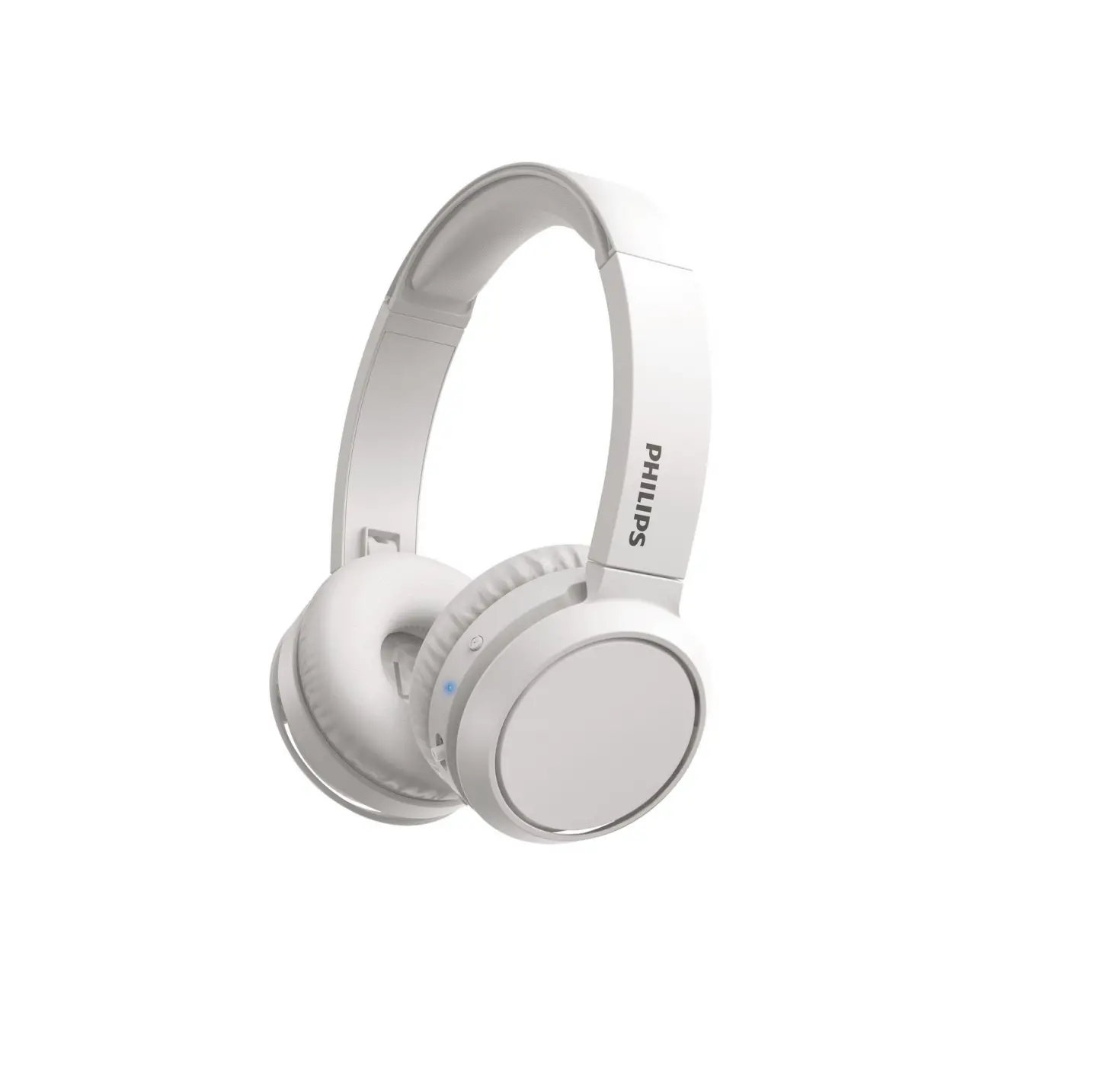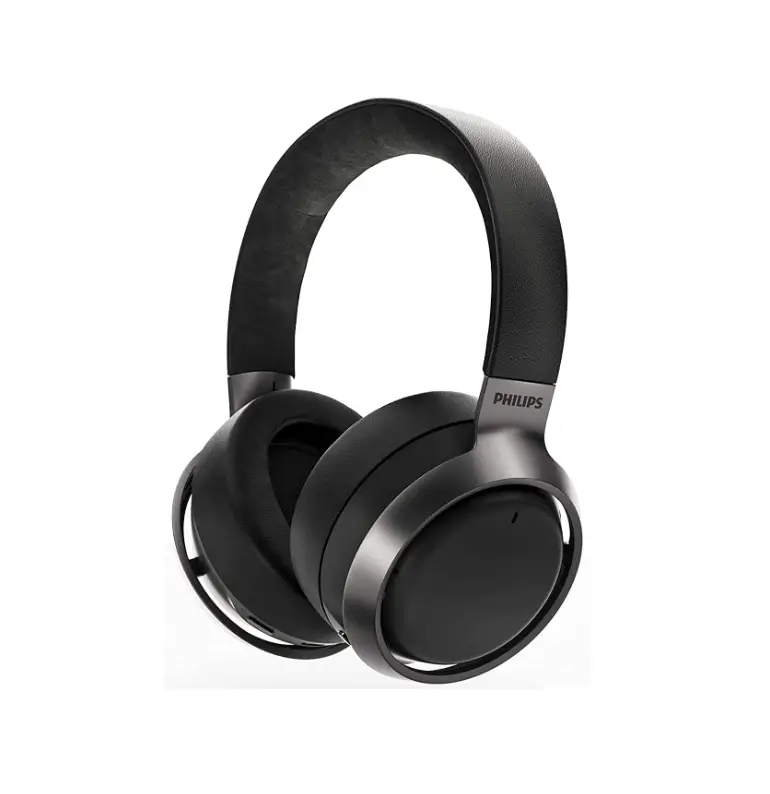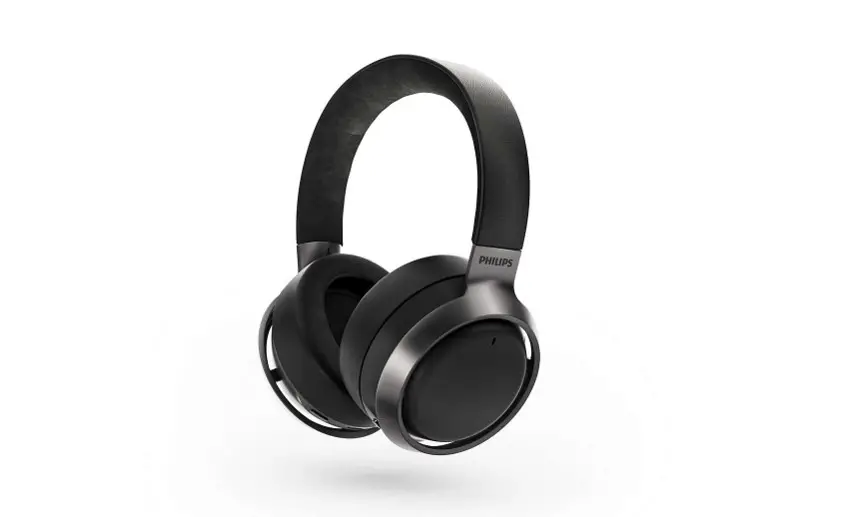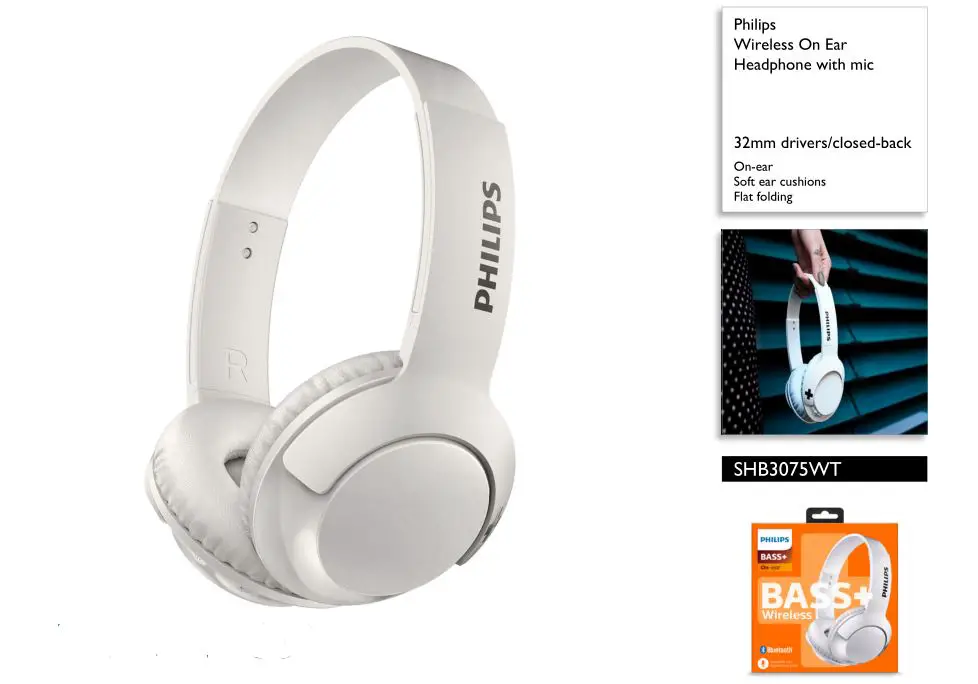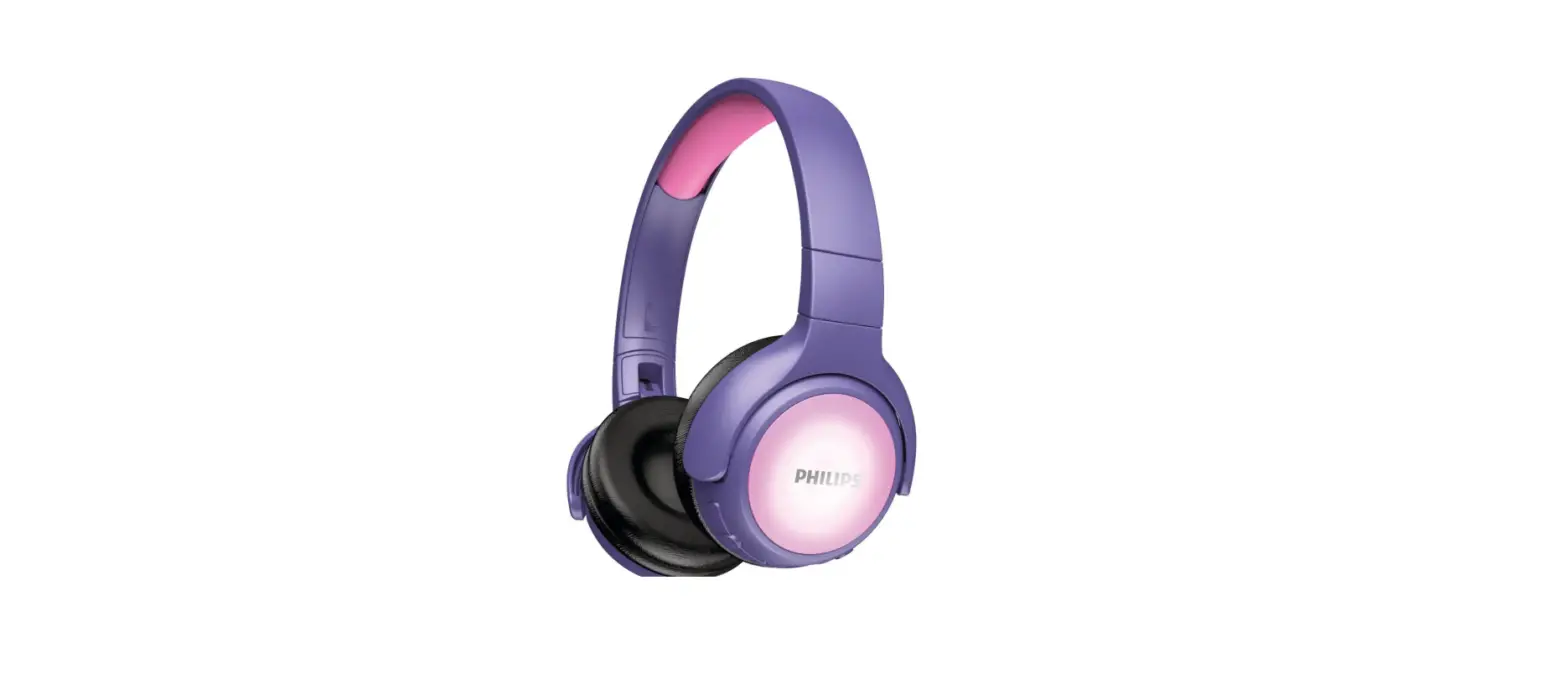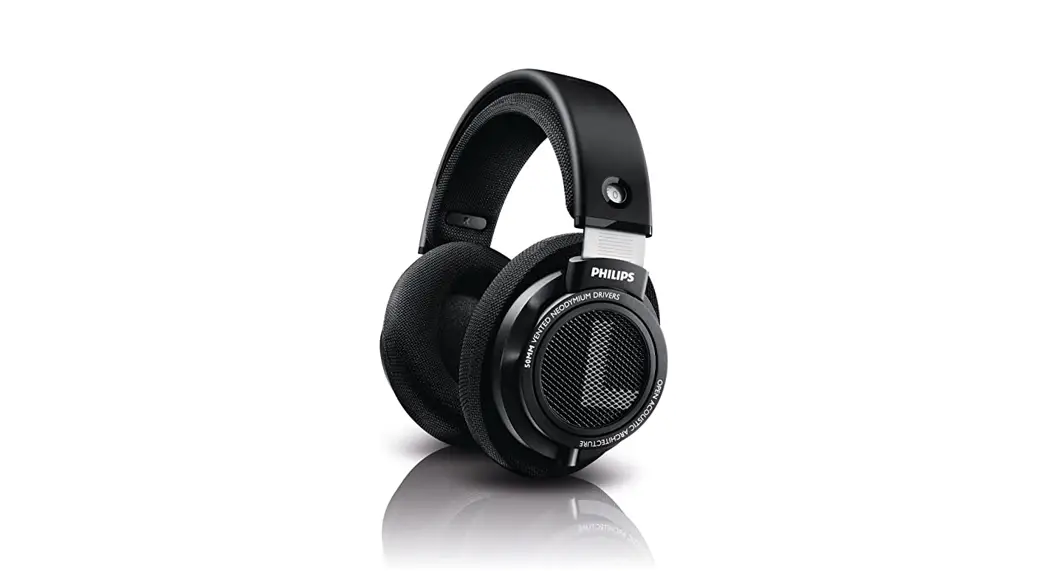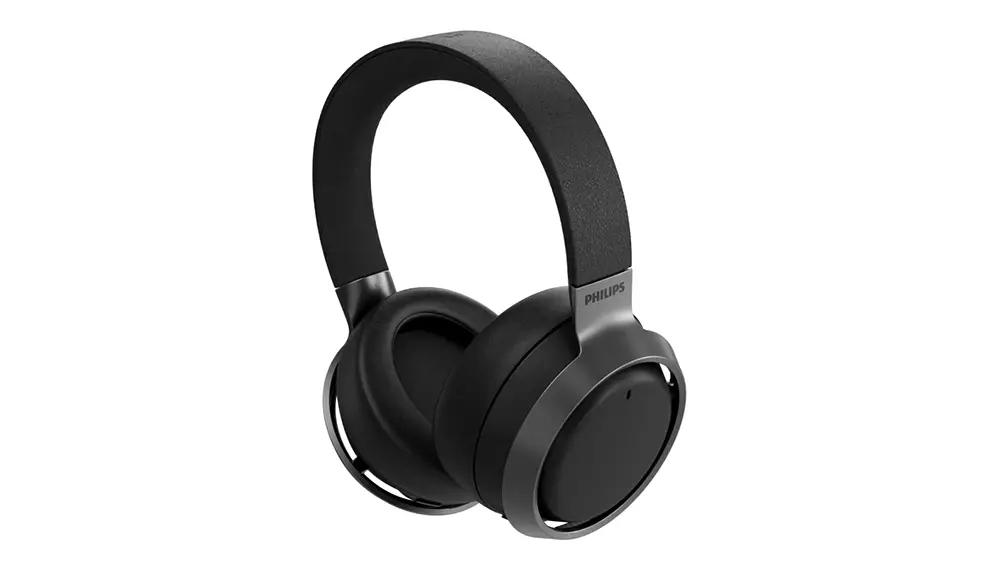

Philips D20S Fidelio Wireless Headphones
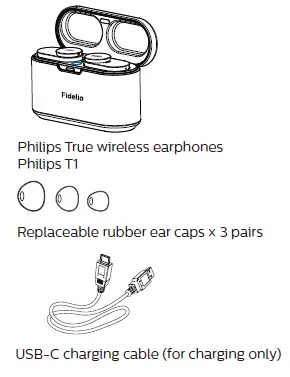
What’s in the box
Important instructions
- Listen at reasonable volumes for reasonable periods of time.
- Be careful not to adjust the volume continuously upwards as your hearing adapts.
- Do not turn up the volume so high that you can’t hear what’s around you.
- You should use caution or temporarily discontinue use in potentially hazardous situations.
- Excessive sound pressure from earphones and headphones can cause hearing loss.
- Using headphones with both ears covered while driving is not recommended and may be illegal in some areas while driving.
- For your safety, avoid distractions from music or phone calls while in traffic or other potentially dangerous environments.
- Store in a place where temperature is between -20°C (-4°F) and 50°C (122 °F) (up to 90% relative humidity.
- Operate in a place where temperature is between 0°C (32°F) and 45°C (113 °F) (up to 90% relative humidity.
- Battery life may be shorter in high or low temperature conditions.
- Replacement of a battery with an incorrect type that can defeat a safeguard (for example, in the case of some lithium battery types)
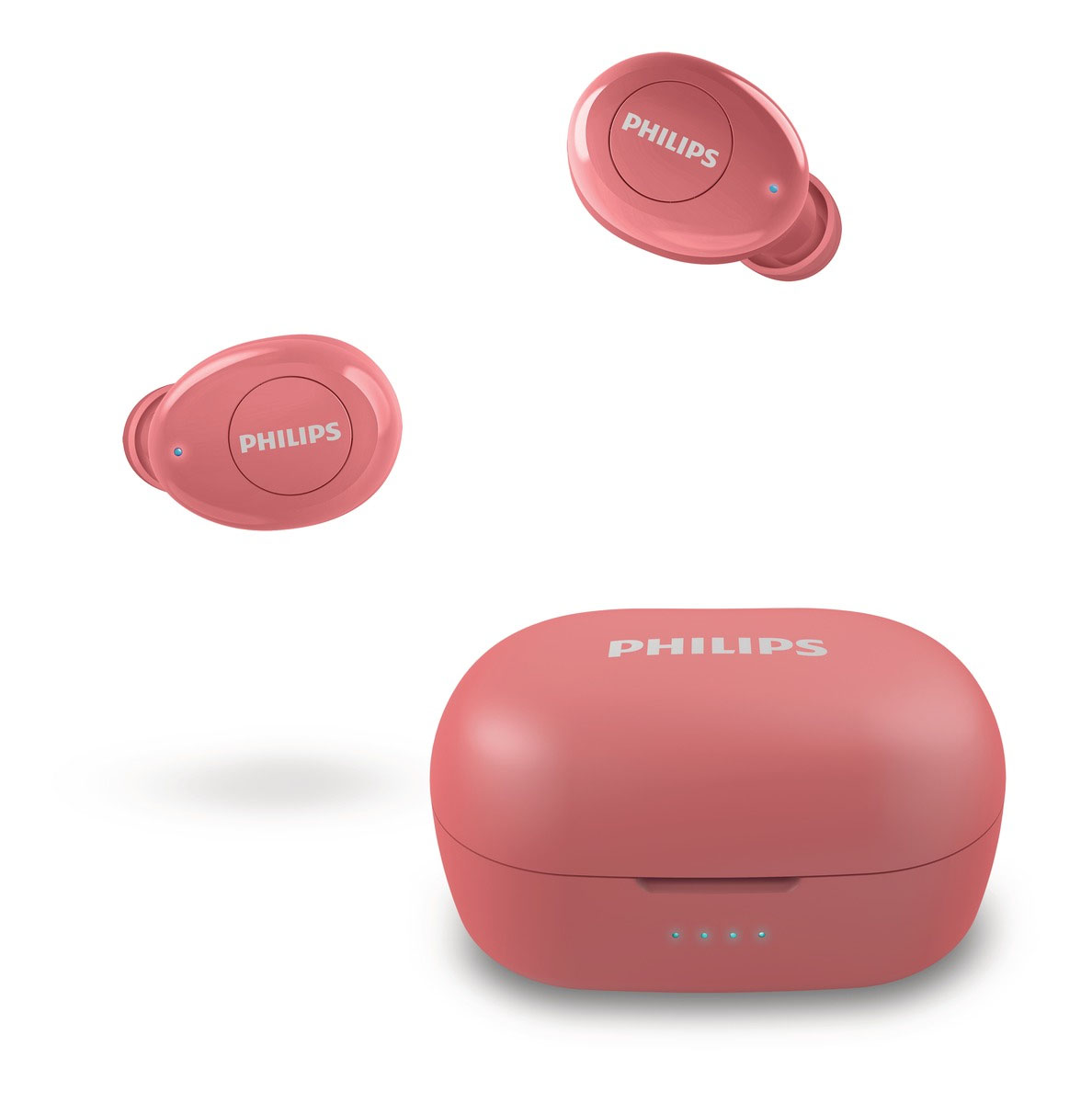
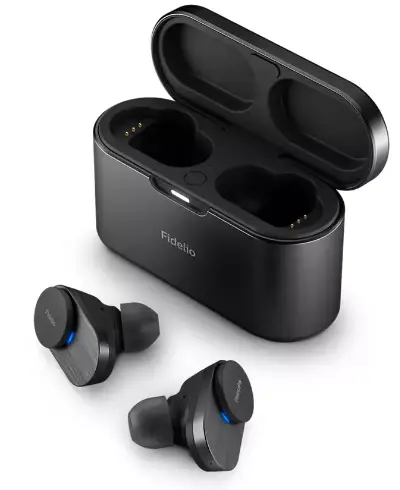
Your True wireless earphones
Congratulations on your purchase, and welcome to Philips! To fully benefit from the support that Philips offers, register your product at www.philips.com/welcome. With this Philips True wireless earphones, you can:
- enjoy convenient wireless handsfree calls;
- enjoy and control wireless music;
- switch between calls and music.
Other devices
A mobile phone or device (e.g. notebook, tablet, Bluetooth adapters, MP3 players etc) which supports Bluetooth and is compatible to the earpieces (see ‘Technical data’ on page 10
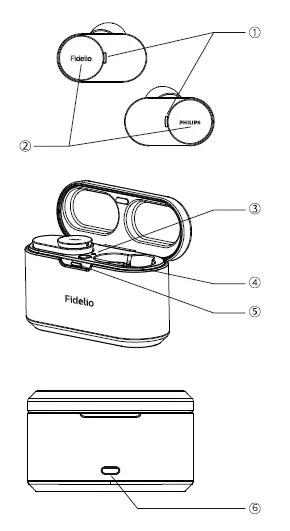
Overview of your True wireless earphones
- Multi-function touch
- LED indicator (earpieces)
- LED indicator (factory reset)
- Factory reset button
- LED indicator (charging box)
- USB-C charging slot
Get started
Charge the battery
- Before you use your earpieces for the first time, place the earpieces in the charging box and charge the battery for 3 hours for optimum battery capacity and lifetime.
- Use only the original USB-C charging cable to avoid any damage.
- Finish your call before charging the earpieces, as connecting the earpieces for charging will power the earpieces of
Charging Box
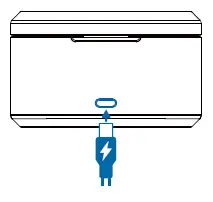
- Connect one end of the USB cable into the charging box, and another end into the power source.
- Charging process is verified by the blue LED light on the front panel.
- When the charging box is fully charged, the blue light goes on.+
Earpieces
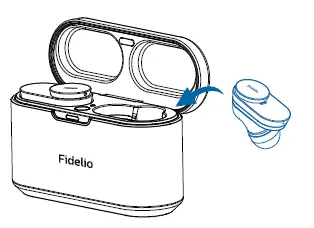
- Place the earpieces in the charging box.
- The charging box has a built-in wireless charging coil. You can charge the battery by using a wireless charger or another device that functions as a wireless charger.
- The earpieces start charging.
- When the earpieces is fully charged, the blue light goes of

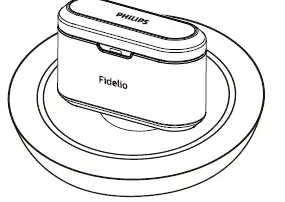
Charging the battery with a wireless charger.
- Place the earpiece to charging box.
- Close the charging box cover.
- Place the center of the charging case on the center of the wireless charger.
- After fully charging, disconnect the charging case from the wireless charger

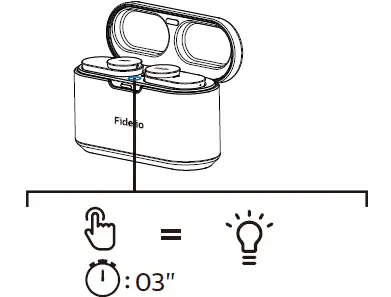
Pair the earpieces with your Bluetooth device at the first time
- Make sure that the headset is fully charged and powered of
- Open the top cover from charging box, press and hold the pairing button from charging box back for approximately 3 seconds

- Turn on the Bluetooth function of your Bluetooth device.
- Pair the earpieces with your Bluetooth device. Refer to the user manual of your Bluetooth device.
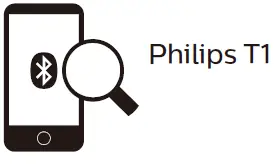
The following example shows you how to pair the earpieces with your Bluetooth device.
- Turn on the Bluetooth function of your Bluetooth device, select Philips T1.
- Enter the earpieces password “0000” (4 zeros) if prompted. For those Bluetooth devices featuring Bluetooth 3.0 or higher, no need to enter a password.

Use your earpieces
Connect the earpieces to your Bluetooth device
- Turn on the Bluetooth function of your Bluetooth device.
- Open the top cover from charging box.
Control ANC (active noise cancelation)
- ANC function is auto active when put into the ear.
- Touch the MFB button twice, it will change to Awareness mode.
- Touch the MFB button twice again, it will turn the ANC function of.
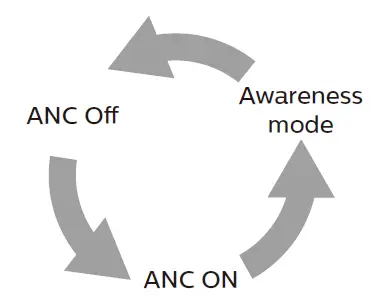
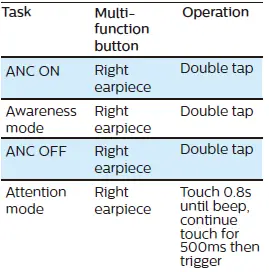
ANC LED indicator status 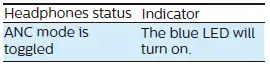
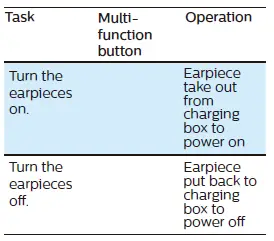
Power on/off
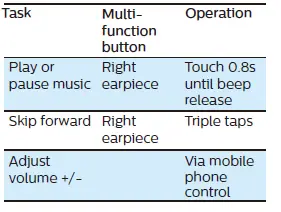
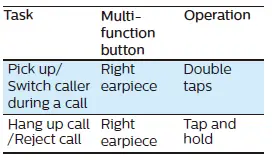
Manage your calls and music
Charging Box (3 blue LED)
Charging Box (3 blue LED)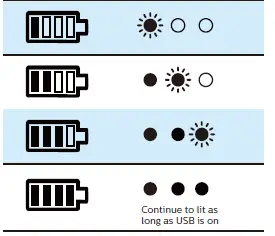
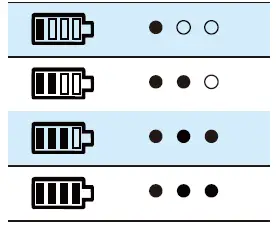
LED indicator status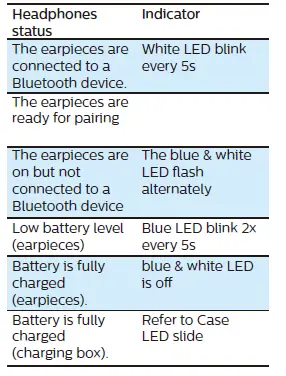 Battery LED indicator on Bluetooth device
It will show a battery indicator on the Bluetooth device after being connected to the earpieces.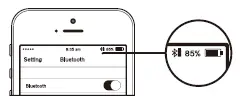
Voice Assistant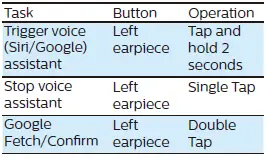
How to wear
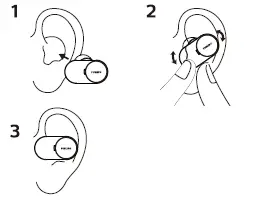
Reset the earpieces
- Tap & hold multi-function touch for >25s on each earpiece individually.
- To pair the headset with a Bluetooth device, Earpiece put back to charging box to power of.
- Open the top cover from charging box, press and hold the pairing button from charging box back for approximately 3 seconds.
- Then, turn on the Bluetooth function of your Bluetooth device, select Philips T1.
Technical data
- Music time ANC enabled: 5 hours | ANC disabled with Bluetooth: 6 hours
- Talk time ANC enabled: 5 hours |
- ANC disabled: 6 hours
- Standby time 200 hours
- Charging time: 1.5 hours
- Lithium-ion battery 55 mAh on each earpiece, Lithium-ion battery 560 mAh on charging box
- Bluetooth version: 5.0
- Compatible Bluetooth profiles:
- HSP (Hands-Free Profile-HFP)
- A2DP (Advanced Audio Distribution Profile)
- AVRCP (Audio Video Remote Control Profile)
- Supported audio codec: SBC, AAC
- Frequency range: 2.402-2.480 GHz
- Transmitter power: < 10 dBm
- Operating range: Up to 10 meters (33 feet)
- Auto power of
- USB-C port for charging
- Wireless charging
- Low battery warning: available
Notice
Declaration of conformity
Hereby, MMD Hong Kong Holding Limited declares that this product is in compliance with the essential requirements and other relevant provisions of Directive 2014/53/EU. You can and the Declaration of Conformity on www.p4c.philips.com
Disposal of your old product and battery
Your product is designed and manufactured with high-quality materials and components, which can be recycled and reused. This symbol on a product means that the product is covered by European Directive 2012/19/EU. This symbol means that the product contains a built-in rechargeable battery covered by European Directive 2013/56/EU which cannot be disposed of with normal household waste. We strongly advise you to take your product to a collection point or a Philips service centre to have a professional remove the rechargeable battery. Inform yourself about the local separate collection system for electrical and electronic products and rechargeable batteries. Follow local rules and never dispose of the product and rechargeable batteries with normal household waste. Correct disposal of old products and rechargeable batteries helps prevent negative consequences for the environment and human health.
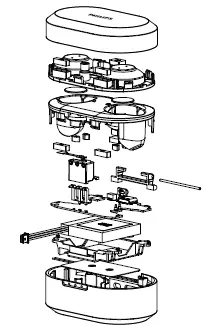
Remove the integrated battery
If there is no collection/recycling system for electronic products in your country, you can protect the environment by removing and recycling the battery before disposing of the headphones.
- Make sure the earpieces is disconnected from the charging box before removing the battery

- Make sure the charging box is disconnected from the USB charging cable before removing the battery.

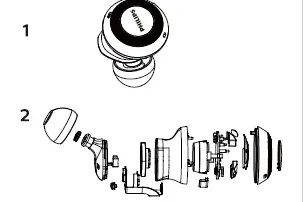
Compliance with EMF
This product complies with all applicable standards and regulations regarding exposure to electromagnetic fields.
Environmental information
All unnecessary packaging has been omitted. We have tried to make the packaging easy to separate into three materials: cardboard (box), polystyrene foam (buller) and polyethylene (bags, protective foam sheet.) Your system consists of materials which can be recycled and reused if disassembled by a specialized company. Please observe the local regulations regarding the disposal of packaging materials, exhausted batteries and old equipment
Trademarks
Bluetooth
The Bluetooth® word mark and logos are registered trademarks owned by Bluetooth SIG, Inc. and any use of such marks by MMD Hong Kong Holding Limited is under license. Other trademarks and trade names are those of their respective owners
Siri
Siri is a trademark of Apple Inc., registered in the U.S. and other countries
Google
Google and Google Play are trademarks of Google LLC.
FAQS
My Bluetooth headset does not turn on.?
The battery level is low. Charge the headset.
I cannot pair my Bluetooth headset with my Bluetooth device.?
The Bluetooth is disabled. Enable the Bluetooth feature on your Bluetooth device and turn on the Bluetooth device before you turn on the headset.
Pairing does not work?
Put both earpieces into charging box. Make sure you have disabled the Bluetooth function of any previously connected Bluetooth devices.
The Bluetooth device cannot find the headset.?
The headset may be connected to a previously paired device. Turn of the connected device or move it out of range. Pairing may have been reset or the headset has been previously paired with another device.
My Bluetooth headset is connected to a Bluetooth stereo enabled mobile phone, but music only plays on the mobile phone speaker.?
Refer to the user manual of your mobile phone. Select to listen to music through the headset.
The audio quality is poor and crackling noise can be heard.?
The Bluetooth device is out of range. Reduce the distance between your headset and Bluetooth device, or remove obstacles between them. Charge your headset
The audio quality is poor when streaming from the mobile phone is very slow, or audio streaming does not work at all.?
Make sure your mobile phone not only supports (mono) HSP/HFP but also supports A2DP and is BT4.0x (or higher) compatible (see ‘Technical data’ on page 10).
Are Philips wireless headphones good?
Sound quality is good, it could be better. Battery life lasts just as advertised. Overall, if you’re not looking to spend too much on headphones, these are good for the pric
Are the Philips Fidelio l3 headphone Hi Res certified?
These headphones are Hi-Res audio certified for the full range of responses and clarity that you haven’t heard before.
How do I pair my Philips Fidelio headphones?
Turn on your mobile phone/ Bluetooth device. Press and hold the on/o button to turn the headphones on
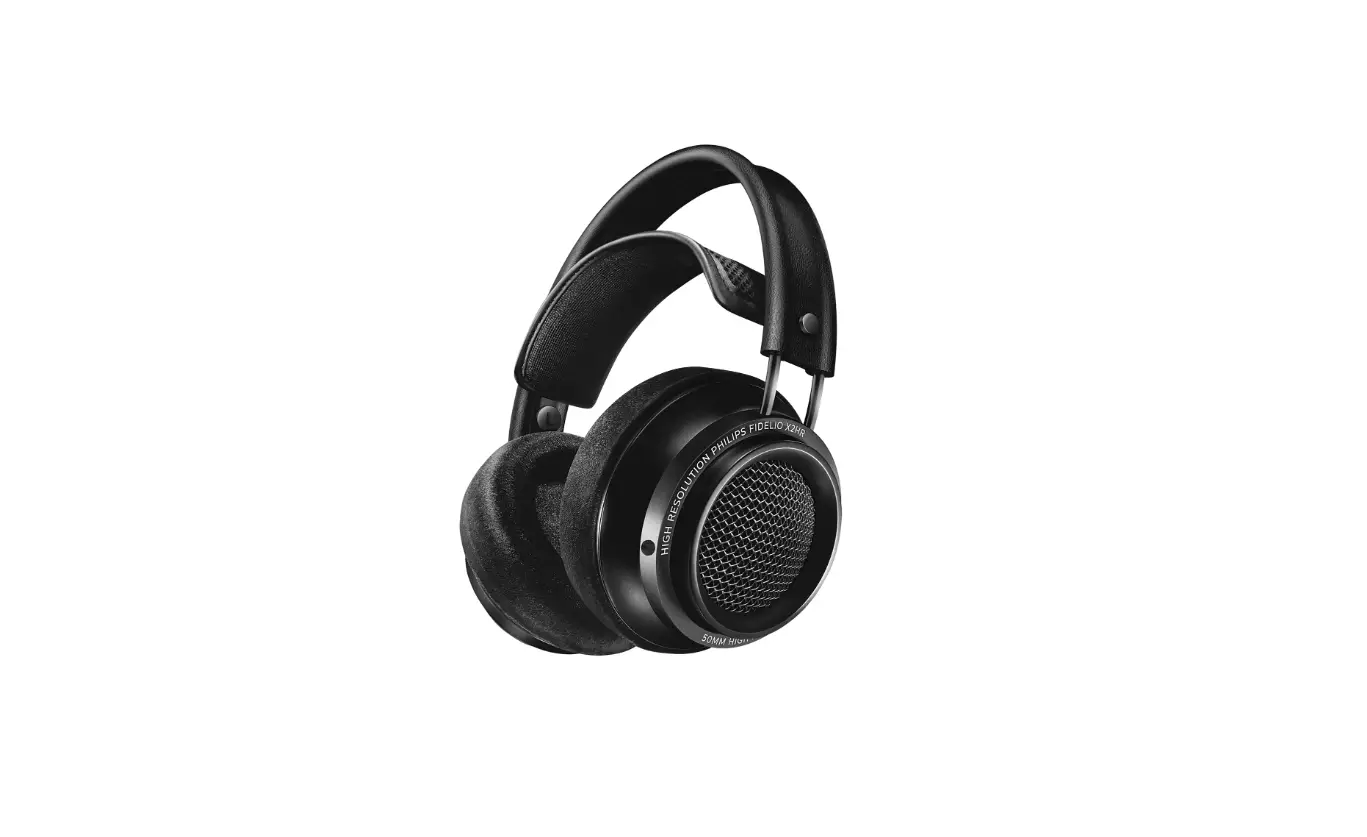
Is Philips Fidelio X2HR wireless?
The Philips Fidelio X2HR are wired-only headphones that don’t support Bluetooth. These are wired-only headphones
Why won t my Philips wireless headphones connect?
If you encounter problem with pairing or connecting your Philips Bluetooth headphones with your smartphone, try the following.
How do I reset my Philips wireless headphones?
When the headphones are powered off, press and hold for 10 seconds. The headphones are powered on, entered the pairing mode and then powered off. The factory setting is reset.
How do I reset my Philips Fidelio?
Press and hold both earpieces function button for 4s,until earpieces flashes twice white led. PHILIPS Fidelio M2BT: Press volume/track control button and call music button until the LED flashing white for 5 times sequentially.
Why is my Philips control not working?
If the TV does not respond, the remote control may be low in battery power and you need to replace the battery.