mirabella genio 1003992 Smart Aurora Sky Projector with Bluetooth Speaker User Guide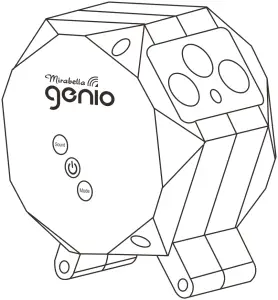
Introduction
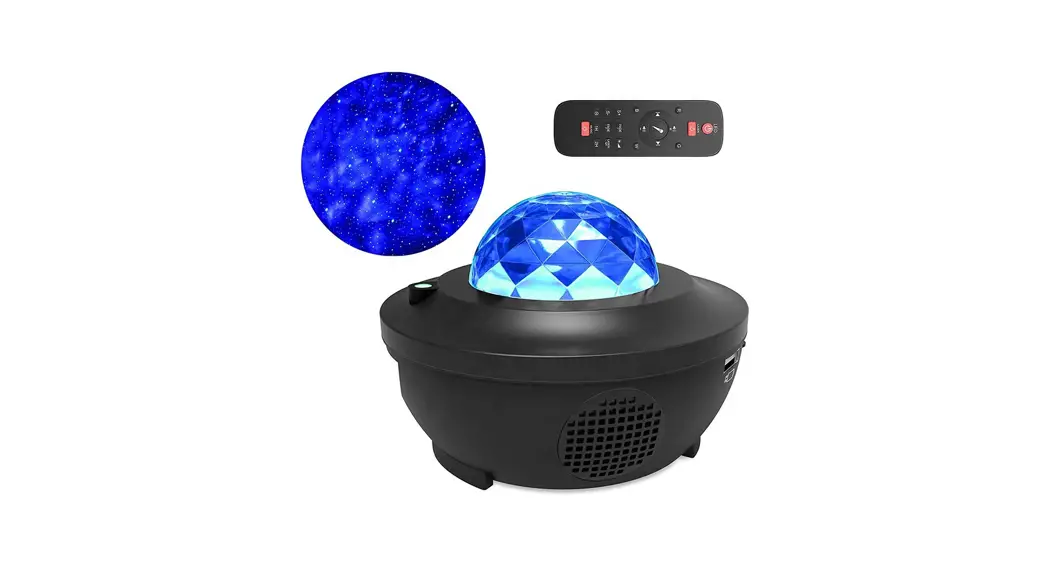
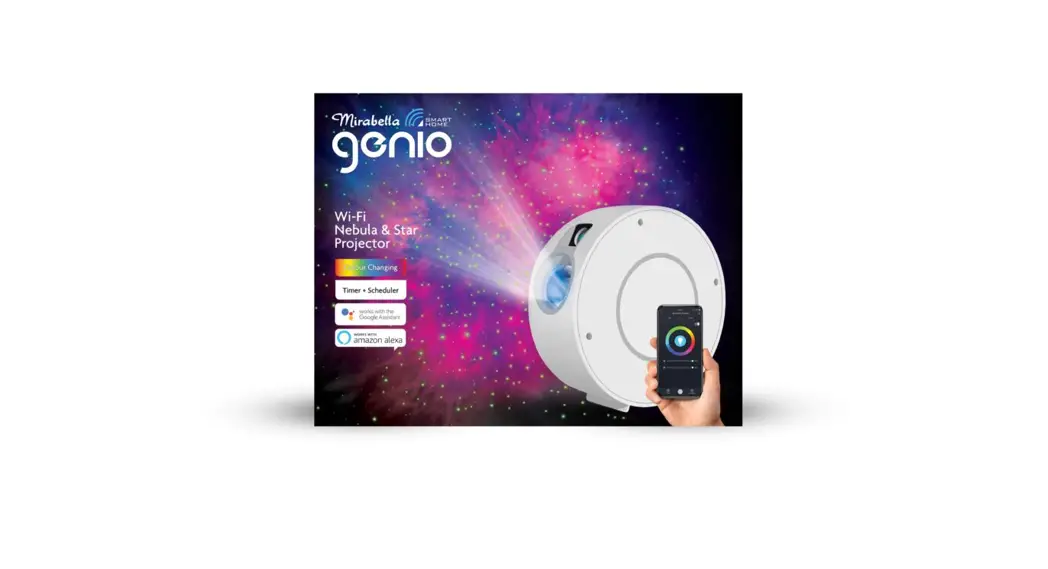
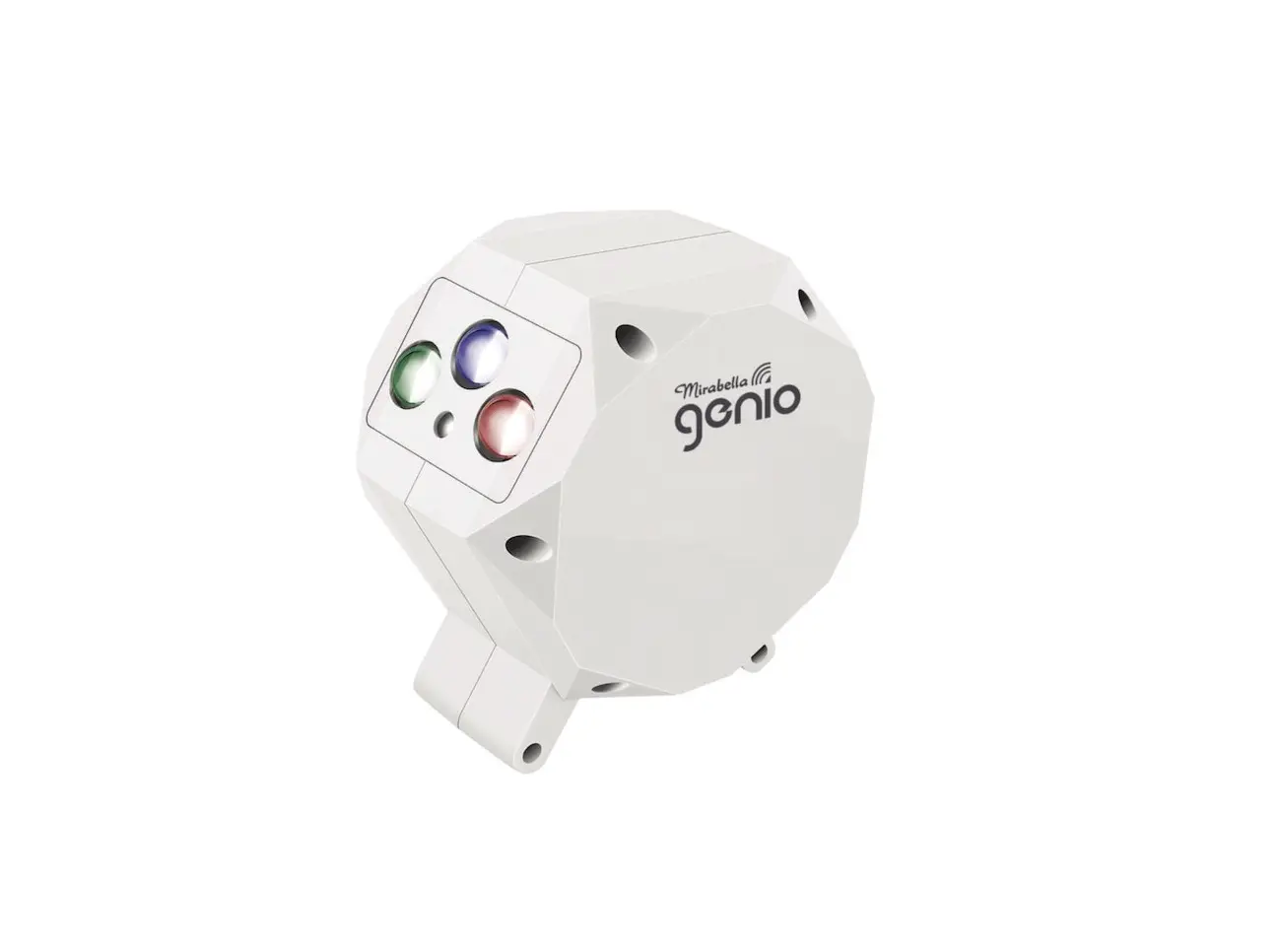
The smart star projector can project the starry sky onto your ceiling with floating colourful clouds, it gives you the visual experience of the milky way and galaxy nebula without stepping outside your room.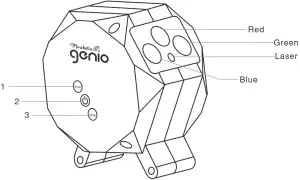
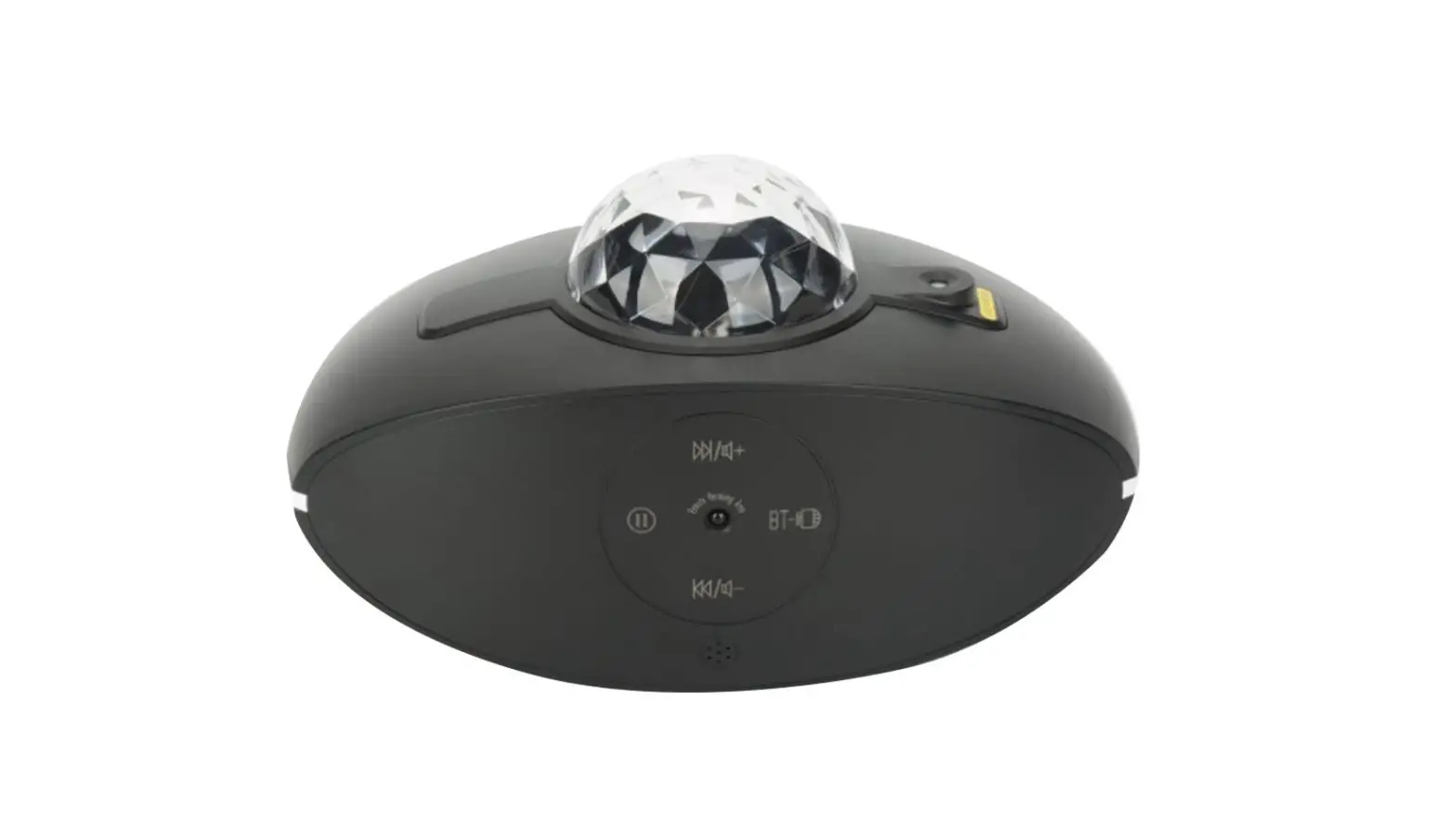
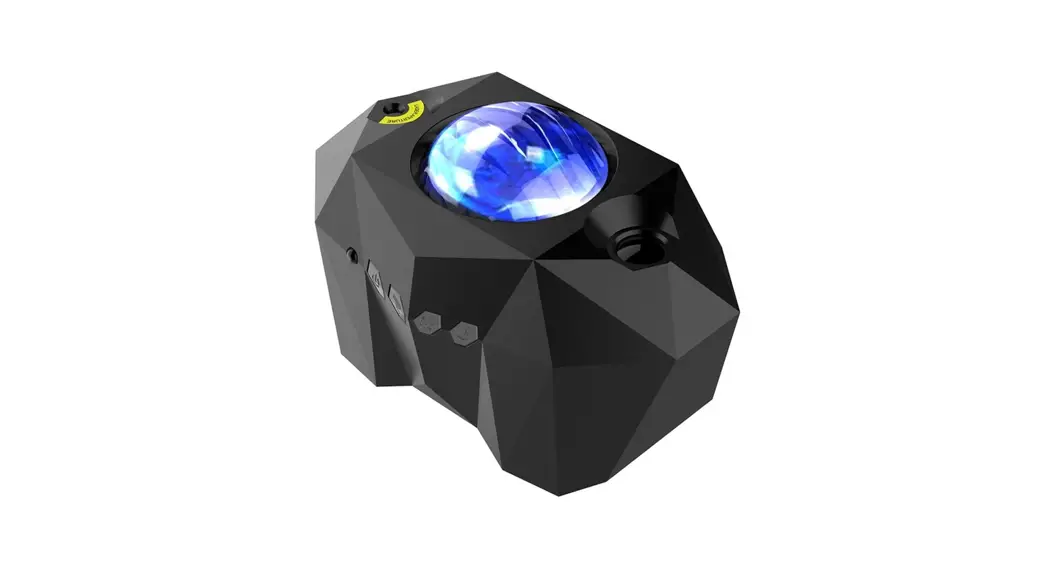
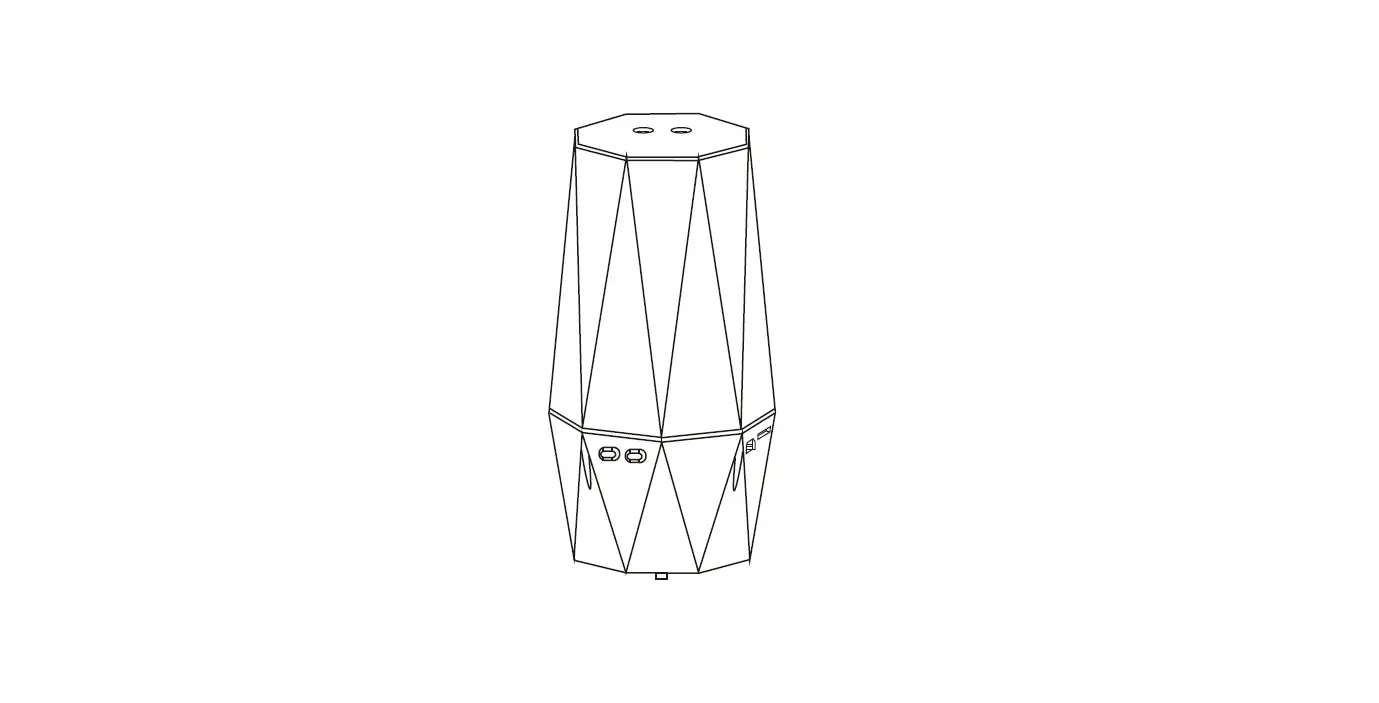
- Power button (short press for ON/OFF function, long press and hold this button, for pairing mode)
- Sound (press this button to enable the music sync mode)
- Mode (press this button projector will automatically go through the different projection modes).
Specification
| Classification of lasers | Class 1 |
| Work Temperature | -10-40°C |
| Wireless Type | WiFi 2.4Ghz |
| Laser | Green |
| LED | Green, Red, Blue |
| Application | Indoor use |
| Control by | Amazon Alexa, Google Home, APP |
| Dimensions(cm) | 16L*9W*14.5H |
| Power Input | 12V 1A |
Warnings
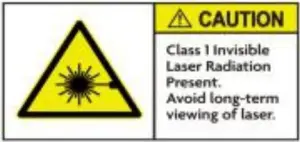
Please keep away from children. Children need to use it under adult supervision.
Please use the product in line with instructions.
Do not stare directly at the projection lens.
Do not disassemble and assemble by yourself.
For indoor use only.(Works best in a dark environment)
Only use with the adaptor provided.
Do not point the laser light at a person or pet.
Please keep away from water to avoid damage.
Do not cover the laser light.
Use the projector as a Bluetooth speaker
- The Bluetooth feature of the projector is turned ON by default, and there is a voice prompting “Bluetooth Mode” when it is powered on.
- Turn ON the Bluetooth on your smartphone, and set it to search for new devices.
- Look and select the “Genio projector” from the list of devices.
- Once it is paired, you will hear a voice prompt ” Bluetooth pairing Successful”.
Manual control mode
If you have difficulty pairing this star projector to your Genio APP, you can still use it manually without the need of Wi-Fi pairing. Simply wait for the blue light to stop blinking (can take up to 3 minutes), then this projector can be operated with the onboard buttons.
Sound (press this button for the music sync mode)
Power (short press for ON/OFF, long press and hold this button, for pairing mode)
Mode (press this button projector will automatically go through the different projection modes)
To prepare this projector for pairing with the APP, simply press and hold the Power button until the light starts to blink Blue rapidly, the projector is now ready to be paired with Genio App, and if no action is taken, after 3 minutes it will stop blinking, once it has stopped blinking it will return to manual control mode.
Connection Preparation for it to be used with the Genio App.
Your phone must be connected to 2.4Ghz Wi-Fi and not to the 5GHz network. To verify your mobile device is set to a 2.4Ghz Wi-Fi network, navigate to the Settings menu and click on Wi-Fi. In this menu, you will see all the detectable networks in your area. Locate the SSID (the name of your network) and ensure that the Wi-Fi SSID does not end with a 5G/5GHz. Refer to the example below.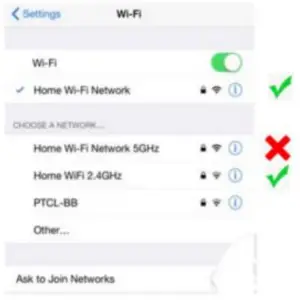
Once you have confirmed that you have selected the 2.4GHz network, check that you have a strong Wi-Fi signal (at least two bars) in the location where the smart device is to be installed.
If you don’ t have at least two bars signal on your phone, then you may need to reconsider relocating the smart device to a different location or obtain a Wi-Fi extender to boost the Wi-Fi signal strength.
Install the APP and register Account
For the best experience, download the “Mirabella Genio” APP to your smartphone from the App Store or Google Play, Genio APP icon will be displayed after it has been installed successfully.
Bluetooth Pairing method
Our latest genio range has the Bluetooth pairing assistant function, to make the pairing even easier than before, to take advantage of this function, please turn ON your phone’s Bluetooth.
Press and hold the POWER button and wait for the projector to start blinking, once the BLUE led light is blinking, the projector is ready to pair.
- Open the Mirabella Genio APP, tap on the “+” on the top right
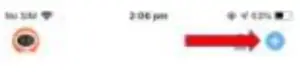
- Genio APP will automatically discover the projector, tap on Go to add,
- Then select the plus symbol +, then enter your 2.4Ghz Wi-Fi name and password (don’ t use Wi-Fi name that is end with -5G)
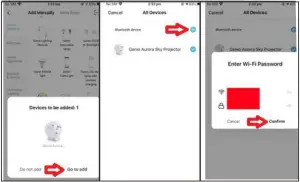
- Wait for the projector to be added to your Genio APP
If the Bluetooth method doesn’t work for you, please turn the Bluetooth OFF on the phone, then try the EZ method below
Pairing the Star Projector using Mirabella Genio App (EZ method)
- Connect the power to the projector using the supplied adapter then switch it on. Wait for it to start blinking.
- If it failed to blink, Press and hold the POWER button, the LED light will start blinking BLUE rapidly (2 blinks per second) — The projector is now ready to pair.
- Launch the Mirabella Genio APP, then tap on “+” symbol, then choose Electrical, and select Star Projector from the menu.
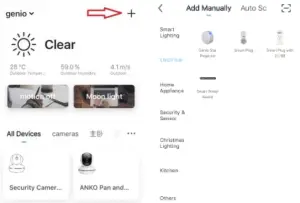
Follow the APP’s instructions carefully to complete the network pairing process.
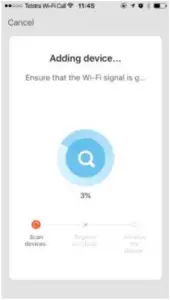 | Please pay attention to the screen to determent the cause of time-out error If the light never stops blinking, there is an issue with your phone setting. For example “local network” permission is not turned on for Genio APP. if the light does stop blinking but is unable to progress to “register on cloud” it indicates a communication error with your router to our cloud service (please disable 5Ghz Wi-Fi and keep 2.4Ghz Wi-Fi only) | Please check and ensure
|
PLEASE NOTE: this projector doesn’t have slow blinking AP method.
APP interface (may subject to change with firmware update)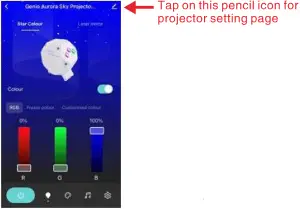
 On/off;
 Setting up LED% color and Lasers speed;
 Choosing Profiles
 Adjusting Music
 Timer/Countdown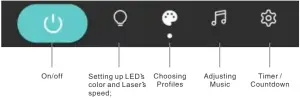
FAQ
How to connect aurora sky projector to another Wi-Fi network/genio account?
Go to the aurora sky Projector’ settings page, look for “remove device” Remove it and reset the star projector and pair it again through the APP.
Aurora sky projector goes offline and doesn’t reconnect back after power failure?
Go to the aurora sky Projector’ settings page, look for “remove device” Remove it and reset the aurora Projector and pair it again through the APP.
Using the EZ method and still Receive the time out Cannot find Device error?
If you are using android device, Try borrow an ‘pad or iphone to pair, download the Genio APP to ipad or iphone, log in using your existing genio user name and password, pair it, then go back to your android device, it will show up under your account
Ensure Projector is in a location with strong Wi-Fi signal coverage
Manually disable the 5Ghz Wi-Fi signal on the router setting (please contact your internet provider if you are not sure how to disable it, after you successfully pair the device, you can turn the 5Ghz Wi-Fi back on)
Ensure that the 2.4Ghz Wi-Fi signal is on.
Ensure only the BLUE LED is blinking rapidly
Please double check you have entered the correct 2.4Ghz Wi-Fi SSID and password
I am using Telstra NBN, and i cannot get it to pair?
Please try the instruction on https://www.mirabellagenio.com.au/faqs/
If you have done all of the above, ensuring that the 5Ghz is disabled and still failed to connect, then your modem could be incompatible with smart device or you may have reached the max number of the Wi—Fi devices your router can support.
Made in China
MIRABELLA INTERNATIONAL PTY LTD
1 MIRABELLA DRIVE, TULLMARINE, VIC, AUSTRALIA 3043
TOLL FREE: 1800 636 528.
www.mirabellagenio.com.au