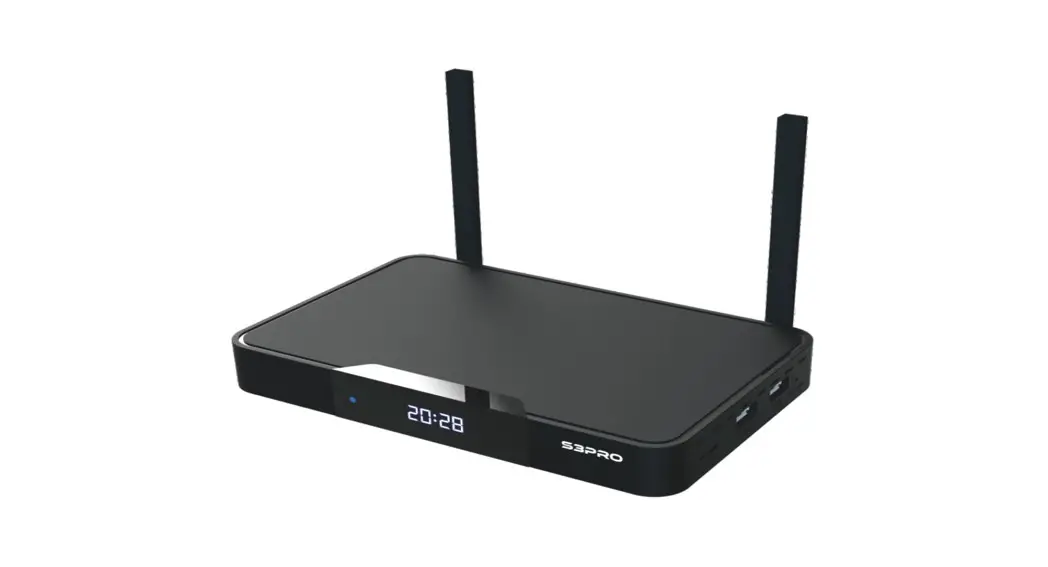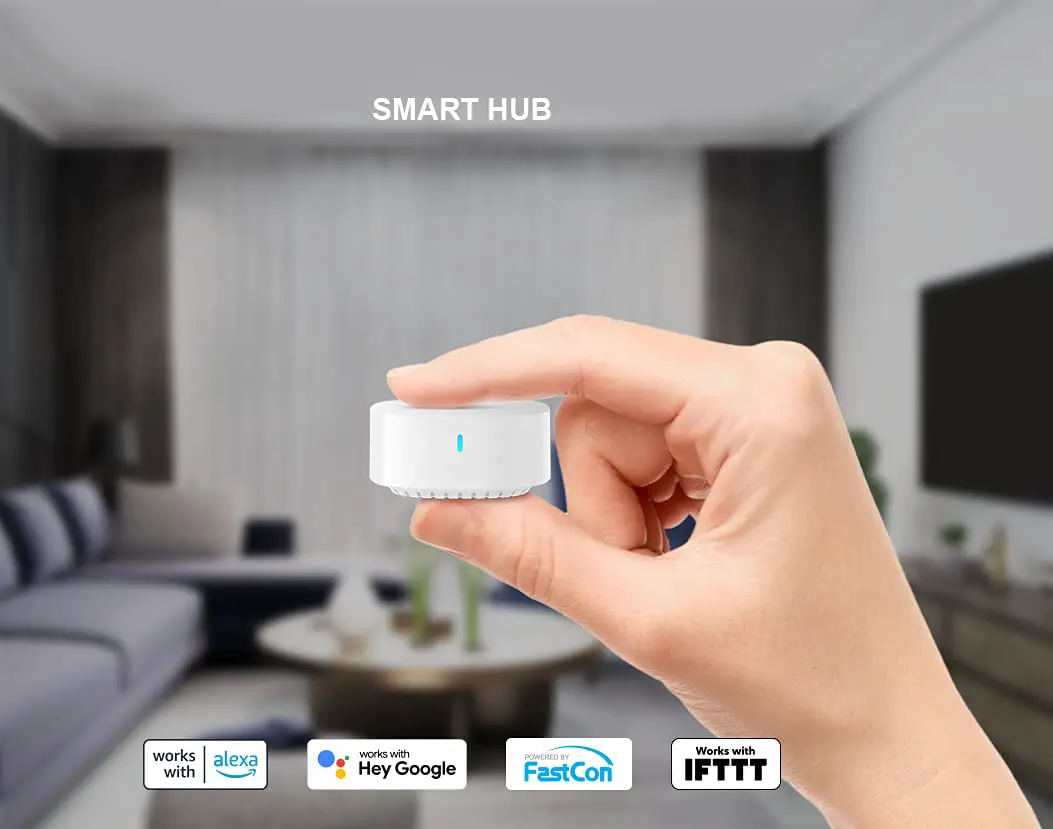

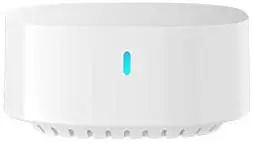
BroadLink S3 Smart Hub
Overview
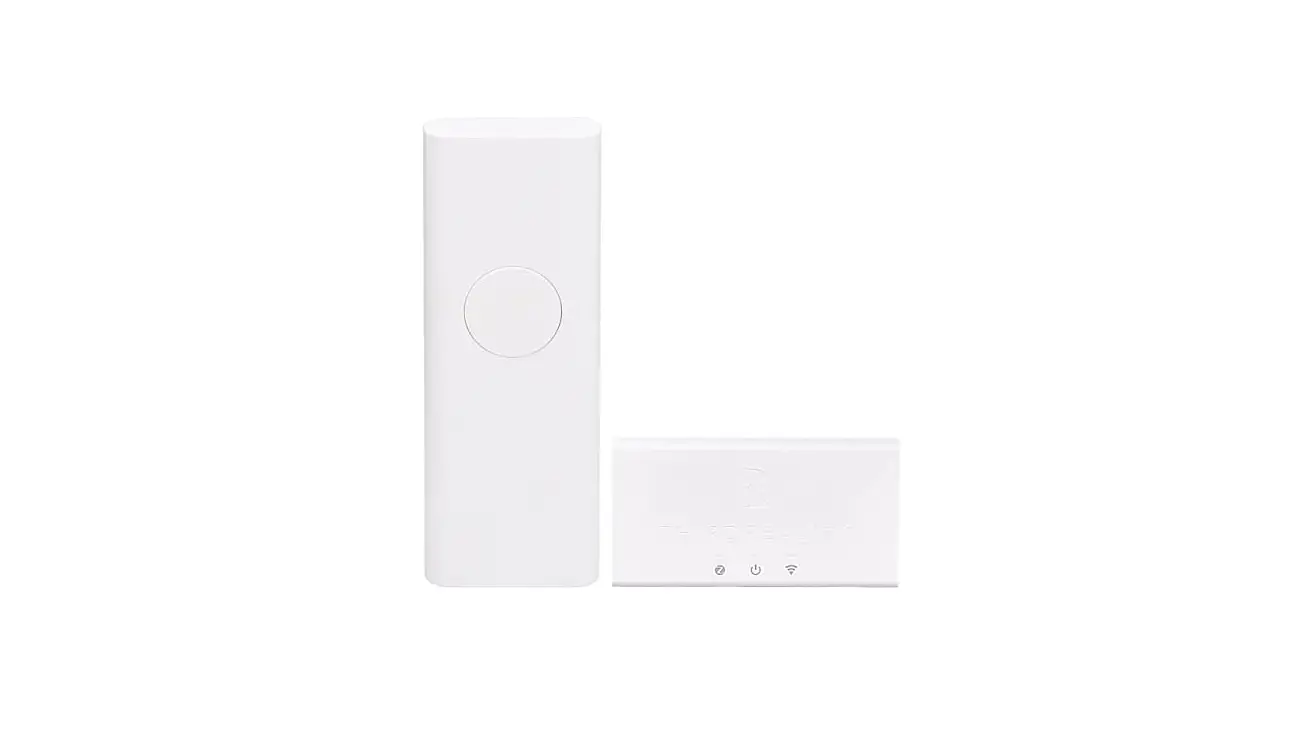
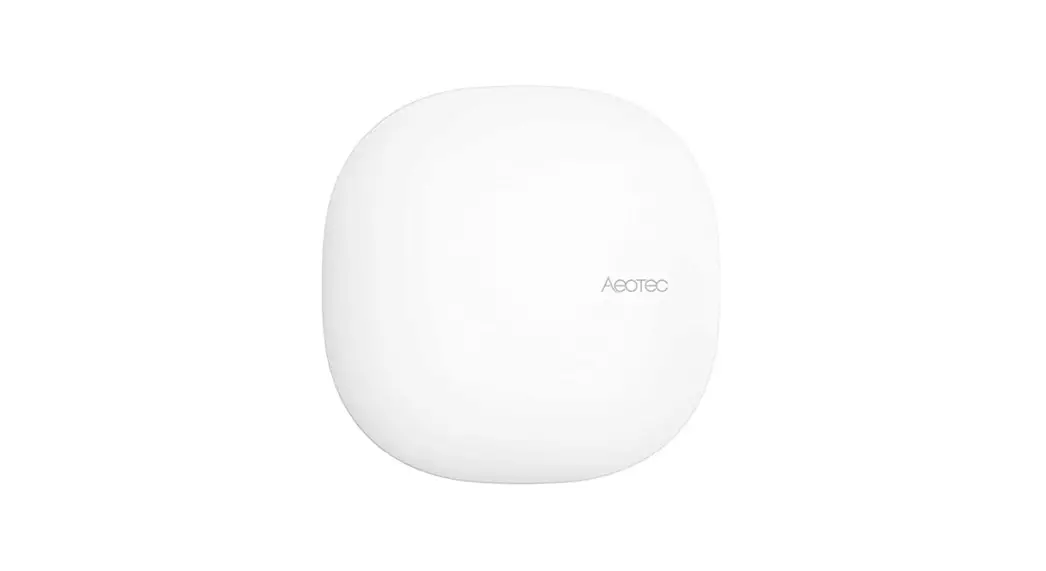
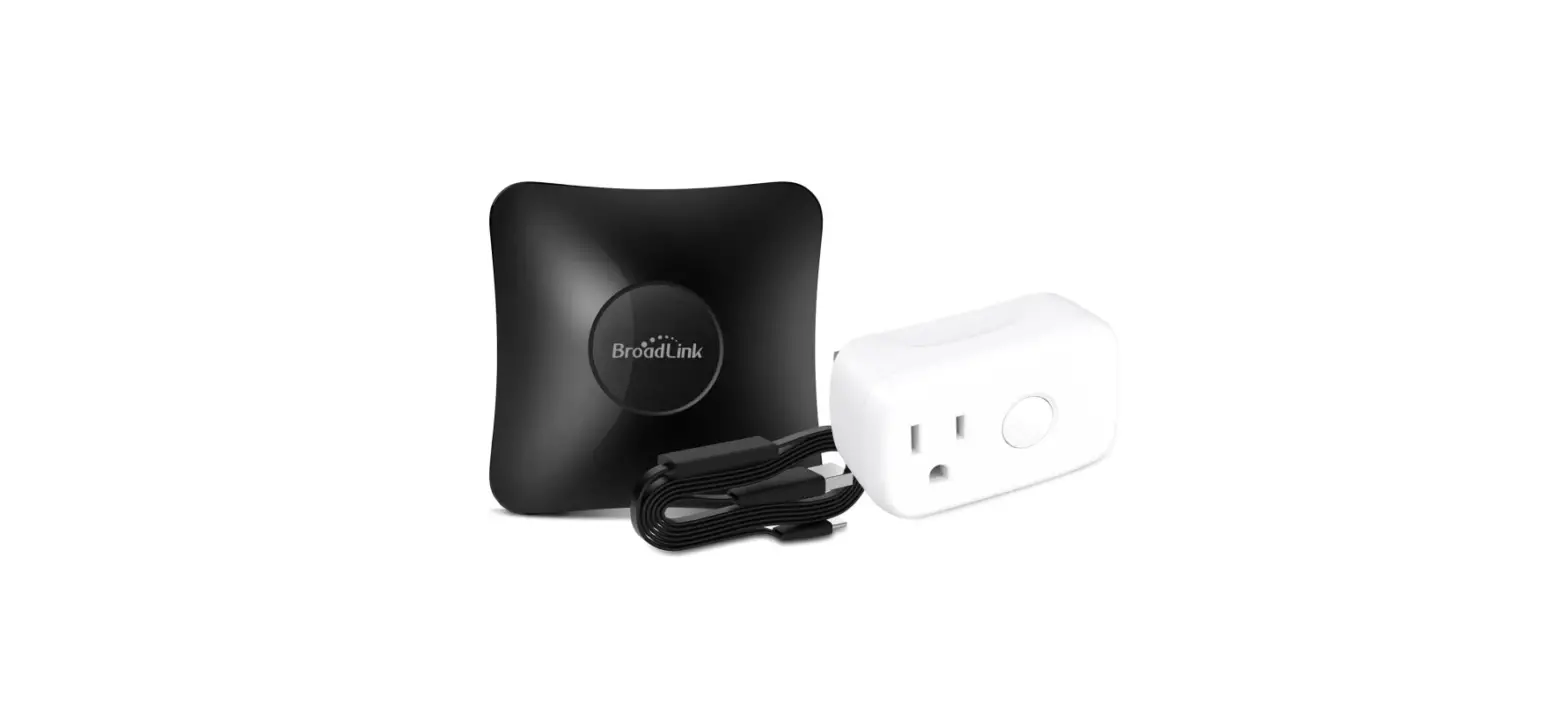
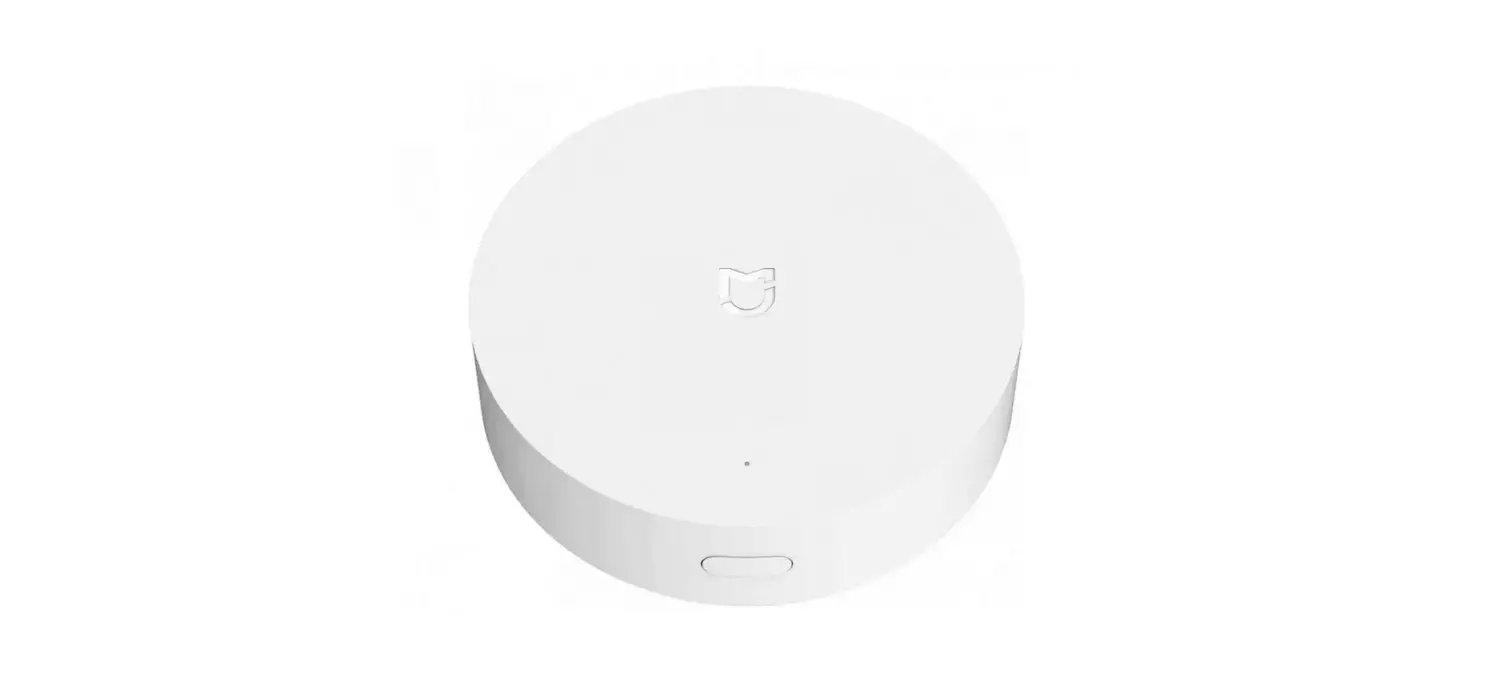
After opening package, please check contents as below. 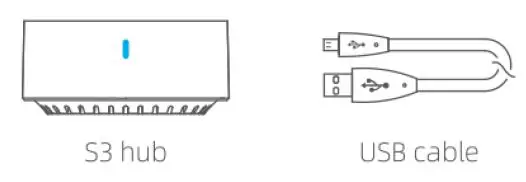
NOTE: Please use standard 5V Micro USB power supply not less than lA to power the device. DO NOT use multi-port shared USB power supply.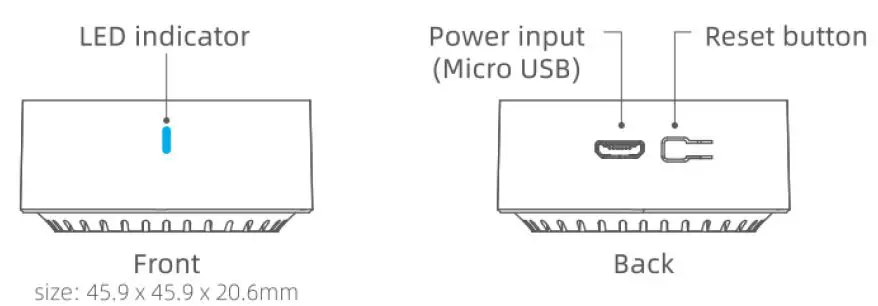
Indications
| Status Flashes quickly (5 times/sec) | Indication Device is in Smart Setup mode (waiting to be added). |
| Flashes intermittently | Device is in AP Setup mode (waiting to be added) |
| Flashes slowly then off | Device is being set up and added to network |
| Flashes slowly continuously | Device is failed to connect to network or disconnected from network |
Reset for AP Setup
When the device is in any conditions, press and hold the reset button for 5s until the LED flashes intermittently. DO NOT hold longer than 1 Os, otherwise it will go to Smart Setup mode.
Reset for Smart Setup
When the device is in any conditions, press and hold the reset button for 1 Os until the LED flashes quickly.
Step 1: What’s required 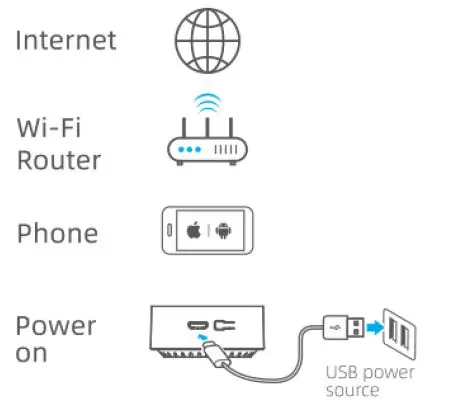
- A smartphone or tablet running iOS 9.0 / Android™ 4.1 or higher
- A 2.4GHz Wi-Fi network with Internet connection.
- Power on the device and make sure the LED indicator is flashing intermittently.
STEP 2: Get the APP 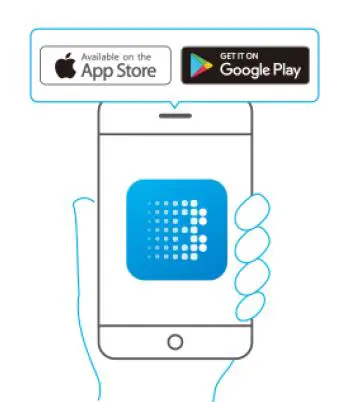
- Connect your smartphone to your home Wi-Fi network (2.4GHz only)..
- Download the latest “BroadLink” APP from APP Store, Google Play and install it on your smart phone.
STEP 3: Sign in APP 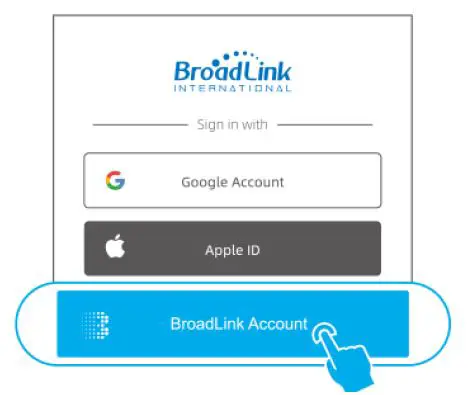
- Open the Broad Link APP, tap “BroadLink account” and sign in to your cloud account.
- If you don’t have an account, tap the “Sign up” to create a new account.
- Link your account with Apple ID or Google account for quick sign-in next time (optional).
STEP 4: Add device in APP
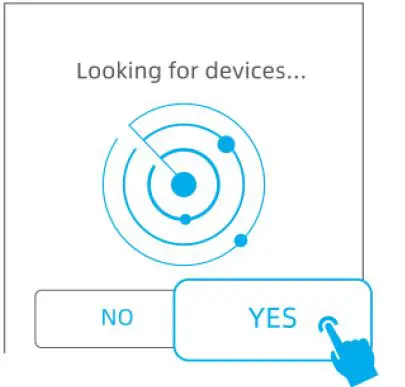
- Tap “+” on top right corner and choose “Add device”.
- Select “YES” to get to next step.
- The APP will start to scan and look for your device SSID “BroadLink -WiFi -Device” automatically, it may take up to 1 minute.
STEP 5: Connect device to Wi-Fi network
- Choose your home Wi-Fi network, input password and tap “Connect to Wi-Fi”, the LED indicator will be flashing slower and then off. The device is successfully connected.
- Choose the room and name the device.
Online support
- APP “Help center”
- Sign in BroadLink APP
- Tap 0 on top of APP homepage to access help center for more information of each product and APP functions.
- Tap “Feedback” on bottom to submit your issue for our prior customer support.
- Tutorial video
- Search “BroadLink International” to find device setup video in YouTube.
- You can also use other social platforms to get more information.
FCC radiation exposure statement
- Contains FCC ID: 2ACDZ-BL3335-P
- This device complies with Part 15 of the FCC Rules. Operation is subject to the following two conditions:
- This device may not cause harmful interference, and this device must accept any interference received, including interference that may cause undesired operation.
Important notices
- For indoor use in dry environment only.
- Use UL listed power adapters with adequate output, otherwise the device may not work properly.