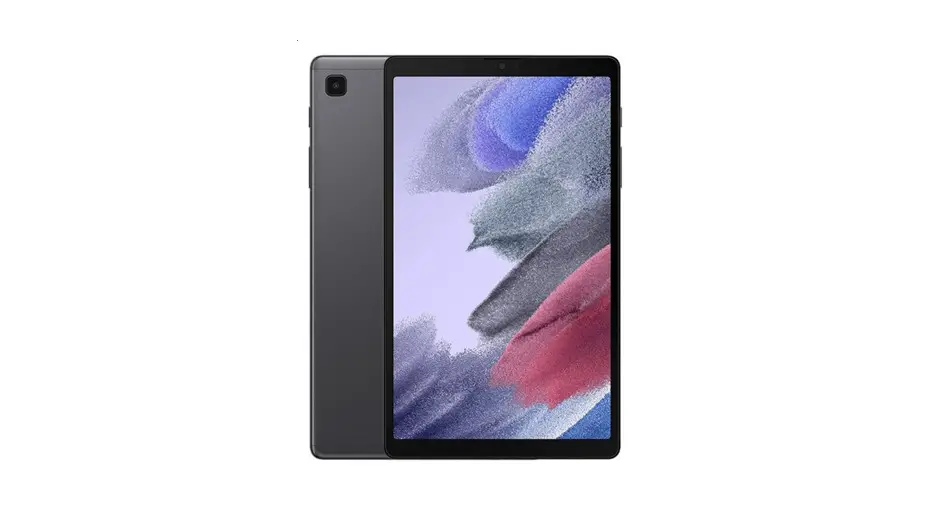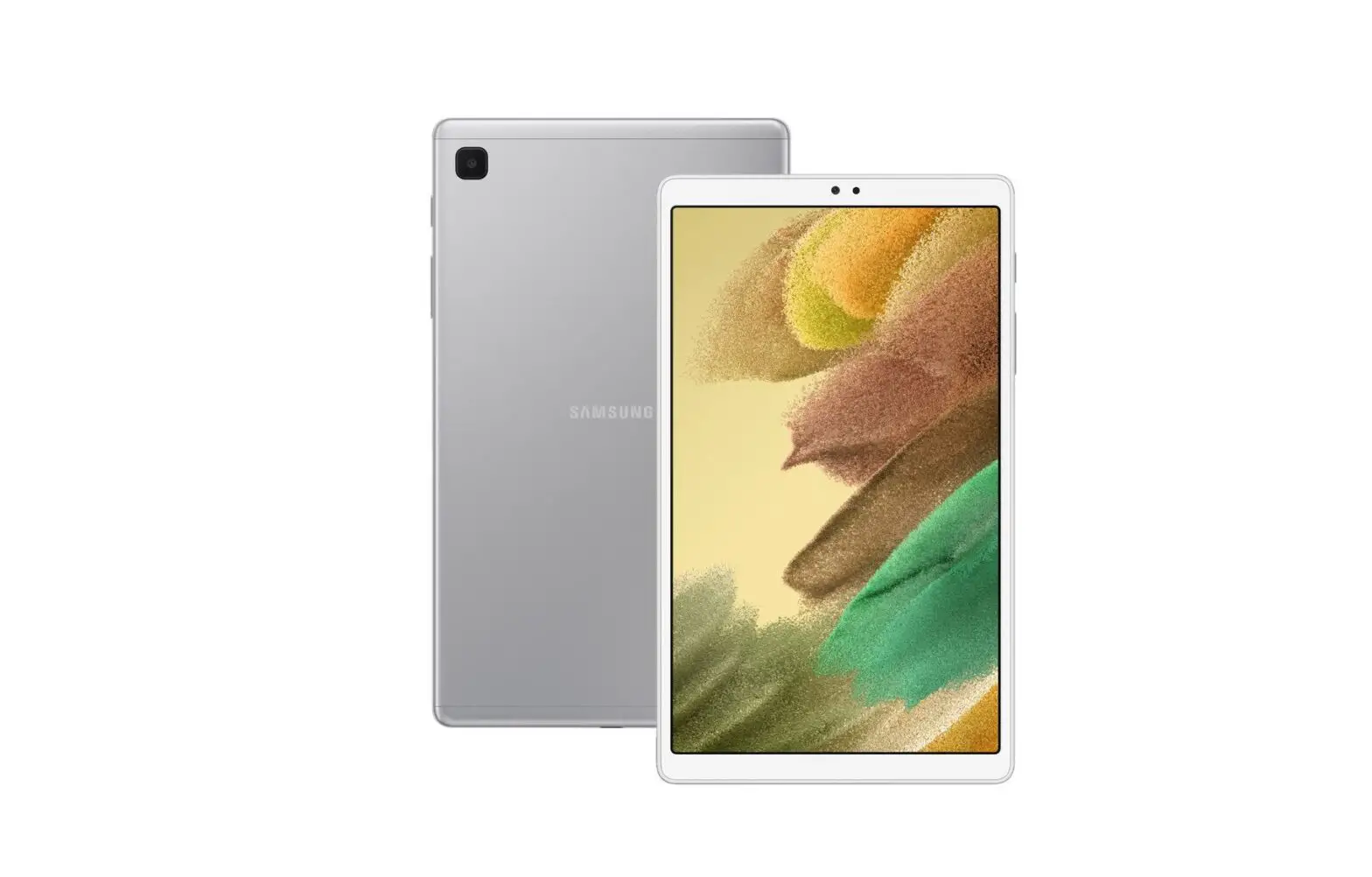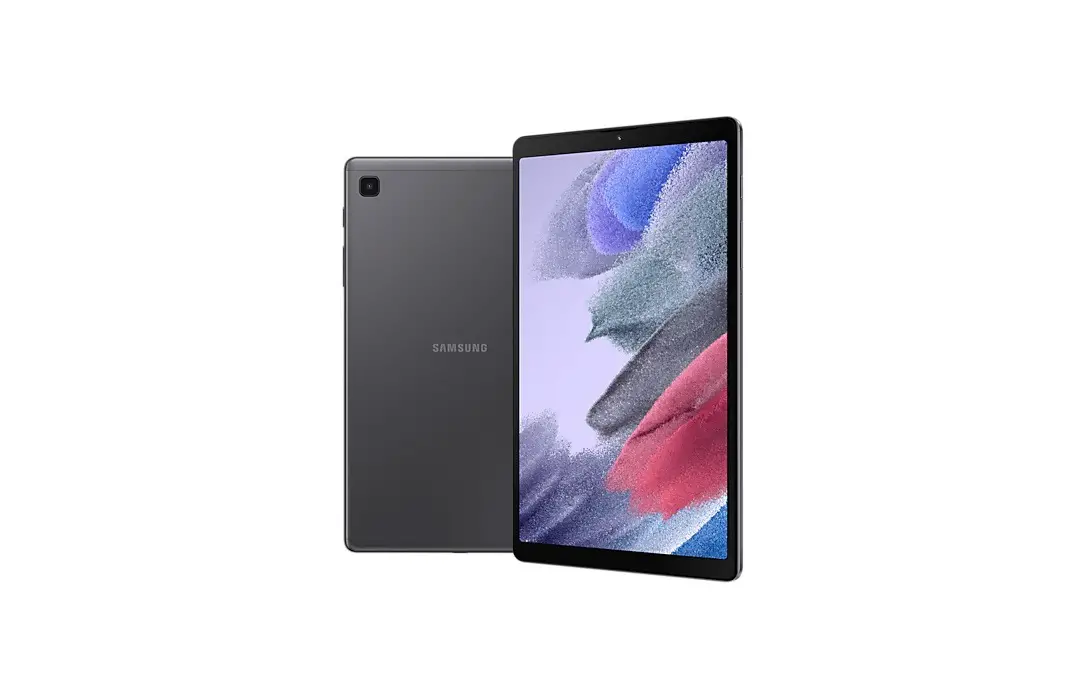
Samsung Galaxy Tab A7 Lite Emergency alerts
Learn how to set alerts, ringtones, and notifications on the Samsung Galaxy Tab A7 Lite.
Emergency alerts
- From the Home screen, swipe up on an empty spot to open the Apps tray.
- Tap Notifications > Advanced settings > Wireless emergency alerts.
- Select from the following options:
- Allow alerts (on / off)
- Presidential alerts (on / off)
- Extreme threats (on / off)
- Severe threats (on / off)
- AMBER alerts (on / off)
- Public safety messages (on / off)
- State/local test (on/ off)
- Emergency alert history
- Vibrate (on/ off)
- Alert reminder sound
- Speak alert message (on/ off)
Notifications
You can prioritize and streamline app alerts by changing which apps send notifications and how notifications alert you.
Notification pop-up style
To can change the style and additional settings for your notifications follow these steps.
- Tap Settings.
- Tap Notifications, and then choose a pop-up style.
- Brief: Enable customization of your notification colors, lighting style, and included apps.
- Included apps: View brief notifications for your apps.
- Brief pop-up settings: Customize the Edge lighting style, colors, and enable notifications to show even while the screen is off.
- Detailed: Enable the default Samsung Notification settings.
Recently sent notifications
To view a list of apps that have sent notifications under Recently sent notifications follow these steps.
- Tap Settings > Notifications.
- Tap an entry under Recently sent to customize the notification settings.
- Tap More to see the expanded list.
Do not disturb
Do not disturb allows you to block sounds, notifications, set exceptions for people, apps, alarms, and schedule for recurring events like sleep or meetings. To activate this feature follow these steps.
- Tap Settings.
- Tap Notifications > Do not disturb and configure the following.
- Do not disturb: Enable Do not disturb to block sounds and notifications.
- For how long?: Choose a default duration for Do not disturb mode when you enable it manually.
- Sleeping: Customize a schedule for Do not disturb mode while you are sleeping.
- Add schedule: Create a new schedule to configure the days and times to regularly put your device in Do not disturb mode.
- Calls, messages, and conversations: Tap to allow Do not disturb exceptions.
- Alarms and sounds: Enable sounds and vibrations for alarms, events, and reminders while Do not disturb mode is active.
- Apps: Add apps that you would like to receive notifications from in Do not disturb mode. Call, message, and conversation notifications will still reach you even if you don’t allow the associated apps.
- Hide notifications: View customization options to hide notifications.
Advanced settings
To configure notifications from apps and services follow these steps.
- Tap Settings.
- Tap Notifications > Advanced settings.
- Show notification icons: Modify how many notifications appear on the Status bar.
- Show battery percentage: Display the current battery life of your device on the Status bar.
- Notification history: Display recent and snoozed notifications.
- Conversations: View conversation notifications. Touch and hold a conversation notification to mark it as priority, set it as alerting, or silent.
- Floating notifications: Enable floating notifications in either Bubbles or Smart pop-up view.
- Suggest actions and replies for notifications: Get applicable suggestions for actions to notifications and replies to messages.
- Notification reminders: Enable and customize periodic reminders about notifications from selected apps and services. Clear notifications to stop the reminders.
- App icon badges: Identify which apps have active notifications with badges that appear on their icons. Tap to choose whether or not badges indicate the number of unread notifications.
- Wireless Emergency Alerts: Customize notifications for emergency alerts.
Sounds and vibration
You can control the sounds and vibrations used to indicate notifications, screen touches, and other interactions.
Sound mode
To can change the sound mode on your device without using the volume keys follow these steps.
- Tap Settings.
- Tap Sounds and vibration, and then choose a mode.
- Sound: Use the sounds, vibrations, and volume levels you have chosen in Sound settings for notifications and alerts.
- Vibrate while ringing: Set your device to vibrate in addition to ringing when you receive a call.
- Vibrate: Use vibration only for notifications and alerts.
- Mute: Set your device to make no sounds.
- Temporary mute: Set a time limit for muting the device.
Vibrations
To control how and when your device vibrates follow these steps.
- Tap Settings > Sounds and vibration.
- Tap the following options to customize.
- Notification vibration pattern: Choose from preset vibration patterns for notifications.
- Vibration intensity: Set vibration intensity levels for calls, notifications, and touch interactions by dragging the sliders.
Volume
To set the volume level for call ringtones, notifications, media, and system sounds follow these steps.
- Tap Settings.
- Tap Sounds and vibration > Volume.
- Drag the sliders for each sound type.
Notification sound
To choose a preset sound for all notification alerts follow these steps.
- Tap Settings > Sounds and vibration > Notification sound.
- Tap a sound to hear a preview and select it.
System sound
To choose a sound theme to use for touch interactions, charging, changing the sound mode, and Samsung Keyboard, and more follow these steps.
- Tap Settings.
- Tap Sounds and vibration > System sound and choose an available option.
System sounds and vibration
To customize your device’s sounds and vibrations for actions like tapping the screen and charging the device follow these steps.
- Tap Settings.
- Tap Sounds and vibration > System sound/vibration control for the following options.
- Sound
- Touch interactions: Play tones when you touch or tap the screen to make selections.
- Screen lock/unlock: Play a sound when you lock or unlock the screen.
- Charging: Play a sound when a charger is connected.
- Samsung keyboard: Play a sound when typing with the Samsung keyboard.
- Vibration
- Touch interactions: Vibrate when you tap navigation buttons or touch and hold items on the screen.
- Navigation gestures: Vibrate when using gestures.
- Charging: Vibrate when a charger is connected.
- Samsung keyboard: Vibrate when typing with the Samsung keyboard.
- Sound