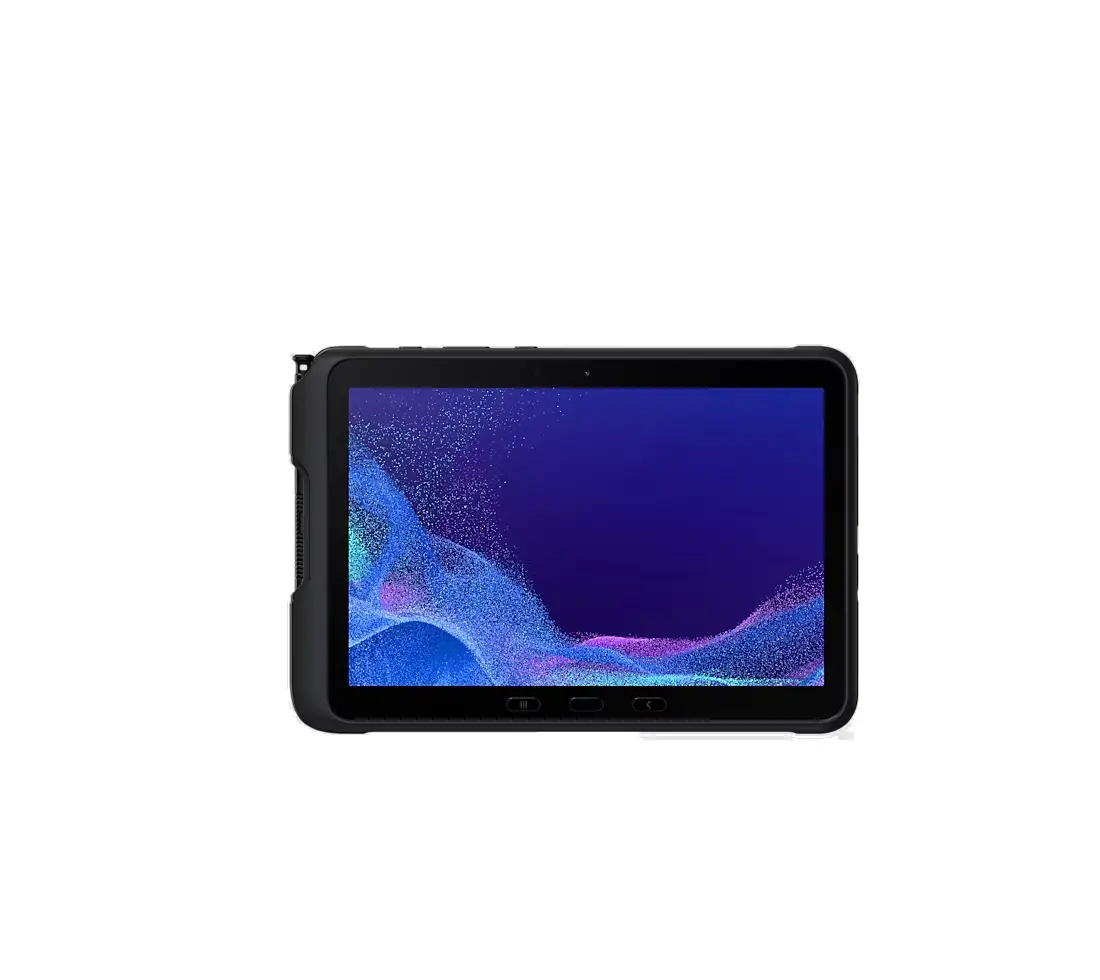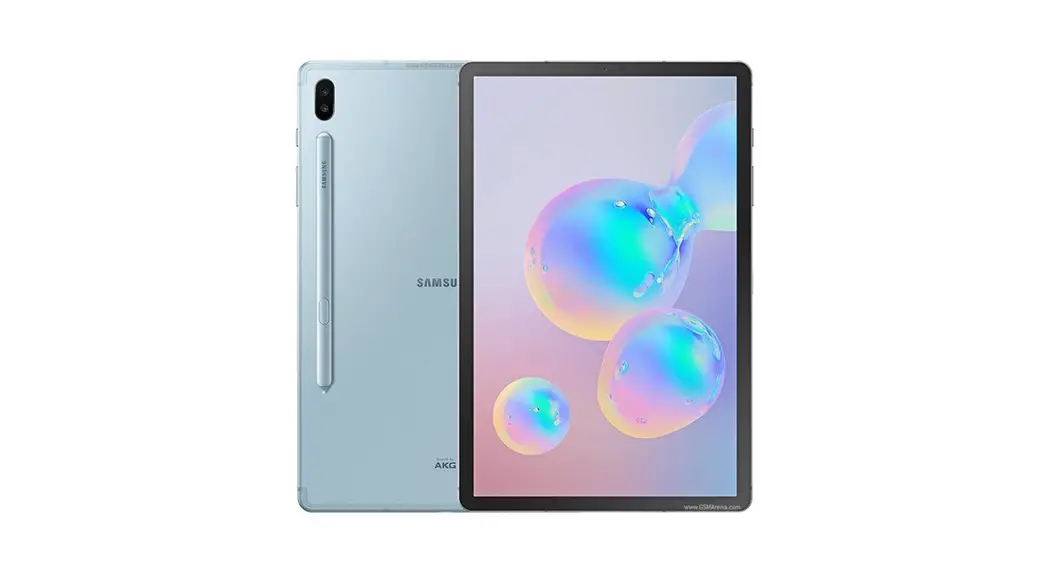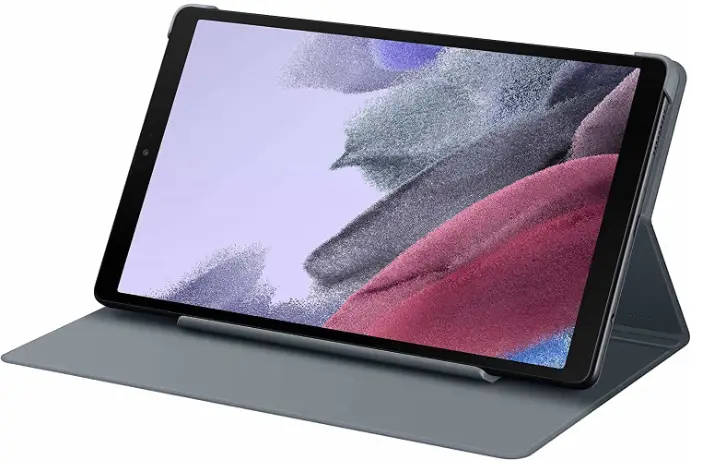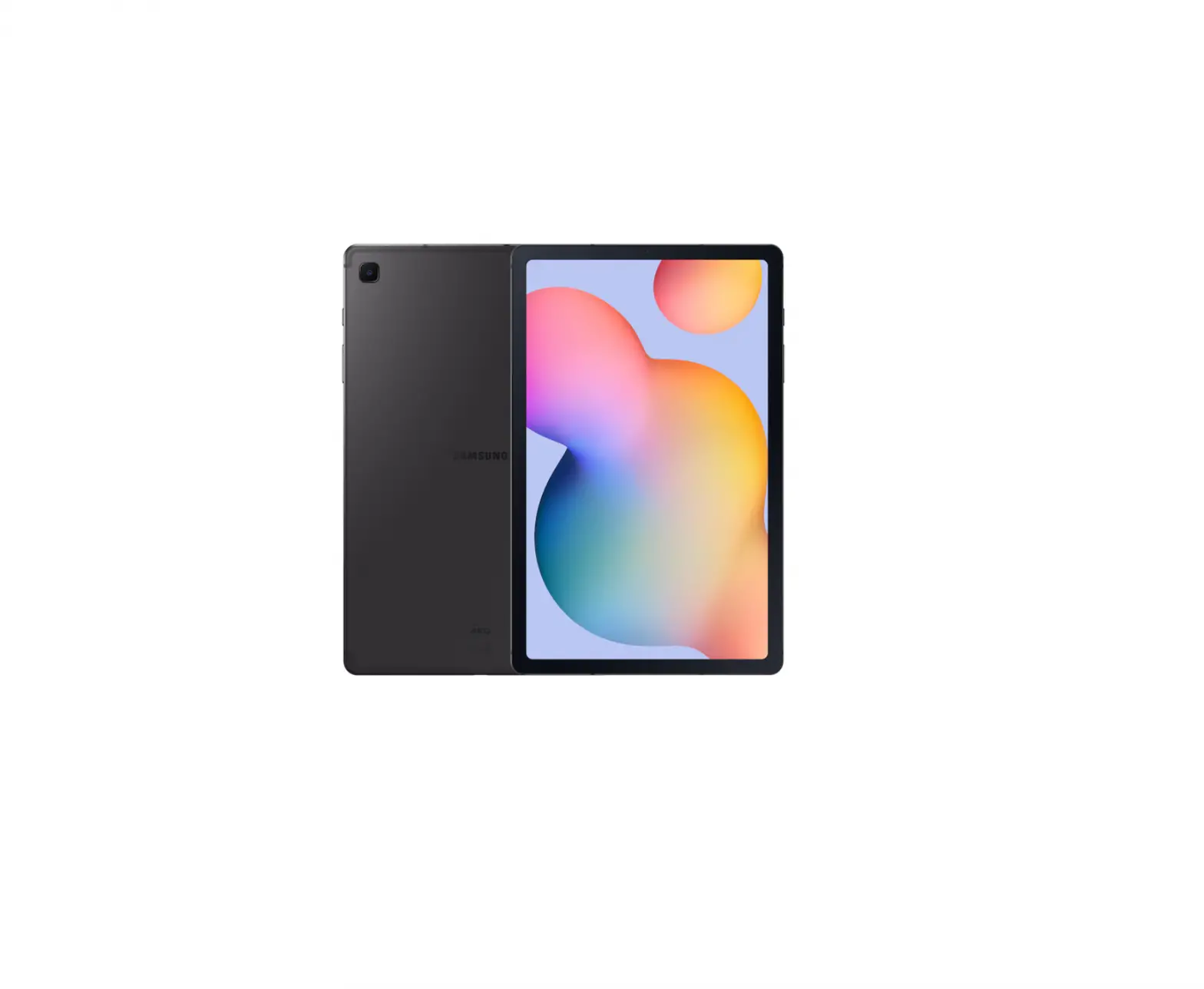

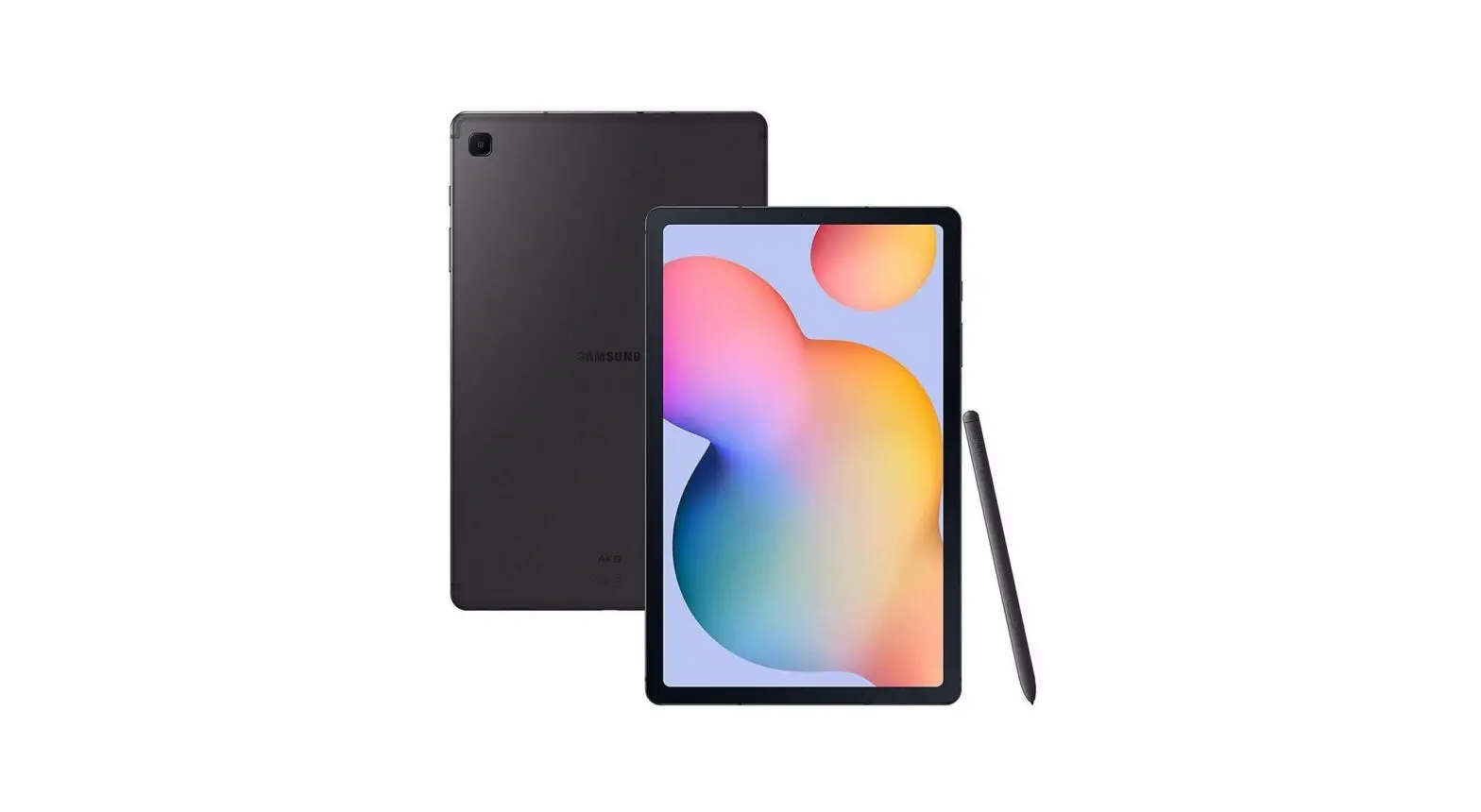
SAMSUNG Galaxy Tab S6 Lite
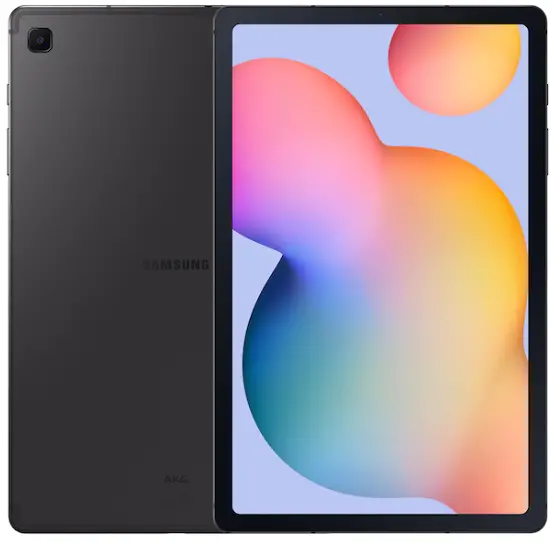
Galaxy-Tab-S6-Lite,-64GB,-Oxford-Gray-product
Samsung Care
Samsung Premium Care
Pick the time and place and a team member will meet you to set up, troubleshoot, repair, or replace your product.
Visit Samsung.com/us/support/premium-care to enroll.
Get to know your product
Visit Samsung.com/us/support

Contact us
Questions?
Visit us.community.samsung.com
Get Support
Call 1.800.SAMSUNG for support
Service locations
Find a service location near you at Samsung.com/us/support/service/locations
About your device
Samsung account
Get the most out of your device by setting up your Samsung account.
You can sign in to an existing Samsung account, create an account, or sign up with an existing Google account.
Once your account is set up, you can
Schedule repairs
Back up your device
Restore your device and more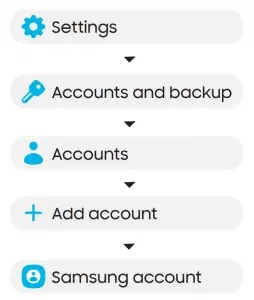
Don’t lose a thing
Whether you are coming from an iOS or Android platform, you can easily transfer your data with Smart Switch.
Back up your old device
Back up your old device using your favorite back up app.
Samsung Smart Switch
- From your new Galaxy device, tap Settings > Accounts and backup > Smart Switch.
- Tap Receive data.
- Tap Cable (Android) or Wireless (Android and iOS) and follow the prompts to connect your devices.
Essential apps
Simple, high quality video calling for smartphones, tablets, computers and smart displays.
Store and back up your photos and videos automatically to your Google Account with Google Photos™.
Store, share and access your files from any device.
More information
For more information about the following visit:
Smart Switch – Samsung.com/us/smart-switch
Samsung Accounts – Samsung.com/us/support/account
Google Duo – Duo.google.com
Google Photos – Support.google.com/photos
Google Drive – Support.google.com/drive
©2020 Samsung Electronics America, Inc. Samsung and Galaxy Tab are both trademarks of Samsung Electronics Co., Ltd. Android, Google, Google Play, and other marks are trademarks of Google LLC. Other company and product names mentioned herein may be trademarks of their respective owners. Screen images simulated. Appearance of tablet may vary.
DOWNLOAD RESOURCES
- SAMSUNG Galaxy Tab S6 Lite [pdf] User Guide Galaxy Tab S6 Lite, GH68-51809A
- Read more: https://#manualsee.com/samsung/galaxy-tab-s6-lite-manual#ixzz7iCeFueBI
FAQ’S
The Galaxy Tab S6 and Galaxy Tab S6 Lite are identical in terms of features, design, and functionality. The only difference is that the Galaxy Tab S6 Lite comes with 3GB of RAM instead of 4GB.
To set up your Samsung account on your device, tap Settings > Accounts > Add account > Samsung account. You can also add an existing Google account to your device by tapping Settings > Accounts > Add account > Google. To learn more about Samsung accounts, visit help.content.samsung.com/us/support/answer/ANS00065962.
You can back up your data by backing up your photos and videos to Google Photos or Dropbox or by using Smart Switch to back up your data to a computer or a microSD card. To learn how to back up your data, visit help.content.samsung.com/us/support/answer/ANS00065962#backup_data_to_a_computer_or_microSD_card_.
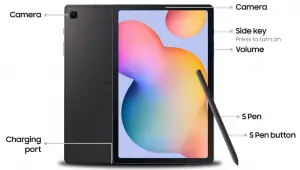
The Samsung Galaxy Tab S6 Lite comes with the S Pen included, which makes it a great choice for anyone looking for a slate they can use a stylus with .
The Samsung Galaxy Tab S6 Lite doesn’t have a fingerprint scanner, hence there’s no option for this in the Settings. Hope this helps!
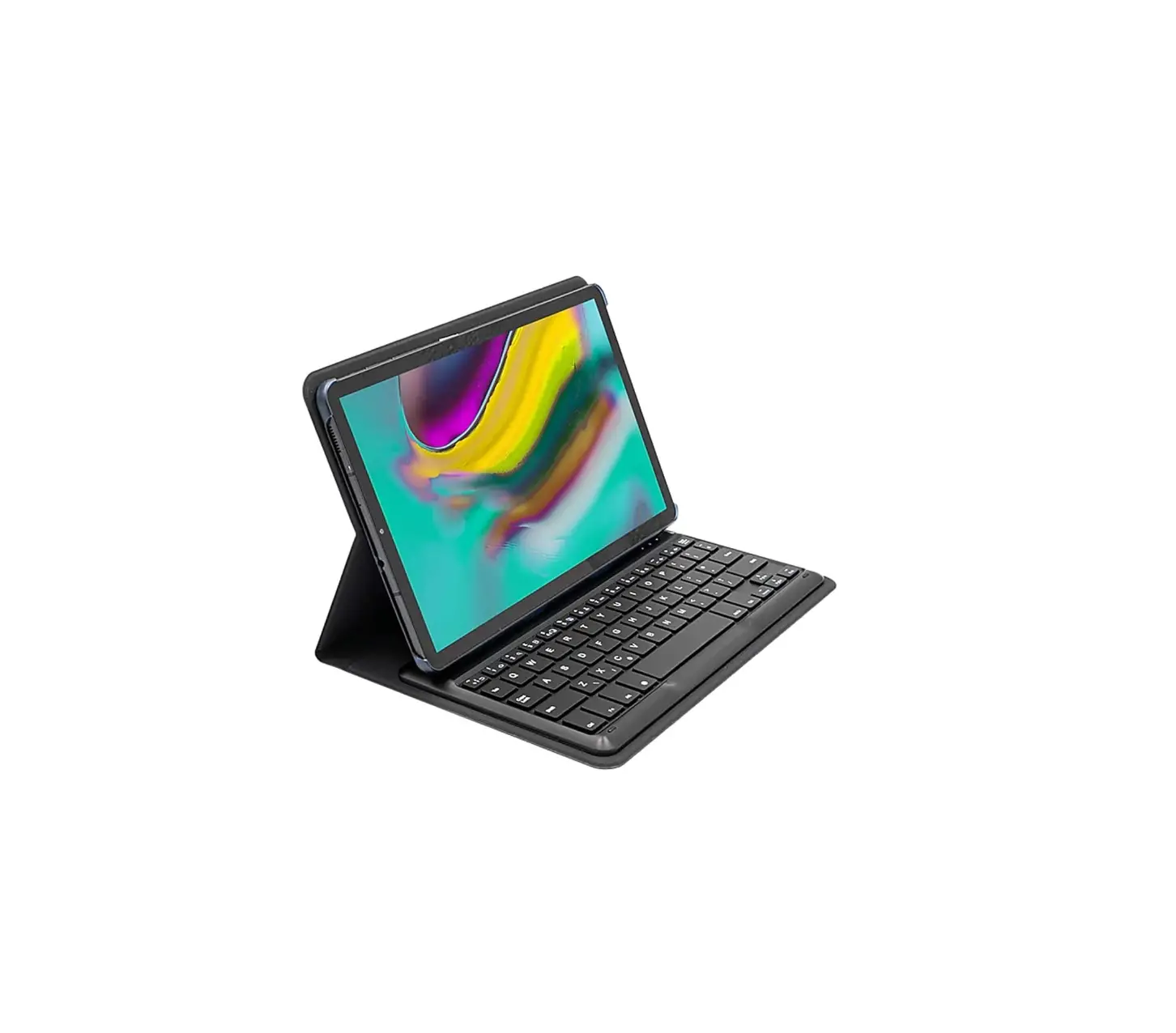
Samsung Galaxy Tab S6 Lite 10.4” Touchscreen (2000×1200) WiFi Tablet, Octa Core Exynos 9610 Processor, 4GB RAM, 64GB Memory, 5MP Front and 8MP Rear Camera, Bluetooth, Android 10 w/S Pen & Cover. Amazon’s Choice highlights highly rated, well-priced products available to ship immediately.
So there’s a second way to off the tablet. Just scroll down here scroll down a second time. And then you will have here also the symbol to power off the tablet.
The Tab S6 Lite supports 15W fast charging, which would be on the slow side even for a smartphone, but given the tablet’s power pack is twice the size of those in most handsets, it can take a long time to power-up the device.
In the Air Command menu, tap the Settings icon.
Tap “S Pen Remote” or “Air Actions”.
The battery level is displayed on screen.
Press and hold the. Volume Down button. (right edge) and the. Power button. (right edge) until the ‘Power off’ prompt appears on the screen then release.
Tap. Restart.
To confirm, tap. Restart. . If your device won’t power back on, partially charge the device then retry.
Stay connected when home or away. Choose between our Wi-Fi or 4G (LTE) Galaxy Tab S6 Lite and stay connected. Galaxy Tab S6 Lite lets you connect whilst on the move with LTE*, so you can get your content on the go.
Find new apps to download and install on your device. Google Play Store: Download new apps from the Google Play store. Visit play.google.com/store/apps to learn more. GALAXY Apps: View and download Samsung apps that are optimized for use with GALAXY devices.
VIDEO
www://samsung.com/
References
 Google Duo - Free High-Quality Video Calling App
-
Samsung Smart Switch: Transfer Contacts, Music and More I Samsung US
-
Support Home | Official Samsung Support US
-
Samsung My Account | Samsung US
-
Samsung Care+: Support 24/7, Protection & Warranty | Samsung US Close Close
-
Service Locator | Samsung
 Samsung Community - Samsung Community
 Google Duo - Free High-Quality Video Calling App
 Samsung Smart Switch: Transfer Contacts, Music and More I Samsung US
 Samsung Community - Samsung Community

![Samsung Galaxy Tab S6 User Manual [sm-t860, Sm-t865, Sm-t867]](https://static-data1.manualsee.com/1/img/125/62334/2021/02/Samsung-Galaxy-Tab-S6-User-Manual-SM-T860-SM-T865-SM-T867.jpg "Samsung Galaxy Tab S6 User Manual [sm-t860, Sm-t865, Sm-t867]")