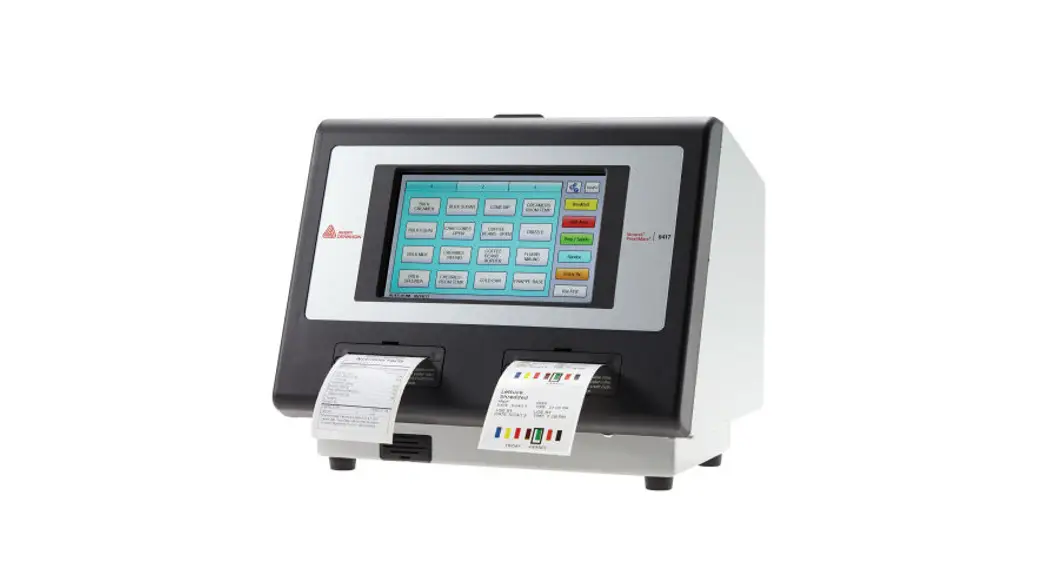
 Freshmarx Next Generation Food Safety Labeling Solution
User Guide
Freshmarx® Cloud Portal Setup Guide
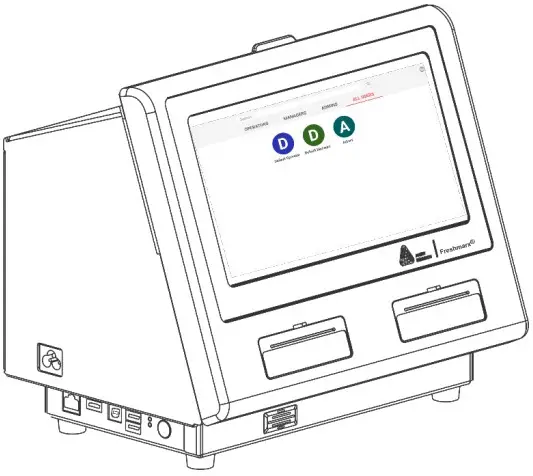
This guide is for the Network Administrator. It covers information required to use the Avery Dennison®Freshmarx Central (9418) printer with our Cloud Portal solution.
Click the link below to jump to the information you need.
- Requirements
- Troubleshooting
Requirements
The following settings are required when using your printer on the Freshmarx Cloud Portal.
Ports
Open the following ports:
- 443 – HTTP Secure (HTTPS)
- 5761
URLs
Whitelist all of the following URLs:
- global.azure-devices-provisioning.net on port 443
- *.azure-devices.net via port 443
- *.averydennison.com on port 443
If the wild card is not supported, Avery Dennison recommends using DNS Lookup of the URLs to obtain the current IP Address. Specific IP Addresses are subject to change at any time.
- global.azure-devices-provisioning.net
- ih-dm-prod-001-001.azure-devices.net
- portal.averydennison.com
- storage.psd.averydennison.com
- dm.psd.averydennison.com
Network Connection
The printer must be on the network to be accessible by the Cloud Portal.
To check the printer’s IP Address:
- log in to the printer as Admin (default password = “1234”).
- Select the Configure
 application.
 application.
You should see the IP Address in the upper right corner of the screen: 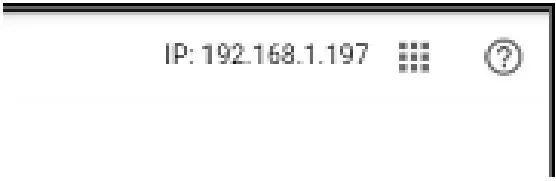
Troubleshooting
When logging into the Cloud Portal you might find that your device is not connected. Device Manager shows the device with a gray dot, this means the device has never made a connection to the Portal. Use the following troubleshooting to get your Freshmarx Central (9418) printer communicating with the Cloud Portal.
The printer does not have an IP address.
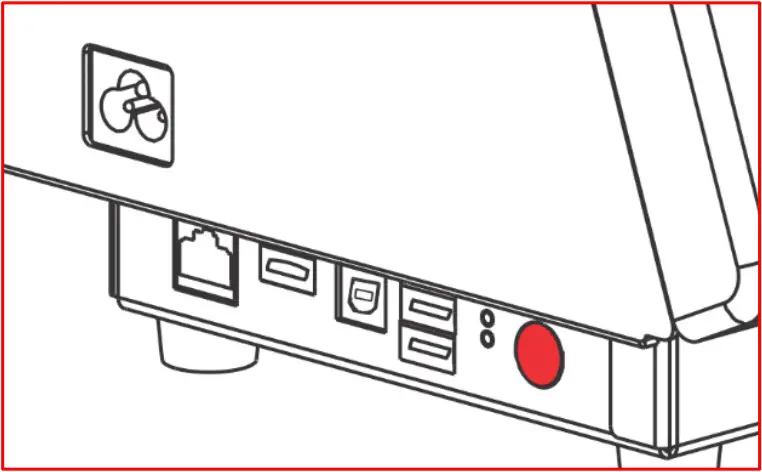
- Restart the printer. Turn the printer off and then back on (red power button).
- Make sure your network is actively operating.
- For Wireless network printers: log into the printer as Admin, Select the Configure app
 , tap Network, then Wi-Fi Settings. Make sure Wi-Fi is turned ON and the correct wireless network is selected.
 , tap Network, then Wi-Fi Settings. Make sure Wi-Fi is turned ON and the correct wireless network is selected.
The printer’s serial number does not match the one configured in the printer and/or the one on the Cloud Portal.
- Login as Admin on the printer (default password = 1234).
- Select the Android icon:
 .
. - At the arugula screen, select
 to see all apps.
 - Select the Printer Setup
 .
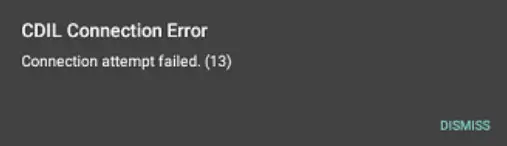
. - Select DISMISS if this message appears:

- Select About.
- Verify the serial number field.
 The serial number shown in About should match the one on your printer’s serial label (located on the left side of the printer).
Also, the serial number shown in the Cloud Portal Device Manager application should match the one shown in About and on the serial label.
If you notice a serial number mismatch, contact Support.
To return to Freshmarx, select the Freshmarx app (from the apps screen).
 .
. to see all apps.
 .
.
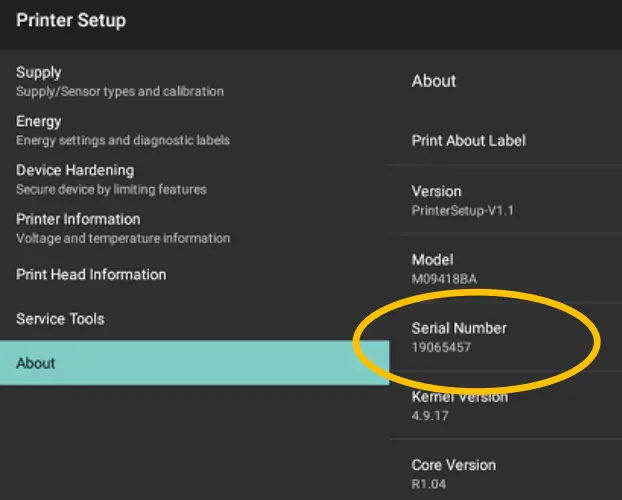 The serial number shown in About should match the one on your printer’s serial label (located on the left side of the printer).
 (from the apps screen).
Make sure the Agent app is installed on the printer.
- Login as Admin on the printer (default password = 1234).
- Choose the Android icon: .
- At the Arugula screen, select to see all apps.
- You should see the Agent application.

If the Agent app is not installed:
- Tap the left arrow
 to return to the Arugula screen.
 - From the top of the screen, swipe down. You should see a notification, select System Update to update the printer’s firmware. The updated firmware will include the Agent app.

 to return to the Arugula screen.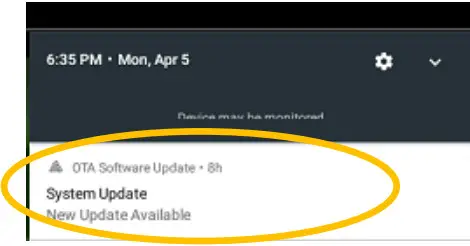
If the Agent app is not installed and you do not see a notification for a System Update, contact Service.
If the Agent app is installed:
- Select the Settings app
 .
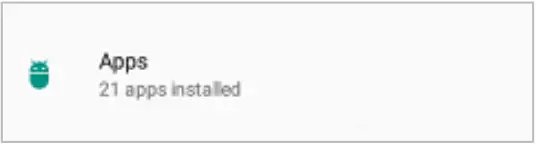
. - Select Apps.

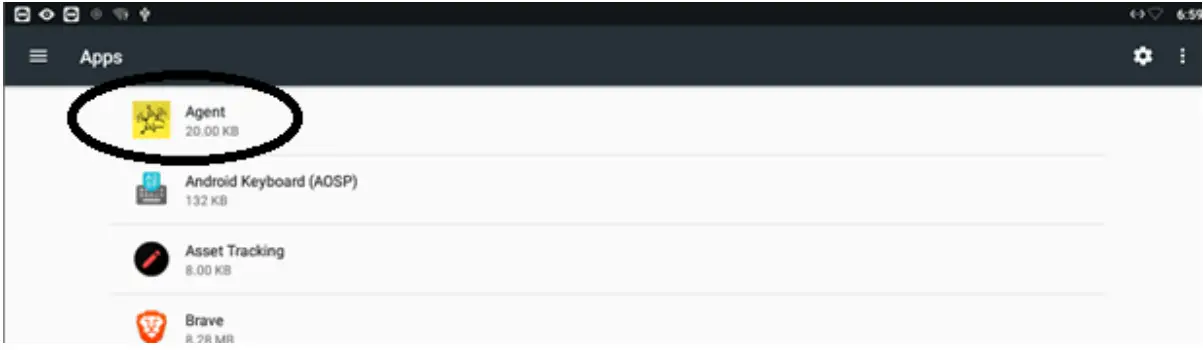
- Select Agent.

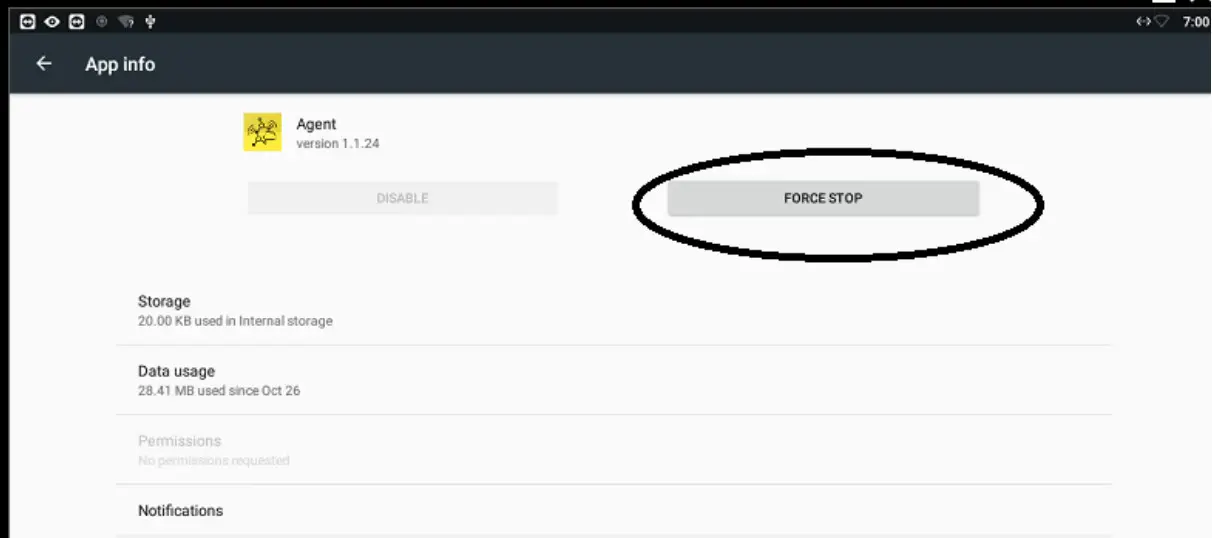
- Ensure the version is 1.0.2 or greater. If the version is not correct, follow the steps above to perform a system update.
- If the version is correct, tap Force Stop, tap the left arrow to exit out of Settings, and tap the Agent app icon on the apps screen to restart it (the icon will grey out and hungry after it is started). Check to see if the printer appears on the portal.
 To return to Freshmarx, from the desktop select the icon.
If your Freshmarx Central (9418) still fails to communicate with the Cloud Portal, please contact Support.
 .
.
 To return to Freshmarx, from the desktop select the
 Avery Dennison® and Freshmarx® are registered trademarks of Avery Dennison Corporation.
Classification: Avery Dennison –
Public TCPortalSG Rev. AB 2/22
©2021 Avery Dennison Corp. All Rights Reserved.
 Avery Dennison - Innovative Packaging Materials Solutions and Technologies | Avery Dennison
 portal.averydennison.com