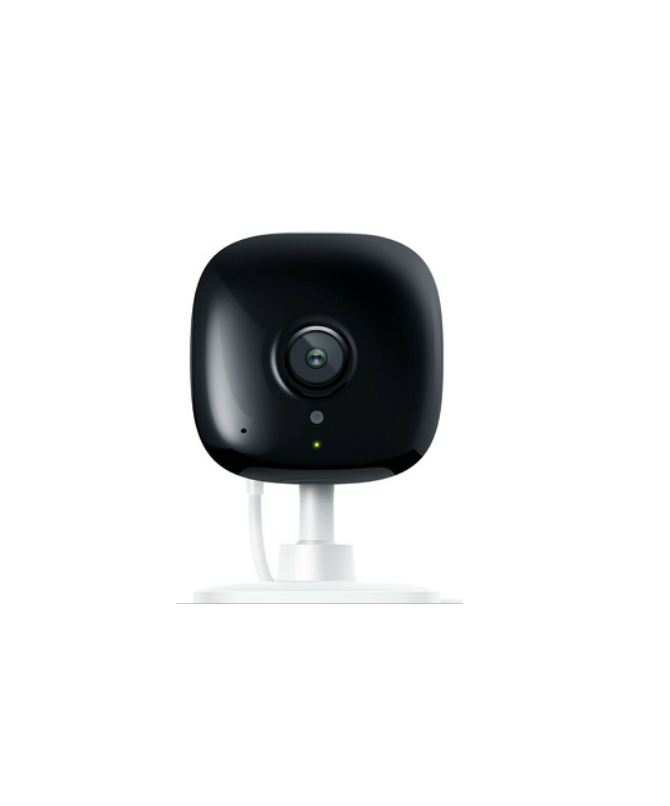
tp-link Kasa Spot User Guide

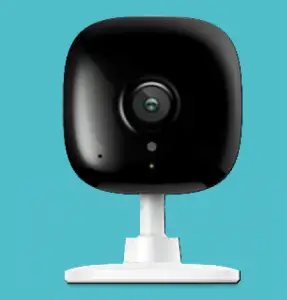
About This Guide
This guide provides a brief introduction to the Kasa Spot and the Kasa Smart app, as well as regulatory information. Please note that features of the product may vary slightly depending on the model and software version you have, and on your location, language and internet service provider. All images, parameters and descriptions documented in this guide are used for demonstration only.
Conventions
In this guide, the following convention is used
| Convention | Description |
| Teal | Key information appears in teal, including management page text such as menus, items, buttons and so on. |
| Underline | Hyperlinks are in teal and underlined. You can click to redirect to a website |
More Info
- Specifications can be found on the product page at https://www.tp-link.com.
- Our Technical Support and troubleshooting information can be found at https://www.tp-link.com/support.
- Frequently Asked Questions (FAQs) can be found at https://www.tp-link.com/support/faq.
Introduction
With the Kasa Spot connected to your home network, you can see what happens in your home even when you’re away. This keeps your home safe and
give yourself a little peace of mind — all while seeing every detail on your phone. You can set up and use your Kasa Spot alone, or use it together with other smart home devices including plugs, bulbs, switches and more. All these can be achieved on the Kasa app, which provides
- Simple Setup – Easily connects your camera to your home network and place it almost anywhere.
- Crystal Clear Video – 1080p Full HD, 130° wide-angle video and night vision, make sure you never miss a thing day or night.
- Live View – keep an eye on what’s important to you real-time from anywhere with the Kasa Smart app.
- Instant Activity Alerts – No need to check your Kasa Spot throughout the day. Get automatic alerts when it detects motion. Take quick action when you see your pet on the couch, a roommate walking through your room, or an intruder enter your front door.
- Cloud Storage Plans* – Add cloud storage for video recording and other features with a Kasa Care subscription plan.
- Upgrade to a Kasa Care subscription plan and enjoy full video recordings up to 30 days.
- Activity Zones – Create multiple activity zones around areas that are important and receive alerts you care about.
- Two-Way Talk – Communicate with others with the built-in microphone and speaker.
- Compatible Displays – Stream live to your Kasa app or to any Google or Alexa supported displays.
Appearance
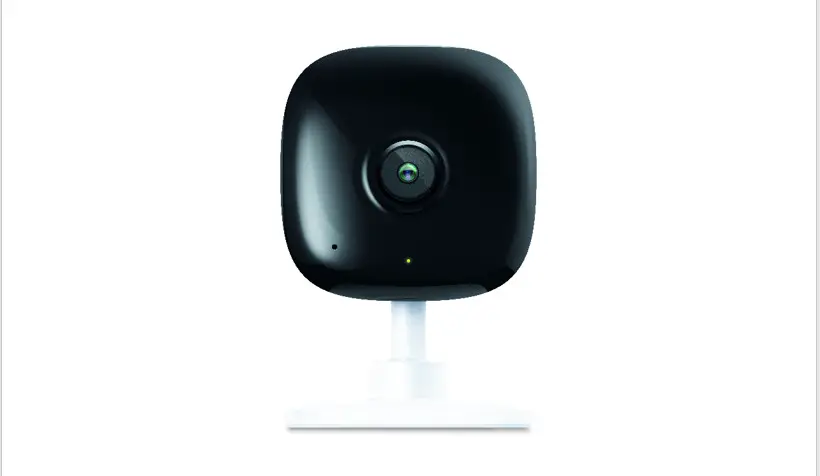
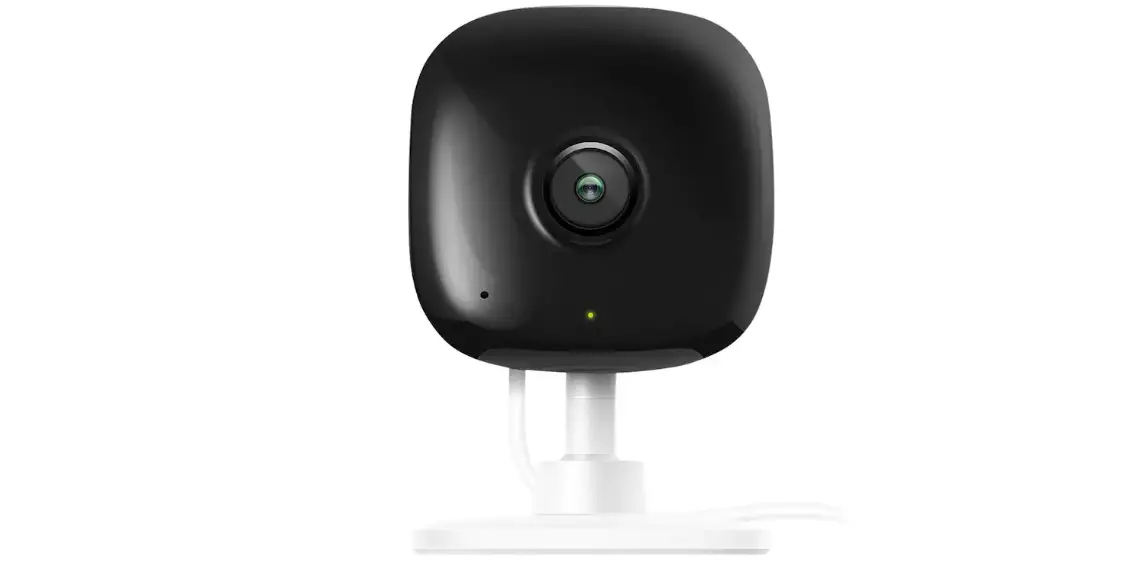
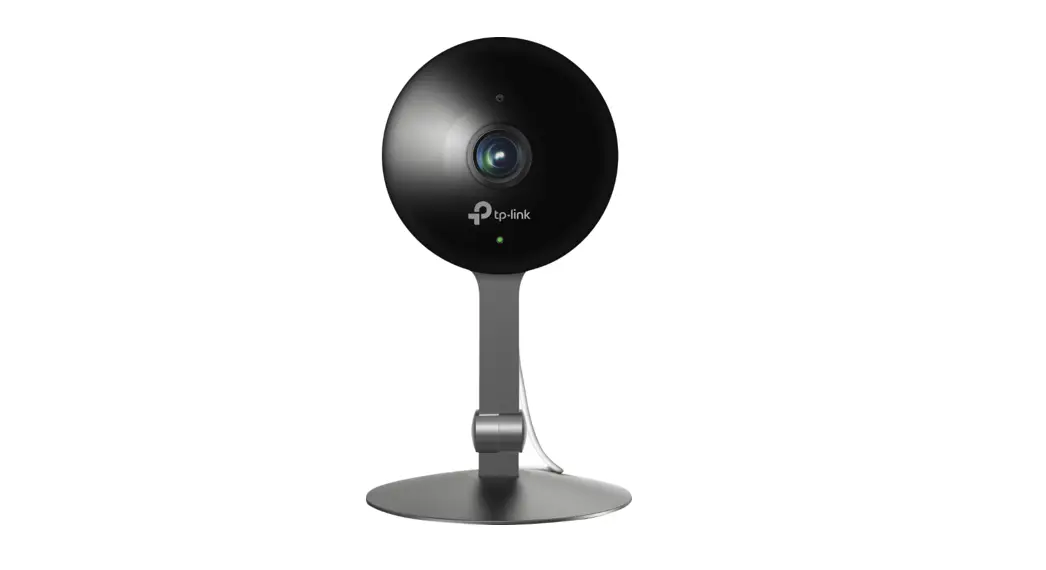
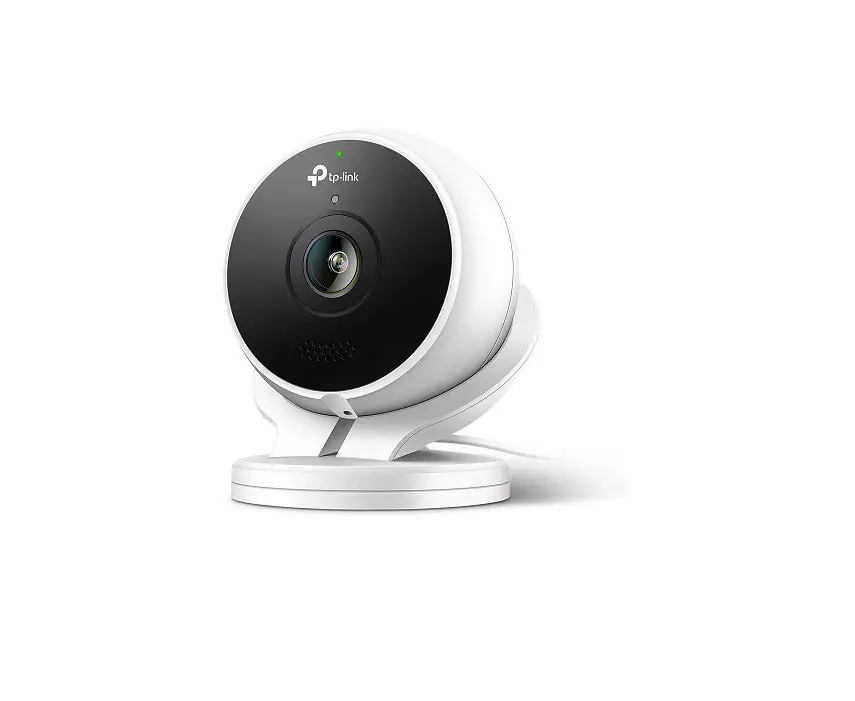
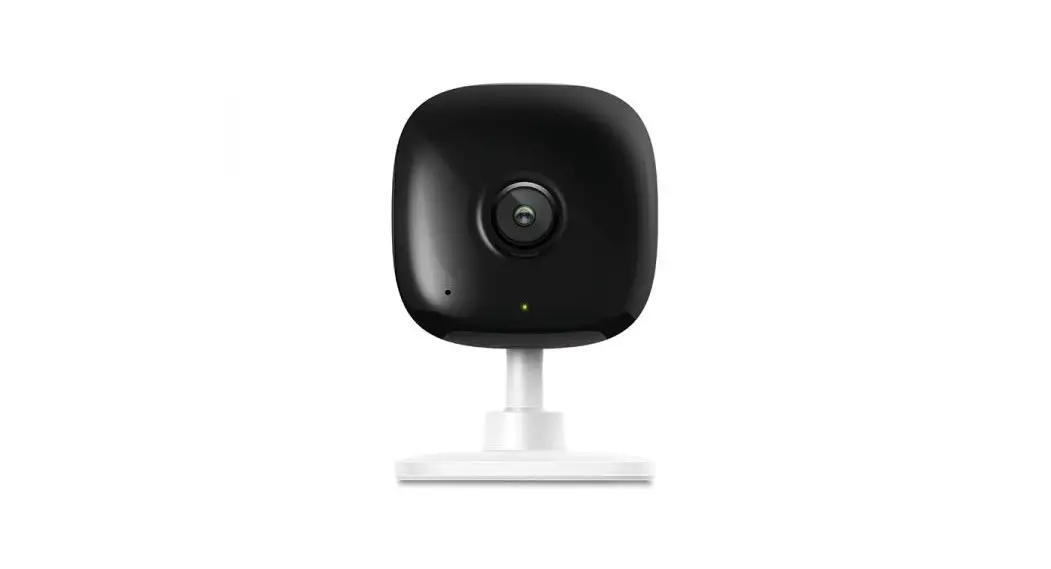
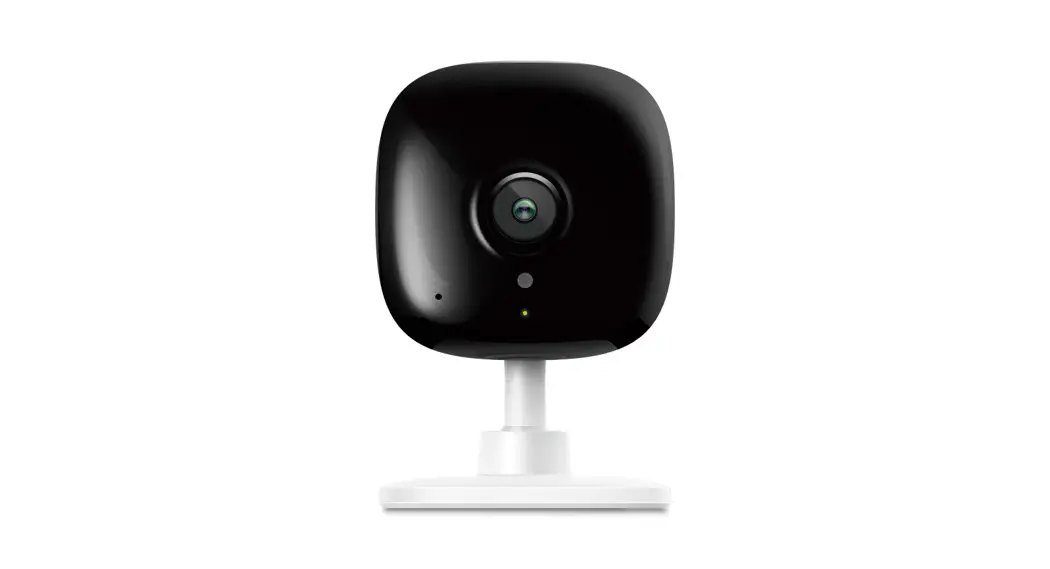
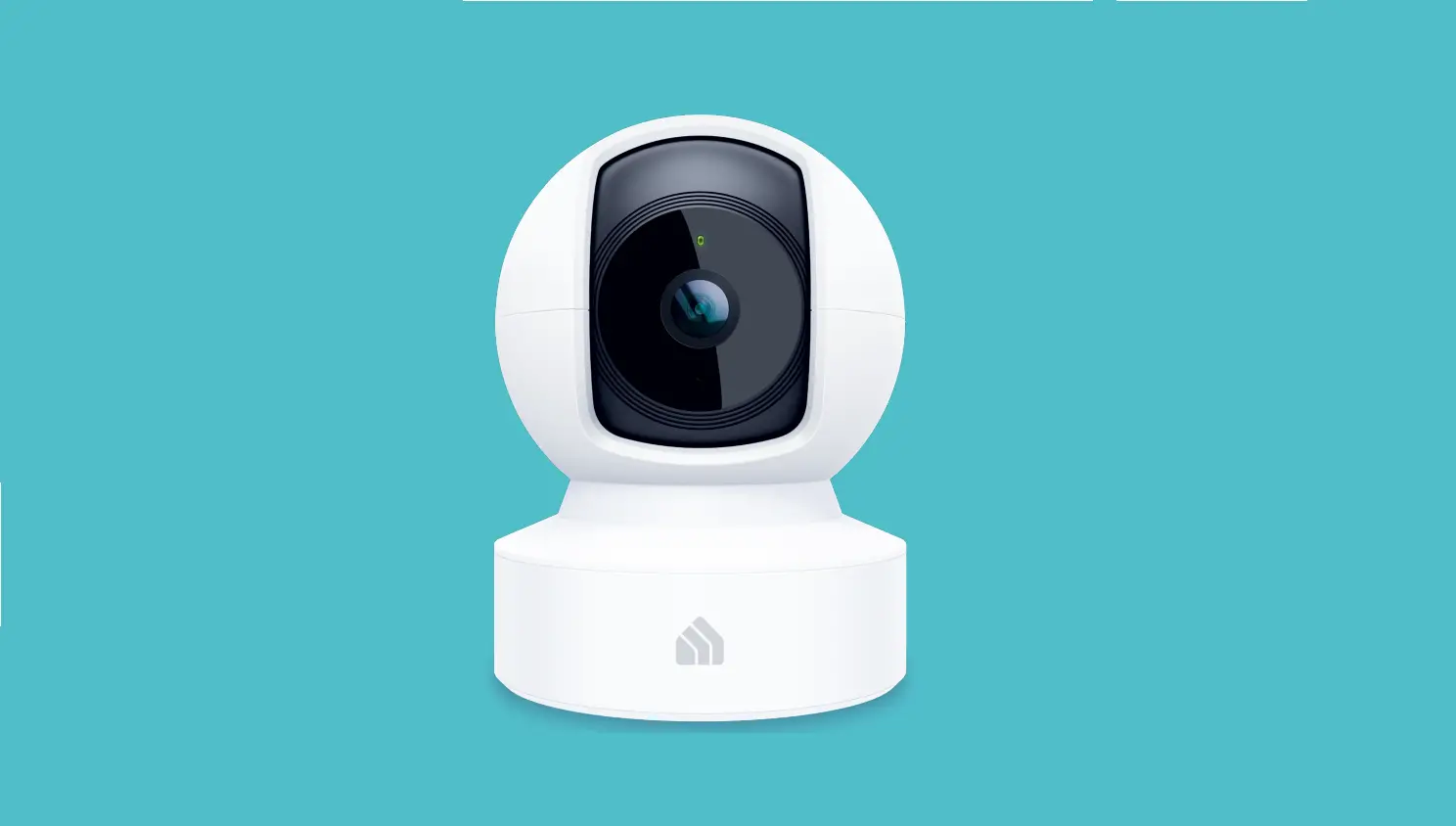
Kasa Spot has a system LED that changes color according to its status, a microphone, a speaker, a micro USB port, and a RESET button. Refer below for details.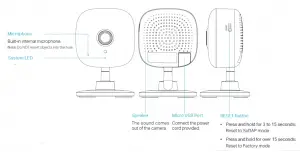
- Solid amber: Rebooting
- Alternating amber and green: Soft AP Mode
- Flashing red: Connecting to Wi-Fi
- Flashing green: Connected to Wi-Fi
- Solid green: Bound to Cloud
- Flashing amber: Resetting to Soft AP/Factory mode
Set Up Your Camera
Follow the steps below to get started with your new camera
Step 1. Download Kasa
Get the Kasa Smart app from the Apple App Store or Google Play, or by scanning the QR code below.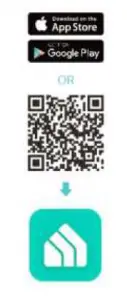
Step 2. Log In
Open the app, and log in with your TP-Link ID. If you don’t have an account, create one first.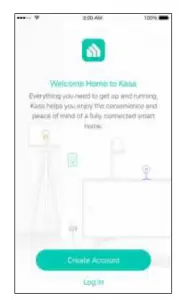
Step 3. Start Setup
Tap the button in the Kasa app and select Kasa Spot.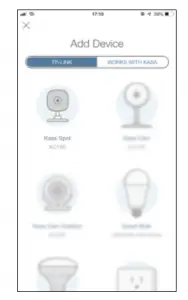
Step 4. Configure Camera
Follow app instructions to configure your camera and add it to your home network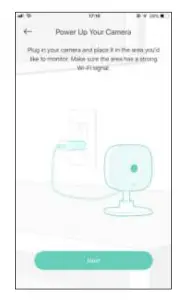
Step 5. Place Camera
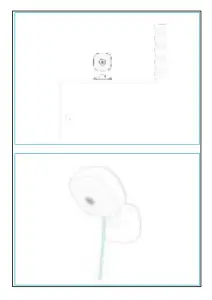
Place your camera on a flat surface, or install it on a wall or ceiling with the provided indicator label and mounting screws.
- For cement wall: Drill two φ6mm holes with the help of indicator label, insert the plastic expansion tubes into holes and srew the mounting screws into the
expansion tubes. - For soft surface: Directly screw the screws in.

Use Your Camera
After initial setup is complete, you can view and manage your camera with the Kasa app
View the Live Video
You can view your camera from anywhere at any time with your phone. Go to the Devices page, then tap a camera to view the live video.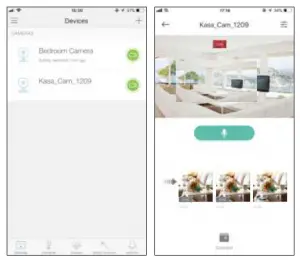
Change Camera Settings
You can change the settings of your camera to meet various needs. Go to the Devices page, tap a camera, then tap  to view and change camera settings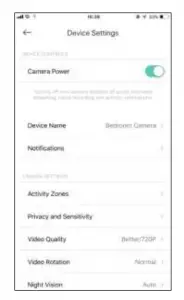
Check Activity Notifications
When you recieve an instant alert you can view live video immediately or check recordings anytime. Go to the Activity page to view activity notifications on each date. You
can tap  for notification settings.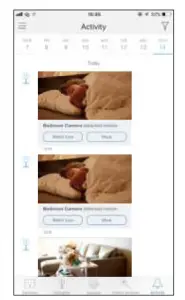
Control Your Camera Smartly
You can easily control your camera together with other smart home devices. With Kasa Smart, your home is never more than a few taps away.
For more information, go to the Kasa Smart app.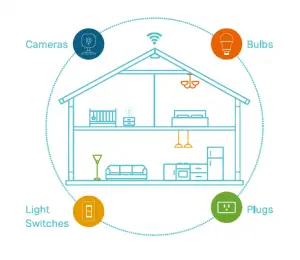
Authentication
COPYRIGHT & TRADEMARKS
Specifications are subject to change without notice.  is a registered trademark of TP-Link Technologies Co., Ltd. Other brands and product names are trademarks or registered trademarks of their respective holders. No part of the specifications may be reproduced in any form or by any means or used to make any derivative such as translation, transformation, or adaptation without permission from TP-Link Technologies Co., Ltd. Copyright © 2019 TP-Link Technologies Co., Ltd. All rights reserved.
FCC compliance information statement
Product Name: Kasa Spot
Model Number: KC100
| Component Name | Model | FCC Identifier number |
| AC ADAPTER | NBS05B050100VUU | NA |
Responsible Party:
TP-Link USA Corporation, d/b/a TP-Link North America, Inc.
Address: 145 South State College Blvd. Suite 400, Brea, CA 92821
Website: http://www.tp-link.com/us/
Tel: +1 626 333 0234
Fax: +1 909 527 6803
E-mail: [email protected]
This equipment has been tested and found to comply with the limits for a Class B digital device, pursuant to part 15 of the FCC Rules. These limits are designed to provide reasonable protection against harmful interference in a residential installation. This equipment generates, uses and can radiate radio frequency energy and, if not installed and used in accordance with the instructions, may cause harmful interference to radio communications. However, there is no guarantee that interference will not occur in a particular installation. If this equipment does cause harmful interference to radio or television reception, which can be determined by turning the equipment off and on, the user is encouraged to try to correct the interference by one or more of the following measures:
- Increase the separation between the equipment and receiver.
- Connect the equipment into an outlet on a circuit different from that to which the receiver is connected.
- Consult the dealer or an experienced radio/ TV technician for help.
This device complies with part 15 of the FCC Rules. Operation is subject to the following two conditions:
- This device may not cause harmful interference.
- This device must accept any interference received, including interference that may cause undesired operation.
Any changes or modifications not expressly approved by the party responsible for compliance could void the user’s authority to operate the equipment.
Note: The manufacturer is not responsible for any radio or TV interference caused by unauthorized modifications to this equipment. Such modifications
could void the user’s authority to operate the equipment.
FCC RF Radiation Exposure Statement
This equipment complies with FCC RF radiation exposure limits set forth for an uncontrolled environment. This device and its antenna must not be
co-located or operating in conjunction with any other antenna or transmitter. “To comply with FCC RF exposure compliance requirements, this grant is applicable to only Mobile Configurations. The antennas used for this transmitter must be installed to provide a separation distance of at least 20 cm from all persons and must not be co-located or operating in conjunction with any other antenna or transmitter.” We, TP-Link USA Corporation, has determined that the equipment shown as above has been shown to comply with the applicable technical standards, FCC part 15. There is no unauthorized change is made in the equipment and the equipment is properly maintained and operated.
CE Mark Warning
This is a class B product. In a domestic environment, this product may cause radio interference, in which case the user may be required to take adequate measures.
This is a class B product. In a domestic environment, this product may cause radio interference, in which case the user may be required to take adequate measures.
EU Declaration of Conformity
TP-Link hereby declares that the device is in compliance with the essential requirements and other relevant provisions of directives 2014/53/EU, 2009/125/EC and 2011/65/EU. The original EU declaration of conformity may be found at http://www.tp-link.com/en/ce
RF Exposure Information
This device meets the EU requirements (2014/53/EU Article 3.1a) on the limitation of exposure of the general public to electromagnetic fields by way of health protection.
The device complies with RF specifications when the device used at 20 cm from your body. Restricted to indoor use.
Canadian Compliance Statement
This device contains licence-exempt transmitter(s)/receiver(s) that comply with Innovation, Science and Economic Development Canada’s licenceexempt
RSS(s). Operation is subject to the following two conditions:
- This device may not cause interference, and
- This device must accept any interference, including interference that may cause undesired operation of the device.
Radiation Exposure Statement:
This equipment complies with IC radiation exposure limits set forth for an uncontrolled environment. This equipment should be installed and operated
with minimum distance 20cm between the radiator & your body.
Safety Information
- Keep the device away from water, fire, humidity or hot environments.
- Do not attempt to disassemble, repair, or modify the device.
- Do not use damaged charger or USB cable to charge the device.
- Do not use any other chargers than those recommended
- Do not use the device where wireless devices are not allowed.
- Adapter shall be installed near the equipment and shall be easily accessible.
Use only power supplies which are provided by manufacturer and in the original packing of this product. If you have any questions, please
don’t hesitate to contact us. Please read and follow the above safety information when operating the device. We cannot guarantee that no accidents or damage will occur due to
improper use of the device. Please use this product with care and operate at your own risk.
Explanation of the symbols on the product label
Symbol | Explanation |
 | kogan Curved Freesync Hdr Gaming Monitor User Guide |
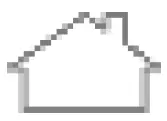 | Indoor use only |
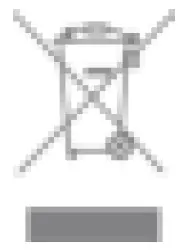 | RECYCLING This product bears the selective sorting symbol for Waste electrical and electronic equipment (WEEE). This means that this product must be handled pursuant to European directive 2012/19/EU in order to be recycled or dismantled to minimize its impact on the environment. User has the choice to give his product to a competent recycling organization or to the retailer when he buys a new electrical or electronic equipment |
 Link: Simple, secure one-click payments
 CE Regulatory Compliance | TP-Link