
RAZER AXON
MASTER GUIDE
Axon Wallpaper PC App
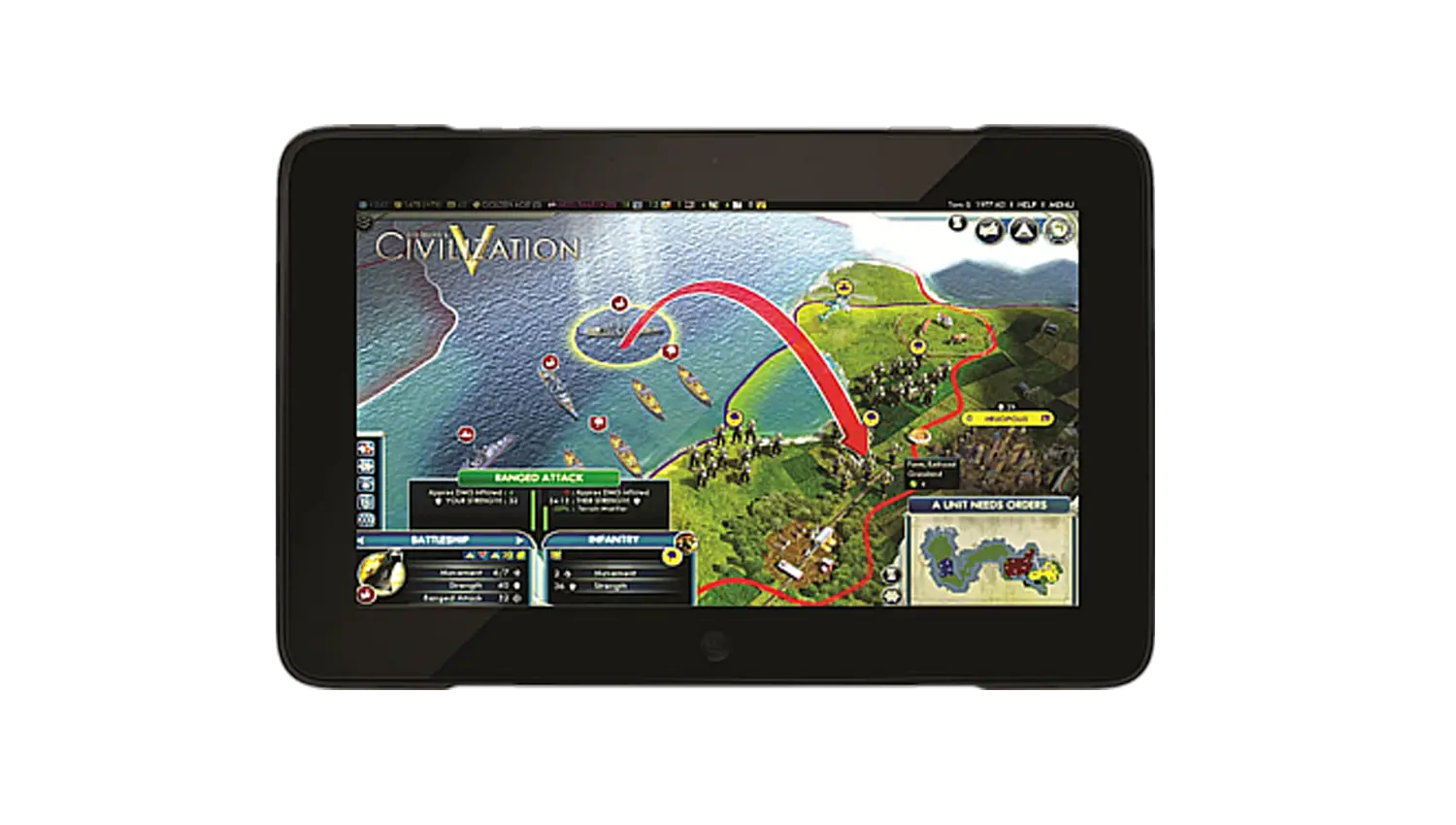
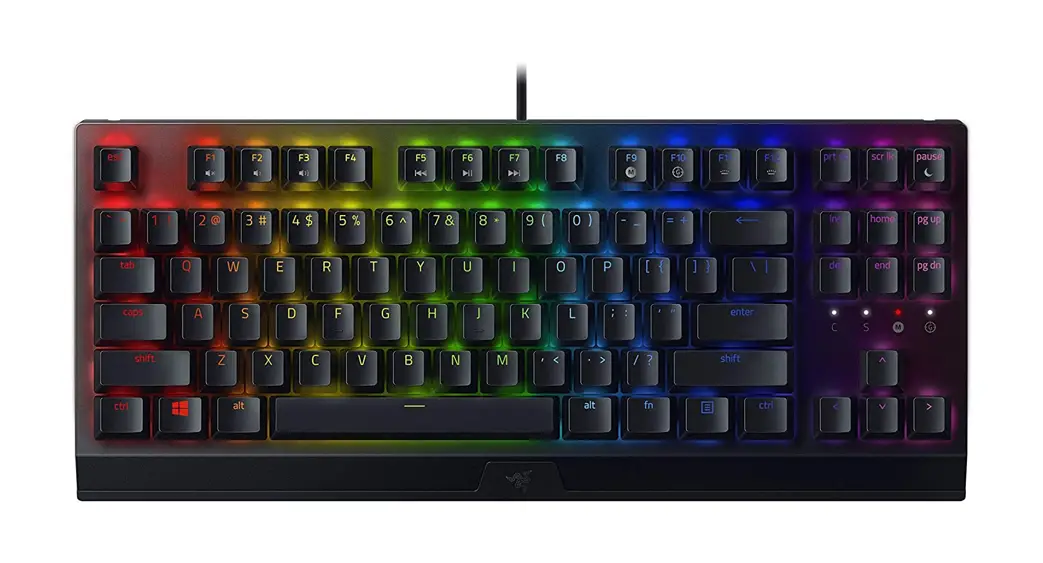
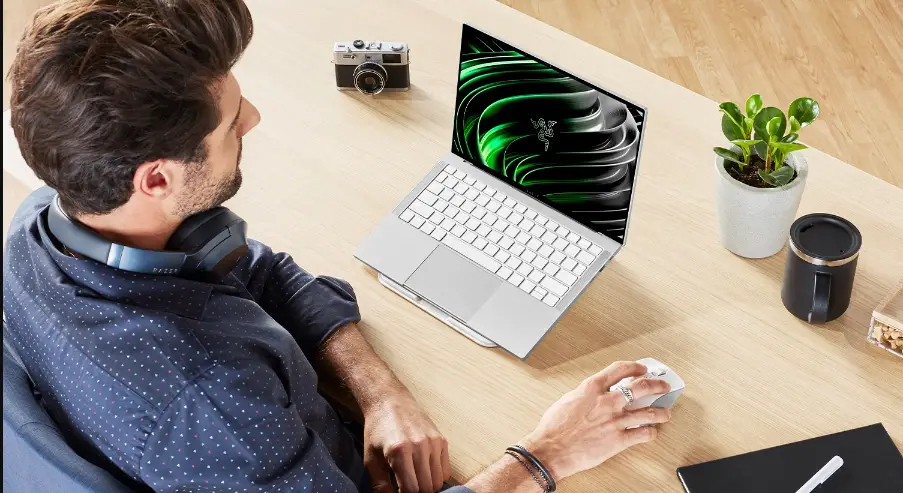
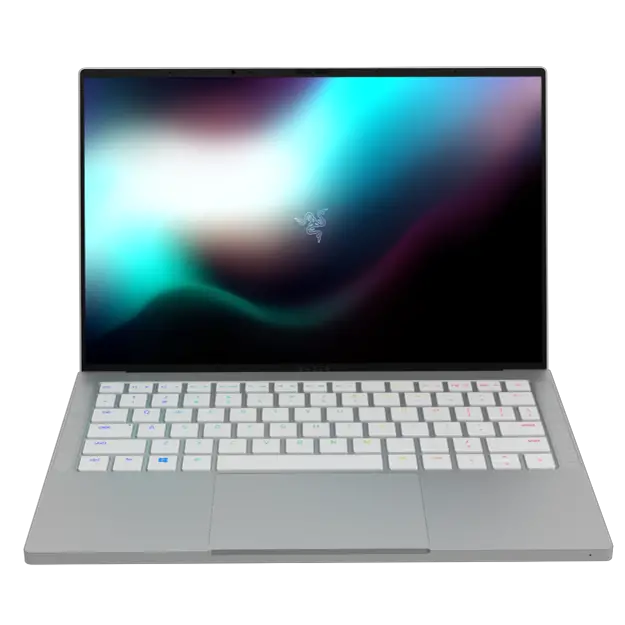
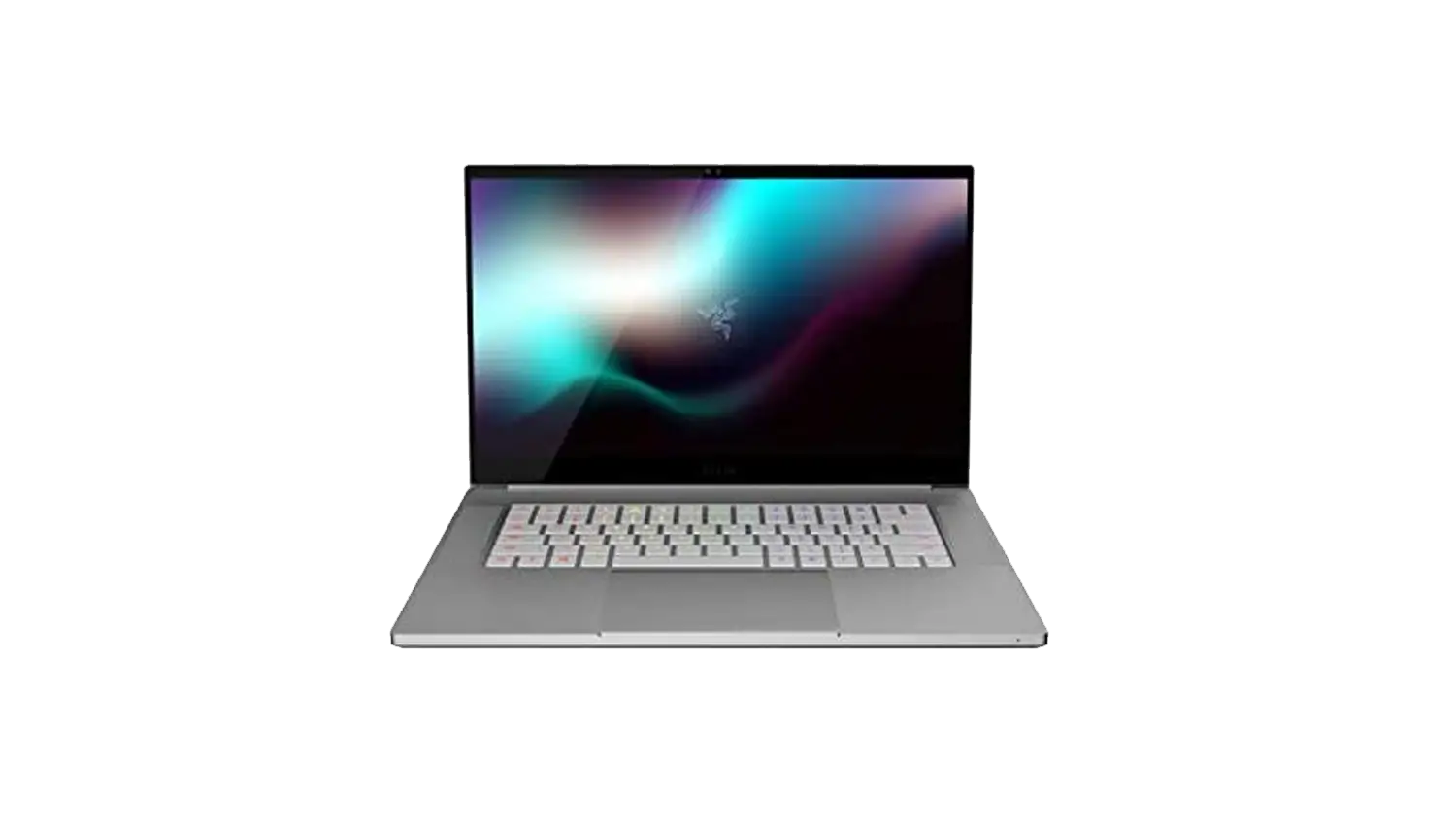
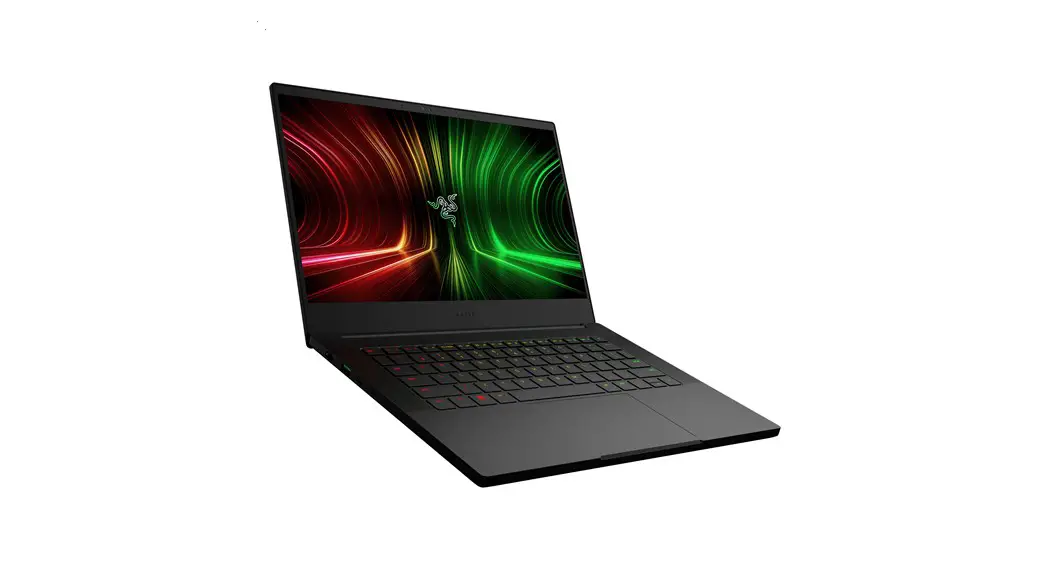
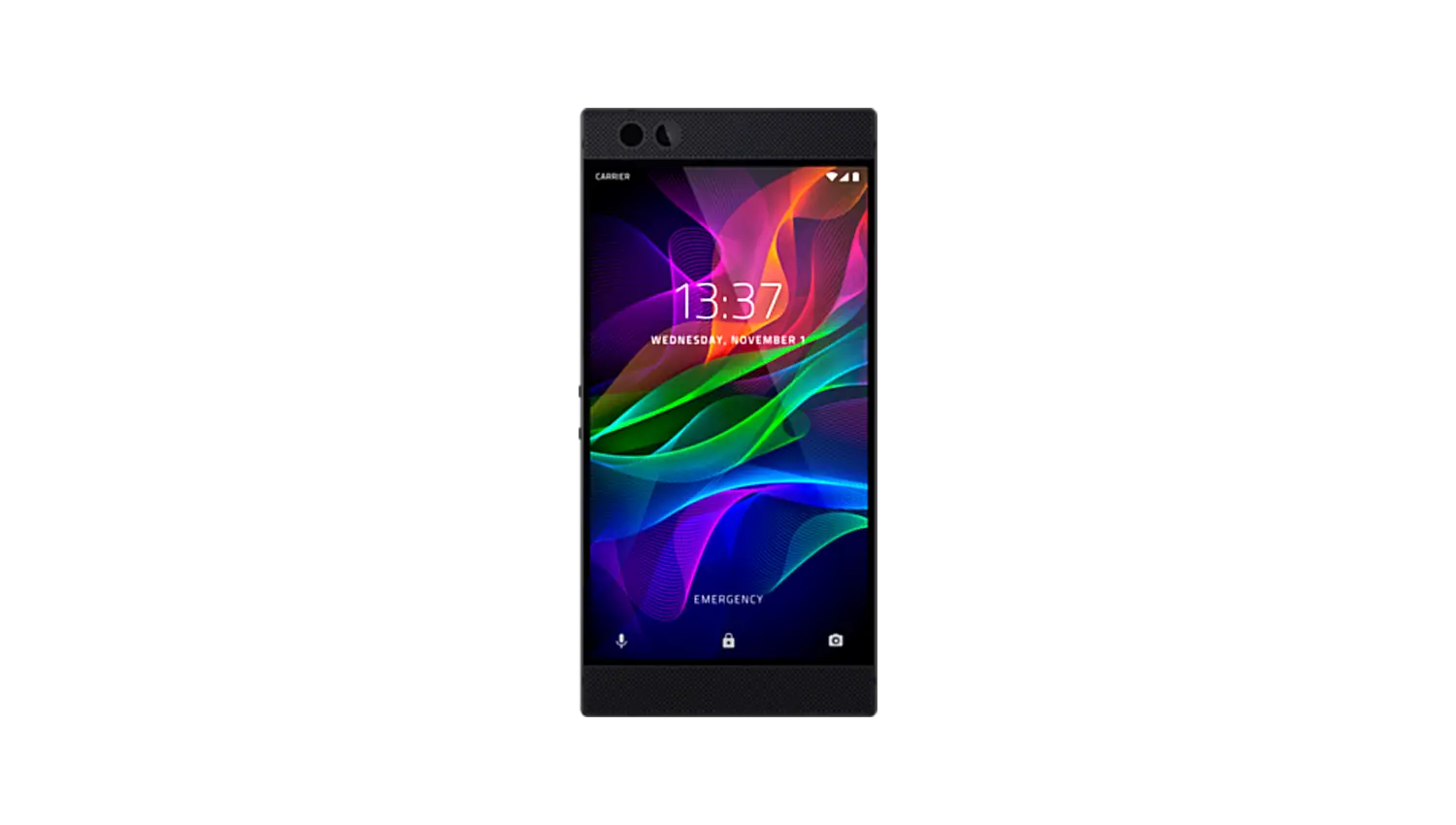
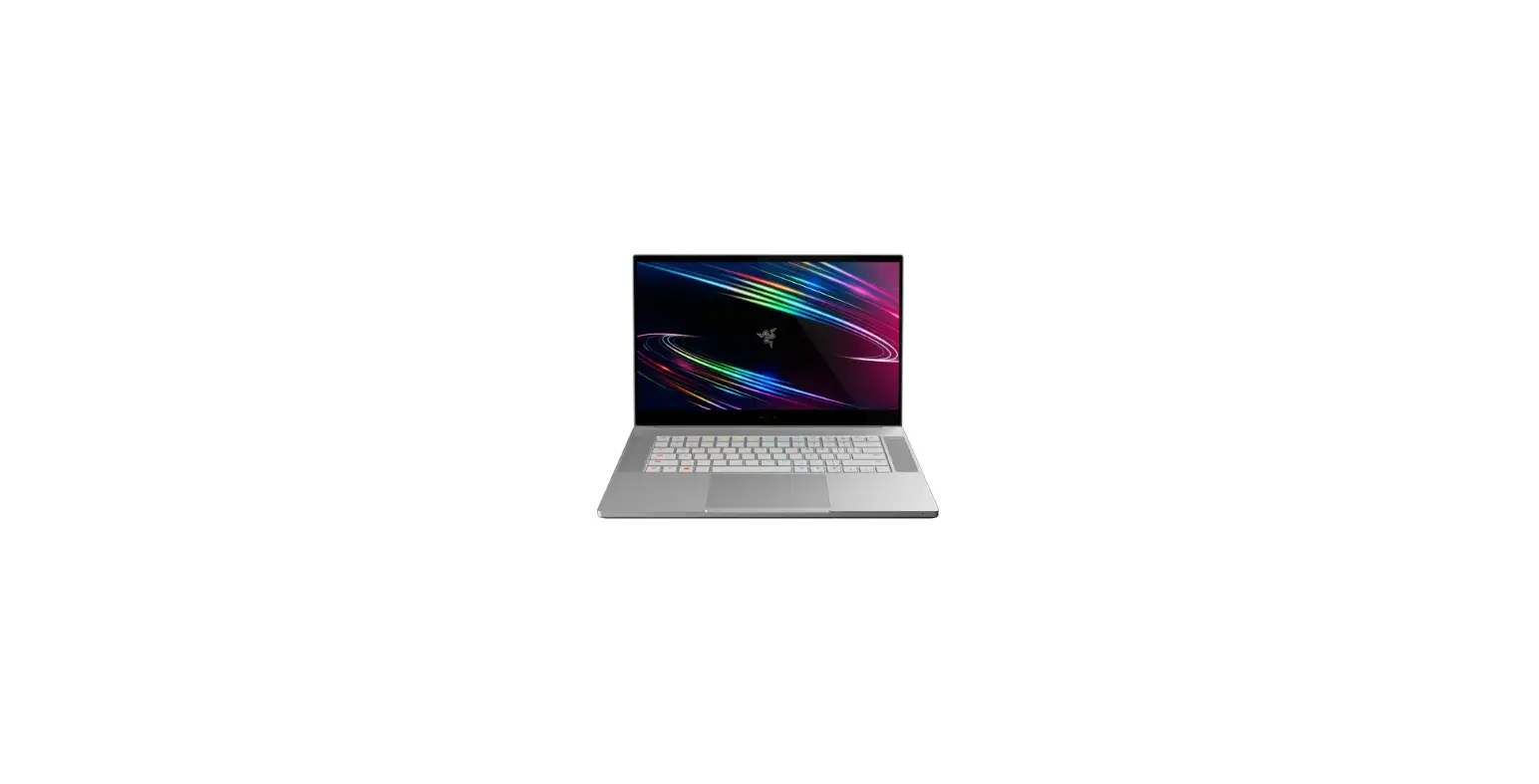
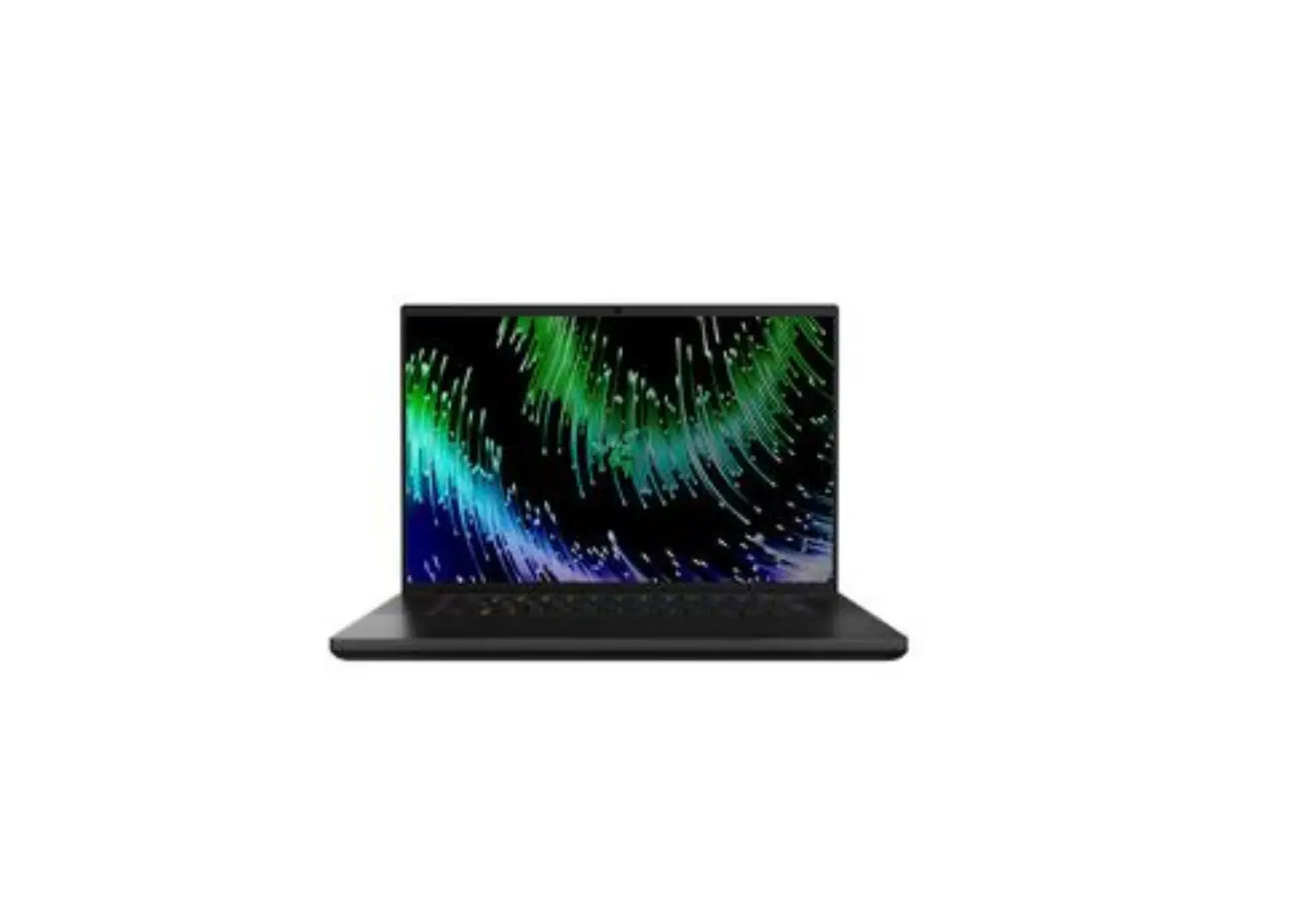
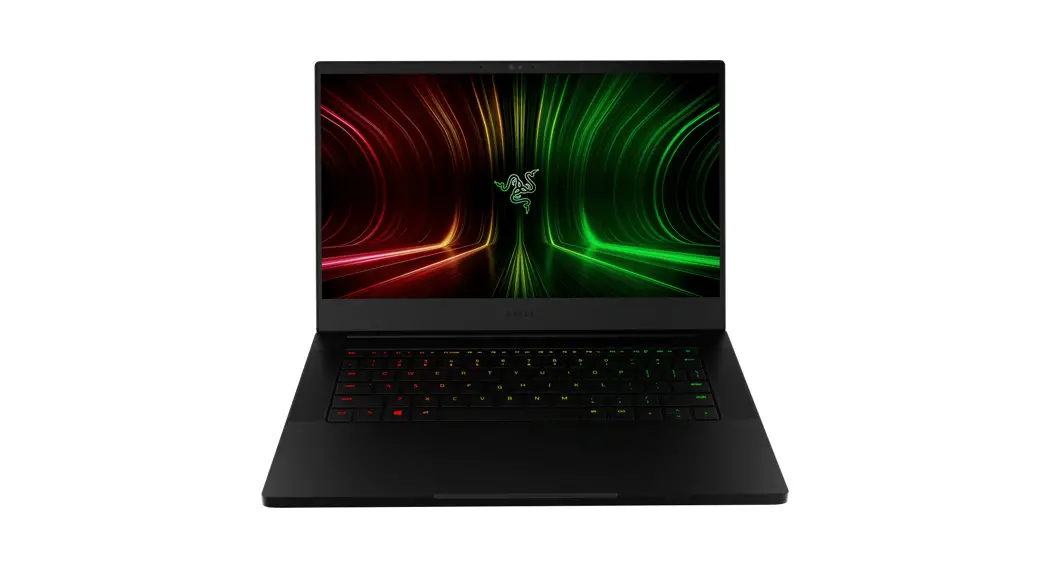
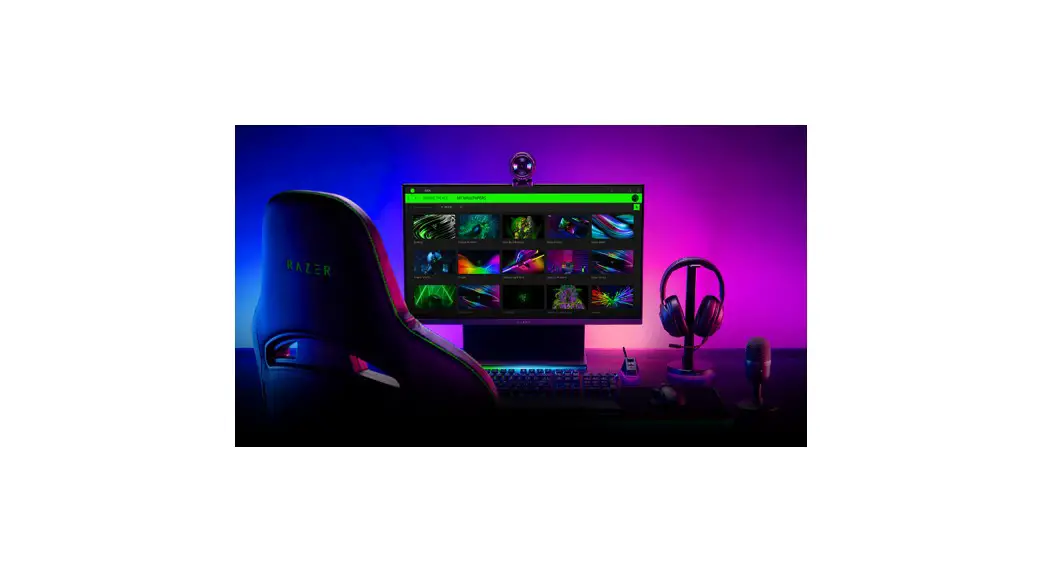
Design your gaming space your way with digital wallpapers for your PC desktop, enabled with Razer Chroma RGB lighting effects that sync up with your Razer devices with Razer Axon. With its constantly-updated static or dynamic wallpaper arsenal and desktop-optimized performance designed for low hardware usage enjoy an aesthetically harmonious PC that lets you get into any game without delays.
WHAT’S NEEDED
- Windows® 10 64-bit (or higher)
- Internet connection for software installation and online features
- Razer Synapse 3 with Chroma Connect module*
- Windows Media Player
*Chroma Connect module is required to sync Razer Chroma devices with Razer Chroma-supported wallpapers.
SETUP
INSTALLATION (FOR FIRST-TIME USERS)
Razer Axon is a software package that can be downloaded and installed on your PC.
- Download and install the latest version of Razer Axon.
- Click Done once the installation completes and restart when prompted.
UPDATING THE SOFTWARE (FOR EXISTING USERS)
Make sure you’re using the latest version of Razer Axon. From the Razer Axon Settings  , go to ABOUT > CHECK FOR UPDATES, click the CHECK FOR UPDATES link and INSTALL if an update is available for Razer Axon.
UNINSTALLATION
If you want to uninstall Razer Axon completely:
- On your PC, open the Control Panel, then go to Programs and Features.
- Right-click Razer Axon, then select Uninstall.
- Follow the onscreen instructions to complete the uninstallation.
GENERAL SETTINGS
THE USER INTERFACE
By default, the AXON tab is displayed when you launch Razer Axon, allowing you to access the various functions Razer Axon offers.
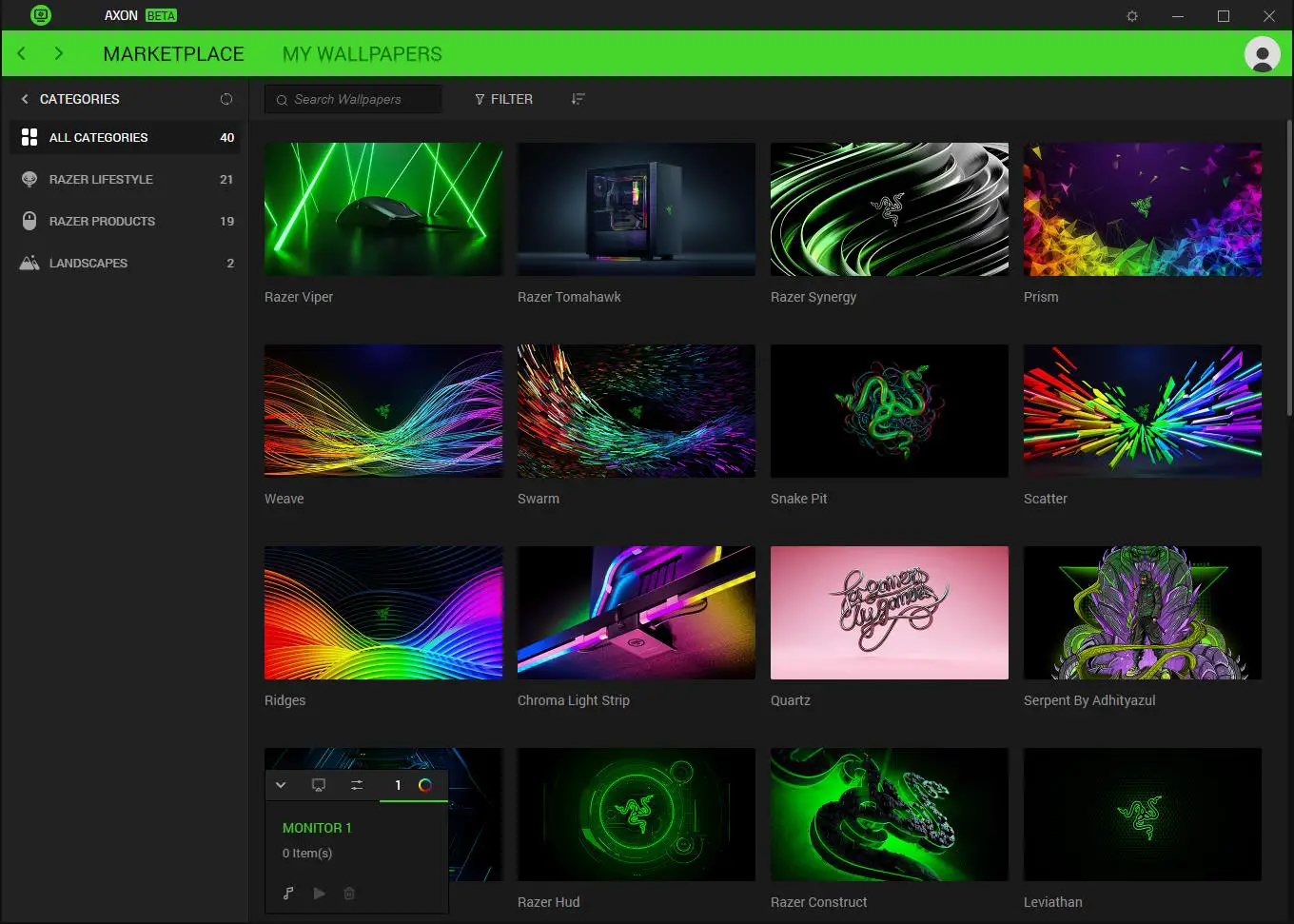
Navigation Use the (< ) or ( > ) buttons to navigate between Marketplace and My Wallpapers sub-tabs.
Avatar
Clicking on your avatar will allow you to check your Razer Gold and Silver balance or redemption history or access Razer ID account-oriented features. Alternatively, you may access the feedback page or exit Razer Axon from the dropdown list. Some features may require you to log in with your Razer ID. Learn more about the Guest account
Wallpapers
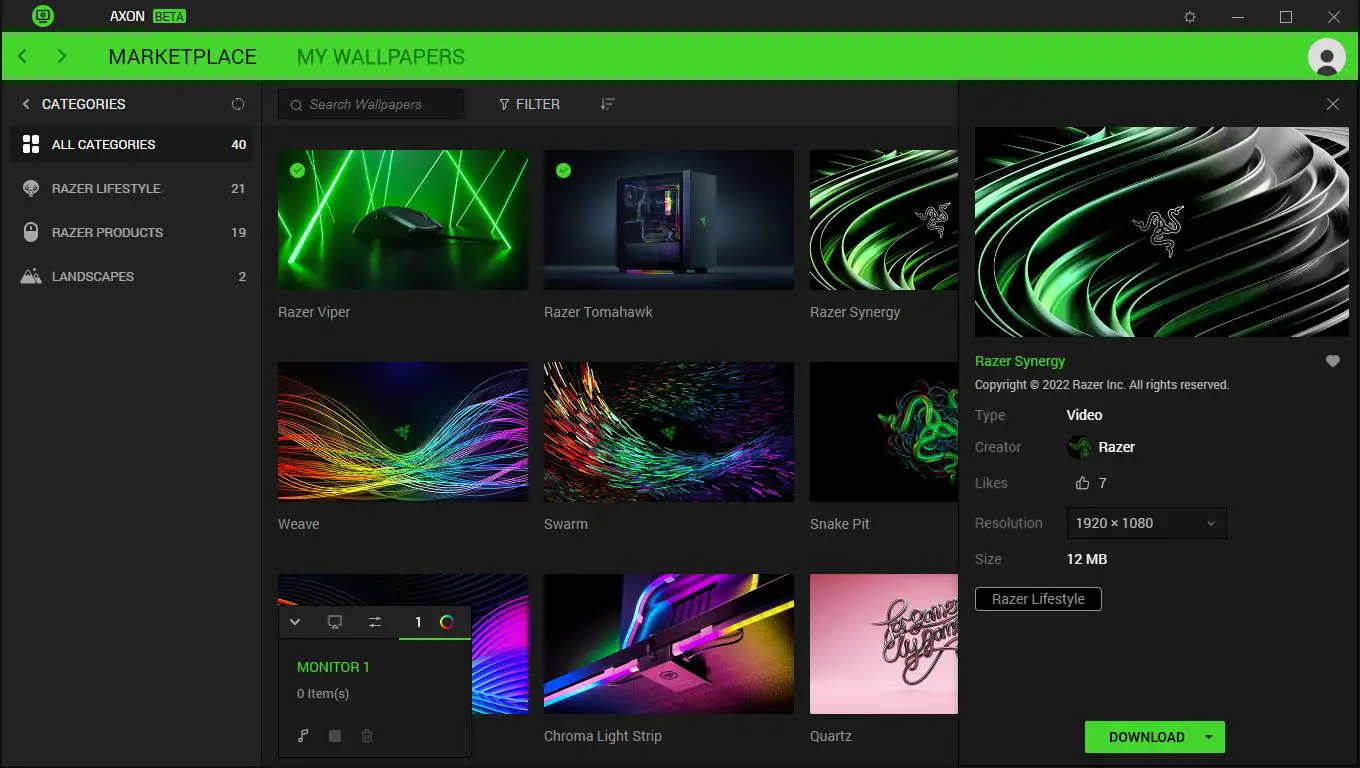
Clicking on any wallpaper will show attributes, such as wallpaper type, creator, likes and tag(s). You may also change the wallpaper’s current resolution, reset a wallpaper’s properties, and download (or apply) a wallpaper.
Like
Shows the selected wallpaper’s current like count. Click the Like button (  ) to like the selected wallpaper. Liking wallpapers allows Razer Axon users to sort wallpapers according to ‘Most liked’.
Add to Favorites
Add or remove the wallpaper to your favorites list by clicking the Add to Favorites button (  ). Once added, you’ll be able to see all favorited wallpapers using the ‘Favorites only’ filter option.
Resolution
Displays and allows you to change (for downloadable multi-resolution wallpapers) the quality of the selected wallpaper; downloaded wallpapers need to be deleted and redownloaded with the preferred quality. Learn more about deleting wallpapers
Size
Displays how much space the selected wallpaper will occupy in your system and is often dependent on the resolution selected before download.
Silver
Indicates the current Razer Silver price to redeem exclusive wallpapers.
Download / Apply
Download or apply the selected wallpaper on the active monitor. Downloaded wallpapers are marked with the  icon. Applied wallpapers are automatically added to the current monitor’s Playlist. Learn more about Playlist
A download option, such as applying the selected wallpaper to the current monitor, is available when you click on the arrow beside the Download button.
Properties
For downloaded wallpapers, this setting enables or disables the Razer Chroma RGB effect of the selected wallpaper on any monitor it’s active on.
Other wallpaper controls
Other wallpaper controls can be accessed when you right-click on any downloaded wallpaper:
- Apply. Apply the selected wallpaper on specific monitors.
- Add to / Remove from favorites. Add or remove a wallpaper to your favorites list.
- Open file location. Show the folder where the selected wallpaper is located.
- Delete. Delete the downloaded wallpaper from local storage.
PLAYLIST
Found at the bottom of the Razer Axon page, use the Playlist to manage the playback of all applied wallpapers and toggle on or off Chroma effects on any monitor.
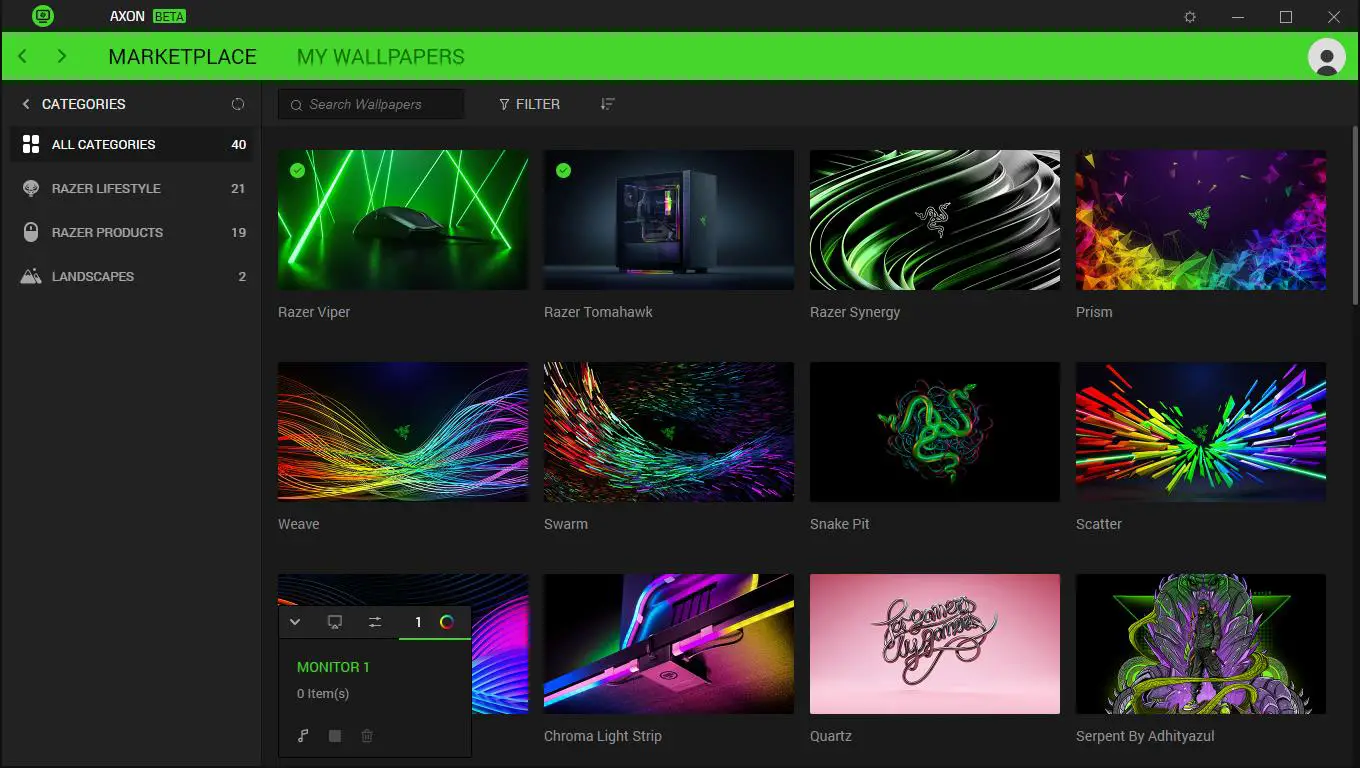
Applying any wallpaper on any monitor adds the wallpaper to the current monitor’s playlist queue.

- Show (∧) / Hide (∨ ). Expand or collapse the Playlist.
- Display settings (
 ). Open Settings > Display window, where you can set your main monitor and how wallpapers will be displayed on multiple monitors or use the main monitor’s wallpaper as your system’s screen saver.
 - Playback settings (
 ). Set how long each wallpaper in the Playlist will be displayed on a monitor and in what order wallpapers will display on each monitor.
 - Enable / Disable Chroma (
 ). Enable or disable all Chroma effects on all wallpapers in the Playlist.
 - Mute (
 ) / Unmute (
  ). Mute or unmute all sound-enabled wallpapers in the playlist.
 - Play (
 ) / Stop (
  ). Enable or disable the current playlist on the selected monitor.
 - Remove wallpaper (
 ). Upon hovering on any wallpaper in the playlist, clicking the remove wallpaper ( ) button will remove it from the list.
 - Remove all items. Remove all wallpapers from the selected monitor’s playlist.
 ). Open Settings > Display window, where you can set your main monitor and how wallpapers will be displayed on multiple monitors or use the main monitor’s wallpaper as your system’s screen saver.
 ). Set how long each wallpaper in the Playlist will be displayed on a monitor and in what order wallpapers will display on each monitor.
 ). Enable or disable all Chroma effects on all wallpapers in the Playlist.
 ) / Unmute (
  ). Mute or unmute all sound-enabled wallpapers in the playlist.
 ) / Stop (
  ). Enable or disable the current playlist on the selected monitor.
 ). Upon hovering on any wallpaper in the playlist, clicking the remove wallpaper (
 SETTINGS
The Settings window, accessible by clicking the Settings button ( ), enables you to configure the software’s language and startup behavior, global wallpaper settings such as wallpaper volume and display behavior when using multiple monitors, and software performance modes.
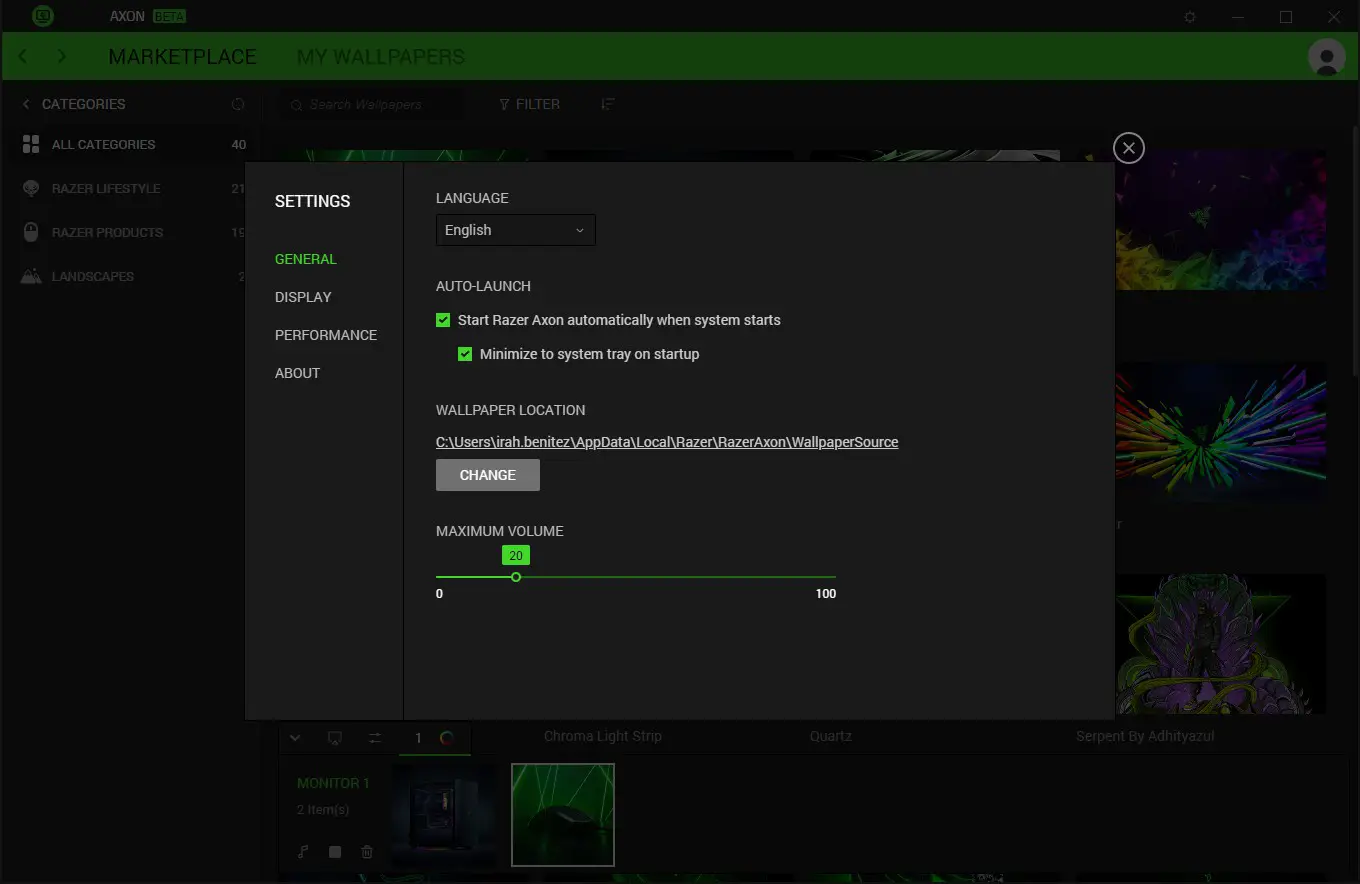
From here, you’ll be able to access the following tabs:
- General. Change the software’s language, startup behavior and default wallpaper directory, and adjust the maximum wallpaper volume for music-supported wallpapers.
- Display. Customize how the software will display wallpaper(s) on multiple monitors, set the main monitor (for multiple-monitor users), and set the software to use the main monitor’s wallpaper as your system’s screen saver.
- Performance. Set how the software adjusts its performance when running games or applications.
- About. View the software’s information and copyright statement, including links to its license terms, software notice, terms of service, and privacy policy. You may also use this tab to check for software updates, view the software’s user guide, or as quick access to Razer’s social communities.
MARKETPLACE
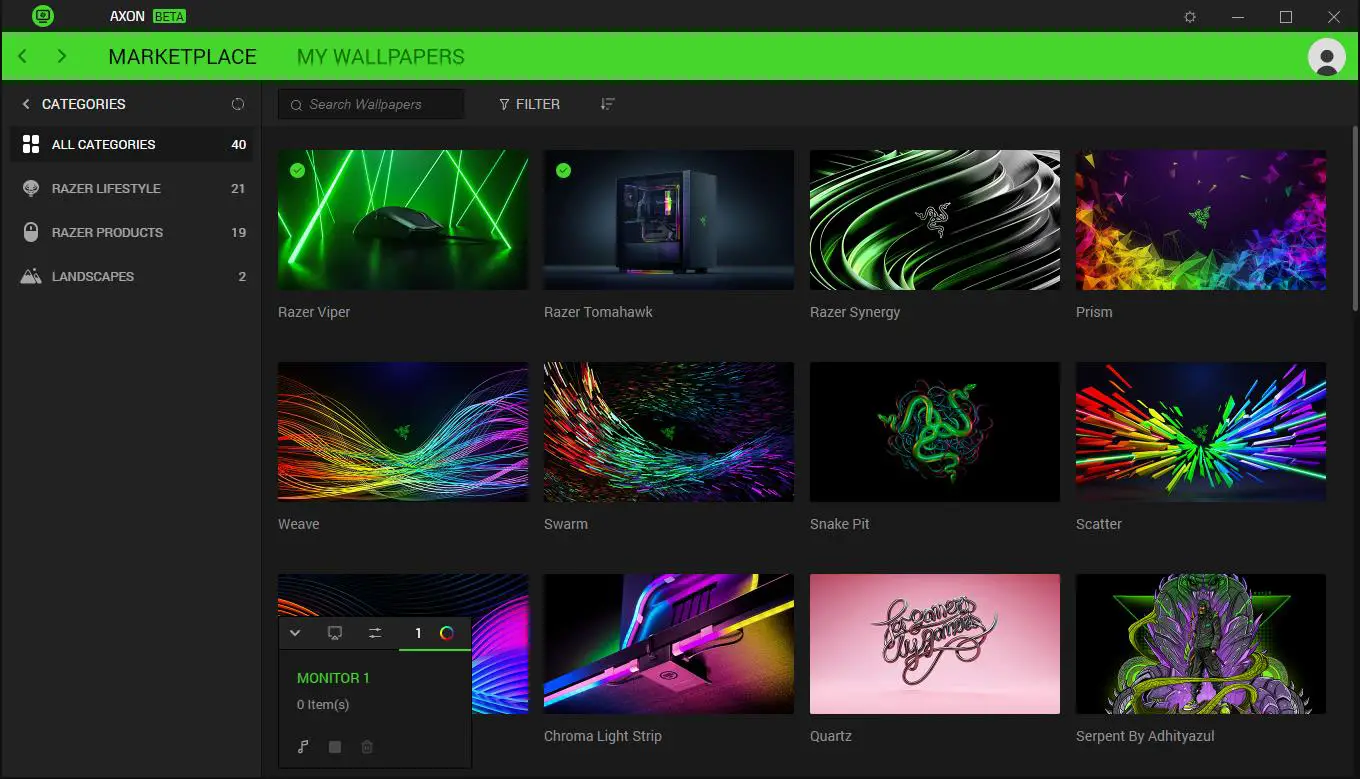
Bring your system to life with exclusive wallpapers made available in one place. The Marketplace subtab shows all the available wallpapers for download.
SIDEBAR
Use the sidebar to view all the available wallpaper categories on Razer Axon. You can collapse or expand the sidebar by clicking on the Expand ( >) and Collapse buttons (<) and refreshing the wallpaper list using the Refresh button (  ).
).
SEARCH WALLPAPERS
Input the name or keyword of the wallpaper you want to search for in the Marketplace
FILTER AND SORT
Toggle on Filter (  ) to filter wallpapers or search results according to Favorites only, Redeemed, Type and Resolution. To remove all applied filters, click on the Clear button.
Wallpapers or search results can be sorted according to most liked, most recent, and most downloaded using the Sort (  ) button.
MY WALLPAPERS
Access all downloaded wallpapers or customize your wallpapers using videos or web resources.
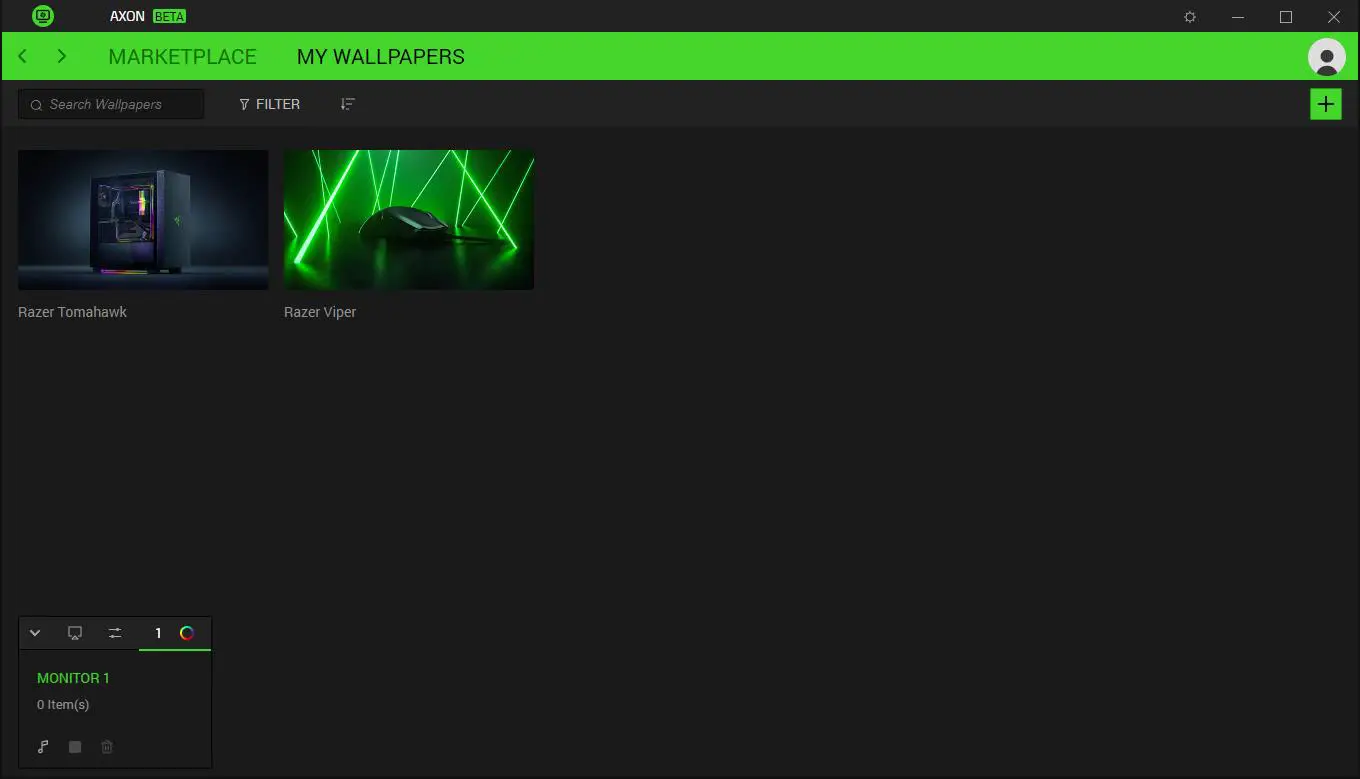
FILTER AND SORT
Toggle on Filter ( ) to filter wallpapers or search results according to Type and Source. To remove all applied filters, click on the Clear button.
Wallpapers or search results can be sorted according to name and date added using the Sort ( ) button.
CREATE A WALLPAPER
Click the Create a wallpaper button (  ) to Customize a wallpaper using videos on your system’s local storage or a local path or web URL. You can assign a wallpaper title, set its author, and upload your preferred cover art on any created wallpaper.
LEGALESE
COPYRIGHT AND INTELLECTUAL PROPERTY INFORMATION
©2022 Razer Inc. All rights reserved. Razer, the triple-headed snake logo, Razer logo, “For Gamers. By Gamers.”, and “Razer Chroma” logo are trademarks or registered trademarks of Razer Inc. or affiliated companies in the United States and other countries. All other trademarks are the property of their respective owners.
Windows and the Windows logo are trademarks of the Microsoft group of companies.
Razer Inc. (“Razer”) may have copyright, trademarks, trade secrets, patents, patent applications, or other intellectual property rights (whether registered or unregistered) concerning the product in this guide. Furnishing of this guide does not give you a license to any such copyright, trademark, patent, or other intellectual property right. The Razer Axon (the “Products”) may differ from pictures, whether on packaging or otherwise. Razer assumes no responsibility for such differences or for any errors that may appear. Information contained herein is subject to change without notice.
LIMITATION OF LIABILITY
Razer shall in no event be liable for any lost profits, loss of information or data, special, incidental, indirect, punitive, or consequential or incidental damages, arising in any way out of distribution of, sale of, resale of, use of, or inability to use the Product. In no event shall Razer’s liability exceed the retail purchase price of the Product.
GENERAL
These terms shall be governed by and construed under the laws of the jurisdiction in which the Product was purchased. If any term herein is held to be invalid or unenforceable, then such term (in so far as it is invalid or unenforceable) shall be given no effect and deemed to be excluded without invalidating any of the remaining terms. Razer reserves the right to amend any term at any time without notice.
FOR GAMERS. BY GAMERS .™
 rzr.to/axon-download
 Razer ID Support