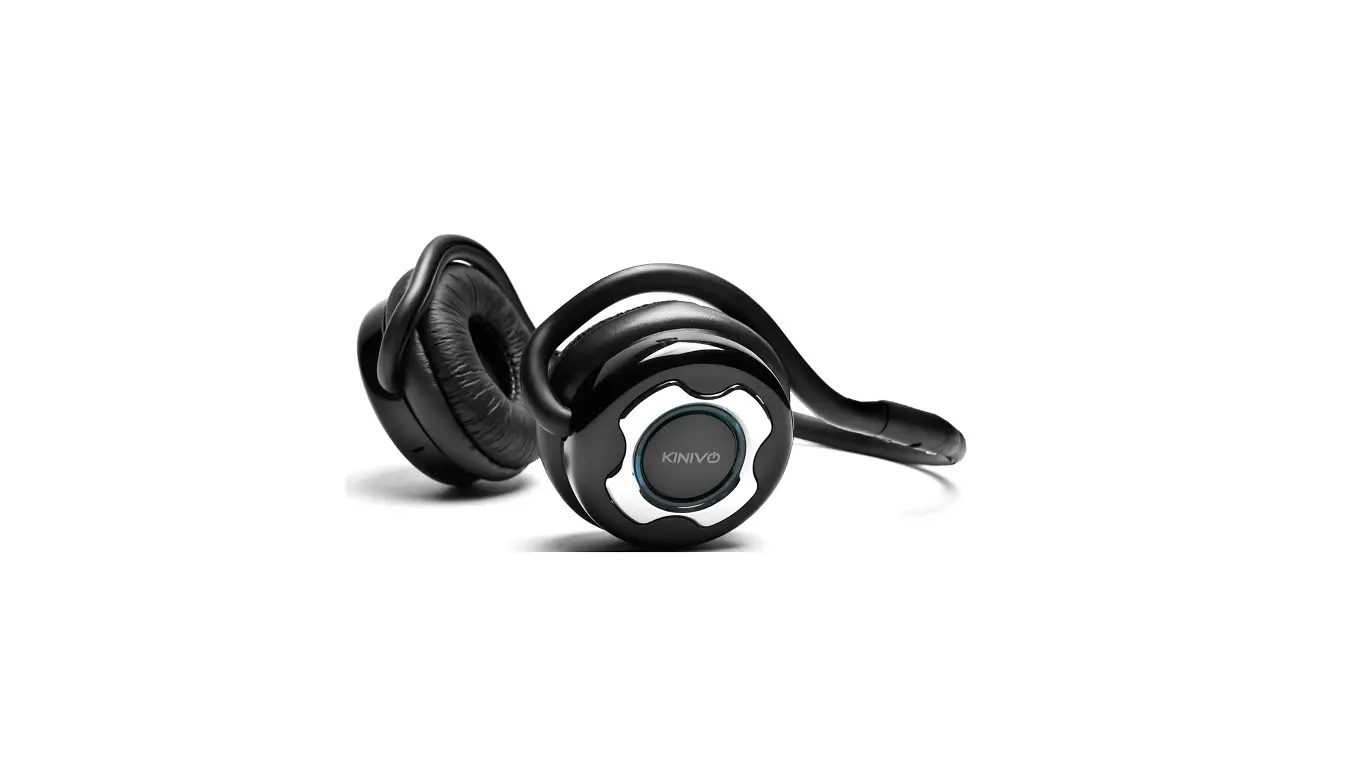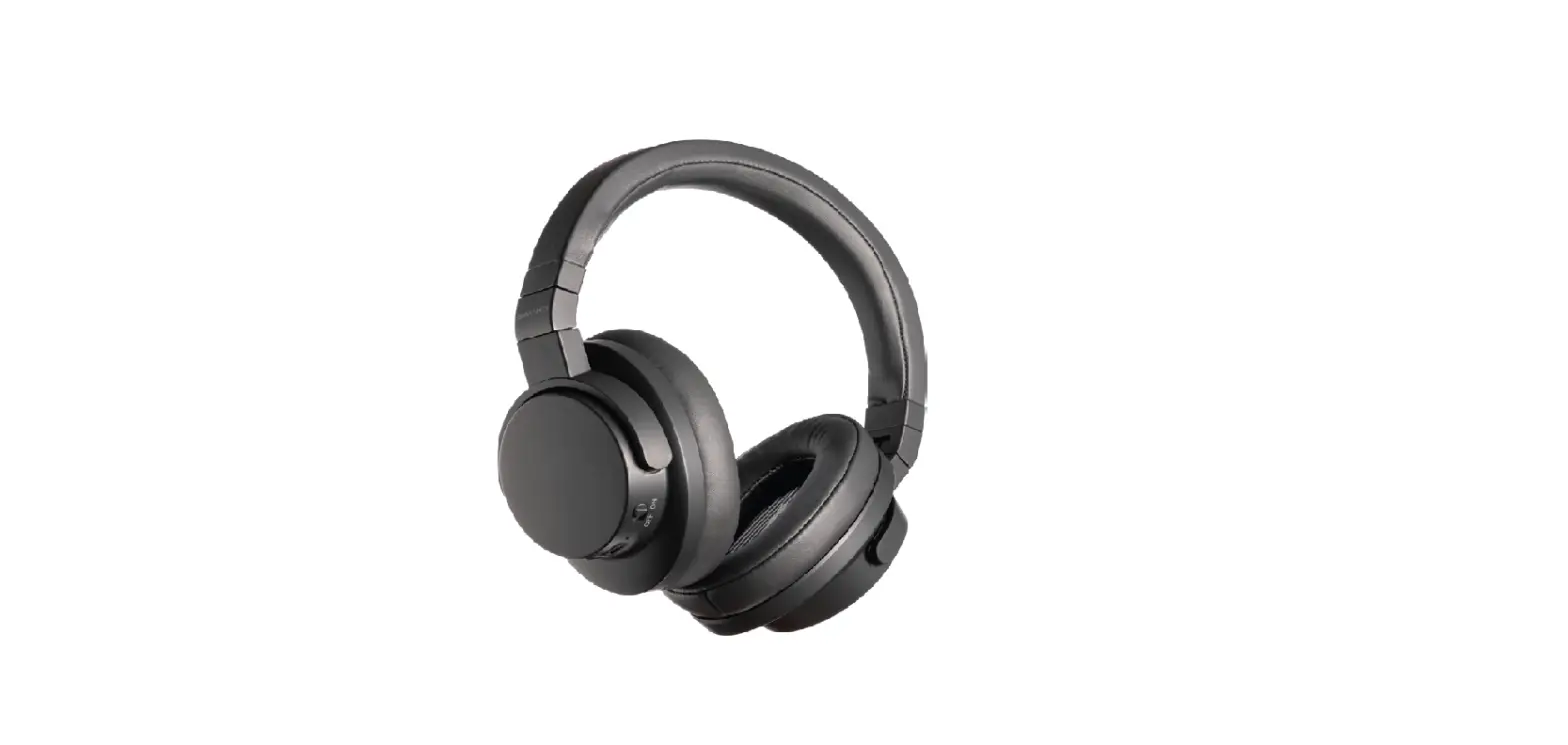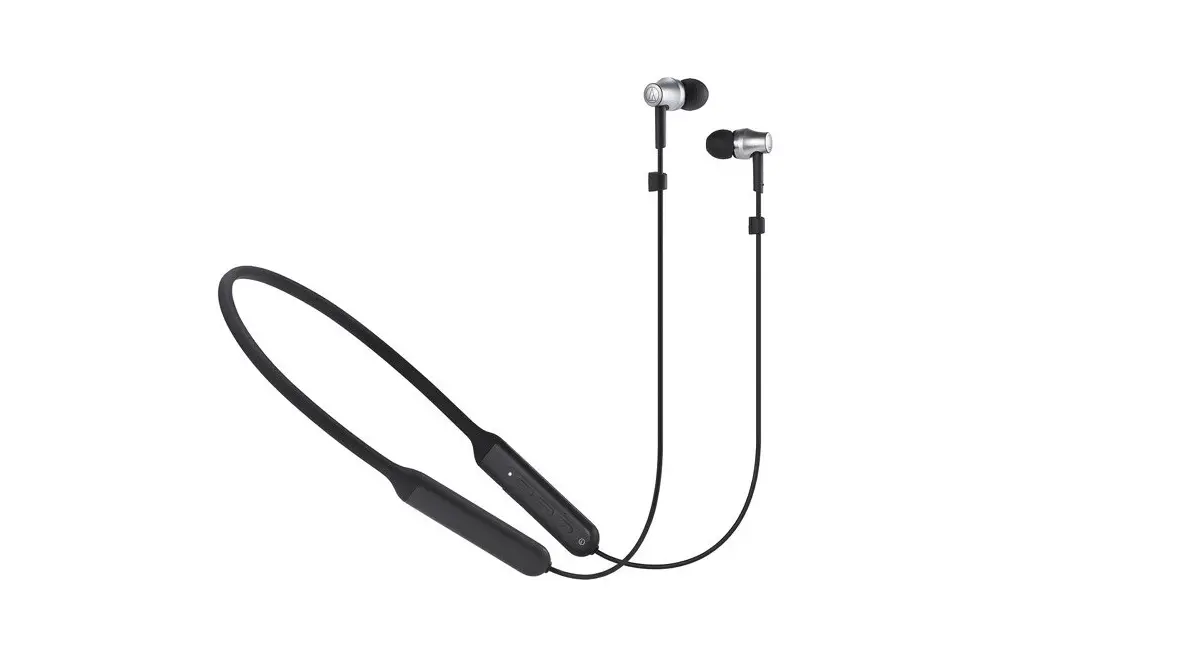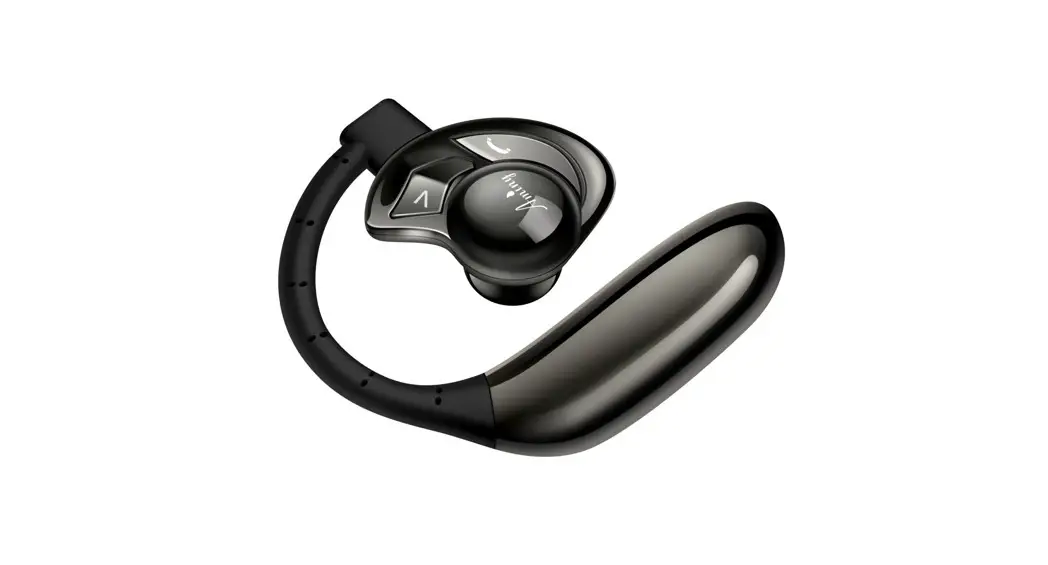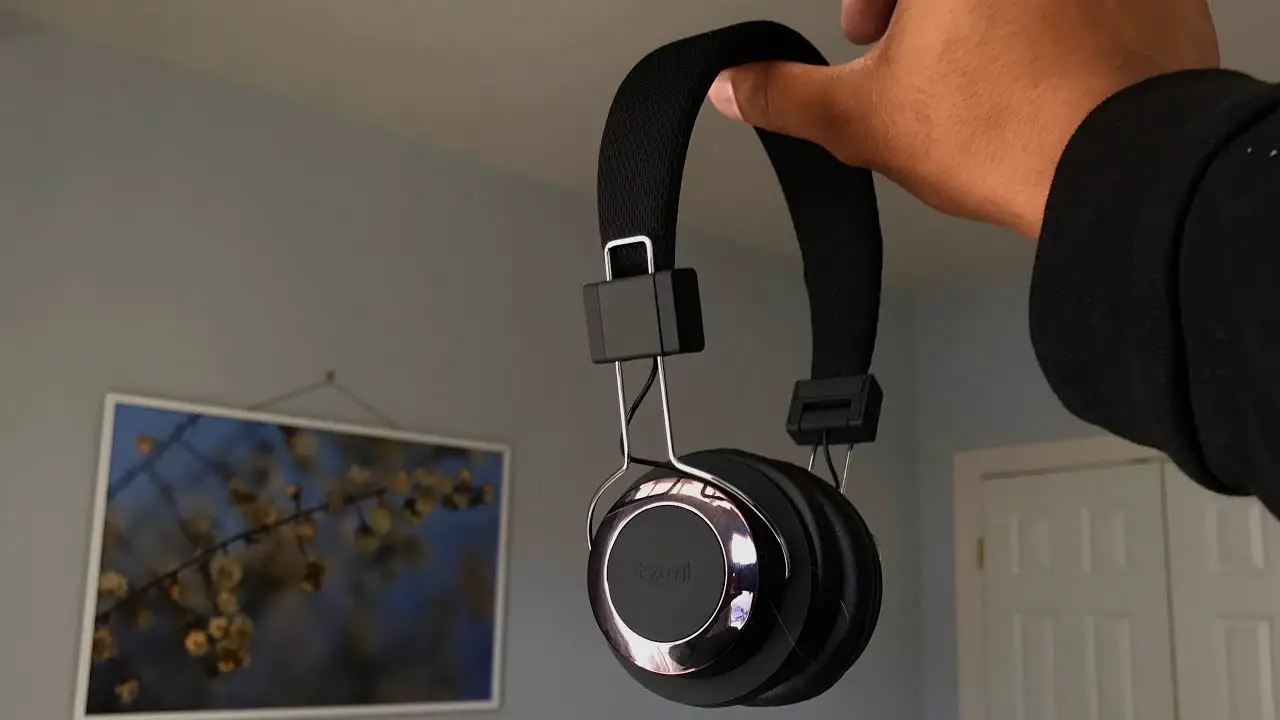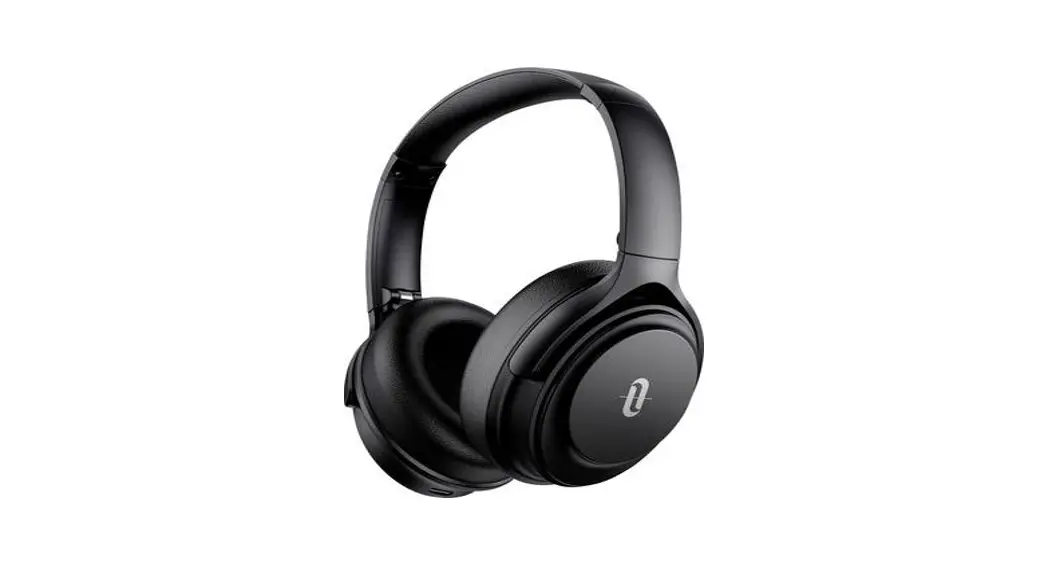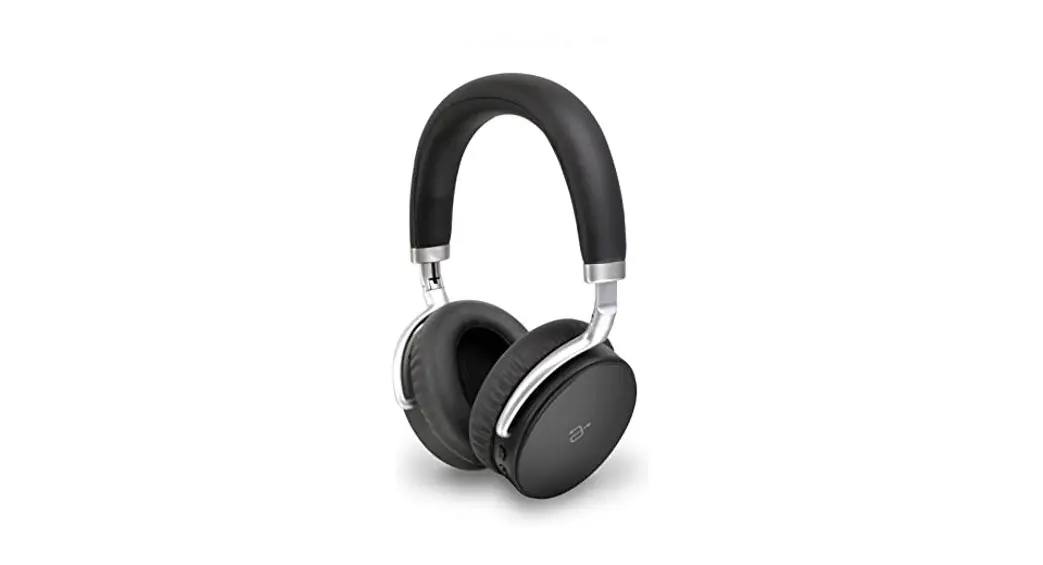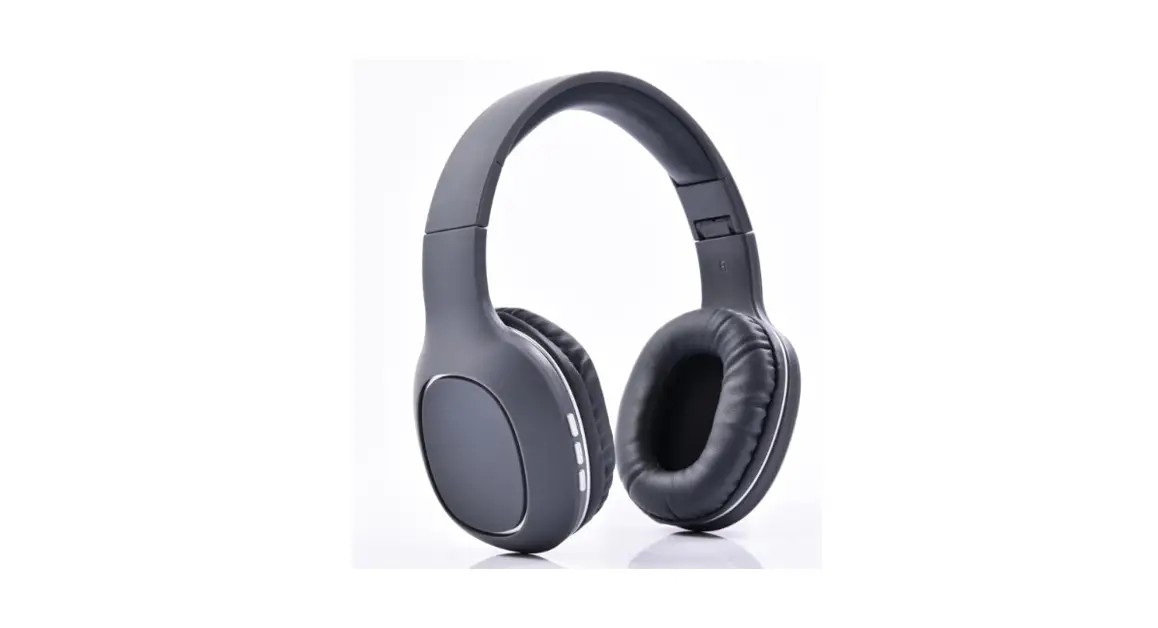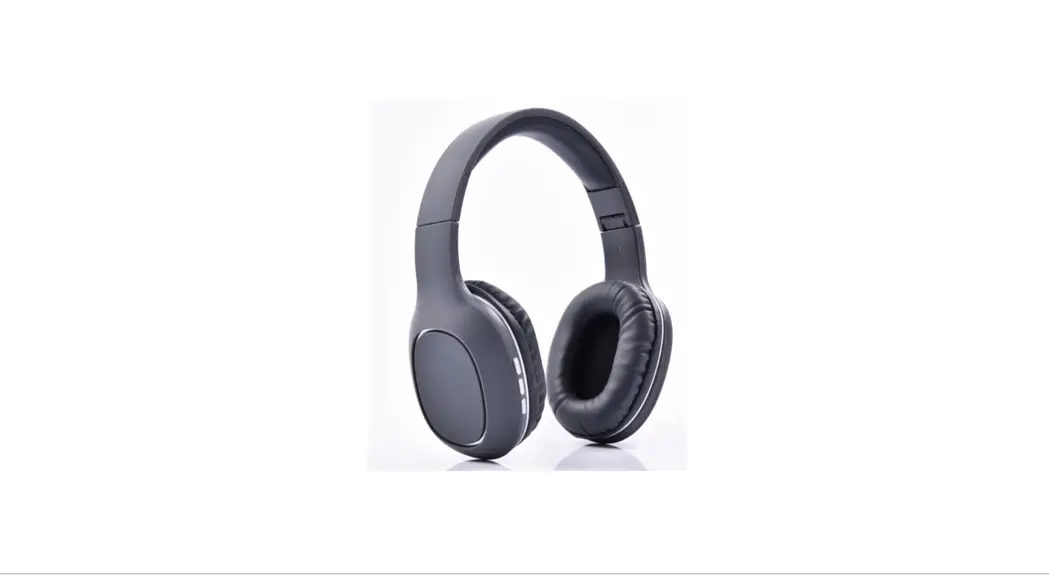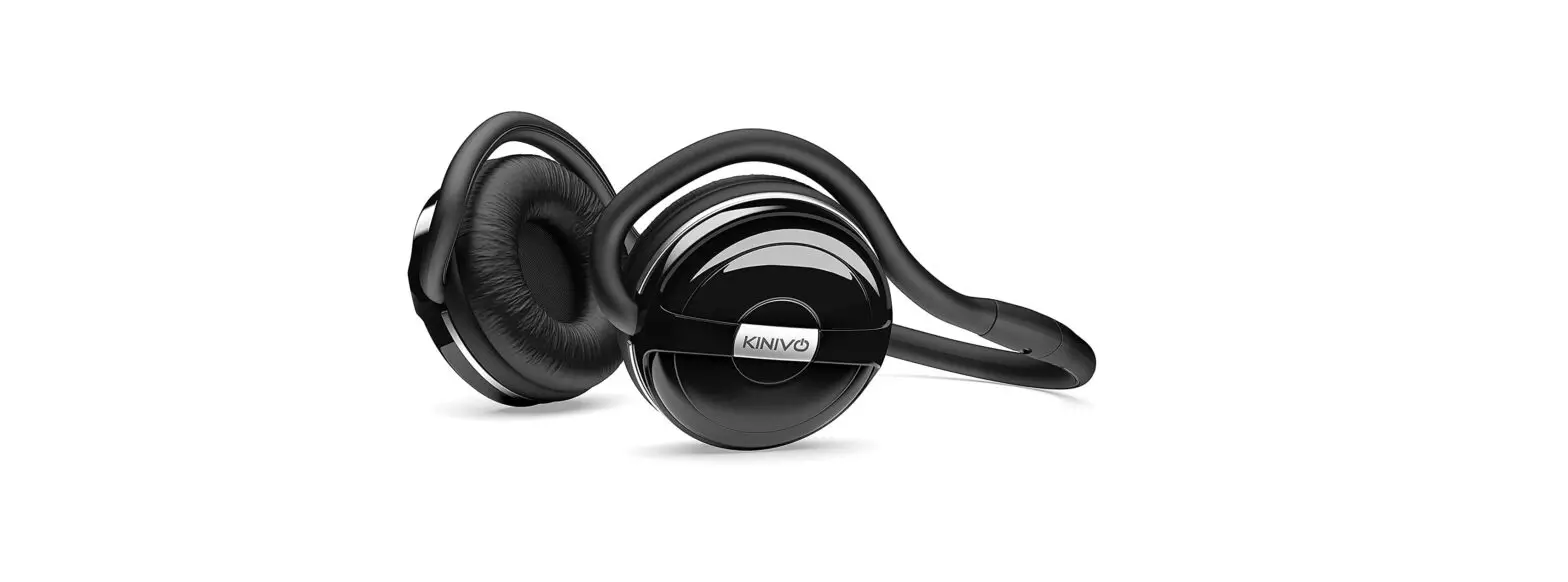

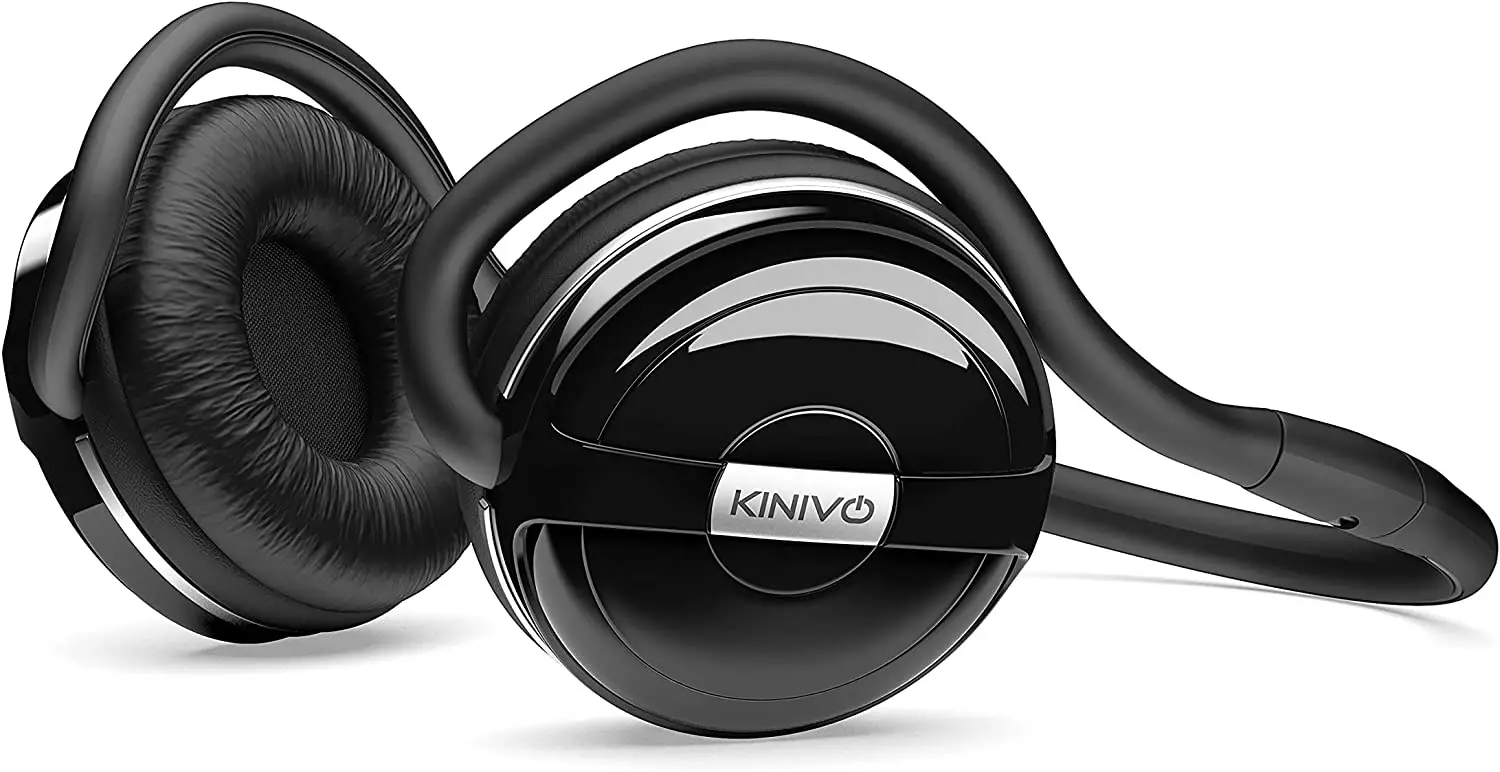
Kinivo BTH240 Bluetooth Headphones
Specifications
- BLUETOOTH SPECIFICATION VERSION: 4.0,
- PROFILES SUPPORT: A2DP1.2, AVRCP1.0,
- RF FREQUENCY RANGE: 2.402-2.480 GHz, 2.4G ISM band,
- RADIO PERFORMANCE RECEIVE SENSITIVITY: -90 dBm, TX,
- POWER MAX: 4 dBm,
- FREQUENCY RESPONSE: 20 Hz – 20 kHz,
- NOISE RATIO (SNR): 95 dB,
- TOTAL HARMONIC DISTORTION (THD): 0.1%,
- POWER SOURCE Battery: Rechargeable 400mAh Li-Polymer,
- CHARGING INPUT DC: 5V & 350mA,
- NORMAL CHARGING TIME: 2 ~ 3 hours,
- OPERATING TEMPERATURE: 14 °F ~ 131 °F,
- STORAGE TEMPERATURE: -4 °F ~ 176 °F
Kinivo is compatible with Bluetooth audio players and A2DP-enabled devices, including tablets and smartphones running Android and the iPad, iPhone, and iPod touch. You can Play, pause, next and previous tracks, and volume controls for your music player are all accessible from the headset. These serve as Bluetooth phone headset for hands-free calling as well as wireless music headsets.
It has up to 20 hours of music and chat time in a sleek, cozy, and light design. A lifetime warranty and US-based customer support
Introduction
Read all safety and operation instructions before using the Bluetooth stereo headphones.
Warning: To reduce the risk of fire or electric shock, do not expose the product to water or moisture.
Important Safety Instructions
- Do not expose the BTH240 to liquid, moisture or areas of high humidity.
- Do not use abrasive cleaners to clean the BTH240 as they may damage the unit. Always unplug and power off the unit before cleaning.
- Do not expose the BTH240 to extremely high or low temperatures.
- Do not attempt to open or modify the BTH240 in any way.
- Keep the unit away from direct sunlight.
- Refer to your State’s driving laws to see if they permit using Stereo
- Headphones while driving.
- To avoid electronic interference and/or compatible conflicts, turn off the BTH240 in any facilities where posted notices instruct you to do so. For example: Aircraft, Military Base, Hospital or Health Care Facilities.
- To avoid impairing your hearing in the long-term operation, keep the playback volume at a moderate level.
- Keep away from fire, water, and high voltage equipment’s.
- Store the headphones in a cool dry place.
- The BTH240 contains a lithium ion battery. Lithium ion batteries are flammable and can cause fire if misused or defective.
- Always dispose of the packaging and unit in accordance with the local regulations and in a responsible manner.
Headphones Overview
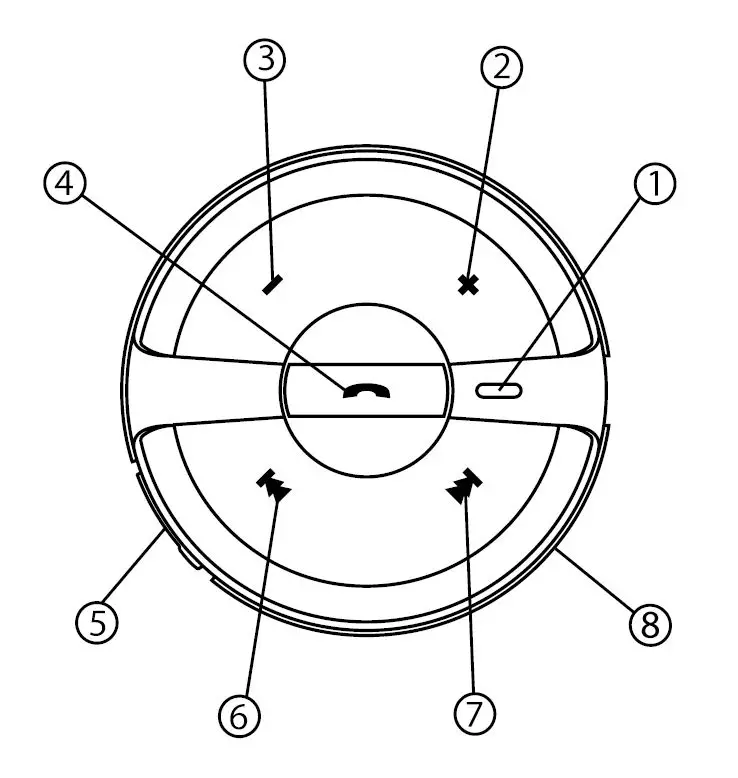
- LED indicator
- Volume + button
- Volume – button
- Multifunction button
- Micro USB charging port
- Previous song button
- Next song button
- Microphone
For additional information and features for Bluetooth controls, please refer to the Operation section of this user manual.
Package Contents
- BTH240 Stereo Bluetooth Headset
- USB Charging Cable
- User Manual
- Carrying Pouch
Operation
- Turn Unit On/Off
Press and hold the multifunction button for 3 – 4 seconds until the blue LED appears to turn the headphones on. Press and hold the multifunction button for 3 – 4 seconds or until the red LED appears to turn the headphones off. - Charging the Battery
To charge the BTH240 headphones, connect the USB cable to the BTH240 and plug the headphones into a USB power source. USB power sources include computers, laptops, USB hubs, USB AC adapters, and USB car chargers.
When the BTH240 is charging, the red light will be lit. When the battery is fully charged, the red light will turn off. The charging process can take 2 to 3 hours to charge the battery completely. When the BTH240 has a low battery, the red light will blink intermittently and the headphones will play an audible tone while powered on. - Standby Mode/Idle Feature
When the headphones are powered on and are inactive after several minutes of use, they will automatically enter standby mode. In this state, the BTH240 will preserve battery power. To wake the device, press the multifunction button - Bluetooth Pairing
- Ensure the headphones are powered off, then enter the pairing mode on the headphones by pressing and holding the multifunction button for 7 to 10 seconds until the blue and red lights start flashing alternatively (Note – do not release when you see only the blue light).
- Follow the operating instruction of your Bluetooth device to start the pairing process.
For iPad, iPhone, iPod Touch
Navigate to Settings > Bluetooth (On), then select the BTH240 to pair the headphones.
For Android smartphones
Navigate to Settings > Wireless & networks > Bluetooth settings while Bluetooth is enabled, then select Scan for devices. Select the BTH240 to pair the headphones.
- To Pair with Windows 7 or Windows 8
- Make sure your computer is Bluetooth enabled and supports Bluetooth stereo (A2DP).
- After putting the BTH240 headphones in pairing mode, right click the Bluetooth tray icon then select ‘Add a Device’ from the context menu. Under Windows 8, type “Add a Bluetooth device”.
- Locate the BTH240 from the devices list and click the Next button.
- After your computer has loaded the device and the drivers for the headphones, you should see that the device has successfully connected. Continue by clicking Close on the Add a device window and closing the second information window.
- Right click the Volume control tray icon then select ‘Playback devices’ from the context menu.
- Select the Headphones (Bluetooth Hands-free Audio) and then click ‘Set Default’.
- Hit OK to close the window. The Kinivo BTH240 headphones should now play audio from your computer.
- To Pair with Mac OS X
- After putting the BTH240 headphones in pairing mode, click the Bluetooth tray icon then select ‘Set Up Bluetooth Device’ from the drop down menu.
- Locate the BTH240 from the devices list and click Continue.
- You should see that the device pairing has successfully completed. Continue by clicking Quit.
- To use the headphones as the default audio device, click the Bluetooth tray icon and hover over the BTH240 option then select ‘Use as Audio Device’.
- The next time you adjust the volume in the menu bar or play music, the computer will automatically connect to the headphones.
- Button Function
| Function | Operation |
| Toggle unit on/off | Press and hold multifunction button for 3 to 4 seconds (blue or red LED blinking) |
| Bluetooth pairing mode | While the headphones are powered off, press and hold multifunction button for 7 to 10 seconds (red and blue LED blinking alternatively) |
| Reconnect Bluetooth (in standby mode) | Press any button |
| Voice command Voice dialing (Siri for supported iPhones) | To use this feature your mobile device must support the voice dialing function. 1. Press the multifunction button twice in quick succession. You will hear a beep prompt. 2. Give voice command. |
| Answer call End call | Press multifunction button |
| Redial last number Refuse incoming call | Press and hold ‘volume +’ button for 3 seconds |
| Switch audio between phone and BTH240 | While in a call, press and hold multifunction button for 2 seconds |
| Increase volume | Press ‘volume +’ button |
| Decrease volume | Press ‘volume -’ button |
| Play music | Press multifunction button |
| Next song | Press next song button |
| Previous song | Press previous song button |
- Factory Reset
WARNING: Performing a factory reset on the BTH240 will delete any previous pairings and will restore the headphones to factory default settings. Only perform this if you are experiencing any issues with the product.
- Power on the BTH240 headphones.
- Press and hold the ‘Volume –’ and the multifunction button – both simultaneously for 7 seconds. The LED will blink purple twice.
- Power the headphones off.
Note: After factory reset, you will need to remove the previous BTH240 pairing from your Bluetooth device and repeat the pairing process.
Troubleshooting
- Unable to pair to smartphone or tablet
Ensure that the headphones are in pairing mode (see Bluetooth Pairing section). Now open the Bluetooth configuration on your smartphone or tablet and scan for Bluetooth devices. You should see the BTH240 headphones proceed to pair and connect the headphones. - Headphones no longer connect to my device
To ensure the BTH240 headphones is in working order, delete all existing pairings on all devices and perform a factory reset (see Factory Reset section). - Headphones work with my smartphone but not my computer
The headphones need to be supported by the Bluetooth adapter in your computer. To ensure the Bluetooth adapter for your computer is functioning correctly, update the drivers to the latest version. In addition, you may need to verify that your computer’s Bluetooth adapter supports A2DP (Advanced Audio Distribution Profile), HSP (Headset Profile), HFP (Hands-free Profile), and/ or AVRCP (Audio/Video Remote Control Profile). - Lost or damaged USB cable
If you have lost or damaged the included USB cable, you can use any standard micro-USB cable or micro-USB charger to charge the BTH240 headphones. - Error: Driver missing when trying to pair to computer
The Bluetooth adapter for your computer provides the drivers for all Bluetooth headphones. To ensure the Bluetooth adapter for your computer is functioning correctly, update the drivers to the latest version. In addition, you may need to verify that your Bluetooth adapter supports A2DP (Advanced Audio Distribution Profile), HSP (Headset Profile), HFP (Hands-free Profile), and/or AVRCP (Audio/ Video Remote Control Profile). If you need assistance with locating the drivers for your computer, you may contact Kinivo Support. - Error messages when connecting on Mac OS X
Verify that the BTH240 headphones are powered on. If you are still unable to connect, restart the computer and remove the BTH240 from the Bluetooth device list. Try to pair the headphones again. If at any point you are unable to resolve your issue. Please contact Kinivo
Frequently Asked Questions
- What are the BTH240 headphones compatible with?
In general, the BTH240 headphones will work with devices that support the A2DP (Advanced Audio Distribution Profile), HSP (Headset Profile), HFP (Handsfree Profile), and AVRCP (Audio/Video Remote Control Profile) Bluetooth profiles. A list of common devices that support these Bluetooth profiles:- Apple devices – iPhone, iPod, iPad
- Bluetooth enabled Mac computers – Mac Pro, iMac, MacBook, MacBook Air,
- MacBook Pro, etc.
- Bluetooth enabled Windows computers (Windows 8, Windows 7 and Vista)
- Tablets – Windows, Apple, Android, Kindle Fire HD
- Smartphones – Android, BlackBerry, Windows, Samsung, Droids, HTC, etc.
- Sony PlayStation 3 (chat audio only)
- Where can I find Windows drivers for the BTH240 headphones?
The BTH240 headphones do not have any specific drivers. The computer side drivers are provided by the computer’s Bluetooth adapter (see compatibility list). If you are experiencing driver issues with the headphones on a computer, update your computer’s Bluetooth drivers to the latest version. You may also contact Kinivo support for assistance in locating the right drivers for your computer. - Can I use my phone charger or car charger with the BTH240 headphones?
Yes, the BTH240 can be charged from any standard USB power source, such as car chargers, phone chargers, wall chargers, or USB computer ports. - How many Bluetooth connections will the BTH240 headphones remember?
The BTH240 will remember up to five previous Bluetooth connections. When the BTH240 is powered on, it will automatically connect to the last device it was connected to. - Can I use the BTH240 headphones for VoIP or Skype?
Yes, the BTH240 headphones will switch into the Headset Profile (HSP) when the microphone is in use. - How can I tell when the battery is low?
When the battery is low, the BTH240 will play an audible beeping sound. through the headphones and the LEDs will blink red intermittently. - Help! I’m unable to use to the headphones. What should I do?
Please view the Troubleshooting section. If you are unable to find a solution you can contact us via email at [email protected].
Warranty
1 Year Limited Hardware Warranty.
Kinivo hereby warrants to the customer of record that this product is in good working condition and free from defects in material or workmanship under normal use for a duration of 1 year after the date of purchase. The product has been tested to meet the highest quality standards in each testing category. In the unlikely event that the product proves to be defective, Kinivo will repair or replace the product free of charge. If replacement is required and if Kinivo then no longer carries the same product, then Kinivo reserves the right to substitute the product with a replacement product of like quality and size, suitable for the intended use.
This warranty is limited to repair or replacement of the mentioned product only, is non-transferable and does not extend to any product damaged by misuse, natural disasters or any other circumstances beyond Kinivo’s control. The warranty does not cover or provide for the reimbursement or payment of incidental or consequential damage resulting from breach of the limited warranty described above. Except for the limited warranty described above we offer no other warranties expressed or implied, and other than limited warranty expressly contained herein, we hereby disclaim any and all warranties, including without limitation any implied warranties of merchantability, suitability or fitness for a particular purpose.
If your product is not functioning or you have any concerns, please contact Kinivo Support before returning the product.
Online Support / Contact Us
Please visit us at support.kinivo.com or www.kinivo.com for support information, downloads and how to. You may also reach us via email or live chat (details below).
Kinivo Product Support
Email: [email protected]
Live chat: http://support.kinivo.com