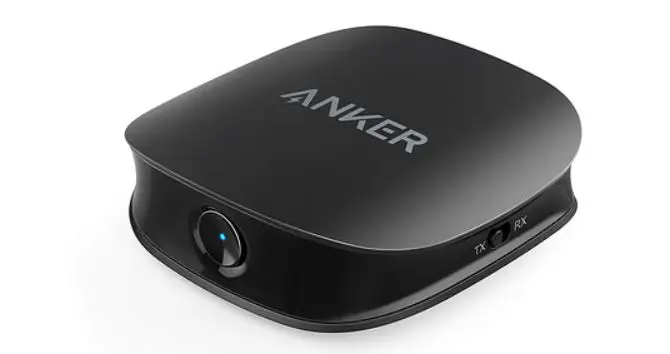

ANKER A3303 Bluetooth 2-in-1 Transmitter and Receiver aptX Low-Latency Technology
At a Glance
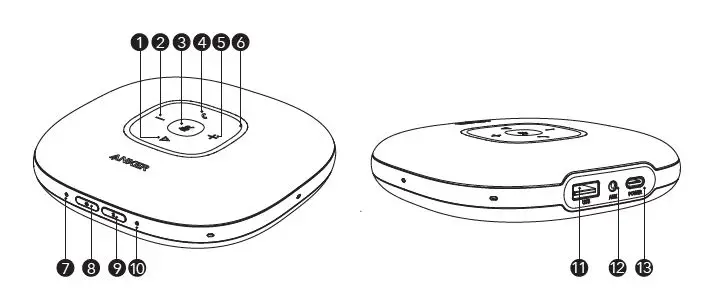
- Multi-function button
- Volume down button
- Mute button
- Phone call button
- Volume up button
- Status LED
- Power LED
- Power button
- Bluetooth button
- Bluetooth LED
- USB port (Type-A) for charge-out
- Audio output port
- USB port (Type-C) for charge
Connecting
Connect to PC Bluetooth USB adapter
Plug the Bluetooth USB adapter into a USB port on your PC, Power Conf+ is ready to use when powered on.
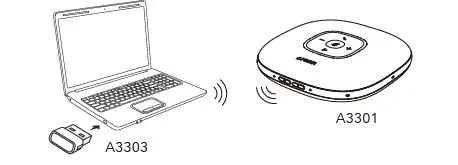
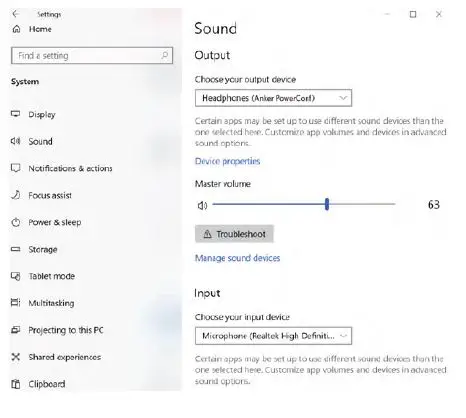
Having a problem? You might need to manually set PowerConf+ as the audio device for your PC system or conference software.
iOS System
System Preferences > Sound > Sound Effects / Output / Input
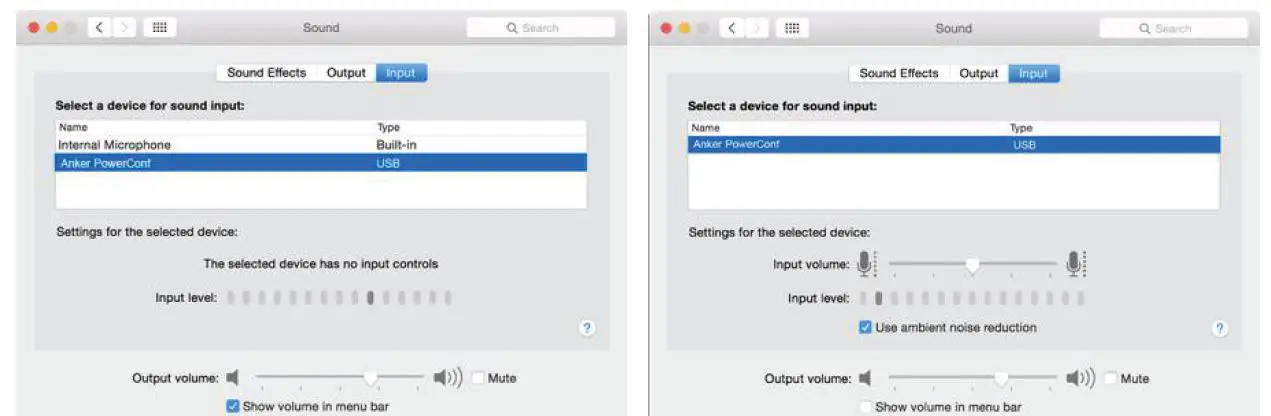
Windows System
Right click on the sound icon > Open Sound settings > Choose your output device / Choose your input device
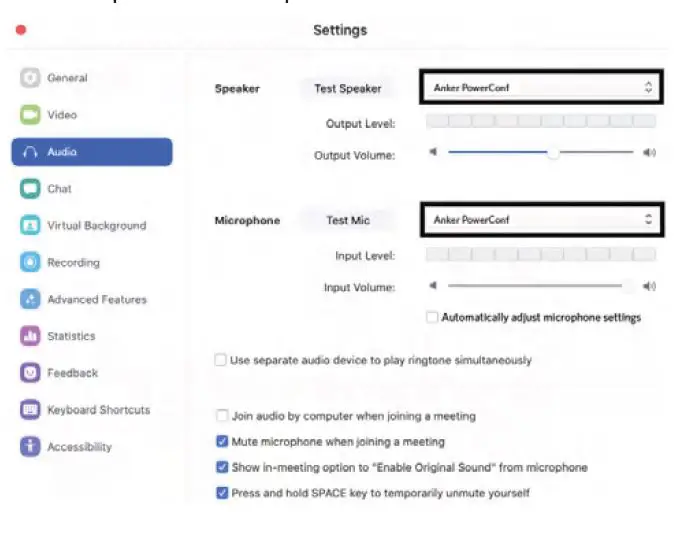
Software (Zoom)
Audio Settings… > Microphone / Speaker
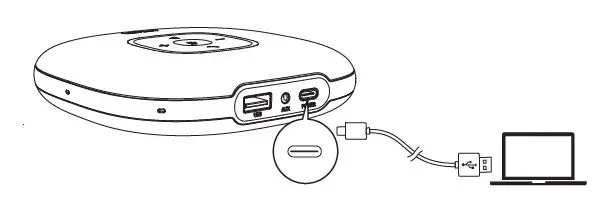
Connect to PC (USB-C cable)
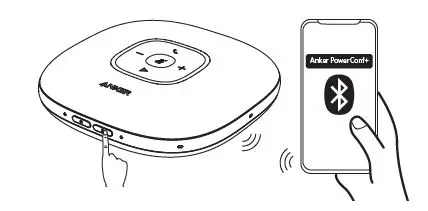
Connect to smartphone (Bluetooth pairing)
When powered on, PowerConf+ will automatically enter the Bluetooth pairing mode. Select Anker PowerConf+ on your smartphone’s Bluetooth list to connect.
| Press | Enter pairing mode | |
| Flashes blue | Bluetooth pairing | |
| Steady blue | Bluetooth connected |
Each time you power on PowerConf +, it will automatically connect with the last successfully connected device if available. To disconnect Bluetooth, press the Bluetoth button again.
Powering On/Off
Press and hold the power button for 2 seconds to power on. The status LED will light on clockwise and then fade out. To power off, press and hold the power button for 2 seconds.
 PowerConf+ will automatically power on once connected to your PC by using the USB-C cable.
- PowerConf+ will automatically power off after 30 minutes of inactivity or no source.
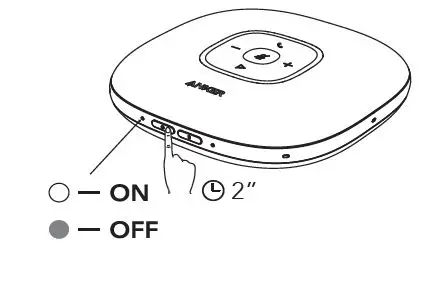 PowerConf+ will automatically power on once connected to your PC by using the USB-C cable.
 | Press or press and hold | Volume up/down |
 | Press | Answer/End a call |
| Press and hold for 2 seconds | Reject a call | |
 | Press | Mute or restore the microphone |
 | Press | Play/Pause music |
Status LED
| Lights up white for 2 seconds | Connected to power or PC |
| Breathes green | Coming call |
| Partially lights up blue | Sound direction detected |
| Lights up blue clockwise or counterclockwise | Increase/Decrease volume |
| Turns red | Muted |
| Lights up green | Press Power button to check the battery level |
Charging
Charge your PowerConf+
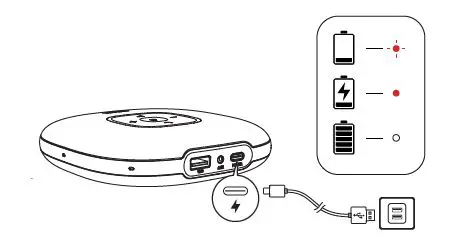
Charge an external device
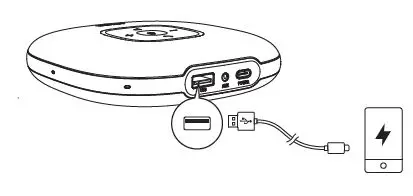
When powered off or being charged, PowerConf + won’t charge out. When the remaining battery is less than 30%, the charge out current will be 5V 1A; if less than 10%, PowerConf + won’t charge out.
Audio Output
Connect an external speaker to the AUX OUT port of PowerConf + by using an AUX cable (not provided). The audio will be played through the speaker.
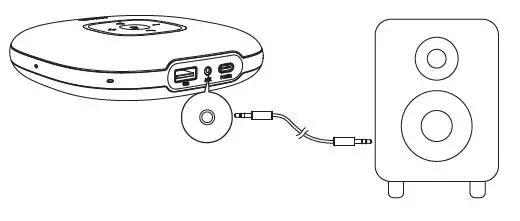
Soundcore App
Download the Soundcore App for software updates.

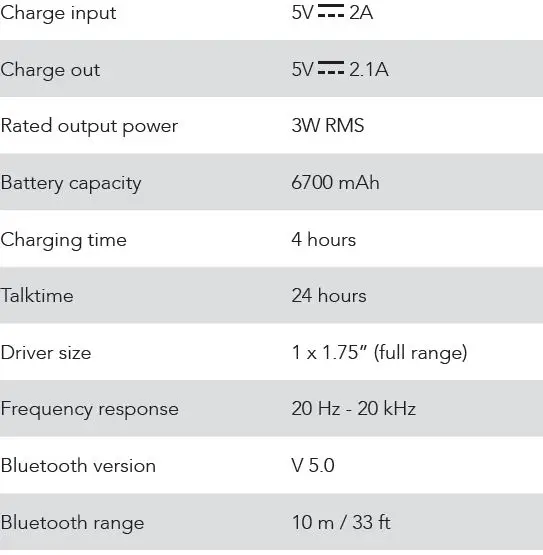
Specifications
 soundcore Headphones & Speakers - Hear it, Feel it - soundcore US
 Anker | Live Charged. - Anker US
 Anker (アンカー) Japan公式サイト – Anker Japan公式サイト
 soundcore Headphones & Speakers - Hear it, Feel it - soundcore US
![Avsl Av:link Bluetooth 2-in-1 Transmitter & Receiver [bttr2] User Manual](https://static-data1.manualsee.com/1/img/383/18110/2020/12/AVSL-Av-Link-Bluetooth-2-in-1-Transmitter-amp-Receiver-BTTR2-featured.png "Avsl Av:link Bluetooth 2-in-1 Transmitter & Receiver [bttr2] User Manual")