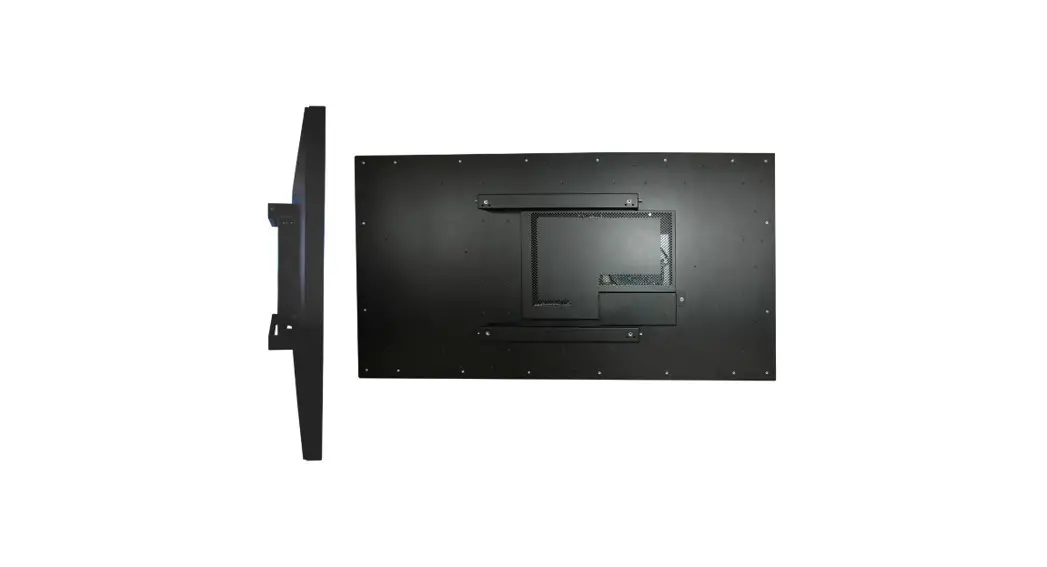
DISTEC ECO-Line Series Monitors User Manual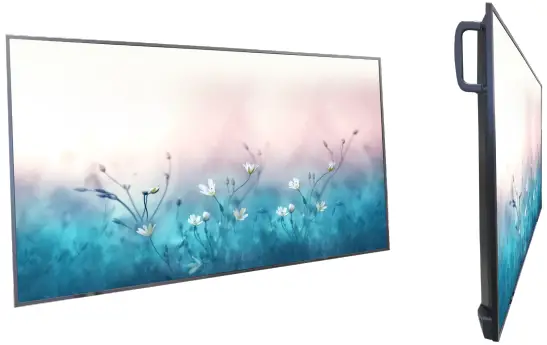
General specification
Scope of Document
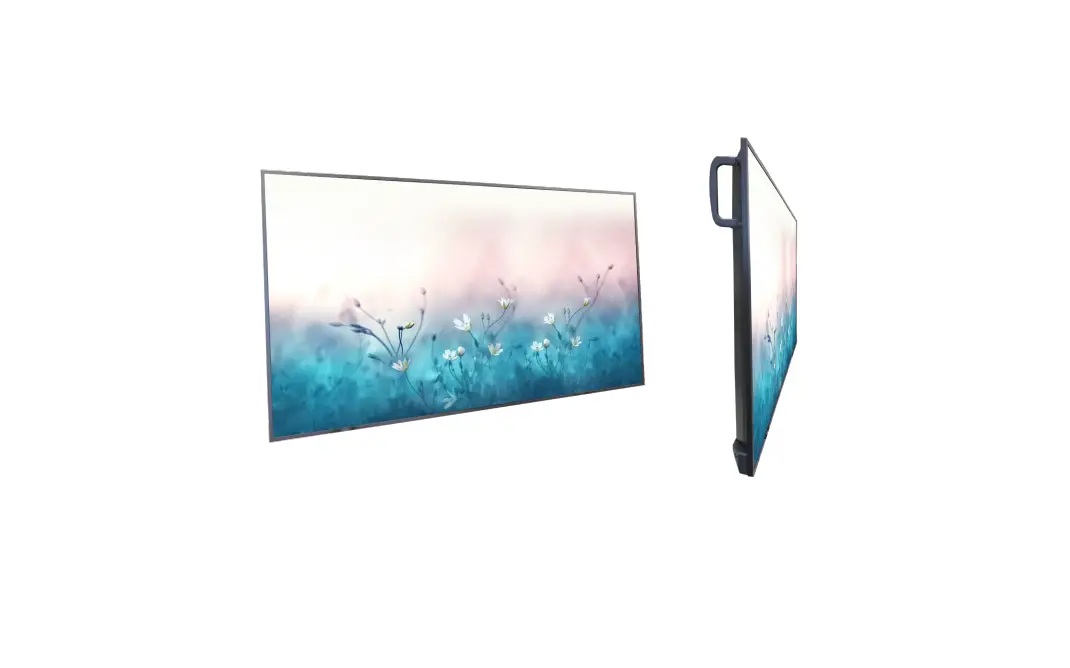
This user manual is valid for ECO-Line monitors by screen size of 109.2 cm (43“) up to 218.4 cm (86“) .
Important note: This user manual is complemented by other additional documents. Please note the information on this.
This document and all other referenced documents can be found at web site: www.distec.de/en
ECO-Line variants:
Monitors 43“/ 55“/ 86“ with integrated controller, 2 x HDMI (in), 2 x USB 2.0, 1 x VGA in, 1x AUDIO in, 1x AUDIO out, 1x SPDIF, 1x RS232, 1x RJ45 in.
Scope of delivery
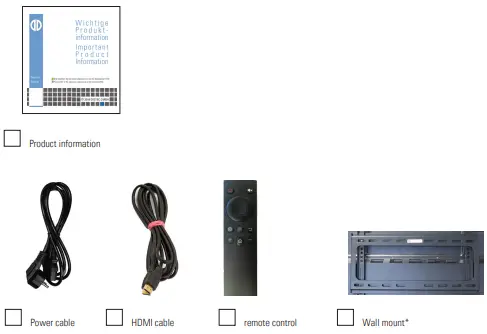
When unpacking the monitor, please check if the following accessories are included in the shipment:
 Note: Pictures can differ from actually supplied products.
General Safety Regulations
Safety information
Please read this safety information carefully for your personal safety and for the prevention of property damage.
In case of a malfunction, immediately disconnect the power plug and contact your dealer or the next Distec GmbH service centre. A malfunction is also considered if the housing, a control element or cable is damaged or if liquids or other objects penetrate the monitor
Please read the safety information carefully before installing the device. If you have any doubts about whether the device may be used in a particular environment, please contact our service partner
Repairs
Repairs may only be carried out by authorized technical personnel. Unauthorized access or improper repairs might cause serious property damage or cause danger to the user. In addition to that, any legitimate warranty claim expires.
Electrical connection
Disconnect the monitor from socket before executing any work. Do not touch or connect data cables or power cables during thunderstorms.
System start-up
Before the system start-up let the monitor adjust to the room temperature. Do not expose the device to direct heat sources. In case of condensation, please wait a minimum of 12 hours before switching on the monitor. The monitor shall only be installed and used according to this documentation data sheets. Only qualified personnel may perform the initial installation and system setup.
Qualified personnel
Qualified personnel, in terms of the safety information of this documentation, are persons who are qualified to activate, ground and label devices, systems and circuits according to the safety standards.
Operation
For a proper and safe utilization of the product, adequate transportation, storage, installation, assembly, careful handling and maintenance are essential. The device is only certified for in-door operation. Extreme ambient conditions shall be avoided and the monitor shall be protected from dust, humidity and heat. Do not expose the monitor to direct sunlight.
Transport
Unpack the monitor at the place of installation. Use only original packaging for transportation. Please observe these rules for any later transport
Condensation
Avoid condensation during transport at low temperatures or at extreme fluctuations of temperature.
Safety guidelines for the handling of LCD monitors

- If the device is not used for a long period of time, unplug the power cable.
- Do not unplug the power cable while the device is powerd on, except for emergencies.
- To unplug the device without problems, sockets have to be easily accessible.
- Ensure that the power cable does not get pinched or kinked.
- Do not place heavy objects on the power cable.
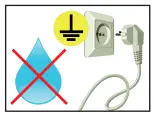
- Do not use damaged or loose sockets to plug in the device.
- Plug the device in earthed sockets only.
- Operate the device with the power cables included in the delivery packet only.
- Use undamaged power cables only.
- When plugging in and out, do not touch the power cable with wet hands.
- Ensure that the power cable is plugged in the socket safely and correctly.
- Use for devices with external power supply only the supplied original power supply, or an equivalent Low Power Source (LPS).

- Do not use extension block to plug several devices into a single socket.
- According to the size, devices may be difficult to handle and very heavy. Ensure that at least two people lift and carry the device.
- Put down the device slowly and carefully to avoid damaging the LCD screen. Ensure that the device stands stable.
- Keep packaging away from children. Danger of suffocation!
- Use our specified and professionally mounted wall mounting only
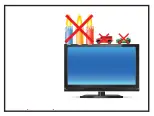
- Do not put objects onto the device.
- Do not place candles, heaters or humidifier near the device.
- Keep the device away from fireplaces and flammable materials.
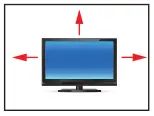
- Ensure sufficient ventilation of the device.
- Keep a minimum distance of at least 10 mm devices to the wall, for devices with integrated PC of at least 40 mm.
- Ensure compliance with the operating temperature.
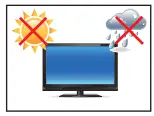
- Do not install the device in places where it is exposed to environmental impacts such as rain or direct sunlight.
- Do not install the device in places where it is exposed to high humidity, dust or smoke. In case of doubt, please contact your sales partner.
- Please use a soft, moist cloth for cleaning.
- For cleaning the screen, please use only commercially available screen cleaner. Do not spray the cleaner directly to the device but onto a cloth.
- Please clean ventilation slots regularly to ensure a good air circulation.
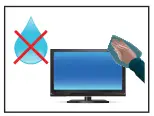
- Protect your device from water splash.
- When cleaning, please make sure that no liquids get into the device.
- Screens and surfaces can be easily scratched. Therefore, please use the prescribed cloth only.
- Attention! High voltage! Never open the device by yourself.
- In case of unusual noises, burnt smell or smoke unplug the power cable.
- Do not insert objects into the device through the ventilation slots.
- If the same picture is displayed over a longer period of time, an after image may arise.
- When exchanging batteries of the remote control, pay attention to the polarity. Keep batteries away from children and ensure an environmentally correct disposal.
First Installation
Position of connectors and controls
All connectors for power and cables are located at the bottom of the back side of the display.
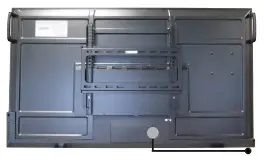
Connection for power cable and on / off switch Data cable connectors, OSD menu buttons,
Mounting
Distance to wall:
- devices without integrated PC: min.10 mm
- devices with integrated PC: min. 40 mm
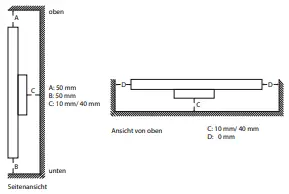
Mounting with VESA compatible brackets
The Eco-Line monitors are supplied with VESA-compatible mounting holes and some with wall brackets. The monitor can be mounted in landscape format and portrait format using VESA-compatible wall mounts whose load capacity corresponds to the weight of the monitor.
The operating position of the device is perpendicular (90 degrees to the floor). Pay attention to the permissible tilt angle for wall mounting. The device can be operated both in landscape mode and in portrait mode.
VESA standards 43“: MIS-F 200 x 200 mm (M6)
VESA standards 55“: MIS-F 400 x 200 mm (M6)
VESA standards 86“: MIS-F 800 x 600 mm (M8)
Allowed tilt angle for mounting
Attention! All monitors are not allowed to be mounted with a tilt angle of 0°.
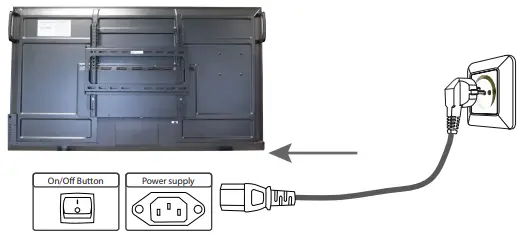
Connecting to power
The ECO-Line monitor requires an AC voltage of 100-240 V AC. The standard delivery includes a suitable power cable for connecting the power supply.
Please pay attention that there is a suitable socket near the device, as a disconnecting device.
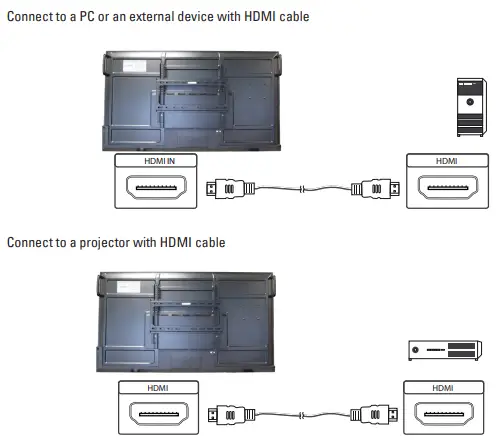
Note: Install all data cables to external devices before connecting the display to power.
- Switch the on/of switch in position off.
- Connect the power cable to the display.
- Connect the power cable to a power socket.
- Switch the display on .
Infrared sensor
The IR sensor is located in the lower area on the front of the monitor (43“- 86“).
ECO-Line monitor controller
ECO-Line monitors have the following connections and controls:

| No. | Description | Function |
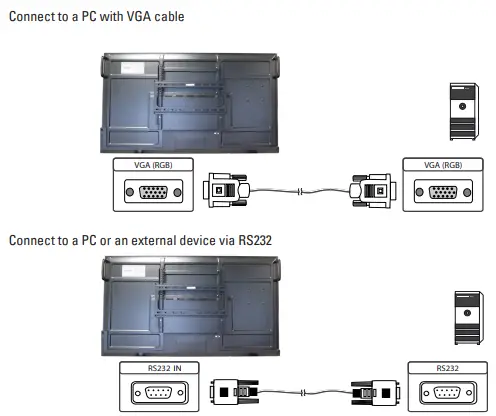
| 1 | VGA IN | external image input |
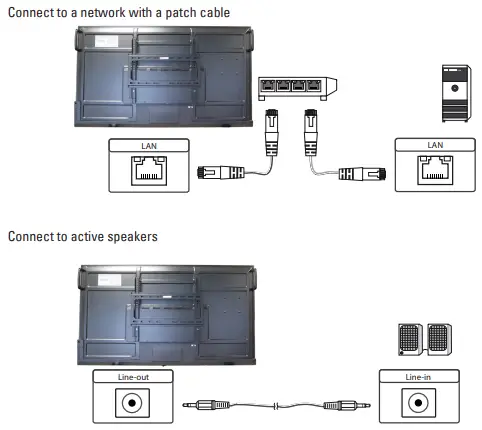
| 2 | AUDIO IN | external audio input |
| 3 | HDMI IN | High-Definition-Multimedia Interface signal input, connect with devices with HDMI output Interface (PC) with HDMI output, set top box or other video device. |
| 5 | RS 232 | Serial interface to be used for data transmission between devices |
| 6 | AUDIO OUT | Audio output to external speaker |
| 7 | SPDIF | Transmission of optical signals in multi-channel sound |
| 8 | LAN | Connection to internal and external networks |
| 9 | USB 2.0 | Connecting USB devices such as mobile hard disk, U disk, USB keyboard and mouse, USB drives, etc . |
| 10 | AC IN | Power supply, AC input AC |
| 11 | AC Switch | To turn on or shut down AC power supply „I“ means on, „O“ means off |
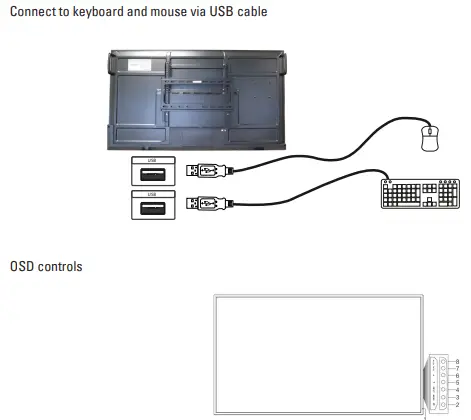
Navigation in the OSD-menu
| Nr. | Description | Function |
| 1 | Power indicator | Indicates the status of the power supply . |
| 2 |  | tap to turn on Energy saving: Press for at least 2 seconds to switch to stand-by mode |
| 3 | Menu | Settings pop-up menu |
| 4 | Input | Channel settings popup |
| 5 |  | Left scroll button |
| 6 |  | Right scroll button |
| 7 |  | Down scroll button |
| 8 |  | Up scroll button |
Remote control instructions
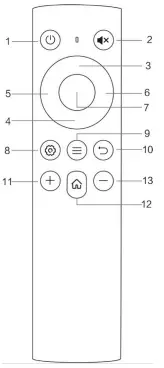
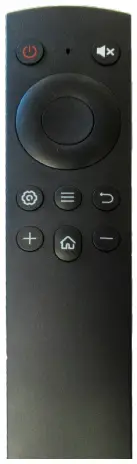
| No. | Description | Function |
| 1 | | On-/ off button |
| 2 |  | Turn on or off mute |
| 3 | scroll up | Press this button to select one selection up |
| 4 | scroll down | Press this button to select one selection down |
| 5 | scroll left | Press this button to select one selection left |
| 6 | scroll right | Press this button to select one selection right |
| 7 | Enter | Confirm a selection made |
| 8 |  | Adjustment button |
| 9 |  | Channel selection |
| 10 |  | Back button |
| 11 | + | Increase volume |
| 12 |  | Main screen button |
| 13 | – | Reduce volume |
NOTE: All computer-related function keys are without an integrated computer not available.
Insert batteries
- Open the back cover of the battery component on the back of the remote control.
- Insert a AAA battery according to the corresponding electrode, make sure that the positive and negative poles of the battery are correct („+“ to „+“, „-“ to „-“), please do not old and mix new batteries.
- After inserting the battery, close the back cover of the battery compartment and attach the clip at the bottom.
Range of the remote control
The remote control can work normally within a range of 8 meters, 30 degrees left and right of the remote control receiver; To protect the environment, please dispose of used batteries in a recycling box.
SERIAL MONITORING PROTOCOL
Installation
| ITEM | SETTINGS |
| Baud rate | 19200 bps |
| Data bit | 8 bit |
| Stop bit | 1 bit |
| Parity bit | none |
| Stream control | none |
Serial cable between PC and AD BOARD
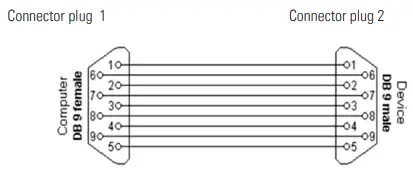
Command Format
| No. | Contents | Description | Comment |
| 1 | 0xAA | Head | Fixed value |
| 2 | 0xBB | Fixed value | |
| 3 | 0xCC | Fixed value | |
| 4 | Main command | ||
| 5 | Sub command | ||
| 6 | 0x00 | Lenght | Valid data |
| 7 | checksum | Checksum | Sum for Nr.4 to Nr. 6 |
| 8 | 0xDD | End | Fixed value |
| 9 | 0xEE | Fixed value | |
| 10 | 0xFF | Fixed value |
SET
| Function | Mode | Code |
| Power | Power on | AA BB CC 01 00 00 01 DD EE FF |
| Power off | AA BB CC 01 01 00 02 DD EE FF | |
| Source | VGA 1 | AA BB CC 02 03 00 05 DD EE FF |
| VGA 2 | AA BB CC 02 04 00 06 DD EE FF | |
| VGA 3 | AA BB CC 02 0B 00 0D DD EE FF | |
| HDMI 1 | AA BB CC 02 06 00 08 DD EE FF | |
| HDMI 2 | AA BB CC 02 07 00 09 DD EE FF | |
| HDMI 3 | AA BB CC 02 05 00 07 DD EE FF | |
| HDMI 4K | AA BB CC 02 0D 00 0F DD EE FF | |
| AV | AA BB CC 02 02 00 04 DD EE FF | |
| PC | AA BB CC 02 08 00 0A DD EE FF | |
| Blu-ray/DVD | AA BB CC 02 0C 00 0E DD EE FF | |
| Android | AA BB CC 02 0A 00 0C DD EE FF | |
| TV | AA BB CC 02 01 00 03 DD EE FF | |
| Recorder | AA BB CC 02 12 00 14 DD EE FF | |
| AndroidSlot | AA BB CC 02 0E 00 10 DD EE FF | |
| YPBPR | AA BB CC 02 0F 00 11 DD EE FF | |
| DTV | AA BB CC 02 10 00 12 DD EE FF | |
| DP | AA BB CC 02 11 00 13 DD EE FF | |
| type-c1 | AA BB CC 02 13 00 15 DD EE FF | |
| type-c2 | AA BB CC 02 14 00 16 DD EE FF | |
| Volume | Volume | AA BB CC 03 00 xx ** DD EE FF |
| Mute | AA BB CC 03 01 00 04 DD EE FF | |
| Unmute | AA BB CC 03 01 01 05 DD EE FF | |
| Bass | AA BB CC 03 07 xx ** DD EE FF | |
| Treble | AA BB CC 03 08 xx ** DD EE FF | |
| Balance | AA BB CC 03 04 xx ** DD EE FF | |
| Audio internal | AA BB CC 03 05 00 08 DD EE FF | |
| Audio external | AA BB CC 03 05 01 09 DD EE FF | |
| Audio Internal & External | AA BB CC 03 05 02 0A DD EE FF | |
| Audio preset: Standard | AA BB CC 03 06 00 09 DD EE FF | |
| Audio preset: Movie | AA BB CC 03 06 01 0A DD EE FF | |
| Audio preset: Meeting | AA BB CC 03 06 02 0B DD EE FF | |
| Audio preset: Class | AA BB CC 03 06 03 0C DD EE FF | |
| Audio preset: Custom | AA BB CC 03 06 04 0D DD EE FF | |
| Channel switching | ATV | AA BB CC 05 00 xx ** DD EE FF |
| Remote Control | WIN | AA BB CC 07 0B 00 12 DD EE FF |
| Space | AA BB CC 07 46 00 4D DD EE FF | |
| Alt+Tab | AA BB CC 07 1D 00 24 DD EE FF | |
| Alt+F4 | AA BB CC 07 1F 00 26 DD EE FF | |
| NUM_1 | AA BB CC 07 00 00 07 DD EE FF | |
| NUM_2 | AA BB CC 07 10 00 17 DD EE FF | |
| NUM_3 | AA BB CC 07 11 00 18 DD EE FF | |
| NUM_4 | AA BB CC 07 13 00 1A DD EE FF | |
| NUM_5 | AA BB CC 07 14 00 1B DD EE FF | |
| NUM_6 | AA BB CC 07 15 00 1C DD EE FF | |
| NUM_7 | AA BB CC 07 17 00 1E DD EE FF | |
| NUM_8 | AA BB CC 07 18 00 1F DD EE FF | |
| NUM_9 | AA BB CC 07 19 00 20 DD EE FF | |
| NUM_0 | AA BB CC 07 1B 00 22 DD EE FF | |
| Channel Recall | AA BB CC 07 1C 00 23 DD EE FF | |
| Display | AA BB CC 07 4C 00 53 DD EE FF | |
| Input | AA BB CC 07 07 00 0E DD EE FF | |
| Home | AA BB CC 07 48 00 4F DD EE FF | |
| Menu | AA BB CC 07 0D 00 14 DD EE FF | |
| Backspace | AA BB CC 07 40 00 47 DD EE FF | |
| Blank screen | AA BB CC 07 4E 00 55 DD EE FF | |
| Up | AA BB CC 07 47 00 4E DD EE FF | |
| Down | AA BB CC 07 4D 00 54 DD EE FF | |
| Left | AA BB CC 07 49 00 50 DD EE FF | |
| Right | AA BB CC 07 4B 00 52 DD EE FF | |
| Enter | AA BB CC 07 4A 00 51 DD EE FF | |
| Back | AA BB CC 07 0A 00 11 DD EE FF | |
| VOL+ | AA BB CC 07 03 00 0A DD EE FF | |
| VOL- | AA BB CC 07 41 00 48 DD EE FF | |
| PageUp | AA BB CC 07 42 00 49 DD EE FF | |
| PageDown | AA BB CC 07 0F 00 16 DD EE FF | |
| F1 | AA BB CC 07 45 00 4C DD EE FF | |
| F2 | AA BB CC 07 12 00 19 DD EE FF | |
| F3 | AA BB CC 07 51 00 58 DD EE FF | |
| F4 | AA BB CC 07 5B 00 62 DD EE FF | |
| F5 | AA BB CC 07 44 00 4B DD EE FF | |
| F6 | AA BB CC 07 50 00 57 DD EE FF | |
| F7 | AA BB CC 07 43 00 4A DD EE FF | |
| F8 | AA BB CC 07 1A 00 21 DD EE FF | |
| F9 | AA BB CC 07 04 00 0B DD EE FF | |
| F10 | AA BB CC 07 59 00 60 DD EE FF | |
| F11 | AA BB CC 07 57 00 5E DD EE FF | |
| F12 | AA BB CC 07 08 00 0F DD EE FF | |
| Red | AA BB CC 07 5C 00 63 DD EE FF | |
| Green | AA BB CC 07 5D 00 64 DD EE FF | |
| Yellow | AA BB CC 07 5E 00 65 DD EE FF | |
| Blue | AA BB CC 07 5F 00 66 DD EE FF | |
| Video Modus | 16:9 | AA BB CC 08 00 00 08 DD EE FF |
| 4:3 | AA BB CC 08 01 00 09 DD EE FF | |
| PTP | AA BB CC 08 07 00 0F DD EE FF | |
| AUTO | AA BB CC 08 04 00 0C DD EE FF | |
| Brightness | AA BB CC 08 09 00 11 DD EE FF | |
| Contrast | AA BB CC 08 0A 00 12 DD EE FF | |
| Hue | AA BB CC 08 0B 00 13 DD EE FF | |
| Sharpness | AA BB CC 08 0C 00 14 DD EE FF | |
| Display preset: Standard | AA BB CC 08 0D 00 15 DD EE FF | |
| Display preset: Bright | AA BB CC 08 0D 01 16 DD EE FF | |
| Display preset: Colorful | AA BB CC 08 0D 02 17 DD EE FF | |
| Display preset: Soft | AA BB CC 08 0D 03 18 DD EE FF | |
| Display preset: Custom | AA BB CC 08 0D 04 19 DD EE FF | |
| Settings | Sleep timer | AA BB CC 38 00 xx ** DD EE FF |
| Auto updates : Off | AA BB CC 38 01 00 39 DD EE FF | |
| Auto updates : On | AA BB CC 38 01 01 3A DD EE FF | |
| Languages : English | AA BB CC 38 02 00 3A DD EE FF | |
| Languages : Dutch | AA BB CC 38 02 01 3B DD EE FF | |
| Languages : German | AA BB CC 38 02 02 3C DD EE FF | |
| Languages : French | AA BB CC 38 02 03 3D DD EE FF | |
| Languages : Italian | AA BB CC 38 02 04 3E DD EE FF | |
| Languages : Spanish | AA BB CC 38 02 05 3F DD EE FF | |
| Languages : Swedish | AA BB CC 38 02 06 40 DD EE FF | |
| Languages : Norwegian | AA BB CC 38 02 07 41 DD EE FF | |
| Languages : Danish | AA BB CC 38 02 08 42 DD EE FF | |
| User menu : Off | AA BB CC 38 03 00 3B DD EE FF | |
| User menu : Swipe | AA BB CC 38 03 01 3C DD EE FF | |
| User menu : Double tab | AA BB CC 38 03 02 3D DD EE FF | |
| User menu : Both | AA BB CC 38 03 03 3E DD EE FF | |
| Key lock : Off | AA BB CC 38 04 00 3C DD EE FF | |
| Key lock : On | AA BB CC 38 04 01 3D DD EE FF | |
| IR Enable | AA BB CC 38 05 00 3D DD EE FF | |
| IR Disable | AA BB CC 38 05 01 3E DD EE FF | |
| LED logo : Off | AA BB CC 38 06 00 3E DD EE FF | |
| LED logo : On | AA BB CC 38 06 01 3F DD EE FF | |
| Touch : Off | AA BB CC 38 07 00 3F DD EE FF | |
| Touch : On | AA BB CC 38 07 01 40 DD EE FF | |
| RS232 : Off | AA BB CC 38 08 00 40 DD EE FF | |
| RS232 : On | AA BB CC 38 08 01 41 DD EE FF | |
| PC | PC Power ON | AA BB CC 09 01 00 0A DD EE FF |
| PC Power OFF | AA BB CC 09 00 00 09 DD EE FF | |
| Freeze state | OFF | AA BB CC 34 00 00 34 DD EE FF |
| ON | AA BB CC 34 01 00 35 DD EE FF | |
| Blank screen | OFF | AA BB CC 35 00 00 35 DD EE FF |
| ON | AA BB CC 35 01 00 36 DD EE FF | |
| xx=Volume,Ex. Volume = 30(Decimal) = 1E(Hex), XX=1E and ** = 1E(Hex) + 82(Hex) = A0(Hex) | ||
GET
| Function | Code | Response Code (polling) | State |
| power state | AA BB CC 01 02 00 03 DD EE FF | AA BB CC 80 00 00 80 DD EE FF | On |
| AA BB CC 80 01 00 81 DD EE FF | Stand-by | ||
| source state | AA BB CC 02 00 00 02 DD EE FF | AA BB CC 81 03 00 84 DD EE FF | VGA 1 |
| AA BB CC 81 04 00 85 DD EE FF | VGA 2 | ||
| AA BB CC 81 0B 00 8C DD EE FF | VGA 3 | ||
| AA BB CC 81 06 00 87 DD EE FF | HDMI 1 | ||
| AA BB CC 81 07 00 88 DD EE FF | HDMI 2 | ||
| AA BB CC 81 05 00 86 DD EE FF | HDMI 3 | ||
| AA BB CC 81 0D 00 8E DD EE FF | HDMI 4K | ||
| AA BB CC 81 02 00 83 DD EE FF | AV | ||
| AA BB CC 81 08 00 89 DD EE FF | PC | ||
| AA BB CC 81 0A 00 8B DD EE FF | Android | ||
| AA BB CC 81 0C 00 8D DD EE FF | Blu-ray/DVD | ||
| AA BB CC 81 0E 00 8F DD EE FF | AndroidSlot | ||
| AA BB CC 81 0F 00 90 DD EE FF | YPBPR | ||
| AA BB CC 81 11 00 92 DD EE FF | DP | ||
| AA BB CC 81 10 00 91 DD EE FF | DTV | ||
| AA BB CC 81 12 00 93 DD EE FF | Recorder | ||
| AA BB CC 81 01 00 82 DD EE FF | TV | ||
| AA BB CC 81 13 00 94 DD EE FF | type-c1 | ||
| AA BB CC 81 14 00 95 DD EE FF | type-c2 | ||
| AA BB CC 02 2F 00 31 DD EE FF | Returns all current channel commands with signals | ||
| volume state | AA BB CC 03 02 00 05 DD EE FF | AA BB CC 82 00 xx ** DD EE FF | Volume Level |
| mute state | AA BB CC 03 03 00 06 DD EE FF | AA BB CC 82 01 00 83 DD EE FF | Muted |
| AA BB CC 82 01 01 84 DD EE FF | Unmuted | ||
| PC state | AA BB CC 09 02 00 0B DD EE FF | AA BB CC 83 01 00 84 DD EE FF | PC Off |
| AA BB CC 83 00 00 83 DD EE FF | PC On | ||
| AA BB CC 83 02 00 85 DD EE FF | PC Sleep | ||
| AA BB CC 83 03 00 86 DD EE FF | PC Hibernate | ||
| freeze state | AA BB CC 34 02 00 36 DD EE FF | AA BB CC 34 03 01 38 DD EE FF | Freeze active |
| AA BB CC 34 03 00 37 DD EE FF | Freeze not active | ||
| blank screen state | AA BB CC 35 02 00 37 DD EE FF | AA BB CC 35 03 01 39 DD EE FF | Blank screen on(亮屏) |
| AA BB CC 35 03 00 38 DD EE FF | Blank screen off(黑屏) | ||
| keylock state | AA BB CC 39 00 00 39 DD EE FF | AA BB CC 40 00 01 41 DD EE FF | Key-lock active |
| AA BB CC 40 00 00 40 DD EE FF | Key-lock not active | ||
| IR lock state | AA BB CC 39 01 00 3A DD EE FF | AA BB CC 40 01 01 42 DD EE FF | IR disable |
| AA BB CC 40 01 00 41 DD EE FF | IR enable | ||
| brightness state | AA BB CC 39 02 00 3B DD EE FF | AA BB CC 40 02 xx ** DD EE FF | Brightness Level |
| contrast state | AA BB CC 39 03 00 3C DD EE FF | AA BB CC 40 03 xx ** DD EE FF | Contrast Level |
| hue state | AA BB CC 39 04 00 3D DD EE FF | AA BB CC 40 04 xx ** DD EE FF | Hue Level |
| sharpness state | AA BB CC 39 05 00 3E DD EE FF | AA BB CC 40 05 xx ** DD EE FF | Sharpness Level |
| display preset | AA BB CC 39 06 00 3F DD EE FF | AA BB CC 40 06 00 46 DD EE FF | Standard |
| AA BB CC 40 06 01 47 DD EE FF | Bright | ||
| AA BB CC 40 06 02 48 DD EE FF | Colorfull | ||
| AA BB CC 40 06 03 49 DD EE FF | Soft | ||
| AA BB CC 40 06 04 4A DD EE FF | Custom | ||
| aspect ratio preset | AA BB CC 39 07 00 40 DD EE FF | AA BB CC 40 07 00 47 DD EE FF | Auto |
| AA BB CC 40 07 01 48 DD EE FF | 4:3 | ||
| AA BB CC 40 07 02 49 DD EE FF | 16:9 | ||
| AA BB CC 40 07 03 4A DD EE FF | PTP | ||
| bass state | AA BB CC 39 08 00 41 DD EE FF | AA BB CC 40 08 xx ** DD EE FF | Bass Level |
| treble state | AA BB CC 39 09 00 42 DD EE FF | AA BB CC 40 09 xx ** DD EE FF | Treble Level |
| balance state | AA BB CC 39 0A 00 43 DD EE FF | AA BB CC 40 0A xx ** DD EE FF | Balance Level |
| sound preset | AA BB CC 39 0B 00 44 DD EE FF | AA BB CC 40 0B 00 4B DD EE FF | Standard |
| AA BB CC 40 0B 01 4C DD EE FF | Movie | ||
| AA BB CC 40 0B 02 4D DD EE FF | Meeting | ||
| AA BB CC 40 0B 03 4E DD EE FF | Class | ||
| AA BB CC 40 0B 04 4F DD EE FF | Custom | ||
| audio output selection | AA BB CC 39 0C 00 45 DD EE FF | AA BB CC 40 0C 00 4C DD EE FF | Internal |
| AA BB CC 40 0C 01 4D DD EE FF | External | ||
| AA BB CC 40 0C 02 4E DD EE FF | Both | ||
| no signal power time | AA BB CC 39 0D 00 46 DD EE FF | AA BB CC 40 0D xx ** DD EE FF | Sleeptimer Level |
| update status | AA BB CC 39 0E 00 47 DD EE FF | AA BB CC 40 0E 01 4F DD EE FF | Auto (on) |
| AA BB CC 40 0E 00 4E DD EE FF | Auto (off) | ||
| AA BB CC 40 0E 02 50 DD EE FF | Manual | ||
| language selection | AA BB CC 39 0F 00 48 DD EE FF | AA BB CC 40 0F 00 4F DD EE FF | English |
| AA BB CC 40 0F 01 50 DD EE FF | Dutch | ||
| AA BB CC 40 0F 02 51 DD EE FF | German | ||
| AA BB CC 40 0F 03 52 DD EE FF | French | ||
| AA BB CC 40 0F 04 53 DD EE FF | Italian | ||
| AA BB CC 40 0F 05 54 DD EE FF | Spanish | ||
| AA BB CC 40 0F 06 55 DD EE FF | Swedish | ||
| AA BB CC 40 0F 07 56 DD EE FF | Norwegian | ||
| AA BB CC 40 0F 08 57 DD EE FF | Danish | ||
| user menu setting | AA BB CC 39 10 00 49 DD EE FF | AA BB CC 40 10 00 50 DD EE FF | Off |
| AA BB CC 40 10 01 51 DD EE FF | Swipe | ||
| AA BB CC 40 10 02 52 DD EE FF | Double tab | ||
| AA BB CC 40 10 03 53 DD EE FF | Both | ||
| LED-logo state | AA BB CC 39 11 00 4A DD EE FF | AA BB CC 40 11 01 52 DD EE FF | LED-Logo active |
| AA BB CC 40 11 00 51 DD EE FF | LED-logo not active | ||
| touch state | AA BB CC 39 12 00 4B DD EE FF | AA BB CC 40 12 01 53 DD EE FF | Touch active |
| AA BB CC 40 12 00 52 DD EE FF | Touch not active | ||
| RS232 state | AA BB CC 39 13 00 4C DD EE FF | AA BB CC 40 13 01 54 DD EE FF | RS232 active |
| AA BB CC 40 13 00 53 DD EE FF | RS232 not active | ||
| xx=Volume,Ex. Volume = 30(Decimal) = 1E(Hex), XX=1E and ** = 1E(Hex) + 82(Hex) = A0(Hex) | |||
Maintenance
Systems with active cooling require cleaning of ventilation slots every 6 months. Systems with passive cooling must be cleaned every 12 months.
Warranty / Service
Warranty
DIstec GmbH grants a manufacturer‘s warranty of two years from the date of delivery.
The rendering of warranty claims shall neither extend nor restart the warranty period.
During the warranty period, Distec shall repair product faults based on material or production defects. The warranty service is executed at Distec‘s discretion through repair, replacement of defective parts or by exchanging a product for a product of equal quality without charging the customer for material or labor.
Warranty claims are only accepted, if Distec receives notification of a defective product within the warranty period and the product is presented to the Distec Service Centre together with all information as specified in the RMA process.
Warranty Exclusions and Limitations
This warranty does not apply to any defect for which Distec is not responsible and which includes, but is not limited to the following:
- Unauthorized opening or disassembling of the product
- Faulty maintenance by non-observation of maintenance instructions
- Inappropriate storage or cleaning of the product
- Unauthorized modification of the product
- Incorrect use or misuse
- Non-observation of operating and installation instructions
- Permanent display of fixed images (causing image retention or image sticking)
- Operating the product in conditions which exceed the limitations of the specification
- Use of inappropriate boxes, packaging or modes of shipment
- Force majeure like fire, acts of war, acts of violence, chemical or biological impacts, lightning strikes, over voltage or similar events
- Fault resulting from the use of software which was not originally supplied with the product or which is incorrectly installed
- Normal wear and tear and wearing parts (i.e. LCD panel)
Mechanical damages like scratches, pressure or break points are excluded from this warranty.
This warranty does not include accessory parts which are not integral part of the product (as boxes, batteries).
Pixel errors only constitute a fault under the terms of this warranty if they deviate from the product specification (i.e. ISO 9241-307 pixel failure class II).
Display Quality – Prevention of after image burn in effects
After image burn-in means that an image or part of an image (i.e. logo) remains visible on the screen even if the image on the screen is changed. This should not occur if the LCD panel is operated in normal conditions with changing content. To prevent burn-in effects please follow the following guidelines.
- Power-off the monitor for 2 hours after using it for 18 hours.
- Use the power scheme and power management of the PC.
- Use plain-colored screen savers.
- Avoid patterns with a strong difference in brightness and contrast.
- Avoid gray colors.
- Change images and logos regularly. Show animated pictures for 60 seconds after 4 hours of operation.
- The best way to protect your display is to switch the monitor off when not in use or to use screen savers.
Non-observance of these guidelines may have effects on warranty.
Warranty Processing
Distec RMA process. In order to avoid unnecessary charges, it is important to adhere to the RMA regulations.
Products must be appropriately and professionally packed for a safe return to the Distec Service Centre. Products with panel sizes equal or larger then 81 cm (32“) must be shipped on pallets in upright position.
Distec does not assume liability for any customer data stored on products which are returned to Distec.
Limitations of Liability and Benefits
With this warranty declaration, Distec exclusively warrantys that the product is free of material and manufacturing faults.
Distec does not issue any other warranty or similar statements other than this declaration.
This warranty does not impair or affect a buyer‘s statutory claim against the seller due to material damage. Such claims can be asserted instead of the warranty agreed to here at the buyer’s discretion.
Mandatory legal rights and mandatory claims under the German product liability remain unaffected.
Applicable Law and Place of Jurisdiction
The laws of the Federal Republic of Germany apply.
Place of jurisdiction is Munich.
Service addresses
Germany
Distec GmbH – Werk Kindel
Am Künkelhof 4
99820 Hörselberg-Hainich
+49 36920 7162-0
[email protected]
Great Britain
Display Technology Ltd.
Osprey House, 1 Sprey Court
Hichingbrooke Business Park
Huntingdon, Cambridgeshire
PE29 6FN
Tel. +44 1480 411600
Mail: [email protected]
USA
Apollo Corp.
87 Raynor Avenue, Unit 1
Ronkonkoma NY 11779
+1 631 580-4360
[email protected]
Please go to the following web address for further information about our RMA regulations and RMA forms: http://www.distec.de/en/service
Disposal
Disposal of old devices
If the acquired Distec product is to be disposed of, must be implemented into national law the Directive 2012/19/EU.
Disposal of batteries
Applicable in all countries of the EU and in countries with separate battery collection systems.
The Batteries in this product should not be disposed with other household waste. The chemical symbol Pb, CD or Hg indicate that the battery contains lead, cadmium or mercury above the reference level in EC directive 2006/66/EG.
Batteries which are not disposed correctly can cause harm environment and health.
Our environment is close to our hearts. Please help us to protect our environment and recycle empty batteries with the free battery collection system.
Declaration of Conformity
Declaration
Hereby the Distec GmbH declared that the unit EU is in compliance with the essential requirements and other relevant provisions of Directives 2014/30/EU and 2014/35/EU and 2011/65/EU.
The CE declaration of conformity can be found in English at the website of Distec: https://www.distec.de/en/service/downloads/monitor-downloads/
FCC-Declaration of conformity
This equipment has been tested and found to comply with the limits for a Class A digital device, pursuant to Part 15 of the FCC Rules.
These limits are designed to provide reasonable protection against harmful interference when the equipment is operated in a commercial environment. This equipment generates, uses and can radiate radio frequency energy and, if not installed and used in accordance with the instruction manual, may cause harmful interference to radio communications.
Operation of this equipment in a residential area is likely to cause harmful interference in which case the user will be required to correct the interference at his own expense.
Canadian Department of Communications Compliance Statement
This Class A digital apparatus meets all requirements of the Canadian Interference-Causing Equipment Regulations.
FCC Information:
- Changes or modifications not expressly approved by Distec GmbH could void the user’s authority to operate the equipment.
- Use the attached specified cables with the POS-Line monitor so as not to interfere with radio and television reception.
- Please use the supplied power cord or equivalent to ensure FCC compliance.
Copyright
The contents of this manual are subject to change without notice.
© 2022 Distec GmbH. All rights reserved.
Reproduction of this manual in parts or entirely without the previous authorization of Distec GmbH is prohibited.
Distec GmbH is not liable for errors and collateral or subsequent damage which result from supply, deployment or any other utilisation of this document.
All product names mentioned in this document are trademarks or registered trademarks of their due owners.
 Innovative TFT Displays and System Solutions