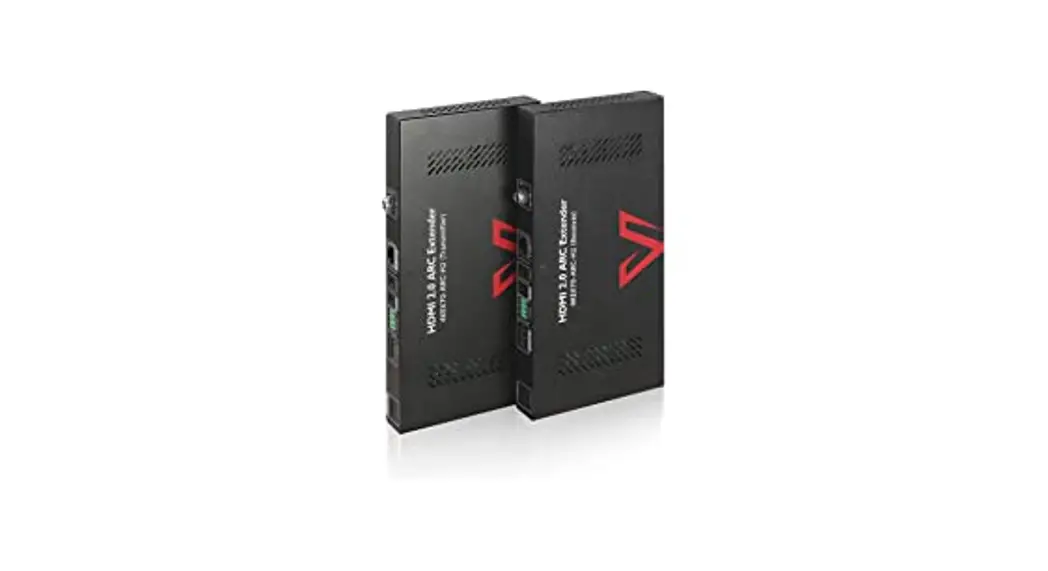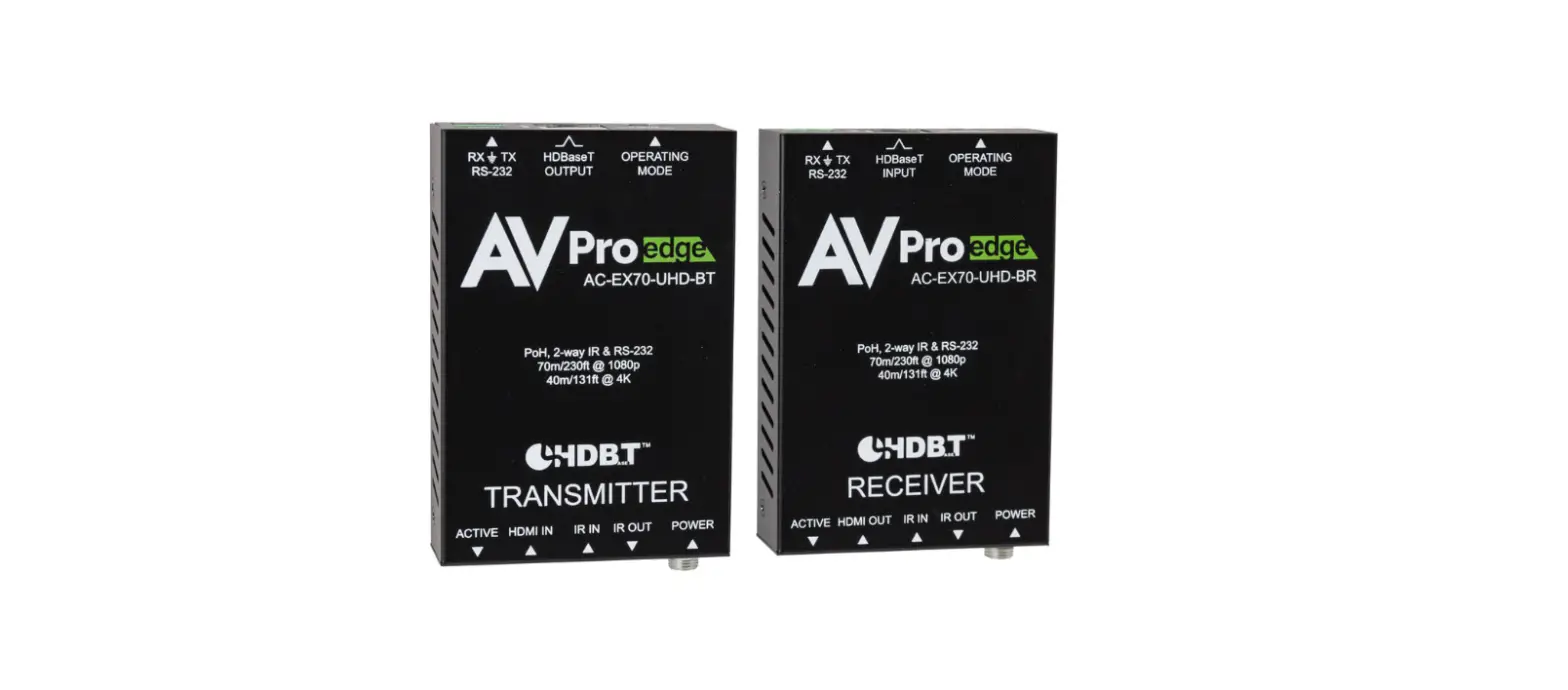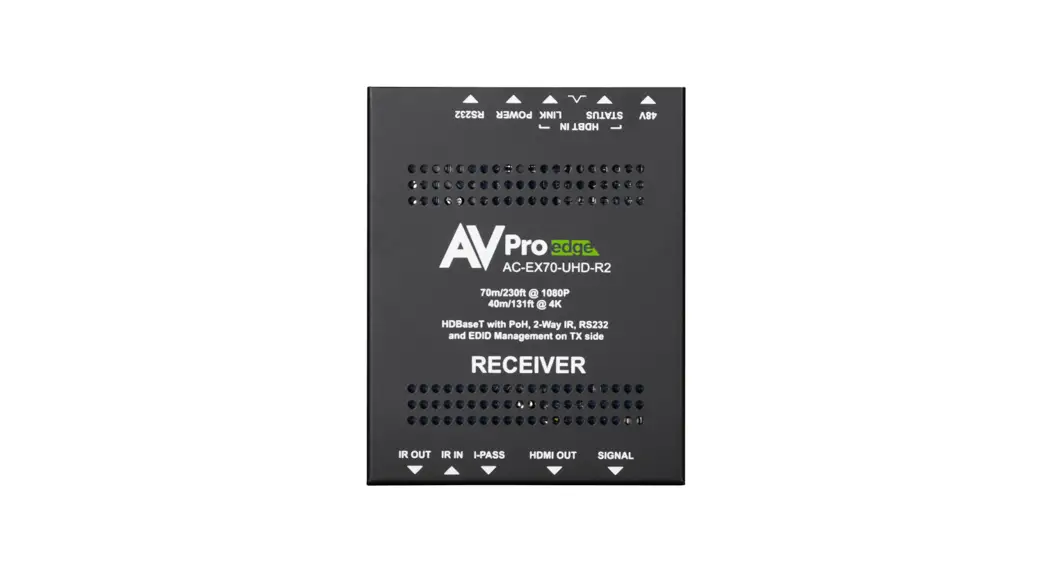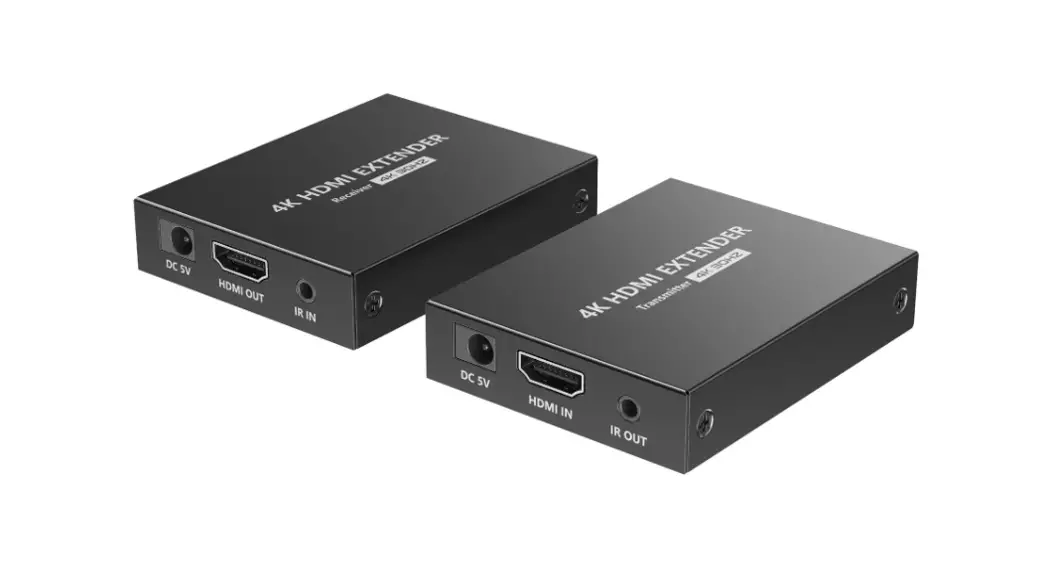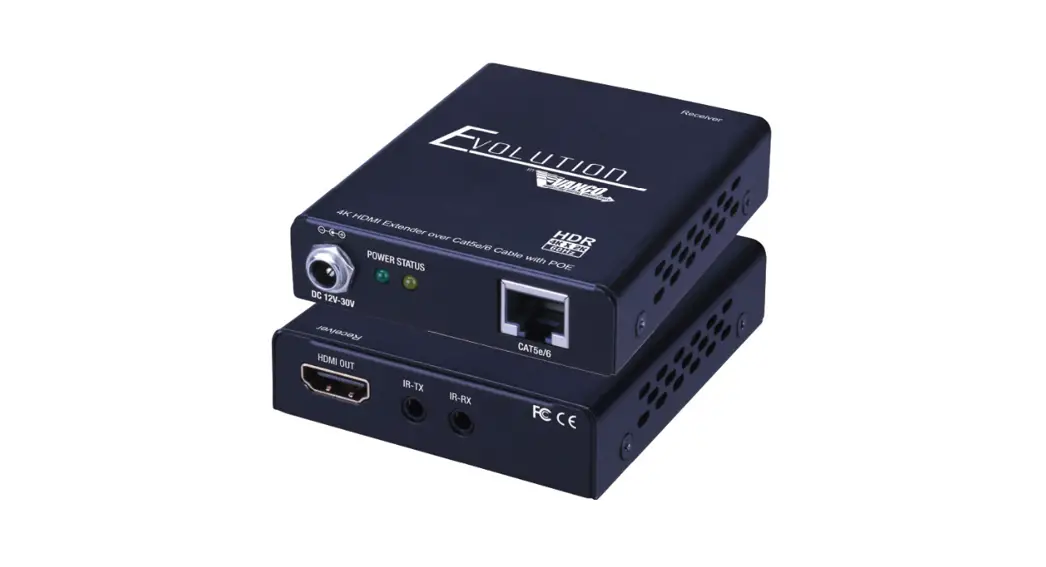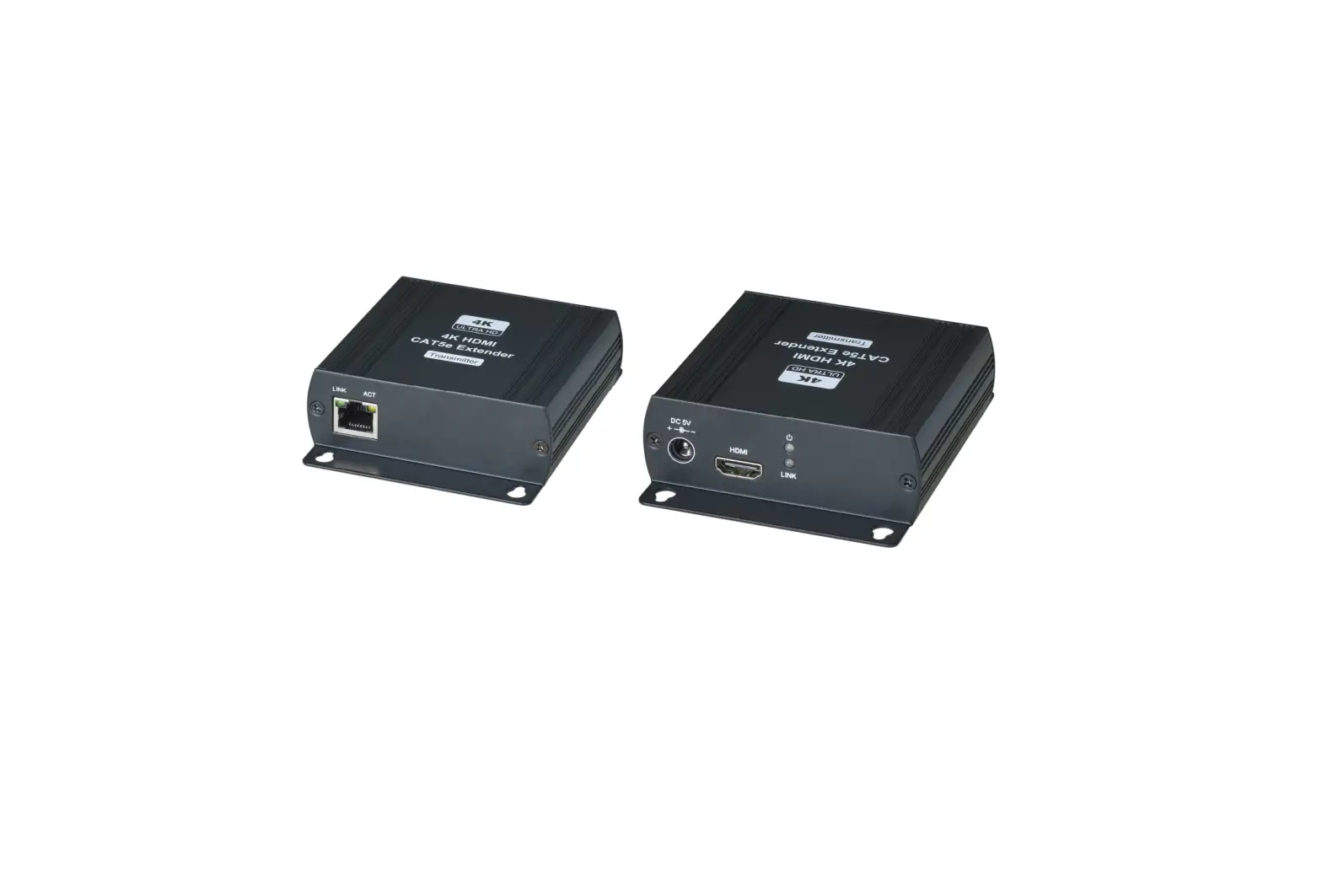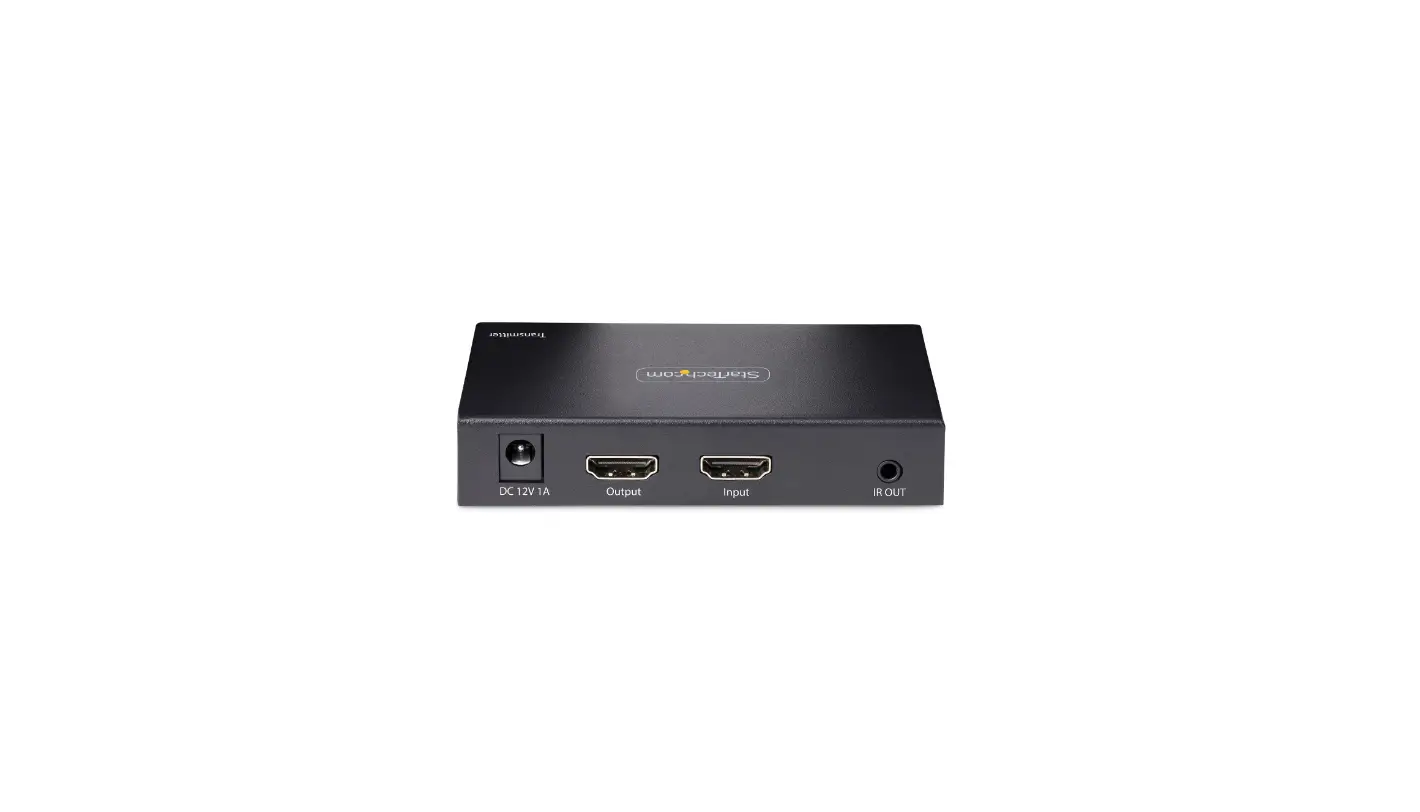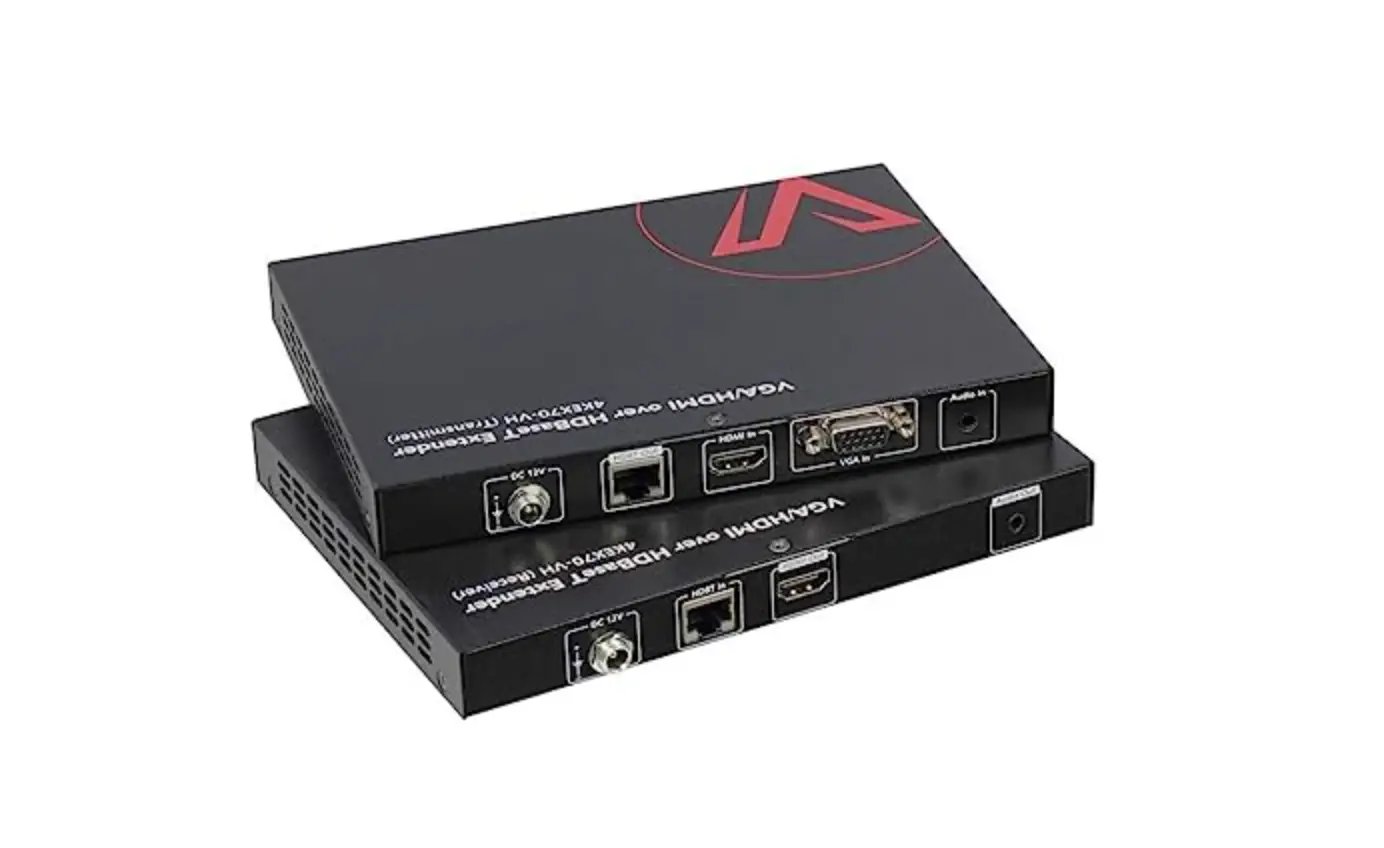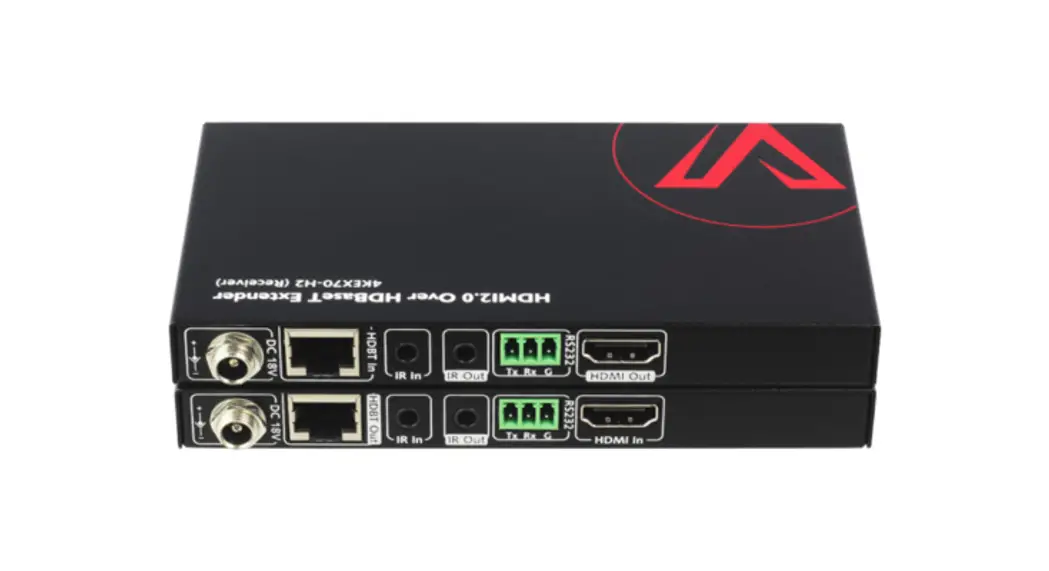
 4KEX70-H2
HDMI 2.0 Over HDBaseT Extender
Instructions
Disclaimers
The information in this manual has been carefully checked and is believed to be accurate. AV Access Technology Limited assumes no responsibility for any infringements of patents or other rights of third parties which may result from its use.
AV Access Technology Limited assumes no responsibility for any inaccuracies that may be contained in this document. AV Access Technology Limited also makes no commitment to update or to keep current the information contained in this document.
AV Access Technology Limited reserves the right to make improvements to this document and/or product at any time and without notice.
Copyright
Copy, Reproduce, Distribute and/or Edit of this document or part of it as well as utilization of its contents and communication thereof to others without express authorization are prohibited. Offenders will be held liable for payment of damages.
All rights created by patent grant or registration of a utility model or design patent are reserved. Copyright ©2016 AV Access Technology Limited All rights reserved.
Trademarks Notice
All products or service names mentioned in this document may be trademarks of the companies with which they are associated.
Contact Us
Business inquiry: [email protected]
Technical problems: [email protected]
Important Safety Instructions
- Do not expose this apparatus to rain, moisture, dripping or splashing. No objects filled with liquids, such as vases, shall be placed on the apparatus.
- Do not install or place this unit in a bookcase, built-in cabinet, or in another confined space. Ensure the unit is well ventilated.
- To prevent risk of electric shock or fire hazard due to overheating, do not obstruct the unit’s ventilation openings with newspapers, tablecloths, curtains, or similar items.
- Do not install near any heat sources such as radiators, heat registers, stoves, or other apparatus (including amplifiers) that produce heat.
- Do not place sources of naked flames, such as lighted candles, on the unit.
- Clean this apparatus only with dry cloth.
- Unplug this apparatus during lightning storms or when unused for long periods of time.
- Protect the power cord from being walked on or pinched, particularly at plugs.
- Only use attachments/accessories specified by the manufacturer.
- Refer all servicing to qualified service personnel.
Introduction
Overview
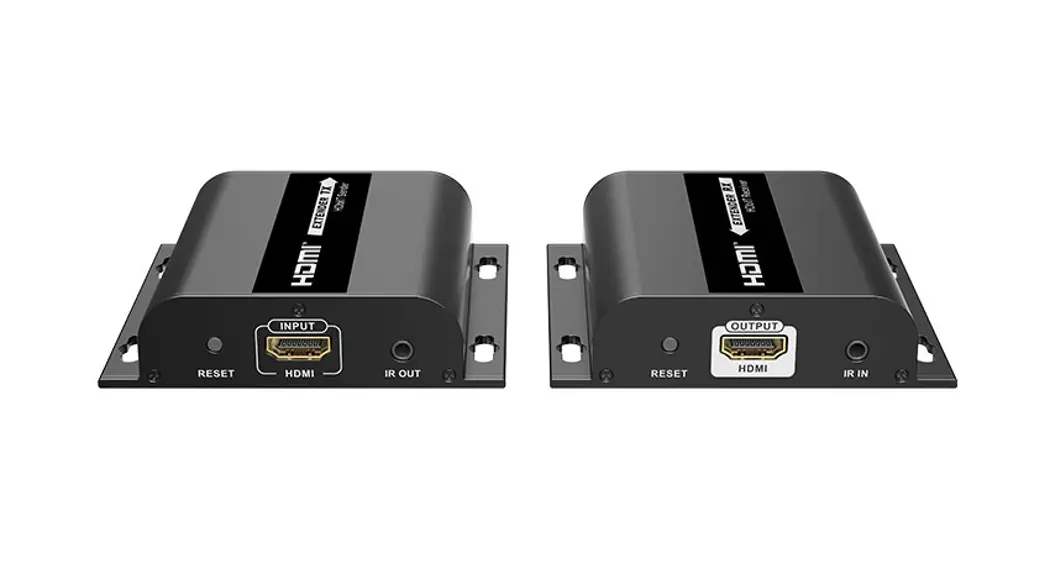
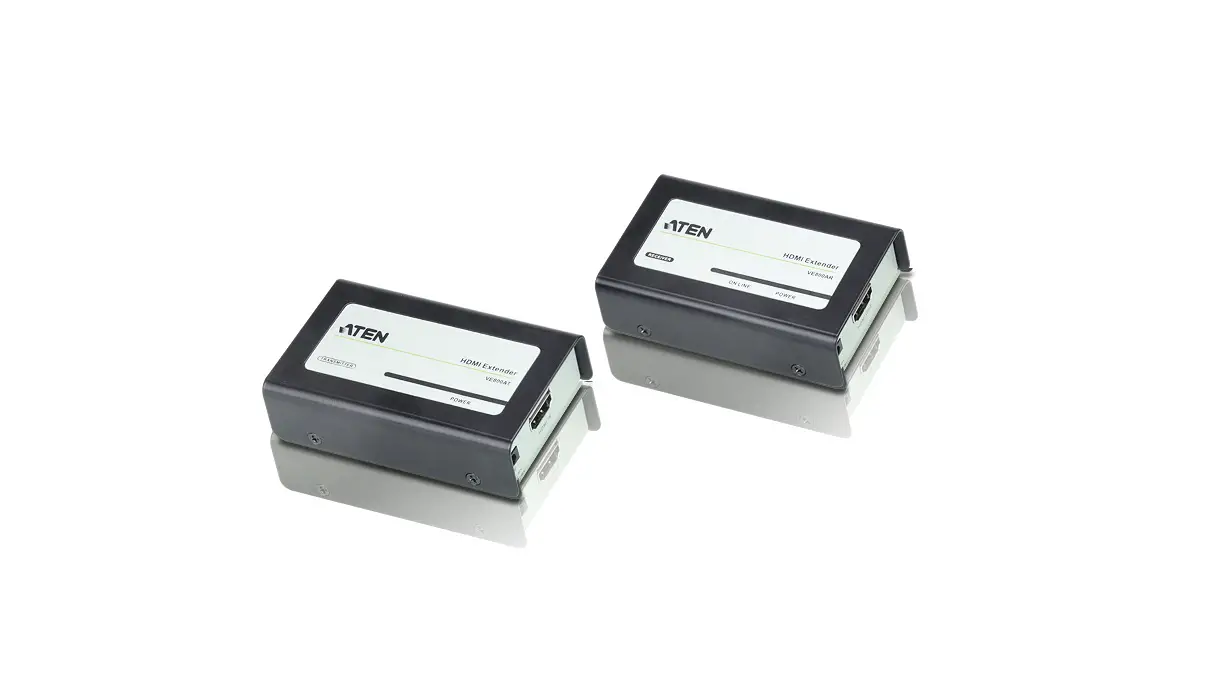
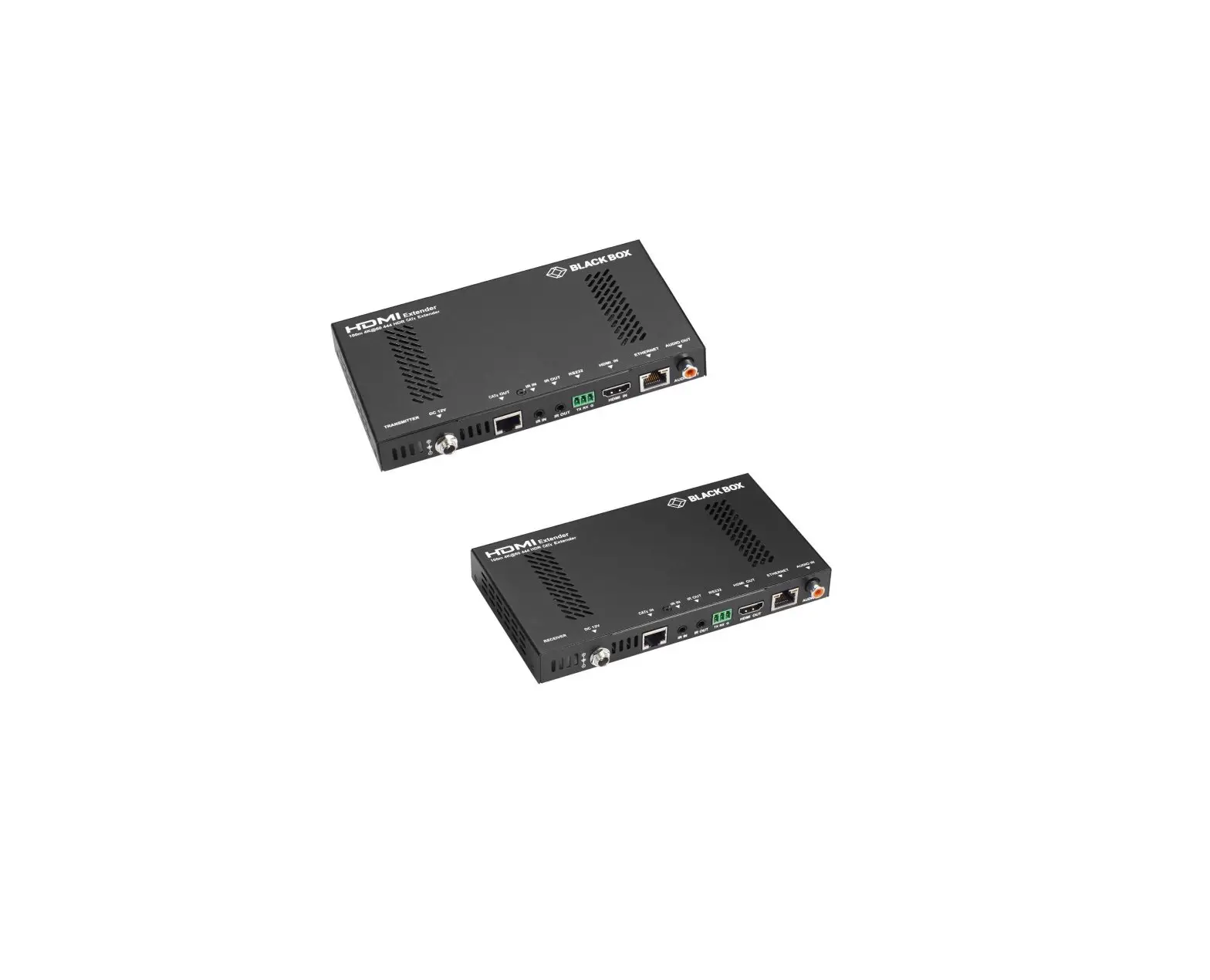
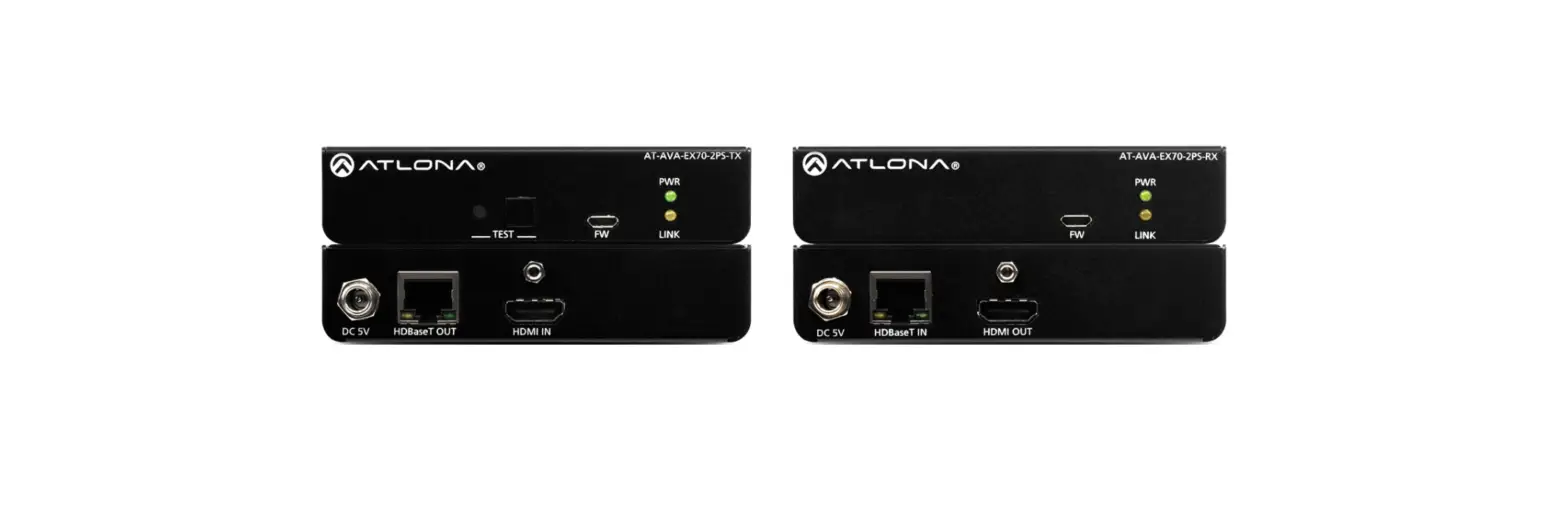
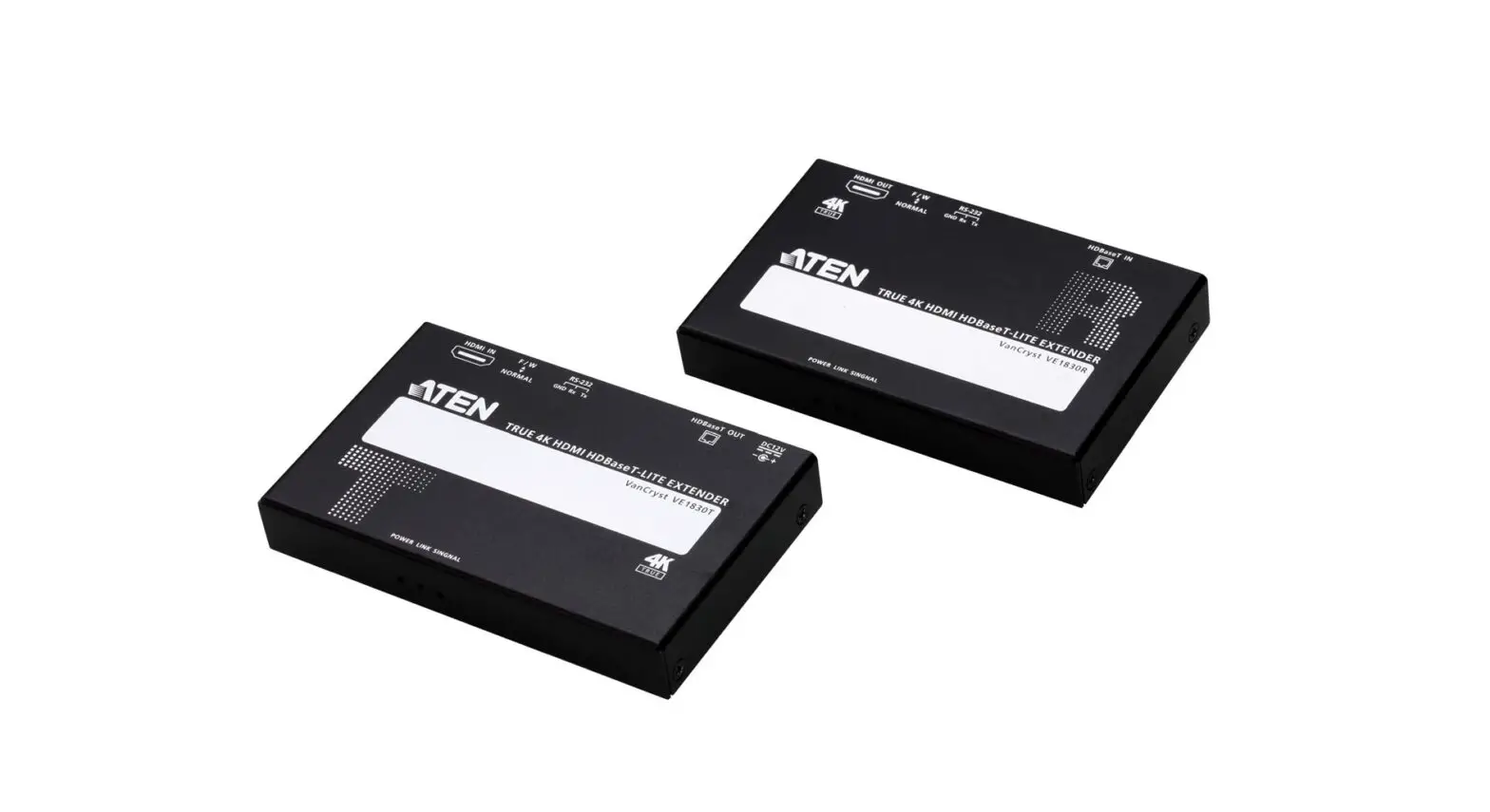
4KEX70-H2 is a slim HDBT transmitter receiver set. It supports resolutions up to 4K@60Hz 4:4:4 8bit and HDCP 2.2, transporting HDMI signals up to 131ft (40m) at
4K and up to 230ft (70m) at 1080P via a CATX cable, along with bi-directional IR and power.
4KEX70-H2 provides bi-directional PoE, enabling only one power adapter connected to either transmitter or receiver to power both units. Bi-directional IR pass through allows you to control the source at the display location or control the display at the source location with ease. RS232 pass through supports serial communication.
The transmitter and receiver are easy to install. They are space saving and offer ideal solutions for homes, offices, digital entertainment centers, control centers, conference rooms, schools and corporate training environments.
Features
- Supports HDMI 2.0 with 4K@60Hz 4:4:4 8bit and HDCP 2.2
- Supports HDR (High Dynamic Range) format
- Over a Cat 6a/7 cable, HDMI signal transport up to 230ft (70m) at 1080P and 131ft (40m) at 4K@60Hz (4:4:4)
- Over a Cat 5e/6 cable, HDMI signal transport up to 197ft (60m) at 1080P and 115ft (35m) at 4K@60Hz (4:4:4)
- Bi-directional PoE: one power supply at either transmitter or receiver side can power both units
- Bi-directional IR/RS232 pass through
- Slim profile, space saving and easy-to-install
Package Contents
Before you start the installation of the product, please check the package contents as below:
- Transmitter 4KEX70-H2 x1
- Receiver 4KEX70-H2 x1
- Power Supply (DC 18V 1A) x1
- IR Emitter x1
- Broadband IR Receiver (30-50 KHz) x1
- Mounting Bracket with screws x4
- Phoenix Male Connector (3.5mm, 3 Pins) x2
- User Manual x1
Panel
Transmitter/Receiver
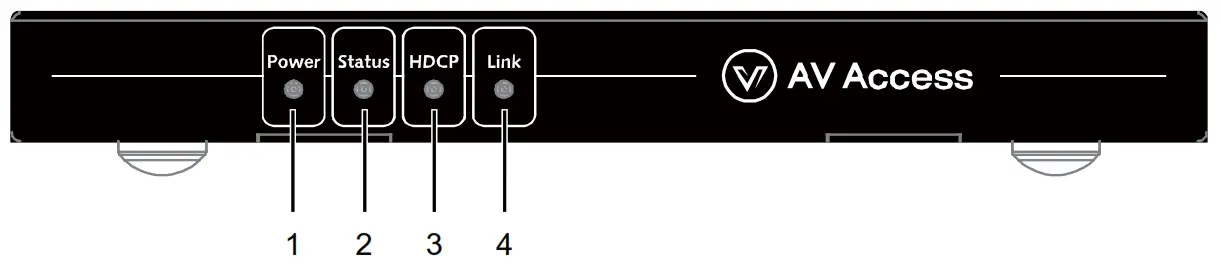
| No. | Name | Description |
| 1 | Power (Red) | On: The transmitter/receiver is powered on. Off: The transmitter/receiver is powered off. |
| 2 | Status (Blue) | Blinking: The device is working properly. Off: The device is not working properly. |
| 3 | HDCP (Blue) | On: HDMI signal is HDCP protected. Blinking: HDMI signal is not HDCP protected. This is normal and will not affect operation. Off: No HDMI signal pass through |
| 4 | Link (Green) | On: The link between transmitter and receiver is normal. Blinking: The link between transmitter and receiver is abnormal. Off: No link |
Rear Panel
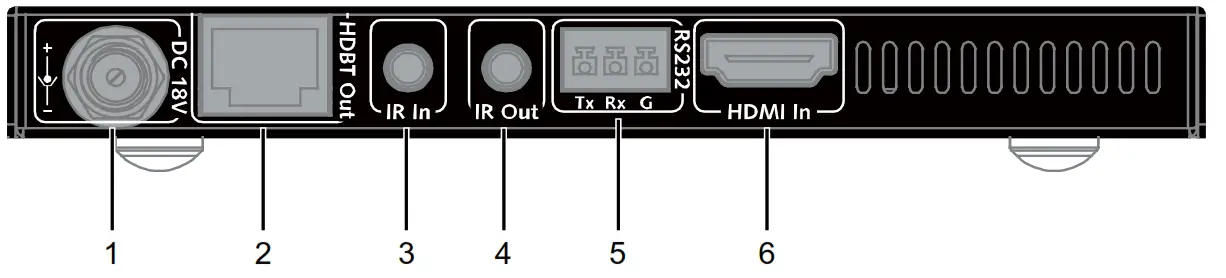
| No. | Name | Description |
| 1 | DC 18V | Connect to the DC 18V 1A power supply provided. Note: If transmitter is connected to the power supply, the receiver is adapter free provided. |
| 2 | HDBT Out | Connect to the receiver via a Cat 5e/6/6a/7 cable. |
| 3 | IR In | Connect to the supplied IR receiver. Secure the IR receiver with adhesive. |
| 4 | IR Out | Connect to the supplied IR emitter. Secure the IR emitter on the IR receiving sensor of sourcedevice with adhesive. |
| 5 | RS232 | RS232 pass-through |
| 6 | HDMI In | Connect to an HDMI source device. |
Receiver
Rear Panel
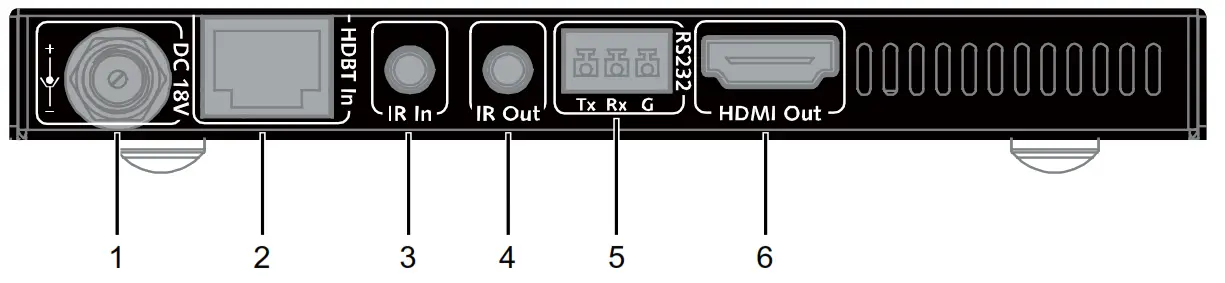
| No. | Name | Description |
| 1 | DC 18 | Connect to the DC 18V 1A power supply provided. Note: If transmitter is connected to the power supply, the receiver is adapter free provided. |
| 2 | HDBT In | Connect to the transmitter via a Cat 5e/6/6a/7 cable. |
| 3 | IR In | Connect to the supplied IR receiver. Secure the IR receiver with adhesive. |
| 4 | IR Out | Connect to the supplied IR emitter. Secure the IR emitter on the IR receiving sensor of display device with adhesive |
| 5 | RS232 | RS232 pass-through |
| 6 | HDMI Out | Connect to an HDMI display device. |
Installation and Application
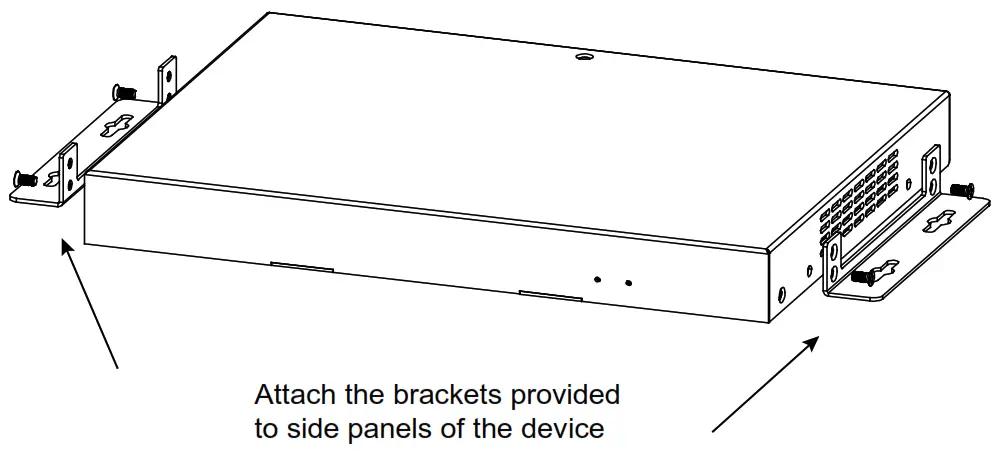
Brackets Installation
Note: Before installation, Please ensure the device is disconnected from the power source.
Steps to install the device in a suitable location:
Note: Before installation, please ensure the device is disconnected from the power source.
To install the presentation switcher on a solid surface:
- Position and install the mounting brackets with the mounting screws provided.

- Mount the transmitter on a flat and solid surface with the mounting screws.
- Repeat step 1-2 to install the receiver.
IR Cable Operation
Cable Type
- IR Emitter: Connect to the “IR Out” port of the device.

- Broadband IR Receiver (30-50 KHz): connect to the “IR In” port of the device.



Using the IR Emitter
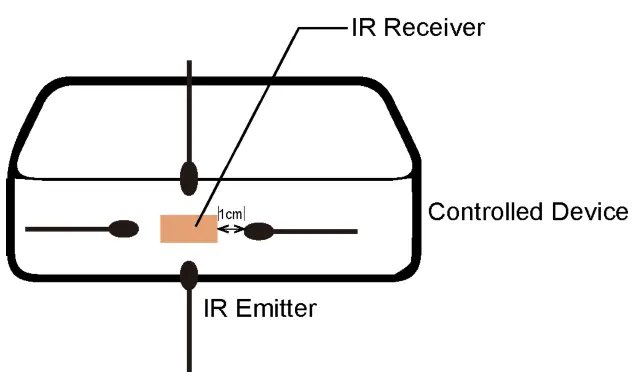
- Insert the IR emitter plug into the “IR Out” jack located on the transmitter or receiver.
- Example 1: Attach the IR emitter head directly with the adhesive tape provided near the IR receiver window (e.g. at the distance of 1cm) on the device you want to control.

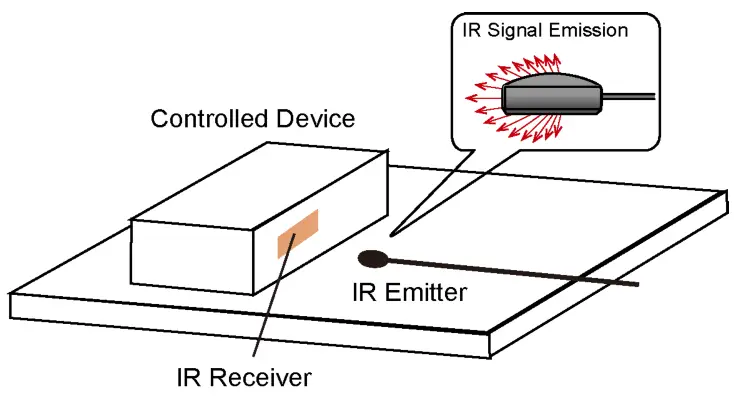
Example 2: You can also place the IR emitter in front of the IR receiver window on the controlled device.
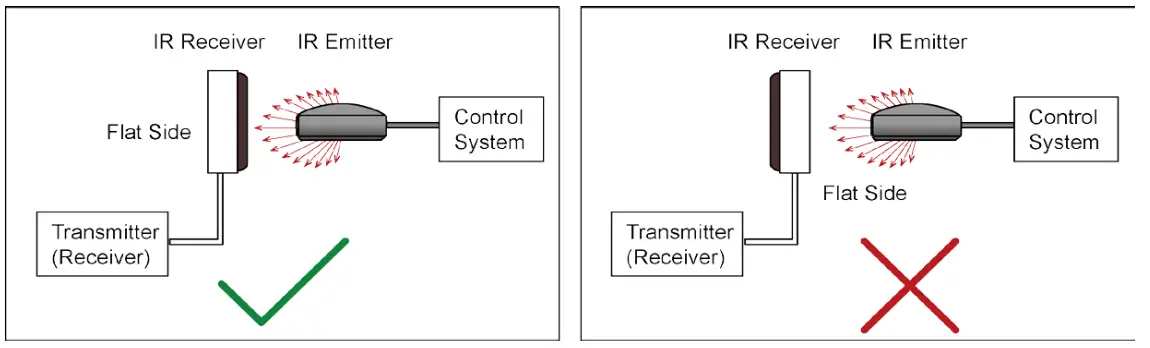
Example 3: When connected to control system, ensure the IR emitter is over against the IR receiver’s front side instead of its flat side (see below picture):
Please refer to your device’s user guide to find out where the IR receiver is on your connected device.
For example, the IR receiver for Apple TV/Amazon Fire TV/TIVO BOLT is shown as below:
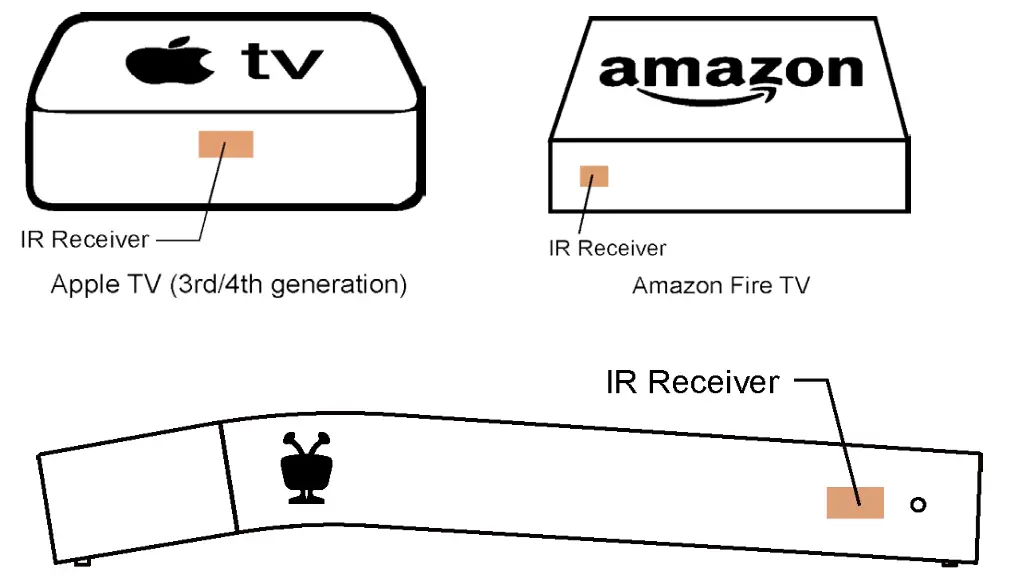 TIVO BOLT
Note: Products from AV Access do not support Bluetooth control, the introduction above applies to device with IR control capability only. Here is a list about different devices’ control method.
| No. | Device | Control Method |
| 1 | NVDIA 2571 Player | Bluetooth/USB |
| 2 | Amazon Fire TV with UHD HDR | Bluetooth |
| 3 | Amazon Fire TV | IR |
| 4 | ROKU Ultra Player | Bluetooth |
| 5 | Apple TV 3rd | IR |
| 6 | Apple TV 4th | IR |
| 7 | Apple 4K TV 5th | Bluetooth |
| 8 | Xbox one S | Bluetooth/USB |
| 9 | Xbox one X | Bluetooth/USB |
| 10 | TIVO BOLT | IR |
| 11 | NINTENDO SWITCH HAC-001 Game Console | Bluetooth/USB |
| 12 | PS4 Pro | Bluetooth/USB |
| 13 | Blu-ray Player | IR |
Typical Application
The product package includes one IR emitter and one IR receiver. Please refer to the following two applied installations.
Application Example 1:
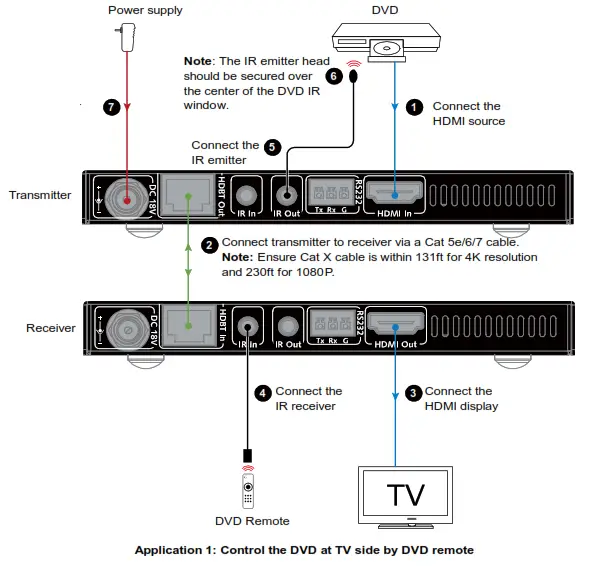
Note: When transmitter (receiver) is powered on, receiver (transmitteris adapter free.
Application Example 2:
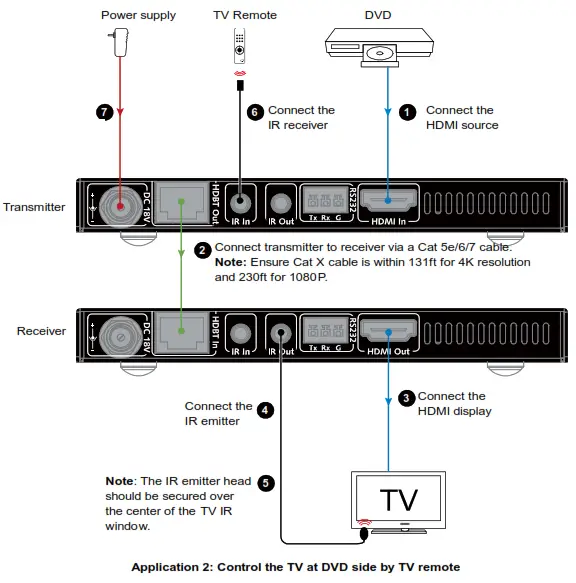
Note: When transmitter (receiver) is powered on, receiver (transmitter) is adapter free.
Note:
- The source may be any HDMI source device such as an Apple TV, STB, DVR, Xbox, DVD player, etc.
- The display may be any HDMI display device such as a TV, video wall, interactive whiteboard, projector, etc.
- When Connecting with HDMI source, standard HDMI 2.0 cable is required.
Specification
| Technical | |
| Video Signal Type | HDMI 2.0 with HDCP 2.2 |
| Input/Output Resolution Supported | SMPTE: 1280x720P1,2,3,4,5,6,7,8,1920x1080I6,8, 1920x1080P1,2,3,4,5,6,7,8, 3840×21602,3,5,6,8, 4096×21602,3,5,6,8 VESA: 800×6008, 1024×7688, 1280×7688, 1280×8008, 1280×9608, 1280×10248, 1360×7688, 1366×7688, 1400×10508, 1440×9008, 1600×9008, 1600×12008, 1680×10508, 1920×12008 1 = at 23.98 Hz, 2 = at 24 Hz, 3 = at 25 Hz, 4 = at 29.97 Hz, 5 = at 30 Hz, 6 = at 50 Hz, 7 = at 59.94 Hz, 8 = at 60 Hz |
| Audio Format Supported | Stereo, PCM 2.0/5.1/7.1, Dolby True HD and DTS HD Master Audio |
| Maximum Data Rate | 18Gbps |
| General | |
| Operating Temperature | 0°C to 45°C (32°F to 113°F) |
| Storage Temperature | -20°C to 70°C (-4°F to 158°F) |
| Humidity | 10% to 90%, non-condensing |
| ESD Protection | ±8kV(Air-gap discharge)/ ±4kV(Contact discharge) |
| Surge Protection | Voltage: ±1 kV |
| Power Consumption (Max) | 12.8W (Pair) |
| Device Dimension (W x H x D) | 5.39” x 0.61” x 2.93” (136.8 mm ×15.4 mm × 74.5 mm) |
| Product Weight | Transmitter: 0.53lb (0.24kg) Receiver: 0.53lb (0.24kg) |
Transmission Distance:
| Cable Type | Range | Supported Video |
| HDMI | Input/Output: 49ft/15m | 1080P@60Hz |
| Input/Output: 33ft (10m) | 4K@30Hz | |
| Input: 10ft (3m) Output: 16ft (5m) | 4K@30Hz | |
| Cat 5e/6 | 197ft (60 m) | 1080P@60Hz 36bpp |
| 115ft (35 m) | 1080P@60Hz 48bpp 1080P@60Hz 3D 4K@60 Hz 4:4:4 with HDR | |
| Cat 6a/7 | 230ft (70 m) | 1080P@60Hz 36bpp |
| 131ft (40 m) | 1080P@60Hz 48bpp 1080P@60Hz 3D 4K@60Hz 4:4:4 with HDR |
Note: AV Access recommends the use of T568B straight-through category cables.
TroubleShooting
Steps of Regular Troubleshooting Routine
- Power: Please make sure all devices are powered on (the source, extender set and display).
- Indicator: Please make sure LED indicators of the transmitter and receiver are normal according to user manual.
- Devices: Please make sure picture can be shown normally when connecting source to display devices directly.
- Cable: Plug in and out HDMI/Cat X cable or try another HDMI/Cat X cable.
• Please make sure the specific cable length is within the transmission range listed in below table based on different resolutions.
| Resolution and Transmission Range | |||
| Resolution Cable | 1080P | 4K@60 420 4K@30 444 | 4K@60 444 |
| HDMI IN | 49ft | 33ft | 10ft |
| HDMI OUT | 49ft | 33ft | 16ft |
| Cat 5e/6 | 197ft | 115ft | 115ft |
| Cat 6a/7 | 230ft | 131ft | 131ft |
Cat 5e/6/6a/7 cable is recommended. Do not use Cat 5 cable. Please make sure the two connectors of one Cat X cable are the same standard (EIA/TIA 568B).
Compatibility: Please test other source and display devices to determine if it is a compatibility issue.
- Standard HDMI 2.0 cable is required when 18G signal (4K@60Hz 4:4:4 8bit) is being transmitted.
Typical Question
- How to deal with video flash or cut off during the installation?
• Power indicator should be solid on and status indicator should be blinking. If not, please check if the power adapter is well connected.
• Link indicator should be solid on. If it is blinking or off, it is likely a problem with your Ethernet cable. Please change to a qualified cable (Cat5e/6/7, EIA/TIA 568B) and ensure the cable length is within the maximum distance (230ft for 1080P, 131ft for 4K).
• HDCP indicator should be solid on or blinking. If it is off, it means no signal pass through. Please check if the HDMI cables are well connected to the source and TV, and the Ethernet cable that connects transmitter to receiver is normal. Try a better HDMI cable or Ethernet cable. - How to deal with a weak or not working IR signal?
• Make sure the IR cables are correctly installed according to the Installation Instruction diagram above.
• Check if the IR emitter head is secured over the center of the device IR receiver window. The best position may vary depending on the device. Please refer to the device user manual. If the signal is weak, please try to adjust the position.
• Pay attention to the control angle and distance as below. The control signal will be better when your controller is pointed at the IR receiver head directly.Enable Angle 0 30°(Horizontal) 15°(Vertical) Distance 26ft (Max) 15ft (Max) 10ft (Max) - How can I make the IR work with third party control devices?
Please make sure the third party device follows our pin definition as below: You can purchase an AV Access universal IR cable that will be compliant with any third party device (Amazon ASIN: “B01MYX46IC”).
 - How to use the RS232 port in the extender?
The RS232 port provides a channel to pass through protocol commands to control third party devices such as your source or display. RS232 uses the three pins that are labeled transmitter, receiver and GND. Connect a host computer or control system to the RS232 connector. Please refer to the following pin definition of RS232 during your installation.
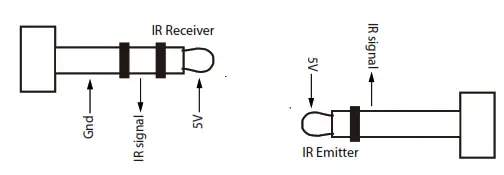 You can purchase an AV Access universal IR cable that will be compliant with any third party device (Amazon ASIN: “B01MYX46IC”).
Warranty
Products are backed by a limited 1-year parts and labor warranty. For the following cases AV Access Technology Limited shall charge for the service(s) claimed for the product if the product is still remediable and the warranty card becomes unenforceable or inapplicable.
- The original serial number (specified by AV Access Technology Limited) labeled on the product has been removed, erased, replaced, defaced or is illegible.
- The warranty has expired.
- The defects are caused by the fact that the product is repaired, dismantled or altered by anyone that is not from an AV Access Technology Limited authorized service partner. The defects are caused by the fact that the product is used or handled improperly, roughly or not as instructed in the applicable User Guide.
- The defects are caused by any force majeure including but not limited to accidents, fire, earthquake, lightning, tsunami and war.
- The service, configuration and gifts promised by salesman only but not covered by normal contract.
- AV Access Technology Limited preserves the right for interpretation of these cases above and to make changes to them at any time without notice.
Thank you for choosing products from AV Access.
AV Access Technology Limited
www.avaccess.com
 AV Access | Quality & Budget Assured Pro AV Product Manufacturer