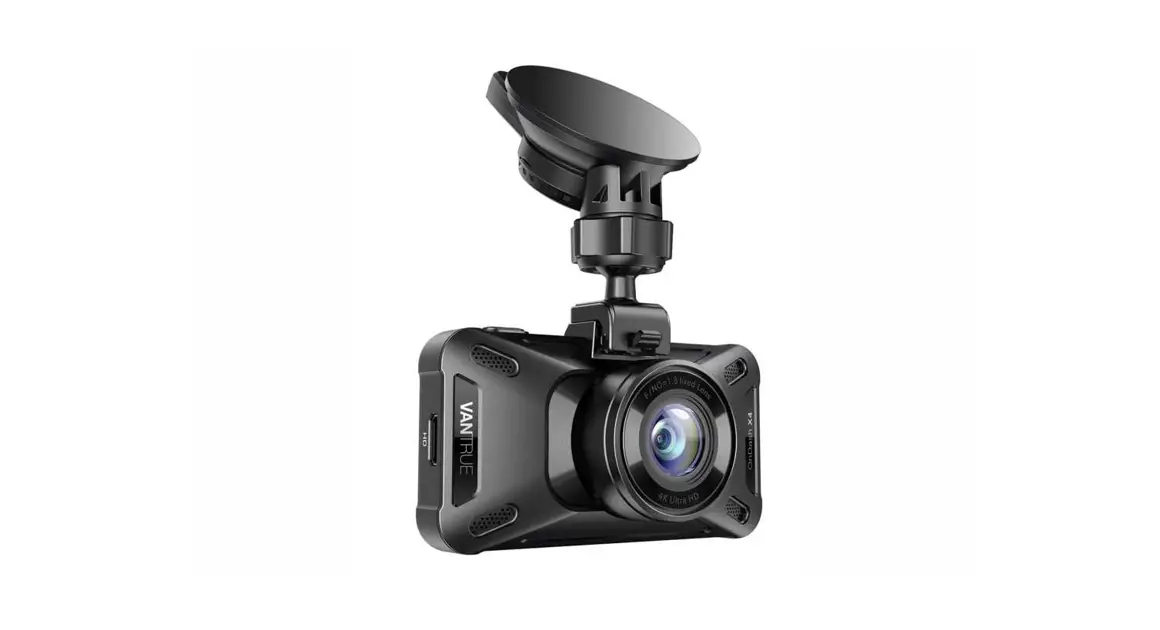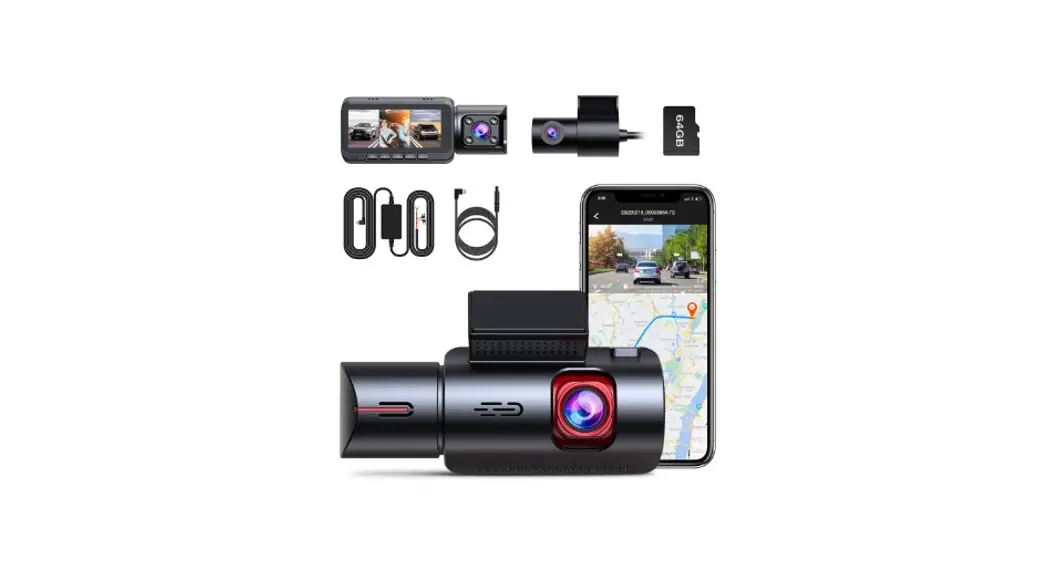

VANTRUE X4S RC02 4K 5G WiFi Dash Cam

Format the memory card
Please format the memory card firstly and then unzip the file into the formatted memory card root directory.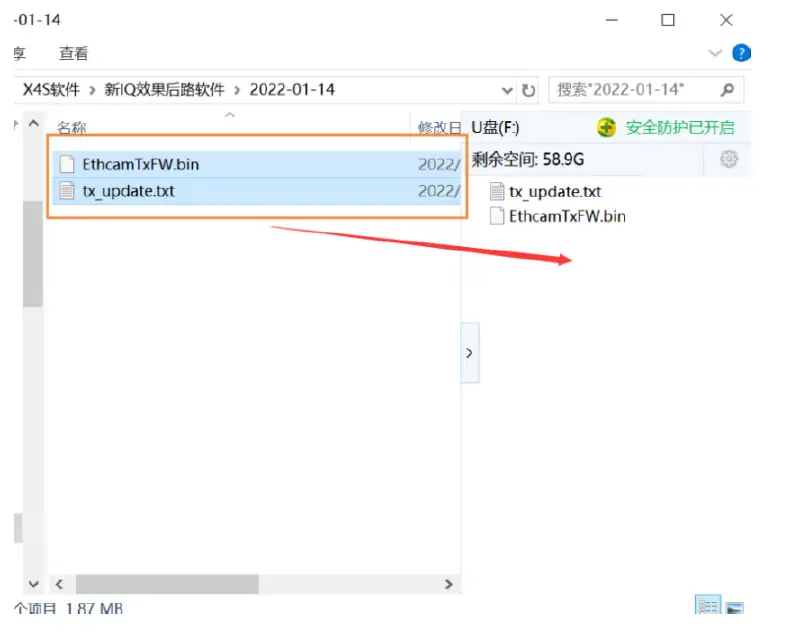
memory card in the X4S and connect the rear camera
Place the memory card in the X4S and connect the rear camera to the X4S to connect the power supply. After power on, the machine will have a minute or so to identify the updated software (the screen may stay on a screen at this point), please wait patiently.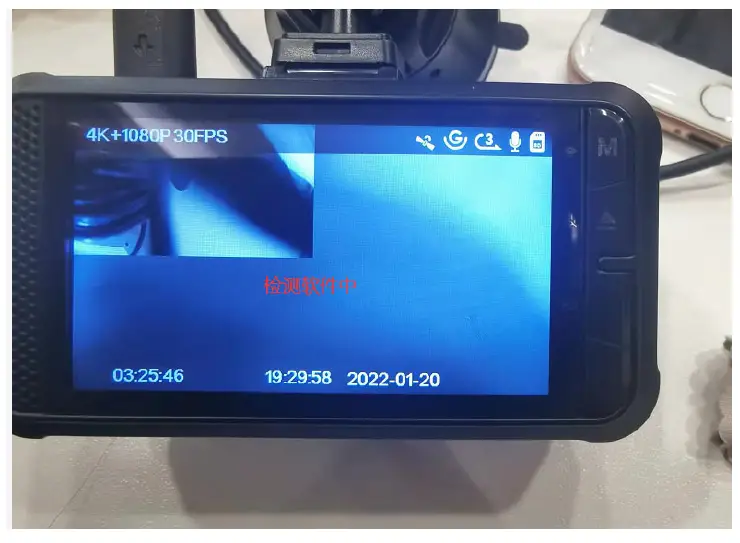
software is detected
After the software is detected, it will be updated and will take about 2-3 minutes, please wait patiently.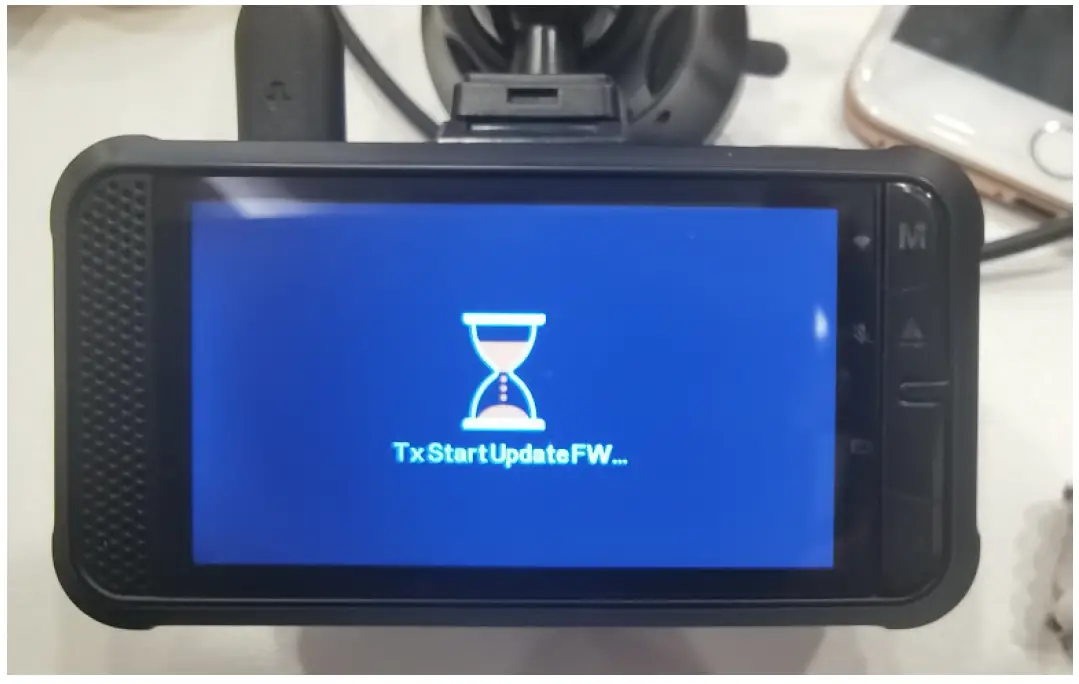
After the software is updated successfully, it will return to the recording interface and start recording automatically.
You can pause the video and go back to the system > system information to view the recorder version number, as shown in the figure below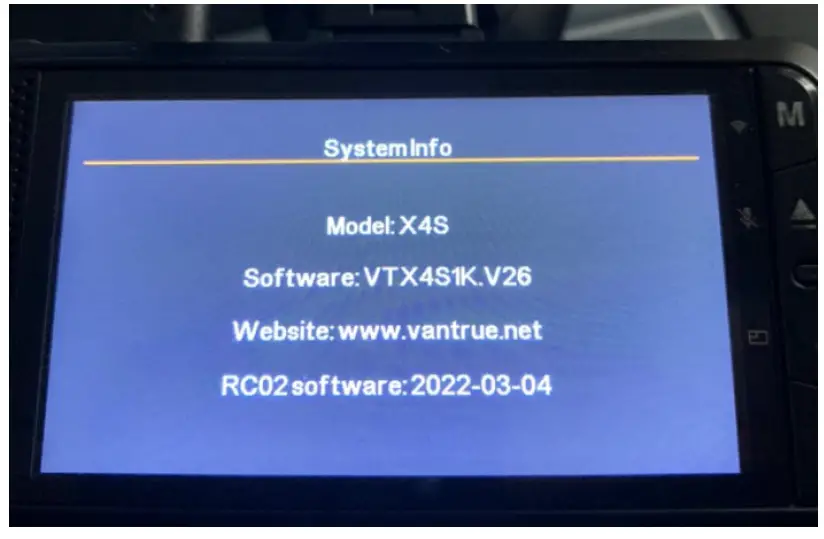
Update Rear Camera Firmware Notes, Please Note:
- Please update the V26 version firmware first, and then update the rear lens firmware.
- After the update is completed, please remove the memory card and put it in the computer to delete the update software, and then reboot the dashcam.
- If you don’t delete its’ firmware after updating the rear lens firmware, the dashcam may be repeatedly restarted and the key may fail.