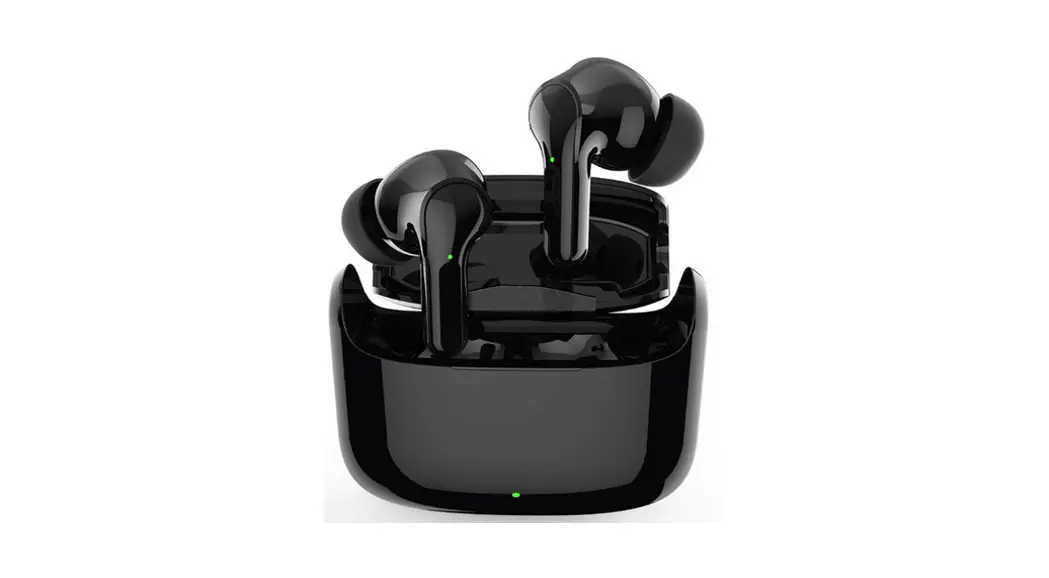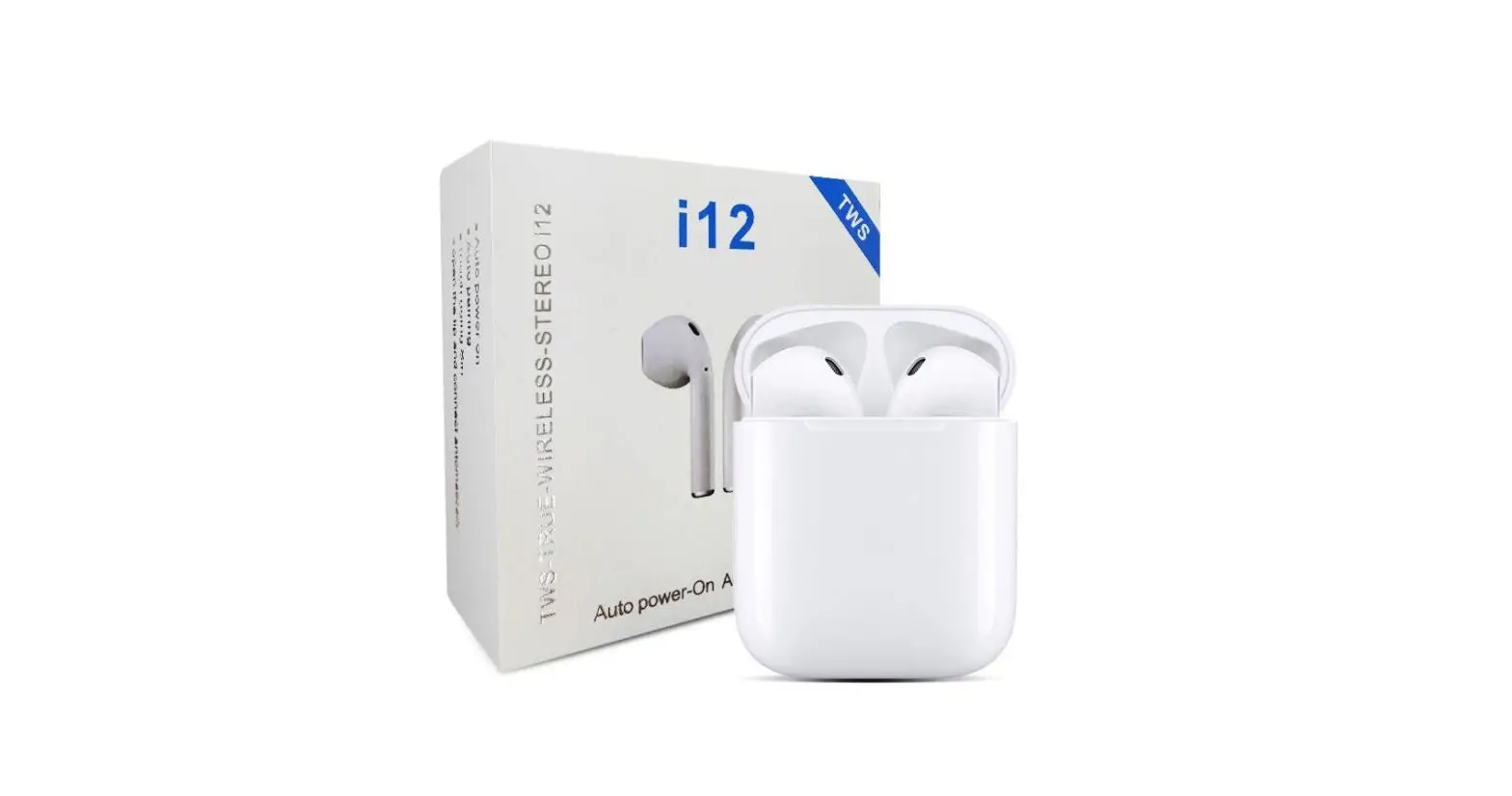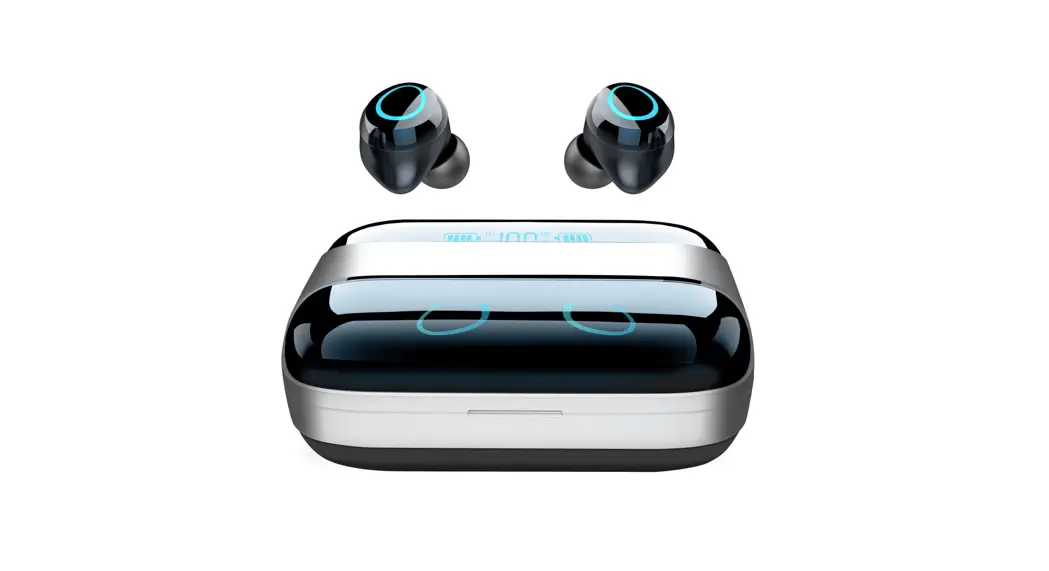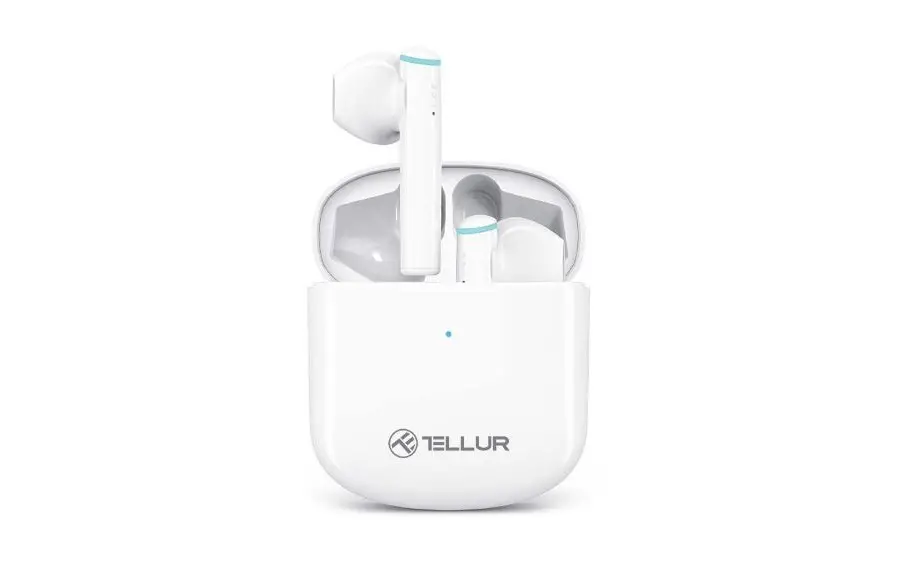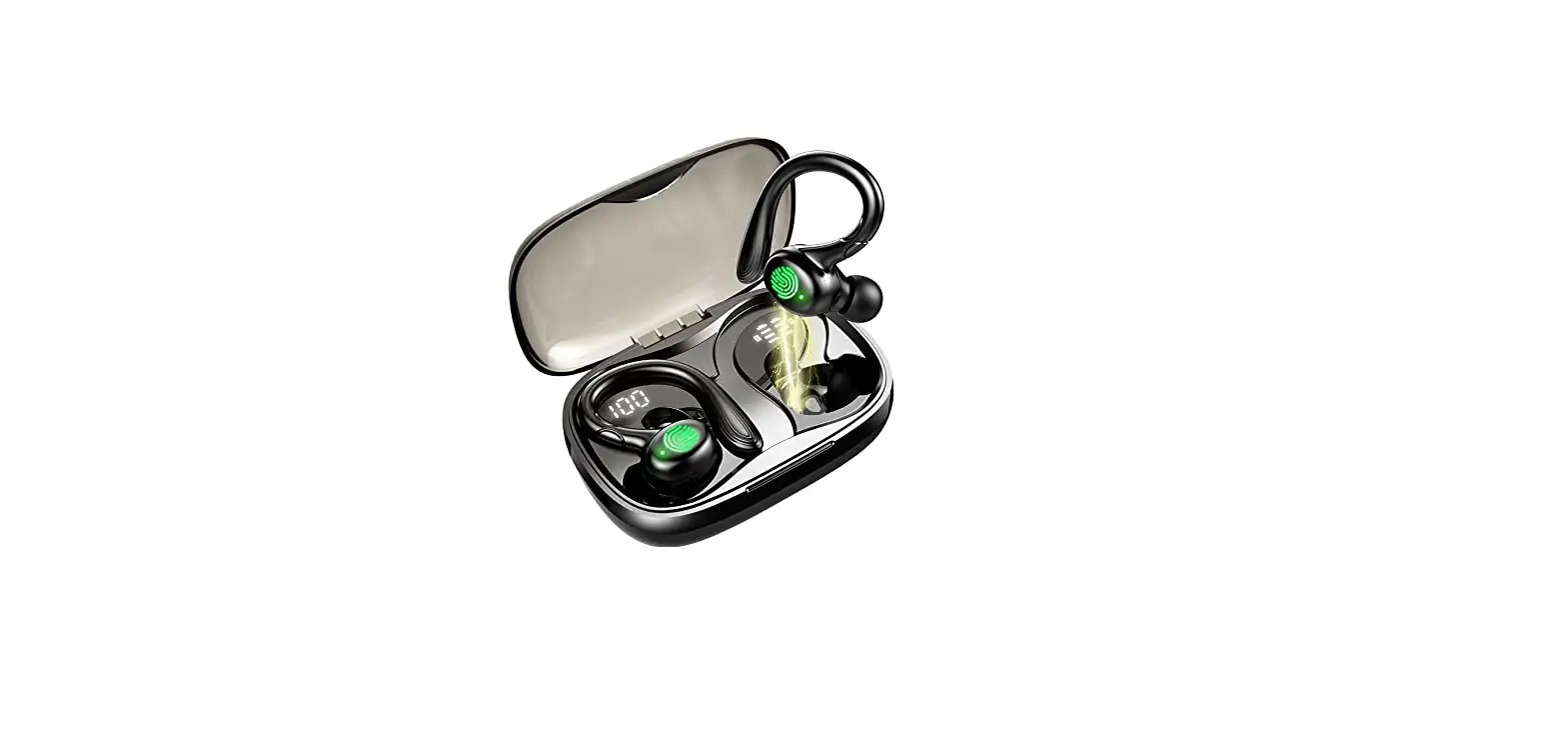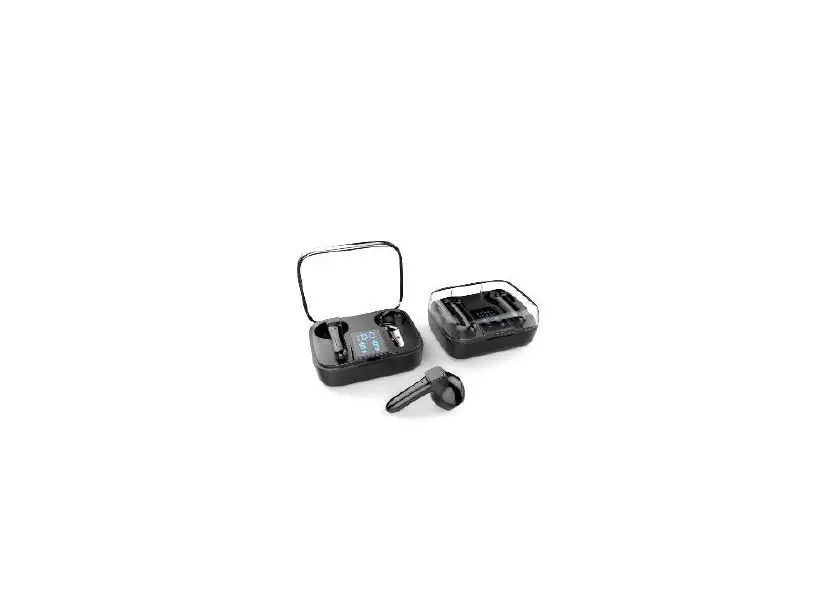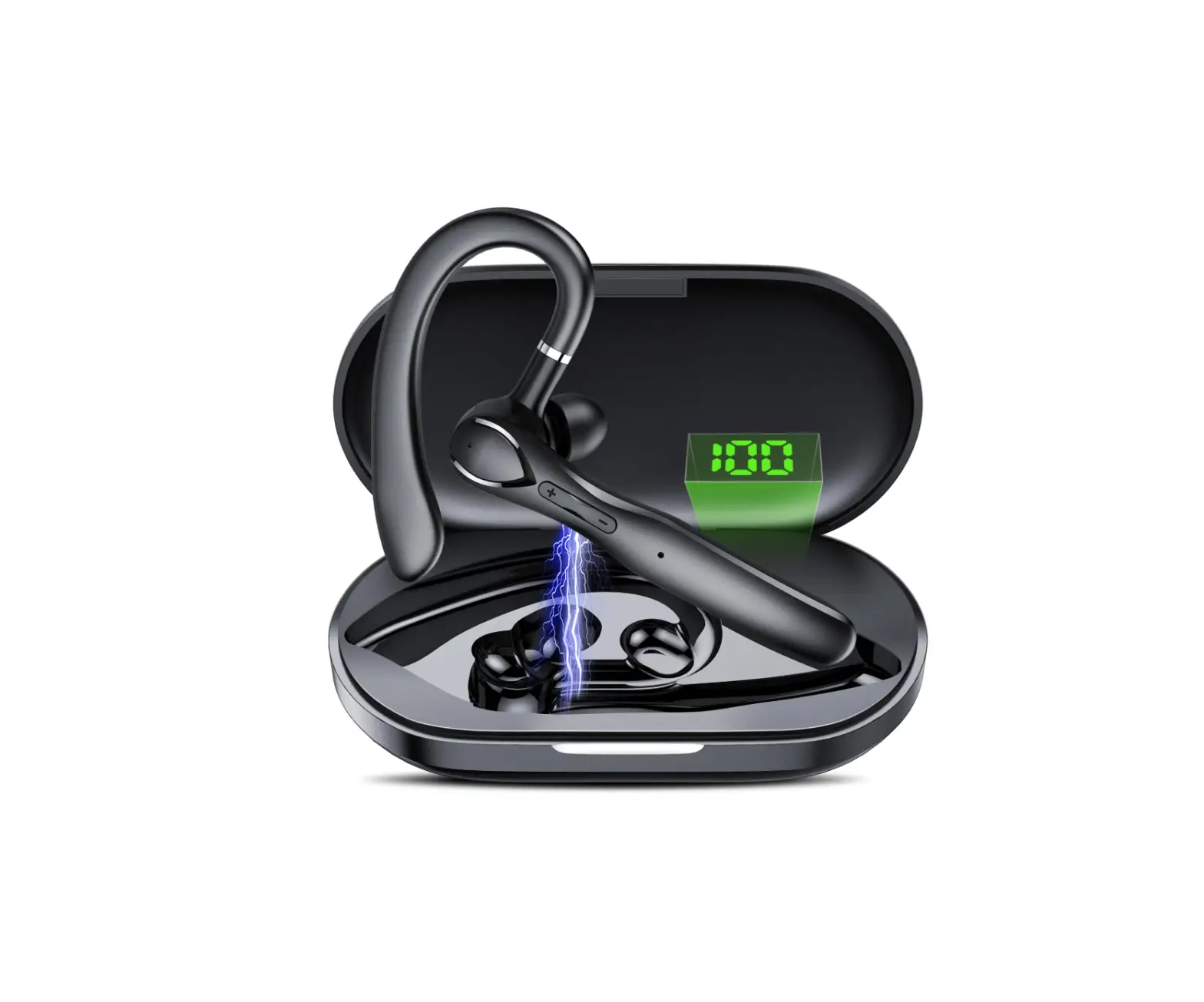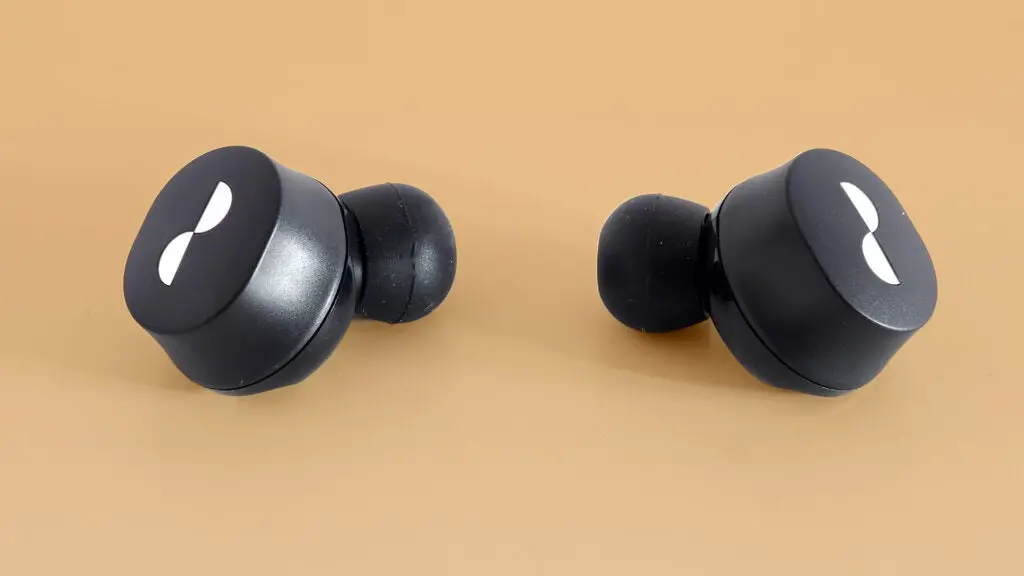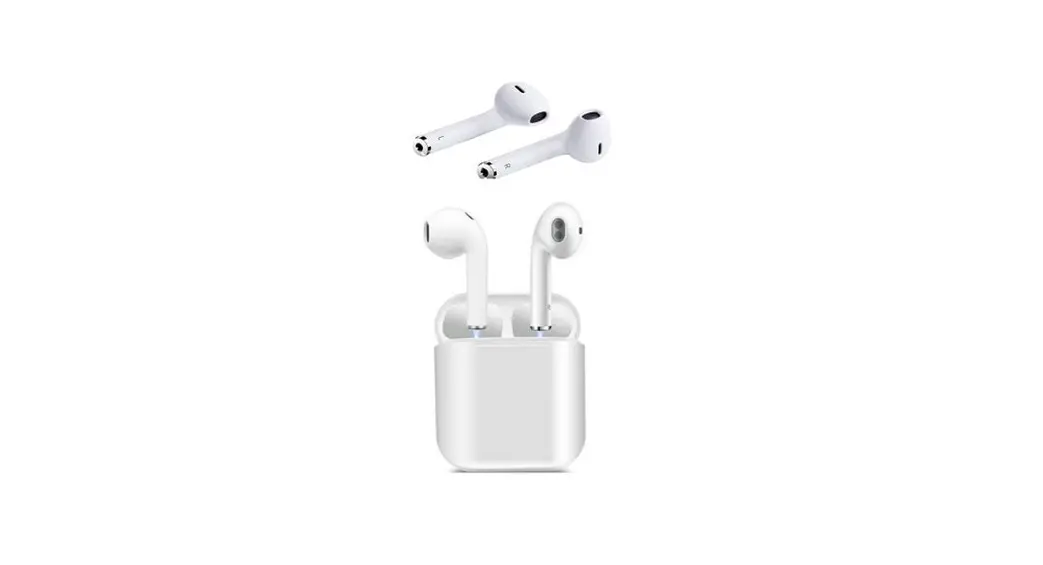
i11 True Wireless Stereo Earphones
User manual
Imported Wireless 5.1 chips
Compatibility
This product is compatible with all Bluetooth-enabled mobile phones (iOS/Android/Windows Phone), tablet PCs, smart watches, notebooks, and desktop computers.
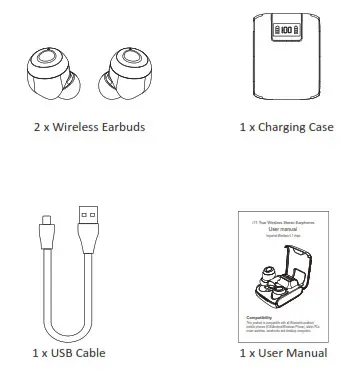
Package Accessories
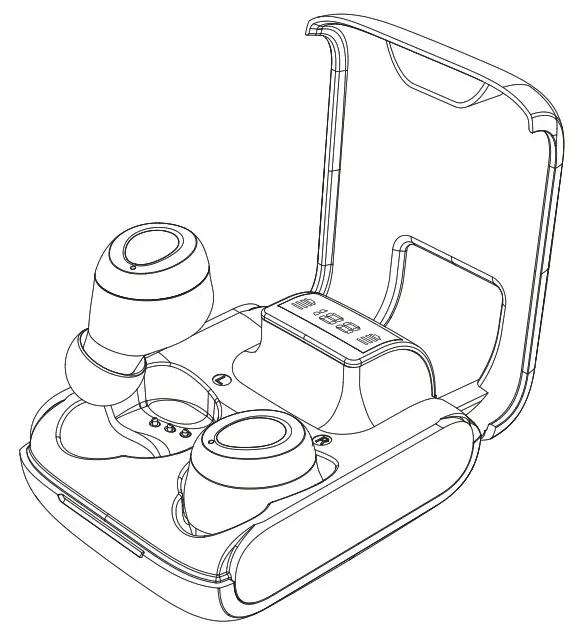
Product Introduction
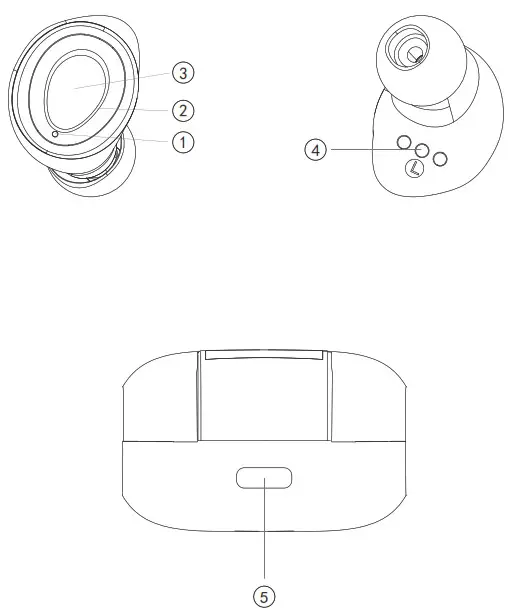
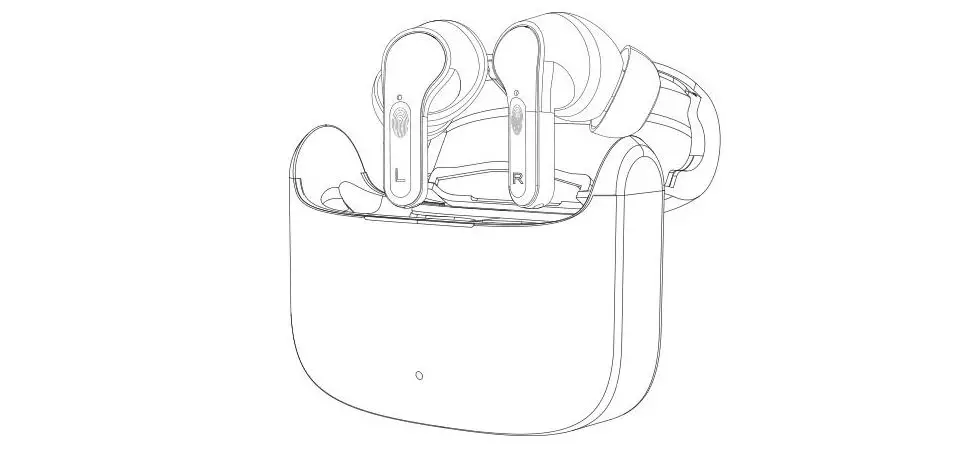
| 1. Microphone 2. Earphone LED Indicator 3. Touch Button | 4. Headphone charging port 5. Type-C charging port |
Product details:
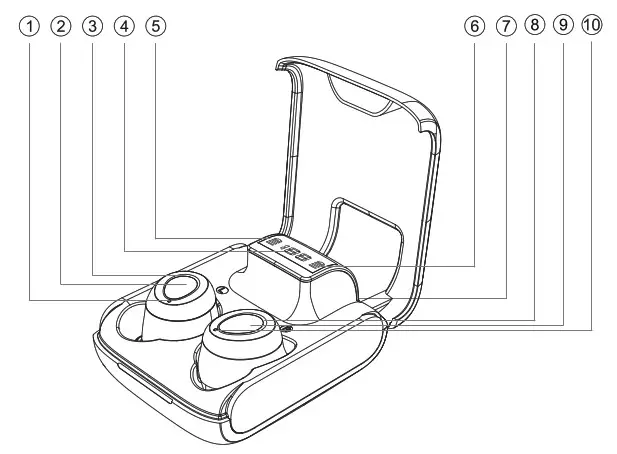
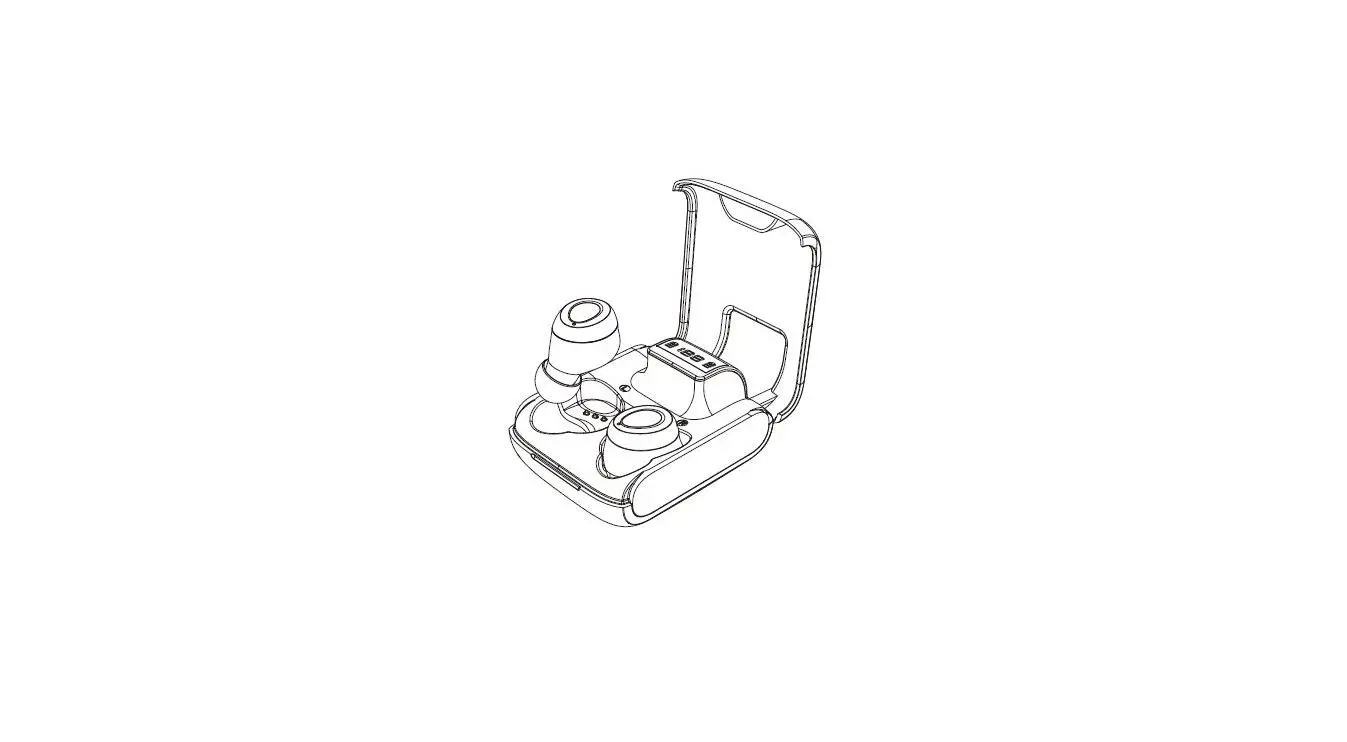
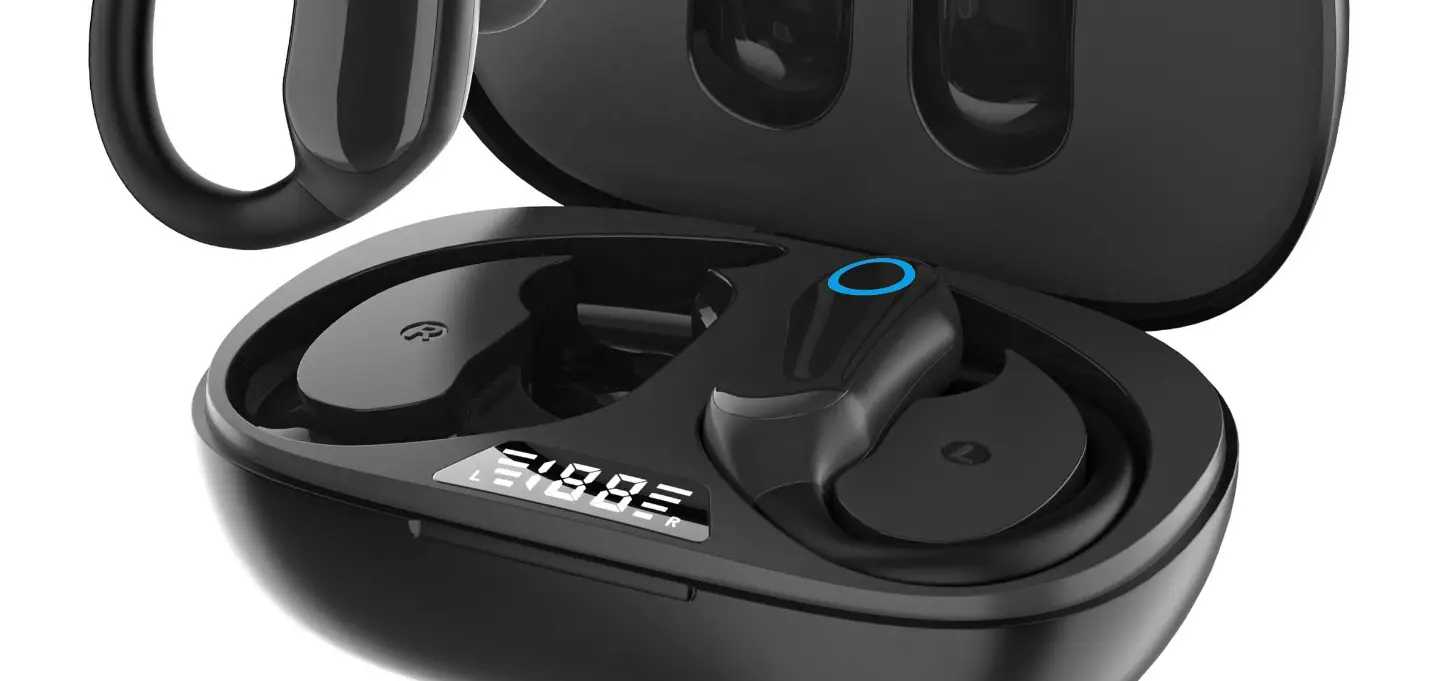
| 1 & 10. Microphone 2 & 9. Touch Button 3 & 8. Earphone LED Indicator | 4. Charging bin digital display 5 & 6. Earphone digital display 7. Type-C charging port |
Usage:
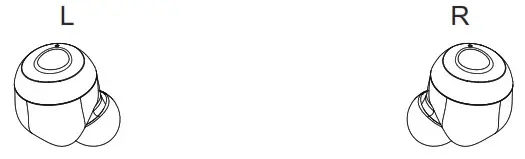
In order to get the best audio experience, please wear the left and right earphones correctly, and you will feel close, comfortable, and stable in your ears after wearing them correctly. And please put your cellphones on the same side of left earphone during outdoor.
Powering ON:
Method 1:Take out the earphones from the charger case, and they will “power on”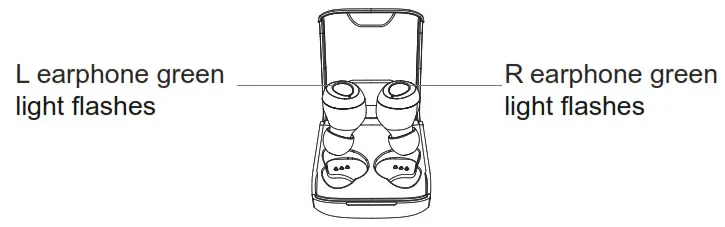
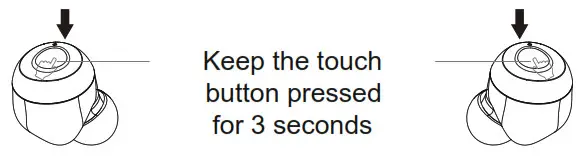
Method 2:When the earphones are OFF, Keep the touch button of both earphones for 3-5 seconds. The LED light flashes once and with a sound prompt: “power on”.
 Powering OFF:
Method 1: The earphones will switch off when put into the charging case.
Method 2: Keep the earphones touch button pressed for 3-5 seconds, until the green LED flashes with a sound prompt: “power off”.
Note: If the earphones were disconnected from the device, the earphones will be power off automatically after 5mins.
Stereo Mode:
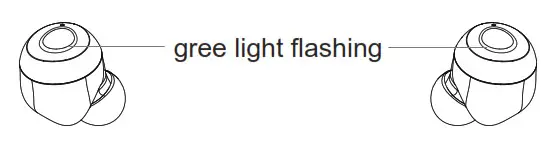
- Taking the earbuds out of the charging box, they will auto power on. After a few seconds, the left and right earbuds will auto connect each other. When the TWS earbuds are connected to each other, the LED light will flash quickly. If they connect successfully, the earbuds LED light will flash slowly.

- Open the bluetooth devices page inside settings. Search for “i11” and select it to pair, the Earphone lights be off after the earphones are connected with the device.

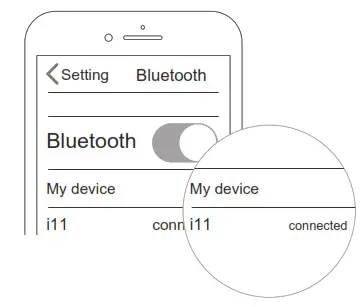
Note: If the earphones connected the device once, and the bluetooth functions of device were open, the earphones will be reconnected with the last device automatically.
Play Music:
- Touch the button once to Pause/Play.
- Keep press the touch button for 1 second and release it “L”for previous song, “R” for next song)
- Touch the button twice to adjust the volume(“L”for decreasing ,”R” for increasing)
Voice Assistant:
Touch the button three times to activate the Siri voice assistant
Calling:
- When a call comes in, short press one of the touch buttons in order to answer the call or long press it to reject it.
- During a phone call, short press the earphone button to end the call and the earphone will resume its previous working state.
- During a call, the volume can be controlled via the mobile phone.
- Stereo mode:both ears have a voice.
Specifications:
- Model: i11
- Bluetooth version: V5.1
- Voltage rating and energy capacity: 3.7V/400mAh
- Battery capacity: 2*3.7V/50mAh
- Earphone Charge time: Around 1 hour
- Music playing time:About 6-8h
- Bluetooth profiles supported: HFP/A2DP/AVRCP
- Operating frequency: 2.40 GHZ-2.48 GHZ
- RF Sensitivity: -92dBm
- Working temperature range: -10+50
- Maximum transmission range: 15M
Packing list:
Earphone *2
USB cable *1
Charging case *1
Earcaps *4(L S)
User manual *1
Important:
- Host device is a connection between second device and your mobile phone, it is normal status under high power consumption.
- When not connected to any device, the earphones will power off automatically after 5 minutes.
- On iPhones the battery level of the earphones will be displayed in real time.
- When the earphones and the charger case are not used for long periods of time, it is recommended to keep them in a dry place and to recharge them at least every 2 months.
Fault:
| Fault | Cause | Solutions |
| Can’t power on | Earbuds are low battery/ Crash | Charge the Earbuds/Keep the earphones touch button pressed for 8 seconds |
| No charging indication | The Earbuds are not well put into | Adjust Earbuds position |
| Automatically shut down | Earbuds are low battery | charge the Earbuds |
| The Earbuds have an echo | The volume is too high or the environment is too noisy | Adjust the volume or change position |
| The Earbuds are noisy | Outside environment interference or too far away from mobile phone | Change position,or move closer to the mobile phone |
| Small sound | wearing Earbuds incorrectly or the volume is too low | Adjust the Earbuds position or the mobile phone volume |
| Signal intermittent | Outside environment interference or too far away from mobile phone | Change to better environment or move closer to the mobile phone |
| Earbuds have no sound | Pairing unsuccessful between L and R Earbuds | Put the earphones into the charger case |
Warranty card
Warranty period: 12 months from the date of purchase
Free of charge service:
During the warranty period, if there is any breakdown caused by the products’ build quality please contact the seller and provide this warranty card together with the sales invoice. The product will be repaired or replaced by a new one. The warranty does not apply under the following circumstance:
- The product label is broken.
- Damage caused due to the product being disassembled by a non-authorized repair agent.
- Damage caused by external force or when there is visible deformation of any of the external parts.
- The product has been improperly used or stored.
- Damage or breakdown caused by force majeure.
- Other situations similar to the above.
Customer service information
| Customer Name | |
| Customer Phone | |
| Customer Address | |
| Model Number | |
| Purchase Date | |
| Dealer | |
| Invoice number |