EZCast
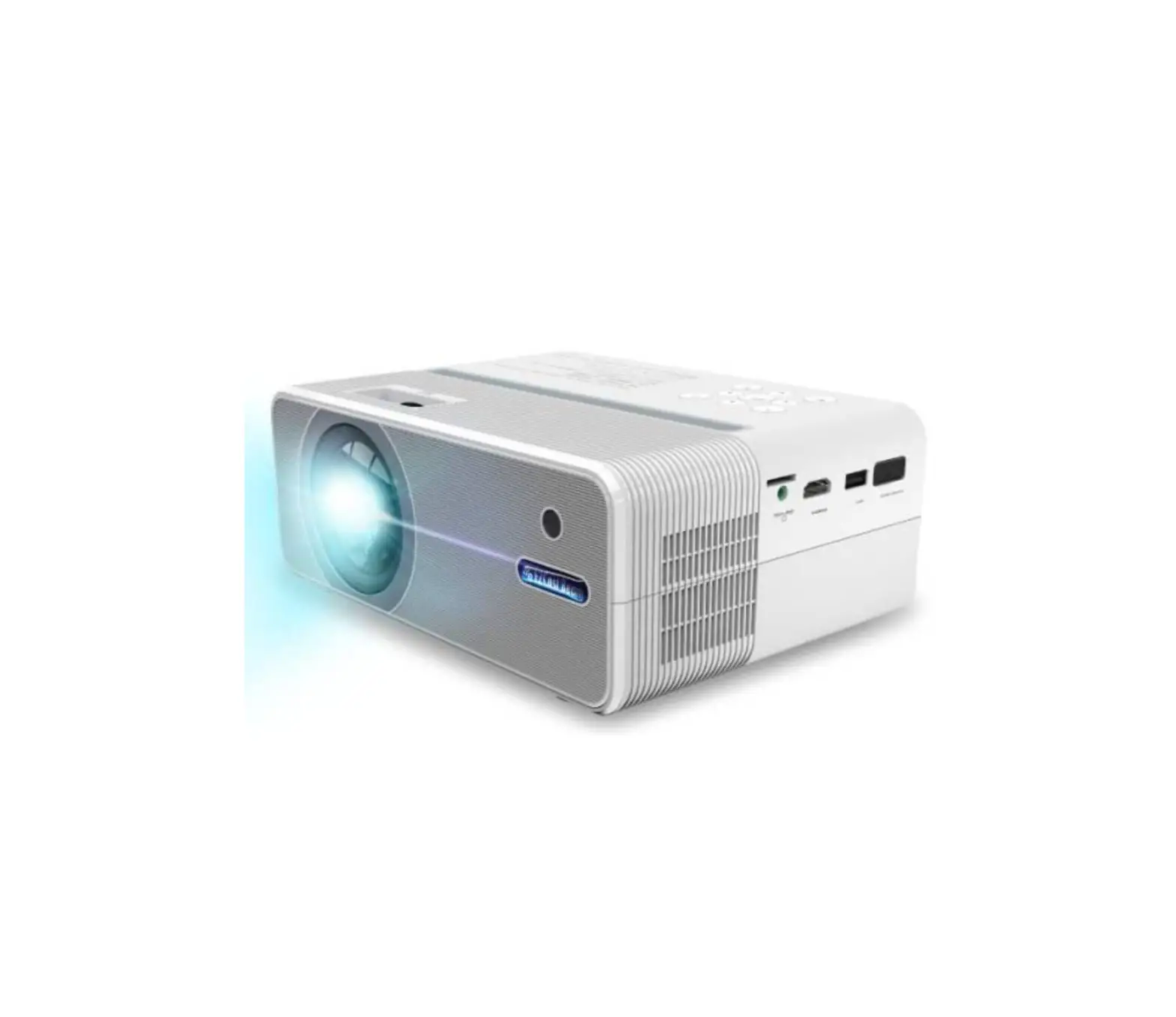
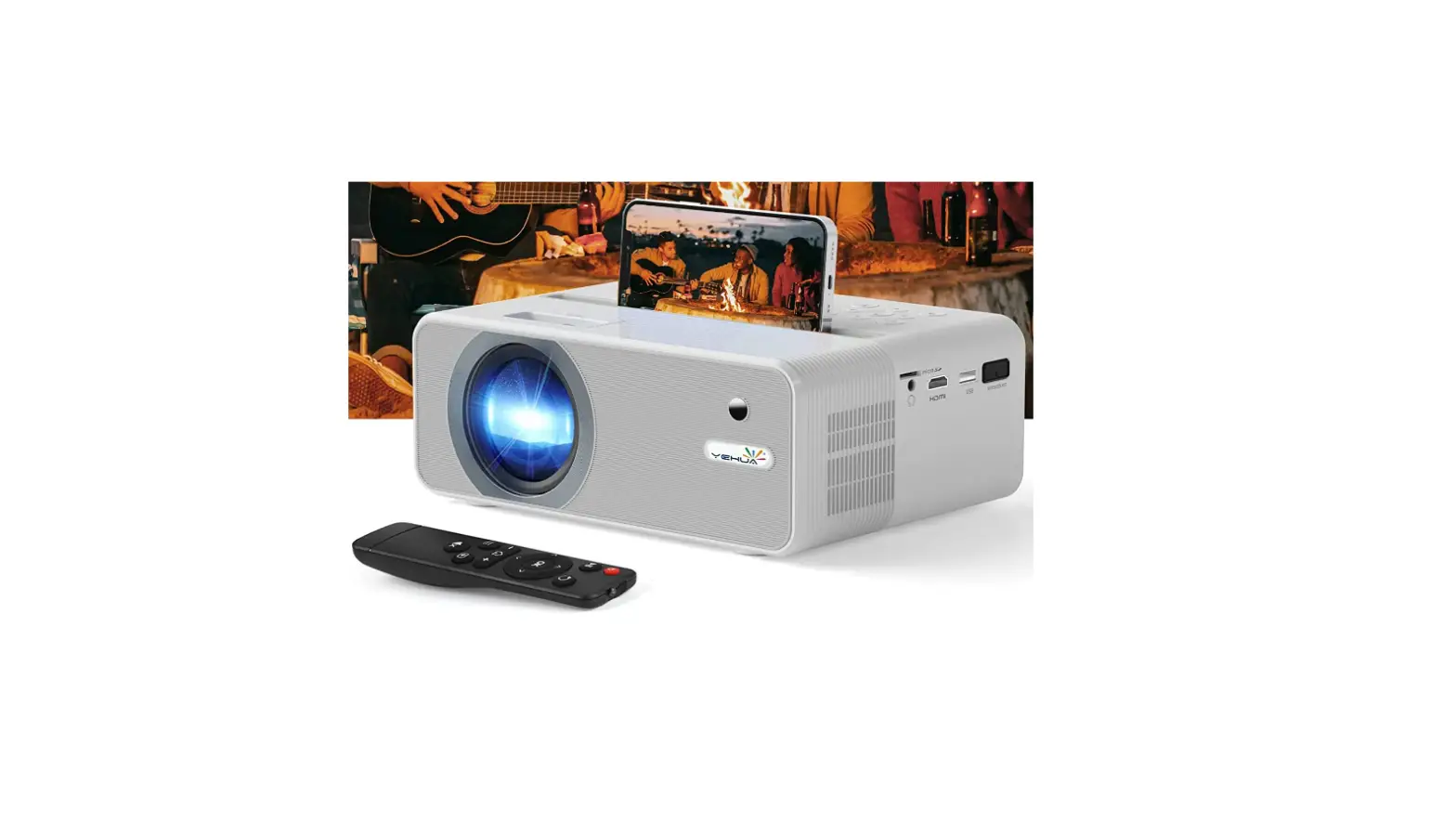
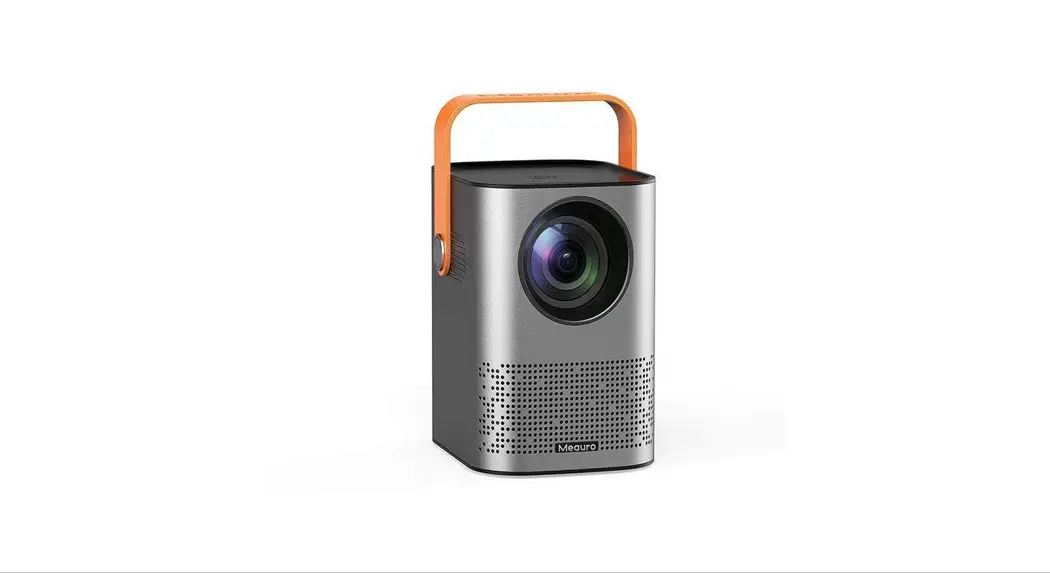
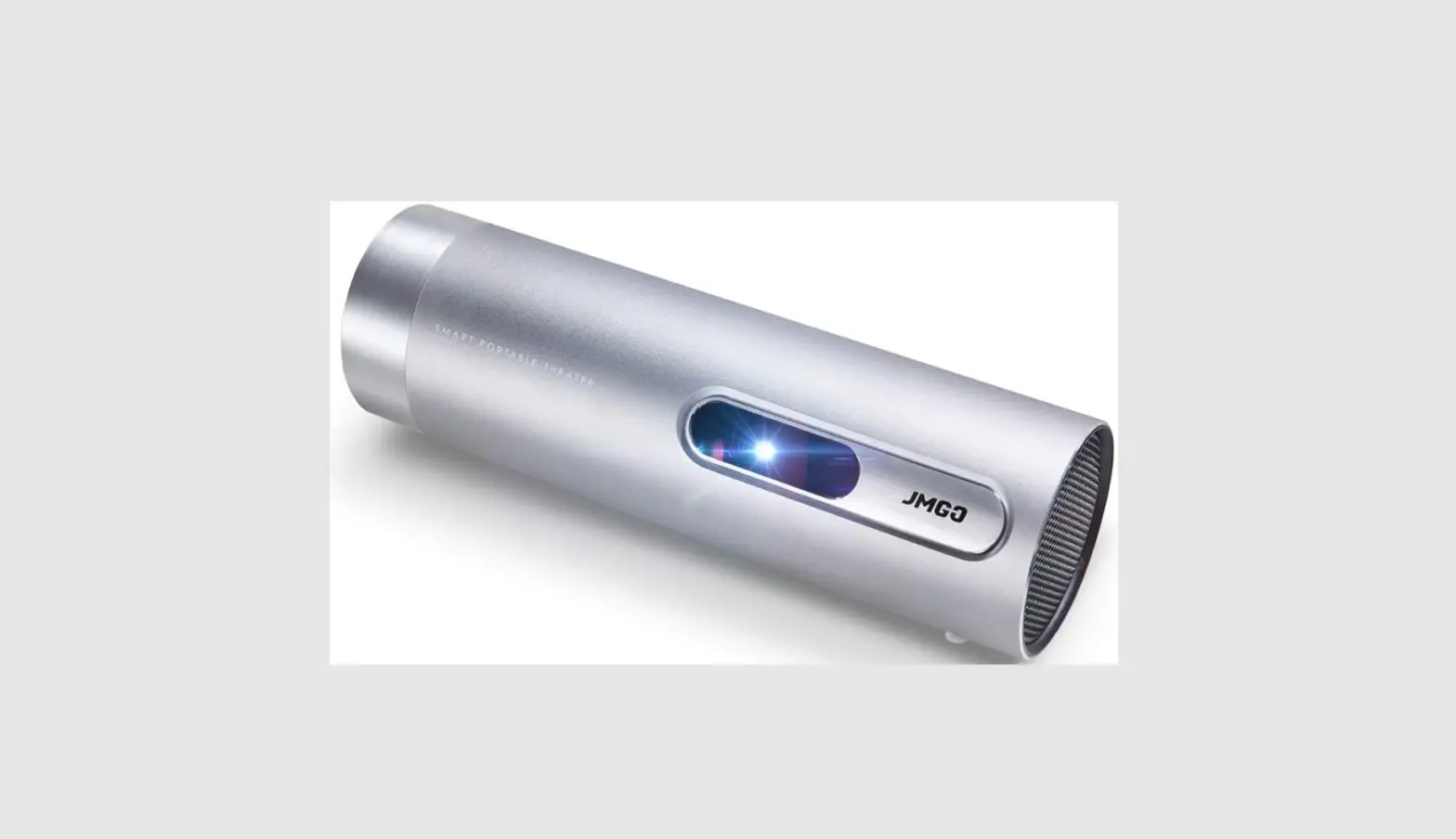
EZCast Beam J4a Outdoor Ultra Portable Pico Projector
Introduction
This EZCast Beam projector Quick Start Guide provides a guideline for basic operation. Please read the guide thoroughly before operating the projector. Visit www.EZ-Cast.com for additional information. Product information is subject to change without prior notice.
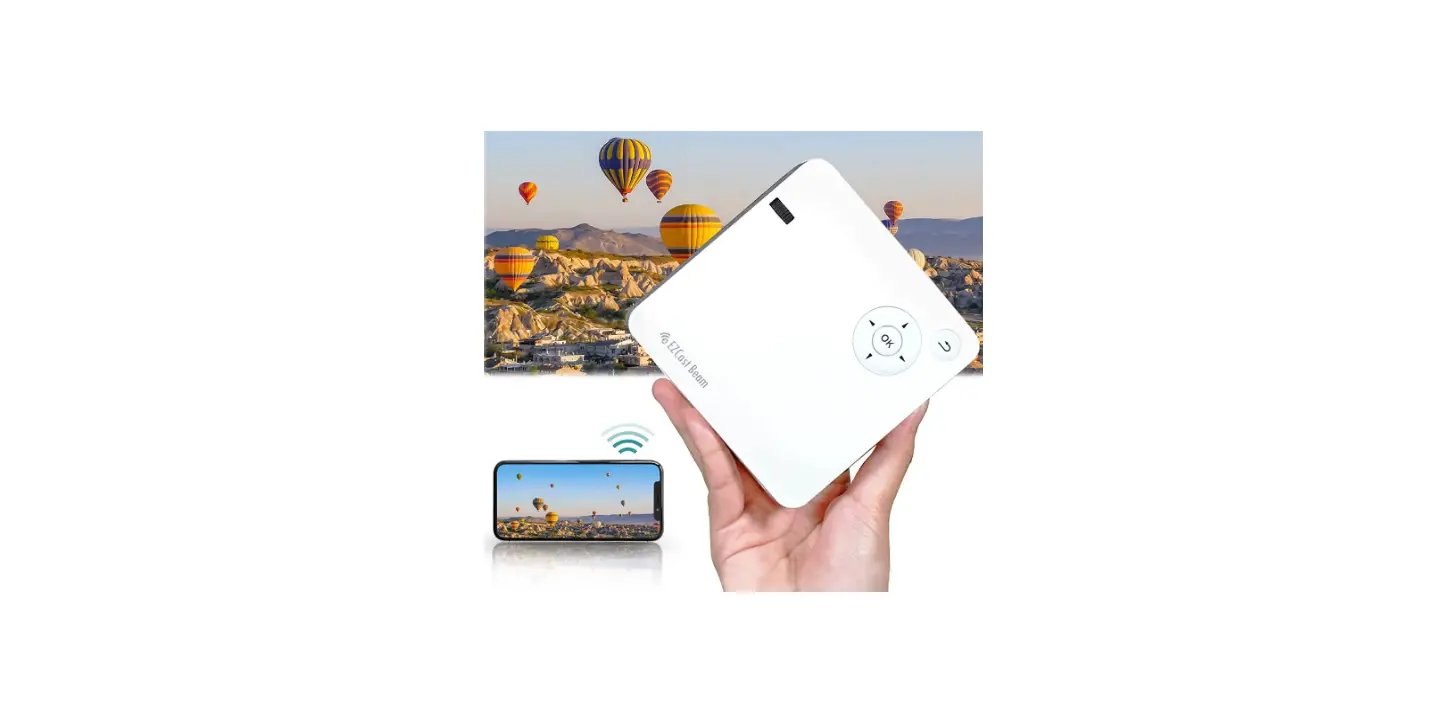
Thank you for purchasing the EZCast Beam projector. Our product combines the easy-to-use interface, portability, and cross platform compatibility, to let you enjoy projecting media from Android, iOS phones and tablets, as well as Windows and MacOS laptops, anytime, anywhere.
Specifications
- Brand: EZCast
- Special Feature: Pico, Internet Built-In, Built-in Batteries
- Connectivity Technology: Wi-Fi, USB, HDMI
- Display resolution: 1920 x 1080
- Item Weight: 5 ounces
- Product Dimensions: 1.38 x 4.53 x 4.57 inches
- Item model number: EZCast Beam J4a
- Batteries: 1 Lithium-Ion batteries required.
- Speaker Type: Built-In
EZCast app installation
- Please visit EZCast.com/app to download EZCast app for every supported platform.
- Mobile devices can proceed to the relevant download area by scanning the QR code below.
- (iOS users can search for EZCast in the App Store to download the app) (Android users can search for EZCast in Google Play to download the app)
Precautions
How to use the device properly:
- Do not turn the lens toward human eyes when in operation, to avoid damaging the eyes caused by the high intensity light source.
- Do not block the device ventilation to avoid damage to the internal electronic devices due to overheating.
- Please keep the device and its parts and accessories out of reach of children.
- Please ensure that the device is operated in a dry and ventilated environment.
- Do not store the device in extreme hot or cold conditions. High and low temperatures may shorten the lifespan of electronic devices. The normal operating environment is between 5℃~30℃.
- Do not put the device into any drying equipment (such as dryer, microwave oven, etc.).
- Do not squeeze or place heavy objects over the device to avoid damage to the device.
- Do not throw, knock, or shake the device violently, which may damage the internal circuit boards.
- Do not attempt to disassemble the device without permission. If there is any problem, please contact customer support.
- Do not repair any product by yourself. If the device or any part does not work properly, you should consult customer support or return the device for repair.
- The machine will automatically shut down after 5 seconds due to overheat temperature.
- Do not clean the devices or lens with chemicals, detergent or water. And do not expose them to rain, moisture and mineral containing liquids that may corrode the circuit board.
- Improper cleaning will damage the lens. So please do not wipe the lens, or use detergent, any solvent to clean them. Damage caused by the improper cleaning is not within the scope of warranty.
As the device is a high intensity light source, do not stare or look directly at the lens during operation, which may damage your eyes. This warning applies to children as well.
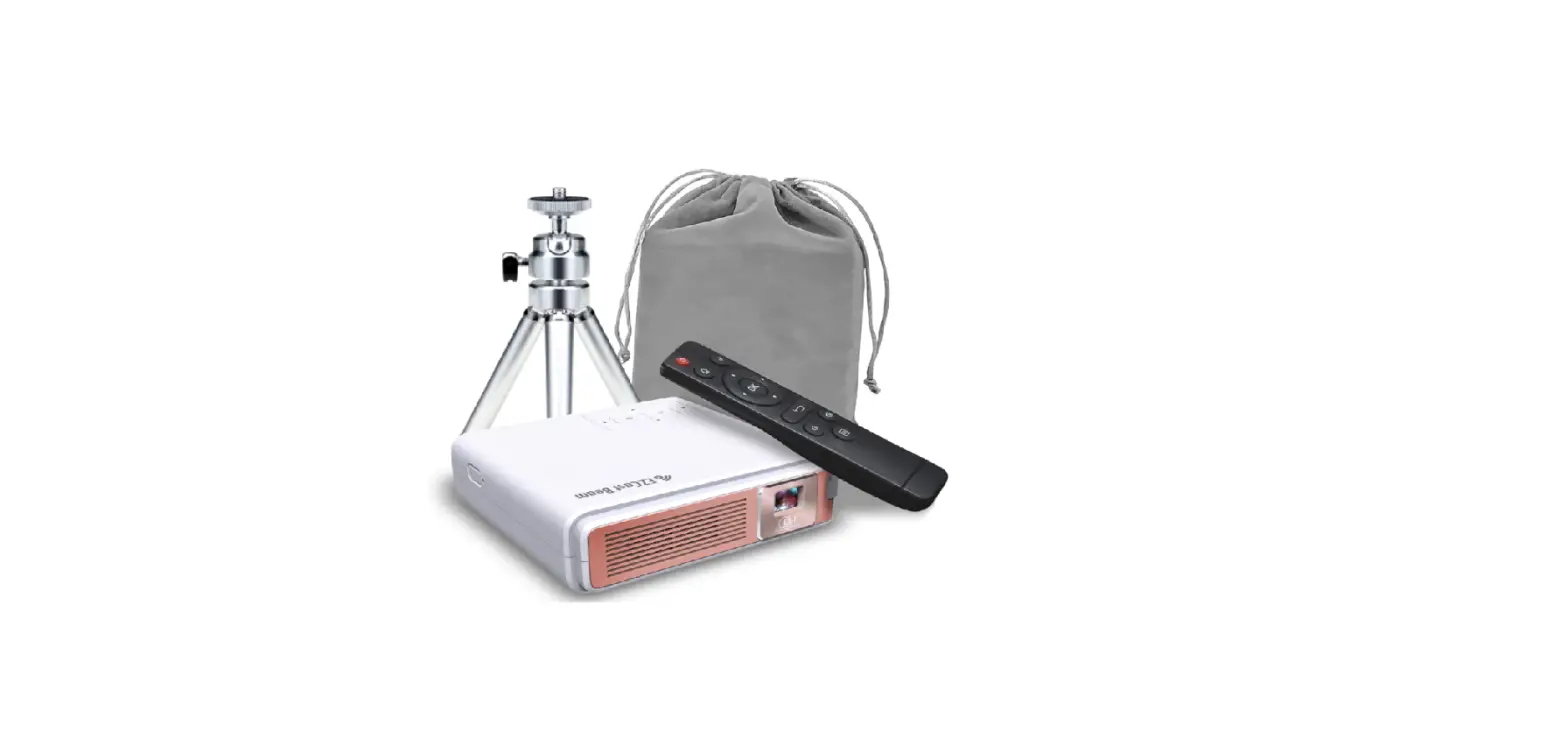
EZCast Beam body and remote
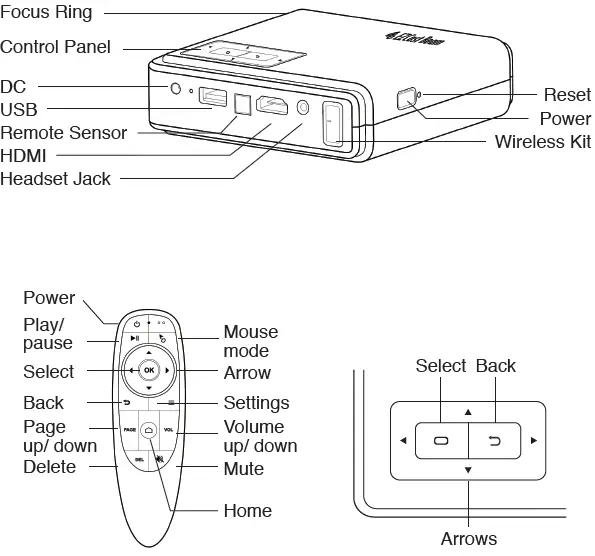
* To pair the remote control, please enter Bluetooth settings on the projector and press “OK” and “Back” button simultaneously.
How to set up EZCast Beam projector
Preparation
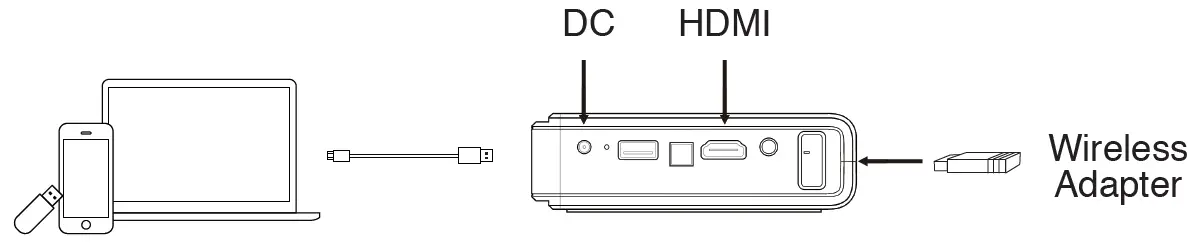
- Insert the wireless adapter into the wireless kit port of the projector.
- Plug the power to the projector, and the power button will light up.
- To turn on projector, hold the power button of the projector for 3 seconds till the light turn green.
- Adjust focus ring until the projection image is clear and focused.
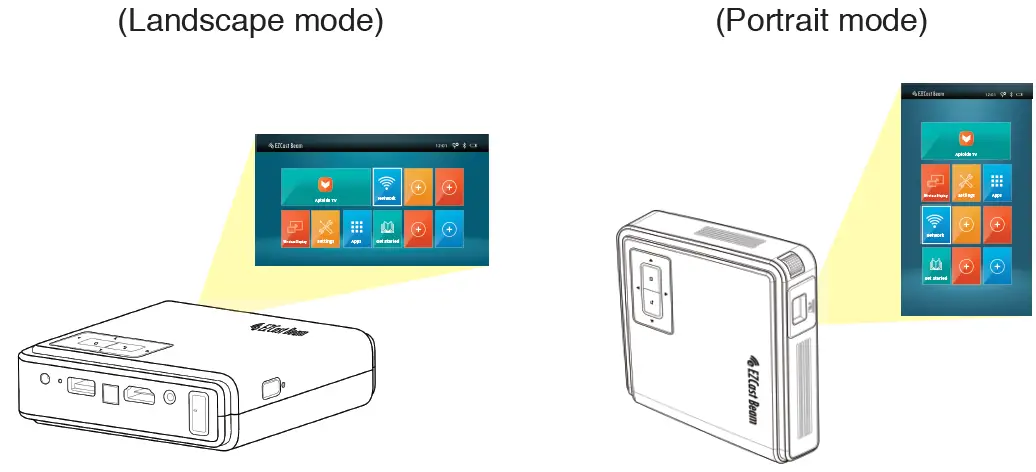
About portrait mode
The projector supports full-screen vertical videos automatically when both the mobile and the projector are displayed by portrait mode.
- Enter “Settings” and find “Image” settings.
- Switch “Portrait mode” option to “Auto”.
- Go “Keystone calibration” if needed.
First time settings
- Select the start-up language.
- Pair the remote control: To use the remote controller as a mouse, enter Bluetooth settings and press the button “OK” and “Back” simultaneously on the remote control to turn on pairing mode. Once it’s paired, you can aim to wherever you want with an arrow shown on the screen.
- Wi-Fi setting: connect the projector to your router and enter the password. (Important)
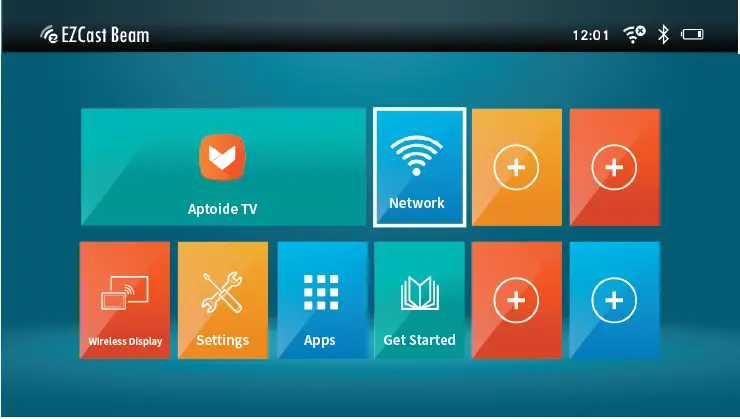
- After starting up, enter the main menu and select the functions by arrow keys on the projector or remote control. If the remote control is paired and the mouse mode is enabled, you can also select by swiping the remote to move the mouse.
About Aptoide TV
Aptoide TV is an app store that allows you to find and install apps you like. Press “OK” to open the store, and search the keywords or browse from top ranks of a variety of kinds.
After download, you can find them in “Apps”. You can also add a shortcut of oftenly used apps by pressing “Add” icon on main menu. To remove or change the shortcut, long press “OK” button on the remote control. These operation guide can also be found in “Get Started”.
Note 1: In some apps, the mouse mode of the remote control should be enabled. You can slide the page in those apps by swiping the remote control with “OK” button pressed, just like a finger does on a smart device.
Note 2: If the app is unable to open, please try another version of the app.
Settings
Select the “Settings” option on the main menu of the projector or the button on the remote control.
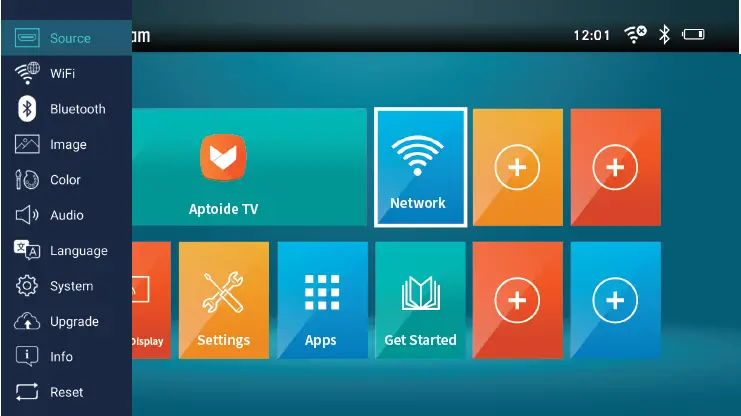
- Source: Switch the source to media center or HDMI input.
- Wi-Fi: Select the router from AP list and enter the password.
- Bluetooth: Pair the remote control or Bluetooth speaker.
- Image: Calibrate the image, change the projection location and set Portrait mode.
- Color: Change Display mode, Color temperature, Gamma, Brightness, Contrast, Saturation, and Sharpness.
- Audio: Adjust volume level and mute the audio.
- Language: Change language with arrows.
- System: Enter the settings of Android system.
- Upgrade: Upgrade via USB drive or through internet.
- Info: Show the information of the projector.
- Reset: Choose yes to reset projector to factory default. All saved changes to Setting are lost. The projector will be restored to the factory settings, and the data adjusted by the user will not be saved.
Other Important notice:
Battery life varies depending on product settings, usage, and other factors.
How to Do Wireless Display
Open Wireless Display on the main menu of the projector, and cast any devices to it wirelessly.
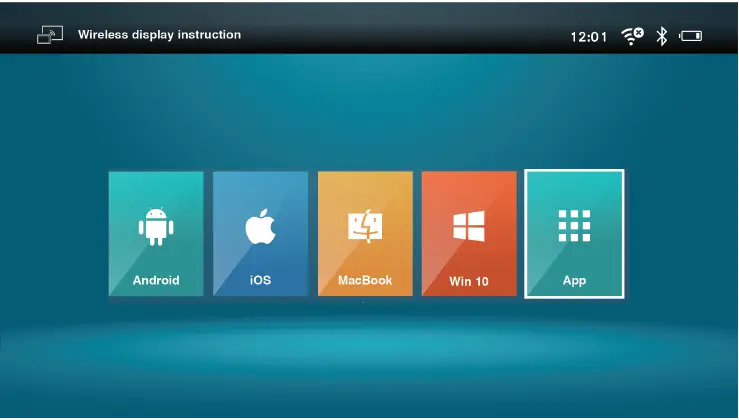
- Android Select mirroring function in the setting of your phone and find” Beam-XXXX” device shown on device list to start your mirroring.
- Note 1: The naming of the mirroring function varies depending on different brands. Visit https://www.ezcast.com/usage/android/ezmirror for demos
- Note 2: Compatibility: Android 5.0 or above.
- iOS
- Make sure both of your projector and mobile are connected to the same Wi-Fi router.
- Go for Screen Mirroring of your mobile and select” Beam-XXXX” shown on the list to start projection.
- Note: Compatibility: iOS 12 or above.
- Windows 10 Click quick key by on
 the computer, and connect to the device named by “Beam-XXXX” to start your projection.
Note: Please upgrade your windows 10’s operation system to the latest version - MacOS
- Make sure both of your projector and computer are connected to the same WiFi router.
- Click for Screen Mirroring icon on your computer and select the ”Beam-XXXX” shown on the list to start your projection.
- More
EZCast- Install EZCast app on your device. Please download the app from application market for your mobiles or visit https://www.ezcast.com/app to download EZCast app for PC.
- Enable EZCast app on your device, and then click icon and select the ”Beam-XXXX” shown on the list to start your projection.
 the computer, and connect to the device named by “Beam-XXXX” to start your projection.
Chromecast (Android Only)
- Make sure both of your projector and mobile are connected to the same WiFi router.
- Download and install Google Home app from Google Play Store.
- Enable Google Home app, wait for 20 seconds for searching, and find ”Beam-XXXX” device to start your projection.
DLNA
- Make sure both of your projector and mobile are connected to the same WiFi router.
- Launch the app that support DLNA, such as QIY, QQTV.
- Click the DLNA icon on the video you’d like to play, and select “Beam-XXXX”.
Note: DLNA icon usually shows in the corner of the video, and looks like a tv which depends on different apps.
FAQ
| Questions | Solutions |
|
Cannot be powered on | Check whether the power cord is connected properly.
Long press the power button for 3 seconds, then release the button and wait for the projector to start up. For the 1st time usage, please plug in power adapter to turn on the projector. |
|
Unable to screen mirroring | Make sure the Wireless Projection-Kit is being plugged in projector.
Refer to the Wireless Display guide on the main menu to make sure you are using the correct wireless connecting entrance for your device and operating system. If the screen stutters or lags, the distance between your device and projector is too far. The suggested distance is within 2m. Make sure the device is connected to correct device name of the projector. |
| Unable to upgrade software via internet | Check your projector is well-connected to your Wi-Fi router. Go for: Settings >> Wi-Fi Settings. |
| Cannot focus image | The best projection distance is 0.8m~2.7m. Make sure if your projection distance is appropriate.
Check the lens is clean. |
| Remote control cannot work | Replace the batteries of remote control.
The best control distance is 1m. The remote sensor is at the back side of the projector. Try to point at it when using remote control. Pair ther remote control again. Enter the Bluetooth settings of the projector and press “OK” and “Back” button simultaneously to re-pair. |
| Unable to shutdown | Long press power button on the projector for 6 seconds to force the projector shutdown.
Use a reed needle to long press the reset hole next to the power button for 3 seconds to force the projector shutdown in safe mode. If there’s damage on Android system, follow the instructions to repair. Download the latest firmware on the website to a USB disk and plug to the projector. Upgrade the Android system by a reed needle to long press the reset hole for 10 seconds until a Android repair icon showed. |
|
Cannot display via HDMI or media via USB drive under portrait mode |
Portrait mode is designed for mobile with live-streaming display, especially via wireless display. For HDMI or media display via USB drive, we suggest to display content under landscape mode. |
| Cannot be selected by keypad on projector |
Use remote control to complete more advanced settings directly. |
FREQUENTLY ASK QUESATIONS
The projector is lightweight, portable, and ideal for presentations. In a well-lit room or a room filled with natural light, the image is still clearly visible, but it really depends on your surroundings. We advise turning off at least half of the lights.
On your first use, kindly try plugging into an electrical outlet. The system can also be reset using the reset pinhole adjacent to the power button. Please get in touch with our customer service via message if these still don’t work.
If manual adjustment appeals to you more, you can also select it. I hope this can be helpful. Overall, a fantastic project. Two separate locations are held by velcro against one 40″ and one 50″ screen when I use it in my RV.
The Sleep Timer is not now accessible, but we have passed your request to our development staff so they can make it available in the future.
The Sleep Timer is not now accessible, but we have passed your request to our development staff so they can make it available in the future.
Beam J4a can operate between 100V and 240V, therefore you can utilise an adapter to run the projector in Australia or Asia.
Please make sure that the hard drive storage is no greater than 1TB and that the file system is only FAT32 or exFAT if you plan to use a portable hard drive for movies.
The screen size of the EZCast Beam J4a is roughly (w)2.6 x (h)1.46 metres, with a throw ratio of 1.3 and a distance of 2 metres.
Only hard drives with less than 1TB of capacity and USB discs with less than 128GB of storage are presently supported.
You can use a tripod to position it face down, and the projection distance can be as little as 10 cm. When the projector is face down and on the attached tripod, it is about 20 cm away from the table.