Smart Remote User
Manual
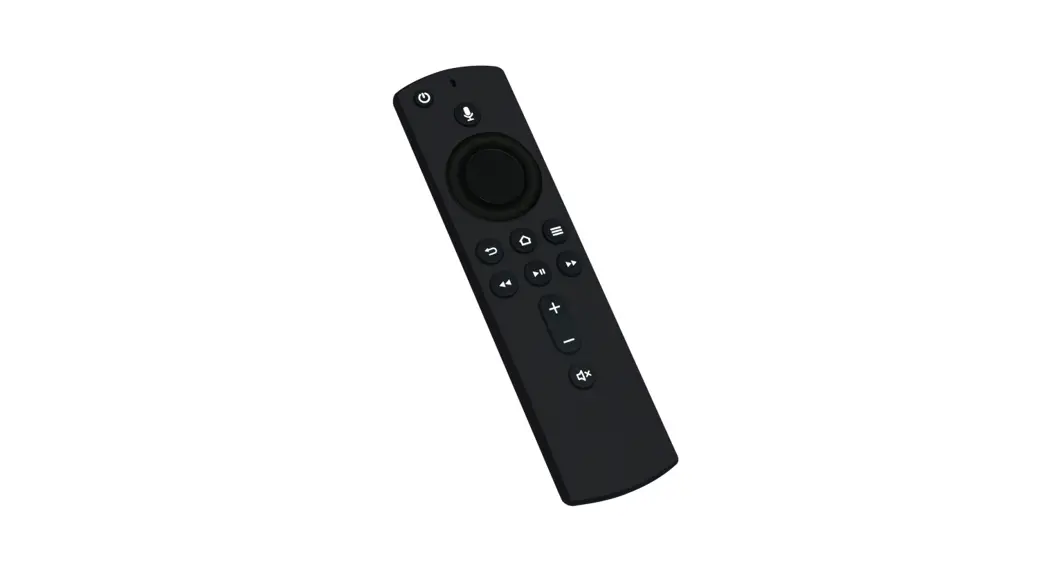
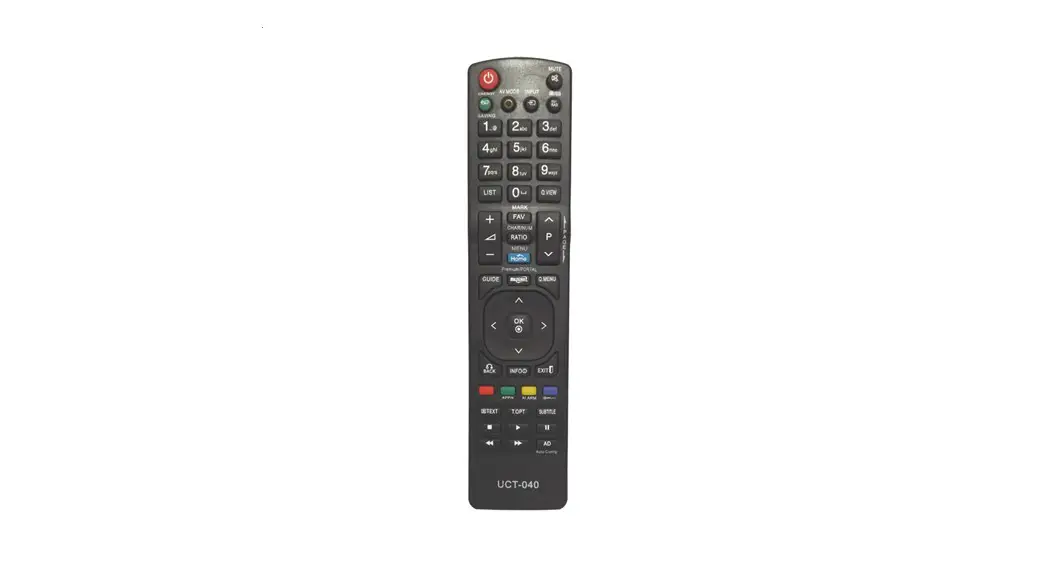
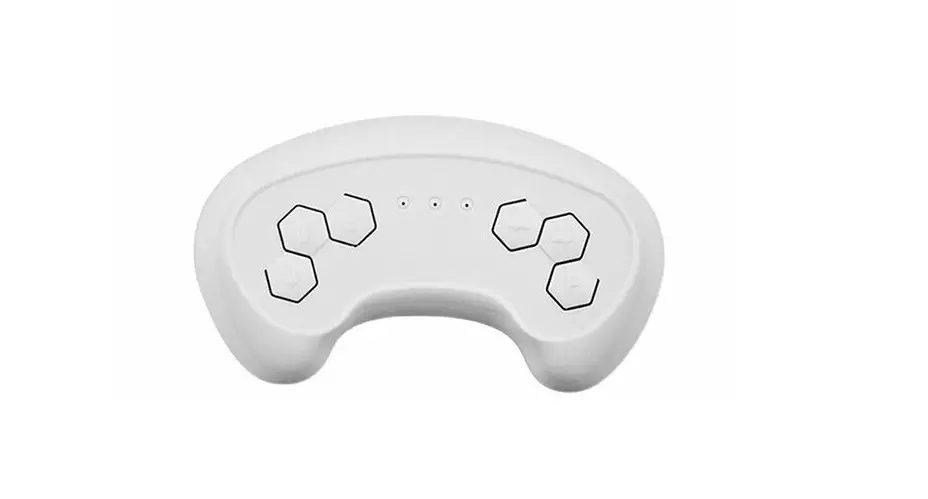
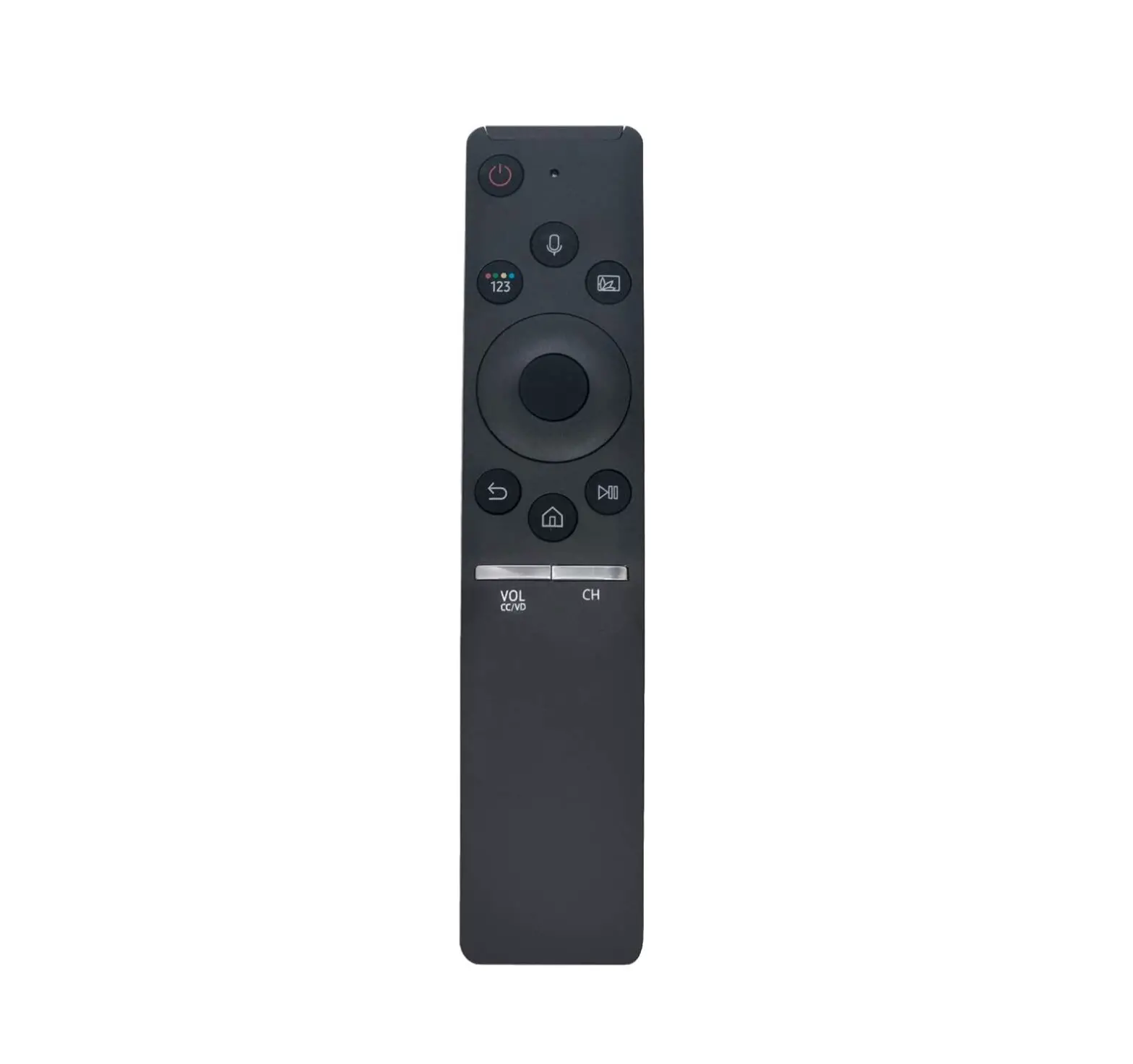
Product Diagram
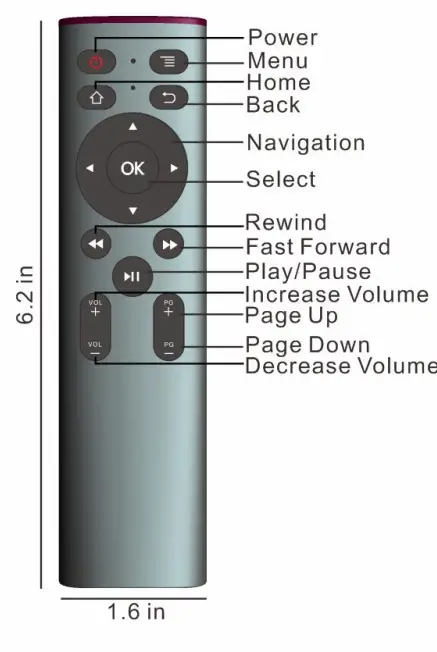
Function Keys
| Fire TV Stick | Fire TV Stick 4K/Cube | |
 | IR Learning key | IR Learning key |
 | Menu | Menu |
 | Back to Menu | Back to Menu |
 | Back | Back |
 | Forward | Forward |
 | Rewind | Rewind |
 | Play/Pause | Play/Pause |
| OK | Enter | Enter |
 | Up | Up |
 | Down | Down |
 | Left | Left |
 | Right | Right |
| VOL+ | IR Learning key | IR Learning key |
| VOL- | IR Learning key | IR Learning key |
| PG+ | IR Learning key | IR Learning key |
| PG- | IR Learning key | IR Learning key |
How to Pair Automatically:
- Remove batteries of your original fire tv remote controller and unplug the power cable from the fire tv box/stick. After 15 seconds, plug back the power cable.
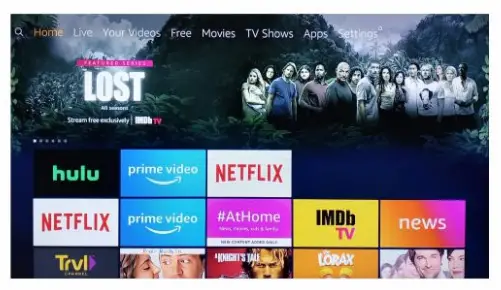
- Once Fire TV is on the main menu (as shown in the picture below) wait for 1 minute and then hold the button for 10 seconds or more until the red light starts to flash quickly. Now your smart remote is in pairing mode.

- The smart remote will now pair with Fire TV within 10-15 seconds. Once paired red light will turn off.
How to Set IR Learning
The Smart Remote’s 5 buttons: Power, Vol+, Vol-, PG+, PG-support static IR code learning functions. (The button codes on other remotes that to be learned must be Static IR code, if Dynamic ones, can not be learned)
How to Learn(take the Smart Remote’s Power button as an example):
- Press the Smart Remote’s button and
 buttons at the same time for 3 seconds. The LED at the front of the Smart Remote will be from OFF status to long lighting. And now the Smart Remote is in the status of IR learning.
 - Put the Smart Remote’s IR sender directly face to your TV set remote’s IR sender, Press Smart Remote’s Power button once, now the red IR Indicator light flashing, and Smart Remote’s Power button into Learning status, and now press once TV set’s Remote Power button that you want to learn. Then the Smart Remote’s red LED will be shining 3 times quickly. That means learning is successful and is saved automatically.
- Press now Smart Remote’s button and button at the same time to exit IR learning mode.
 buttons at the same time for 3 seconds. The LED at the front of the Smart Remote will be from OFF status to long lighting. And now the Smart Remote is in the status of IR learning.
Note: if you need to delete all the IR codes that have already been learned Please press VOLbutton and PG- button at the same time for 3 seconds. Now, all theiR codes already learned will be deleted.
Specifications
- Key Number:16
- Transmission Distance: .-10m
- Power Consumption:about 10mA
- Battery Type:AAA*2
- Materials: Plastic and Silicon
- Size:158*40*20nnm
FAQs
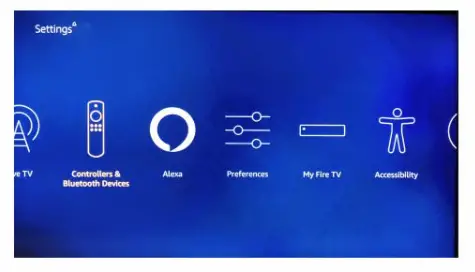
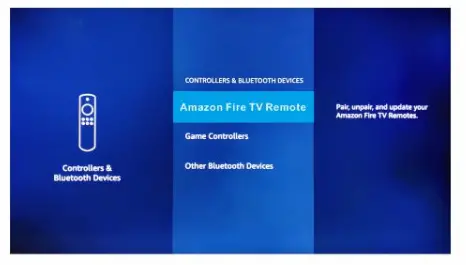
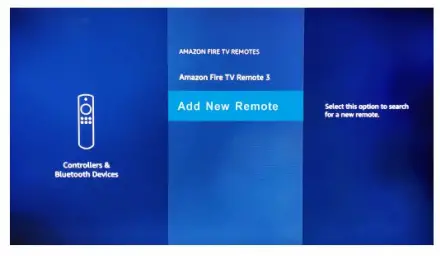
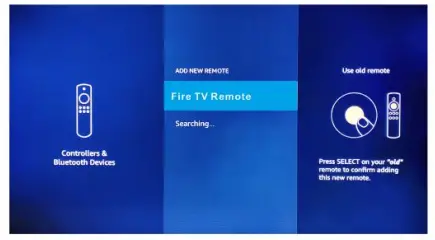
If your original Fire TV Remote Control is already connected with Fire TV Stick, this Smart Remote then can not connect with Fire Stick automatically and you need to pair it manually.
- Go to Fire TV Setting, and choose Controllers&Bluetooth Devices.

- Go to Amazon Fire TV Remotes.

- Go to Add New Remote.

- Press the Home button for 10 seconds, Smart Remote’s RED LED will flash quickly and go into Pairing Mode, now Smart Remote’s pairing name will be Fire TV Remote, click Connect, when RED LED off, now pairing success.

Note: IF your original Fire TV Remote is lost or damaged, you need to refer to How to Pair Automatically.
Memo:
FCC Caution:
This device complies with part 15 of the FCC Rules. Operation is subject to the following two conditions: (1) This device may not cause harmful interference, and (2) this device must accept any interference received, including interference that may cause undesired operation.
Any changes or modifications not expressly approved by the party responsible for compliance could void the user’s authority to operate the equipment.
Note: This equipment has been tested and found to comply with the limits for a Class B digital device, pursuant to part 15 of the FCC Rules. These limits are designed to provide reasonable protection against harmful interference in a residential installation. This equipment generates uses and can radiate radio frequency energy and, if not installed and used in accordance with the instructions, may cause harmful interference to radio communications. However, there is no guarantee that interference will not occur in a particular installation. If this equipment does cause harmful interference to radio or television reception, which can be determined by turning the equipment off and on, the user is encouraged to try to correct the interference by one or more of the following measures:
-Reorient or relocate the receiving antenna.
-Increase the separation between the equipment and receiver.
-Connect the equipment into an outlet on a circuit different from that to which the receiver is connected.
-Consult the dealer or an experienced radio/TV technician for help.
The device has been evaluated to meet general RF exposure requirements. The device can be used in portable exposure conditions without restriction.