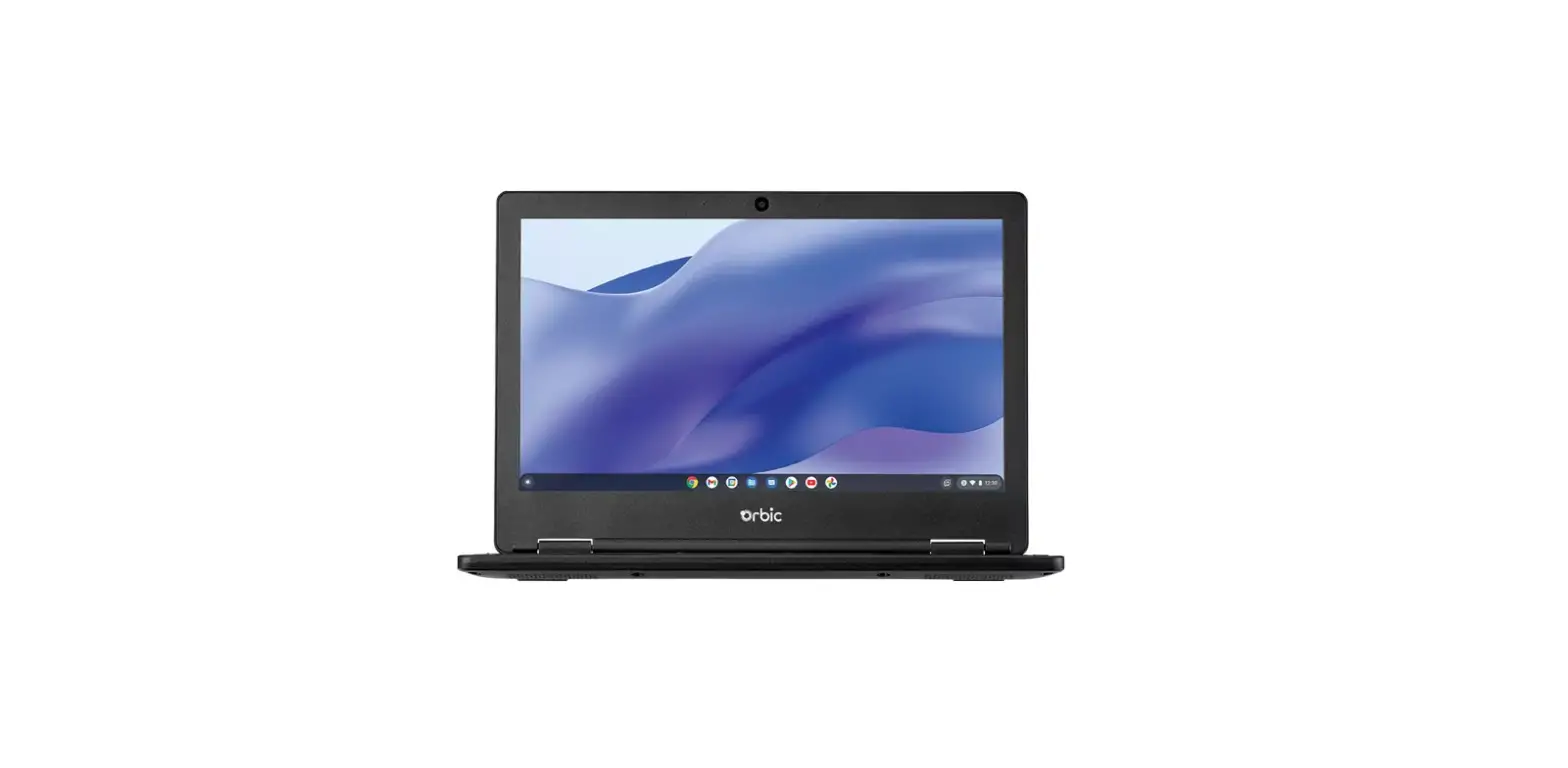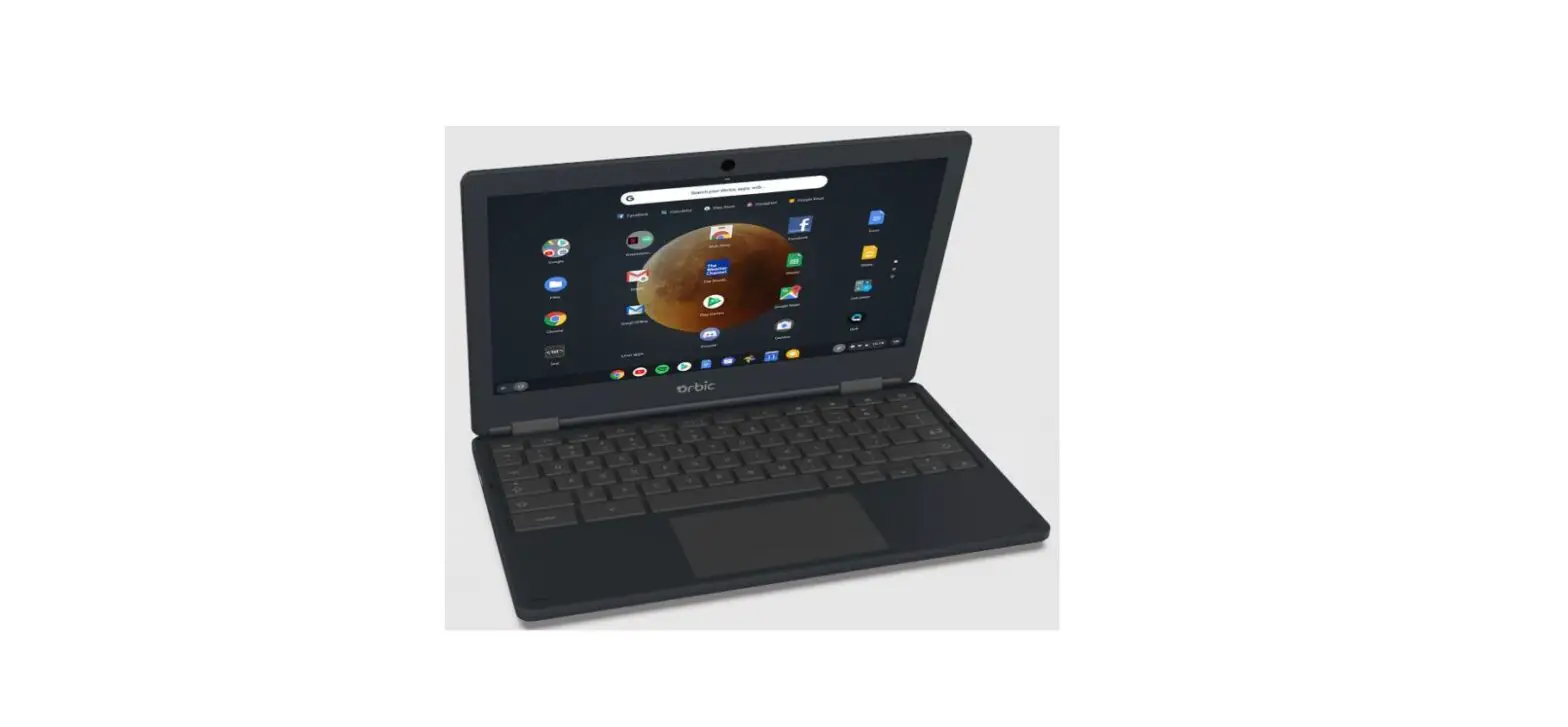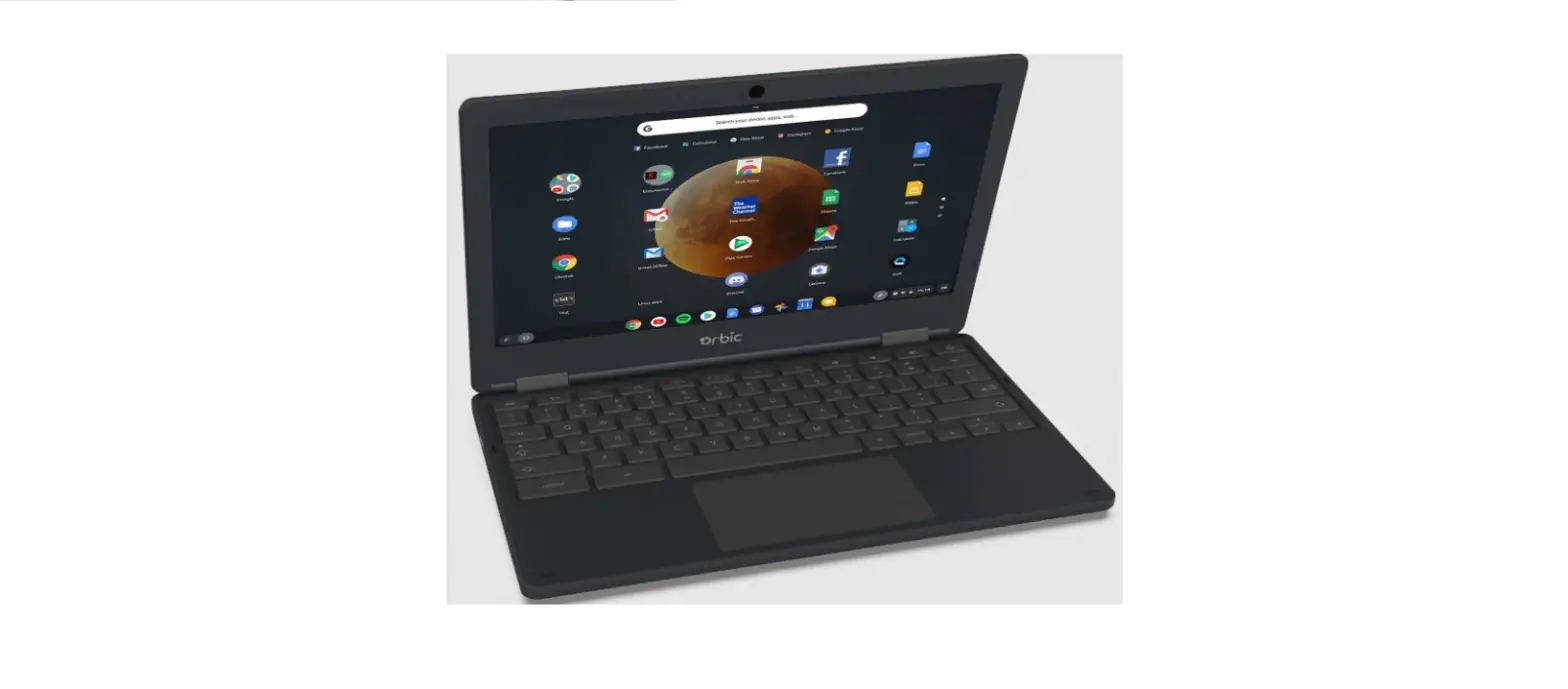
 CHROMEBOOK
User Manual
Overview
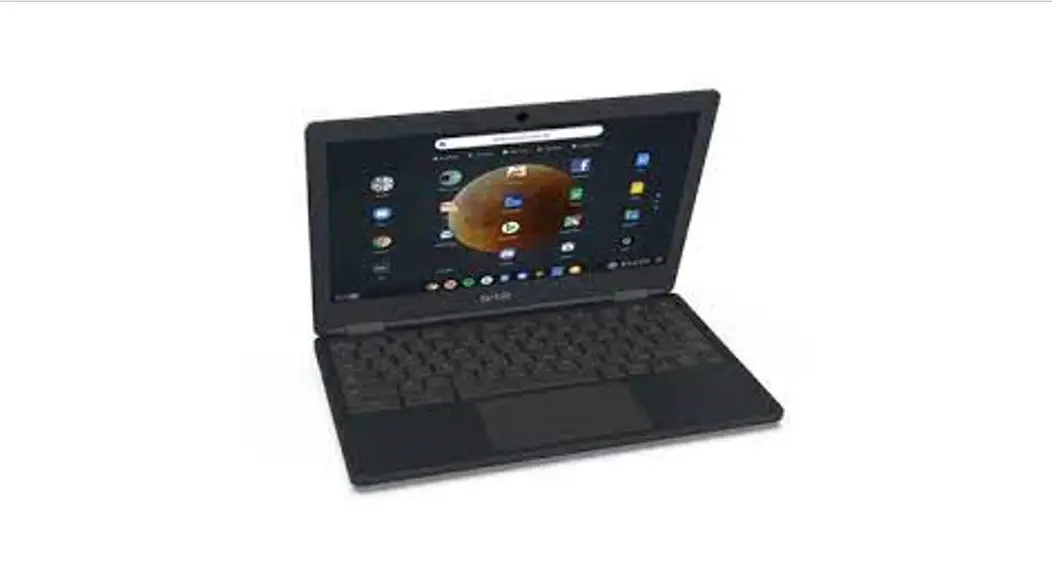
Thank you for purchasing the Orbic Chromebook. This manual provides information about the hardware and software features of your Chromebook. We recommend you read the Product Safety and Warranty Information booklet that you have received along with your device for additional safety information.
Getting Started
Device Layout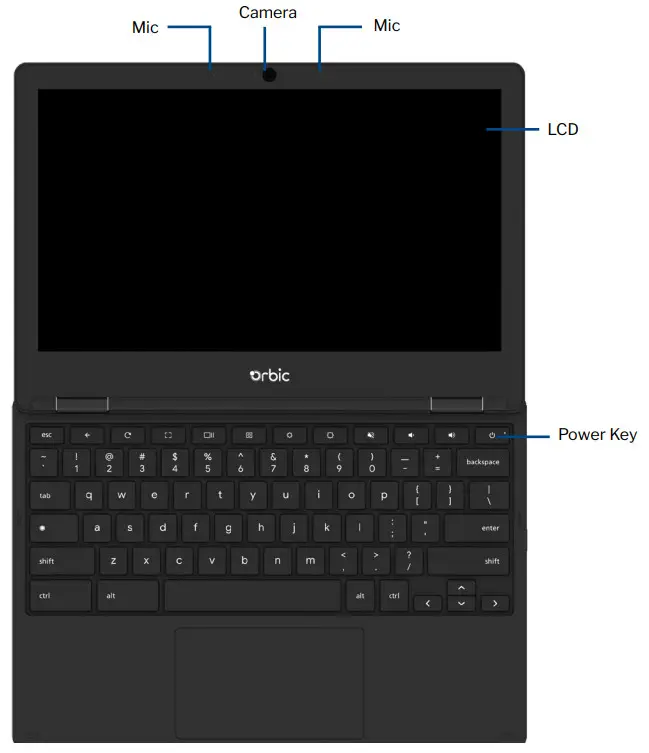
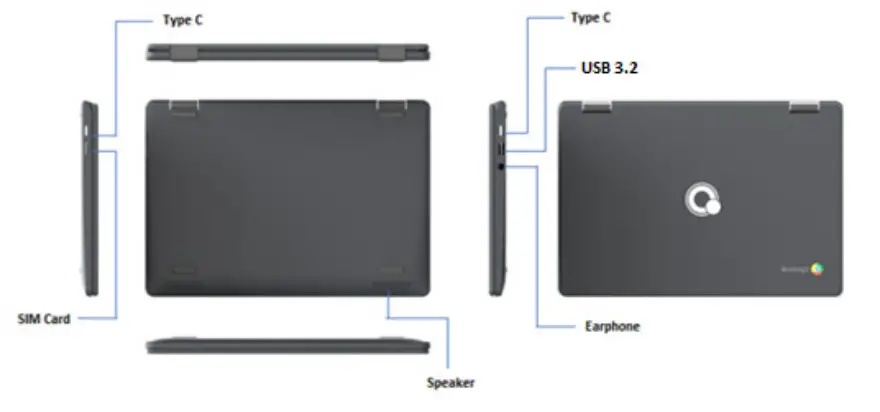
Charging the Battery
Charge the battery completely before using it for the first time.
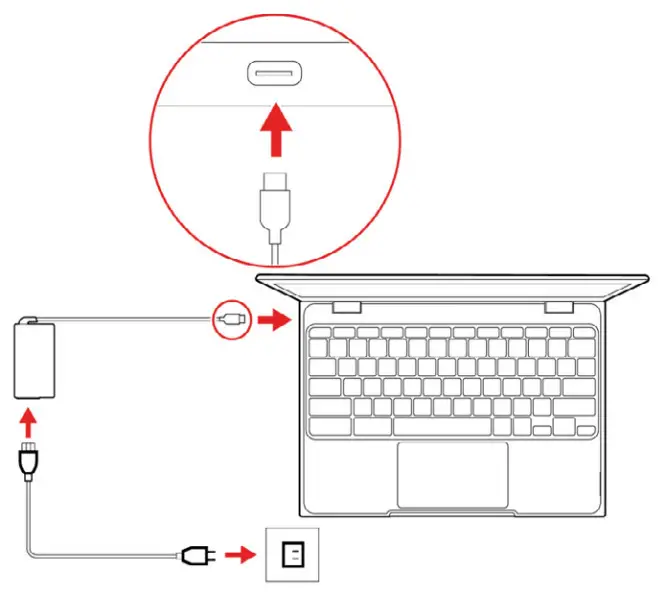
Use the AC adapter to charge the battery.
Warning! Use only approved AC adapters, batteries, and cables.
Unapproved adapters or cables can cause the battery to explode or damage the device.
- Connect the AC adapter to the USB Type-C port of the Chromebook. You can use the USB Type-C port on either side of your device.
- Plug the AC adapter into an electrical socket.
- When the battery is fully charged, unplug the adapter from the electric socket.
| Power LED | Status |
| Blue | Charged Fully/Power ON |
| Blinks Red | Sleep Mode |
| Red | Charging |
Replacing the nano-SIM Card
The Orbic Chromebook comes with a pre-installed SIM Card.
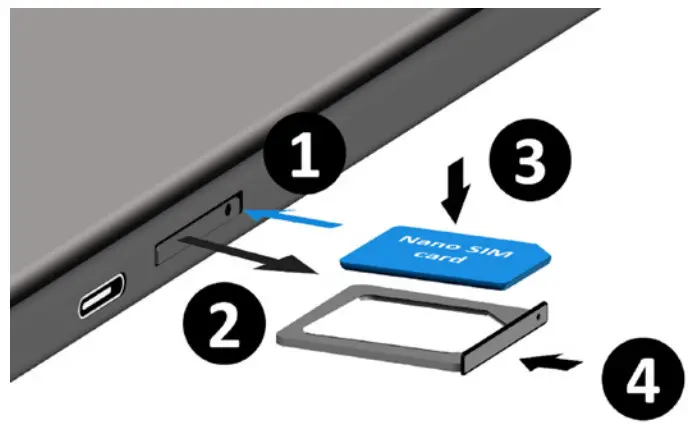
If you wish to remove or change the SIM card, do the following:
- Open the SIM card tray using the SIM tray tool.
- Remove the SIM card tray from the slot. Keep the face up when you remove it.
- Place the SIM card in the SIM card tray. The words or logo on the SIM card should be facing up.
- Slide the SIM card tray back into the SIM card slot until it clicks.
Connect to a Network
Select a network from the “Connect to network” list to connect to the Internet. If network access is protected, you will need an access password to connect to it.
NOTE: Once connected to a network, accept the Terms of Service.
The Chromebook will then start downloading any available system updates so you are automatically using the latest Chrome OS features
Select your Language Settings
Use the Language option to choose your default language setting.
You may also be prompted to select a keyboard input method if there is more than one way to type in your language.
Set up your Chromebook
To set up your Chromebook, you will need –
- Your Google Account username and password
- Access to a network
Turning the Chromebook ON
Touch and hold the Power button on the Chromebook. A “Welcome” screen will appear when the Chromebook first boots up.
Sign in with Your Google Account
To access Google’s web services and Google drive, you must sign in to your Chromebook using your Google account.
If you have already turned on 2-Step Verification, you will be sent a code to your selected device.
- If you do not have a Google Account, create a new account by selecting Create a Google Account.
- If you want to use your Chromebook without an account, select Browse as Guest.
- If you already have Google Account, enter your username and password > Sign In.
When you start your Chromebook for the first time, updates may take up to 5 minutes to complete.
Basics
Using the Touchpad
Touchpads are useful for moving the cursor around or selecting items. A touchpad has left and right buttons similar to those of a mouse.
NOTE: Use the touchpad only with fingers. The touchpad will not recognize the actions of other objects.
Basic Touchpad Functions
One Finger Action
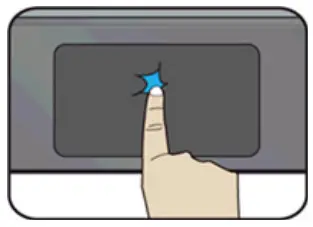 | Tap once on the touchpad surface or press on the lower half of the touchpad to get the left-click effect. |
Two Finger Actions
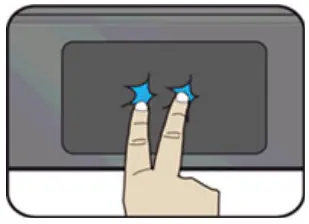 | Tap once on the touchpad surface to get the right-click effect. |
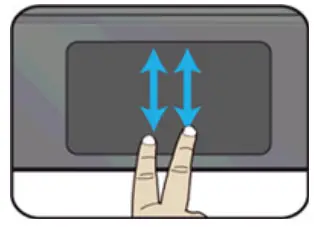 | Drag two fingers vertically on the touchpad to scroll vertically. |
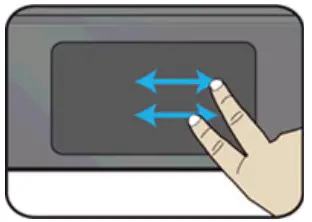 | Gently drag your three fingers left to right or vice versa to switch between existing active windows. |
Three Fingers Action
NOTE: The three-fingers action works only with Chrome Browser.
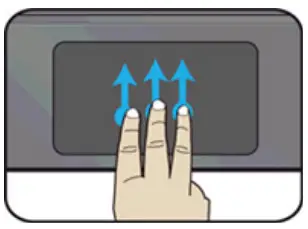 | Gently drag your fingers upward with three fingers to bring existing active windows out on the desktop. |
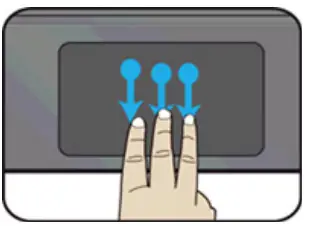 | Gently drag your three fingers downward to hide all existing active windows and bring out the desktop. |
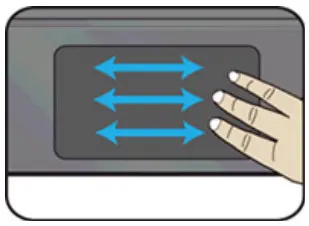 | Gently drag your three fingers left to right or vice versa to switch between existing active windows. |
Using the Keyboard
Here are a few shortcuts to key functions and procedures.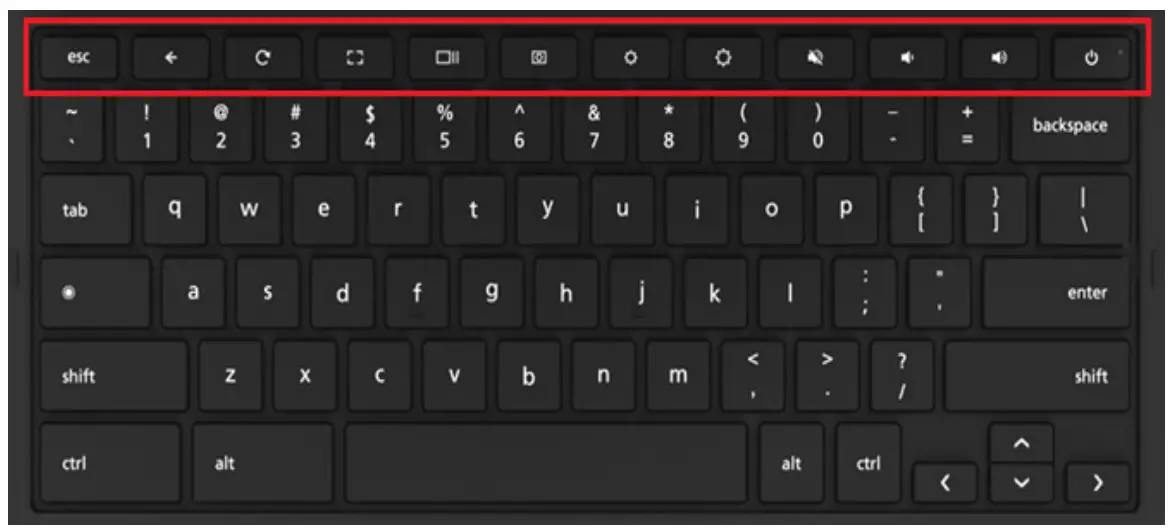
| Function Keys | Description |
 | Go to the previous page |
 | Refresh the page. |
 | Fullscreen |
 | Overview Open the page in full-screen mode |
 | Screenshot |
 | Display Brightness Down |
 | Display Brightness Up |
 | Mute |
 | Speaker Volume Down |
 | Speaker Volume Up |
USB Type-C Information
- USB 3.2 Gen 1 with transfer speeds up to 5 Gbps.
- Supports DisplayPort™ audio/video output.
- Delivers up to 3A at 5 V DC for USB charging.
- DC-in: requires a power adapter or power source providing 45W at 5~20V.
- For optimal performance, please use a certified Acer power adapter or USB Power Delivery device.
Supported File Types
Your Chromebook supports a number of file formats.
| Media Type | Supported Formats |
| Audio / Video | .3gp, .avi, .mov, .mp4, .m4v, .m4a, .mp3, .mkv, .ogv, .ogm, .ogg, .oga, .webm, .wav |
| File Type | Supported Formats |
| Microsoft Office | .doc, .docx, .xls, .xlsx, .ppt (read-only), .pptx (read-only) |
| Images | .bmp, .gif, .jpg, .jpeg, .png, .webp |
| Compressed | .zip, .rar |
| Others | .txt, .pdf (read-only) |
Technical Specifications
| LCD | 11.6″ IPS 1366 x 768 |
| Storage | 32GB eMMC 5.1 |
| Connectivity | 4G-LTE Ready |
| Camera | 1M w/ LED USB interface |
| Speaker & Microphone | Built-in 2 stereo speakers Speaker: 2W, 40 Microphone: 2 digital mic |
| Dimension | 287mm*199mm*18.5mm |
| Wireless LAN / Bluetooth | Supports 5Ghz/2.4Ghz, Bluetooth 5.0 |
| Battery | 5530 mAh |
| Operating System | Chrome OS |
Troubleshooting
What software works on a Chromebook?
Chromebooks use apps from the Google Play Store and on the web. There are apps to be productive, get creative, enjoy movies and shows, play games, and more.
How do I get more Apps?
You can get more apps from the Google Play Store  or the web.
Can I use Microsoft Office software?
Chromebooks work with Microsoft® Office. Whether it’s Word, Excel® or PowerPoint®, you can easily find the apps on the web.
Where can I find my files?
All your files are stored in the Files app. Find the app by clicking the Launcher icon  and searching “Files”.
How do I transfer my local files?
Transfer your local files using a compatible storage device. Your Chromebook works with most external storage devices (e.g: USB thumb drives, removable hard drives).
You can also upload your files, photos, and videos to Google Drive. After setting up your Chromebook with your Google Account, you’ll be able to access your files on Drive.
Why does Chromebook need my Google™ Account information?
You’ll use your Google Account to sign in to your Chromebook. It is the same account you use for Google services such as Gmail and Drive. YourChromebook uses your account information to automatically sign you into apps and services.
How do I set this up for my child?
If you want to set up parental controls for your child, it’s important that you sign in using your child’s personal Google Account. If they don’t already have one, you can create one during the sign-in process on your Chromebook. You will be able to add your child’s school account after you complete device onboarding.
How to access Chromebook Help and Chrome OS?
To access Chromebook Help
• Open the Explore app  on your Chromebook.
For more information on how to use your Orbic Chromebook visithttps://google.com/support/chromebook/