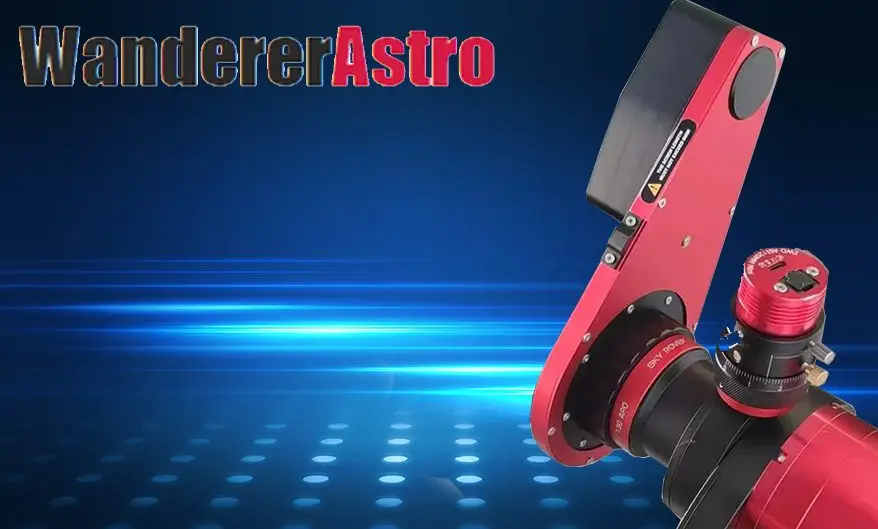
ROT-MINI Wanderer Mini Rotator
Product Information: WandererAstro Rotator
Introduction
The WandererAstro Rotator is a high-quality rotator designed for
telescopes. It allows users to rotate their telescope for various
purposes. The product specifications are as follows:
| Power supply | Through USB data cable |
|---|---|
| Power consumption | 1A (Please use a well-powered hub for power supply) |
| Connectivity | Type-B USB2.0 cable (included) |
| Weight | 400g |
| Payload | Not specified |
| Rotation rate | Not specified |
| Thickness | Not specified |
| Steps per degree | 1142 steps |
| Clear aperture | Not specified |
| Material | Aluminum alloy |
| Threaded interface | Both sides M54 female threaded |
Installation and Usage
To install and use the WandererAstro Rotator, follow the steps
below:
- Connect the rotator to the telescope, ensuring that the
protruding side faces the sky under most circumstances. The rotator
is M54 female threaded on both sides. The adapter on the side with
the protrusion is fixed by 8 M2.5 screws and can be removed if
needed. Users with special needs can customize the adapter. - Ensure that the M54 male thread adapter used to connect to the
rotator has a thread length less than or equal to 5mm. If both
sides are installed with M54 male threads, the sum of the lengths
of the M54 male threads on both sides should be less than 10mm. If
the thread is too long, use spacers to prevent damage to the
rotator. - Connect the rotator to a PC using the provided USB cable.
- Visit the official website www.wandererastro.com to
download two ASCOM drivers with the suffix .exe and install
them. - After installing the ASCOM drivers, open your telescope control
software (e.g., N.I.N.A.) and select the appropriate driver for the
WandererAstro Rotator without Phd2 in the name. - Click “Connect” to search for the port of the rotator. Once
connected, a configuration window will appear where you can set the
backlash and home of the rotator. - If an OAG (Off-Axis Guider) is installed behind the rotator,
connect the rotator in your guiding software (e.g., PHD2) as well.
This will allow the software to correct the calibration data
according to the angle of the rotator, eliminating the need for
re-calibration after rotation. - Perform a calibration for the first time after connecting the
rotator in your guiding software. After calibration, even if the
rotator is rotated by a certain angle, the guiding should still be
fine. If it doesn’t work, try checking the reverse sign of the
angle under “Other devices” in Advanced Settings.
WandererAstro
WandererRotator Mini
Manual
WandererAstro
Contents
Introduction
1
Installation and usage
2
Firmware upgrade
6
De-rotation
8
FAQs
12
WandererAstro
1.Introduction
The WandererRotator Mini is a groundbreaking rotator ideal for rotating camera and de-rotation. The most outstanding feature of the WandererRotator Mini is the excellent rigidity based on the patented rotating structure. Within the maximum payload, the rotator guarantees absolutely zero flexure at any angle. The WandererRotator Mini is the most low profile rotator in its class and rotates at up to 4.5 degrees per second. In addition, WandererRotator Mini has very high positioning accuracy. With 1142 steps per degree, its resolution can reach up to 0.005 degrees, which provides the possibility of accurate de-rotation.
The specifications of the rotator are shown in the table below.
Power supply Power consumption
Connectivity Weight Payload
Rotation rate Thickness
Steps per degree Clear aperture
Material Threaded interface
Through USB data cable 1A (Please use a well-powered hub for power supply)
Type-B USB2.0 cable (included) 400g
5kgNote 1 4.5°/s 10mm
1142 steps M54
Aluminum alloy Both sides M54 female threaded
Figure 1 Dimension of WandererRotator Mini
1
WandererAstro 2.Installation and usage
Connect the rotator to the telescope and the protruding side should face the sky under most circumstances. The rotator is M54 female threaded on both sides as standard, and the adapter on the side with the protrusion is fixed by 8 M2.5 screws and can be removed (see Figure 1). Users with special needs can customize the adapter.
Please pay special attention that due its ultra low profile, the M54 female thread depth on both sides is only 5mm. When using the M54 male thread adapter to connect to the rotator, please make sure that the thread length is less than or equal to 5mm. When both sides are installed with M54 male threads , the sum of the lengths of the M54 male threads on both sides should be less than 10mm! If the thread is too long, use spacers to prevent damage to the rotator!
Finally connect the rotator and the PC through the USB cable, everything’s ready.
2.1 ASCOM drivers installation
Visit the official website www.wandererastro.com to download two ASCOM drivers with the suffix “.exe” (Figure 2) and install them all.
Figure 2
2.2 Connect the Rotator (take N.I.N.A. as an example)
After the ASCOM driver is installed, the device driver can be found in N.I.N.A. Please note that in N.I.N.A. , S.G.P. or Voyager please select the driver without “Phd2” in the name! (Figure 3)
2
WandererAstro
Figure 3 Click connect directly, and the ASCOM driver will automatically search for the port of the rotator. After the connection is successful, a configuration window (Figure 4) will pop up. Here you can set the backlash and home of the rotator.
Figure 4
2.3 Configure Phd2
If an OAG is installed behind the rotator, the rotation will also change the angle of the guide camera, invalidating the calibration data in Phd2. So, you have to also connect the rotator in Phd2, so that Phd2 can correct the calibration data according to the angle of the rotator, then you do not need a re-calibration after rotation.
In the connection interface of the PHD2, click “More Equipment” (Figure 5) to see the option to connect the rotator. Select the corresponding ASCOM driver of PHD2 (Figure 6, especially emphasized, this is DIFFERENT from the driver selected in the shooting software), and click to connect directly.
3
WandererAstro
Figure 5
Figure 6 After connecting the rotator, perform a calibration for the first time. Then , even after the rotator is rotated by a certain angle, the guiding should still be fine. If it doesn’t work , try checking “reverse sign of angle” under “Other devices” in “Advanced Settings”. (Figure 7)
Figure 7
4
WandererAstro
2.4 Set backlash compensation
The default backlash compensation is 0.5 degrees, and no adjustment is required under normal circumstances. However, if it is found that the rotator rotates several times but the angle solved does not change during imaging, the backlash compensation needs to be increased.
The method of measuring the backlash of the rotator is to rotate a certain angle (more than 5 degrees) clockwise and get the current sky angle A, and then rotate 2 degrees counterclockwise to get the sky angle B, then the backlash is 2 degrees minus the difference between A and B. The set backlash should be smaller than the measured backlash. For example, if the measured backlash is 0.76 degrees, then the set backlash should be 0.7 degrees instead of 0.8 degrees.
2.5 Set reverse
Whether “reverse” need to be checked depends on the software you use. For example, N.I.N.A. does not require you to check “reverse” while S.G.P. requires you to check “reverse”.
2.6 Set zero
The rotator has no mechanical zero and requires the user to specify a virtual zero position. When connecting for the first time (or after upgrading the ASCOM driver), the current position is set to zero. If you need to set a new zero, click “Set current position as home” to set the current position to zero. Note that when the rotator is suddenly powered off during the rotation, or the rotator stalls due to cable wrap, please reset the zero.
The principle of zero setting: the rotator should be able to rotate 360 degrees (or at least 180 degrees if you limit the mechanical range in N.I.N.A.) from the zero without cable wrap. Also, the zero does not need to coincide with 0 degrees of the sky angle so do not worry about this.
5
WandererAstro 3.Firmware upgrade
First download the firmware upgrade tool (Figure 8) and the firmware file with the suffix “.hex” (Figure 9) from the official website.
Figure 8
Figure 9 After extracting the compressed file, click Xloader.exe to open the firmware upgrade tool (Figure 10).
Figure 10 Select the downloaded firmware file with the suffix .hex, select the product model and the correct COM port, and click Upload to upload (Figure 11). Please note that do not change the
6
Baud rate.
WandererAstro
Figure 11 When you see “xxxx bytes uploaded”, it means the upload was successful. If stuck in the uploading process, try to upload again after rebooting.
7
WandererAstro 4.De-rotation
WandererRotator Mini supports de-rotation for altazimuth mounts or Dobs users, which can play a major role in planetary photography, as well as longer exposures in deep sky photography.
4.1 Install Wanderer Console
WandererRotator Mini needs to be controlled via the Wanderer Console to perform de-rotation. Visit the official website to download the latest version of the Wanderer Console zip package, unzip it, and double-click setup.exe to install. After the installation is complete, start the Wanderer Console and enter the rotator interface. Select the correct COM port and click Connect. After the connection is successful, the Wanderer Console will automatically identify the model and firmware of the rotator (Figure 12).
Figure 12 Please note that the Wanderer Console must obtain the latitude and longitude of the device location in order to perform the de-rotation, so please open the location service in “Settings Location” and check “Let desktop apps access your location” (Figure 13). Your location is only used for de-rotation rate calculations, and Wanderer Console will not upload or share your location.
8
WandererAstro
Figure13
4.2 Enter the target coordinates
The Wanderer Console also needs to know the right ascension and declination coordinates of the target you are shooting to complete the de-rotation. You can manually enter the target’s coordinate (Figure 14), or you can synchronize the target’s coordinates from the Stellarium.
Figure14 If you need to synchronize the target’s coordinates from Stellarium, you need to install the remote control plugin (Settings – Plugins) in Stellarium and set the plugin to load at startup (Figure 15). After restarting Stellarium, click the icon to enable the remote control plugin (Figure 16), select and center the target, and click “Sync from Stellarium” in the Wanderer Console to complete the coordinate synchronization.
9
WandererAstro
Figure15
Figure16
4.3 Start de-rotation
When everything is ready, click “Start de-rotation” . The rotator will first rotate a small angle (about 1 degree) to ensure that the backlash is eliminated, and then start de-rotation. The de-rotation rate will be refreshed in real time , and you don’t need to perform other operations.
10
WandererAstro
If the rotation direction is not correct, check “Reverse”. In addition, when the target is very close to the zenith (86 degrees and above), because the
field rotation rate is too fast, the de-rotation cannot achieve good results. At this time, it is recommended to wait for the target height to drop below 86 degrees before shooting.
11
WandererAstro 5.FAQs
Q Why the rotator does not response, or loss control after one operation and has to be reconnected to be able to regain control? AThis is the phenomenon of insufficient USB power supply. Please pay attention to ensure that the USB power supply is sufficient. Some hubs with power supply on the market cannot provide enough current. It is recommended to use the WandererBox series. QDo Wanderer Rotator Mini has an absolute mechanical zero? AThe zero is virtual rather than mechanical. The user can specify any position as a zero.It should be noted that if the cable wrap occurs or the rotator is suddenly powered off during rotation, the recording of the virtual mechanical angle will be inaccurate. In this case you have to reset the zero to avoid the risk of cable wrap.
Q:How accurate is Wanderer Rotator Mini? A:Wanderer Rotator Mini can easily achieve an accuracy higher than 0.04 degrees within 2 rounds of solve and rotate if the backlash is set properly (just keep the default backlash in most cases). QCan the Wanderer Rotator Mini withstand low temperatures? AYes. Wanderer Rotator Mini uses high-quality grease that can withstand temperatures as low as minus 40 degrees. In our tests, the Wanderer Rotator Mini was placed in a -20 degree freezer for 72 hours and the rotator still worked fine. QDo I need to reshoot the flats after rotation? AYes. Therefore it is recommended to use our motorized flat panel.But if you are using an APO , it is likely to be OK to use the same flats for different PA. QWill Wanderer Rotator Mini cause flexure during rotation? AThe unique magnetic structure allows the Wanderer Rotator Mini to guarantee absolute zero flexure at any angle, think of it as an adapter!
Note 1: Calculated when the center of gravity of the load is 10cm away from the rotator
12
 WandererAstro