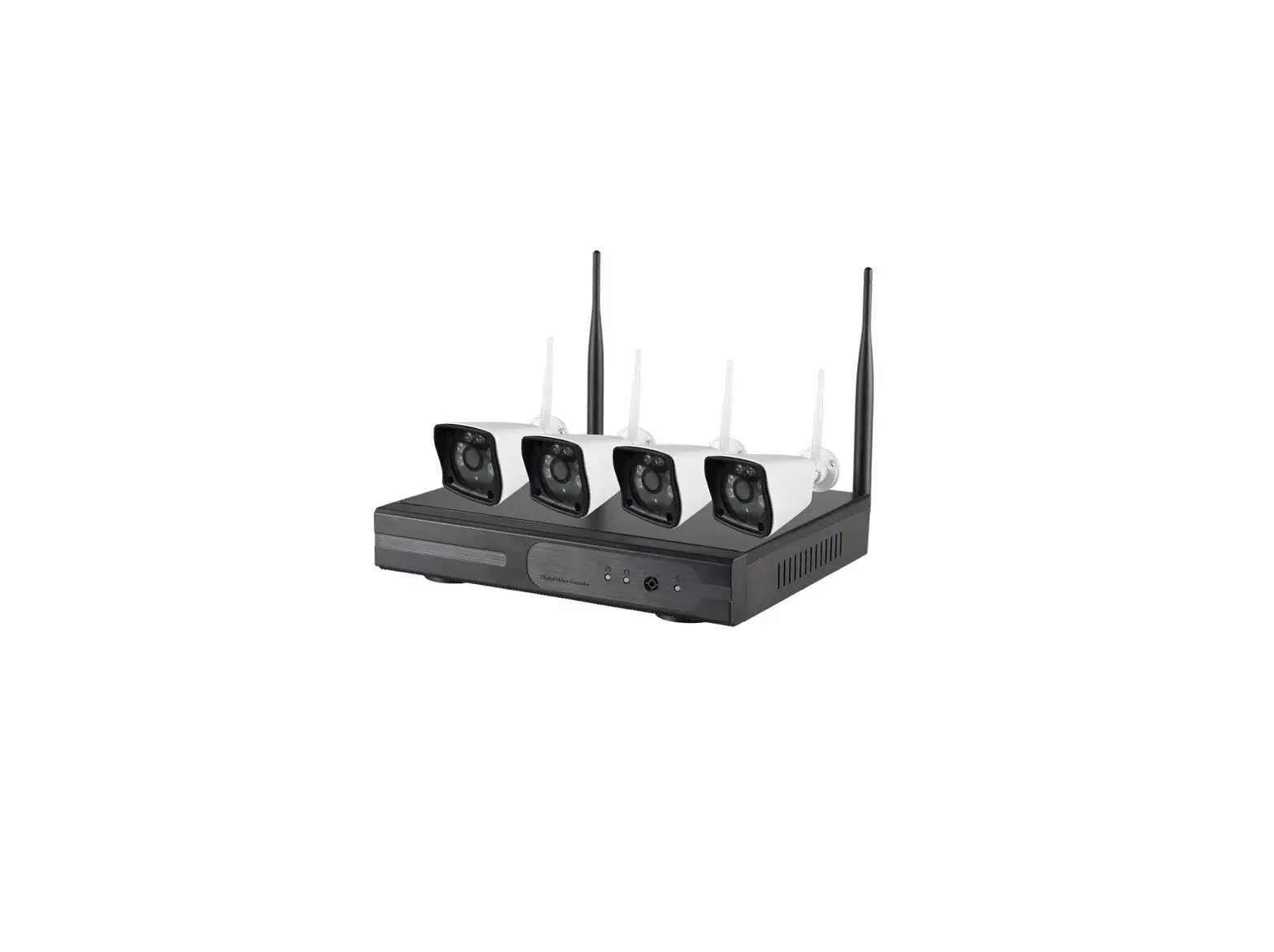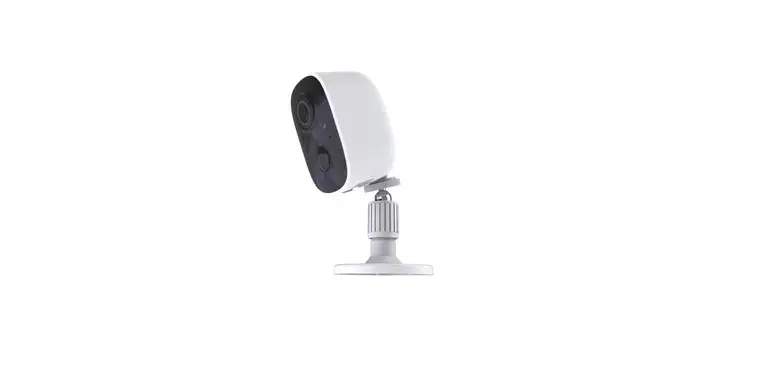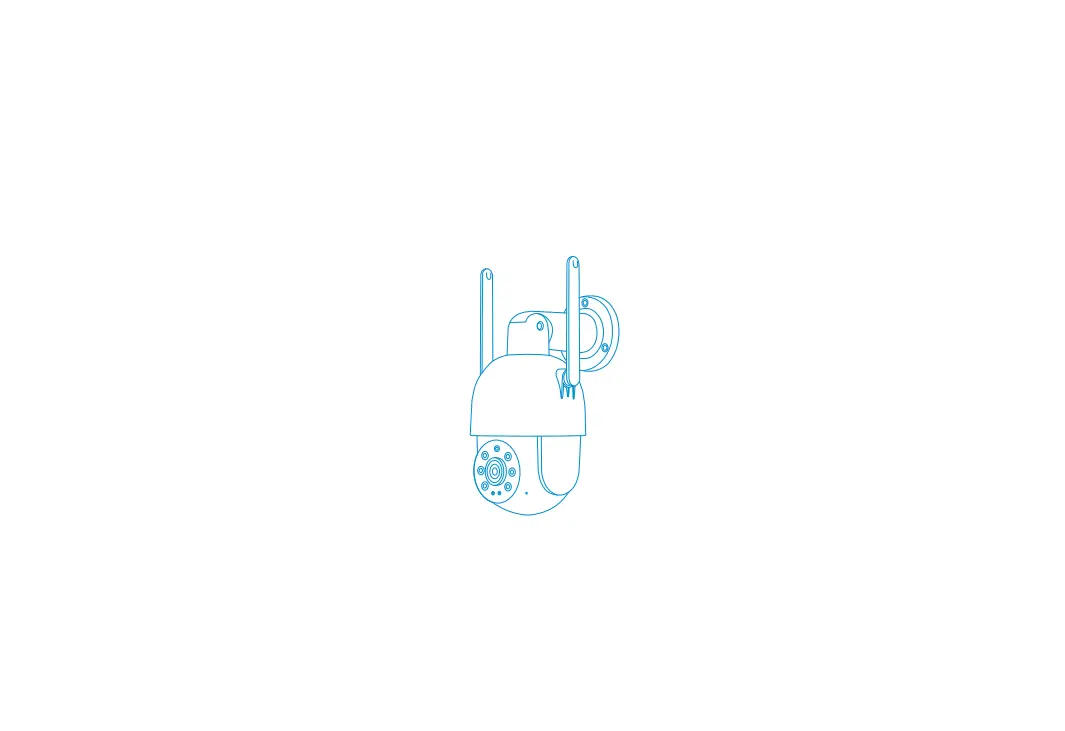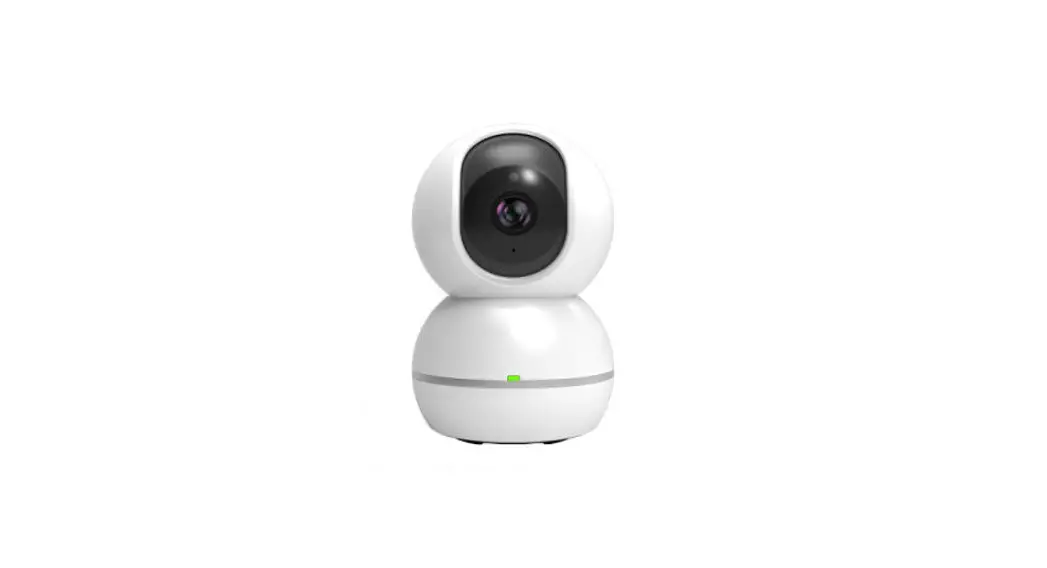

Apple IOS operations are as follows:
Install the application.
Download and install JXLCAM. IOS searches for “JXLCAM” download directly at the Apple App Store. For convenience, please scan the download and installation of the QR code below.
Note: during installation, all permissions of the JXLCAM APP need to be allowed, otherwise the APP will not work properly.
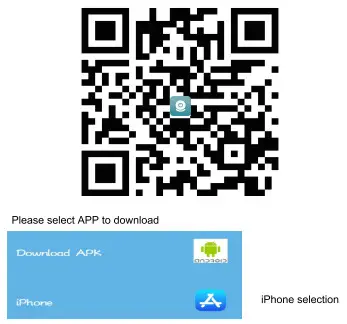 http://apps.nvripc.net/jxlcam/
Local mode
Open the list of mobile phones WIFI, connect to B/xCCQ…, open the APP  page after success, click “AP” as shown in the figure below, and watch the video.
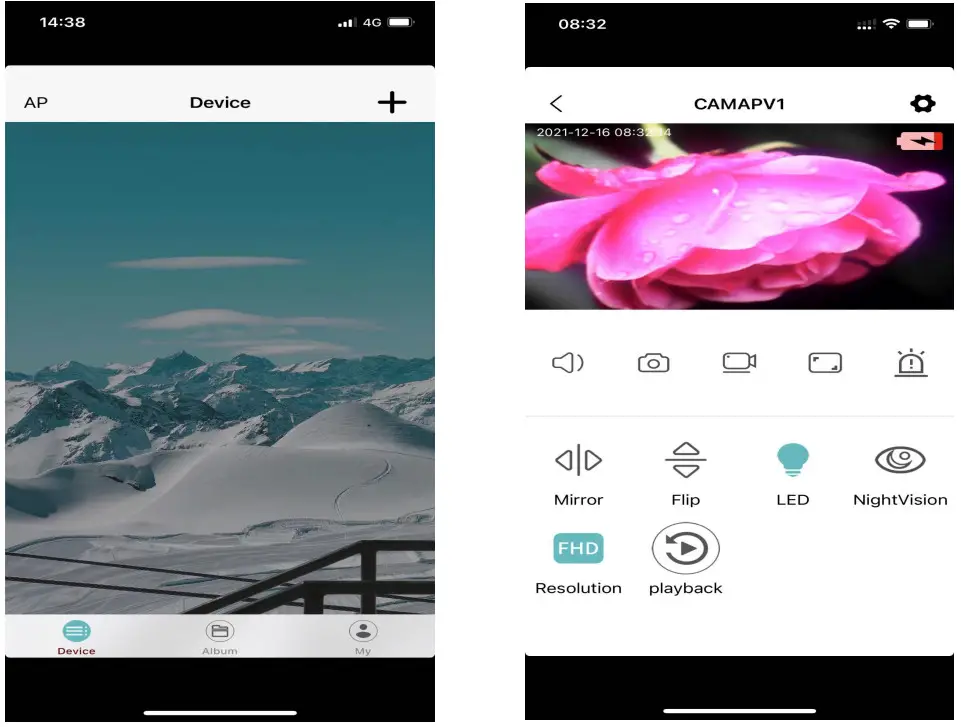 Note: when there is no WIFI in the environment, you can use AP mode to connect, which is valid for no more than 10m, which can achieve localized video viewing.
Remote mode
- First, confirm that there is an available WIFI near the device, turn on the device, flash the blue indicator light quickly, and the device is in a state to be connected.
( Note: WIFI signals supported only in the 2.4G band) - You can’t successfully distribute the network when the power is insufficient.
- When wiring, please try to bring the device close to the router. When the nearby WIFI signal is weak, the image will be stuck if the network is not successful or the network is successful.
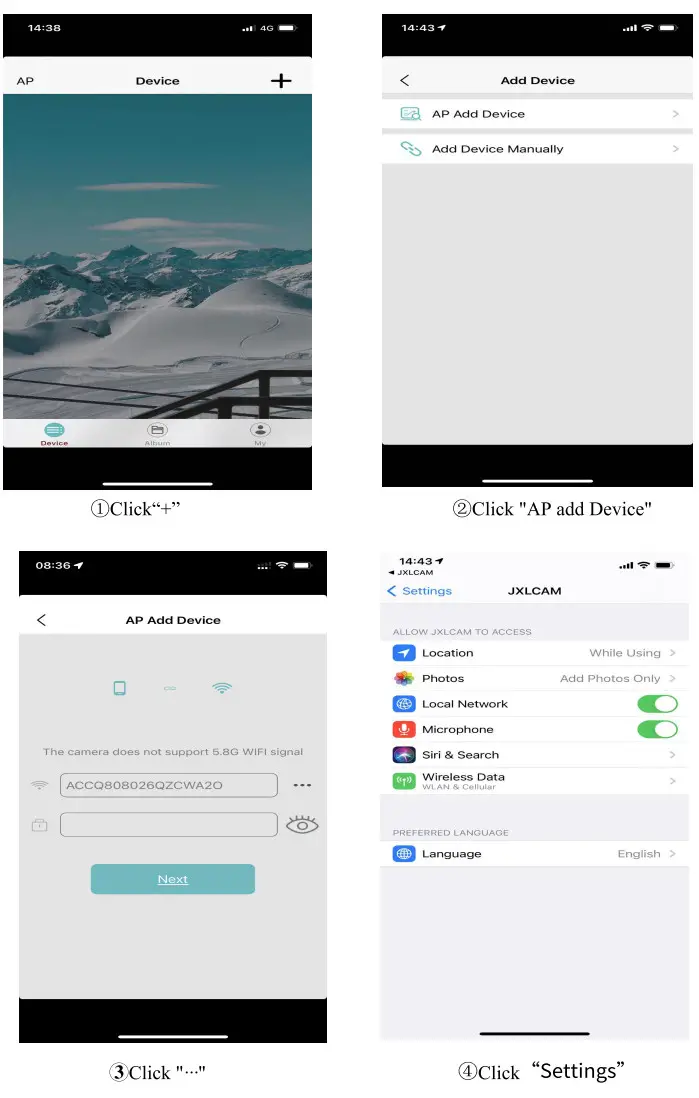
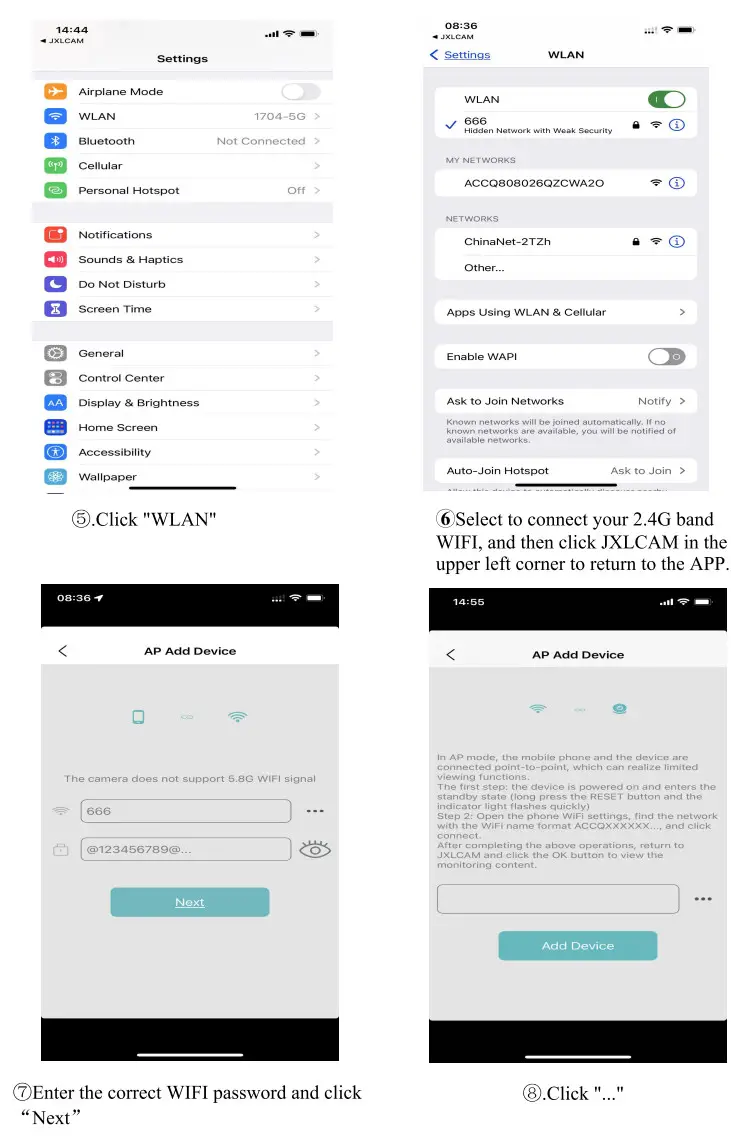
- Open the APP
 and follow these steps:
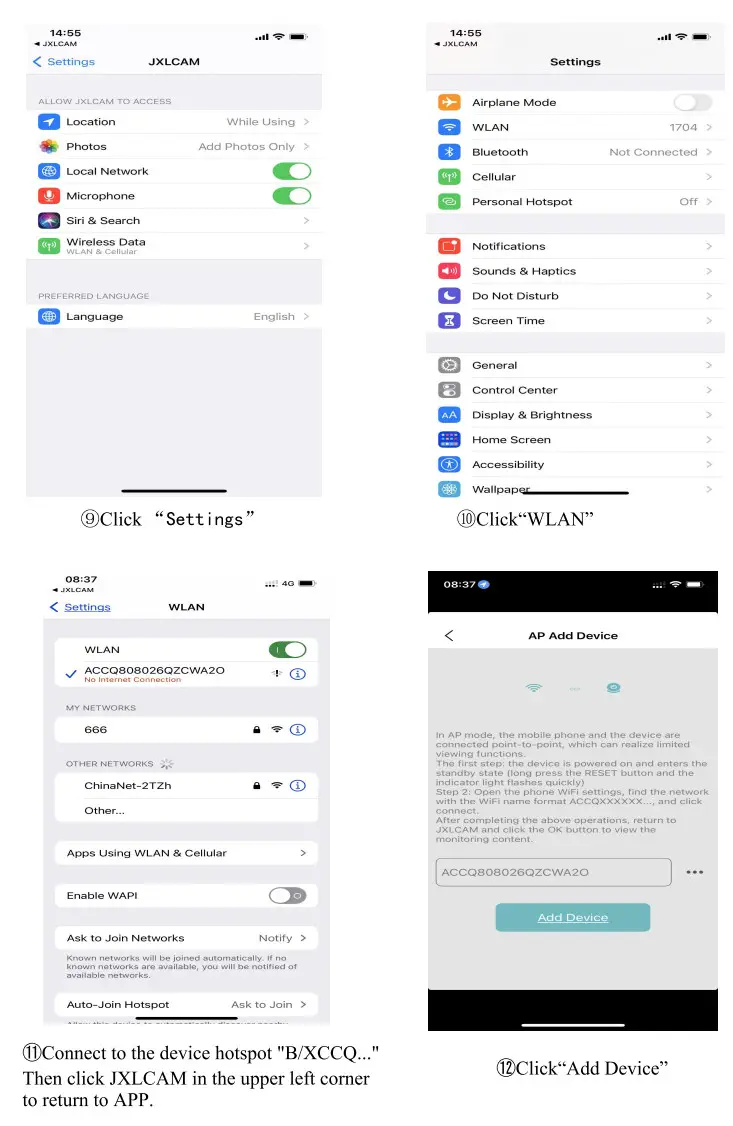
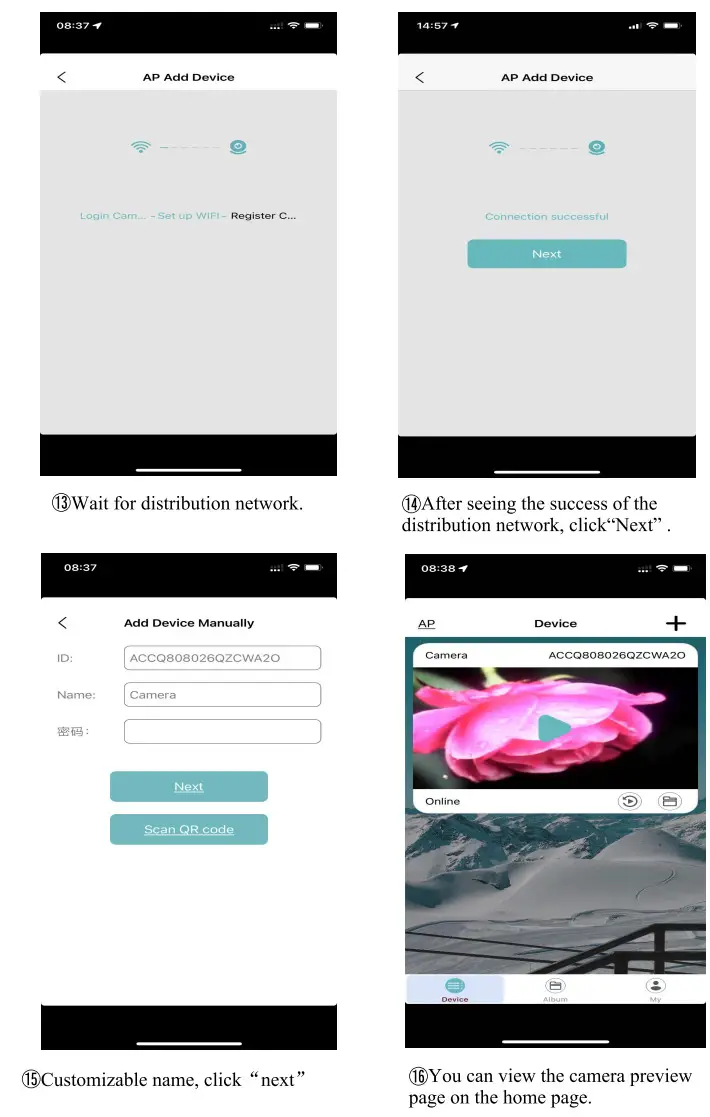
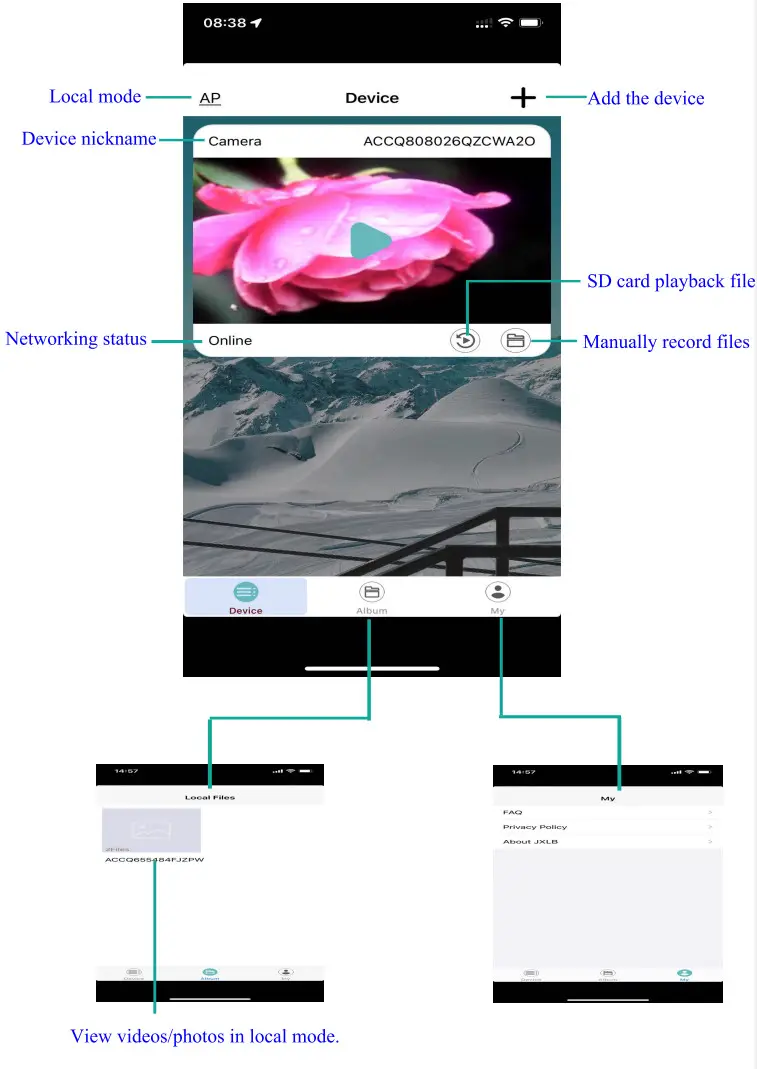
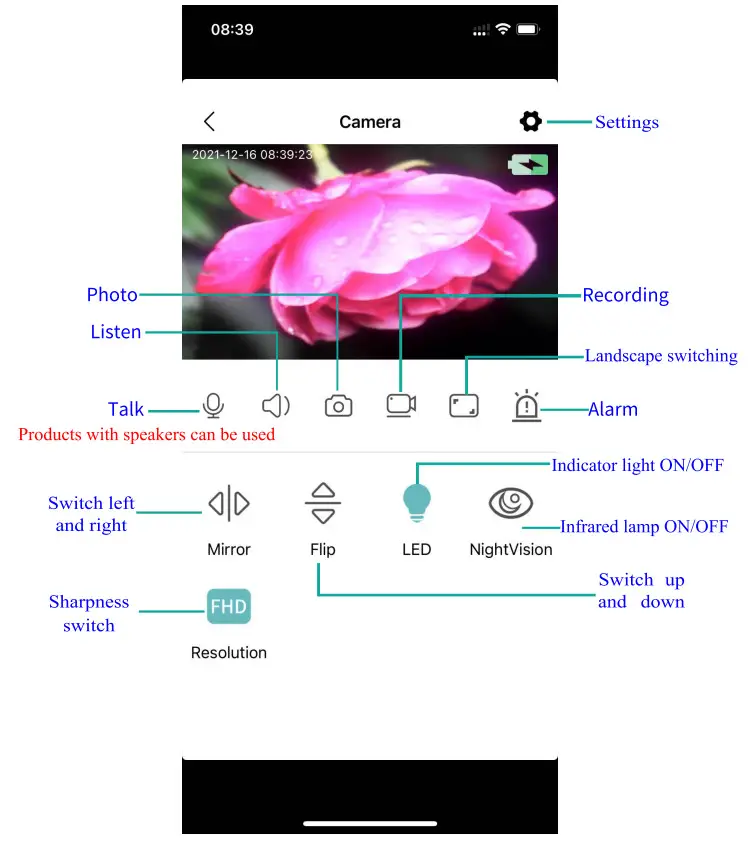
Storage card
If you need to store video content, you need to install an SD card. (This machine supports loop video recording)
Camera settings
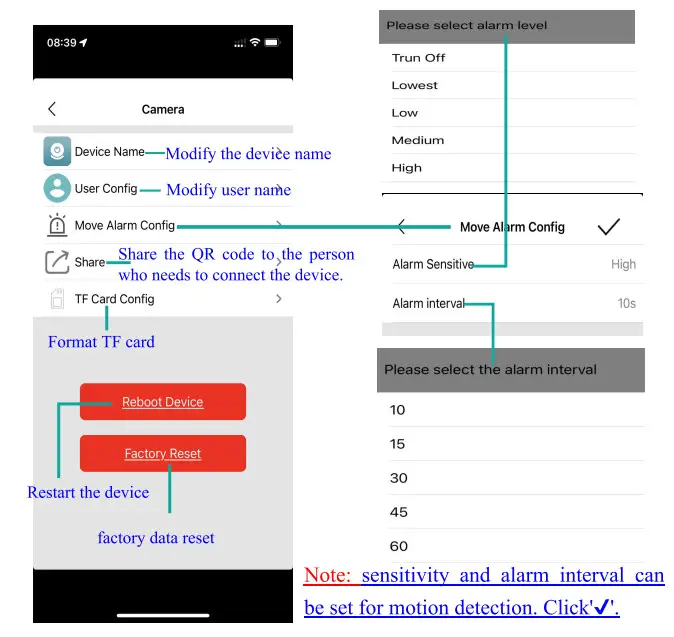
NOTE:
- When the device fails to configure the network, please check whether the router and WiFi password is configured correctly (the device does not support WIFI signals in the 5.8G band). After confirming that it is correct, you can press and hold the reset button until the device indicator flashes quickly, restore the factory settings, and reconfigure the network.
- When the software homepage shows that the device is offline, you can check whether the device is normally powered on, and click the refresh icon in the upper right corner to refresh.
- The initial password of the device is admin.
RD08-WIFI Manual
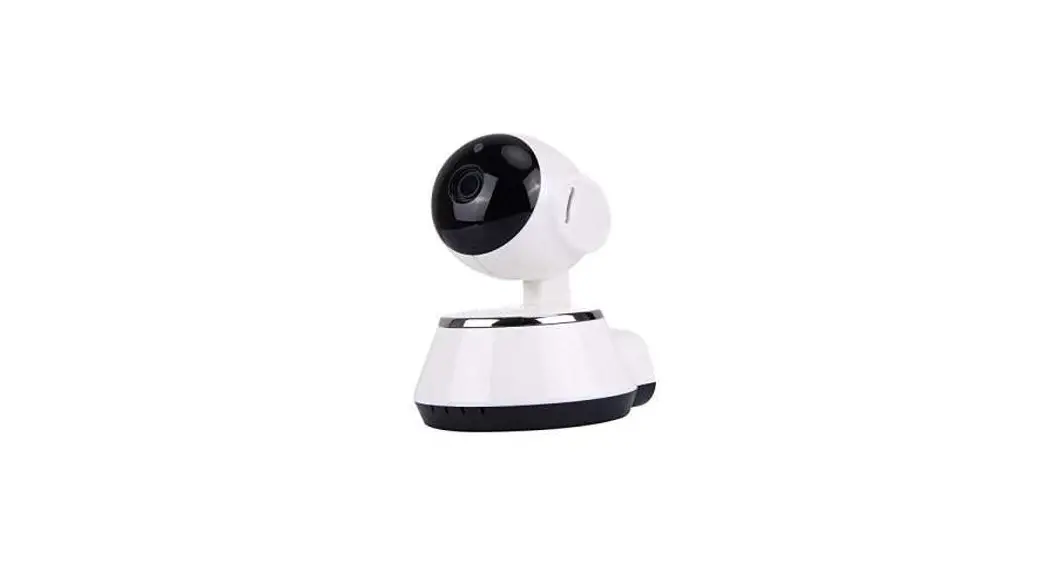
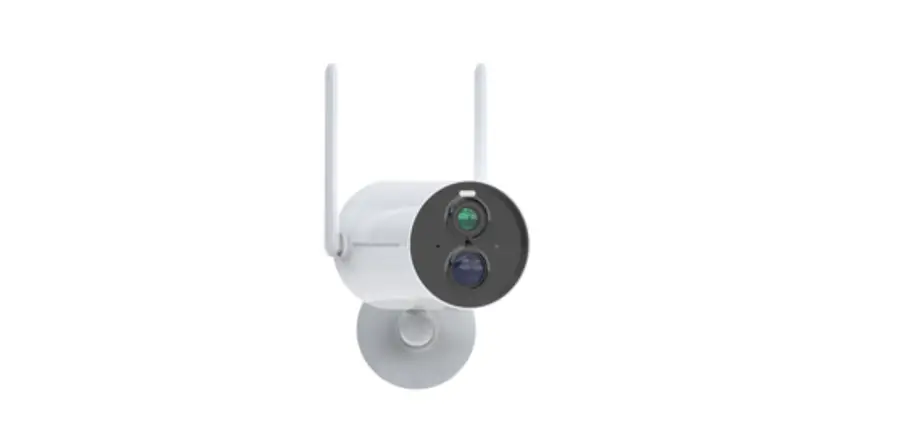
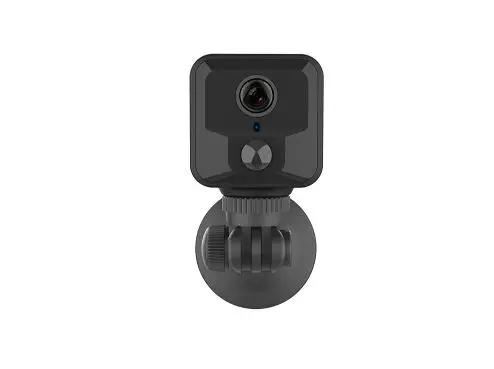
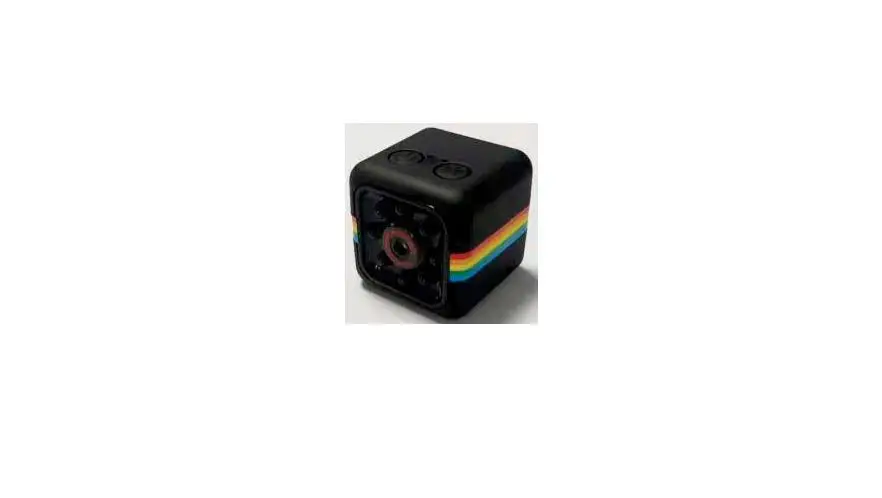
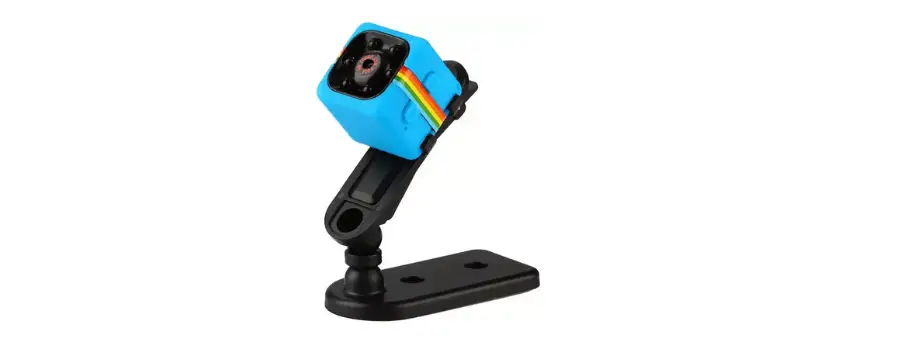
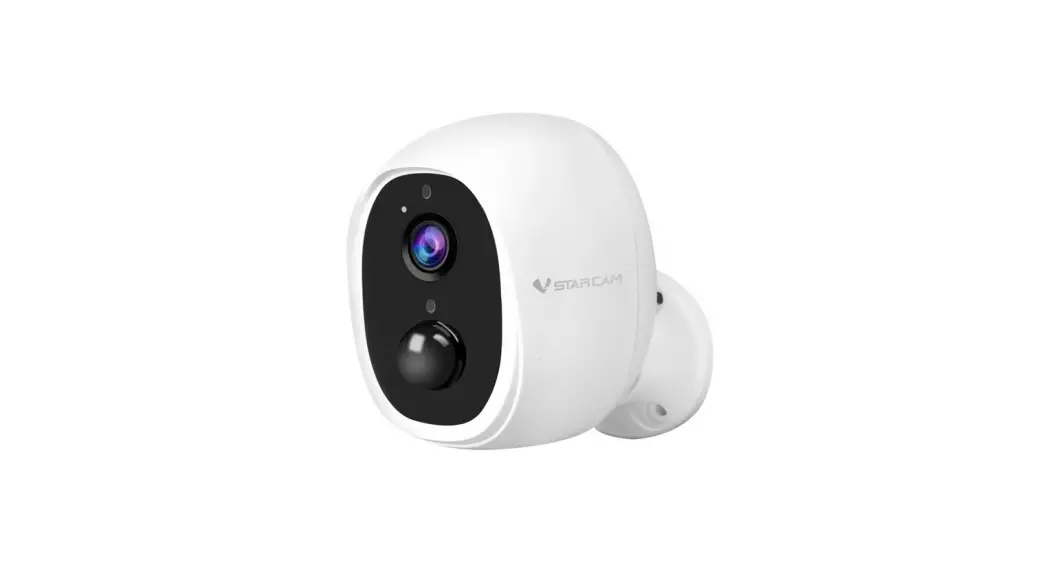
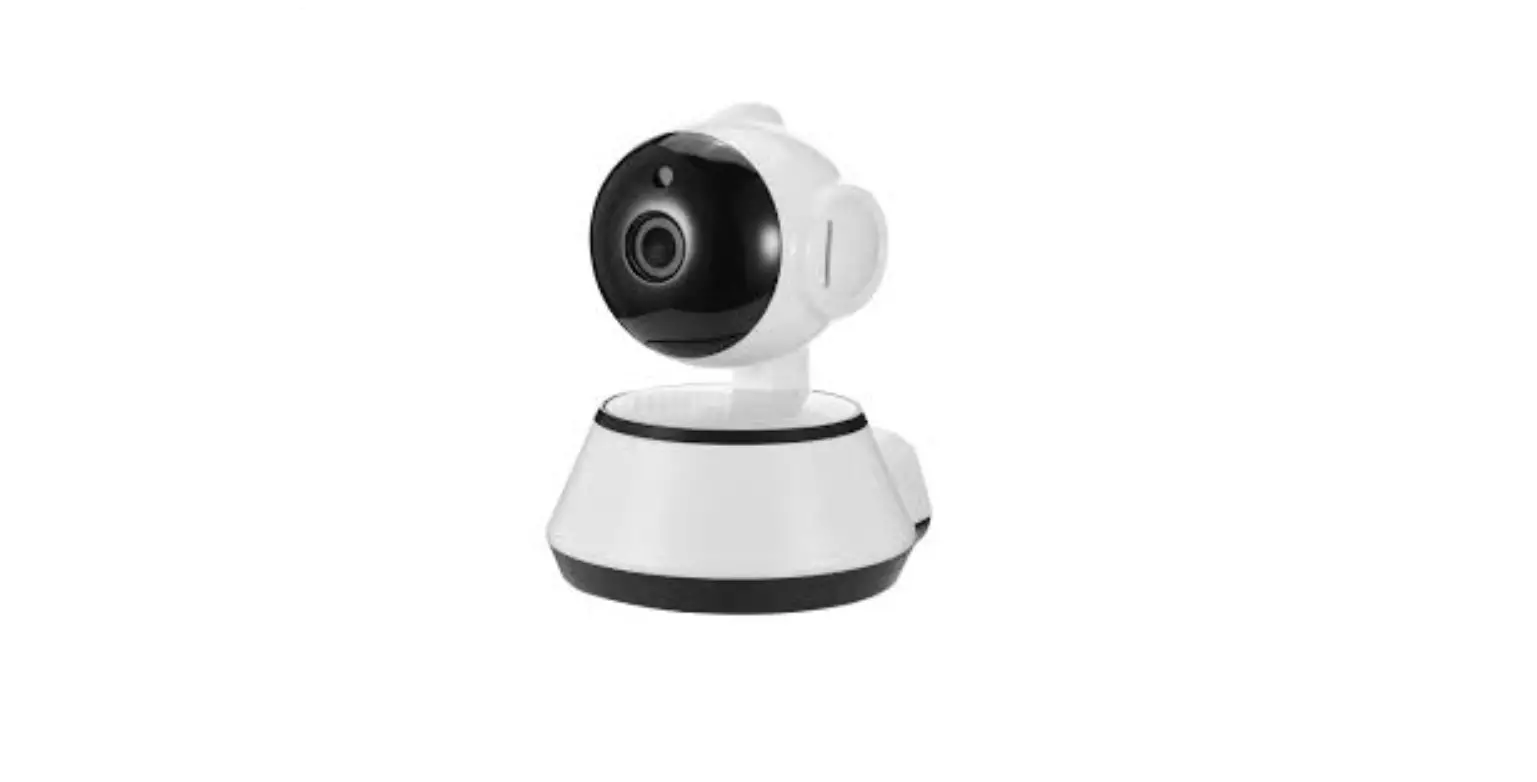
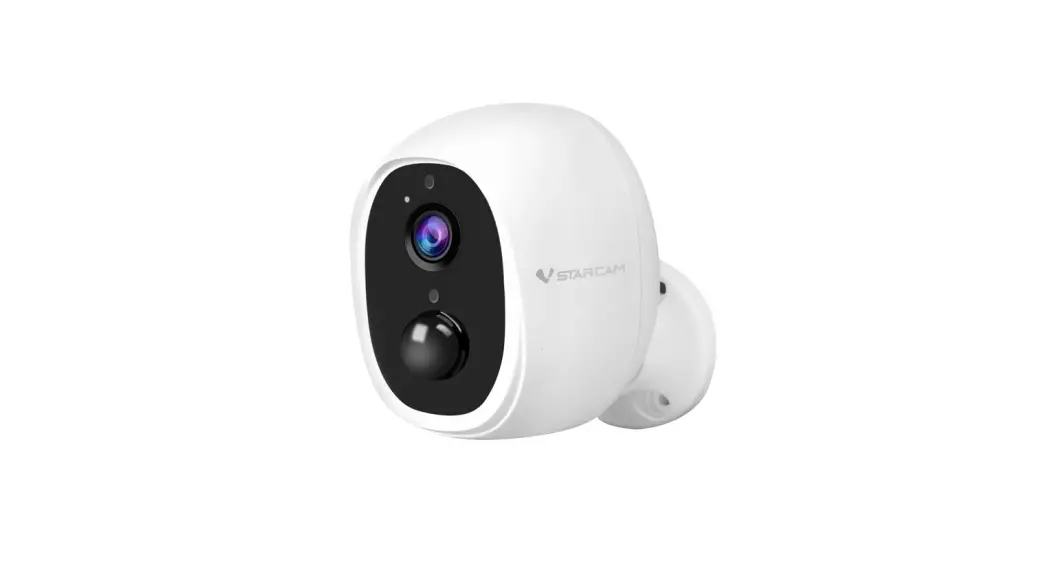
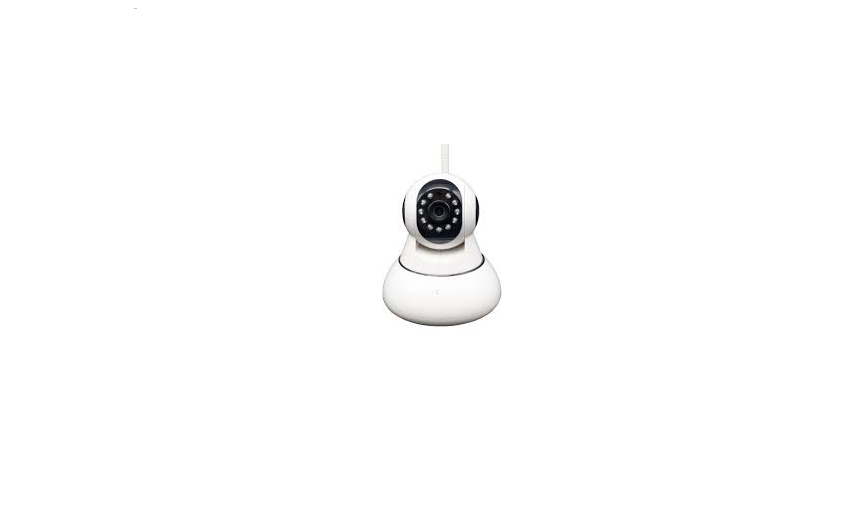
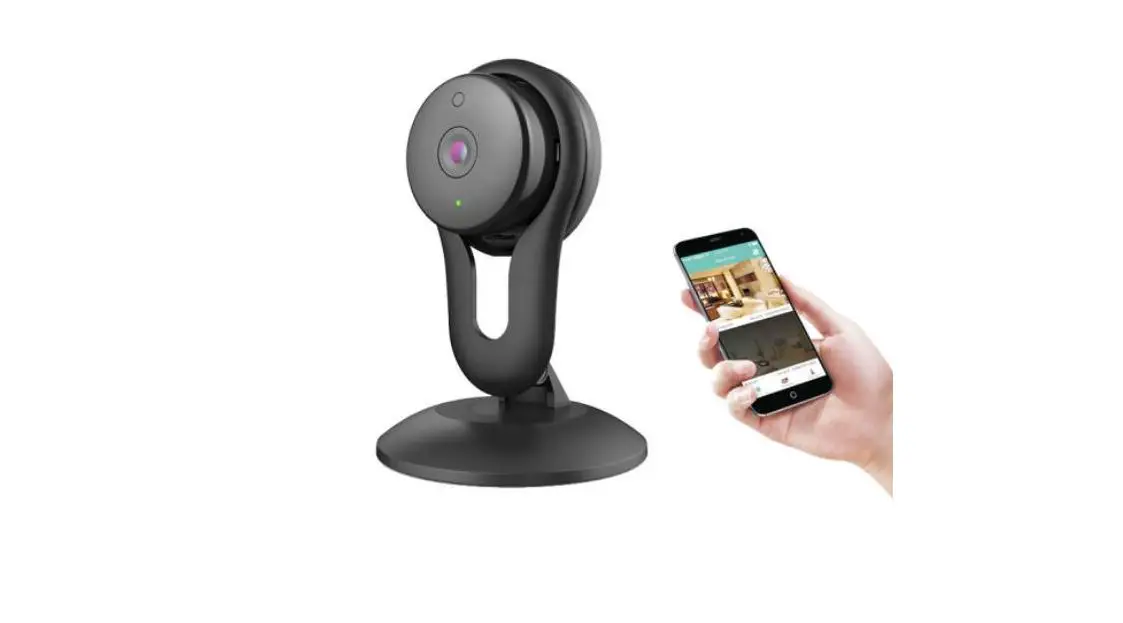
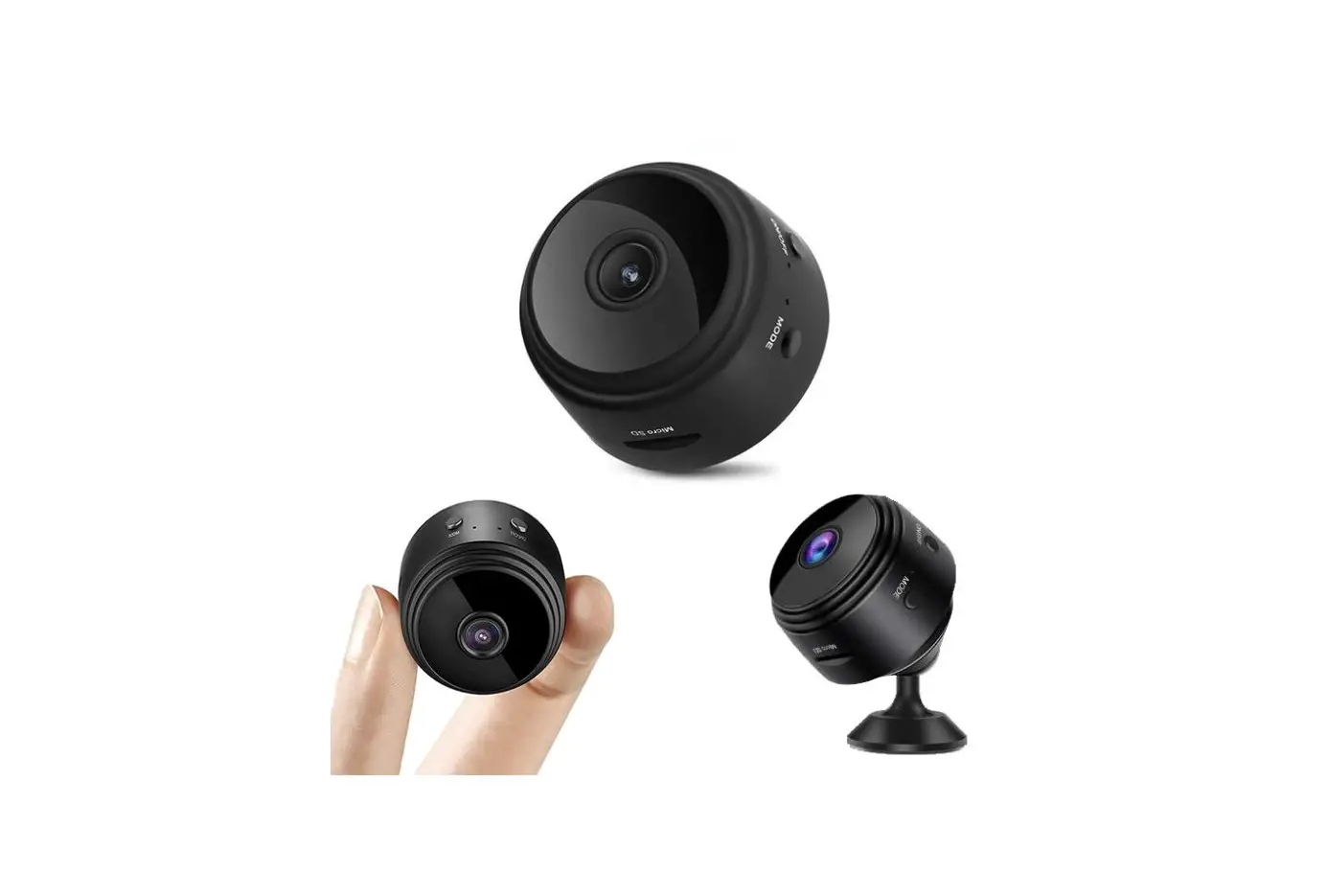
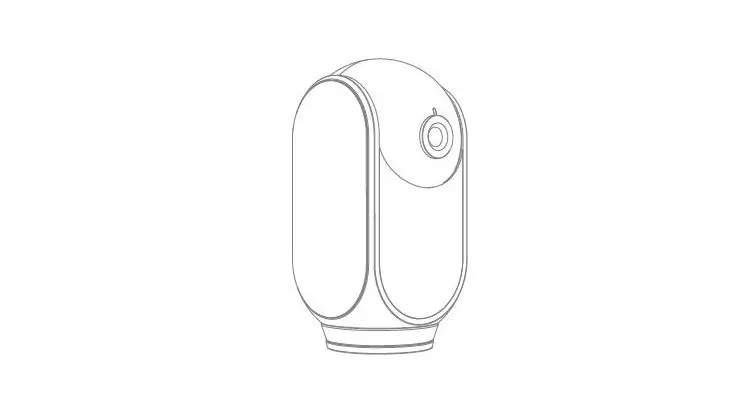
Appearance Guide
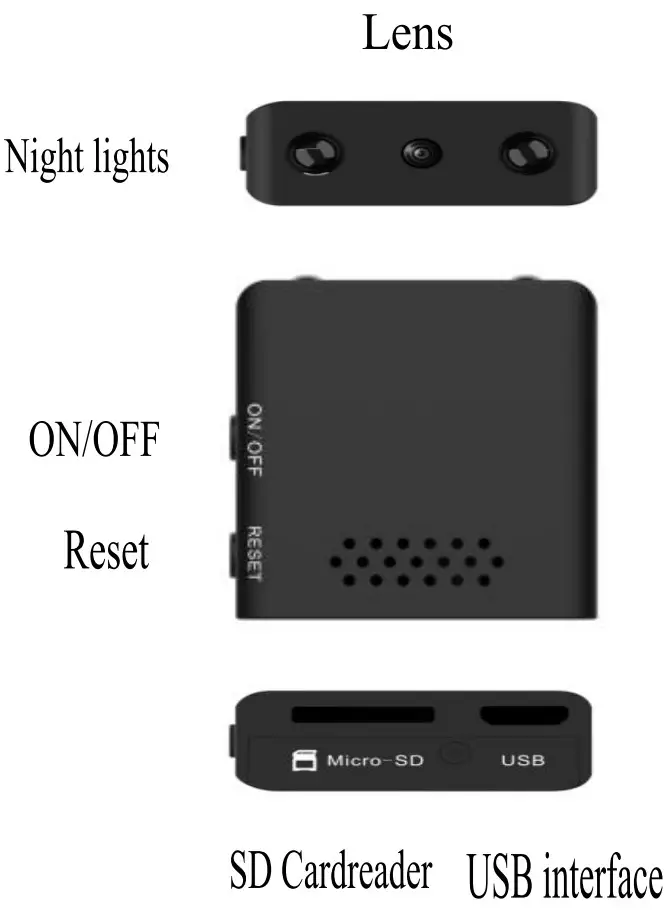
Turn on the device
Plugin and start-up, you can press the ON/OFF key to turn OFF the machine and start-up, after starting up, The blue indicator light flickers continuously and quickly, and the device enters the connection state. Note: If the blue indicator is slow flashing/always on or cannot be connected, long-press the reset button for 5 seconds to reset.
Android system operation is as follows:
Install APP
Download and install JXLCAM APP, Android system in Google play search download. For easy installation, easily scan the following QR code installation.
Note: during installation, you need to open all permissions of the APP, otherwise the APP will not work properly.
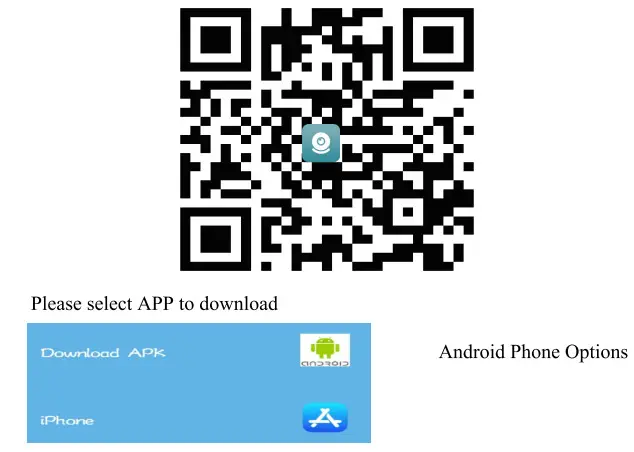 http://apps.nvripc.net/jxlcam/
Local mode
Open your phone’s WiFi list and connect to B/xCCQ After success, open the APP page and click AP as shown below to watch the video.
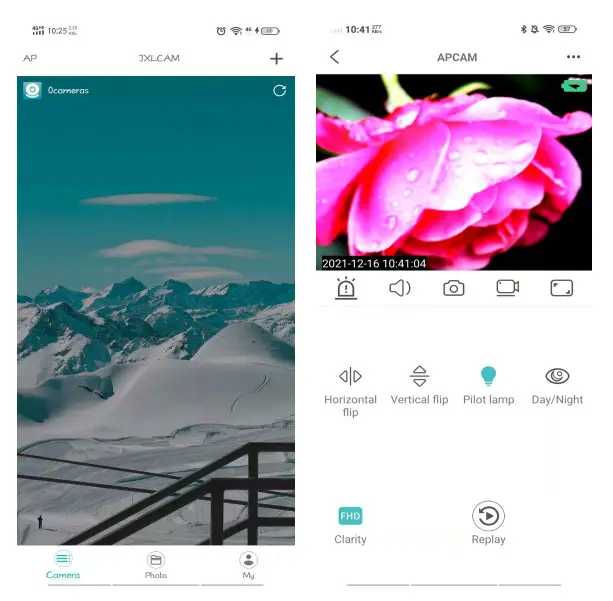
Note: When there is no WiFi in the environment, AP mode can be used for connection. The effective distance of this mode is no more than 10M, which can realize localized video viewing.
Remote mode
- First, confirm that there is available WIFI signal near the device, turn the device on, the blue indicator light flashes quickly, and the device enters the state to be connected. (Note: only support 2.4G band WIFI signal)
- Unable to connect successfully when power is low.
- When connecting to the network, place the device as close to the router as possible. If the nearby available WiFi signal is weak, the connection cannot be successful or the screen will be closed after a successful connection.
- open the APP and follow the steps below:
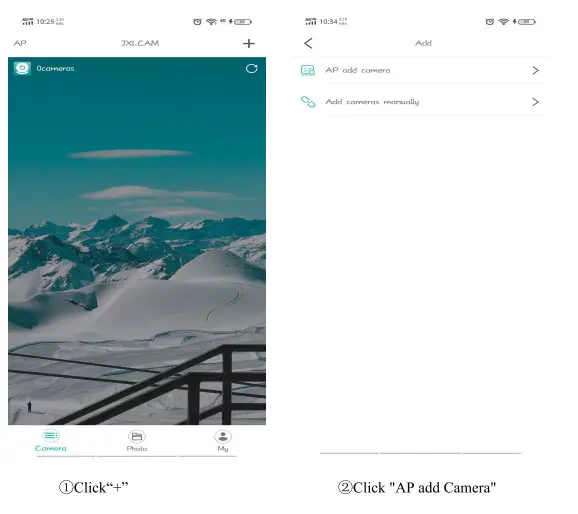
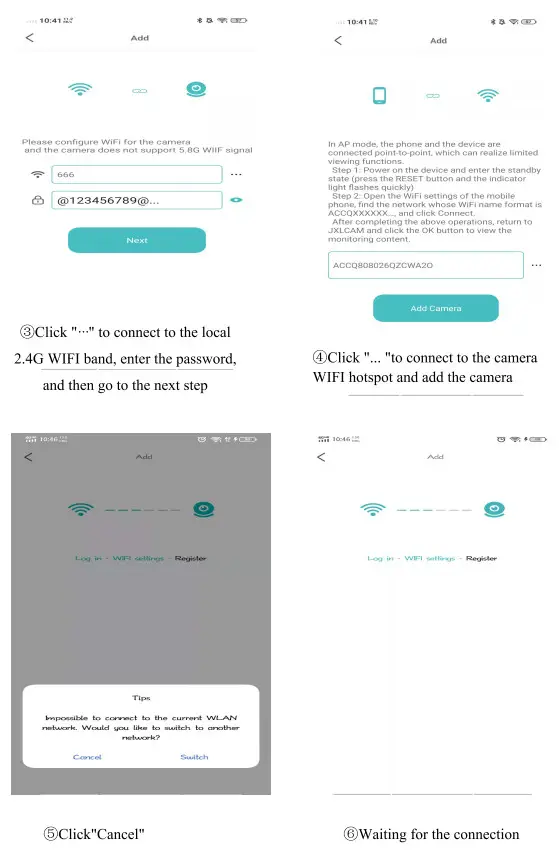
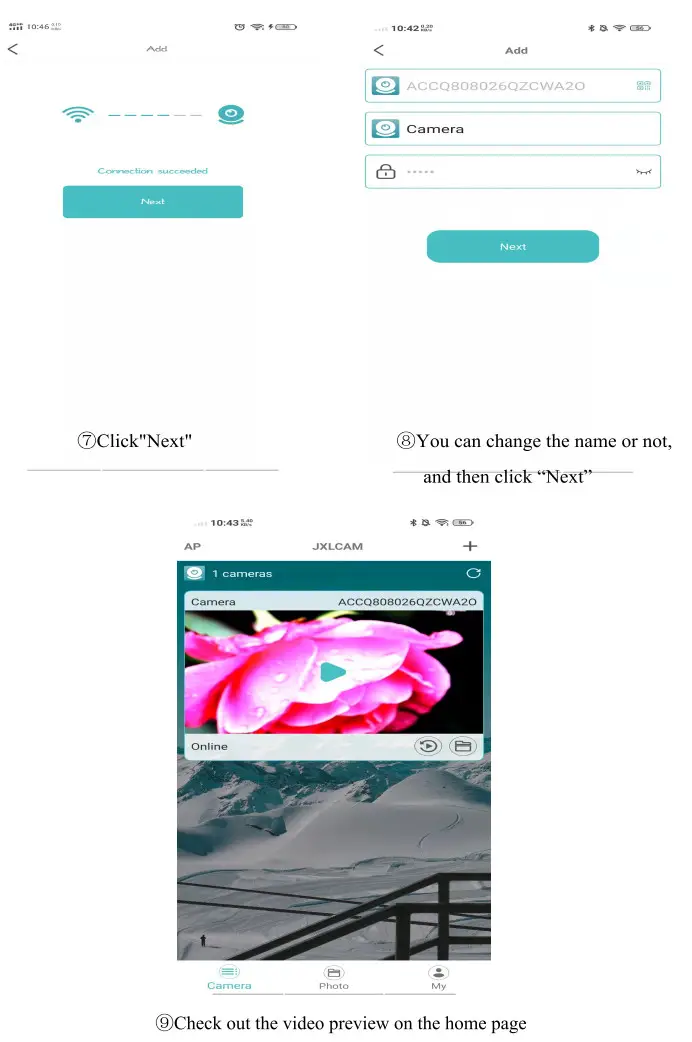
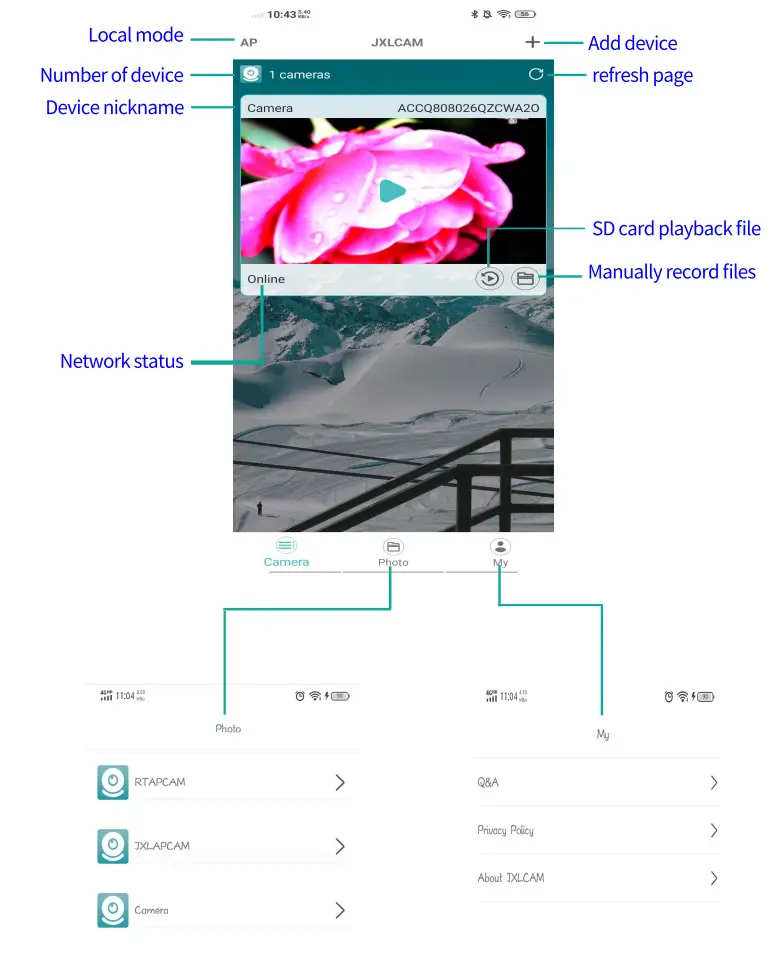
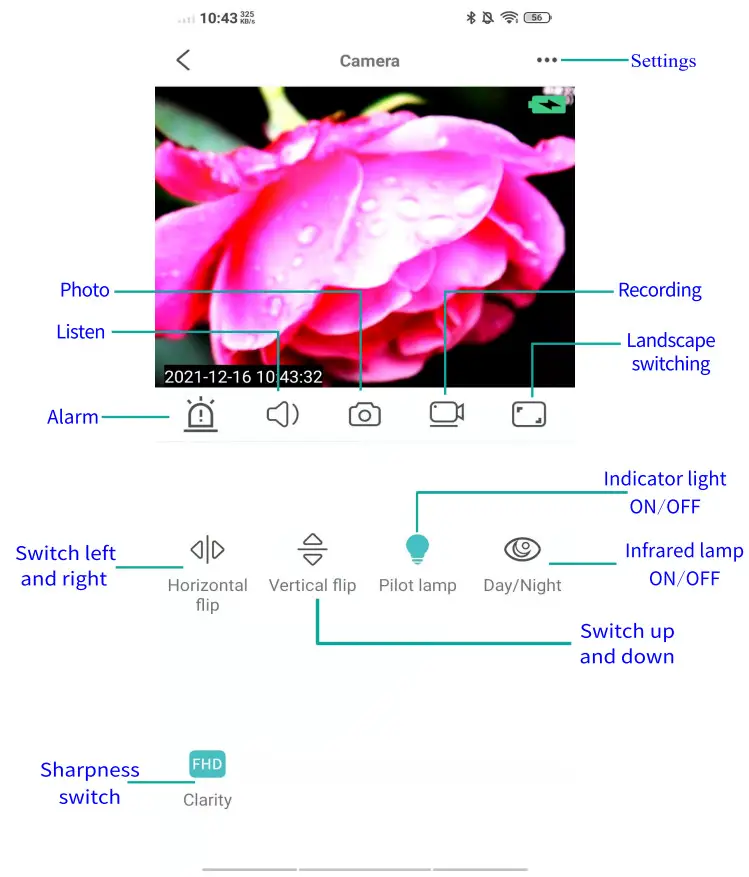
Storage card
If you need to store video content, you need to install an SD card.
(This machine supports loop video recording)
Camera settings
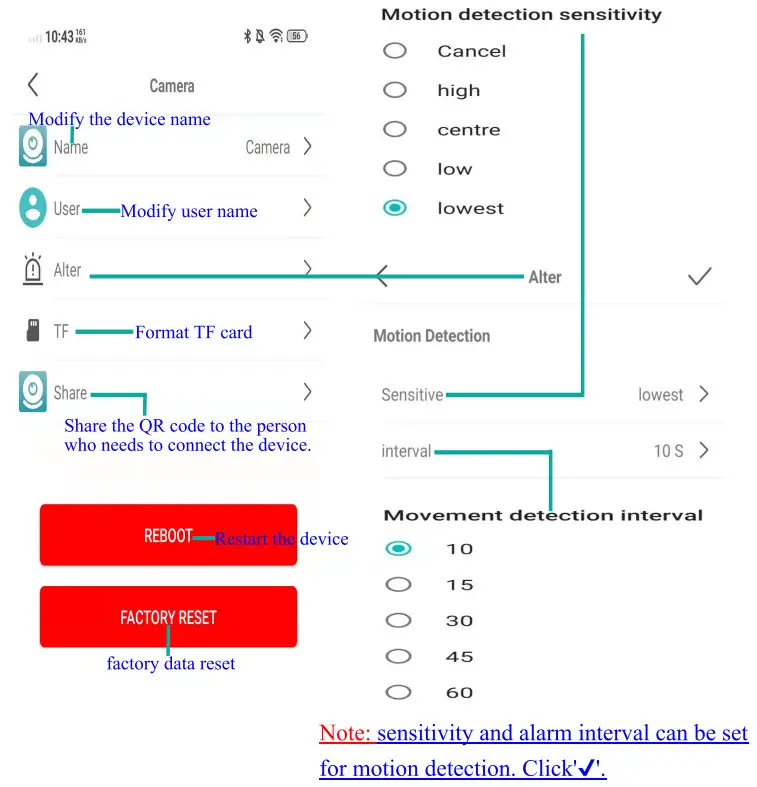
NOTE:
- When the device fails to configure the network, please check whether the router and WiFi password are configured correctly (the device does not support WIFI signals in the 5.8G band). After confirming that it is correct, you can press and hold the reset button until the device indicator flashes quickly, restore the factory settings, and reconfigure network.
- When the software homepage shows that the device is offline, you can check whether the device is normally powered on, and click the refresh icon in the upper right corner to refresh.
- The initial password of the device is admin.
- FCC Warnning:
This equipment has been tested and found to comply with the limits for a Class B digital device, pursuant to part 15 of the FCC Rules. These limits are designed to provide reasonable protection against harmful interference in a residential installation. This equipment generates, uses, and can radiate radio frequency energy and, if not installed and used in accordance with the instructions, may cause harmful interference to radio communications. However, there is no guarantee that interference will not occur in a particular installation. If this equipment does cause harmful interference to radio or television reception, which can be determined by turning the equipment off and on, the user is encouraged to try to correct the interference by one or more of the following measures: - Reorient or relocate the receiving antenna.
- Increase the separation between the equipment and receiver.
- Connect the equipment into an outlet on a circuit different from that to which the receiver is connected.
- Consult the dealer or an experienced radio/TV technician for help.
Caution: Any changes or modifications to this device not explicitly approved by the manufacturer could void your authority to operate this equipment.
This device complies with part 15 of the FCC Rules. Operation is subject to the following two conditions: (1)This device may not cause harmful interference, and (2) this device must accept any interference received, including interference that may cause undesired operation. This equipment complies with FCC radiation exposure limits set forth for an uncontrolled environment. This equipment should be installed and operated with a minimum distance 20cm between the radiator and your body.