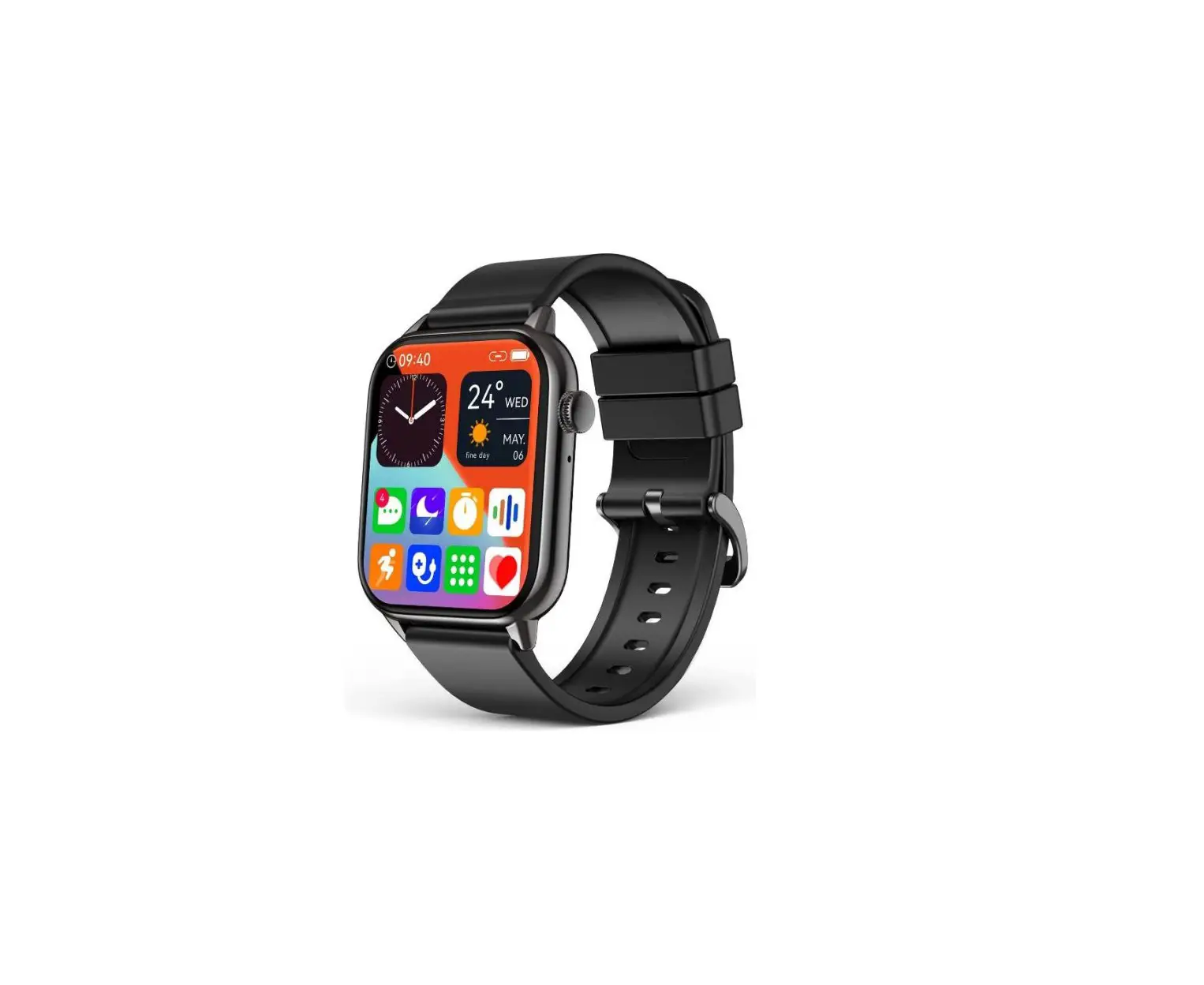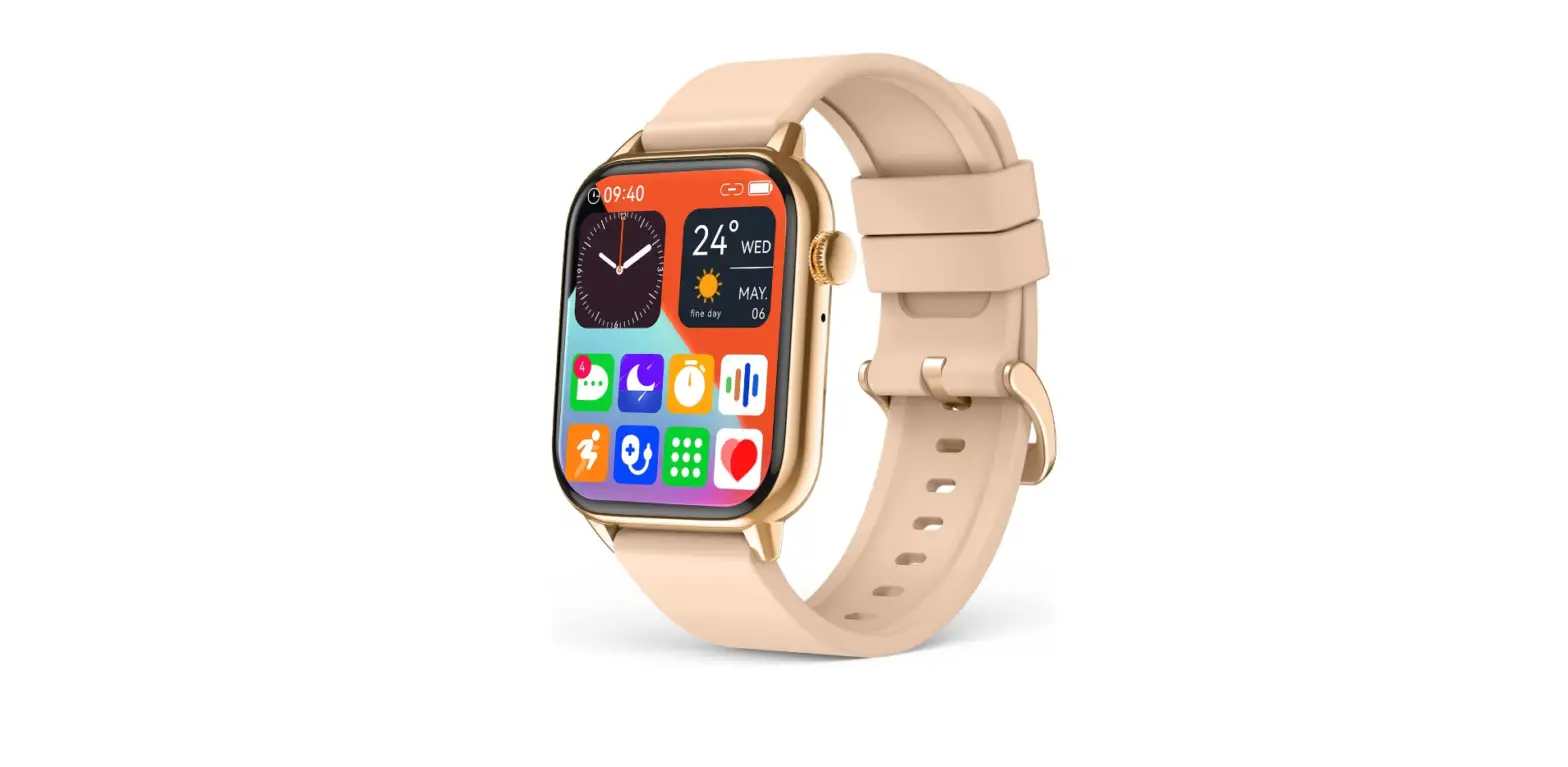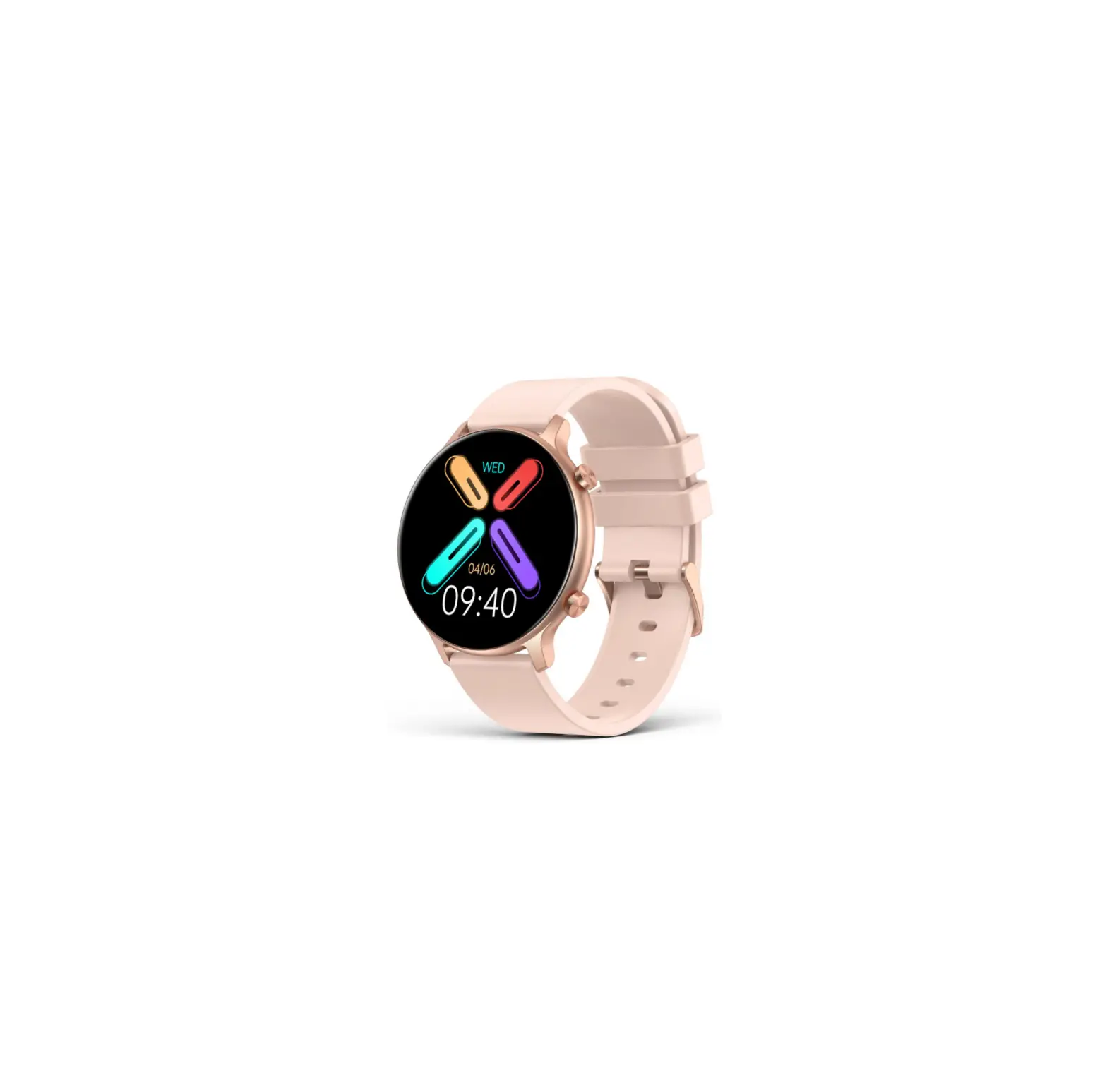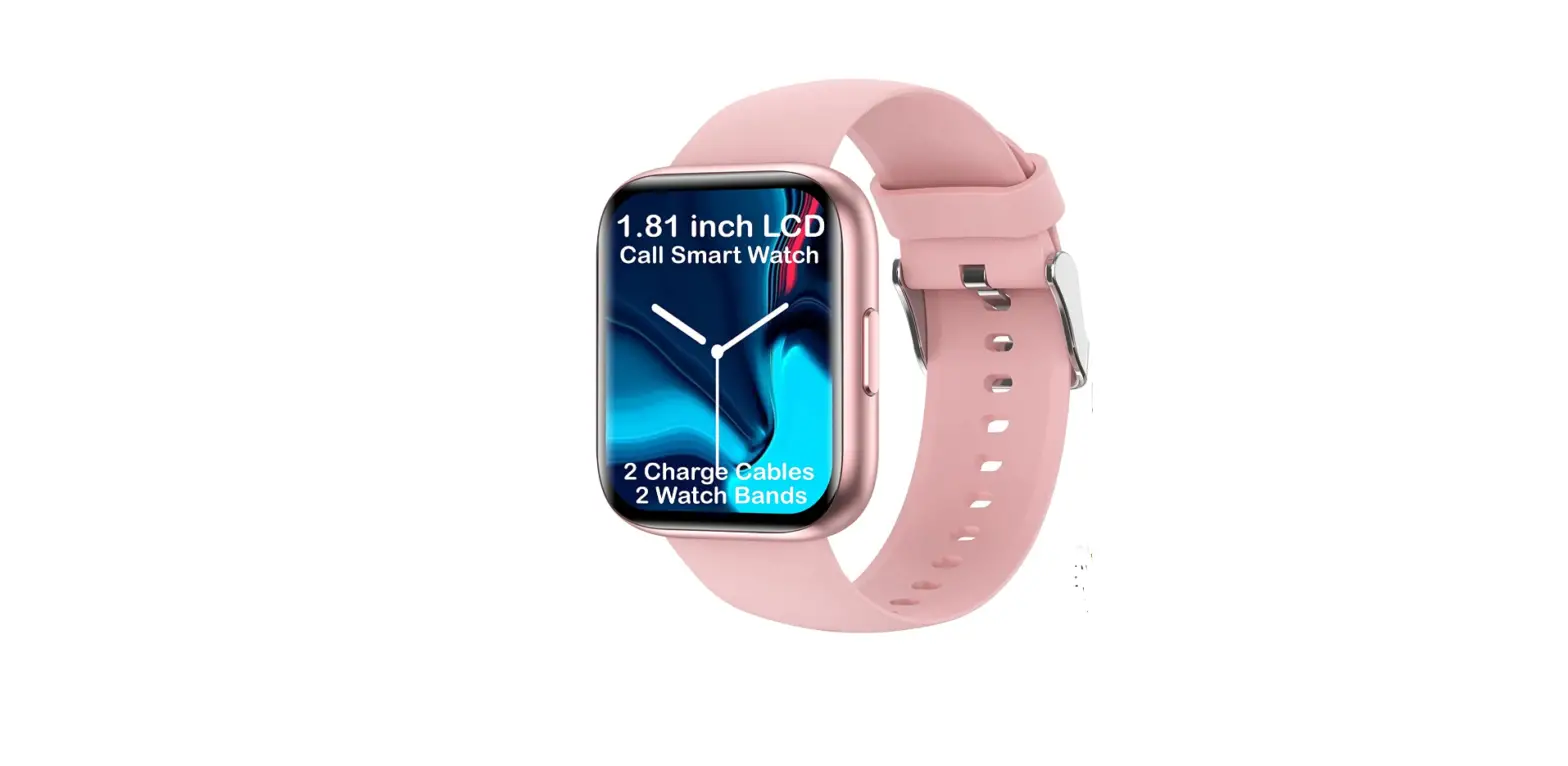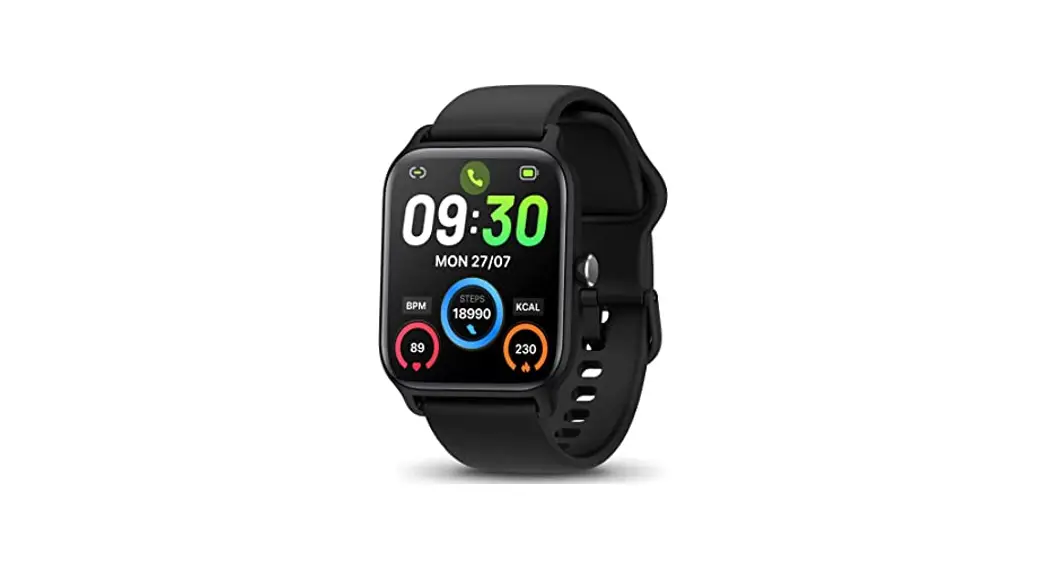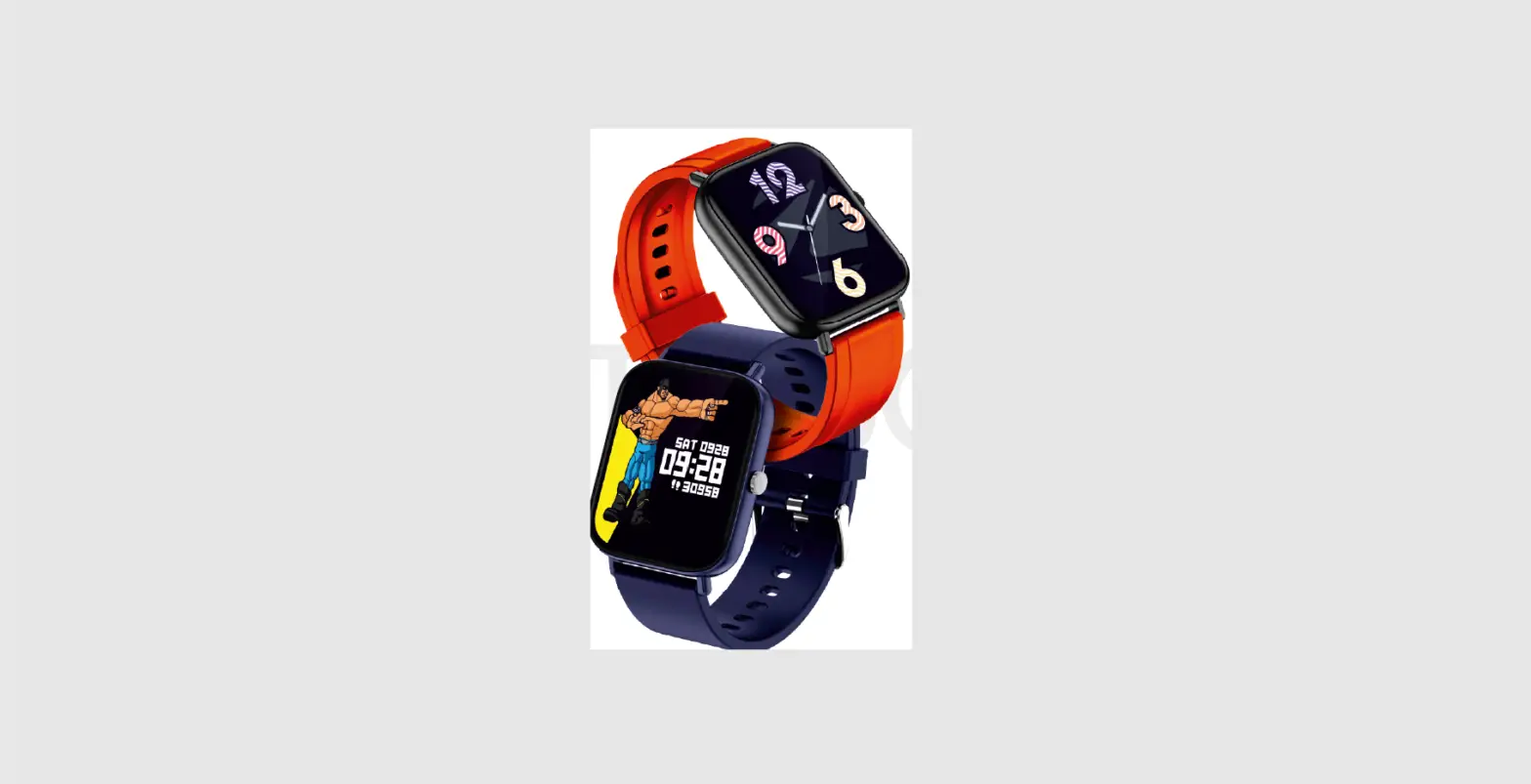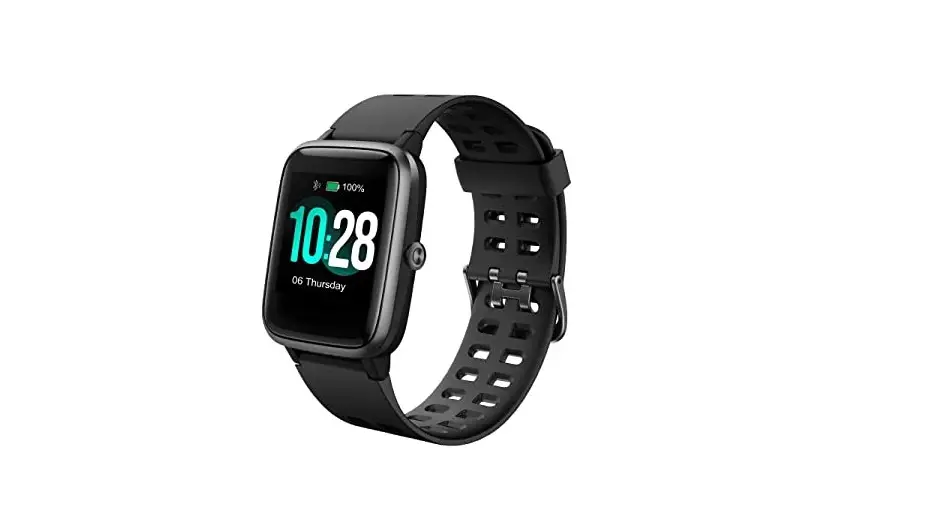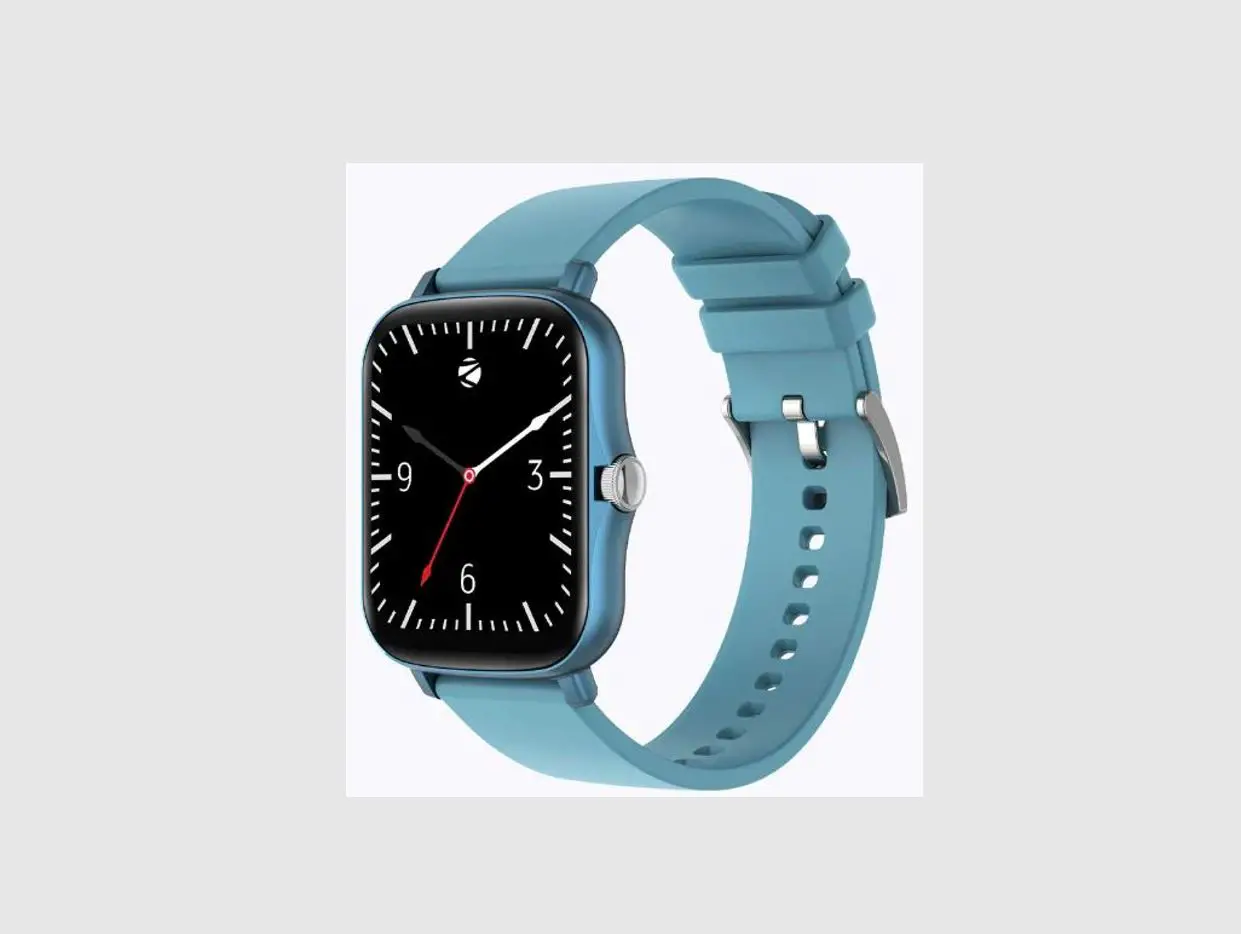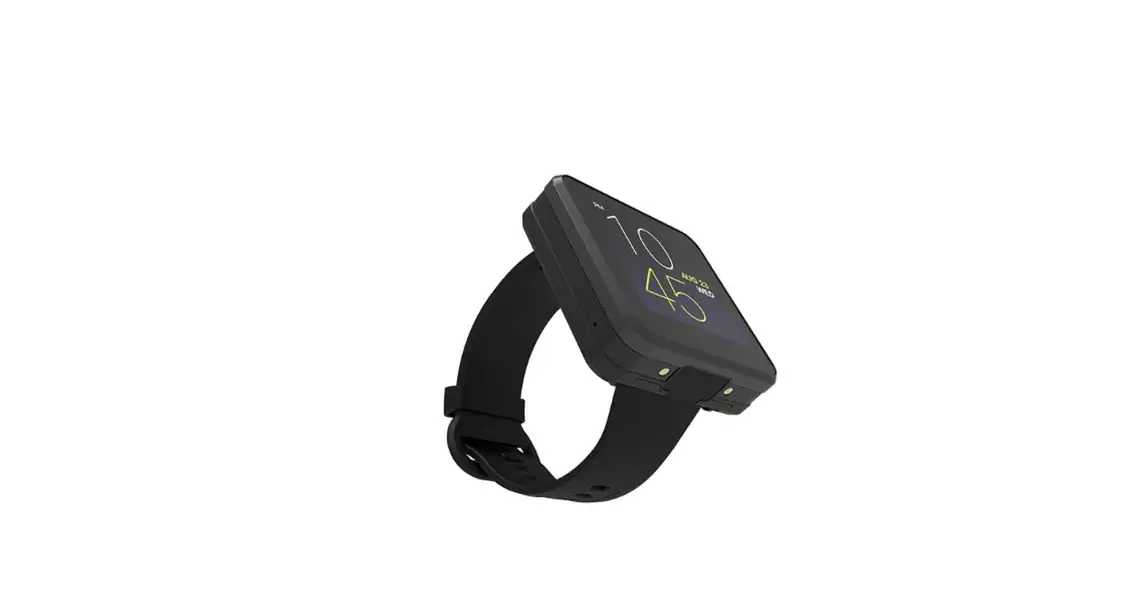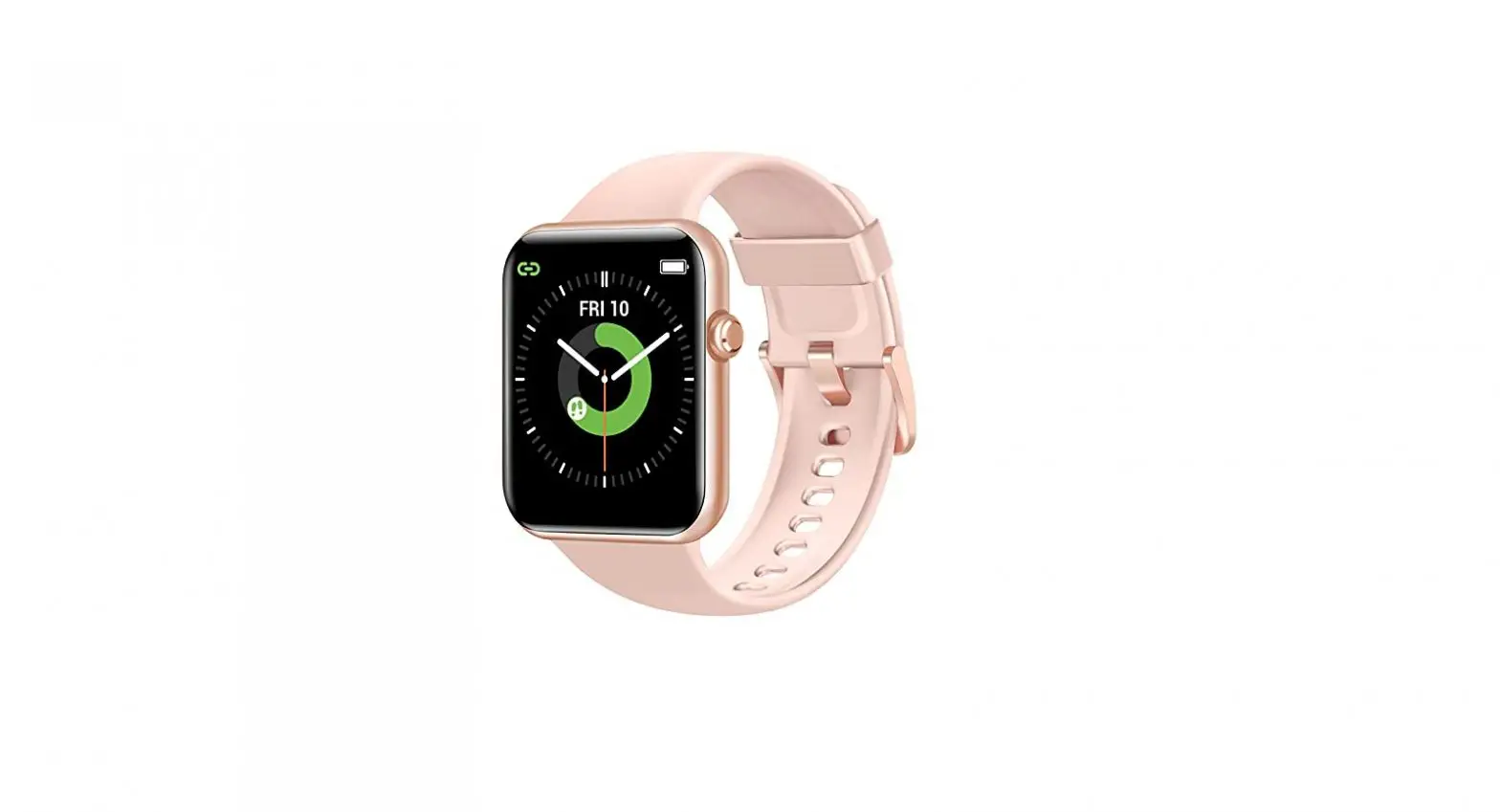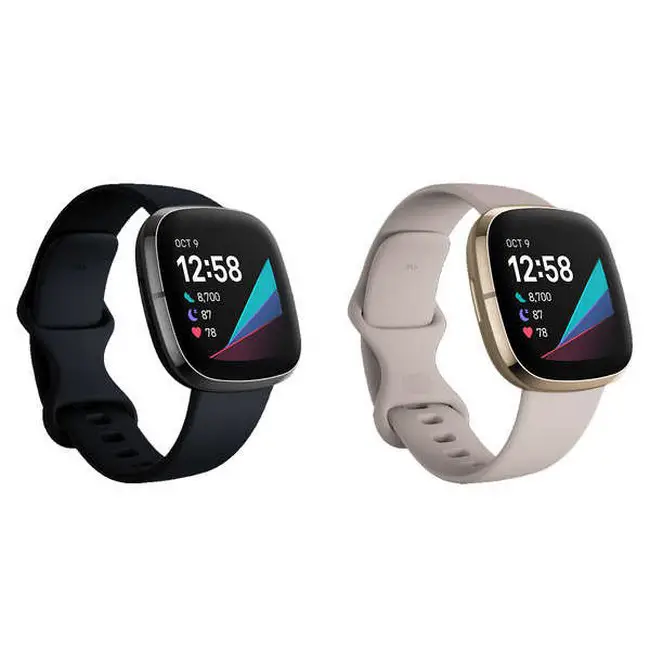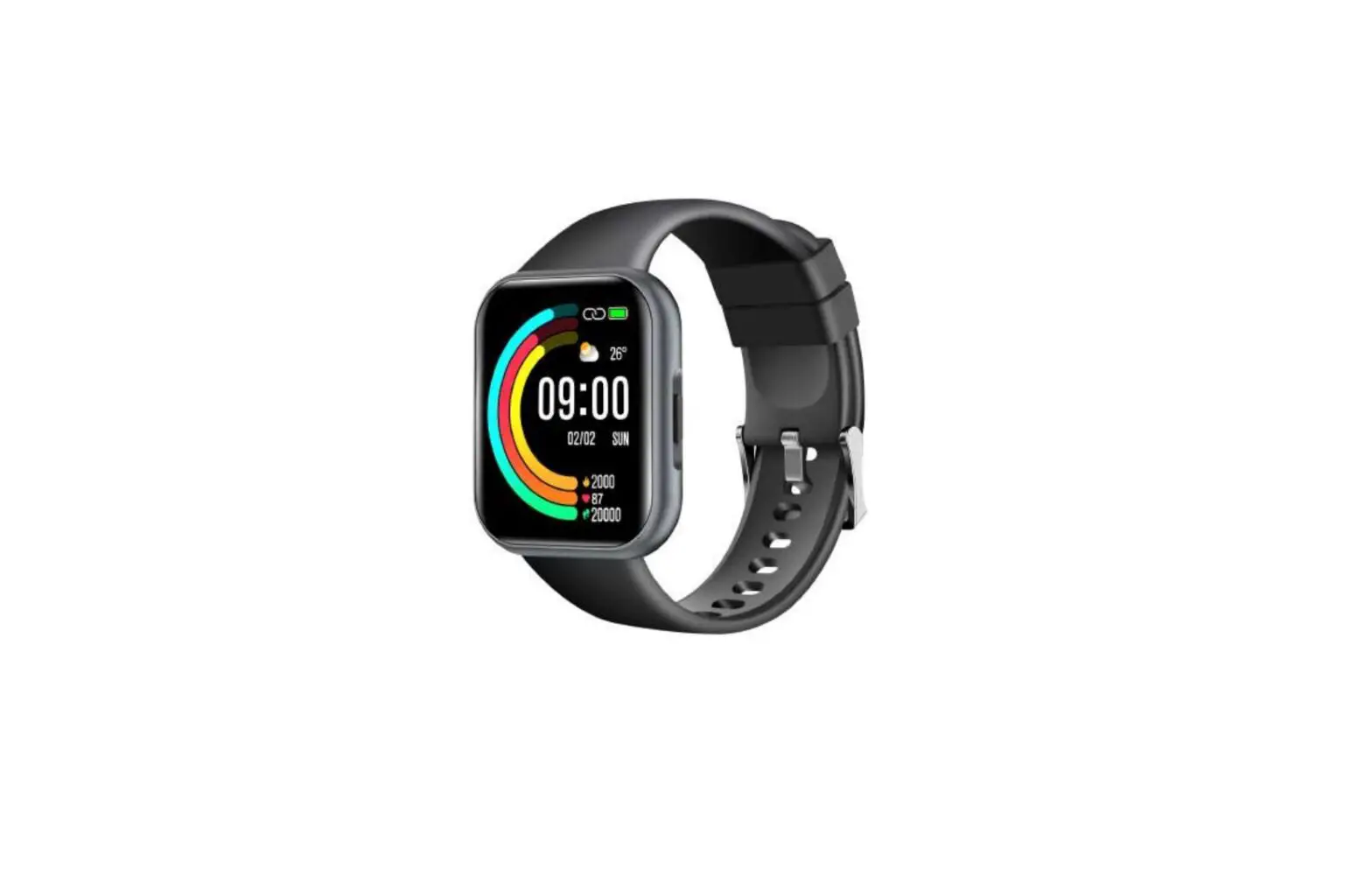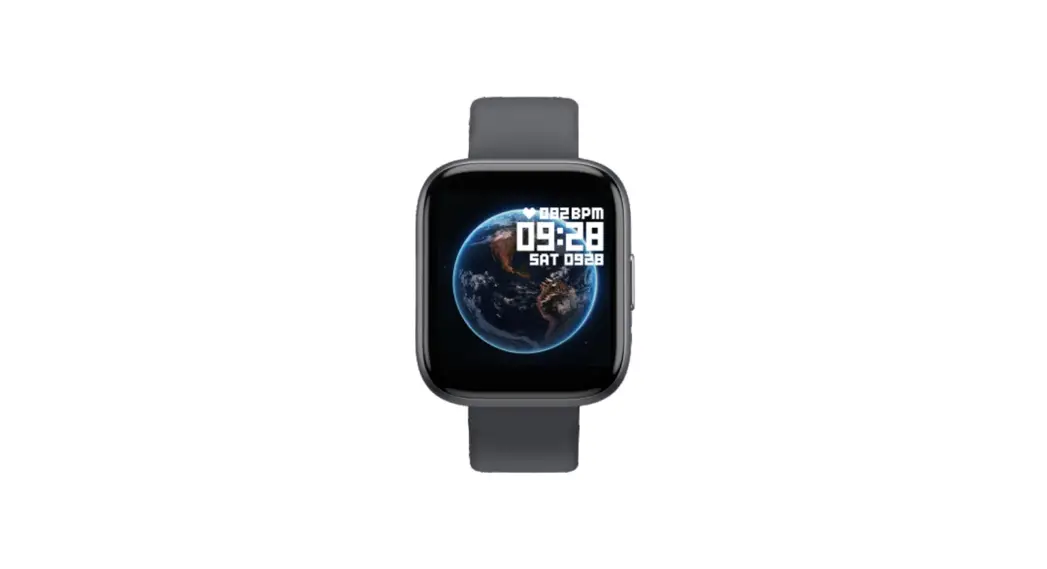
 Smart Watch Receive-Make 1.54 Inch Fitness Tracker
User Manual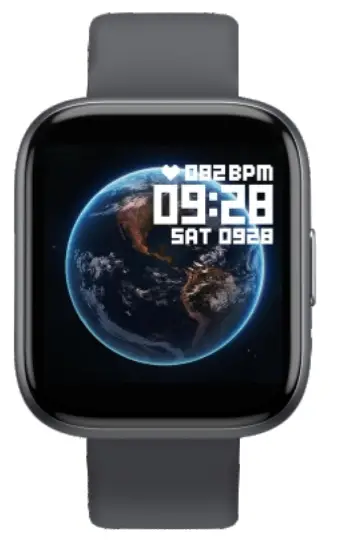
Downloading the App
Scan the following QR code, download and install the App.
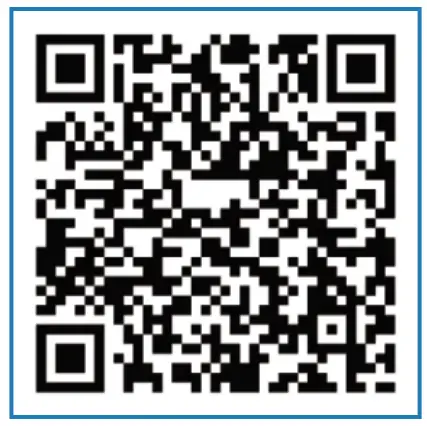 Da Fit
Scan QR Code and Download
http://plus.crrepa.com/app-download/dafit
Charging and Active
Charging the device to active before the first time using;
To charge your device, plug the charging cable into the adapter or USB port on your computer.
Note: Do not use a USB charger with a current exceeding 1A Charge the bracelet 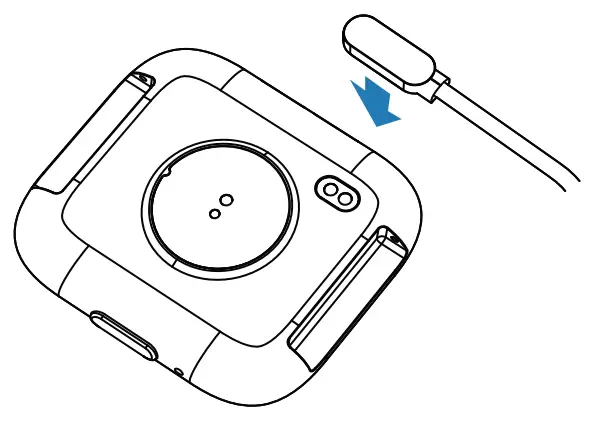
Pairing
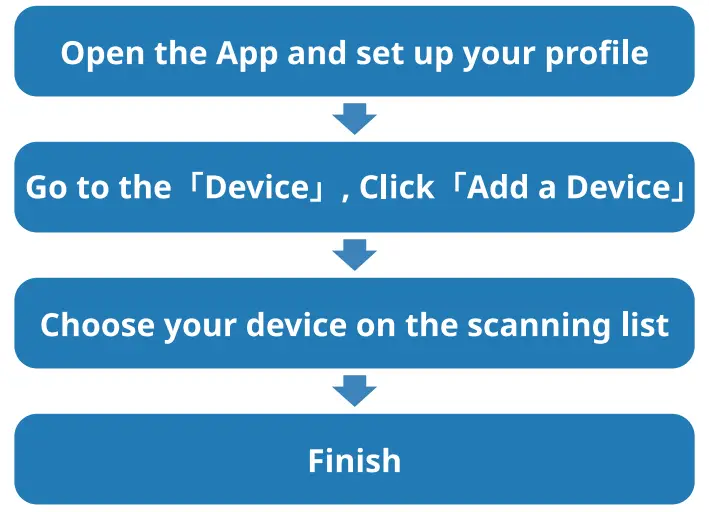
The MAC address on the “Setting”-“About” page could help you identify your device on the scanning list.
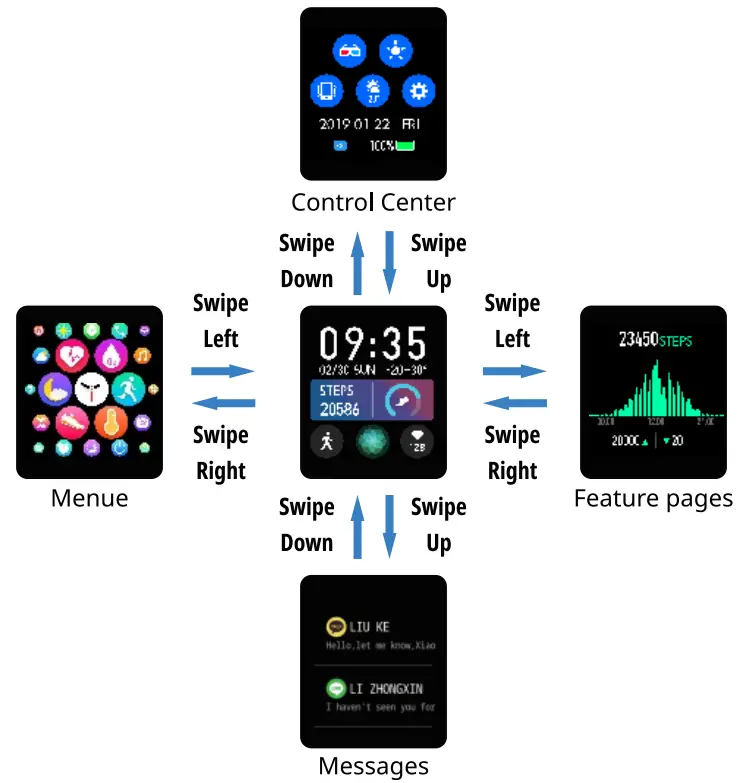
Use the Touch Screen
Phone Call
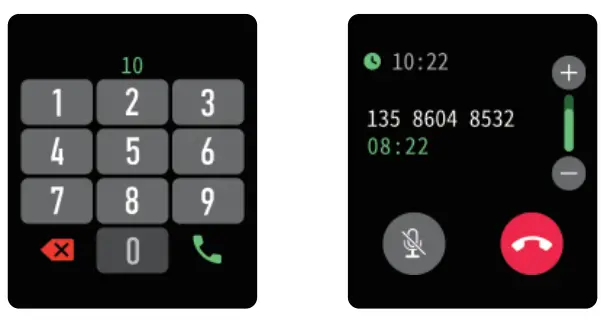
Connect to the bracelet through the phone’ s Bluetooth to make and receive calls
(**Note: Other functions must be connected to the bracelet via APP (Da Fit) to use).
Phone Call
Points to note when using:
- If the bracelet has been connected by another mobile phone, please disconnect it from the original mobile phone first At the same time, the wristband end will restore the factory settings once in the settings.
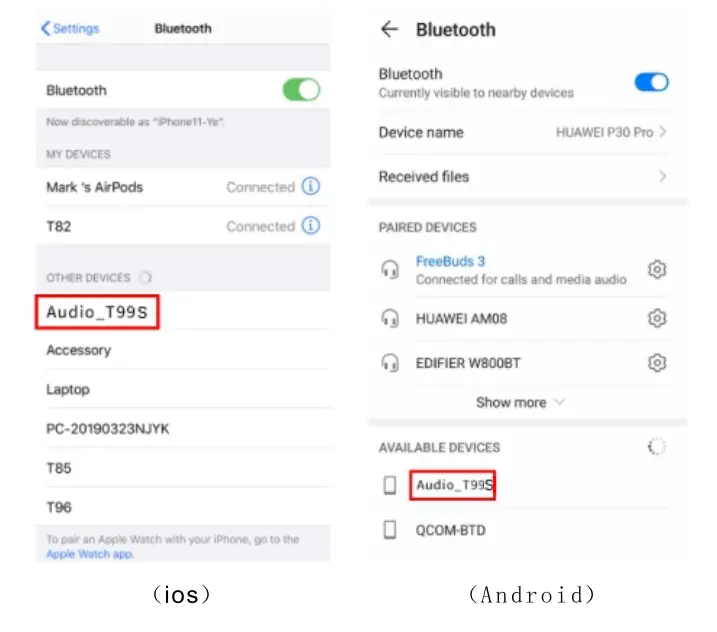
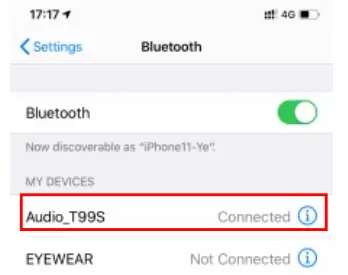
- Please note that the Bluetooth name of the call connection is “Audio_T99S”, (**This “Audio_T99S”, (**This device must not be connected to a Bluetooth device named “T99S”, otherwise it will appear when the APP is connected, and the search cannot be found here Problems with equipment**).
- Please do not leave the bracelet more than 5 meters away from the phone during a call, otherwise the call quality will be affected.
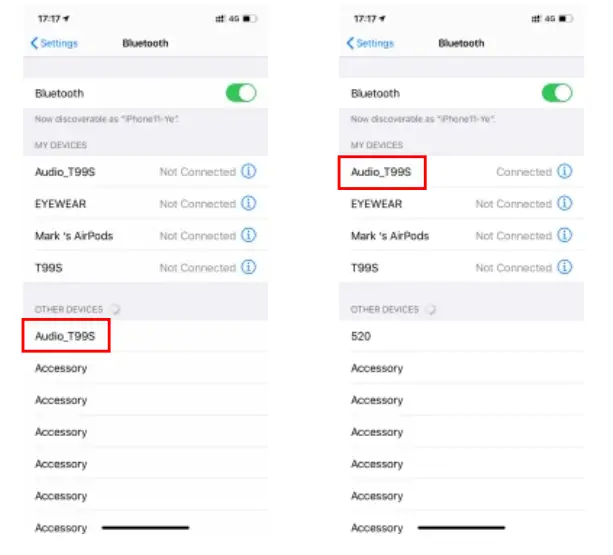
In the mobile phone operation: settings-Bluetooth-search for “Audio_T99S” after connecting You can dial or answer the call
Smart Watch Features
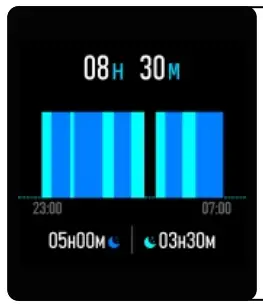
Sleep
If you keep wearing Smart Watch in your sleep , it can provide the hours slept and quality of sleep stats on both the screen and the APP.
NOTE: Sleep stats reset to zero at 8:00 pm. 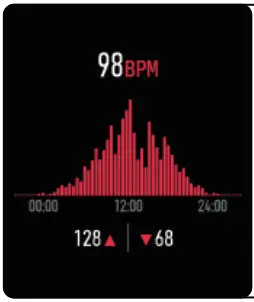
Heart Rate Test
The Smart Watch could record your heart rate all day.
You also could tap on the page to start measuring heart rate.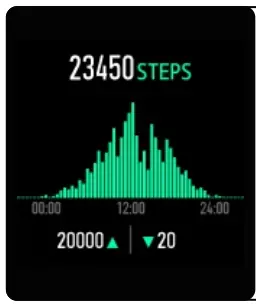
Sports
Smart Watch automatically tracks Steps taken on the screen.
NOTE: Your movement stats reset to zero at midnight. 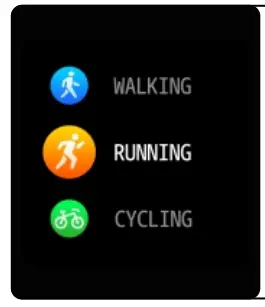
Training
Tap the training icon on the menu to start a new training measure recording, there are Multiple sport modes to be chosen. The last training recording will be shown on the training page.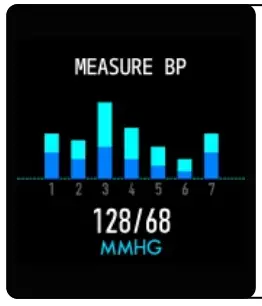 Blood Pressure Test
Tap on the blood pressure page to start measuring your blood pressure.
On the blood pressure page, It can show the blood pressure measured data of the last times.
 SpO2 Test
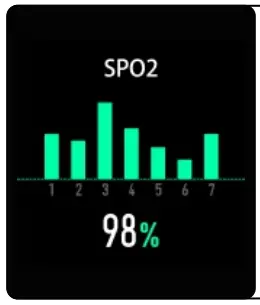
Tap the SpO2 page to start measuring your SpO2.
On the SpO2 page, It can show the SpO2 measured data of the last times.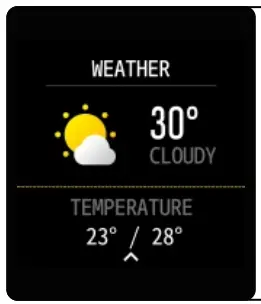
Weather
It could show the weather info of current and tomorrow on the weather page.
Weather info is synced after con- nesting with the APP, it will not be updated after a long disconnected. 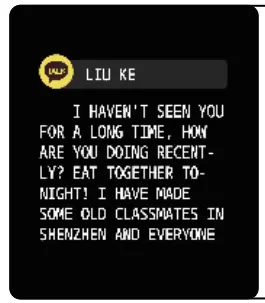
Messages Reminder
The device can sync incoming notifications from Twitter, Facebook, WhatsApp, Instagram etc.
Recently 5 messages can be stored.
Note: You can switch of/off the incoming notification in the APP.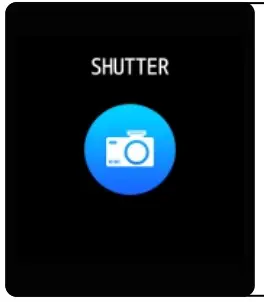 Remote Shutter
After connecting the device, you can remote control the camera on your phone.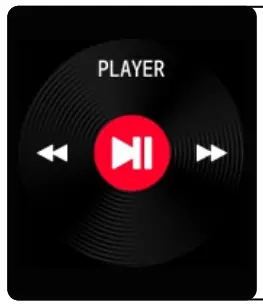
Player Shutter
After connecting the device, you can remote control the music player on your phone.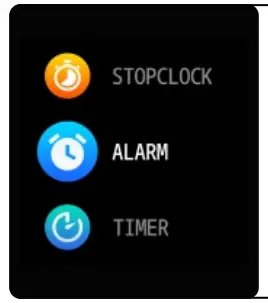 Other Features
Other features include stopwatch, alarm, timer, brightness, mute on/off, theater mode, factory reset, power off and about. 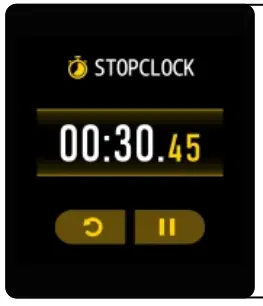
Stop Watch
Tap the start button on stopwatch page to start timing, and tap the stop button to stop timing. 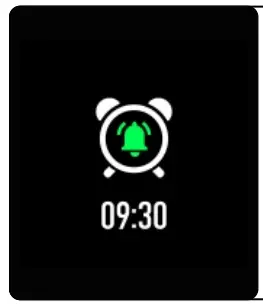
Silent Alarms
Set up the alarm on the APP, the device will vibrate to remind on time. 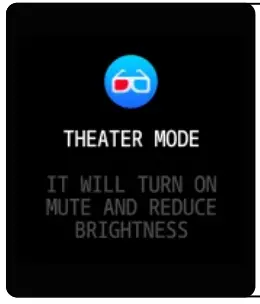
Theater Mode
The device will turn off the vibration and trunk down the brightness when the theater mode is turned on.
Note: You can trunk on/off the theater mode in the control center.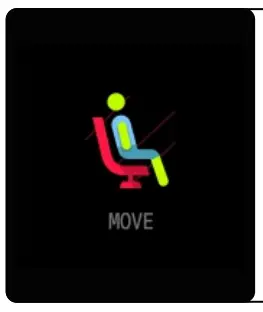 Remind to Move
The device will vibrate to remind you to make a relax after 1 hour sitting.
Note: You can switch on/off the feature in the APP.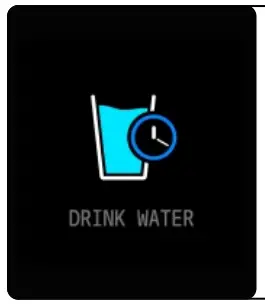 Remind to Drink
The smart watch will remind you “Time to Drink Some Water” at the planned drinking time. Note: You can set the feature in that APP.
Getting to Know Your Device
- If you need to play songs and answer calls through this bracelet, Please go to the mobile phone-Settings-Bluetooth-Connect Audio_T99S Bluetooth name device
(If it cannot be used due to disoperation after a period of use, You can also repeat the following steps) General Info & Specifications
 - If the device of Audio_T99S is not found, please confirm the When the Bluetooth switch is turned on
a. Please slide down on the top of the bracelet (top drop-down menu)
-Settings-Confirm that the phone is “on”
b. If necessary, if you can’t find it yet, please click on the wristband
-Settings-Restore factory settings, then go back to step 1
Find the connected Bluetooth device named Audio_T99S
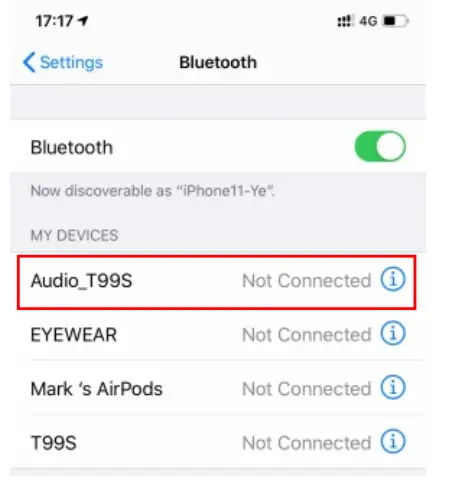
- If the wristband is away from the phone for a long time, To achieve low power consumption and enhance battery life, The bracelet will automatically disconnect from the phone. As shown in the figure below, it is displayed as “not connected”

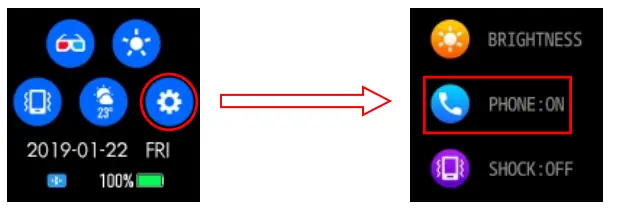
- Please pull down the menu-Settings-Call on the bracelet side, Switch the switch once and then turn it on again,
Then the wristband will automatically reconnect with the phone.
Click to close the one-time call function,
Tap the call again to change the status to “On” again, You can re-enter the connection state. - The bracelet will automatically connect with the phone again
 General Info & Specifications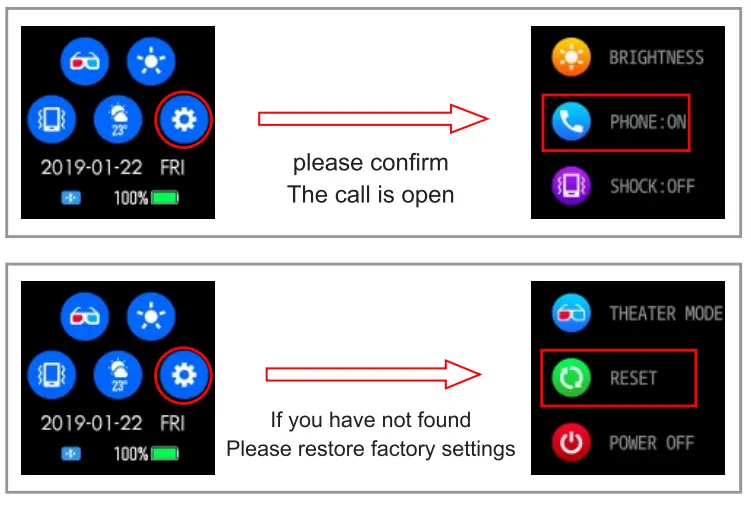
- Using in Wet Conditions
Your device is water-resistant, which means it is rain-proof and splash-proof and can stand up to even the sweatiest workout.
NOTE: Do not swim with your Smart Bracelet. We also don’t recommend showering with your wristband; though the water won’t hurt the device, wearing it 24/7 does not give your skin a chance to breathe. Whenever you get your bracelet wet, dry it thoroughly before putting it back on. - Using Quick View
With Quick View you can check the time or the message form your phone on your Smart Bracelet without taping. Just turn your wrist towards you and the time screen will appear for a few seconds.
General Info & Specifications
- Environmental Conditions
Operating temperature: 14°F to 122°F (-10°C to 50°C)
Non-operating temperature: -4°F to 140°F (-20°C to 60°C) - Size
Fits a wrist between 5.5 and 7.7 inches in circumference. - Disposal and Recycling
Please kindly be aware that it is the consumer’s responsibility to properly dispose and recycle Smart Bracelet and accompanying components. Do not dispose of Smart Bracelet with common household waste, the Smart Bracelet unit is considered electronic waste and should be disposed of at your local electronic equipment collection facility. For more information, please contact your local electronic equipment waste management authority or the retailer where you bought the product.