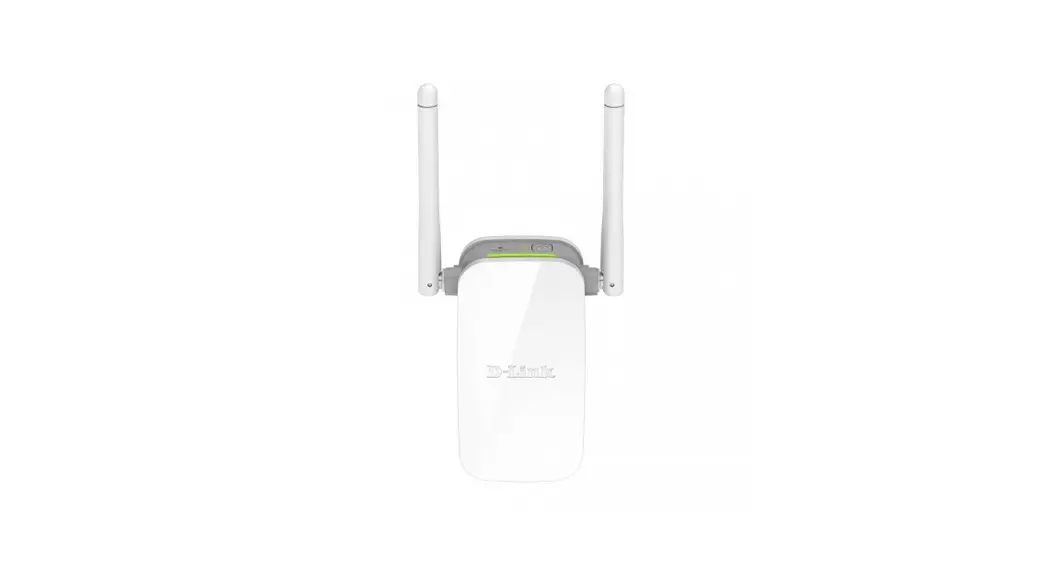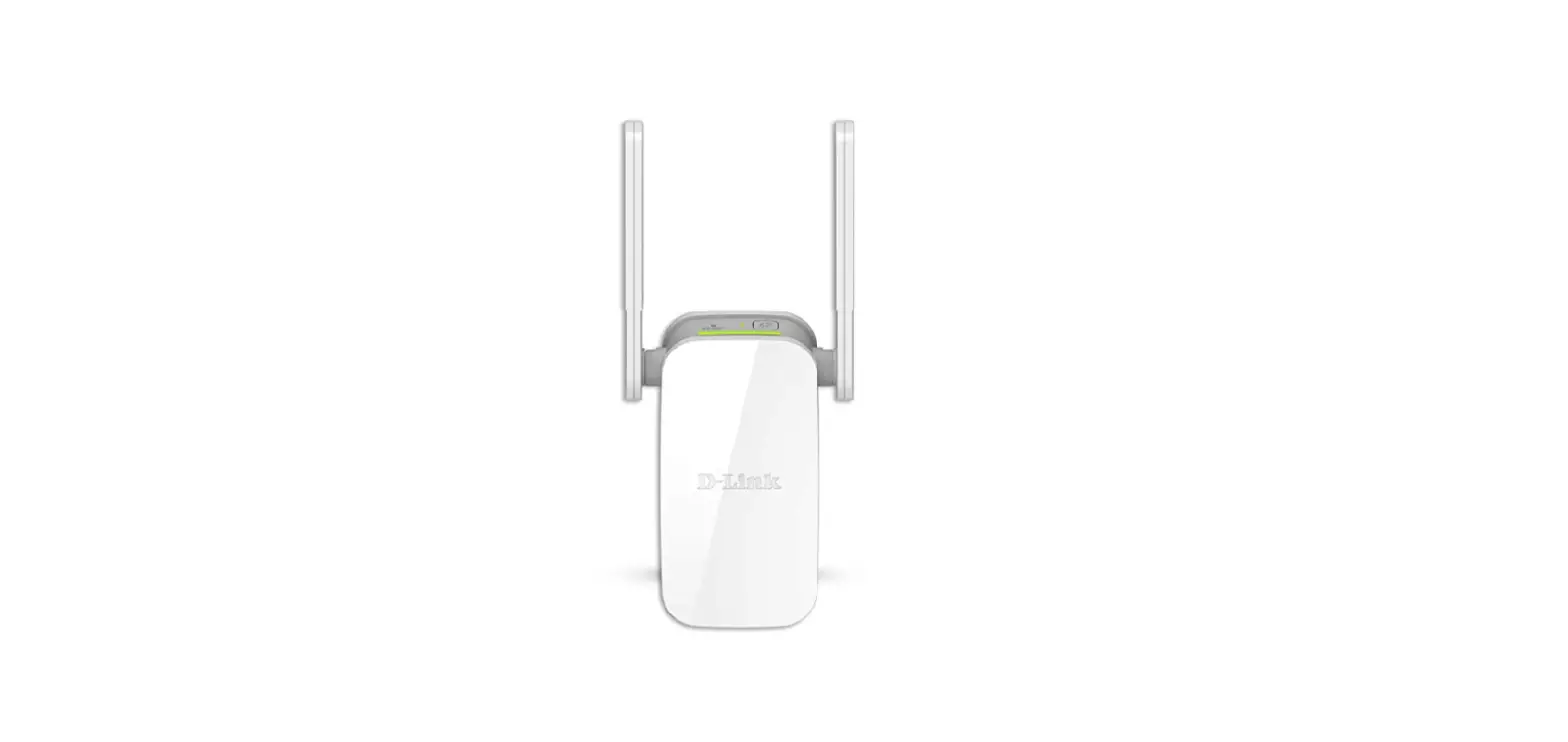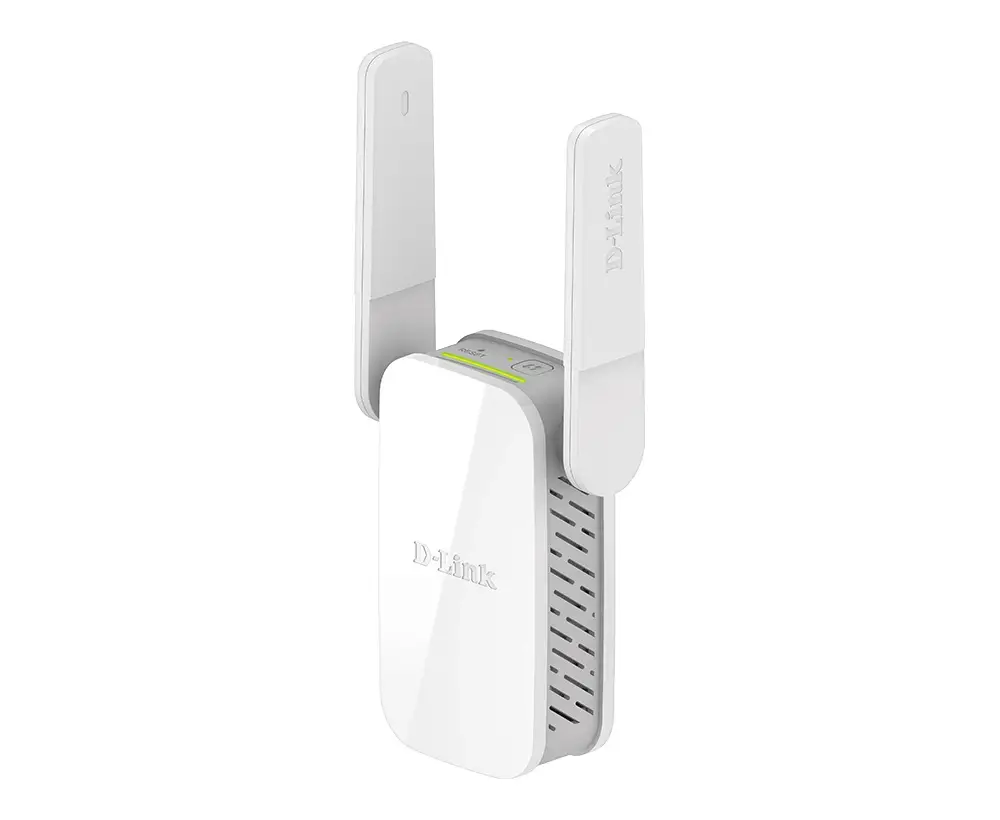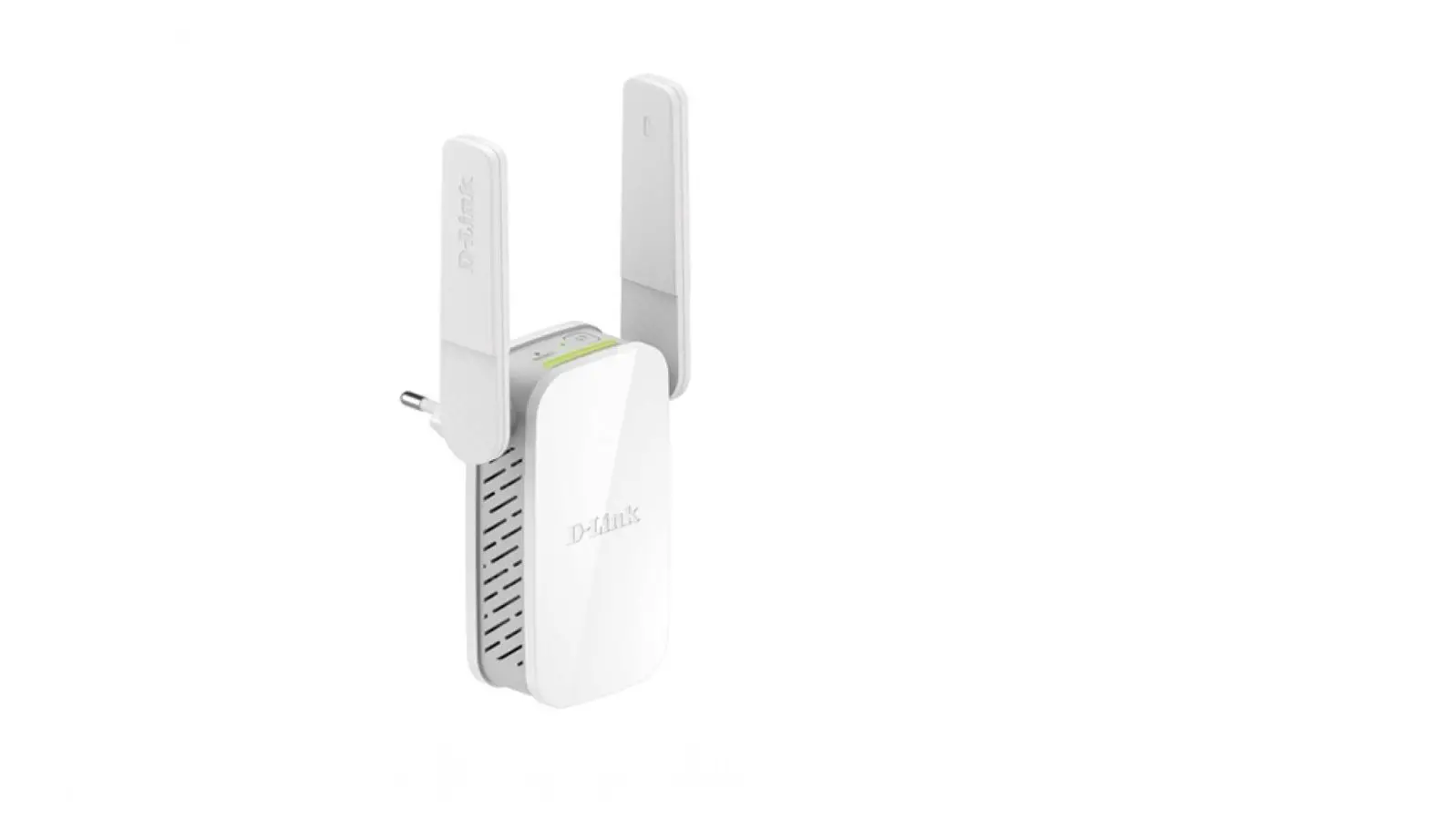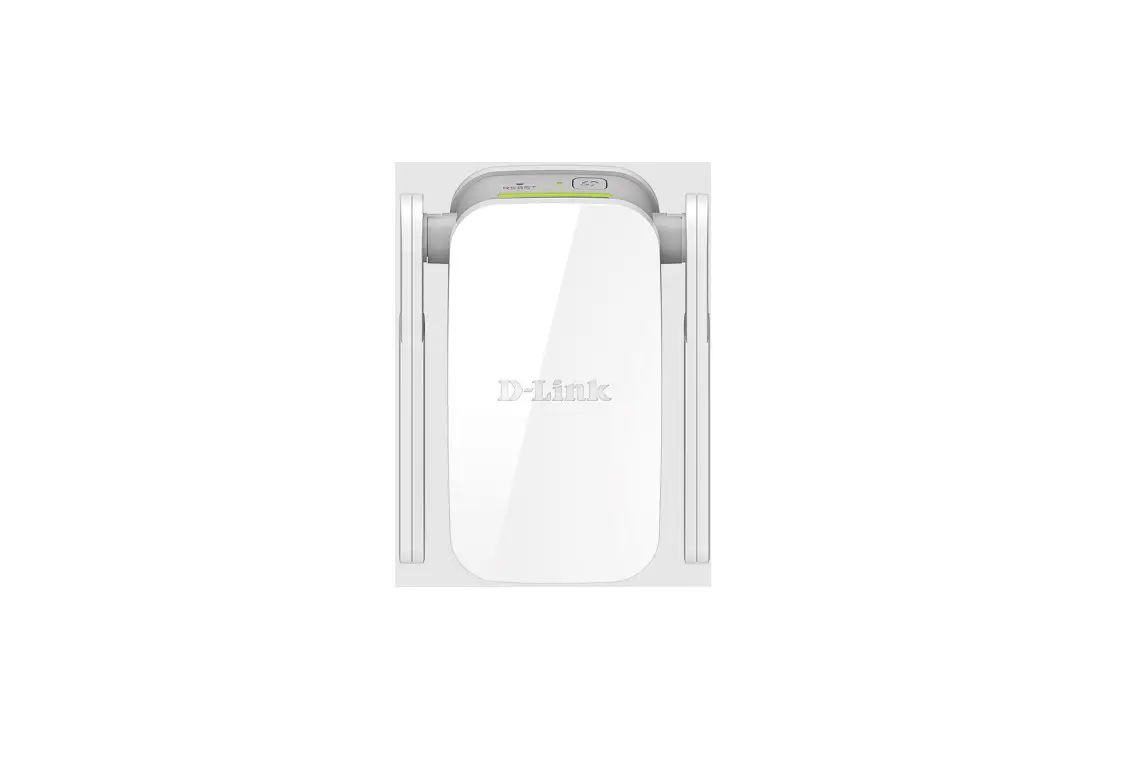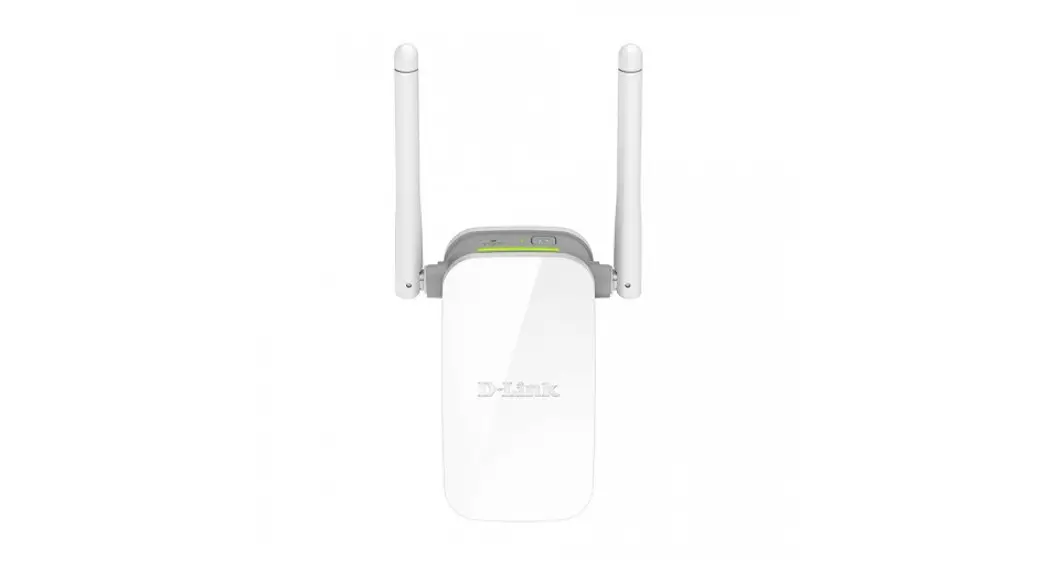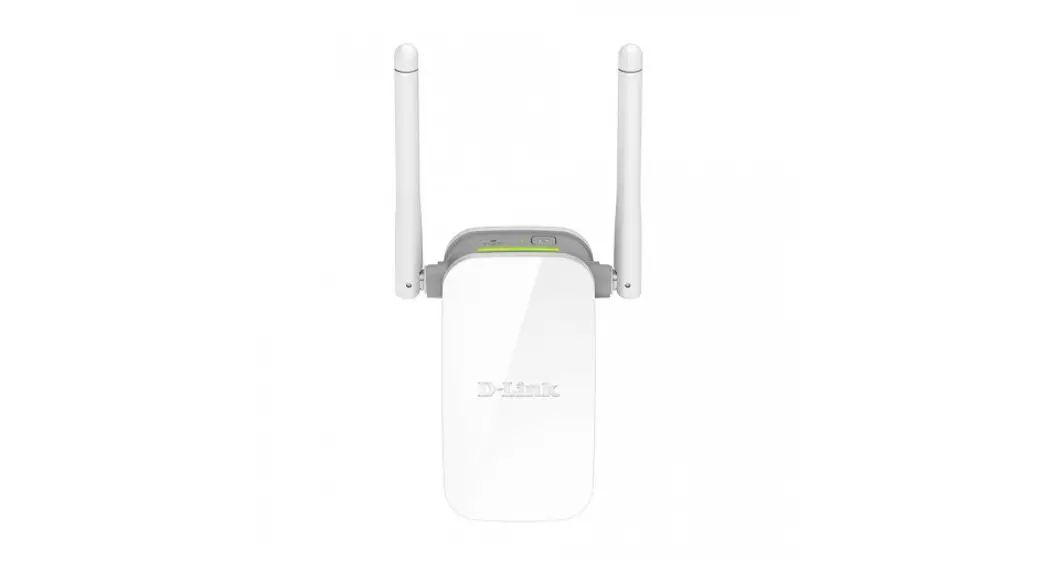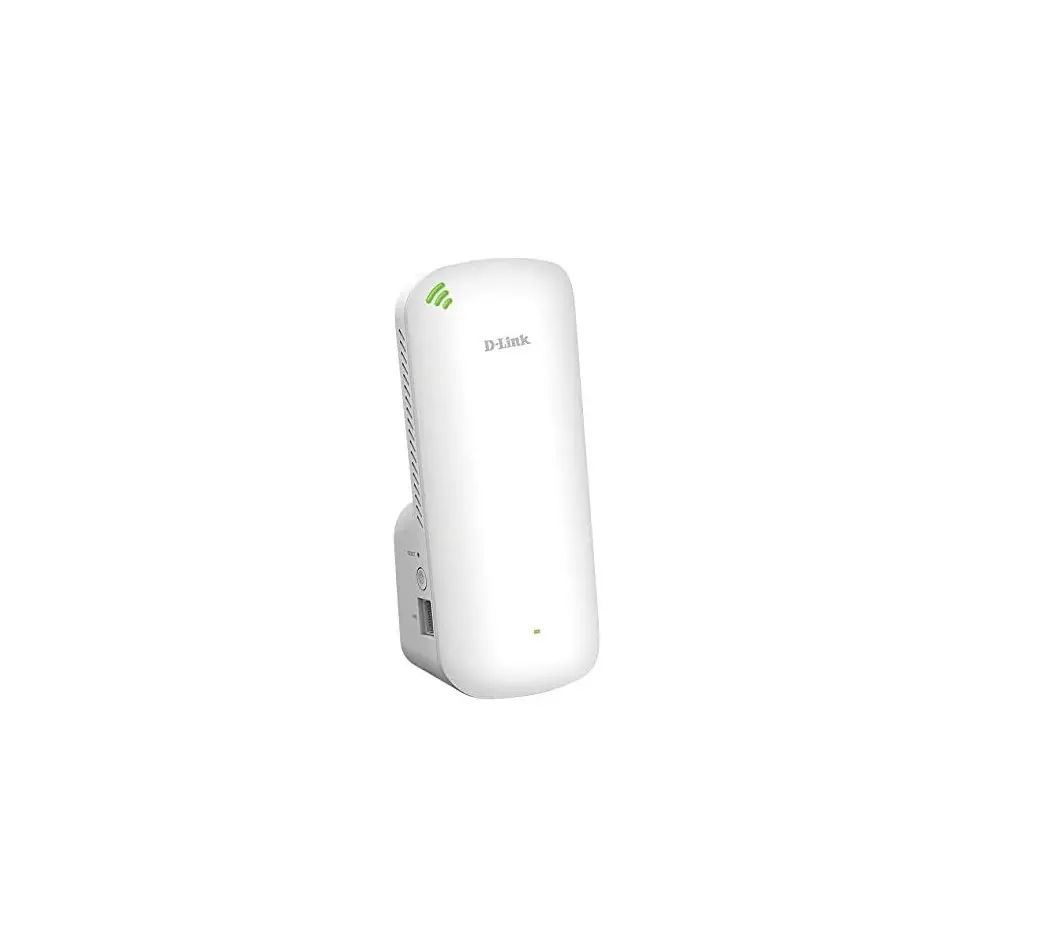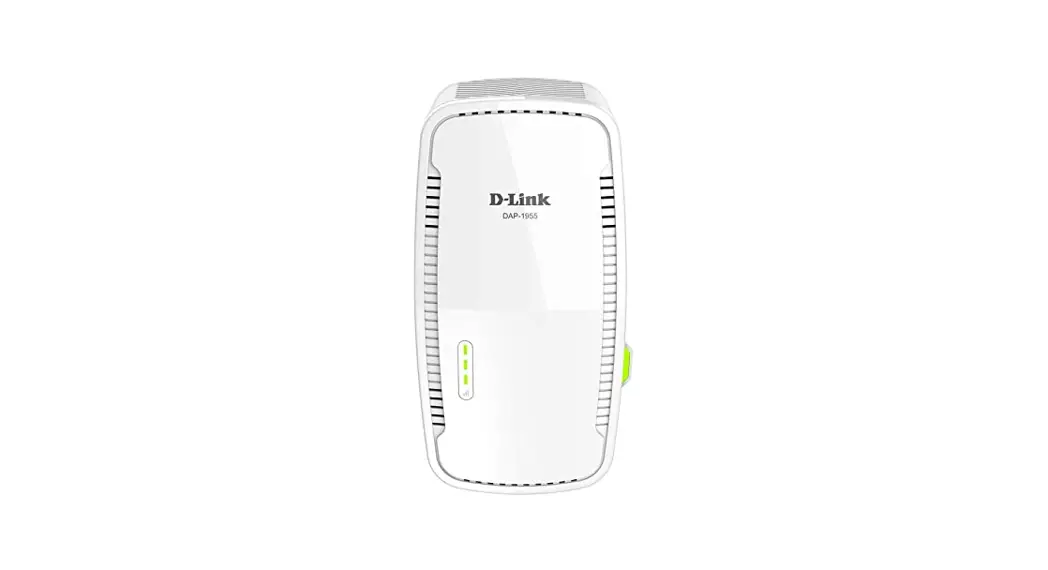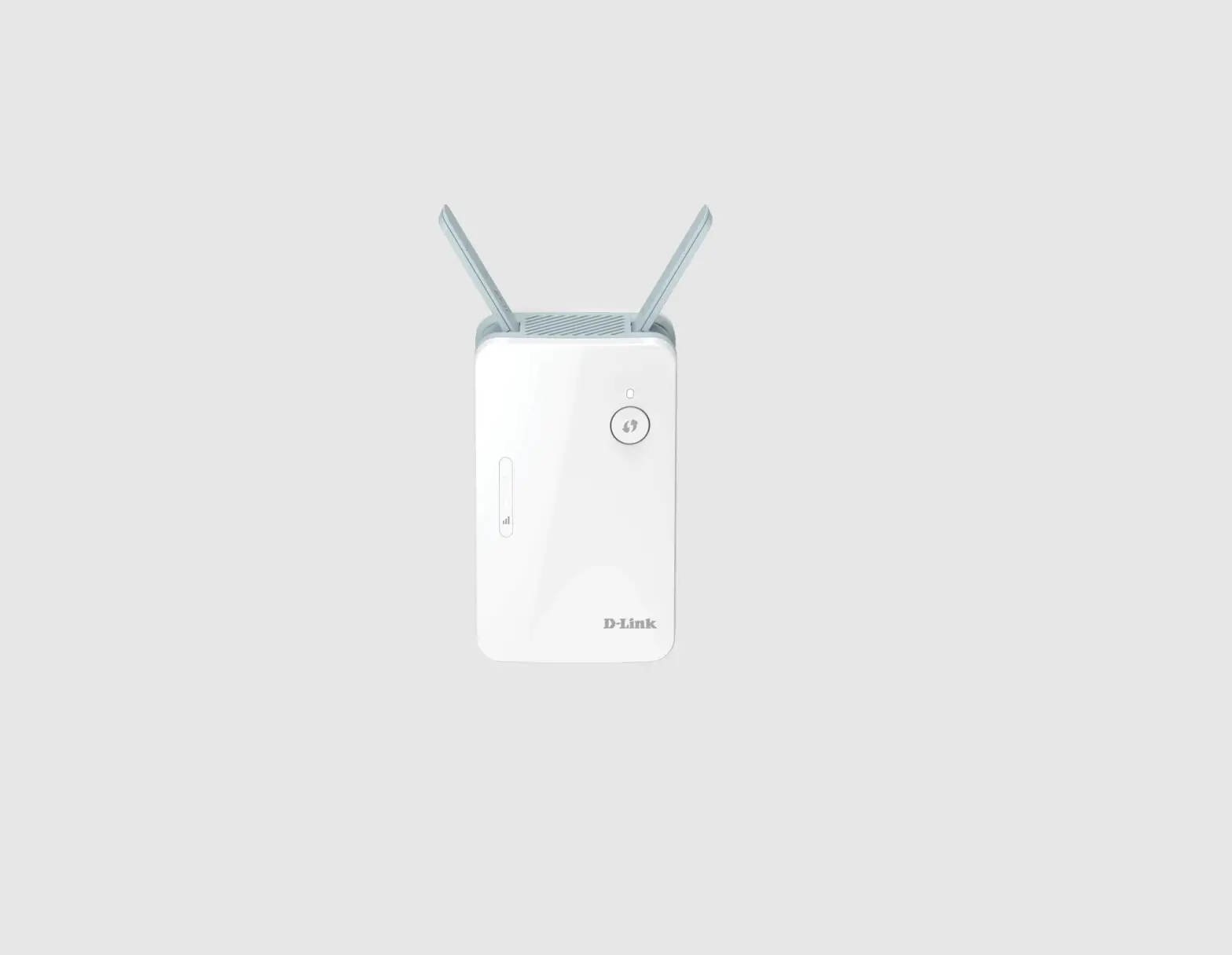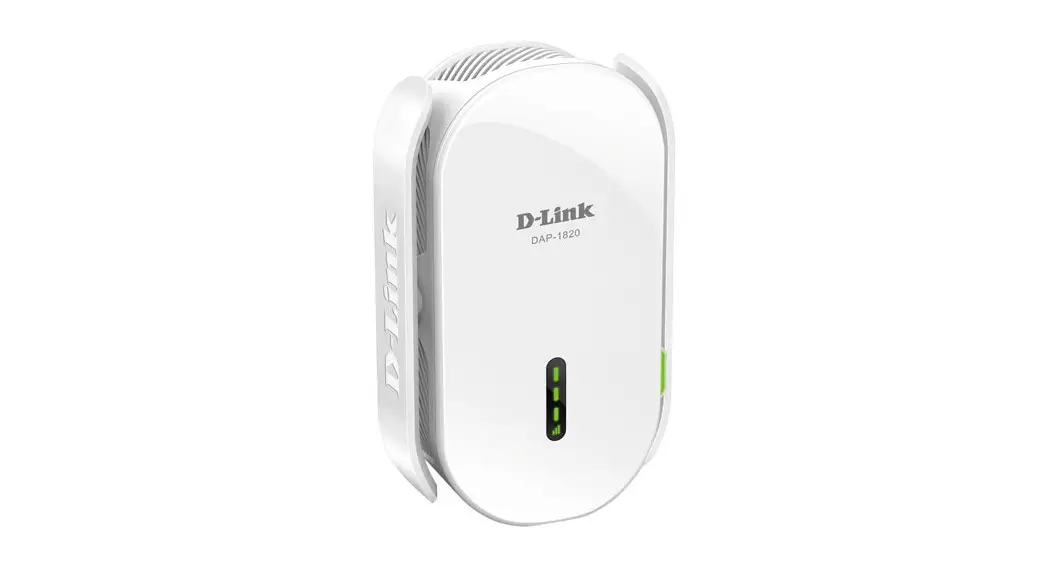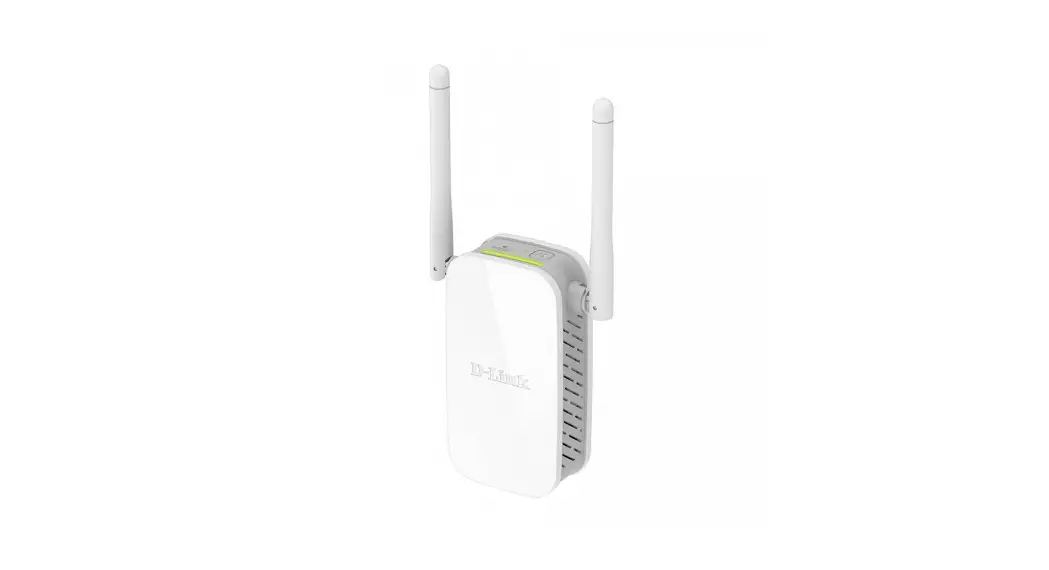

N300 WI-FI RANGE EXTENDER
DAP-1325
QUICK INSTALLATION GUIDE
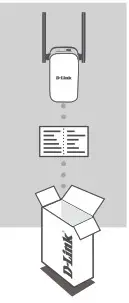
CONTENTS OF PACKAGING
N300 WI-FI RANGE EXTENDER
DAP-1325
WI-FI CONFIGURATION CARd
If any of these items are missing from your packaging, contact your reseller.
INTRODUCTION
The DAP-1325 extends the wireless coverage of an existing wireless router or access point (AP) via wireless or Ethernet port. Please refer to the User Manual, available at http://dlink.com for instructions on how to use your DAP-1325 as a wired extender.
PRODUCT SETUP
SETUP
SELECT YOUR METHO
You may set up the DAP-1325 using WI-FI Protected Setup (WPS) (recommended), the QRS Mobile App, or a web browser.
SETTING UP THE dAP-1325 USING WI-FI Protected SETUP (WPS)
NOTE: Your source router or AP must feature a WPS button to use WPS.
Step 1
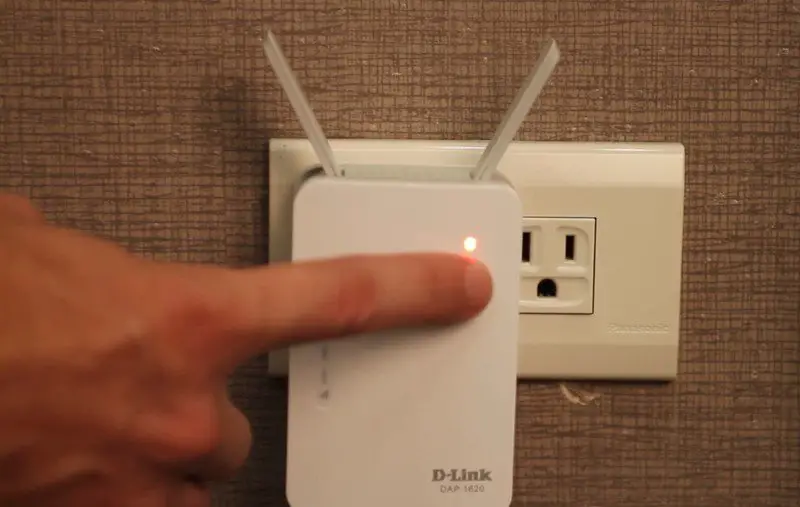
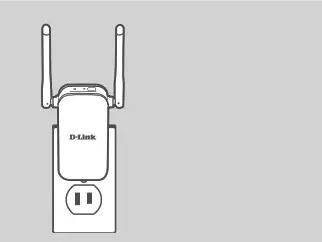
Fully extend the antennas to provide optimal wireless coverage. Plug the DAP-1325 into a wall outlet, and wait until the Status/WPS LED is blinking amber.
 Step 2
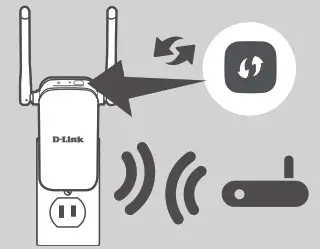
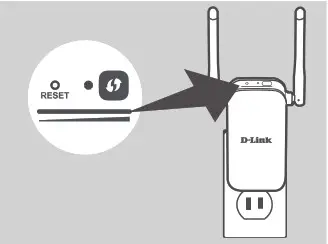
Push the WPS button on your source wireless router or AP, then push the WPS button on the DAP-1325. The Status/WPS LED will start flashing green. Allow up to two minutes for the process to finish. The Status/ WPS LED will turn solid green when the DAP-1325 has connected successfully.
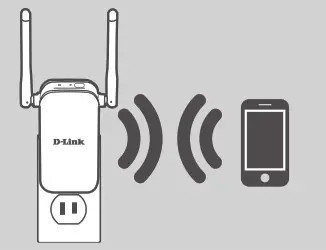 Step 3
Connect your clients to an extensive network created by the DAP-1325:
(Your router’s SSID)
After WPS, the password of (Your router’s SSID) will be the same as the source wireless network’s.
SMART SIGNAL LEdS
OPtiMiZe exteNdeR LOCatiON
If the Smart Signal LED has a single amber bar after the connection process has finished, the DAP-1325 has established a poor-quality connection. To improve the connection quality, the DAP-1325 should be relocated to a wall outlet closer to the source wireless router or AP. The more lit bars on the Signal LED, the better the wireless signal.
SET UP dAP-1325 WITH QRS MOBILE APP
The DAP-1325 can be configured using your smartphone. Search for “D-Link QRS Mobile” on the Apple App Store or Google Play, and download the app. Next, connect your smartphone to the DAP-1325 using the SSID and Password information provided on the Wi-Fi Configuration Card and follow the helpful in-app prompts, or refer to the product manual for more information.
SET UP dAP-1325 WITH A WEB BROWSER
The DAP-1325 can also be configured using a web browser. Once you have plugged the DAP-1325 into a wall outlet within wireless range of your router or connected to your existing wired network, open the wireless utility on your computer, select the name (SSID) of the DAP-1325 network, and enter the password (both of these are found on your Wi-Fi Configuration Card). Next, open a web browser (e.g. Internet Explorer, Firefox, Safari, or Chrome) and enter http://dlinkap.local./ By default, the username is Admin, and the password field should be left blank. Please refer to the user manual for further information on configuring the DAP-1325 using a web browser.
Note: Web browser configuration is not supported for Android Devices. Please use the QRS Mobile Application to configure your device.
TROUBLESHOOTING
SETUP AND CONFIGURATION PROBLEMS
- HOW DO I RESET MY DAP-1325 N300 WI-FI RANGE EXTENDER TO FACTORY DEFAULT SETTINGS?
– Ensure the product is powered on.
– Using a paperclip, press and hold the reset button on the side of the device for 5 seconds.
Note: Resetting the product to the factory default will erase the current configuration settings. The default Wi-Fi network name (SSID) and password are printed on the DAP-1325’s Wi-Fi Configuration Card. - HOW DO I CONNECT A PC OR OTHER DEVICE TO THE dAP-1325 IF I HAVE FORGOTTEN MY WI-FI NETWORK NAME (SSID) OR WI-FI PASSWORD?
– If you haven’t changed the extended Wi-Fi network’s settings, you can use the network name (SSID) and Wi-Fi password on the Wi-Fi Configuration Card.
– If you did change the network name (SSID) or Wi-Fi password and you did not record this information on the Wi-Fi Configuration Card or somewhere else, you must reset the device as described in Question 1 above.
– It is recommended that you make a record of this information so that you can easily connect additional wireless devices in the future. You can use the included Wi-Fi Configuration Card to record this important information for future use.
TECHNICAL SUPPORT
You can find software updates and user documentation on the D-Link website.
Tech Support for customers in
| Australia: Tel: 1300-700-100 24/7 Technical Support Web: http://www.dlink.com.au E-mail: [email protected] | India: Tel: +91-832-2856000 or 1860-233-3999 Web: www.dlink.co.in E-Mail: [email protected] |
The purpose of this product is to create a constant network connection for your devices. As such, it does not have a standby mode or uses a power management mode. If you wish to power down this product, please simply unplug it from the power outlet.