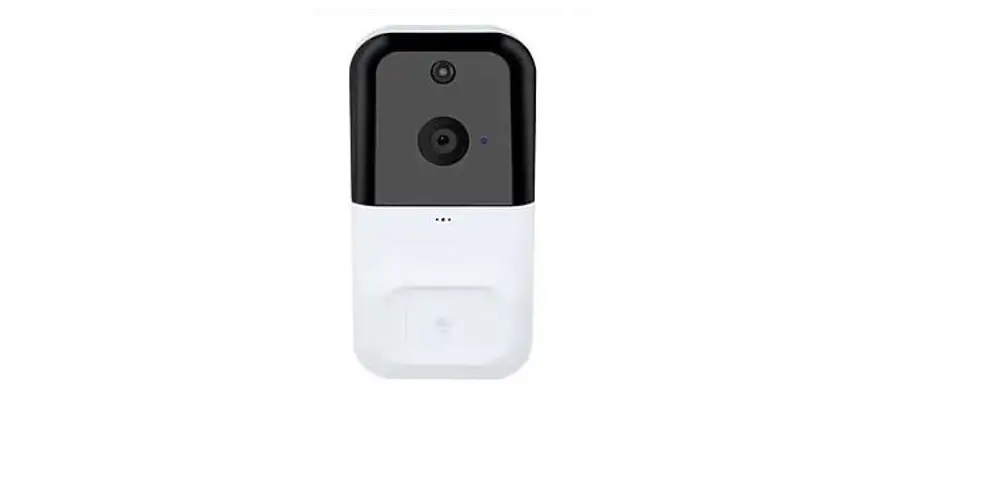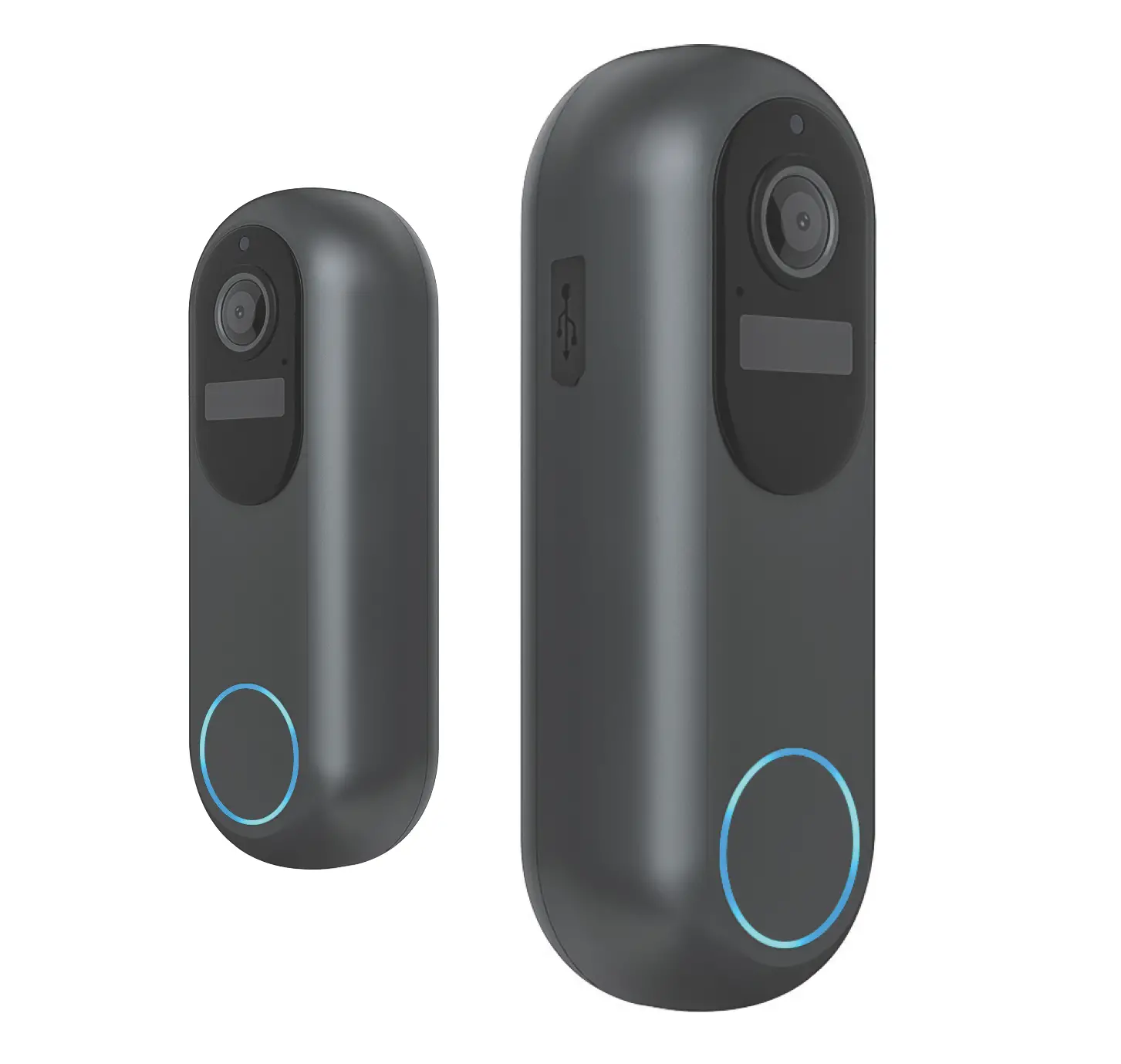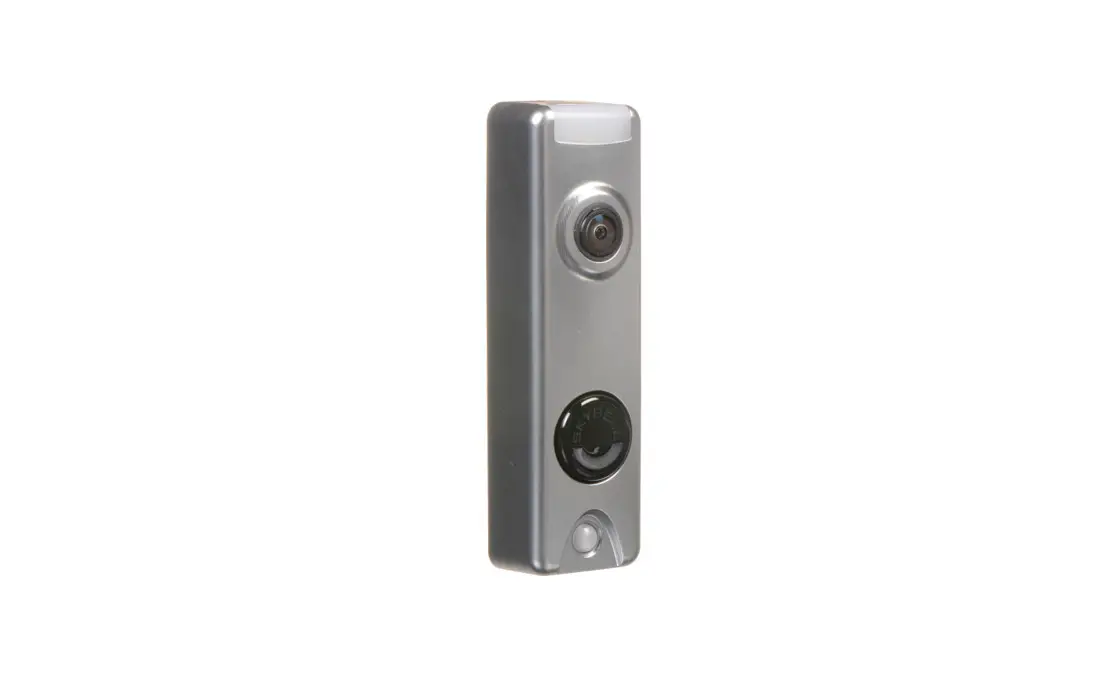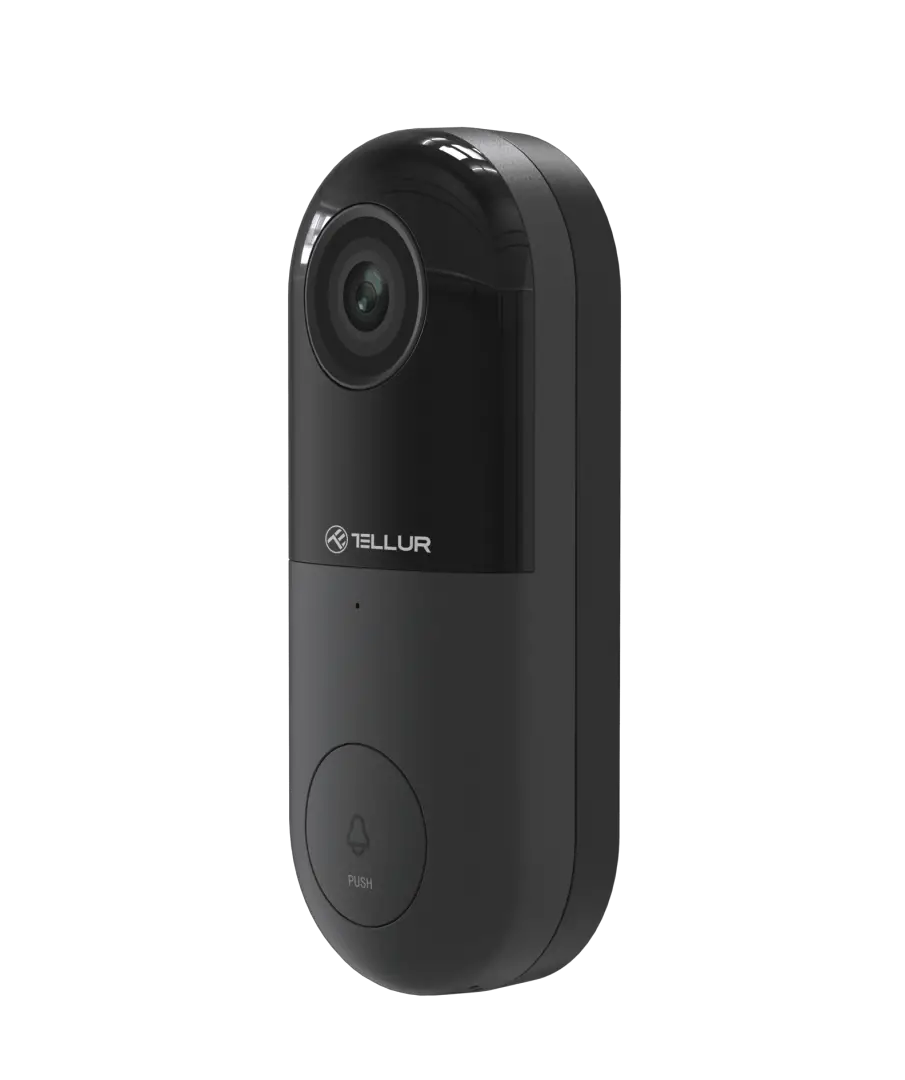
AI Wi-Fi HD AI Video Doorbell


Features
- AI face recognition, custom voice broadcast.
- Intelligent face retrieval, to quickly find visitors’ information.
- Stranger detection, push alert information in real-time.
- Two-way audio, easier communication.
- IP 65 weatherproof housing for durability.
- Cloud storage, is convenient and secure.
Packing lists
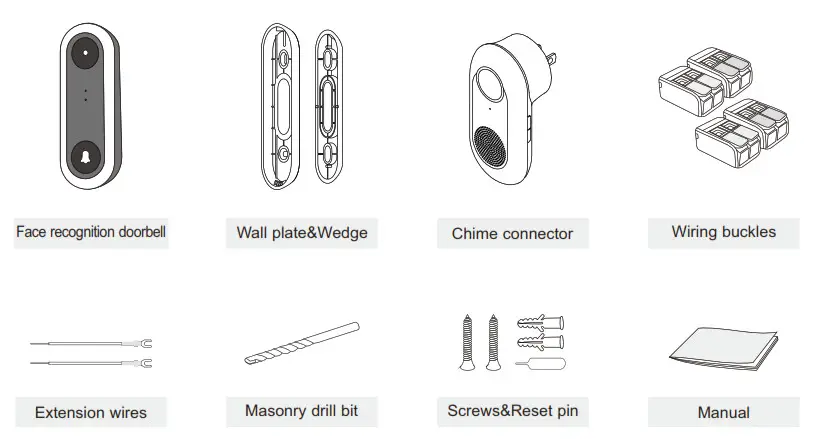
Product Diagram
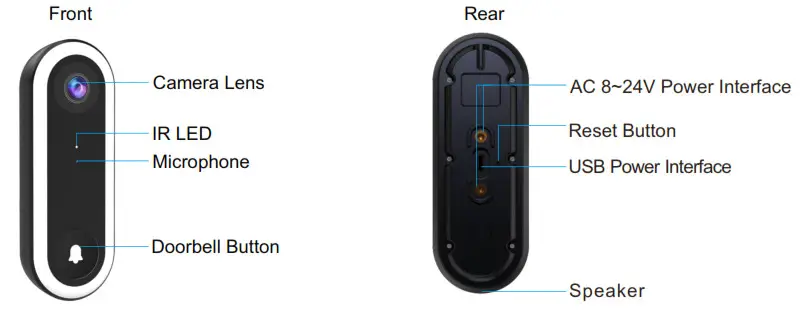
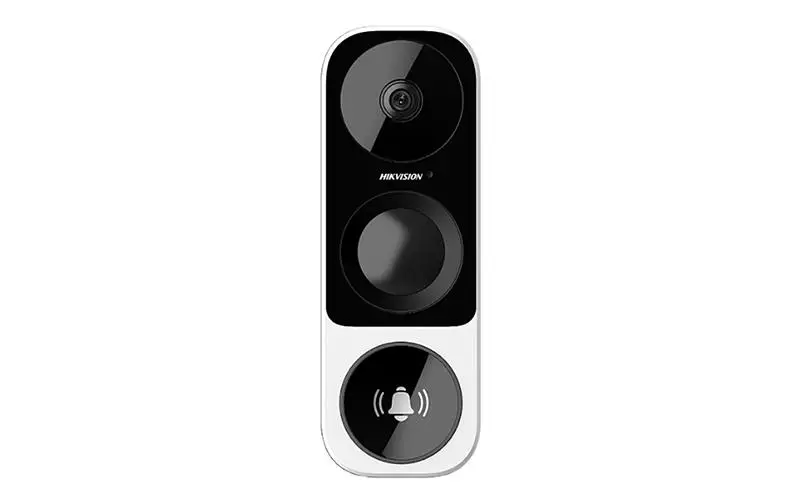
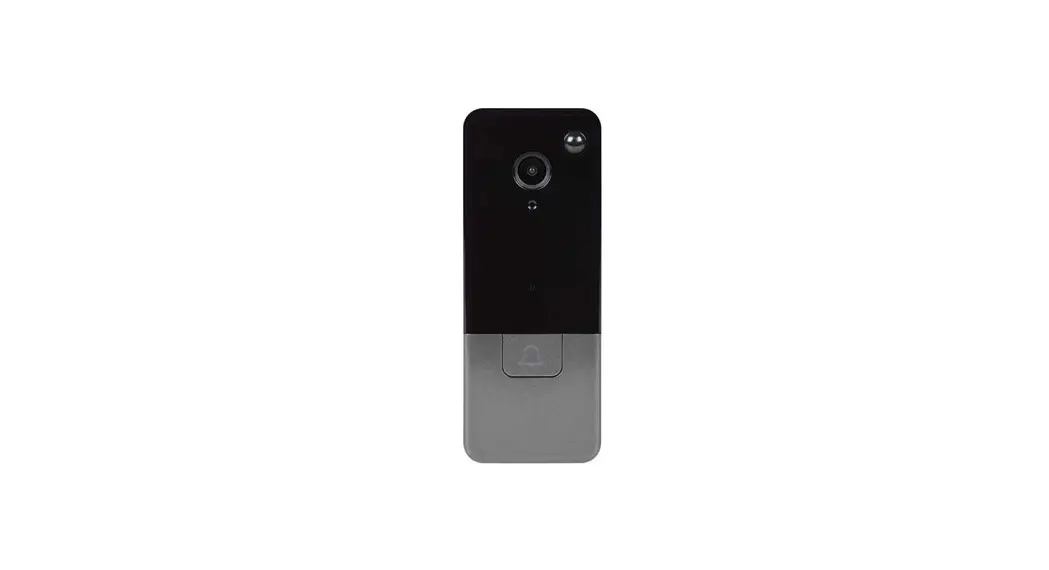
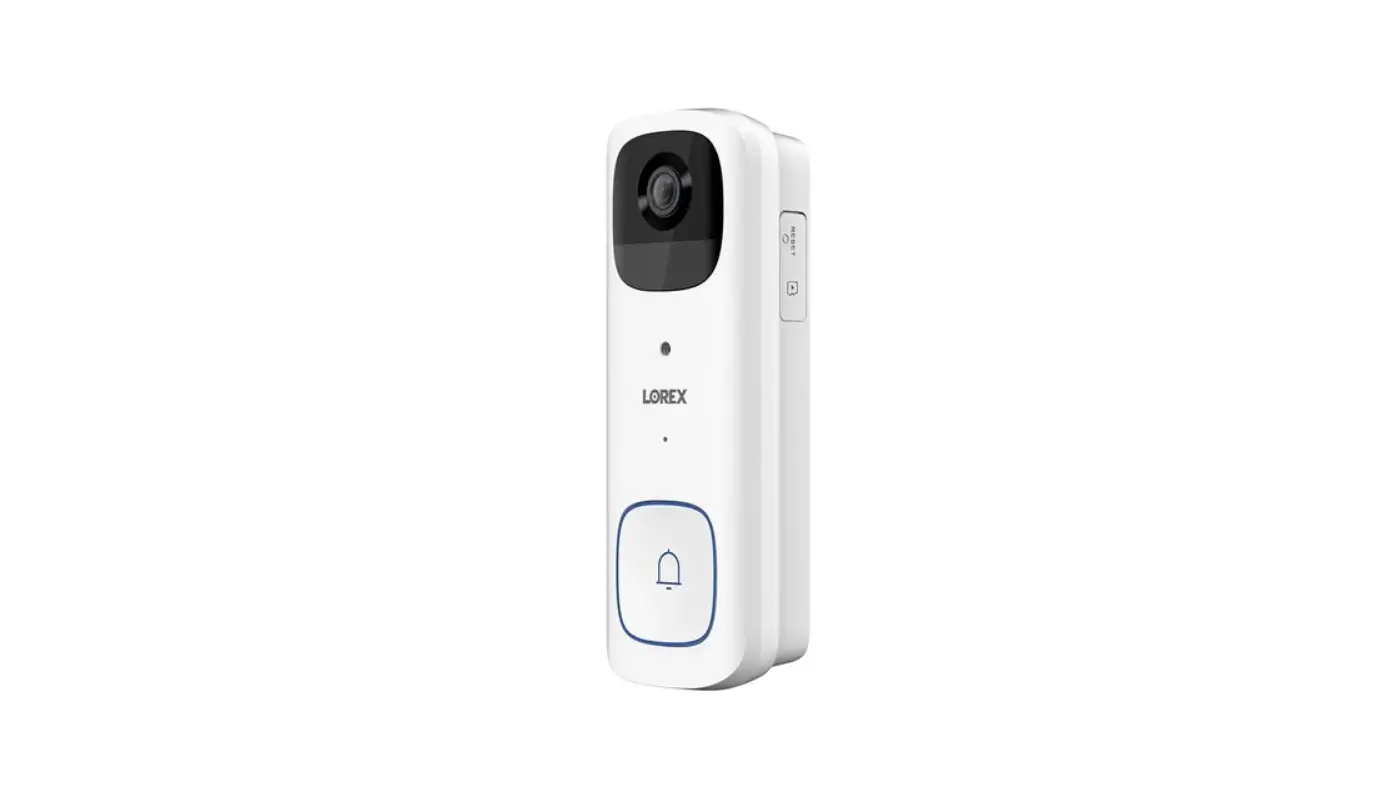
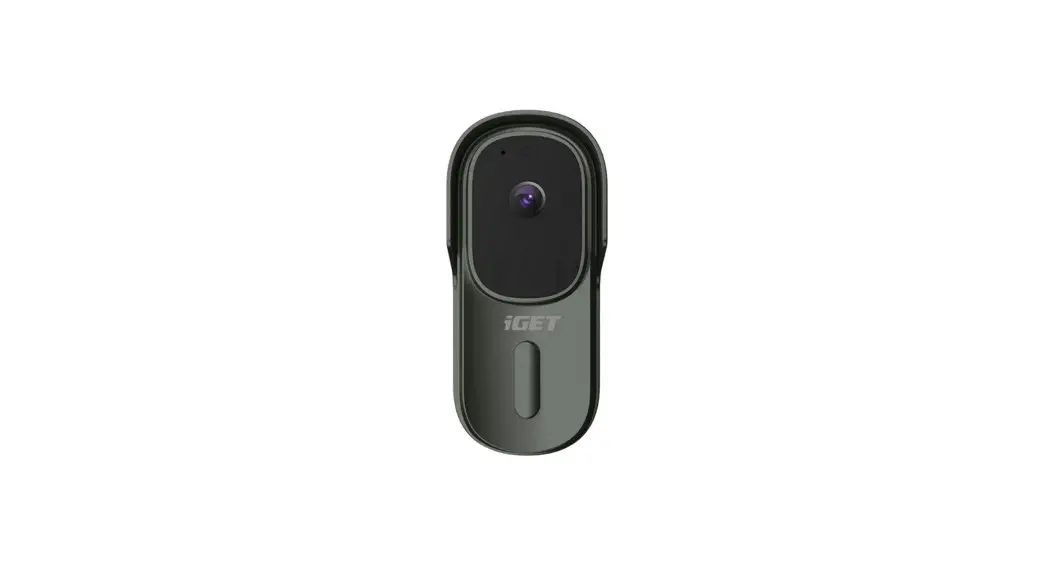
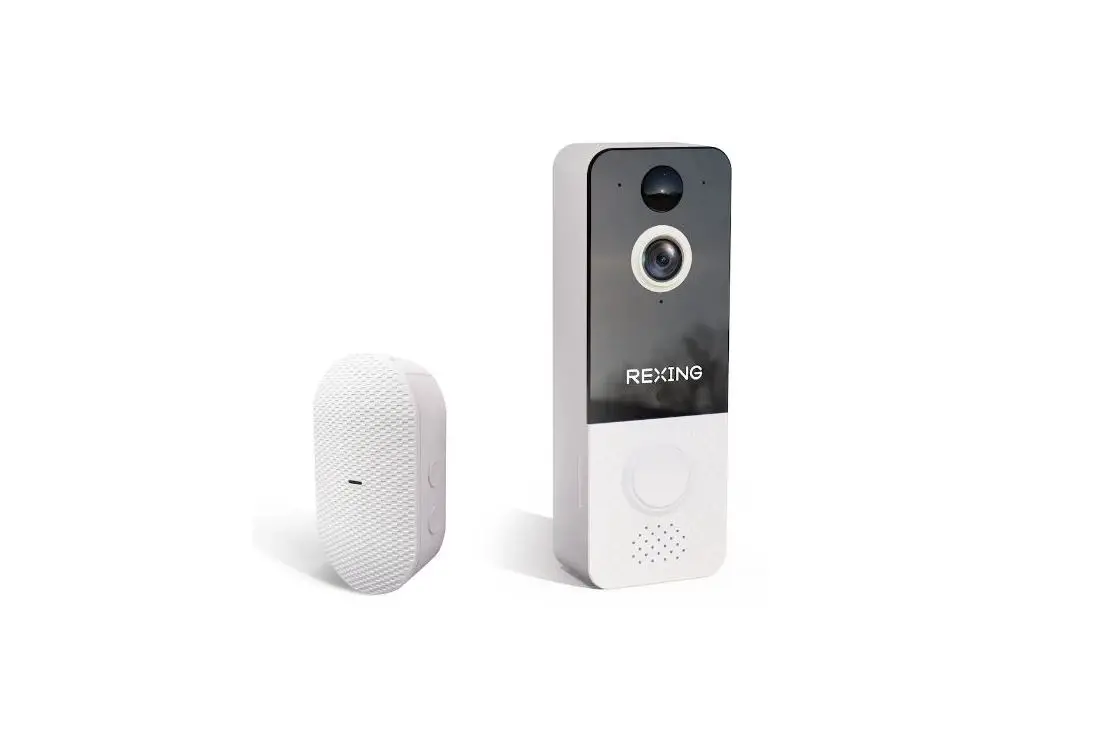
| Camera Lens IR LED Microphone Doorbell Button | Capture image video When not enough light, turn on the IR LED, night vision mode on Collect sound, talk Doorbell button |
| AC 8~ 24V Interface Reset Button USB Power Interface Speaker | AC 8~ 24V power interface Press and hold for 5 seconds to restore to factory settings DC 5V USB power interface Issue system tone and listen |
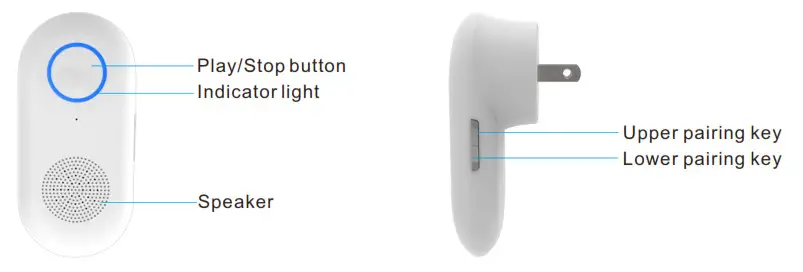
| Play/Stop button Indicator light Speaker Upper/lower pairing key | Play/stop the music Indicates the status of the device Speaker Doorbell pairing |
How to connect the power?
Two methods of power supply are optional: 5V USB power supply and AC power supply, please choose according to your needs and the actual situation at home. Here are the installation steps for AC power supply:
- Remove the existing doorbell
Use a screwdriver to remove your existing doorbell. Disconnect the wires from behind the doorbell carefully.
- Drill holes
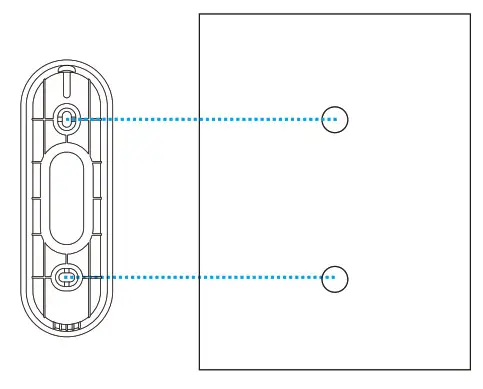
Mark the installation hole position of the new doorbell (which needs to correspond to the screw hole on the back of the doorbell) and drill the hole, noting that the aperture size matches the plastic expansion rubber in the screw bag.
- Insert the plastic expansion rubber into the hole, and fix the base plate. Do not cover the power cord.
Tip: The wedge(15°)can be used to adjust the view of the doorbell, making the angle to the left or right as needed.
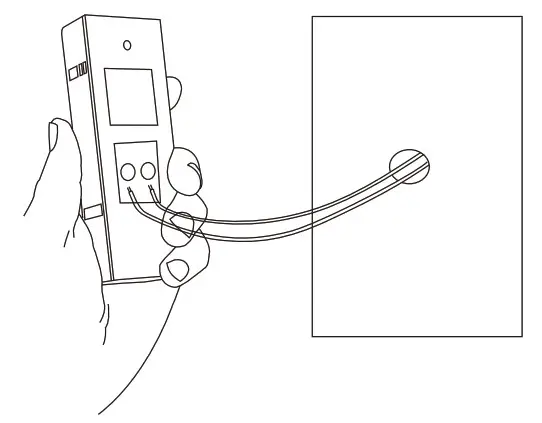
- Unscrew one of the power terminals on the back of your doorbell, and wrap the existing wiring from your doorbell around the terminal, and then tighten the screw.
Tip: It doesn’t matter which cable you use on which side of the terminal back.
- Optional step for Extending Power Supply(Requires Wiring buckle and Power Extender Cables):
1) If the existing wire is too short, use the Power Extender Cables and connect the flat circular end of it to the terminal, then screw the terminal back on.
2) Pull the orange levers on the Wiring buckle up.
3) Insert the existing cable from the wall to one of the slots and push the orange lever back down.
4) Insert the new power cable from the doorbell to the other slot and pull the lever back down in place.
5) Repeat this process for the other side.
- Use the screws to fix the doorbell with the base plate from the top.

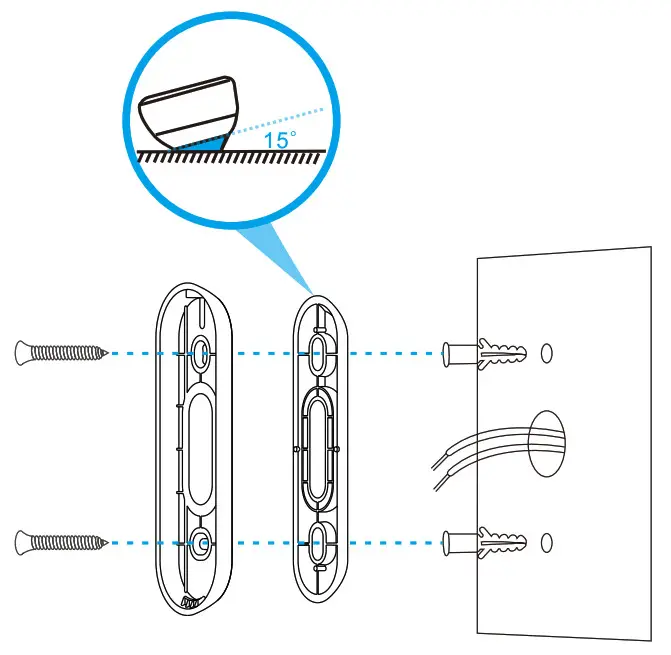
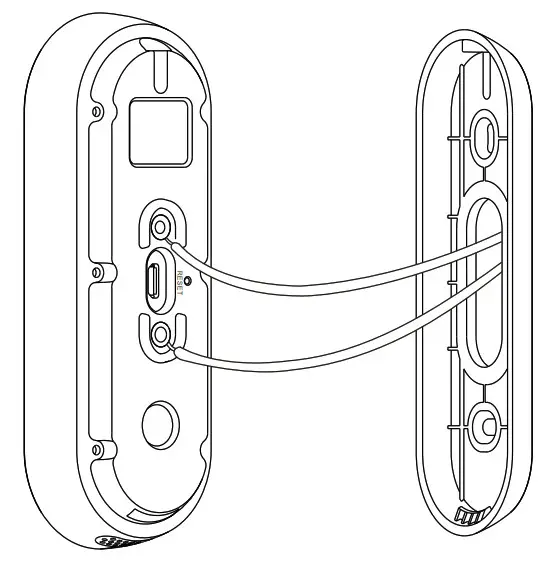
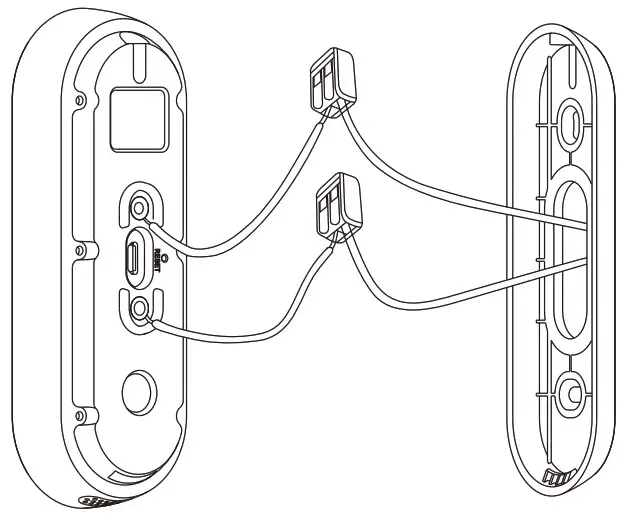
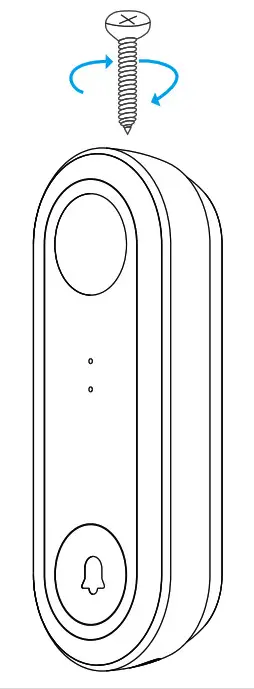
Note: Please install the doorbell after the network configuration is complete.
Video Tutorial
If it is your first time to use our products, it is recommended to scan the QR code below to watch the video tutorial.

https://www.vstarcam.com/support/2181
Step 1. Pre-Setup
- Connect your phone to the WiFi network (2.4GHz only).
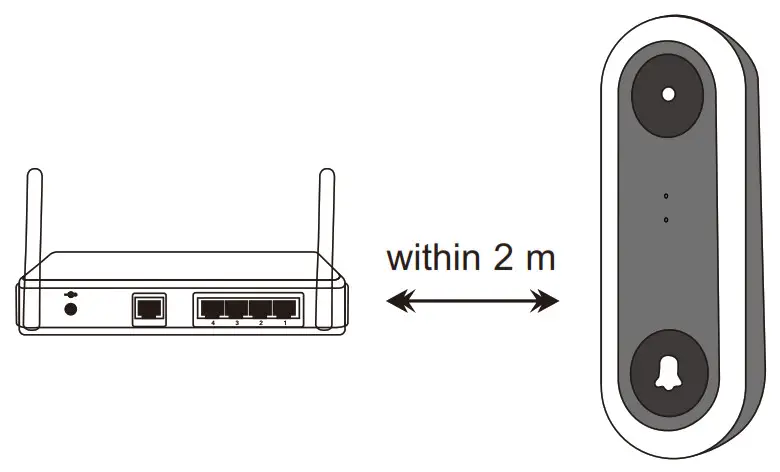
- Place the doorbell within 2 meters of the router during configuration.

- Plug in the power.
- If it is your first time to connect the device, there is no need to reset it. If you cannot hear the voice prompt “Please use APP for WiFi configuration” after the doorbell is powered on, reset the doorbell. (Reset method: Using a needle to hold the reset button for about 5 seconds until you hear the prompt “Reset completed”)
Step 2: APP Download and Registration
 http://www.eye4.so/AppDown.html
- Search for “Eye4” in App Store or Google Play, or scan the QR code to download the app.
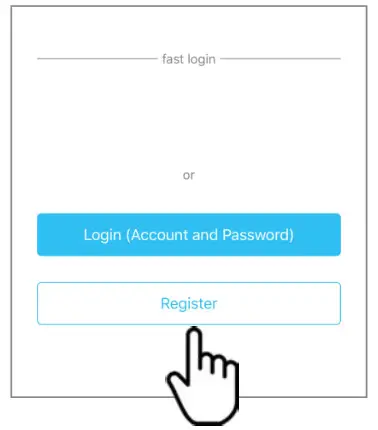
- Click “Register”, enter the user name and password to complete the registration, and also supports the third party such as Facebook to log indirectly.

Note: PC client and other tools can be downloaded at https://www.vstarcam.com/software-download
Step 3: Add Devices To The APP
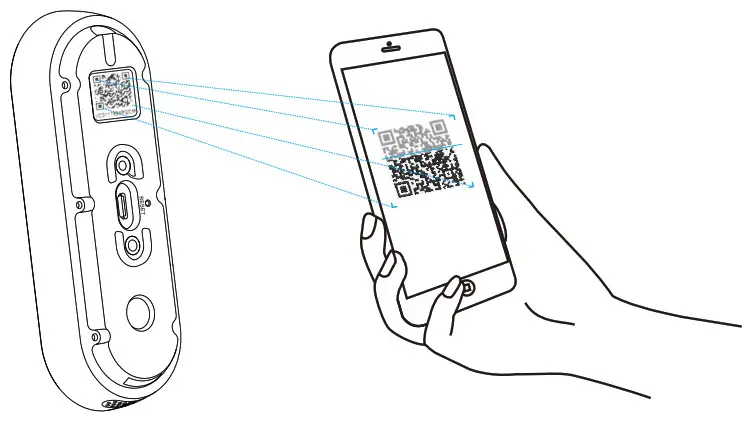
- Open the app, click the “+” in the upper right corner, and scan the QR code on the back of the doorbell, then follow the prompts on the app to complete the adding.(Note: For Android phones, it will pop up some system permission window, please select “Allow”)

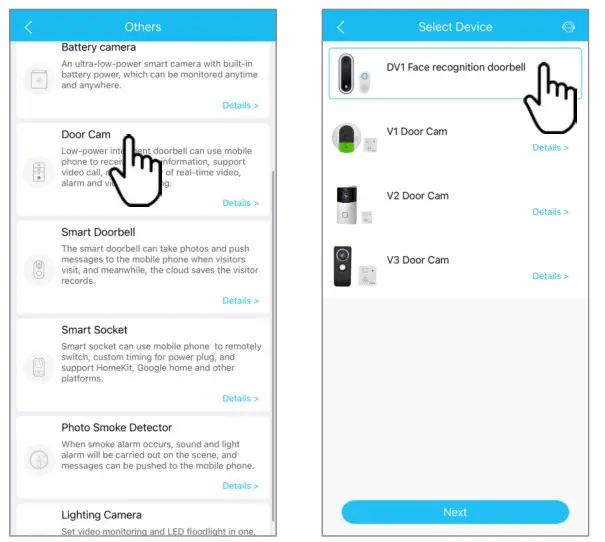
- If you can’t find the QR code, click the “+” in the upper right corner, select “Others” — “Door Cam”, select the corresponding model, then follow the prompts on the app to complete the adding.
You re Done!
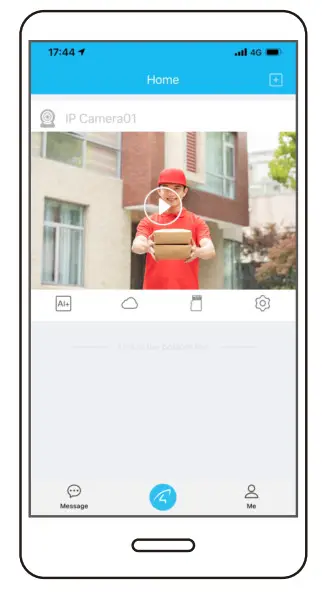
When you hear the doorbell prompts “Wireless connection is successful”, wait for about 30 seconds, the binding page will appear on the app, click “Bind” to complete the adding.
Please write down your device information:
Eye cloud account name:………………………………
Eye cloud account password: ………………………..
Indoor Chime Code Pairing
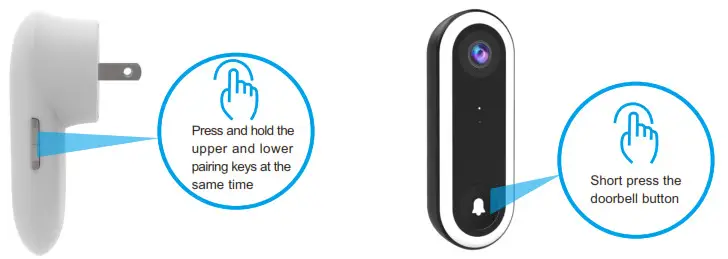
- Reset the indoor chime: While plugging in the power, hold down the upper and lower key at the same time for 10-15 seconds to reset.
- The indoor chime issue code pairing request: After reset, hold down the upper and lower pairing key for about 5 seconds at the same time, the indoor chime will make a ding-dong sound and wait for code pairing.
- Doorbell pairing: When the indoor chime issues the ding-dong code pairing sound, short press the doorbell button, the pairing will be completed.
Note: After the code is successfully paired, press the doorbell button, both the indoor chime and the outdoor doorbell will make a “Ding-Dong” sound. When out of the factory, the indoor chime has been paired with the doorbell, so there is no need to pair again when it is configured for the first time.
Device Usage
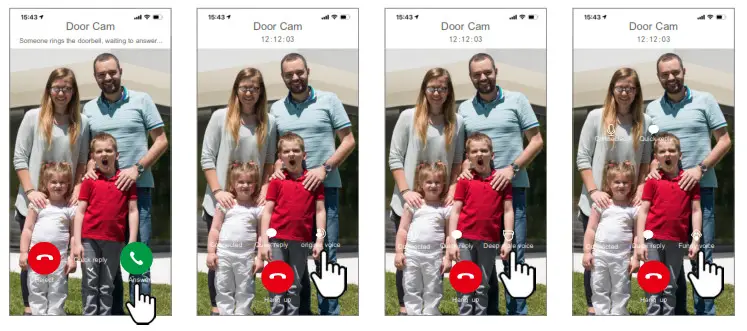
When the doorbell is pressed, it will push a message to the mobile APP, click “Answer” and you will enter the live video screen. You can choose to talk with the visitors or reply with quick reply answers.
- There are three modes of voice: original voice, funny voice, or deep male voice. Click the voice button to switch. Choose the voice to talk with the visitor in real-time.

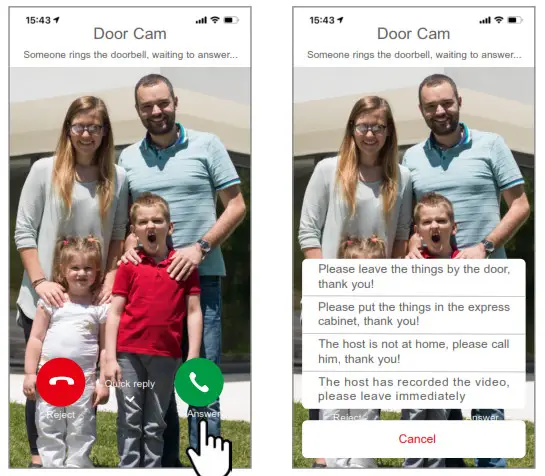
- There are multiple quick replies to choose from, click “Quick Reply” to select.
Face recognition
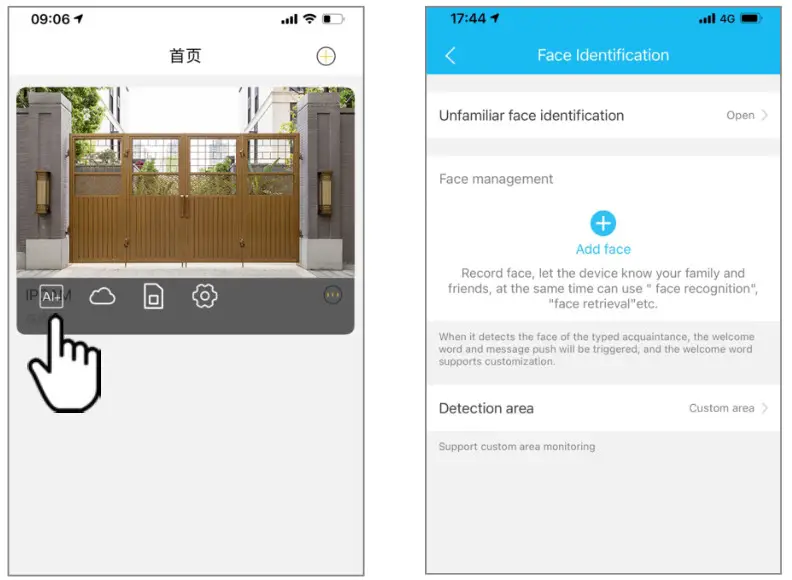
The doorbell supports a face recognition function and can be set with different warning tones for different visitors.
How to turn on face recognition?
Open the AI+ option, select Face Recognition, add faces and set relevant information, save the settings, done.
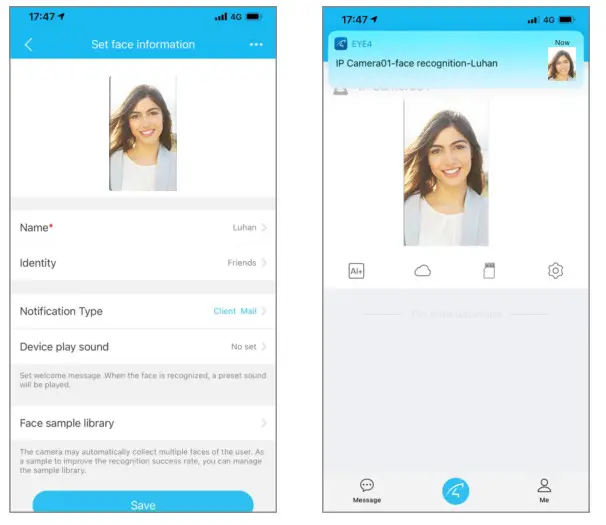
When the doorbell detects a visitor’s face, the indoor chime will issue a corresponding warning tone and your phone will receive a push.
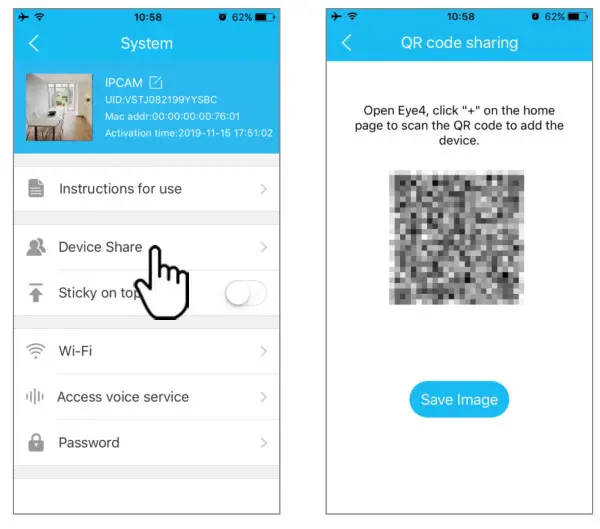
Click “Settings” on the right corner, then select “Device Share”— “QR Code Sharing”. Other users can open the app and click the “+” in the upper right corner of the home page to scan the QR code to add the device.
Specifications
| Category | Parameter |
| Resolution | Face Recognition Doorbell |
| Product Name | 1080×1920@30fps 360×640@15fps |
| Image Sensor | 1/2.9 inch 1080p progressive scan CMOS sensor |
| Night Vision | Dual filter automatic switch, 9pcs 850 patch infrared lights, irradiation distance of 5 ~ 10 meters |
| Wireless and Security | |
| WiFi | 2.4GHz WiFi |
| Wireless Protocol | Supports IEEE802.11b/g/n |
| Security | 64/128-bit WEP/WPA-PSK/WPA2-PSK Data encryption |
| Power and Environment Conditions | |
| Power | DC5V±5%@ MICRO USB/AC 8 ~ 24V |
| Environment | Working temperature: -10 ~ 50℃, humidity <90% |
| Installation | 3M adhesive or screw fixed |
| Category | Parameter |
| Product Name | Indoor chime |
| Voltage | 110~240V |
| Plug | EU plug, UK plug, US plug |
| Environment | Working temperature: -10 ~ 50℃, humidity <90% |
| Size | 99*59*31mm |