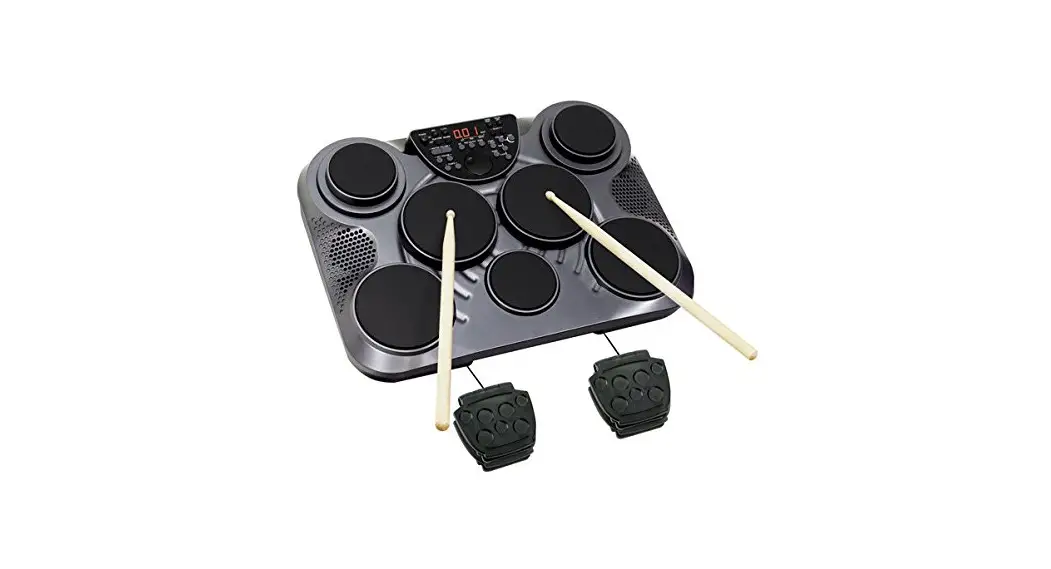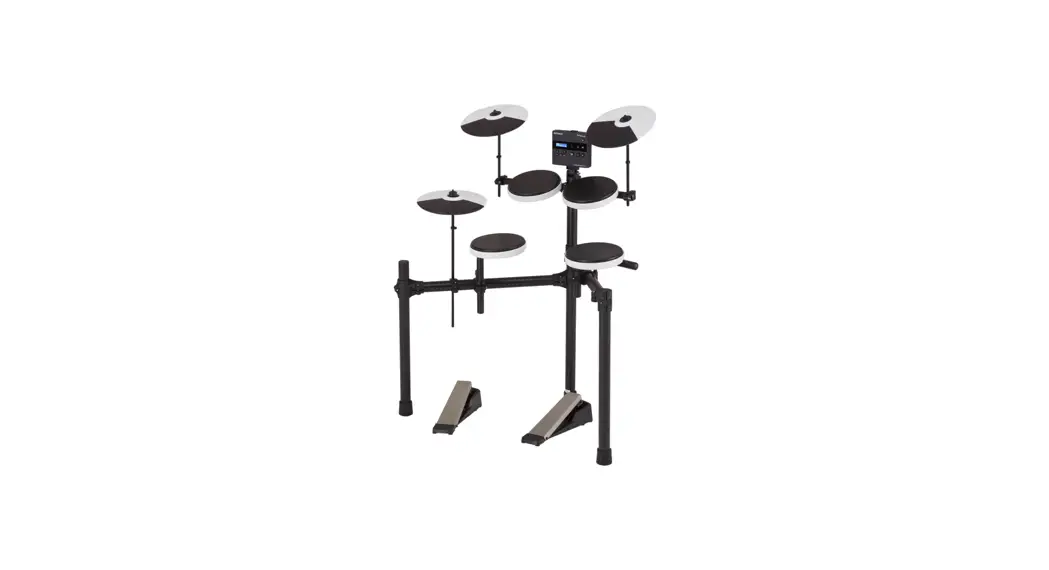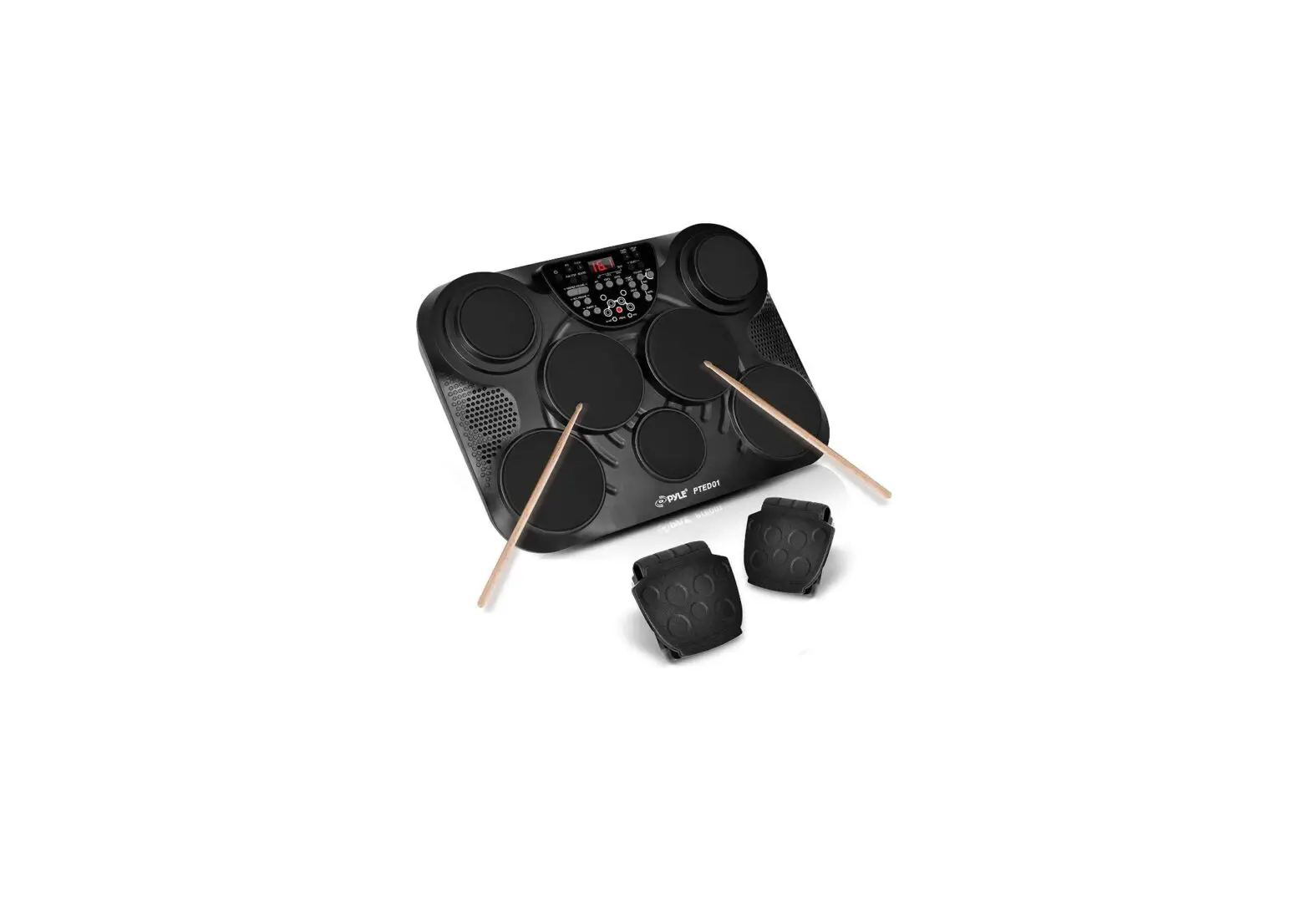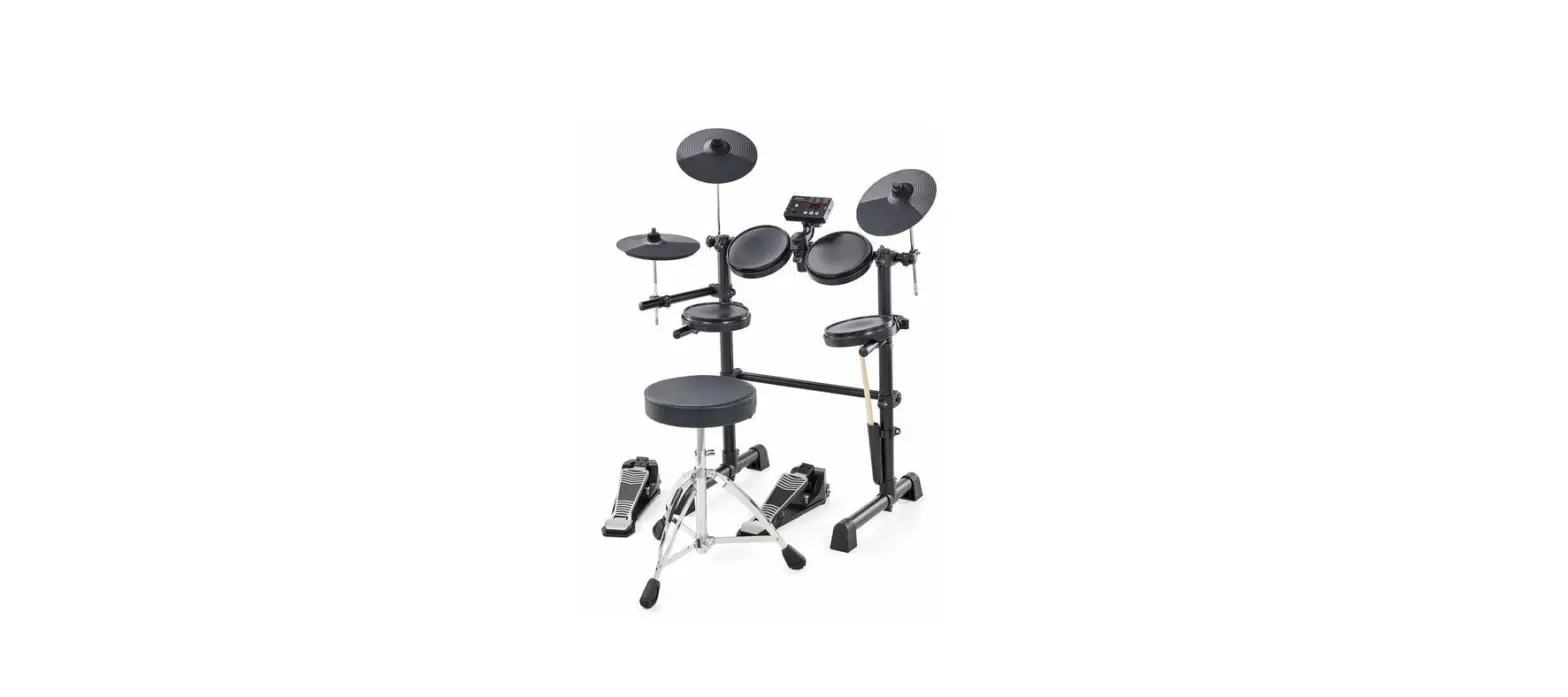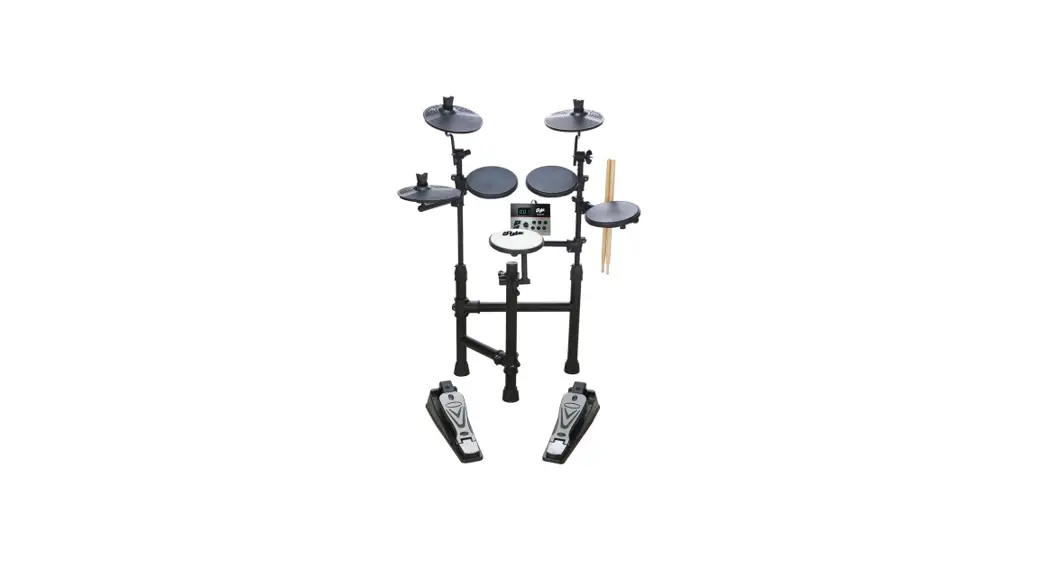
 PTEDK50 Electronic Drum Kit
User Guide
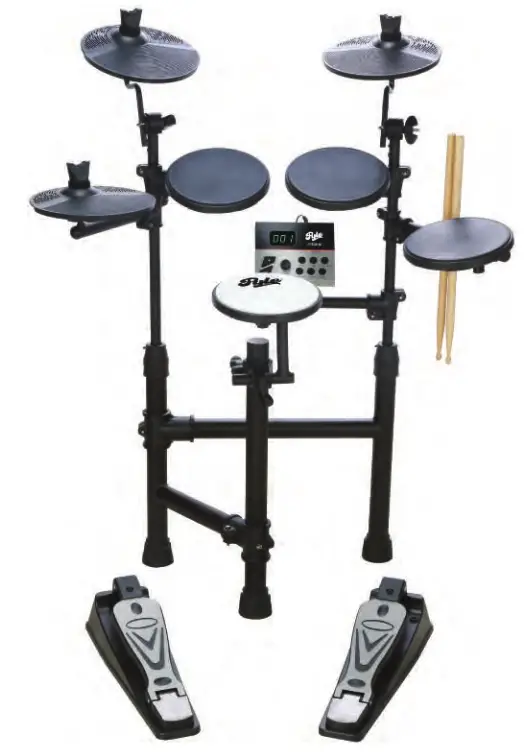
PTEDK50
Electronic Drum Kit
Compact Drumming Machine, MIDI Computer Connection, Quick Setup Roll-Up Design (Mac & PC Compatible).
CONGRATULATIONS!
Thank you for purchasing this digital drum set. The drum set has been developed to act and play like a drum set but with greater ease. Before you use the instrument, we recommend you to read through this manual.
Location
- To avoid deformation, discoloration, or more serious damage, do not expose the unit to direct sunlight, high-temperature sources, or excessive humidity.
- Direct sunlight.
- High temperature (near a heat source, or in the car during the daytime).
- Disconnect all cables before moving
Power Supply
- Use the speciffed adapter only. Using the wrong adapter can result in damage to the instrument or overheating.
- Turn the power switch OFF when the instrument is not in use.
- Remove the electric plug from the outlet when the instrument is not t be used for extended periods of time or during electrical storms.
- Avoid plugging the AC adaptor into an AC outlet that is also powering high-consumption appliances such as electric heaters or televisions. Also, avoid using multi-plug adaptors since these can reduce sound quality cause operation errors, and result in possible damage.
Turn Power OFF When Making Connections: To avoid damage, turn OFF the power switch and all related devices prior to connecting or disconnecting cables.
Handling and Transport:
- Never apply excessive force to controls, connectors, and other part
- Unplug cables by gripping the plug firmly. Do not pull on the cable.
- Disconnect all cables before moving the instrument.
- Physical shocks caused by dropping, bumping, or placing heavy objects on the instrument can result in scratches and more serious damage.
Cleaning
- Clean the module with a dry, soft cloth.
- A slightly damp cloth may be used to remove stubborn grime and dirt.
- Never use cleaners such as alcohol or thinner.
- To avoid discoloration, do not place vinyl objects on top of the instrument.
Electrical Interference
- This instrument contains digital circuitry and may cause interference if placed too close to radio or television receivers. If this occurs, move the instrument further away from the affected equipment.
ASSEMBLY INSTRUCTIONS
CAUTION!
Watch your fingers when adjusting clamps, they may become pinched resulting in injury. Be careful of metal pieces, pipe ends and screws.
Please install in the specified order and make sure that all parts are installed in the correct position.
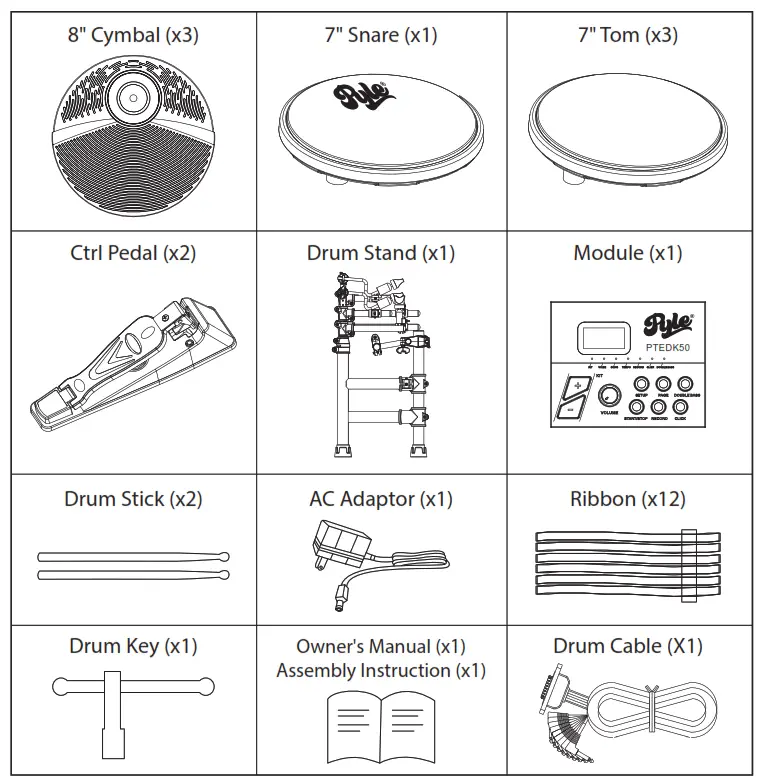
INSIDE THIS PACKAGE
Before assembly, please make sure that all the items listed below are present.
ASSEMBLY
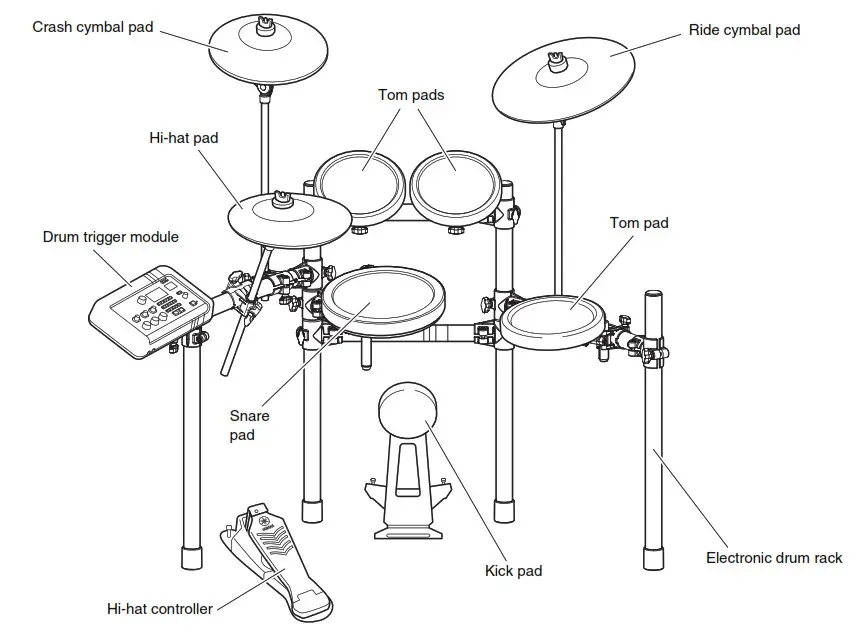
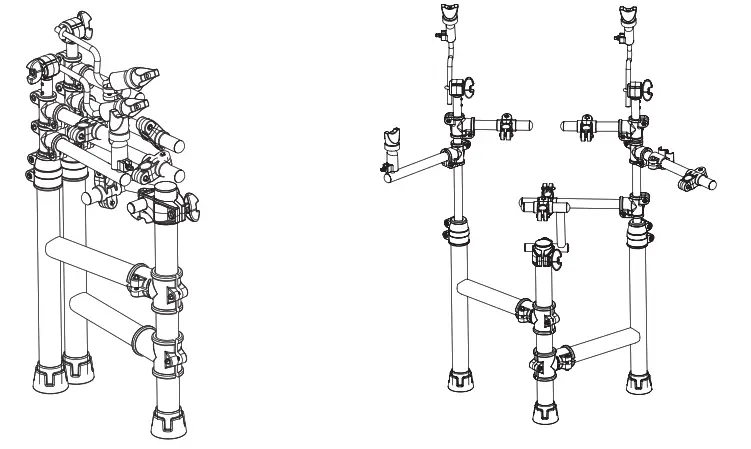
- Loosen frame bracket bolts with a supplied drum key, and open the drum stand as shown below. Tighten bolts to secure once the stand is set into the position pictured. (Do not over-tighten)

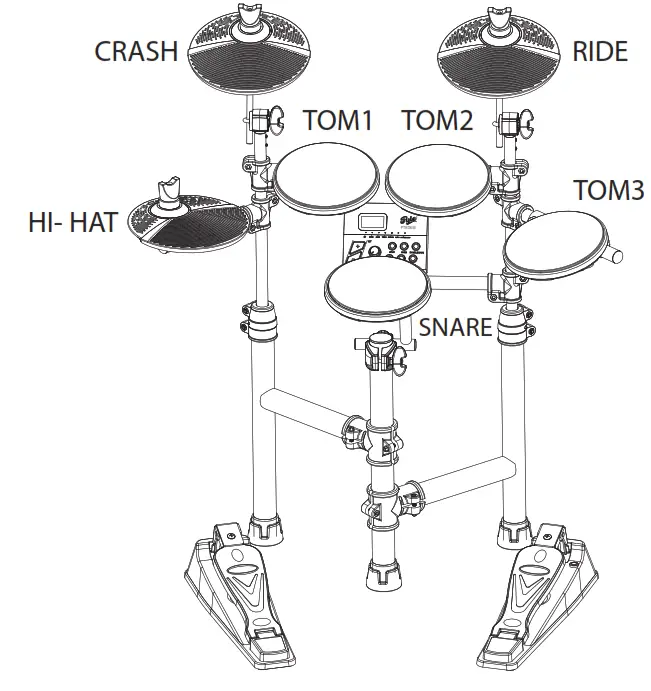
- Loosen pad bracket bolts and insert pads and module as shown below, tighten bolts to secure. (Do not over-tighten) Remove the cymbal top nut and lower cymbal onto the holder, and re-install nut to secure the cymbal.

CONNECT
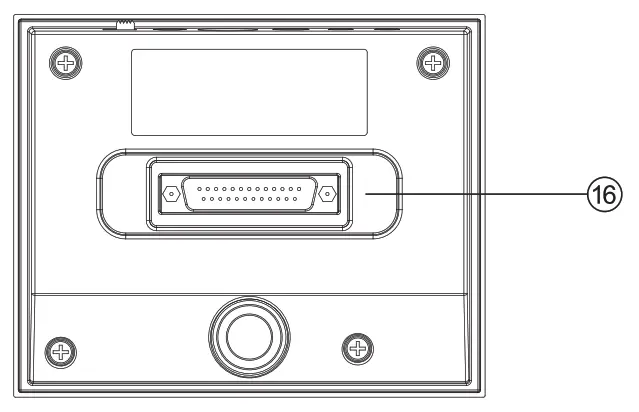
Connect the drum cables to the correct parts. Secure the D-SUB plug to the rear of the module with the 2 attached bolts. The Controller pedals are placed on the oor and connected to the ‘HH CTRL’ (left) and ‘KICK’ (right) cable for your bass drum sound and HiHat control.
Precautions
When connecting or disconnecting cables on the module, please make sure the power switch is set to ‘OFF’ position to avoid damage to the module.
FUNCTION BUTTON DESCRIPTION
FRONT PANEL
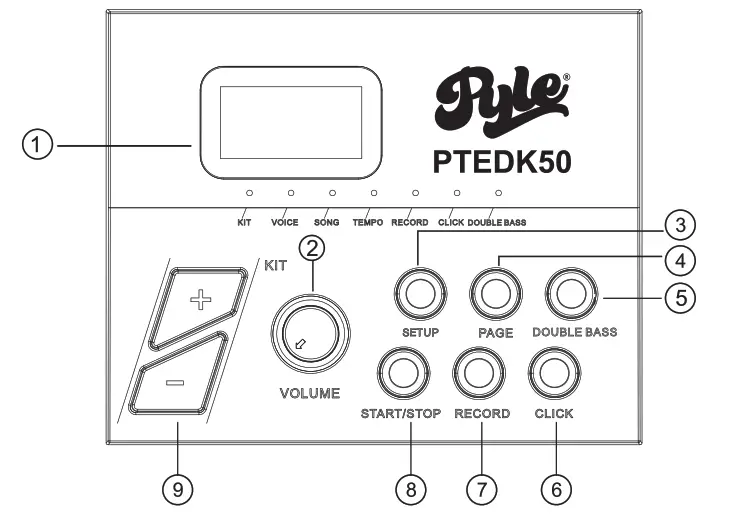
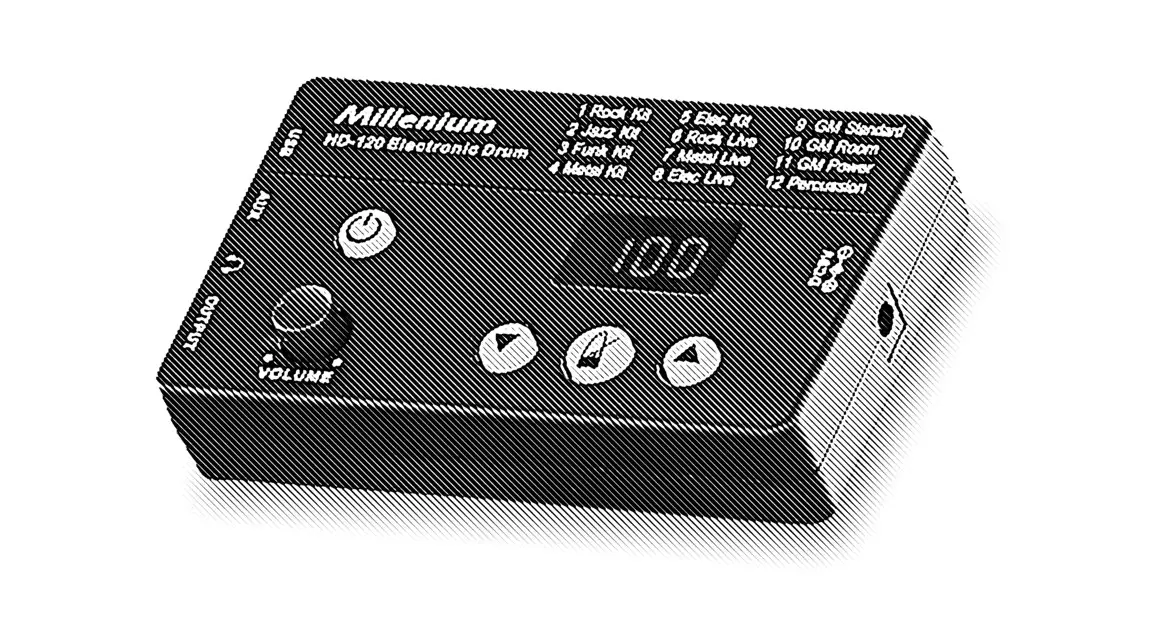
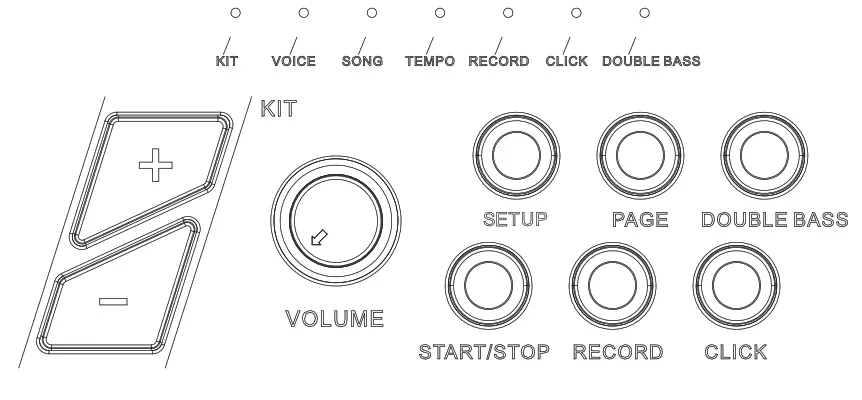
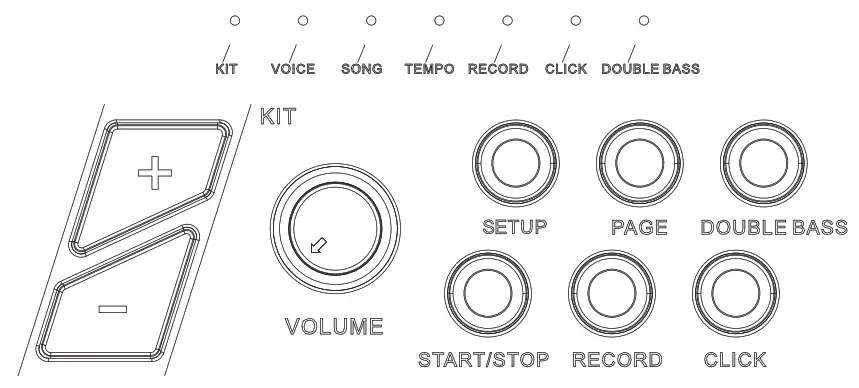
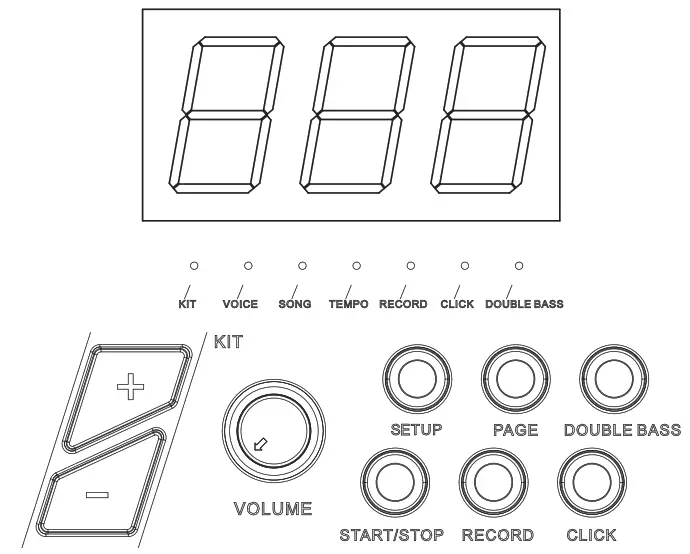
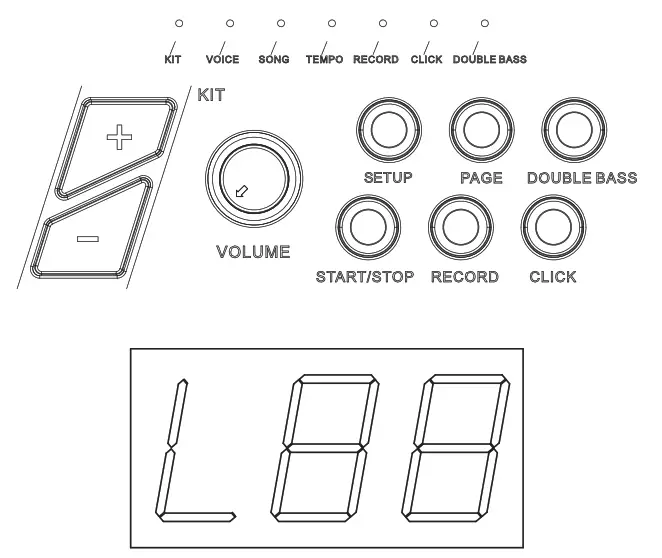
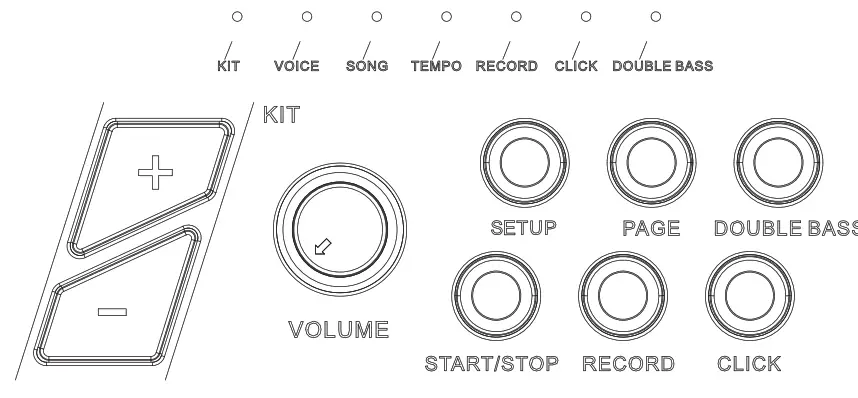
- LED Display: Displays the menu parameters.
- VOLUME: Adjusts the headphone and main output volume.
- SETUP: Enters setting menu, to adjust parameters of VOICE/SONG/TEMPO. Press and hold to save user presets.
- PAGE: Changes sub-menu of VOICE/SONG/TEMPO.
- DOUBLE BASS: The hi-hat ctrl pedal becomes a 2nd bass drum.
- CLICK: Turns ON/OFF the metronome.
- RECORD: Records the drum sound.
- START/STOP: Starts/stops demo songs or recordings.
- [+/-1]: Adjusts the parameters, e.g. drum kit, Voice, etc. (Hold the button to change value quickly)
TOP PANEL
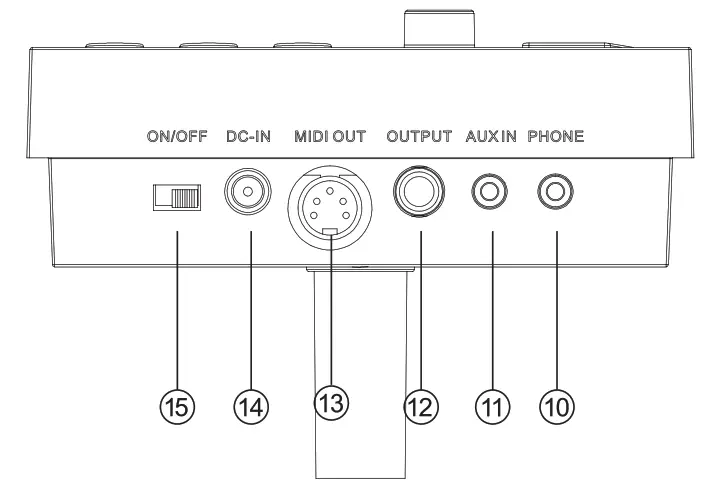
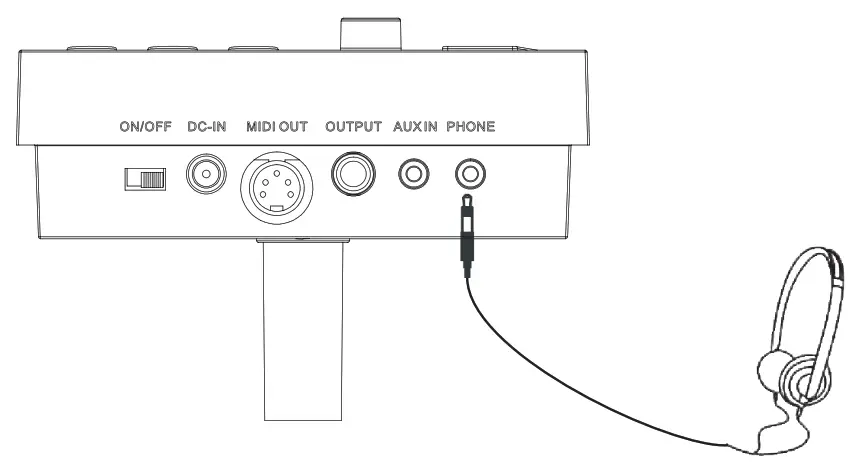
- PHONE: Stereo headphone connector.
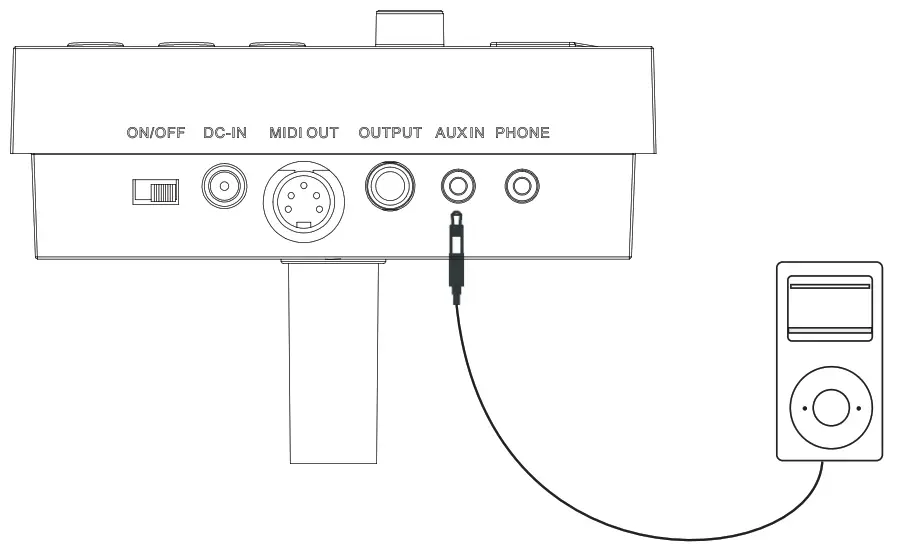
- AUX IN: External stereo input connection, e.g. MP3 or CD player.
- OUTPUT: The stereo output connector to connect with the audio system or drum amp, mono output.
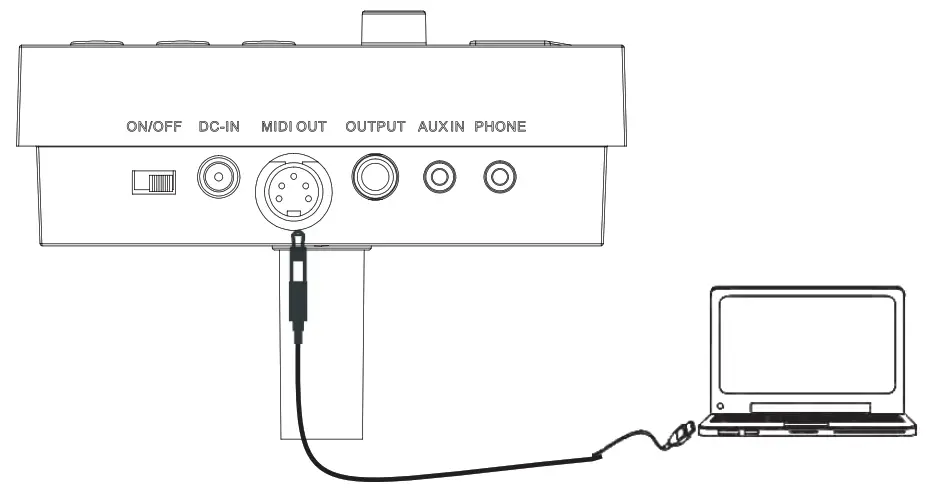
- MIDI OUT: Connects with external MIDI devices (The drum MIDI signal outputs via MIDI OUT to an external audio source.)
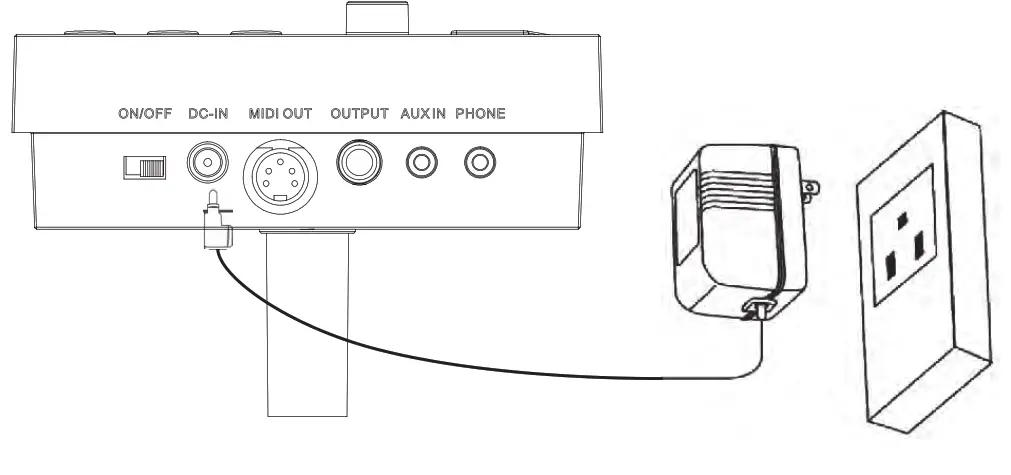
- DC IN: Power adapter connector.
- ON/OFF: Switches the power on and off.
REAR PANEL
- Trigger in the connector: D-SUB pad signal input connector.
CONNECT WITH EXTERNAL DEVICES
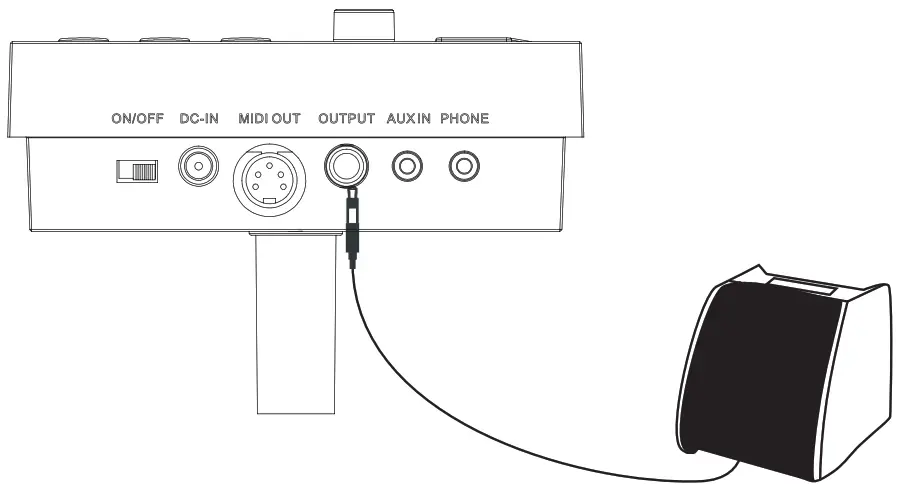
Connecting with the audio system or drum amplifier
Connect the Drum Kit OUTPUT socket to the audio system or drum amplifier using a 1/4″ jack instrument cable.
Note: The volume is controlled by the Drum Kit volume knob and the device volume knob.
Connect with Headphones
Connect headphones with a 1/8″ stereo connector, to the headphone socket on the Drum Kit. The volume is controlled by the Volume knob on the Drum Kit.
Connect with an MP3 or CD player
Connect the output of your MP3 or CD player with the INPUT socket on the Drum Kit. The volume of input can be adjusted via your MP3 or CD player.
Connect with PC
Connect PC via MIDI port
MIDI OUT: Delivers pad signal to PC.
Power Supply
- Turn off the Drum Kit power switch.
- Connect the power supply with DC IN connector.
- Confirm all the pads are correctly connected. Set the Drum Kit volume to a minimum, then turn ON the power switch of the Drum Kit. The display lights up and it enters the drum kit menu.
Turn off the power switch before connecting with other devices.
OPERATION
Adjust the master volume
Strike the pads and adjust the volume knob for a suitable master volume.
Preset drum kit: KIT01–10
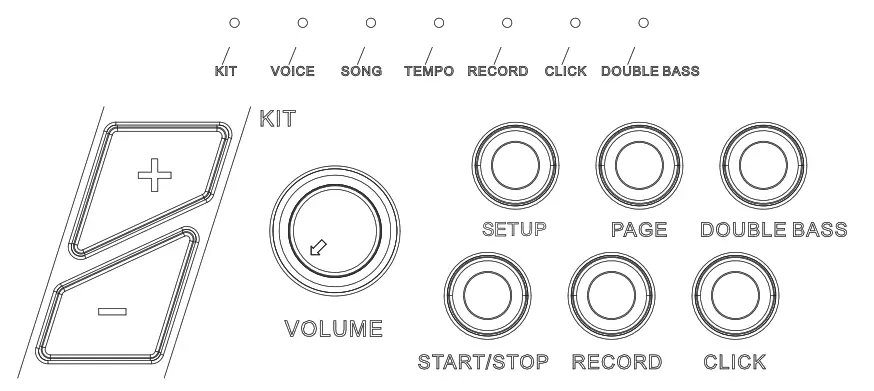
- Power on to enter drum kit selection, and the KIT LED lights up (the display shows drum kit number saved last time before power-off );
- Press the [SET UP] button to enter the drum kit setting, the KIT LED lights up; (The corresponding mode LED will also light up in the mode switch)

- In drum kit mode, LED shows the current drum kit number, press [+/-] button to switch the drum kit, and select any drum kit as current drum kit.

VOICE
The Drum Kit has 108 voices, including the GM voices.
- The select voice you are playing.
This change will automatically save until the Drum Kit is switched off. To permanently save this setting to a user drum kit please refer to the “Saving Adjustments” page.
- Adjust voice volume

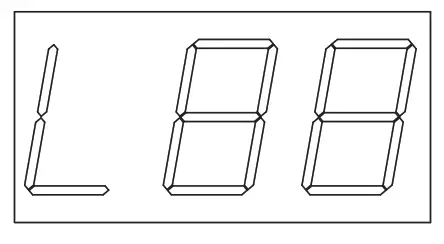
1. In voice mode, press the [Page] button to enter the voice volume adjustment(the screen will show [L- -]). Press [+/-] button to adjust the voice volume of the pad you are playing (range 0-32)
2. This change will automatically save until the Drum Kit is switched off. To permanently save this setting to a user drum kit please refer to the “Saving Adjustments”.
- Adjust Voice Pan
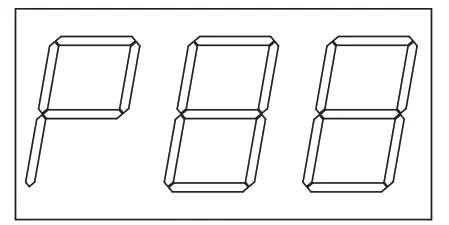
1. In voice mode, press the [Page] button again to enter the voice pan adjustment (the screen will show [P- -]).
2. Press [+/-] button to adjust the voice pan of the pad you are playing (range -8 Left, +8 Right). This change will automatically save until the module is switched off. To permanently save this setting to a user drum kit please refer to the “Saving\ Adjustments”.

SAVING ADJUSTMENTS
When you are happy with your adjustments, press and hold the [SETUP] button. The screen will ash U01, you can now select which user preset you would like to save your ew drum settings to. Use the [+/-] buttons to select U01 or U02 and press the [SETUP] button again to save your adjustments. Your User kit will now be permanently stored on the module. To recall your user kit upon next use, use the [+/-] buttons to select U01 or U02. To make further adjustments to your preset kits, follow the steps above.
Note: If you do not wish to save your settings after entering into save mode, press any button other than [SETUP] and [+/-] to exit save mode.
SONG SETTING
- Selecting a Song
1. Press [SET UP] button to enter into song menu, the SONG LED lights up.
2. Press [+/-] button to switch the song, range 001-010 (non-cycle);
- Song Playing
1. Press the [START/STOP] button to play the selected song. During playing, change the song via [+/-] button. The overall volume is controlled by the module volume knob;
2. Before song mode, directly press the [START/STOP] button to play the song;
3. After playing, songs will stop automatically; during playing, press [START/STOP] once again to stop playing. - Accompaniment Volume: During playing, user can adjust the volume of the accompaniment and the drum sound.
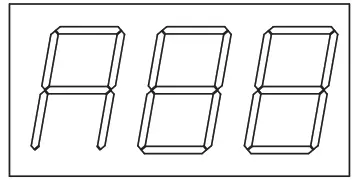
1. In song mode, press the [PAGE] button to enter into the accompaniment volume setting; Accompaniment: the three LED shows AXX (XX refers to accompaniment volume value); Percussion: the three LED shows DXX (XX refers to drum volume value);?
2. Press[+/-] button to switch the accompaniment/volume (0-32, non-cycle). - Tempo
1. When playing DEMO SONG, press [SET UPJ button to enter into the Tempo setting, and the TEMPO LED lights up;
2. Press [+/-] button to change the song tempo.
 Percussion: the three LED shows DXX (XX refers to drum volume value);?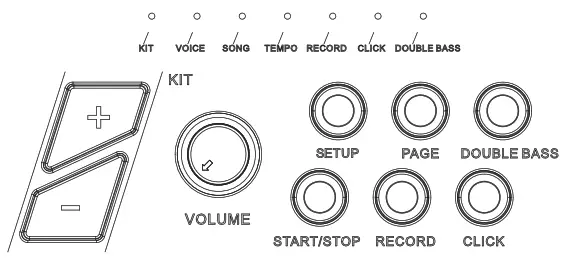
METRONOME
This module has 1 click voice.
- Metronome function switch
Press the [CLICK] button to open or close the metronome function, after [CLICK] is pressed down, CLICK LED will light on, the three LED shows the “beats”, e.g. 4-4, press [+/-] button to switch “beats”.
Note: During playing the songs, the metronome is closed. - Click Volume
After [CLICK] is pressed down, press the [PAGE] button, it shows the “click volume” interface, the three LED shows LXX (XX refers to volume value), press the [+/-] button to switch the click volume.
RECORD AND REPLAY
Quick Record
- Press the [RECORD] button, and [RECORD] LED lights up and ashes. It shows “REC”.
- Strike the pads to start recording or record only the drum sound of the song being played.
- Press the [RECORD] button to stop recording. [RECORD] LED lights off. The song or the user’s performance has been recorded.
Note:
- During recording, the metronome function will not automatically start. If the user needs to start the metronome function, the user can press the [CLICK] button before recording instead of pressing it attar the recording.
- The metronome sound can not be recorded.
- If the user is not satisfied with the recorded result, press [RECORD] to restart the recording.
Note: This Drum Kit supports the recording function, but not the saving function. The recorded data will overwrite the former data, and all the data will not be saved after the module is powered off.
Play Recording
Press and hold the [RECORD] button, the RECORD LED lights up, press the [START/STOP] button to replay the recorded song, press the [START/STOP] button again to stop the recorded song.
MIDI SETTING
This equipment is compatible with various MIDI devices and can be used as trigger device or audio source. It is also compatible with part of the GM standard and can be used with many audio sequencer software together.
MIDI Connection
MIDI OUT: Sends the external MIDI signal when connecting with external MIDI devices.
CONNECT WITH EXTERNAL AUDIO SOURCE EQUIPMENT
This equipment can send its various information via channel10, including trigger notes, force, hi-hat pedal performance, status, etc.
Note: The song replaying and metronome information can not be sent. Use the external audio sequencer to record the performance
- Connect external audio sequencer or PC via MIDI OUT or USB.
- Set the equipment of channel 10 in the audio sequencer or in the sequence software, and than start recording.
- Play the pads.
- Stop the performance and recording, and listen to the performance.
TROUBLESHOOTING
| PROBLEM | REASON |
| No sound | Please confirm the volume knob is not turned off |
| Pad has no sound | 1. Confirm the pad connection is correct. 2. Confirm the pad volume is not set to 0 |
| Metronome has no sound | Confirm the metronome volume is not set to 0 |
| DEMO SONG has no sound | Confirm the metronome volume is not set to 0 |
AUDIO SOURCE SPECIFICATION
- Max polyphony: 32
- Drum kits: 10 preset drum kits: KIT01-10
- Voice: 108 voices (DRUMS, PERCUSSION, SFX)
- Audio sequencer: DEMO SONG 10
- Recording: realtime recording, but can not be saved.
- Tempo: 30bpm-280bpm
- Display: three LED (red or green)
- Connection: Phone stereo out connector (l/8″), AUX IN stereo connector (1/8″), Audio output connector (1/4″ Llmono),
- MIDI OUT
- Power supply: DC 12V internal + external
**The specification is subject to change without prior notice.**
DRUM KIT LIST
| NO. | PRESET DRUM KIT |
| 1 | POP1 |
| 2 | POP2 |
| 3 | ROCK |
| 4 | FUNK |
| 5 | LATIN |
| 6 | JAZZ |
| 7 | DANCE |
| 8 | MARCHING |
| 9 | PERCUSSION1 |
| 10 | PERCUSSION2 |
VOICE LIST
| BASS DRUM | |
| NO. | NAME |
| 1 | KICK1 |
| 2 | KICK2 |
| 3 | KICK3 |
| 4 | KICK4 |
| 5 | KICKS |
| 6 | JA77KICK |
| 7 | ELE KICK |
| 8 | MARCHING KICK |
| SNARE | |
| NO. | NAME |
| 9 | SNARE1 |
| 10 | SNARE2 |
| 11 | SNARES |
| 12 | SNARE4 |
| 13 | SNARES |
| 14 | BRUSH SNARE |
| 15 | ELE SNARE |
| 35 | ALLTOM |
| HI-HAT | |
| NO. | NAME |
| 36 | CLOSED HH1 |
| 37 | CLOSED HH2 |
| 38 | CLOSED HH3 |
| 39 | CLOSED HH4 |
| 40 | CLOSED HH5 |
| 41 | CLOSED HH6 |
| 42 | ELE CLOSED HH |
| 43 | OPEN HH1 |
| 44 | OPEN HH2 |
| 45 | OPEN HH3 |
| 46 | OPEN HH4 |
| 47 | OPEN HH5 |
| 48 | OPEN HH6 |
| 49 | ELE OPEN HIHAT |
| 50 | HHP1 |
| 51 | HHP2 |
PERCUSSION LIST
GM Percussion List
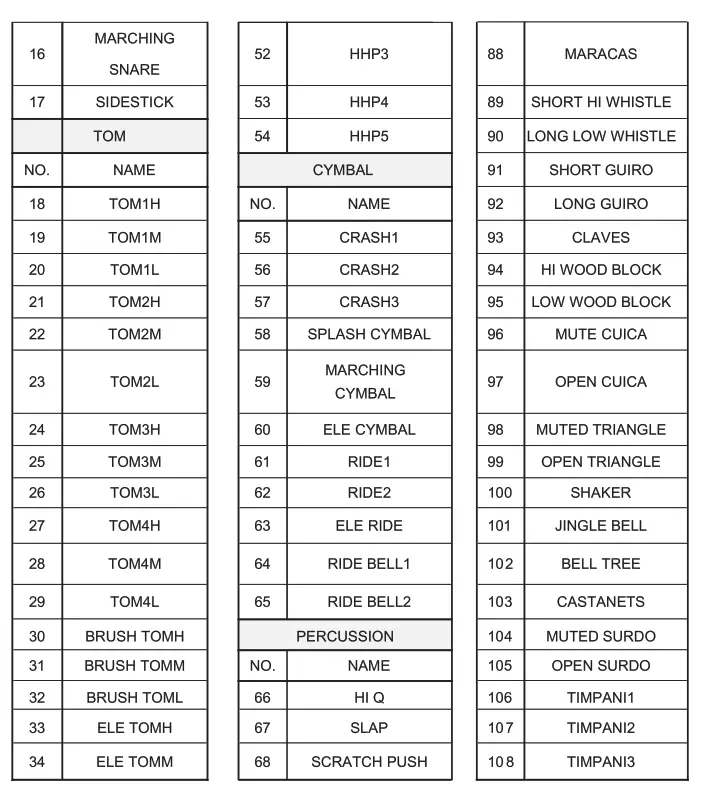
PERCUSSION LIST
GM Percussion List
| Note No. | Standard name | Voice No. | Voice Name |
| 27-D#1 | High Q | 66 | High Q |
| 28- E1 | Slap | 67 | SLAP |
| 29-F1 | Scratch Push | 68 | SCRATCH PUSH |
| 30-F#1 | Scratch Pull | 69 | SCRATCH PULL |
| 31-G1 | Sticks | 70 | STICKS |
| 32-G#1 | Square Click | 71 | CLIP |
| 33-A1 | Metronome Click | 72 | METRONOME CLICK |
| 34-A#1 | Metronome Bell | 73 | METRONOME BELL |
| 35-B1 | Acoustic Bass Drum | 3 | ACKICK |
| 36-C2 | Bass Drum 1 | 1 | KICK1 |
| 37-C#2 | Side Stick | 17 | SRSTD |
| 38-D2 | Acoustic Snare | 9 | SNCOMBO3 |
| 39-D#2 | Hand Clap | 74 | CLAP1 |
| 40-E2 | Electric Snare | 15 | ESN7 |
| 41-F2 | Low Floor Tom | 26 | TOMMSTD |
| 42-F#2 | Closed Hi Hat | 36 | CHH3 |
| 43-G2 | High Floor Tom | 20 | TOM8 |
| 44-G#2 | Pedal Hi-Hat | 50 | PHH2 |
| 45-A2 | Low Tom | 19 | TOM1 |
| 46-A#2 | Open Hi-Hat | 43 | OHHSTD |
| 47-B2 | Low-Mid Tom | 28 | TOM7 |
| 48-C3 | Hi-Mid Tom | 18 | TOM6 |
| 49-C#3 | Crash Cymbal 1 | 55 | CRSHSTD1 |
| 50-D3 | High Tom | 27 | TOM3 |
| 51-D#3 | Ride Cymbal 1 | 61 | RIDESTD |
| 52-E3 | Chinese Cymbal | X | CNCYMBAL |
| 53-F3 | Ride Bell | 64 | RBLLSTD |
| 54-F#3 | Tambourine | 75 | TMBRN1 |
| 55-G3 | Splash Cymbal | 58 | SPLSH1 |
| 56-G#3 | Cowbell | 76 | COWBLL1 |
| 57-A3 | Crash Cymbal 2 | 57 | LTCRSH1 |
| 58-A#3 | Vibraslap | 77 | VSLP03 |
| 59-B3 | Ride Cymbal 2 | 62 | RIDE1 |
| 60-C4 | Hi Bongo | 78 | HIBNGO01 |
| 61-C#4 | Low Bongo | 79 | LOBNGO |
| 62-D4 | Mute Hi Conga | 80 | MHCNGA |
| 63-D#4 | Open Hi Conga | 81 | OHCNGA01 |
| 64-E4 | Low Conga | 82 | LOCNGA01 |
| 65-F4 | High Timbale | 83 | HTMBL1 |
| 66-F#4 | Low Timbale | 84 | L0TMBL1 |
| 67-G4 | High Agogo | 85 | HAGOGO1 |
| 68-G#4 | Low Agogo | 86 | LAGOGO1 |
| 69-A4 | Cabasa | 87 | CABASA1 |
| 70-A#4 | Maracas | 88 | MRCAS1 |
| 71-B4 | Short Whistle | 89 | SWHSL1 |
| 72-C5 | Long Whistle | 90 | LWHSL1 |
| 73-C#5 | Short Guiro | 91 | SGUIRO |
| 74-D5 | Long Guiro | 92 | LGUIRO |
| 75-D#5 | Claves | 93 | CLV |
| 76-E5 | Hi Wood Block | 94 | HWBLK |
| 77-F5 | Low Wood Block | 95 | LWBLK |
| 78-F#5 | Mute Cuica | 96 | MCUICA |
| 79-G5 | Open Cuica | 97 | OCUICA |
| 80-G#5 | Mute Triangle | 98 | MTRNGL |
| 81-A5 | Open Triangle | 99 | OPNTRNGL |
| 82-A#5 | Shaker | 100 | SHAKER |
| 83-B5 | Jingle Bell | 101 | JINGLEBELL |
| 84-C6 | Bell Tree | 102 | BELLTREE |
| 85-C#6 | Castanets | 103 | CASTANETS |
| 86-D6 | Mute Surdo | 104 | MUTESURDO |
| 87-D#6 | Open Surdo | 105 | OPNSURDO |
FEATURES
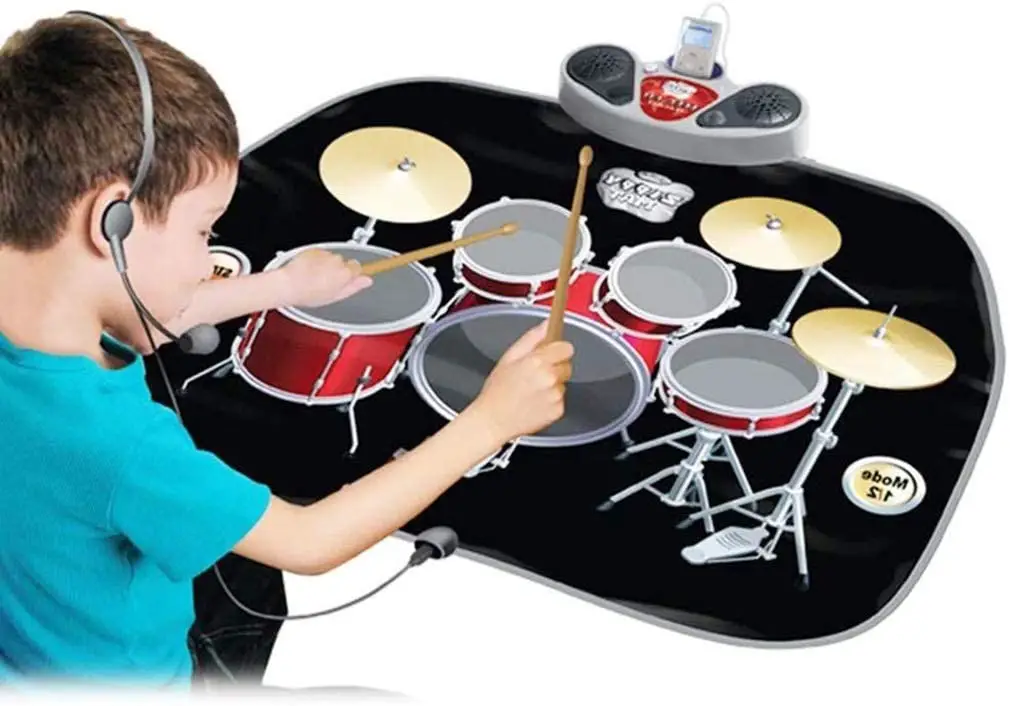
- Hassle-Free Tabletop Drum Kit
- Compact, Portable & Ultra-Thin
- Unique Roll-Up Design for Instant Drumming
- Pre-Loaded with Selectable Drum Kits & Songs
- MIDI Support: Connect to Computer & Unlock More
- Record Mode: Playback Your Drum Sessions
- Hand Percussion Mode: Drop the Drumsticks & Use Your Hands
- Effectively Reproduces Complete ‘Drum Set’ Sounds
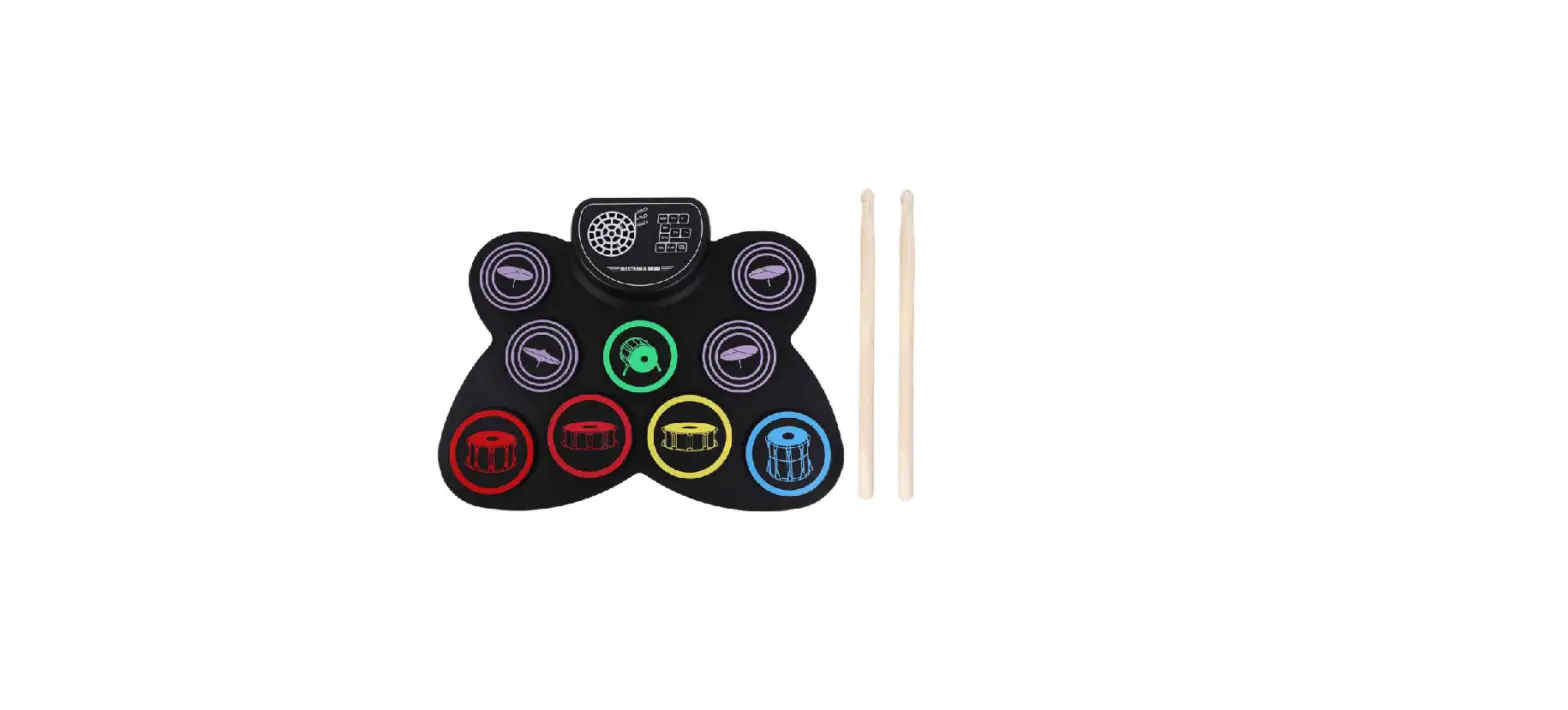
- (7) Drum Pads with Touch Sensitivity
- Tom-Toms, Hi-Hat, Snare & Bass Drums, Crash & Ride Cymbals
- Super Easy & Simple USB Plug-in Operation
- Includes (2) Digital Foot Pedal Controllers
- Front Panel Button Control Center
- Aux (3.5mm) Input Jack
- Drum-Along to Music via Connected Device
- Headphone Jack
- Tempo & Volume Adjustable
- Compatible with Mac & PC
WHAT’S IN THE BOX:
- Electronic Drum Pad
- (2) Drum Foot Pedals
- Wall Power Adapter
- Audio Connection Cable
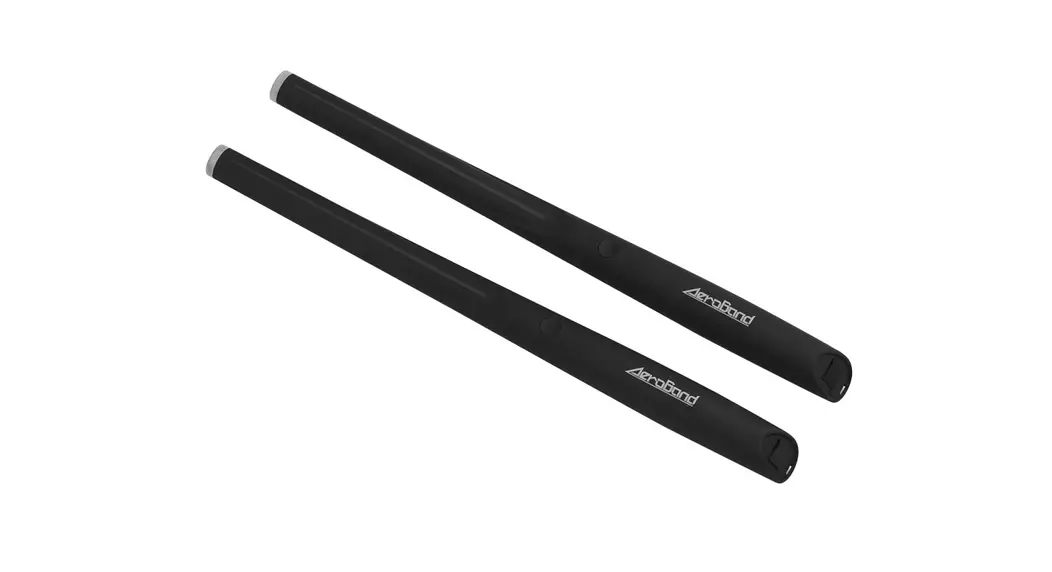
- Drum Sticks
TECHNICAL SPECS:
- Drum Kits: 10 Preset Drum Kits: KIT01-10
- Power Connection: DC 12V
- Drum Sticks Dimensions: 0.6’’ x 16’’ -inches
- Electronic Drum Pad Dimensions: 7” -inches
California Prop 65 Warning WARNING:
his product contains Vinyl Chloride which is known to the state of California to cause cancer birth defects and other reproductive harm.
Do not ingest. For more info go to: www.P65warnings.ca.gov
Questions? Comments?
We are here to help!
Phone: (1) 718-535-1800
Email: [email protected]
 Pyle USA Electronics | Home Audio | Car Audio & More