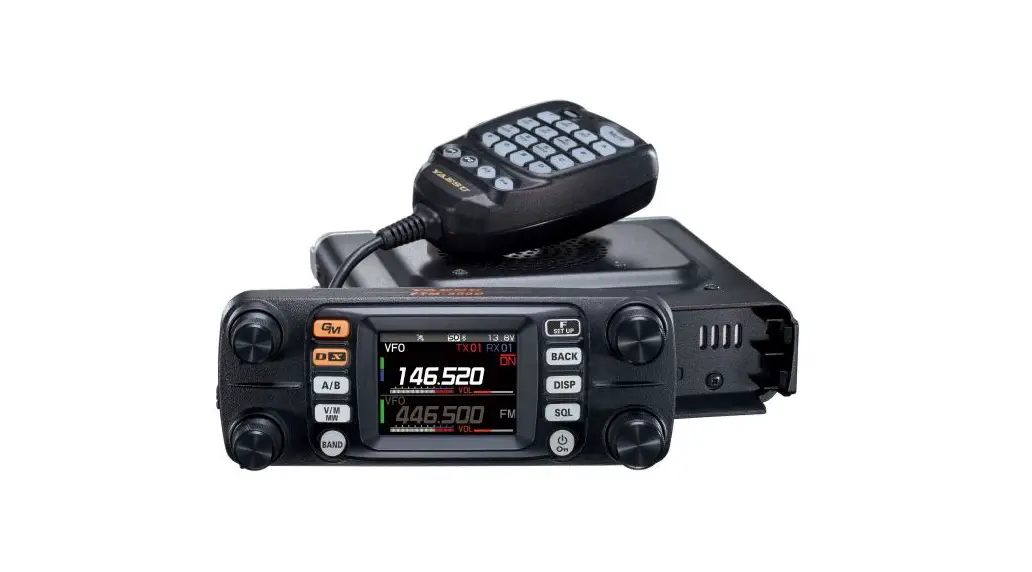
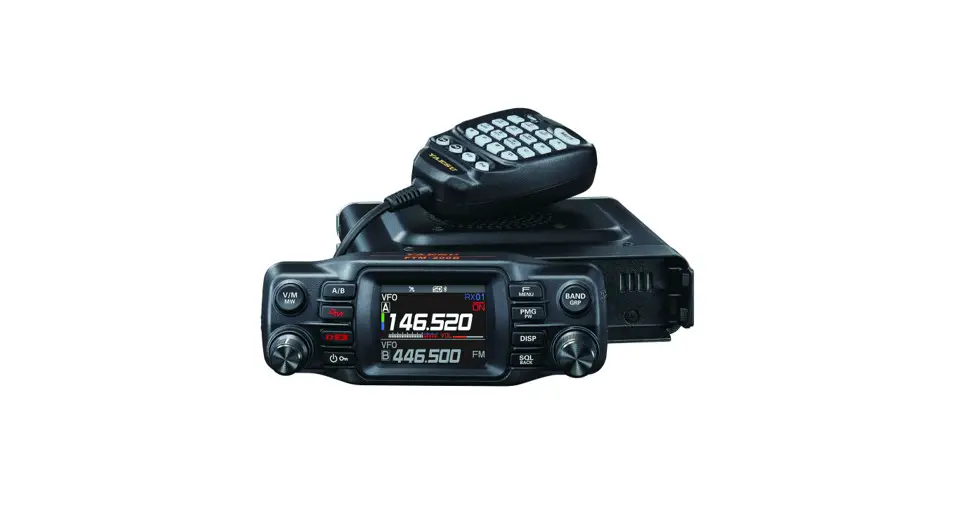
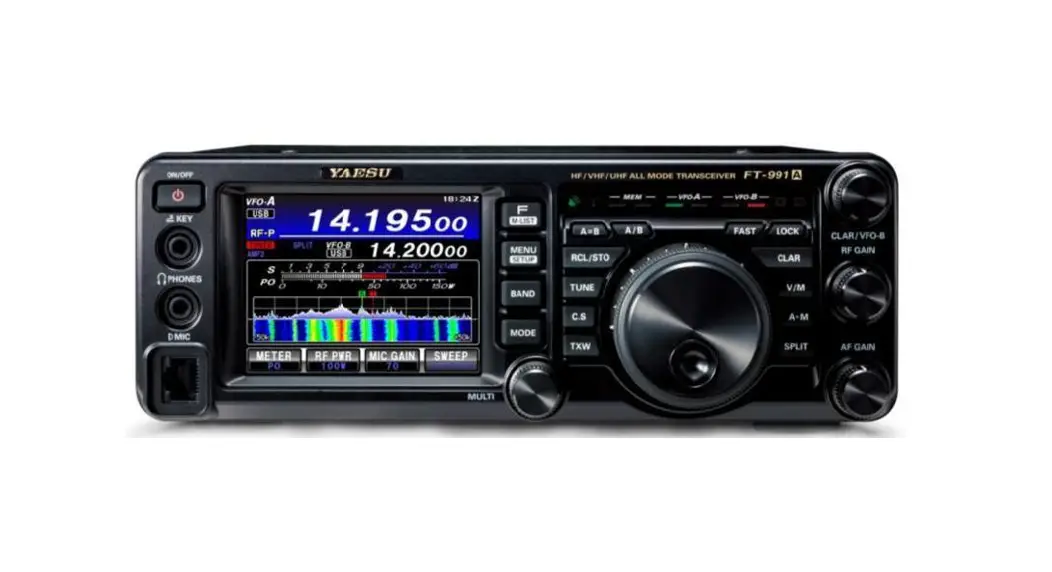
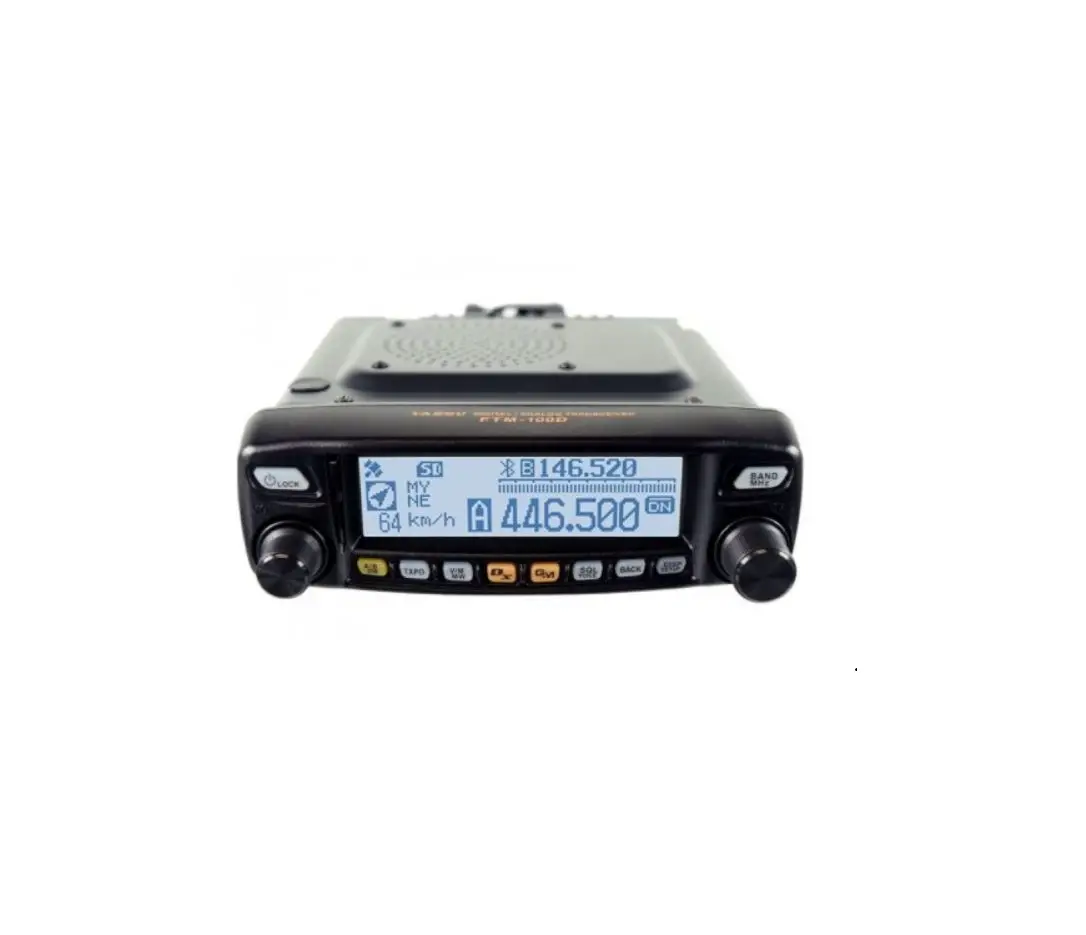
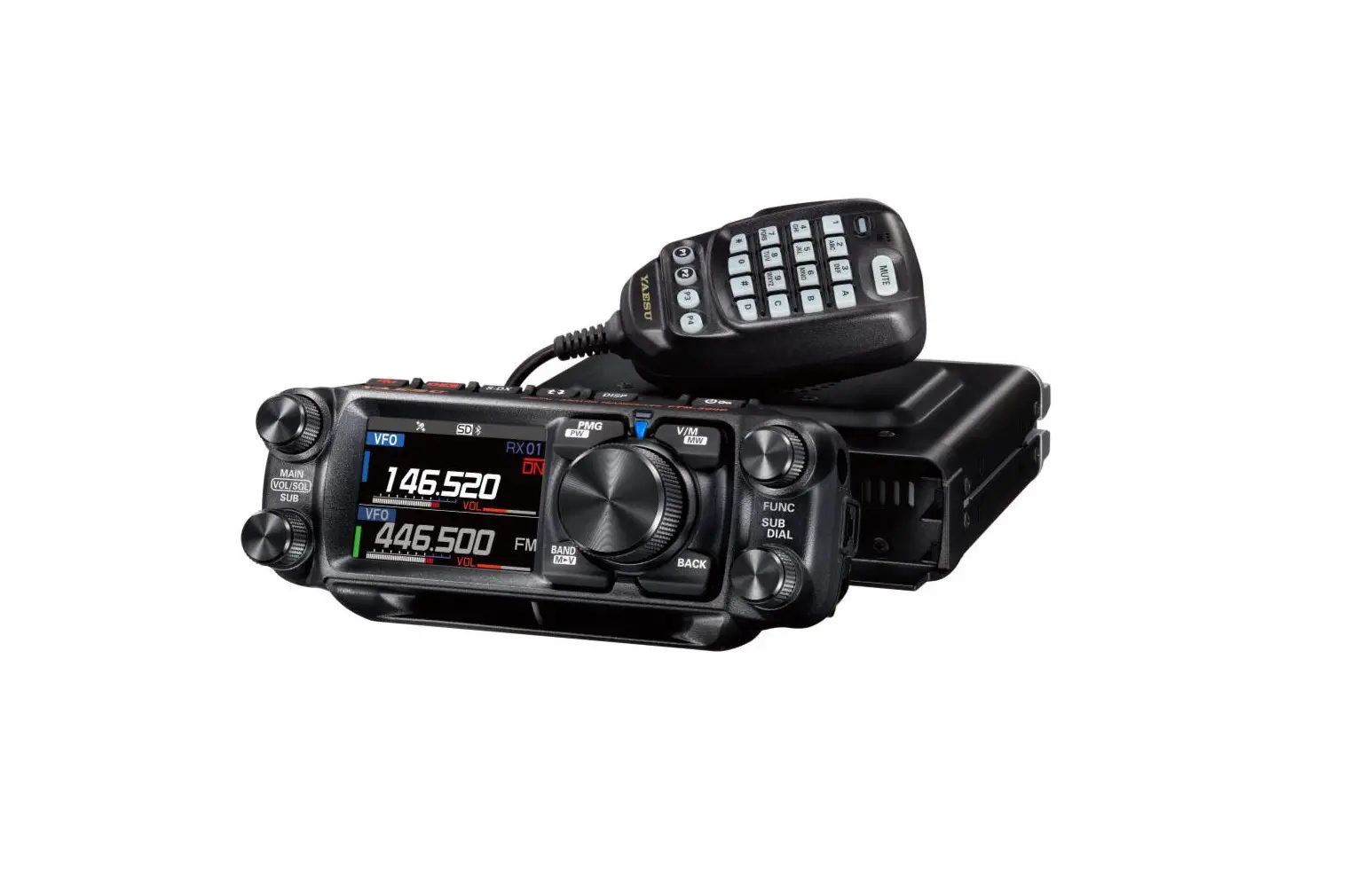
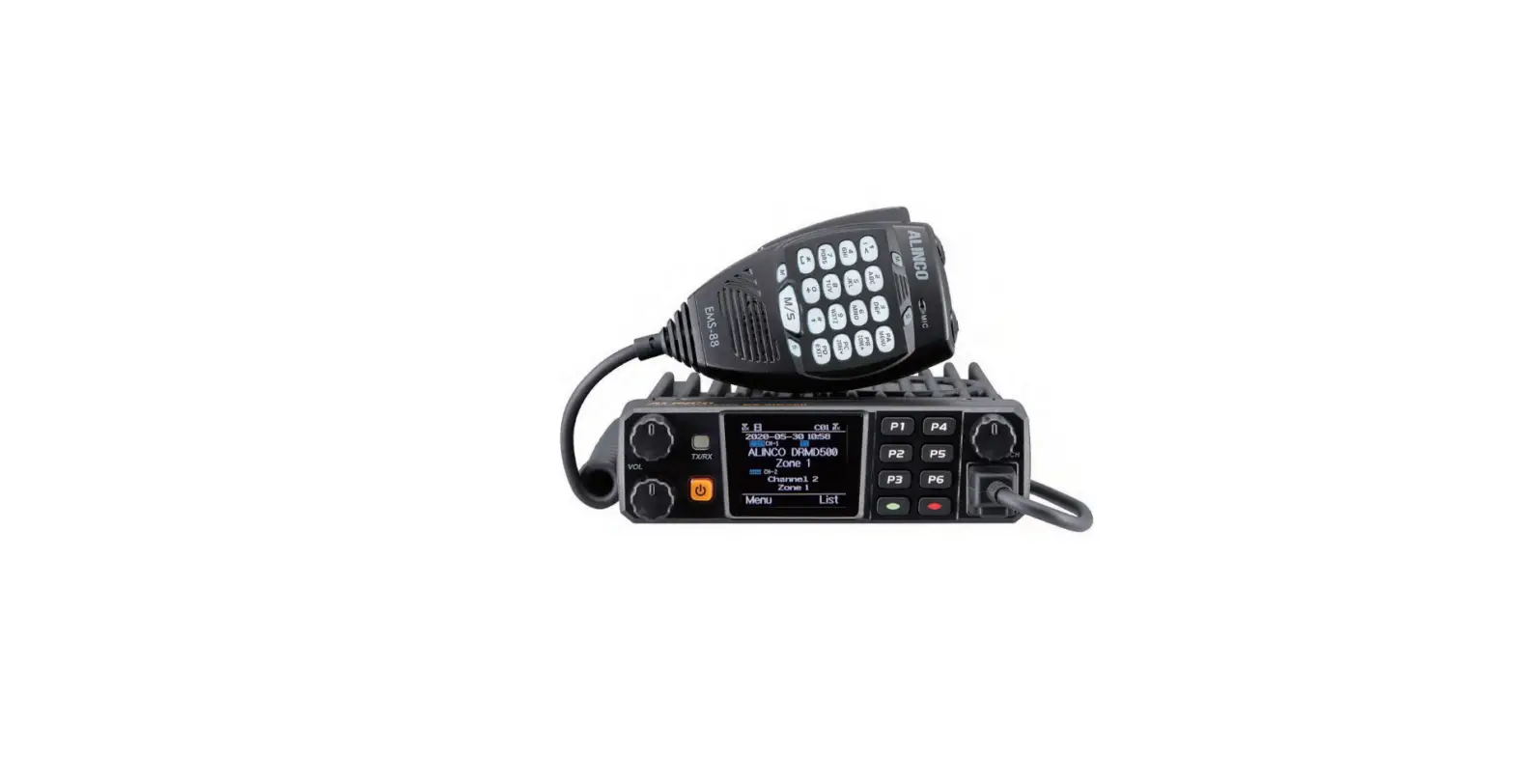
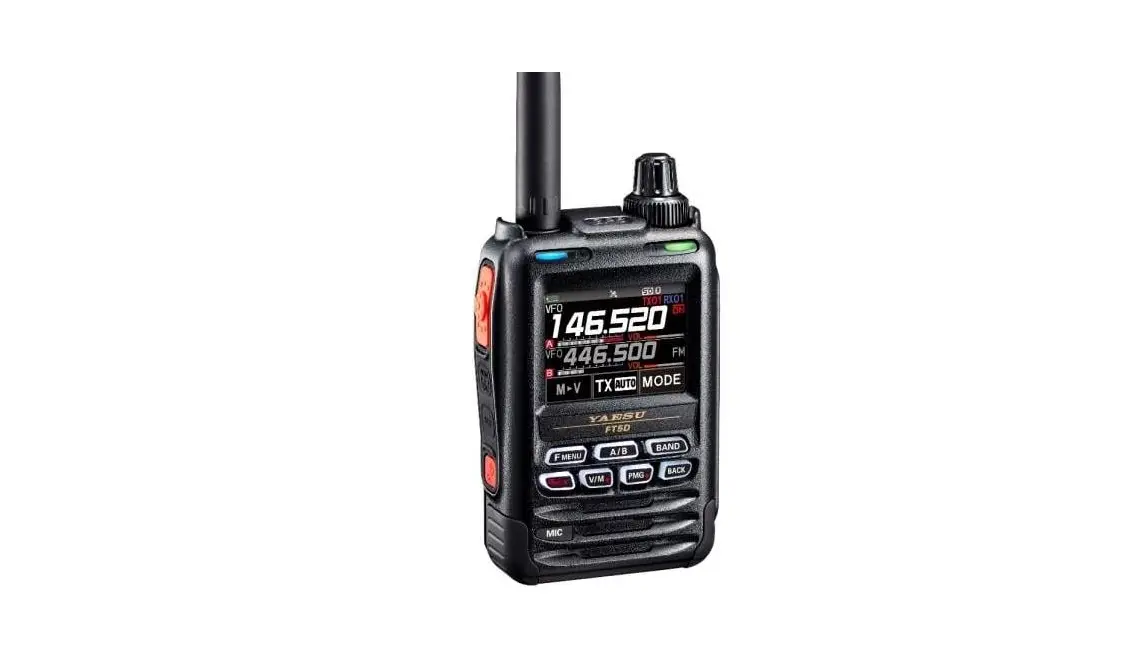
FTM-500DR Dual Band Digital Mobile Transceiver
Product Information
The FTM-500DR FTM-500DE is a C4FM/FM 144/430MHz dual band
digital transceiver. It is equipped with the GM (Group Member)
function, which allows users to display the positions of up to four
group stations in real time. The transceiver also features an APL
(Automatic Position Locating) screen, compass screen, and the
ability to register and navigate towards a partner station.
GM Function
The GM function enables users to track the positions of group
members in real time. The APL screen displays the positions of up
to four group stations, including the user’s own station. The
direction, distance, and moving direction of each station are
shown.
APL (Automatic Position Locating) Screen
The APL screen displays the positions of up to four group
stations, centered on the user’s own station. The direction and
progress of each station are displayed, along with information such
as position, distance, and moving direction.
Compass Screen
The compass screen allows users to confirm the location of a
selected group member station in real time. The screen displays the
call sign, direction, distance, and heading of the selected partner
station. Users can switch between two display methods: HEADING UP,
where the compass circle indicates the user’s heading direction and
the arrow indicates the direction towards the partner station, and
NORTH UP, where the compass always displays north at the top.
Product Usage Instructions
Displaying the APL (Automatic Position Locating) screen
- Press the SUB DIAL knob while the GM function is active.
- To disable the APL screen display, press the [BACK] key to
return to the normal GM screen.
Confirming the location of a Group Member station in real
time
- Press the [GM] key.
- Rotate the FUNC knob to select the station for which you want
to display location information. - Press the FUNC knob.
- The call sign, direction, distance, and heading of the selected
partner station will be displayed. - To switch the compass screen display method, press and hold the
FUNC knob and select the screen display method (HEADING UP or NORTH
UP) by pressing the FUNC knob. The default setting is HEADING
UP. - To disable the compass screen display, press the [BACK] key.
Registering the Location Information of a Partner Station
- Press the [GM] key.
- Rotate the FUNC knob to select the station for which you want
to register location information.
C4FM/FM 144/430MHz DUAL BAND DIGITAL TRANSCEIVER
FTM-500DR FTM-500DE
Instruction Manual (GM Edition)
Table of Contents
What is the GM Function? ………………………………………………………………………………… 2 GM Operation…………………………………………………………………………………………………… 3 Display the APL (Automatic Position Locating) screen………………………………………. 4 Confirm the location of a Group Member station in real time……………………………… 5
Display the position of the member station on the compass screen……………………….. 5 Registering the Location Information of a Partner Station …………………………………….. 6 Checking Received Messages and Images………………………………………………………… 7 Sending massages or images …………………………………………………………………………… 8 Creating and sending a new message……………………………………………………………….. 8
Using Standard Messages ……………………………………………………………………………. 9 Registering a standard message………………………………………………………………….. 10 Replying to the Sender of the Checked Message or Image Data…………………………. 11 Forwarding the Checked Message or Image Data …………………………………………….. 11 GM Set Mode List …………………………………………………………………………………………… 12 GM Set Mode Function List …………………………………………………………………………….. 12 60 DP-ID LIST …………………………………………………………………………………………… 12 61 RANGE RINGER…………………………………………………………………………………… 12 62 RADIO ID CHECK…………………………………………………………………………………. 12 63 LOG LIST …………………………………………………………………………………………….. 12
1
What is the GM Function?
The GM (Group Monitor) function automatically monitors on the same frequency for any other stations with the GM function in operation, or stations operating in DN mode, within communication range. The GM function then displays the acquired direction and distance information for each detected call sign on the screen. If the DG-ID number is other than “00”, the GM function will check for partner stations set to the same DG-ID number, with the GM function turned ON, that are within communication range. In addition to knowing who is in the service area, the APL (Automatic Position Locat ing) screen indicates the positions of the group members, centered on your own station (up to four are simultaneously displayed). The direction and progress of each station is displayed, and you can check each other’s position, distance, and moving direction. You can also use GM functions to send data such as messages and images with your friends.
· When the GM function is activated, the operating band is automatically switched to the Main band, and the communication mode is switched to the C4FM digital (DN) mode.
· To use the GM function, all of the members must operate on the same frequency. · Note that when the receive DG-ID number of your transceiver is set to a DG-ID number
other than “00”, received signals that do not have the same DG-ID number may not be heard. Insert a commercially available micro-SD card into this unit to send and receive messages and images. Usable microSD Memory Cards This transceiver only supports the following capacity of microSD and microSDHD memory cards. · 2GB · 4GB · 8GB · 16GB · 32GB Not all microSD and microSDHC cards sold commercially are guaranteed to work with this product. In addition, microSDXC memory cards are not supported.
2
GM Operation
1. Tune to the frequency used by the group that you would like to communicate with. · If you only want to check your group location information, press and hold the [GM] key and set the send and receive DG-ID numbers to the same numbers except “00” at all the partner stations. · The frequency cannot be changed while the GM function is operating.
2. Press the [GM] key. · The callsign and signal strength of stations (up to 24) operating in the DN mode and those with their GM function in operation, that are within communications range, will be displayed. · Stations within the sphere of communications callsigns are displayed in white. · Stations outside the sphere of communications callsigns are displayed in gray. · You can communicate in DN mode of C4FM digital by pressing the PTT switch.
Selected member Direction Distance
JA1YOE JQ1YBF
12.1km
1.4km
JA7YWC JH1YPC
8.4km 12.5km
JA1ZRL JA2YSO
23.2km
-.-km
In range Out of range
3
Display the APL (Automatic Position Locating) screen
The positions of up to four group stations are displayed on the APL (Automatic Position Locating) screen, centered on your own station. The direction and progress of each station is displayed, and you can check each other’s position, distance, and moving direction.
DG-ID number
145.780
JA1YOE JQ1YBF JA7YWC JH1YPC
Member (Arrow indicates the direction of progress)
Displayed members (max 4 stations) Callsign (first 6 characters)
Own station (Arrow indicates the direction of progress)
1. Press the SUB DIAL knob while the GM function is active:
2. Press the SUB DIAL knob · The last four stations received by the GM function are displayed on the APL screen. The displayed stations are listed on the left side of the screen with the first six characters of the callsign and the direction from your own station. · The direction of members will be displayed on the compass screen, centered on your own station. The traveling direction of your own and member stations is indicated on the compass screen. · The scale of the compass screen is automatically set according to the distance of the selected member station when the APL screen is displayed. Rotate the DIAL knob to change the scale. · The maximum distance at which a member’s position can be displayed on the compass screen is a radius of 1,000mi (or 1,000km).
JA1YOE JQ1YBF
12.1km
1.4km
JA7YWC JH1YPC 8.4km 12.5km
JA1ZRL-CDE JA2YSO-789
145.780
JA1YOE JQ1YBF JA7YWC JH1YPC
z Disable the APL screen display 1. Press the [BACK] key.
Return to the normal GM screen.
4
Confirm the location of a Group Member station in real time
The position of the selected member can be confirmed in real time on the compass screen. The member’s current position may be registered as the navigation destination.
Display the position of the member station on the compass screen
1. Press the [GM] key.
2. Rotate the FUNC knob to select the station for which
you want to display location information.
JA1YOE JQ1YBF
12.1km
1.4km
JA7YWC JH1YPC
8.4km 12.5km
JA1ZRL JA2YSO
23.2km
-.-km
3. Press the FUNC knob.
The call sign and direction, distance, and heading of the selected partner station are
displayed.
Callsign of other station
HUP: Heading up NUP: North UP
JA1YOE
Distance to other station
Direction of other station Direction of your station
z Switch the compass screen display method Press and hold the FUNC knob [6 COMPASS], then press the FUNC knob to select the screen display method (direction toward the top of the screen) from “HEADING UP” or “NORTH UP”. The default setting is “HEADING UP”.
HEADING UP: The compass circle indicates the direction ( , , and ) you are heading. The arrow indicates the direction toward your partner station.
NORTH UP: Always displays the north ( ) on the top. The arrow indicates the direction you are heading.
z Disable the Compass screen display 1. Press the [BACK] key.
· Cannot update the location information of the partner stations outside of communication range.
· If your station or your partner stations do not set the location information manually or capture it from the GPS satellite signals, the compass display is not available.
· GPS location information may have an error of several hundred meters depending on the surrounding environment and so on.
· This function is a simple function using GPS satellite data. Use this as a guide for the position of your own station or partner station.
5
Registering the Location Information of a Partner Station
You can register the current position of the selected member, and then navigate toward that station.
1. Press the [GM] key.
2. Rotate the FUNC knob to select the station for which
you want to registering location information.
JA1YOE
3. Press the SUB DIAL knob, then rotate the SUB DIAL knob to select [MEM], then press the SUB DIAL knob. [«], [L1] and [L2] will start blinking.
4. Rotate the SUB DIAL knob to select the [«], [L1] or [L2], then press the SUB DIAL knob.
5. Press the [BACK] key. · The Callsign and location information of your partner station is registered, and the Navigation starts. · To cancel the registration, press the [BACK] key. · The registered location information can be recalled later to allow navigation to that point.
JA1YOE
6
Checking Received Messages and Images
Use the GM function to check the messages and images on the LOG list. When using a GM function, a beep sounds when a new message or image is received.
1. Press the [GM] key. 2. Press the SUB DIAL knob, then rotate the SUB DIAL
knob to select [LOG], then press the SUB DIAL knob.
JA1YOE JQ1YBF
12.1km
1.4km
JA7YWC JH1YPC
8.4km 12.5km
JA1ZRL-CDE JA2YSO-789
3. Rotate the FUNC knob to select [MESSAGE] or [PICT].
VOICE: Audio recorded (Only playback of recorded content is possible.)
MESSAGE: Text Message
PICT:
Image
4. Press the FUNC knob.
LOG VOICE MESSAGE PICT
Select “MESSAGE” or “PICT” to display the LOG MSG list or LOG PICT list. The icons on the left side of the LOG list indicate the following:
Message received (unread) Message received (read) Message sent Message failed to send Image received (not viewed) Image received (viewed) Image sent Image failed to send
LOG MSG NEW JA6YPC JA1YOE JQ1YBF JQ1YBG JA1ZRL
12:34 08:56 06:17 05/05 04/24
5. Rotate the FUNC knob to select to the message or image to be displayed, then press the FUNC knob. · The selected message or image will be displayed. · Press the FUNC knob while displaying the contents of a message to turn the displayed date and time of the downloaded message ON/OFF. · Press the FUNC knob while an image is displayed to turn the text date and time of the picture ON/OFF. · Press the SUB DIAL knob, then rotate the SUB DIAL knob to select [FWD], then press the SUB DIAL knob to forward the checked message or image data. Refer to “Forwarding the Checked Message or Image Data (page 12).
7
· Press the SUB DIAL knob, then rotate the SUB DIAL knob to select [REPLY], then press the SUB DIAL knob to reply to the sender of the downloaded message or image data. Refer to “Replying to the Sender of the Checked Message or Image Data” (page 12).
· Press the SUB DIAL knob, then rotate the SUB DIAL knob to select [DEL], then press the SUB DIAL knob to display “DELETE?”. Rotate the FUNC knob to select [OK], then press the SUB DIAL knob to delete the information.
6. Press the [GM] key. Returns to the previously viewed screen.
8
Sending massages or images
There are 4 ways to send messages or images using the GM function:
(1) Creating and sending a new message (2) Replying to the sender of the checked message or image data (3) Forwarding the checked message or image data
(4) Sending saved images
Creating and sending a new message
Create and send a new message:
1. Press the [GM] key. 2. Press the SUB DIAL knob, then rotate the SUB DIAL
knob to select [LOG], then press the SUB DIAL knob.
JA1YOE JQ1YBF
12.1km
1.4km
JA7YWC JH1YPC 8.4km 12.5km
JA1ZRL-CDE JA2YSO-789
3. Rotate the FUNC knob to select [MESSAGE], then press the FUNC knob. Displays the LOG list.
4. Rotate the FUNC knob to select [NEW], then press the FUNC knob.
5. Press the SUB DIAL knob, then rotate the SUB DIAL knob to select [EDIT], then press the SUB DIAL knob. Displays the message entry screen.
LOG MSG NEW JA6YPC JA1YOE JQ1YBF JQ1YBG JA1ZRL
12:34 08:56 06:17 05/05 04/24
LOG MSG NEW JA6YPC JA1YOE JQ1YBF JQ1YBG JA1ZRL
12:34 08:56 06:17 05/05 04/24
NEW
||||||||||||||||||||
|||||||||||||||||||| ||||||||||||||||||||
||||||||||||||||||||
6. Refer to “Text input screen” in the FTM-500DR/DE Operating Manual to enter a message. · Rotate the FUNC knob to select [MTXT], then press the FUNC knob to easily input a message using a standard form. · In the message input screen, one line is displayed for every 20 characters. Rotate the SUB DIAL knob to move the cursor and display other lines.
9
7. When input is complete, press and hold the FUNC knob. The entire message is displayed.
8. Press the SUB DIAL key, then rotate the SUB DIAL knob to select [SEND], then press the SUB DIAL knob. · To cancel transmission, press the [BACK] key. · To save the entered message as a standard message, rotate the SUB DIAL knob to select [SAVE], then press the SUB DIAL knob (page 11). · To continue message entry, rotate the SUB DIAL knob to select [EDIT], then press the SUB DIAL knob.
9. Rotate the FUNC knob to select [ALL], then press the FUNC knob. · To send the message to a specific member that is within communication range, select the member callsign.
· Messages cannot be sent to members outside of communication range. · The address designation “to:” is merely for displaying “ALL” or the call sign of a specific
station. In other words, even if you specify a call sign for “to:” to send a message, other stations operating GM on the same frequency can also read the message if they are within the communication range.
Using Standard Messages
The following 19 standard messages have been saved in the radio’s memory as default to help save time and effort in text input.
QRM QRP QRT
Good job Good day Good evening
wait for you Pick me up Thank you
QRX QRZ QSY
Good night Send messages Send pictures
OK urgent
–
Good morning
on my way
–
1. Follow steps 1 to 5 in “Creating and sending a new message” on page 9 to dis-
play the message entry screen.
2. Rotate the FUNC knob to select [MTXT], then press the FUNC knob.
||||||||||||||||||||
· Displays the standard message list. · For “1” to “10”, you can register a message com-
prised of up to 80 letters.
MTXT
3. Rotate the FUNC to select the standard message you want to use.
4. Press the FUNC knob.
QRM||||||||||||| QRP||||||||||||| QRT||||||||||||| QRX||||||||||||| QRZ||||||||||||| QSY|||||||||||||
10
5. Press and hold the FUNC knob. The entire message is displayed. To add letters to the message, input letters following steps 6 in “Creating and sending a new message” on page 9.
QRM |||||||||||||||| MTXT
Registering a standard message
Up to 10 texts containing a maximum of 80 characters each can be registered as standard messages. Registered texts can be selected and used like the 19 standard messages that have been saved as default.
1. Follow steps 1 to 7 in “Creating and sending a new message” on page 9 to display the message entry screen.
2. Press the SUB DIAL knob, then rotate the SUB DIAL knob to select [SAVE], then press the SUB DIAL knob. The standard message list is displayed.
Take a break ||||||| 1 |||||||||||||||| 2 |||||||||||||||| 3 |||||||||||||||| 4 |||||||||||||||| 5 |||||||||||||||| 6 ||||||||||||||||
3. Rotate the FUNC knob to select the number (1 to 10) where you want to register the standard message.
4. Press the FUNC knob. · Registers the text as a standard message and displays the message entry screen. · If you register a new message to a number where a message is already registered, the old message is overwritten. · To cancel registration, press the [BACK] key.
Take a break ||||||| 1 |||||||||||||||| 2 |||||||||||||||| 3 |||||||||||||||| 4 |||||||||||||||| 5 |||||||||||||||| 6 ||||||||||||||||
11
Replying to the Sender of the Checked Message or Image Data
After checking the message or image data, you may reply to the sender. 1. Select the information (MESSAGE or PICT) to review according to steps 1 to 4 of
“Checking Received Messages and Images” (page 7). Displays the selected data. 2. Press the SUB DIAL knob, then rotate the SUB DIAL knob to select [REPLY], then press the SUB DIAL knob. The call sign of the station that sent MESSAGE or PICT to the destination is set automatically. 3. Rotate the SUB DIAL knob to select [EDIT], thenpress the SUB DIAL knob. Displays the message entry screen. 4. Follow steps 1 to 7 in “Creating and sending a new message” on page 9 to display the message entry screen. Displays the entire message. 5. Press the SUB DIAL knob, then rotate the SUB DIAL knob to select [SEND], then press the SUB DIAL knob. Sends the reply message to the sender of the MESSAGE/PICT data.
Forwarding the Checked Message or Image Data
After reviewing the message or image data, you may forward the data to other members. 1. Select the information (MESSAGE or PICT) to check according to steps 1 to 4 of
“Checking Received Messages and Images” (page 7). Displays the selected data. 2. Press the SUB DIAL knob, then rotate the SUB DIAL knob to select [FWD], then press the SUB DIAL knob. 3. Rotate the FUNC knob to select [ALL], the press the FUNC knob. Messages and images will be transferred. · To send the message to a specific member that is within communication range,
touch the member callsign. · Messages cannot be sent to members outside of communication range. · The address designation “to:” is merely for displaying “ALL” or the call sign of a specific station. In other words, even if you specify a call sign for “to:” to send a message, other stations operating GM on the same frequency can also read the message if they are within the communication range.
12
GM Set Mode List
Set mode item No. /item
60 DP-ID LIST 61 RANGE RINGER
62 RADIO ID
63 LOG LIST
Descriptions
Displays the DP-ID list screen Bell sound setting when checking for stations within sphere of communications
Transceiver specific number (ID) appears.
Display a list of recorded audio files, received messages and images.
Selectable Items (Bold letters: Default)
–
OFF/ON
(Cannot be edited)
–
GM Set Mode Function List
60 DP-ID LIST
Display of the DP-ID list screen Explanation: Every C4FM digital transmit communication contains the individual ID
information (Radio ID) of each transceiver. The DP-ID function uses this individual ID information. When communicating with another transceiver, if the DP-IDs of the stations are registered in both transceivers, they can communicate even though the DG-ID numbers are different. For details, refer to the FTM-500DR/DE operating Manual.
61 RANGE RINGER
Explanation: Activates/deactivates the alert sound when detecting stations within communication range. Select “ON” to activate the alert sound when detecting any stations within communication range.
62 RADIO ID CHECK
Display of RADIO ID Explanation: In the GM function, each transceiver transmits its own ID along with the
call sign. RADIO ID is a 5-digit code consisting of alphanumeric characters that are written into the transceiver during factory production. The RADIO ID cannot be edited.
63 LOG LIST
Display a list of recorded voices, received messages and images. Explanation: Displays the list of recorded audio, messages and images that have been
sent or received.
VOICE: Display the list of recorded audio files.
MESSAGE: Displays the list of messages sent and received.
PICT:
Displays the list of images sent and received.
Select a file with the FUNC knob and then press the FUNC knob to play or display it.
13
Copyright 2023 YAESU MUSEN CO., LTD. All rights reserved.
No portion of this manual may be reproduced without the permission of YAESU MUSEN CO., LTD.
YAESU MUSEN CO., LTD.
Omori Bellport Building D-3F 6-26-3 Minami-Oi, Shinagawa-ku, Tokyo, 140-0013, Japan
YAESU USA
6125 Phyllis Drive, Cypress, CA 90630, U.S.A.
YAESU UK
Unit 12, Sun Valley Business Park, Winnall Close Winchester, Hampshire, SO23 0LB, U.K.
2304-A