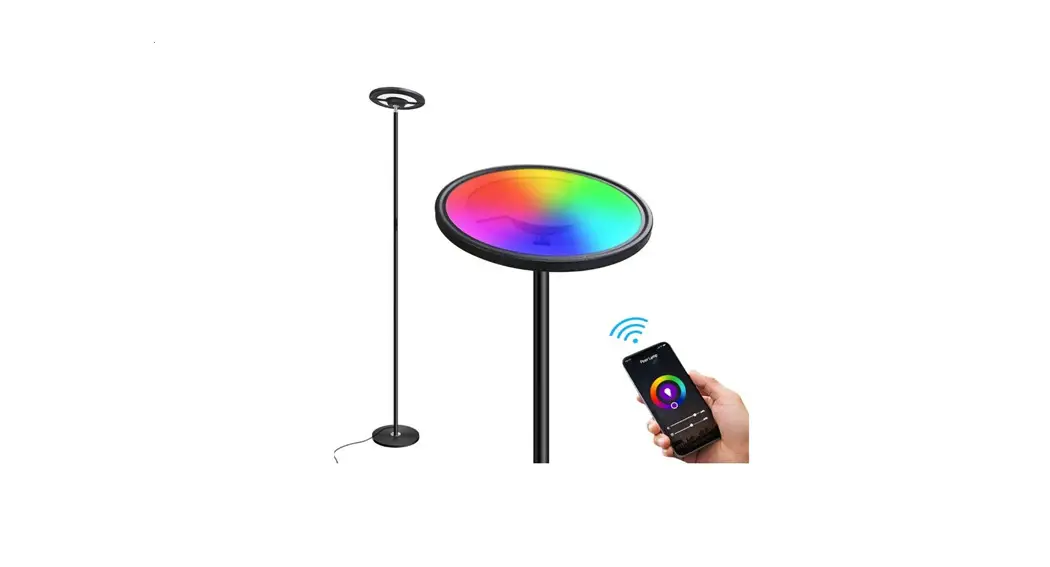
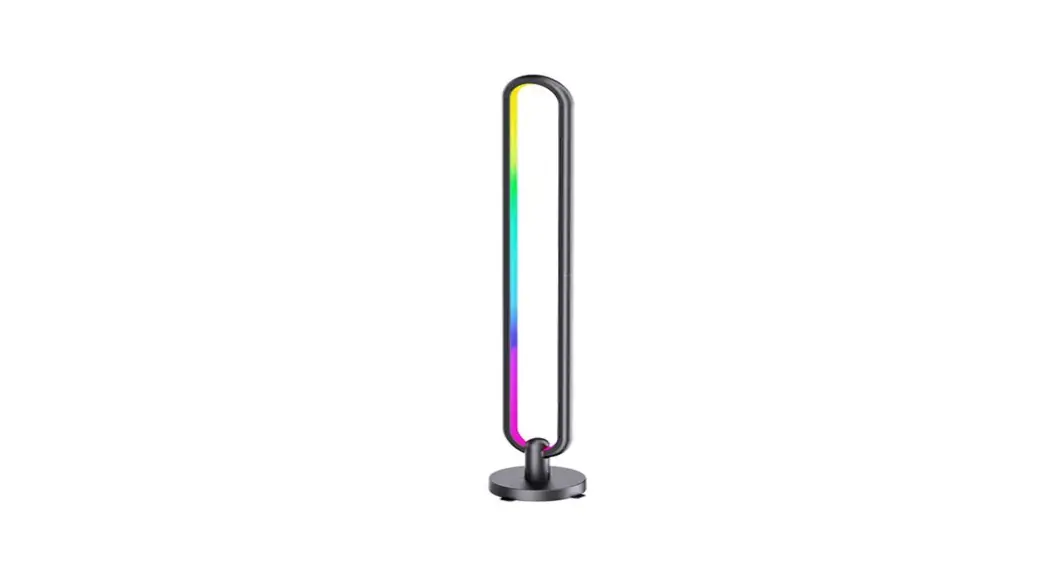
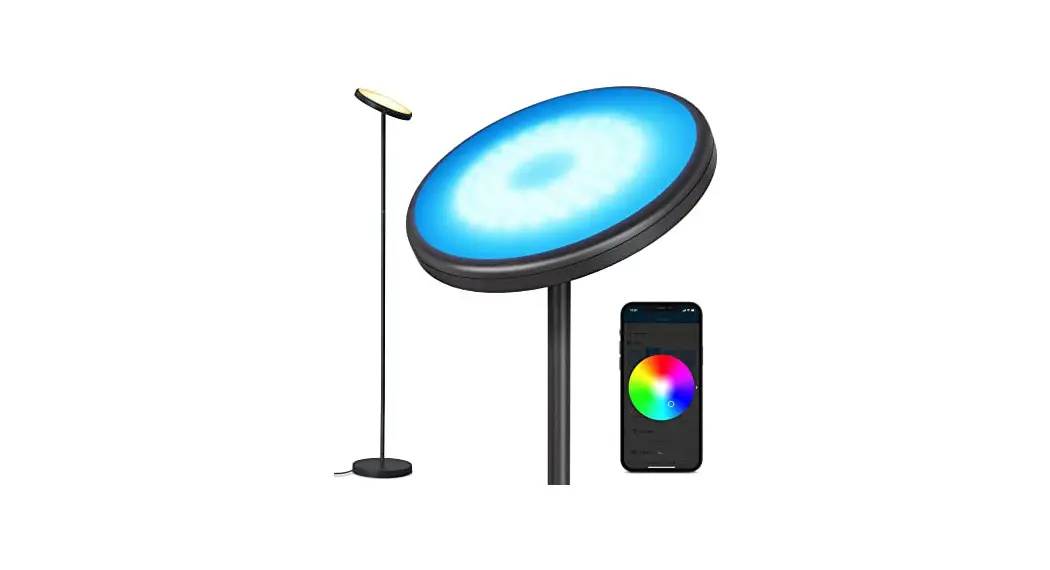
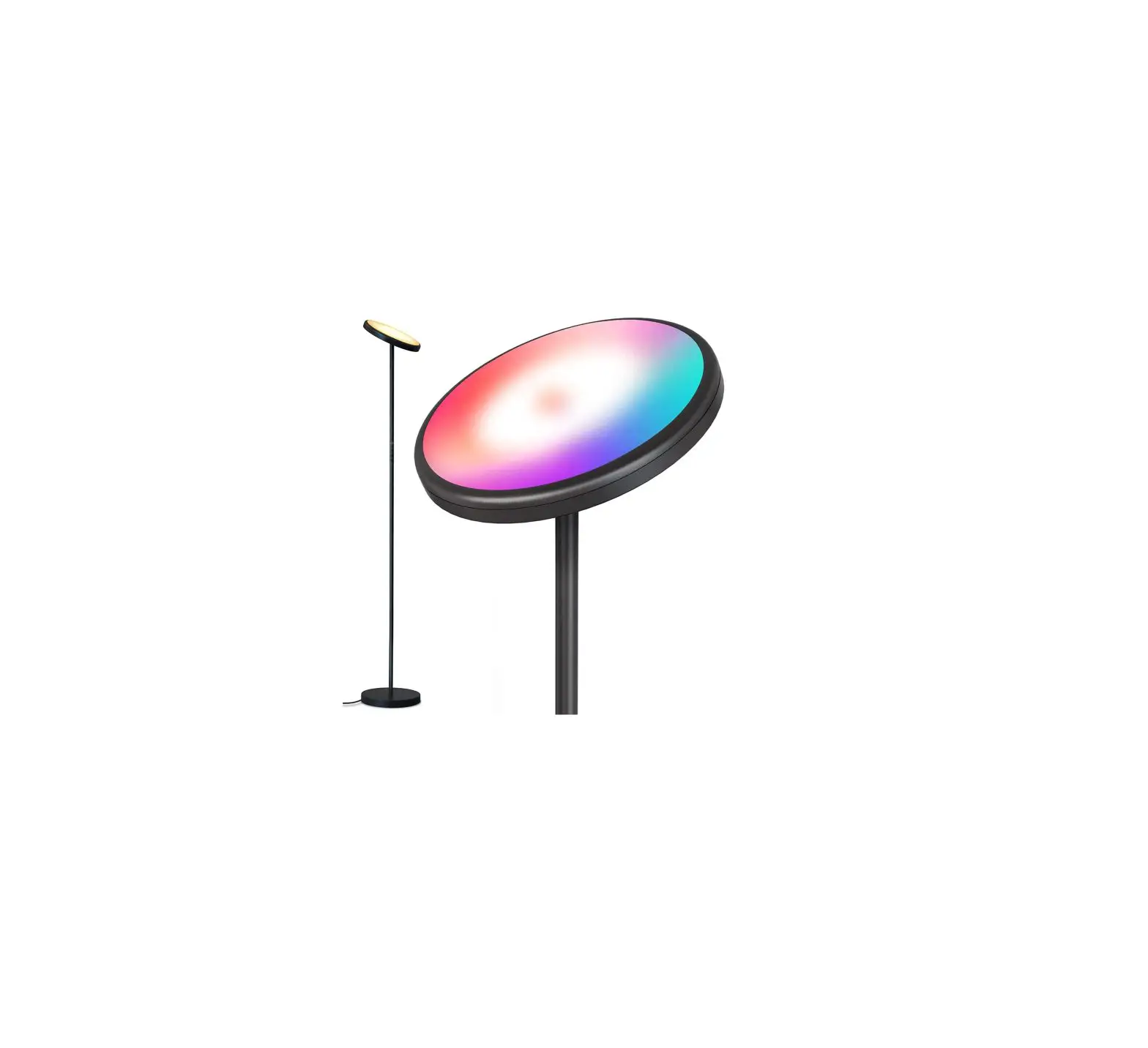
LF1500 Smart Floor Lamp
Product Information
The Smart Floor Lamp is a 3-piece lamp with a base and two
additional lamps that can be connected to form a single unit. It is
compatible with Android and iOS devices and can be controlled using
the Fitop App.
- Dimensions: 85mm x 85mm x 68mm
- Power Input: 12V DC, 2.0A
- Features: Touch buttons for on/off, brightness adjustment,
dynamic effects, color temperature adjustment, and local music
rhythm. Reset button for resetting the lamp. Power LED
indicator.
Product Usage Instructions
How to Assemble
- Insert the first lamp with the male end of the plug into the
base in the direction of the base interface. - Insert the end of the second lamp with the connector into the
other end of the first lamp connector. - Finally, insert the end of the third lamp with the connector
into the interface of the other end of the second lamp.
Set up your Smart Floor Lamp
- Power on the floor lamp and long press the reset button for
more than 3 seconds until it starts blinking. - Open the Fitop App and tap either the “+” or “Add Device”
button to discover nearby smart bulbs. - Add the floor lamp to your device list using the instructions
provided in the app.
FAQs
Q1: How to investigate problems if I cannot connect the Smart
Floor Lamp?
- Check if the floor lamp is powered on properly.
- Check if the phone is connected to WIFI and if your floor lamp
is connected to the same WIFI as your phone. - Ensure the WIFI can access the internet. The only bands that
support WIFI are 2.4Ghz or 2.4Ghz and 5Ghz coexistence. - Check if the floor lamp is rapidly flashing (on for 0.5s and
off for 0.5s) before you add the floor lamp. - Make sure the WiFi password entered in the app is correct when
adding the device. - Do not use the floor lamp outside of WiFi range and in metal
containers that can block WIFI signals.
Q2: How to reset the floor lamp?
If the bulb is not installed, power on the light and long press
the reset button for more than 3 seconds until it starts
blinking.
Q3: How do I connect multiple floor lamps on one switch?
- The app can discover multiple floor lamps, but only one floor
lamp can be connected at a time, requiring multiple clicks to
connect. - The floor lamp will blink for 3-5 minutes, and the successfully
paired floor lamp will stop blinking and connect.
How to connect Smart Floor Lamp to Amazon Alexa
- Open the Fitop App and tap “Me” -> “Third-Party Voice
Services” -> “Alexa” -> “Sign In With Amazon” to connect the
Smart Floor Lamp to Alexa. - Follow the detailed instructions provided in the app to
complete the connection process.
How to connect Smart Floor Lamp to Google Assistant
Instructions for connecting the Smart Floor Lamp to Google
Assistant are not provided in the user manual.
85 mm 85 mm
68 mm
Smart Floor Lamp
Android / iOS
cScan QR code to download our Fitop APP
Top cover
1
2
3
Male plug
Connecter
Connecter
Touch button 1 Touch button 2
Base
12V DC POWER LED
MIC
RESET
Touch button 1 Short press the lamp on, off cycle; long press the infinitely adjustable brightness
Touch button 2 Short press to switch the dynamic effect, long press to adjust the color temperature, double click to open the local mode music rhythm. Note: In any mode, long press the touch button 2 to switch to white light. 12V DC: input 12V—-2.0A Reset button: Long press for 3 seconds, reset, 2700K white light breathing flashing, enter the network distribution mode
MIC: Local music rhythm, pickup microphone
POWER LED: Power indicator, green light when the power is on
– 01 –
How to Assemble
Insert the first lamp with the male end of the plug into the base in the direction of the base interface.
Then insert the end of the second lamp with the connector into the other end of the first lamp connector.
Finally, insert the end of the third
lamp with the connector into the
interface of the other end of the
2
second lamp.
1 1
Male plug
– 02 –
Top cover 3 2 1
I. Set up your smart floor lamp
æDownload Fitop APP Get Fitop APP from APP Store or Google Play, or by scanning the QR code below. çLogin APP Register a Fitop APP account and login APP. èAdd smart floor lamp Please turn on WiFi and Bluetooth on your phone or tablet. For a better experience, please turn on location permissions. Before adding the floor lamp, make sure your router’s network is 2.4Ghz or 2.4Ghz and 5Ghz coexisting.
– 03 –
Power on floor lamp(>10s)Long press the reset button (>3s)Wait untill blinking. Confirm floor lamp is now rapidly flashing.
Tap the ” ” or ” Add Device ” button on the app. Bluetooth will discover the smart bulbs around. Add the floor lamp. You can also add smart floor lamps manually by following the instructions on the app.
II.FAQs
If you have any questions, you can contact us through the Fitop App.
– 04 –
– 05 –
Q1: How to investigate problems if I can not connect the smart floor lamp?
A.Please check if the floor lamp is powered on properly. B.Check if the phone is connected to WIFI and if your
floor lamp is connected to the same WIFI as your phone. C.Ensure the WIFI can access to internet. The only bands
that support WIFI are 2.4Ghz or 2.4Ghz and 5Ghz coexistence. D.Check if the floor lamp is rapidly flashing(on 0.5s and off 0.5s) before you add floor lamp. E.Make sure the WiFi password enter in App is correct when adding device. F.Please do not use floor lamp outside WiFi range and metal container where can block WIFI signals.
Q2: How to reset the floor lamp?
A.If the bulb doesn’ t have installed. Power on light(>10s) Long press the reset button (>3s)Wait untill blinking.
B.If the floor lamp has been installed. Click “···->Device Management->Remove Device” in the page “Home”, the floor lamp will flash after 5 seconds.
Q3: How do I connect multiple floor lamp on one switch?
A.APP can discover multiple floor lamp, but only one floor lamp can be connected at a time, requiring multiple clicks to conn. ect
– 06 –
B.The floor lamp will blink for 3-5 minutes, the successful pairing floor lamp will stop blinking and connect.
III.How to connect smart floor lamp to Amazon Alexa
1. Please tap ” Me ->Third-Party Voice Services ->Alexa ->Sign In With Amazon ” of Fitop APP to connect smart floor lamp to Alexa. 2. If you don’t know the connection steps, you can learn the detailed instruction on page of the “Me ->Third-Party Voice Services ->Alexa ->View more ways to link”.
– 07 –
3.Tap the”Link with Account Password ” 4.There are detailed connection course
– 08 –
IV. How to connect smart floor lamp to Google Assistant
1. Please tap ” Me ->Third-Party Voice Services -> Google Assistant ->Link with Google Assistant ” of Fitop APP to connect smart floor lamp to Google Assistant. 2. If you don’t know the connection steps, you can learn the detailed instruction on page of the “Me ->Third-Party Voice Services ->Google Assistant ->View more ways to link”.
3.Tap the “Link with Account Password ” 4.There are detailed connection course
– 09 –
– 10 –
FCC Caution. (1)§ 15.19 Labelling requirements. This device complies with part 15 of the FCC Rules. Operation is subject to the following two conditions: (1) This device may not cause harmful interference, and (2) this device must accept any interference received, including interference that may cause undesired operation. § 15.21 Changes or modification warning Any Changes or modifications not expressly approved by the party responsible for compliance could void the user’s authority to operate the equipment. § 15.105 Information to the user. Note: This equipment has been tested and found to comply with the limits for a Class B digital device, pursuant to part 15 of the FCC Rules. These limits are designed to provide reasonable protection against harmful interference in a residential installation. This equipment generates uses and can radiate radio frequency energy and, if not installed and used in accordance with the instructions, may cause harmful interference to radio communications. However, there is no guarantee that interference will not occur in a particular installation. If this equipment does cause harmful interference to radio or television reception, which can be determined by turning the equipment off and on, the user is encouraged to try to correct the interference by one or more of the following measures: -Reorient or relocate the receiving antenna. -Increase the separation between the equipment and receiver. -Connect the equipment into an outlet on a circuit different from that to which the receiver is connected. -Consult the dealer or an experienced radio/TV technician for help. RF warning for Mobile device: This equipment complies with FCC radiation exposure limits set forth for an uncontrolled environment. This equipment should be installed and operated with minimum distance 20cm between the radiator & your body.
Made in China
68x85mm 408x85mm
: 1. 2. 3.±0.2mm1:1 4. 5.RoHS 6.
20221207
: LED
Hugo
HUIZHOU FORYOU OPTOELECTRONICS TECHNOLOGY CO.,LTD.
:
: 127075008018
: 157g
:
: mm :V00 : : 1:1