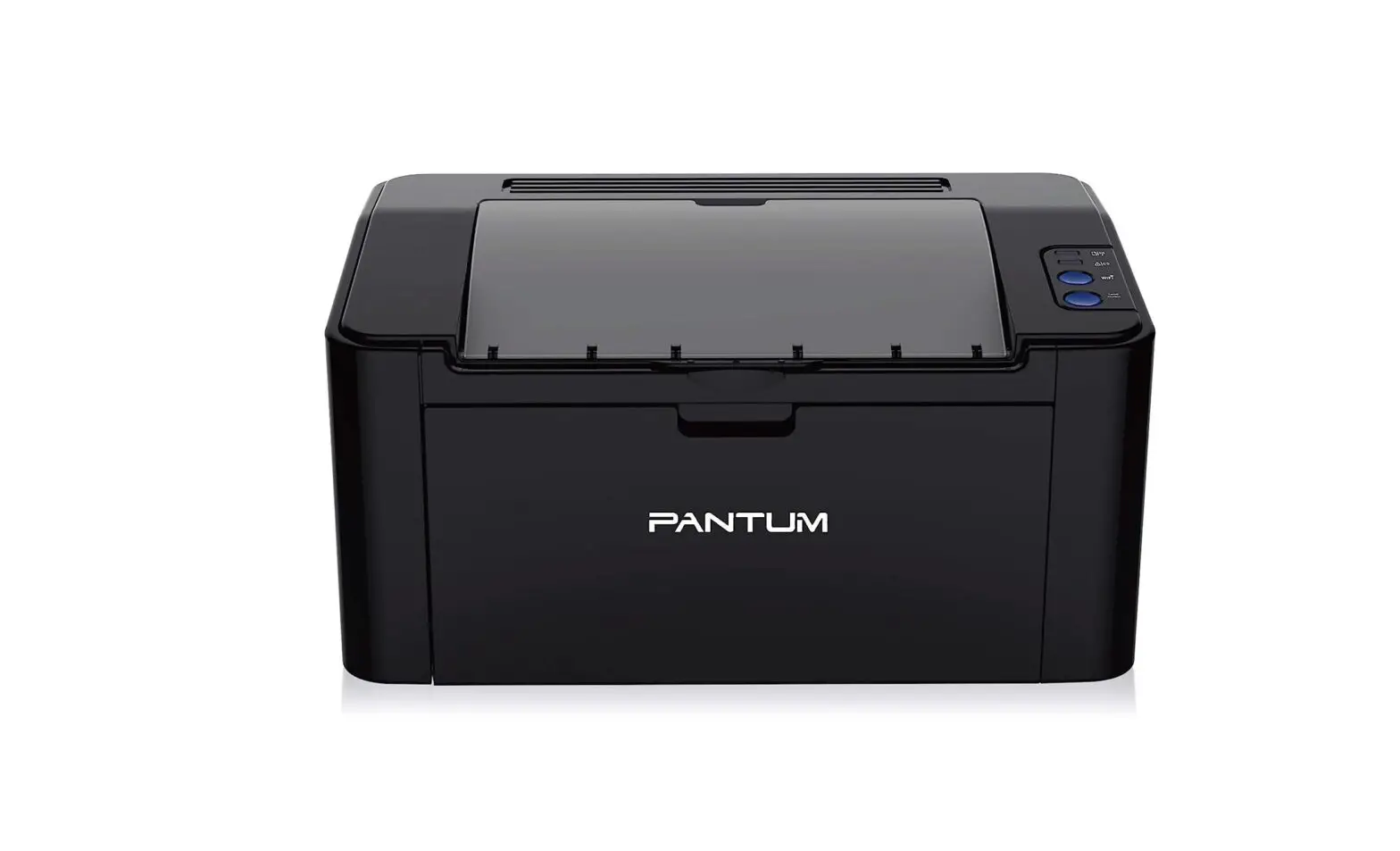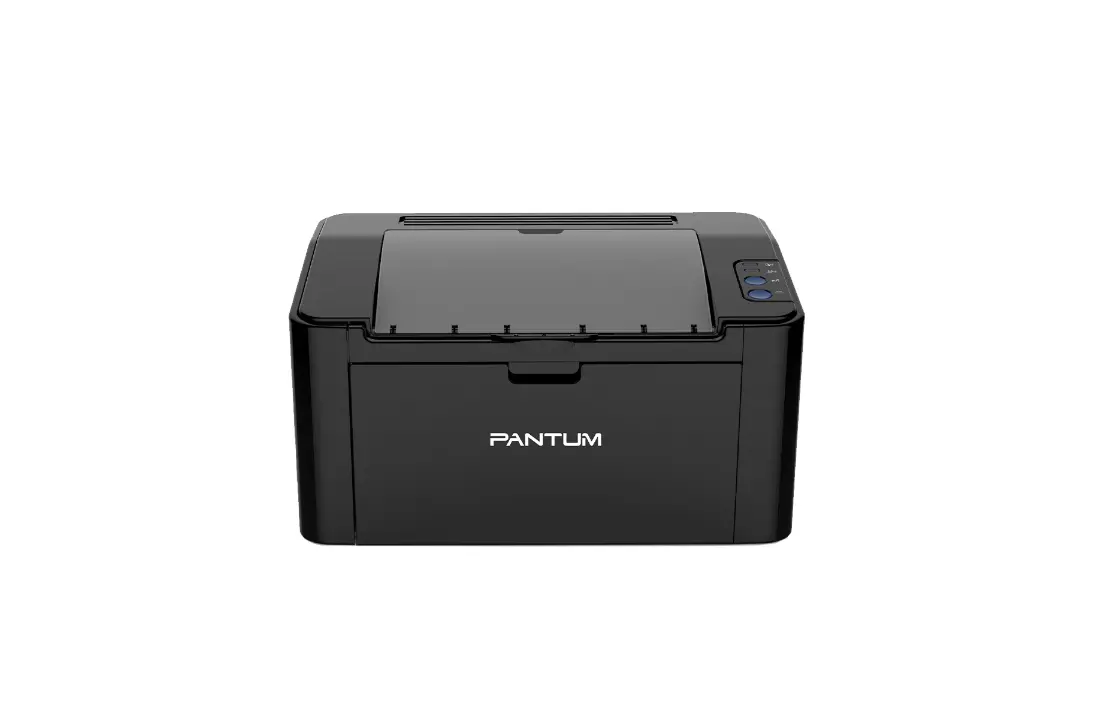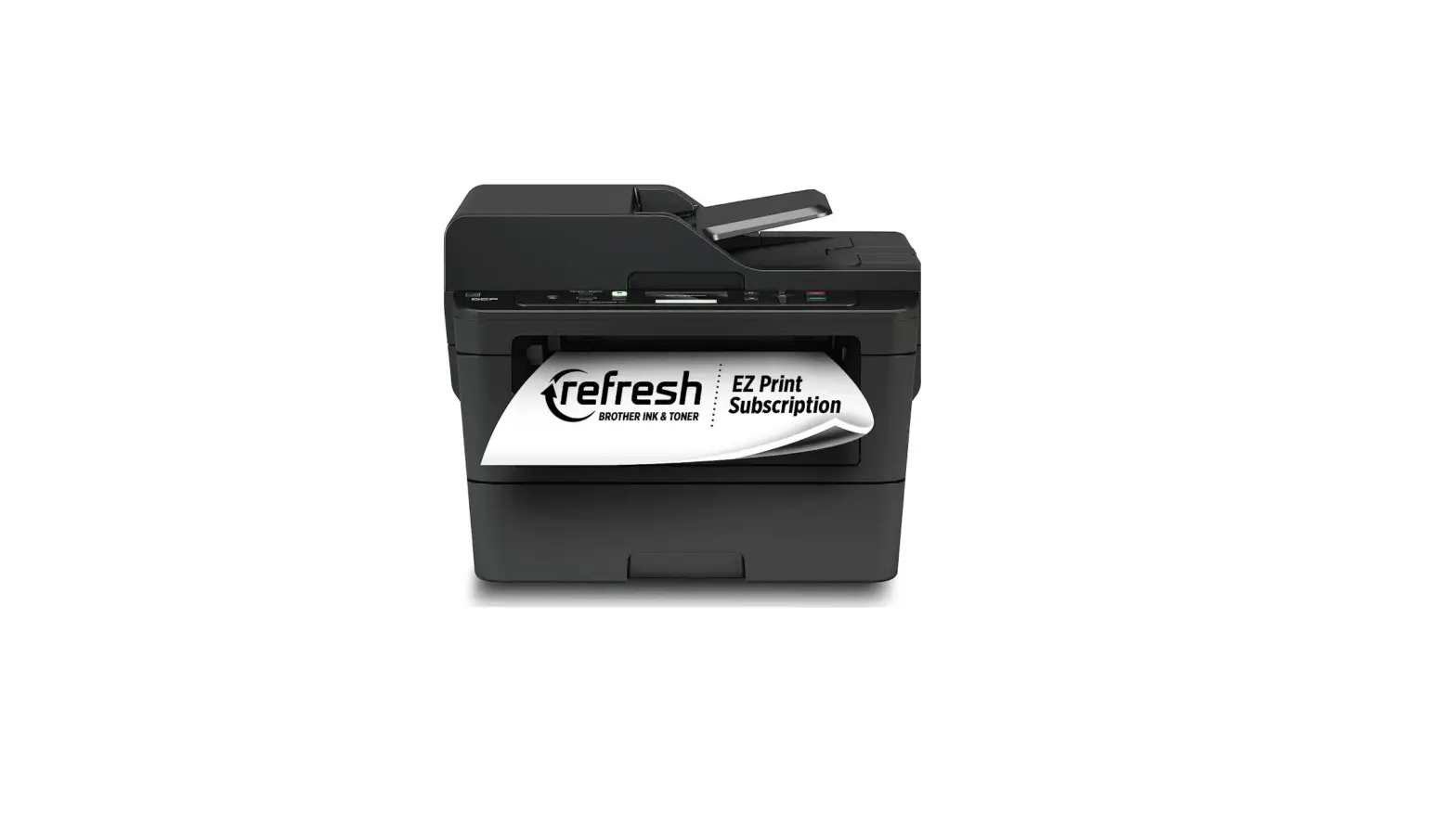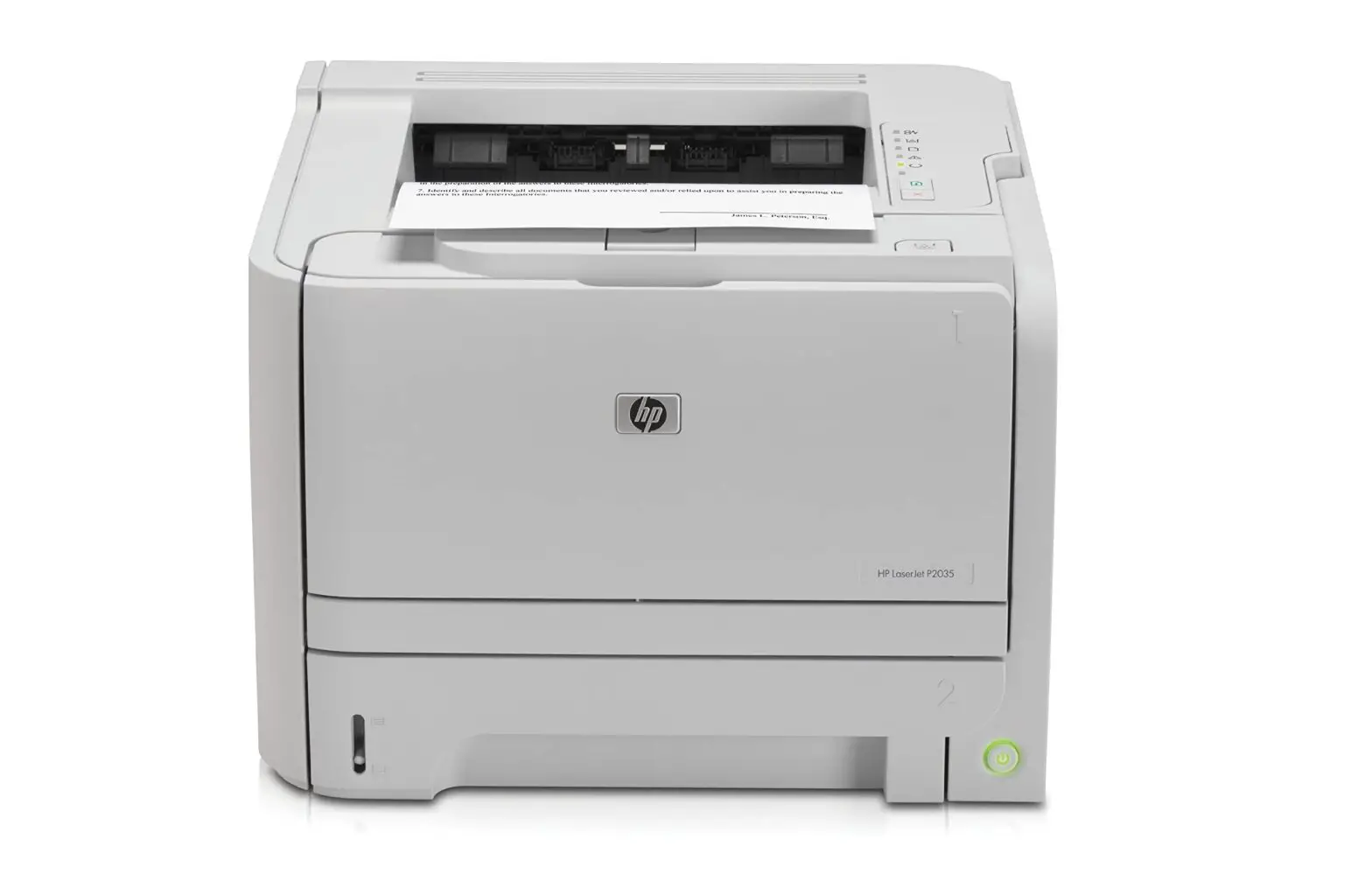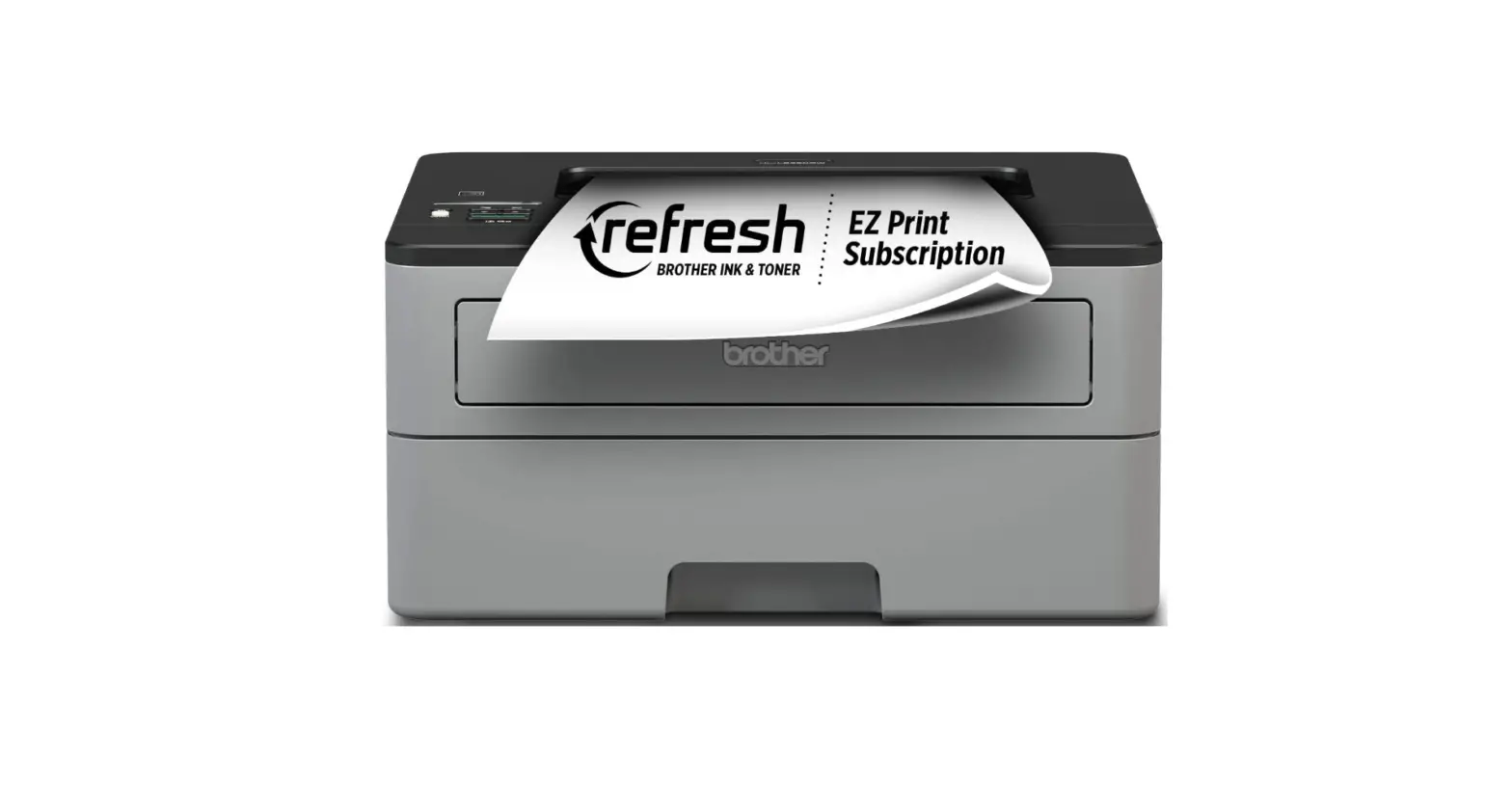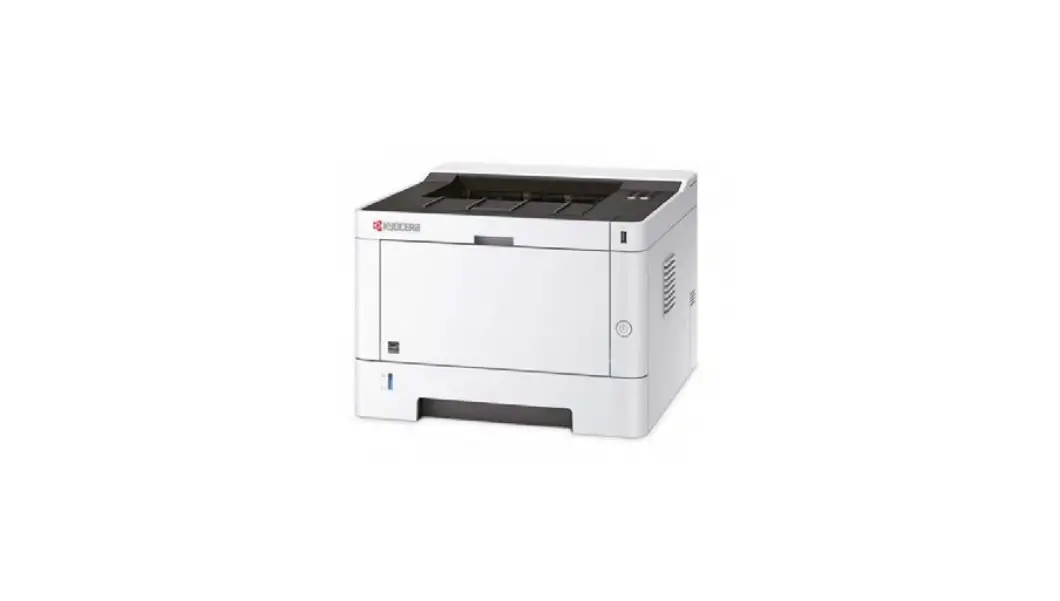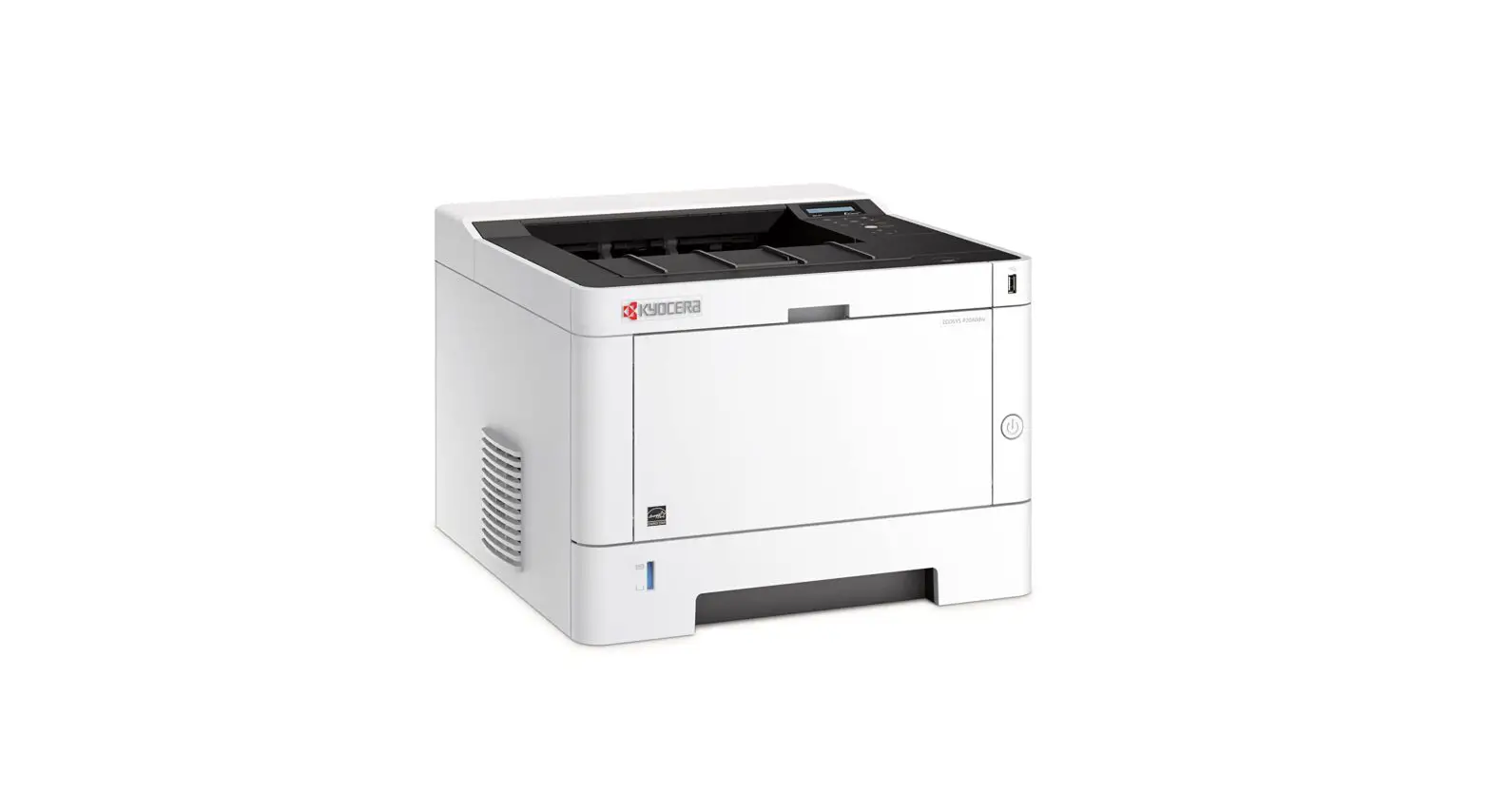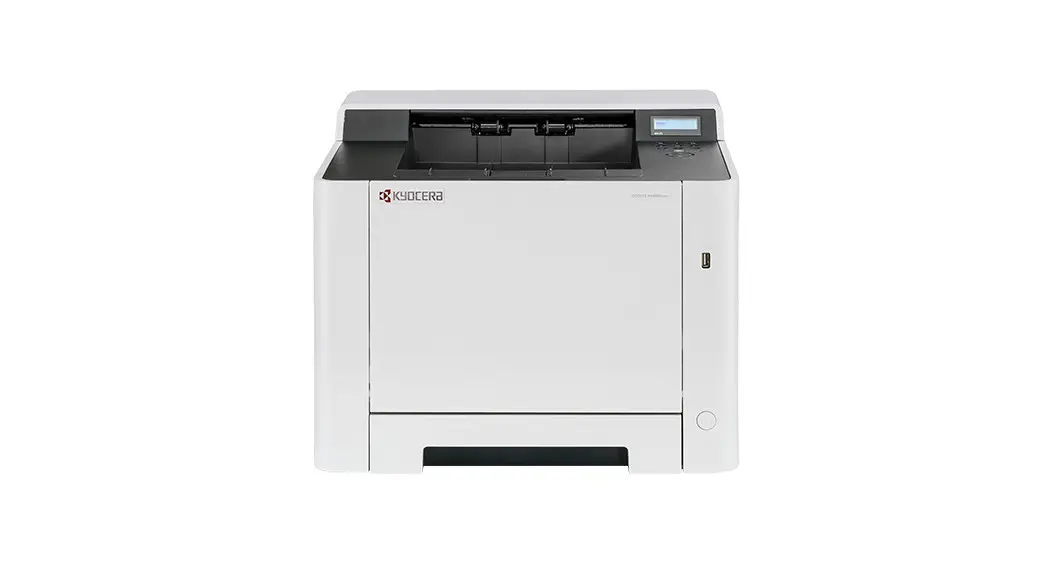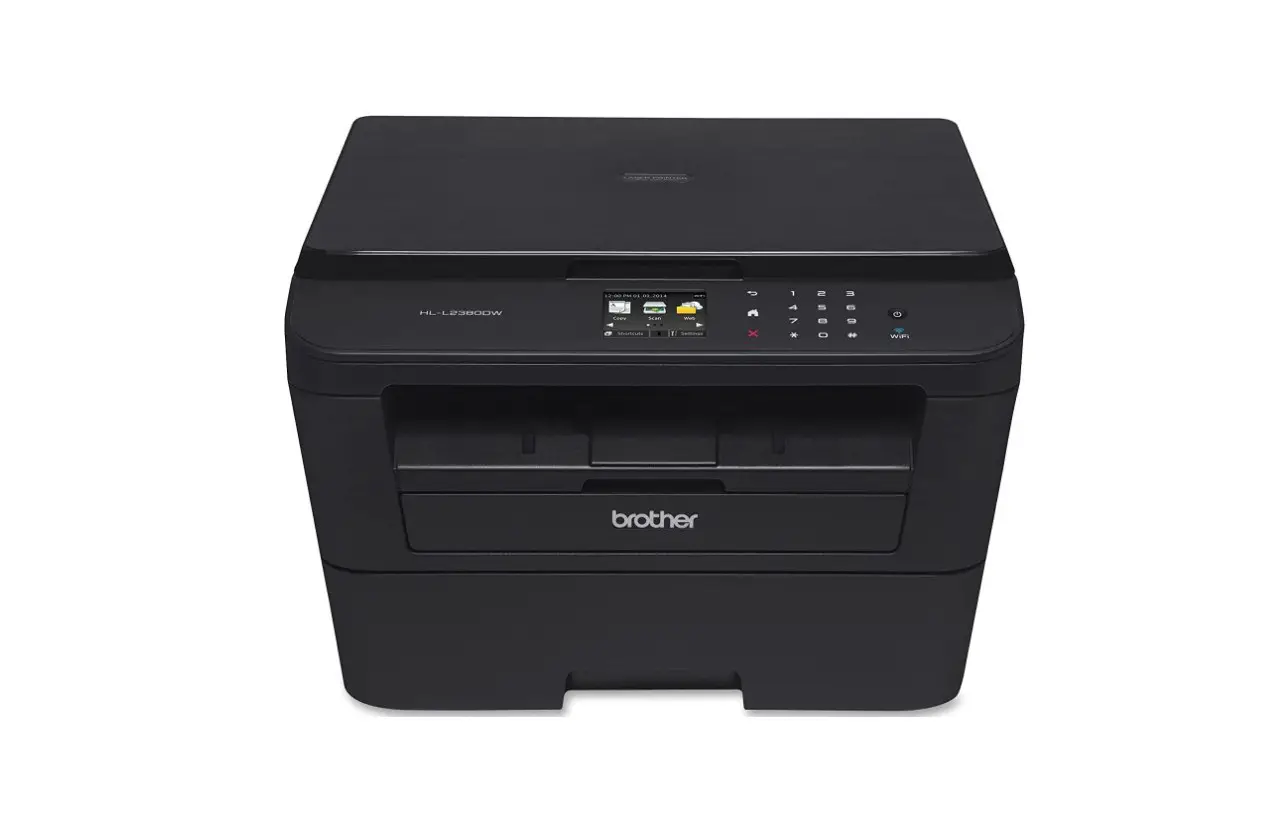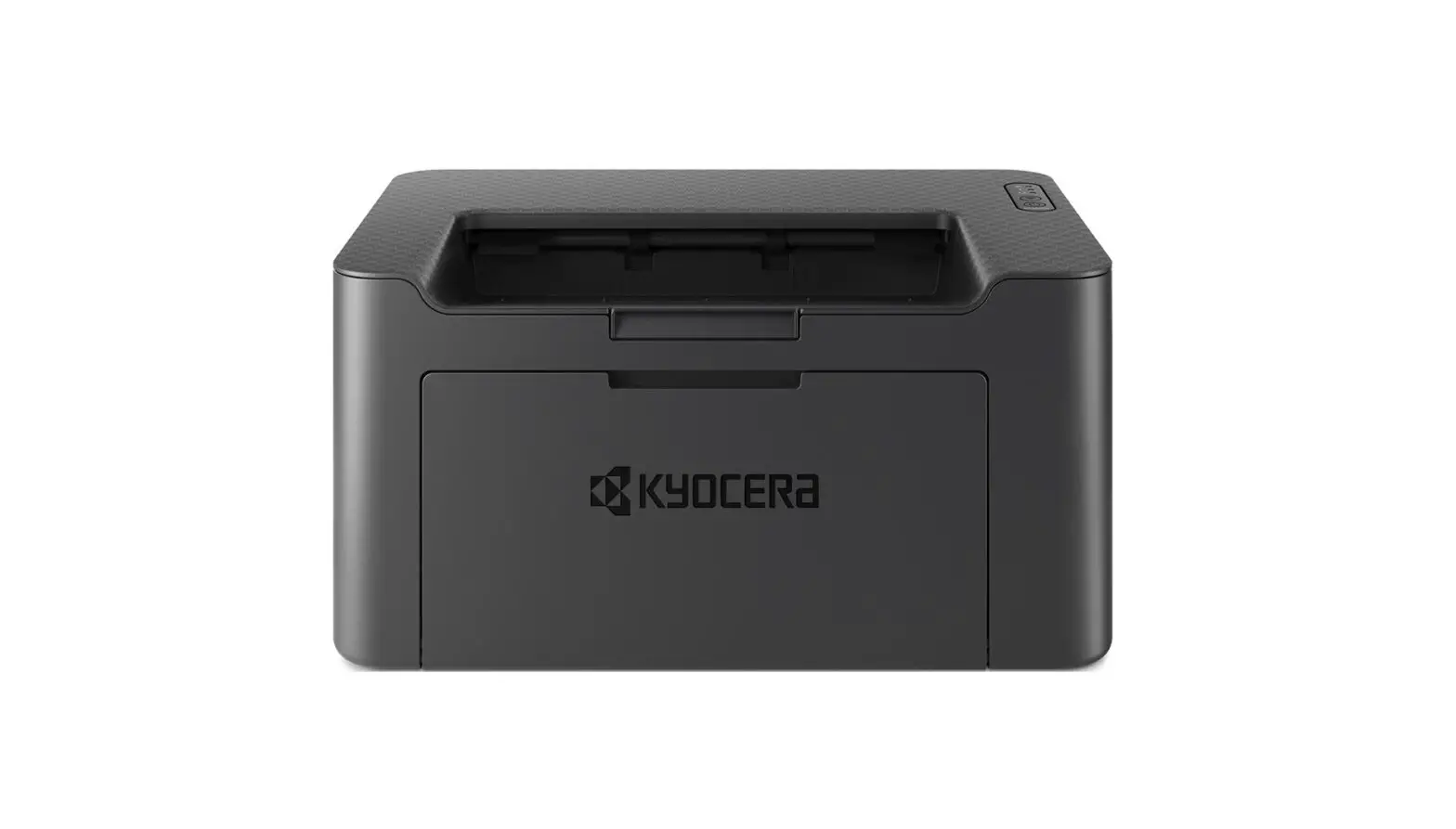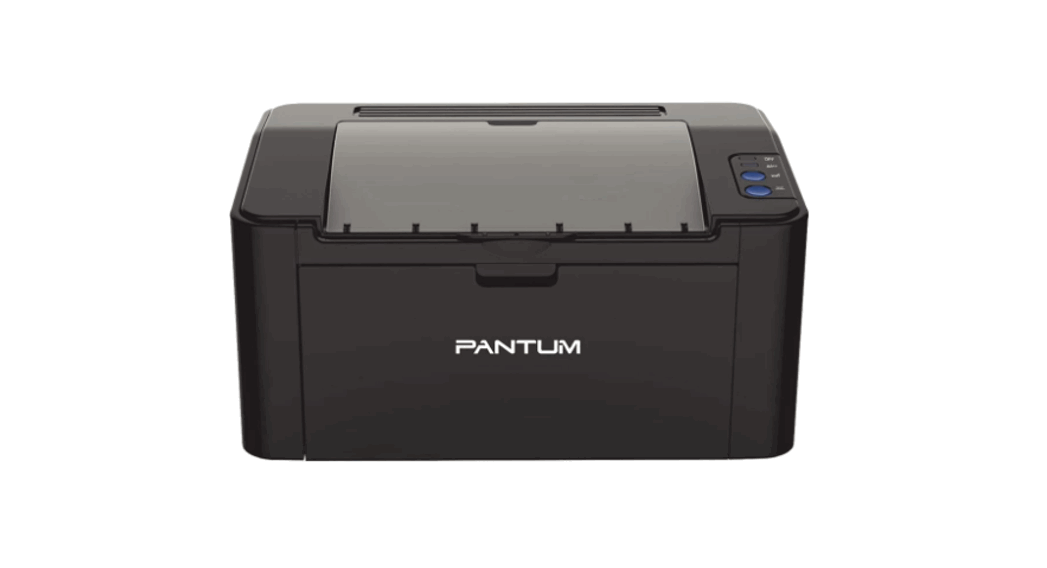

Monochrome laser printer
Installation Manual
P2200/P2500 Series
For more language versions, please visit https.llglobal.pantumcoml global/drive_tag/drive/ or scan the code to download. »

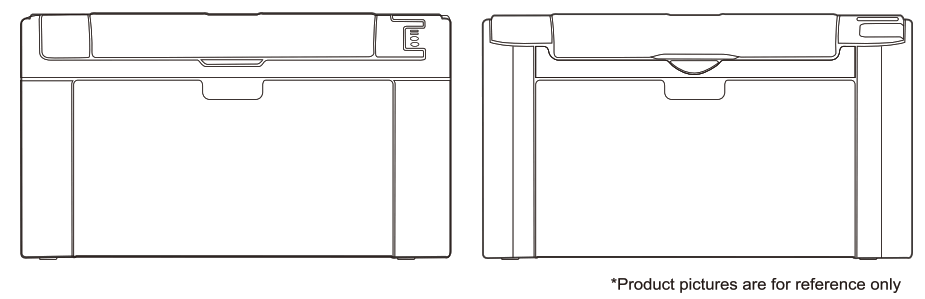
Accessories for unpacking inspection
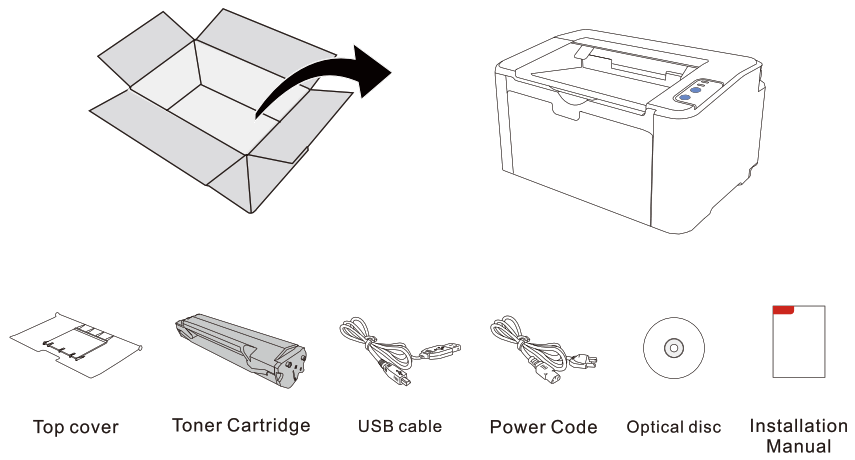
Product View
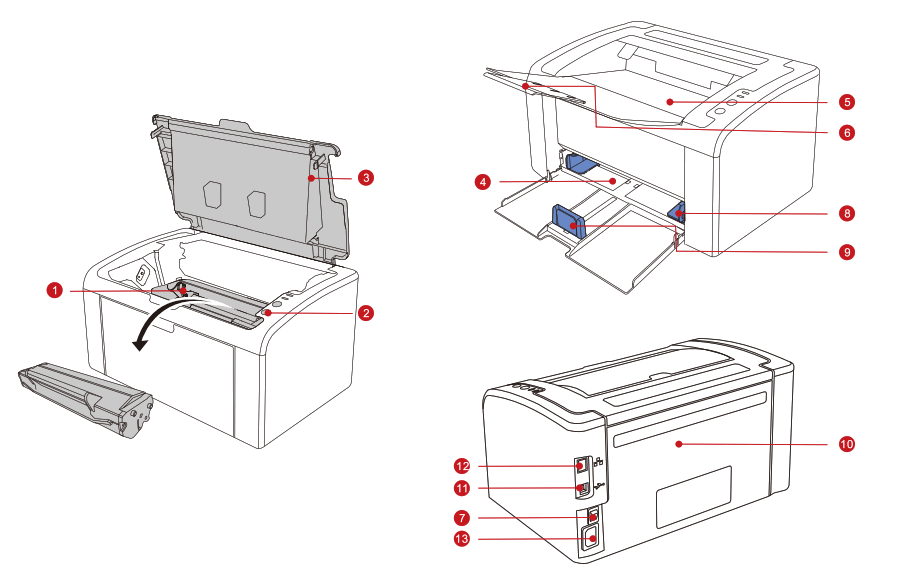
| 1. Toner cartridge | Remove the seal before first use. |
| 2. Control panel | It is used for setting of printer copying, scanning and viewing information page. |
| 3. Top cover | Open the top cover, and remove the toner cartridge. |
| 4. Automatic tray | Place the printing media from the Automatic tray. |
| 5. Output bin | Store the printed paper. |
| 6. Output bin stopper | Prevent the printed paper from slipping. |
| 7. Power switch | Turn on or off the power. In the ready state, press this button to enter the energy save mode. Keep pressing this button for 3 seconds; then, turn off the printer power. |
| 8. Width adjustment block of automatic tray | Adjust the tray width to match with the paper. |
| 9. Length adjustment block of automatic tray | Adjust the tray length to match with the paper. |
| 10. Rear cover | Open and remove the jammed paper in case of jam at the exit. |
| 11. USB interface | Connect the product to computer via USB connecting line. |
| 12. Network interface | Connect the product to network via network cable. |
| 13. Power interface | Connect the product to power supply via power cord. |
Pantum Printer Quick Setup Guide
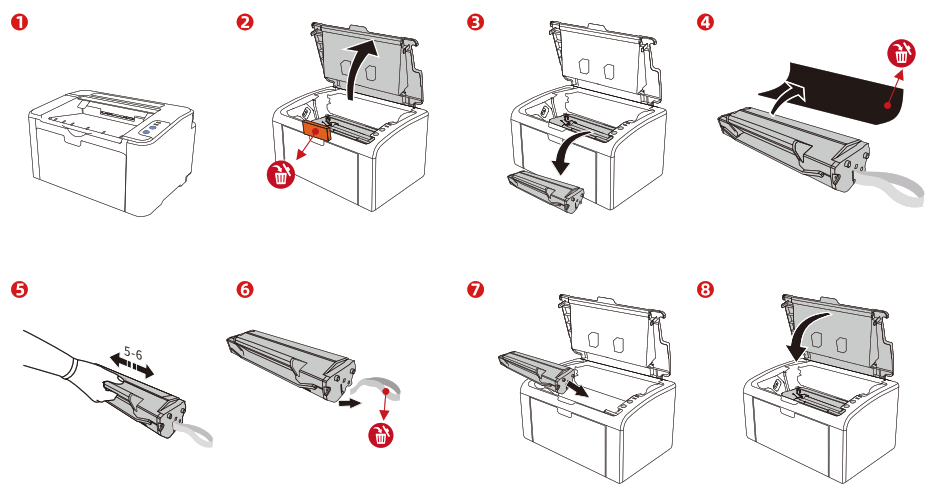
I, Installing the laser toner cartridge
II, Opening the tray and loading paper 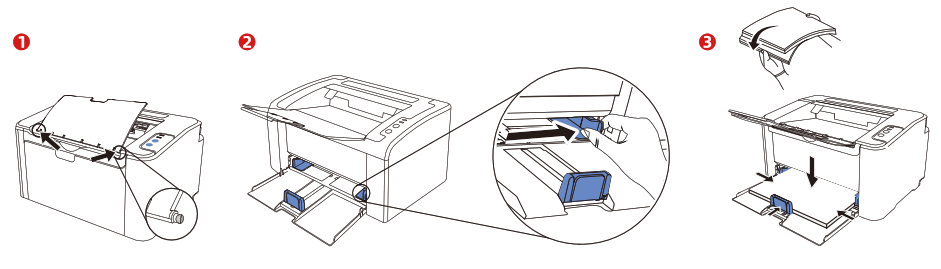 Ill, Connecting the power supply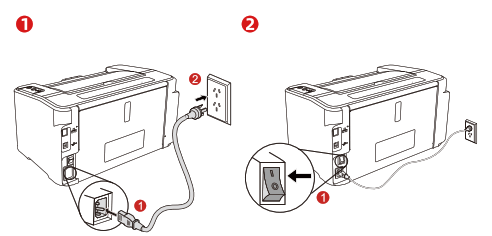
Items marked with ”  “are discardable.
 This product must make use of the attached power cord and be placed in a position where power socket can be easily accessed. If the product will be out of service for a long term, please immediately pull out the power plug to cut off the power.
Instructions for downloading and installation of Pantum printer driver for Windows
I, Obtaining and running the driver software
Way 1: Download and install the driver from official website
CD In the address bar of the web browser, type in www.pantum.com, find “Drivers & Downloads”click “Drivers” type in product model __. choose drive file corresponding to the product model choose computer system download save drive file to designated location.
CI) Find out the drive file downloaded in the computer, double click the installation program “Autorun.exe”.
Way 2: Obtain the driver from CD and install it
CD Insert the attached installation disc into the optical disk driver of the computer. Click “computer” on the desktop ° find “DVD RW driver”, open drive file click “Autorun.exe” to run the installation program.
II, One-step driver installation
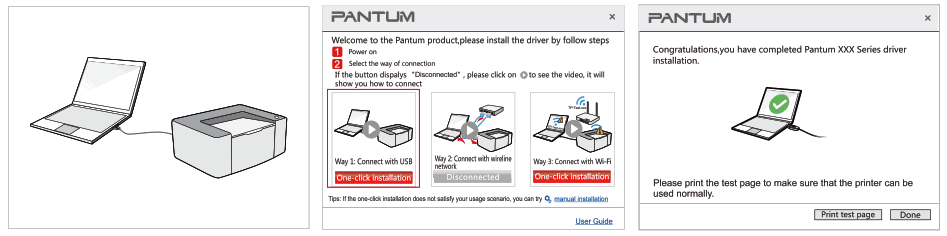
Way 1: install driver with USB cable connection
- Insert USB cable, and establish connection between printer and computer.
- Find Way 1: Connect with USB; click “One-click Installation”.
- Upon successful installation.
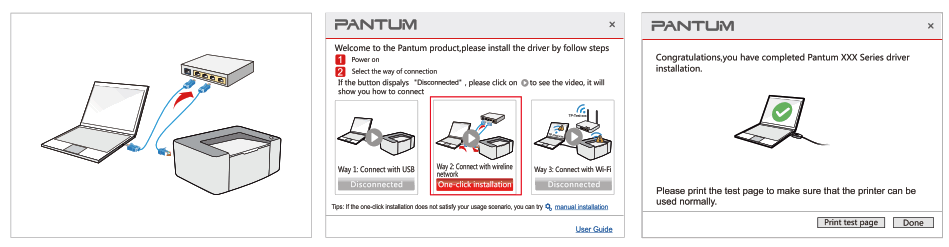
Way 2: install driver with wireline connection
- Insert network cable and connect printer and computer to the same router.
- Find Way 2: Connect with wireline network, click “One-click Installation”.
- Upon successful installation.
*(The choice only works for the printers which are labeled as “N” ,like M7100DN).
Instructions for downloading and installation of Pantum printer driver for Windows
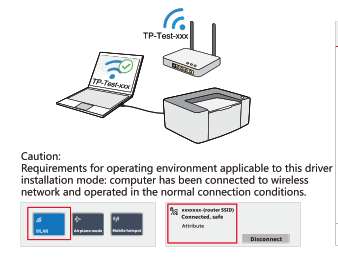
Way 3 (A): installing driver with wireless network connection
(Only applicable to the computer with wireless network connection function)
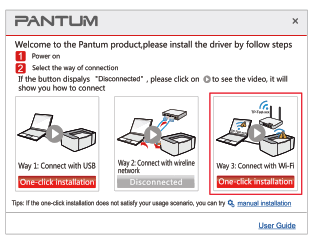
- Insert USB cable, and establish connection between printer and computer.
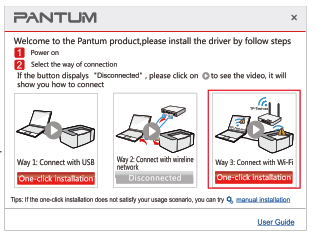
- Find Way 3: Connect with Wi-Fi, click “One-click Installation”.
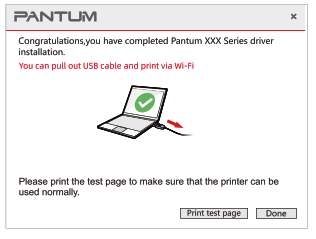
- Upon successful installation, wireless printing at PC terminal can be achieved after unplugging the network cable.
*(The choice only works for the printers which are labeled as “W”, like M7100OW
Way 3(B): installing driver with wireless network connection
(Applicable to the computer with wireless and wired network connection functions)
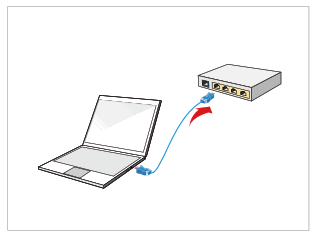
- Insert network cable and connect computer to wired network.

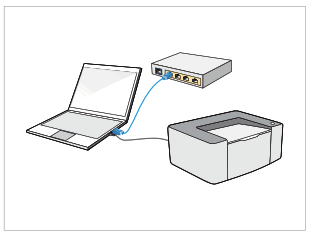
- Insert USB cable, and establish connection between printer and computer.

- Find Way 3: Connect with Wi-Fi, click “One-click Installation”.

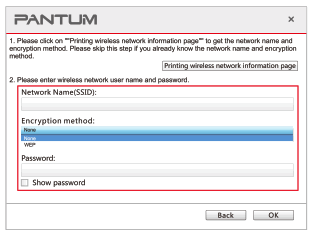
- Type in Wi-Fi name and password.

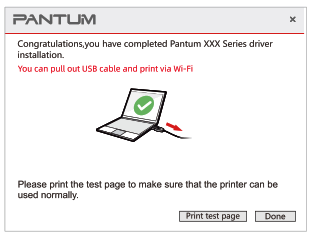
- Upon successful installation, wireless printing at PC terminal can be achieved after unplugging the network cable.

*(The choice only works for the printers which are labeled as “W”, like M7100OW
Instructions for downloading and installation of Pantum printer driver for Mac
I, Obtaining and running the driver software
Way 1: Download and install the driver from official website CD In the address bar of the web browser, type in www.pantum.com, find “Drivers & Downloads”, click “Drivers”, type in product model, choose drive file corresponding to the product model, choose computer system, download, and save drive file to designated location.
2 Find out the drive file downloaded in the computer and double click the installation program to start driver installation.
Way 2: Obtain the driver from CD and install it CD Insert the attached installation disc into the optical disk driver of the computer. Double click to open the installation package “Pantum XXXXXX Mac Driver.pkg”, so as to start driver installation.
II, Installing the driver
Way 1: install driver with USB cable connection
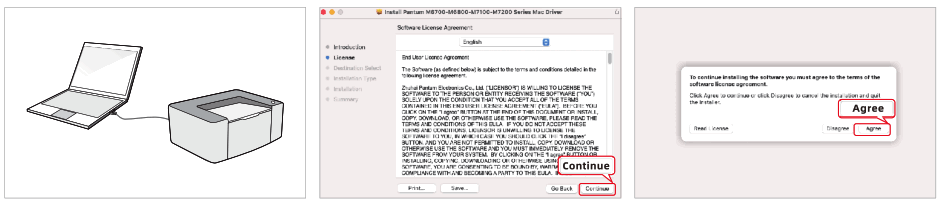
- Insert USB cable, and establish connection between printer and computer.
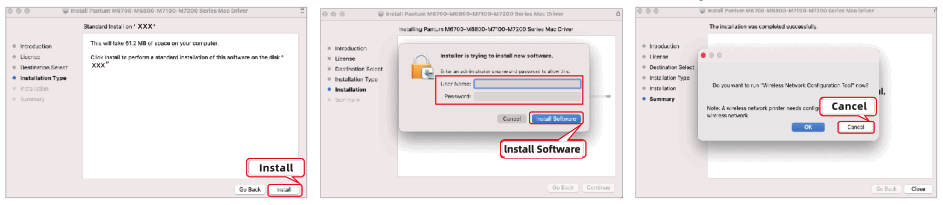
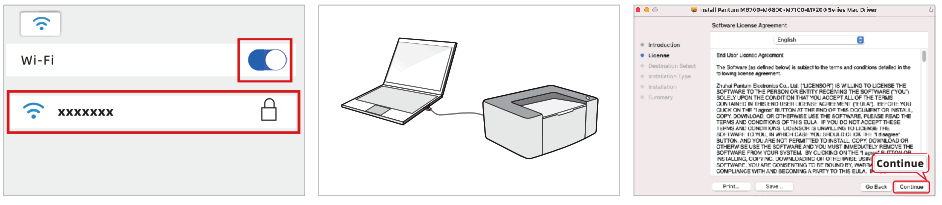
- Read the installation protocol and click “Continue”.
- Enter installation interface and click “Agree”.

- Read installation tips and click “Install”.
- Type in computer user name and password, and after that, click “Install Software”.
- Click “Cancel” in the pop-up window saying whether to run the “wireless network configuration tool” or not.
 Tips: if you choose “OK” in this step, it will jump to “Method Ill: install driver with wireless network connection” to complete driver installation.
 - Click “Add Printer”.
- After choosing the product model with the connection type “USB”, click “Add”.
- Upon successful connection, click “Close” and finish the driver installation with USB connection.

 Tips: if you choose “OK” in this step, it will jump to “Method Ill: install driver with wireless network connection” to complete driver installation.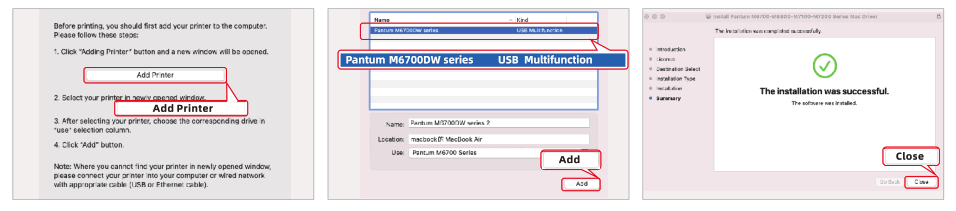
Instructions for downloading and installation of Pantum printer driver for Mac
Way 2: install driver with wired network
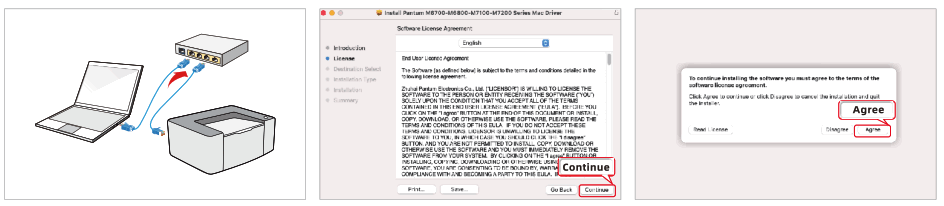
- Insert network cable and connect printer and computer to the same router.
- Read the installation protocol and click “Continue”.
- Enter installation interface and click “Agree”.

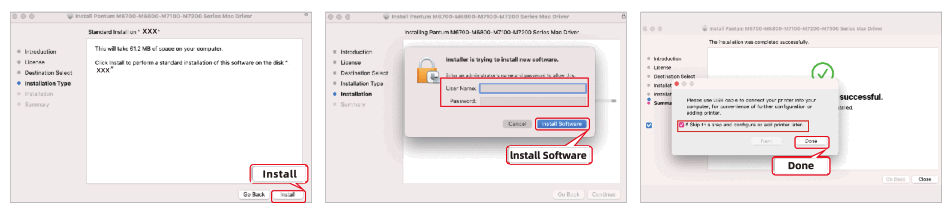
- Read installation tips and click “Install”.
- Type in computer user name and password, and after that, click “Install Software”.
- Tick “Skip this step and confingure or add printer later” and click “Done”.

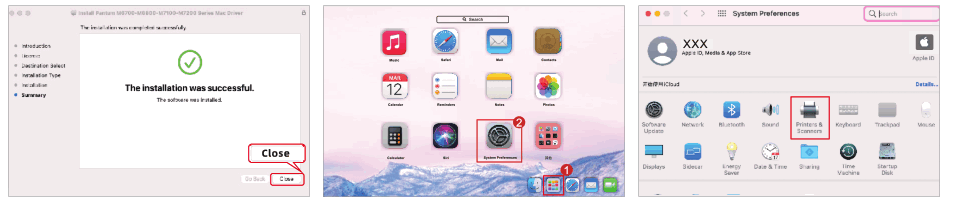
- Upon completion of driver installation, click “close”.
- Open “Launchpad” on the computer desktop, find “System Preferences”.
- In system and preferences setting interface, click “Printers & Scanners”.

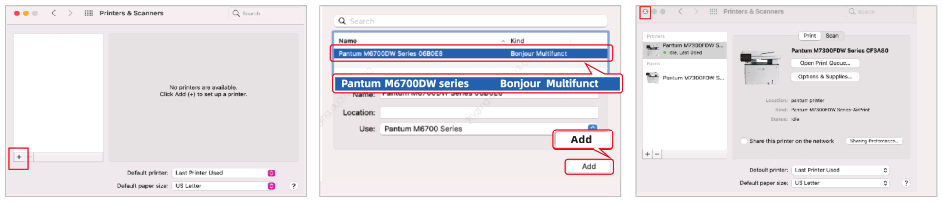
- In the printer and scan setting interface, click “+” in the bottom lefthand corner to add printer.
- Choose the product model with the connection type of “Bonjour”, and click “Add”.
- Complete connection and close the page.

*(The choice only works for the printers which are labeled as “N” ,like M7700DN}.
Way 3: install driver with wireless network connection
Tips: Requirements for operating environment applicable to this driver installation mode: computer has been connected to wireless network and operated in the normal
connection conditions.
- Insert USB cable, and establish onnection between printer and computer.
- Read the installation protocol and click “Continue”.
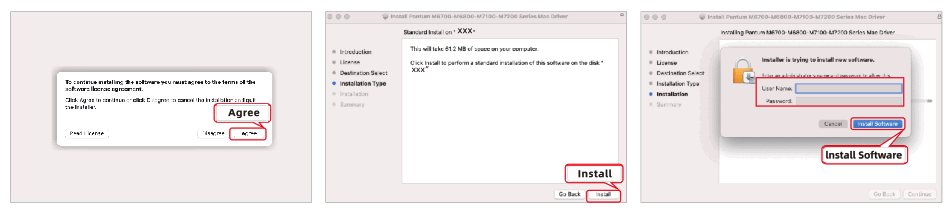
- Enter installation interface and click “Agree”
- Read installation tips and click “Install”.
- Type in computer user name and password, and after that, click “Install Software”.

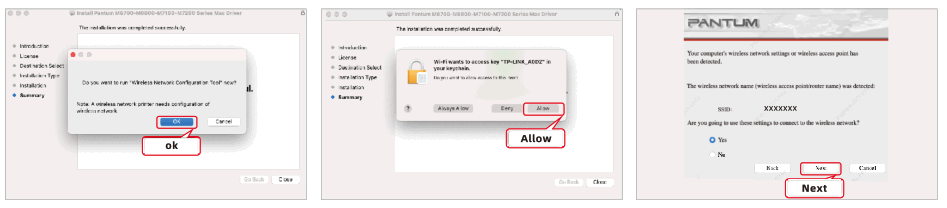
- Click “OK” in the pop-up window saying whether to run the “wireless network configuration tool” or not.
- To let the program access to the current network key, click “Allow”.
- Verify the name of wireless network detected and click “Next”.
 Tips:if you choose “Cancel” in this step, it will jump to “Way 1: install driver with USB cable connection” to complete driver installation.
 - Click “Next”.
- Unplug USB cable as per tips.
- Click “Add Printer”.
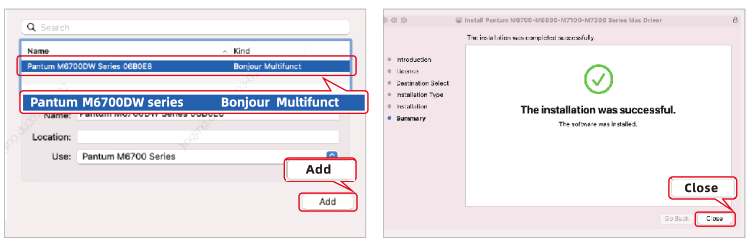
- Choose the product model with the connection type of “Bonjour”, and click “Add”.
- Upon successful connection, click “Close” and finish the driver installation with wireless network connection.

 Tips:if you choose “Cancel” in this step, it will jump to “Way 1: install driver with USB cable connection” to complete driver installation.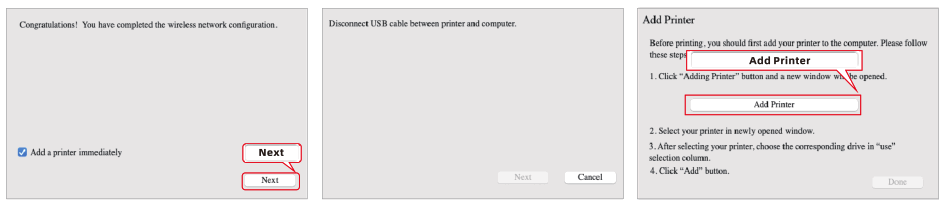
*(The choice only works for the printers which are labeled as “W”, like M7100DW
Instructions for downloading and installation of Pantum APP for Android
I, Download and install Pantum APP
Way 1: download and install from Google Play
Search “Pantum” in Google Play to download and install.
Way 2: download and install from official website
In the browser, type in “http:1/g/oba.pantum.com/g/oba//androidapp/” to visit the official website for downloading and installation.
II Connect and use PantumAPP
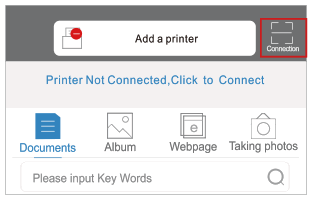
- Open Pantum APP, click “Connection” in the preferences interface.

- Click “Scan QR to Connect Printer”.

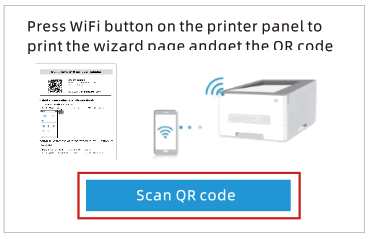
- Press” ” on the printer panel, print Wi-Fi information page, and obtain the printer hotspot and password.

- Scan QR code.

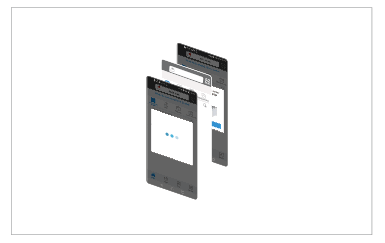
- Connect printer as per tips in APP interfaces.

- Connect successfully.

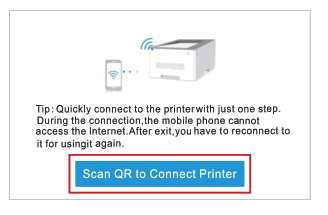
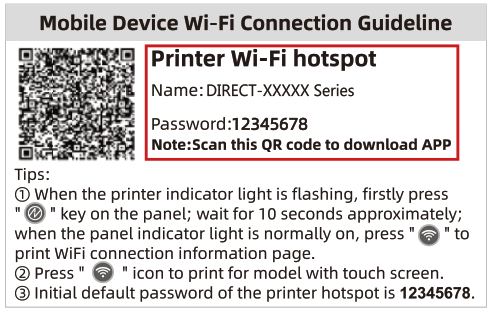
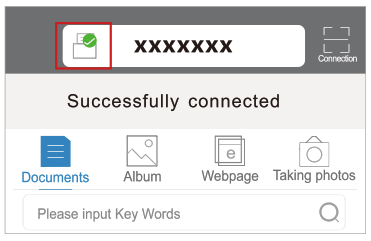
Tips: CD The abovementioned APP connection type is printer hotspot connection. During the connection, it cannot access the Internet. If you want to access the Internet during the connection period, visit https://global.pantum.com/global/video/to view the video guide. a> After exit, you have to reconnect to it for using this APP again.
Instructions for downloading and installation of Pantum APP for iOS
I, Download and install Pantum APP
Search “Pantum” in Apple APP store to download and install.
II, Connect and use Pantum APP
- Open Pantum APP, click “Connection” in the preferences interface.

- Click “Scan QR to Connect Printer”.

- Press”
 ” on the printer panel, print Wi-Fi information page, and obtain the printer hotspot and password.
- Scan QR code

- Connect printer as per tips in APP interfaces.

- Connect successfully.

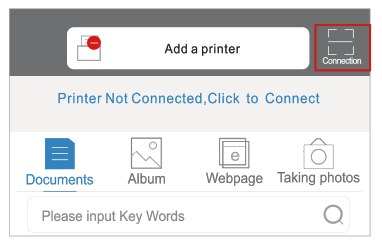
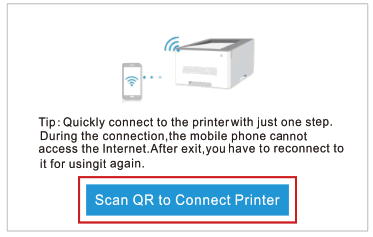
 ” on the printer panel, print Wi-Fi information page, and obtain the printer hotspot and password.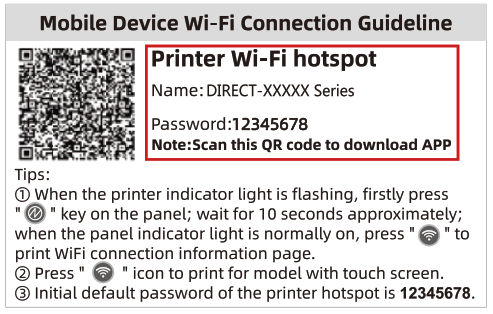
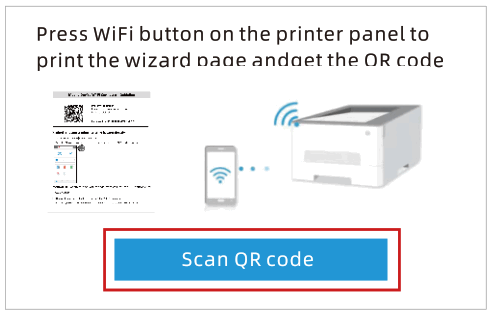
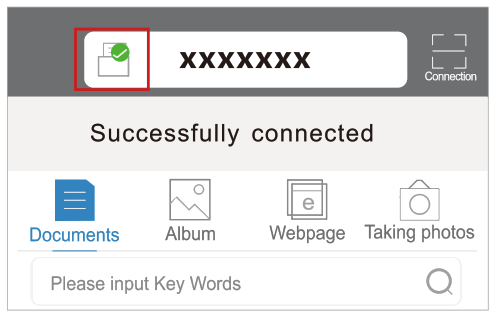
Tips: CT> The abovementioned APP connection type is printer hotspot connection. During the connection, it cannot access the Internet. If you want to access the Internet during the connection period, visit https://global.pantum.com/global/video/to view the video guide. @ After exit, you have to reconnect to it for using this APP again.
Instructions for AirPrint connection and printing for iOs
Note: This function Is only available for printers with ”  ” on the packaging box
I, AirPrint connection
- Press “
 ” on the printer panel, print Wi-Fi information page, and obtain the printer hotspot and password.
- Enter Wi-Fi setting interface for mobile phone.

- Choose Wi-Fi hotspot for the printer.

- Type in password for matching.

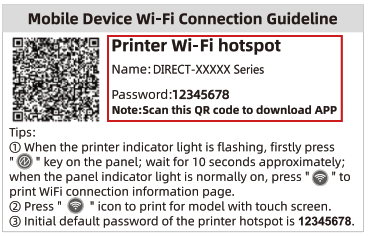
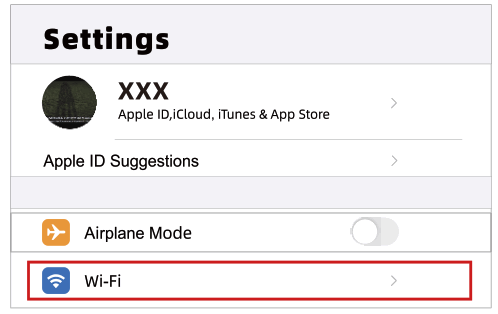
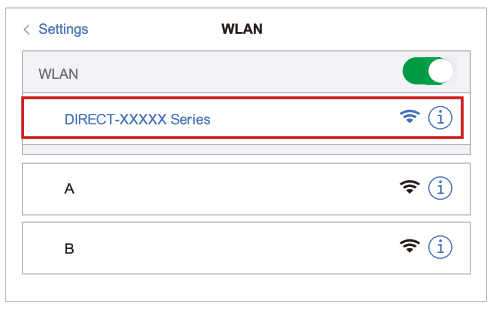
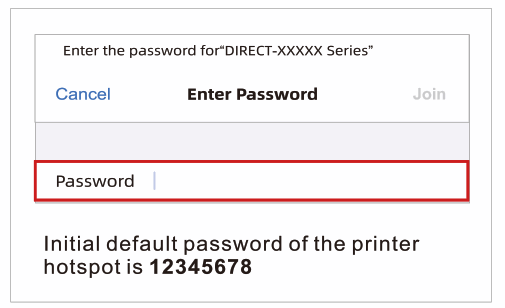
Tips:The mobile phone is directly connected to the printer’s Wi-Fi hotspot with one step. During the connection, the mobile phone cannot access the Internet. After exit, you have to reconnect to it for using it again;
II, AirPrint printing
- Open the image/ document downloaded, choose “”.

- Click “Print”.

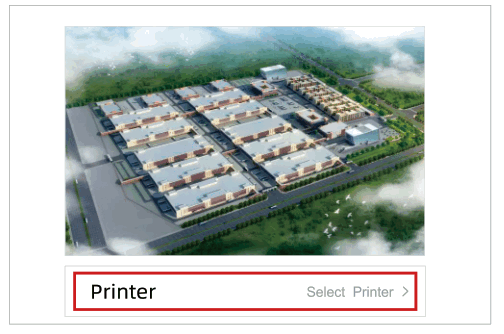
- Choose the printer connected.

- Click “Print”.



Trademark statement
Apple and AirPrint are trademarks of Apple Inc. registered in the United States or other countries.
All brand names & trademarks are the properties of their respective holders and used for descriptive proposes only.
Learn more
For more product manuals, please log in to Pantum’s official website”www.pantum.com” and click”Video Center”to view videos on how to use our products;
For more services and support, please contact human services.
(USA Only)
Hereby, The full text of the user’s manual is available at the download from the CD sold with the device or the official website: http://www.pantum.com.
Supplier’s Declaration of Conformity
47CFR §2.1077 Compliance Information
Unique ldentifier
Trade Name: Pantum
Model No.: P 22***** / P2 5*****(s uffix:A-Z,0-9,hyphen or blank)
Responsible Party- U.S. Contact Information
Company Name: PANTUM (USA) CO.,LTD
Office address:13875 Ramona Ave.,Chino, CA 91710
TEL:626-965-6662
FCC Compliance Statement
This device complies with Part 15 of the FCC Rules.Operation is subject to the following two conditions:(1)This device may not cause harmful interference,and
(2)this device must accept any interference received,including interference that may cause undesired operation.

Pantum International Limited
Manufacturer: Zhuhai Pantum Electronics Co.,Ltd.
Website:www.pantum.com
Address/Adresse: No.3883, Zhuhai Avenue, Zhuhai,
Guangdong, China 519060