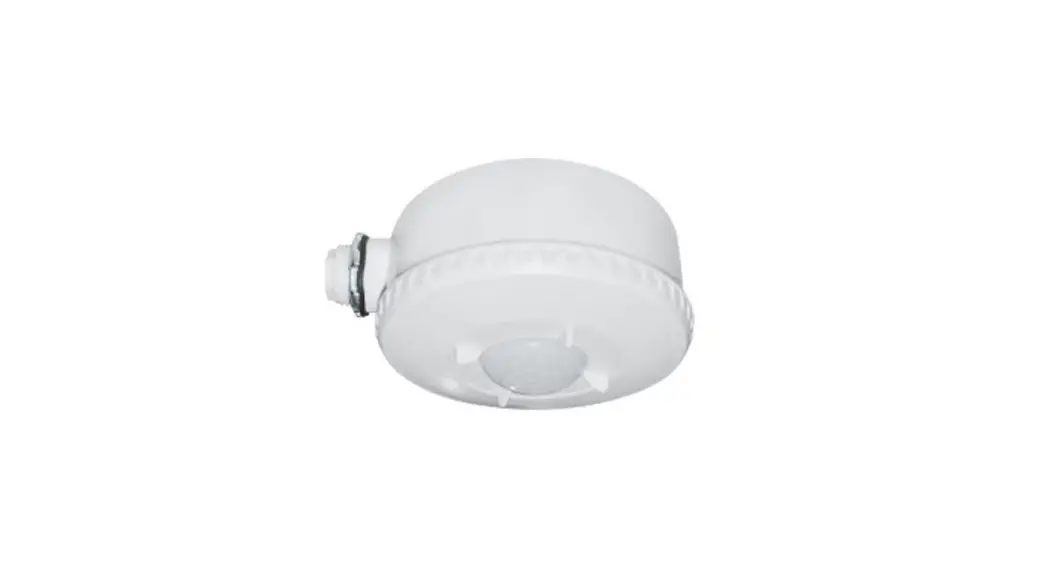
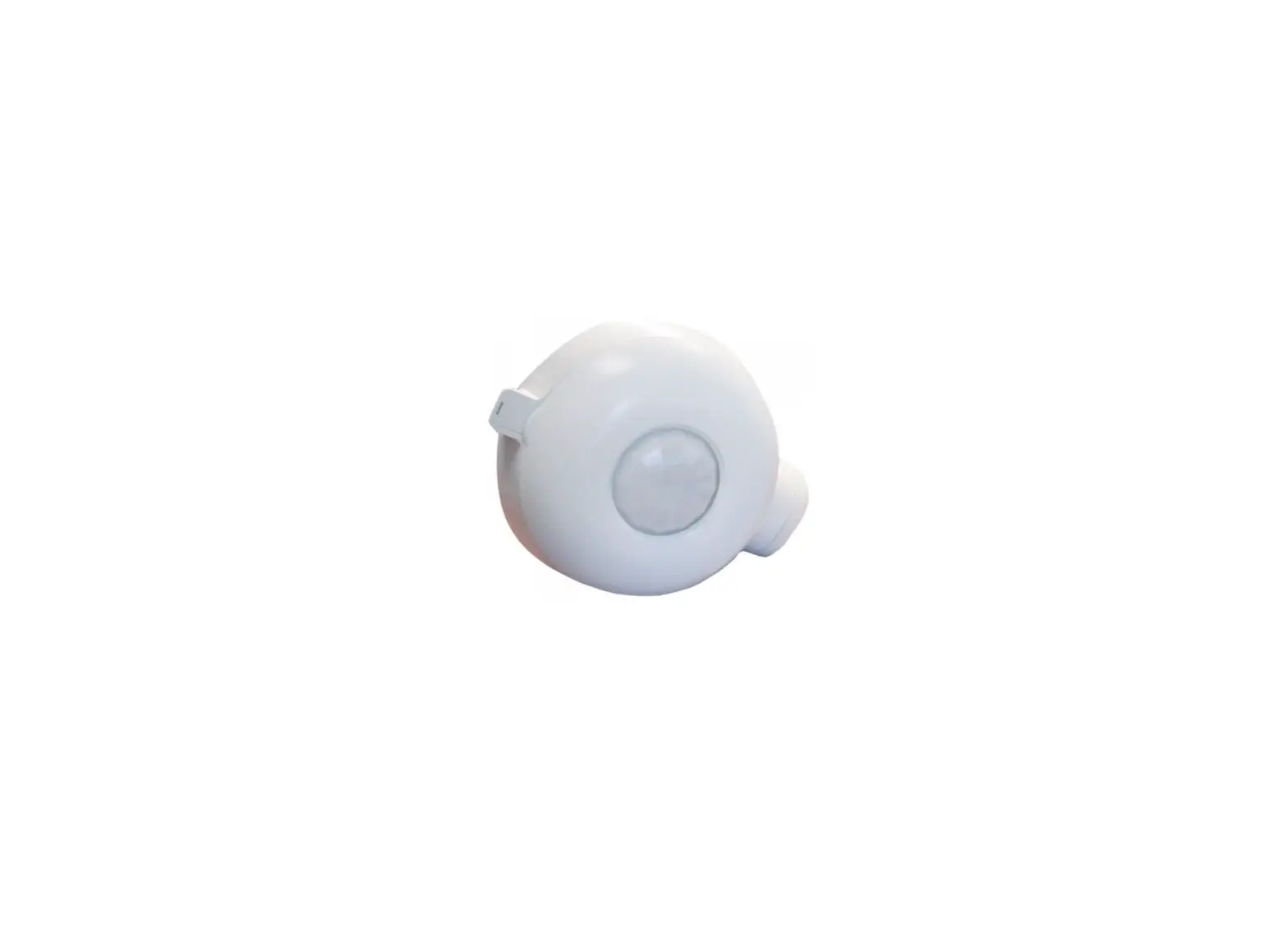
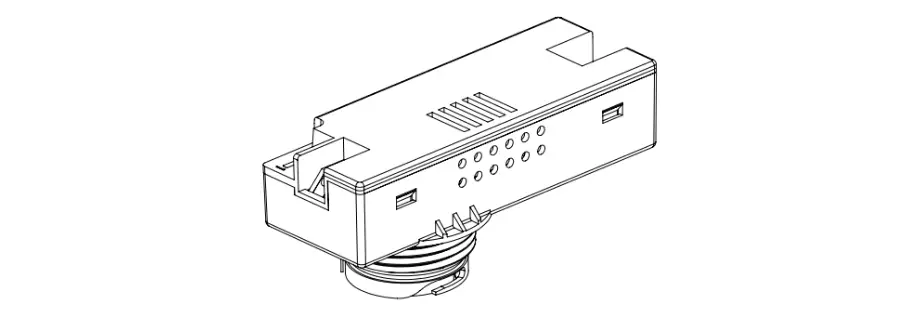
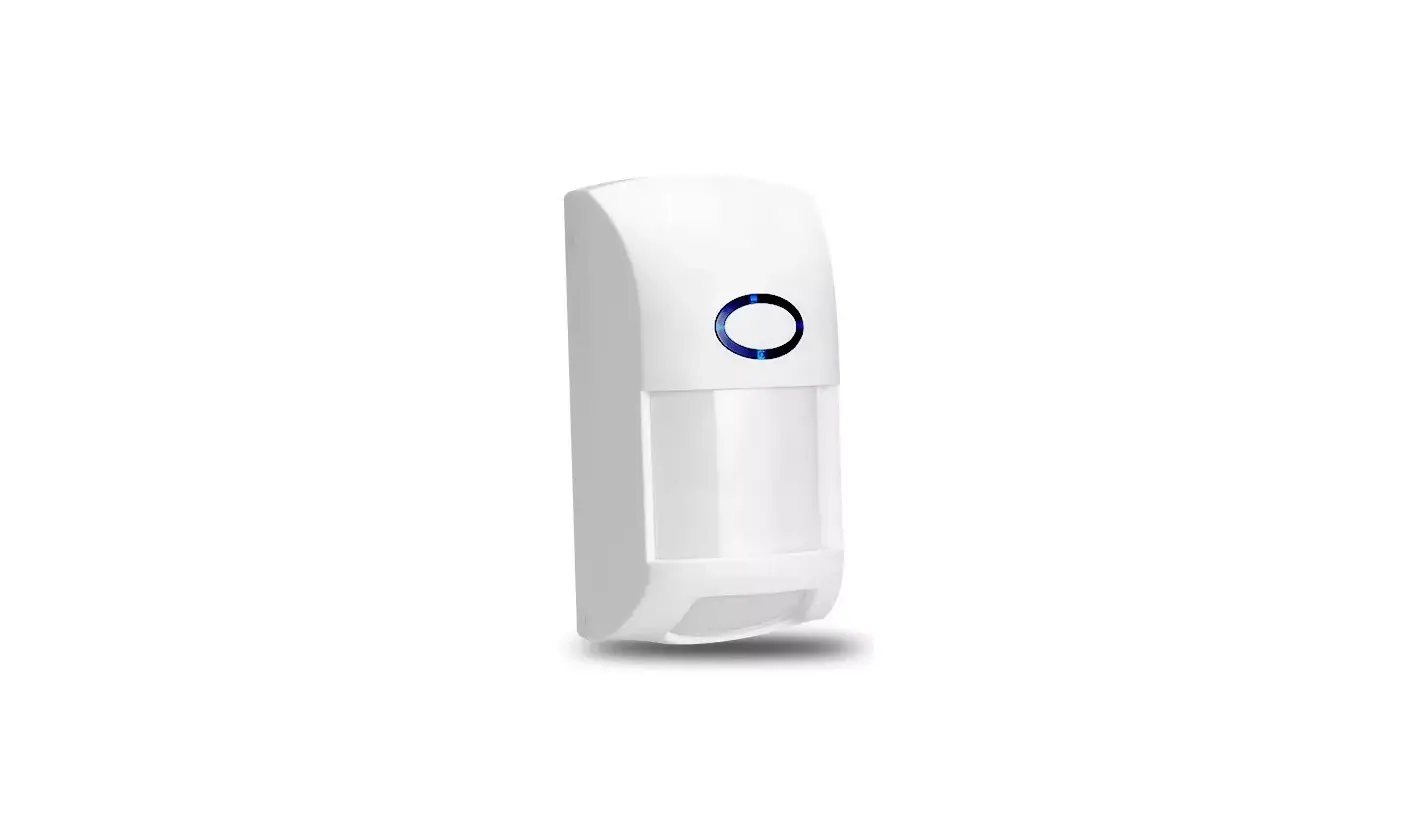
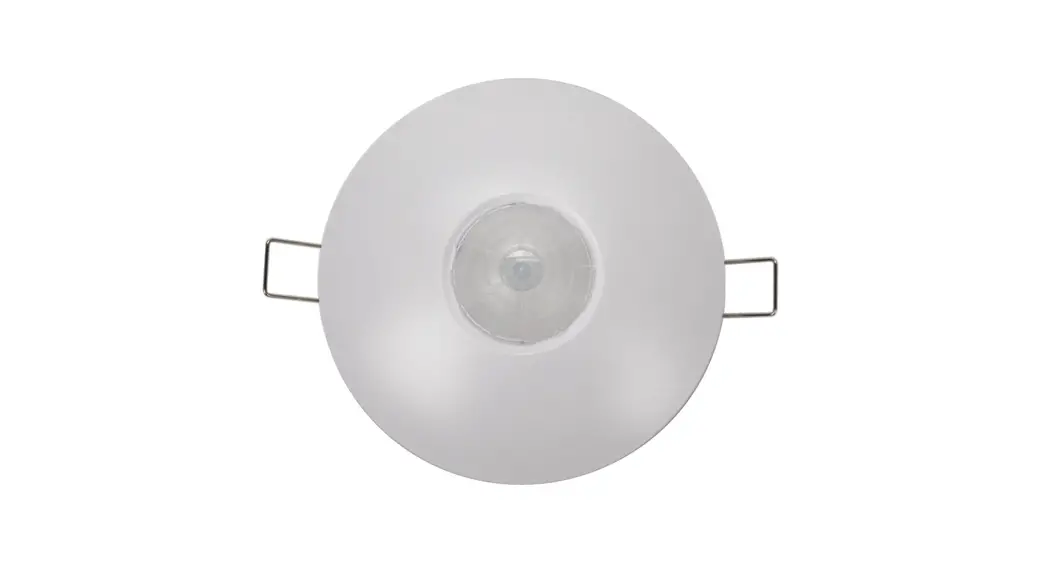
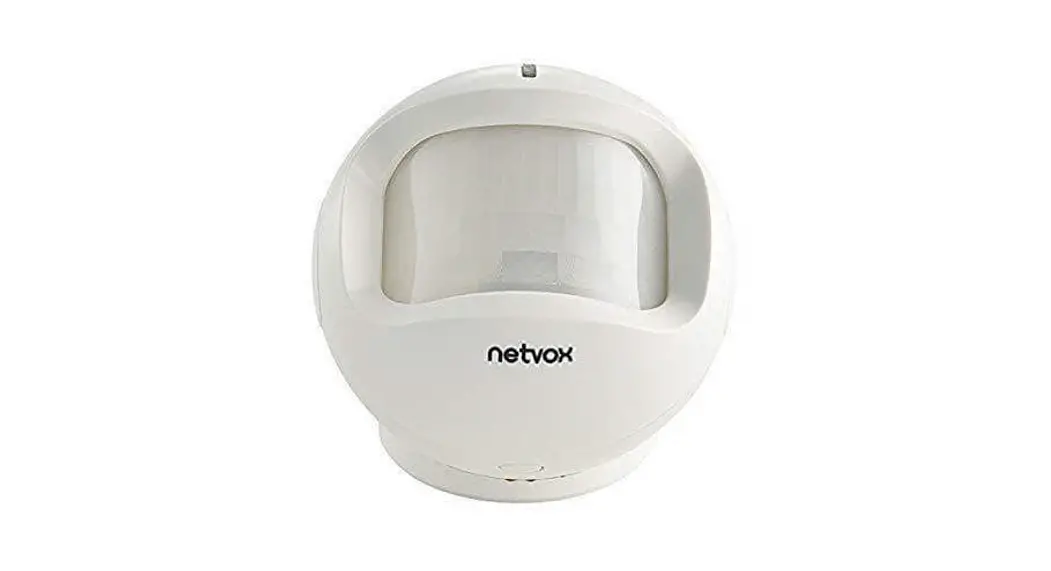
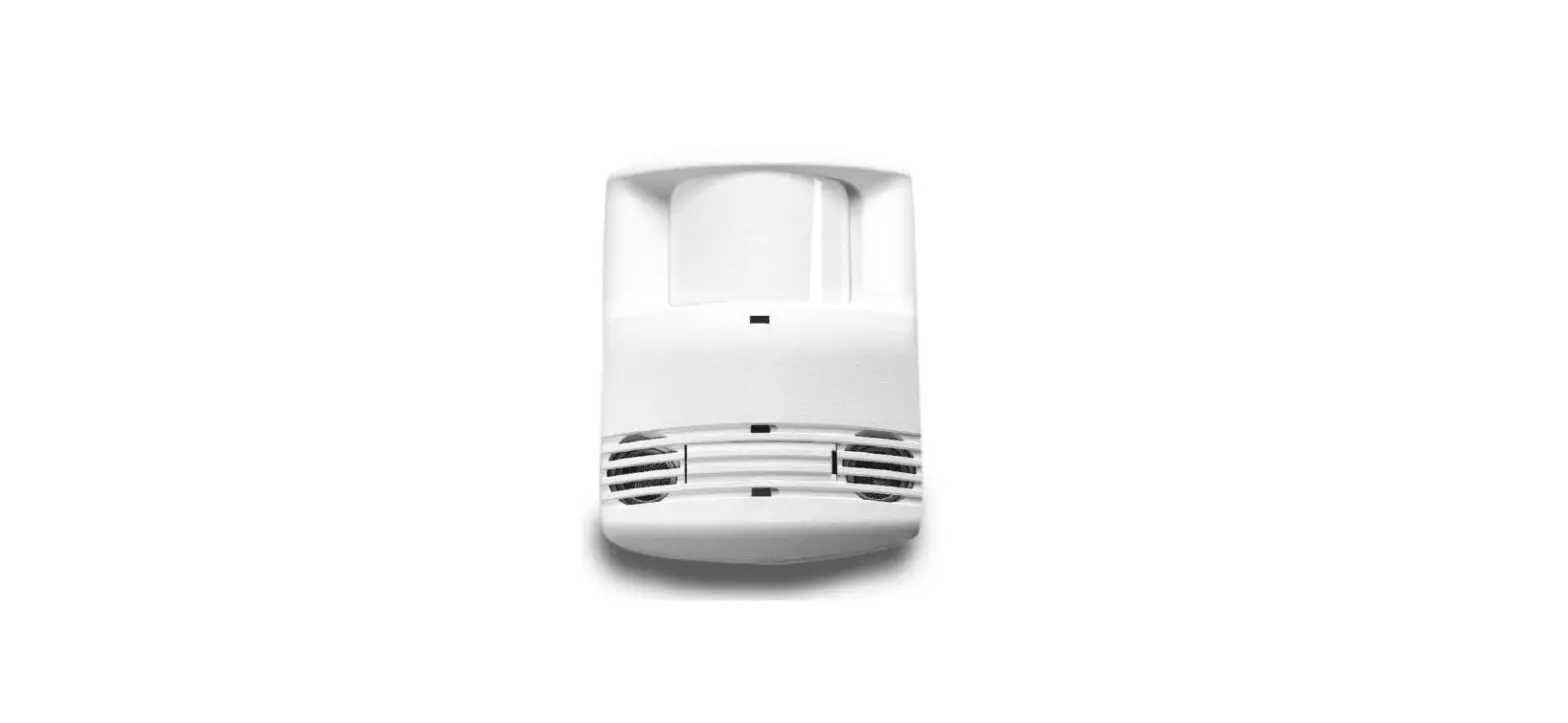
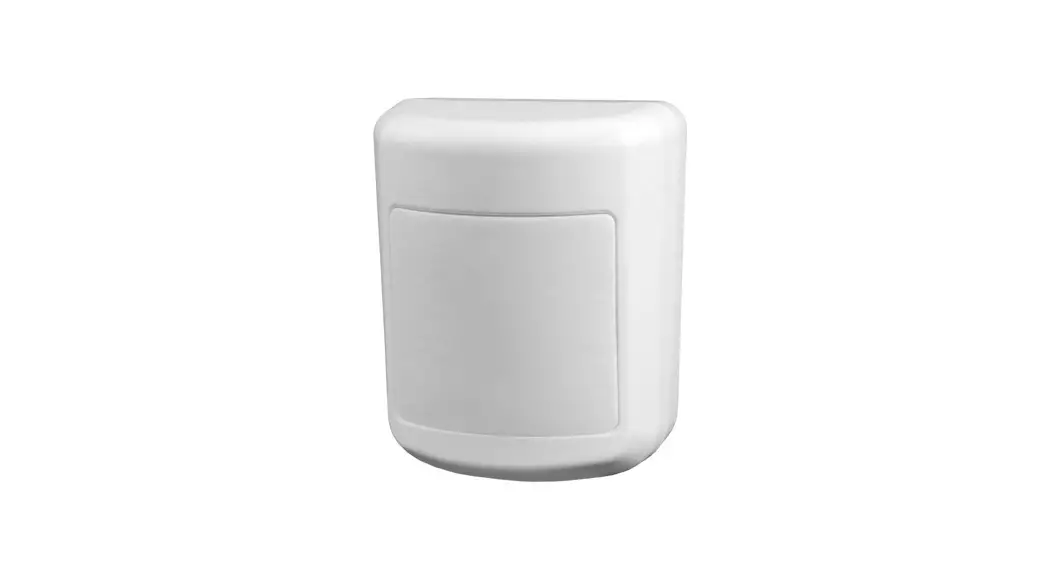
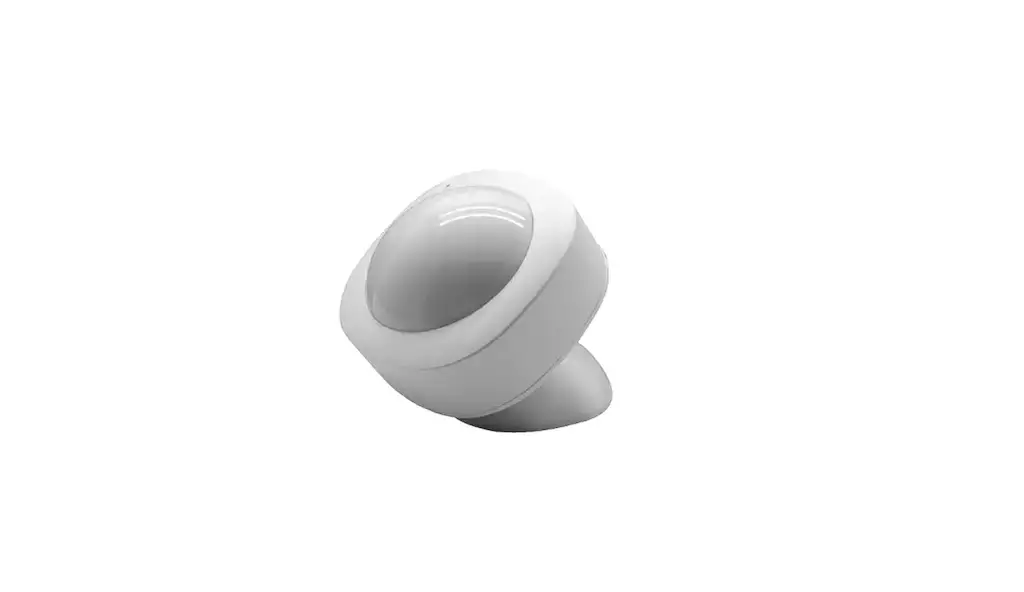
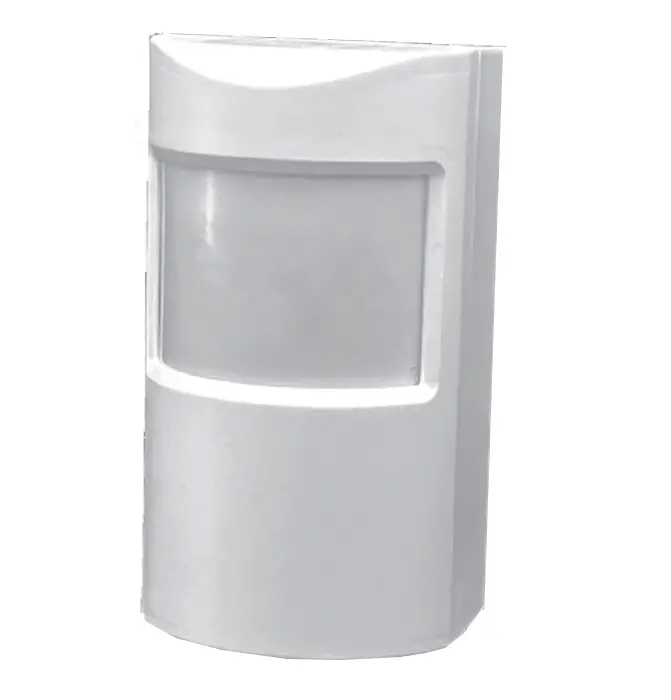
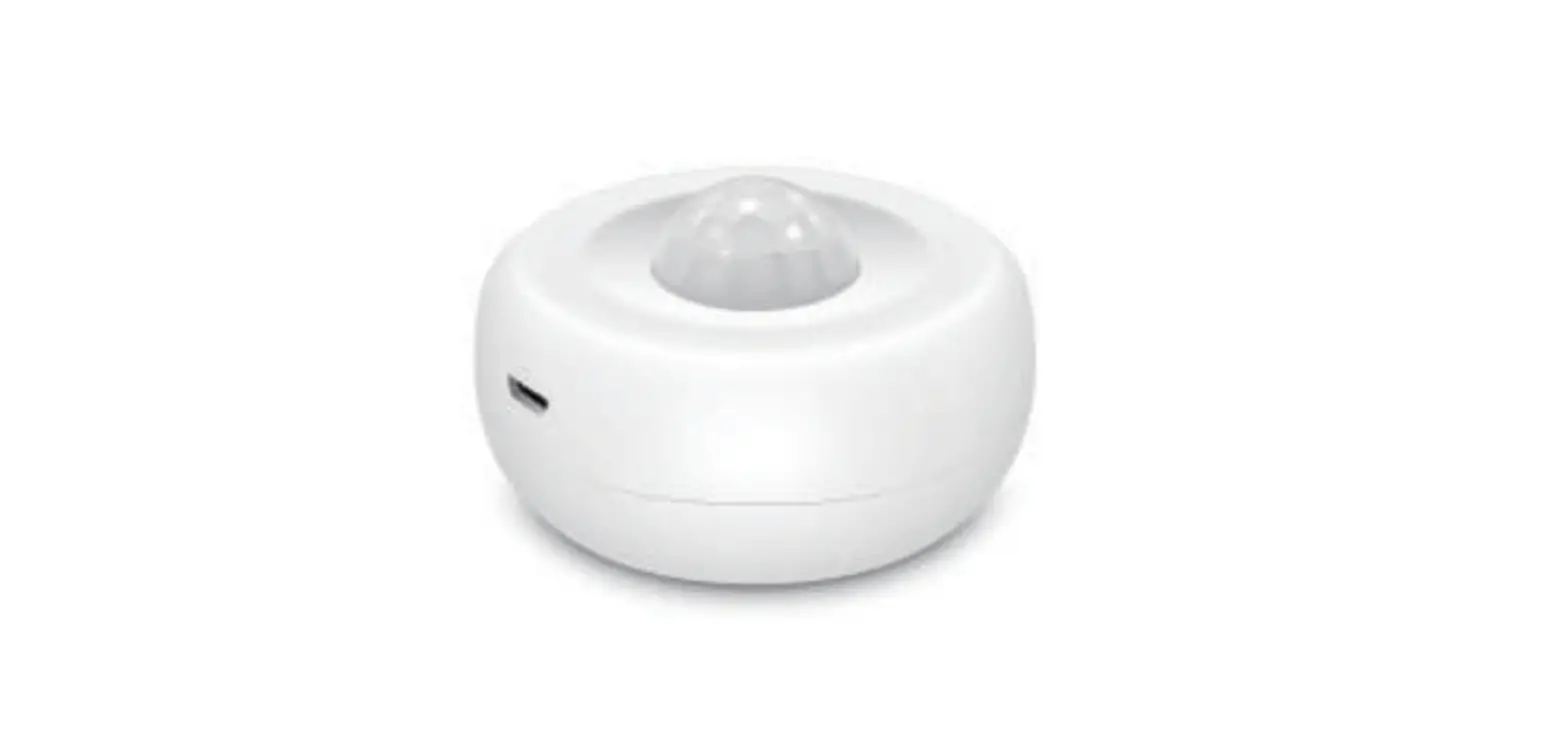
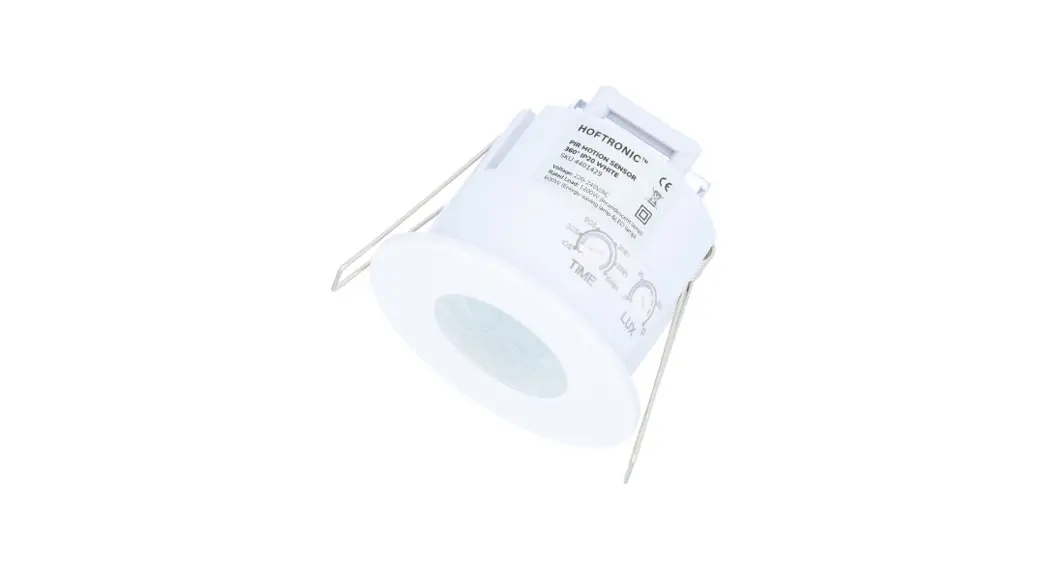
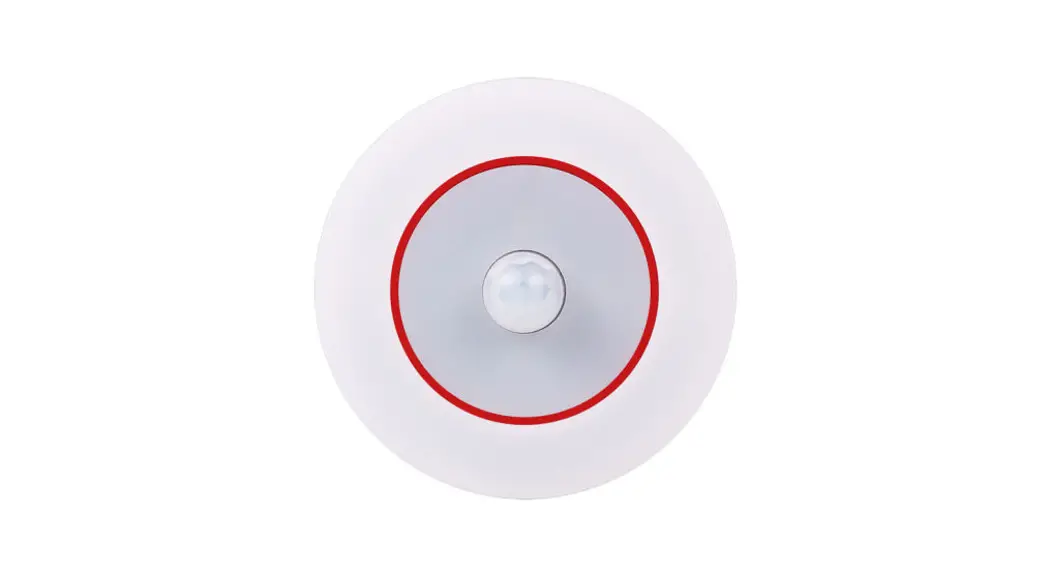
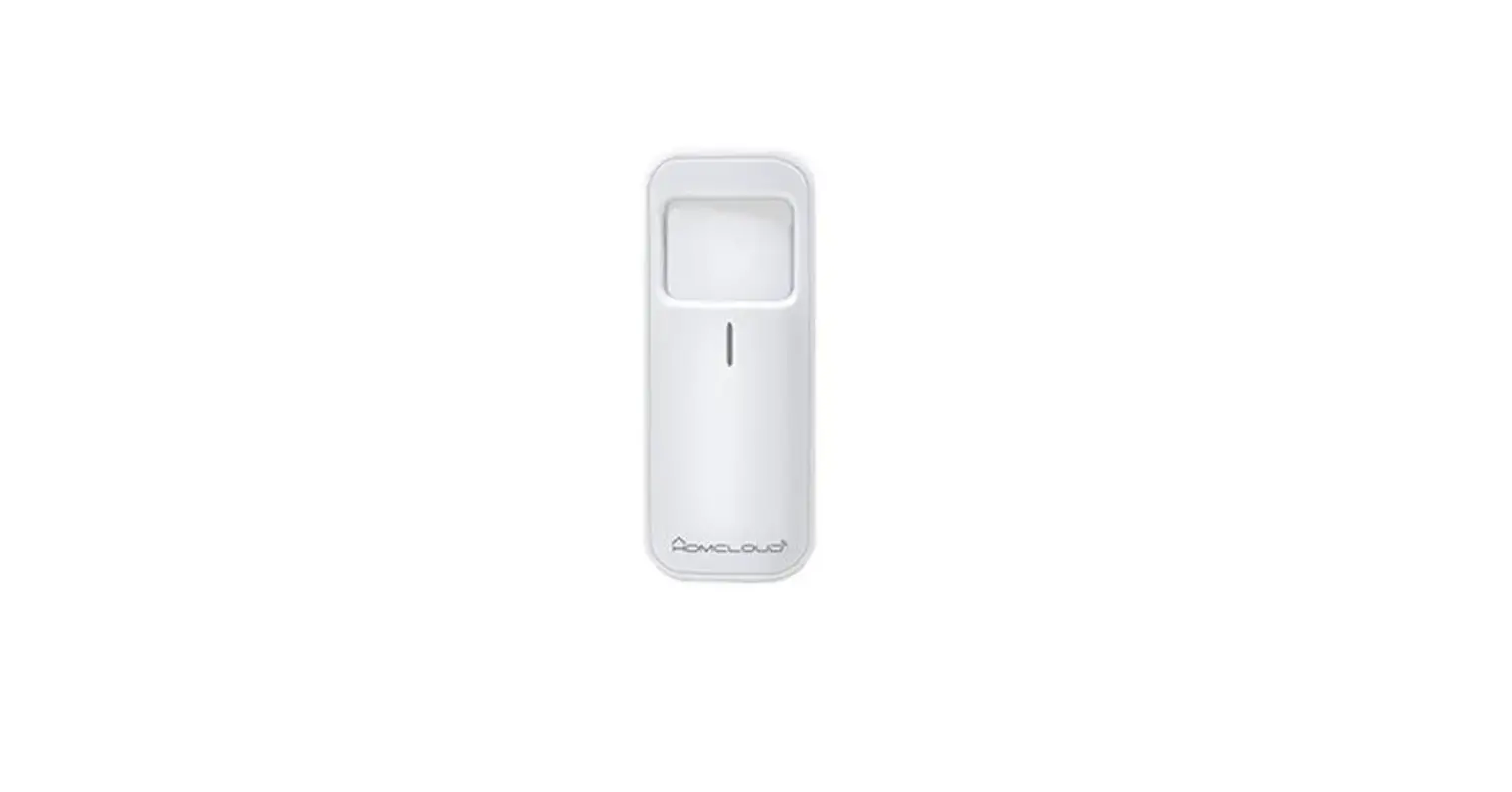
SENSE-PIR-W-LCB Wireless Occupancy Sensor
Welcome
Wireless Occupancy Sensor
PART NUMBER: SENSE/PIR/W/LCB
SENSOR COVERAGE: 20 ft. diameter at 9 ft.
PRODUCT DIMENSIONS: 2.21W x 2.30H x 2.21D
MOUNTING HEIGHT: 8 to 12 ft.
Wireless Range: 60 ft.
BATTERY TYPE: CR2 3V 850mAh
PRODUCT WEIGHT: about 0.16lb (73g)
WORKING HUMIDITY: 95%RH (no condensation)
Indoor
Function
The Lightcloud Blue Wireless Occupancy Sensor can detect the
movement of people or animals in a given area and activate
Lightcloud Blue-enabled lighting when motion is detected.
Installation Environment
- This product is only suitable for indoor use. Outdoor
installation is prohibited. - Do not install near areas with strong airflows such as fans,
air conditioners, etc. otherwise the repeated air disturbance will
cause false motion detection. - Do not install near heat sources such as direct sunlight,
heaters, stoves, etc. - Do not place large obstacles such as screens, furniture, large
plants, etc inside the detection range.
What’s in the Box
- 1 Wireless Occupancy Sensor with battery
- 3 Screw sets
- 1 Base adhesive
- 1 installation guide
Installation Instructions
- Access the battery compartment and remove the spacer.
- Attach the base: Snap it onto the product body by aligning the
connection points and clicking into a locked position. - Mount to a wall using the enclosed adhesive and/or screws.
Quick Setup
- Launch the App and login or create an account.
- Wake up the sensor: Press and release the Wake/Reset button
once (the blue indicator light on the front of the sensor will
begin flashing). - Add the sensor to your app by selecting the Devices tab and,
within 30 seconds of waking the sensor, tap Add Devices to pair the
sensor. Once paired, the sensor will appear in the Devices
tab. - Open the sensor device settings in the app by tapping on the
sensor card. - When prompted in the app, wake up the sensor.
- Select Move to Area and move the sensor into the desired Area
(the sensor must be moved into the same Area as the lights you want
to control). - Under Areas, tap on the Area with the sensor. In the Behaviors
section there will be a section labeled Sensor Settings. Select
Occupancy or Vacancy to enable the sensor for the Area and
configure sensitivity levels, timeouts and actions.
The Lightcloud Blue Wireless Occupancy Sensor is a passive
infrared motion detector that can detect the movement of people or
animals in a given area and activate Lightcloud Blue-enabled
lighting when motion is detected. The sensor has a coverage area of
20ft in diameter at 9ft height, and has a wireless range of 60ft.
It is compatible with all Lightcloud Blue-enabled lighting and is
easy to configure using the Lightcloud Blue mobile app. The sensor
is powered by a CR2 3V 850mAh battery and weighs about 0.16lb
(73g).
The installation environment for the sensor should be indoors
and free from strong airflows, heat sources, and large obstacles
inside the detection range. The package includes one Wireless
Occupancy Sensor with battery, three screw sets, one base adhesive,
and one installation guide.
To install the sensor, access the battery compartment, remove
the spacer, snap on the base to the product body, and mount it to a
wall using the enclosed adhesive and/or screws. To set up the
sensor, launch the app and login or create an account. Wake up the
sensor by pressing and releasing the Wake/Reset button once. Add
the sensor to your app by selecting the Devices tab and tapping Add
Devices within 30 seconds of waking the sensor. Once paired, open
the sensor device settings in the app and move the sensor into the
desired Area. Under Areas, tap on the Area with the sensor and
select Occupancy or Vacancy to enable the sensor for the Area and
configure sensitivity levels, timeouts, and actions.
Welcome
Wireless Occupancy Sensor
SENSE/PIR/W/LCB
WE’RE HERE TO HELP:
1(844) LIGHTCLOUD
1(844) 544-4825
Hello
Lightcloud Blue Wireless Occupancy Sensor is a passive infrared motion detector used to switch lights on/off or dim them. It is compatible with all Lightcloud Blue-enabled lighting and easy to configure using the LIghtcloud Blue mobile app.
Specifications
PART NUMBER SENSE/PIR/W/LCB
SENSOR COVERAGE 20 ft. diameter at 9 ft.
DETECTION ANGLE 120°~150°(adjustable)
PRODUCT DIMENSIONS 2.21″W x 2.30″H x 2.21″D
MOUNTING HEIGHT 8 to 12 ft.
Wireless Range 60 ft.
BATTERY TYPE CR2 3V 850mAh
PRODUCT WEIGHT about 0.16lb (73g)
WORKING HUMIDITY
Environment
95%RH (no condensation) Indoor
OPERATING TEMPERATURE 14°F to 122°F (-10°C to 50°C)
What’s in the Box
1 Wireless Occupancy Sensor with battery 3 Screw sets 1 Base adhesive 1 installation guide
Function
The Lightcloud Blue Wireless Occupancy Sensor can detect the movement of people or animals in a given area and activate Lightcloud Blue-enabled lighting when motion is detected.
Product body
Battery Bottom cover
Lens Distribution network indicator/ Brightness sensor window
Wake/Reset button
Base
Installation Environment
1 This product is only suitable for indoor use. Outdoor installation is prohibited.
2 Do not install near areas with strong airflows such as fans, air conditioners, etc. otherwise the repeated air disturbance will cause false motion detection.
3 Do not install near heat sources such as direct sunlight, heaters, stoves, etc.
4 Do not place large obstacles such as screens, furniture, large plants, etc inside the detection range.
Installation Instructions
1 Access the battery compartment and remove the spacer.
Remove the spacer
2 Attach the base: Snap it onto the product body by aligning the connection points and clicking into a locked position.
3 Mount to a wall using the enclosed adhesive and/or screws.
3a If Using Adhesive: Select a smooth, clean surface free of rust, oil, dust, etc.
3b Remove red film from the adhesive and affix to the surface of the Sensor base. Apply even pressure to ensure proper contact is made across the entire surface of the base.
3c Remove the red adhesive film and mount the sensor in the desired location. Apply even pressure when mounting to ensure proper contact is made across the surface of the base and mounting surface.
Note: It can take up to 72 hours for adhesive to reach maximum strength. During this time, do not touch the Sensor or surrounding area. For best results, ambient temperature should be above 50°F (10°C).
Quick Setup
1 Download the Lightcloud Blue app from the Apple® App Store or Google® Play store.
2 Launch the App and login or create an account.
3 Wake up the sensor: Press and release the Wake/Reset button once (the blue indicator light on the front of the sensor will begin flashing).
Wake/Reset button
4 Add the sensor to your app by selecting the “Devices” tab and, within 30 seconds of waking the sensor, tap “Add Devices” to pair the sensor. Once paired, the sensor will appear in the “Devices” tab.
5 Open the sensor device settings in the app by tapping on the sensor card.
6 When prompted in the app, wake up the sensor.
7 Select “Move to Area” and move the sensor into the desired “Area” (the sensor must be moved into the same “Area” as the lights you want to control).
8 Under “Areas”, tap on the Area with the sensor. In the “Behaviors” section there will be a section labeled “Sensor Settings”. Select Occupancy or Vacancy to enable the sensor for the Area and configure sensitivity levels, timeouts and actions.
Note: Multiple sensors in an Area will act in unison unless the sensor is set to `Independent Sensing’ in the device settings.
The sensor settings will take priority over Schedules or SmartShift. To use a sensor with SmartShift, the “When Occupied” sensor setting should be set to “On” and SmartShift “Automatic Dimming” should be enabled.
Reset
Method 1: Delete from App Open the app and access the device settings for the paired device. Be sure that the sensor is awake and select “Delete”.
Method 2: Manual Press the Wake/Reset button for more than 5 seconds until the indicator light on the front of the sensor flashes blue.
Lightcloud
Lightcloud Blue is a Bluetooth mesh wireless lighting control system that allows you to control RAB’s various compatible devices. With RAB’s patent-pending Rapid Provisioning technology, devices can be quickly and easily commissioned for residential and large commercial applications using the Lightcloud Blue mobile app. Each device in a system can communicate with any other device, eliminating the need for a Gateway or Hub and maximizing the control system’s reach.
Learn more at www.rablighting.com
©2023 RAB LIGHTING Inc. Made in China Pat. rablighting.com/ip
1(844) LIGHTCLOUD 1(844) 544-4825
WE’RE HERE TO HELP:
1(844) LIGHTCLOUD
1(844) 544-4825 [email protected]
 RAB VIRTUAL PATENT MARKING PAGE
 Welcome to RAB