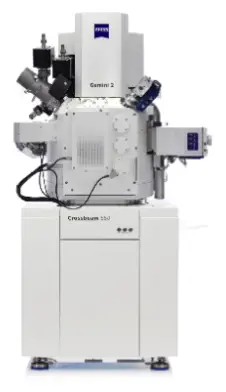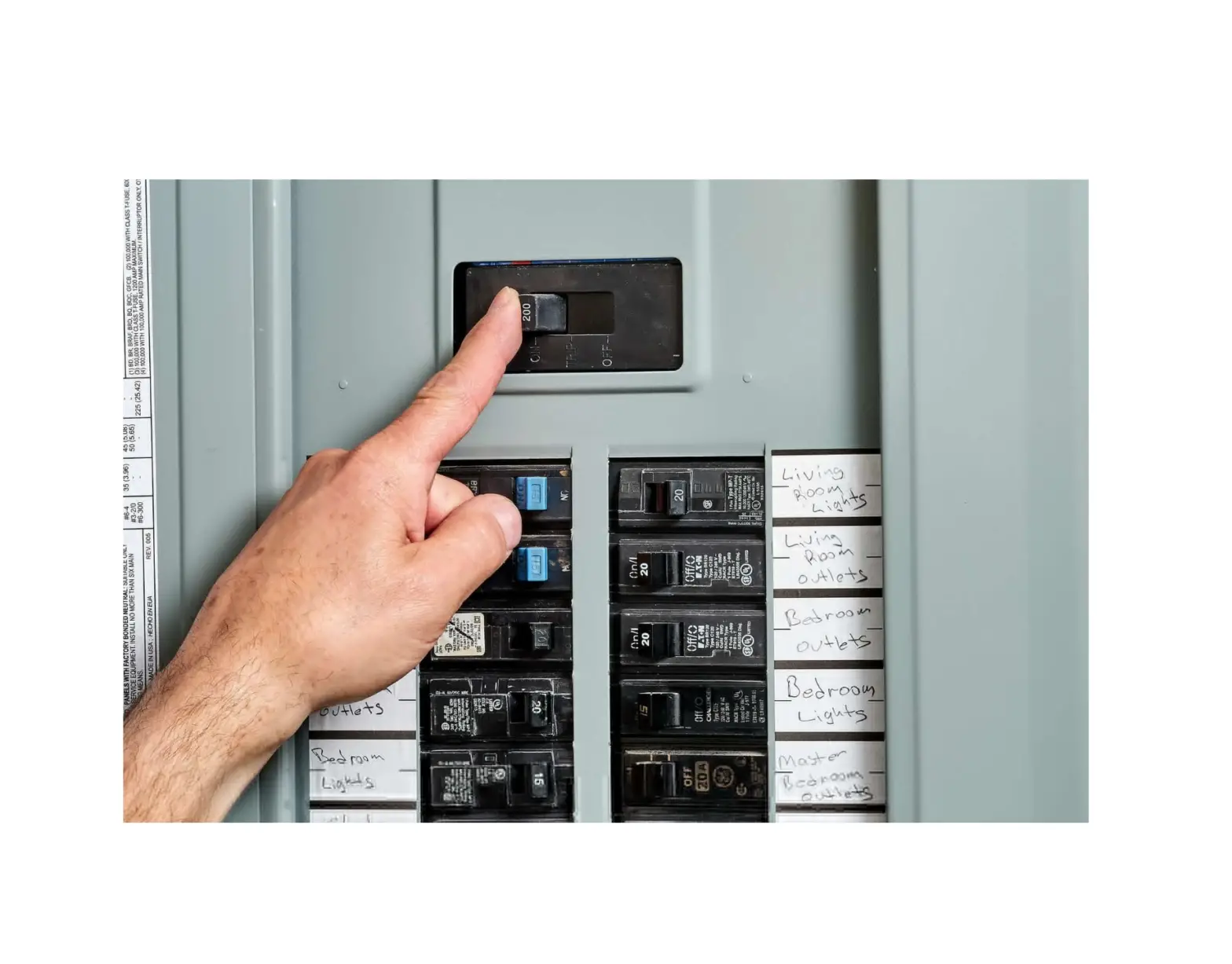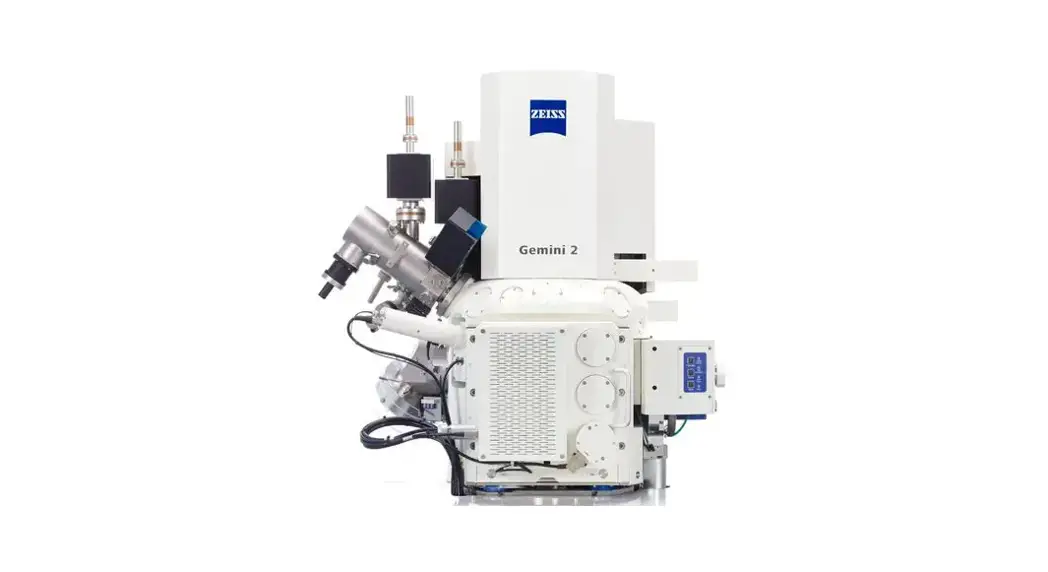
 FIB-SEM 002 Safely Powering Off On your Crossbeam System
User Manual
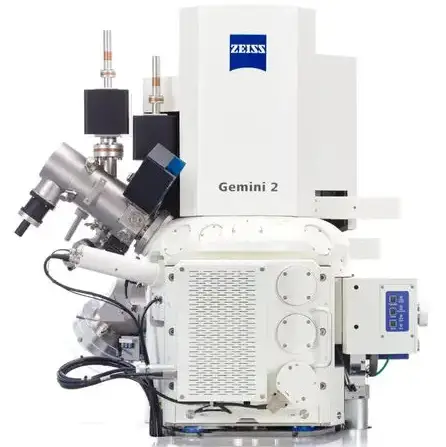
Brief Instruction FIB-SEM 002
Safely Powering Off/On your Crossbeam System
Shuting down the Microscope
This manual will safely guide you to power your Crossbeam Off and On.
Info
Please note the following
- This method works with the pumping system off for one day maximum. For a longer period of time, contact Zeiss service to help you with an eventual bakeout of the system or a more complex vacuum recovering procedure.
- Not every user profile is allowed to switch off the SEM gun. For this procedure, select at least the SYSTEM user profile.
1.1 Shuting down the FIB Gun
Procedure
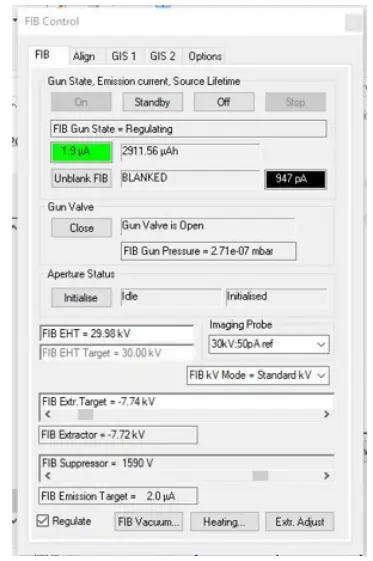
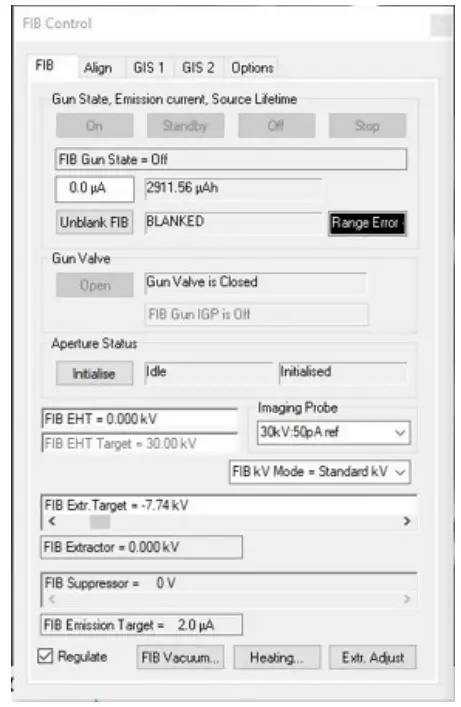
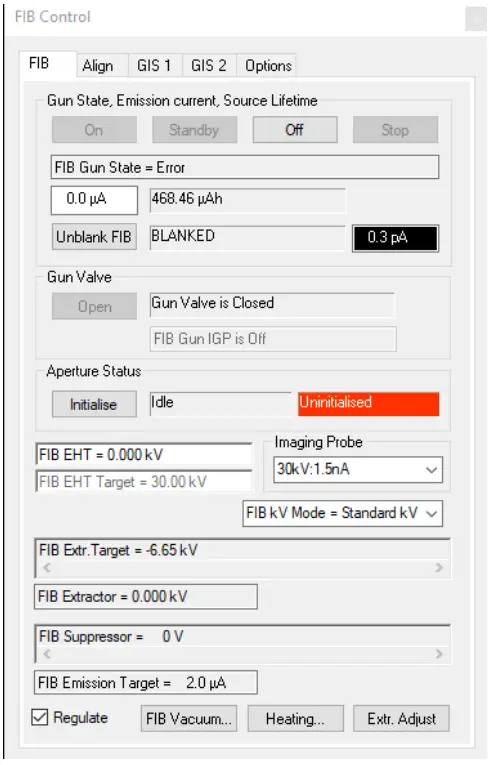
- Select the FIB Control panel.

- Click Off.
- Wait for FIB EHT = 0

- Close the FIB Control panel.
1.2 Shutting down the SEM EHT
Procedure
- Go to the lower right corner of the user interface.
- Select All > EHT Off.

- Wait for the Running down.. bar to fill and disappear
 is displayed.
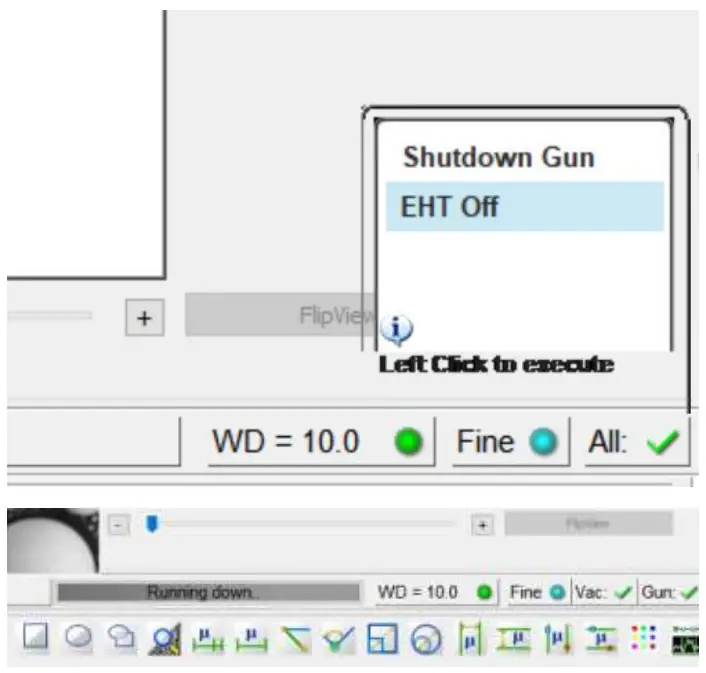
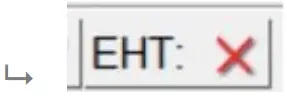 is displayed.
1.3 Shutting down the SEM Gun
Procedure
- Go to the lower right corner of the user interface.
- Select Gun > Shutdown Gun.

- Confirm with Yes.

- Wait for the Running down.. bar to fill and disappear is
 displayed.
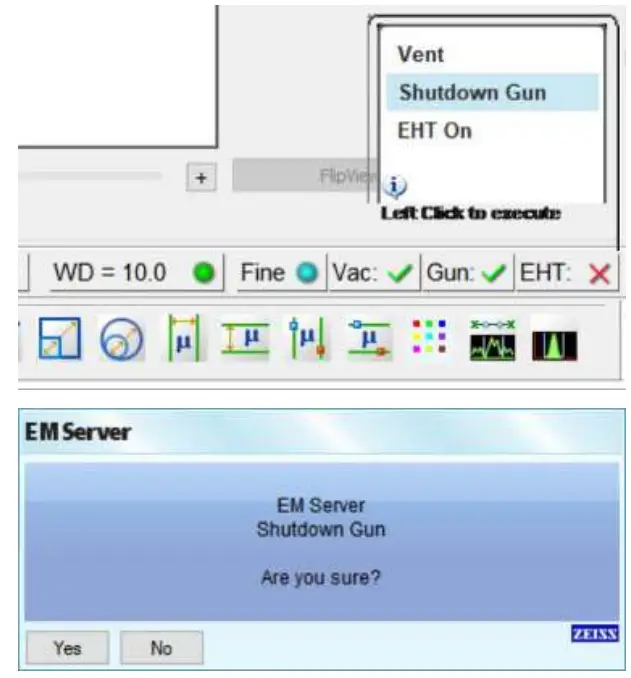
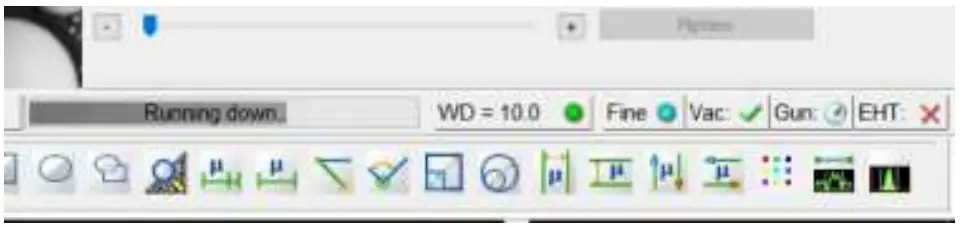
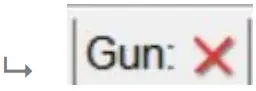 displayed.
1.4 Shuting down the SmartSEM User Interface
Procedure
- Go to the upper right corner of the user interface and click X .

- Confirm to close the software.
 The SmartSEM user interface closes.

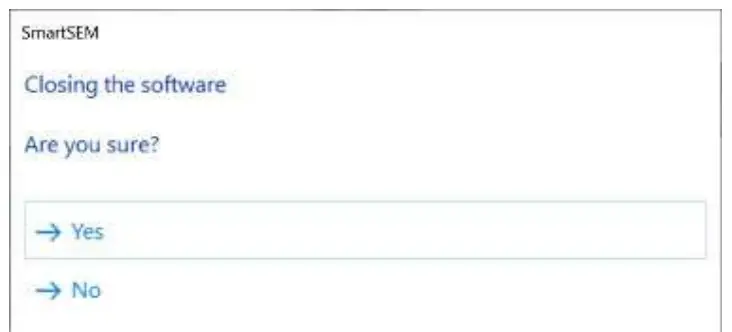 The SmartSEM user interface closes.
1.5 Shuting down the EM Server
Procedure
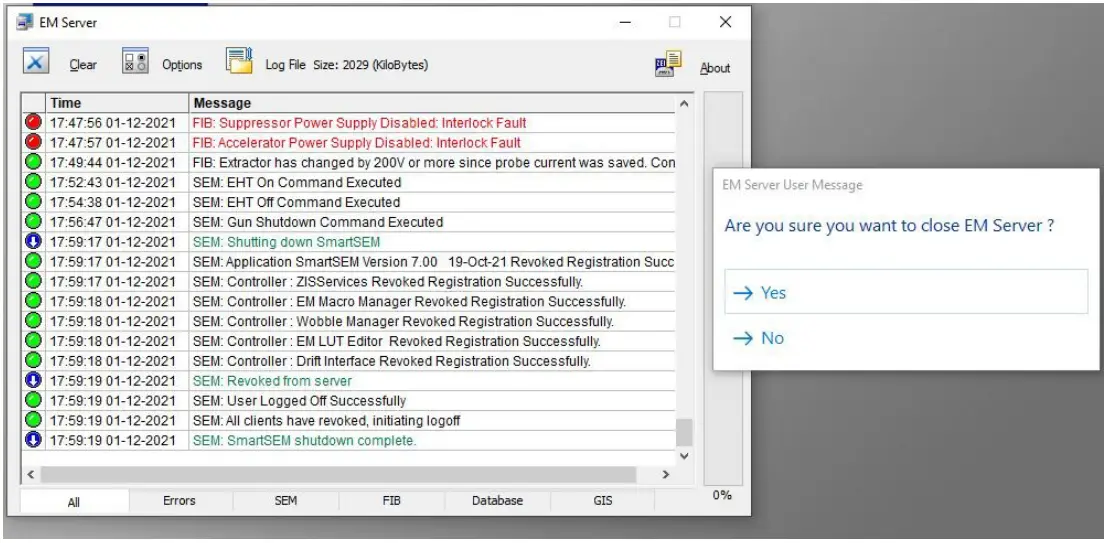
- Locate the EM Server window. It may be minimized in the Windows toolbar.
- To close the server, click X in the upper right corner.
- Confirm to shut down the EM Server.

- Wait until the server window disappears.
1.6 Shuting down the PC
Procedure
- Close all running applications.

- Shut down the PC.

1.7 Turning off the Microscope at the Front Panel
Procedure
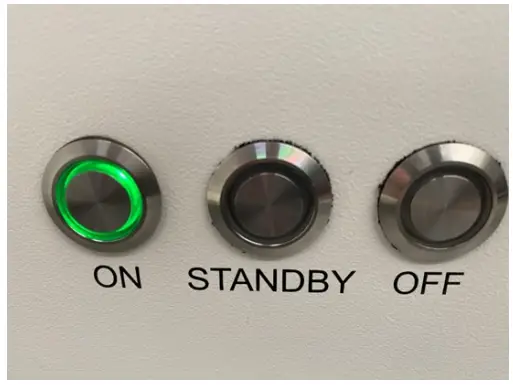
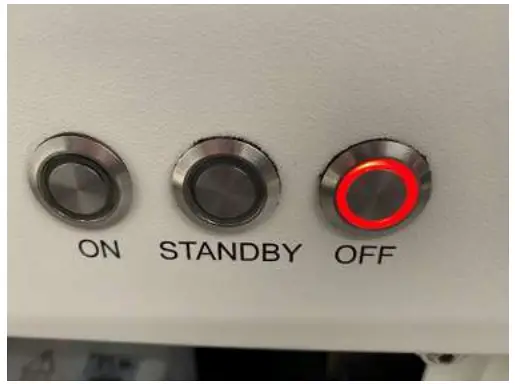
- Locate the three buttons at the front of the microscope

- Press the red OFF button and wait until it is the only one that remains illuminated.

1.8 Turning off the Microscope at the Back Panel
Procedure
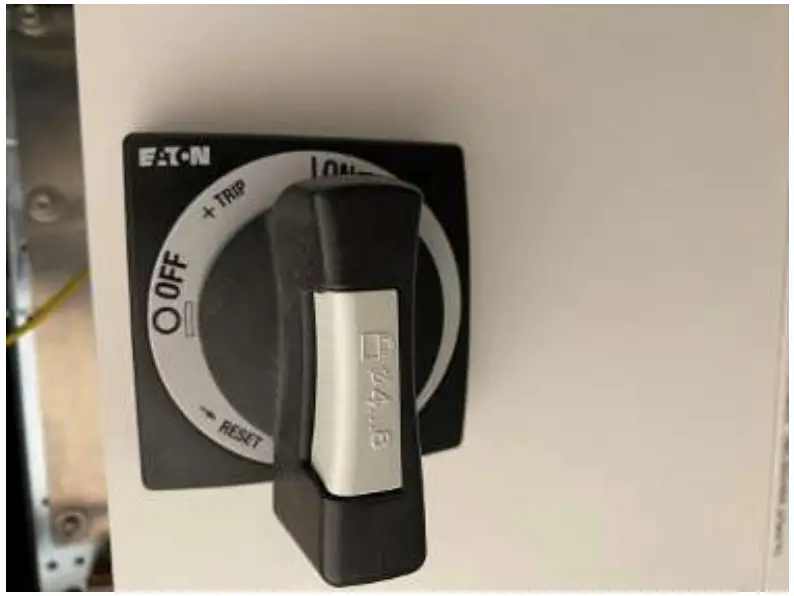
- Locate the black rotating knob at the back panel of the microscope.

- Turn it to the OFF position.
The microscope is now off.
Restarting the Microscope
2.1 Switching on the Microscope at the Back Panel
Procedure
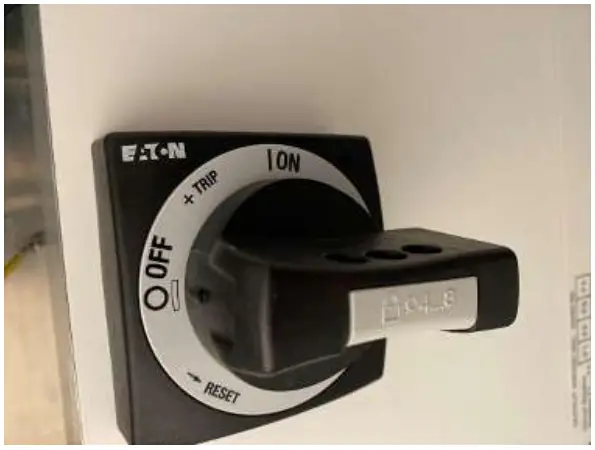
- Locate the black rotating knob at the back panel of the microscope.

- Turn it to the ON position.
The microscope is now ON.
2.2 Switching on the Microscope at the Front Panel
Prerequisite
Only the red OFF button is illuminated
Procedure
- Locate the three buttons at the front of the microscope.
- Press the ON button and wait until it is the only one that stays illuminated.
2.3 Starting the PC
Procedure
- Switch on the PC.
- Log on to your Windows user account (default is User: SEM; Password: sem).
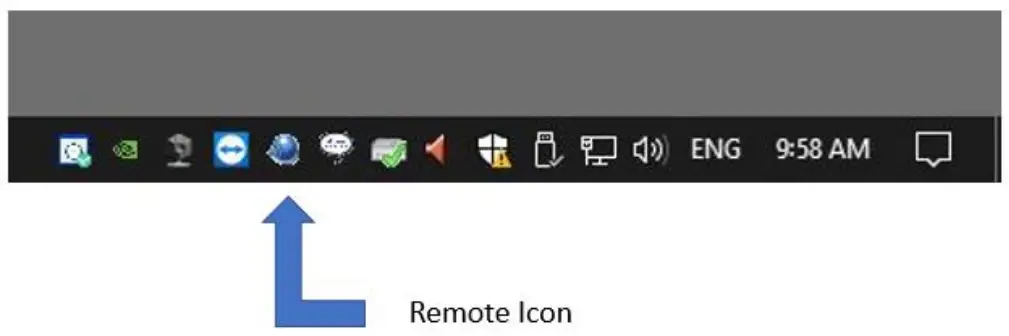
- Make sure the remote icon is displayed in the bottom right corner before launching SmartSEM.

2.4 Starting SmartSEM
Procedure
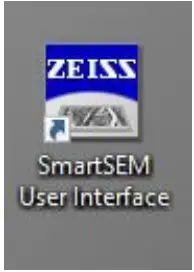
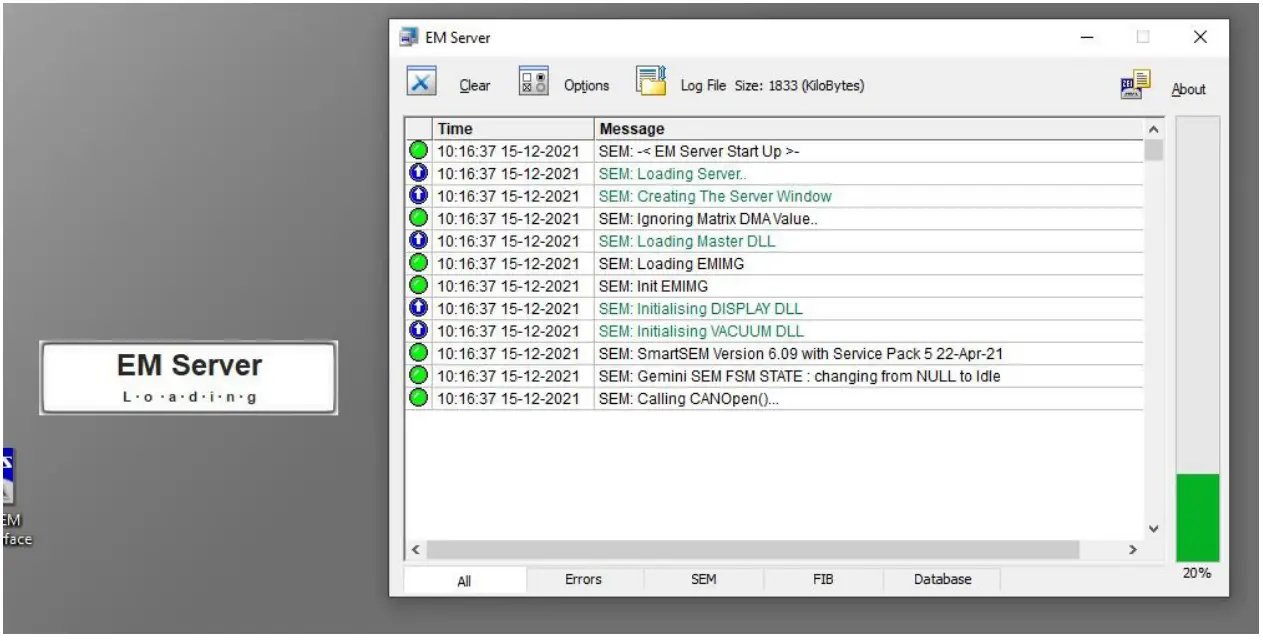
- On the desktop, double click the SmartSEM user interface icon

The EM Server starts.
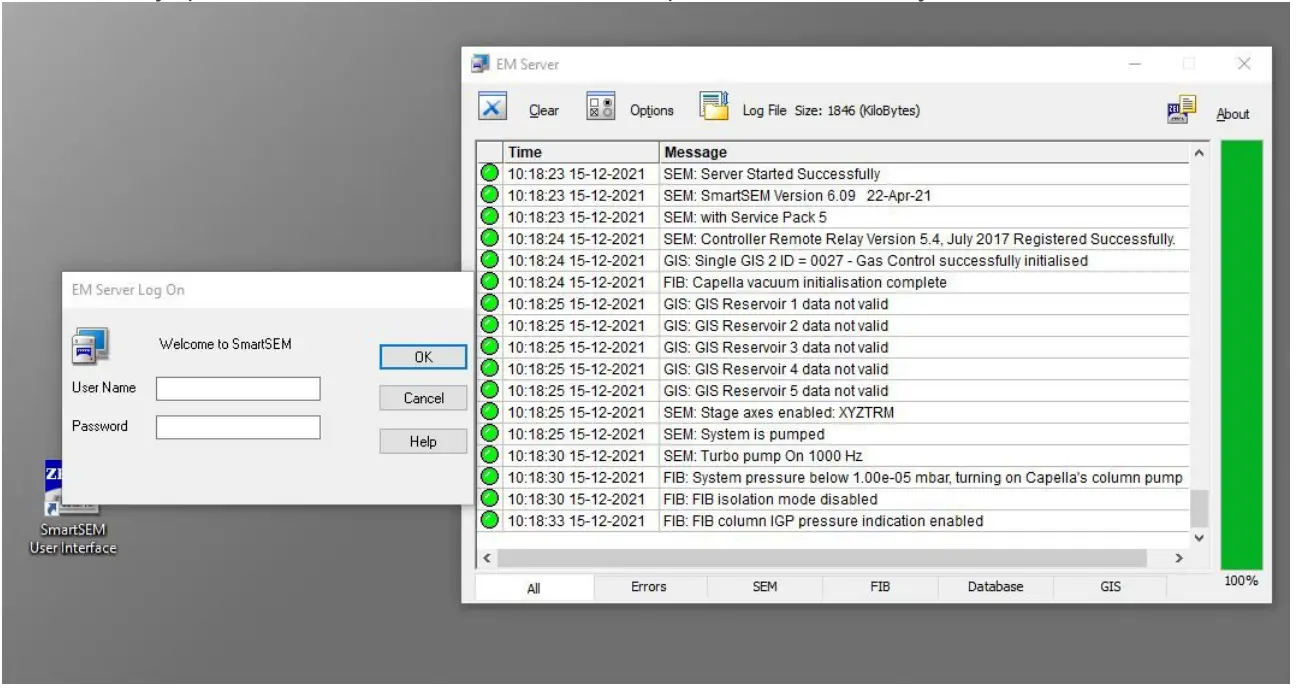
- Log on to the “system” account by entering user name and password.
Alternatively, press <Ctrl+s>. There is no default password for the system user. An error message should appear in the bottom right corner of the screen.
- Do not click anything, but wait for SmartSEM to finish booting.
 An error message should appear in the bottom right corner of the screen.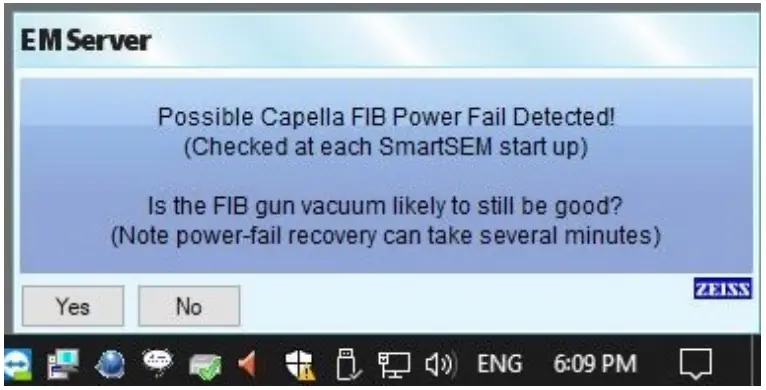
2.5 Waiting for SEM Vacuum
Procedure
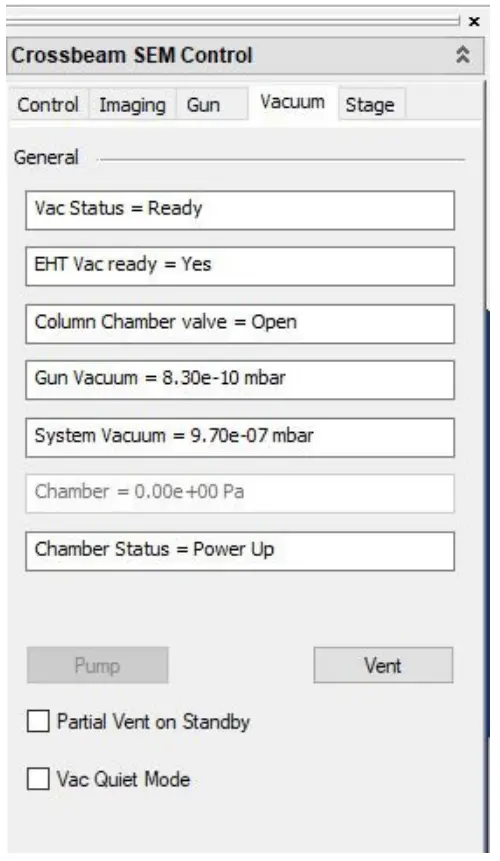
- Navigate to the Crossbeam SEM Control panel and wait until Vac Status is “Ready”.

2.6 Waiting for FIB Vacuum
Procedure
- On the top right corner of the UI, click the FIB Control icon

The FIB Control panel is displayed.
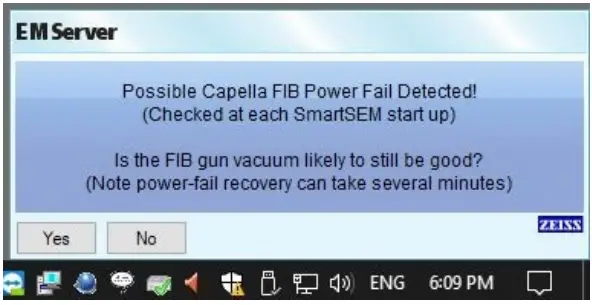
- In the bottom right corner, confirm the error message with Yes.
 SmartSEM launches the power fail recovery process.
After pumping time the last power fail recovery message should be displayed.
- Click OK.
The microscope is now ready for normal operation.

 SmartSEM launches the power fail recovery process.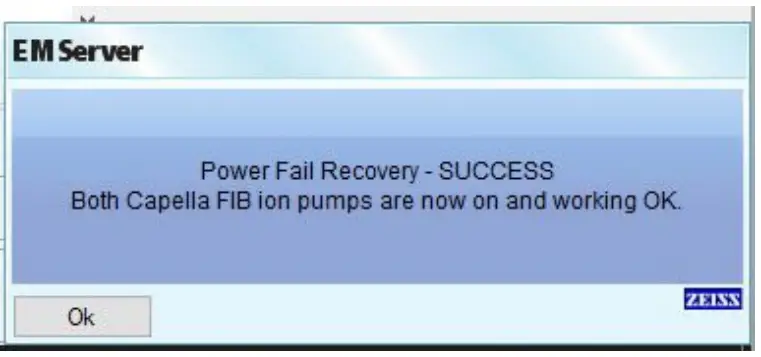
Info
If you have any further questions, contact:
Microscopy Headquarters [email protected]