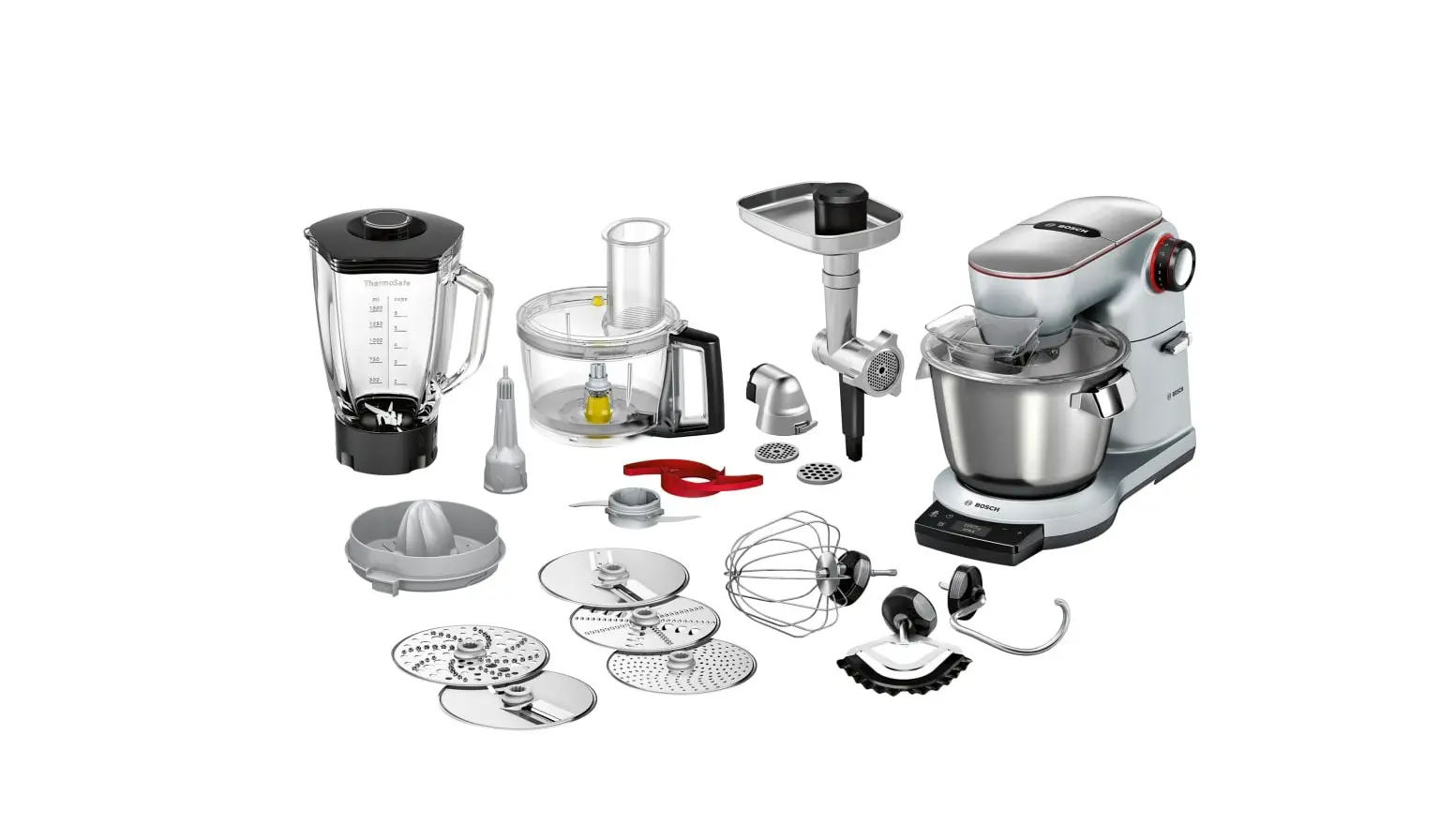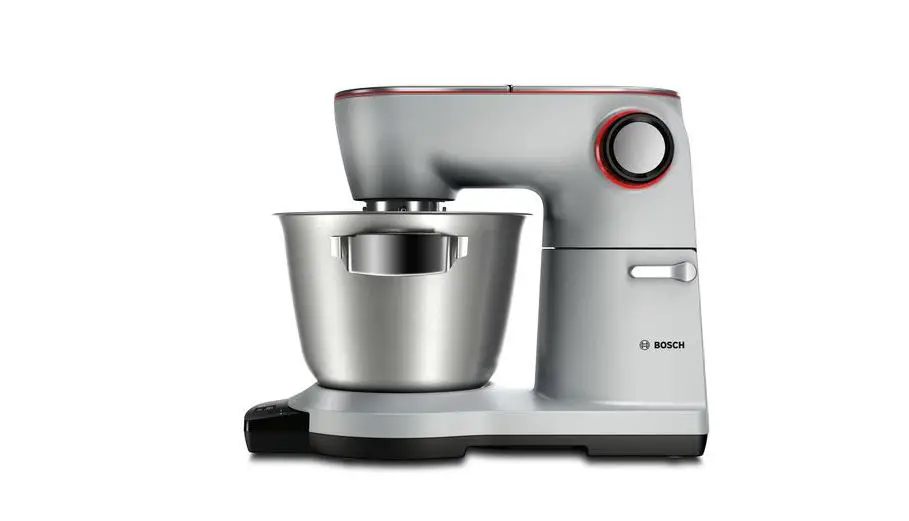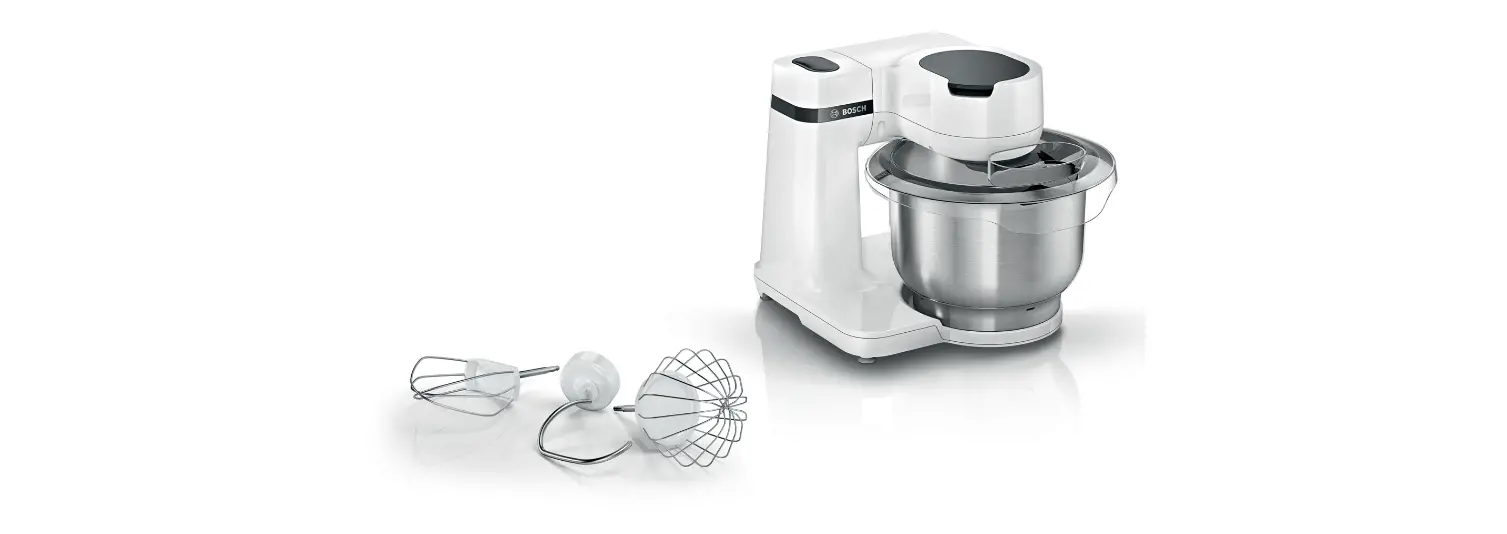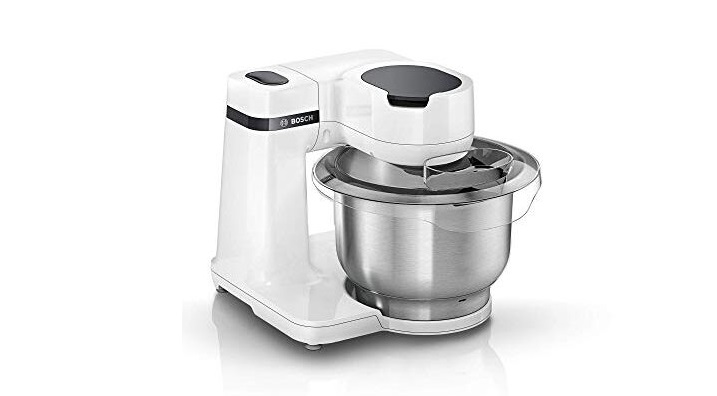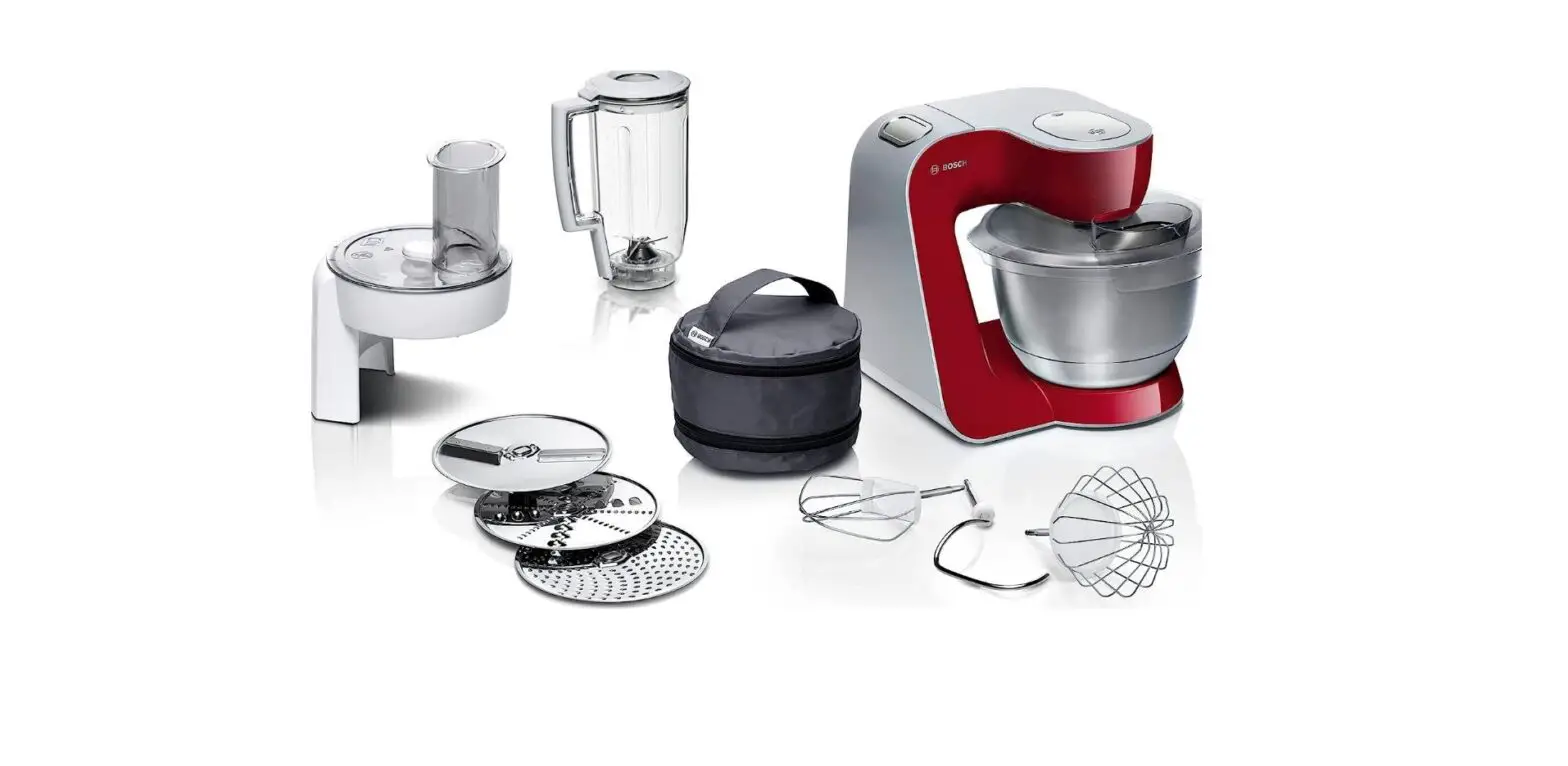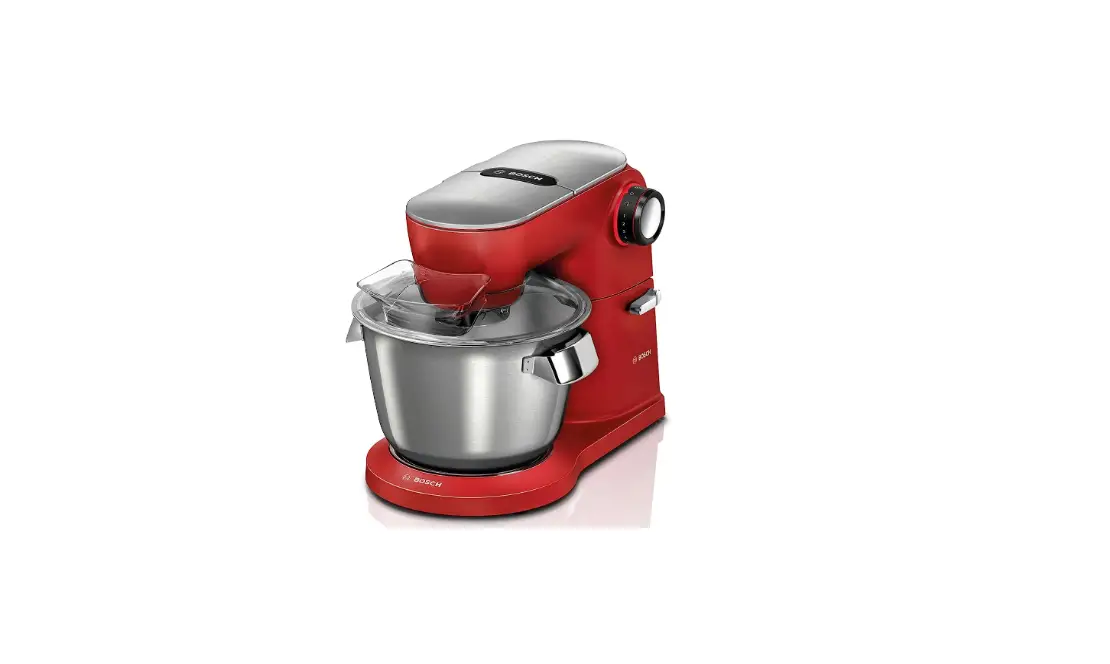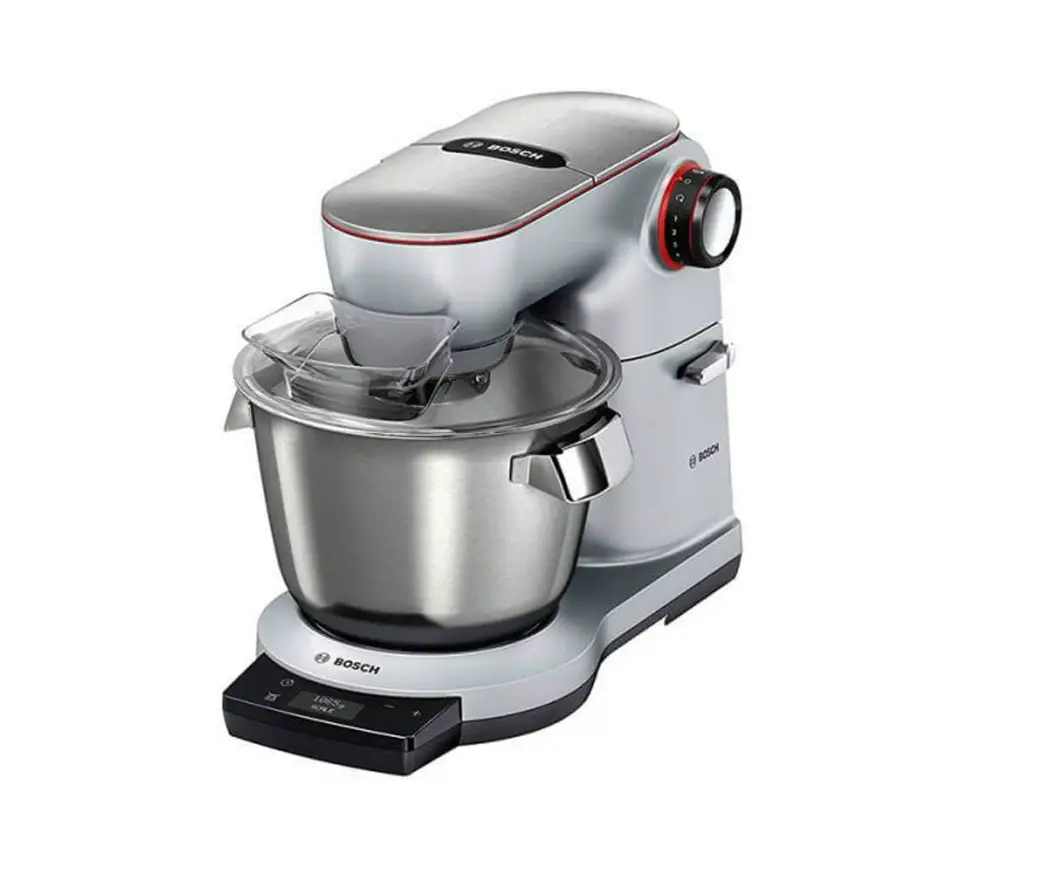
BOSCH MUM9YX5S12 Kitchen Machine User Manual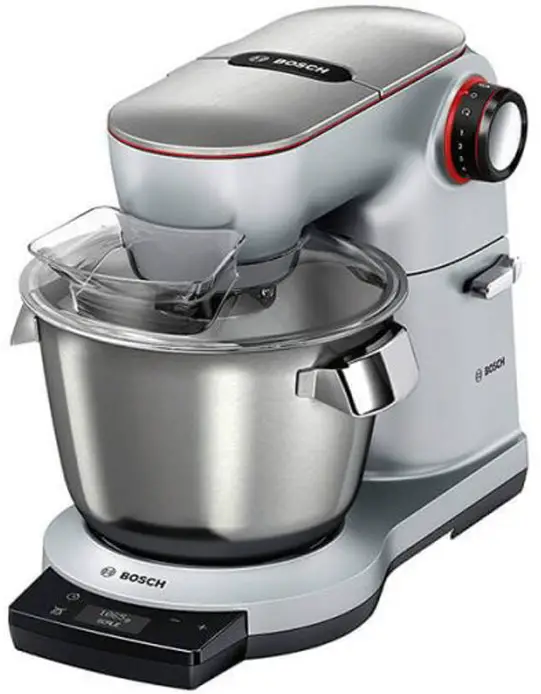
Safety
Observe the following safety instructions.
General information
- Read this instruction manual carefully.
- Please note the additional instructions when using supplied or optionally available accessories.
- Keep the instruction manual and the product information safe for future reference or for the next owner.
- Do not connect the appliance if it has been damaged in transit.
Intended use
Only use this appliance:
- With genuine parts and accessories.
- For additional applications described in the instructions for accessories that are optional or come with the appliance.
- For mixing, kneading and beating food.
- Under supervision.
- In private households and in enclosed spaces in a domestic environment at room temperature.
- for normal processing quantities and for normal processing times for domestic use.
- Up to an altitude of max. 2000 m above sea level
Disconnect the appliance from the power supply when:
- are not using the appliance.
- the appliance is unattended.
- assembling the appliance.
- taking the appliance apart.
- cleaning the appliance.
- approaching rotating parts.
- Change tools.
- confronted with a fault.
Restriction on user group
This appliance can be used by persons with reduced physical, sensory or mental capabilities or a lack of experience and/or knowledge if they have been given supervision or instruction concerning use of the appliance in a safe way and if they understand the hazards involved.
Do not let children play with the appliance.
Cleaning and user maintenance must not be performed by children.
The appliance must not be used by children.
Keep children away from the appliance and power cable.
Safety instructions
Observe the safety instructions.
 WARNING: Risk of electric shock!
If the appliance or the power cord is damaged, this is dangerous
- Never operate a damaged appliance.
- Never operate an appliance with a cracked or fractured surface.
- Never pull on the power cord to unplug the appliance. Always unplug the appliance at the mains.
- If the appliance or the power cord is damaged, immediately unplug the power cord or switch off the fuse in the fuse box.
- Call customer services. → Page 33
Incorrect installation is dangerous. - Connect and operate the appliance only in accordance with the specifications on the rating plate.
- Connect the appliance to a power supply with alternating current only via a properly installed socket with earthing.
- The protective conductor system of the domestic electrical installation must be properly installed. Incorrect repairs are dangerous.
- Repairs to the appliance should only be carried out by trained specialist staff.
- Only use genuine spare parts when repairing the appliance.
- If the power cord of this appliance is damaged, it must be replaced by the manufacturer, the manufacturer’s Customer Service or a similarly qualified person in order to prevent any risk.
An ingress of moisture can cause an electric shock. - Never immerse the appliance or the power cord in water or clean in the dishwasher.
- Only use the appliance in enclosed spaces.
- Never expose the appliance to intense heat or humidity.
- Do not use steam- or high-pressure cleaners to clean the appliance.
If the insulation of the power cord is damaged, this is dangerous. - Never let the power cord come into contact with hot appliance parts or heat sources.
- Never let the power cord come into contact with sharp points or edges.
- Never kink, crush or modify the power cord.
WARNING: Risk of fire!
Intense heat may cause the appliance and other parts to catch fire.
- Never place the appliance on or near hot surfaces.
WARNING: Risk of fire!
Rotating drives, tools or accessory parts may cause injury.
- Keep hands, hair, clothing and utensils away from rotating parts.
- Only attach and remove tools and accessories once the drive has stopped and you have unplugged the appliance.
- Before changing tools or cleaning the appliance, switch off and disconnect it from the mains.
- Only use the tools when the bowl is inserted, the lid is fitted and the drive covers are in place.
- Never open the swivel arm during processing.
Operating the appliance with damaged parts may result in injury. - Parts which show cracks or other damage or do not fit correctly must be replaced with genuine spare parts.
WARNING: Risk of fire!
Your hands and fingers could get caught.
- Do not reach into the bowl or housing when lowering the swivel arm.
WARNING: Risk of fire!
Children may put packaging material over their heads or wrap themselves up in it and suffocate.
- Keep packaging material away from children.
- Do not let children play with packaging material.
Children may breathe in or swallow small parts, causing them to suffocate. - Keep small parts away from children.
- Do not let children play with small parts.
WARNING: Risk of fire!
Soiling on surfaces may be harmful to health.
- Follow the cleaning instructions.
- Clean surfaces which come in contact with food before each use.
Avoiding material damage
ATTENTION!
Improper use may cause material damage.
- Never use different drives at the same time.
- Observe the colour coding marked on the accessories and drive.
- Never operate the appliance longer than necessary.
- Do not operate the appliance at no-load.
- Never use genuine parts and accessories for other appliances.
- Observe the maximum processing quantities.
- Do not use the bowl to store objects which do not belong to it.
During operation warm exhaust air escapes from the vent grille at the rear. If this is blocked, it may cause the appliance to overheat. - Set up the appliance at a sufficient distance from walls, easily damaged surfaces and other appliances.
Vibrations may impair functioning of the appliance. - Do not place the appliance on moving or vibrating surfaces.
Environmental protection and saving energy
Disposing of packaging
The packaging materials are environmentally compatible and can be recycled.
- Sort the individual components by type and dispose of them separately.
Unpacking and checking
Find out here what you need to note when unpacking the appliance.
Unpacking the appliance and parts
- Take the appliance out of the packaging.
- Take all other parts and the accompanying documents out of the packaging and place them to hand.
- Remove any packaging material.
- Remove any stickers or film.
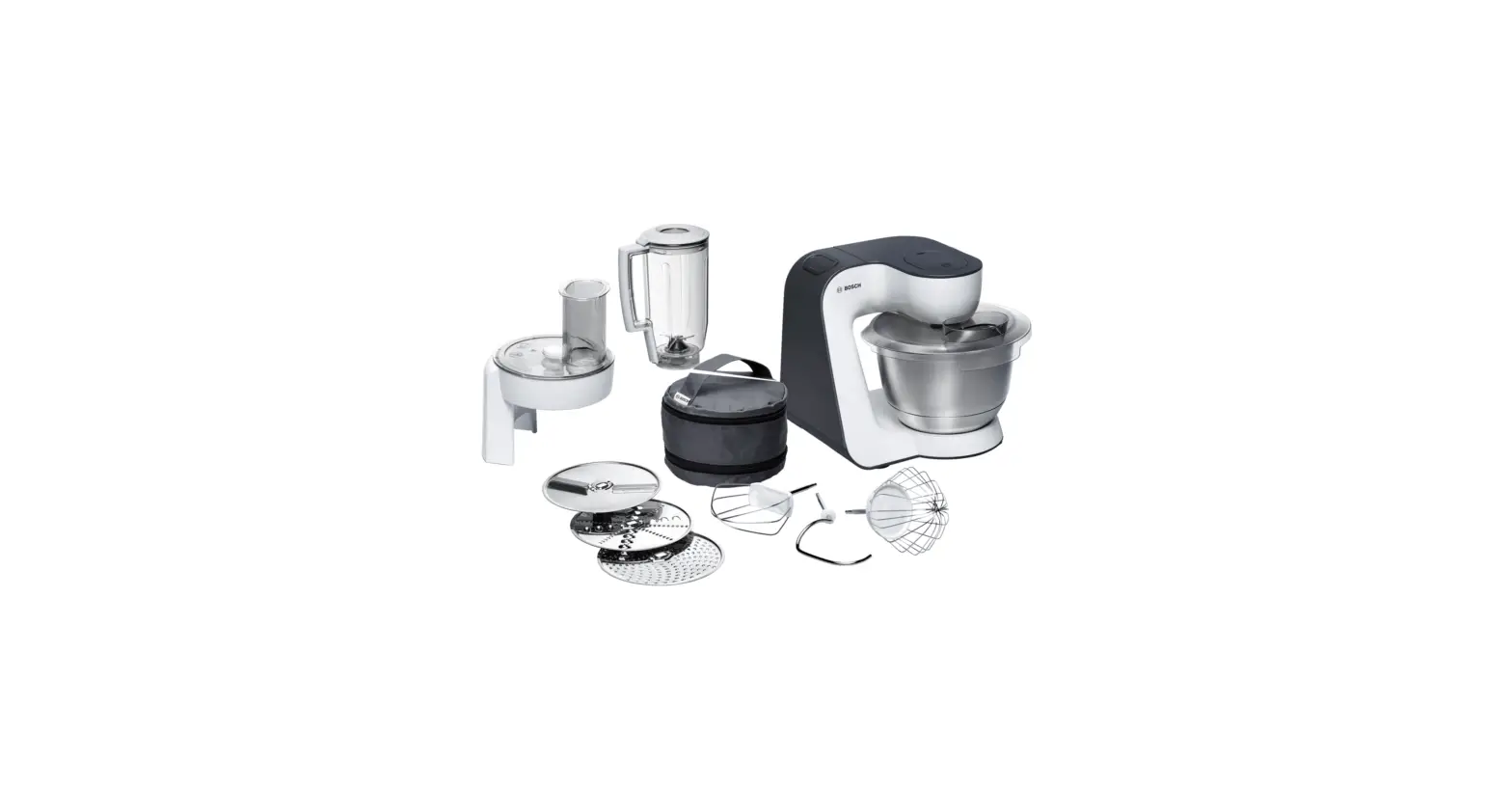
Contents of package
After unpacking all parts, check for any damage in transit and completeness of the delivery.
Note: The appliance comes with additional accessories depending on its features. See the instructions for the accessories to discover the further contents of the package. → Fig. 1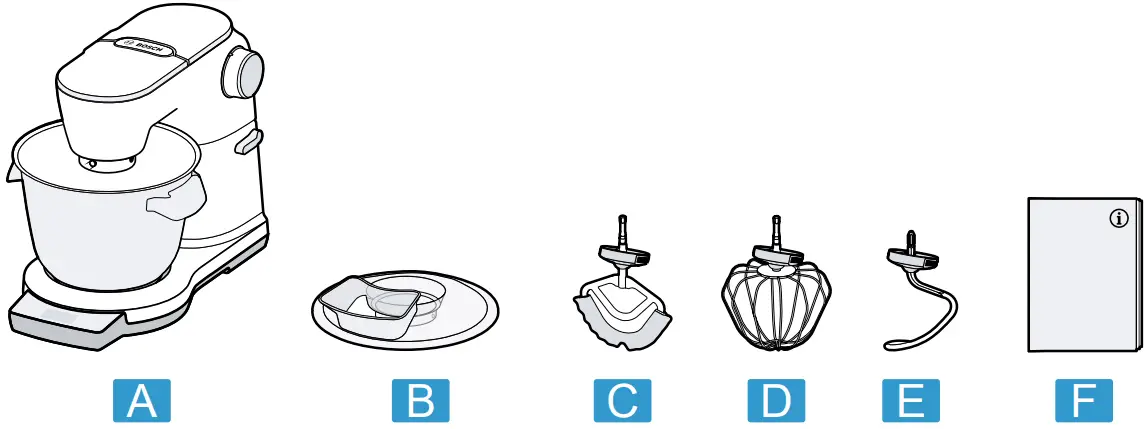
 | Base unit with mixing bowl |
 | Lid with integrated filling shaft |
 | Professional flexible stirrer |
 | Professional beating whisk |
 | Kneading hook |
 | Accompanying documents |
Depending on the model
Setting up appliance
WARNING: Risk of fire!
Intense heat may cause the appliance and other parts to catch fire.
- Never place the appliance on or near hot surfaces.
ATTENTION!
During operation warm exhaust air escapes from the vent grille at the rear. If this is blocked, it may cause the appliance to overheat.
- Set up the appliance at a sufficient distance from walls, easily damaged surfaces and other appliances.
Vibrations may impair functioning of the appliance. - Do not place the appliance on moving or vibrating surfaces.
- Place the appliance on a stable, level, clean and flat work surface.
- Pull the power cable out to the required length. → “Cable length”, Page 18
Do not insert the mains plug.
Familiarizing yourself with your appliance
Appliance
You can find an overview of the parts of your appliance here. → Fig. 2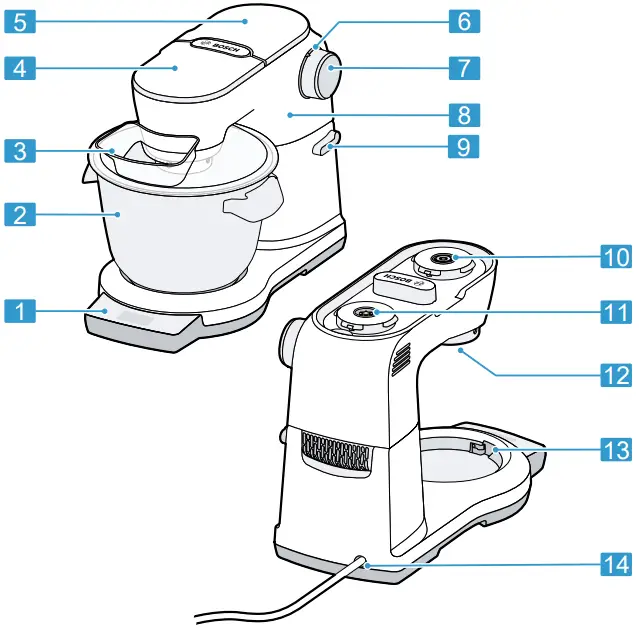
 | Control panel |
 | Stainless steel mixing bowl |
 | Lid with integrated filling shaft |
 | Protective cover for drive 2 |
 | Protective cover for drive 3 |
 | Illuminated ring |
 | Rotary switch |
 | Swivel arm |
 | Release button for swivel arm |
 | Drive 2, yellow |
 | Drive 3, red |
 | Main drive, black |
 | Recesses for bowl |
 | Cord store |
Rotary switch
The rotary switch is used to start and stop processing and select the speed.
| Symbol | Function |
 | Stop processing. |
 | Fold in ingredients at the lowest speed. |
 | Process ingredients at low speed. |
 | Process ingredients at maximum speed. |
 | Process ingredients briefly at maximum speed. → “Using instantaneous switching”, Page 21 |
 | Depending on the application: ¡ Process ingredients briefly at maximum speed. → “Using instantaneous switching”, Page 21 |
| 1 Depending on the appliance specification | |
| |
| 1 Depending on the appliance specifications | |
Tip: You can adjust the speed sleeplessly between 1 and 7.
Illuminated ring1
The illuminated ring on the rotary switch informs you about the operating status of your appliance.
| Display | Status |
| The illuminated ring lights up and processing is underway | The appliance is functioning perfectly. |
| The illuminated ring does not light up and processing cannot start. |
|
| The illuminated ring lights up and processing cannot start or continue. |
|
Tip: You can find further information here:
Control panel
You can find an overview of the control panel here. → Fig. 3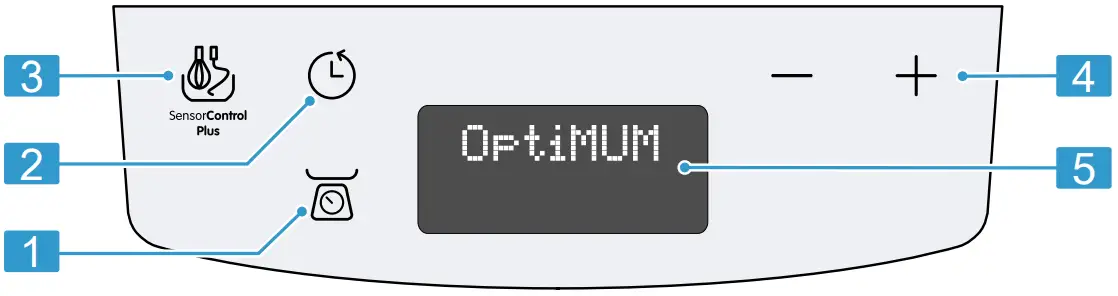
| Scales button |
| Timer button |
| Sensor Control Plus1 button |
| Setting buttons |
| Display |
You can use the function buttons to select additional functions or configure settings.
To make a selection, touch the relevant symbols with your finger.
| Symbol | Function |
 | Timer
|
 | Scales1
|
 | Sensor Control Plus 1
|
 |
|
 |
|
| 1 Depending on the appliance specifications | |
Note: Press the buttons with your fingers without wearing rubber/oven gloves.
Do not operate buttons with objects, e.g. a wooden spoon.
Display
The display shows settings, information and values, as well as messages about the operating status.
Plugging in the appliance activates the display, which shows “Optimum”.
The display shows text on 2 lines.
Long text scrolls across the display.
Note: The display will switch off automatically if the appliance is not operated for a given period of time. To reactivate the display, press a button or start processing.
Tip: You can change the display language and the control panel brightness at any time.
Drives
Your appliance is equipped with different drives, which are specially designed for its tools and accessories.
Note: Drives 2 and 3 come with protective covers.
Colour coding
The drives are colour-coded.
The colour coding is also marked on the accessories to ensure they are matched to the correct drive
Overview of drives
You can find an overview of the drives and their purposes here.
| Drive | Use |
Main drive, black | For the tools and accessories, e.g.
|
Drive 2, yellow | For accessories marked yellow, e.g.
|
Drive 3, red | For accessories marked red, e.g.
|
Tools
You can find out everything you need to know about the different tools here.
Tools are equipped with a protective cap to protect the drive from soiling.
The two eject buttons on the protective cap make it easier to remove tools.
Overview of tools
Use the appropriate tool depending on use.
| Tool | Use |
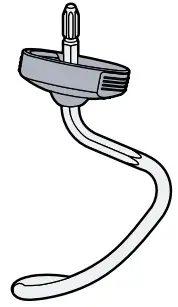 | Kneading hook
|
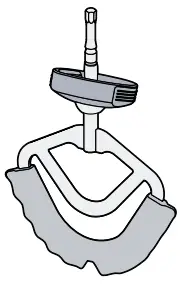 | Professional flexible stirrer1
|
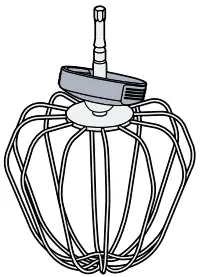 | Professional beating whisk
|
Fine adjustment of the professional whisk
Use the fine adjustment system to correct the distance between the bowl and the professional beating whisk.
Note: The professional beating whisk is factory-set so that ingredients are mixed together perfectly.
Correcting tool adjustment
ATTENTION!
The appliance and tools can be damaged if a wrong tool setting is used.
- Never operate a tool that touches the bowl.
Requirements
- The mains plug is not inserted.
- The swivel arm is open.
- The professional beating whisk is inserted.
- The bowl has been inserted.
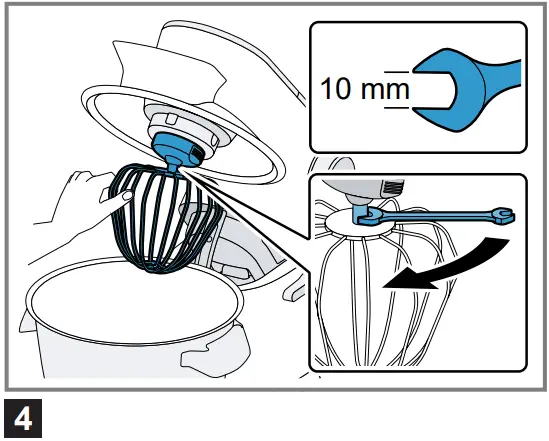
- Hold the beating whisk at the bottom with one hand and release the lock nut clockwise using a spanner wrench.
→ Fig. 4
- To change the distance, turn the tool.
→ Fig. 5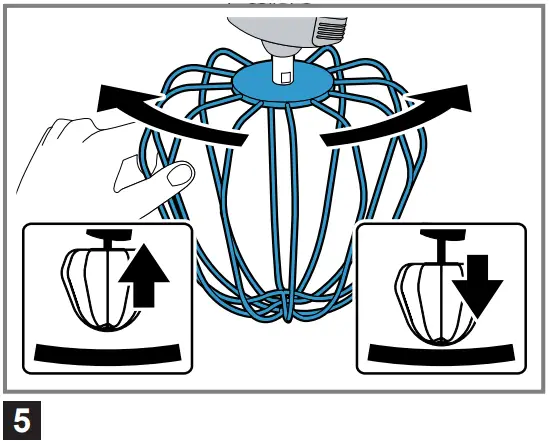
Observe the values in the table:Setting Distance Optimum setting 3 mm One turn clockwise 1 mm more One turn anticlockwise 1 mm less - Press the release button and push the swivel arm down until it engages.
- Check the setting.
- Press the release button and raise the swivel arm until it engages.
- Hold the beating whisk at the bottom with one hand and tighten the lock nut anticlockwise using a spanner wrench.
Safety systems
You can find an overview of your appliance’s safety systems here.
Start lock-out
Start lock-out prevents your appliance from being switched on accidentally.
The appliance can only be switched on and operated if
- the swivel arm is engaged in position 1 and the bowl is inserted.
- the swivel arm is engaged in position 1 and the bevel gear is fitted on the main drive.
Restart lock-out
Restart lock-out prevents your appliance from automatically restarting processing after a power failure.
The appliance is switched on again after a power failure. Processing cannot start again until the rotary switch has been set to .
Overload protection
The overload protection system prevents the motor and other components from being damaged through being overloaded.
The motor will switch off if
- too large a quantity is processed.
- processing is taking too long.
- a tool or accessory is blocked.
Swivel arm protection device
The swivel arm protection device prevents the swivel arm from being opened if an accessory is attached to the rear drive.
Before using for the first time
Before using for the first time
Preparing the appliance
- Press the release button and raise the swivel arm until it engages.
- Turn the bowl clockwise and remove.
- Clean all parts that come into contact with food before using for the first time.
- Put the cleaned and dried parts out ready for use.
Basic operation
Cable length
Adjust the length of the power cable to your needs.
Adjusting cable length via cable storage compartment 1
- Pull the power cable out to the required length.
- To shorten the cable, push it into the cable storage compartment.
Adjusting cable length via cable rewinder1
- Pull the power cable out to the required length and slowly let go.
- To shorten the cable,
- pull the cable,
- allow the cable to wind up,
- pull the cable out again.
Note: Do not push the cable in by hand. If the cable jams, pull right out and let it wind up again.
Swivel arm positions
You can find an overview of the positions of the swivel arm here.
| Position | Use |
Position 1 | Swivel arm is closed.
|
Position 2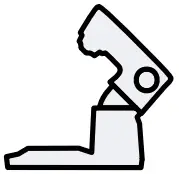 | Swivel arm is open.
|
Opening swivel arm
- Press the release button and raise the swivel arm until it engages.
→ Fig. 6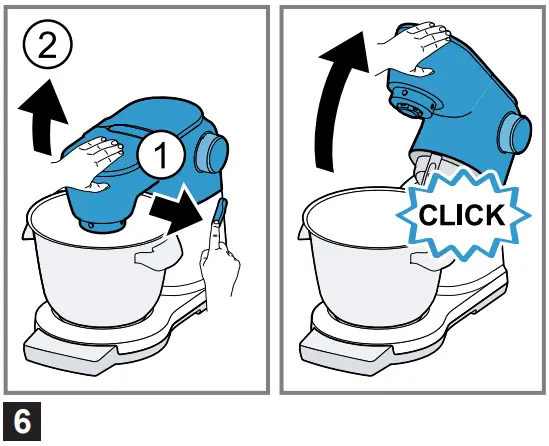
- The swivel arm is fixed in position 2.
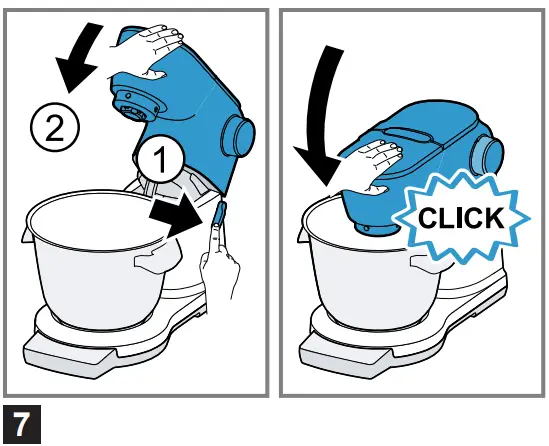
Closing swivel arm
- Press the release button and push the swivel arm down until it engages.
→ Fig. 7
- The swivel arm is fixed in position 1.
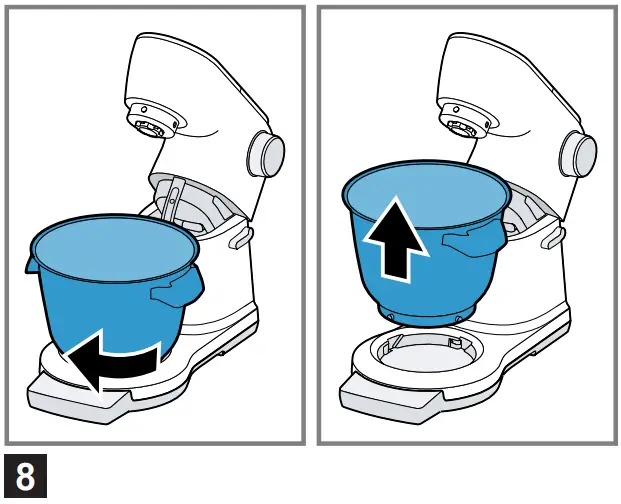
Removing bowl
- Turn the bowl clockwise and remove.
→ Fig. 8
Inserting bowl
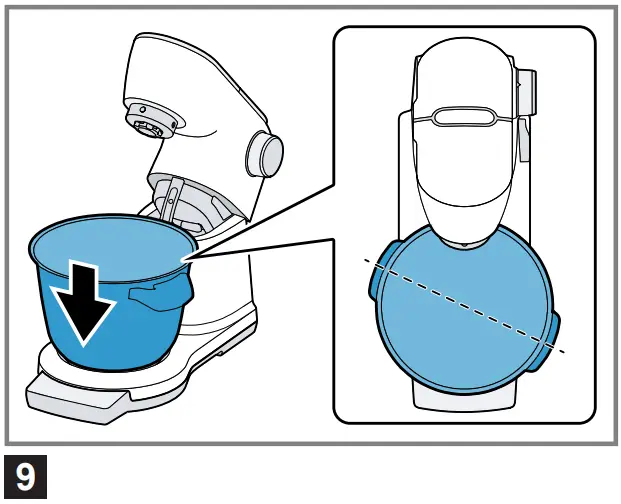
- Place the bowl in the base unit. → Fig. 9
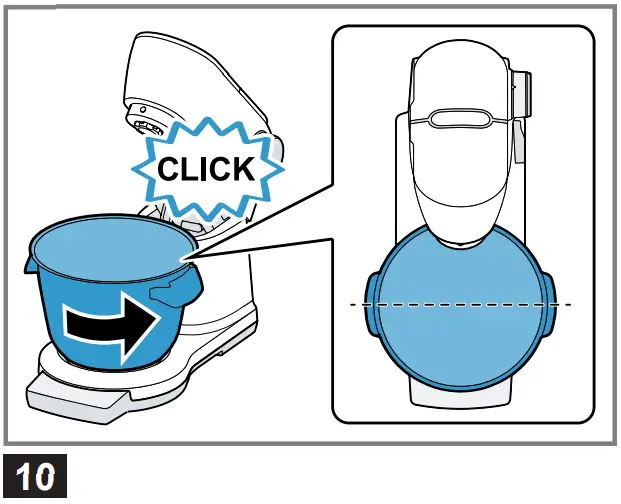
Use the recesses on the base unit. - Turn the bowl anticlockwise until it engages. → Fig. 10
Attaching bowl lid
Requirement: No tool is used here.
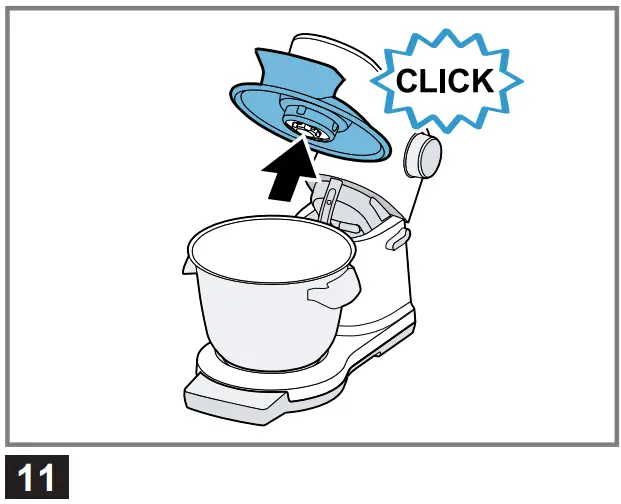
- Fit the lid onto the main drive until it engages.
→ Fig. 11
The filling shaft must face towards the front.
Removing bowl lid
Requirement: No tool is used here.
- Take the cover off the main drive.
Inserting tools
- Select the tool required.
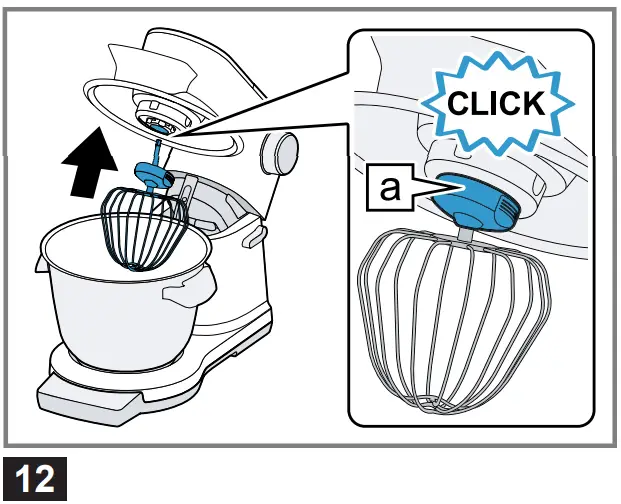
- Press the tool into the main drive until it engages.
→ Fig. 12
The protective cap must cover the main drive completely.
Removing tools
- Press the two eject buttons together and pull the tool completely out of the drive.
→ Fig. 13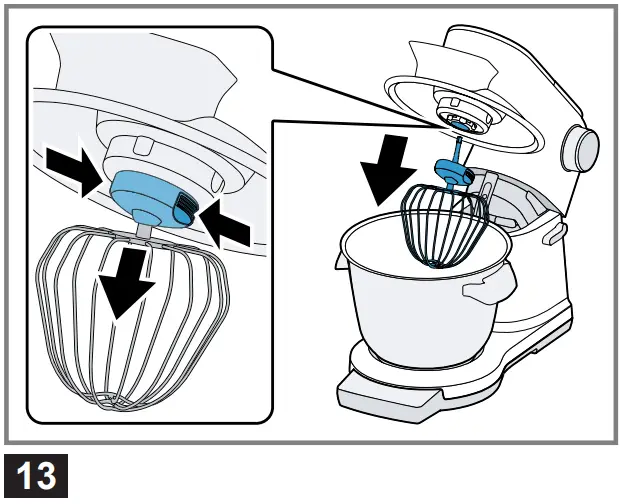
Processing
You can find out everything you need to know about processing food here.
Recommended speeds
Observe the recommended speeds for optimum results.
| Setting | Use |
| Fold in and mix ingredients gently, e.g. beaten egg whites |
1-2 | Stir in and mix ingredients. |
3 | Knead heavy dough, e.g. yeast dough. |
5-7 | Beat and stir ingredients, e.g. whipped cream. |
| Briefly beat and stir ingredients at maximum speed. |
| Depending on the application:
|
Processing ingredients with tools
WARNING: Risk of injury!
Rotating drives, tools or accessory parts may cause injury.
- Keep hands, hair, clothing and utensils away from rotating parts.
- Only attach and remove tools and accessories once the drive has stopped and you have unplugged the appliance.
- Before changing tools or cleaning the appliance, switch off and disconnect it from the mains.
- Only use the tools when the bowl is inserted, the lid is fitted and the drive covers are in place.
- Never open the swivel arm during processing.
Requirements
- The bowl has been inserted.
- The bowl lid is fitted.
- The required tool is inserted.
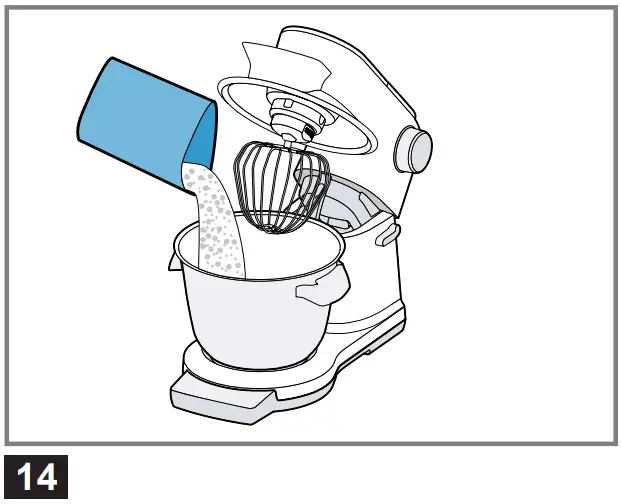
- Add the ingredients to the bowl. → Fig. 14
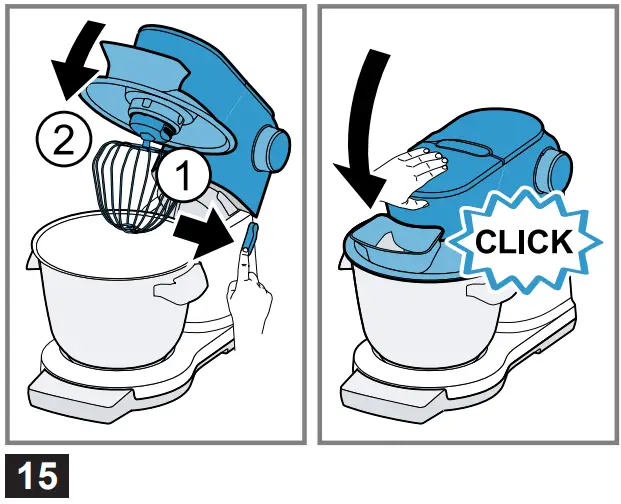
- Press the release button and push the swivel arm down until it engages. → Fig. 15
- Insert mains plug.
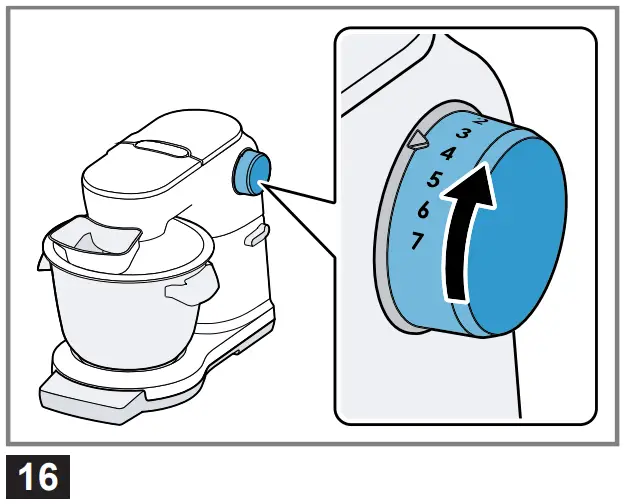
- Set the rotary switch to the required speed. → Fig. 16

- Process the ingredients until you achieve the required result.
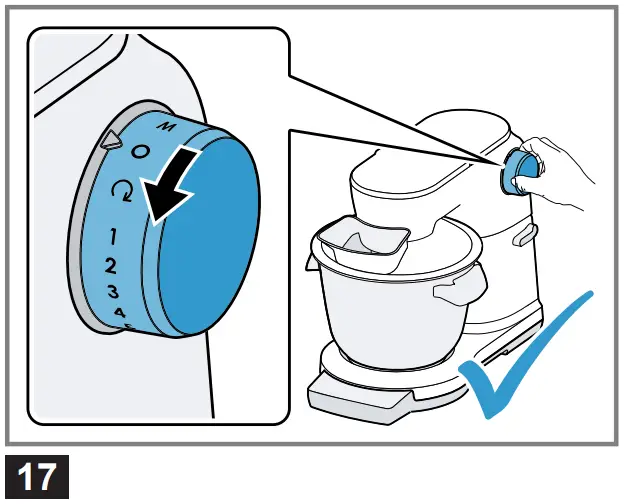
- Set the rotary switch to
 .
.
→ Fig. 17
Wait until the appliance stops. - Unplug the mains plug.
Tips
- You can change the speed at any time during processing or interrupt processing.
- Clean all parts immediately after use so that residues do not dry on.
Adding more ingredients
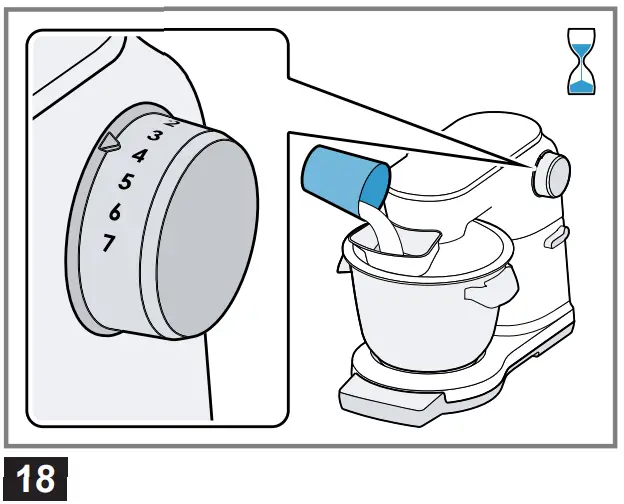
- To add ingredients during processing, use the filling shaft in the lid.
→ Fig. 18 - To add large quantities, set the rotary switch to .
Wait until the appliance stops. - Press the release button and raise the swivel arm until it engages.
- Add the ingredients to the bowl.
- Press the release button and push the swivel arm down until it engages.
- Process the ingredients until you achieve the required result.
Using instantaneous switching
- Set the rotary switch to or
 and hold.
→ Fig. 19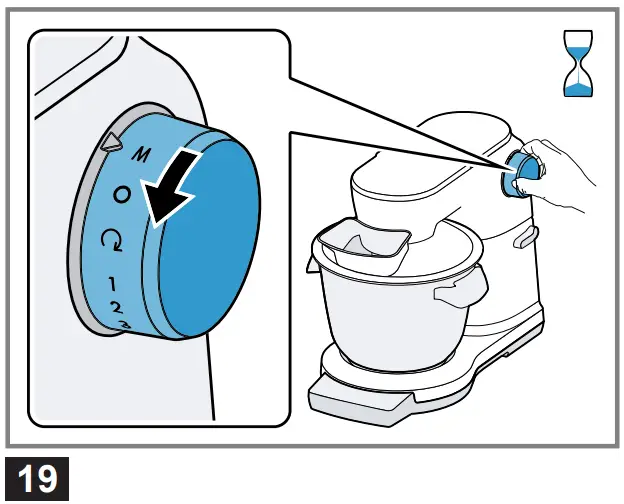
- The ingredients are processed at maximum speed.
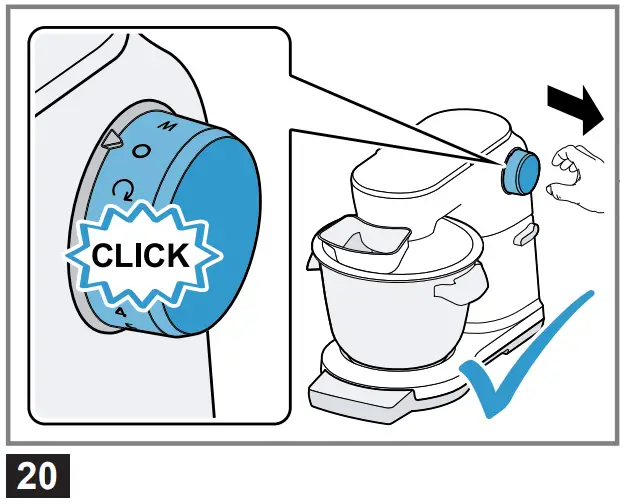
- Release the rotary switch.
→ Fig. 20- The rotary switch springs to .
- Processing stops.
Tip:
Instantaneous switching is especially suitable when using the following accessories:
- Glass blender attachment
- Multi-chopper set
- Multi-blender attachment
Drive cover
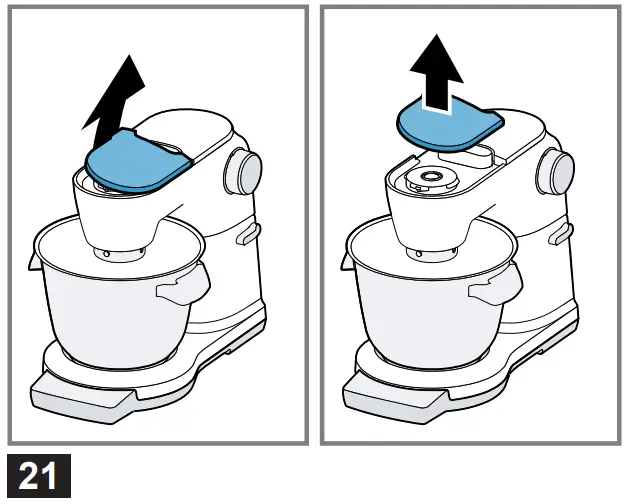
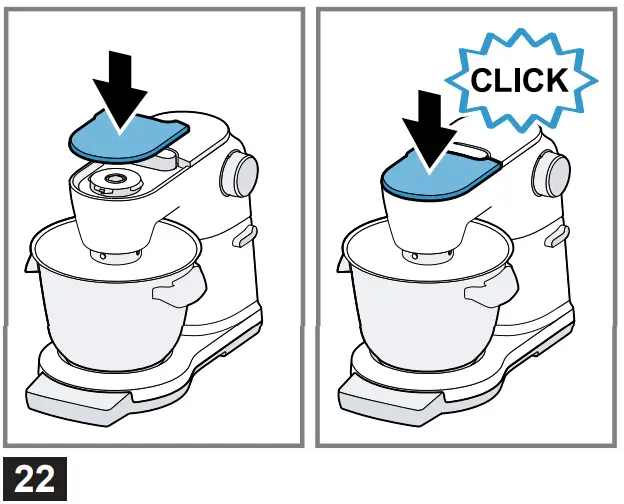
Remove the protective cover to use accessories on drive 2 or 3.
Removing drive cover
- Lift the protective cover of drive 2 or 3 by the side lug lift and remove. → Fig. 21
Fitting drive cover
- Position the protective cover of drive 2 or 3 and press down firmly. → Fig. 22
Basic settings
You can configure the basic settings for your appliance to meet your needs.
Overview of basic settings
You can find an overview of the basic settings here.
| Setting | Description |
| LANGUAGE | Select the display language. |
| TONE | Switch signal tones off or adjust the volume. |
| BRIGHTNESS | Set the display brightness |
| UNITS1 | Set the display units for the scales. |
Changing basic settings
Requirement: The mains plug is inserted.
- If the display is switched off, press any button.
- Press and hold
 and
and  simultaneously.
- The display shows the configuration menu.
- Use to select the required setting.
- Use or
 to change the selected setting.
- The display shows “SAVING: O & +”.
- To save the changed setting, press and hold and simultaneously.
- The display shows “SETUP” “SAVED”.
- To change and save other settings, repeat steps 3-5.
- To exit the configuration menu, select one of the following options:
- Press and hold,or .
- Start processing.
- Press and hold
Timer
You can read off the processing time elapsed or preset a time.
Tip: You can also monitor times with the timer, e.g. resting times for dough.
Display values of timer
Observe the following values when using the timer.
| Display range | 0 seconds to 3 hours |
| Display steps | 1 second |
| Settings range | 5 seconds to 3 hours |
| Settings steps | 5 seconds |
About the timer
To ensure optimum use of the timer, note the following.
Notes
- If the timer is stopped or switched off during processing, processing will continue.
- When processing is started with the timer running, the appliance will end processing on expiry of the remaining time.
- If you interrupt processing for less than 3 minutes, the last values displayed are saved and will resume if processing starts again.
Tips
- You can adjust the remaining time using or at any time.
- Values will change faster if or is pressed and held down.
- You can change the volume of the signal tones at any time.
Reading off and resetting the processing time
Note
Display of the previous processing time will not start
- if the processing time has been preset.
- if the Sensor Control Plus function is used.
- Set the rotary switch to the required speed.
- The display shows “TIME” and the previous processing time.
- To reset the display to “00:00”, press and hold.
Processing ingredients with the timer
Requirement: The appliance is prepared and the ingredients have been added.
- If the display is switched off, press any button.
- Press.The display shows “TIMER” and “00:00”.
- Use or to set the required duration.
- Set the rotary switch to the required speed.
- The display shows the remaining processing time.
- Once this time has elapsed, a signal tone sounds and the display shows “END” “TIMER”.
- The appliance stops processing automatically and the display shows “ROTATE THE SWITCH TO.
- Set the rotary switch to .
Using the timer without processing
- If the display is switched off, press any button.
- Press.
- The display shows “TIMER” and “00:00”.
- Use or to set the required duration.
- To start the timer, briefly press twice.
- The display counts down the remaining time.
- Once this time has elapsed, a signal tone sounds and the display shows “END””TIMER”.
Pausing or switching off the timer
Requirements
- The timer is running.
- The display shows the time that has elapsed.
- Briefly press twice.
- The timer stops.
- The remaining time is displayed continuously.
- Briefly press twice.
- The timer starts again.
- The remaining time continues to count down.
- To switch the timer off, press and hold down.
- The display shows “Optimum”.
Scales
Your appliance is equipped with a set of scales.
You can weigh ingredients individually or a preset a weight.
The base unit has 4 weight sensors in its feet.
The following factors can falsify the measuring result:
- Feet not standing on the work surface properly
- Work surface vibrating
- Objects underneath the base unit
- Ingredient quantities less than 5 g or 0.01 lb
- Base unit slipped
- Base unit touched
- Objects on the base unit
Display values of scales
Observe the following values when using the scales.
Display unit in grams
| Display range | -990 g to 5000 g |
| Display steps | 5 g |
| Settings range | 50 g to 3000 g |
| Settings steps | 10 g |
Display unit in pounds
| Display range | -2.20 lb to 11.00 lb |
| Display steps | 0.01 lb |
| Settings range | 0.10 lb to 6.60 lb |
| Settings steps | 0.02 lb |
Tip: You can change the display units of the scales at any time.
Weighing ingredients
Requirements
- The bowl is inserted or an accessory is fitted.
- The rotary switch is set to.
- The display is activated.
- Press and do not touch the appliance again.
- The scales will be calibrated.
- The display shows “- – – – -“.
- Wait for calibration to finish.
- The display shows “0 g” or “0.00 lb”.
- Add the required ingredient.
- The display shows the weight.
- To weigh further ingredients, select one of the following options:
- Add further ingredients and read off the total weight.
- Repeat the process and weigh the ingredients individually.
Presetting the weight
Requirements
- The bowl has been inserted.
- The rotary switch is set to .
- If the display is switched off, press any button.
- Press and do not touch the appliance again.
a The scales will be calibrated.
a The display shows “- – – – -“. - Wait for calibration to finish.
a The display shows “0 g” or “0.00 lb”. - Press.
a The display shows “100 g” or
“0.20 lb”. - Use or to set the required weight.
- Add the required ingredient to the bowl.
- The display shows the quantity by which the weight is short, e.g. 65 g.
- A recurring signal tone will sound from a short weight of 40 g or 0.08 lb.
- Continue adding the ingredient little by little.
- The lower the weight that is short, the faster the signal tone will sound.
- When the preset quantity is reached, the signal tone will stop.
- Note: If the preset quantity is exceeded, the signal tone will sound continuously.
The display shows the excess weight added as a negative value, e.g. -40 g.
Take the excess weight added away again. - To end weighing, press and hold or start processing.
Tip: You can change the volume of the signal tones at any time.
Resetting scales
If an error message appears or unaccustomed measured values are displayed, reset the scales.
- Press and hold .
- a The display shows “Optimum”
- To restart the scales, press .
Note: If the scales still do not work properly, disconnect the appliance from the power supply for a while and then start the scales again.
Sensor Control Plus
You can use the Sensor Control Plus function to run different program mes and automatically process food.
Sensors monitor processing of the ingredients and end it automatically once the preprogrammed consistency is reached.
For optimum results please note the following:
- Before using the Sensor Control
Plus function for the first time, operate the new appliance at no-load for at least 2 minutes or process food without an automatic program me. - Only the combinations of food, quantity and tool described are programmed. Do not process other combinations with the automatic program mes.
- Do not add any more food once an automatic programme has started.
- Do not process ingredients that have already been processed once again with an automatic programme.
- The age, temperature and constituents of the ingredients used will affect the time required and the result.
- Only use fresh eggs.
- Only use cream that has been cooled to approx. 6 °C.
- Cream which was previously frozen cannot be whipped.
- Cream which contains additives or is lactose-free will not offer optimum results.
- Do not add sugar, flavorings or other additives for cream or beaten egg whites until the automatic programmer has ended.
Notes
- Do not add ingredients until the display shows “0 g”, “0.00 lb” or
“ADD INGREDIENTS”. - Buttons are locked when an automatic program me is running.
- To cancel an automatic program me, set the rotary switch to.
A slight resistance must be overcome here.
Overview of programmer
You can find an overview of the automatic programmes and their purposes here.
| Programmer | Use |
| CREAM | Automatic preparation of 300-1500 ml whipped cream with the beating whisk |
| CREAM > 300 ml | Automatic preparation of 300-700 ml whipped cream with the beating whisk |
| CREAM > 700 ml | Automatic preparation of 700-1500 ml whipped cream with the beating whisk |
| EGG WHITE | Automatic preparation of beaten egg whites from 2-12 eggs with the beating whisk |
| YEAST DOUGH | Automatic preparation of yeast dough with the kneading hook Ingredients and quantities according to the recipe |
Using Sensor Control Plus
You can find out here how to select and start an automatic programmer.
Requirements
- The bowl has been inserted.
- The bowl lid is fitted.
- Insert the appropriate tool:
- Beating whisk for whipping cream and egg whites
- Kneading hook for yeast dough
- Insert mains plug.
- The display shows “Optimum”.
- Press.
- The display shows “CREAM”.
- Use, or to select the required program me, e.g. “EGG WHITE”.
- The scales will be calibrated.
- The display shows “- – – – -“.
- Wait for calibration to finish.
- The display shows “0 g” or “0.00 lb”.
- Add the relevant ingredient to the bowl, e.g. egg whites.
- The display shows the weight.
- Note: On appliances without any scales, the display shows “ADD INGREDIENTS” after selection of the programme.
Add the measured ingredients to the bowl. - Wait a short time after adding them.
- The display shows “HOLD ROTARY SWITCH ON M/A 2s”.
- Press the release button and push the swivel arm down until it engages.
- Set the rotary switch to and hold for at least 2 seconds.
- Release the rotary switch.
- The rotary switch stops at.
- The display shows “SENSOR CONTROL PLUS” and the automatic programme is running.
- When the preprogrammed result has been achieved, the display shows “FINISH”.
- The rotary switch jumps to and processing ends.
Tip: If the result is not what you want, you can continue processing cream and egg whites to the consistency required using speed 7 or yeast dough using speed 3.
- The rotary switch stops at
Cleaning and servicing
To keep your appliance working efficiently for a long time, it is important to clean and maintain it carefully.
Cleaning products
Find out here which cleaning products are suitable for your appliance.
ATTENTION!
Using unsuitable cleaning agents or incorrect cleaning may damage the appliance.
- Do not use cleaning agents containing alcohol or spirits.
- Do not use sharp, pointed or metal objects.
- Do not use abrasive cloths or cleaning agents.
- Only clean the control panel and the display using a damp microfiber cloth.
Cleaning the base unit
WARNING: Risk of electric shock!
An ingress of moisture can cause an electric shock.
- Never immerse the appliance or the power cord in water or clean in the dishwasher.
- Do not use steam- or high-pressure cleaners to clean the appliance.
- Remove the drive covers.
- Wipe the base unit and drive covers with a soft, damp cloth.
- Clean the control panel and the display using a damp micro fibre cloth.
- Dry the base unit and drive covers with a soft cloth.
Overview of cleaning
You can find an overview of how to best clean the appliance and the other parts here.
→ Fig. 23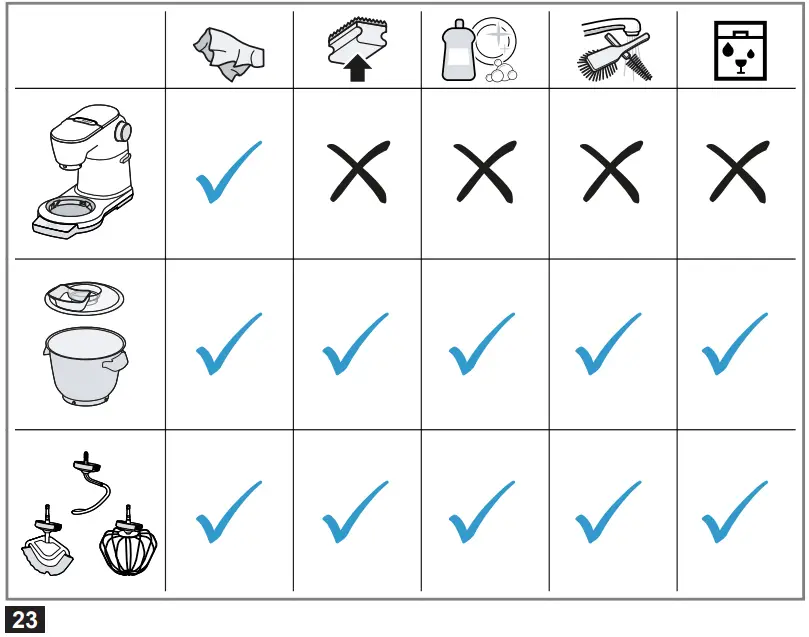
Tip: When processing food such as carrots, plastic parts may become discolored.
Remove discoloration with a soft cloth and a few drops of cooking oil.
Special accessories
You can buy accessories from the after-sales service, from specialist retailers or online.
Only use genuine accessories as these have been specifically designed for your appliance.
Accessories vary from one appliance to another.
When purchasing accessories, always quote the exact product number (E no.) of your appliance.
You can find out which accessories are available for your appliance in our catalogue, in the online shop or from our after-sales service.
www.bosch-home.com
Recipes and application examples
You can find a selection of recipes specially developed for your appliance here.
Tips
- For optimum results observe the maximum processing quantities specified here.
- If your appliance is equipped with Sensor Control Plus, you can use the automatic programmers to prepare whipped cream, egg whites and yeast dough.
- If your appliance is equipped with a set of scales, you can weigh out the ingredients when adding them.
- You can use the timer to monitor or preset processing times.
Overview of recipes
This overview lists the ingredients and processing steps for various recipes.
Recipes and application examples
| Recipe | Ingredients | Processing |
| Whipped cream | 200-1500 g cream |
|
| Egg whites | 2-12 Egg whites (room temperature) |
|
| Sponge mixture |
|
|
| Cake mixture |
|
|
| Short crust pastry |
|
|
| Yeast dough |
|
|
| Pasta dough |
|
|
| Bread dough |
|
|
Troubleshooting
You can rectify minor faults on your appliance yourself.
Read the troubleshooting information before contacting after-sales service.
This will avoid unnecessary costs.
WARNING: Risk of electric shock!
Incorrect repairs are dangerous.
- Repairs to the appliance should only be carried out by trained specialist staff.
- Only use genuine spare parts when repairing the appliance.
- If the power cord of this appliance is damaged, it must be replaced by the manufacturer, the manufacturer’s Customer Service or a similarly qualified person in order to prevent any risk.
| Fault | Cause and troubleshooting |
| The appliance is not working. | The mains plug of the power cord is not plugged in.
|
The circuit breaker in the fuse box has tripped.
| |
There has been a power cut.
| |
| Appliance does not start processing. | Rotary switch is set incorrectly.
|
| Release button cannot be pressed. | An accessory is fitted to red drive 3.
|
| Scales show no change in weight despite ingredients being added.1 | Quantity of ingredients outside measuring range of scales.
|
| Processing with the Sensor Control Plus function starts briefly but immediately stops again. | Rotary switch was not held to long enough.
|
| Display shows “MOTOR OVERLOAD”. | Processing quantity is too great or processing time was too long.
|
Appliance or accessory is blocked.
| |
Motor is defective.
| |
| Display shows “ARM OPEN”. | Swivel arm was opened.
|
| Display shows “CHECK BOWL”. | Bowl or bevel gear is not fitted properly or has become detached.
|
| Display shows “ERROR” “SCALES”. | Appliance has been moved on the work surface.
|
Scales are not working properly.
| |
Scales are defective.
| |
Scales are exposed to vibrations.
| |
| Display shows “FOR SCALE” “STOP MACHINE”.1 | Scales were switched on while appliance was running.
|
| Display shows “OVERLOAD” or “UNDERLOAD”.1 | Display values of scales have not been observed.
|
| Display shows “OVERLOAD” or “UNDERLOAD” when using Sensor Control Plus.1 | Too much or too little of the ingredients has been added for the program me selected.
|
| Display shows “ADD INGREDIENTS” although ingredients have already been added. The automatic program me cannot be started. | Ingredients were added before the scales were activated.
|
Disposal
Disposing of old appliance
Valuable raw materials can be reused by recycling.
- Unplug the appliance from the mains.
- Cut through the power cord.
- Dispose of the appliance in an environmentally friendly manner.
Information about current disposal methods are available from your specialist dealer or local authority.
 This appliance is labelled in accordance with European Directive 2012/19/EU concerning used electrical and electronic appliances (waste
electrical and electronic equipment – WEEE).
The guideline determines the framework for the return and recycling of used appliances as applicable throughout the EU.
Customer Service
Function-relevant genuine spare parts according to the corresponding Ecodesign Order can be obtained from Customer Service for a period of at least 7 years from the date on which your appliance was placed on the market within the European Economic Area.
Note: Under the terms of the manufacturer’s warranty the use of Customer Service is free of charge.
Detailed information on the warranty period and terms of warranty in your country is available from our aftersales service, your retailer or on our website.
If you contact Customer Service, you will require the product number (ENr.) and the production number (FD) of your appliance.
The contact details for Customer Service can be found in the Customer Service directory at the end of the manual or on our website.
Product number (E-Nr.) and production number (FD)
You can find the product number (ENr.) and the production number (FD) on the appliance’s rating plate.
Make a note of your appliance’s details and the Customer Service telephone number to find them again quickly.
Warranty conditions
You can make warranty claims for your appliance under the following conditions.
The guarantee conditions for this appliance are as defined by our representative in the country in which it is sold.
Details regarding these conditions can be obtained from the dealer from whom the appliance was purchased.
The bill of sale or receipt must be produced when making any claim under the terms of this guarantee.
CUSTOMER SUPPORT
 Thank you for buying a Bosch Home Appliance!
Register your new device on MyBosch now and profit directly from:
- Expert tips & tricks for your appliance
- Warranty extension options
- Discounts for accessories & spare-parts
- Digital manual and all appliance data at hand
- Easy access to Bosch Home Appliances Service Free and easy registration – also on mobile phones:
www.bosch-home.com/welcome
 Looking for help?
You’ll find it here.
Expert advice for your Bosch home appliances, help with problems or a repair from Bosch experts.
Find out everything about the many ways Bosch can support you:
www.bosch-home.com/service
Contact data of all countries are listed in the attached service direct
Scan Me
Great Britain
BSH Home Appliances Ltd.
Grand Union House, Old Wolverton
Road, Wolverton
Milton Keynes MK12 5PT
To arrange an engineer visit, to order spare parts and accessories or for product advice please visit
www.boschhome.co.uk
Or call Tel.: 0344 8928979*
*Calls are charged at the basic rate, please check with your telephone service provider for exact charges.
References
 Home Appliances Global Website | Bosch
 Invented for life | Bosch Global
 Home.co.uk: Property Search, Homes For Sale, Estate Agents, Sell Your House
-
Bosch home appliances: experience quality, reliability and precision.
-
Home Appliances Global Website | Bosch
-
Bosch home appliances: experience quality, reliability and precision.
-
Bosch home appliances: experience quality, reliability and precision.
-
Bosch home appliances: experience quality, reliability and precision.
-
博世家電:品質、可靠與精確的美好體驗。
-
MyBosch - 個人博世家電產品註冊
-
Bosch | Buy Quality Home Appliances Online in the UAE
-
BOSCH Service | Service worldwide
-
Welcome to MyBosch
-
Bosch home appliances: experience quality, reliability and precision.
-
Bosch home appliances: experience quality, reliability and precision.
-
Oxford House - Quality Appliances, Kitchens, Home Furniture & Offices
 Home Appliances Global Website | Bosch
 Invented for life | Bosch Global
 Home.co.uk: Property Search, Homes For Sale, Estate Agents, Sell Your House
 Bosch home appliances: experience quality, reliability and precision.
 Home Appliances Global Website | Bosch
 Bosch home appliances: experience quality, reliability and precision.
 Bosch home appliances: experience quality, reliability and precision.
 Bosch home appliances: experience quality, reliability and precision.
 博世家電:品質、可靠與精確的美好體驗。
 Bosch home appliances: experience quality, reliability and precision.
 Oxford House - Quality Appliances, Kitchens, Home Furniture & Offices