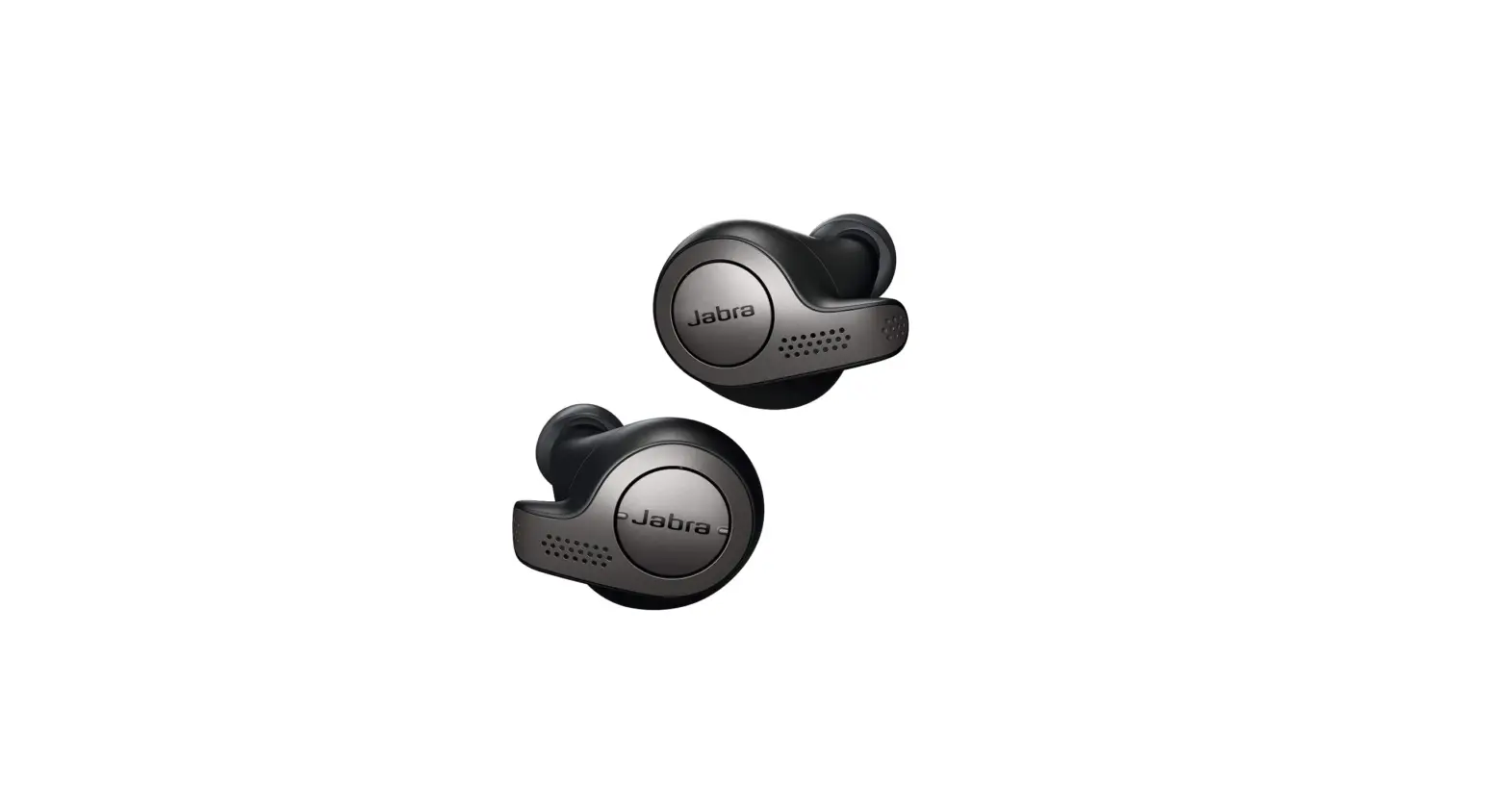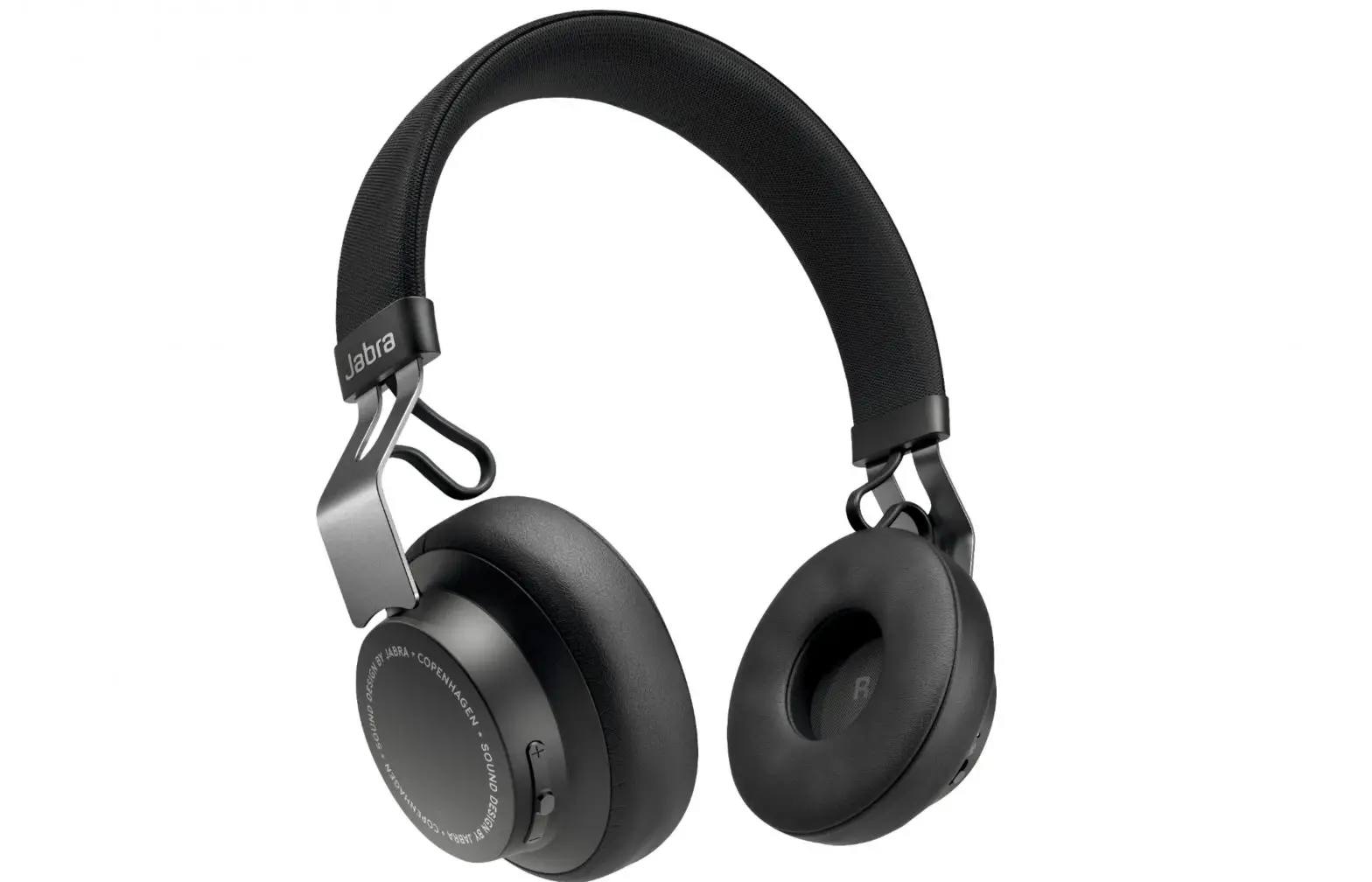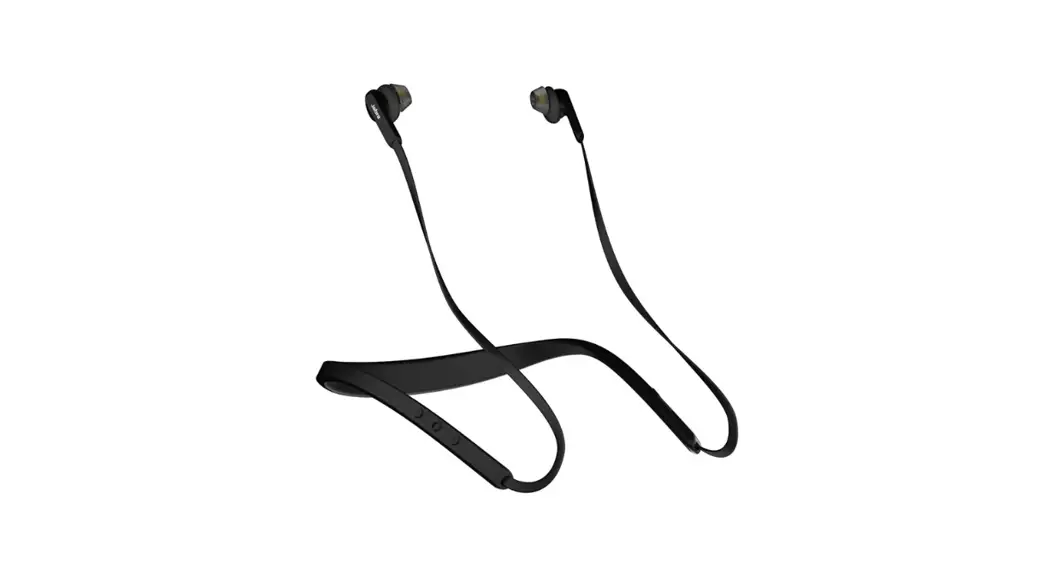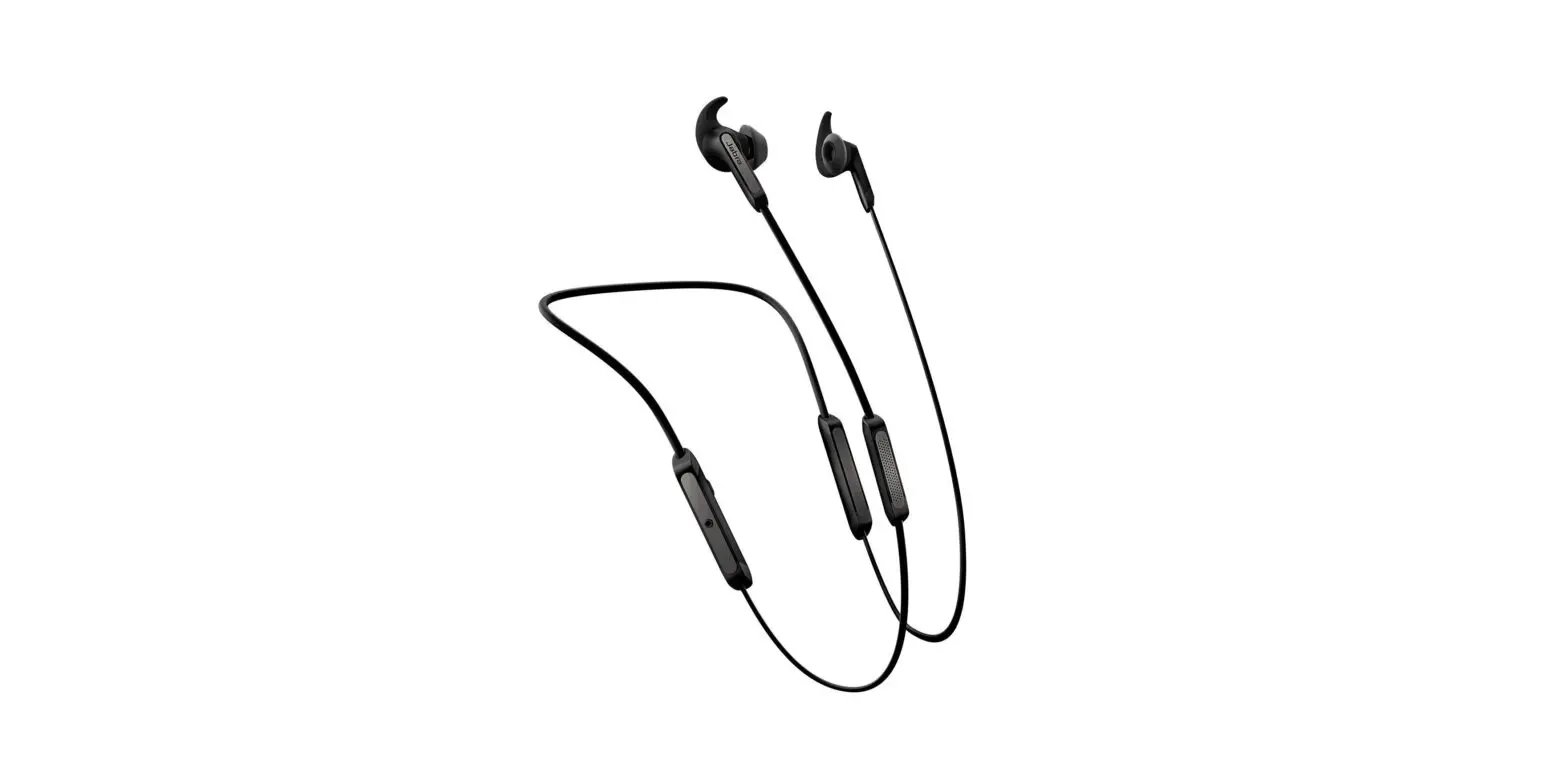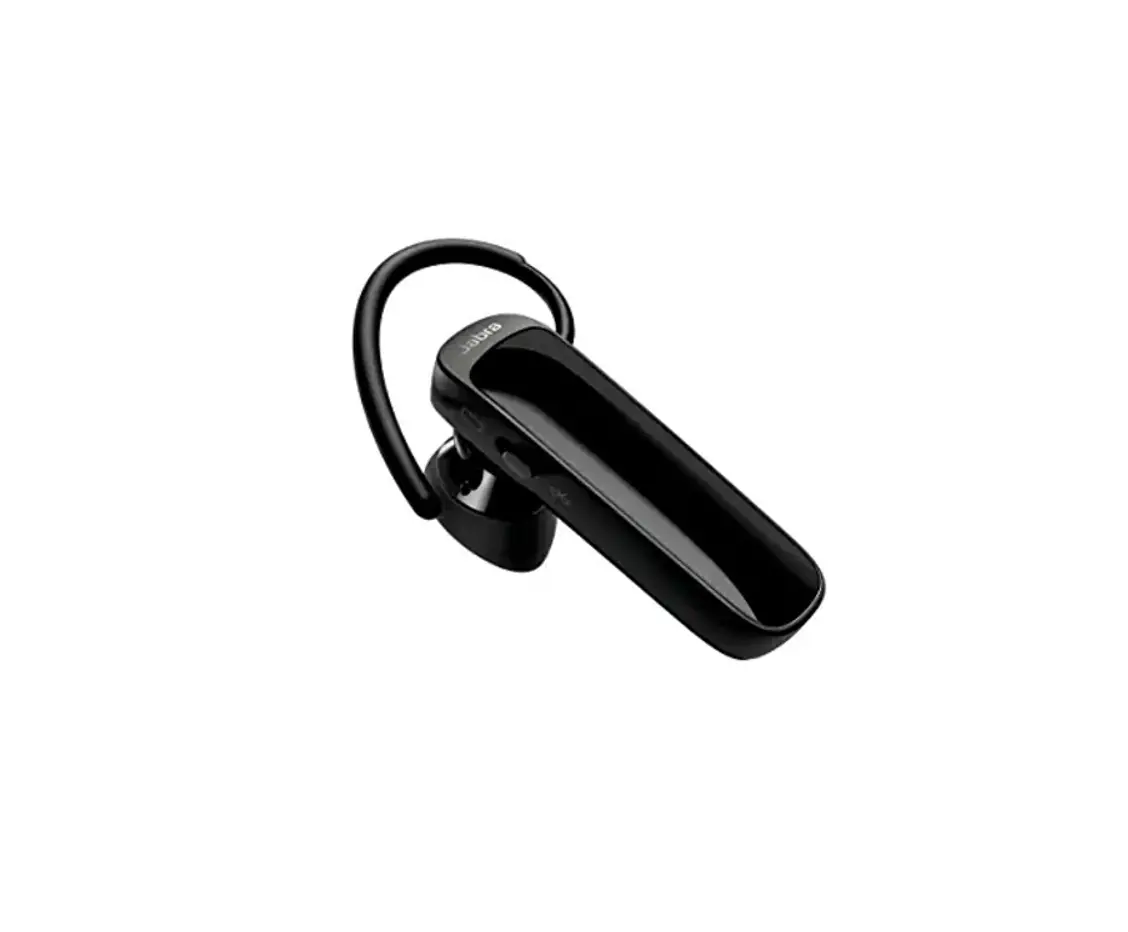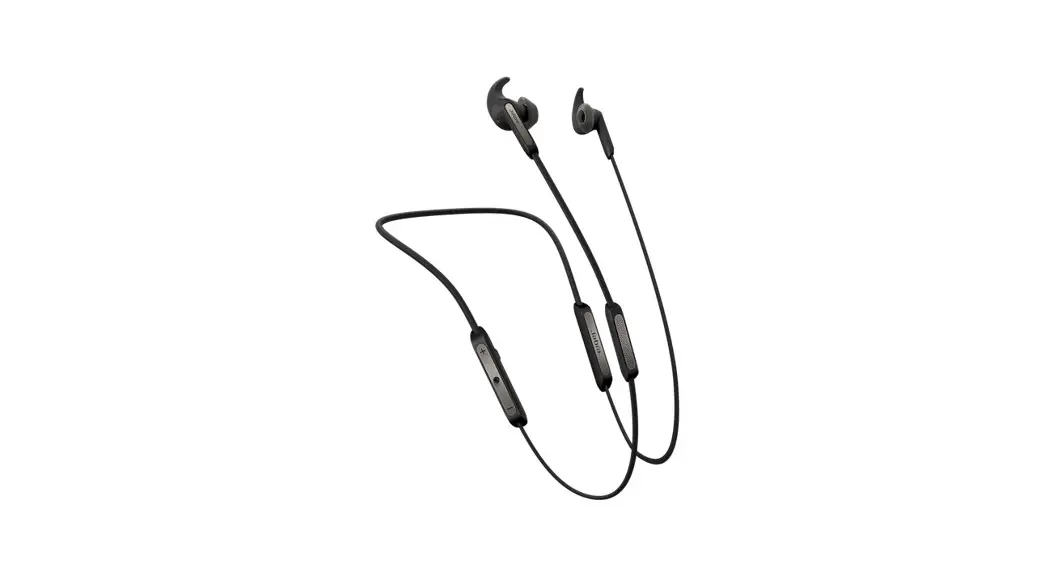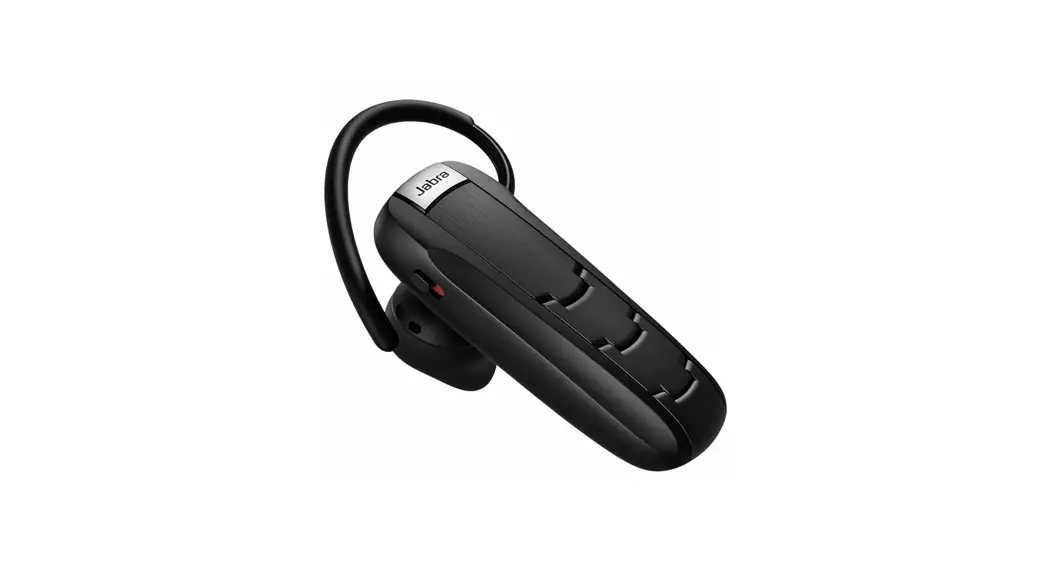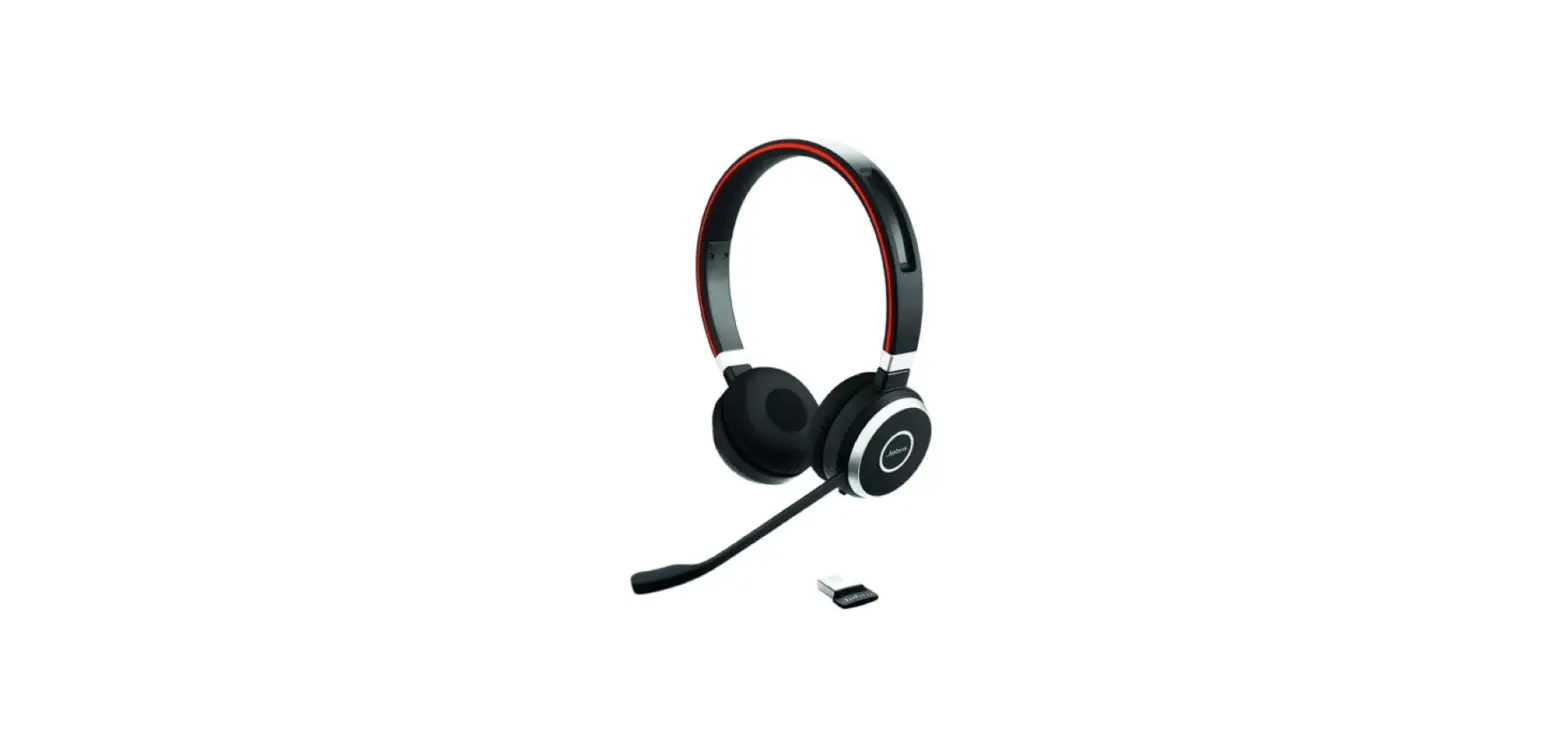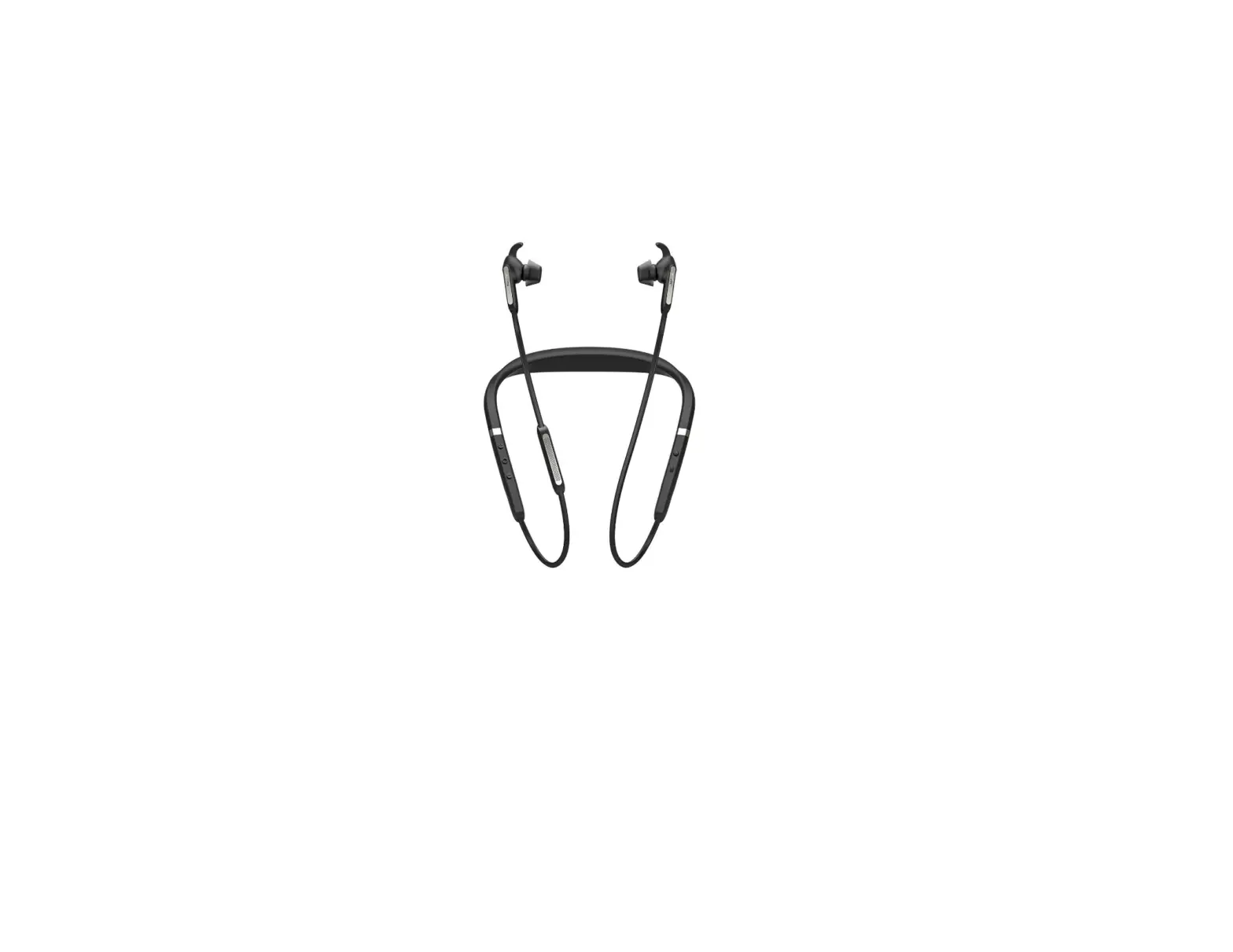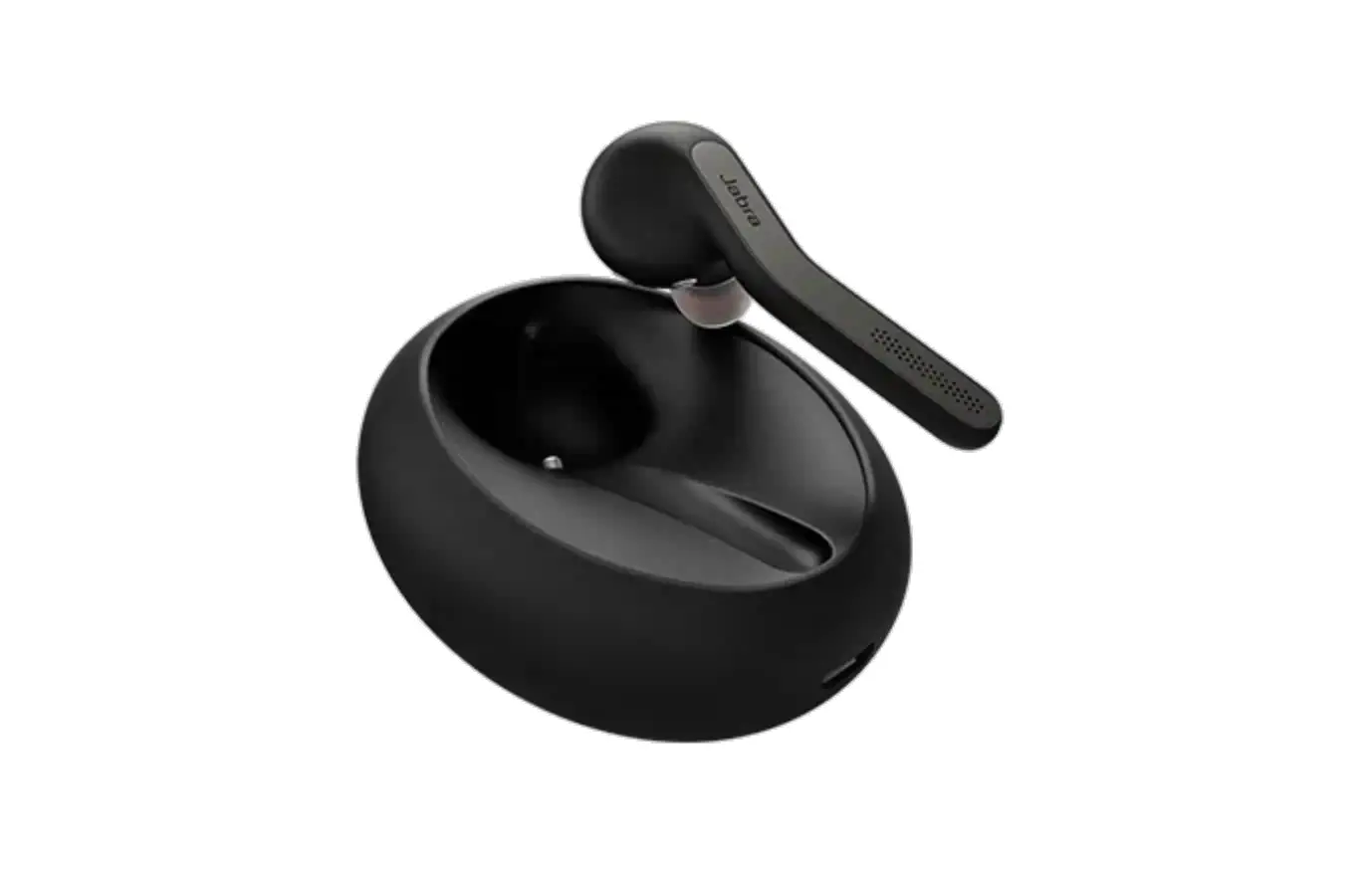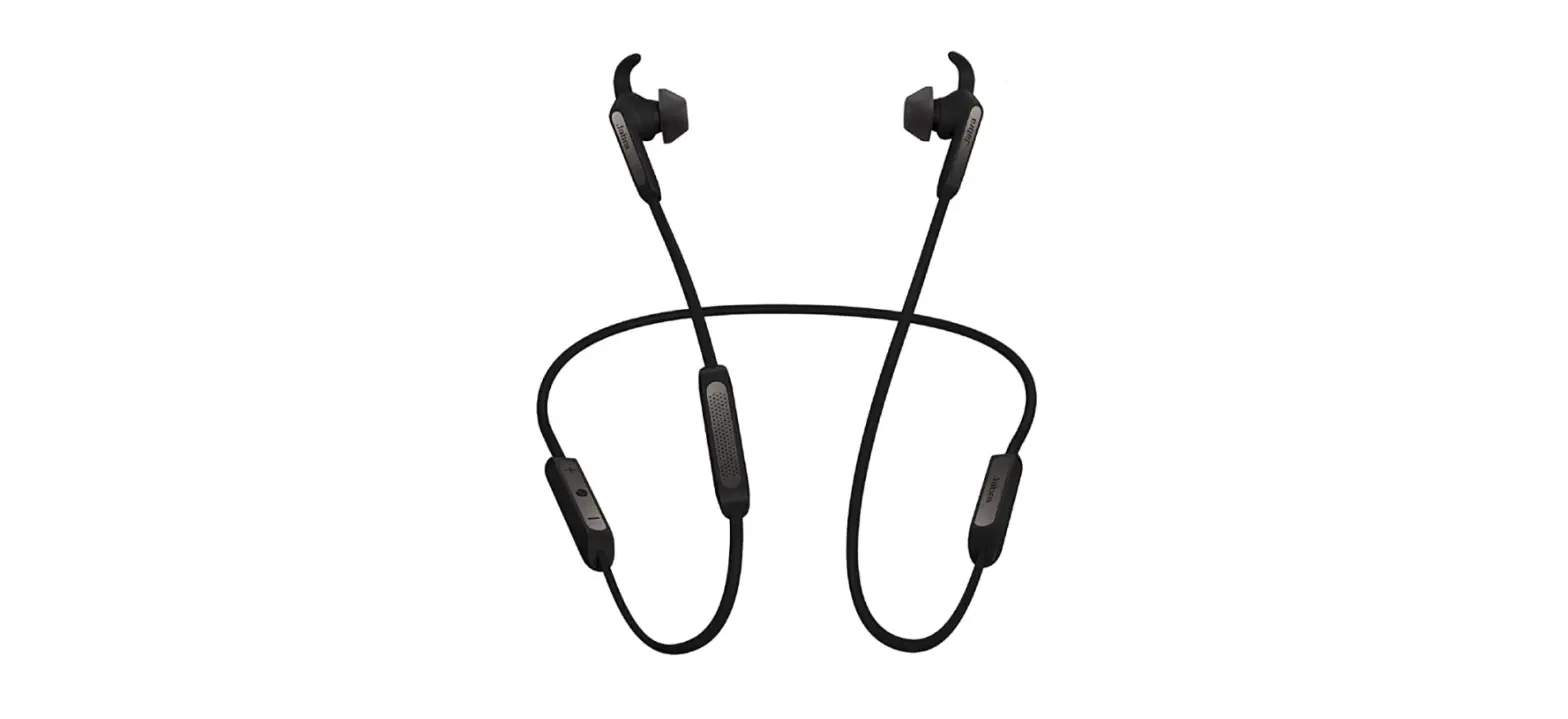

Jabra Elite 45e Alexa Enabled Wireless Bluetooth Headphones
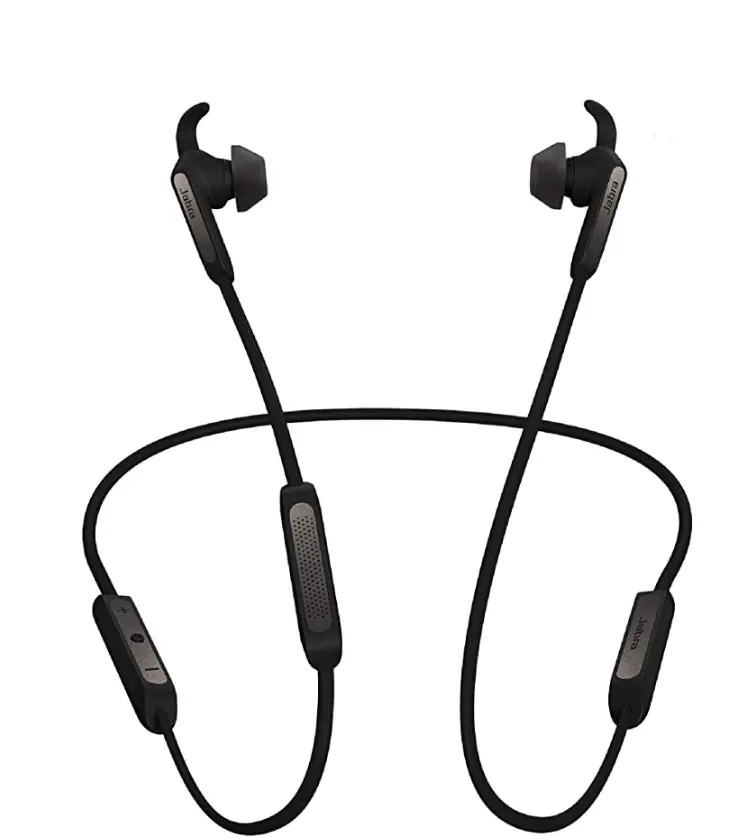
Welcome
Thank you for using the Jabra Elite 45e. We hope you will enjoy it!
Jabra Elite 45e features
- Conversations made clear
Advanced 2-microphone technology with earbuds proven to deliver superior wireless call performance - Music, the way you want to hear it
Personalize your music with a customizable equalizer - The best fit for you
Flexible memory wire neckband remembers its shape and contours to your neck - Power to last the day
Up to 8 hours battery for a day’s worth of calls and music - Built to work, guaranteed
2-year warranty against water and dust* - Voice command made simple
One-touch access to Amazon Alexa**, Siri®, and Google Assistant™
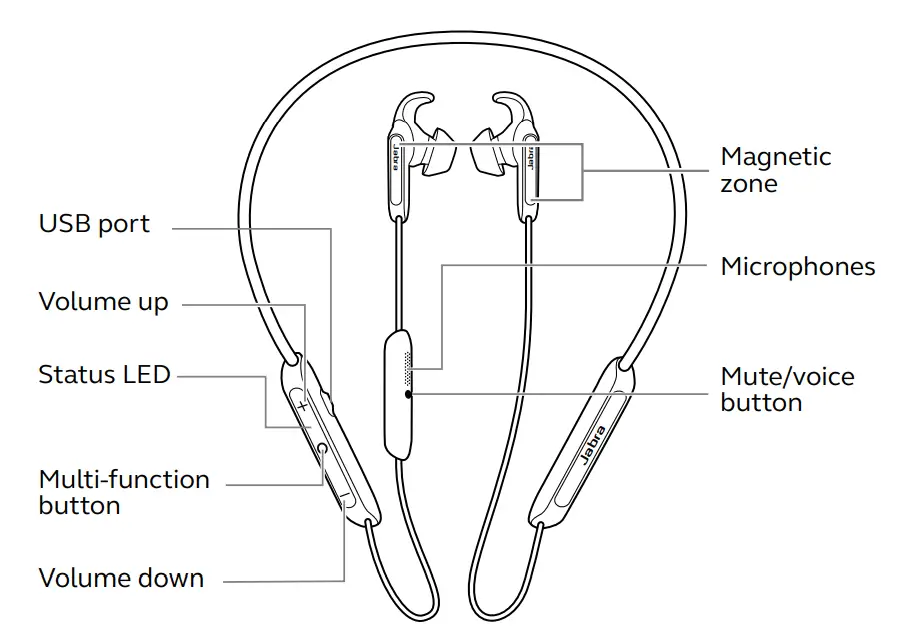
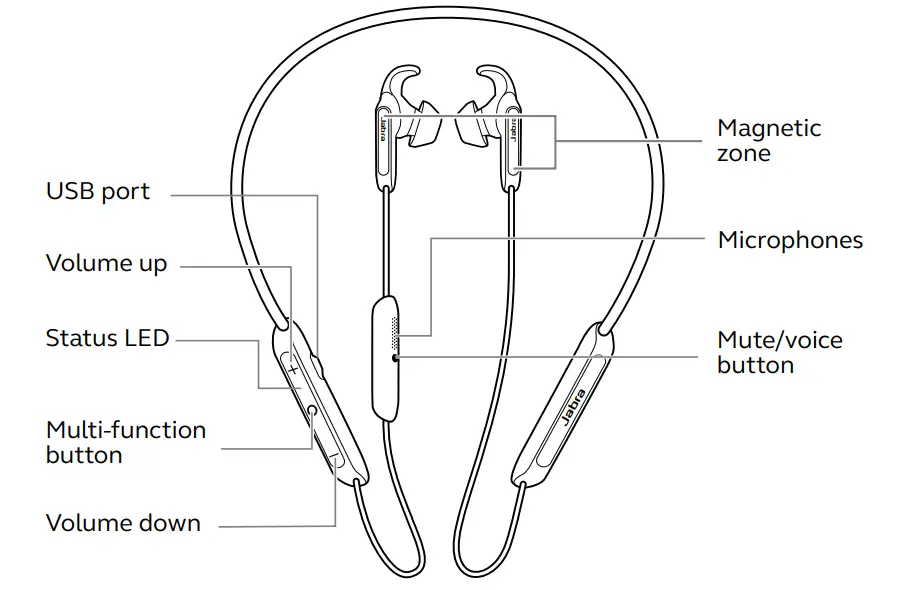
Jabra Elite 45e overview
Included accessories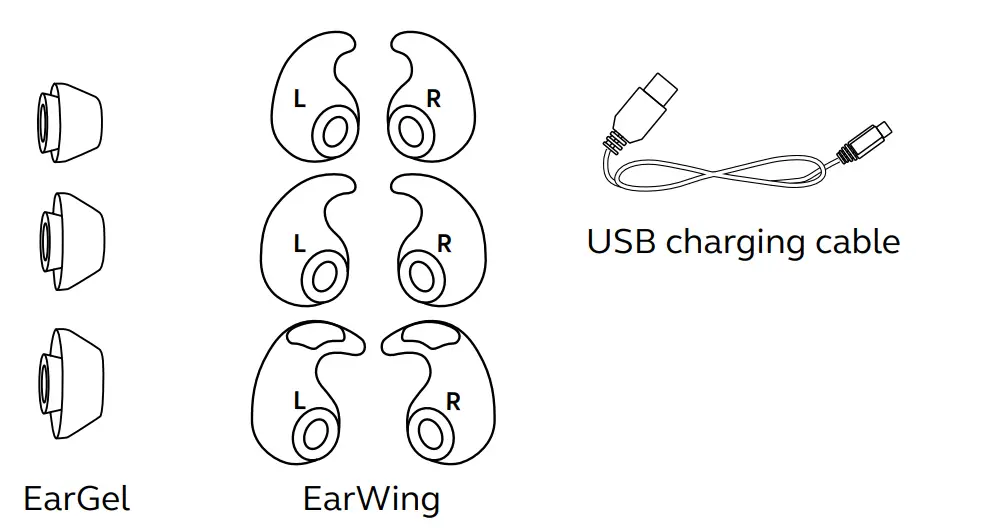
How to wear
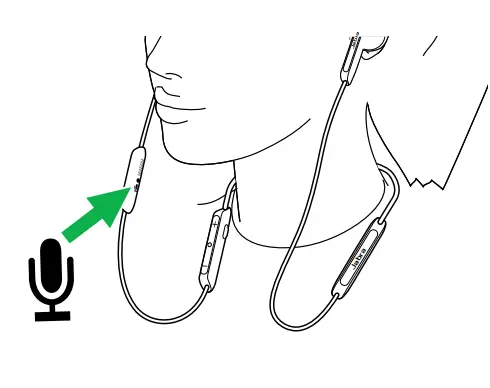
Jabra Elite 45e is designed to be worn around the neck.
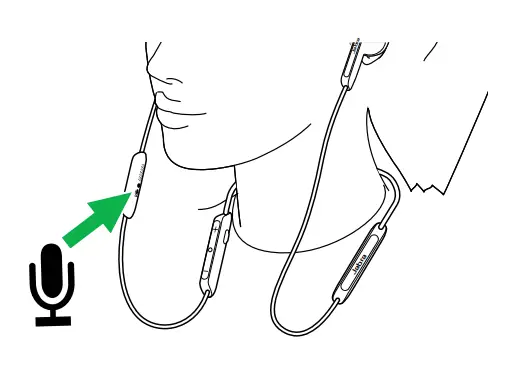
For the optimal call experience, position the microphone as close to your mouth as possible.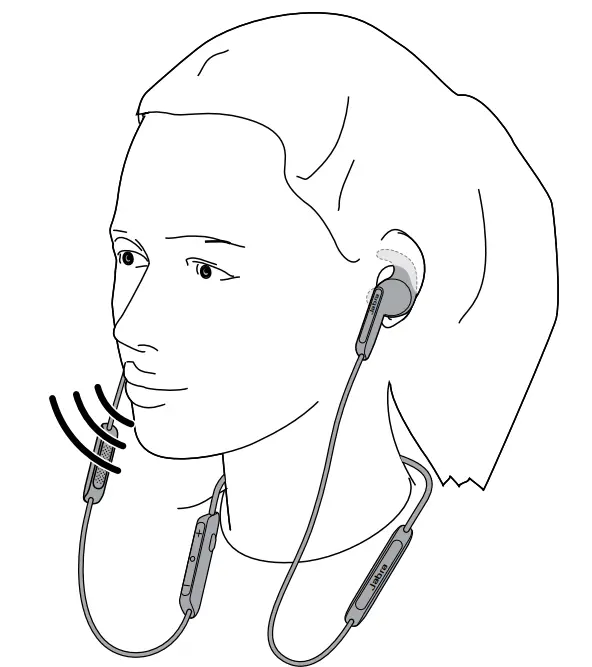
Getting the correct fit
The headphones are supplied with three EarGel and EarWing sizes: large, medium and small.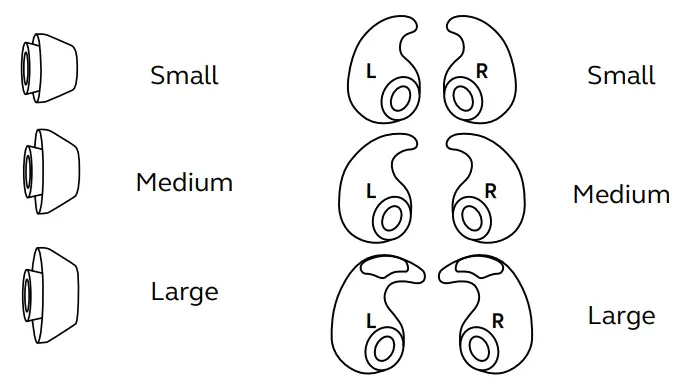
It is highly recommended to mix and match the different EarGel and EarWing sizes to find the best combination for your ear. The correct fit will feel comfortable and secure in your ear.
Attaching the EarWings and EarGels
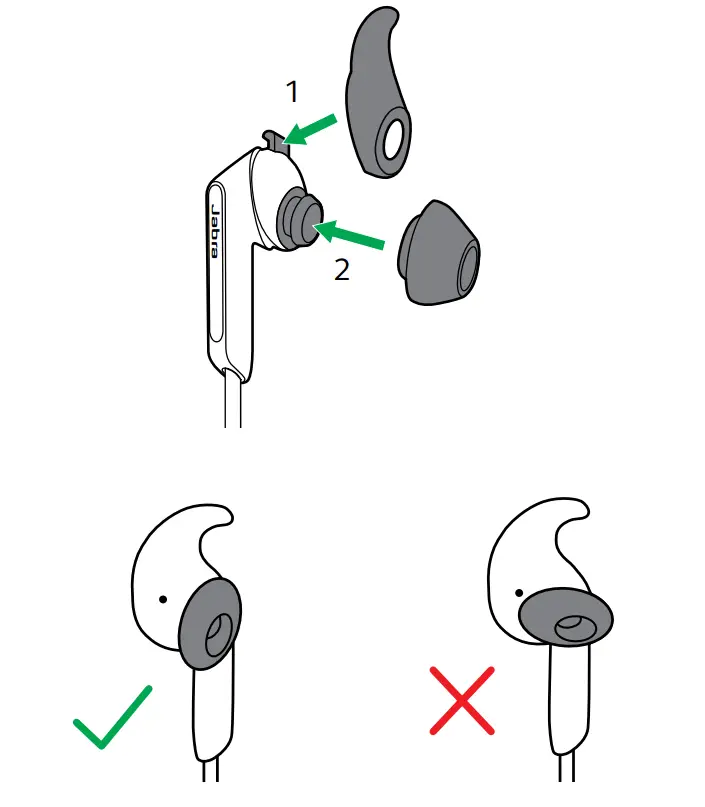
- To attach an EarWing, align the indent on the EarWing with the ridge on the earbud (as illustrated), and stretch the EarWing over the earbud. It will fit perfectly in the groove when properly attached.
- Firmly press the EarGel onto the earbud, ensuring it is angled correctly (as illustrated).

Using the magnetic earbuds
The earbuds are magnetic and connect together for convenient cable and power management. When the earbuds are connected, your music will be paused or your call will be ended. Separating the earbuds will answer an incoming call. Go to section 6.1. for more information.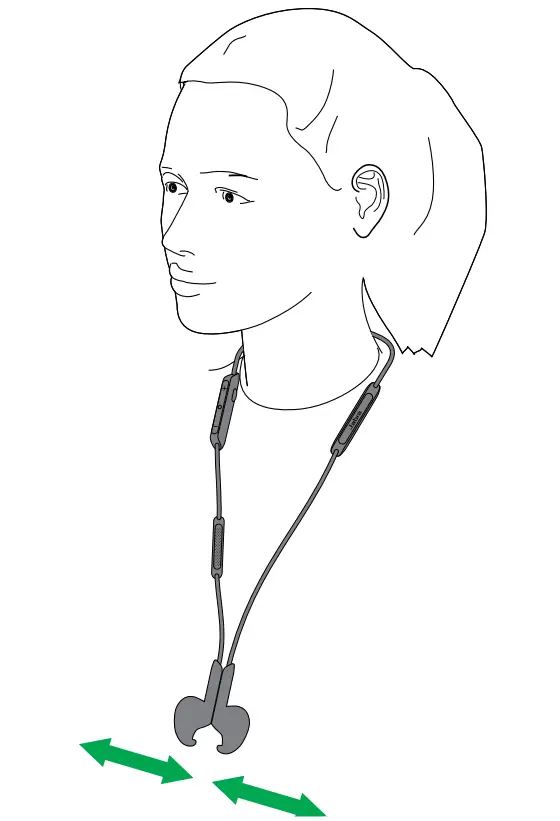
How to charge
To charge the headphones, connect a USB charging cable to the USB charging port. It is recommended to charge the headphones using the supplied Jabra charging cable, however it is possible to charge the headphones using your smartphone charger.
It takes approx. 2 hours to fully charge the headphones.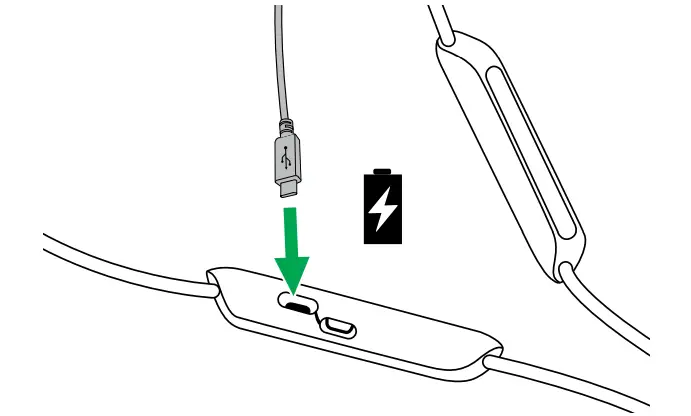
Note: Always clean and dry the USB charging port before charging the headphones. It is recommended to recharge the headphones at least once a month.
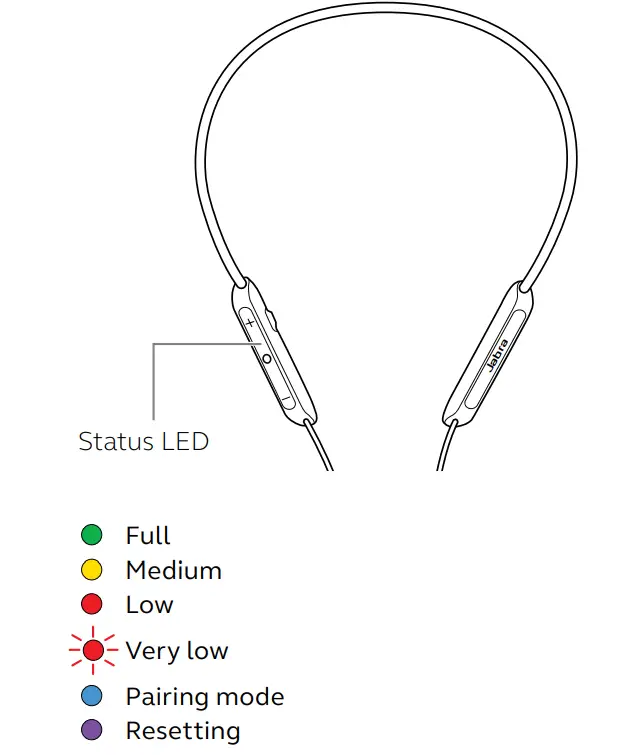
Status LED
How to connect
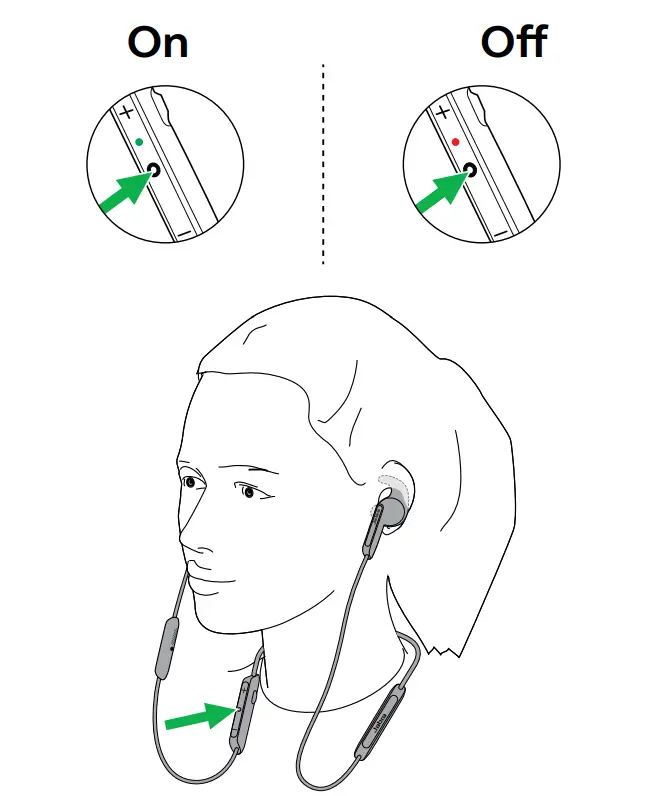
Headphones on/off
- On: Hold the Multi-function button for 1 second. The status LED will flash green.
- Off: Hold the Multi-function button for 3 seconds. The status LED will flash red.

Pairing with a smartphone
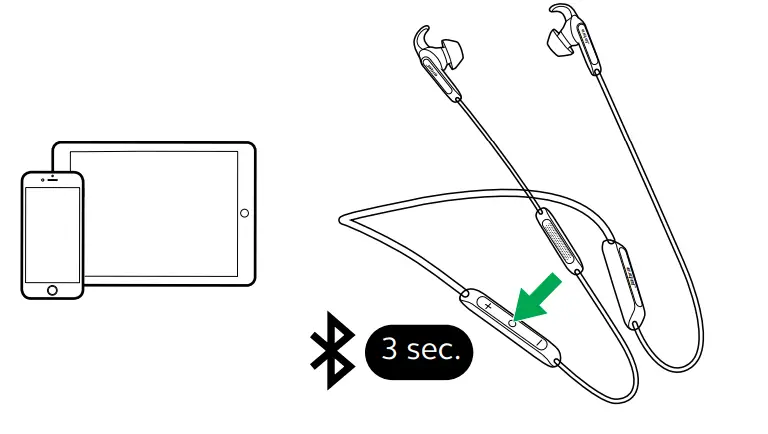
- Ensure the headphones are powered off, and then hold (3 secs) the Multi-function button until the status LED flashes blue and you hear an announcement in the earbuds.

- Wear the headphones and follow the voice-guided pairing instructions.
How to use
Calls & music


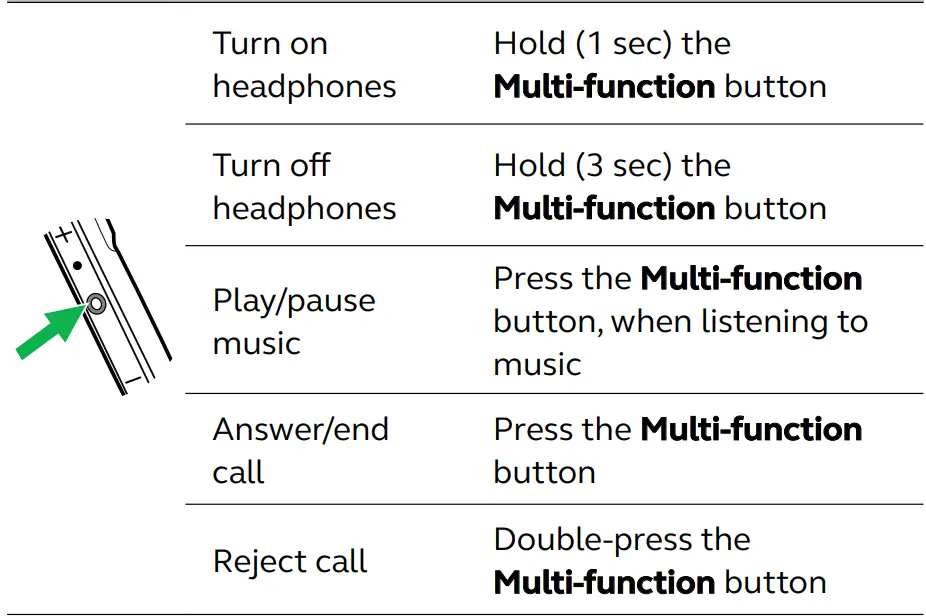
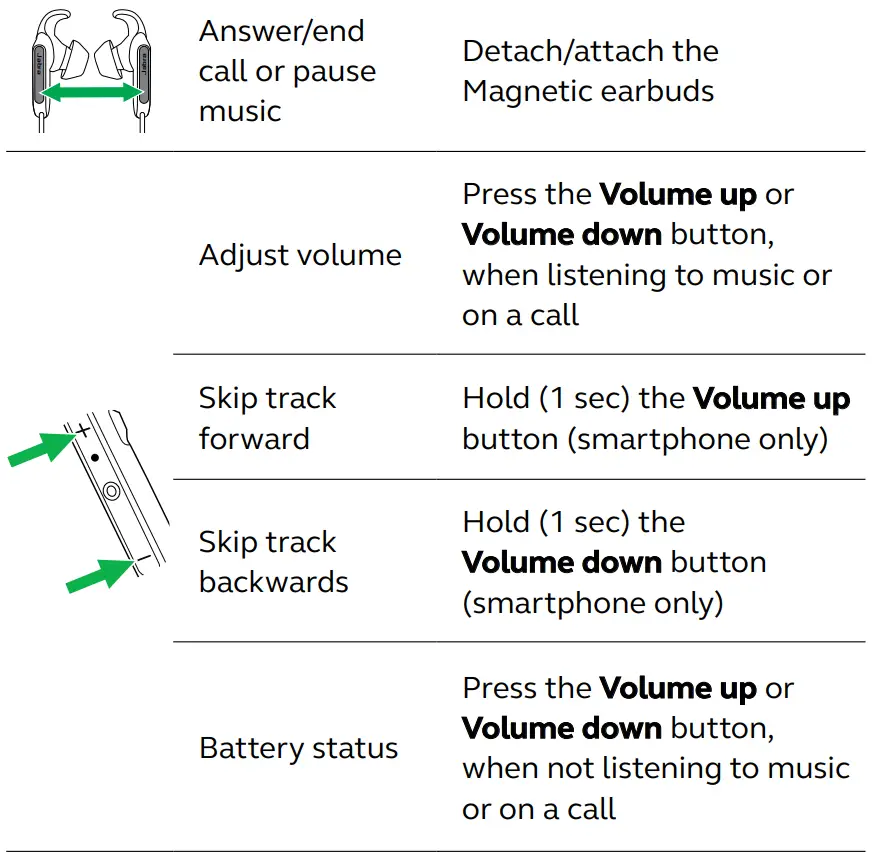
Headphone voice guidance
Headphone voice guidance are announcements intended to guide you or give headphone status updates (e.g. connection and battery status).
How to turn voice guidance On/Off
Voice guidance is enabled by default.
- Voice Guidance On: Ensure the headphones are powered on, and then hold the Mute/Voice button for 5 seconds.

- Voice Guidance Off: Ensure the headphones are powered on, and then hold the Mute/Voice button for 5 seconds.

Headphone voice guidance can also be configured using the Jabra Sound+ app.
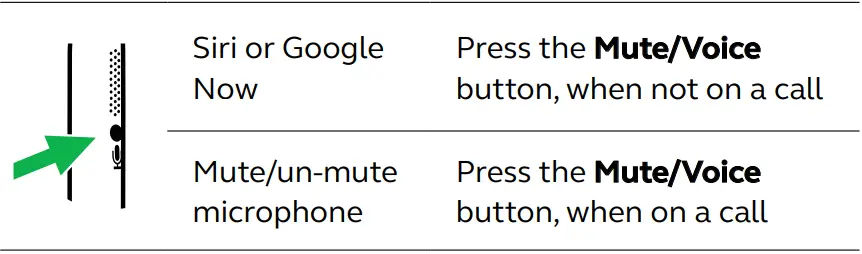
Siri or Google Now
Phone voice commands enable you to speak to Siri or Google Now on your smartphone using your headphones. For more information on using Siri or Google Now, please refer to your smartphone’s user manual.
Phone voice commands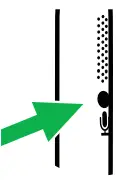
- Activate Siri or Google Now (phone dependent)
- Press the Mute/Voice button, when not on a call
Voice assistant settings can be configured using the Jabra Sound+ app.
Multiple call handling
The headphones can answer or reject calls when you are already on a call.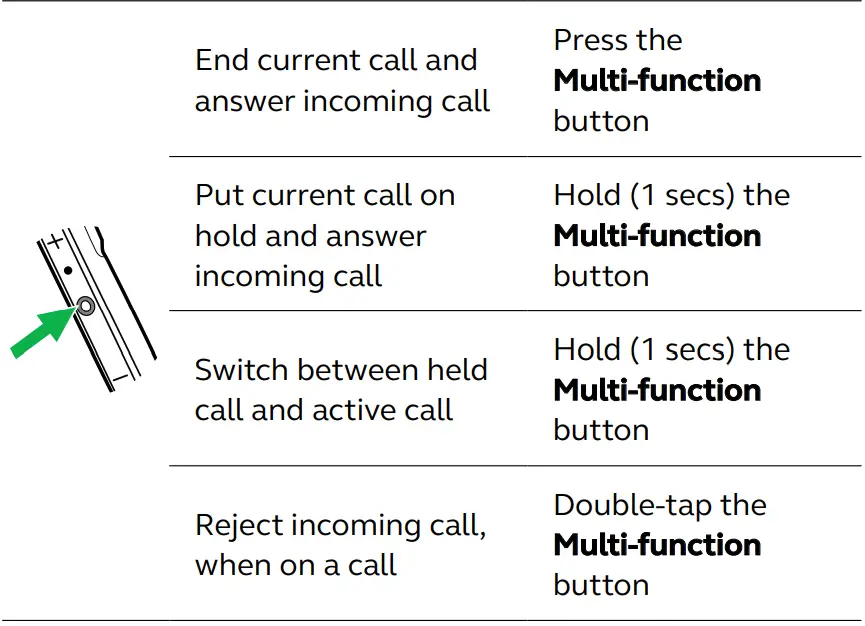
How to reset
Resetting the headphones clears the list of paired devices and all headphone settings.
After resetting, it is necessary to re-pair the headphones to your smartphone. 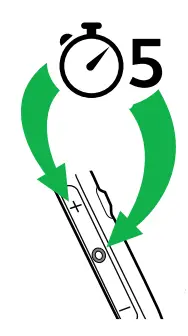
Reset the pairing list
Ensure the headphones are powered on and you are not on a call. Then simultaneously hold the Volume up button and the Multi-function button for 5 seconds. You will then need to re-pair the headphones.
Firmware update
The Jabra Elite 45e can be updated to the latest firmware version using the Jabra Sound+ app.
If notifications are enabled in the Jabra Sound+ app, you will receive an automatic notification when a firmware update is available. Jabra Elite 45e
Jabra Sound+ app
Support
FAQ
View the FAQs on Jabra.com/elite45e.
How to care for your headphones
- Always store the headphones with the power off and safely protected.
- Avoid storage at extreme temperatures (above 50°C/122°F or below -10°C/14°F). This can shorten battery life and may affect the earbuds.
- Regularly clean the mesh on each earbud to avoid them becoming blocked.
* Dust and water resistant with a limited 2-year warranty against failure as a direct result of regular exposure to dust and water. Jabra Sound+ app registration required
** Operating system dependent
jabra.com/elite45e
FAQs
Yes. You can connect two devices at work and switch between them easily.
Yes
yes
Yes this is perfect for the gym and running love it, the battery last about 8 hours charges fast.
Yes they are, they are sold at your local Best Buy stores.
The 45e definitely do not appear to, as that particular model does not have Noise Cancellation. Don’t know about the 65e
Daily life is approximately 8 hours. I use mine for about three days in between charges.
You download the Sound+ app for the 45e and configure the assistant button from the app to control Alexa.
they should though I have never slept in them. They are comfortable though when you choose the right earpiece/and earbud combo
It should work with Windows 10, it works with my XPS 13.
They’re amazing at durability. You’ll be fine.
It depends on the helmet sizes, they are small but hace long cables in each side.
Yes, it does vibrate when there’s an incoming call and notification.
They should be connecting automatically without any issues. Mines does.