
 Quick Installation Guide
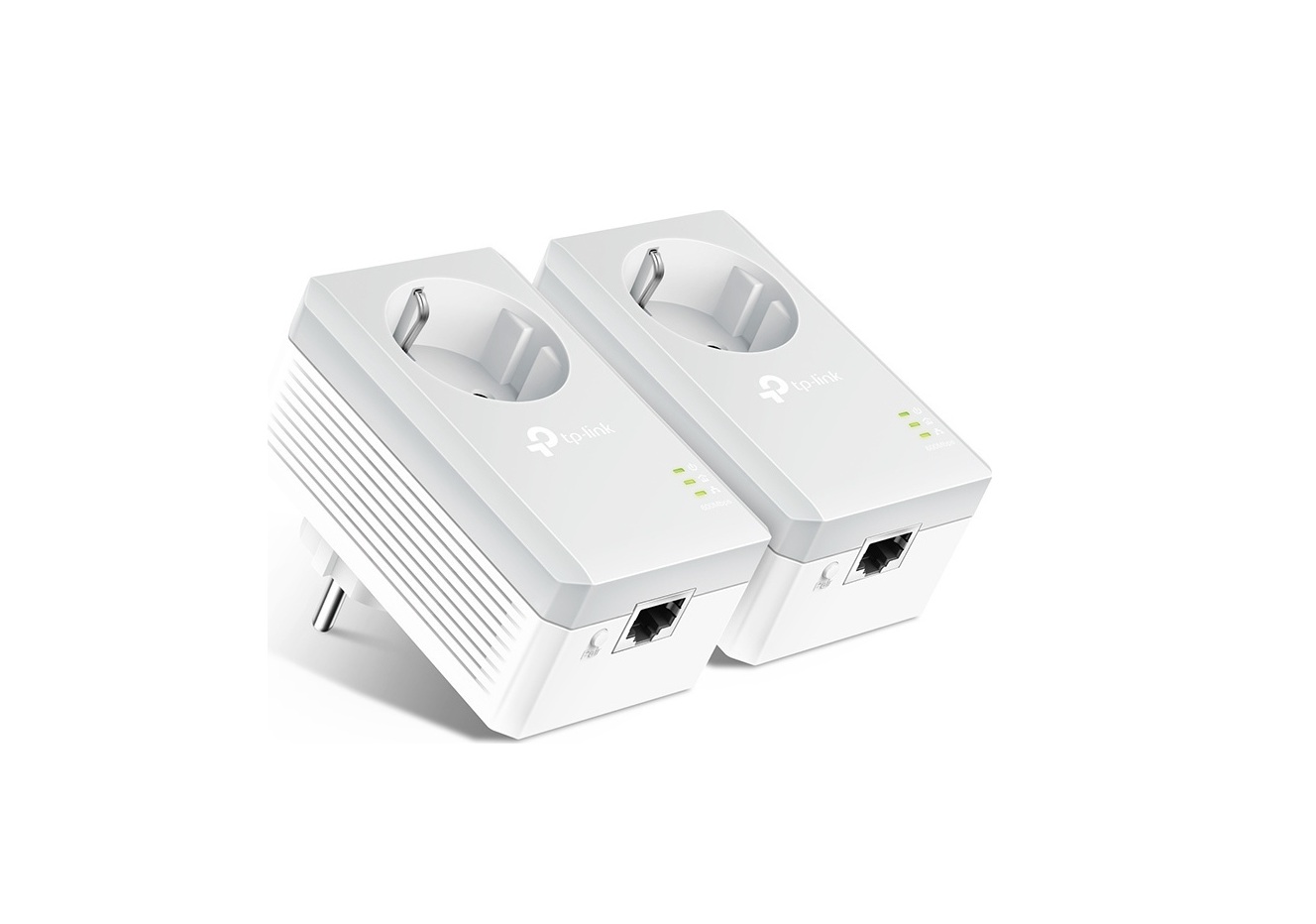
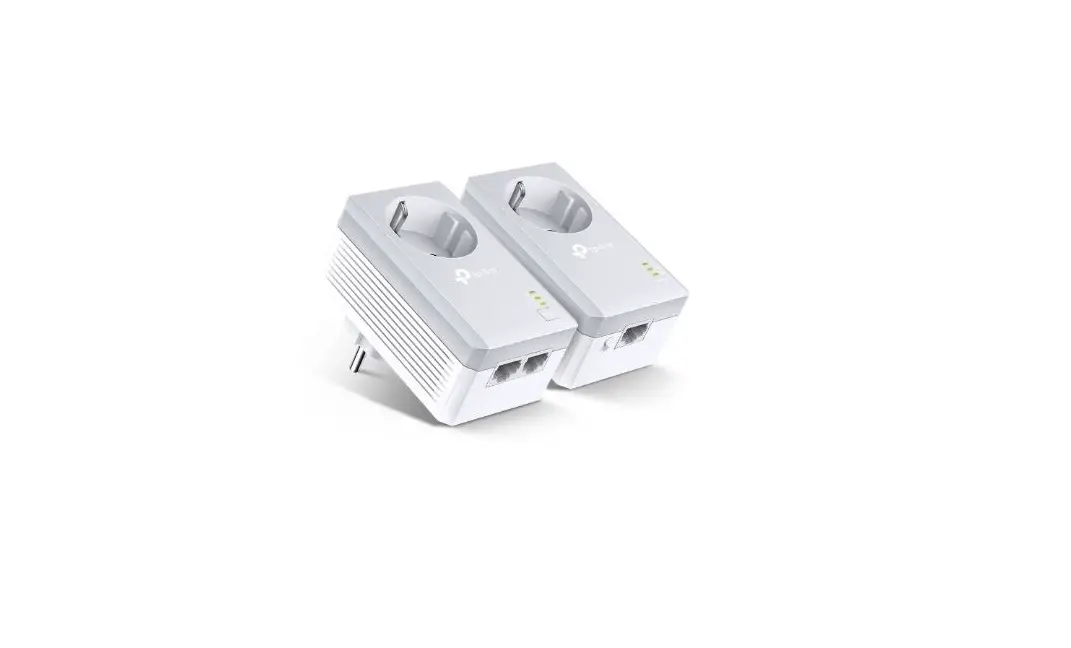
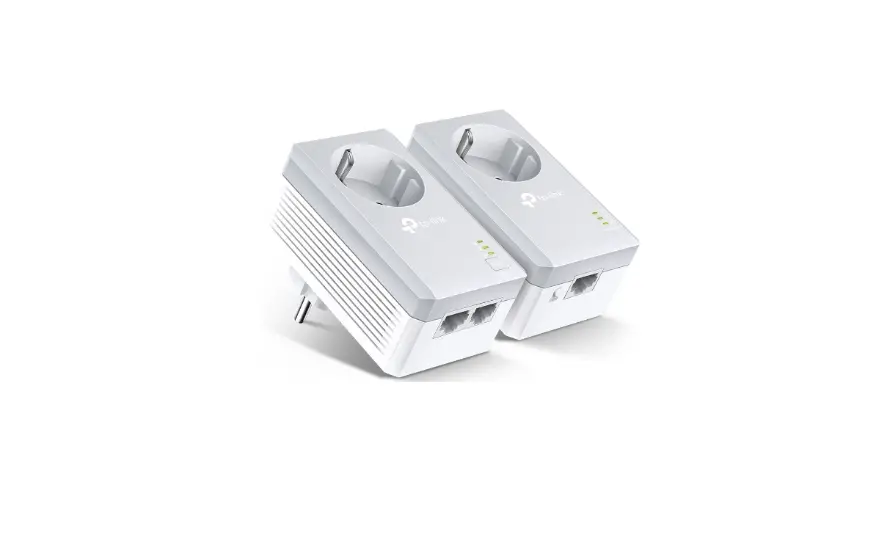
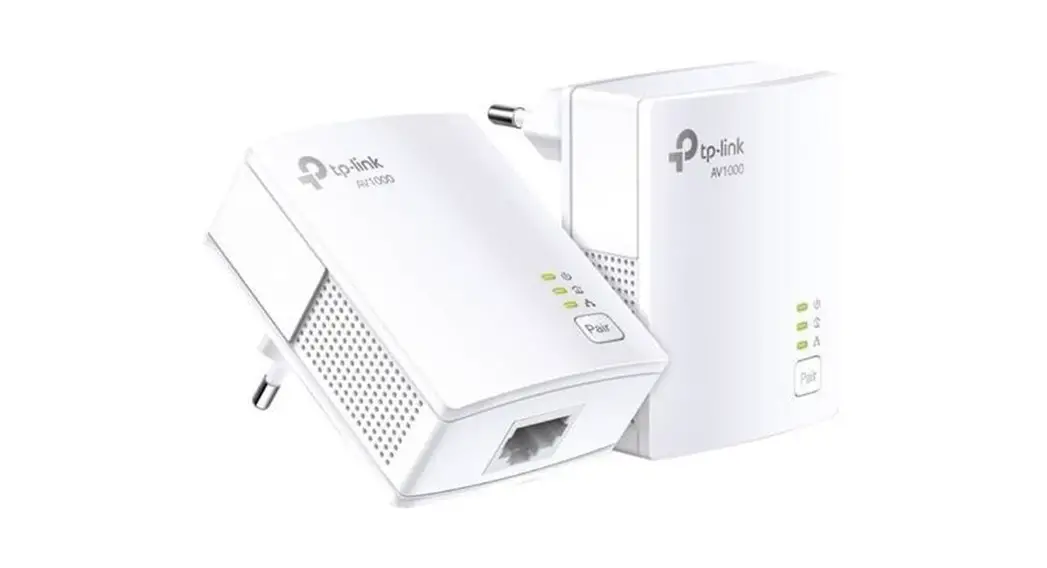
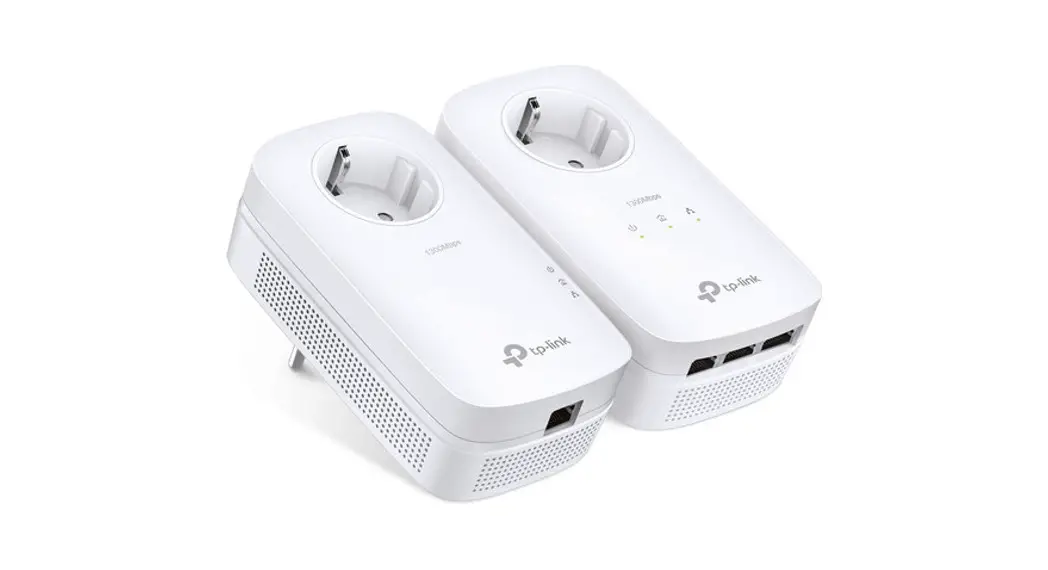
* TL-PA8033P KIT (European version) is used for demonstration in this guide.
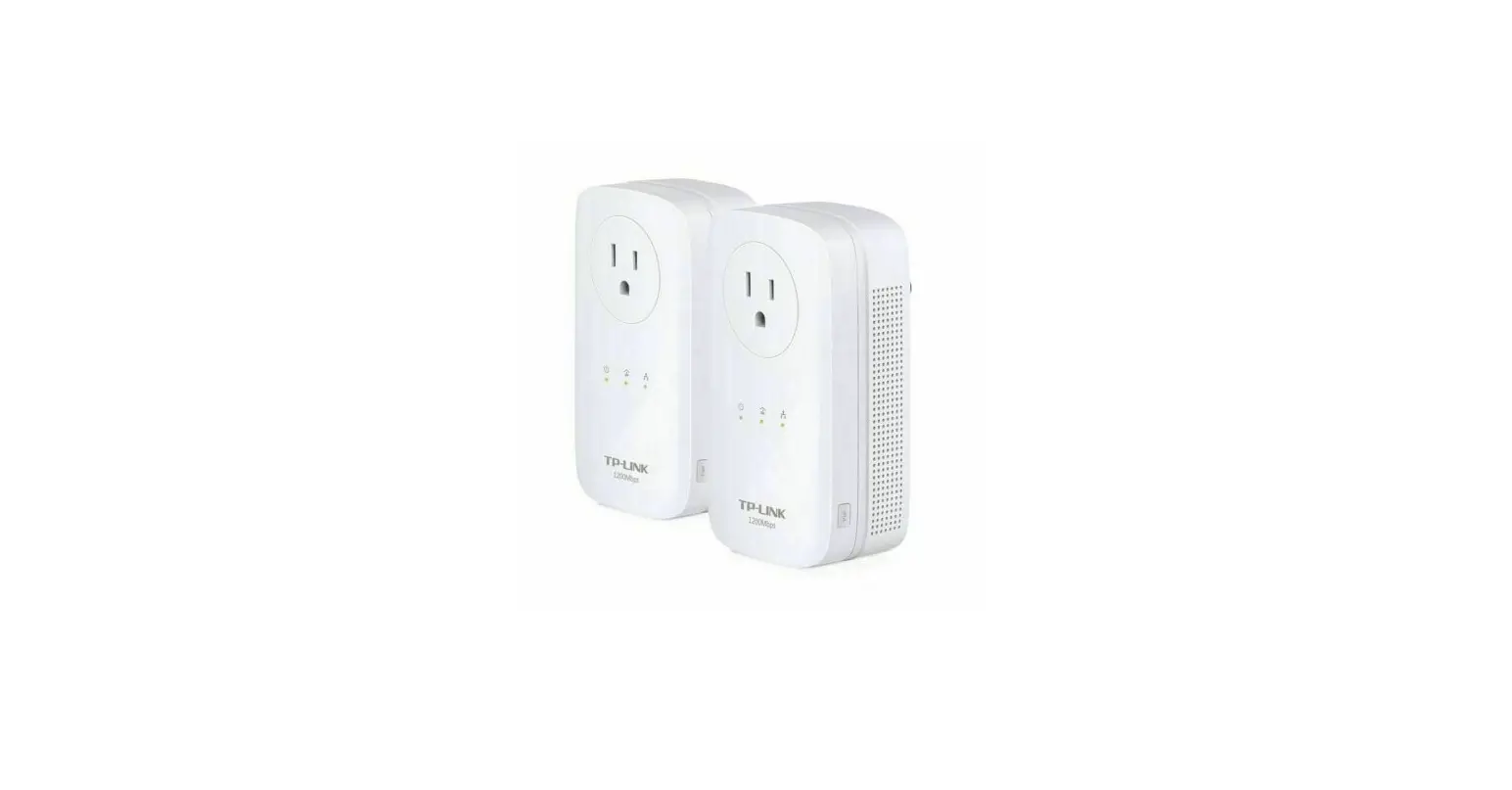
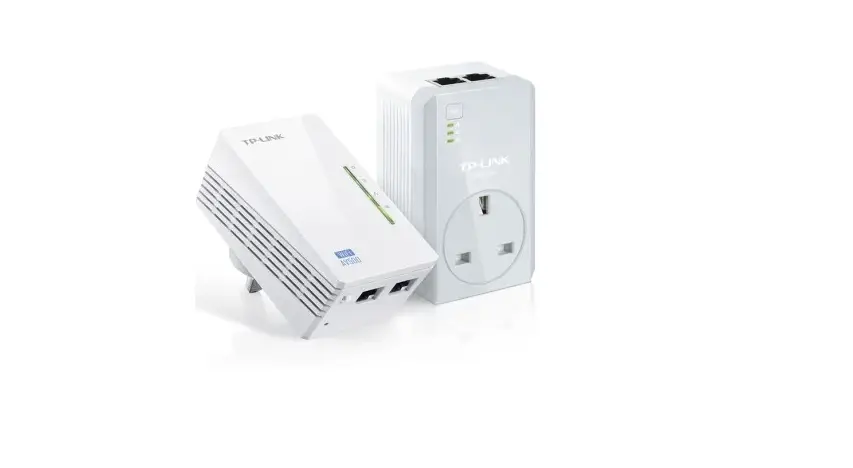
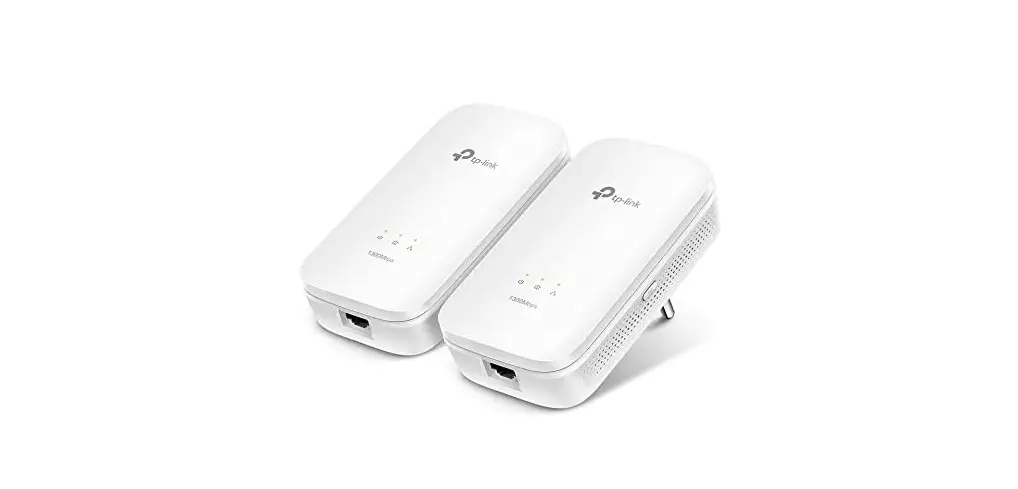
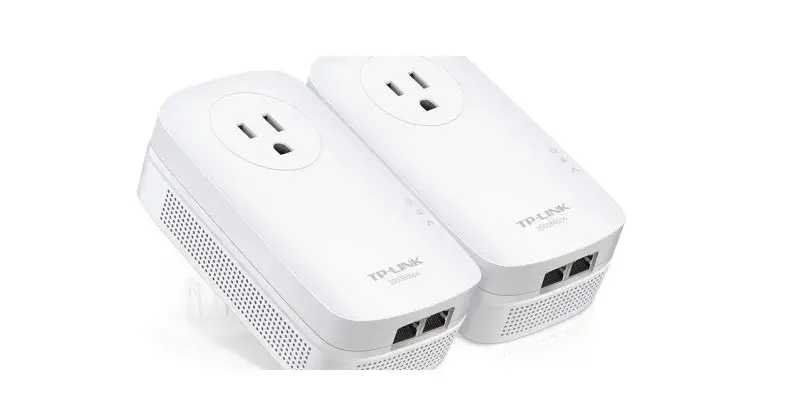
Images may differ from your actual product.
Attention
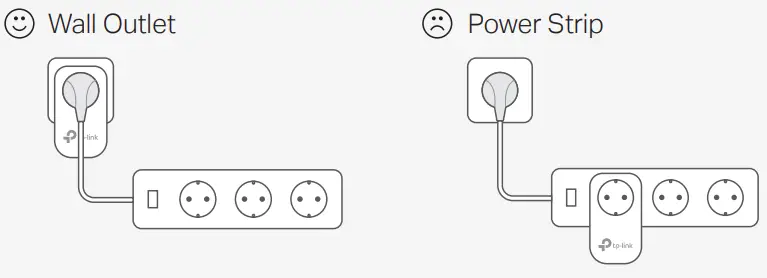
Plug powerline devices into wall outlets instead of power strips.
Set Up a Secure Powerline Network by Pairing (Recommended)
You can create or join a secure powerline network using the Pair button on two devices at a time.
Tip: We recommend that you plug in the powerline devices near each other when pairing.
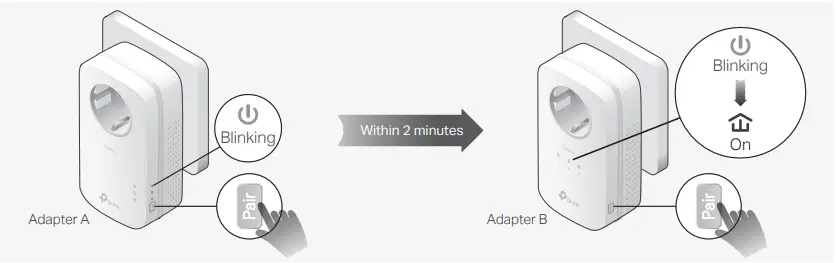
To create a secure powerline network:
- Press the Pair button on one of the powerline devices for 1 second. Its Power LED
 starts blinking.
Note: If the Power LED does not blink, press the Pair button again. - Within 2 minutes, press the Pair button on another device for 1 second. Its Power LED starts blinking.
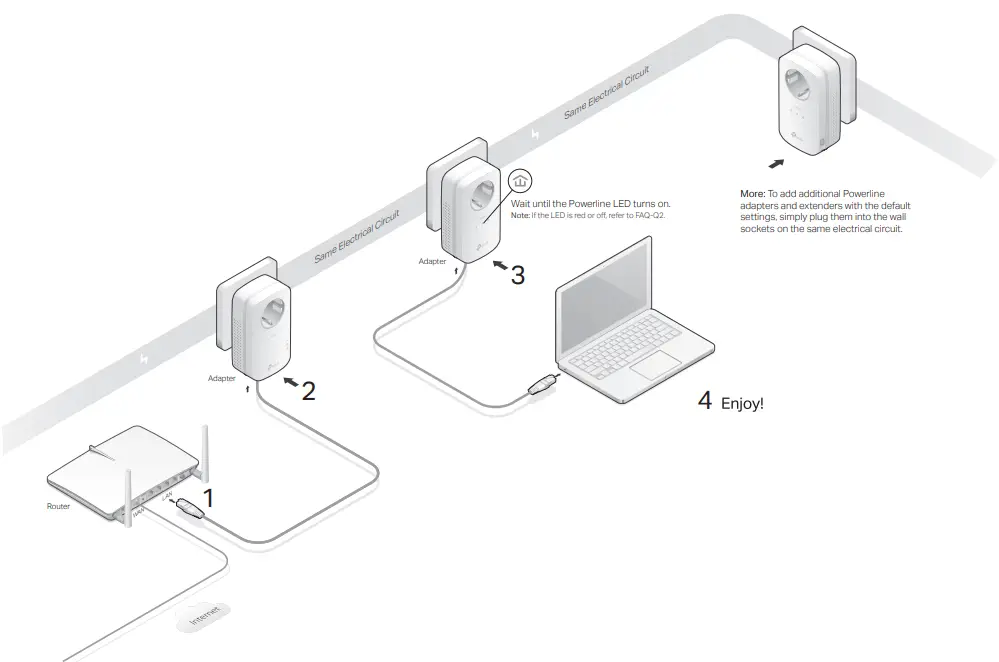
- When the Powerline LED
 turns on, it’s done.
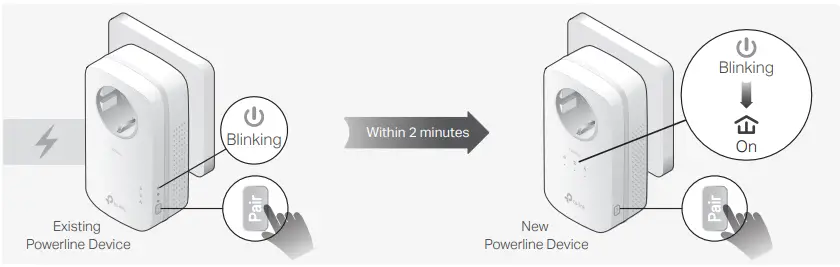
To join an existing secure powerline network:
- Press the Pair button on any of the existing powerline devices for 1 second. Its Power LED starts blinking1
Note: If the Power LED does not blink, press the Pair button again. - Within 2 minutes, press the Pair button on the new powerline adapter for 1 second. Its Power LED starts blinking.
- When the Powerline LED turns on, it’s done.
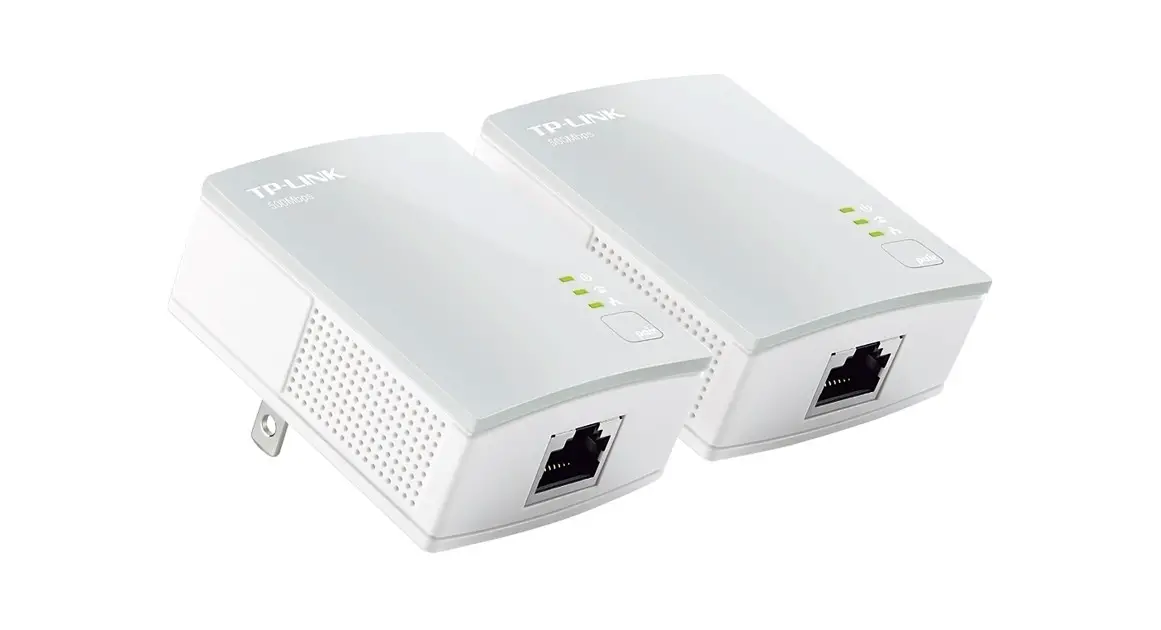
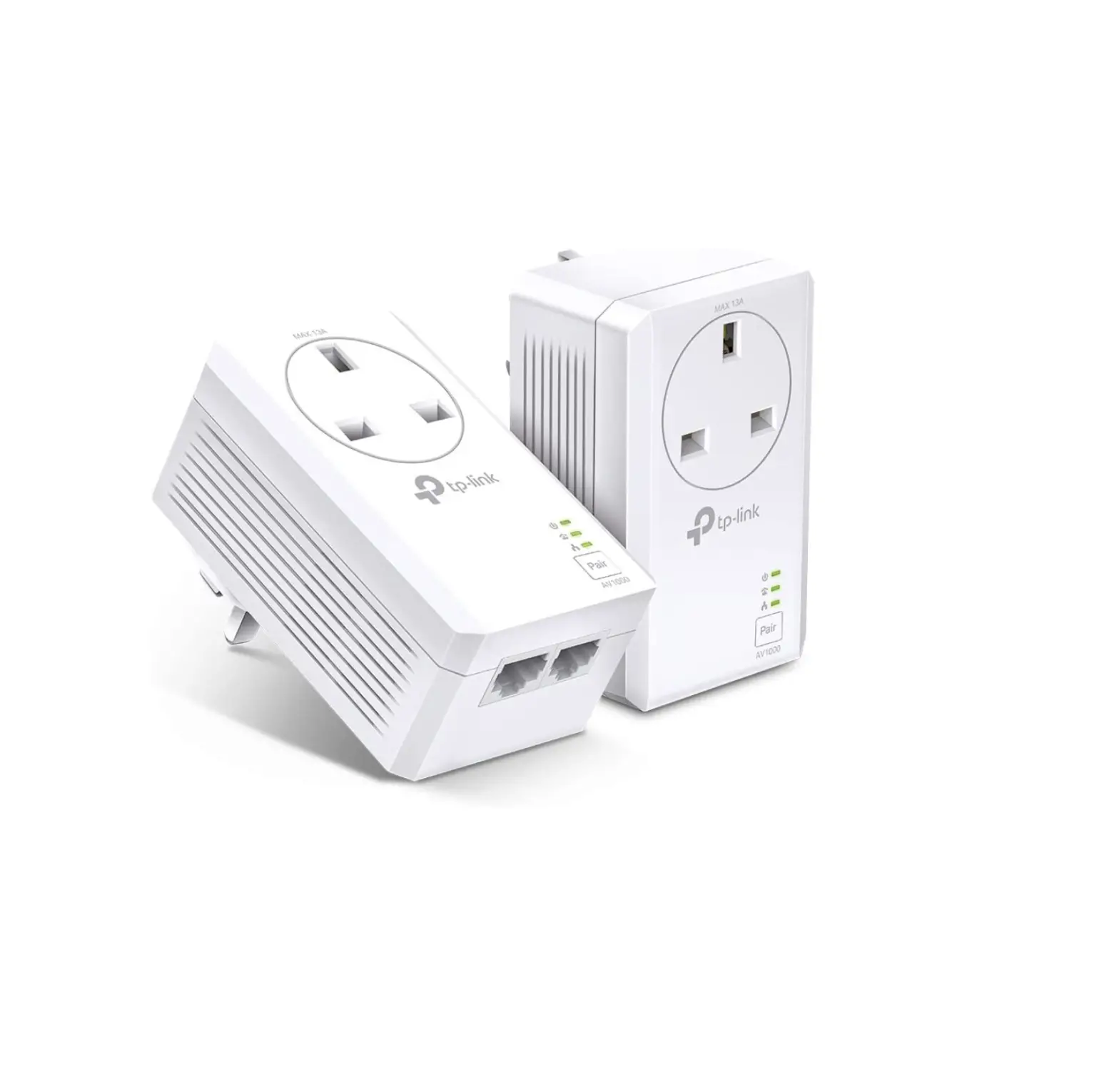
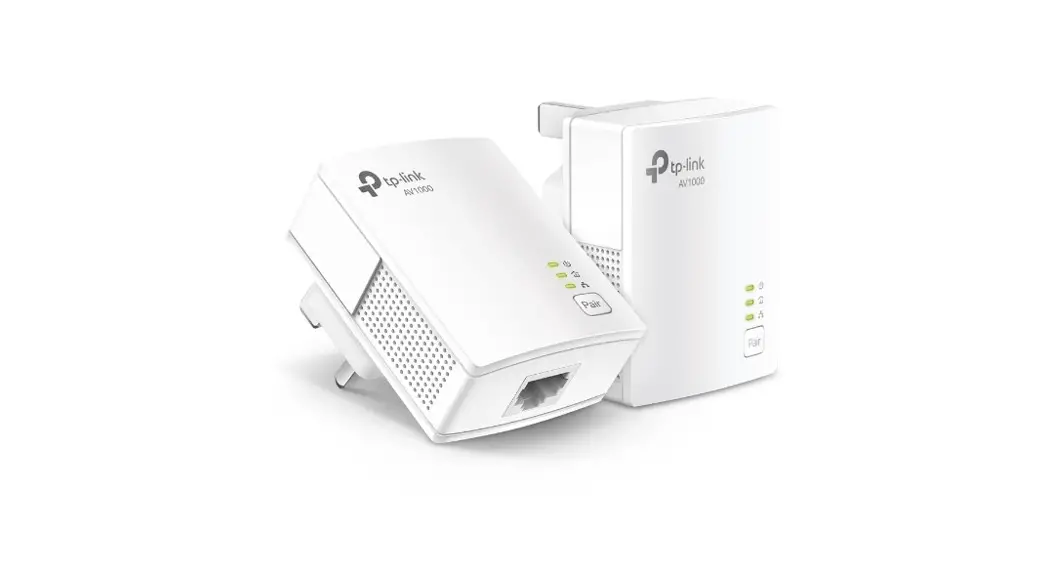
Physical Appearance
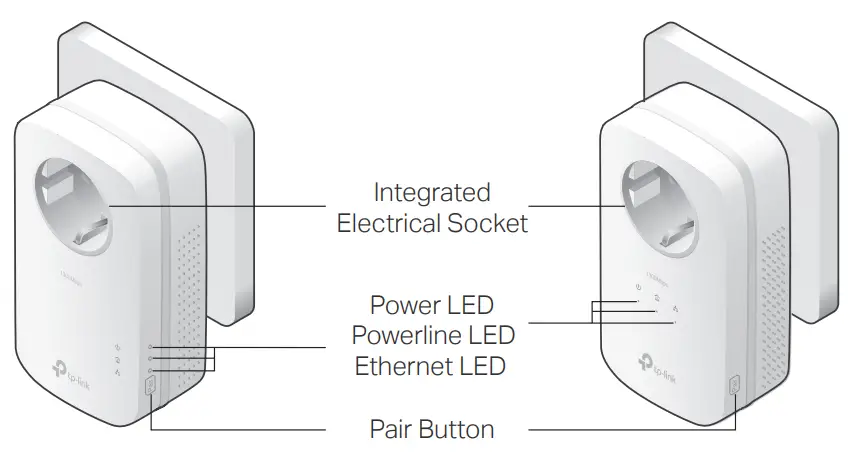
| LED | STATUS | DESCRIPTION | |
 | Power | On/Off Blinking quickly Blinking slowly | The powerline adapter is on or off. Pairing is in process. Power-Saving Mode is on.* |
 | Powerline | Yellow-green Red Off | The powerline adapter is successfully connected to a powerline network and is in a suitable location. The powerline adapter is in a location with poor signal strength. We recommend trying another wall socket. The powerline adapter is not connected to any powerline network. |
 | Ethernet | On/Off | The Ethernet port is connected or disconnected. |
* Five minutes after the device connected to the powerline adapter is turned off or inactive, the powerline adapter will automatically switch to Power-Saving Mode.
| ITEM | DESCRIPTION |
| Pair Button | Press and hold for 1 second to set up or join a secure powerline network. Press and hold for about 8 seconds to leave an existing powerline network. Press and hold for more than 15 seconds to reset the powerline adapter. |
| Integrated Electrical Socket | Used as an electrical outlet expansion for power strips or household appliances. It can remove some electrical noise that might affect powerline performance. |
Frequently Asked Questions
Q1. How do I reset my powerline adapter?
A. With the powerline adapter plugged into an electrical outlet, press and hold the Pair button for more than 15 seconds until the Power LED goes off momentarily and then comes back on.
Q2. What should I do if the Powerline LED is red or off?
If the LED is red:
A. The powerline adapter is in a location with poor signal strength. Try another wall socket.
If the LED is off:
A1. Try another wall socket and make sure all powerline devices are on the same electrical circuit.
A2. Try to set up a powerline network by pairing. Refer to the section above for instructions.
A3. If the problem persists, contact our Technical Support.
Q3. What should I do if there is no internet connection in my powerline network?
A1. Make sure all powerline devices are on the same electrical circuit.
A2. Make sure the Powerline LEDs are lit on all of your powerline devices. If they are not, pair all devices again.
A3. Make sure all devices are correctly and securely connected.
A4. Check if you have an internet connection by connecting the computer directly to the modem or router.
Q4. What should I do if a successfully paired powerline device does not reconnect after it is relocated?
A1. Try another socket and make sure it is on the same electrical circuit.
A2. Try to pair the device again, and make sure the Powerline LED is on.
A3. Check for possible interference due to a washing machine, air conditioner or other household appliance that may be too close to one of the powerline devices. Plug the appliance into the integrated electrical socket to remove the electrical noise if your powerline device has an integrated electrical socket.
Easy Management
Using HPLC utility for advanced configuration:
- Visit http://www.tp-link.com, and search for your product.
- Find and download the compatible version of the utility on its Support page.
- Install the utility and start your configuration.
 For technical support, the user guide, and other information, please visit http://www.tp-link.com/support, or simply scan the QR code.
TP-Link hereby declares that this device is in compliance with the essential requirements and other relevant provisions of directives 2014/30/EU, 2014/35/EU, 2009/125/EC, and 2011/65/EU. The original EU declaration of conformity may be found at
http://www.tp-link.com/en/ce.

http://www.tp-link.com/support
 WiFi Networking Equipment for Home & Business | TP-Link