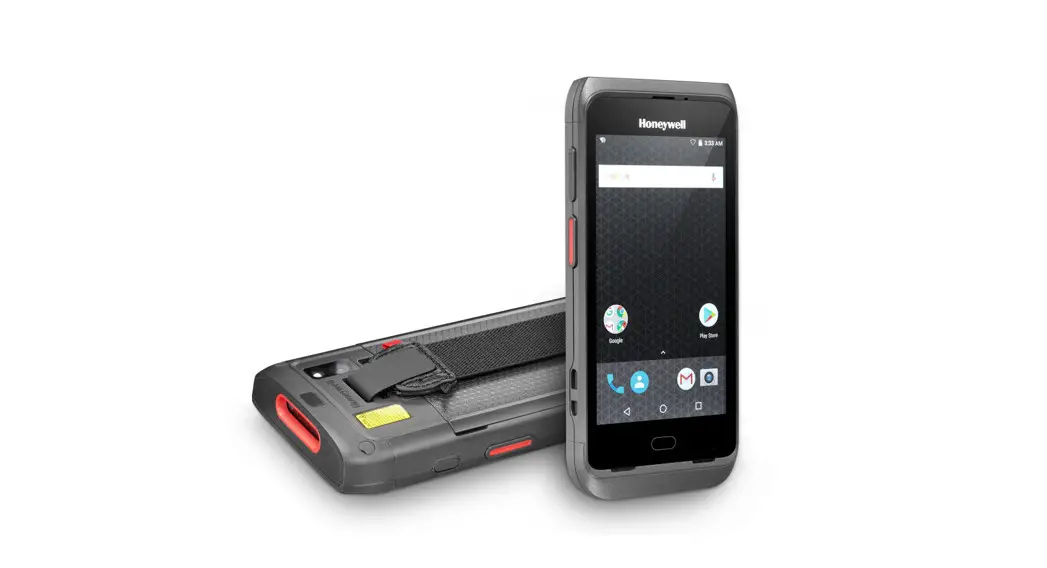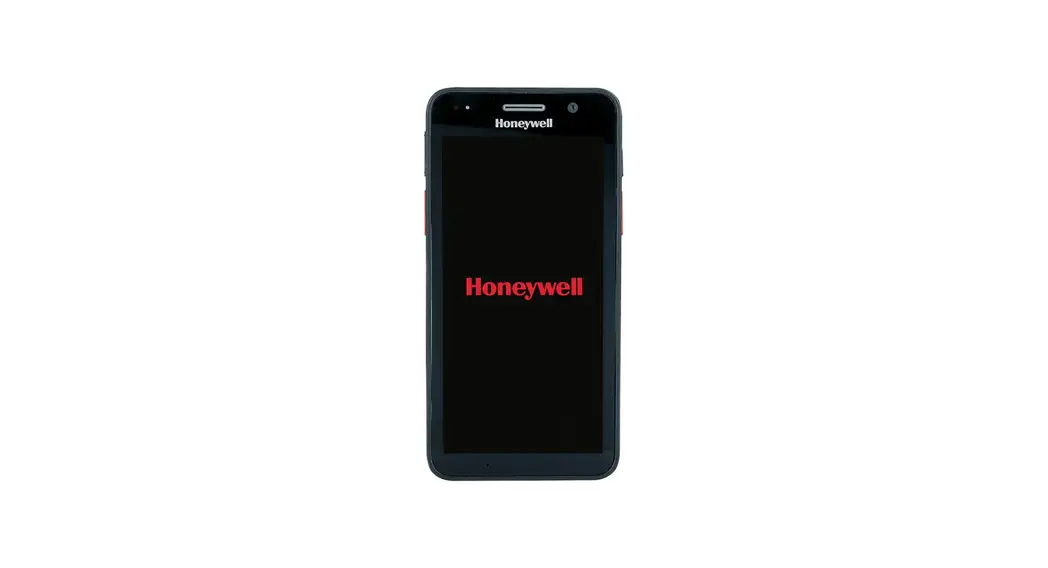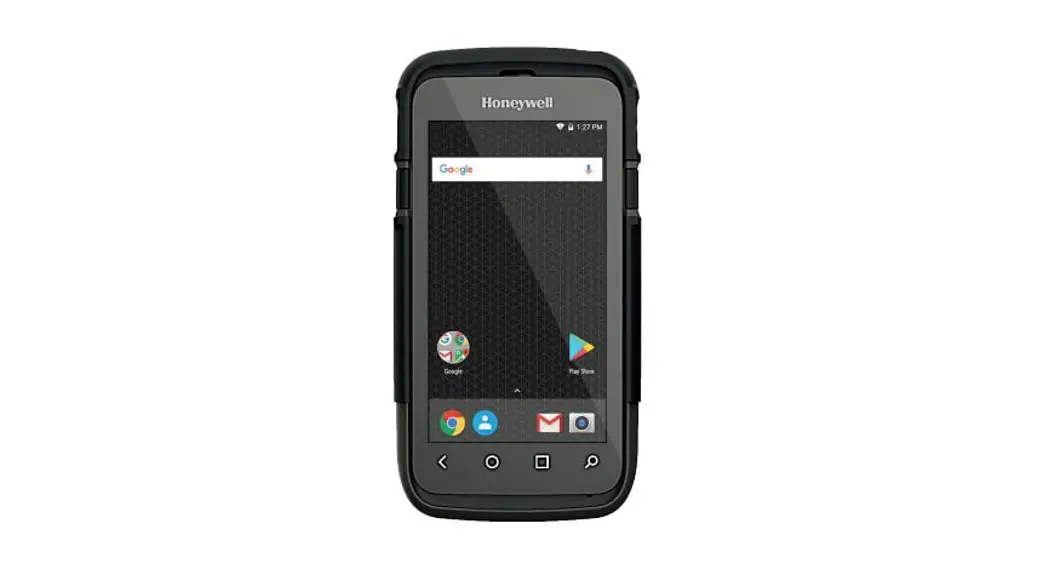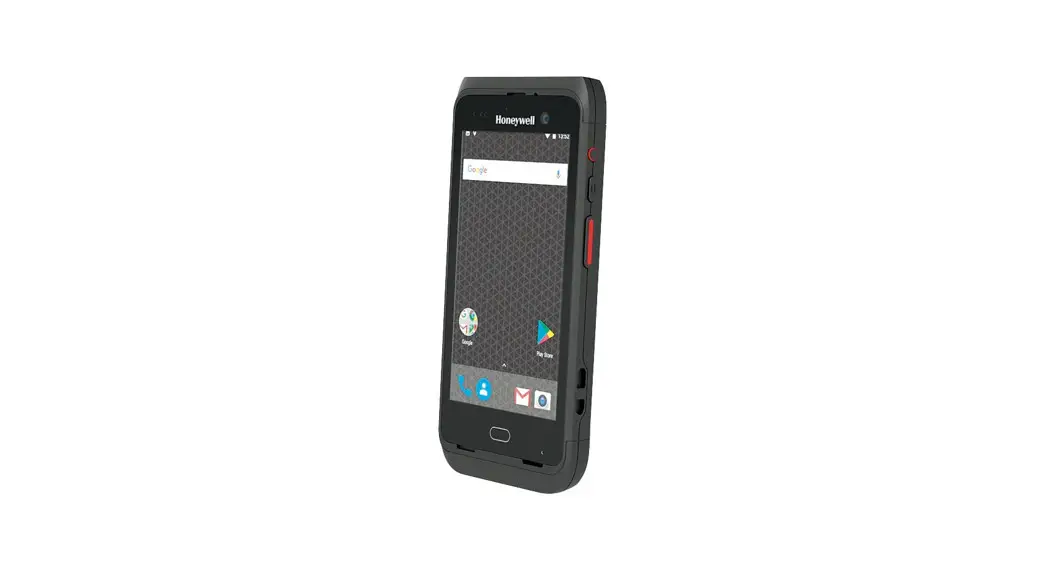

CT40/CT40 XP Series
powered by Android™
Quick Start Guide
CT40-A-EN-QS-01 Rev H
09/22
Out of the Box
Make sure that your shipping box contains these items:
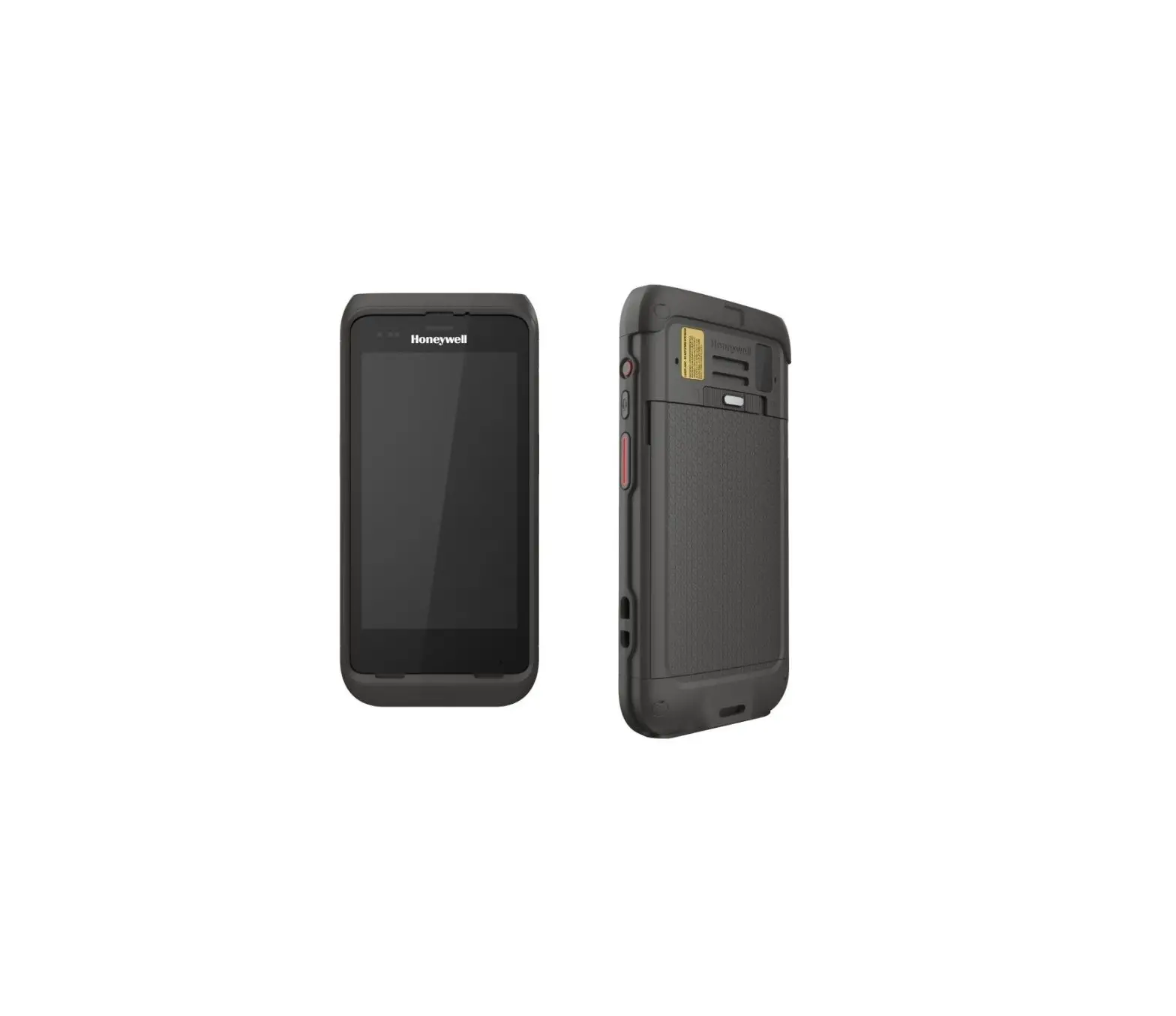
- Mobile Computer
Model CT40-L0N, CT40-L1N, CT40P-L0N, or CT40P-L1N - Rechargeable Li-ion battery (see page 7)
- Hand strap
- Product documentation
If you ordered accessories for your mobile computer, verify that they are also included with the order. Be sure to keep the original packaging in case you need to return the mobile computer for service.
Note: CT40-L0N/CT40P-L0N models do not include a WWAN radio.
Memory Card Specifications
Honeywell recommends the use of Single Level Cell (SLC)
industrial grade microSD™ or microSDHC™ memory cards with mobile computers for maximum performance and durability. Contact a Honeywell sales representative for additional information on qualified memory card options.
Mobile Computer Features
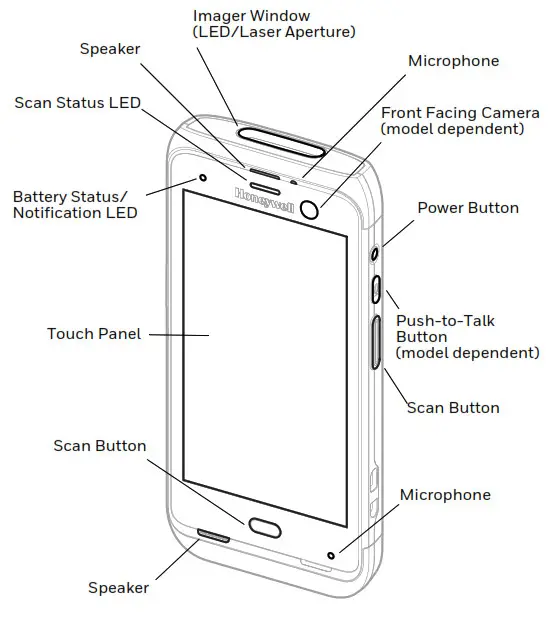
Note: Hand strap not shown.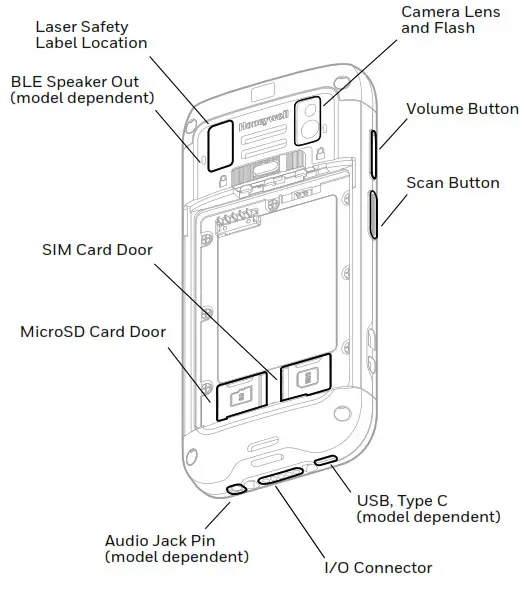
Install a microSD Card (Optional)
Note: Format the microSD card before initial use.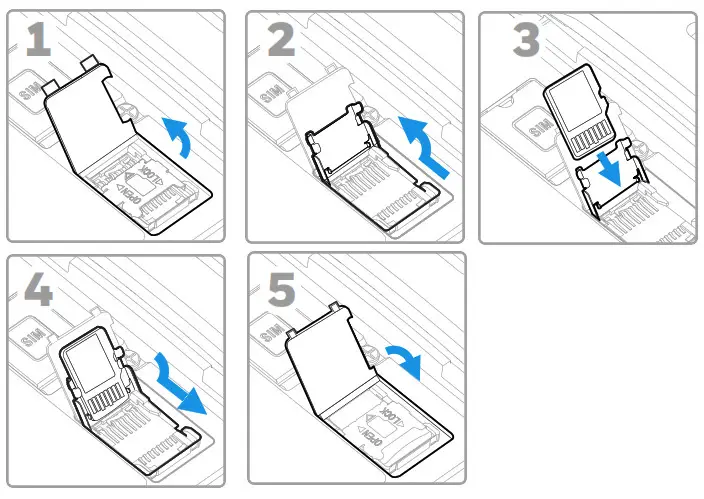 Note: Always power off the computer before attempting to install or remove a card.
Install a microSIM Card
Note: Phone feature is only available on CT40-L1N/CT40P-L1N models. On all models, the SIM slot supports use of a UICC card for NFC Secure Element NFC link encryption.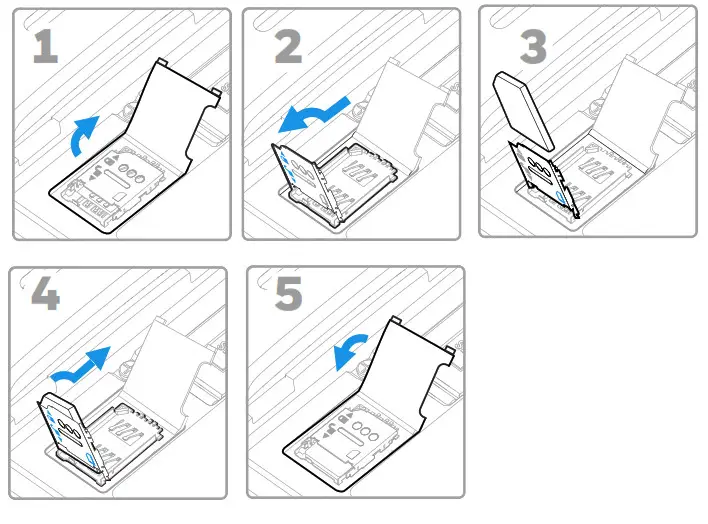
About the Battery
 The mobile computer ships with a Li-ion battery manufactured for Honeywell International Inc.
Before you attempt to use, charge or replace the battery in the device, carefully read all labels, markings and product documentation provided in the
box or online at sps.honeywell.com. To learn more about Battery Maintenance for Portable Devices, go to honeywell.com/PSS-BatteryMaintenance.
Note: Always power off the computer before attempting to install or remove a card.We recommend use of Honeywell Li-ion battery packs. Use of any non-Honeywell battery may result in damage not covered by the warranty.Ensure all components are dry prior to placing the battery in the computer. Mating wet components may cause damage not covered by the warranty.
CT40 Models
| Model Configuration x = configuration variations | Battery P/N | Power |
| CT40-xxx-xxxxx0x | 318-005-011 | 3.85 VDC, 15.5 watt-hour |
| CT40-xxx-xxxxxHx | 318-055-017 318-055-H67 | 3.85 VDC, 15.5 watt-hour |
| CT40-LON-xxxxxAx | 318-055-015 318-055-067 | 3.85 VDC, 15.5 watt-hour |
| CT40-xxx-xxxxxBx | 318-055-015 318-055-067 | 3.85 VDC, 15.5 watt-hour |
| CT40-xxx-xxxxxDx | 318-055-D67 | 3.85 VDC, 15.5 watt-hour |
| Configuration number (CN) is located on the label in the battery well of the mobile computer. | ||
CT40XP Models
| Model Configuration | Battery P/N | Power |
| CT40P-xxx-xxxxxHx | 318-055-H67 | 3.85 VDC, 15.5 watt-hour |
| CT40 P-xxx-xxxxxAx | 318-055-067 | 3.85 VDC, 15.5 watt-hour |
| CT40 P-xxx-xxxxxBx | 318-055-067 | 3.85 VDC, 15.5 watt-hour |
| CT40P-xxx-xxxxxDx | 318-055-D67 | 3.85 VDC, 15.5 watt-hour |
| Configuration number (CN) is located on the label in the battery well of the mobile computer. | ||
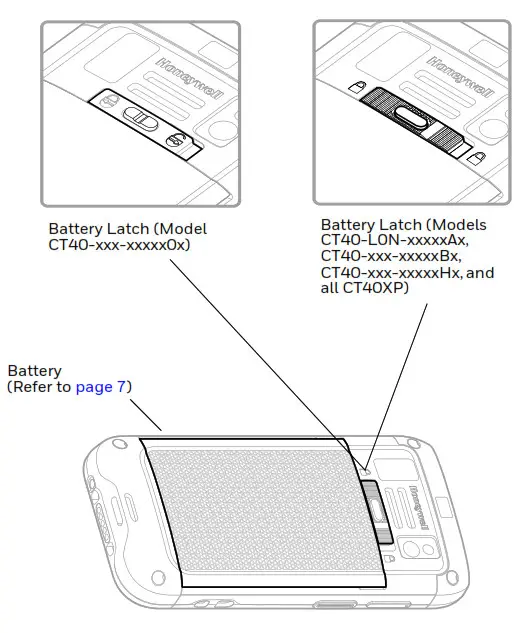
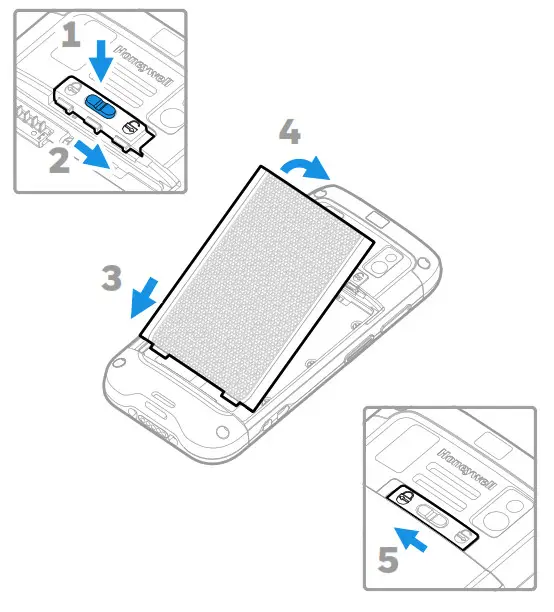
Install Battery (Model CT40-xxx-xxxxx0x)
Install Battery (Models CT40-LON-xxxxxAx, CT40-xxx-xxxxxBx, CT40-xxx-xxxxxHx, and all CT40XP)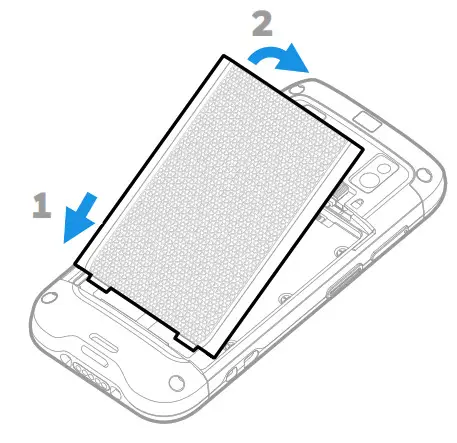
Install the Hand Strap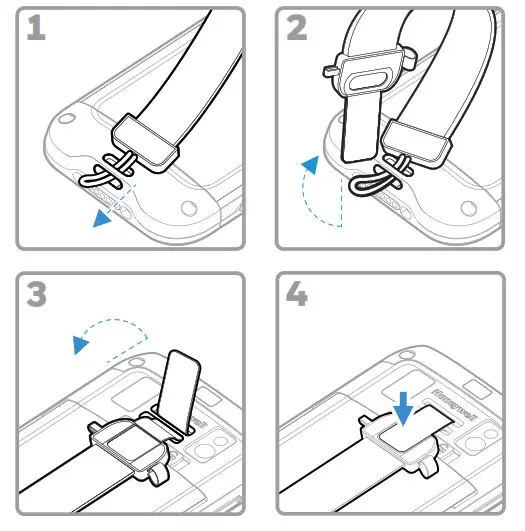
Charge the Mobile Computer
The mobile computer ships with a partially charged battery.
Charge the battery with a CT40 series charging device for a minimum of 4 hours. Using the computer while charging the battery increases the time required to reach a full charge.We recommend the use of Honeywell accessories and power adapters. Use of any non-Honeywell accessories or power adapters may cause damage not covered by the warranty.
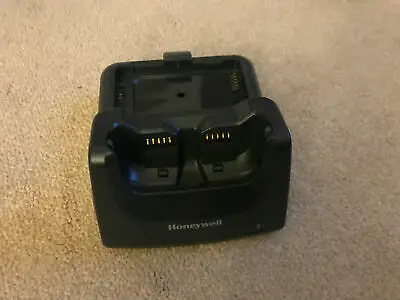
CT40 series mobile computers are designed for use with the following CT40 charging accessories: HomeBase, Ethernet HomeBase, ChargeBase, NetBase, Quad Battery harger, Vehicle Power Adapter, Vehicle Dock, and USB Adapter. Ensure all components are dry prior to mating the computers and batteries with peripheral devices. Mating wet components may cause damage not covered by the warranty.
Turn Power On/Off
The first time you power on the computer, a Welcome screen appears. You can either scan a configuration barcode or use the Wizard to manually set up the computer. Once setup is complete, the Welcome screen no longer appears on startup and Provisioning Mode is automatically turned off (disabled).
To turn the computer on:
- Press and hold the Power button for approximately 3 seconds, and then release.
To turn the computer off:
- Press and hold the Power button until the options menu appears.
- Touch Power Off.
Battery Replacement
Before removing the battery, always do one of the following:
- Power off the computer.
- ns menu appears.
- Touch Swap Battery and follow the on-screen instructions.
- Once you replace the battery, press the Power button.
Screen Timeout
Screen timeout automatically turns the touch panel display off and locks the computer to save battery power when the computer is inactive for a programmed period of time.
- Press and release the Power button to wake the computer.
- Drag the
 toward the top of the display to unlock the computer.
 toward the top of the display to unlock the computer.
Adjust the Screen Timeout
To adjust the amount of time before the display sleeps after inactivity:
- Swipe up on the touch screen.
- Select Settings > Display > Screen Timeout.
- Select the amount of time before the display goes to sleep.
- Touch
 to return to the Home screen.
- Place the unit in Swap Battery mode (feature availability is model dependent).
Swap Battery Mode
Swap Battery mode places the computer in a low power state so that the battery can be removed for a short time. This feature is not available on all models.
To activate Swap Battery mode:
- Press and hold the Power button until the optio
About the Home Screen
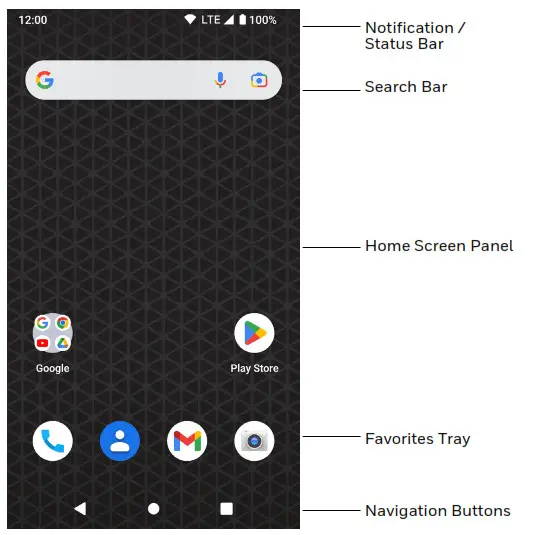
To learn how to customize the Home screen, see the user guide.
| Button | Description | |
 | Back | Return to the previous screen. |
 | Home | Return to the Home screen. |
 | Recent Apps | View and switch between recently used apps. |
 | Scan | Touch the front (on-screen) Scan button to trigger the scanner. |
 | Volume | Press the top of the button to raise the speaker volume. Press the bottom of button to lower the speaker volume. |
 | Scan | Press left or right Scan button to trigger the scanner. |
 | Power | See page 14. |
 | Push-to-Talk | Push-to-Talk button is model dependent. |
For button locations, see Mobile Computer Features on page 2.
To learn more about how to re-map a button, see the user guide.
About Provisioning Mode
After completing the out-of-box set up process, Provisioning Mode is automatically turned off. Scanning a barcode to install applications, certificates, configuration files, and licenses on the computer is restricted unless you enable Provisioning Mode in the Settings app. To learn more, see the user guide.
Scan a Barcode with the Scan Demo
For optimum performance, avoid reflections by scanning the barcode at a slight angle.
- Swipe up on the screen.
- Select Demos > Scan Demo.
- Point the computer at the barcode.
- Touch Scan on the screen or press and hold any Scan button. Center the aiming beam over the barcode.
The decode results appear on the screen.
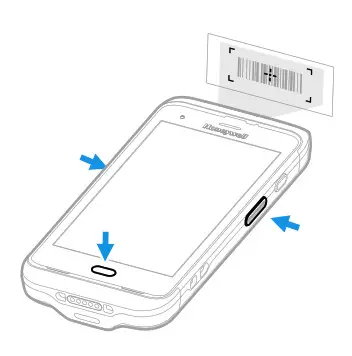 Note: In the Scan Demo app, not all barcode symbologies are enabled by default. If a barcode does not scan, the correct symbology may not be enabled. To learn how to modify the default app settings, see the user guide.
Sync Data
To move files between your CT40 and a computer:
- Connect the CT40 to your computer using a USB charge/ communication accessory.
- On the CT40, swipe down from the top of the screen to see the notifications panel.
- Touch the Android System notification twice to open the options menu.
- Select either File Transfer or PTP.
- Open the file browser on your computer.
- Browse to the CT40. You can now copy, delete, and move files or folders between your computer and CT40 as you would with any other storage drive (e.g., cut and paste or drag and drop).
Note: When Provisioning Mode is turned off, some folders are hidden from view in the file browser.
Restart the Mobile Computer
You may need to restart the mobile computer to correct conditions where an application stops responding to the system or the computer seems to be locked up.
- Press and hold the Power button until the options menu appears.
- Select Power > Restart.
To restart the computer if the touch panel display is unresponsive:
•Press and hold the Power button for approximately 8 seconds until the computer restarts.
Note: To learn about advanced reset options, see the user guide.
Support
To search our knowledge base for a solution or to log in to the Technical Support portal and report a problem, go to honeywell.com/PSStechnicalsupport.
Documentation
Product documentation is available at sps.honeywell.com.
Limited Warranty
For warranty information, go to sps.honeywell.com and then select Support > Warranties.
Patents
For patent information, see www.hsmpats.com.
Trademarks
Android is a trademark of Google LLC.
Disclaimer
Honeywell International Inc. (“HII”) reserves the right to make changes in specifications and other information contained in this document without prior notice, and the reader should in all cases consult HII to determine whether any such changes have been made. HII makes no representation or warranties regarding the information provided in this publication.
HII shall not be liable for technical or editorial errors or omissions contained herein; nor for incidental or consequential damages resulting from the furnishing, performance, or use of this material. HII disclaims all responsibility for the selection and use of software and/or hardware to achieve intended results.
This document contains proprietary information that is protected by copyright. All rights are reserved. No part of this document may be photocopied, reproduced, or ranslated into another language without the prior written consent of HII.
Copyright © 2022 Honeywell Group of Companies. All rights reserved.