Software’s 10 ways to produce stunning virtual
events with BlueJeans Studio.
User Guide
Schedule an event with BlueJeans Studio
When scheduling a BlueJeans Event, select the Studio dashboard option on the second setup screen.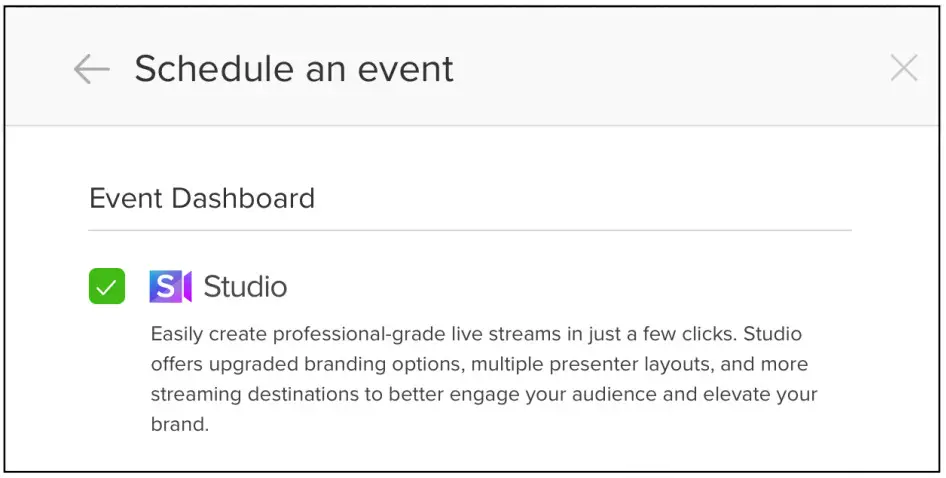
Brand your broadcast
Color: Set a primary color for name cards and/or overlays from the preselected colors or enter your brand color’s RGB value.
Name tags: Add name tags to presenters on screen by toggling the name tags switch and selecting an overlay theme from the 3 preselected layouts.
Logos: Brand your event by adding your logo on the screen.
Upload an image (500x500px), select which corner of the screen it should appear on, and click on the logo icon to enable it on screen.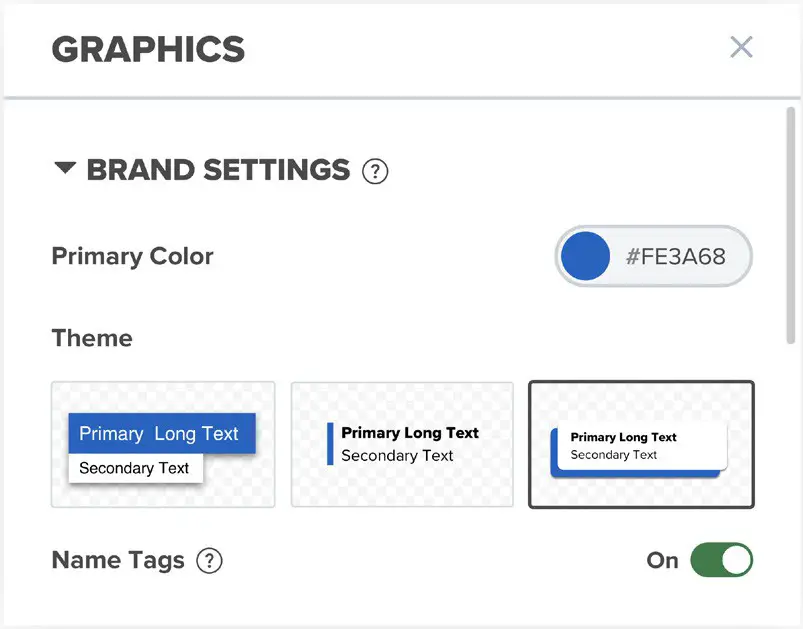
Customize your on-screen background
Set an on-screen background for your broadcast by uploading an image or video from your device. Click on the background to enable it on the screen.
Recommended size: 1920x1080px.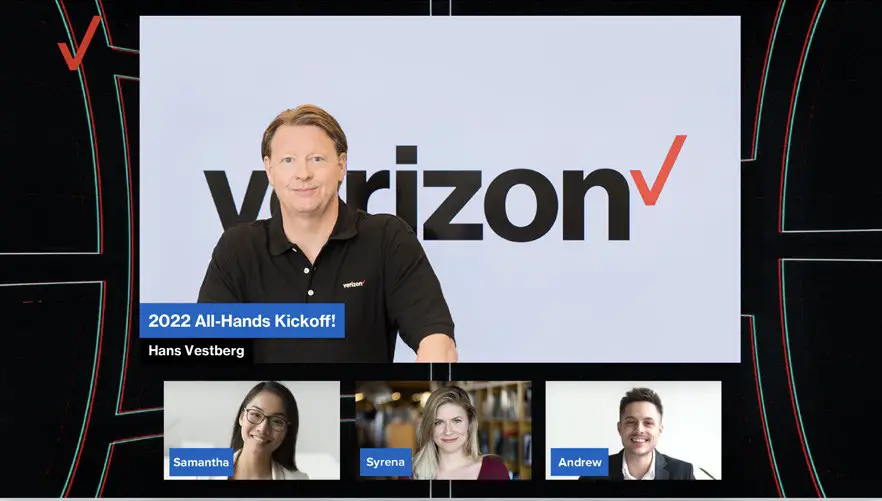
Lower thirds: Create lower third overlays to display your event name, add an audience call to action, and more in the bottom left of your screen. Set the overlay color, and two lines of text, and click create. To enable on the screen, select the overlay box Unselect the box to remove it from the screen.
Tickers: Add a lower ticker banner to the screen by adding your copy, color, and clicking create. To enable it on the screen, click the box next to your ticker. Max 500 characters.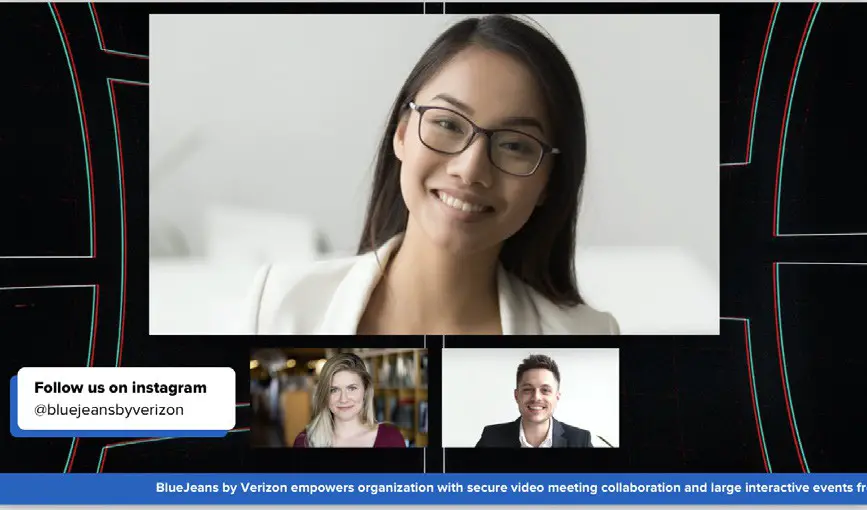
Easily add presenters on the screen
Adding and removing presenters on screen is easy. Simply Click the sliding toggle next to each presenter’s video card “backstage” and they will appear on the broadcast screen.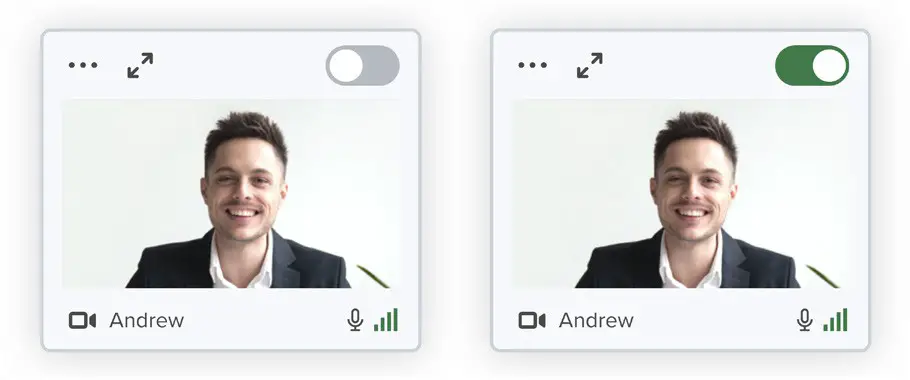
Change on-screen presenter layout
Change the layout of presenters on screen from the layout options below the broadcast feed. To move presenters into a new location, simply drag the presenter’s tile on the broadcast to the new location.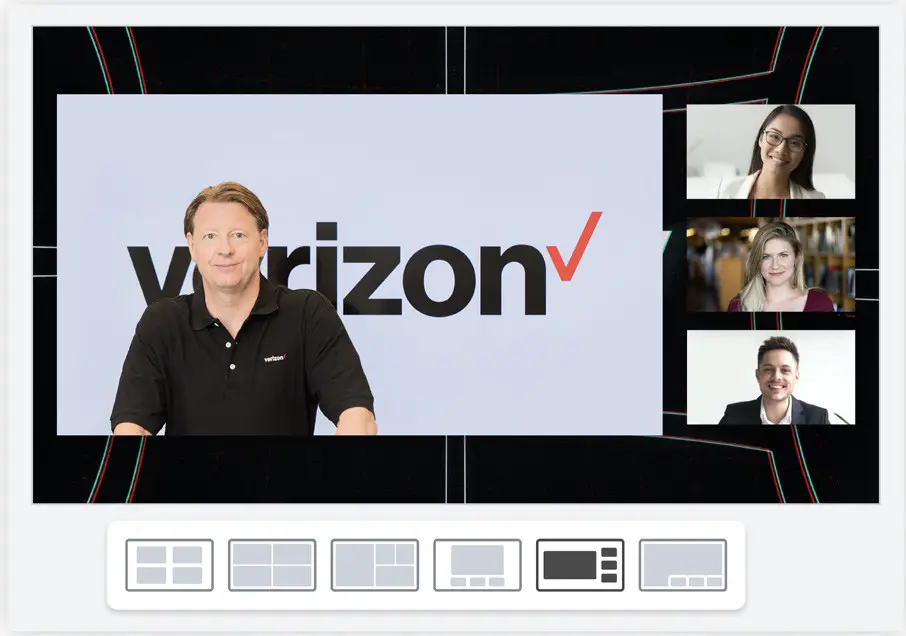
Engage with your audience
Chat: Interact with your audience using the chat feature.
From the chat feed, click on a chat comment to have it appear on the screen as a lower-third overlay. Click again to remove/ hide from the screen.
Polls: Create polls before or during the event to get audience insight and increase engagement. Click on the polls icon in the right menu bar, create the poll question and responses, save, and click “Start poll” to notify audience members when to respond.
Q&A: Audience members can ask questions from the Q& Menu on the right side of the screen. Moderators and presenters can approve the questions and responses for everyone to see.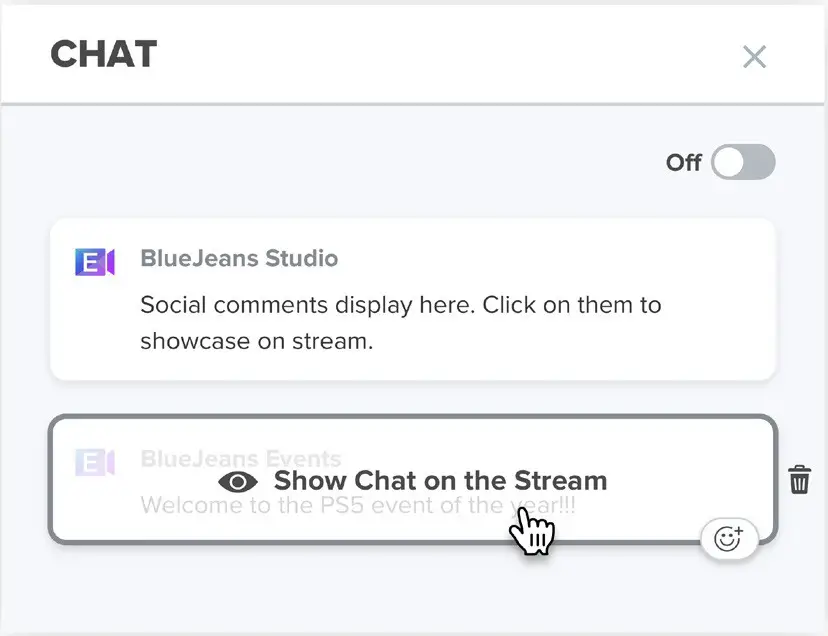
Images: Share an image as a welcome screen, section divider, or other content with one click. Upload images and click on the image icon for it to appear on the screen. Unclick to remove it.
Videos: Upload video files before your broadcast and share them on the screen by clicking the video icon. Max file size: 300MB. Once the video concludes playing, click the video icon to hide and remove it from the screen. The event screen will return to the previously broadcasted content.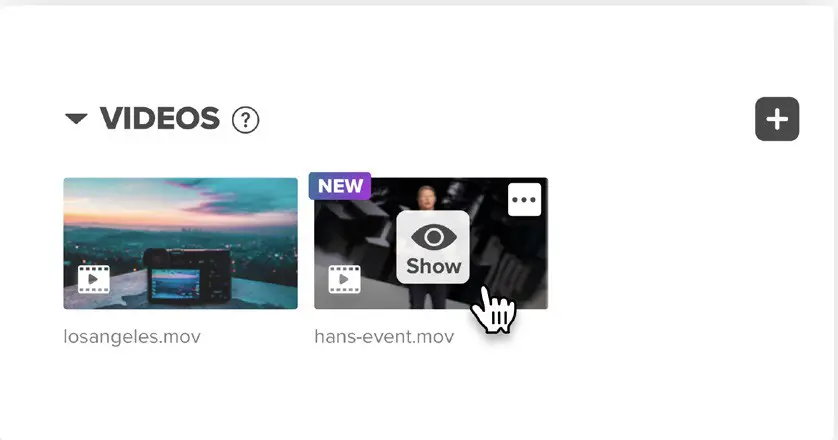
Live stream, record, & cast
Ready to start your event? Click “Go Live” to begin your broadcast after a 10-second countdown. Your event will be recorded automatically. To stop the broadcast and end the event, click “End Stream.”
Coming soon! Stream your event to another destination, like YouTube or Facebook, by clicking the “Destinations” menu at the top of the dashboard. Select the toggle next to the destination to cast to one or more platforms.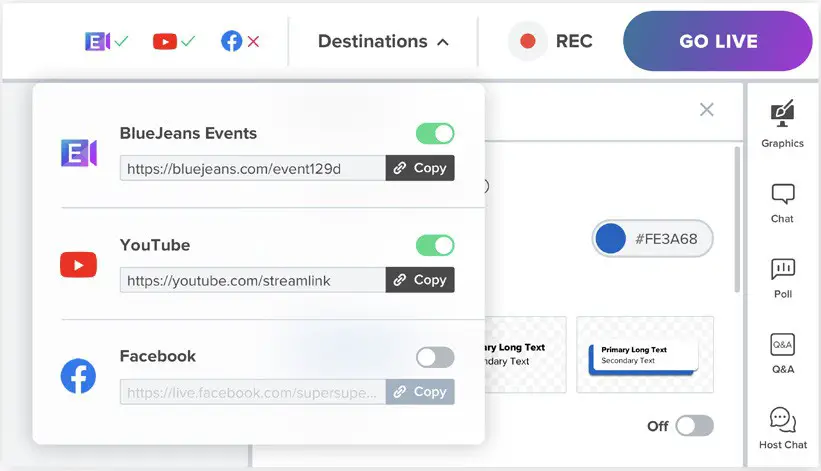
Manage audio & video settings
From the settings menu, set the broadcast quality to 1080p, 720p, or 560p. You need a solid internet connection to support high-definition 1080p streaming quality.
Unmute/mute or disable presenters’ audio and video from the menu options on the presenter’s video card.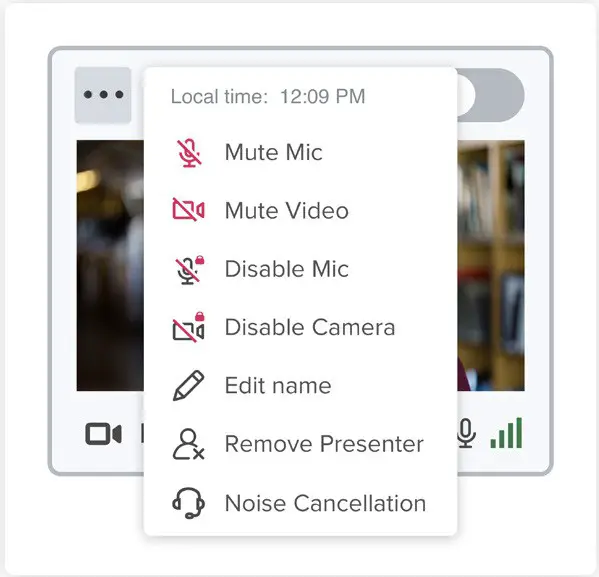 Studio Dashboard layout
BlueJeans Studio’s web-based producer dashboard makes it easy to create TV-quality broadcasts with just a few clicks.
No production expertise, extra equipment, or technical integration is required.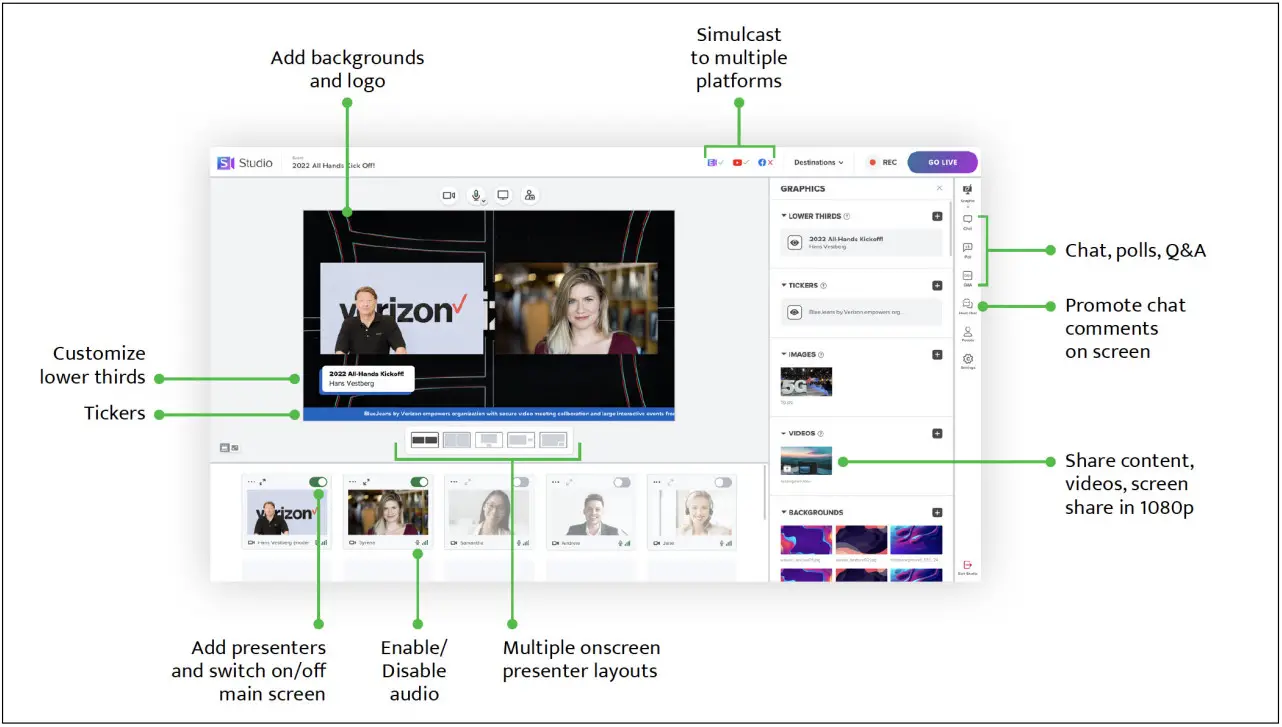 Learn more:
To find out more about BlueJeans Studio, please contact your
Verizon Business Account Manager or visit verizon.com/bluejeans.
Network details & coverage maps at vzw.com.
© 2022 Verizon. VZUG2790622
 BlueJeans by Verizon Video Collaboration Platform | Verizon
 Verizon: Wireless, Internet, TV and Phone Services | Official Site