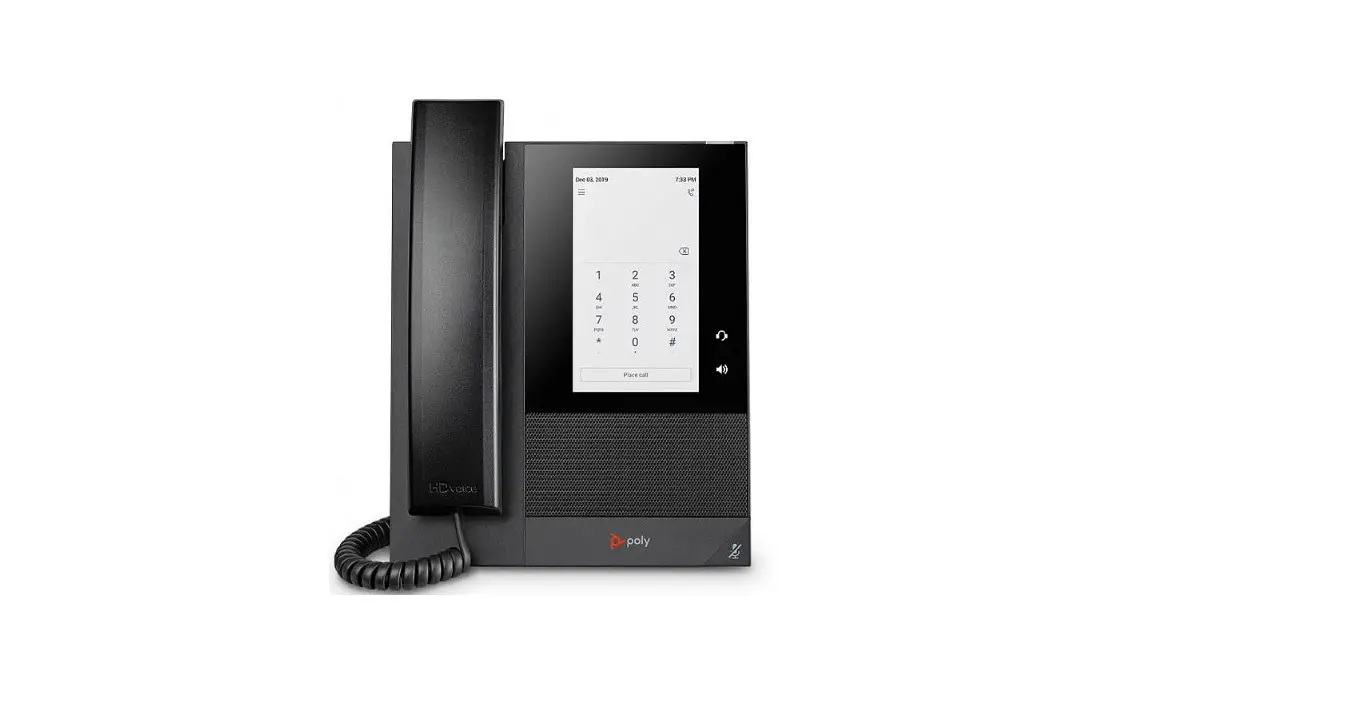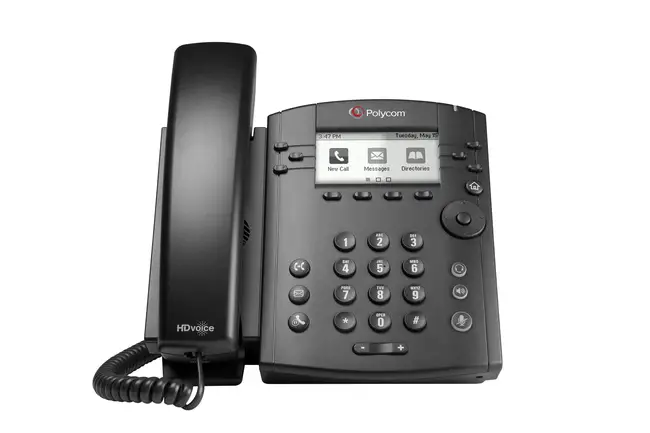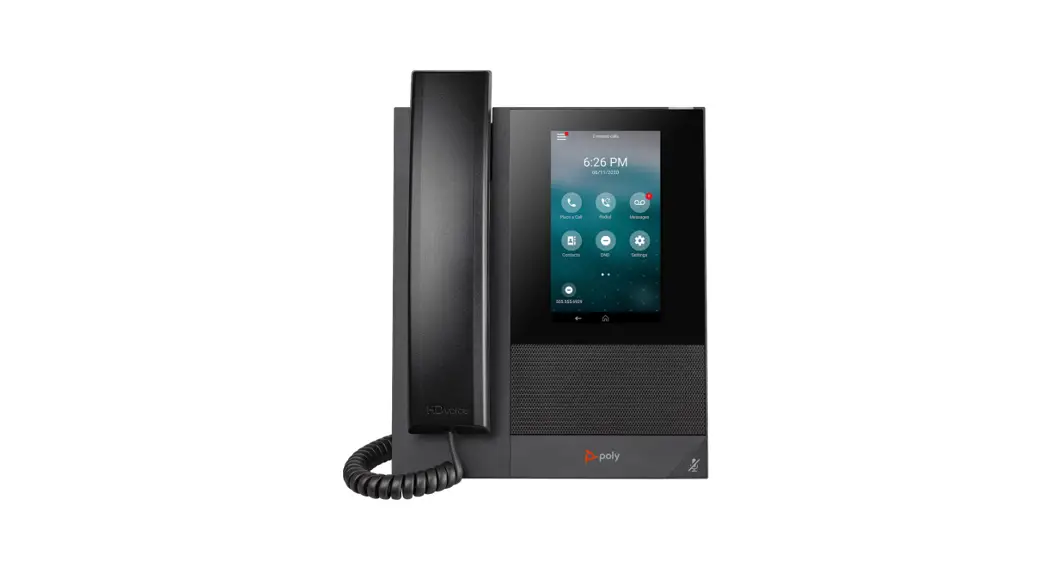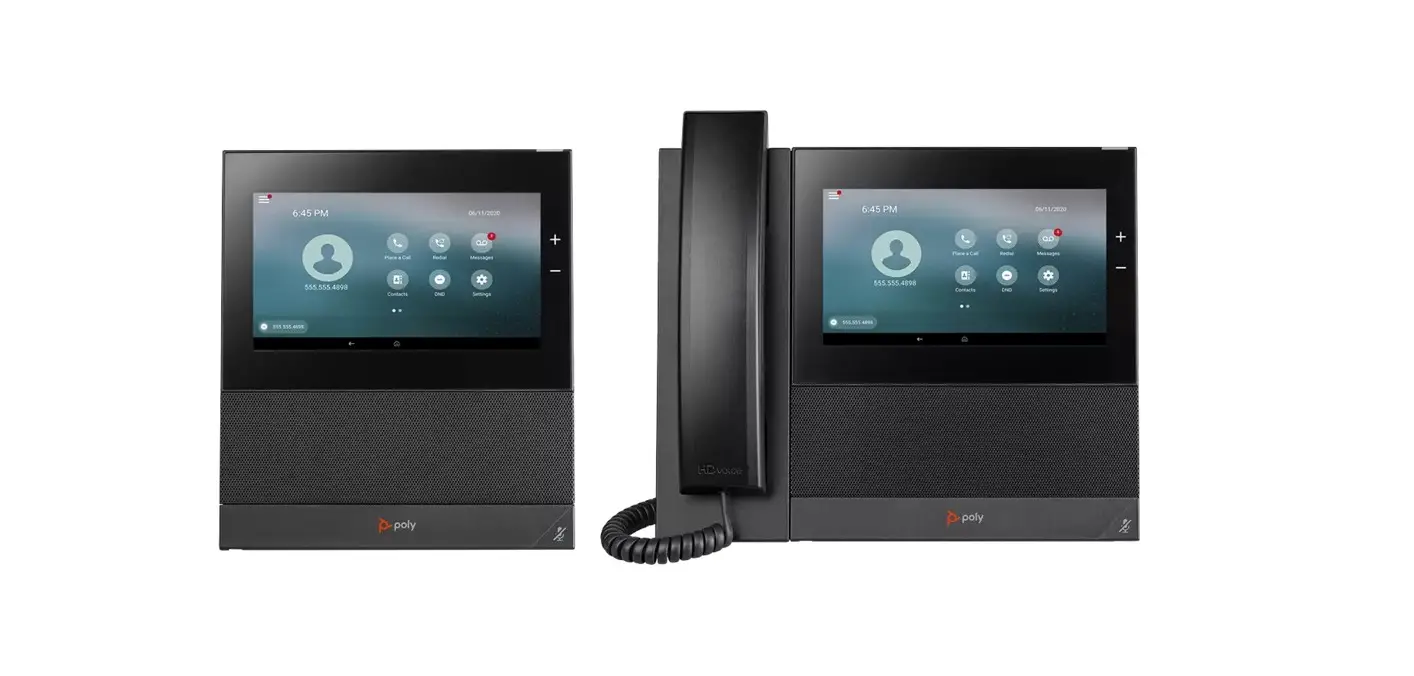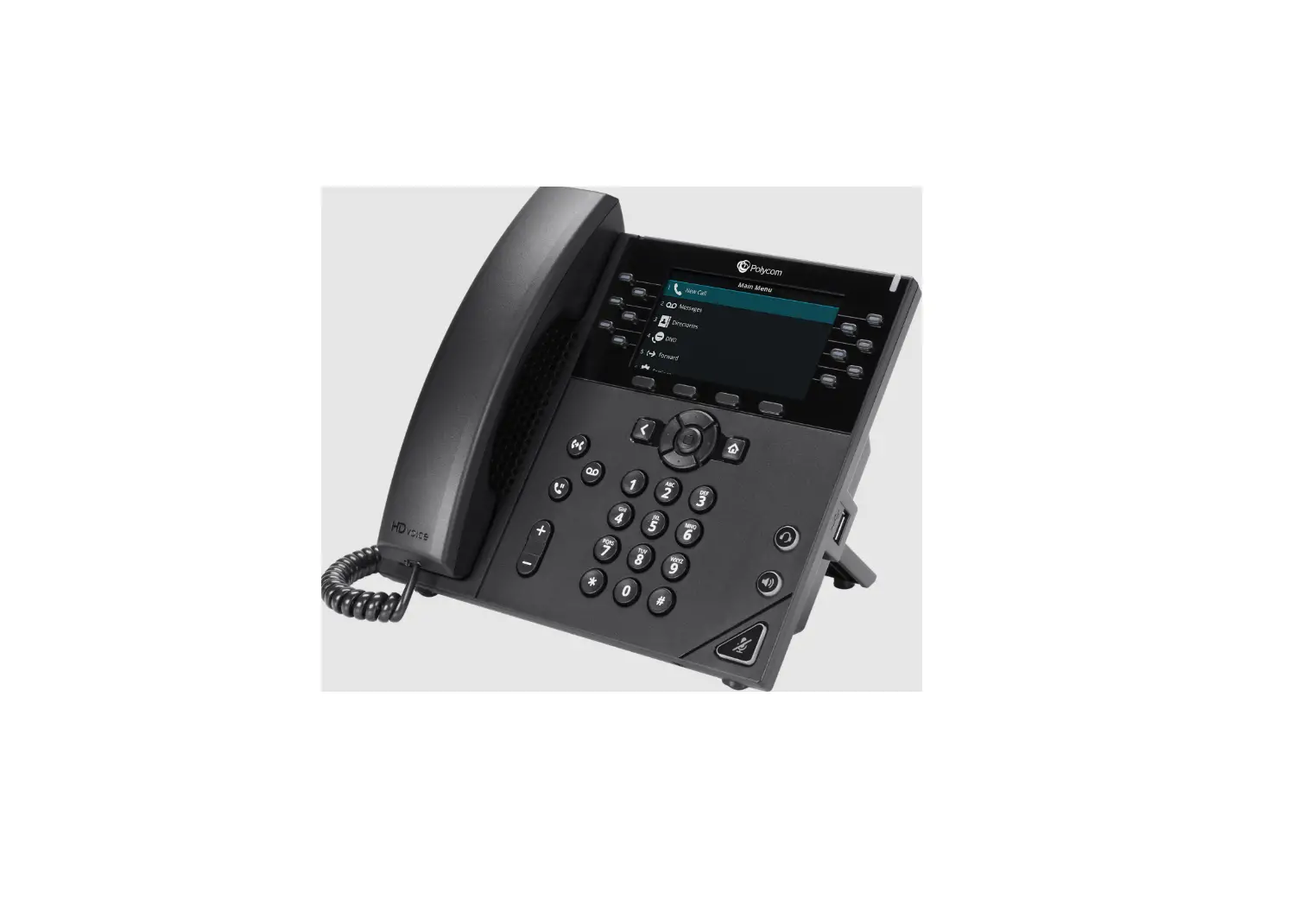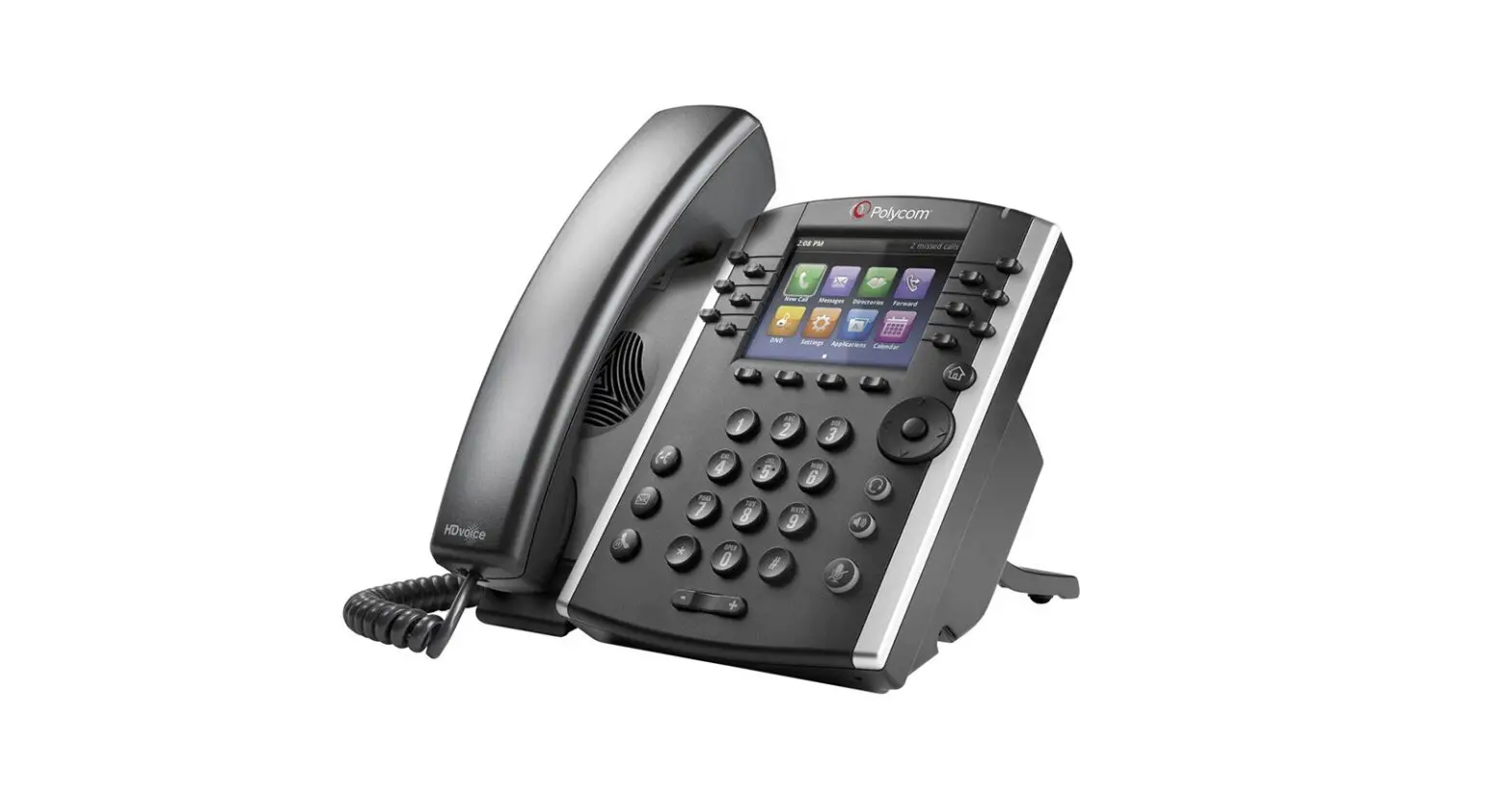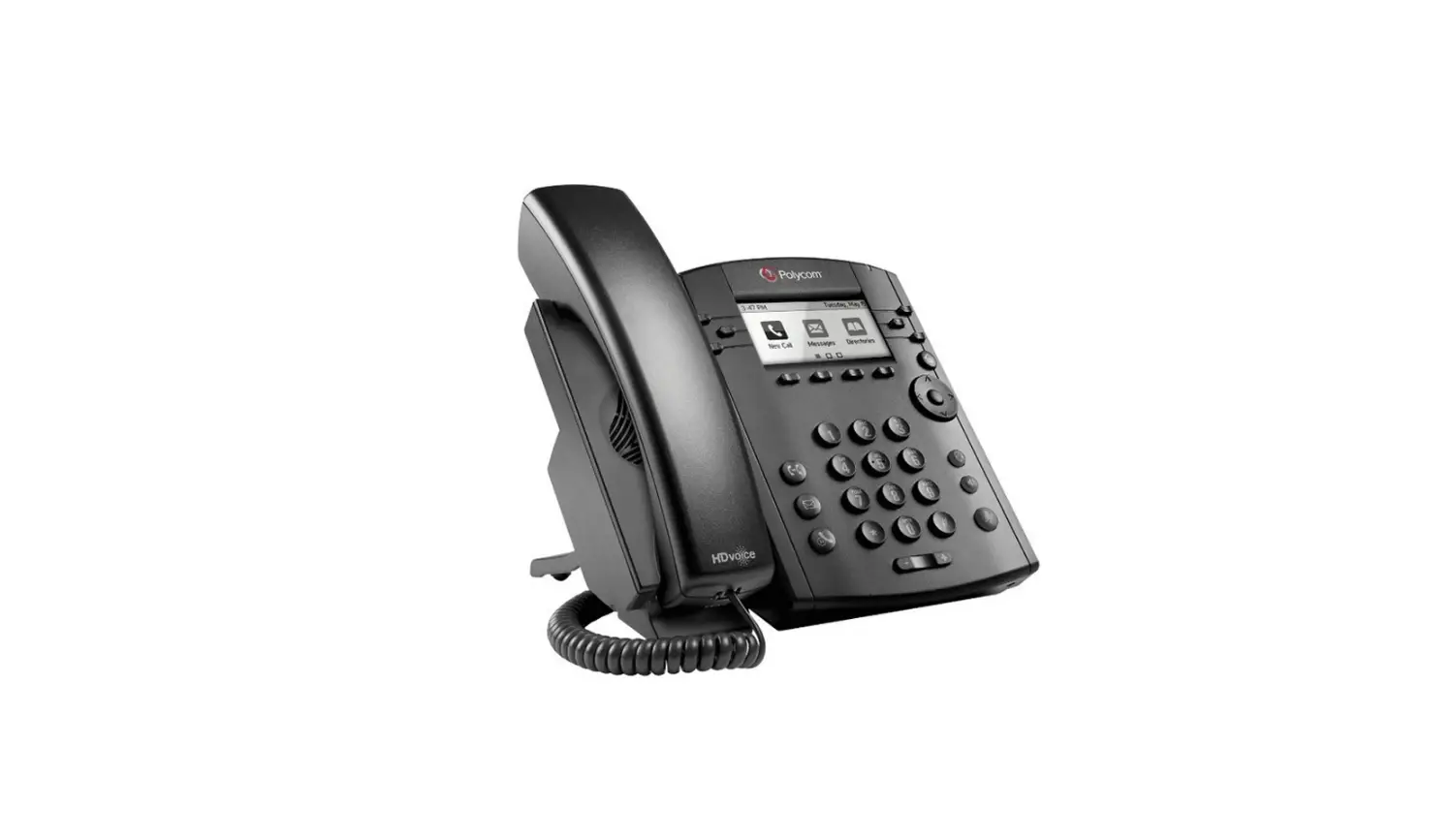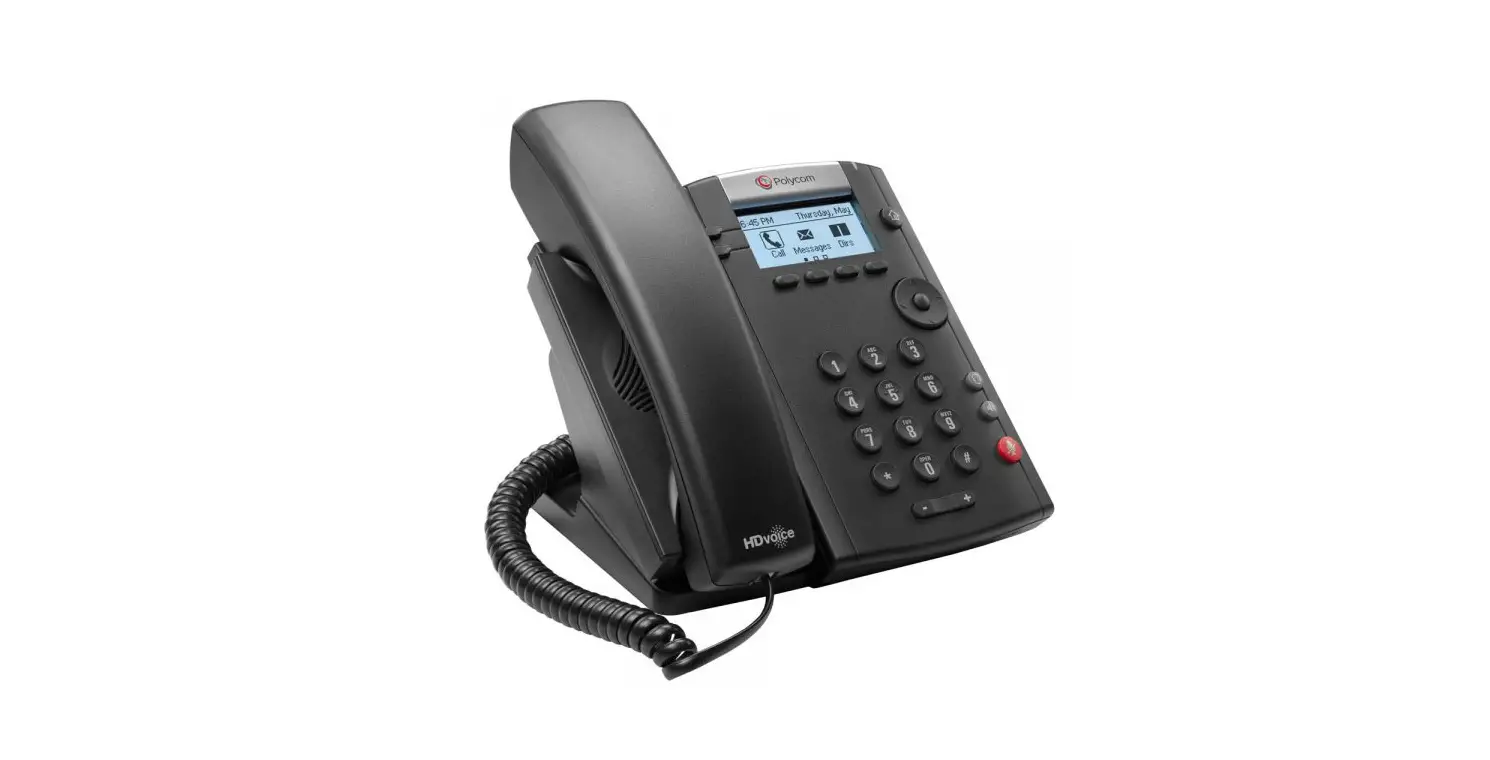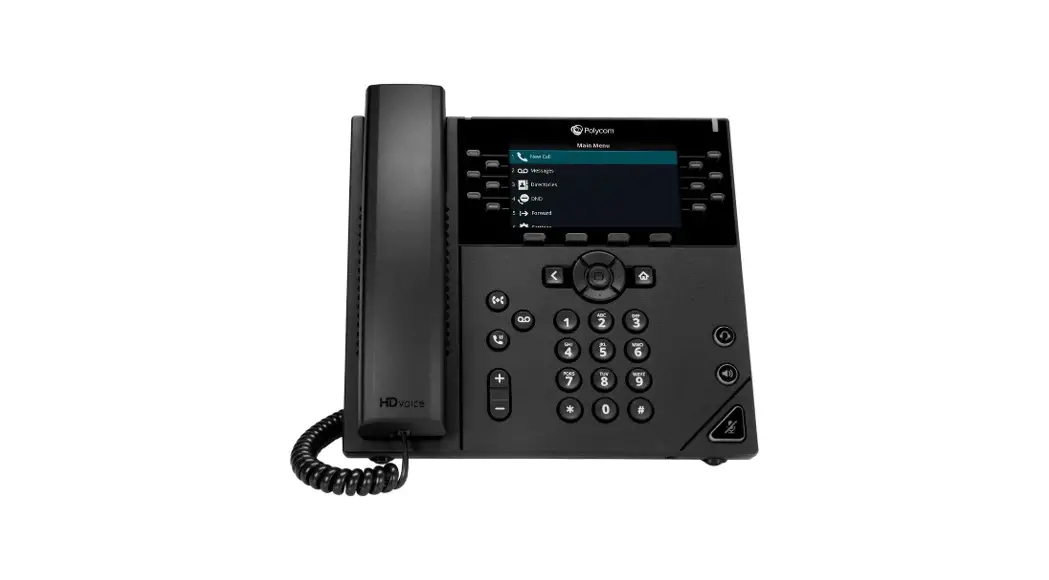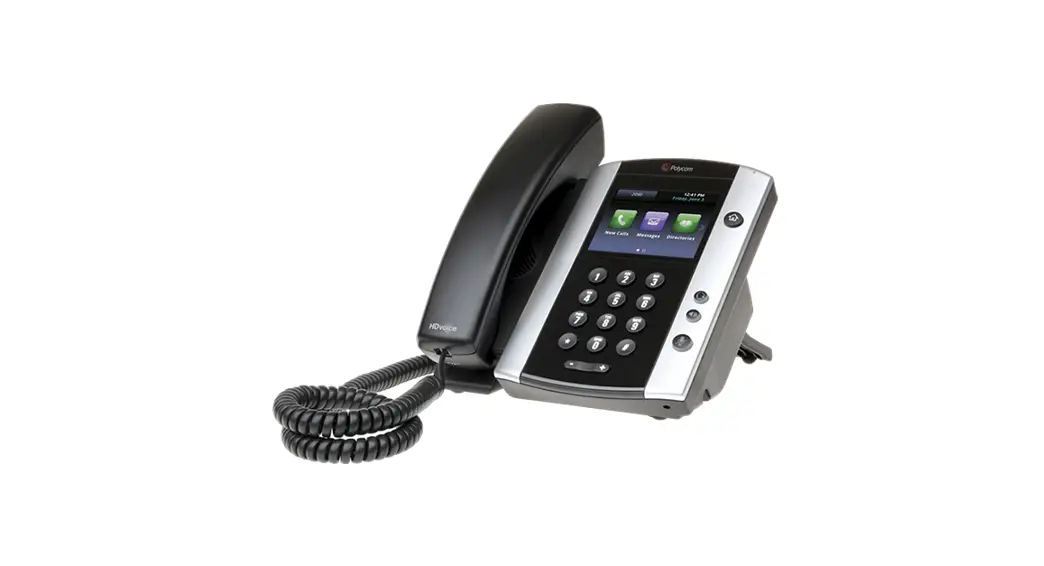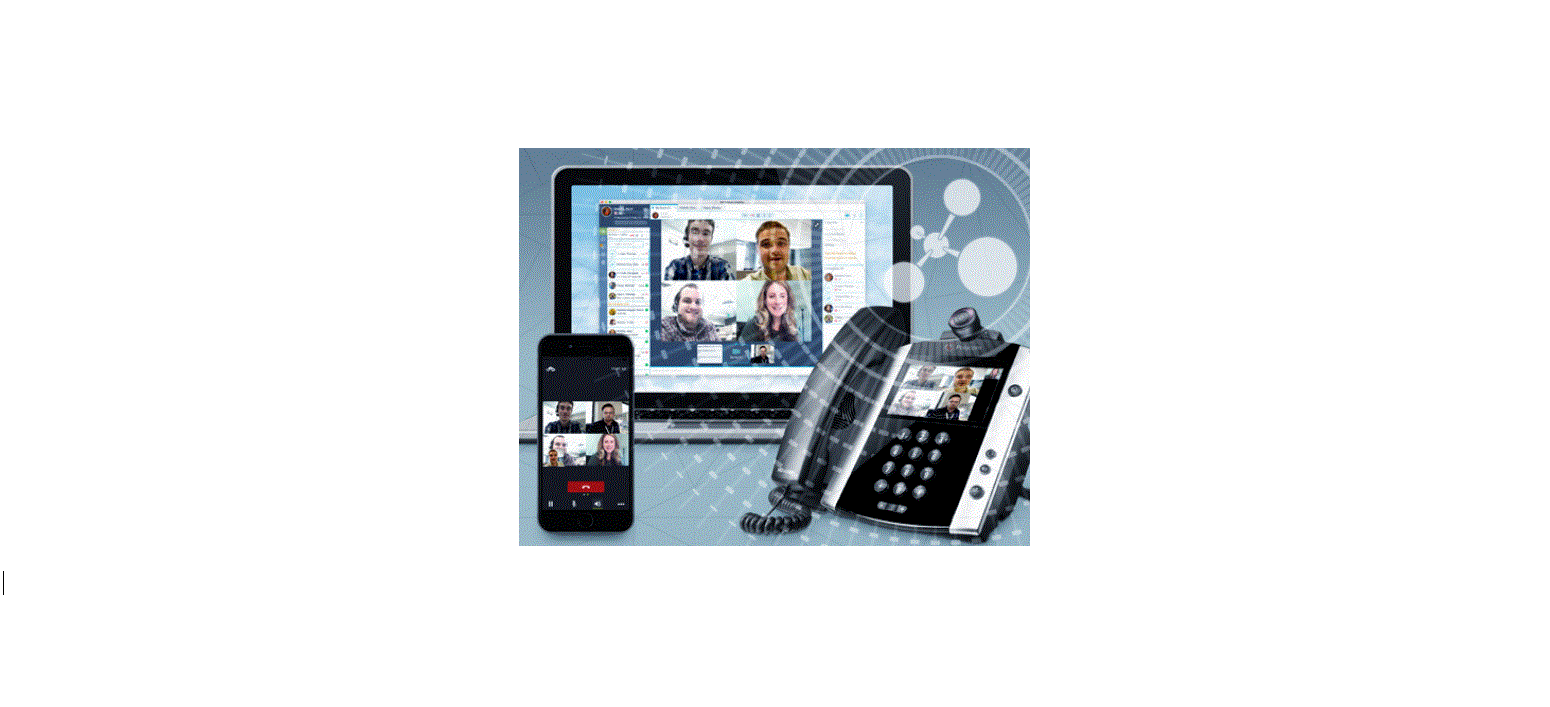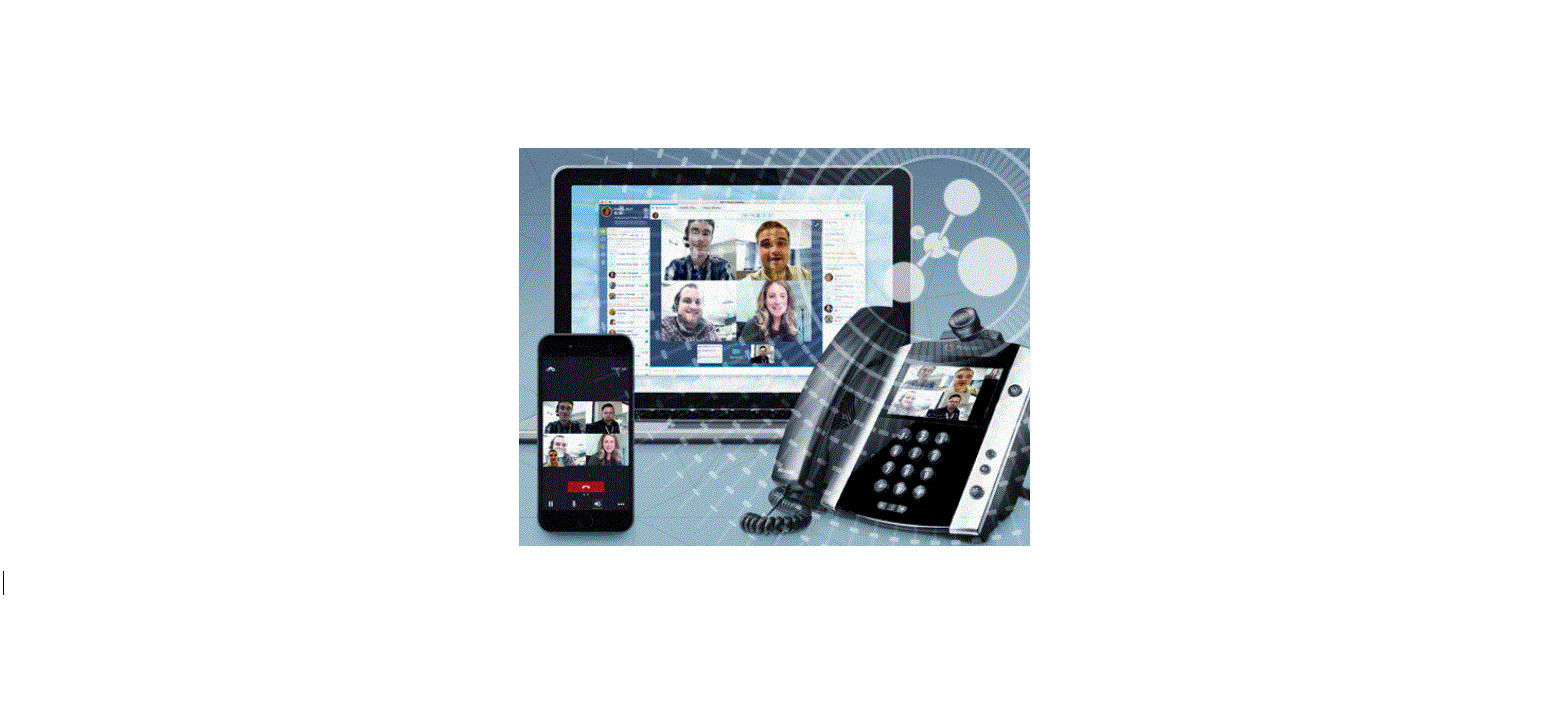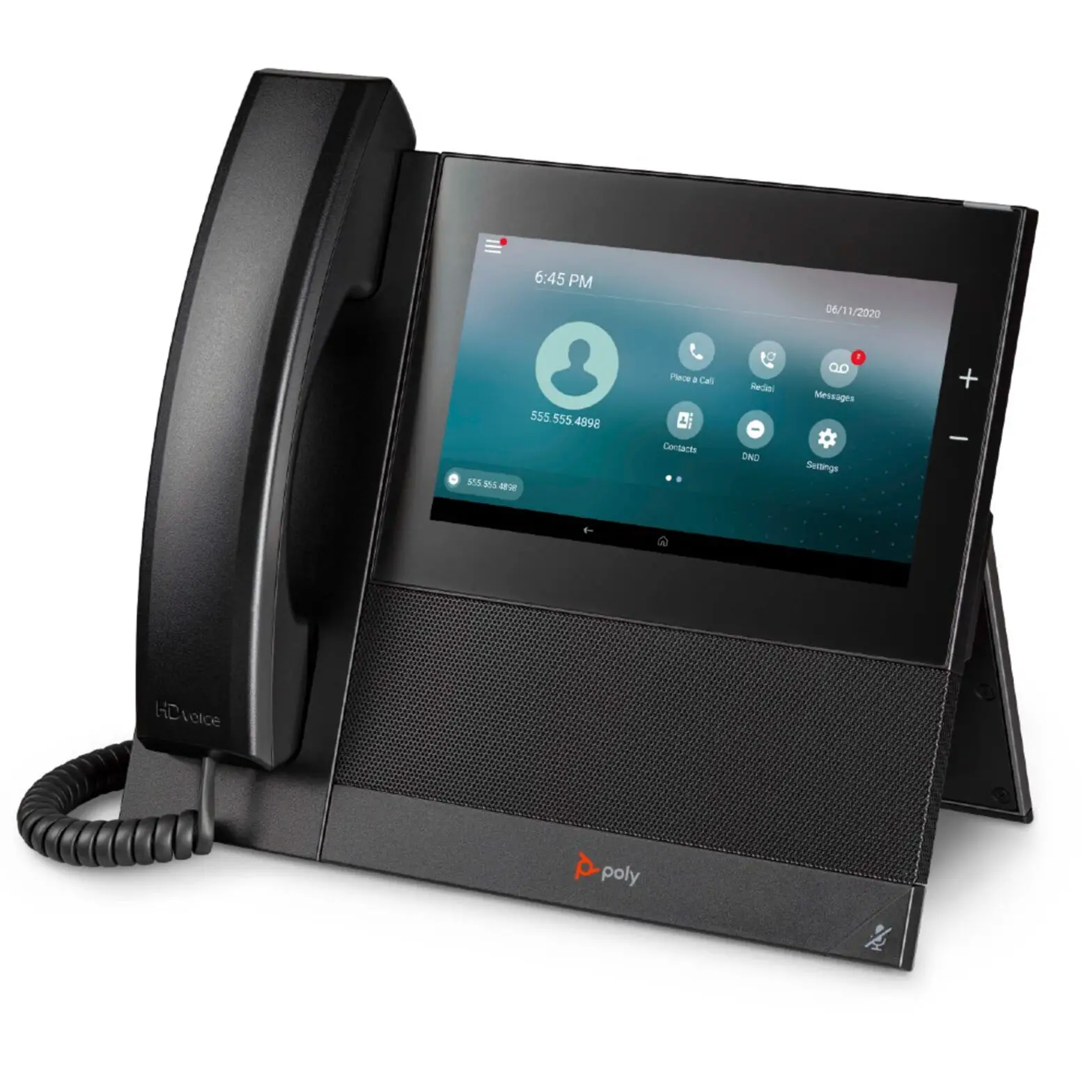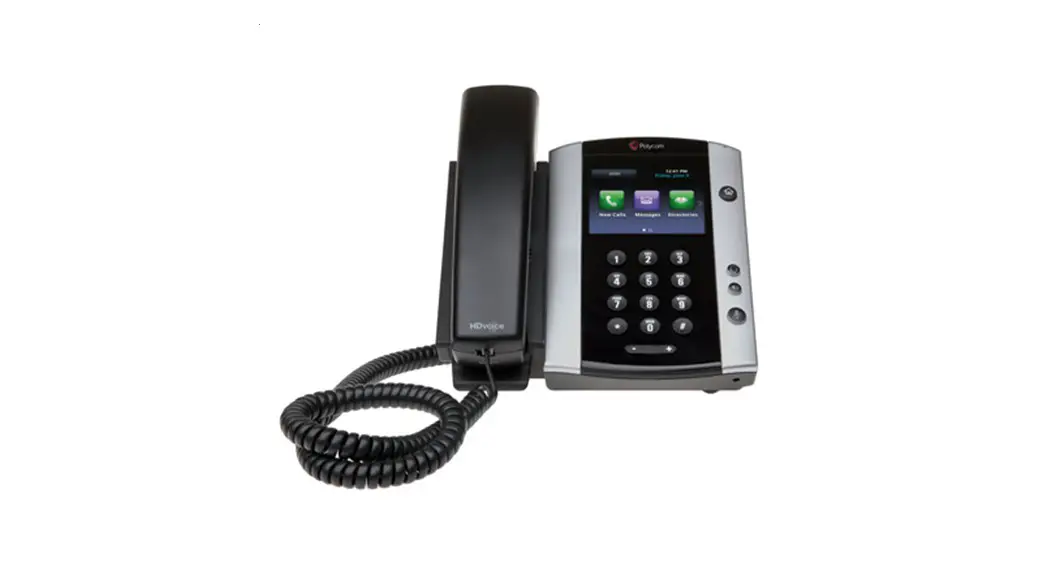


Polycom® VVX® 500 and Polycom® VVX® 600
Business Media Phones
Quick User Guide
For use with Polycom® UC Software 4.1.2
The information in this guide applies to both the Polycom® VVX® 500 and Polycom® VVX® 600 Business Media Phones. Note that configurations vary and the screen displays used in this guide may not reflect those on your phone. See your system administrator for more information. For detailed information on how to use your phone, see the Polycom VVX 500 and Polycom VVX 600 Business Media Phones User Guide, available by navigating to your phone’s Support page from the Business Media Phones Support page.
www.polycom.com | 1725-44639-001 Rev.A | November 2012 © 2012, Polycom, Inc. All rights reserved. POLYCOM®, the Polycom logo and the names and marks associated with Polycom’s products are trademarks and/or service marks of Polycom, Inc. and are registered and/or common law marks in the United States and various other countries. All other trademarks are property of their respective owners. No portion hereof may be reproduced or transmitted in any form or by any means, for any purpose other than the recipient’s personal use, without the express written permission of Polycom.
About the Touchscreen
Tap to select and highlight screen items. To scroll, touch the screen, and swipe your finger up, down, right, or left. To go back to a previous screen, tap Back.
Phone Views
Your phone has four main Views: Home, Calls, Active Call, and Lines view (the default). You can access Home and Lines view at any time. If your phone has one or more calls, you can also access Calls or Active Call view.
To change Views:
- For Home view, press.

- From Home view, press to alternate between Home and Lines view, or, if you have one or more calls, between Home and either Calls or Active Call view.
- To switch between Lines and either Calls or Active Call view, swipe the screen.

Home View
Home view displays icons you can tap to access phone functions. Touch and hold the Page Indicator (shown next) to display more or fewer icons. You can also swipe the screen to display more icons.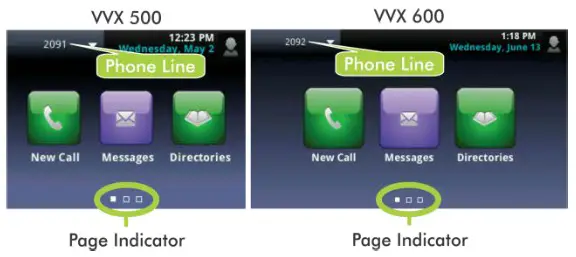
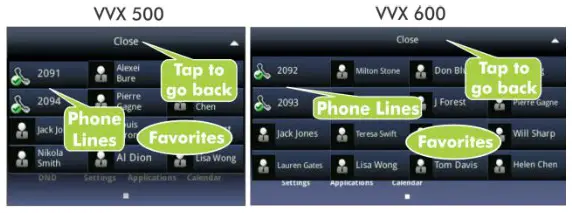
From Home view, tap the phone Line to display your phone Lines and Favorites (shown next). To go back, tap Close (shown next).
Lines View
Lines view displays phone Lines, Favorites, and soft keys.
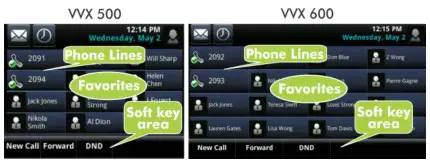
If your phone is idle, you can:
- Tap the phone Line to access the Dialer.
- Swipe to switch between Lines view and the Browser (if enabled on your phone).
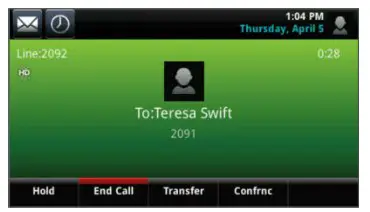
Active Call View
If your phone only has one call–and it’s active–you can access Active Call view.

Calls View
If your phone has multiple calls, or one held call, you can access Calls view.
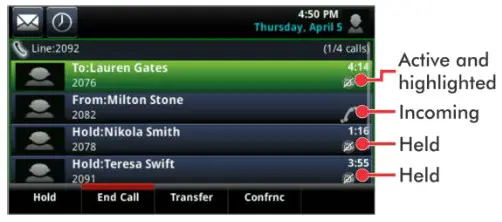
Call color indicates status:
- Dark green–Active call
- Dark blue–Incoming and held calls
- Bright green–Active call is highlighted
- Bright blue–Incoming or held call is highlighted Tap a call to highlight it. The soft keys control the highlighted call.
Entering Data
Use the onscreen keyboard or the dialpad keys to enter information. To backspace, tap 
To use the onscreen keyboard, tap .
To type with the dialpad keys, press a dialpad key repeatedly to view the character options and stop to select. To type other characters, tap Encoding or Mode. When using the dialpad keys, use the 1, *, 0, and # keys.
About Calls
Only one call can be active at one time. You can use the handset, speakerphone, or headset for calls. During a call, you can change modes by picking up the handset, or by pressing  or .
or .
 Tip: Returning to Your Calls
If you navigate away from your call(s), tap  to see Active Call or Calls view again.
 Note: About Headsets
Your phone supports wired and wireless headsets, including electronic hookswitch (EHS) headsets. VVX 600 phones also support Bluetooth headsets. For connection directions, refer to your headset documentation. For more information, see Using Headsets with Polycom Phones, available from http://support.polycom.com/UCEngAdvisories.
Placing Calls
Pick up the handset, or press or or Enter the phone number, and tap . 
From Lines view: Tap the phone Line, enter the phone number, and tap .
From Home view: Tap New Call, enter the phone number, and tap .
 Timesaver: Placing Calls Quickly
Tap a recent call or Favorite, or tap a contact’s phone number in the Contact Directory.
Answering Calls
To answer with the speakerphone, press or tap Answer. To answer with the handset, pick up the handset. To answer with a headset, press .To Answer a new call while on an active call, tap Answer. The current call will be held.
Ending Calls
To end an active call, replace the handset, press , or press . Or, tap End Call.
To end a held call, navigate to Calls view and highlight the held call. Tap Resume, and tap End Call.
Holding Calls
From Lines, Calls, or Active Call view, tap Hold. If you’re in Calls view, remember to highlight the call first. To resume a held call, tap Resume from either Lines or Calls view.
Transferring Calls
From Lines, Calls, or Active Call view, tap Transfer, and call the other party. When you hear the ringback sound, or after you talk with the other party, tap Transfer.
Forwarding Calls
To enable call forwarding, tap Forward from Home or Lines view. Tap the forwarding type to enable, type a forwarding number, and tap Enable. To disable call forwarding, tap Forward from Home or Lines view, tap the forwarding type to disable, and tap Disable. To enable per-call forwarding: As your phone rings, tap Forward, enter the forwarding number, and tap Forward.
Placing Conference Calls
Call the first party, and after the call connects, tap Conference. Then, dial and connect with the second party and tap Conference again.
From Lines or Calls view, you can:
- Tap Hold to hold all participants.
- Tap End Call to remove yourself from the call, but keep the other participants connected.
- Tap Manage to manage each participant.
- Tap Split to end the conference and hold all participants.
Timesaver: Placing Conference Calls
If you have an active and held call, tap Join to set up a conference.
Favorites
Favorites are contacts you want quick access to. Your Favorites list displays all your Favorites. A smaller number of Favorites displays in Lines view, and when you tap the phone Line from Home view.
- To view your Favorites list–Tap New Call from Home view, and tap Favorites.
- To make a contact a Favorite–Navigate to your Contact Directory and tap the contact. Tap Add to Favorites, and tap Yes to confirm.
- To dial a Favorite–Tap the Favorite from Home or Lines view, or from your Favorites list.
- To reorder your Favorites list–Update the contact’s Favorite Index number in the Contact Directory.
Tip: What Does a Green Star Mean?
A green star, , indicates a Favorite.
Viewing Recent Calls
To view your Recent Calls list, tap Directories from Home view, and tap Recent Calls.
From the Recent Calls list, tap  to sort and order calls, tap
  to display only certain calls, or tap a call record to call the person.Timesaver: Viewing Recent Calls
Tap  (shown next) from Lines, Calls, or Active Call view.

Tip: Saving Recent Callers to Your Directory
From your Recent Calls list,  tap next to the call, and tap Save. Enter additional information and tap Save.
Contact Directory ·
- To view your Directory–Tap Directories from Home view, and tap Contact Directory.
- To add a contact–Navigate to your Contact Directory and tap
 Type the contact’s information, and tap Save. To make a contact a Favorite, enter a Favorite Index number.
 - To update contact information–Navigate to your Contact Directory and tap the contact. Tap ,
 update the contact’s information, and tap Save.
 - To delete a contact–Navigate to your Contact Directory and tap the contact. Tap ,
 and tap Yes to confirm.
 - To search for a contact–Navigate to your Contact Directory and tap Search. Enter search criteria, and tap Search.
- To dial a contact from your Directory--Navigate to your Contact Directory and tap the contact. From the contact’s information screen, tap the contact’s phone number.
 Type the contact’s information, and tap Save. To make a contact a Favorite, enter a Favorite Index number.
 and tap Yes to confirm.
Listening to Voice Mail
Tap Messages from Home view, and tap Message Center. Tap Connect and follow the prompts.
Timesaver: Accessing Your Message Center
Tap  (shown next) from Lines, Calls, or Active Call view.

Muting the Microphone

During a call, press  so other parties can’t hear you. To disable Mute,press again
Using Do Not Disturb
If you have a service that supports Do Not Disturb, you can enable or disable ringing. To enable or disable ringing, tap DND from Home or Lines view. When Do Not Disturb is enabled, the DND icon, , displays in the status bar. If you have a VVX 600, you can tap to disable DND.
Adjusting Volume
To change call volume, press  change the ringer volume, press phone is idle or ringing.
Updating Ringtones
To change the incoming call ringtone, tap Settings from Home view, and tap Basic > Ring Type. Tap the ringtone you want. To set a ringtone for a contact, navigate to your Contact Directory and tap the contact. Tap  update the contact’s Ring Type, and tap Save.
 Poly | Video Conferencing, Conference Phones & Headsets | Poly, formerly Plantronics & Polycom