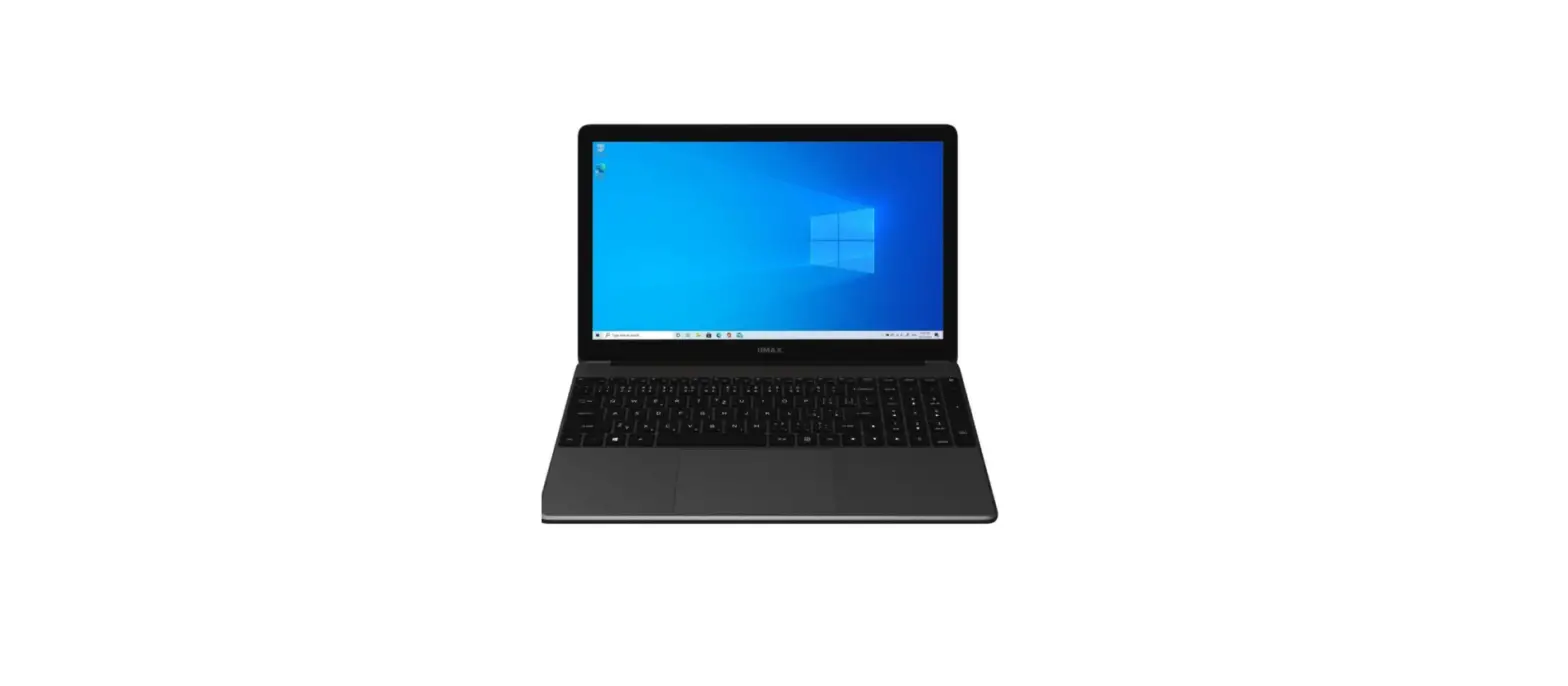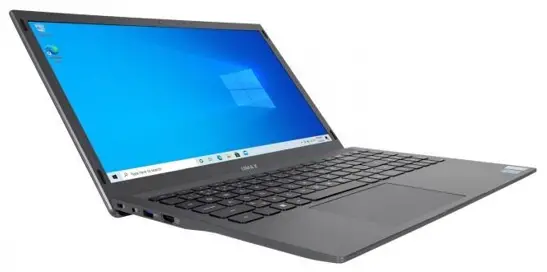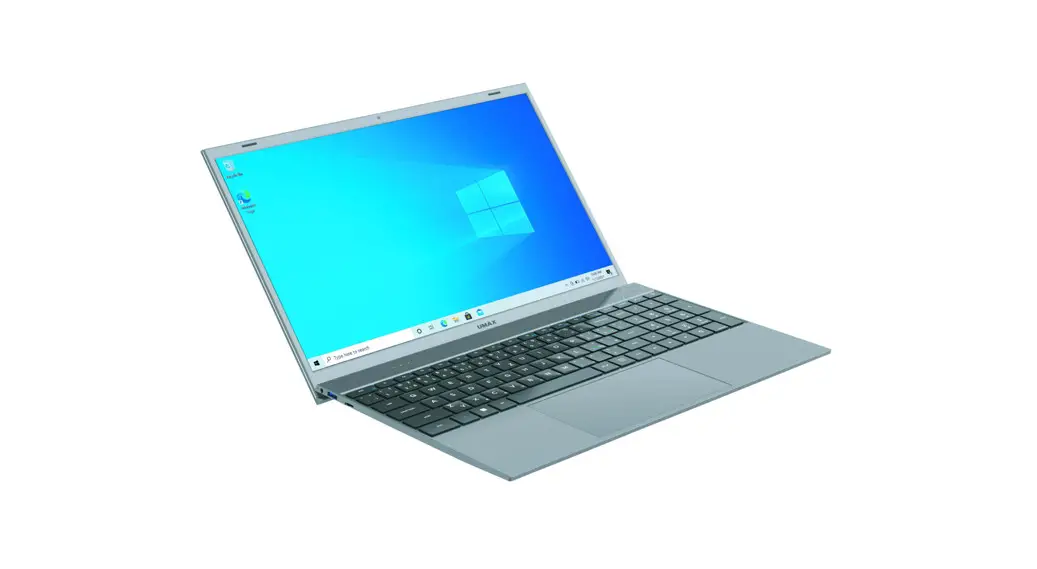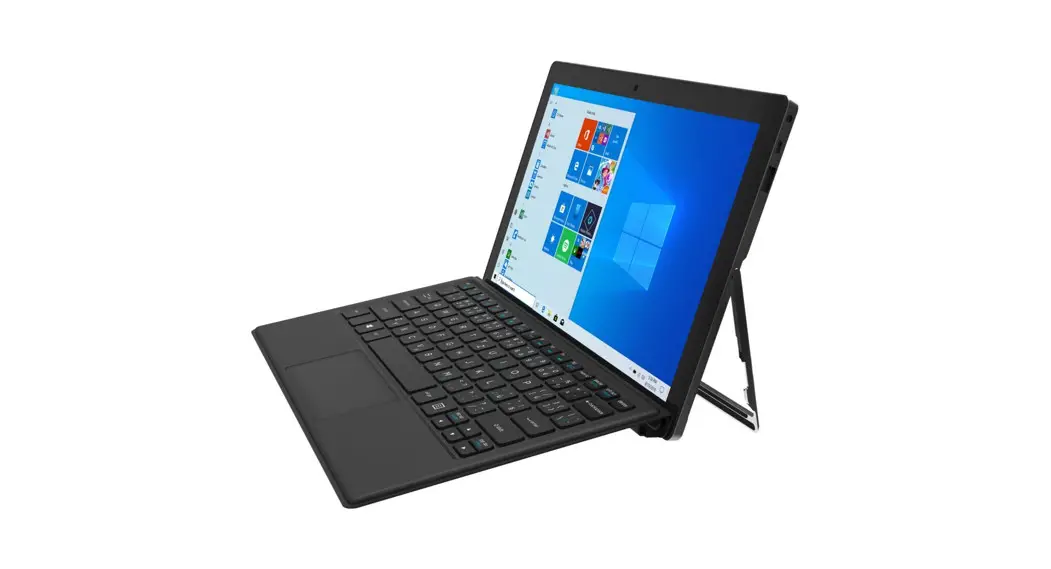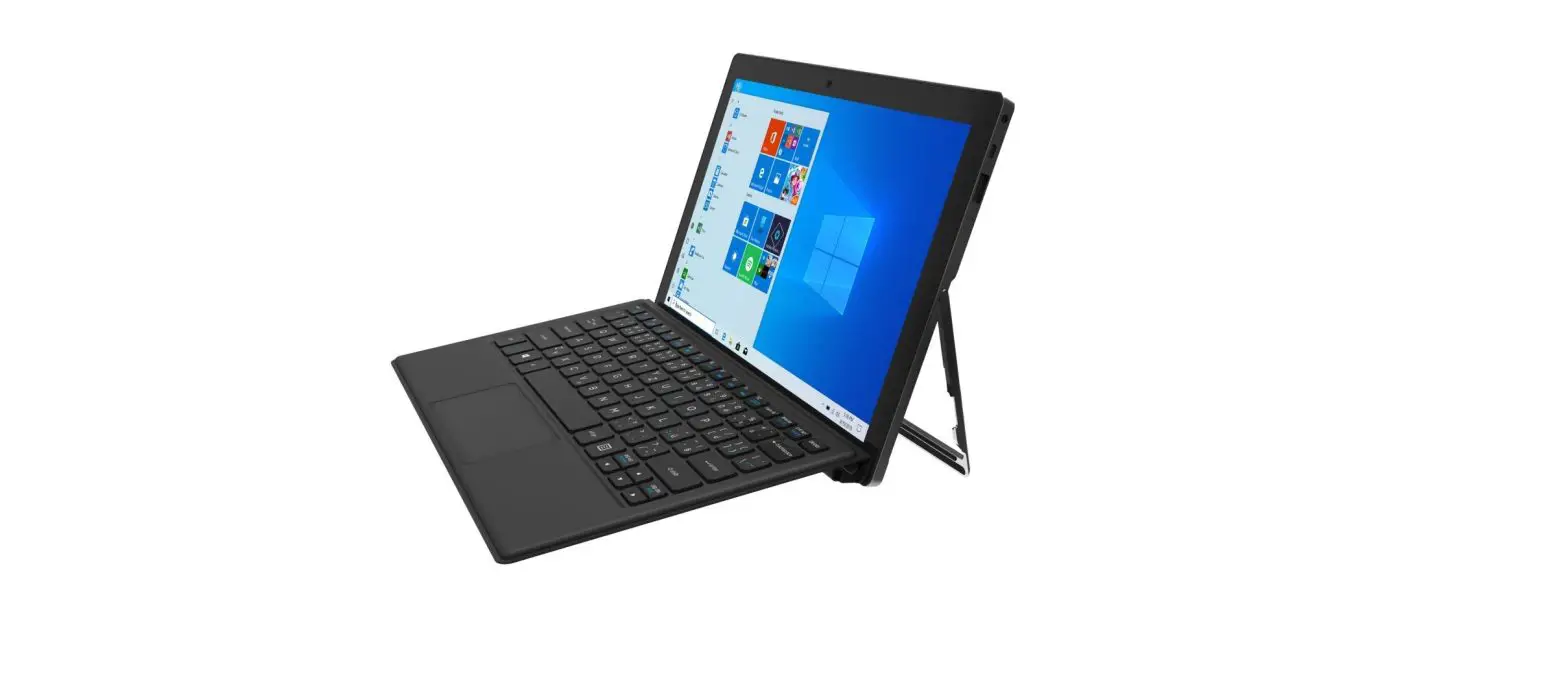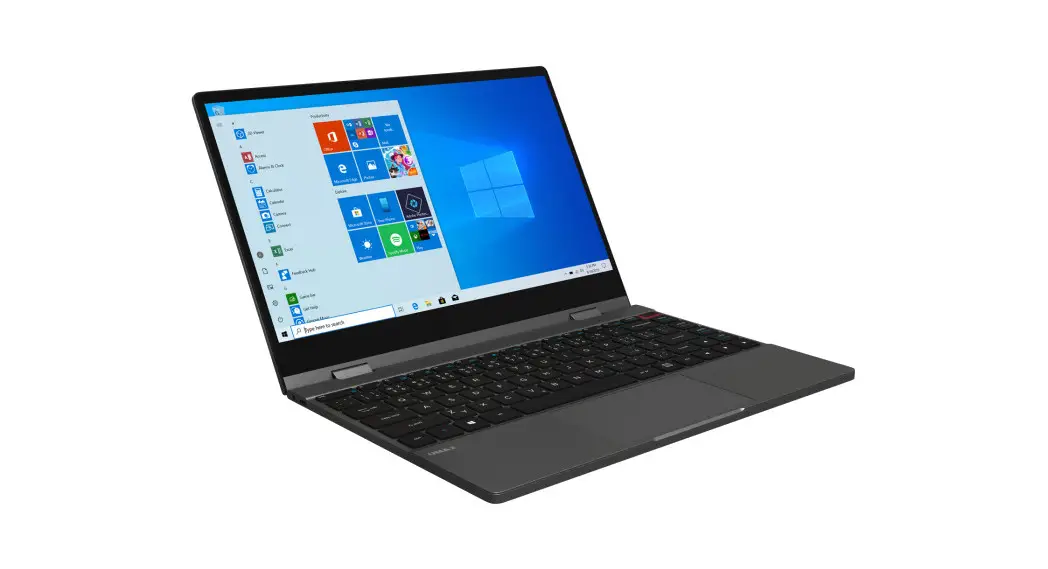

VisionBook
13Wr Flex
OVERVIEW
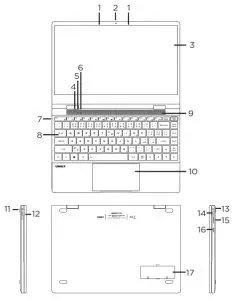
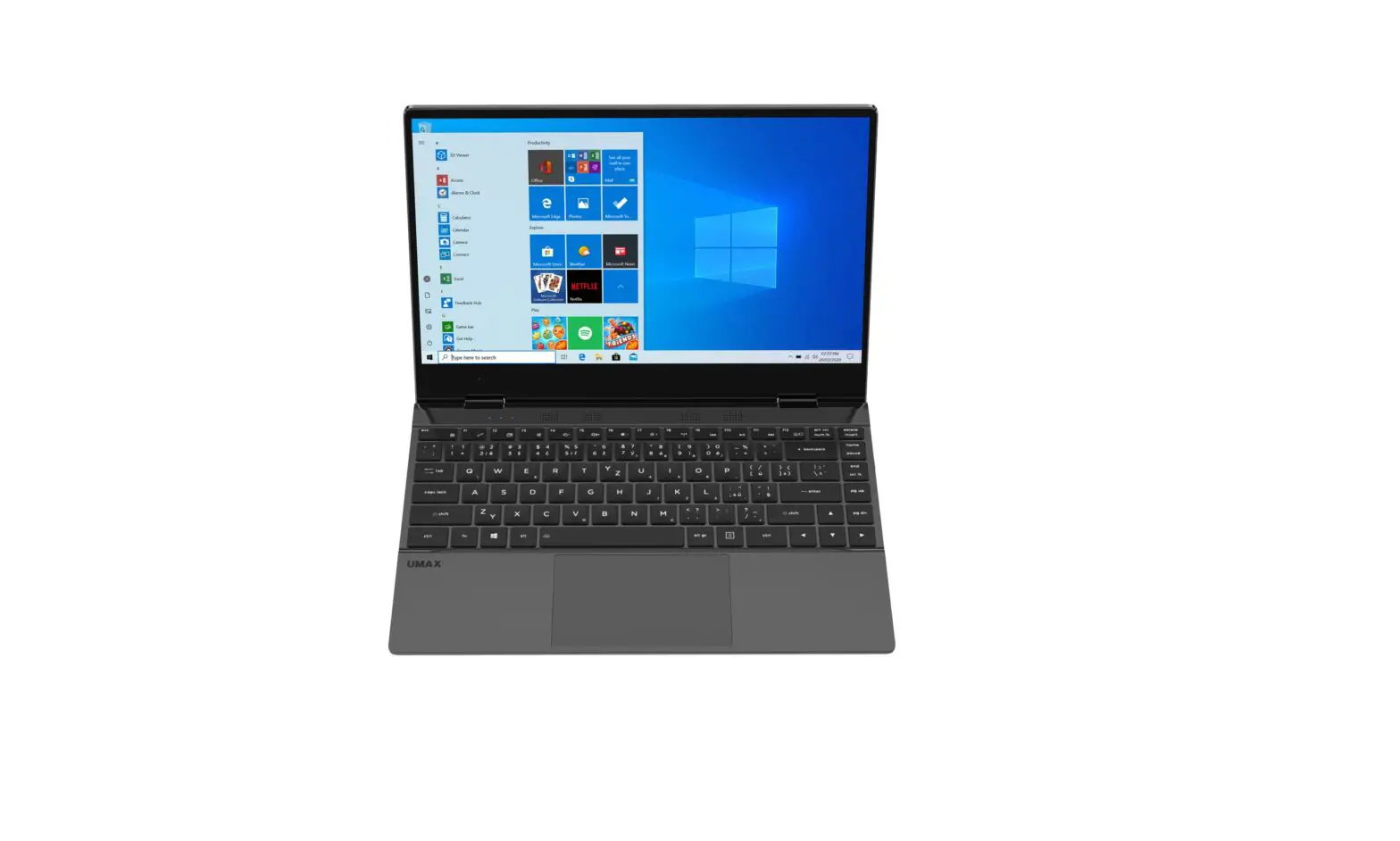
| 1. microphone 2. web camera 3. touch screen 4. on/off indicator 5. caps lock indicator 6. num lock indicator 7. charging indicator 8. backlight keyboard 9. speakers | 10. touchpad 11. charging port 12. USB Type-C (data transfer, LAN, video output, charging) 13. 3.5mm audio 14. USB Type-C (data transfer) 15. micro SD 16. on/off button 17. M.2 SATA SSD 2242/2280 |
TURNING ON
Press and hold them for a couple of seconds to turn on your computer. Charge it before the first use.
CHARGING
To charge your computer, connect the provided charger to the charging port. Do not use anything other than the provided charger for
charging your computer.
You can also charge your computer by connecting a 12V 2A Type-C charger to the USB Type-C port on the left side of your computer.
Do not connect both chargers at the same time!
You can see the charging status by looking at the charging indicator.
Red light – charging in progress
No light – charging finished
OTHER INDICATORS
On/Off indicator
No light – computer is turned off
Solid light – computer is turned on
Blinking light – computer is in sleep mode
Caps Lock indicator Solid light – Caps Lock is turned on
Num Lock indicator Solid light – Num Lock is turned on
GET STARTED WITH TIPS IN WINDOWS® 10
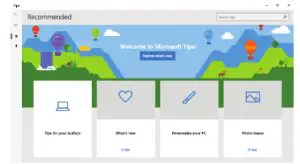
Find surprising things you can do in Windows with the Tips app – it’s included in Windows 10. To find the app, choose Start > Tips on your device. Then type Windows in the search box or select Browse all tips to see tips on other things.
KEYBOARD SHORTCUTS IN WINDOWS 10
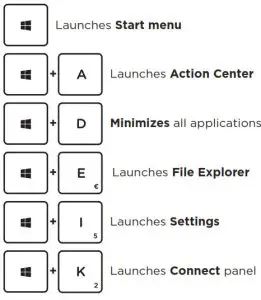
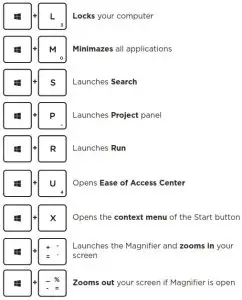
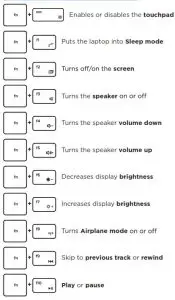
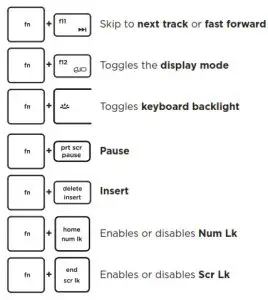
FN KEYBOARD SHORTCUTS
TOUCHPAD GESTURES IN WINDOWS 10
Tap & Double Tap
Tap an app to select it.
Double-tap an app to launch it.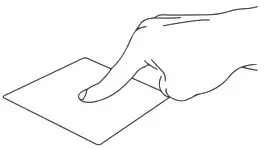 Drag and Drop
Double-tap an item then slide the same finger without lifting it off the to touchpad.
To drop the item to its new location lift your finger.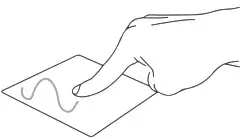 Left Click
Click an app to select it.
Double click an app to launch it.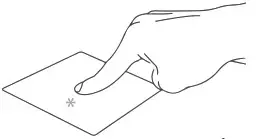 Right Click
Click to open the right-click menu.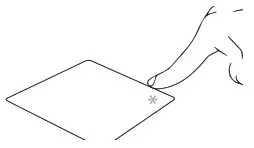 Two Finger Tap
Tap two fingers to simulate the right-click function.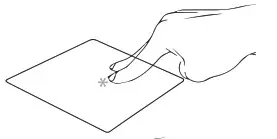 Two Finger Scroll (Up/Down)
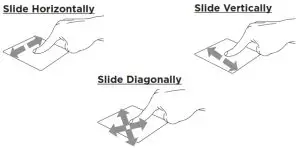
Slide two fingers up or down to scroll.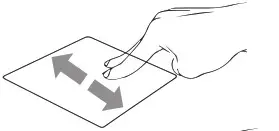 Two Finger Scroll (Left/Right)
Slide two fingers left or right to scroll.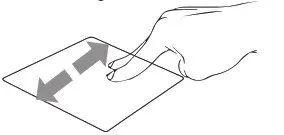 Zoom Out
Bring together two fingers to zoom out.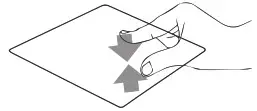 Zoom In
Spread apart your two fingers to zoom in.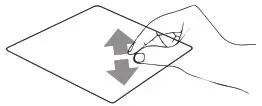
Two Finger Drag and Drop
Select an item and then press and hold the left button. Use your other finger slide on the touchpad to drag the item.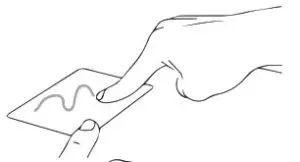 Three Finger Tap
Tap three fingers to invoke Search. 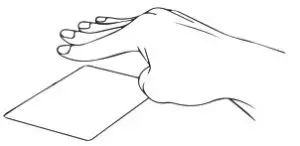 Three Finger Swipe Left/Right
Swipe three fingers left or right to switch between open apps.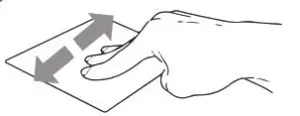 Three Finger Swipe Up
Swipe three fingers up to open Task View.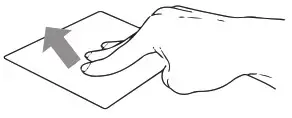 Three Finger Swipe Down
Swipe three fingers down to show desktop.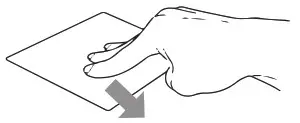 Four Finger Tap
Tap four fingers to invoke Action Center.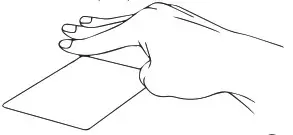
ROTATING THE SCREEN
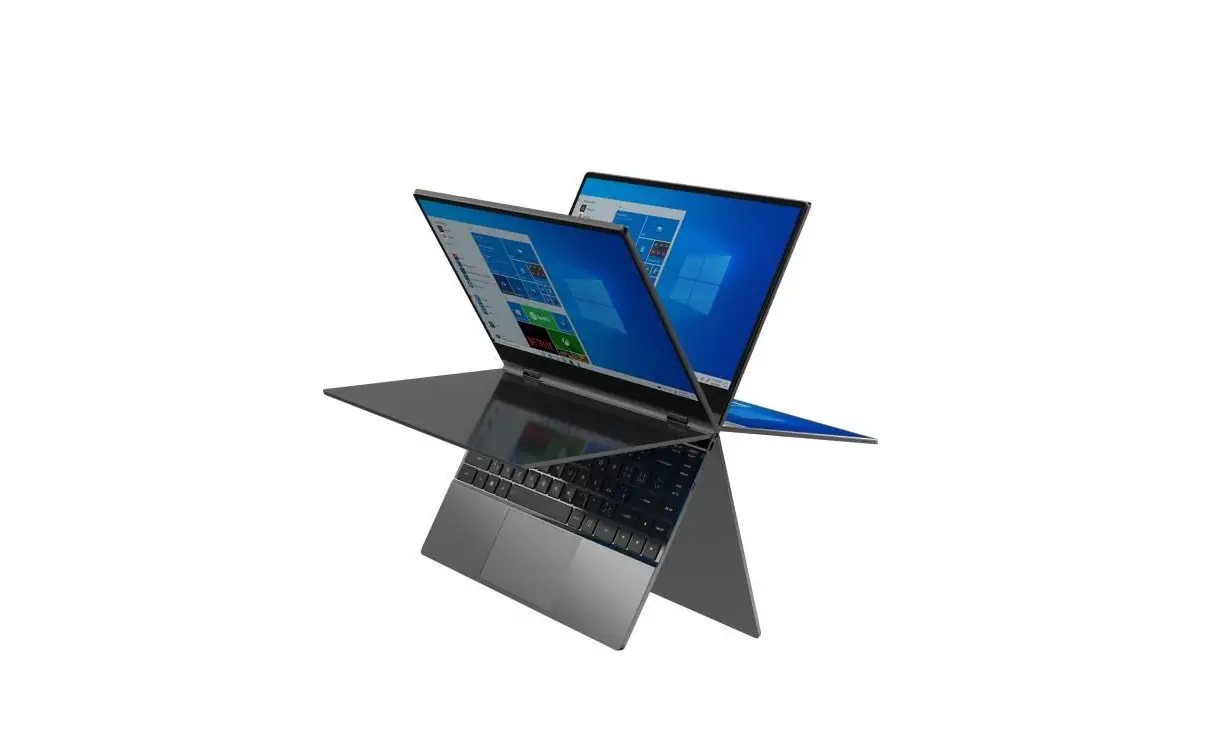
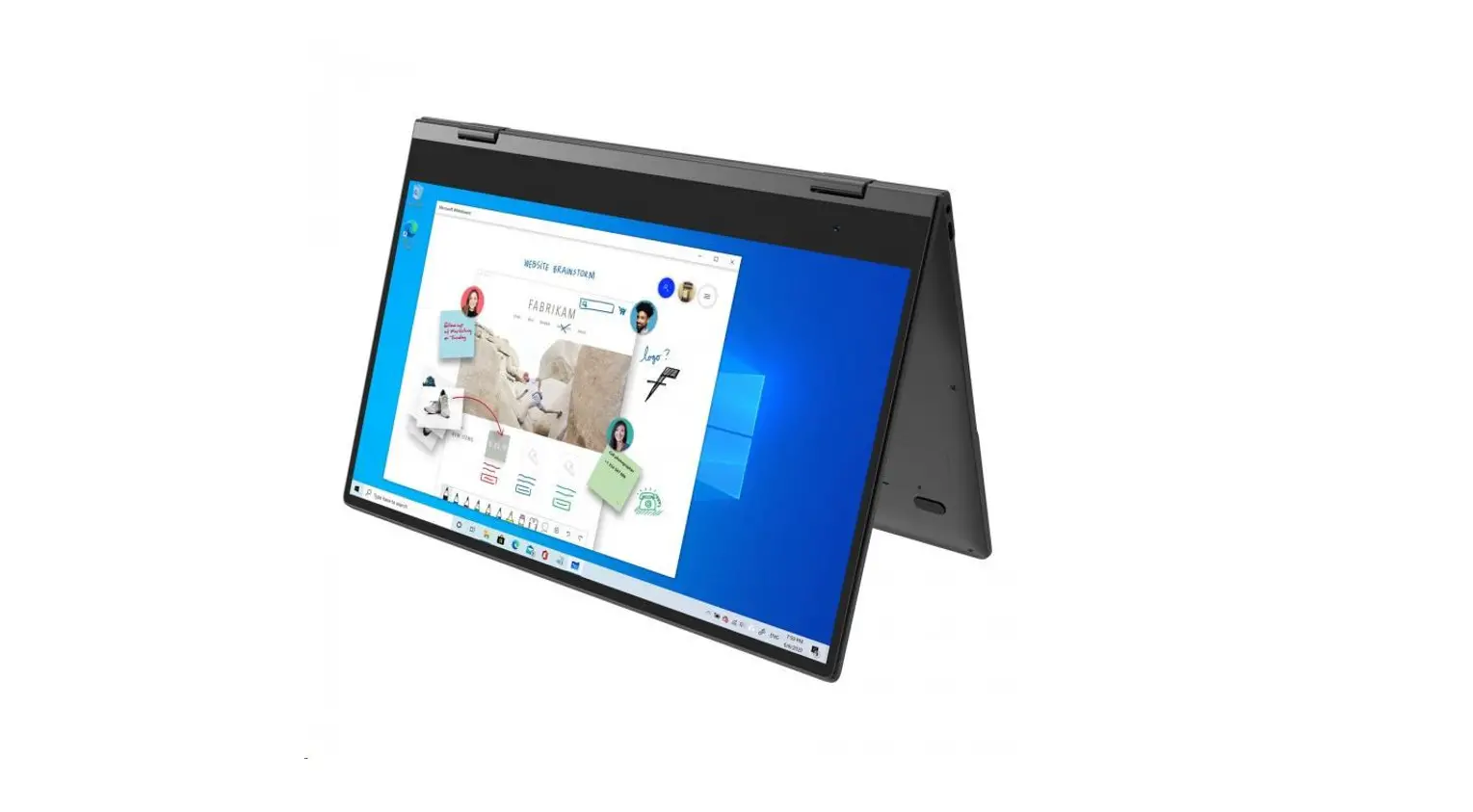
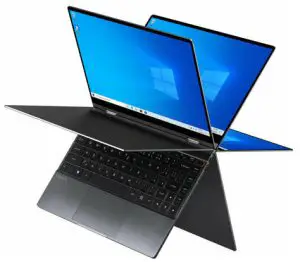
You can rotate the laptop screen up to 360 degrees. Rotating the screen into the stand, tent, and tablet mode disables the keyboard and touchpad. Rotating the screen into a portrait mode turns the screen orientation.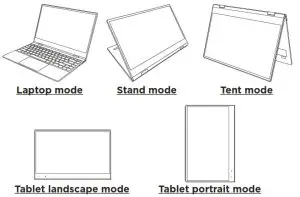
TOUCH SCREEN GESTURES IN WINDOWS 10
Left edge swipe
Swipe from the left edge of the screen to launch Task view.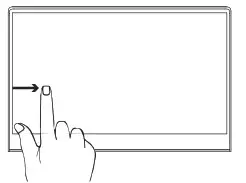 Right edge swipe
Swipe from the right edge of the screen to launch the Action Center.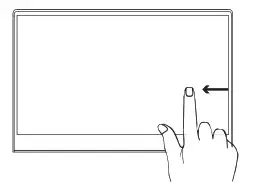
Tap and double tap
Tap an app to select it.
Double-tap an app to launch it.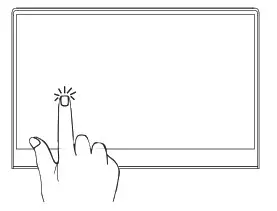
Zoom in
Spread apart your two fingers on the touch screen panel to zoom in.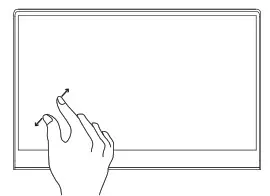 Zoom out
Bring together your two fingers on the touch screen panel to zoom out.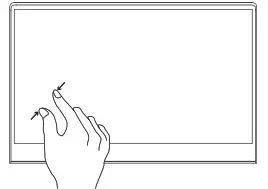
Finger slide
Slide your finger to scroll up and down.
Slide your finger to pan the screen left or right.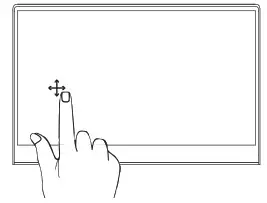
Drag
Drag to create a selection box around multiple items.
Drag and drop an item to move it to a new location.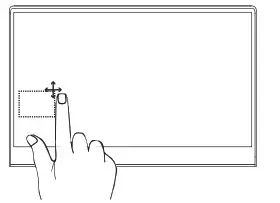
ADDING STORAGE
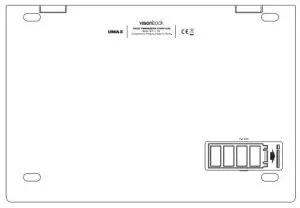
You can add storage space for saving files and installing programs by adding an M.2 SATA SSD drive. Important: The M.2 SSD must be a SATA type, NVMe is not supported! The supported length of M.2 SATA SSD is 2242 and 2280.
- Turn off your laptop.
- Unscrew the hatch on the backside of your laptop.
- Insert the M.2 SATA SSD in the orientation shown in the picture.
- Screw the security screw to hold the SSD in place.
- Screw back the protection hatch.
A New SSD drive might need to be initialized and formatted before it can be used.
- Press Windows + X to open the Windows context menu.

- Select Disk Management.
- Pop up window will appear. Follow the steps to initialize the drive and format it as NTFS.


SAFETY INFORMATION
Operating temperature: 10° to 35° C, storage temperature: -25° to 45° C, relative humidity: 0% to 90% (noncondensing).
Built-in battery. Do not attempt to replace or remove the battery yourself. You may damage the battery, which could cause overheating and injury. The battery should be replaced by an authorized service provider and must be recycled or disposed of separately from household waste.
Handle with care. It has sensitive electronic components inside. Place it on a stable work surface that allows for air circulation under and around the computer. Your computer can be damaged if dropped, burned, punctured, or crushed, or if it comes in contact with liquids, oils, and lotions. Do not use a damaged computer as it may cause injury.
Liquid exposure. Keep your computer away from sources of liquid, such as drinks, oils, lotions, sinks, bathtubs, shower stalls, and so on. Protect your computer from dampness, humidity, or wet weather, such as rain, snow, and fog.
Charging. Charge only with the included power adapter. Other power adapters might not meet safety standards, and using such power adapters could pose a risk of death or injury. Using damaged power adapters or cables, or charging when moisture is present, can cause fire, electric shock, injury, or damage to your computer or other property. Do not use a power adapter in wet locations, such as near a sink, bathtub, or shower stall, or connect or disconnect the power adapter with wet hands.
Medical device interference. It contains components and radios that emit electromagnetic fields, including magnets, which may interfere with pacemakers, defibrillators, and other medical devices. Maintain a safe distance between your medical device and computer. Consult your physician and medical device manufacturer for information specific to your medical device.
Repetitive motion. When you perform repetitive activities such as typing or playing games, you may experience discomfort in your hands, arms, wrists, shoulders, neck, or other parts of your body. If you experience discomfort, stop using the computer and consult a physician.
Choking hazard. Some accessories may present a choking hazard to small children.
Keep these accessories away from small children.
High-consequence activities. Your computer is not intended for use where the failure of the computer could lead to death, personal injury, or severe environmental damage.
Explosive and other atmospheric conditions. Using computers in any area with a potentially explosive atmosphere may be hazardous—particularly in areas where the air contains high levels of flammable chemicals, vapors, or particles such as grain, dust, or metal powders. Exposing computers to environments having high concentrations of industrial chemicals, including evaporating liquified gases such as helium, may damage or impair its functionality.
TECHNICAL SUPPORT AND SERVICE CENTER
+420 800 118 629
[email protected]
Umax Czech a.s.
Kolbenova 962/27e
198 00 Prague 9
Czech Republic
MANUFACTURER
Umax Czech a.s., Kolbenova 962/27e, 198 00 Prague 9, Czech Republic
KEEP IN TOUCH
 |  |  |  |
| www.umax.cz | umax.cz | UMAX Czech Republic | UMAX Czech |
 Do not dispose of electrical appliances as unsorted municipal waste, use separate collection facilities. Contact your local authority for information regarding the collection systems available. If electrical appliances are disposed of in landfills or dumps, hazardous substances can leak into the groundwater and get into the food chain, damaging your health and well-being. Please contact your local or regional waste authority for more information on collection, reuse and recycling programs.
Importer hereby declares that this wireless device is in compliance with the essential requirements and other relevant provisions of the R&TTE Directive and Radio Equipment Directive 2014/53/EU, as applicable. A copy of the EU Declaration of Conformity is available at www.umax.cz.
© 2021 Umax Czech a.s. All rights reserved. Umax, Umax logo, Visionbook, and Visionbook logo are trade- marks of Umax Czech a.s. Windows is a registered trademark of Microsoft Corporation. All other trademarks are the property of their respective owners.