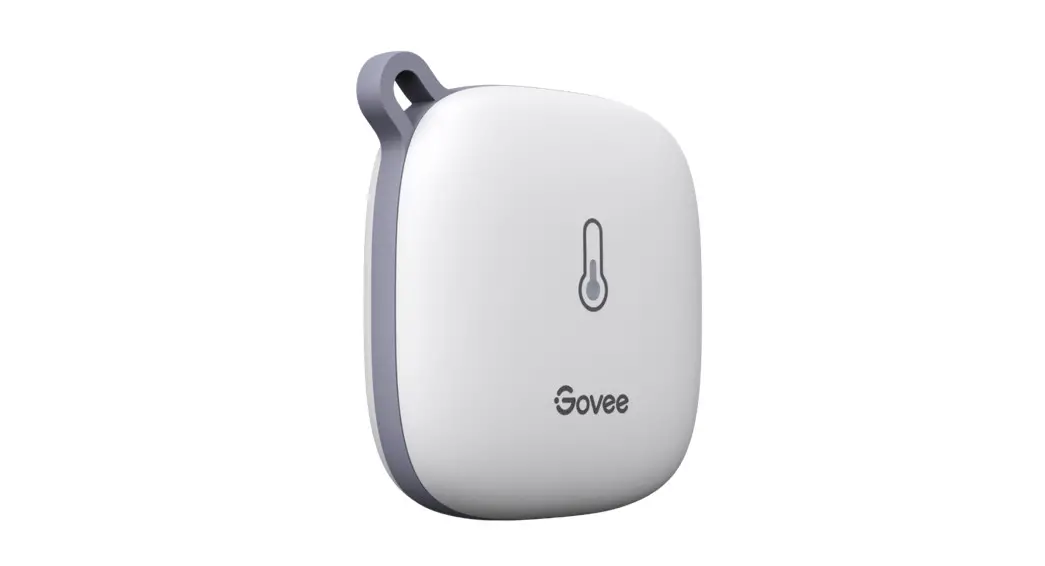

User Manual
Model: H5074
Smart Thermo-Hygrometer
At a Glance
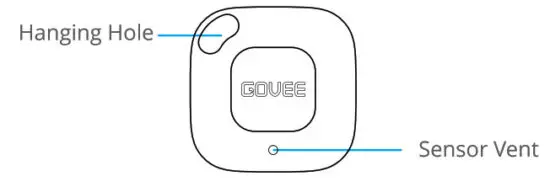
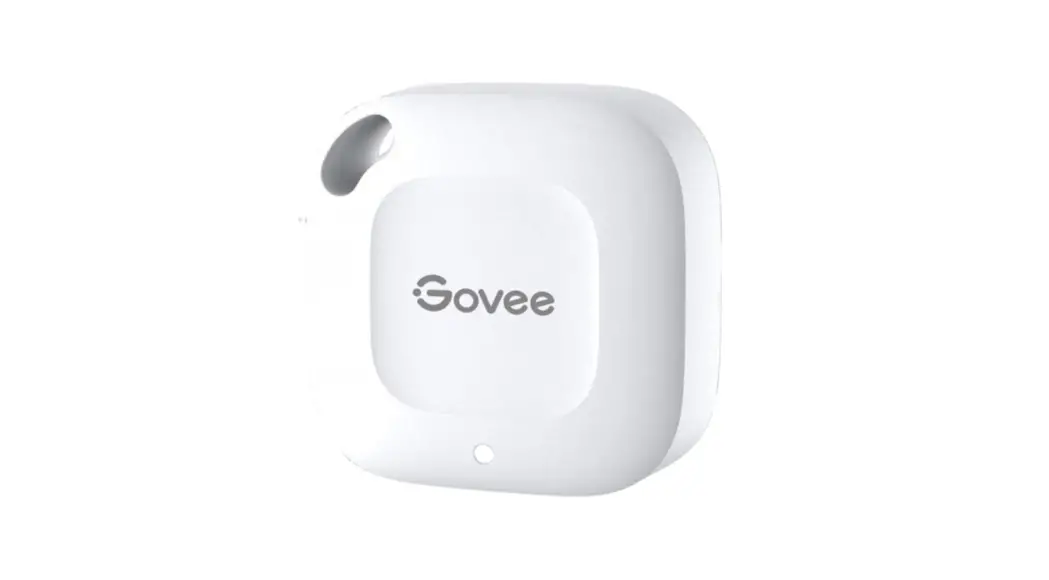
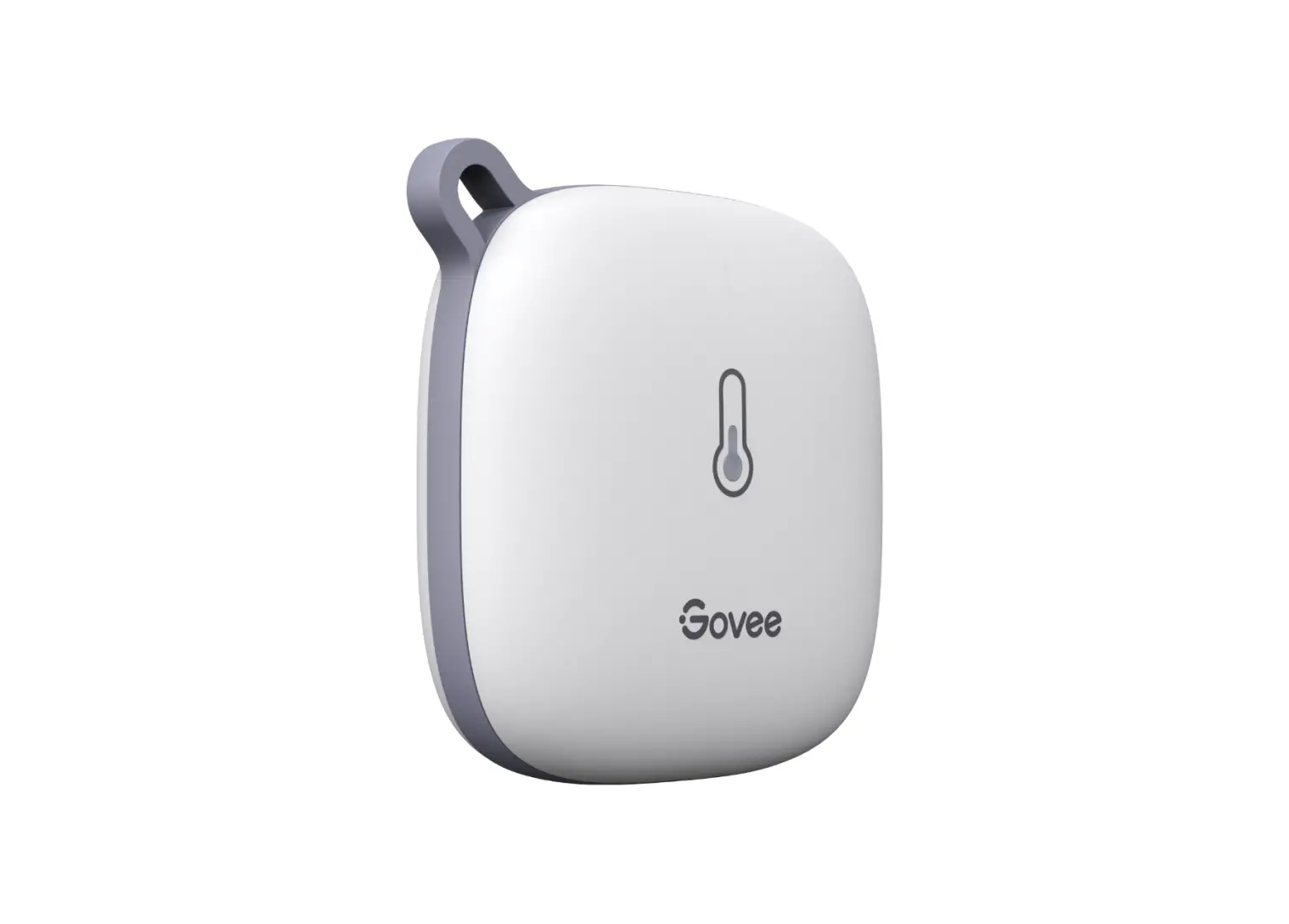
| Smart Thermo-Hygrometer | 1 |
| CR2477 Button Cell (Built-in) | 1 |
| Lanyard | 1 |
| User Manual | 1 |
| Service Card | 1 |
Specifications
| Accuracy | Temp: ±0.54°F/±0.3°C, Humidity: ±3% |
| Operating Temp | -20°C – 60°C (-4°F -140°F) |
| Operating Humidity | 0% – 99% |
| Bluetooth-enabled Distance | 80m/262ft (No obstacles) |
Installing Your Device
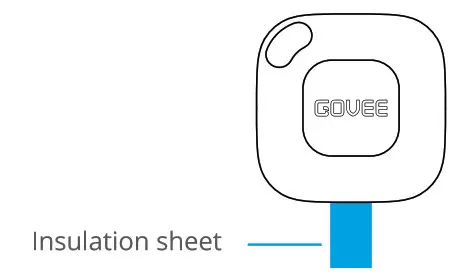
- Pull out the battery insulation sheet
- Install the device.
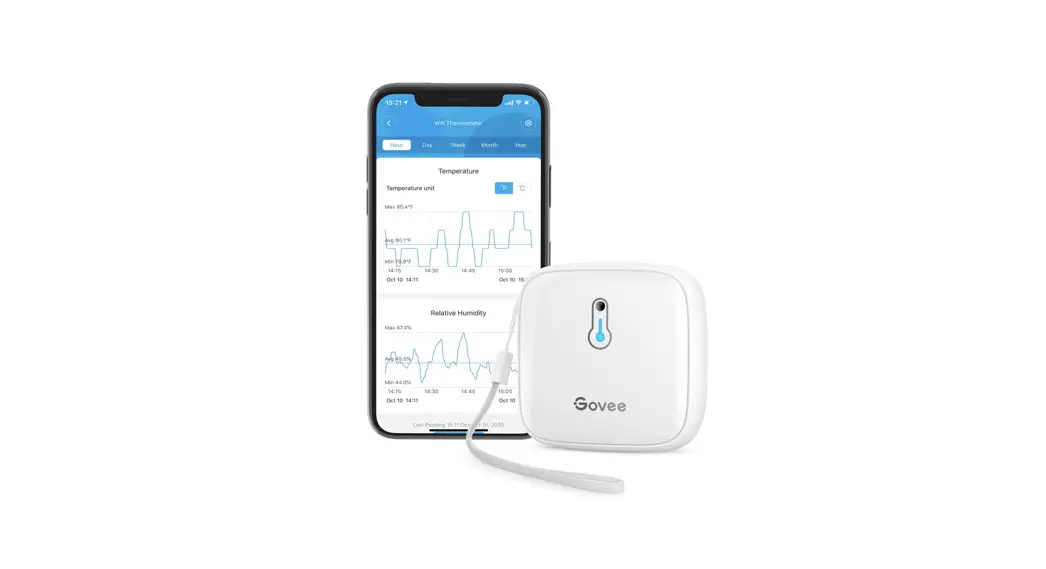
Place the device anywhere you want or hang it with the lanyard.
Downloading the Govee Home App
Download the Gove Home app from the App Store (i0S devices) or Google Play (Android devices).
Connecting to Bluetooth
- Turn on Bluetooth on your phone and get close to the thermo-hygrometer. (Location Services/GPS should be turned on for Android users).
- Open Gove Home, tap the “+” icon at the top right corner, and select “HSO74”.
- Follow instructions in the app to complete connecting.
- Please check the above steps and try again if the connection fails.
Using the Thermo-Hygrometer with Govee Home App
°F/°C Switch
Switch the temperature unit between °F and °C.
Data Export
Export historical temp and humidity records to CSV format after filling in the mailbox.
Alarm me
App pushes alert messages once temp/humidity is beyond the preset range.
Calibration
Calibrate the temp and humidity readings.
Data Clear
Clear local and Cloud storing data.
Troubleshooting
- Cannot connect to Bluetooth.
a. Make sure Bluetooth in your phone has been turned on.
b. Connect to the thermo-hygrometer in the Govee Home app instead of the Bluetooth list on your phone.
c. Keep the distance between your phone and the device less than 80m/262ft. d. Keep your phone as close to the device as possible.
e. Make sure that Android device users turn on Location and iOS users select “Setting – Govee Home – Location – Always” on the phone. - Data in the app is not updated. a. Make sure the device has connected to the Gove Home app.
b. Make sure that Android device users turn on Location and iOS users select “Setting – Govee Home – Location – Always” on the phone. - Cannot export data in the app.
Please sign up and log into your account before exporting data.
Warning
- The device should work in an environment with a temperature ranging from -20 C to 60 C and humidity from 0% to 99%.
- Please take out batteries if you don’t use the device for an extended period of time.
Prevent dropping the device from a high place. - Do not disassemble the device aggressively.
- Do not immerse the device in water.
Customer Service
 Warranty: 12-Month Limited Warranty
 Support: Lifetime Technical Support
 Email: [email protected]
 Official Website: www.govee.com
 @Govee
  @Govee
  @Govee
  @Goveeofficial