

Contactless Pay Terminal
User Manual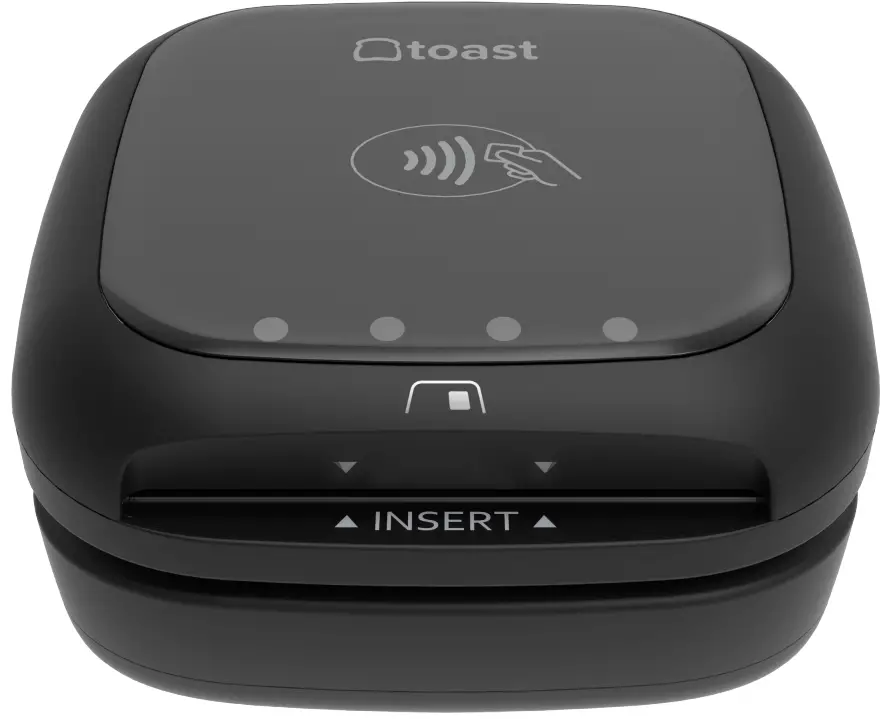
INSTALLATION & CONFIGURATION
INSTRUCTIONS
WHAT’S IN THE BOX?
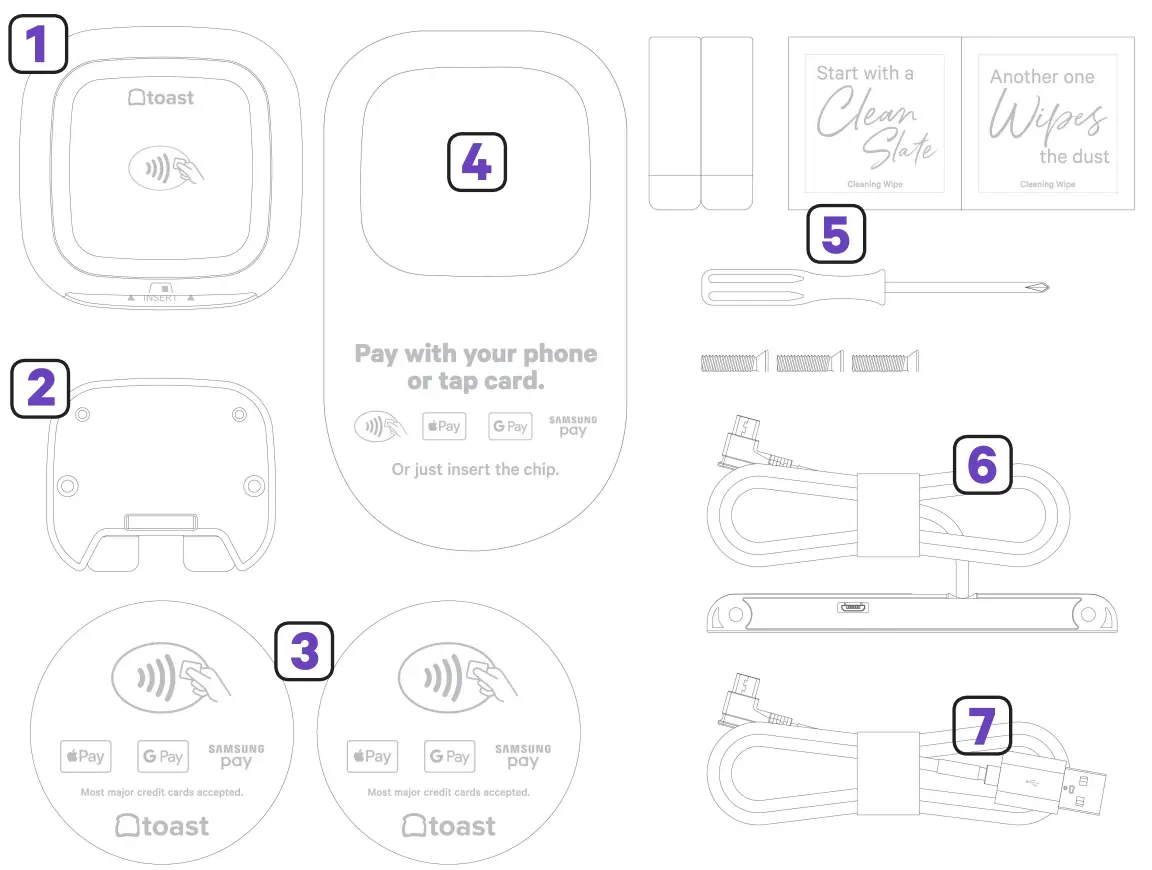
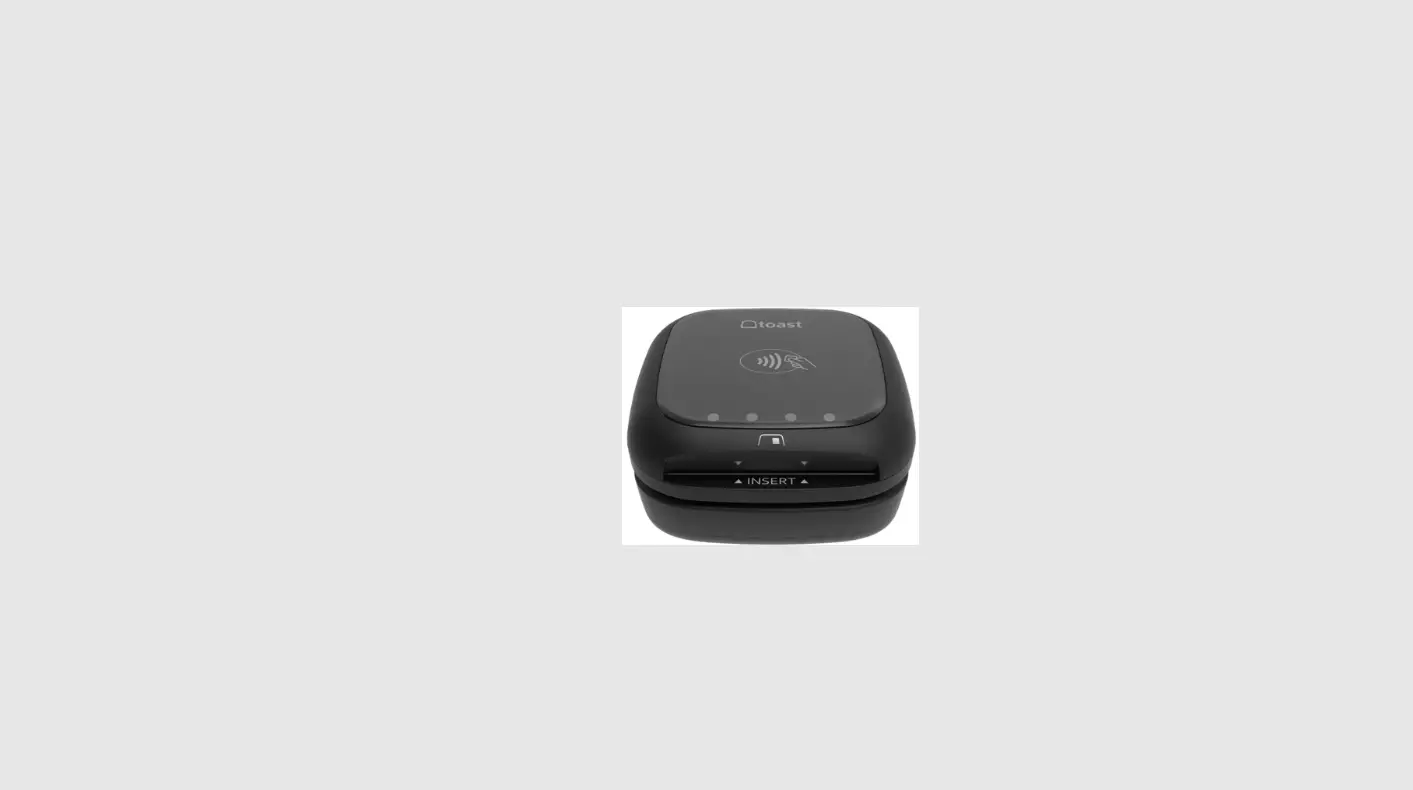
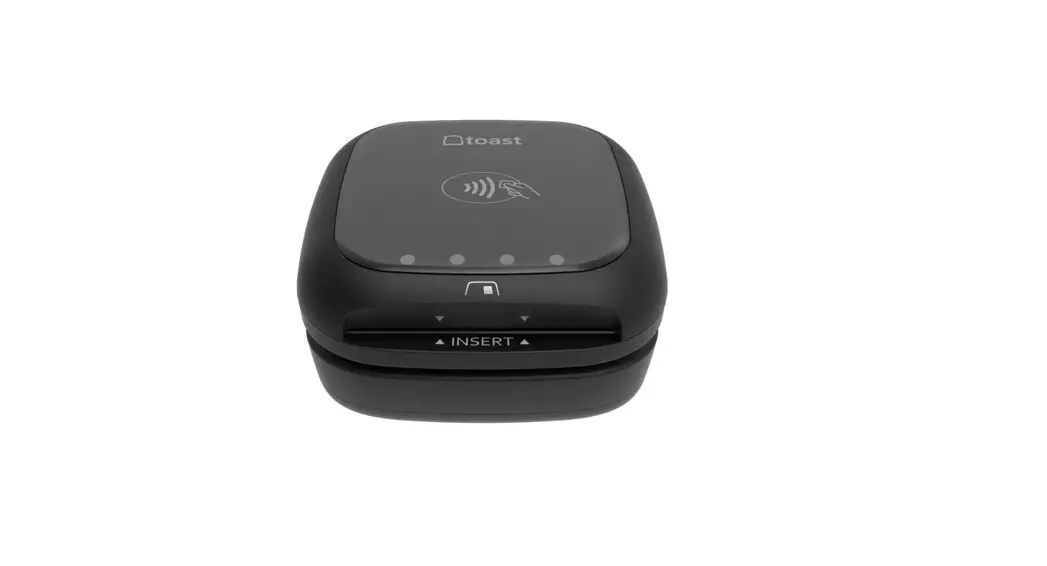
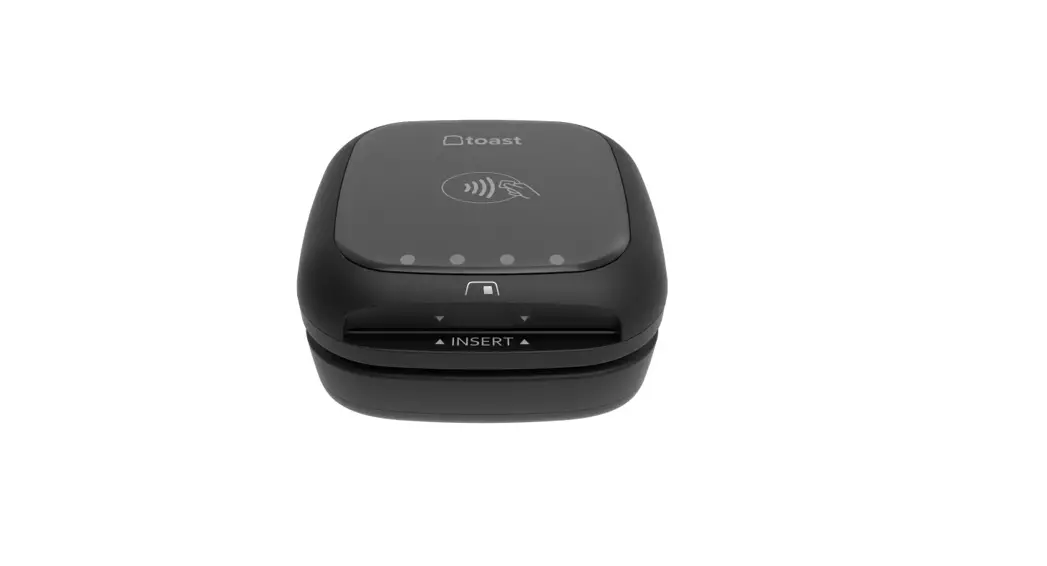
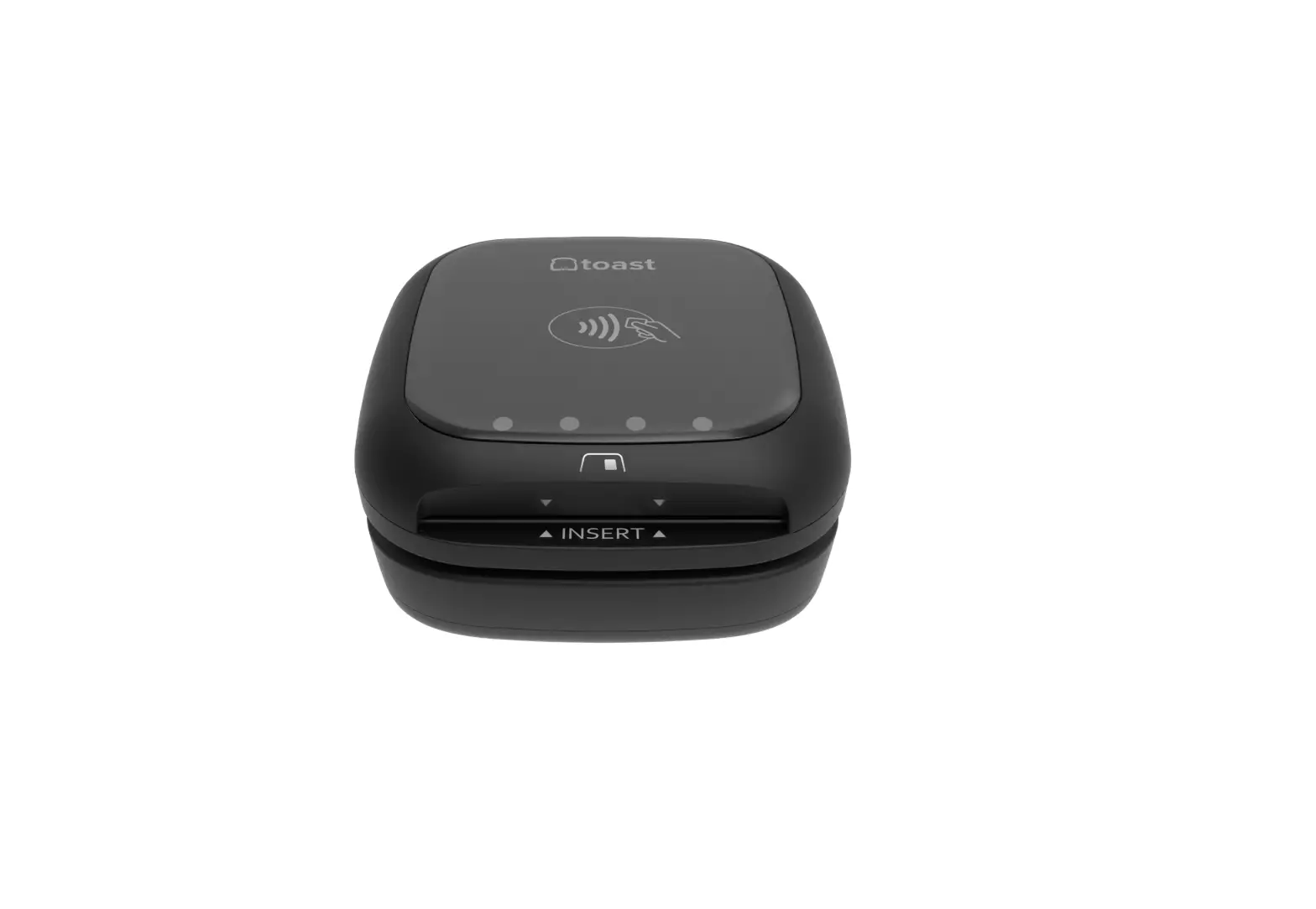
- Contactless Puck
- Contactless Reader Plate with adhesive Stickers for your door or
- windows to advertise the types of payments you can accept
- Counter placement pad for your Contactless Puck
- Tool kit containing a screwdriver, alcohol wipes, and extra adhesives
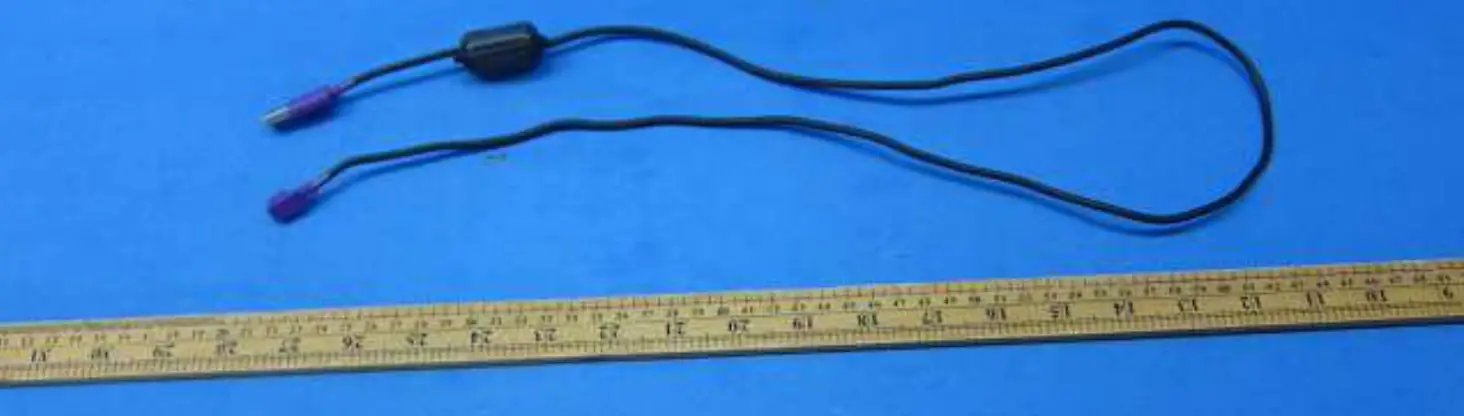
- Micro-USB to Micro-USB cable 3
- USB-A to Micro-USB cable
 Note: You will only use one of them! cables are provided to install your contactless reader.
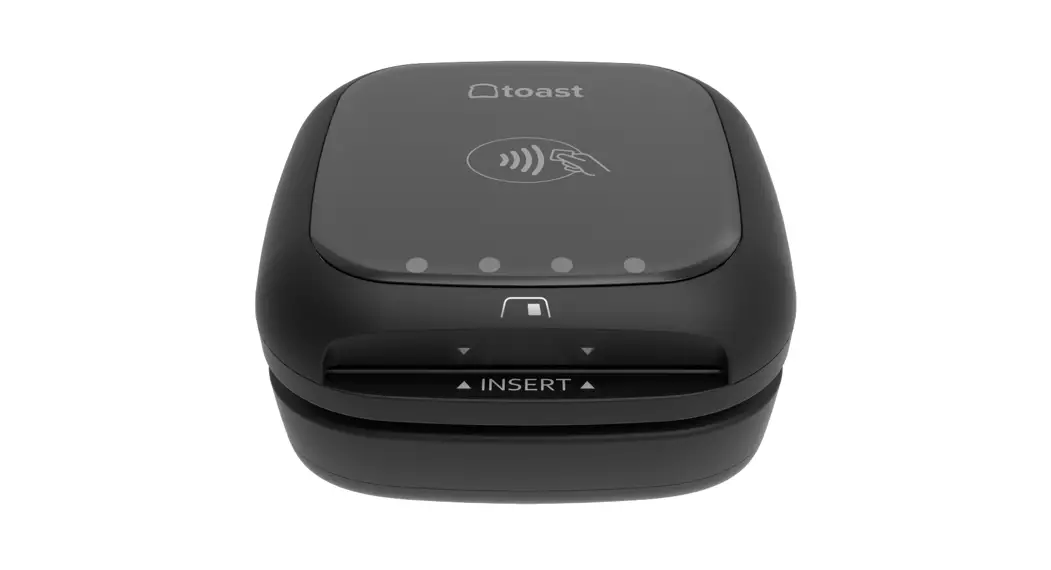
YOUR NEW CONTACTLESS PUCK
Here’s a breakdown of your new hardware. Below explains each light and both ways to insert or slide cards.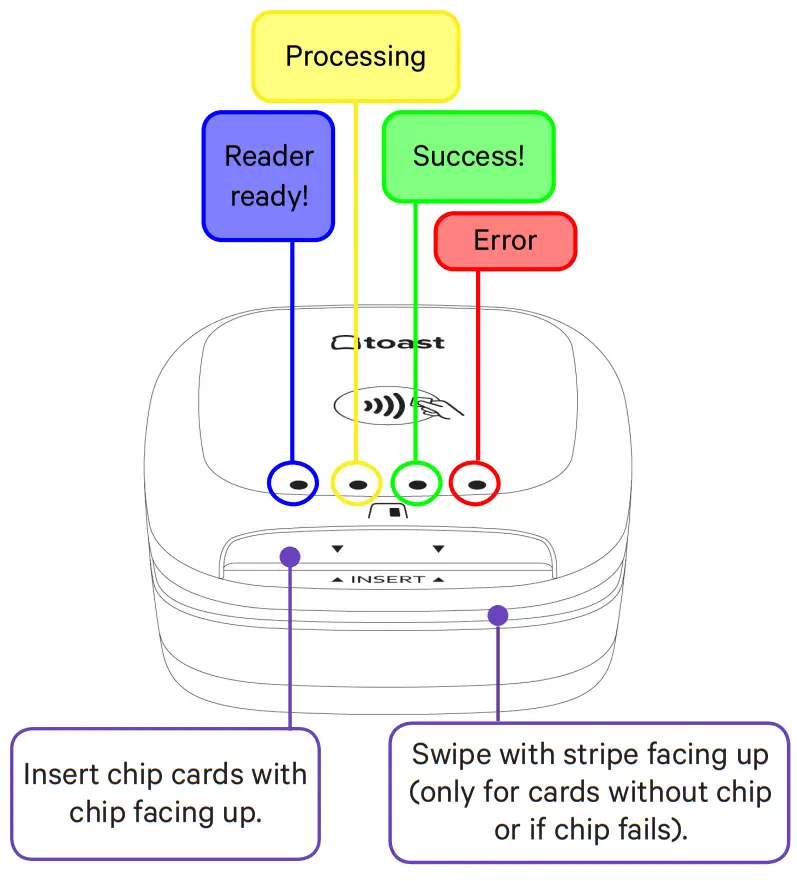
ASSESS YOUR COUNTER SPACE AND TERMINAL
Wipe down the countertop with the alcohol wipe provided in your tool kit. This will make it even easier for your contactless puck to adhere properly.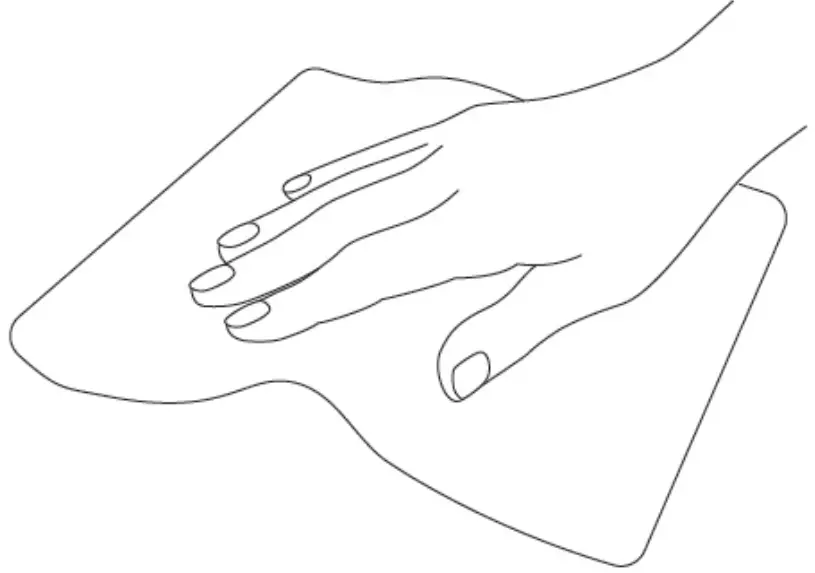
Next, if you have an existing card reader, physically remove it before installation. You’ll also need to digitally remove the reader in Toast following these steps:
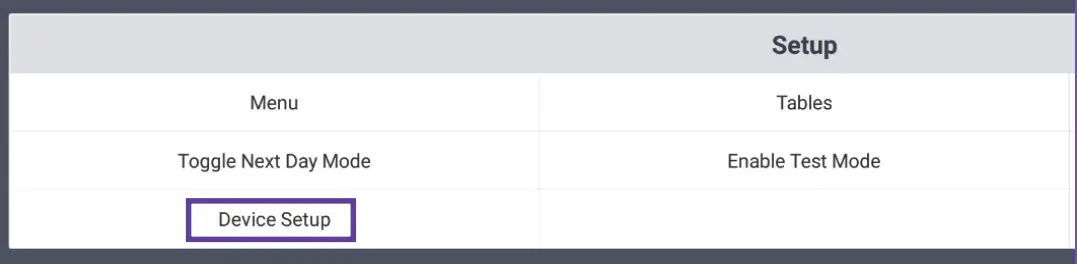
- Navigate to the main menu on your terminal, then select Device Setup.

- Select the card reader, then select the red Remove Card Reader option.
PICK YOUR CABLE FOR INSTALLATION
Begin by determining the cable you’ll use to plug in your contactless reader.
You’ll only use one of these cables.
USB-A to Micro-USB cable
We recommend using this cable if you have an available port open on your Toast Hub, USB-Hub, or Toast Printer.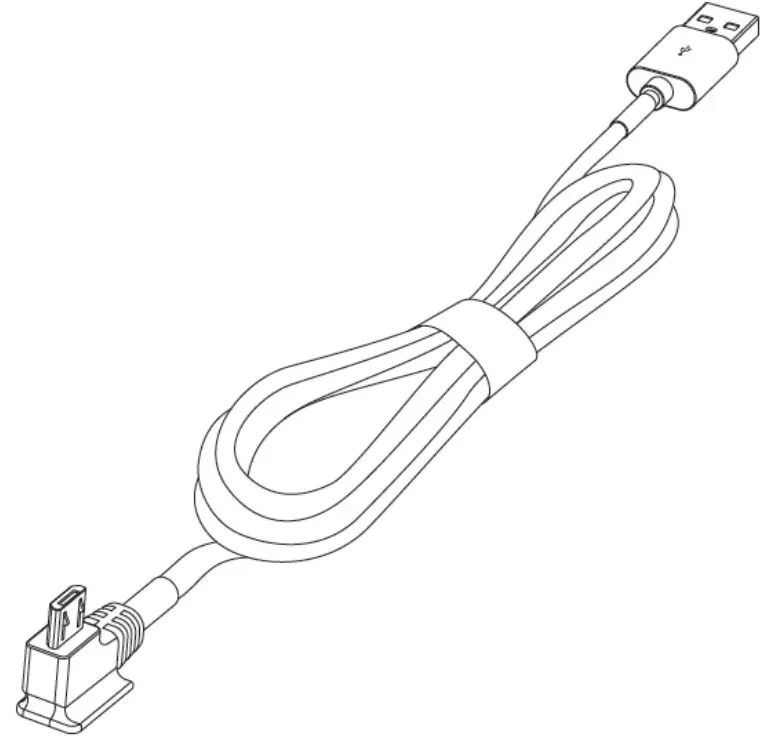
This cable plugs into the USB port on your device.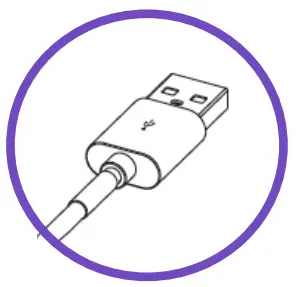 See installation instructions for the USB-A to Micro-USB cable on the next page.
Micro-USB to Micro-USB cable
If you don’t have an available port, or if you only have a terminal, use this cable instead.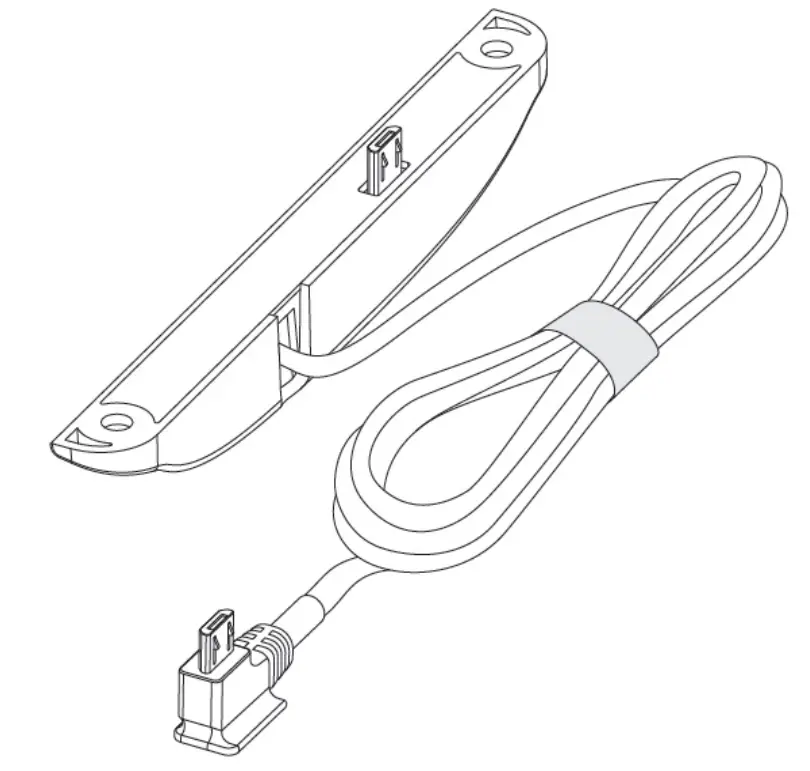
This cable with the plate attached plugs into the side of your terminal and is adhered with screws.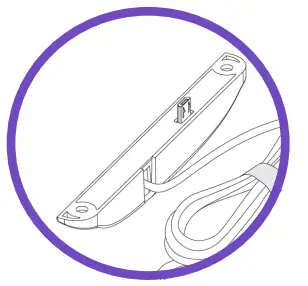 Jump ahead to the Micro-USB to Micro-USB installation instructions.
USBA TO MICRO-USB INSTALL STEPS
- Take the USB-A end of the cable and plug it into your Toast Hub or USB-Hub.
 Or plug the USB end of the cable into your Toast Printer.
- Plug in the remaining Micro-USB side into the bottom of the puck.
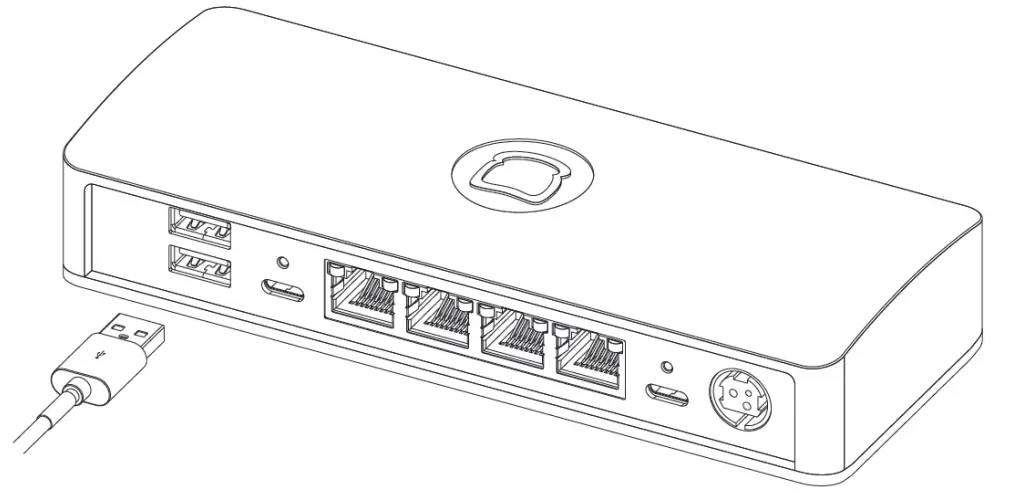 Or plug the USB end of the cable into your Toast Printer.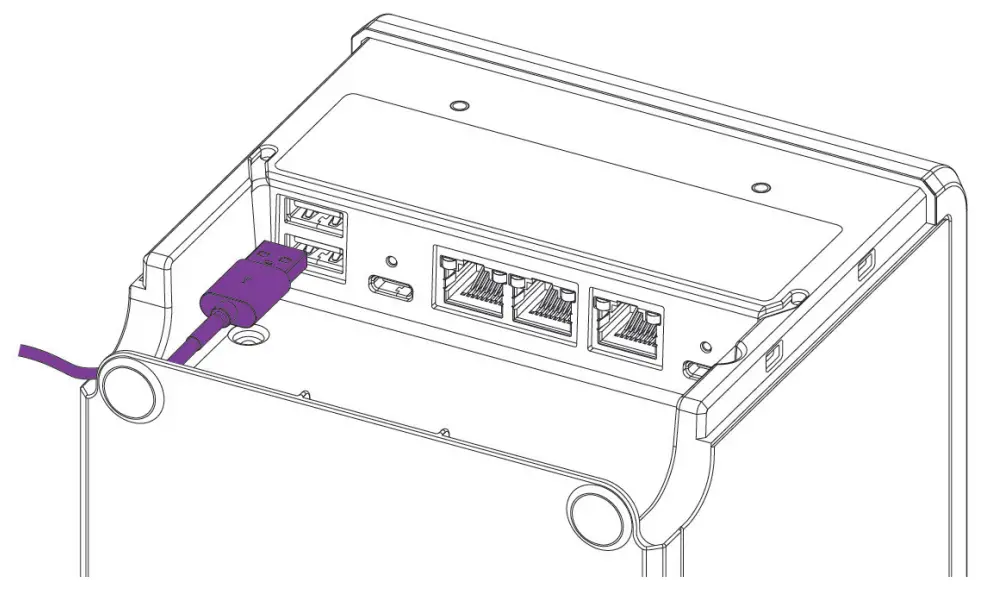
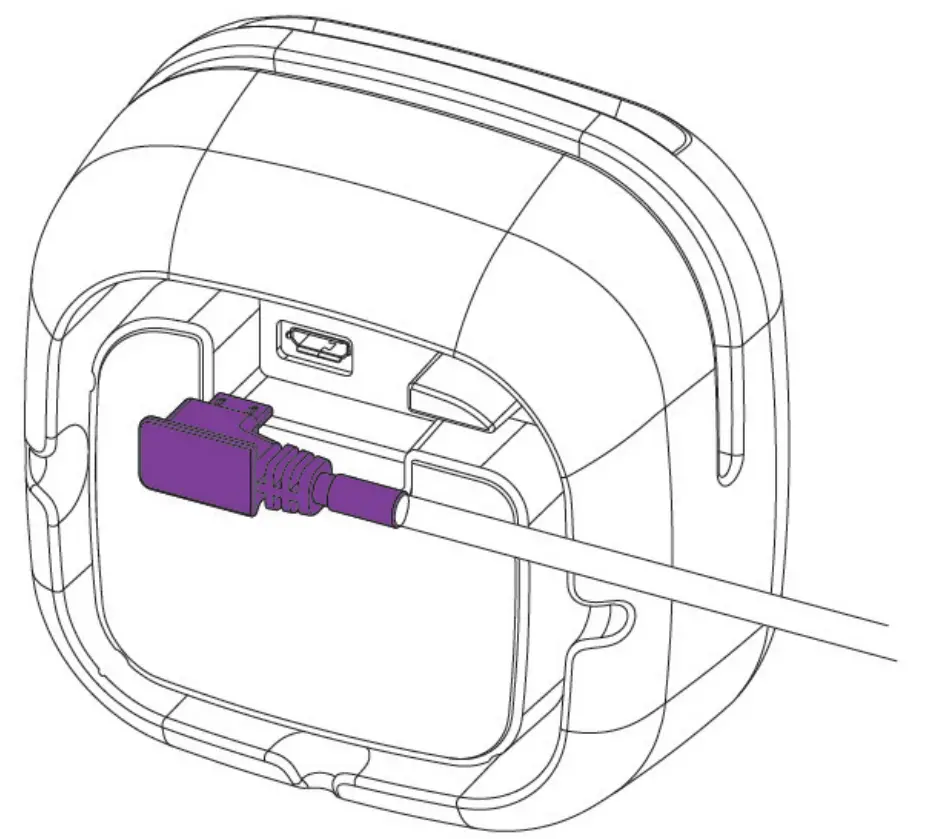 The end of this cable will be marked “to the reader.” Nice work! Next, turn to the EMV Configuration section to enable all types of payments.
MICRO-USB TO MICRO-USB INSTALL STEPS
- Remove the plate covering the port on the side of your terminal.

- Plug at the end of the Micro-USB cable paired with the cover and screws. Then screw in the plate to the terminal.

- If your terminal stand has a neck to hide the cable, feed it through for a cleaner look.
- Plugin the remaining end into the bottom of the puck.

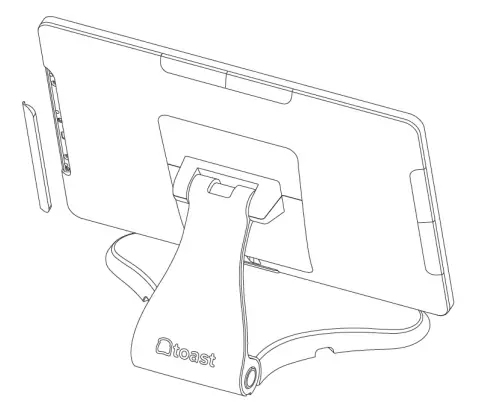
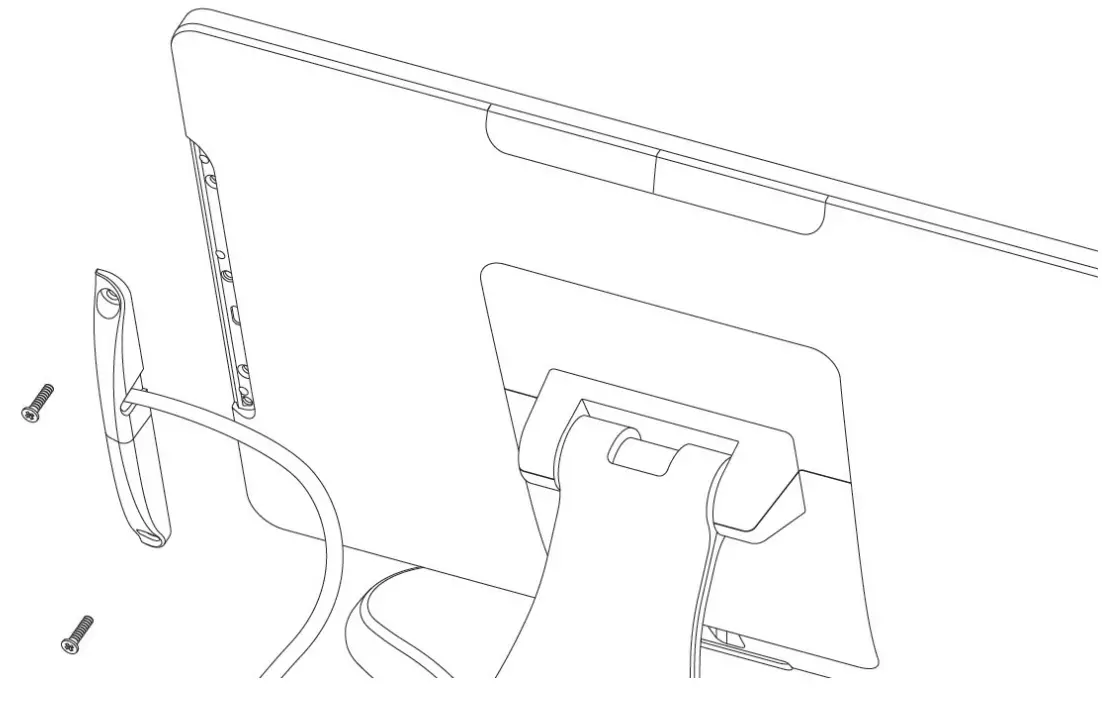
The end of this cable will be marked “to the reader.”
Nice work! Turn to the next page to enable EMV so your reader can accept all types of payment.
EMV CONFIGURATION
Your contactless reader will auto-detect once plugged into your Toast system.
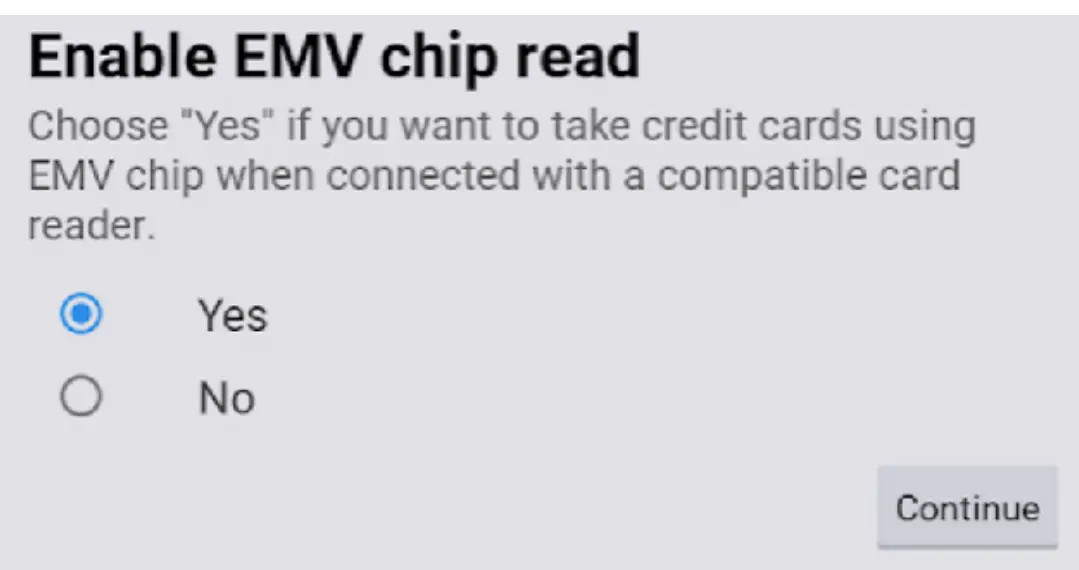
You’ll need to enable EMV for the ability to take chip cards and contactless payments.
- Once the puck has been properly plugged into your Toast hardware, restart your terminal.
- From the main menu in Toast, select Device Setup.

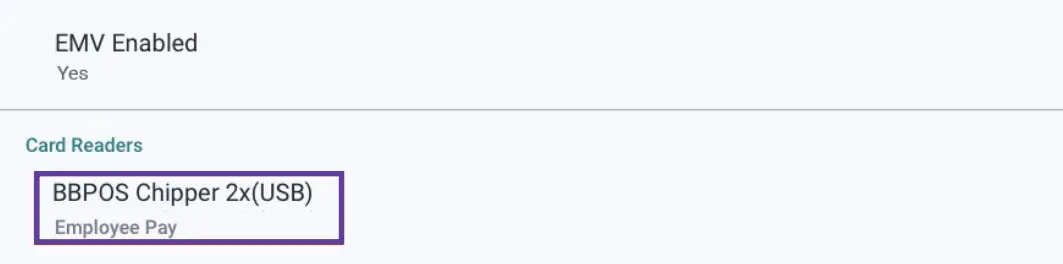
- In the list of settings, there will be an option EMV Enabled. Make sure that this is turned on.

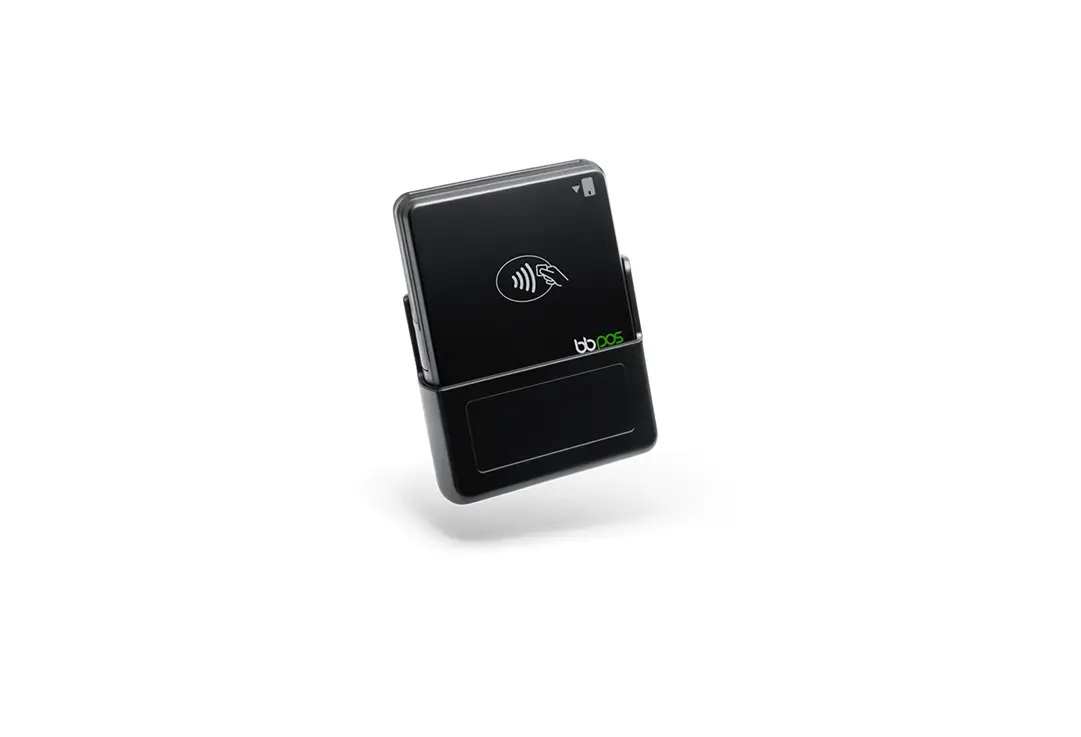
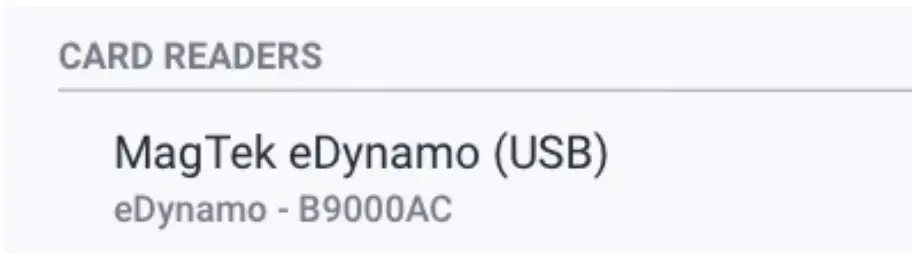
- You’ll see an option for Card Readers below the EMV settings. Your new contactless puck is listed as:
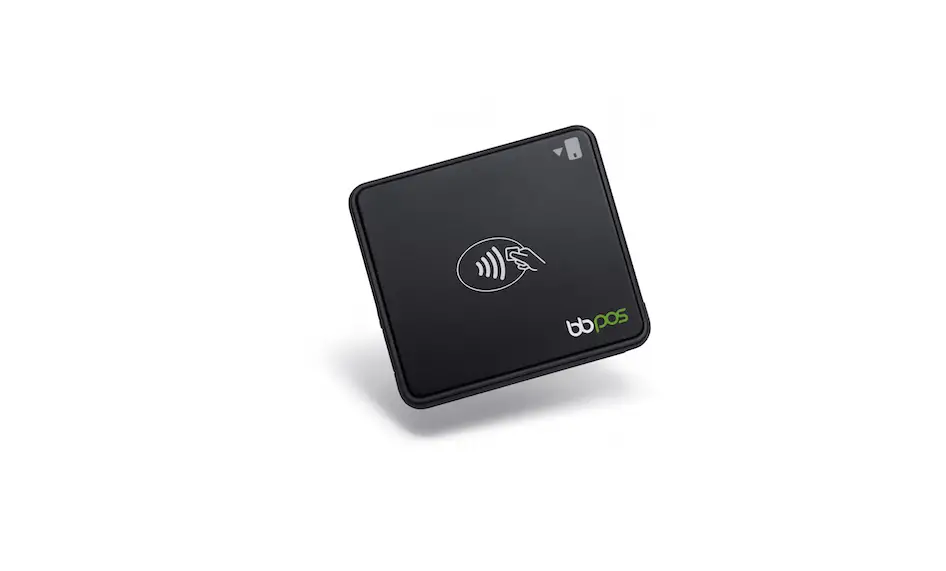
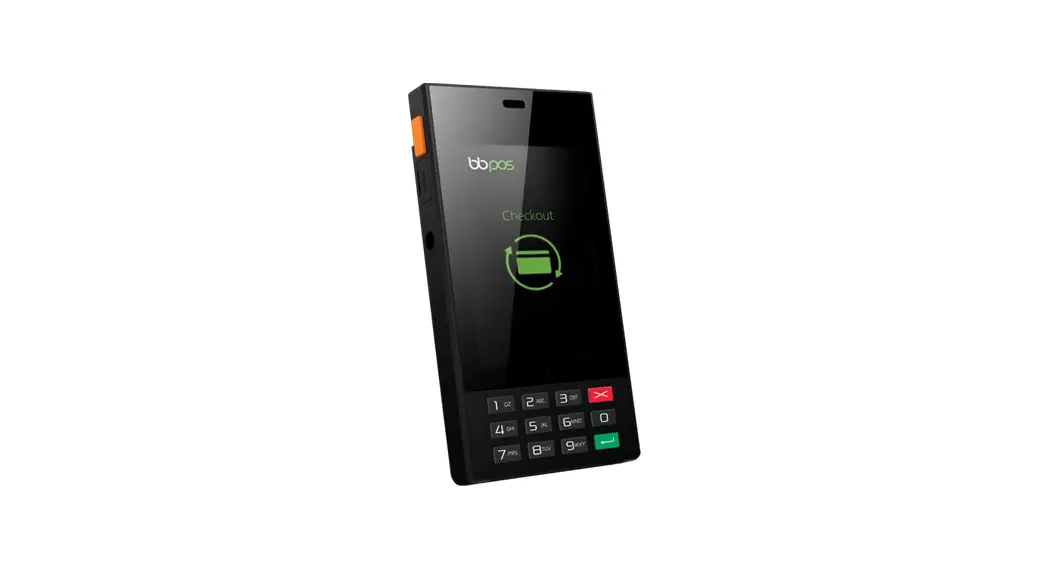
BBPOS Chipper 2X(USB)
Confirm this is listed. You may also be prompted to update the reader’s software. If so, opt into the update.
If you have a second screen attached to your terminal – also known as a guest-facing display – you may have an additional swipe-only card reader. If you have this, make sure the BBPOS Chipper 2X(USB) reader is set to Guest Pay.
Note: Switching out readers automatically turns the EMV setting off. Even if you’ve already enabled it, EMV will need to be turned on again.
FINISHING TOUCHES
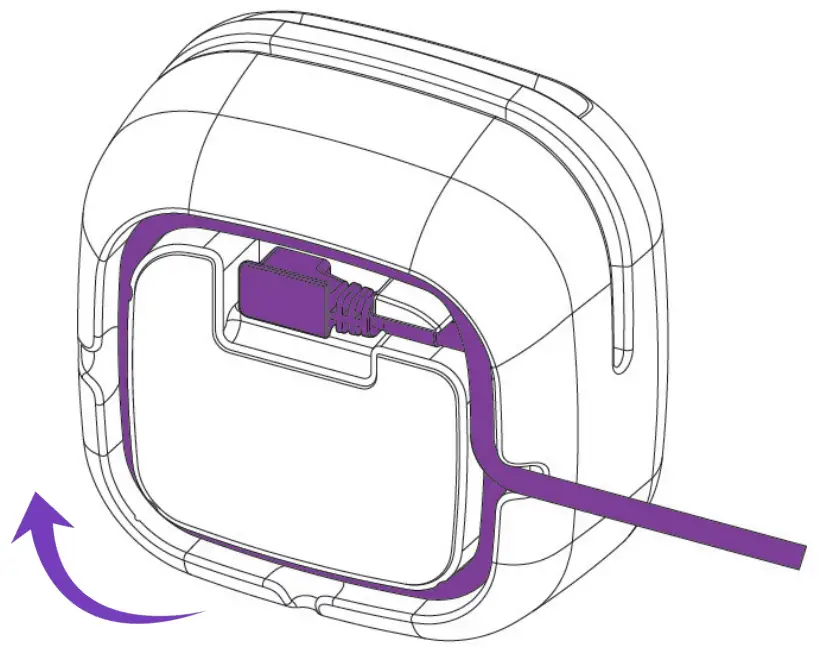
- Wrap your cable around the inside of your puck in a clockwise motion to reduce wire clutter.

- To anchor your contactless puck, take the plate with adhesive and apply it to your counter surface.
 Keep in mind, the adhesive is strong, so plan your anchoring spot wisely.
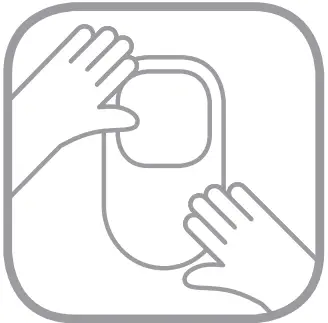
 - Firmly press the plate down with the adhesive and hold for six seconds. The “insert” side should face toward your guests.
 The reader can sit on the plate but can be removed to fit any scenario.
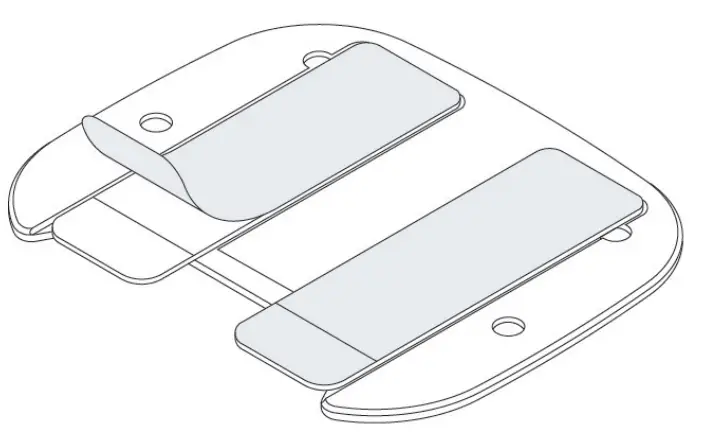 Keep in mind, the adhesive is strong, so plan your anchoring spot wisely.
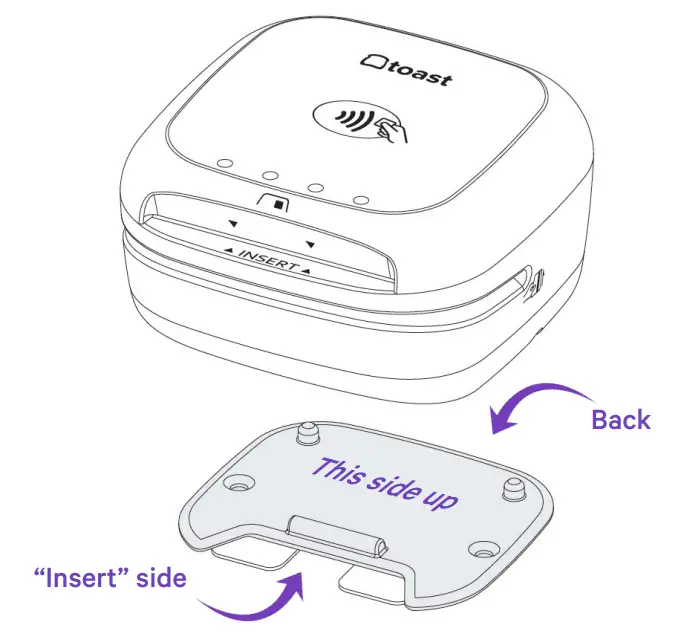 The reader can sit on the plate but can be removed to fit any scenario.
Cards can be:
- Tapped on the top of the puck.
- Dipped into the front slot with the card chip facing up.
- Swiped across in any direction with the card stripe facing upwards.

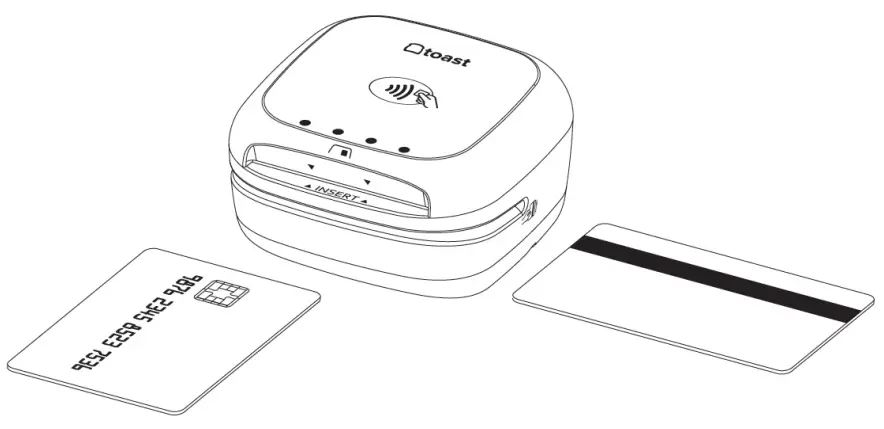
Note: If you were using a card reader with dip options prior, you’ll need to reconfigure your manager swipe cards.
Let your customers know they can pay with contactless.
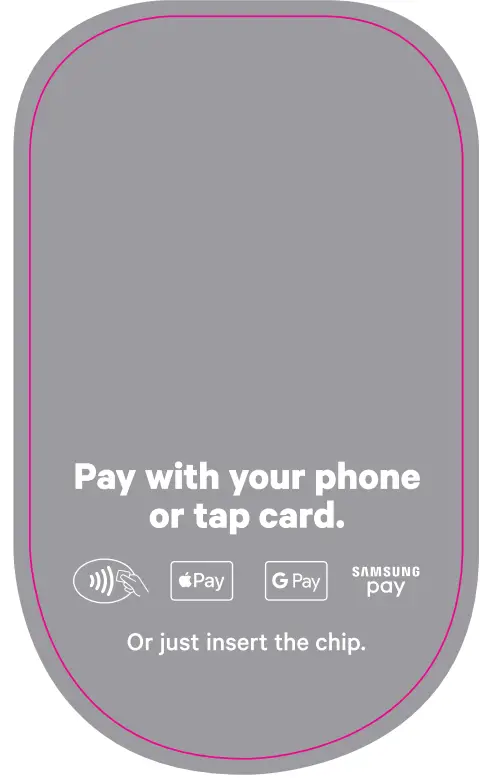
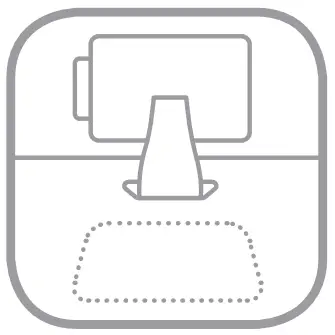
- Find a visible clean spot on the counter to display the card reader and mat.

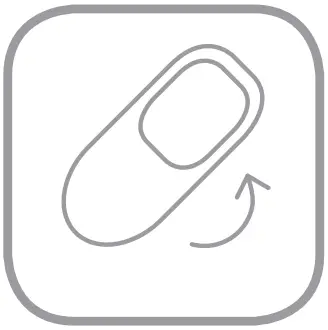
- Flip mat over to preferred color treatment.

- Place on the surface in your preferred location

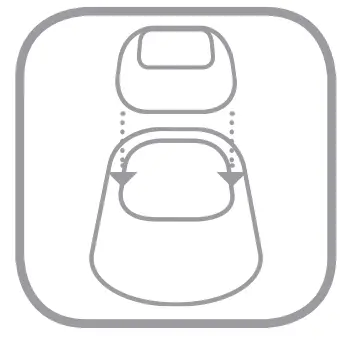
- Place the Toast puck device in the space provided.

Questions?
See the Contactless Reader Troubleshooting Guide. Or contact Toast Support online or via phone at 617-682-0225. http://bit.ly/ContactlessTroubleshooting
Scan the QR code with the camera app on your phone to access these documents for more info! Set up for success with Training & Best Practices. http://bit.ly/ContactlessTraining
The user shall use the supplied USB cable if an available port open on the product
FCC Caution Statement
FCC Supplier’s Declaration of Conformity:
BBPOS /TD200 (TD200W,T13200,13200W.CHB25,CHB26,CH132C,CHB2D,CHB2H,CHB2J)
This device complies with Part 15 of the FCC Rules. Operation is subject to the following two conditions: (1) This device may not cause harmful interference, and (2) This device must accept any interference received, including interference that may cause undesired operation.
BBPOS Corp. 970 Reserve Drive, Suite 132 Roseville, CA 95678 www.bbpos.com
Caution: Any changes or modifications not expressly approved by the party responsible for compliance could void the user’s authority to operate the equipment.
This equipment has been tested and found to comply with the limits for a Class B digital device, pursuant to part 15 of the FCC rules. These limits are designed to provide reasonable protection against harmful interference in a residential installation. This equipment generates, uses, and can radiate radio frequency energy and, if not installed and used in accordance with the instructions; may cause harmful interference to radio communications. However, there is no guarantee that interference will not occur in a particular installation. If this equipment does cause harmful interference to radio or television reception, which can be determined by turning the equipment off and on, the user is encouraged to try to correct the interference by one or more of the following measures:
- Reorient or relocate the receiving antenna.
- Increase the separation between the equipment and receiver.
- Connect the equipment into an outlet on a circuit different from that to which the receiver is connected.
- Consult the dealer or an experienced radio/TV technician for help.
This transmitter must not be co-located or operating in conjunction with any other antenna or transmitter.
This equipment complies with FCC RF radiation exposure limits set forth for an uncontrolled environment. This equipment should be installed and operated with a minimum distance of 20cm between the radiator and any part of your body.